7” miSCROLL - NAS Storage Options - Free user manual and instructions
Find the device manual for free 7” miSCROLL Storage Options in PDF.


User questions about 7” miSCROLL Storage Options
0 question about this device. Answer the ones you know or ask your own.
Ask a new question about this device
Download the instructions for your NAS in PDF format for free! Find your manual 7” miSCROLL - Storage Options and take your electronic device back in hand. On this page are published all the documents necessary for the use of your device. 7” miSCROLL by Storage Options.
USER MANUAL 7” miSCROLL Storage Options
text_image
8:30 PM Settings Music Browser Gallery VideoINSTRUCTION MANUAL
GETTING TO KNOW YOUR MISCROLL
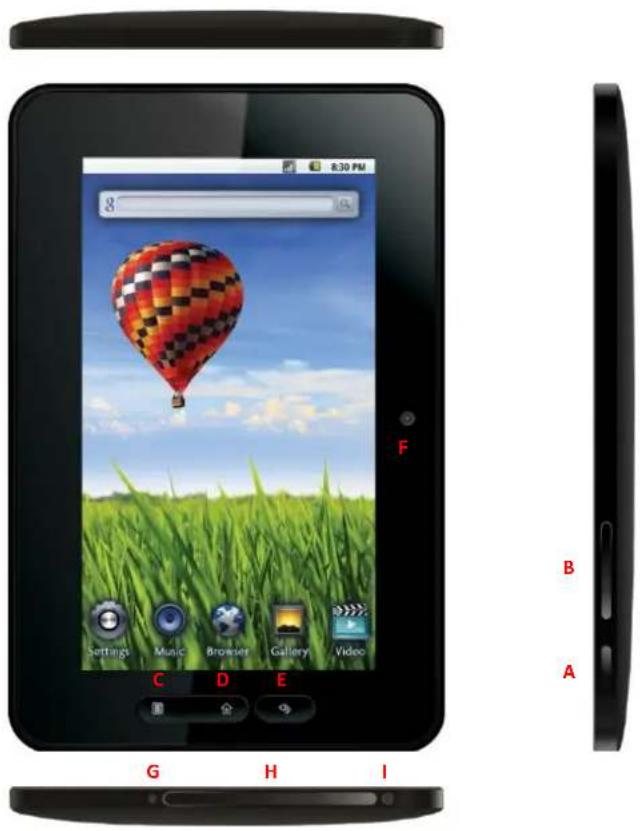
Storage Opons miScroll has very few physical buons. Most control is done via the touchscreen, but you should be aware of what the hard buons do, and what the various connecvity is for.
text_image
8:30 PM 8 F Settings Music Browser Gallery Video C D E G H I B AA Power on / o (hold)
B Volume + / -
C Context Menu
D Home
E Back / Return
F Built-in Camera
G Power socket
H USB, Mini HDMI, Micro SD card slot hidden under protecve ap.
I 3.5mm Earphone Socket
1 Press and hold the power on / o buon for a few seconds until the screen turns on. The Android operating system can take up to a minute to boot. Once it has loaded, you will be presented with a desktop screen similar to the one below (please note, images are used for illustrative purposes only and may not be exactly the same as on your Storage Opons miScroll). You may need to unlock miScroll before use – please see page 4.
2 The desktop has a menu bar (at the top of the screen) which displays system me, wireless conncon and baery level.
To the right (or boom, depending on orientaon) of the screen, the buon opens the Apps Menu.
Some of the most commonly used applicaons can be placed on the desktop for quick access – simply touch and hold an icon, then drag to a free space.

text_image
Google Drag apps to your Home screen. Touch & hold an app in the Launcher. 2 of 6CONTROLLING SCROLL
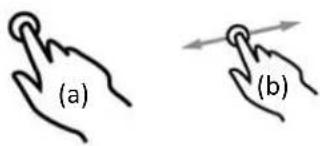
Controlling Scroll via its touch-screen display couldn't be easier. Simply press (a) any locaon on the screen to select an available acon.
text_image
(a) (b)You can also slide (b) across or up and down the screen to perform scrolling acons.
CONNECTING TO A WIRELESS NETWORK
- Go to Sengs → Wireless & Networks → Wi-Fi Sengs
- Touch the "Network Nocaon" opon to enable (a green ck will appear in the checkbox)
- A list of the available wireless networks will appear under "Wi-Fi Networks".
- Touch the network you want to join and input the appropriate security key (you may need to refer to your router's user manual for the key).
You will now be connected to your wireless network and can use Internet-based services on your Scroll. It will remember your network key and automatically connect to your wireless network when powered on and in range.
- Connect the HDMI cable to your output device (TV, monitor)
- Connect the HDMI cable to your Scroll
- Go to Sengs → Display → Output Sengs
- Set "Output Mode" to "HDMI"
Can also choose the output resoluon by going to "Resoluon". You have the following opons:
- Auto detect
• 1920x1080p 60Hz - 1280x720p 60Hz
- 720x480p 60Hz
- 640x480p 60Hz
Refer to your Television's user manual for compatible resoluons.
SCREEN CALIBRATION
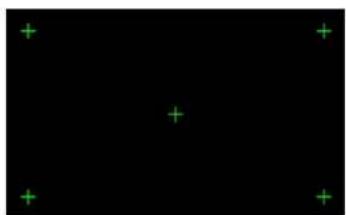
The touch screen needs to be calibrated to accurately map your touch to on-screen buons. To do this, choose the screen calibraon opon in "Sengs".
You have to touch ve key screen areas designated by markers. These markers will be displayed one at a me. Simply touch each one with your nger or a stylus to calibrate the screen. You can return to this screen at any me to recalibrate Scroll.
natural_image
Black background with five green plus signs at corners (no text or symbols)HOW TO LOCK / UNLOCK THE SCREEN
The Storage Opons miScroll tablet PC operates in a similar fashion to a touch-screen mobile phone. When the tablet is not in use, the screen can be locked to prevent unintentional commands being given to the device.
To lock the miScroll:
- Give the power buon a short press (do not hold).
- The screen will go blank to conserve baery power.
To unlock the miScroll:
- Give the power buon a short press (do not hold).
- A screen similar to the one opposite will appear.
- Drag the green "unlock" icon to the opposite side of the screen to unlock miScroll and connue with normal use.
Alternatively, you can simply press the Context Menu hard buon twice in quick succession to unlock the screen.
Mute / Unmute:
In a similar fashion to locking and unlocking the tablet, you can also mute to unmute the built-in speakers by dragging the speaker icon across the screen.

text_image
3:17 PM Thursday, May 12 ChargingSYSTEM SETTINGS
To access System Sengs from the desktop, press the Context Menu hard buon to bring up a set of six opons:
- Add (shortcuts, widgets, folders)
- Manage Apps
- Wallpaper
- Search
- Nocaons
- Sengs
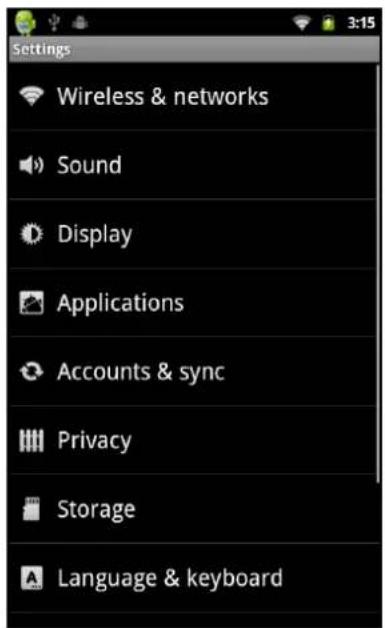
Touch the “Sengs” buon to open up the main conguraon tools. From here you can change a wide variety of opons, including wireless, sound, display, accounts, privacy, storage devices, screen calibraon, date and me, etc.
Each seng features a quick descripon of what it does. To change a seng, simply tap the item and follow the on-screen instrucons.
To navigate back to a previous screen, press the Back / Return hard buon.
text_image
Settings Wireless & networks Sound Display Applications Accounts & sync Privacy Storage Language & keyboardWIRELESS & NETWORKS
Wi-Fi – Connect to a wireless network (on / o)
Wi-Fi Sengs – Allows you to change wireless network conguraon (multiple sengs)
VPN Sengs – Congure Virtual Private Networks in here (for advanced users and system administrators only)
Mobile Networks – Not applicable to this model
SOUND
General
Volume – Change sengs for ringtone (not applicable), media and alarm volumes (sliders)
Nocaons
Nocaon Ringtone – Set your default nocaon ringtone (opon list)
Feedback
Audible Touch Tones – Play tones when using the keypad (on / o)
Audible Selecon – Play sound when making screen selecon (on / o)
Screen Lock Sounds – Choose whether to play sounds when locking / unlocking the screen (on / o)
DISPLAY
Output Sengs – Choose output mode, resoluon and HDMI mode (mulple sengs)
Brightness – Adjust screen brightness (slider)
Auto-Rotate Screen – Choose whether the sensor auto-rotates the screen for portrait / landscape use (on / o)
Animaon – Choose whether to play animaons when moving between windows (opon list)
Screen Timeout – Set the length of idle me before the display shuts o to conserve power (opon list)
APPLICATIONS
Unknown Sources – Allow installaon of non-Market applicaons (on / o)
Manage Applicaons – Manage and remove installed applicaons
Running Services – View and control currently running services
Storage Use – View how much storage capacity is used by your installed applicaons
Development - Set opons for applicaon development (mulple sengs)
ACCOUNTS & SYNC
General Sync Sengs
Background Data – Applicaons can sync, send and receive data at any me (on / o)
Auto-Sync – Applicaons sync data automacally (on / o)
Manage Accounts
"Current Account" – lists Google accounts available on miScroll
PRIVACY
Backup and Restore
Back Up My Data – Choose to back up your app data, wi- passwords etc to Google servers Automac – Choose whether to restore backed up sengs when reinstalling an app
Personal Data
Factory Data Reset – erases all sengs and returns miScroll to default
STORAGE
Storage
NAND Sengs – Mulple opons for built-in ash memory NAND management SD Card Sengs – Mulple opons for SD Card memory management SCSI Sengs – Not applicable to this model
Internal Storage
Available Space – Displays the available (unused) capacity
LANGUAGE & KEYBOARD SETTINGS
Language Sengs
Select Language – Select your language for the operang system (opon list) User Diconary – Your own words can be viewed here
Keyboard Sengs
Android Keyboard – Mulple opons to customize the on-screen keyboard
DATE & TIME
Set Date – Allows selecon of current date Select Time Zone – Allows selecon of current me zone Set Time – Allows selecon of current me Use 24-hour Format – Allows selecon of 12 / 24-hour format (yes / no) Select Date Format – Choose how to display the date (opon list)
POWER-OFF TIMER
How Long Shutdown – Adjust the delay before system shutdown (opon list)
ABOUT DEVICE
View various informaon about your miScroll device
At Storage Opons we want to make sure you get the most out of your miScroll tablet PC. To help you with this we would like to recommend you check out some of the websites listed below which give you access to a wide range of fun and useful freeware apps.
HANDANGO
hp://www.handango.com

Handango is one of the world's largest independent app stores serving mulple mobile plaorms. miScroll Users can visit Handango.com and aer signing up for a free account can access and download a variety of the free applicaons available for Android including Facebook, Youtube, Amazon Kindle, le browsers, alternate web browser and much more.
Applicaon les downloaded from Handango.com can then be transferred into your Storage Opons miScroll mobile Internet device, by simply following our easy to read FAQ. Please be aware, all use of the Handango.com services, store and applicaons therein are subject to the end user license agreements and policies of Handango.com.
FREEWARE LOVERS
hp://www.freewarelovers.com
Freeware Lovers is an open source repository of applicaons and services for mobile devices and much more. miScroll users can visit freewarelovers.com to access and download a variety of the free applicaons available for android devices.
These apps can be downloaded directly into the miScroll or side-loaded onto the miScroll by following our easy to read Sideloading FAQ. Please be aware, all use of the freewarelovers.com site and applicaons therein are subject the end user license agreements and policies of freewarelovers.com.
OPERA MOBILE STORE
hp://mobilestore.opera.com

Recently Opened, the Opera Mobile Applicaons store powered by Appia is a fantastic resource for many mobile plaorms including Android devices and Storage Opons miScroll. Simply Visit the Opera mobile store on your PC web browser or on the internet browser on the Storage Opons miScroll.
Browse the list of available applicaons and download the applicaons to your liking whether to your PC rst and transfer them to your miScroll, or directly to the miScroll itself. When prompted to select your device, simply select "Scroll Tablet PC" from the list and your download will begin. Please be aware, all use of the Opera mobile store site, and applicaons therein are subject the end user license agreements and policies of Opera and Appia respectively.
Please Note: due to licensing regulaons with Android based mobile devices our miScroll product is able to access the ocial Android Market place but will not be able to purchase/download "paid" apps. Any Apps appearing on "Third Party" sites that are also primarily oered on the ocial Android market place will also not be available to the miScroll device.
CONNECTING SCROLL TO YOUR COMPUTER
1 Connect Scroll to a computer via USB cable. You must connect to the socket labeled "USB", located under the protecve rubber ap on the boom edge of miScroll.
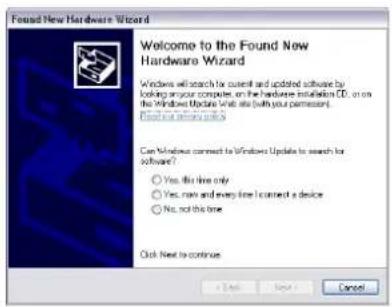
Windows may present you with a "Found New Hardware Wizard". If this happens, please press the "Cancel" buon.
text_image
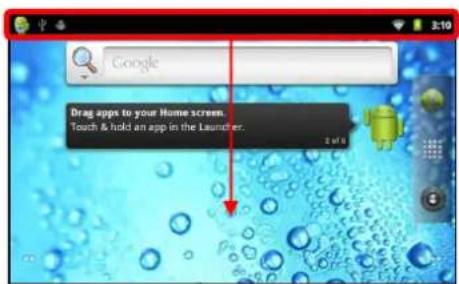
Found New Hardware Wizard Welcome to the Found New Hardware Wizard Windows will search for current and updated software by looking any your computer, on the hardware installation CD, or on the Windows Update Web site (with your permission). Find your new system吗? Can Windows connect to Windows Update to search for software? Yes, this line only Yes, not at all every time I connect a device No, not this line Ask Next to continue2 Open the status bar by dragging your nger / stylus downwards from the top of the screen.
text_image
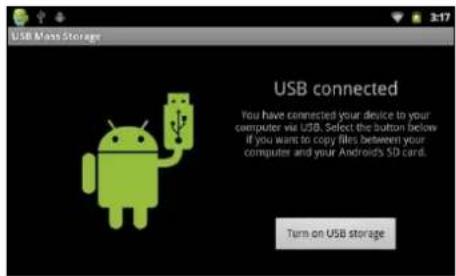
Google Drag apps to your Home screen. Touch & hold an app in the Launcher.Press the "Turn on USB storage" buon to mount the internal memory on your computer.
text_image
USB Mass Storage USB connected You have connected your device to your computer via USB. Select the button below If you want to copy files between your computer and your Androids SD card. Turn on USB storage3 Touch "USB connected" and choose the "Turn on USB storage" opon. Touch "OK" to conrm.
Scroll will appear as mass storage on your computer and will be assigned a drive leer within "My Computer". You can drag and drop les from your computer to Scroll just like you would with any other external storage device.
You may also be presented with Windows' built-in Autorun opons as pictured right. You can select "Open folder to view les using Windows Explorer" from here to browse les on your Scroll's built-in ash memory.

text_image
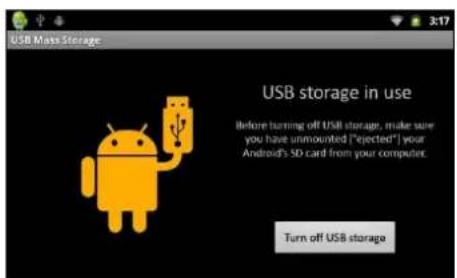
A (G:) This disk or device contains more than one type of content. What do you want Windows to do? Play using Windows Media Player Print the pictures using Photo Printing Wizard View a slideshow of the images using Windows Picture and Fair Viewer Copy pictures to a folder on my computer using Microsoft Scanner and Camera Wizard Open folder to view Nee using Windows Explorer Take no action OK Cancel4 Before disconnectg Scroll from your computer, you must press the "Turn o USB storage" buon to un-mount the ash memory.
If you do not do this, you may not be able to access the NAND memory on your Scroll until it is restarted.
text_image
USB Mass Storage USB storage in use Before turning off USB storage, make sure you have unmounted "ejected" your Android's SD card from your computer. Turn off USB storageINCLUDED APPLICATIONS

Calculator
Use this applicaon to do simple calculaons including mulplicaon, division, addition and subtracon, or switch to advanced mode to use further features such as sin, cos, tan, pie, etc.

Calendar
Use the Calendar applicaon to organize your day / week / month. You can add events, invite guests, add reminders, etc.

Browser
Your gateway to the World Wide Web. Use the browser to view Websites on your miScroll, in much the same way you would on a desktop computer.
Clock
This applicaon displays a large-font clock on your miScroll's display, and provides shortcuts to create alarms, view gallery images, play music, or go to the home screen.

Gallery
View your images and videos with this applicaon. It will play les from either the built in ash memory or from a Micro SD card.

Music
Use this applicaon to browse your music library and play individual tracks, enre albums, or a playlist. It also includes a cover art feature to enable visual idencaon of albums and arsts.

Video
This applicaon scans the built-in memory and your Micro SD card for compatible les, and allows you to play, pause, rewind and fast-forward through your favourite videos.

YouTube
This app connects to the YouTube servers and sends you the latest videos. You can log into your account, view channels, and search for videos.

Sound Recorder
This applicaon lets you record and playback audio les in 3GPP format, eecvely turning your miScroll into a digital dictaon device.

miScroll Apps
miScroll is supplied with pre-loaded applicaons on its internal memory. Use "miScroll Apps" to install these applicaons for use:

Adobe Reader®

Amazon Kindle™

BBC News

ES File Explorer

Facebook

FB Reader

Quick
System Info

Skyre

Twier
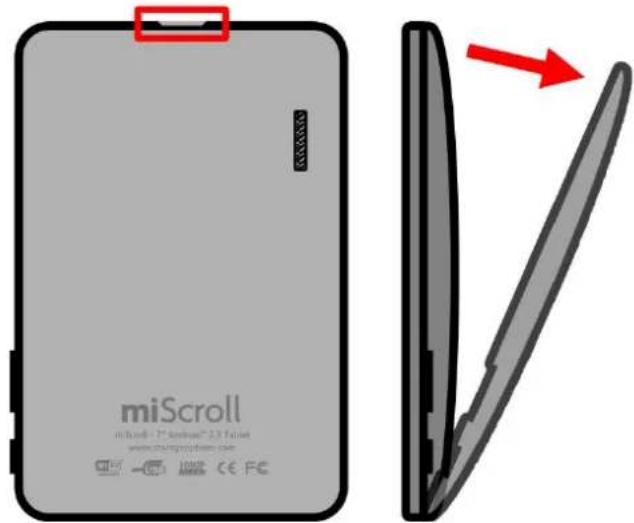
REMOVE THE BACK COVER
text_image
miScroll miScroll® 17 Android® 23 Tablet www.chinapril.com CE FCLocate the recess on top of miScroll and gently pull the back cover from the main unit.
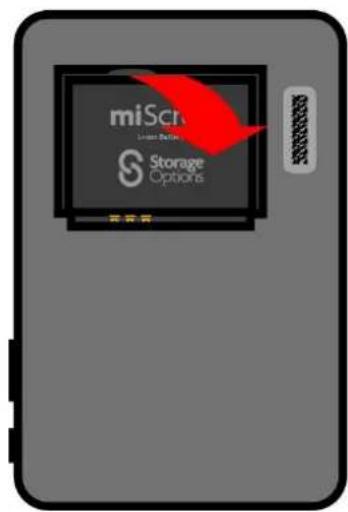
REMOVE THE BATTERY
text_image
miScrew Storage OptionsLocate the thumb recess and li the baery to release it from the slot, then pull it away from the contacts.
INSERT THE BATTERY

text_image
miS Storage OptionsSlide the baery into place, ensuring the contacts are correctly aligned. Gently push the baery until it lies ush with the unit.
REPLACE THE COVER

natural_image
Diagram showing a blade with a red arrow indicating direction, no text or symbols presentHook the back cover onto the boom of miScroll then push it back onto the case. It will click and lock into place.
SAFETY PRECAUTIONS
This manual contains important safety precautions and informaon for correct use.
- Please do not place the product in hot, wet or dusty environment
- Please do not place the product in hot environment
- Avoid dropping or clashing the product and do not shake the TFT screen violently
- Avoid using at high volume for prolonged periods when using earphones
In the following situations, please charge the product:
• The icon of the baery shows without power
• miScroll automacally shuts down, and turns o soon aer restarng
- Hard keys show no reacon
Mains adaptors from other products cannot be used for this device as they may cause a burnout.
• Do not disconnect the device while formang a Micro SD card, downloading / uploading data, as this may cause applicaon errors.
• Storage Options is not responsible for any data loss caused by physical damage to, or improper maintenance of the product.
• Do not disassemble the product, and avoid cleaning the product with ethyl alcohol, thinners, or benzene.
• Do not use this product in the areas which prohibit use of electronic devices, e.g. on an airplane.
- Do not use this product while driving or walking in the street.
• We reserve the right to improve the product. Specicaon and design of the product are subject to change without prior noce!
• This device is not waterproof.
HARDWARE SPECIFICATION
| Unit Size: | 200mm x 123mm x 13mm |
| Unit Weight: | 385g |
| CPU: | ARM11 @ 1GHz |
| RAM: | 256MB DDR2 |
| Built-in Flash Memory: | 4GB |
| Memory Expansion: | MicroSD card (up to 32GB) |
| Screen: | 7.0" Resisve Touch |
| Resoluon: | 800 x 480 pixels |
| Baery Type: | Rechargeable lithium baery |
| Baery Capacity: | 9.25Wh |
| USB Port: | USB 1.1 |
| Speaker: | Built-in |
| Wireless Connecvity: | Wi-Fi 802.11b/g |
SOFTWARE SPECIFICATION
| Operang System: | Android^TM 2.3 |
| Web Browser: | Pre-installed |
| Video Support: | AVI, FLV, MPEG4, MPEG2, MKV |
| Audio Support: | MP3, WMA, AAC, AC3, WAV |
| Photo Support: | JPEG, BMP, GIF, PNG, TIFF |
| 3D Gaming: | OpenGL rendering language |
| Applicaons: | Pre-installed and downloadable |
WARRANTY AND TECHNICAL SUPPORT
To help you make the most of this product you'll nd a host of informaon including full product manuals, FAQ, troubleshooting guides and a support service if you have specie quesons, available at our support website: www.storageopons.com/support.
This product is also backed by a 12 month warranty in the unlikely event of something going wrong. More informaon and warranty registraon is available at www.storageopons.com/warranty.
Support:
www.storageopons.com/support/
Warranty:
www.storageopons.com/warranty/

text_image
Scroll by StorageOptions


Scroll - Android Mobile Internet Device
Part No: 52578
9.25Wh - 5V
Made In China