Orion - Speaker Rose - Free user manual and instructions
Find the device manual for free Orion Rose in PDF.


| Product Type | Portable Bluetooth Speaker |
| Brand | Rose |
| Model | Orion |
| Dimensions (W x H x D) | Approx. 180 x 65 x 65 mm |
| Weight | Approx. 500 g |
| Power Source | Built-in rechargeable battery, USB-C charging |
| Battery Life | Up to 10 hours at moderate volume |
| Connectivity | Bluetooth 5.0, 3.5 mm AUX input |
| Wireless Range | Up to 10 meters (33 ft) |
| Speaker Driver | 40 mm full-range driver |
| Frequency Response | 80 Hz - 20 kHz |
| Output Power | 10 W RMS |
| Impedance | 4 Ohms |
| Controls | Power, Volume +/-, Play/Pause, Bluetooth pairing button |
| Additional Features | Built-in microphone for hands-free calls, TWS pairing |
| Water Resistance | IPX5 (splash proof) |
| Material | Fabric mesh with rubberized base |
| Maintenance | Clean with soft dry cloth. Do not use abrasive cleaners. |
| Safety | Do not expose to extreme temperatures or liquids beyond IPX5 rating. |
| Spare Parts & Repairability | Battery replacement by qualified technician. Other parts not user-serviceable. |
Frequently Asked Questions - Orion Rose
User questions about Orion Rose
0 question about this device. Answer the ones you know or ask your own.
Ask a new question about this device
Download the instructions for your Speaker in PDF format for free! Find your manual Orion - Rose and take your electronic device back in hand. On this page are published all the documents necessary for the use of your device. Orion by Rose.
USER MANUAL Orion Rose
natural_image
Front view of a black electronic device labeled 'Orion' with 'ROSE RESEARCH' branding, showing ports and a digital display (no readable text beyond branding)
natural_image
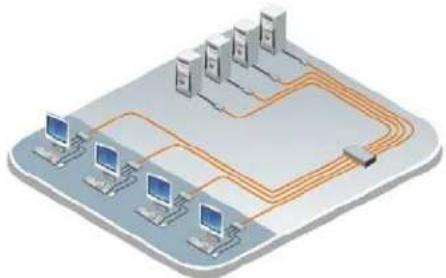
Isometric illustration of a network topology with server racks and a central computer (no text or symbols)KVM Switch
natural_image
Isometric illustration of a network topology with multiple computers and server racks (no text or symbols)Cross-point Switch
LIMITED WARRANTY
Rose Electronics warrants the Orion ^™ to be in good working order for one year from the date of purchase from Rose Electronics or an authorized dealer. Should this product fail to be in good working order at any time during this one-year warranty period, Rose Electronics will, at its option, repair or replace the Unit as set forth below. Repair parts and replacement units will be either reconditioned or new. All replaced parts become the property of Rose Electronics. This limited warranty does not include service to repair damage to the Unit resulting from accident, disaster, abuse, or unauthorized modification of the Unit, including static discharge and power surges.
Limited Warranty service may be obtained by delivering this unit during the one-year warranty period to Rose Electronics or an authorized repair center providing a proof of purchase date. If this Unit is delivered by mail, you agree to insure the Unit or assume the risk of loss or damage in transit, to prepay shipping charges to the warranty service location, and to use the original shipping container or its equivalent. You must call for a return authorization number first. Under no circumstances will a unit be accepted without a return authorization number. Contact an authorized repair center or Rose Electronics for further information.
ALL EXPRESS AND IMPLIED WARRANTIES FOR THIS PRODUCT INCLUDING THE WARRANTIES OF MERCHANTABILITY AND FITNESS FOR A PARTICULAR PURPOSE, ARE LIMITED IN DURATION TO A PERIOD OF ONE YEAR FROM THE DATE OF PURCHASE, AND NO WARRANTIES, WHETHER EXPRESS OR IMPLIED, WILL APPLY AFTER THIS PERIOD. SOME STATES DO NOT ALLOW LIMITATIONS ON HOW LONG AN IMPLIED WARRANTY LASTS, SO THE ABOVE LIMITATION MAY NOT APPLY TO YOU.
IF THIS PRODUCT IS NOT IN GOOD WORKING ORDER AS WARRANTED ABOVE, YOUR SOLE REMEDY SHALL BE REPLACEMENT OR REPAIR AS PROVIDED ABOVE. IN NO EVENT WILL ROSE ELECTRONICS BE LIABLE TO YOU FOR ANY DAMAGES INCLUDING ANY LOST PROFITS, LOST SAVINGS OR OTHER INCIDENTAL OR CONSEQUENTIAL DAMAGES ARISING OUT OF THE USE OF OR THE INABILITY TO USE SUCH PRODUCT, EVEN IF ROSE ELECTRONICS OR AN AUTHORIZED DEALER HAS BEEN ADVISED OF THE POSSIBILITY OF SUCH DAMAGES, OR FOR ANY CLAIM BY ANY OTHER PARTY.
SOME STATES DO NOT ALLOW THE EXCLUSION OR LIMITATION OF INCIDENTAL OR CONSEQUENTIAL DAMAGES FOR CONSUMER PRODUCTS, SO THE ABOVE MAY NOT APPLY TO YOU. THIS WARRANTY GIVES YOU SPECIFIC LEGAL RIGHTS AND YOU MAY ALSO HAVE OTHER RIGHTS WHICH MAY VARY FROM STATE TO STATE.
IBM ®, AT, and PS/2 are trademarks of International Business Machines Corp.
Microsoft ^® and Microsoft Windows ^TM are registered trademarks of Microsoft Corp.
Apple, Macintosh, and ADB are trademarks of Apple Computer, Inc.
Sun is a registered trademark of Sun Microsystems Inc.
Any other trademarks mentioned in this manual are acknowledged to be the property of the trademark owner
EUROPEAN UNION DECLARATION OF CONFORMITY
This is to certify that, when installed and used according to the instructions in this manual, together with the specified cables and the maximum CPU- cable length <3m, the Units:
List on page 2-5
are shielded against the generation of radio interferences in accordance with the application of Council Directive 89/336/EEC as well as these standards:
EN 55022: 1999 Class A
EN 55024: 1999
IEC 61000-4-2: 2001
IEC 61000-4-3: 2001
IEC 61000-4-4: 2001
EN 61000-3-2 2001
EN 61000-3-3 2002
The device was tested in a typical configuration with CPU.

This equipment has been found to comply with the limits for a Class A digital device, pursuant to Part 15 of the FCC Rules. These limits are designed to provide reasonable protection against harmful interference when the equipment is operated in a commercial environment. This equipment generates, uses, and can radiate radio frequency energy and, if not installed and used in accordance with the instruction manual, may cause harmful interference to radio communications. Operation of this equipment in a residential area is likely to cause harmful interference in which case the user will be required to correct the interference at his own expense.
TABLE OF CONTENTS
Contents
Page #
Disclaimer....1
Introduction....1
Crosspoint Switch mode 1
KVM Switch mode 1
About This Manual 2
Features 2
Compatibility 3
DDC Information 3
Selecting the moment of switching to next frame 3
Selection of Color reduction for transfer acceleration 3
Package contents 3
Product registration....3
System Overview 4
Synchronized switching....4
Orion Model Description....5
KVM Switch Installation....6
Powering Up the System 7
Configuration menus....7
Keyboard Control: 7
On-screen-Displays 7
Menu 7
Login Menu 8
Configuration Menu 8
Configure open menu....9
Configure system menu 10
Touch Screen settings 13
Configure user....14
User Matrix Configuration 15
CON Port Configuration 16
CON Matrix Configuration....18
CPU Port Configuration....19
Status Information....20
Status Display – CON ports 20
Status Display – CPU ports 21
Status Display – Network 22
Status Display – Firmware 22
Diagnostic LEDs (CATx cable / Fiber cable) 22
Operating the Orion Unit 23
HOT Key switching 23
OSD / KVM mode switching 23
KVM-List mask switching....23
Keyboard Commands 24
KVM-Switch mask switching....25
Keyboard Commands 26
Follow-Me function 26
Keyboard Commands (Follow-Me mode) 27
Cross Point Switch Mode (CON mask) 28
Keyboard Commands: 29
Cross Point Switch Mode (CPU mask) 30
Keyboard Commands: 30
Switching using a Browser / Web Interface....31
Switching using a Serial Interface 31
Operating modes - Overview....32
Single-Head KVM switch mode 32
Dual-Head KVM switch mode....33
Quad - Head KVM switch mode 34
Single - Head KVM switch / USB 2.0 mode....35
Devices with serial/audio option 36
Serial Interface – Handling Multiple Serial Devices....36
Audio Interface - Setup and Operation 36
Audio Interface – Using a Microphone .... 36
Service Information 37
Maintenance and Repair 37
Technical Support....37
Troubleshooting 40
Troubleshooting - Monitor 40
Troubleshooting – USB Keyboard / Mouse 40
Figures Page #
Figure 1. Orion Models....5
Figure 2. Typical KVM Switch Configuration....6
Figure 3. OSD Main Menu 7
Figure 4. Login OSD 8
Figure 5. Configuration menu....8
Figure 6. Open configuration file menu....9
Figure 7. Configure System menu .... 10
Figure 8. Touch screen calibration....13
Figure 9. Configure User menu....14
Figure 10. User Matrix Menu....15
Figure 11. CON port configuration 17
Figure 12. CON Matrix Configuration....18
Figure 13. CPU Port Configuration 19
Figure 14. Status menu....20
Figure 15. Status - CON ports 20
Figure 16. Status – CPU Ports....21
Figure 17. KVM-List menu 24
Figure 18. KVM-switch mask 25
Figure 19. Follow Me mask....26
Figure 20. Crosspoint Switch menu (CON Mask)....28
Figure 21. Crosspoint Switch menu (CPU Mask) 30
Appendices Page #
Appendix A – General Specifications....41
Appendix B – Part numbers 42
Appendix C – DDC / Color depth set-up (Local Unit) 43
Appendix D – Serial switching commands....45
Appendix E - Programming Macros 48
Appendix F – Cascading units 50
Appendix G – Synchronize Switching 51
Appendix H - Change Initialization command 53
INTRODUCTION
Disclaimer
While every precaution has been taken in the preparation of this manual, the manufacturer assumes no responsibility for errors or omissions. Neither does the manufacturer assume any liability for damages resulting from the use of the information contained herein. The manufacturer reserves the right to change the specifications, functions, circuitry of the product, and manual content at any time without notice.
The manufacturer cannot accept liability for damages due to misuse of the product or other circumstances outside the manufacturer's control. The manufacturer will not be responsible for any loss, damage, or injury arising directly or indirectly from the use of this product.
(See limited warranty)
Introduction
Thank you for choosing Rose Electronics Orion ^™ System. The Orion System is the results of Rose Electronics commitment to providing continued state-of-the-art switching solutions for today's demanding workplace. The Orion System has proven to be a valuable investment for all types of businesses that have the need to monitor, maintain, route, switch and access information from multiple computer systems. Its use in large computer and multimedia facilities gives the IT professional the added flexibility to monitor and maintain all systems, running on different platforms, from one or multiple KVM stations. The Orion System is the common sense solution that provides the flexibility, expandability, and security required for today's business environment.
Rose Electronics' Orion System is designed to configure to whatever your system demands are, one user or multiple users, two computers or hundreds. All configurations offer standard features that allow for easy, secure, and complete access to as many computers as your system has from one or multiple KVM user stations. CATx or fiber cabling is used to connect the computers and user stations to the Orion unit. Using CATx cabling the distance can be up to 450 feet (140m), using singlemode 9μ fiber cabling, the distance can be up to 6 miles (10,000m). This greatly reduces the cable bulk and makes installation easier, quicker, and less expensive.
The convenient on-screen display (OSD) menus are intuitive and easy to use. The menus guide you through the configuration process, making it easy to configure the Orion.
The Orion is used along with an extender transmitter and receiver. The transmitter connects to your computer or video source and the receiver connects to your DVI monitor, USB keyboard and USB mouse. The transmitter and receiver units connect to the Orion unit using CATx or fiber cabling. The transmitter and receiver models will vary depending on the application.
The Orion can be configured to function as a Crosspoint switch or a KVM switch. An additional feature allows the Orion to be set-up in the "Follow Me" mode. An overview of each configuration mode is described below. See the appropriate manual section for a detailed description of the installation, configuration, and operating procedure for each mode.
Reliability, security, versatility, and other advanced technological features ensure the Orion System will streamline your data center or server room, simplify the maintenance, access and updating of your systems, and easily expand as your system demands increase.
Crosspoint Switch mode
The Crosspoint switch mode allows you to switch one or more video outputs (16) to any or all video inputs (32). The Crosspoint switch menu makes connecting and switching easy. Select the monitor to display the video source on, select the computer to switch to the selected display and press the space bar. Instantly the computer's video is displayed on the remote monitors.
KVM Switch mode
The KVM switch mode can be set-up to function as: a 16 user to 32 single head CPUs, 8 user to 16 dual head, or 4 user to 8 quad head CPU KVM switch and also two additional unique features, "Partner" viewing and the "Follow Me" feature. Partner viewing allows for the distribution of the main display content to one or more remote displays. The "Follow Me" feature shows your actions on other displays, even changing sources.
About This Manual
This manual covers the installation, configuration, and the operation of the Orion System. The Orion System consists of three components; the Orion unit, the extender transmitter(s), and the extender receiver(s). Each component of the Orion system is described in this manual. The Installation section for each mode describes how all components are interconnected to form a seamless switching network. The Operations section for each mode defines how to operate the system and all the user features available to make switching and maintenance simple and easy.
Features
■ The Orion can be configured as:
■ A single head KVM Switch (32 CPUs / 16 User stations (Cascadable to 1024 sources)
■ A dual head KVM Switch (16 CPUs / 8 user stations)
■ A quad head KVM switch (8 CPUs / 4 user stations) or
■ A Crosspoint switch (32 video source inputs / 16 video outputs)
■ Supports all DVI-D Graphic cards
■ DVI-D video resolution up to: 1920 x 1200 @ 60 Hz (Single Link)
■ Supports:
USB keyboard and USB mouse*
■ CATx or fiber cabling (Multimode and Singlemode fiber)
USB 2.0
Bidirectional audio
Serial interface
■ 16 / 24 Bit auto-switching or 24 Bit color depth (selectable)
■ CATx and fiber connector modules can be mixed within a single unit.
■ Extended distances:
■ CATx cable – 460 feet (140m)
■ Multimode 50μ – 1,300 feet (400m)
■ Multimode 62.5μ - 656 feet (200m)
■ Singlemode 9μ - 32,800 feet (10,000m)
■ Access via On Screen Display, serial, web-based GUI, or hotkey commands
■ LED indicators for power and link status
■ Dual power supply option
- Rack mountable
* Orion KVM standard devices with USB-HID connectors support the extension of the keyboard and mouse ONLY; use with other HID devices (Human Interface Device) such as touch screens, graphics tablets, barcode readers or similar USB devices may be successful – but there is no guarantee for this! The Orion™ KVM standard device is NOT suitable for use with other USB devices such as scanners, web-cams, data sticks etc.
Orion KVM standard devices support only two USB devices simultaneously, keyboard and mouse or keyboard and touch-screen, etc. but not keyboard, mouse and touch-screen simultaneously. You can extend by a USB hub but this does not raise the number of supported devices.
Compatibility
Video Digital (DVI-D): Digital Video standard installed by DDWG - R, G, B, and CLOCK in a data stream with up to 3x 1.6 Gbit/sec. Signals are TMDS level.
Keyboard Compatible with all standard USB keyboards. Certain keyboards with enhanced features may also be supported with custom firmware. Keyboards with a built-in hub are also supported – but there are never more than two HID devices supported.
Mouse Compatible with all standard USB 2-button, 3-button and wheel mice.
CATx / Fiber The Orion Switch may be equipped with both CATx GBICs and fiber GBICs.
Cables This allows both fiber and CATx Signals to be switched with one Unit.
NOTE: Switching must be from a CATx source to a CATx destination and Fiber source to a Fiber destination. CATx to Fiber or Fiber to CATx is NOT possible.
Fiber Supports singlemode (9μ) and multimode (50μ and 62.5μ) cables.
DDC Information
Normally, it is not necessary to make any adjustments to the Orion KVM/ Media device. However, in some circumstances, it may be necessary to redefine the source of DDC information for the CPU. By default, the unit uses its own internal DDC table. If this setting does not satisfy your requirements, the DDC table can either be switched to the DDC table of the locally attached screen or can be downloaded from the remotely located screen and stored in the internal DDC table. The default is to download the DDC table from the remote monitor. (See appendix C for instructions on how to modify the DDC setup)
Selecting the moment of switching to next frame
The transmission of screen data is not synchronous to the screen changes of the graphic card. Normally, the transmission is terminated during the display of a frame on the screen (at the remote unit). If the device switches to the new frame during the displaying period of the old frame (somewhere on the screen), it is possible that you will see horizontal screen breaks at the moment of switching (default). On the other hand, if the device idles until the actual frame is displayed completely (until VSYNC) then the number of frames per second transmitted may be reduced.
(See appendix C for instructions on changing the switching behavior)
Selection of Color reduction for transfer acceleration
You can select, whether always 24 Bit colors (=full color depth) are transmitted or whether the compression algorithm automatically switches between 16 and 24 Bit colors to accelerate the data transfer (default). Normally the difference between 24 Bit and 16 Bit is not recognizable but under some special circumstances e.g. in photo processing installations there might be disturbing color abbreviations. While the automatic color switching enhances the number of frames, transmitted per second, fixed 24 Bit color depth gives smooth color grades under all circumstances. (See appendix C for instructions on how to select the desired mode)
Package contents
■ Orion unit as ordered
■ Rack mount kit (with screws)
■ Power cord(s)
■ Manual CD
Product registration
Register your product for future updates at: www.rose.com/htm/online-registrationform.htm
OVERVIEW
System Overview
The Orion system consists of the main Orion unit configured with the CPU and CON modules for your application (CATx or Fiber). Each CPU port connects to a CATx or Fiber transmitter using a CATx or fiber cable. Each CON port connects to a CATx or Fiber receiver using a CATx or fiber cable.
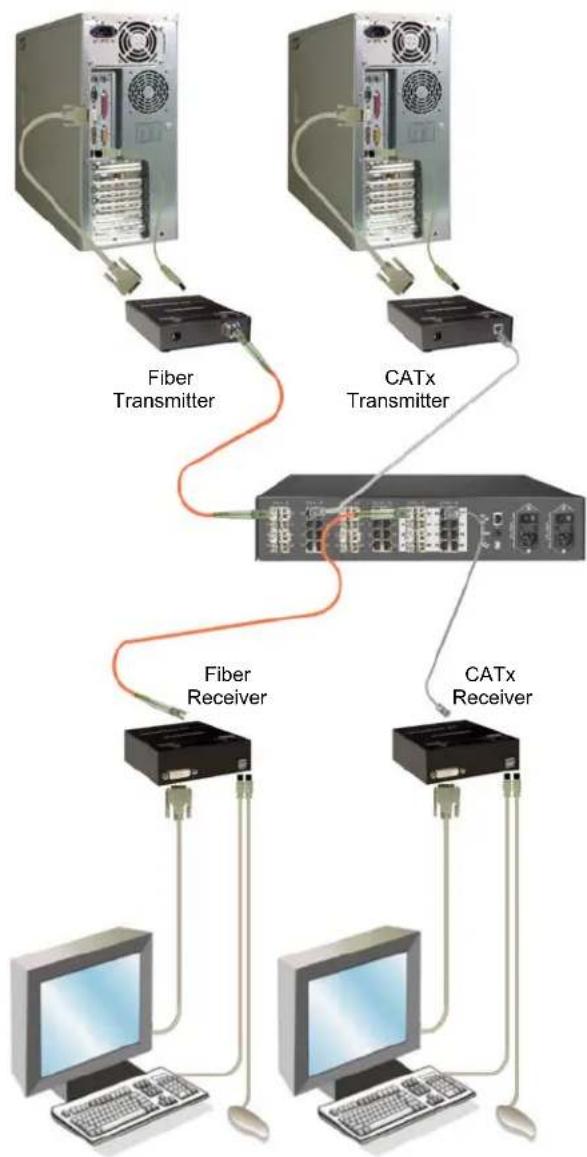
The versatility of the Orion unit makes it easily adaptable to your system environment. It can be configured for a KVM switch where each user can connect and control any connected computer.
In the KVM switch mode, a unique feature called "Partner Viewing" allows a console user to share the active display content on one or more displays.
Another feature is the "Follow Me" feature. This allows other displays to follow every action made by the console user.
In the Crosspoint switch mode, up to 32 video sources can be switched to 16 video outputs. You can switch a video source to 1 output or 16 outputs.
Each CPU input and CON output must connect to an extender transmitter and extender receiver. Rose Electronics offers a wide variety of transmitters and matching receivers to handle your specific application:
■ Single, dual, and quad head DVI-D video models
■ Local access models
■ Serial and audio models
■ CATx or Fiber models
■ 4x USB 2.0 transparent ports for compatible USB 2.0 peripherals
The installation, configuration, and operation for each of the different modes are explained in the appropriate manual section for the application the Orion unit is going to be configured for.
Synchronized switching
The Orion unit can be set-up to control the switching features of other Orion units. When the master unit is switched to a selected CPU port, all other Orion units configured for synchronization will also switch to that CPU port. The main unit is assigned a unique IP address compatible with the existing network. The main unit is then connected to the network via a network cable. The master unit's IP address is entered into the secondary units that will be switched via the main unit. See Appendix G for installation and OSD configuration instructions.
Orion Model Description
natural_image
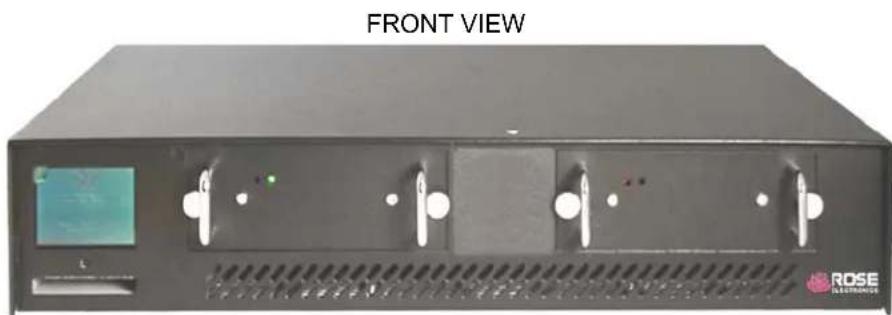
Front view of a black rack-mounted server unit with ventilation grilles and a digital display (no visible text or symbols on the device itself)All models
REAR VIEW
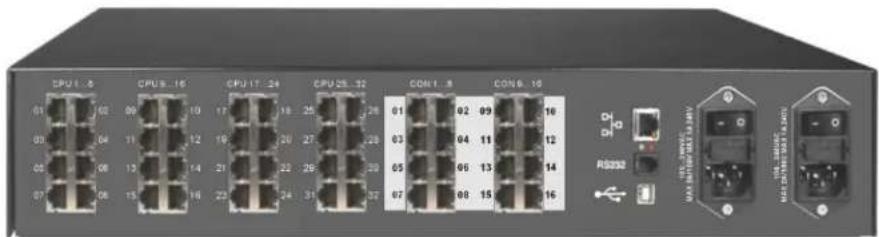
Catx modules
CATx modules
Connectors
1 or 2 IEC320
power inputs
32-RJ45F Inputs
16-RJ45F Outputs
1-RJ11F Network
1-RS232 Serial
1-USB Type B
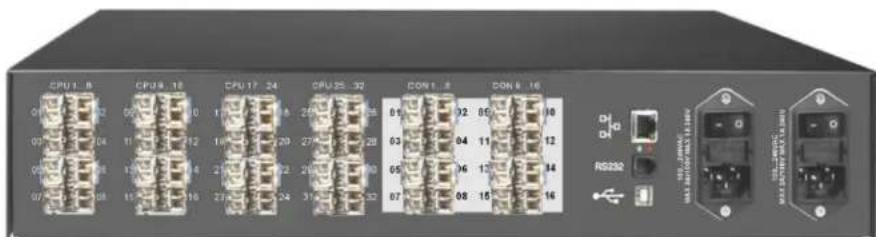
(Singlemode or Multimode fiber modules)
Fiber modules
1 or 2 IEC320
power inputs
32-Fiber LC type Inputs
16-Fiber LC type outputs
1-RJ11F Network
1-RS232 Serial
1-USB Type B
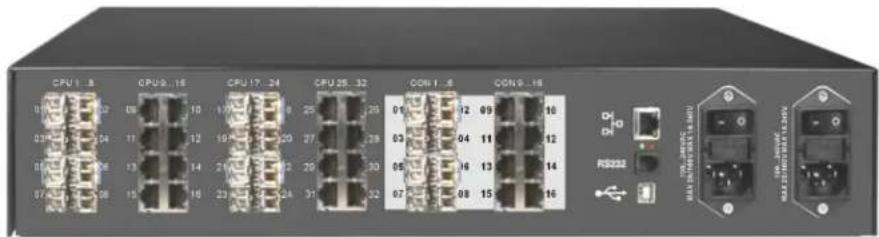
CATx and Fiber modules
CATx / Fiber modules
Figure 1. Orion Models
NOTE:
Models that have mixed CATx and Fiber modules should be used with care. A CATx CONx KVM station can not connect to a fiber CPUx port or a fiber CONx KVM station can not connect to a CATx CPUx port. Remember, connect only CATx to CATx and Fiber to Fiber.
INSTALLATION
The installation section of this manual is divided into a section for the KVM Switch installation and for the Cross-Point Switch installation procedures. Please turn to the section needed for your application.
KVM Switch Installation
As a KVM Switch the device supports several operation modes: (See appendix F for cascading configuration example)
■ 16 User ports and 32 CPU ports for Single-Head access
■ 8 User ports and 16 CPU ports for Dual-Head access
4 User ports and 8 CPU ports for Quad-Head access.
- Single, Dual, and Quad CPUs and User ports may also be operated in mixed mode. The maximum number of User ports depends on the detailed configuration.
- A maximum of 32 CPUs (up to 10 km away using fiber cable) can be connected to the Unit via Local transmitter units installed at each CPU.
- Up to 16 remote user stations (up to 10 km away using fiber cable) can be connected to the Orion unit via remote receiver units installed at each console.
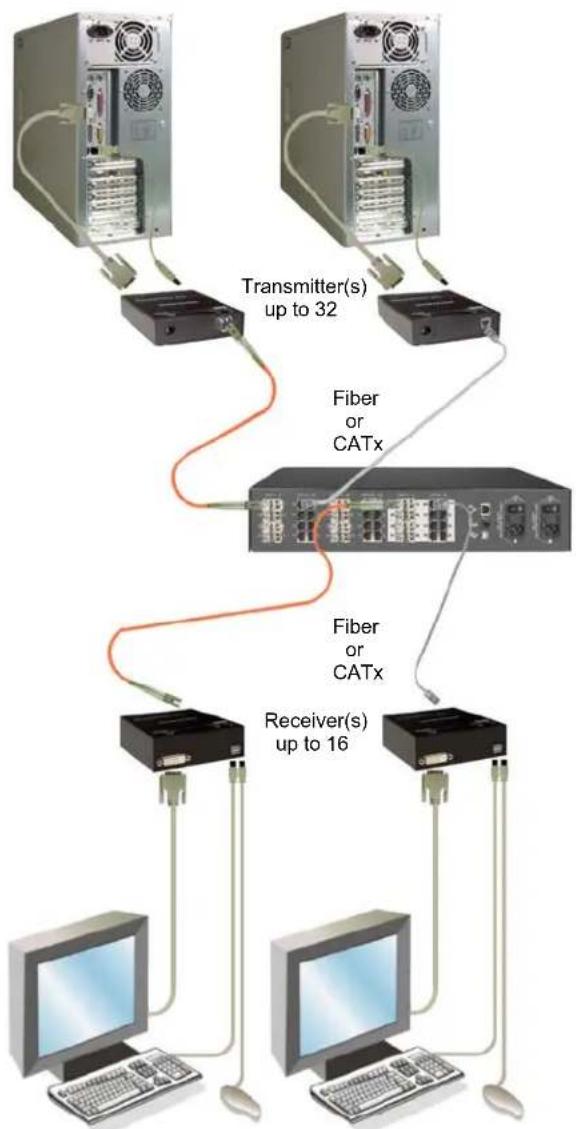
flowchart
graph TD
    A["Server"] -->|Transmitter(s) up to 32| B["Receiver(s)"]
    C["Server"] -->|Fiber or CATx| D["Receiver(s)"]
    B -->|Fiber or CATx| D
    style A fill:#f9f,stroke:#333
    style C fill:#f9f,stroke:#333
    style B fill:#ccf,stroke:#333
    style D fill:#ccf,stroke:#333
The installation of the local transmitter(s) and remote receivers(s) will vary depending on the needed application. (Single head, dual head, or quad head KVM switch, serial and audio options, etc.)
Basic transmitter installation:
(Each connected computer must be connected to a KVM transmitter and each remote KVM user station must be connected to a KVM receiver)
- Connect the DVI video connector(s) from the computer to the transmitter using a DVI-I MM cable.
- Connect a USB cable (Type A to Type B) from the computer's USB Type A connector to the transmitters USB Type B connector.
- If the transmitter has the serial and audio options, connect these ports to the transmitter using standard stereo audio cables (MM) for the speaker and microphone connectors and a DB9 serial cable from the computer to the transmitter.
- Connect a CATx or Fiber cable (depending on the model – up to 32 cables) from the transmitter's port to the corresponding CPU port on the Orion unit.
Basic receiver installation:
- Connect the DVI-I video monitor's cable to the corresponding connector on the receiver
- Connect the USB keyboard and USB mouse to the keyboard and mouse USB ports on the receiver
- If the receiver has the serial and audio options, connect a speaker set to the speaker connector and a microphone to the Mic input connector.
- Connect a CATx or Fiber cable (depending on the model – up to 16 cables) from the receiver's port to the corresponding CON port on the Orion unit.
NOTE: If you Orion unit has a mixture of CATx and Fiber modules, care should be taken to only connect a CATx connected user station to a CATx connected computer or a Fiber connected user station to a fiber connected computer.
Figure 2. Typical KVM Switch Configuration
Powering Up the System
Apply power to the Orion unit, the receivers, transmitters, KVM monitors and all connected computers. Once all equipment is fully powered up, the system can be used to switch from any user station to any connected computer.
Configuration menus
The configuration of the Orion unit is easily done using the On-Screen menus. To display the menu system, enter the key sequence
Exit the "KVM List" Mask, if needed, by hitting
Keyboard Control:
To navigate within any OSD menu, use the following key sequences:
only inside an Input field or Switch Mask only inside an Input field or Switch Mask Line up (with wrap around) in Input fields or Switch Mask, Line up (without wrap around) in Menus Line down (with wrap around) in Input fields or Switch Mask, Line down (without wrap around) in Menus Page up in Input-/Status Masks with several pages Page down in Input-/Status Masks with several pages – Next field in Input Masks + Previous field in Input Masks - <+> Next Option in Select fields
■ <-> Previous Option in Select fields Switch in selection fields with two options only (On/Off or No/Yes)
Only if "Allow Sharing" is active: Apply and save data in Mask "KVM Switch"Apply and save data – in Input Masks Select option – in Menus Cancel data input without saving
On-screen-Displays
Menu
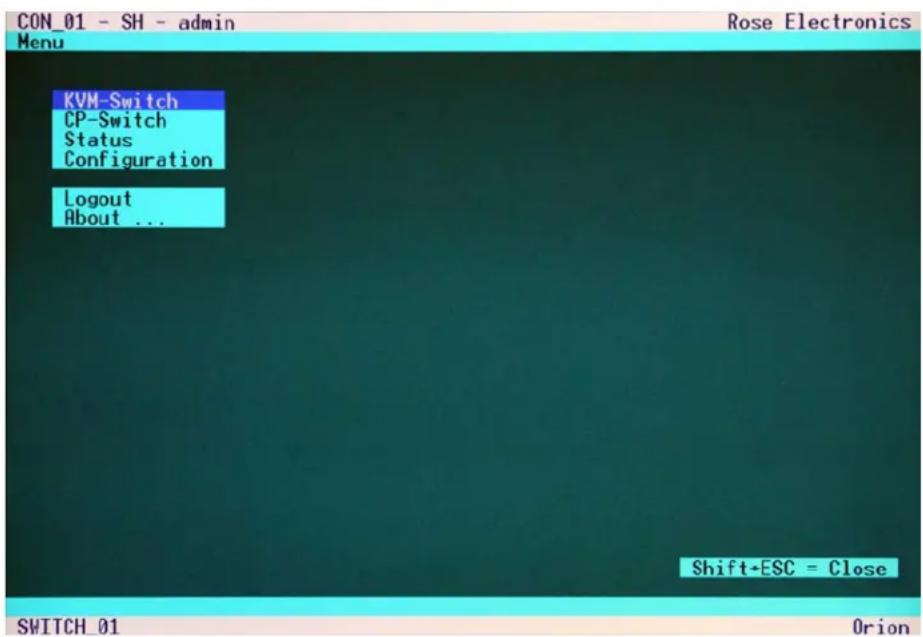
Figure 3. OSD Main Menu
Using the up and down arrow keys, select (highlight) "Configuration" and press enter. If you are not logged on to the system as the "Administrator", the LOGIN dialog menu will display requesting a userID and Password.
Login Menu
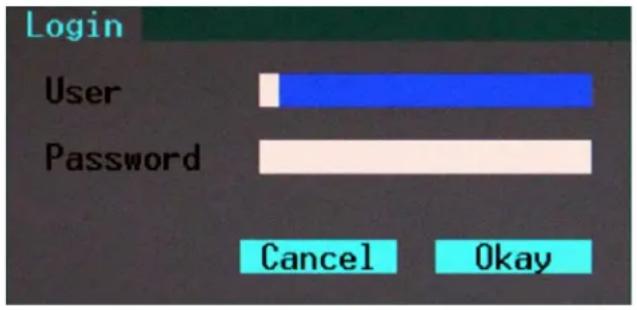
The factory default settings for the "Login" OSD are:
User – admin
(User and Password are case sensitive)
Password – admin
If these settings have not been changed, enter the default User and Password in the appropriate field and click on "Okay"
Upon validation, the "Configuration" menu will display as shown in figure 5.
Figure 4. Login OSD
Configuration Menu
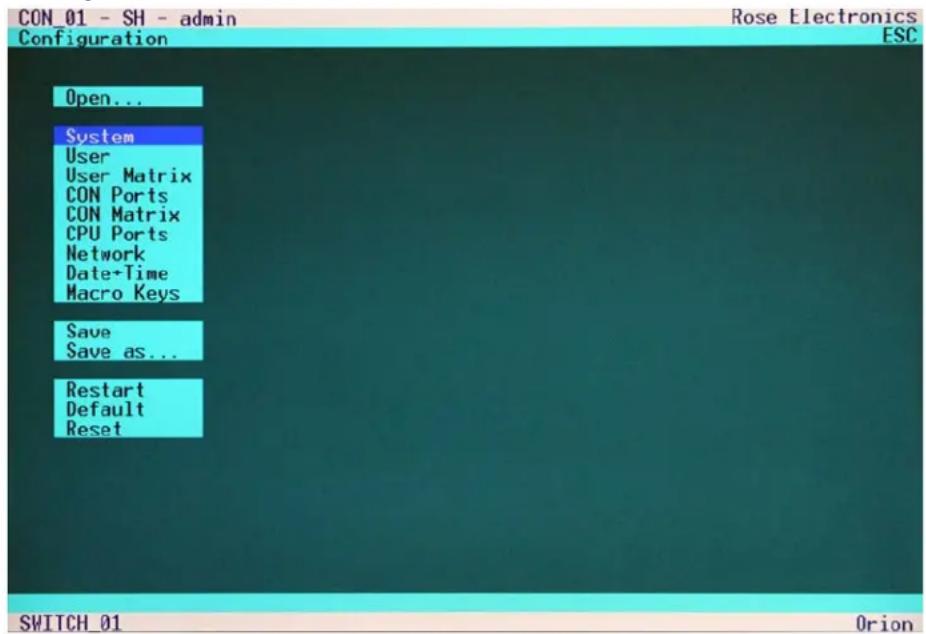
Figure 5. Configuration menu
Using the up and down arrow keys, select "Open" and press enter. The option allows you to load a previously saved switch configuration. Up to 8 user defined switch configurations plus the default settings can be saved within the unit.
Use the up down arrow keys or the mouse to select the configuration scheme to apply and press enter.
Figure 6 shows the "Open Configuration" screen.
Configure open menu
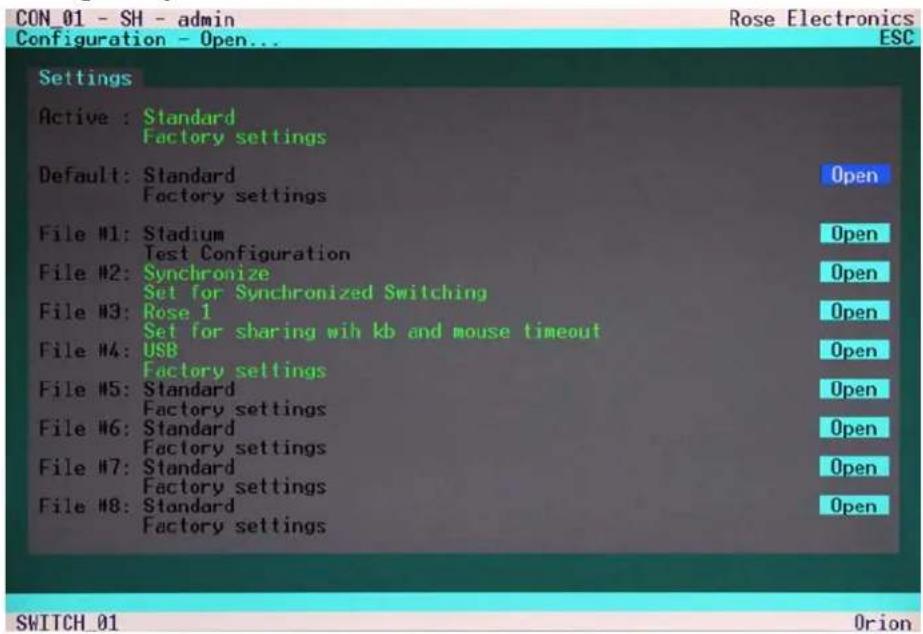
Figure 6. Open configuration file menu
From the main menu, select "System" and press enter to display the system menu. From this menu you can set-up the system, access control, switch settings, and mouse settings. Figure 7 shows this menu.
Configure system menu
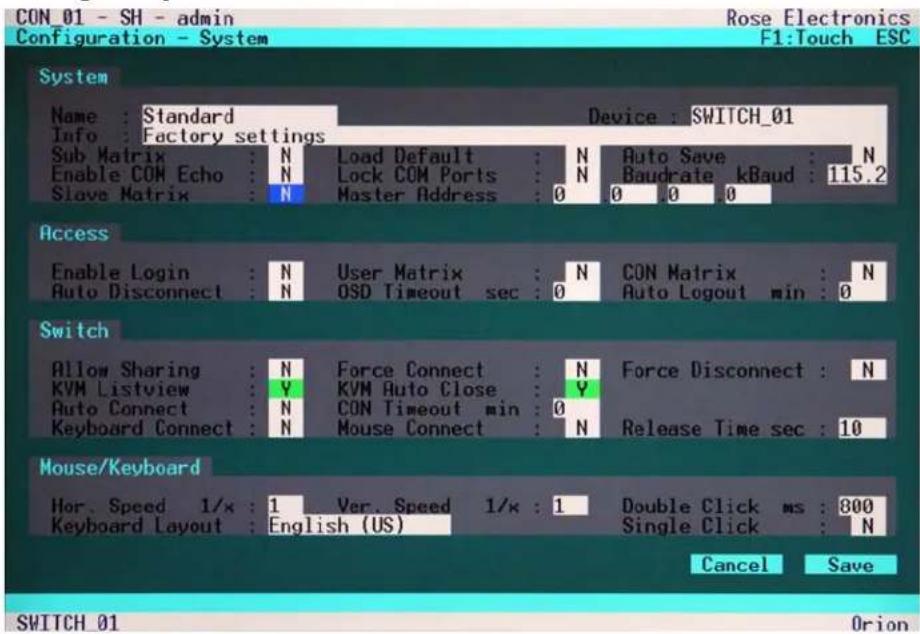
Figure 7. Configure System menu
System options
| Field | Selection | Description |
| Name | 16 Char. | (Input) Configuration name.Used for saving the current configuration to file. |
| Device | 16 Char. | (Input) Device name(displayed in all menus at the lower left) |
| Info. | 64 Char. | (Input) Detailed information about the current configuration |
| Sub Matrix | Y/N | Y – This switch is configured according to a master switch and remotely controlledNo configuration possible.N – No slave mode |
| Load Default | Y/N | Y – Upon “Power On” or “Restart” the switch will boot with the Default configuration.N – Upon “Power On” or “Restart” the switch will boot with the last configuration. |
| Auto Save | Y/N | Y – Switch saves periodically the current configuration into flash.N – No automatic saving |
| EnableCOM Echo | Y/N | Y – Switch sends echoes of all performed switch commandsN – No Echoes. |
| LockCOM Ports | Y/N | Y – While an OSD is open, all commands via external interfaces are rejected (LAN, serial).N – No rejection |
| Baud ratekBaud | Numerical Value | Select a predefined Baud rate for the serial control port (default: 115.2 kBaud) |
| Slave Matrix | Y/N | Y - Allows a second Orion unit to automatically be switched to the same port as the master unitN – No synchronization |
| Master Address | IP Address | Assigned master unit IP address that secondary units will synchronize to.(Entered on secondary unit's OSD) |
Access Options
| Field | Selection | Description |
| Enable Login | Y/N | Y – Login required to access the OSD with user name and password. After login, the user will remain logged in until he explicitly logs out or an Auto Logout has been performed. KVM Switching with Hot Keys requires the user to be logged in.N – No Login required. |
| User Matrix | Y/N | Y – User access restricted to CPU’s explicitly unlocked in the User Matrix. User matrix mode requires user login and implies “Enable Login“ = “Y”. KVM Switching with Hot Keys requires the user to be logged in.N – User Matrix disabled. |
| CON Matrix. | Y/N | Y – CON Port connectivity restricted to CPU’s explicitly unlocked in the CON MatrixN – CON Matrix disabled |
| Auto Disconnect | Y/N | Y – Only active if “Enable Login” or “„User Matrix“ are activated:CON Port is disconnected from current CPU Port upon entering into the OSD.N – Current Connection is held |
| OSD Timeout | sec | ### – Time of inactivity, after which OSD is closed automatically.0 sec – No Timeout. |
| Auto Logout | min | ### – Time of inactivity, after which the user at this console is logged out from OSD access automatically.0 min – Immediate Logout from OSD after closing the OSD. |
Switch Options
| Field | Selection | Description |
| Allow Sharing | Y/N | Y – User may connect to any unlocked CPU with Video Access Only.NOTE: Switch withKey, no. |
| Force Connect | Y/N | Y – User may connect to any unlocked CPU with full control forcing any previous user to Video Access only.Note: Switch withKey.N – No Force Connect. |
| Force Disconnect | Y/N | Y – User may connect to any unlocked CPU with full control. Previous user is disconnected.Note: Switch withKey.N – No Force Disconnect. |
| KVM Listview | Y – OSD is opened with Menu “KVM List” (default)(Dynamic display of available CPU Ports).N – OSD is opened with Menu “KVM Switch”(Static display of available CPU Ports).. | |
| KVM Auto Close | Y/N | Y – Immediate exit from OSD after switching CPU Port in Menu “KVM List” or “KVM Switch” with immediate display of the new CPU.N – No Auto Close |
| Auto Connect | Y/N | Y – If no active CPU connection exists, pressing any console key creates a connection to the first available CPU.N – No Auto Connect |
| CON Timeout | min | ### – Time of inactivity, after which the console will be disconnected from a current CPU connection |
| Keyboard Connect | Y/N | Y – When connected to a CPU currently controlled by another console, attempt to take keyboard control after Release Time seconds of inactivity by the other consoleN – No attempt to gain keyboard control on a shared CPU |
| Mouse Connect | Y/N | Y – When connected to a CPU currently controlled by another console, attempt to gain mouse control after Release Time seconds of inactivity by the other consoleN – No attempt to gain mouse control on a shared CPU |
| Release Time | sec | ### – Time of inactivity, after which a console’s keyboard and mouse control of a CPU connection can be gained by other consoles connected to the same CPU |
NOTE: If "Allow sharing" is activated, the current user of a CPU will not note if other users gain video access to his CPU.
Mouse Options
| Field | Selection | Description |
| Hor. Speed 1/x | VAL2 | Setting up the horizontal mouse speed |
| Ver. Speed 1/x | VAL2 | Setting up the vertical mouse speed |
| Double Click | ms | Setting up the time frame for “Double Click” (100 – 800 ms) |
| Keyboard Layout | Region | Set the OSD keyboard layout according to the keyboard in use |
| Single Click | Y/N | Y – Execute OSD commands with a single click (when using a touch screen to control the OSD).N – Single click inactive |
NOTE: Mouse settings are CON Port specific and can be adjusted for each CON Port separately.
Touch Screen settings
The Orion OSD supports touch screens.
NOTE: USB HID based Touch Screen protocols are supported. Support of Vendor specific protocols only upon request.
To configure the touch screen feature, from the configure System menu, press the
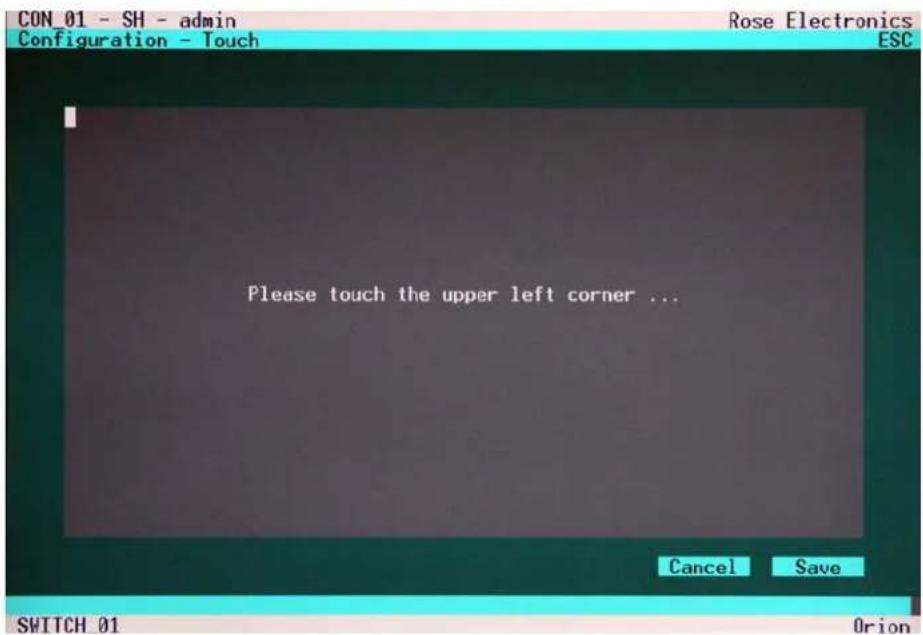
Figure 8. Touch screen calibration
On the touch screen calibration display, touch the upper left of the screen twice, then at the lower right. test the calibration results and cancel or save the calibration. This calibration is CON Port specific and must be repeated for each touch screen at its CON Port.
Touch Control
Control by touch is mostly similar to mouse control. Confirmation of a selection is performed by a second touch instead of double click.
Configure user
To configure the users of the Orion switch, select the option "User" in the "Configuration" menu by using the cursor buttons and press enter. The "User" mask will display full screen as shown in figure 9.
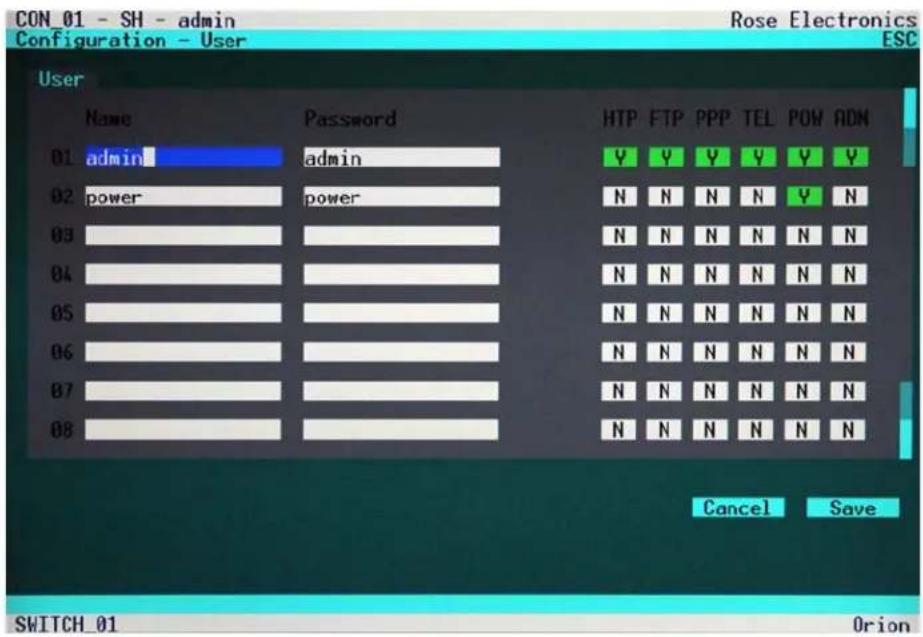
Figure 9. Configure User menu
In this menu, you can setup user names and privileges.
| Field | Type | Description |
| Name | CHR16 | User Name (case-sensitive) |
| Password | CHR16 | User Password (case-sensitive) |
| HTP | Y/N | User may login and access via HTTP |
| FTP | Y/N | User may login and access via FTP |
| PPP | Y/N | User may login and access via ,Internet' (not available) |
| TEL | Y/N | User may login and access via Telnet |
| POW | Y/N | User is ,Power-User' and may activate e.g. the CrossPoint Mode |
| ADM | Y/N | User is Administrator and may change the configuration or activate the CrossPoint Mode |
User Matrix Configuration
Select the option "User Matrix" in the "Configuration" menu by using the cursor buttons and press
The "User Matrix" mask is displayed full screen as shown is figure 10.
In this menu, the administrator can define for each user a specific set of CPU's that this user is authorized to connect to. If the option "User Matrix" is active, any switching requires the user to be logged in. Only then, switching by Hot keys will be supported. The below example shows user #01 has access to CPU_01, CPU_02, and CPU_04.
To assign a user access to a CPU port, select the CPU port to assign and press
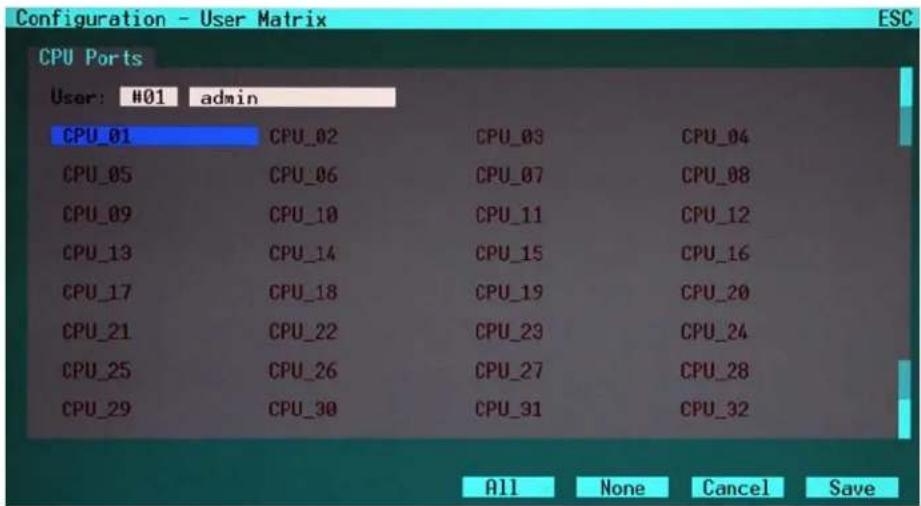
Figure 10. User Matrix Menu
| Key Control | Description |
| Page up to previous user | |
| Page down to next user | |
| Move to left field | |
| Move to right field | |
| Line up | |
| Line down | |
| Next field | |
| + | Previous field |
| Release selected CPU-Port for selected User | |
| Apply and save data | |
| Back to “Configuration” Menu |
NOTE:
The User Matrix configuration and the Console Matrix configuration work together to grant access to a CPU port. Both the User Matrix configuration for a user and the Console Matrix configuration must grant access to a CPU port. If the User Matrix grants access to CPU port #2 but the Console Matrix does not grant access to CPU port #2, access is denied.
CON Port Configuration
Select "CON Ports" in the "Configuration" menu and press
The "CON Ports" mask will displayed full screen as shown in figure 11.
This menu allows the administrator to define for each CON Port the name, the type, the OSD resolution, and the connected CPU.
Please note the following guidelines for type selection:
- Single-Head Ports and USB 2.0 Ports can be switched separately.
- Dual-Head Ports, Quad-Head Ports, Single-Head/USB 2.0 Ports and Triple-Head/USB 2.0 Ports are always switched in parallel.
- Only odd Port numbers (#01, 03, 05, etc.) may be configured as Dual-Head Ports or Single-Head/USB 2.0 Ports.
- Only every fourth Port (#01, 05, 09, etc.) may be configured as Quad-Head Port or Triple-Head/USB 2.0 Port.
■ Only the first CON-Port can be switched by Hotkeys, all other Ports behave like Slaves.
If you switch from a Multi-Head CPU-Port to a differently configured CPU Port, one or more monitors may remain dark.
If the user switches from a Quad-Head Console to a Single-Head CPU Port, all other three monitors will remain dark.
If the user switches from a Quad-Head Console to a Dual-Head CPU Port, the last two monitors will remain dark.
If the user at a Triple-Head/USB 2.0 Console switches to a Single-Head/USB 2.0 CPU Port, two monitors will remain and the USB-Port remains inactive.
If the user at a Single-Head/USB 2.0 Console switches to a Single-Head CPU Port with a subsequent USB 2.0 CPU Port, the USB Port still remains inactive.
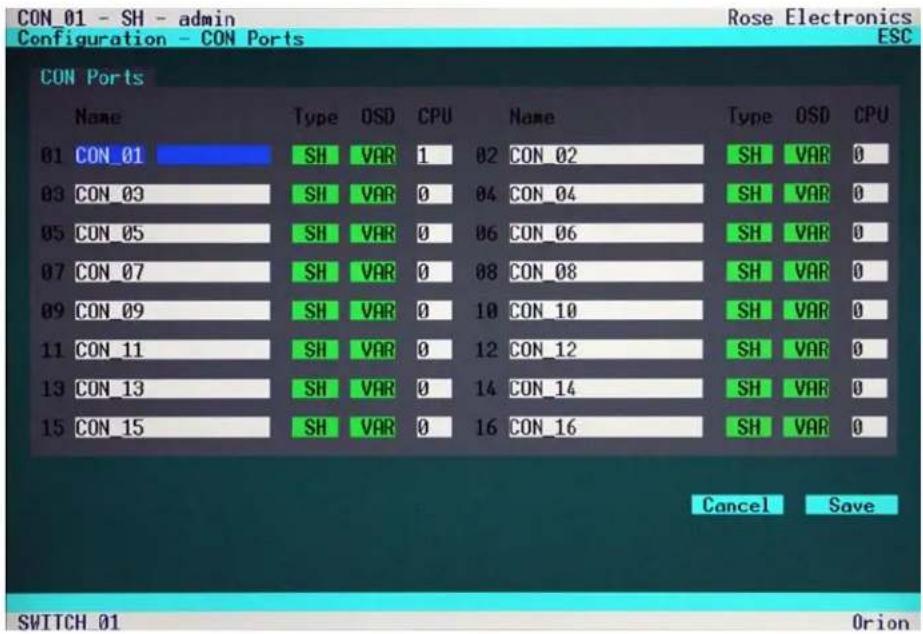
Figure 11. CON port configuration
| Field | Type | Description |
| Name | CHR16 | Name of the CON port connected to this CPU port |
| Type | SELECT | SH = Single-Head PortDH = Dual-Head PortQH = Quad-Head Port0U = USB 2.0 Port1U = Single-Head Port with USB 2.0 Port3U = Triple-Head Port with USB 2.0 Port |
| OSD | SELECT | VAR = OSD embedded in current resolution800 = OSD with full screen resolution (800x600)1024 = OSD with full screen resolution (1024x768)1280 = OSD with full screen resolution (1280x1024)1600 = OSD with full screen resolution (1600x1200)1920 = OSD with full screen resolution (1920x1200) |
| CPU | VAL2 | No. of CPU Port connected to this Console (Status) or.to be connected by |
CON Matrix Configuration
Select the option "CON Matrix" in the "Configuration" menu and press
The "CON Matrix" mask is displayed full screen as shown in figure 12.
This menu allows the administrator to define for each console a specific set of CPU's that this Console can connect to. To assign a CPU to a CON port, select the CPU port and press return to highlight the selected CPU port. Select all CPU ports that this Console can access. When completed, "Save" the selections.
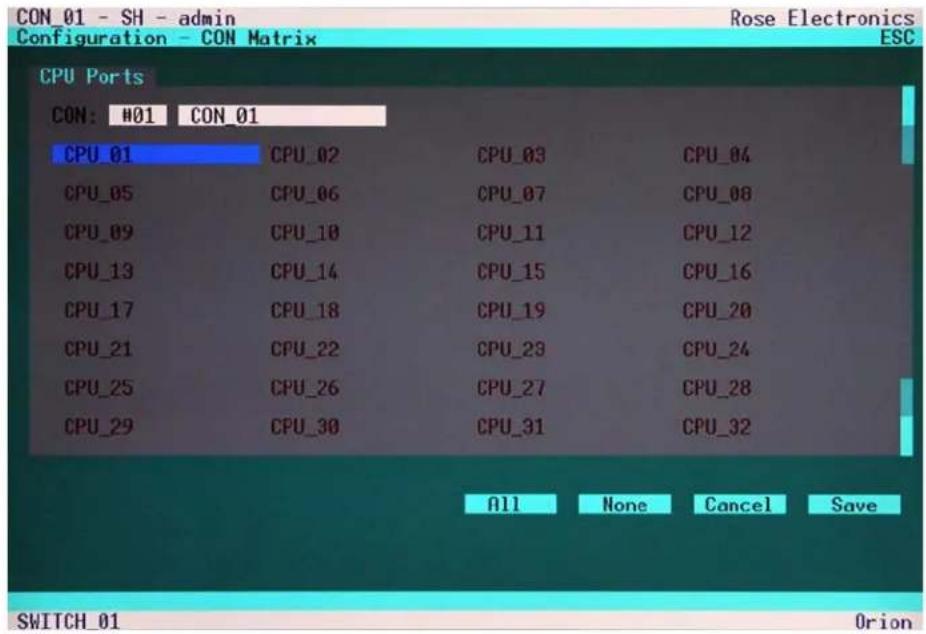
Figure 12. CON Matrix Configuration
| Keyboard Control | Description |
| Page up to previous CON Port | |
| Page down to next CON Port | |
| Move to left field | |
| Move to right field | |
| Line up | |
| Line down | |
| Next field | |
| Previous field | |
| Release selected CPU-Port for selected CON Port | |
| Release selected CPU-Port for selected CON Port, apply and save data | |
| Back to upper Menu |
CPU Port Configuration
Select the option "CPU Ports" in the "Configuration" menu and press
The "CPU Ports" mask is displayed full screen as shown in figure 13.
This menu allows the administrator to define, for each CPU Port, the name, the type, and the connected CON Port.
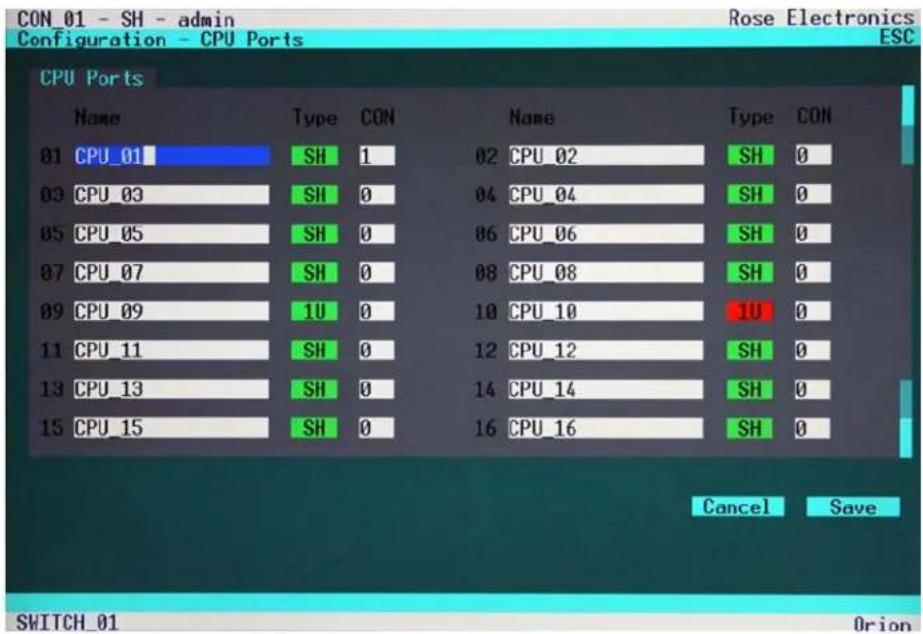
Figure 13. CPU Port Configuration
| Field | Type | Description |
| Name | CHR16 | Name of the CPU connected to this port |
| Type | SELECT | SH = Single-Head PortDH = Dual-Head PortQH = Quad-Head Port0U = USB 2.0 Port1U = Single-Head Port with USB 2.0 Port3U = Triple-Head Port with USB 2.0 Port |
| CON | VAL2 | No. of CON Port connected to this CPU (Status) or to be connected by |
Status Information
Enter the OSD with key sequence
Leave the "KVM List" Mask by hitting
Select the menu option "Status" and press
The "Status" mask will displayed full screen as shown in figure 14.
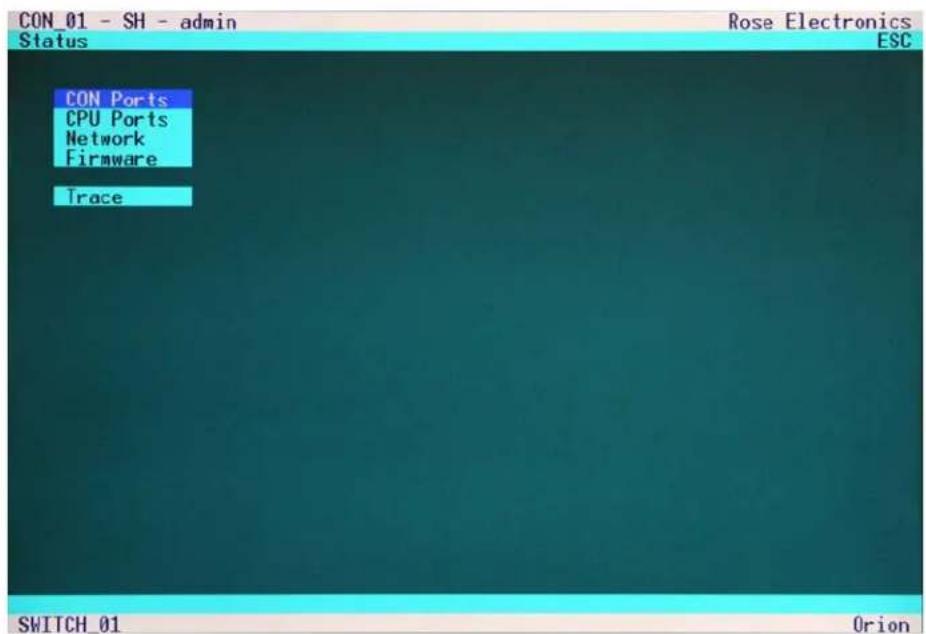
Figure 14. Status menu
Status Display – CON ports
Using the up / down arrow keys, select CON ports and press
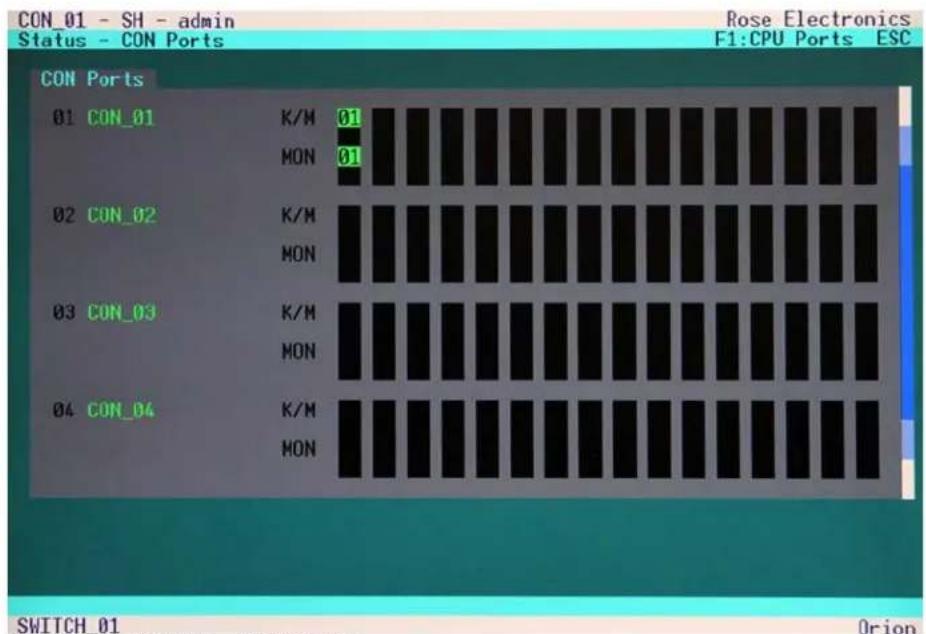
Figure 15. Status - CON ports
Select the option "CON Ports" in the "Status" menu and press
| Key Command | Description |
| Page up in Input-/Status Masks with several pages | |
| Page down in Input-/Status Masks with several pages | |
| Switch to the CPU Port Status Display | |
| Return to “Status” Mask |
Status Display – CPU ports
Select the option "CPU Ports" from the "Status" menu and press
This status view shows which CPU is connected to which console.
Pressing the 'F1' key switches to the "CON Port view".
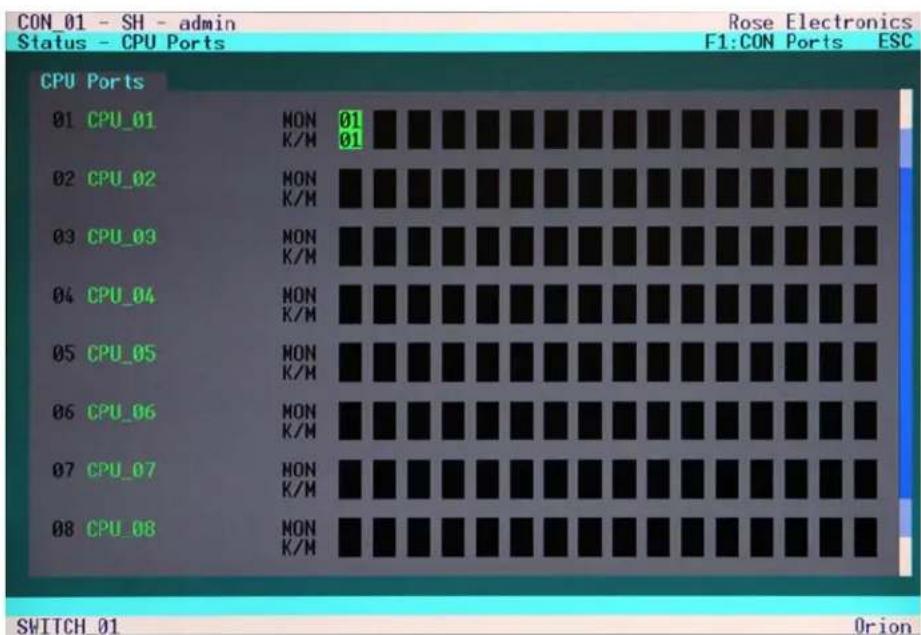
Figure 16. Status – CPU Ports
| Key Command | Description |
| Page up in Input-/Status Masks with several pages | |
| Page down in Input-/Status Masks with several pages | |
| Switch to the CON Port Status Display | |
| Return to “Status” Mask |
Status Display – Network
Network functionality is in development at this time.
Status Display – Firmware
Select Firmware from the status menu and press
Use the page up and page down keys to view both screens.
Press ESC to return to the Status Menu.
Diagnostic LEDs (CATx cable / Fiber cable)
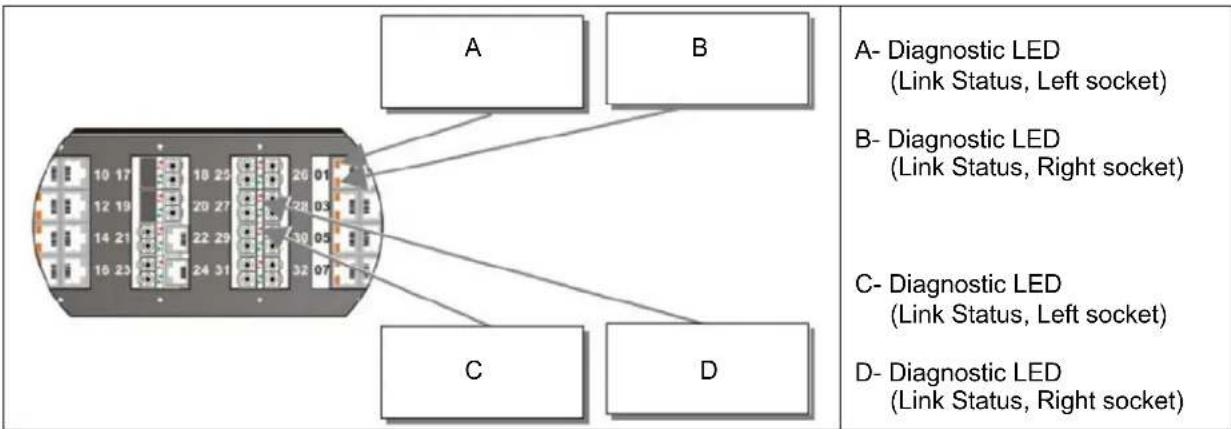
flowchart
graph TD
    A["Switch"] --> B["Diagnostic LED"]
    A --> C["Diagnostic LED"]
    A --> D["Diagnostic LED"]
    B --> E["Link Status, Left socket"]
    B --> F["Link Status, Right socket"]
    C --> G["Link Status, Left socket"]
    C --> H["Link Status, Right socket"]
    D --> I["Link Status, Right socket"]
| LED (CATx link) | Appearance | Diagnostics |
| Link Status (Green/Orange LED) | Green blinking | Link cable connection OKData transmission active |
| Green On | Link cable connection OKNo data transmission | |
| Orange blinking | Port active, no link cable connection | |
| Off | Port not active |
| LED (Fiber link) | Appearance | Diagnostics |
| Link Status (Green/Orange LED) | Green blinking | Port activated, signal OK |
| Green On | Port deactivated, signal OK | |
| Red blinking | Port activated, no signal detected | |
| Green On | Port activated, module error signal | |
| Off | Port deactivated |
Operating the Orion Unit
The Orion ^™ unit can be operated in three different ways:
a) Instant Switching:
- By means of a standard keyboard connected to a console port and hot keys
- By means of a macro keyboard connected to a console port (See Appendix E)
b) Via Input Masks:
- By means of a standard keyboard connected to a console port and the OSD
- By means of a PC, a Browser and the web interface
- By means of a PC, a dedicated utility and the serial interface
In all operation modes, the same masks are generated and displayed. Accordingly, the switching is similar, independent from the method of access.
c) Via external switch commands:
- By means of the network interface
- By means of the serial interface
HOT Key switching
Instant Switching with Keyboard Hot Keys is the fastest way for a user to switch between various CPU's. By hitting
Instantaneously, the Keyboard LED's stop flashing, the Hotkey Mode is terminated and the new CPU is connected to the console.
Note-:
With Hotkeys you can only switch to available or accessible CPU's. The Options "Force Connect" and "Force Disconnect" as well as access permissions defined by "User Matrix" and "CON Matrix" are considered.
Hotkeys are only supported, if neither the option "Enable Login" or the option "User Matrix" are selected OR if the user is logged into the OSD.
OSD / KVM mode switching
In the KVM Mode, the user can only switch his own console. To control other consoles, please refer to the Crosspoint switch section.
KVM-List mask switching
The KVM-List mask displays when you first initiate the OSD (Shift + Shift + o). In this mask, all CPU Ports are displayed that are currently accessible to the current user at this console.
All constraints given by CPU Ports already connected to other consoles as well as access restrictions imposed by the User Matrix or by the Console Matrix are considered. Constraints given by CPU Ports already connected may be overwritten if "Allow Sharing", "Force Connect" and/or "Force Disconnect" have been selected.
![KVM-List F2:Follow Me F1:KVM-Switch ESC CPU Ports [CPU_01] [CON_01] [CPU_02] n.c. [CPU_03] n.c. [CPU_04] n.c. [CPU_05] n.c. [CPU_06] n.c. [CPU_07] n.c. [CPU_08] n.c. + Full access in private mode with video sharing disabled Full access in standard mode with video sharing enabled Video only access with keyboard & mouse disabled](/content/2026/06/1204458/images/8e6290cfbe0658ab65f7fd51f89f6b22898bf0251ad4c8a670d65cff94df1669.jpg)
Figure 17. KVM-List menu
The CPU_xx and CON_xx text on this screen will provide you information about the connection by using the following color scheme.
| CPU Port | CON Port | Description |
| Green n.c | CPU port not connectedVideo may be shared to other consoles | |
| Green Yellow | CPU Port not connectedVideo shared to own console | |
| Yellow | Yellow | CPU Port connected to own console |
| Red | Red | CPU port connected to other console |
| Red Yellow | CPU port connected to other consoleVideo shared to own console |
Keyboard Commands
(Only if "Allow Sharing" active or CPU available)
With a mouse or Touch screen the user can select a CPU Port Video only if the CPU Port is already connected to another Console and neither "Force Connect" nor "Force Disconnect" have been selected. In all other cases he will have full control of the selected CPU port.
KVM-Switch mask switching
Unlike the KVM-List mask that shows only the CPU ports that are accessible based on the User Matrix and Console Matrix set-up, the KVM-Switch mask shows all CPU Ports regardless of their accessibility. To switch to a CPU port, select (highlight) the port and press the
![CON_01 - SH KVM-Switch Rose Electronics F2:Follow Me F1:KVM-List ESC CPU Ports [CPU_01] [CPU_02] [CPU_03] [CPU_04] CON_01 n.c. n.c. n.c. n.c. n.c. ] [CPU_05] [CPU_06] [CPU_07] [CPU_08] n.c. n.c. n.c. n.c. n.c. n.c. ] [CPU_09] [CPU_10] [CPU_11] [CPU_12] n.c. n.c. n.c. n.c. n.c. n.c. n.c. ] [CPU_13] [CPU_14] [CPU_15] [CPU_16] n.c. n.c. n.c. n.c. n.c. n.c. n.c. n.c. ] [CPU_17] [CPU_18] [CPU_19] [CPU_20] n.c. n.c. n.c. n.c. n.c. n.c. n.c. n.c. n.c. ] [CPU_21] [CPU_22] [CPU_23] [CPU_24] n.c. n.c. n.c. n.c. n.c. n.c. n.c. n.c. n.c. n.c. ] [CPU_25] [CPU_26] [CPU_27] [CPU_28] n.c. n.c. n.c. n.c. n.c. n.c. n.c. n.c. n.c. n.c. n.c. n.c. [CPU_29] [CPU_30] [CPU_31] [CPU_32] n.c. n.c. n.c. n.c. n.c. n.c. n.c. n.c. n.c. n.c. SWITCH 01 Orion](/content/2026/06/1204458/images/6032af6567346a1eea53f20d43d07bf9318fb5266596ae460359bf5147db1861.jpg)
Figure 18. KVM-switch mask
The CPU_xx and CON_xx listing on this screen will provide you information about the connection by using the following color scheme.
| CPU Port | CON Port | Description |
| Green n.c | CPU port not connectedVideo may be shared to other consoles | |
| Green Yellow | CPU Port not connectedVideo shared to own console | |
| Yellow | Yellow | CPU Port connected to own console |
| Red | Red | CPU port connected to other console |
| Red Yellow | CPU port connected to other consoleVideo shared to own console | |
| Blank | n.c | CPU Port not available |
Keyboard Commands
(Only if "Allow Sharing" active or CPU available)
With a mouse or Touch screen the user can select a CPU Port Video only if the CPU Port is already connected to another Console and neither "Force Connect" nor "Force Disconnect" have been selected. In all other he will have full control of the selected CPU port.
Follow-Me function
The Follow Me function allows you to display the contents of your monitor to one or more CON ports. Pressing the
![Follow Me F1:KVM-List ESC CON Ports [CON_01] [CON_02] [CON_03] [CON_04] CPU_01 n.c. n.c. n.c. n.c. [CON_05] [CON_06] [CON_07] [CON_08] n.c. n.c. n.c. n.c. n.c. [CON_09] [CON_10] [CON_11] [CON_12] n.c. n.c. n.c. n.c. n.c. [CON_13] [CON_14] [CON_15] [CON_16] n.c. n.c. n.c. n.c. Clear all](/content/2026/06/1204458/images/fd4ba2d01a5a568dc767047561a7636e3c2de8192ef56d81c76e5c1cc3792268.jpg)
Figure 19. Follow Me mask
The CPU_xx and CON_xx listing provide you information about the connection by using the following color scheme.
| CPU Port | CON Port | Description |
| Green | n.c | Available CON port |
| Red | Red | CON Port # connected to PCU Port # or to CON Port # in “Follow-Me” mode |
| Black | Black | Own CON port connection |
| Black | n.c | CON Port not available |
Keyboard Commands (Follow-Me mode)
The function can be used to:
■ Showing the contents of your display to other workstations.
■ Display a presentation on a projector
■ Presenting a controlled display to control rooms
Installation for the Cross-Point mode is exactly the same as the KVM-switch mode installation. All CPU's connect to a KVM transmitter and all user stations (Console stations) connect to a KVM receiver. Receiver and transmitter connect to the Orion using CATx or fiber cables. See figure 2 for an example of the installation.
Enter the OSD with key sequence
In the Crosspoint Mode any CON Port can be connected to any CPU Port. The Video signal of a CPU Port can be connected to several CON Ports, but the Keyboard/Mouse signal of a CPU can only be connected to one CON port and must be connected to a CON Port which also receives the video signal of this CPU Port.
In the CP mode, any existing connection can be overwritten. Therefore, this mode is only available for power users. For utmost flexibility, no user restriction checks are performed. Admissibility of configuration remains the responsibility of the user!
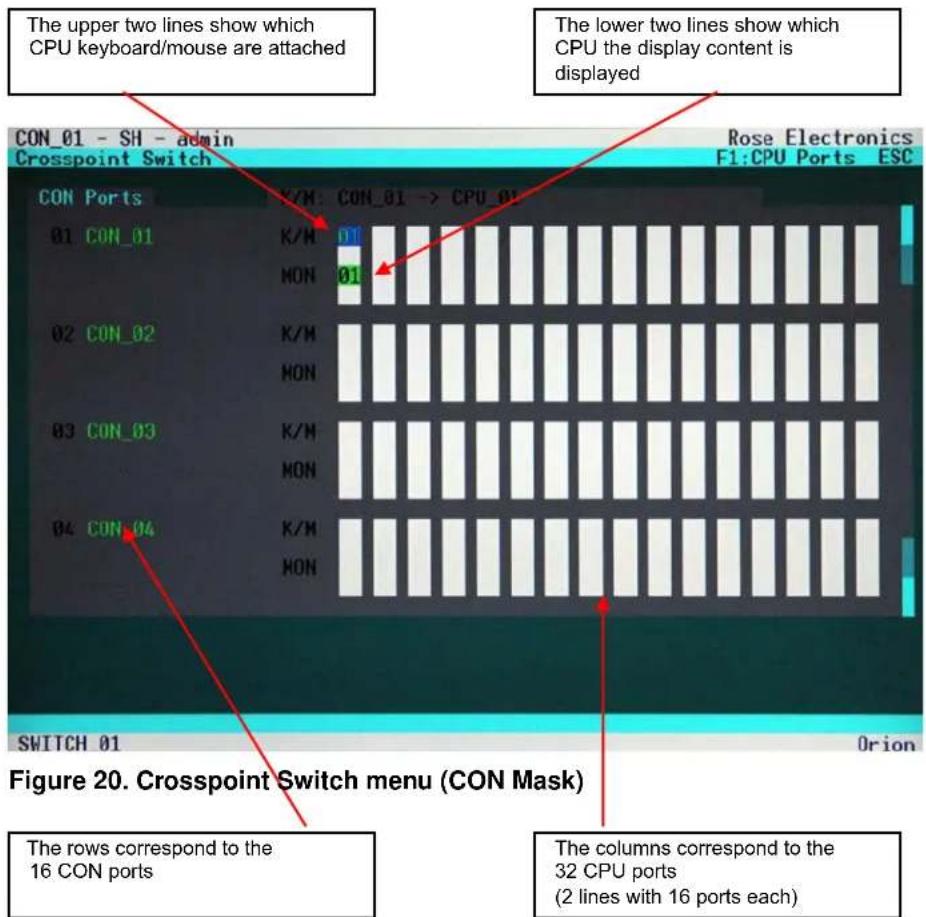
Only 1x monitor and 1x keyboard/mouse (K/M) may be assigned to each CON port. If another CPU is selected (K/M or Monitor), any existing assignment of this CON Port is released.
Only 1x monitor without keyboard/mouse (K/M) can be assigned to each CON port. If you assign 1x K/M, however, you must assign the corresponding monitor as well!
Assignment of a single signal (K/M or MON) is performed by
Keyboard Commands:
Attention: Switch command is executed immediately
Attention: Switch command is executed immediately – No plausibility check – Admissibility of configuration under responsibility of the user!
Cross Point Switch Mode (CPU mask)
To enter the Crosspoint switch CPU mask, press the F1 key from the COM mask menu. The menu shown in figure 21 will display.
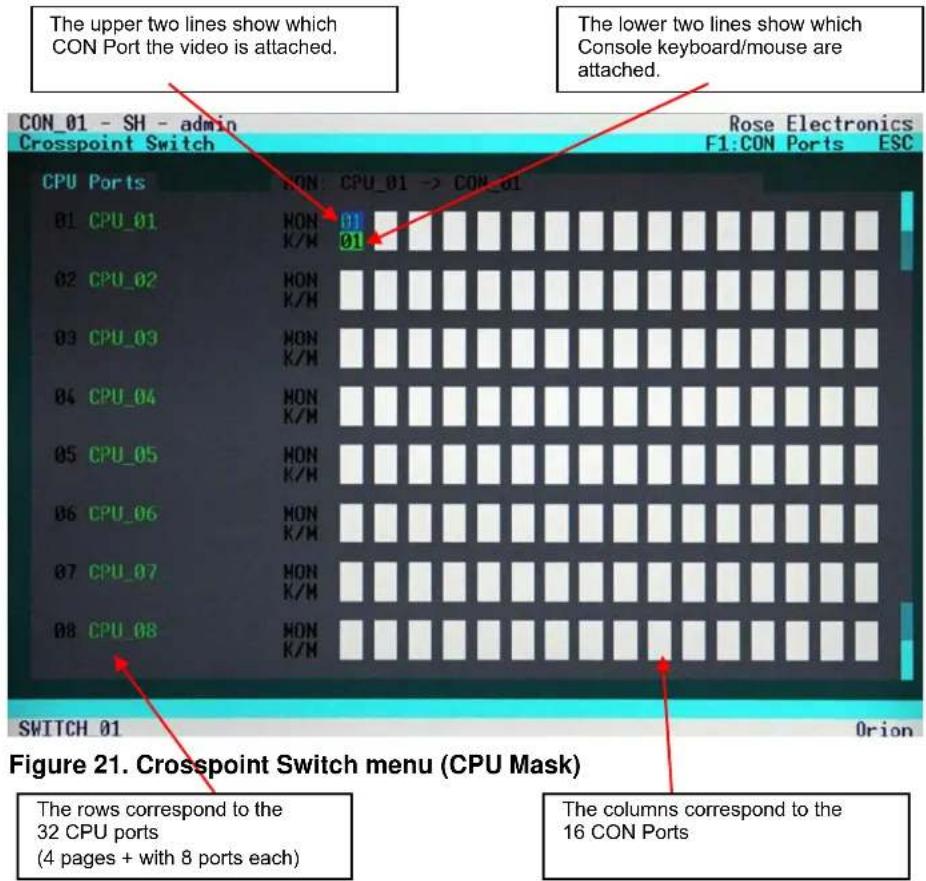
Any number of monitors can be assigned to each CPU but only one keyboard/mouse
Keyboard Commands:
Attention: Switch command is executed immediately
Attention: Switch command is executed immediately
Switching using a Browser / Web Interface
The Web Interface is under development. In Browser mode, switching will be designed to perform similarly to the Switching in OSD / Crosspoint Mode. Similar masks are generated and displayed.
Switching using a Serial Interface
The Orion™ provides full Crosspoint switching functionality via Serial Interface. Serial switching commands allow switching of video only, K/M only and bidirectional switching. Additional Commands allow loading, saving and defining the complete switch matrix in one step. All available serial switching commands are listed in Appendix D: Serial Interface.
OPERATING MODES
Operating modes - Overview
The Orion ^™ provides full flexibility for configuration of your Switch environment. One part can be configured as Single-Head Ports, another part as Dual-Head- or even Quad-Head Ports. You can also mix configurations of KVM and USB2.0 ports.
With the "Follow-Me" function, you can copy your own display content to one or more additional monitors. If a presentation shall be displayed concurrently on a projector
In each operating mode, the device can be controlled like a "Crosspoint Switch". This functionality can be used to perform all switch activity from one single workplace or to set up specific configurations which are not allowed in regular operating modes. This is the only possible operating mode for pure video switching environments.
Single-Head KVM switch mode
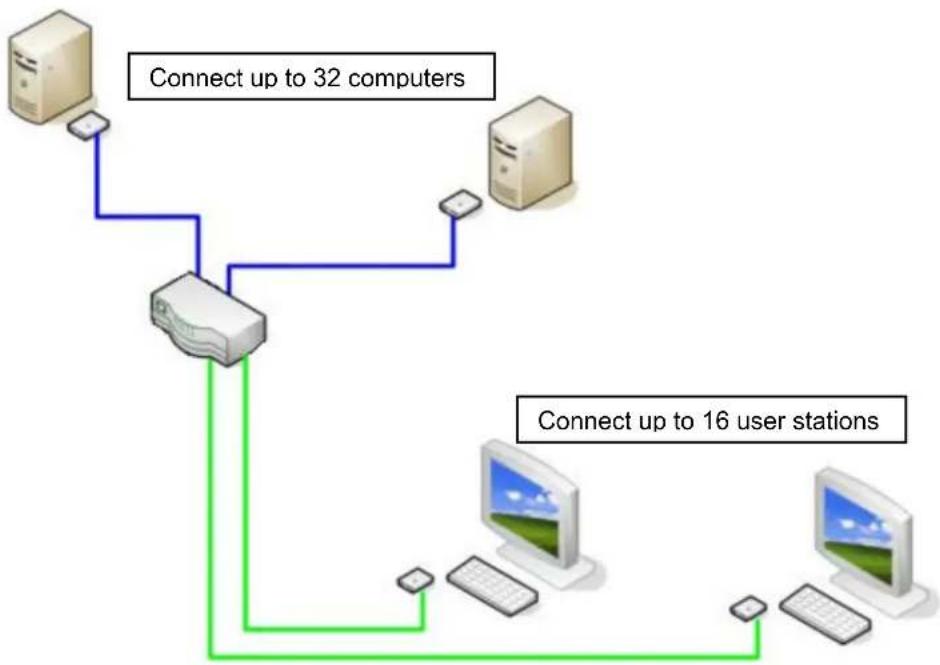
In the Single-Head Mode up to 16 users can access up to 32 CPUs. NON-Blocking Access for all users is granted, i.e. none of the users is constrained by the activity of another user.
flowchart
graph TD
    A["Desktop Computer"] -->|Connect up to 32 computers| B["Server"]
    B --> C["Mobile Device"]
    B --> D["User Station"]
    B --> E["User Station"]
    B --> F["User Station"]
    style A fill:#f9f,stroke:#333
    style B fill:#ccf,stroke:#333
    style C fill:#cfc,stroke:#333
    style D fill:#fcc,stroke:#333
    style E fill:#cff,stroke:#333
    style F fill:#ffc,stroke:#333
Single-Head KVM-Switch
Using the OSD, each user can select the CPU that he wants to connect to. The OSD display shows if the CPU has already been assigned to another user. Depending on the switch configuration, access to this CPU Port will be denied or the former user will be replaced by the new user.
Depending on the switch configuration, access to the OSD is possible at any time or is requiring an authentication. With the authentication, access to CPU Ports and/or User Ports can further be restricted by assigning specific user levels. Alternatively, the user can be assigned to one or more user groups with access to a defined set of CPU Ports and/or User Ports.
With the "Follow-Me" function, you can copy your own display content to one or more additional monitors. From a Single-Head User Port you might also access a Dual-Head- or Quad-Head- CPU. Operation, however, is limited to the first monitor in this case.
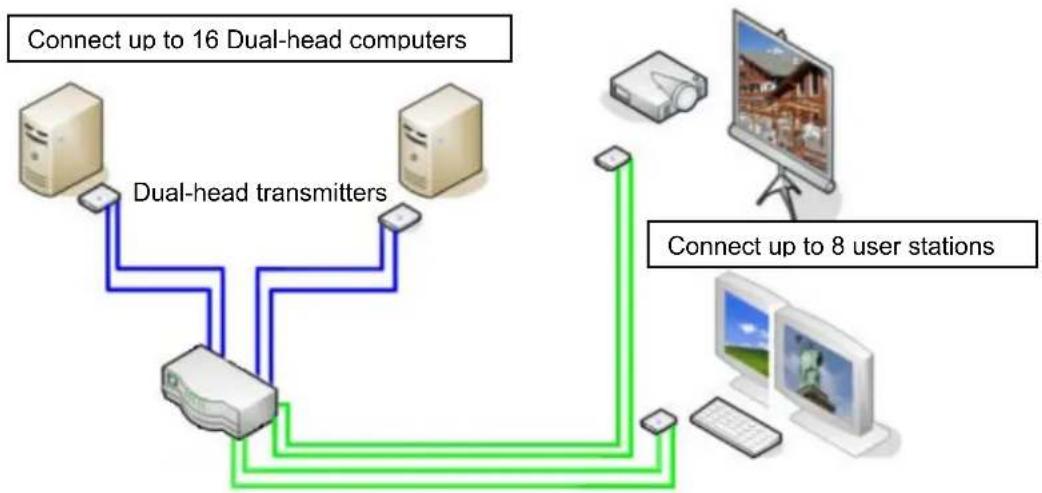
In Dual-Head Mode up to 8 Users can access up to 16 CPUs. NON-Blocking Access for all users is granted, i.e. none of the users is constrained by the activity of another user.
flowchart
graph TD
    A["Computer 1"] -->|Connect up to 16 Dual-head computers| B["Dual-head transmitters"]
    C["Computer 2"] -->|Connect up to 16 Dual-head computers| B
    D["Computer 3"] -->|Connect up to 16 Dual-head computers| B
    E["Computer 4"] -->|Connect up to 16 Dual-head computers| B
    F["Computer 5"] -->|Connect up to 16 Dual-head computers| B
    G["Computer 6"] -->|Connect up to 16 Dual-head computers| B
    H["Computer 7"] -->|Connect up to 16 Dual-head computers| B
    I["Computer 8"] -->|Connect up to 16 Dual-head computers| B
    J["Computer 9"] -->|Connect up to 16 Dual-head computers| B
    K["Computer 10"] -->|Connect up to 16 Dual-head computers| B
    L["Computer 11"] -->|Connect up to 16 Dual-head computers| B
    M["Computer 12"] -->|Connect up to 16 Dual-head computers| B
    N["Computer 13"] -->|Connect up to 16 Dual-head computers| B
    O["Computer 14"] -->|Connect up to 16 Dual-head computers| B
    P["Computer 15"] -->|Connect up to 16 Dual-head computers| B
    Q["Computer 16"] -->|Connect up to 16 Dual-head computers| B
    R["Computer 17"] -->|Connect up to 16 Dual-head computers| B
    S["Computer 18"] -->|Connect up to 16 Dual-head computers| B
    T["Computer 19"] -->|Connect up to 16 Dual-head computers| B
    U["Computer 20"] -->|Connect up to 16 Dual-head computers| B
    V["Computer 21"] -->|Connect up to 16 Dual-head computers| B
    W["Computer 22"] -->|Connect up to 16 Dual-head computers| B
    X["Computer 23"] -->|Connect up to 16 Dual-head computers| B
    Y["Computer 24"] -->|Connect up to 16 Dual-head computers| B
    Z["Computer 25"] -->|Connect up to 16 Dual-head computers| B
    AA["Computer 26"] -->|Connect up to 16 Dual-head computers| B
    AB["Computer 27"] -->|Connect up to 16 Dual-head computers| B
    AC["Computer 28"] -->|Connect up to 16 Dual-head computers| B
    AD["Computer 29"] -->|Connect up to 16 Dual-head computers| B
    AE["Computer 30"] -->|Connect up to 16 Dual-head computers| B
    AF["Computer 31"] -->|Connect up to 16 Dual-head computers| B
    AG["Computer 32"] -->|Connect up to 16 Dual-head computers| B
    AH["Computer 33"] -->|Connect up to 16 Dual-head computers| B
    AI["Computer 34"] -->|Connect up to 16 Dual-head computers| B
    AJ["Computer 35"] -->|Connect up to 16 Dual-head computers| B
    AK["Computer 36"] -->|Connect up to 16 Dual-head computers| B
    AL["Computer 37"] -->|Connect up to 16 Dual-head computers| B
    AM["Computer 38"] -->|Connect up to 16 Dual-head computers| B
    AN["Computer 39"] -->|Connect up to 16 Dual-head computers| B
    AO["Computer 40"] -->|Connect up to 16 Dual-head computers| B
    AP["Computer 41"] -->|Connect up to 16 Dual-head computers| B
    AQ["Computer 42"] -->|Connect up to 16 Dual-head computers| B
    AR["Computer 43"] -->|Connect up to 16 Dual-head computers| B
    AS["Computer 44"] -->|Connect up to 16 Dual-head computers| B
    AT["Computer 45"] -->|Connect up to 16 Dual-head computers| B
    AU["Computer 46"] -->|Connect up to 16 Dual-head computers| B
    AV["Computer 47"] -->|Connect up to 16 Dual-head computers| B
    AW["Computer 48"] -->|Connect up to 16 Dual-head computers| B
    AX["Computer 49"] -->|Connect up to 16 Dual-head computers| B
    AY["Computer 50"] -->|Connect up to 16 Dual-head computers| B
Dual-Head KVM-Switch
To configure the Orion unit to support dual head computers, both the CPU port and CON port OSD must be configured for dual head support. Display the main OSD menu and select the Configuration OSD (Fig 3 & 5). From the configuration OSD, select "CON ports" and press enter. The CON Ports OSD will display (Fig 11). Select the user CON port that will be connected to a dual head receiver (Odd port numbers). If you select CON Port #1 and change the TYPE field to DH (dual-head) notice that CON Port #2 also changed. This configures CON Port #1 and #2 as dual-head. These two CON ports are connected to a dual-head receiver.
Next the CPU ports that are connected to a dual-head transmitter must also be configured for dual-head support. From the Configuration OSD, select "CPU ports" and press enter. The CPU Ports OSD will display (Fig 13). Select the CPU ports that will be connected to a dual-head transmitter (Odd port numbers). If you select CPU port #1 and change the TYPE field to DH (dual-head) notice that CPU Port #2 also changed. This configures CPU port #1 and #2 as dual-head. These two CPU ports are connected to a dual-head transmitter.
Connect the CON ports that have been configured for dual-head to a dual-head receiver using CATx or fiber cable.
The receiver outputs (video 1, keyboard, mouse, video 2) are connected to the user station equipment. Note: The user station keyboard and mouse function with video #1 only.
Dual-head hardware configuration
Connect each dual-head computer to a dual-head transmitter (Video 1, keyboard, mouse, video 2). Connect the output RJ45 connectors (two) on the dual-head transmitter to the CPU ports on the Orion unit that have been configured for dual-head using CATx or fiber cable, depending on the model.
Connect the CON ports that have been configured for dual-head to a dual-head receiver using CATx or fiber cable. The dual-head receiver outputs (video 1, keyboard, mouse, video 2) are connected to the user station equipment. Note: The user station keyboard and mouse function with video #1 only.
Using the OSD, each user can select the CPU that he wants to connect to. The OSD display shows if the desired dual-head CPU has already been assigned to another user. From a Dual-Head User Port you might also access a Single-Head- or Quad-Head- CPU. With a Single-Head CPU, the second monitor will remain dark (not connected) and with a Quad-Head CPU, operation is limited to the first or second monitor.
Quad - Head KVM switch mode
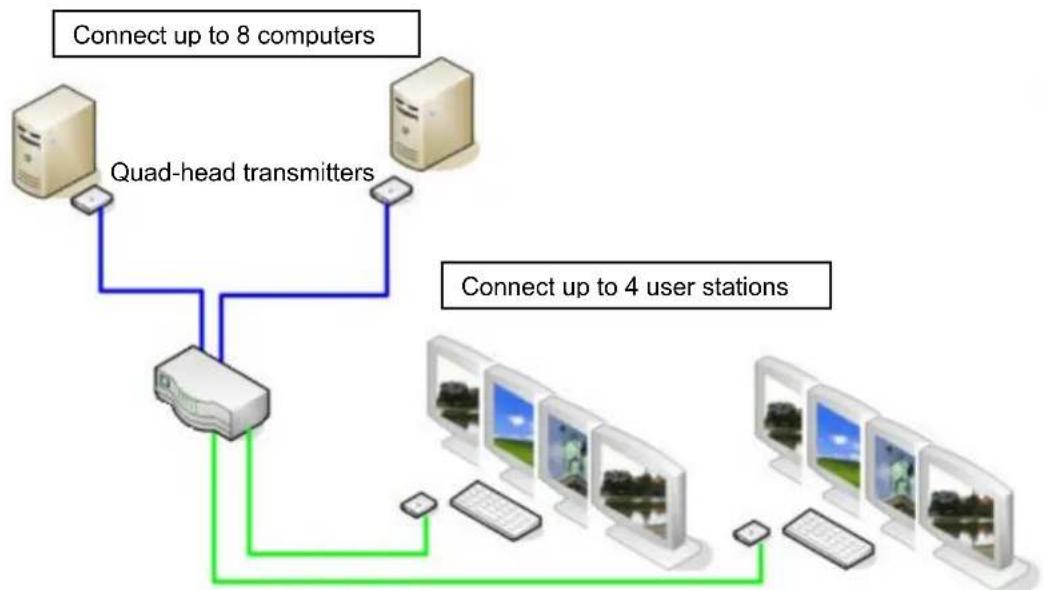
In Quad-Head Mode up to 4 Users can access up to 8 CPUs. NON-Blocking Access for all users is granted, i.e. none of the users are constrained by the activity of another user.
flowchart
graph TD
    A["Quad-head transmitters"] -->|Connect up to 8 computers| B["Computer"]
    A -->|Connect up to 4 user stations| C["Computer with monitor, keyboard, mouse, and server"]
    C --> D["Computer with monitor, keyboard, mouse, and server"]
Quad-Head KVM-Switch
To configure the Orion unit to support Quad head computers, both the CPU port and CON port OSD must be configured for quad head support. Display the main OSD menu and select the Configuration OSD (Fig 3 & 5). From the configuration OSD, select "CON ports" and press enter. The CON Ports OSD will display (Fig 11). Select the user CON port that will be connected to a quad head receiver (Every fourth port 1, 5, 9, etc). If you select CON Port #1 and change the TYPE field to QH (quad-head) notice that CON Port #2, #3, and #4 also change. This configures CON Port #1, #2, #3, and #4 as quad-head. These four CON ports are connected to a quad-head receiver.
Next the CPU ports that are connected to a quad-head transmitter must also be configured for quad-head support. From the Configuration OSD, select "CPU ports" and press enter. The CPU Ports OSD will display (Fig 13). Select the CPU ports that will be connected to a quad-head transmitter. If you select CPU port #1 and change the TYPE field to QH (quad-head) notice that CPU Port #2, #3, and #4 also changed. This configures CPU port #1, #2, #3, and #4 as quad-head. These four CPU ports are connected to a quad-head transmitter.
Connect the CON ports that have been configured for quad-head to a quad-head receiver using CATx or fiber cable.
The receiver outputs (video 1, keyboard, mouse, video 2, 3, & 4) are connected to the user station equipment. Note: The user station keyboard and mouse function with video #1 only.
Quad-head hardware configuration
Connect each quad-head computer to a quad-head transmitter (Video 1, keyboard, mouse, video 2, 3, & 4). Connect the output RJ45 connectors (four) on the quad-head transmitter to the CPU ports on the Orion unit that have been configured for quad-head using CATx or fiber cable, depending on the model.
Connect the CON ports that have been configured for quad-head to a quad-head receiver using CATx or fiber cable. The quad-head receiver outputs (video 1, keyboard, mouse, video 2, 3, & 4) are connected to the user station equipment.
Note: The user station keyboard and mouse function with video #1 only.
Using the OSD, each user can select the CPU that he wants to connect to. The OSD display shows if the desired quad-head CPU has already been assigned to another user. From a Quad-Head User Port you might also access a Single-Head or Dual-Head CPU. With a Single-Head CPU, the monitors 2, 3, and 4 will remain dark (not connected) and with a Dual-Head CPU, monitors 3 and 4 will remain dark (not connected).
Single - Head KVM switch / USB 2.0 mode
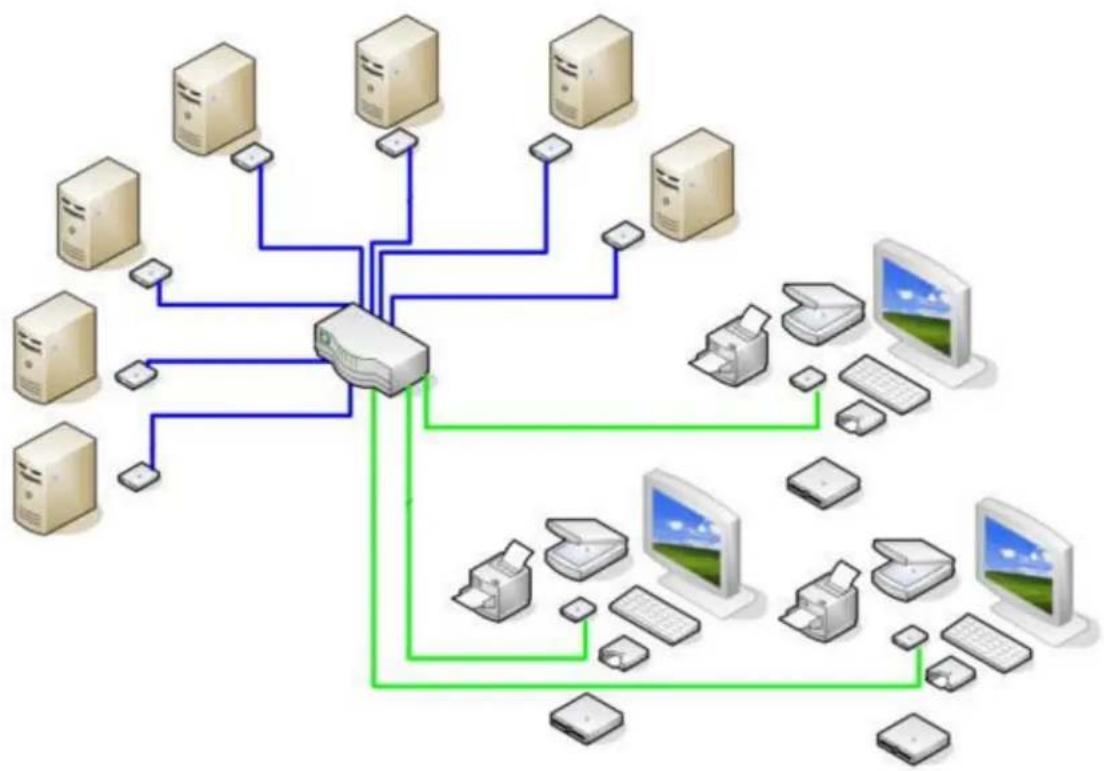
In Single-Head KVM switch / USB2.0 Mode up to 8 Users with one USB 2.0 link (for periphery devices such as storage devices, printers etc. in addition to keyboard & mouse) can access up to 16 CPUs. Up to 4 periphery devices can be attached directly to the remote unit, more by using regular USB 2.0 hubs.
NON-Blocking Access for all users is granted and none of the users are constrained by the activity of another user.
flowchart
graph TD
    A["Central Server"] --> B["Client 1"]
    A --> C["Client 2"]
    A --> D["Client 3"]
    A --> E["Client 4"]
    A --> F["Client 5"]
    A --> G["Client 6"]
    A --> H["Client 7"]
    A --> I["Client 8"]
    A --> J["Client 9"]
    A --> K["Client 10"]
    A --> L["Client 11"]
    A --> M["Client 12"]
    A --> N["Client 13"]
    A --> O["Client 14"]
    A --> P["Client 15"]
    A --> Q["Client 16"]
    A --> R["Client 17"]
    A --> S["Client 18"]
    A --> T["Client 19"]
    A --> U["Client 20"]
    A --> V["Client 21"]
    A --> W["Client 22"]
    A --> X["Client 23"]
    A --> Y["Client 24"]
    A --> Z["Client 25"]
    A --> AA["Client 26"]
    A --> AB["Client 27"]
    A --> AC["Client 28"]
    A --> AD["Client 29"]
    A --> AE["Client 30"]
    A --> AF["Client 31"]
    A --> AG["Client 32"]
    A --> AH["Client 33"]
    A --> AI["Client 34"]
    A --> AJ["Client 35"]
    A --> AK["Client 36"]
    A --> AL["Client 37"]
    A --> AM["Client 38"]
    A --> AN["Client 39"]
    A --> AO["Client 40"]
    A --> AP["Client 41"]
    A --> AQ["Client 42"]
    A --> AR["Client 43"]
    A --> AS["Client 44"]
    A --> AT["Client 45"]
    A --> AU["Client 46"]
    A --> AV["Client 47"]
    A --> AW["Client 48"]
    A --> AX["Client 49"]
    A --> AY["Client 50"]
Single-Head KVM/USB2.0 Switch
Using the OSD, each user can select the CPU that he wants to connect to. The OSD display shows if the desired CPU has already been assigned to another user. Depending on the switch configuration, access to this CPU Port will be denied or the former user will be replaced by the new user.
Depending on the switch configuration, access to the OSD is possible at any time or requires authentication. With the authentication, access to CPU Ports and/or User Ports can further be restricted by assigning specific user levels. Alternatively, the user can be assigned to one or more user groups with access to a defined set of CPU Ports and/or User Ports.
With the "Follow Me" function, you can copy your own display content to one or more additional monitors.
From a Single-Head KVM/USB2.0 Port you might also access a Triple-Head KVM/USB2.0 CPU. Operation, however, is limited to the first monitor in this case.
If you access a CPU without related USB Port, your USB periphery will not be available.
Devices with serial/audio option
The audio/serial option allows bi-directional stereo audio and a full-duplex serial data link to be sent across the regular interconnection cable in addition to keyboard, mouse and VGA/DVI video. To set up your video, keyboard, mouse, follow the instructions in the user guide. To set up the extender's audio and serial link, follow all of the instructions detailed in the extender manuals. If you have any questions, contact our technical support.
Please note that Dual-Head KVM Extenders and all Media Extender support a 3-wire connection (Tx/Rx/GND) only. Connected devices must support a Software Handshake (XON(XOFF))
No setting up or user adjustments are required. Please note that on the dual access model, the serial link is always active. The Remote Unit's serial port is wired as DTE (i.e. the same as that on a CPU). To connect a serial printer (or other DTE rather than DCE device) to the Remote Unit, you will need a null modem (crossover) cable between the Remote Unit and the printer. A serial touch-screen may be plugged directly into the Remote Unit.
Serial Interface – Handling Multiple Serial Devices
The serial interface transmits/receives six signals (3 signals in each direction). Normally four of these signals are used for hardware handshaking (in addition to Tx & Rx). However, because each handshaking line can support signals up to 19,200 Baud it is possible to configure the serial interface to handle up to three simple 2-wire (Tx/Rx only) serial links. To do this you will need to construct a custom breakout cable. Please contact technical support for further information. Select Xon/Xoff software flow control on the printer and CPU.
Audio Interface - Setup and Operation
The audio interface is line-level and is designed to take the output from a sound card (or other line-level) source and be connected to a set of powered speakers at the other end of the link. Stereo audio may be transmitted either way across the link (simultaneously). No setup is required unless a microphone is connected to the Remote Unit. Connect up as follows:
Take the line-level output from your sound card (green connector) and connect to 'Line In' on the extender.
A set of powered speakers may be connected directly to 'Line Out' at the opposite end of the link.
Audio Interface – Using a Microphone
A microphone may be plugged into the 'Line In' connector on the Remote Unit. There are two ways of setting up a microphone:
The Local Unit's 'Line Out' connection should normally be wired to the microphone input (red) on your sound card. The sound card should then be set up to provide additional amplification (+20dB). This is the preferred connection method.
Alternatively, the Remote Unit itself can provide microphone amplification. To set this, open up the Remote Unit and locate the jumper labeled 'MIC' on the daughterboard. Connect this jumper across the pins. The Local Unit's 'Line Out' connection should then be wired to 'Line In' (blue) on your sound card.
If your microphone is already amplified, follow the second method but DO NOT install the amplification jumper in the Remote Unit.
SERVICE AND TECHNICAL SUPPORT
Service Information
Maintenance and Repair
This Unit does not contain any internal user-serviceable parts. In the event a Unit needs repair or maintenance, you must first obtain a Return Authorization (RA) number from Rose Electronics or an authorized repair center. This Return Authorization number must appear on the outside of the shipping container.
See Limited Warranty for more information.
When returning a Unit, it should be double-packed in the original container or equivalent, insured and shipped to:
Rose Electronics
Attn: RA
10707 Stancliff Road
Houston, Texas 77099 USA
Technical Support
If you are experiencing problems, or need assistance in setting up, configuring or operating your Orion unit, consult the appropriate sections of this manual. If, however, you require additional information or assistance, please contact the Rose Electronics Technical Support Department at:
Phone: (281) 933-7673
E-Mail: TechSupport@rose.com
Web: www.rose.com
Technical Support hours are from: 8:00 am to 6:00 pm CST (USA), Monday through Friday.
Please report any malfunctions in the operation of this Unit or any discrepancies in this manual to the Rose Electronics Technical Support Department.
SAFETY
The Orion has been tested for conformance to safety regulations and requirements, and has been certified for international use. Like all electronic equipment, the Orion should be used with care. To protect yourself from possible injury and to minimize the risk of damage to the Unit, read and follow these safety instructions.
■ Follow all instructions and warnings marked on this Unit.
■ Except where explained in this manual, do not attempt to service this unit yourself.
■ Do not use this unit near water.
■ Assure that the placement of this unit is on a stable surface or rack mounted.
■ Provide proper ventilation and air circulation.
- Keep power cord and connection cables clear of obstructions that might cause damage to them.
■ Use only power cords, power adapter and connection cables designed for this Unit.
■ Use only a grounded (three-wire) electrical outlet.
■ Use only the power adapter provided with the unit.
- Keep objects that might damage this Unit and liquids that may spill, clear from this Unit. Liquids and foreign objects might come in contact with voltage points that could create a risk of fire or electrical shock.
■ Operate this Unit only when the cover is in place.
■ Do not use liquid or aerosol cleaners to clean this Unit. Always unplug this Unit from its electrical outlet before cleaning.
■ Unplug this Unit from the electrical outlet and refer servicing to a qualified service center if any of the following conditions occur:
- The power cord or connection cables are damaged or frayed.
- The Unit has been exposed to any liquids.
■ The Unit does not operate normally when all operating instructions have been followed.
- The Unit has been dropped or the case has been damaged.
The Unit exhibits a distinct change in performance, indicating a need for service.
Safety information

Documentation reference symbol. If the product is marked with this symbol, refer to the product documentation to get more information about the product.
WARNING A WARNING in the manual denotes a hazard that can cause injury or death.
CAUTION A CAUTION in the manual denotes a hazard that can damage equipment.
Do not proceed beyond a WARNING or CAUTION notice until you have understood the hazardous conditions and have taken appropriate steps.
Grounding
There must be an un-interruptible safety earth ground from the main power source to the product's input wiring terminals, power cord, or supplied power cord set. Whenever it is likely that the protection has been impaired, disconnect the power cord until the ground has been restored.
Servicing
There are no user-serviceable parts inside these products. Only service-trained personnel must perform any servicing, maintenance, or repair.
The user may adjust only items mentioned in this manual.
Troubleshooting
Troubleshooting - Monitor
There is no picture.
- Check the power supply connection at the Local and Remote Unit. Is the Power LED at the Local and Remote Unit illuminated? If not, the internal power supply may be damaged or there may be an internal error.
- Check that the interconnection cable is connected at the Local Unit and the Remote Unit. Is the Link Status LED illuminated? If not, there may be a problem with the interconnection cable:
Are there errors through data transmission over CATx- cable (cable too long, too high attenuation or too much EMI interferences)? Is the Data Error LED illuminated or blinking? If yes, check cable length and environment. - Video Okay LED is dark: CPU does not provide a video signal – Check settings of the graphic card. Try connecting a monitor to the local output to see whether or not there is a signal.
Jittery pictures at video presentations
- With high monitor resolutions, the data volume that can be transferred may exceed the available bandwidth, so the data throughput must be reduced. For this, the device uses a RLE compression algorithm. If the necessary compression factor is not reached, not all pictures of the graphic card are transferred (frame dropping) and the video presentation may begin to “jitter”.
- Hint: Use a lower resolution, which is a little larger than the resolution of the stored film material. If the monitor as higher resolution, then the monitor can take over the scaling of the video data. For the image quality it is irrelevant whether the scaling is done via the CPU or via the monitor.
- Hint: Set the color depth to 16/24Bit AUTOSELECT. Usually the human eye is not able to differentiate between so many different colors with moving pictures. A reduction to 16 bits reduces the data volume that has to be transferred without loss of image quality.
Troubleshooting – USB Keyboard / Mouse
USB Keyboard / USN Mouse do not work
Although we tried to design the devices as transparent as possible, we can't ensure that all devices are compatible.
USB Mouse makes "jerky leaps"
- With high monitor resolutions, the data volume that can be transferred may exceed the available bandwidth, so the data throughput must be reduced. For this, the device uses a RLE compression algorithm. If the necessary compression factor is not reached, not all pictures of the graphic card are transferred (frame dropping) and the mouse may make jerky leaps.
Hint: Use a lower resolution or a background which can be compressed better: Please avoid photo-backgrounds or color gradient – single-colored backgrounds are optimal and permit highest possible compression rates and highest frame rates.
Appendix A – General Specifications
Power Supply Voltage AC: 90-240VAC-0.5A-47-63Hz
Power required 230V/2000mA - 115V/4000mA
Interfaces RJ45 (INTERCONNECT) 1000 Mbit High-speed transmission.
Wiring acc. EIA/TIA 568B Gigabit Ethernet
LC (Glass Fiber) 1000 Mbit High-speed transmission.
Corresponds to Gigabit Ethernet
RJ45 – ETHERNET Standard ETHERNET access for HTTP, FTP, TELNET
(Control Port)
DB9 – Serial 115.2 KBAUD, 8 data bits, 1 Stop bit, NO parity
(Control Port) Limited Hardware Handshake (DSR)
CATx Cable Length CATx installation cable 140m (400ft) - AWG24 (solid cable)
CATx patch cable 70m (200ft) - AWG26/8 (stranded cable)
Type of Interconnection Cable CATx installation cable AWG24 (solid cable)
S/UTP (Cat5) cable acc. EIA/TIA 56A, TSB 36 or
Digital STP 17-03170. Four pairs AWG 24.
CATx patch cable AWG26/8 (stranded cable)
S/UTP (Cat5) cable acc. EIA/TIA 56A, TSB 36 or
Digital STP 17-03170. Four pairs AWG 26/8. Wiring
acc. EIA/TIA 568A (1000BaseT).
Maximum Length of Fiber Cable Singlemode 9 μm 10.000m (32.750ft)
Multimode 50μm 400m (1.300ft)
Multimode 62.5μm 200m (650ft)
Size and Shipping Weight 483 x 85 x 450mm (19"/2U x 18")
Weight (typical): 6kg (12.9lb)
Environmental Operating Temperature 41 to 113°F (5 to 45 °C)
Storage Temperature -13 to 140°F (-25 to 60 °C)
Relative Humidity max. 80% non-condensing
Serial link: Serial Speed: Any up to a maximum of 19,200 Baud
Serial Data Format: Format independent
Flow Control: RTS, CTS, DTR, DSR are sent across link
Audio link: Description: Bi-directional stereo audio link
Transmission Method: Digitized virtually CD quality audio (16-bit, 38.4 KHz)
Signal Levels: Line-Level (5 Volts P-P maximum)
Input Impedance: 47K
Local Unit Connectors: 2 x 3.5mm stereo jack socket (Line In & Line Out)
Remote Unit Connectors: 2 x 3.5mm stereo jack socket (Line/Mic In & Line Out)
Microphone Support: A microphone may be connected to the Remote Unit.
A pull-up resistor provides bias for condenser
microphone. Option to set microphone amplification to +17dB
| Part # Orion Unit | Description |
| CATx- 8 Users | |
| ORS-TP08x08 | 8x8 - 8 users, 8 CPUs, CATx, DVI, USB 2.0 |
| ORS-TP08x16 | 8x16 - 8 users, 16 CPUs, CATx, DVI, USB 2.0 |
| ORS-TP08x24 | 8x24 - 8 users, 24 CPUs, CATx, DVI, USB 2.0 |
| ORS-TP08x32 | 8x32 - 8 users, 32 CPUs, CATx, DVI, USB 2.0 |
| CATx- 16 Users | |
| ORS-TP16x08 | 16x8 - 16 users, 8 CPUs, CATx, DVI, USB 2.0 |
| ORS-TP16x16 | 16x16 - 16 users, 16 CPUs, CATx, DVI, USB 2.0 |
| ORS-TP16x24 | 16x24 - 16 users, 24 CPUs, CATx, DVI, USB 2.0 |
| ORS-TP16x32 | 16x32 - 16 users, 32 CPUs, CATx, DVI, USB 2.0 |
| Multimode Fiber – 8 Users | |
| ORS-FM08x08 | 8x8 - 8 users, 8 CPUs, Multimode Fiber, DVI, USB 2.0 |
| ORS-FM08x16 | 8x16 - 8 users, 16 CPUs, Multimode Fiber, DVI, USB 2.0 |
| ORS-FM08x24 | 8x24 - 8 users, 24 CPUs, Multimode Fiber, DVI, USB 2.0 |
| ORS-FM08x32 | 8x32 - 8 users, 32 CPUs, Multimode Fiber, DVI, USB 2.0 |
| Multimode Fiber – 16 Users | |
| ORS-FM16x08 | 16x8 - 16 users, 8 CPUs, Multimode Fiber, DVI, USB 2.0 |
| ORS-FM16x16 | 16x16 - 16 users, 16 CPUs, Multimode Fiber, DVI, USB 2.0 |
| ORS-FM16x24 | 16x24 - 16 users, 24 CPUs, Multimode Fiber, DVI, USB 2.0 |
| ORS-FM16x32 | 16x32 - 16 users, 32 CPUs, Multimode Fiber, DVI, USB 2.0 |
| Singlemode Fiber – 8 Users | |
| ORS-FS08x08 | 8x8 - 8 users, 8 CPUs, Singlemode Fiber, DVI, USB 2.0 |
| ORS-FS08x16 | 8x16 - 8 users, 16 CPUs, Singlemode Fiber, DVI, USB 2.0 |
| ORS-FS08x24 | 8x24 - 8 users, 24 CPUs, Singlemode Fiber, DVI, USB 2.0 |
| ORS-FS08x32 | 8x32 - 8 users, 32 CPUs, Singlemode Fiber, DVI, USB 2.0 |
| Singlemode Fiber – 16 Users | |
| ORS-FS16x08 | 16x8 - 16 users, 8 CPUs, Singlemode Fiber, DVI, USB 2.0 |
| ORS-FS16x16 | 16x16 - 16 users, 16 CPUs, Singlemode Fiber, DVI, USB 2.0 |
| ORS-FS16x24 | 16x24 - 16 users, 24 CPUs, Singlemode Fiber, DVI, USB 2.0 |
| ORS-FS16x32 | 16x32 - 16 users, 32 CPUs, Singlemode Fiber, DVI, USB 2.0 |
Orion Transmitters and Receivers
| Part # | Description |
| Receivers - CATx | |
| ORT-SRDTX0D1D | Receiver, Video only, CATx |
| ORT-SRDTXHD1D | Receiver, KVM, DVI, USB HID, Single-head, CATx |
| ORT-SRDTXHD2D | Receiver, KVM, DVI, USB HID, Dual-head, CATx |
| /AUD | Audio / Serial Option |
| Receivers – Multimode Fiber | |
| ORT-SRDFM0D1D | Receiver, Video only, Fiber Multimode |
| ORT-SRDFMHD1D | Receiver, KVM, DVI, USB HID, Single-head, Fiber Multimode |
| ORT-SRDFMHD2D | Receiver, KVM, DVI, USB HID, Dual-head, Fiber Multimode |
| /AUD | Audio / Serial Option |
| Receivers – Singlemode Fiber | |
| ORT-SRDFS0D1D | Receiver, Video only, Fiber Singlemode |
| ORT-SRDFSHD1D | Receiver, KVM, DVI, USB HID, Single-head, Fiber Singlemode |
| ORT-SRDFSHD2D | Receiver, KVM, DVI, USB HID, Dual-head, Fiber Singlemode |
| /AUD | Audio / Serial Option |
| Transmitters – CATx | |
| ORR-DLDTX0D1D | Transmitter, Video only, CATx |
| ORR-DLDTXHD1D | Transmitter, KVM, DVI, USB HID, Single-head, CATx |
| ORR-DLDTXHD2D | Transmitter, KVM, DVI, USB HID, Dual-head, CATx |
| /AUD | Audio / Serial Option |
| Transmitters – Multimode Fiber | |
| ORR-DLDFM0D1D | Transmitter, Video only, Fiber Multimode |
| ORR-DLDFMHD1D | Transmitter, KVM, DVI, USB HID, Single-head, Fiber Multimode |
| ORR-DLDFMHD2D | Transmitter, KVM, DVI, USB HID, Dual-head, Fiber Multimode |
| /AUD | Audio / Serial Option |
| Transmitters – Singlemode Fiber | |
| ORR-DLDFS0D1D | Transmitter, Video only, Fiber Singlemode |
| ORR-DLDFSHD1D | Transmitter, KVM, DVI, USB HID, Single-head, Fiber Singlemode |
| ORR-DLDFSHD2D | Transmitter, KVM, DVI, USB HID, Dual-head, Fiber Singlemode |
| /AUD | Audio / Serial Option |
The DDC information and color depth can be modified from the default value settings (Obtain the DDC information from the internal DDC table and 16/24Bit auto-select color depth). Refer to Appendix C for instructions on changing the default values.
Remove the upper portion of the unit chassis and orient the PC board as shown below. Note the location of jumpers JP1, JP2, and JP3 on the local unit (Transmitter).
JP1 and JP2 are used to select if the DDC information is taken from the internal DDC table, from the local monitor or from the remote monitor. Set the jumpers as shown in table 1 for the selection required.
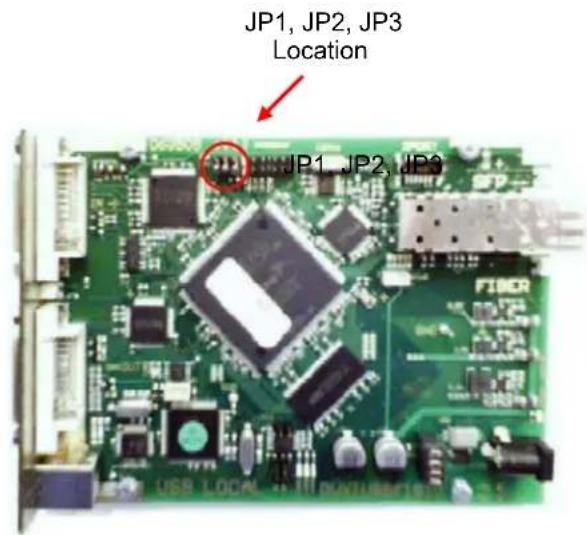
| DDC | JP1 | JP2 |
| From internal DDC table (Default) | ||
| From the local monitor | [HXBZ] | [TSDZ] |
| From the remote monitor *** |
*** Procedure for loading the DDC information from the remote monitor:
- Switch on the system: Local and Remote Unit, CPU and monitor. Connect the CPU with Local Unit and Remote Unit with monitor (On Dual-Head devices, connect BOTH monitors). Connect Local and Remote Unit with the CATx or fiber cable.
- Unplug the remote monitor's video-cable from the Remote Unit (On Dual-Head devices, unplug BOTH monitors).
- Switch on the monitor if it is switched off. On Dual-Head devices, connect and switch on BOTH monitors!)
- Re-plug the remote monitor's video-cable into the Remote Unit (On Dual-Head devices, re-plug BOTH monitors).
The DDC information of the remote monitors is read automatically, transferred to the Local Unit and stored into the DDC-EPROM.
After a successful reprogramming, the Video-OK' LED at the Local Unit blinks rapidly for approx. 1 second.
Selecting the Color Depth
| Color Depth | JP3 |
| 16 / 24 Bit AutoSelectColor depth depends on framecontents (Default) | [HEKC] |
| 24 Bit | [HATS] |
Set-up Remote Unit
Selecting the moment of switching to the next frame
The transmission of screen data is not synchronous to the screen change of the graphic card. Normally, the transmission is terminated when a frame is displayed on the screen. If the device switches to the new frame during HSYNC, the displaying period of the old frame, you may see horizontal screen breaks at the moment of switching (default). Alternatively, you can set up the units to idle until the actual frame is displayed completely, during VSYNC. Using this method, the number of frames per second transmitted is lower.
Remove the upper portion of the remote (receiver) unit chassis and orient the PC board as shown below. Note the location of jumpers JP1, JP2, and JP3 on the remote unit (Receiver). Set the jumper on JP3 as shown below.
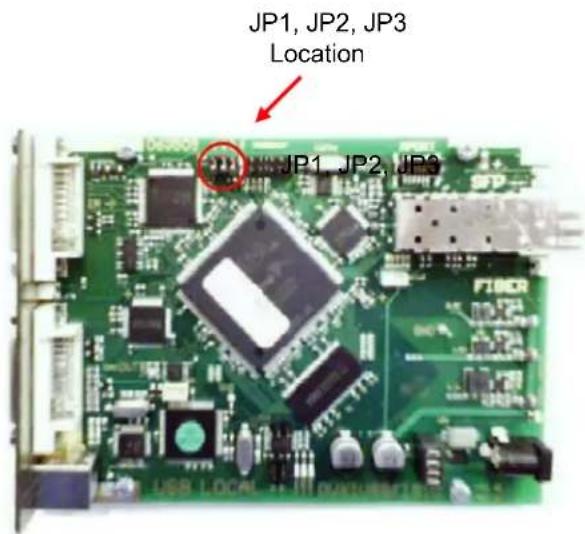
| Moment to Switch | JP3 | |
| Switching during HSYNC (Default) | [KCWS] | Higher frame rate but (possibly) horizontal breaks detectable |
| Switching during VSYNC | [W452] | Lower frame rate, no horizontal breaks detectable but (possibly) stepping pictures. |
Appendix D - Serial switching commands
Using the serial interface, the whole switch matrix of the Orion ^™ Switch can be controlled. The functionality corresponds to the Switching in OSD / Crosspoint Mode.
Optionally, the Unit echoes all executed switch commands via either the serial interface or the network interface. By means of this echo, the actual switch status of the switch can be monitored at any time and user applications can be realized based on this echo.
As an additional application, the serial interface may be used to clone a master switch to additional slave units (Daisy Chain).
Communication Format
For communication, please set up the format of the serial data communication to: 115,2K,8,1,NO (115.2 KBAUD, 8 Data bit, 1 Stop bit, NO parity)
Communication Structure (Command)
Communication Structure (Response)
Parameter Description
Command byte in the range of 0x40...0x6F (see the list of allowed commands below)
Data Bytes a) Binary data: in order to prevent that, during the transmission of binary data, control statements or control commands are transferred, the data are divided into low-nibble and high-nibble. The data are distributed to the low-nibbles of two bytes and provided with an offset by 0x60 e.g. 0x1F => 0x61 + 0x6F b) 7bit-data (0x0...0x7F) are provided with an offset by 0x80, e.g. 0000011 => 0x83 c) ASCII-data => 0x20... 0x7E are unencrypted transmitted
| (Special-)Character | ACK | 0x06 |
| NAK 0x15 | ||
| STX 0x02 | ||
| ETX 0x03 | ||
| CR 0x0D | ||
| ESC 0x1B | ||
| HTAB 0x09 | ||
| LF 0x0A |
Sequence of data communication
Switch
Acquiring command
Processing the command,
Blocking further commands
a) Errors occurred
b) No errors
c) Optional: reply telegram with data
Control CPU
Sending a command
a) repeat telegram
b) next command
c) receive and process the replay telegram
The Serial Interface can be blocked while an OSD has been opened.
The Serial Interface can be blocked while an OSD has been opened.
The Serial Interface can be blocked while an OSD has been opened.
The Serial Interface can be blocked while an OSD has been opened.
[Non-Text]
Orion Installation and Operations Manual
[Non-Text]
Telegrams, Switching functions Console ("Video signal")
| No | Function | Telegram | Reply |
| 1 | CON# Output Signal from CPU# | STX, 0x47,, ETX | ACK, ECHO |
| 2 | CON# Output off | STX, 0x48,, ETX | ACK, ECHO |
| 3 | CON01...CON16Output Signal fromCPU#1...CPU#16, resp.• requires 16 CPU#• 0x80 for“No Output” | STX, 0x49,, ...,ETX | ACK, ECHO |
| 4 | All CON Ports Output off | STX, 0x4A, ETX | ACK, ECHO |
Telegrams, Switching functions CPU (K/M-"Return Channel")
| No | Function | Telegram | Reply |
| 5 | CPU# Output Signal from CON# | STX, 0x4B,, ETX | ACK, ECHO |
| 6 | CPU# Output off | STX, 0x4C,, ETX | ACK, ECHO |
| 7 | CPU01...CPU32Output Signal from CON#1...CON#32,resp.• requires 32 CON#• 0x80 for “No Output”Attention: only 16 CON Ports available, requires 16x 0x80! | STX, 0x4D,, ..., , ETX | ACK, ECHO |
| 8 | All CPU Ports Output off | STX, 0x4E, ETX | ACK, ECHO |
| 9 | Establish Bidi-ConnectionCON# ⇔ CPU# | STX, 0x4F,, ETX | ACK, ECHO |
| 10 | Disconnect CON# | STX, 0x50,, ETX | ACK, ECHO |
Telegrams, Switching functions Switch Matrix
| No | Function | Telegram | Reply |
| 11 | Set Switch Matrix (Complete Setup):• requires 48 values (first 16 CPU's, then 32 CON Ports)• 0x80 for “No Output”• CON01...CON16Output Signal fromCPU#1...CPU#16(cf. Telegram 3)• CPU01...CPU32Output Signal fromCON#1...CON#32(cf. Telegram 7)Attention: Correct assignment to be ensured by user!Attention: only 16CON Ports available, requires 16x 0x80! | STX, 0x51,,...,...,ETX | ACK, ECHO |
| 12 | Reset Switch Matrix | STX, 0X52, ETX | ACK |
| 13 | Report Switch Matrix(Complete Setup)• Output of 48 values• 0x80 for„No Output“• The first 16 valuesdescribe CON PortOutput(cf. Telegram 3)• The next 32 valuesdescribe the CPUOutput(cf. Telegram 7) | STX, 0x53, ETX | STX, 0x53,,...,...,ETX |
| Save / Load SwitchMatrix | |||
| 14 | Save MatrixConfiguration to Flash | STX, 0x66, 0x8C,,ETX | ACK |
| 15 | Load MatrixConfiguration fromFlash | STX, 0x67, 0x8C,,ETX | ACK, ECHO(contains Complete Setup) |
Assignment of Configuration Files to Telegram
| Configuration Files | Config File No | Configuration Files | Config File No | |
| Default.sys | 0x80 | Config05.sys | 0x85 | |
| Config01.sys | 0x81 | Config06.sys | 0x86 | |
| Config02.sys | 0x82 | Config07.sys | 0x87 | |
| Config03.sys | 0x83 | Config08.sys | 0x88 | |
| Config04.sys | 0x84 |
This appendix describes the programming of switch macros. The macros will be stored for each console separately.
To activate these macros, you need a macro keyboard connected to one of the USB HID Ports on the Remote Unit.
To set-up the macros, select the option "Macro Keys" in the "Configuration" menu and press
NOTE:
If you want to use Keyboard, mouse and macro keyboard simultaneously, you will need an extender kit with four USB HID Ports or a USB Hub!
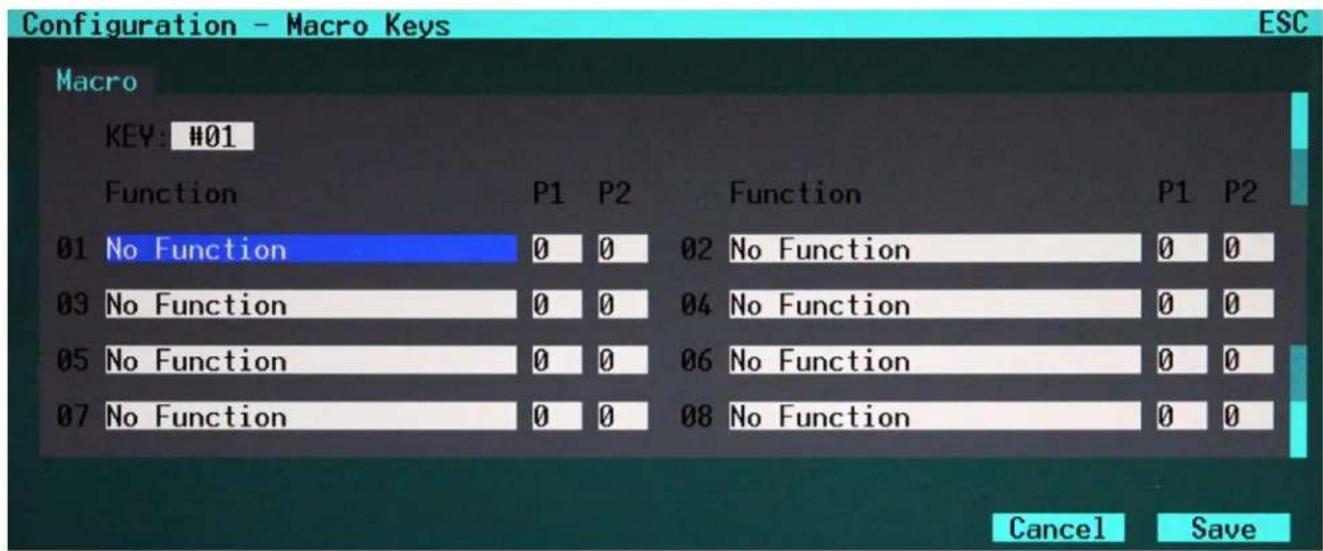
| Field | Type | Description |
| No | Select | Number of the command (8 commands max) |
| Command | Select | Connect P1 to P2Bidirectional Connection of CON Port P1 with CPU P2 |
| Connect Video P1 to P2Video Connection of CON Port P1 with CPU P2 | ||
| Disconnect P1Disconnect CON Port P1 | ||
| Open P1 (cf. 7.1.3)Open Configuration File P1 | ||
| SaveSave current configuration inside the switch | ||
| Save As P1Save current configuration in Configuration File P1 | ||
| Logout | ||
| P1 | VAL2 | 1) Number of CON Port (0 = own CON Port).2) Number of Configuration File (0 = Default |
| P2 | VAL2 | 1) Number of CPU Port to be connected with CON Port P1. |
Keyboard Commands:
<-> Select next function
<+> Select previous function
The Orion Unit can be cascaded to other Orion units to increase the number of connected computers to a maximum of 1024 connected computers.
To cascade the units:
- Connect the computers DVI video and USB ports to the transmitters configured for your application.
- Connect the transmitters to the Orion Slave units CPU ports using CATx or Fiber cable.
- Connect the Slave unit's COMx port to the Orion Master unit's CPUx port using CATx or Fiber cable.
- The User station's keyboard, monitor, and mouse connect directly to the corresponding Receiver's ports.
- The receiver connects to the Orion Master unit using CATx or Fiber cable.
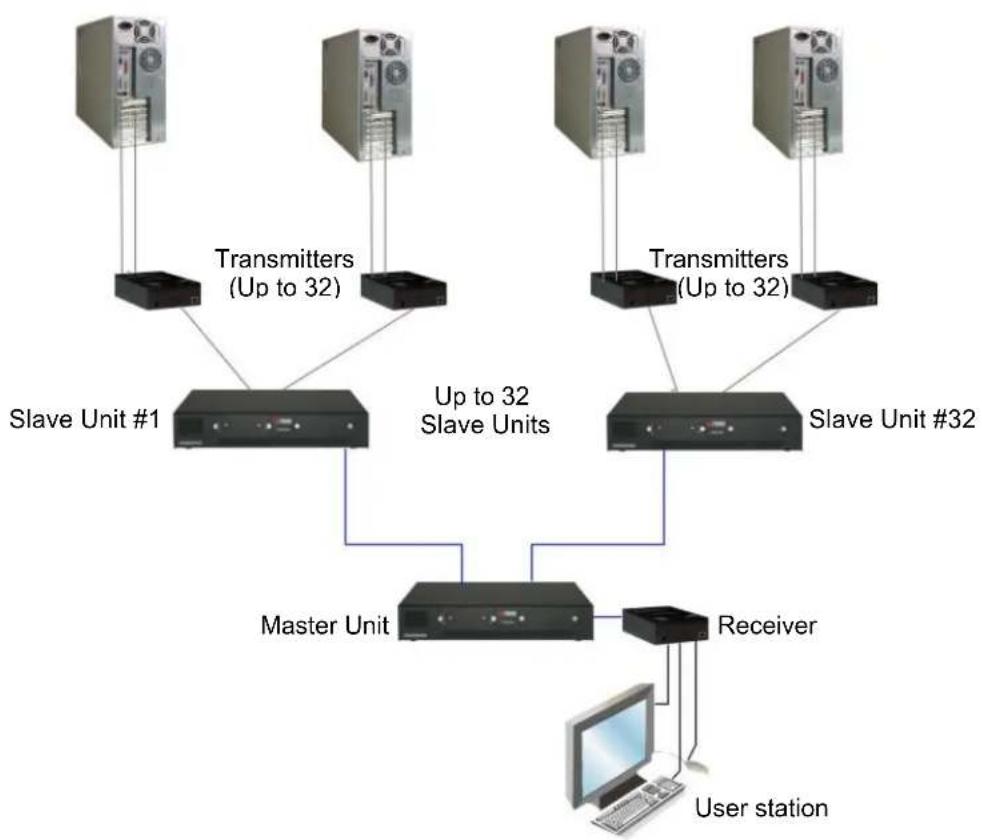
flowchart
graph TD
    subgraph Master Unit
        A["Master Unit"]
        B["Receiver"]
        C["Slave Unit #1"]
        D["Slave Unit #32"]
    end
    subgraph Slave Units
        E["Transmitters (Up to 32)"]
        F["Transmitters (Up to 32)"]
        G["Slave Unit #1"]
        H["Slave Unit #32"]
    end
    I["User station"] --> J["Computer"]
The synchronize switching feature of the Orion unit allows you to switch one or more Orion units to the same port automatically. Once configured, the port switching command issued to the Orion master unit will be sent to one or more Orion secondary units. All secondary units will automatically switch to the same port as the master unit. The example below shows how a dual head graphic card can be connected. When a switching command is issued to switch the master unit to port #1, that command is sent to the secondary unit and it automatically switches to port #1.
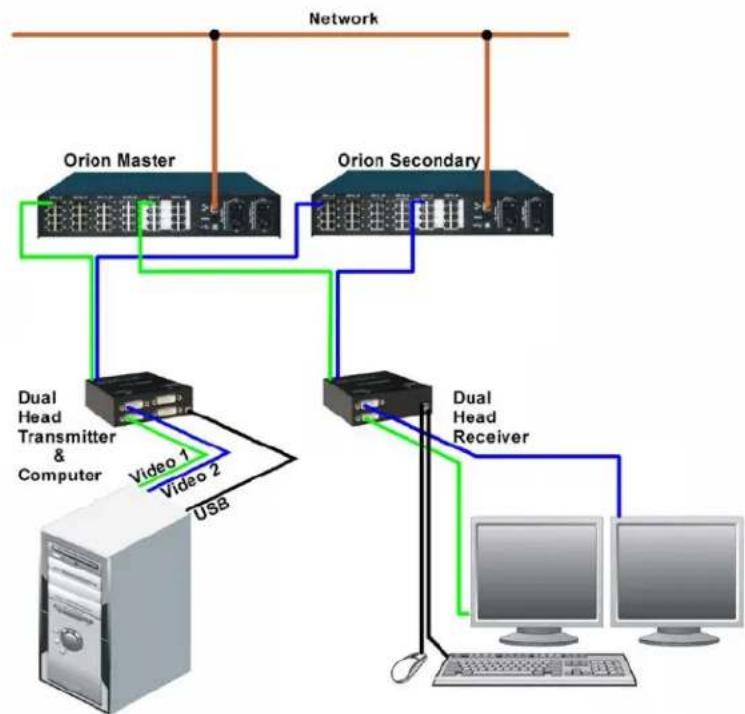
flowchart
graph TD
    A["Network"] --> B["Orion Master"]
    A --> C["Orion Secondary"]
    B --> D["Dual Head Transmitter & Computer"]
    C --> E["Dual Head Receiver"]
    D --> F["Server"]
    E --> G["Computer"]
    style A fill:#f9f,stroke:#333
    style B fill:#ccf,stroke:#333
    style C fill:#ccf,stroke:#333
    style D fill:#dfd,stroke:#333
    style E fill:#dfd,stroke:#333
    style F fill:#dfd,stroke:#333
    style G fill:#dfd,stroke:#333
If you require only one secondary Orion unit and they will be located in close proximity to each other, a network crossover cable can be used to connect the Orion master to the Orion secondary unit. Connect the crossover cable to the network connector on each unit.
Typical Synchronize switching configuration
To configure the Orion units (Master and Secondary units) for synchronize switching:
-
Connect a console (keyboard/monitor/mouse) to the Master unit
-
Display the OSD and navigate to the Configure System menu as shown
-
Set the Slave field to "N" and "Save" the information.
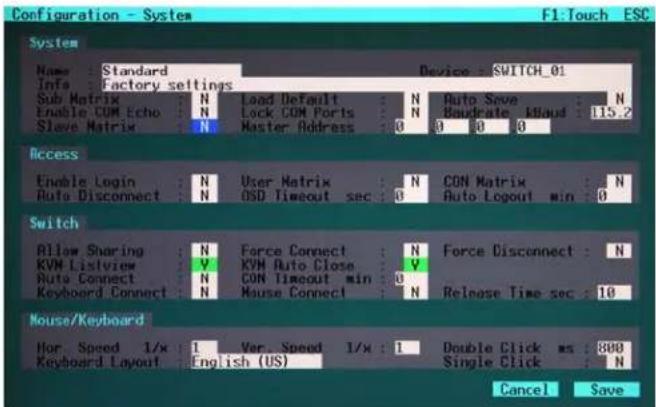
- Escape from the Configure System menu and navigate to the Configuration Network menu as shown below.
- Set the DHCP field to "N"
- Enter the IP address (Assigned to the "Master" unit by your network administrator) for the Master unit
- Enter the subnet mask (Assigned by your network administrator)
- Enter the Gateway if necessary
- Save the information and restart (power cycle) the Master Orion Unit
Connect a console (keyboard/monitor/mouse) to the secondary unit.
- Display the secondary unit's OSD and navigate to the Configure System menu as shown
- Set the Slave field to "N"
- Set the Synchronize field to "Y"
- In the Master Address field, enter the assigned IP address of the Master Unit
-
Save the information
-
Escape from the Configure System menu and navigate to the Configuration Network menu as shown
- Set DHCP to "N"
- Enter the IP address (Assigned to this "Secondary" unit by your network administrator)
- Enter the subnet mask (Assigned by your network administrator)
- Enter the Gateway if necessary
- Save the information and restart (power cycle) the Secondary Orion Unit
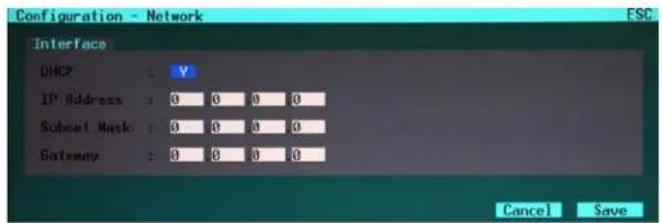
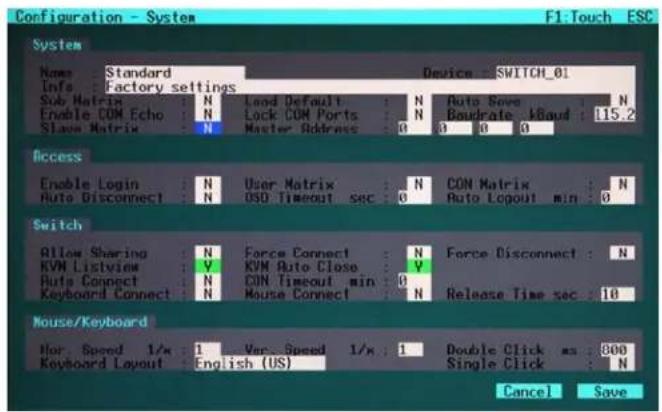
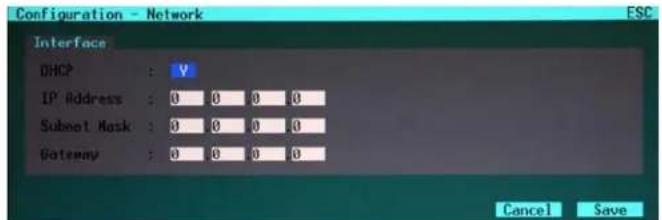
With these settings, the "Master" Orion unit will send the port switching command to all connected "Secondary" units. Switching commands can be issued from the OSD or the keyboard.
Change of the initialization-string for the command mode (with x = number of the initialization-string; delivery status = 3)
1:
2: Double-click < Scroll lock >
3: Double-click
4: Double-click < LEFT CTRL>
5: Double-click < LEFT ALT>
6: Double-click
7: Double-click < RIGHT CTRL>
8: Double-click < RIGHT ALT>

Server Management
