CRK-M2P-2 - KVM Extender Rose - Free user manual and instructions
Find the device manual for free CRK-M2P-2 Rose in PDF.


User questions about CRK-M2P-2 Rose
0 question about this device. Answer the ones you know or ask your own.
Ask a new question about this device
Download the instructions for your KVM Extender in PDF format for free! Find your manual CRK-M2P-2 - Rose and take your electronic device back in hand. On this page are published all the documents necessary for the use of your device. CRK-M2P-2 by Rose.
USER MANUAL CRK-M2P-2 Rose
INSTALLATION AND OPERATIONS MANUAL
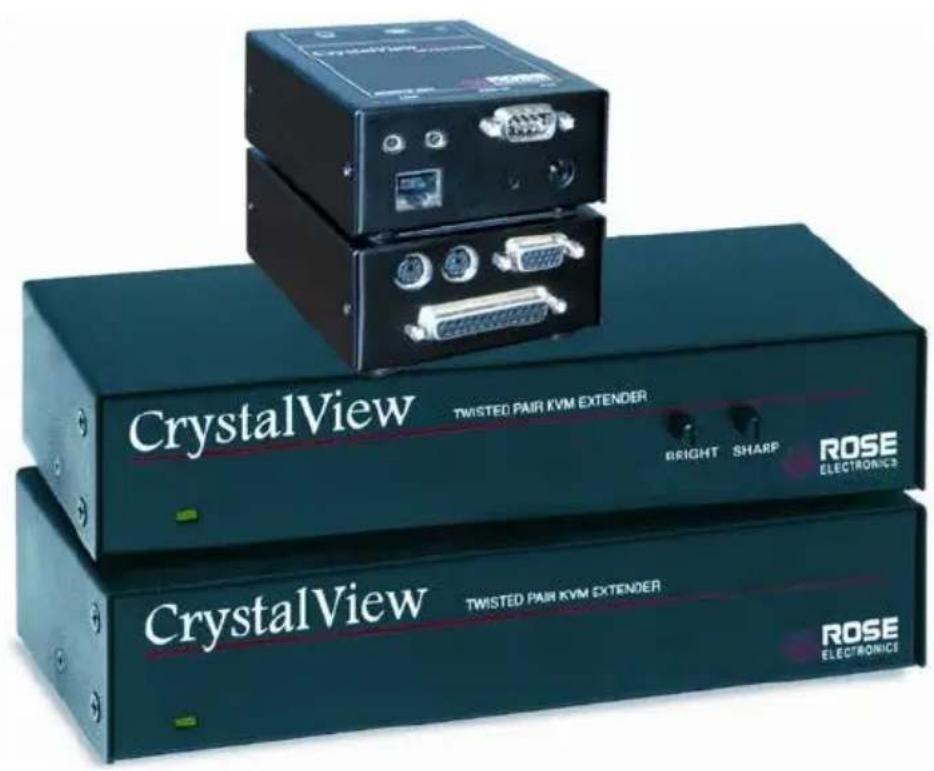
LIMITED WARRANTY
Rose Electronics ^® warrants the CrystalView ^™ to be in good working order for one year from the date of purchase from Rose Electronics or an authorized dealer. Should this product fail to be in good working order at any time during this one-year warranty period, Rose Electronics will, at its option, repair or replace the Unit as set forth below. Repair parts and replacement units will be either reconditioned or new. All replaced parts become the property of Rose Electronics. This limited warranty does not include service to repair damage to the Unit resulting from accident, disaster, abuse, or unauthorized modification of the Unit, including static discharge and power surges.
Limited Warranty service may be obtained by delivering this unit during the one-year warranty period to Rose Electronics or an authorized repair center providing a proof of purchase date. If this Unit is delivered by mail, you agree to insure the Unit or assume the risk of loss or damage in transit, to prepay shipping charges to the warranty service location, and to use the original shipping container or its equivalent. You must call for a return authorization number first. Under no circumstances will a unit be accepted without a return authorization number. Contact an authorized repair center or Rose Electronics for further information.
ALL EXPRESS AND IMPLIED WARRANTIES FOR THIS PRODUCT INCLUDING THE WARRANTIES OF MERCHANTABILITY AND FITNESS FOR A PARTICULAR PURPOSE, ARE LIMITED IN DURATION TO A PERIOD OF ONE YEAR FROM THE DATE OF PURCHASE, AND NO WARRANTIES, WHETHER EXPRESS OR IMPLIED, WILL APPLY AFTER THIS PERIOD. SOME STATES DO NOT ALLOW LIMITATIONS ON HOW LONG AN IMPLIED WARRANTY LASTS, SO THE ABOVE LIMITATION MAY NOT APPLY TO YOU.
IF THIS PRODUCT IS NOT IN GOOD WORKING ORDER AS WARRANTIED ABOVE, YOUR SOLE REMEDY SHALL BE REPLACEMENT OR REPAIR AS PROVIDED ABOVE. IN NO EVENT WILL ROSE ELECTRONICS BE LIABLE TO YOU FOR ANY DAMAGES INCLUDING ANY LOST PROFITS, LOST SAVINGS OR OTHER INCIDENTAL OR CONSEQUENTIAL DAMAGES ARISING OUT OF THE USE OF OR THE INABILITY TO USE SUCH PRODUCT, EVEN IF ROSE ELECTRONICS OR AN AUTHORIZED DEALER HAS BEEN ADVISED OF THE POSSIBILITY OF SUCH DAMAGES, OR FOR ANY CLAIM BY ANY OTHER PARTY.
SOME STATES DO NOT ALLOW THE EXCLUSION OR LIMITATION OF INCIDENTAL OR CONSEQUENTIAL DAMAGES FOR CONSUMER PRODUCTS, SO THE ABOVE MAY NOT APPLY TO YOU. THIS WARRANTY GIVES YOU SPECIFIC LEGAL RIGHTS AND YOU MAY ALSO HAVE OTHER RIGHTS WHICH MAY VARY FROM STATE TO STATE.
NOTE: This equipment has been tested and found to comply with the limits for a Class A digital device, pursuant to Part 15 of the FCC Rules. These limits are designed to provide reasonable protection against harmful interference when the equipment is operated in a commercial environment. This equipment generates, uses, and can radiate radio frequency energy and, if not installed and used in accordance with the instruction manual, may cause harmful interference to radio communications. Operation of this equipment in a residential area is likely to cause harmful interference in which case the user will be required to correct the interference at his own expense.
IBM, AT, and PS/2 are trademarks of International Business Machines Corp. Microsoft and Microsoft Windows are registered trademarks of Microsoft Corp. Any other trademarks mentioned in this manual are acknowledged to be the property of the trademark owner.
Copyright Rose Electronics 1990-2002. All rights reserved.
No part of this manual may be reproduced, stored in a retrieval system, or transcribed in any form or any means, electronic or mechanical, including photocopying and recording, without the prior written permission of Rose Electronics.
Rose Electronics Part # MAN-CRV
Printed In the United States of America - Revision 2.7
TABLE OF CONTENTS
Contents
Disclaimer....1
System introduction....1
Features 2
Compatibility....3
Package contents....3
CrystalView PC-model 4
CrystalView SUN model 5
CrystalView PC-Serial/Audio model....6
CrystalView MINI model 7
CrystalView cables 8
Serial cable....9
Audio cable....9
Installation 10
Step 1 – Setting the cable length jumpers/switch .....11
Step 2 – Connecting cables ......12
Step 3 – Applying power ......15
Step 4 – Adjusting the video compensation....16
User selectable settings 17
Dual, PC - Serial/Audio model specific notes ....18
All model specific notes....18
Operating instructions- All units....19
Operating instructions – Dual unit ....19
KVM Switching 19
Private mode (Dual models only)....19
Reset 20
Null mouse command....20
Troubleshooting....21
Service Information 24
Maintenance and Repair 24
Technical Support 24
Safety 25
Figures
Figure 1. PC model ....4
Figure 2. Sun model....5
Figure 3. Serial/Audio model....6
Figure 4. MINI model....7
Figure 5. Cable length settings ...... 12
Figure 6. PC cabling....13
Figure 7. Sun cabling ....13
Figure 8. Serial/Audio model....14
Figure 9. MINI cabling ....14
Figure 10. Rose switch cabling ....15
Tables
Table 1. User settings (PC/SUN models) ...... 17
Table 2. User settings (PC-Serial/Audio model)....17
Table 3. Private mode commands ....19
Table 4. Out-of sync mouse commands .....20
Table 5. Null mouse command ....20
Appendices
Appendix A. General specifications ....27
Appendix A1. Serial option specifications....28
Appendix A2. Audio option specifications 28
Appendix B. UTP/STP connection 28
Appendix C. Parts and cables....29
Appendix D. Firmware updates....29
Appendix E. Rack mount instructions 30
Appendix F. Rack mount illustration 30
INTRODUCTION
Disclaimer
While every precaution has been taken in the preparation of this manual, the manufacturer assumes no responsibility for errors or omissions. Neither does the manufacturer assume any liability for damages resulting from the use of the information contained herein. The manufacturer reserves the right to change the specifications, functions, or circuitry of the product without notice.
The manufacturer cannot accept liability for damages due to misuse of the product or other circumstances outside the manufacturer's control. The manufacturer will not be responsible for any loss, damage, or injury arising directly or indirectly from the use of this product.
System introduction
Thank you for choosing the Rose Electronics ^® CrystalView ^™ KVM station extender. The CrystalView is the result of Rose Electronics commitment to providing state-of-the-art solutions for today's demanding workplace. The CrystalView has proven to be a valuable investment for any business, big or small, that has a need to access CPUs from Remote locations.
The CrystalView is available in four models, the PC, SUN, MINI and the PC-Serial/Audio model. All models are available in a single or dual version. The dual version allows an additional KVM station to be connected to the Local Unit.
The CrystalView system consists of two Units, a Local Unit and a Remote Unit. The Local Unit connects to your CPU or a Rose switch and the Remote Unit connects to a keyboard, video monitor and mouse or KVM station. The Local and Remote Units are connected together with industry standard CAT-5 shielded or unshielded, solid core twisted-pair cable terminated with RJ45 connectors. The PC, SUN, and PC-Serial/Audio models can extend the distance from the CPU with up to 1,000 feet of CAT-5 cable. The MINI model has a distance of 150 feet. CAT-5 cable can be ordered from Rose Electronics in 25-1,000 foot lengths.
Using the CrystalView to remotely access your computer has several applications that make it convenient for the users. You can locate your computers in a secure area and access them from other unsecured areas. Computers used in hazardous industrial environments can be accessed remotely, keeping the users safe and unexposed to any hazards.
■ Extend a KVM station from a CPU using a single CAT-5 twisted pair, solid core cable. (Up to 1,000 feet for the PC, SUN, PC-Serial/Audio models, 150 feet for the MINI model.)
■ Supports PC and SUN Systems.
■ Supports PS/2 keyboard/mouse and all PC video formats.
■ Video resolutions (PC, SUN, PC-Serial/Audio models) up to 1024 x 768 at 1,000 feet, 1280 x 1024 at 300 feet, (MINI model) 1280 x 1024 at 150 feet, 1600 x 1200 at 60 feet.
■ Video brightness and sharpness controls on the Remote Unit adjust brightness and clarity on the PC, SUN, and PC-Serial/Audio models.
■ The CrystalView uses a microprocessor to emulate the keyboard and mouse for plug and play operation. The keyboard and mouse on the Remote Unit do not have to be connected for the PC to boot; only the Local Unit must be connected to the PC.
■ Compatible with Rose Electronics family of KVM switches such as ServeView, UltraView and UltraMatrix.
■ Compatible with Windows, Windows NT, OS/2, UNIX, Linux and other operating systems.
■ Fully automatic KVM sharing on a first-come first-serve basis using the Dual model.
■ On a Dual Unit, computers video is displayed on both KVM stations monitors except in the private mode.
■ Local KVM station can inhibit the Remote KVM station (PC/PC-MINI Dual Model).
Local or Remote KVM station can inhibit the other KVM station (SUN / PC-Serial/Audio Model).
■ Bi-directional serial and stereo audio options (PC-Serial/Audio Model).
■ Stereo audio can be transmitted in either direction across the CAT-5 link simultaneously (PC-Serial/Audio Model).
■ Many serial devices like a Touchscreen can plug directly into the Remote Unit (PC-Serial/Audio Model).
- Rack mount kits available in 19", 23" and 24" sizes (excluding the MINI model).
| Computers | PCs with standard keyboards and PS/2 mice, 286, 386, 486, Pentium, etc. |
| Monitors | VGA, Super VGA, XGA, RGB (Sync-on-green) |
| Keyboards | CrystalView is compatible with most types of keyboard. Some XT/AT auto-sensing keyboards may not be compatible. |
| Mouse | PS/2, (2 or 3-button) Microsoft IntelliMouse Serial |
| Serial Devices (Serial/Audio model only) | Touchscreens, Graphic Tablets, Serial printers/plotters, Computer terminals Serial mice, Other standard asynchronous serial devices. |
| Audio Devices (Serial/Audio model only) | Compatible sound cards Amplified or non-amplified microphone Amplified computer stereo speakers Other audio devices that transmit/receive signals less than 4 volts peak-to-peak. |
Package contents
The package contents consists of the following:
■ The CrystalView Local and Remote Units
■ HD15FF gender changer (Included: installed on the Local Unit)
■ Power adapter for Remote Unit. (Auto-switching transformer)
■ Installation and operations manual.
CPU, serial, audio and CAT-5 cables are usually ordered separately. If the package contents are not correct, contact Rose Electronics or your reseller, so the problem can be quickly resolved.
Rose Electronics web site
Visit out web site at www.rose.com for additional information on the CrystalView and other products that are designed for data center applications, classroom environments and other applications.
About this manual
This manual covers the installation and operation of the CrystalView PC, SUN, PC-Serial/Audio, and the MINI models.
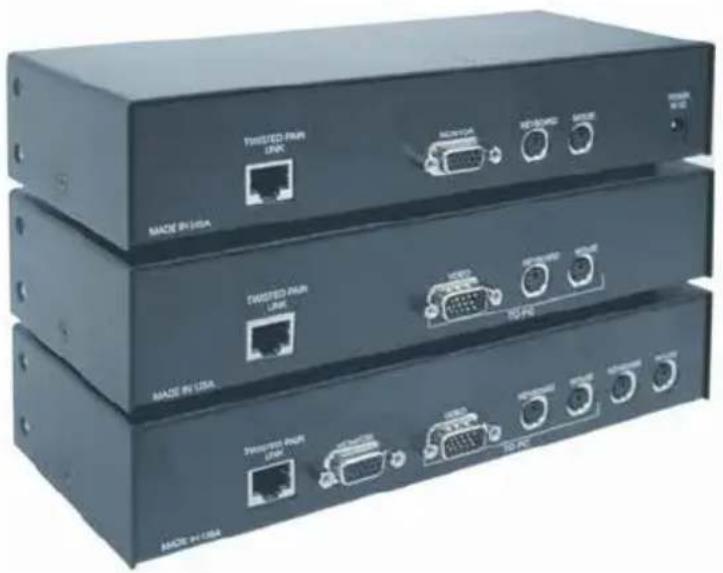
CrystalView PC-model
natural_image
Three black industrial electronic devices labeled MADE IN USA, TWISTED MAIN LINE, and TWISTED MAIN LIME, each with port labels (no readable text beyond labels)Remote Unit
Local Single Unit
Local Dual Unit
Figure 1. PC model
Connectors:
Remote Unit
- RJ45 – CAT-5 cable connection.
- HD15F – KVM stations video monitor connection.
■ (2) MiniDin-6 – KVM stations keyboard and mouse connection.
■ 9V power input jack.
Local Single Unit
- RJ45 – CAT-5 cable connection.
- HD15M – CPU video connection.
■ (2) MiniDin-6 – CPU keyboard and mouse connections.
Local Dual Unit
- RJ45 – CAT-5 cable connection.
- HD15M – CPU video connection.
- HD15F – KVM stations video monitor connection.
■ (4) MiniDin-6 - CPU keyboard and mouse connections / KVM keyboard and mouse connections.
natural_image
Three stacked electronic devices labeled 'MADE IN USA' with ports and indicators (no readable text beyond labels)Remote Unit
Local Single Unit
Local Dual Unit
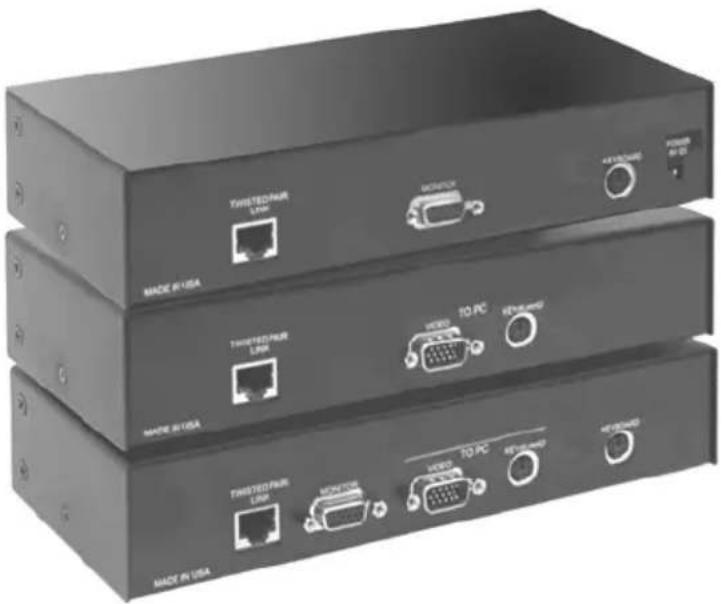
Figure 2. Sun model
Connectors:
Remote Unit
- RJ45 – CAT-5 cable connection.
- HD15F – KVM stations video monitor connection.
- MiniDin-8 – KVM stations keyboard connection.
■ 9V power input jack.
Local Single Unit
- RJ45 – CAT-5 cable connection.
- HD15M – CPU video connection.
- MiniDin-8 – CPU keyboard connection.
Local Dual Unit
- RJ45 – CAT-5 cable connection.
- HD15F – KVM stations video Monitor connection.
- HD15M – CPU video connection.
■ (2) MiniDin-8 - CPU keyboard connection / KVM keyboard connection.
natural_image
Three stacked black electronic devices labeled 'MADE IN USA' with ports, connectors, and indicator lights (no readable text beyond labels)Remote Unit
Local Single Unit
Local Dual Unit
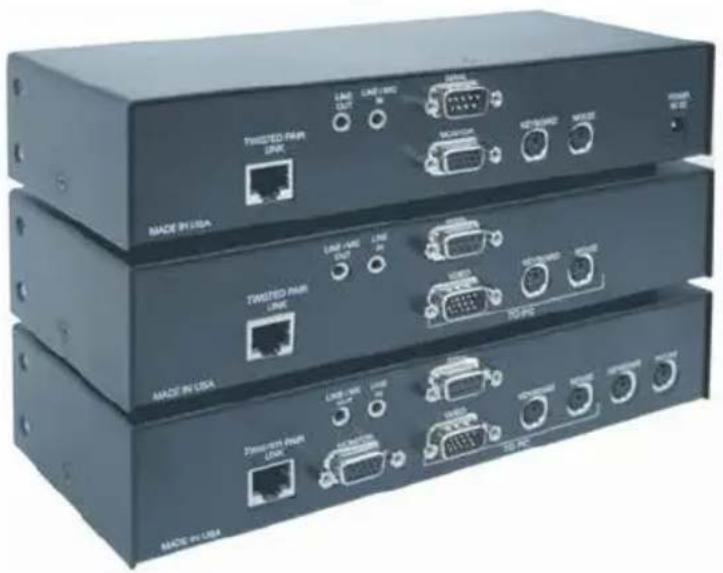
Figure 3. Serial/Audio model
Connectors:
Remote Unit
- RJ45 – CAT-5 cable connection.
- HD15F – KVM stations video monitor connection.
(2) MiniDin-6 – KVM stations keyboard and mouse connection.
■ (2) 3.5mm stereo audio jacks.
■ DB9M serial cable connection.
■ 9V power input jack.
Local Single Unit
- RJ45 – CAT-5 cable connection.
- HD15M – CPU video connection.
(2) MiniDin-6 – CPU keyboard and mouse connections.
■ (2) 3.5mm stereo audio jacks.
■ DB9F serial cable connection.
Local Dual Unit
- RJ45 – CAT-5 cable connection.
- HD15M – CPU video connection.
- HD15F – KVM stations video monitor connection.
■ (4) MiniDin-6 - CPU keyboard and mouse connections / KVM keyboard and mouse connections.
■ (2) 3.5mm stereo audio jacks.
■ DB9F serial cable connection.
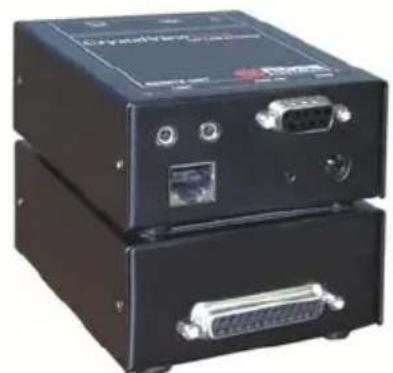
natural_image
Two black electronic devices with ports and connectors, no visible text or symbols on the device surfaces.Local Single Unit
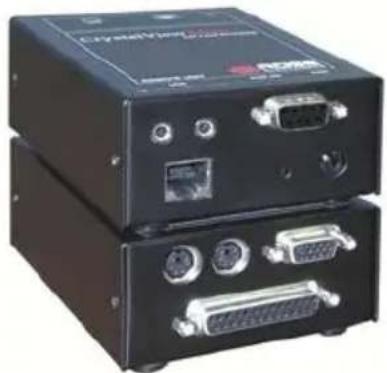
natural_image
Two stacked black electronic devices with ports and connectors (no visible text or symbols)Local Dual Unit
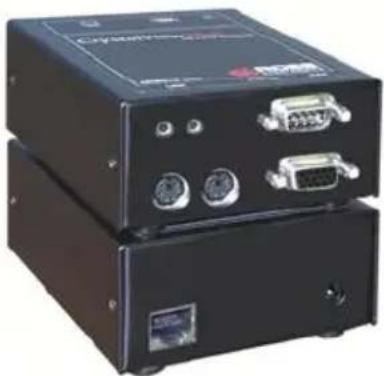
natural_image
Two black electronic devices with ports and connectors, no visible text or symbols on the device surfaces.Remote Unit
Figure 4. MINI model (Serial/Audio option)
Connectors:
Remote Unit
■ RJ45 – CAT-5 cable connection. (Rear)
- HD15F – KVM stations video monitor connection.
■ (2) MiniDin-6 – KVM stations keyboard and mouse connection.
■ 9V power input jack. (Rear)
Local Single Unit
■ RJ45 – CAT-5 cable connection. (Rear)
- DB25F – CPU cable connection.
Local Dual Unit
■ RJ45 – CAT-5 cable connection. (Rear)
- DB25F – CPU cable connection.
- HD15F – KVM stations video monitor connection.
■ (2) MiniDin-6 - KVM keyboard and mouse connections.
CrystalView cables
CrystalView Local Unit to CPU cable
CPU cables connect from the Local Unit to a CPUs keyboard, video monitor and mouse ports. The PC and PC-Serial/Audio models use a male-to-male cable configured on both ends with an HD15M VGA connector and two MiniDin-6 connectors for the PS/2 keyboard and mouse. (Rose Electronics part number CAB-CXV66MMnnn).
The CrystalView MINI model uses a CPU cable with a DB25 connector on one end and an HD15M VGA connector and two MiniDin-6 connectors for the keyboard and mouse. (Rose Electronics cable part number CAB-CX0606Cnnn).
The CrystalView SUN model uses a CPU cable with an HD15M and a MiniDin-8 connector for the keyboard. (Rose Electronics cable part number CAB-C1VS8MMnnn)
Max Local unit to CPU cable length is 20 feet using standard cabling. Using coax cabling, this distance can be extended, but care should be taken because the Local unit's power is obtained from the connected CPUs keyboard port.
CrystalView Remote Unit to KVM station cable
The keyboard, video monitor, and mouse cables on a KVM station can connect directly to the CrystalView Remote or Dual Local Units connectors if they are a HD15 Video connector and PS/2, MiniDin-6 Keyboard and Mouse connectors.
CrystalView to Rose switch cable
To connect a CrystalView Local Unit to a Rose switch such as a ServeView, UltraMatrix or UltraView, use Rose cable part number CAB-CX0606Cnnn.
Local Unit to Remote Unit cable
The Local Unit is connected to the Remote Unit with up to 1,000 feet of standard CAT-5 UTP/STP “solid core” cable terminated with RJ45 connectors, 150 feet on the MINI model. Connect this cable to the Local and Remote Unit. Rose Electronics cable part number CAB-08UTPnnn.
The CrystalView has been tested with all major makes of CAT-5 cables, including BICC-VERO ^® , Mohawk ^® and AT&T ^® . CrystalView has also been tested on CAT-3 cable and on pairs within a 25-pair UTP trunk cable.
The video performance will vary with different cable types. For the best performance and video quality, Rose Electronics recommends that only CAT-5 “Solid Core” cable be used.
Serial cable
To connect the Local Unit to the CPUs DB9 serial port, use a standard DB9MF serial 1:1 (DTE-DCE) cable. The Remote Units "SERIAL" port is wired as DTE (the same as the CPUs serial port). To connect a serial printer or other DTE devices to the Remote Unit, you will need a Null-modem (crossover) cable between the Remote Unit and the printer. Select Xon/Xoff software flow control on the printer and PC.
Audio cable
CrystalView models with the audio option are configured with two 3.5mm stereo audio jacks on both the Local and Remote Unit. Standard 3.5mm stereo audio cables are used to connect between the Local Units "LINE IN" connector and a sound card's "LINE OUT" connector. The Remote Units "LINE OUT" connects to a pair of computer speakers. (Rose Electronics cable part number CAB-SPMMnn). Maximum audio cable length is 6 feet.
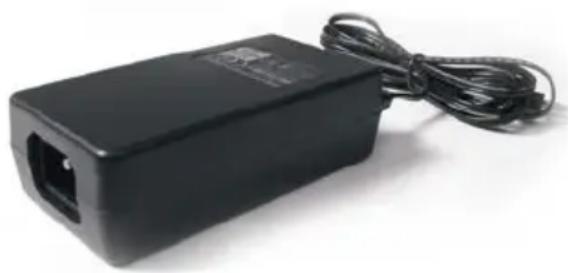
Power adapter
natural_image
Black rectangular electronic device with a port and cable, no visible text or symbolsThe power adapter used with the CrystalView is a 110V/220V to 9V DC regulated adapter. Use only the power adapter furnished with the CrystalView
Installation
Please refer to the safety section first before proceeding with any installation or configuration of the CrystalView.
Installation of the CrystalView consists of four easy steps.
- Setting the cable length jumpers/switch (if needed).
- Connecting the cables to the equipment.
- Applying power.
- Adjust the video compensation (if needed).
For systems that only require running Video through the CrystalView, (for viewing purposes only) and no keyboard or mouse is needed, supplemental power must be supplied to the Local Unit. The Local Unit gets its power from the keyboard port of the CPU. Rose Electronics can supply a power transformer that connects to the Local Units keyboard port to provide this power. This power transformer (P/N KIT-KBPWR) can be ordered from Rose Electronics.
When installing the CrystalView, locate it as close as possible to the CPU. Keep the CPU and KVM cables are as short as possible but still give some freedom of movement. Using shorter cables keeps the video noise to a minimum and reduces installation costs. You can mount the CrystalView in a CPU rack with the optional rack mount kit. When mounting the CrystalView in a rack, follow the instructions in Appendix F and Appendix G and assure that the operating temperature of the Local and Remote Units do not exceed the maximum ratings. Provide adequate air circulation to assure that the maximum operating temperature is not exceeded. The MINI model is not rack mountable.
Wherever the CrystalViews Local and Remote Units are located, they should be on a secure surface and free from obstructions and objects that may cause damage to the units.
When installing the CrystalView, only perform the installation steps that apply to your model.
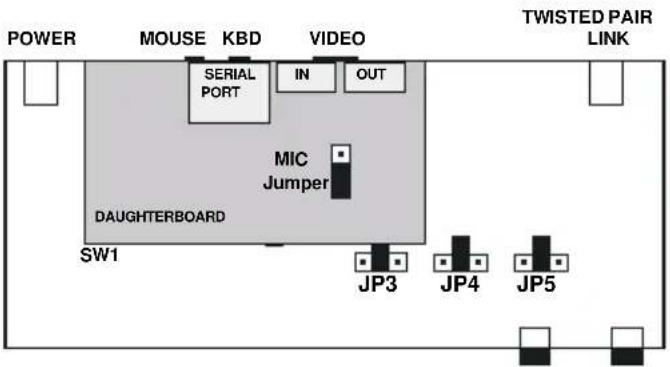
(PC, SUN, PC-Serial/Audio models. See Figure 5.)
There are three jumpers labeled JP3, JP4, and JP5, located on the Remote Units PCB. These three jumpers set the correct level of video equalization for different cable lengths. Jumpers JP3, JP4, and JP5 are all factory set to a default of 0 – 300 feet. For cable lengths less than 300 feet, no jumper setting changes should be needed.
For cable lengths over 300 feet these jumpers may need to be set to compensate for the longer cable length. To set these jumpers, first carefully remove the Remote Units case by unscrewing the two side screws and the top screw and lift off the top case exposing the CrystalViews PCB. Orient the PCB with the cable connections away from you and the front panel towards you. Set jumpers JP3, JP4, and JP5 depending on the CAT-5 cable length between the Remote Unit and the Local Unit as show in Figure 5.
If you are unsure about opening the case and setting the jumpers, please consult technical support at Rose Electronics.
TIP: If you are using a CAT-5 cable that is close to the top end of the cable length range and a video resolution of 1024 x 768 or higher, you may achieve better video quality by selecting the jumper settings for the next higher cable length range. For example, if your CAT-5 cable length is 250 feet, you might achieve better video quality if you set jumpers JP3, JP4, and JP5 to the 301 – 600 setting.
(PC-Serial/Audio model only. See Figure 5.)
If you are using a non-powered microphone on the Remote Unit, install the "MIC" jumper on the daughterboard. This provides additional amplification.
DO NOT INSTALL THE "MIC" JUMPER IF USING A POWERED MICROPHONE.
(MINI model See Figure 5.)
The CrystalView MINI model has two Dipswitches located on the bottom of the Remote Unit. Set Dipswitch 1 according to the CAT-5 cable length used between the Local Unit and the Remote Unit. Maximum cable length for the CrystalView MINI is 150 feet. For normal scroll lock key operation set Dipswitch 2 to "ON" and cycle power on the remote unit for this operation to take effect.
| PC / SUN / Serial/Audio | MINI | ||
 DAUGHTER BOARD ON SERIAL/AUDIO MODELS ONLY DAUGHTER BOARD ON SERIAL/AUDIO MODELS ONLY | 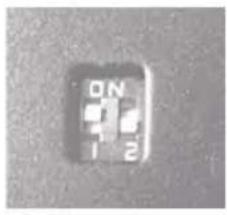 DIP SWITCH 1 DIP SWITCH 1 | ||
| Cable length | Jumper Setting | Cable length | Switch 1 Setting |
| 0-300 feet | JP3 JP4 JP5 | 0-75 feet OFF | |
| 301-600 feet | JP3 JP4 JP5 | 76-150 feet | ON |
| 601-1,000 feet | JP3 JP4 JP5 | N/A N/A | |
Figure 5. Cable length settings
Step 2 – Connecting cables
(See the cable section and Appendix C for cable part number)
Local / Remote unit cabling
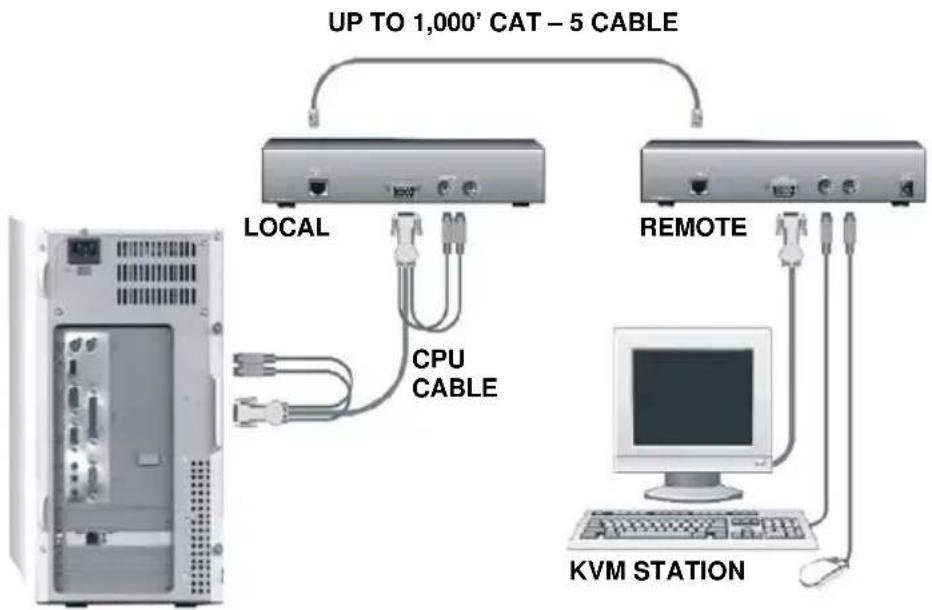
Power down your PC and connect the appropriate CPU cable to the CPUs keyboard, video monitor, and mouse ports and to the Local Units keyboard, video monitor, and mouse ports. If the Local Unit is a Dual model, make sure you connect the cables to the connectors marked "TO PC". On a Dual model, you can connect a second KVM station to the Local Unit and access the CPU independently from the Local or Remote Unit but not simultaneously. A lockout feature inhibits the "not-in-use" Unit.
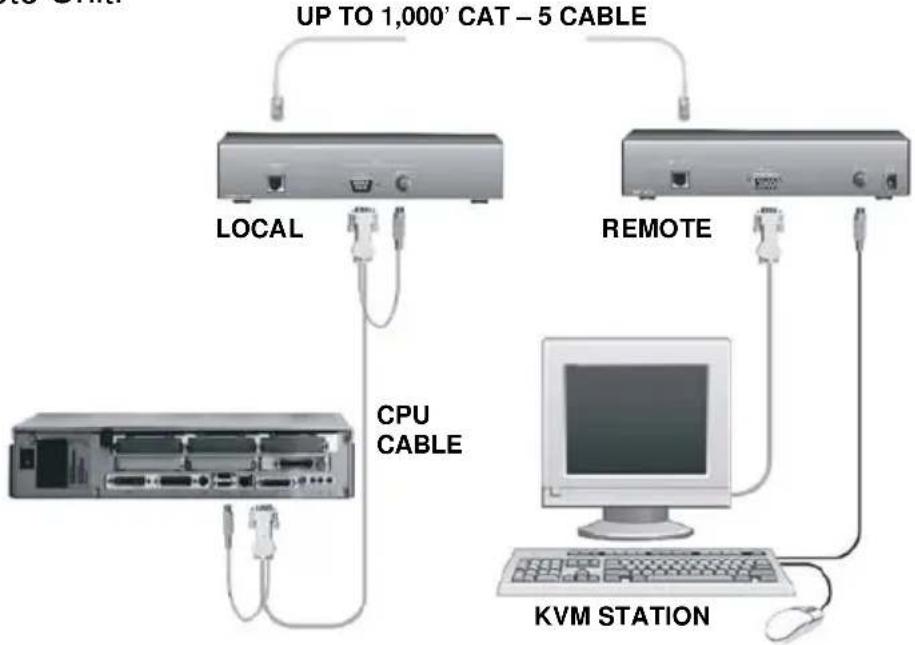
Figures 6-9 show the connections for each model. Figure 10 shows the connections to a Rose switch.
Connect the appropriate CPU cable to the keyboard, video monitor and mouse ports on the CPU and to the corresponding ports on the Local Unit. Connect the KVM stations keyboard, video monitor, and mouse cables to the corresponding connectors on the Remote Unit.
flowchart
graph TD
    A["UP TO 1,000' CAT - 5 CABLE"] --> B["LOCAL"]
    A --> C["REMOTE"]
    B --> D["CPU CABLE"]
    C --> E["KVM STATION"]
Figure 6. PC cabling
Connect the appropriate CPU cable to the keyboard and video monitor ports on the CPU and to the Local Units keyboard and video monitor connectors. Connect the KVM stations keyboard, and video monitor cables to the corresponding connectors on the Remote Unit.
flowchart
graph TD
    A["UP TO 1,000' CAT - 5 CABLE"] --> B["LOCAL"]
    A --> C["REMOTE"]
    B --> D["CPU CABLE"]
    C --> E["KVM STATION"]
Figure 7. Sun cabling
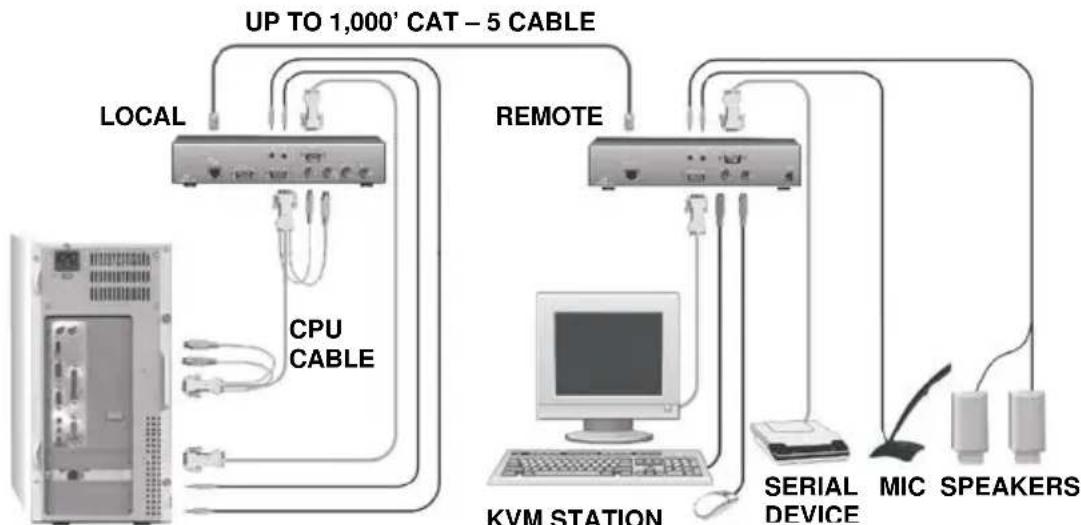
Connect the appropriate CPU cable to the keyboard, video monitor and mouse ports on the CPU and to the corresponding ports on the Local Unit. Connect the audio cables from the CPUs sound card's "LINE OUT" to the Local Units "LINE IN" connector and the CPUs sound cards "MIC" input to the Local Units "LINE/MIC OUT". Connect the keyboard, video monitor and mouse cables to the corresponding connectors on the Remote Unit. Connect a serial device to the "SERIAL" connector. Connect a microphone to the "LINE/MIC IN" connector and a pair of stereo speakers to the "LINE OUT" connector
flowchart
graph TD
    A["UP TO 1,000' CAT - 5 CABLE"] --> B["LOCAL"]
    B --> C["CPU CABLE"]
    B --> D["REMOTE"]
    D --> E["KVM STATION"]
    E --> F["SERIAL DEVICE"]
    F --> G["MIC"]
    F --> H["SPEAKERS"]
Figure 8. Serial/Audio model cabling
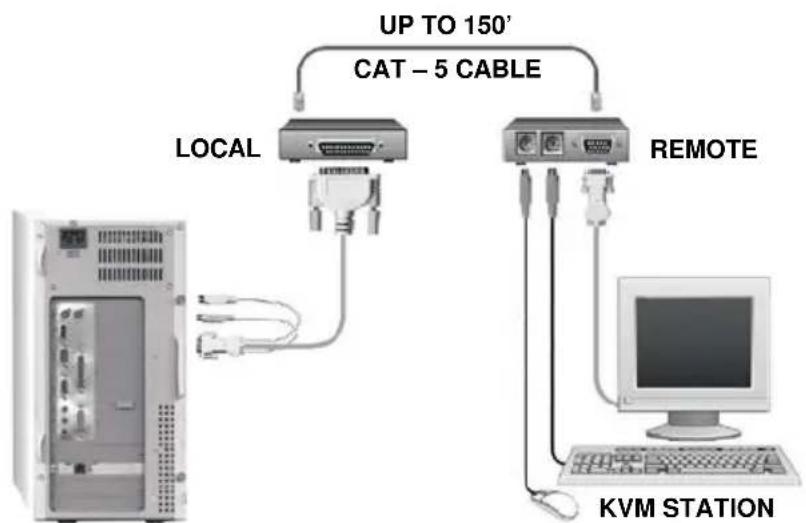
Connect the appropriate CPU cable to the keyboard, video monitor and mouse ports on the CPU. Connect the other end of the CPU cable to the Local Units DB25 connector. Connect the KVM stations keyboard, video monitor and mouse cables to the corresponding connectors on the Remote Unit.
flowchart
graph TD
    A["Local Server"] -->|Up to 150'| B["CAT - 5 CABLE"]
    B --> C["Remote Device"]
    C --> D["KVM STATION"]
Figure 9. MINI cabling
Local unit to Remote unit cabling
(PC, SUN, PC-Serial/Audio Models)
Connect up to 1,000 feet of CAT-5 "solid core" cable from the Local Units "Twisted Pair Link" RJ45 connector to the Remote Units "Twisted Pair Link" RJ45 connector. (See Figures 6, 7, or 8)
(MINI Model)
Connect up to 150 feet of CAT-5 “solid core” cable for the MINI model from the Local Units “Link” RJ45 connector to the Remote Units “Link” RJ45 connector on rear panel. (See Figure 9)
Connecting to a Rose switch
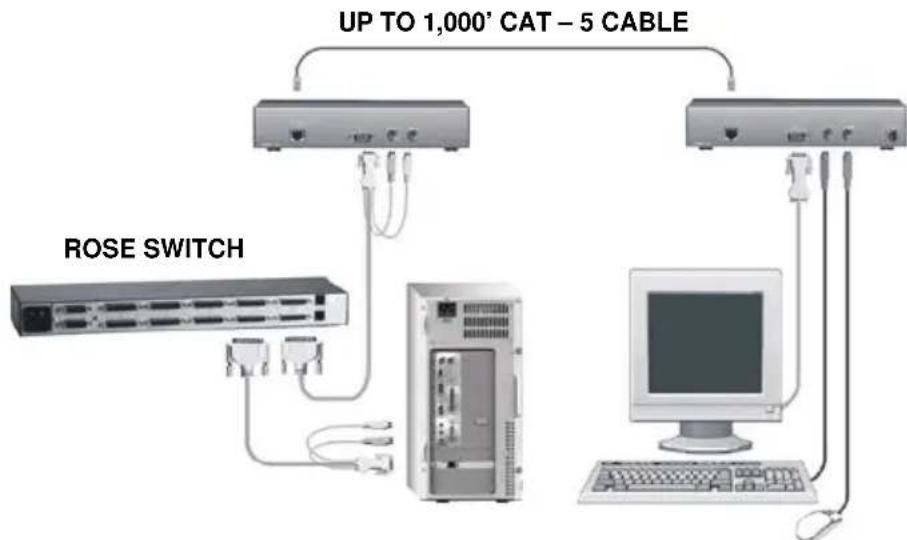
In this example, the Local CrystalView is connected to a Rose switch and the Rose switch connects to several CPUs. All the CPUs connected to the Rose switch can be accessed from the Remote KVM station. All CrystalView models can be interfaced to a Rose switch. See the Rose switch manual for access commands.
flowchart
graph TD
    A["ROSE SWITCH"] --> B["UP TO 1,000' CAT - 5 CABLE"]
    B --> C["Computer"]
Figure 10. Rose switch cabling
Step 3 – Applying power
(All models)
Plug in the power adapter to a 110/220-volt source and to the power connector on the Remote Unit. Only use the power adapter provided with the CrystalView. Boot up the connected CPU and wait for it to completely boot-up. The Local Units power is supplied from the CPUs keyboard port. The video image quality may be poor at this point on the PC, SUN, and PC-Serial/Audio models, final adjustments for these models are performed in step 4.
(PC, SUN, PC-Serial/Audio models only)
(No video compensation is required for the MINI model)
Video compensation adjustments should only be needed if your CAT-5 cable length exceeds 300 feet. Make sure the Bright and Sharp controls on the Remote Unit are fully counterclockwise. (no compensation). Make sure that JP1, JP2, and JP3 are set properly.
Start an application, (preferably a windows application), and look at the right edge of a large horizontal object such as a title bar. If there is black smearing on this edge, the video is under compensated. Rotate the Sharp control on the Remote Unit clockwise until the smearing disappears and the edge starts to become very bright. At this point, the video is overcompensated. Rotate the Sharp control counterclockwise until the edge has no smearing or over brightness. The video compensation is now adjusted correctly for the cable length used in your system.
The Bright control adjusts the brightness of the overall picture. Adjust the Bright control on the Remote Unit to suit your needs. The Sharp control may have to be slightly readjusted after adjusting the Bright control.
Note: The CrystalView video compensation system is designed to produce very good quality video on short to medium length cables and acceptable quality video over cable lengths greater than 500 feet.
In some installations the location of the CPU and the location of the CrystalView Local Unit requires a greater distance than the system is designed for. This extra cable length from the keyboard port on the CPU to the Local Units keyboard connector can cause a power loss. Since the Local Unit gets its power from the keyboard port of the CPU, this loss may be enough to effect its operation. This also may occur when using a wireless keyboard. To correct a decrease in power, a supplemental power adapter may be required on the Local Unit keyboard connector. (See Appendix C. Parts and cables)
If you are connecting a Laptop computer to the Local Unit, it is highly recommended that a power adapter be used to supplement the Local Units power. Operating the laptop exclusively on battery power alone is not recommended.
(PC and SUN models)
Dipswitch SW1 on the Remote Units PCB has four switches that allow you to change settings from their factory set values. SW1 settings only apply to the CrystalView Dual model. If your model is a Single version, switches 1-4 should all be set to the factory settings.
(Factory settings are in BOLD.)
| Switch | Function | Left (OFF) | Right (ON) |
| 1 | Privacy mode | Enabled | Disables |
| 2 | Lockout time | 15 sec. | 2 sec. |
| 3 | Activation method | Kbd. or mouse | Keyboard |
| 4 | Scroll lock key | Normal keyboard function | Commands to CrystalView |
Table 1. User settings (PC/SUN models)
Note: Switch #1 on, remote monitor will not blank in Private mode
(PC-Serial/Audio model)
The CrystalView models with the Serial/Audio option have Dipswitch SW1 switches 1, 3, and 4 inoperable. Dipswitch 2 sets either the right or left control key to be the key to initiate commands to the CrystalView. (Press and release the control key, then enter the command to send to the CrystalView.) See Figure 5 for SW1 setting and location.
Factory settings are in BOLD
| Switch | Function | Left (OFF) | Right (ON) |
| 1 | N/A | N/A | N/A |
| 2 | Command key | Right control key | Left control key |
| 3 | N/A | N/A | N/A |
| 4 | N/A | N/A | N/A |
Table 2. User settings (PC-Serial/Audio model)
(MINI model)
For normal scroll lock key operation set Dipswitch #2 on the bottom of the Remote Unit to "ON" (default = "Off").
■ Right control key = key to send commands to the CrystalView, changeable by SW1, position 2.
■ Console lockout period is fixed at 2 seconds.
■ Console switching is by pressing any key on the keyboard or by any mouse movement. The first keyboard entry or mouse movement is ignored.
■ Monitor will always be blanked during private mode.
■ All audio transmission is stopped in private mode.
■ The serial link is always active regardless of mode.
All model specific notes
The Hub's LED will be steadily lit if the port is powered. The LED will flash if it is communicating with a Remote Unit. The LED will stop flashing if the remote unit is disconnected, powered down, or at any time local access to the unit is active (dual access models only).
OPERATING INSTRUCTIONS
Operating instructions- All units
Once the Remote and Local Units are connected and configured, the Remote KVM station's keyboard, video monitor and mouse will function as if it were directly connected to the CPU. All applications, upgrades and PC configurations can be performed normally. If you reconnect a keyboard or mouse or if the keyboard or mouse ever locks up, see Table 4 and Table 5 for re-initialization instructions.
Operating instructions – Dual unit
KVM Switching
The CrystalView “Dual” version allows for an additional KVM station to be connected to the Local Unit. The CPU can be operated from the Remote or Local KVM station but not simultaneously. The Local Unit is active during boot-up. To activate the Remote KVM station, simply press any key on the Remote KVM stations keyboard or move the mouse. To activate the Local KVM station, press any key on the Local KVM station’s keyboard or move its mouse.
A lockout feature disables activity from a KVM station until the “In Use” KVM stations keyboard or mouse are inactive for more than 2 seconds. After 2 seconds of inactivity, pressing any key on the “Not in Use” KVMs keyboard or moving the mouse will activate that KVM station and lockout the other KVM station. On the PC and SUN models, changing SW1 switch 2 to the left position can change the time interval of 2 seconds to 15 seconds. The 2-second time interval is not changeable on the Serial/Audio and MINI models.
Private mode (Dual models only)
The private mode feature will disable the keyboard and mouse and blank the video monitor on the Remote or Local Unit. To enter the private mode, execute the command for your model as shown.
| Model | Unit | Command |
| PC/MINI | Remote | N/A |
| PC/MINI | Local | Scroll Lock |
| SUN | Remote | Left Control + Scroll Lock |
| SUN | Local | Left Control + Scroll Lock |
| PC-Serial/Audio | Remote | Scroll Lock |
| PC-Serial/Audio | Local | Scroll Lock |
Table 3. Private mode commands
Reset
This feature allows you to reset the mouse if it ever locks up or is unplugged without having to boot the system. To reset the mouse, perform the commands for your model as shown in Table 4. If the mouse is still erratic after issuing the reset command, issue a Null Mouse command.
| MODEL | UNIT | COMMAND |
| PC/MINI | Remote | Press Scroll Lock |
| PC/MINI | Local Dual | Press Scroll Lock twice |
| SUN | Remote | Right Shift + Scroll Lock |
| SUN | Local Dual | Right Shift + Scroll Lock |
| PC-Serial/Audio | Remote | Num Pad Up (↑) arrow (#8) |
| PC-Serial/Audio | Local Dual | Num Pad Up (↑) arrow (#8) |
Table 4. Out-of sync mouse commands
Null mouse command
The “Null mouse” command will recover an out-of-sync mouse without having to boot the system. If the mouse gets out of sync, issue the command as shown in Table 6. Issuing the “Null mouse” command sends a single byte to the PS/2 mouse port.
| Model | Unit | Command |
| PC/MINI | Remote | Hold left and right mouse buttons down then press Scroll Lock |
| PC/MINI | Local Dual | Hold left and right mouse buttons down, then press Scroll Lock |
| SUN | Remote | N/A |
| SUN | Local Dual | N/A |
| PC-Serial/Audio | Remote | Num Pad Left arrow (←) key (#4) |
| PC-Serial/Audio | Local Dual | Num Pad Left arrow (←) key (#4) |
Table 5. Null mouse command
If the mouse is still not in sync, perform the null mouse command again. You may have to issue this command up to 3 times to get the mouse in sync. This null mouse command is a method of synchronizing the mouse without having to re-boot your system.
TROUBLESHOOTING
Troubleshooting
The troubleshooting section is used as a guide to understanding the capabilities of the CrystalView and for general troubleshooting. If you have any problems or questions concerning the installation, operation or usage of the CrystalView that is not covered in this manual, please contact Rose Electronics for technical support.
PC boots with no error messages but keyboard does not work.
■ Cable is loose; re-seat keyboard cable at the CPU and the Local CrystalView Unit reset the keyboard and mouse.
■ Keyboard and mouse cables reversed.
■ Try a different model of keyboard. If the new keyboard works, the original one may not be compatible. Some older auto-sensing keyboards may not work with this product.
Wrong or missing characters from those typed.
■ The keyboard may be in the wrong mode. Reset the keyboard.
■ Power down and reboot the system.
PC always comes up with a keyboard error message at boot.
If the system appears to work fine after pressing F1 or ESC, adjust your BIOS setup so that the PC does not test the keyboard.
Connecting a keyboard to the Unit affects video.
■ Change to a newer keyboard. Some older model keyboards require a current higher than that supplied by the CrystalView.
■ Install a supplemental power supply to the keyboard connector on the Local Unit. See Appendix C for part number.
PS/2 cursor appears on the screen, but mouse doesn't work.
■ Reset the mouse. (See Table 4)
■ Cable is loose, re-seat the mouse cable and reset the mouse. Keyboard and mouse cables reversed.
■ Try a different model of mouse.
■ Power off and on the Remote Unit
Mouse movement is erratic.
■ Reset the keyboard and mouse. (See Table 4)
■ Issue a Null Mouse Command (up to 3 times), (See Table 5)
■ Reload the application and/or reboot the PC. If this problem persists call Rose Electronics technical support.
System does not detect PS/2 mouse or application cannot find mouse.
■ Keyboard and mouse cables reversed on the Local Unit.
■ Cable is loose; re-seat mouse cable on the CPU and the Local Unit.
■ Ensure that the keyboard cable to the Local Unit is connected to provide adequate power to the Local Unit.
■ Reboot PC.
Keyboard and Mouse have locked up.
■ Reset the keyboard and mouse. (See Table 4)
■ Reset PC and the Remote Unit.
■ Check power to the Remote Unit.
Video picture is not sharp or is smeared.
■ Video compensation is incorrectly set. See installation section.
■ The UTP/STP interconnection cable is wired incorrectly.
See the UTP/STP connection cable wiring section.
- Check that the UTP/STP cable is solid and not a stranded cable and all connectors and patch cables are correct.
Each character separates into overlapping red, green and blue pixels.
■ Check that the UTP/STP cable is solid, not stranded.
■ Check patch panels for poor or incorrect connections.
■ Check the compensation jumper settings.
■ The UTP/STP interconnection cable is wired incorrectly. See the UTP/STP connection cable wiring section.
Monitor occasionally looses sync causing it to go blank for a few seconds.
■ This occurs if your electrical power system is very noisy, particularly the ground. Do not run the interconnection cables near power line
Only video is required, but no picture appears.
The probable cause is that the Local Unit is not powered on. The Local Unit obtains its power from the CPUs keyboard port. A keyboard cable must be connected from the Local Unit to the CPU even if no keyboard is required. A supplementary power supply can be obtained that connects to the Local Units keyboard connector.
Picture on monitor is black and white, not color.
■ The video cable was not attached to the PC when it was booted. Reboot the PC.
A constant vertical wobble appears down the screen.
■ The CAT-5 cable connecting the Local and Remote Units could be located too close to a strong power source. Reroute the cabling if possible.
■ If interference is from strong signals from a nearby broadcast transmitter, a beat pattern will appear. Change the vertical refresh rate on the monitor slightly, such as from 60Hz to 70Hz.
Microsoft Windows or NT will only boot into low-resolution graphics mode.
■ If your graphics card supports VESA DDC (Display Data Channel), configure the graphics driver by explicitly indicating which make and model of monitor you have rather than by using DDC.
No sound at the Remote Units speakers or headphones.
■ Audio cable loose or defective.
■ Audio cable in the wrong connector.
■ Sound card "Line Out" muted.
No sound at the CPUs speakers when using a Microphone on the Remote Unit.
■ Microphone cable in wrong connector.
■ Sound card "MIC" input muted.
■ Microphone signal not amplified; increase sound card amplification by +20db. Add “MIC” jumper on the Remote Units daughter board to increase signal. Do not add this jumper if the microphone is already a powered microphone.
Maintenance and Repair
This Unit does not contain any internal user-serviceable parts. In the event a Unit needs repair or maintenance, you must first obtain a Return Authorization (RA) number from Rose Electronics or an authorized repair center. This Return Authorization number must appear on the outside of the shipping container. See Limited Warranty for more information.
When returning a Unit, it should be double-packed in the original container or equivalent, insured and shipped to:
Rose Electronics
Attn: RA
10707 Stancliff Road
Houston, Texas 77099 USA
Technical Support
If you are experiencing problems, or need assistance in setting up, configuring or operating your CrystalView, consult the appropriate sections of this manual. If, however, you require additional information or assistance, please contact the Rose Electronics Technical Support Department at:
Phone: (281) 933-7673
E-Mail: TechSupport@rose.com
Web: www.rose.com
Technical Support hours are from: 8:00 am to 6:00 pm CST (USA), Monday through Friday.
Please report any malfunctions in the operation of this Unit or any discrepancies in this manual to the Rose Electronics Technical Support Department.
Safety
The CrystalView KVM extender has been tested for conformance to safety regulations and requirements, and has been certified for international use. Like all electronic equipment, the CrystalView should be used with care. To protect yourself from possible injury and to minimize the risk of damage to the Unit, read and follow these safety instructions.
■ Follow all instructions and warnings marked on this Unit.
■ Except where explained in this manual, do not attempt to service this Unit yourself.
■ Do not use this Unit near water.
■ Assure that the placement of this Unit is on a stable surface or rack mounted.
■ Provide proper ventilation and air circulation.
- Keep power cord and connection cables clear of obstructions that might cause damage to them.
■ Use only power cords, power adapter and connection cables designed for this Unit.
■ Use only a grounded (three-wire) electrical outlet.
■ Use only the power adapter provided with the CrystalView.
- Keep objects that might damage this Unit and liquids that may spill, clear from this Unit. Liquids and foreign objects might come in contact with voltage points that could create a risk of fire or electrical shock.
■ Operate this Unit only when the cover is in place.
■ Do not use liquid or aerosol cleaners to clean this Unit. Always unplug this Unit from its electrical outlet before cleaning.
■ Unplug this Unit from the electrical outlet and refer servicing to a qualified service center if any of the following conditions occur:
- The power cord or connection cables is damaged or frayed.
■ The Unit has been exposed to any liquids.
- The Unit does not operate normally when all operating instructions have been followed.
- The Unit has been dropped or the case has been damaged.
- The Unit exhibits a distinct change in performance, indicating a need for service.
Safety information

Documentation reference symbol. If the product is marked with this symbol, refer to the product documentation to get more information about the product.
WARNING
A WARNING in the manual denotes a hazard that can cause injury or death.
CAUTION
A CAUTION in the manual denotes a hazard that can damage equipment.
Do not proceed beyond a WARNING or CAUTION notice until you have understood the hazardous conditions and have taken appropriate steps.
Grounding
These are Safety Class I products and have protective earthing terminals. There must be an un-interruptible safety earth ground from the main power source to the product's input wiring terminals, power cord, or supplied power cord set. Whenever it is likely that the protection has been impaired, disconnect the power cord until the ground has been restored.
Servicing
There are no user-serviceable parts inside these products. Only service-trained personnel must perform any servicing, maintenance, or repair.
The user may adjust only items mentioned in this manual.
Appendix A. General Specifications
| Video bandwidth(-3db) | Local Unit: 150 MHzRemote Unit: 300 MHzOver 300 feet UTP: 95Mhz w/equalization | |
| Maximum resolution | PC models: 1280 x 1024 (Less than 300 feet)1024 x 768 (300-1,000 feet)MINI model: 1280 x 1024 @ 150 feet1600 x 1200 @ 60 feetSUN model: 1152 x 900 | |
| Video compatibility | SVGA, VGA, XGA, RGB | |
| Video levels | 0.7V P-P | |
| Video compensation | PC models - 3-Stage continuously variableMINI model - 2-Stage switchable | |
| Video coupling | DC | |
| Sync type | Separate/composite TTL level sync polarity is preserved. | |
| Keyboard | PC/AT, PS/2 | |
| Mouse | Standard PS/2 two button, Microsoft IntelliMouse, Logitech 3-button PS/2 | |
| Console lockout period | 2-seconds (CrystalView Dual version) | |
| Local power | From PC keyboard port | |
| Remote power | 9V, 1,000 ma. Regulated | |
| Connectors | Video to PC – HD15M, to KVM – HD15FKeyboard: MiniDin-6 / MiniDin-8 (SUN)Mouse: MiniDIN-6 / MiniDIN-8 (SUN)MINI: keyboard, video, mouse to PC: DB25MInterconnect: CAT-5 solid UTP/STP EIA/TIA568 cable wiring with RJ45 connectors. | |
| Temp/Humidity | 32° F-113° F / 0° C-45° C / 5% to 90% RH | |
| DimensionsH (Single/Remote)H (Dual)DW | PC / SUN / Ser/Aud.1.75 in / 4.45 cm1.75 in / 4.45 cm3.4 in / 8.64 cm8.8 in / 22.35 cm | MINI1.75 in / 4.45 cm1.75 in / 4.45 cm4.5 in / 11.43 cm3.25 in / 8.25 cm |
| WeightSingle/RemoteDual | PC / SUN / Ser/Aud.2.5 lbs / 1.13 kg5.0 lbs / 2.26 kg | MINI.55 lbs / .25 kg.70 lbs / .32 kg |
Appendix A1. Serial option specifications
| Baud Rate | Up to 19,200 Baud |
| Data Format | Format Independent |
| Flow Control | RTS, CTS, DTR, DSR (Sent across link) |
| Local Unit Connector | DB9 Female (DCE) |
| Remote Unit Connector | DB9 Male (DTE) |
Appendix A2. Audio option specifications
| Description | Bi-directional stereo audio link |
| Transmission Method | Digitized audio (16-bit, 38.4KHz) |
| Signal Level | Line-level 4 volts peak-to-peak |
| Input Impedance | 47KΩ |
| Connectors (Local/Remote) | 2-3.5mm stereo jacks |
| Microphone support | Powered or un-powered |
| Speaker support | Powered |
Appendix B. UTP/STP connection
The Local and Remote connection cable is terminated with RJ45 connectors and must be wired according to the EIA/TIA 568 industry standard. Scheme B is required.
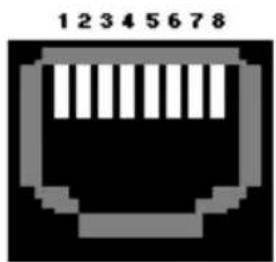
RJ45 8-Pin
| PIN Wire Color | Wire Pair | |
| 1 | White/Orange | T2 |
| 2 | Orange/White | R2 |
| 3 | White/Green | T3 |
| 4 | Blue/White | R1 |
| 5 | White/Blue | T1 |
| 6 | Green/White | R3 |
| 7 | White/Brown | T4 |
| 8 | Brown/White | R4 |
| Part Number | Description |
| CRK-1P | Single KVM station (PC) |
| CRK-2P | Dual KVM station (PC) |
| CRK-1P/SUN | Single KVM station (SUN) |
| CRK-2P/SUN | Dual KVM station (SUN) |
| CRK-1P/AUD | Single KVM station (Serial/Audio) |
| CRK-2P/AUD | Dual KVM station (Serial/Audio) |
| CRK-M1P-2 | Single KVM station (MINI) |
| CRK-M2P-2 | Dual KVM station (MINI) |
| CAB-08UTPnnn* | CAT-5 UTP cable** |
| CAB-CXV66MMnnn* | Local to CPU |
| CAB-CX0606Cnnn* | Local to Switch / MINI to CPU (Coax) |
| CAB-ZX0606Cnnn | Local to Switch / MINI to CPU (Std) |
| CAB-C1VS8MMnnn* | Local Sun to Sun CPU |
| CAB-C1VS0800Cnnn* | Local Sun to Switch |
| CAB-CXVSMMnnn* | Local MINI to Switch (DB25 to DB25) |
| CAB-D9MFnnn* | CPU to Local serial input |
| CAB-SPMMnnn* | 3.5mm stereo audio cable |
| CAB-13W3MVF/SW3 | HD15F to 13W3M VGA adapter |
| CAB-13W3FVM/SW3 | HD15M to 13W3F VGA adapter |
| ACC-HD15FF/SL | Gender changer (Included) |
| TFR-09D100FSUB | 110V/220V to 9VDC adapter |
| KIT-KBPWR-5(Supplemental Power kit) | Kit w/ ACC-KBPWR &TRF-05D200FSUP-3.5 |
| RM-UM19 | 19" Rackmount kit |
| RM-UM23 | 23" Rackmount kit |
| RM-UM24 | 24" Rackmount kit |
* nnn = length of cable in feet.
** CAT-5 cable available from 25 to 1,000 feet.
Appendix D. Firmware updates
The CrystalView firmware may be updated by changing the ROM chip in either the Local or Remote Unit. Contact Rose Electronics for firmware updates.
CrystalView MINI model is not rack mountable.
The optional rack mount kit includes the following items:
■ Two black anodized mounting brackets.
■ Four 6 - 32 x 3/8" flat head mounting screws.
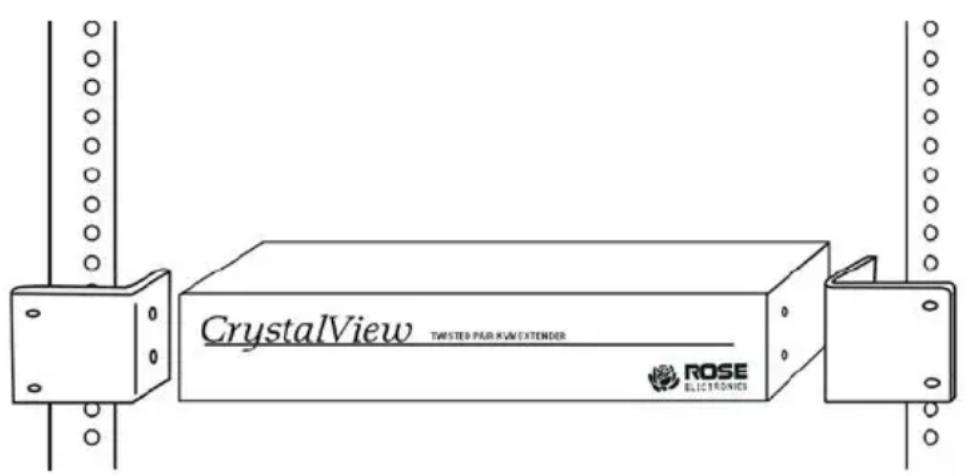
To rack mount your CrystalView, attach the two rack mounting brackets to your Unit with the short flange against the Unit using the four screws provided. Do not over tighten the screws used to mount the Unit to the mounting brackets. Use only the hardware provided, using hardware other than that provided could cause damage to the electronics and/or result in loss of mounting integrity. Secure the mounting brackets to the rack using the appropriate size bolts, nuts and lock washers.
The following guidelines should be observed when installing.
a). Do not exceed the operating temperature of 0 °C to 45°C.
b). Do not block power supply vents or restrict airflow.
c). Mechanical loading of the rack should be considered to prevent instability and possible tipping over.
d). Tighten all connectors securely and provide adequate strain relief for all cables.
e). Provide a grounded power source to all Units. Pay special attention to overall branch circuit load ratings before connecting equipment to this source. Overloaded circuits are potential fire hazards and can cause equipment failures or poor performance.
Appendix F. Rack mount illustration
FEDERAL COMMUNICATIONS COMMISSION
AND INDUSTRY CANADA
RADIO-FREQUENCY INTERFERENCE STATEMENTS
This equipment generates, uses and can radiate radio frequency energy and if not installed and used properly, that is in strict accordance with the manufacturer's instructions may cause interference to radio communication. It has been tested and found to comply with the limits for a Class B digital device in accordance with the specifications of Part 15 of FCC rules, which are designed to provide reasonable protection against such interference when the equipment is operated in a commercial environment. Operation of this equipment in a residential area is likely to cause interference, in which case the user at his own expense will be required to take whatever measures may be necessary to correct the interference.
Changes or modifications not expressly approved by the party responsible for compliance could void the user's authority to operate the equipment.
This digital apparatus does not exceed the Class A limits for radio noise emission from digital apparatus set out in the Radio Interference Regulation of Industry Canada.
EUROPEAN UNION DECLARATION OF CONFORMITY ACCORDING TO COUNCIL DIRECTIVE 89/336EEC & 73/23EEC

This equipment is in conformity with the protection requirements of the following
Council Directives:
The EMC Directive 89/336/EEC
The Low Voltage Directive 73/23/EEC
The Declaration of Conformity is based upon compliance of the product with the following harmonized standards:
EN55022: 1994 EN61000-3-3: 1995
EN55024: 1998 EN61000-3-2: 1995
EN60950: 2000

ROSE
ELECTRONICS
Server Management
