EVO-TM2B - Point of Sale Terminal POS-X - Free user manual and instructions
Find the device manual for free EVO-TM2B POS-X in PDF.


User questions about EVO-TM2B POS-X
0 question about this device. Answer the ones you know or ask your own.
Ask a new question about this device
Download the instructions for your Point of Sale Terminal in PDF format for free! Find your manual EVO-TM2B - POS-X and take your electronic device back in hand. On this page are published all the documents necessary for the use of your device. EVO-TM2B by POS-X.
USER MANUAL EVO-TM2B POS-X
Revision v1.3 Dec. 2010

natural_image
Five black star and geometric symbols arranged horizontally (no text or labels)
natural_image
Five black star-shaped symbols arranged horizontally (no text or labels)
natural_image
Collection of black and white geometric shapes including stars, squares, and asterisks (no text or symbols)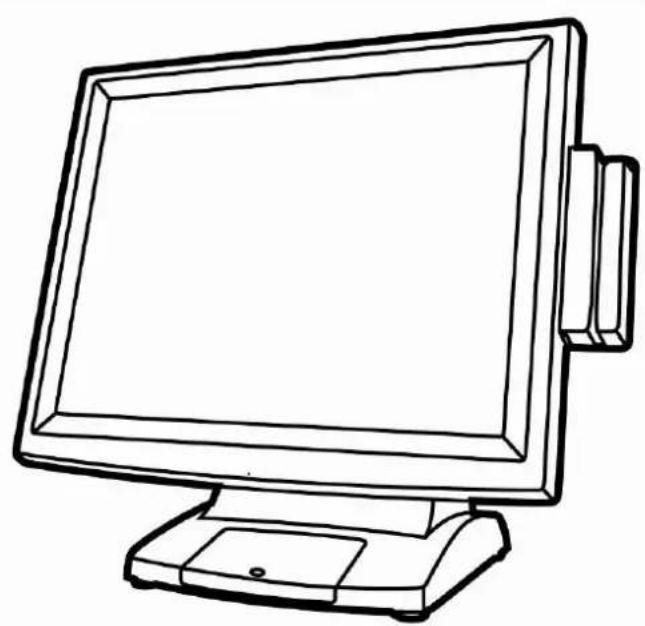
natural_image
Line drawing of a vintage computer monitor with front panel and base (no text or symbols)Copyright 2010 August
All Rights Reserved
Manual Version 1.3
Part Number:
The information contained in this document is subject to change without notice.
We make no warranty of any kind with regard to this material, including, but not limited to, the implied warranties of
merchantability and fitness for a particular purpose. We shall not be liable for errors contained herein or for incidental or consequential damages in connection with the furnishing, performance, or use of this material.
This document contains proprietary information that is protected by copyright. All rights are reserved. No part of this document may be photocopied, reproduced or translated to another language without the prior written consent of the manufacturer.
TRADEMARK
Intel®, Pentium® and MMX are registered trademarks of Intel®
Corporation. Microsoft® and Windows® are registered trademarks of Microsoft Corporation.
Other trademarks mentioned herein are the property of their respective owners.
Safety
IMPORTANT SAFETY INSTRUCTIONS
- To disconnect the machine from the electrical Power Supply, turn off the power switch and remove the power cord plug from the wall socket. The wall socket must be easily accessible and in close proximity to the machine.
- Read these instructions carefully. Save these instructions for future reference.
- Follow all warnings and instructions marked on the product.
- Do not use this product near water.
- Do not place this product on an unstable cart, stand, or table. The product may fall, causing serious damage to the product.
- Slots and openings in the cabinet and the back or bottom are provided for ventilation; to ensure reliable operation of the product and to protect it from overheating. These openings must not be blocked or covered. The openings should never be blocked by placing the product on a bed, sofa, rug, or other similar surface. This product should never be placed near or over a radiator or heat register, or in a built-in installation unless proper ventilation is provided.
- This product should be operated from the type of power indicated on the marking label. If you are not sure of the type of power available, consult your dealer or local power company.
- Do not allow anything to rest on the power cord. Do not locate this product where persons will walk on the cord.
- Never push objects of any kind into this product through cabinet slots as they may touch dangerous voltage points or short out parts that could result in a fire or electric shock. Never spill liquid of any kind on the product.
CE MARK

This device complies with the requirements of the EEC directive 2004/108/EC with regard to “Electromagnetic compatibility” and 2006/95/EC “Low Voltage Directive”
FCC
This device complies with part 15 of the FCC rules. Operation is subject to the following two conditions:
(1) This device may not cause harmful interference.
(2) This device must accept any interference received, including interference that may cause undesired operation
CAUTION ON LITHIUM BATTERIES
There is a danger of explosion if the battery is replaced incorrectly. Replace only with the same or equivalent type recommended by the manufacturer. Discard used batteries according to the manufacturer's instructions.
LEGISLATION AND WEEE SYMBOL
2002/96/EC Waste Electrical and Electronic Equipment Directive on the treatment, collection, recycling and disposal of electric and electronic devices and their components.

natural_image
Simple line drawing of a trash bin with no text or symbols
The crossed dustbin symbol on the device means that it should not be disposed of with other household wastes at the end of its working life. Instead, the device should be taken to the waste collection centers for activation of the treatment, collection, recycling and disposal procedure.
To prevent possible harm to the environment or human health from uncontrolled waste disposal, please separate this from other types of wastes and recycle it responsibly to promote the sustainable reuse of material resources.
Household users should contact either the retailer where they purchased this product, or their local government office, for details of where and how they can take this item for environmentally safe recycling.
Business users should contact their supplier and check the terms and conditions of the purchase contract.
This product should not be mixed with other commercial wastes for disposal.
Revision History
Changes to the original user manual are listed below:
| Revision Date Description | |||
| V1.0 | Sep. | 2009 | ● Release |
| V1.1 | Oct. | 2009 | ● MB version change |
| V1.2 | Aug. | 2010 | ● MB version change |
| V1.3 | Dec. | 2010 | ● Model name change |
Table Contents
1 Package Checklist.... 1
1-1 Standard Items.... 1
1-2 Optional Items 2
2 System View.... 3
2-1 Front View 3
2-2 Rear View....4
2-3 Bottom View 5
2-4 I/O View....6
3 Peripheral Installation 7
3-1 MSR 7
3-2 VFD 8
3-3 Wall Mount Kit 10
4 System Assembly & Disassembly ..... 12
4-1 Remove the System Stand.... 12
4-2 Replace the Power Adapter.... 13
5 Specification 14
1 Package Checklist
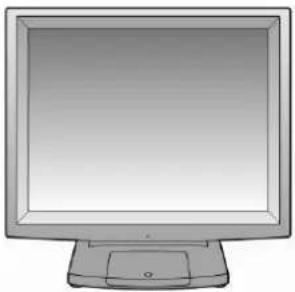
Take the system unit out of the carton. Remove the unit from the carton by holding it by the foam inserts. The following contents should be found in the carton:
1-1 Standard Items
a.
natural_image
Illustration of a desktop computer monitor with a tower and mouse (no text or symbols)d.
natural_image
Diagram of a plug and probe with no text or symbolsb.
natural_image
Illustration of a CD or DVD disc with concentric rings and central hole (no text or symbols)e.

C.
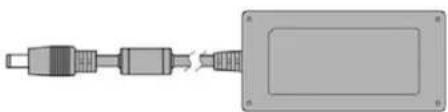
natural_image
Pure electrical connector diagram without any text, numbers, or symbolsf.
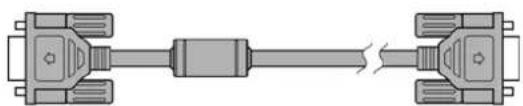
natural_image
Diagram of a vehicle suspension system with two shafts and connecting components (no text or labels)a. Monitor
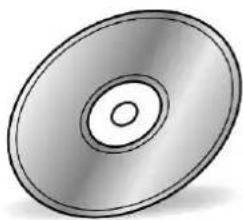
b. Driver CD
c. Power Adapter (36W)
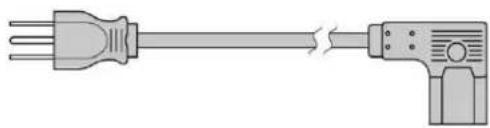
d. Power Cable
e. USB Cable for touch
f. VGA Cable
1-2 Optional Items
a.
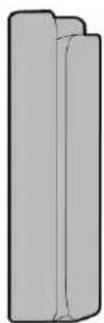
C.
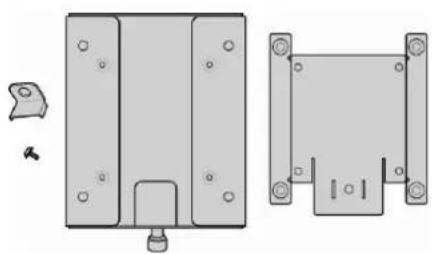
natural_image
Technical line drawing of two mechanical components with mounting holes and a separate view (no text or symbols)b.
a. MSR Module
b. VFD Module
c. Wall Mount Kit
2 System View
2-1 Front View
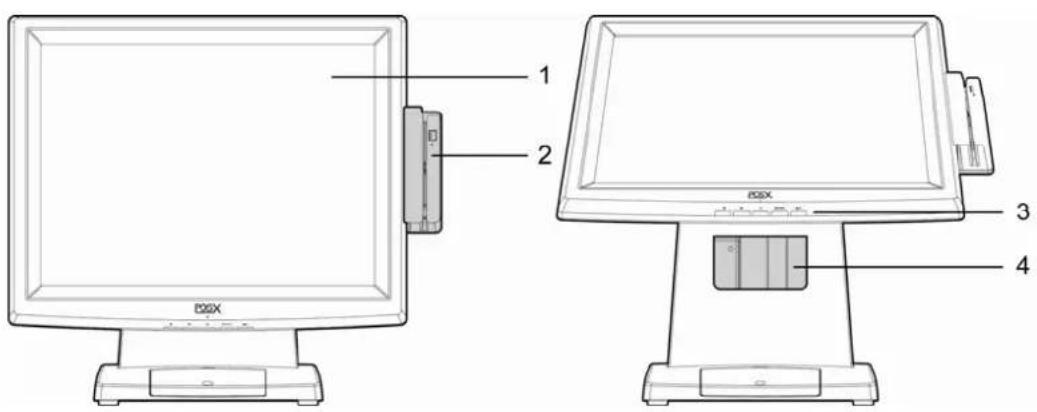
System Overview table -1
| Number | Component | |
| 1 | Touch | Screen |
| 2 | MSR | (Optional) |
| OSD Button for OSD menu selectionFrom left to right button: | ||
| 3 | 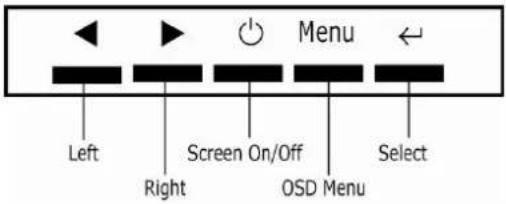 | |
| 4 | Stand Hole for cable management | |
2-2 Rear View
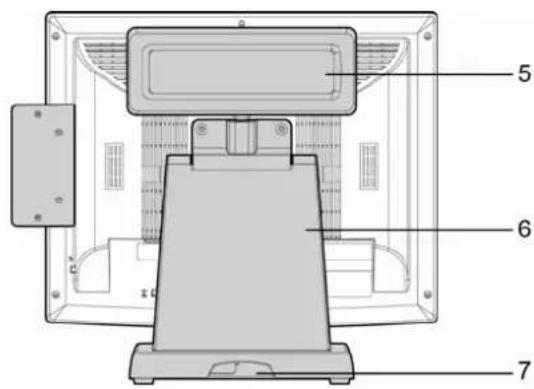
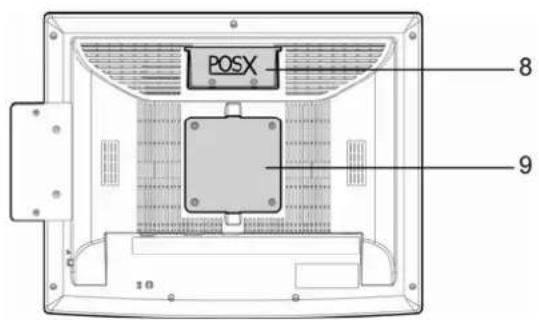
System Overview table -2
| Number Component | |
| 5 VFD Module (Optional) | |
| 6 Stand (with cable management and power adapter bracket) | |
| 7 Cable Outlet | |
| 8 VFD Cover (VFD module installation location) | |
| 9 VESA hole for stand and wall-mount kit installation |
2-3 Bottom View
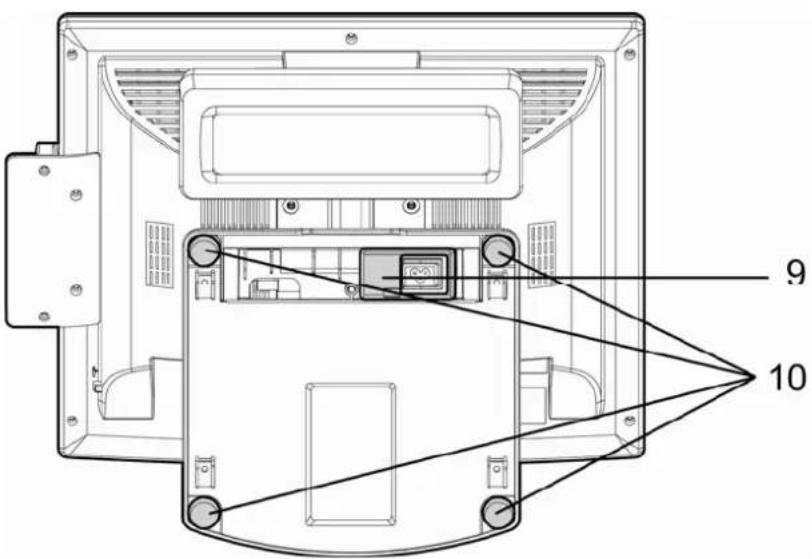
System Overview table -3
| Number Component | ||
| 9 Easy-Service Retaining Bracket for Power Adapter | ||
| 10 | Rubber | feet |
2-4 I/O View
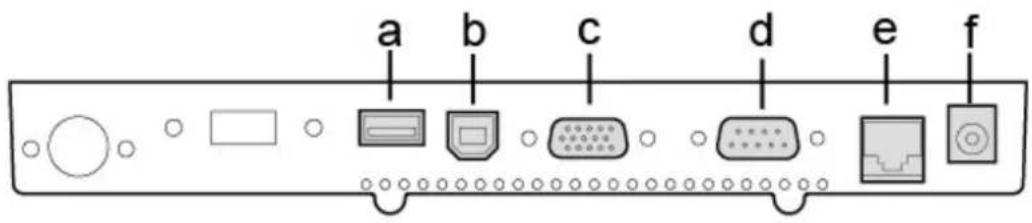
System Overview table -4
| Number Component | ||
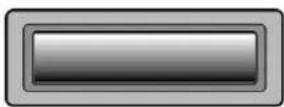
| a USB (to Device) | ||
| b USB IN (from PC) | ||
| c | VGA | IN |
| d | COM | IN |
| e | COM | 12V |
| f | 12V | IN |
3
Peripheral Installation
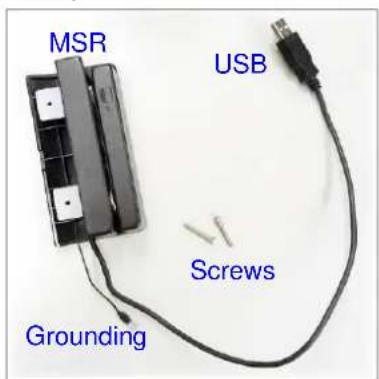
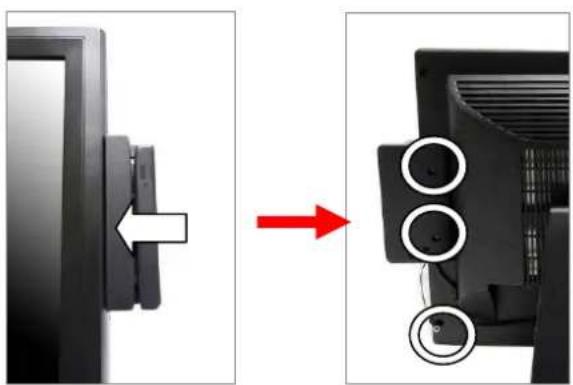
3-1 MSR
Components of MSR Kit:
natural_image
Diagram showing a computer monitor with a left-side left button and a right-side view of the screen with two circular components (no text or symbols)- Slide the MSR into the right position of the System.
- Fasten the screws (x2) and grounding cable (x1).
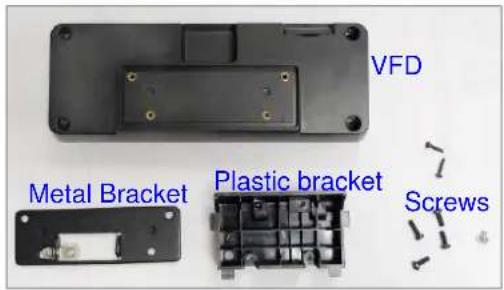
3-2 VFD
Components of VFD Kit:
natural_image
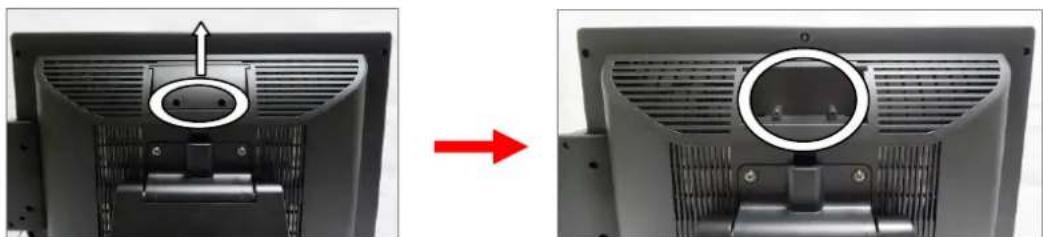
Two views of a computer monitor showing the front panel and side panel, with a red arrow indicating transformation (no text or symbols present)- Unfasten the screws (x2) and slide the VFD Cover outward.
natural_image
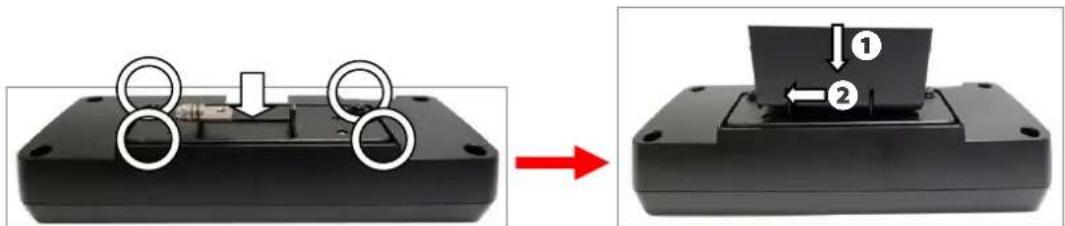
Two views of a black electronic component with circular features, one showing internal structure and the other showing a mechanical part (no text or symbols visible)-
Position the VFD metal bracket onto the rear side of the VFD module and fasten the screws (x4).
-
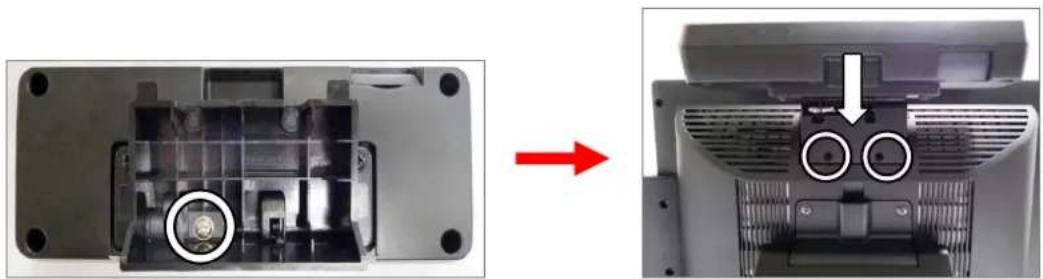
Position the plastic bracket on the metal bracket as shown in the images above.
natural_image
Close-up of a mechanical device showing internal components before and after assembly, with no visible text or symbols.- Fasten the screw (x1) to attach the plastic bracket to the metal bracket and VFD module.
- Slide the VFD module with bracket into the VFD socket.
- Attach the VFD module by fastening the screws (x2) as shown.
natural_image
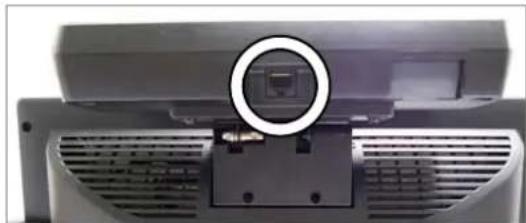
Close-up of a computer monitor with a circular icon highlighting the front panel (no visible text or symbols)- Connect the VFD's RJ45 to the VFD Module.
- Connect the other end of the VFD Cable to the Touch Screen Monitor.
3-3 Wall Mount Kit
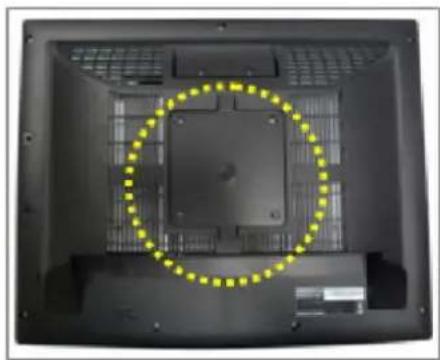
Before installing the Wall Mount Kit, please remove the stand first.
(See Chapter 4-1)
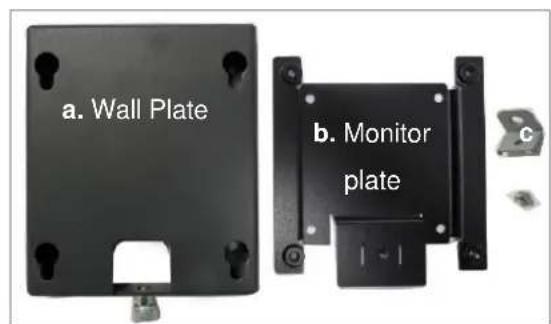
(Parts of Wall Mount Kit)
(Location to install)
natural_image
Back view of a computer monitor with a highlighted circular area on the left (no text or symbols visible)- VESA Wall Mount Kit includes the following:
a. Wall-mount plate
b. Monitor-mount plate & screws
c. Screw metal bracket
- The wall mount installs at the rear of the system.
natural_image
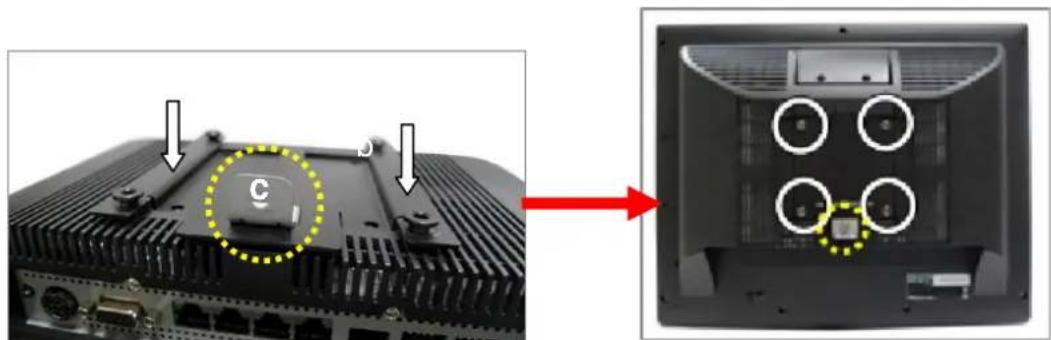
Back panel view showing a computer chassis with labeled ports and a highlighted component (no text or symbols visible)- Attach part "b" to the back of the Touch Monitor.
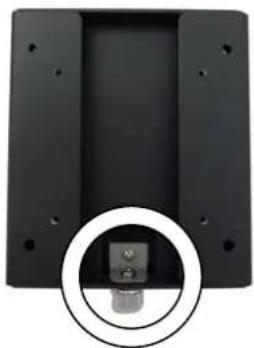
- Attach part "c" to the monitor plate as pictured and secure with a screw (x1).
- Fasten the screws (x4) to attach the monitor plate.
natural_image
Close-up of a black rectangular electronic device with a circular inset showing a small component (no text or symbols visible)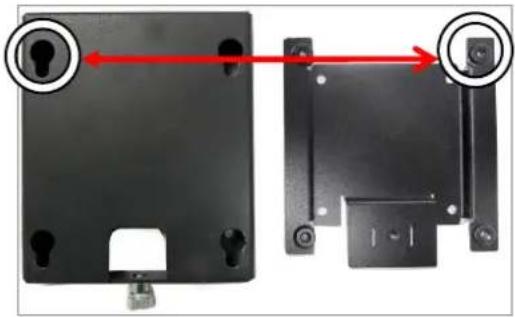
natural_image
Two black metal hardware components with red arrows indicating alignment or movement, no visible text or symbols-
Mount part "a" to the wall in your desired location.
-
Align the hooks of the monitor plate with the keyholes of the wall plate and slide the monitor into place.
-
Tighten the thumb screw (x1).
4 System Assembly & Disassembly
4-1 Remove the System Stand
natural_image
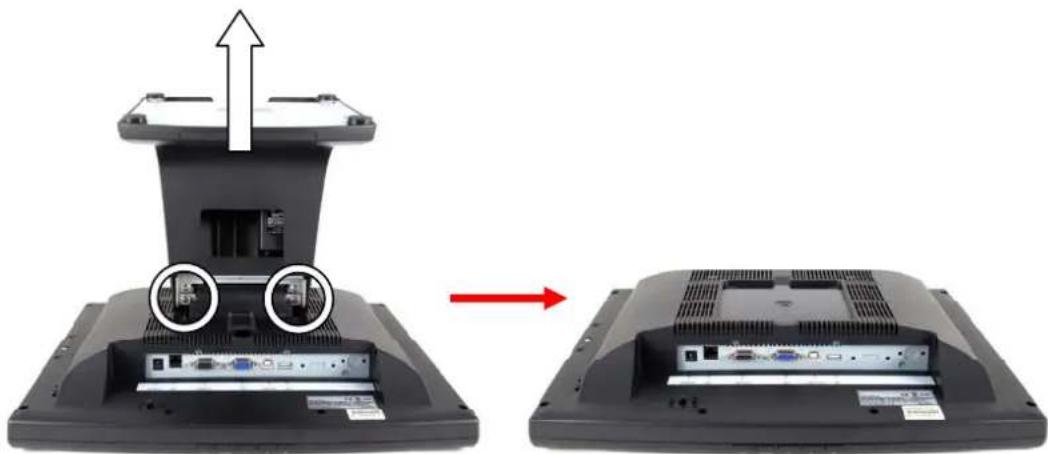
Diagram showing a computer monitor with ports and connectors, before and after assembly (no text or symbols)- Remove the screws (x2) that secure the stand to the system.
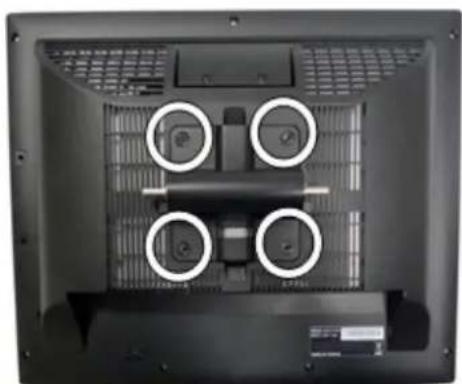
natural_image
Back view of a computer monitor with four circular annotations on the front panel (no readable text or symbols)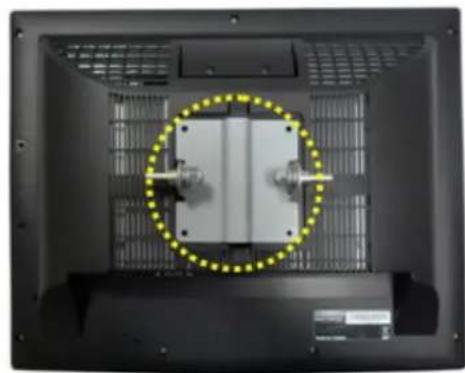
natural_image
Interior view of a black industrial machine with a highlighted circular component (no visible text or symbols)- Remove the screws (x4) that secure the VESA mount to the monitor.
- Remove the VESA bracket.
4-2 Replace the Power Adapter
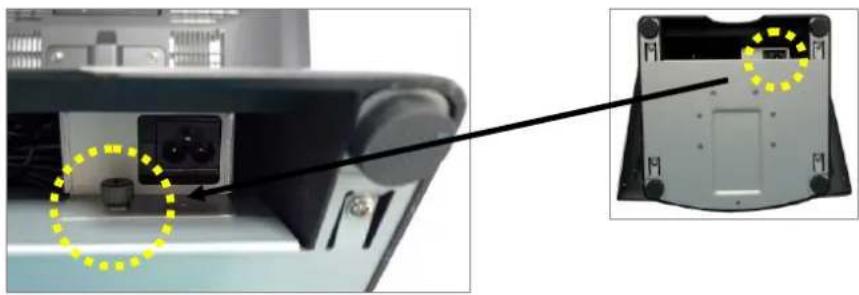
natural_image
Close-up of a computer monitor rear panel showing internal components and a close-up view of the back panel (no text or symbols visible)- Release the thumb screw to separate the retaining metal bracket from the stand and take out the power adapter.
5
Specification
| Model Name EVO-TM2A EVO-TM2B | ||
| AD board B16 | ||
| LCD Panel | ||
| Panel Size 15" 17" | ||
| Brightness 250nits 300~380nits | ||
| Resolution 1024 x 768 | 1280 x 1024 | |
| Touch Resistive | ||
| Tilt Angle 4° ~ 90° | ||
| External I/O Ports | ||
| USB 1 x USB 2.0 (Type A), 1x USB 2.0 (Type B to PC) | ||
| VGA | 1 | |
| Serial / COM 2 x COM (1 x DB-9/F type to PC, 1 x RJ-45 type to VFD) | ||
| DC Jack | 1 | |
| OSD Button | 5 (left, right, power, menu, select) | |
| Power Adapter | ||
| Power Source | Ext. 36W, 12V / 3A | |
| Control / Indicator | ||
| Power Button | 1 | |
| Indicator LED | 1 | |
| Peripheral | ||
| MSR module | MSR (USB) | |
| Customer display | 2 x 20 VFD customer display (COM) | |
| Environment | ||
| EMC & Safety | FCC/CE Class A, LVD | |
| Operating Temperature | 0°C~ 40°C (32°F ~ 104°F) | |
| Storage Temperature | -20°C ~ 55°C (-4°F ~ 131°F) | |
| Operating Humidity | 5% to 95% RH, Non-condensing | |
| Storage Humidity | 5% to 95% RH, Non-condensing | |
| Dimension(W x D x H) | LCD 90 degree :365.2 x 217.8 x 338.9 mm | LCD 90 degree :399.2 x 217.8 x 381.5 mm |
| Weight (N.W./G.W.) | 4.8kgs / 5.8kgs | 6kgs / 7kgs |
| Mounting | 100mm x100mm VESA Standard holes | |
* This specification is subject to change without prior notice.
- TRADEMARK
- Safety
- IMPORTANT SAFETY INSTRUCTIONS
- CE MARK
- FCC
- CAUTION ON LITHIUM BATTERIES
- LEGISLATION AND WEEE SYMBOL
- Revision History
- Table Contents
- Package Checklist.... 1
- System View.... 3
- Peripheral Installation 7
- System Assembly & Disassembly ..... 12
- Specification 14
- Package Checklist
- 1-1 Standard Items
- 1-2 Optional Items
- System View
- 2-1 Front View
- 2-2 Rear View
- 2-3 Bottom View
- 2-4 I/O View
- 3
- Peripheral Installation
- 3-1 MSR
- 3-2 VFD
- 3-3 Wall Mount Kit
- System Assembly & Disassembly
- 4-1 Remove the System Stand
- 4-2 Replace the Power Adapter
- 5
- Specification
Brand : POS-X
Model : EVO-TM2B
Category : Point of Sale Terminal