
AutoDome VG4-163 - Security Camera BOSCH - Free user manual and instructions
Find the device manual for free AutoDome VG4-163 BOSCH in PDF.


| Product Type | Security Camera (PTZ Dome) |
| Brand | Bosch |
| Model | AutoDome VG4-163 |
| Power Supply | 24 VAC |
| Pan Range | 360° continuous |
| Tilt Range | 110° (vertical) |
| Diagonal Adjustment | 300° |
| Lens Adjustment | Zoom and focus with lock screws |
| Image Sensor | CCD (Day/Night version available) |
| Video Output | Composite video via 2.5 mm monitor jack |
| On-Screen Display (OSD) | Main and Install menus |
| Key Features | Auto Level Control, BLC, White Balance, DNR, XF-DYN, Day/Night switching, SensUp |
| Communication | Bilinx over coax/UTP; USB Bilinx adapter (optional) |
| Camera ID | Up to 17 characters, displayed on screen |
| Menu Navigation | 5 keys: Up, Down, Left, Right, Select |
| Remote Control | Compatible with Bosch keyboards, DiBos, DIVAR, Allegiant systems |
| Security | Menu buttons can be disabled via CTFID software |
| Dimensions | Not specified in manual; typical dome diameter ~6-8 in |
| Weight | Not specified in manual; typical ~2-3 kg |
| Maintenance | Clean dome bubble with soft cloth; avoid harsh chemicals |
| Spare Parts | Optional monitor cable (S1460), USB Bilinx adapter (VP-CFGSFT) |
Frequently Asked Questions - AutoDome VG4-163 BOSCH
User questions about AutoDome VG4-163 BOSCH
0 question about this device. Answer the ones you know or ask your own.
Ask a new question about this device
Download the instructions for your Security Camera in PDF format for free! Find your manual AutoDome VG4-163 - BOSCH and take your electronic device back in hand. On this page are published all the documents necessary for the use of your device. AutoDome VG4-163 by BOSCH.
USER MANUAL AutoDome VG4-163 BOSCH
natural_image
Three white security camera units mounted on a wall, showing different camera designs (no text or symbols visible)AutoDome 100 Series Fixed Camera
VG5 100 Series

BOSCH
en User Manual
Table of Contents
1 Camera Setup 4
1.1 Configuring the Camera 4
2 Positioning the Camera 5
3 Adjusting Focal Length (Zoom) and Focus 6
4 Advanced Setup 7
4.1 Accessing and Navigating Menus 7
4.2 Main Menu Function 8
4.2.1 Main Menu 9
4.2.2 ALC Submenu 9
4.2.3 ALC -> SHUTGAIN Submenu 9
4.2.4 ALC -> SHUTGAIN -> DAY/NIGHT Submenu 10
4.2.5 ENHANCED Submenu 11
4.2.6 COLOR Submenu 11
4.2.7 Back Light Compensation (BLC) Submenu 12
4.3 Install Menu Functions 12
4.3.1 Install Menu 13
4.3.2 CAMERA ID Submenu 13
5 Troubleshooting Guide 14
5.1 VG5 AutoDome Operation and Control 14
1 Camera Setup
Install and wire the 100 Series AutoDome according to the VG5 AutoDome Installation Manual. A typical system includes a keyboard, matrix switcher, monitor, and appropriate wiring connections. Please refer to the individual product manuals for complete installation and setup instructions for each of the system components.
1.1 Configuring the Camera
To assist setup, the VG5-100 Series camera module can be connected to a monitor through the miniature 2.5 mm monitor jack located on the camera circuit board. The monitor jack provides a composite video signal with synchronization. An optional cable (part number S1460) is available for making this connection.
To access the monitor jack, remove the bubble and covert liner:
-
Insert a small screw driver through the keyway in the Pendant trim-ring, rotate the dome bubble counterclockwise and remove the dome bubble. For In-Ceiling AutoDomes, you must loosen the small screw in the trim ring before rotating the bubble.
-
Press and hold the two retention buttons on each side of the camera module and then pull off the covert liner. See the image below.
Removing the covert liner provides access to the menu keys, and the pan and tilt thumbscrew adjustment locks.
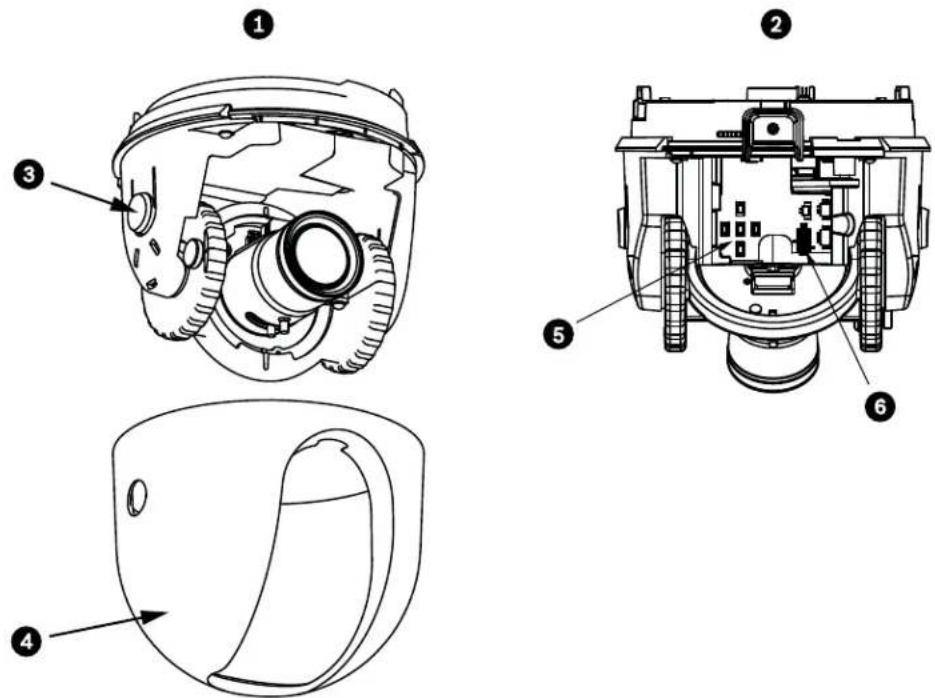
Figure 1.1 100 Series Camera Module
| Ref Description | ||||
| 1 | F | r | o | n t |
| 2 Back | View | |||
| 3 Retention Button (2) | ||||
| 4 | C | o | v | e r |
| 5 | M | e | n | u K |
| 6 Monitor Jack | ||||
| V | i | e | w | |||
| t | L | i | n | e | r | |
| e | y | b | o | a | r | d |
2 Positioning the Camera
The camera module position can be adjusted along the horizontal, vertical, and diagonal (for azimuth) axes. When adjusting the position, ensure that the picture displayed on the monitor is level. After the covert liner is removed, position the camera by performing the following steps:

WARNING!
To prevent damage to the camera module do not rotate the camera past its stops.
- For horizontal (pan) adjustment, loosen the thumbscrew at the platform base and rotate the camera (left or right) to the desired position. The camera can be rotated up to 360° between stops. If it hits the stop before achieving the desired position, rotate it in the opposite direction. Retighten the thumbscrew to secure the camera.
- For vertical adjustment (tilt), loosen the thumbscrew at the tilt wheel and position the camera (up or down) to the desired position. The camera can be tilted up to 110^ between stops. Retighten the thumbscrew to secure the camera.
- To compensate for angled ceilings or sidewall mounts, push the camera inward toward its base and rotate it until the image on the monitor is horizontal. The camera can be rotated up to 300^ between stops.

CAUTION!
The CCD image sensors are highly sensitive and require special care for proper performance and extended lifetime. Do not expose it to direct sunlight or bright spotlights in operating and non-operation conditions. Avoid bright lights in the field of view of the camera.
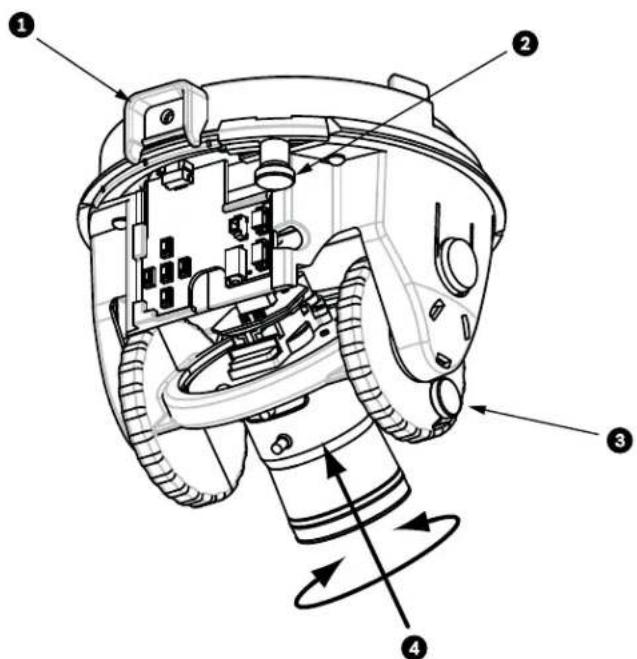
Figure 2.1 Camera Position Adjustments
| Ref Description |
| 1 Camera Module Lock Tab |
| 2 Horizontal (pan) Thumbscrew |
| 3 Tilt Wheel Thumbscrew |
| 4 Diagonal Adj. |
3 Adjusting Focal Length (Zoom) and Focus
To adjust the camera lens focal length and focus, perform the following steps:
- Select Set Focus Now from the Install menu.
-
To adjust the focal length, loosen the focal (zoom) lock screw and rotate the lens mechanism (WIDE or TELE.) until you achieve the desired field of view. (Item 1, in the figure below).
-
To focus the image on the monitor, loosen the focus lock screw and turn the lens mechanism (NEAR or FAR) until the image is in focus.
-
Repeat both these adjustments until the desired view is in focus.
-
Tighten both adjustment screws.
-
Exit the Install menu.
-
Remove the monitor jack and replace the covert liner and dome bubble when finished.
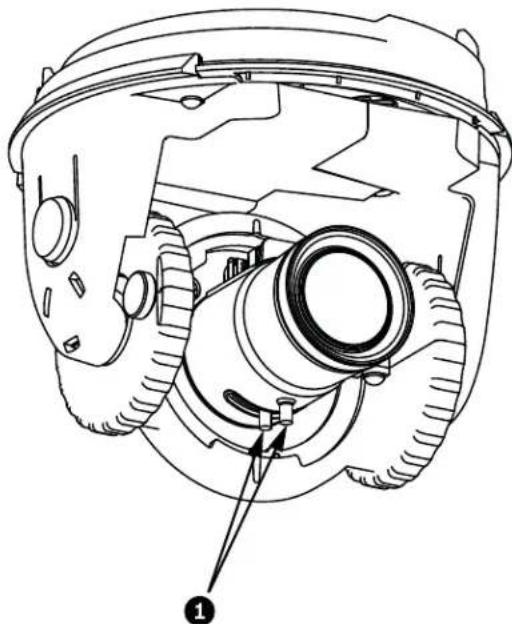
natural_image
Technical line drawing of a mechanical assembly with labeled component (1), showing internal gears and housing (no text or symbols beyond label)Figure 3.1 Focus and Zoom Adjustment
4 Advanced Setup
The VG5-100 Series camera module normally provides an optimal picture without the need for further adjustments. Advanced setup options, however, are available for obtaining the best results from the camera under special circumstances. There are two upper level On-Screen Display (OSD) menus: the Main menu and the Install menu.
The Main menu allows you to select and setup the picture enhancement functions. The Install menu allows you to set the camera ID, focus and synchronization settings. The Main and Install menus have settings that you can select directly or open to submenus for a more detailed setup.

NOTICE!
Active menu selections can vary depending on the combination of camera, CPU and COMM (communication) modules used. The menu selections described in this manual are typical for a VG5-100 Series system.
4.1 Accessing and Navigating Menus
There are five (5) keys used for navigating through the various menus. To access the setup menus, press the center Select key to open and display the Main menu. Use the four directional keys to navigate through the menus.
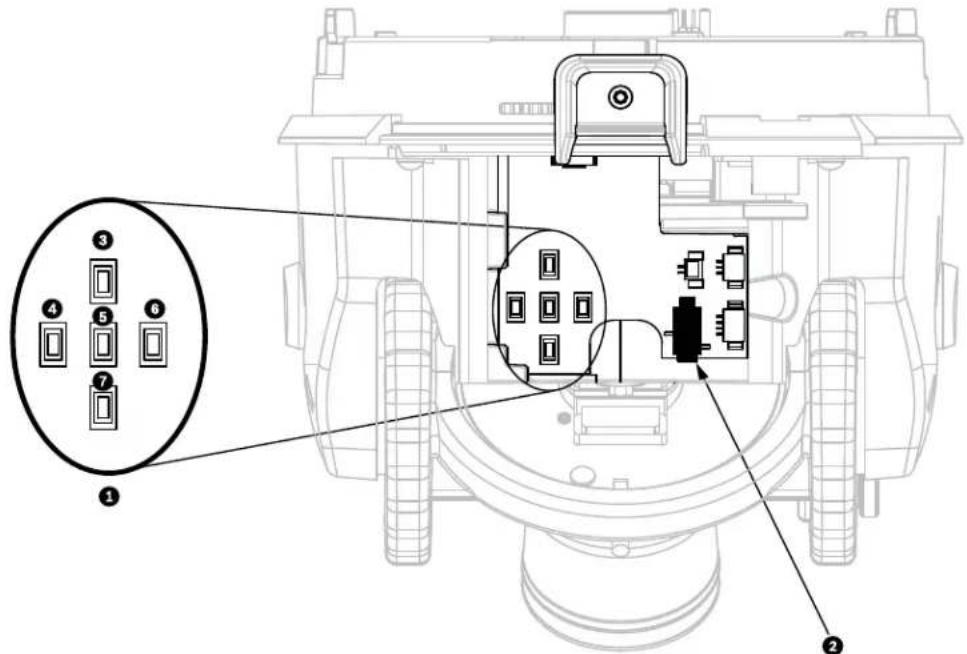
Figure 4.1 Menu Keyboard and Monitor Jack
| Ref | Description | Ref | Description | |
| 1 | Menu | Keyboard | 5 | Select Button |
| 2 | Monitor | Jack | 6 | Right Button |
| 3 | Up | Button | 7 | Down Button |
| 4 | Left | Button |
Use the menu keys to perform the following:
- To access the Main menu or to select a sub-menu item, press the center Menu Select key.
- To open the Install menu press the Menu Select key for approximately 1.5 seconds.
- To scroll up or down a menu press the Up or Down keys.
- To move through options or to set parameters, press the Left or Right keys.
 | NOTICE!To restore a selected menu item to its factory default, quickly press the Menu Select key twice.To exit the OSD menus from any menu item, hold down the Menu Select key until the OSD disappears. |
| The VG5-100 Series also supports a variety of remote methods to make camera adjustments, including the following:– A Universal keyboard using Bilinx over coax or UTP. For example, using a Bosch DiBos 8, a Bilinx capable DIVAR, or an Allegiant system.– A PC running the optional Bosch Configuration Tool for Imaging Devices (CTFID) software with a USB Bilinx adapter (Part No. VP-CFGSFT). | |
 | NOTICE!To prevent unauthorized changes to the camera settings, the camera menu buttons can be disabled using Bilinx communication through the CTFID software. Select the Online Config button, then select the Miscellaneous branch and set Camera Buttons to Disable. |
4.2 Main Menu Function
This section provides a graphical representation of the Main menu and descriptions for all functions.
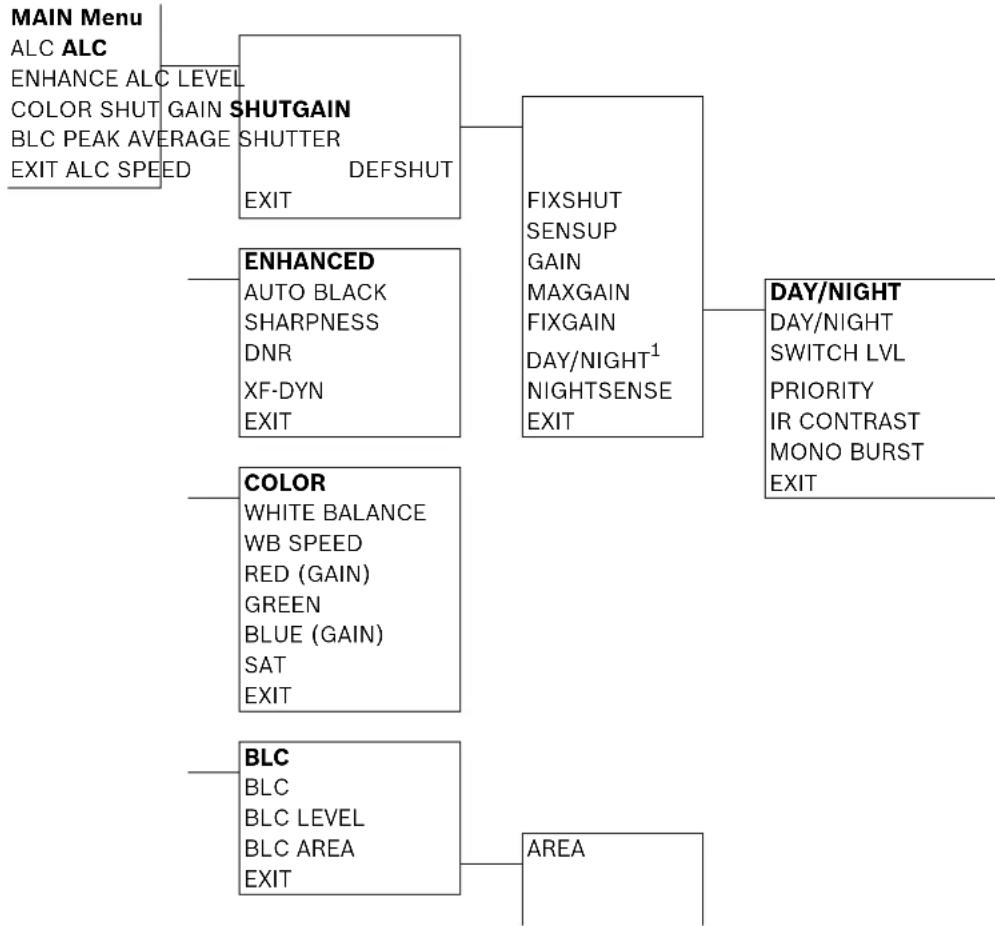
flowchart
graph TD
    A["MAIN Menu"] --> B["ALC ALC"]
    B --> C["ENHANCE ALC LEVEL"]
    C --> D["COLOR SHUT GAIN"]
    D --> E["BLC PEAK AVERAGE"]
    E --> F["EXIT ALC SPEED"]
    F --> G["SHUTGAIN"]
    G --> H["SHUTTER"]
    H --> I["DEFSHUT"]
    I --> J["EXIT"]
    J --> K["ENHANCED"]
    K --> L["AUTO BLACK"]
    K --> M["SHARPNESS"]
    K --> N["DNR"]
    K --> O["XF-DYN"]
    K --> P["EXIT"]
    K --> Q["COLOR"]
    Q --> R["WHITE BALANCE"]
    Q --> S["WB SPEED"]
    Q --> T["RED (GAIN)"]
    Q --> U["GREEN"]
    Q --> V["BLUE (GAIN)"]
    Q --> W["SAT"]
    Q --> X["EXIT"]
    K --> Y["FIXSHUT"]
    Y --> Z["SENSUP"]
    Y --> AA["GAIN"]
    Y --> AB["MAXGAIN"]
    Y --> AC["FIXGAIN"]
    Y --> AD["DAY/NIGHT¹"]
    Y --> AE["NIGHTSENSE"]
    Y --> AF["EXIT"]
    F --> AG["DAY/NIGHT"]
    AG --> AH["DAY/NIGHT"]
    AG --> AI["SWITCH LVL"]
    AG --> AJ["PRIORITY"]
    AG --> AK["IR CONTRAST"]
    AG --> AL["MONO BURST"]
    AG --> AM["EXIT"]
    A --> AN["BLC"]
    AN --> AO["BLC LEVEL"]
    AN --> AP["BLC AREA"]
    AN --> AQ["EXIT"]
    A --> AR["AREA"]
- Available in Day/Night version cameras only, other versions show NightSense.
- Only available when White Balance is set to Manual mode.
4.2.1 Main Menu
| Function Selections Description | ||
| ALC Selects | Submenu Accesses the Auto Level Control menu. | |
| ENHANCE Selects | Submenu Accesses the Picture Enhancement menu. | |
| COLOR Selects | Submenu Accesses the Color Control menu. | |
| BLC | ON, OFF, or selects submenu | - Enables Back Light Compensation (BLC).- Accesses the BLC submenu. |
| EXIT | Exits this menu. | |
4.2.2 ALC Submenu
| Function | Selections | Description |
| ALC LEVEL | (-15 to +15) | Adjusts the video output level. |
| SHUTGAIN | Selects Submenu | Accesses the Shutter and Gain control menu. |
| PEAK AVERAGE | (-15 to +15) | Adjusts the balance between peak and average video control. |
| ALC SPEED | ON, OFF, or selects submenu | Adjusts the speed of the video level control loop. |
| EXIT | Returns to the MAIN menu. |
4.2.3 ALC -> SHUTGAIN Submenu
| Function | Selections | Description |
| SHUTTER | AES, FL, FIXED | - AES (Auto Electronic Shutter): The camera automatically sets the optimum shutter speed.- FL (Flickerless): Avoids interference from light sources.- FIXED: Allows the user to define the shutter speed. |
| DEFSHUT | 1/60 (1/50), 1/100, 1/120, 1/250, 1/500, 1/1000, 1/2000, 1/5000, 1/10K | The camera tries to maintain the selected shutter speed as long as the light level of the scene permits.(Only available if SHUTTER is set to AES mode.) |
| FIXSHUT 1/60 (1/50), 1/100, 1/120, 1/250, 1/500, 1/1000, 1/2000, 1/5000, 1/10K | 1/50), 1/100, 1/120, 1/250, 1/500, 1/1000, 1/2000, 1/5000, 1/10K | Selects the shutter speed. (Only available if SHUTTER is set to FIXED mode.) |
| SENSUP | OFF or (2x to 10x) | Selects the sensitivity factor the camera is set to. (Only available if SHUTTER is set to AES mode.) |
| GAIN | AGC, FIXED | - AGC mode: The camera automatically sets the gain to the lowest possible value needed to maintain a good picture.- FIXED mode: The gain is set at a predefined value. |
| MAXGAIN | (0 to 26) | Selects the maximum value the gain can have during AGC operation. |
| FIXGAIN | (0 to 26) | Selects the gain setting. (Only available if GAIN is set to FIXED mode.) |
| DAY/NIGHT ^3 | Selects submenu | Accesses the Day/Night Control menu. |
| Function Selections Description | ||
| NIGHTSENSE AUTO, OFF, FORCED - UTO mode: Camera automatically switches to NIGHTSENSE in low light conditions.- OFF mode: NIGHTSENSE is turned off.- FORCED mode: The camera is set to NIGHTSENSE (black and white) mode. | ||
| EXIT Returns to the ALC menu. | ||
- Only available in Day/Night version cameras, color versions show NightSense.

NOTICE!
If SensUp is active, some noise or spots may appear in the picture. This behavior is normal.
SensUp may cause some motion blur on moving objects.
Depending on the camera GAIN setting, unrelated menu items are not active.
4.2.4 ALC -> SHUTGAIN -> DAY/NIGHT Submenu
| Function Selections Description | ||
| DAY/NIGHT | AUTO, COLOR, MONO | - AUTO: Switches the filter between COLOR and MONO depending on the scene illumination level.- COLOR: Use for normal daylight conditions.- MONO: Removes the IR filter, providing full IR sensitivity. |
| SWITCH LEVEL | (-15 to +15) | Sets the video leveling threshold when the camera switches to monochrome operation. |
| PRIORITY | COLOR, MOTION | in AUTO mode:- COLOR: Displays a color image as long as the light level permits.- MOTION: Avoids motion blur as long as the light level permits. |
| IR CONTRAST | NORMAL, ENHANCED | - NORMAL: Optimizes contrast in monochrome applications with visible light illumination.- ENHANCED: Optimizes contrast in applications with high IR illumination levels. |
| MONO BURST | ON, OFF | - ON: The color burst remains active, even in Monochrome mode.- OFF: The color burst in the video signal is switched OFF in Monochrome mode. |
| EXIT | Returns to the SHUTGAIN menu. | |

NOTICE!
Depending on the camera's DAY/NIGHT setting, unrelated menu items are not active.
4.2.5 ENHANCED Submenu
| Function Selections Description | ||
| AUTO BLACK ON, OFF ON: | Automatically increases the visibility of details. | |
| SHARPNESS (-15 to +15) Adjusted by the sharpness of the picture.Zero (0) is the default position. | ||
| DNR(Dynamic Noise Reduction) | AUTO, OFF AUTO: Automatically reduces the noise in the picture. This option may cause some motion blur with moving objects.OFF: DNR is turned off. | |
| XF-DYN OFF, LOW, MID, HIGH | XF-DYN mode: Automatically optimizes picture contrast. | |
| EXIT | Returns to the MAIN menu. | |
4.2.6 COLOR Submenu
| Function | Selections | Description |
| WHITE BALANCE | ATW, AWB HOLD, MANUAL | - ATW (Automatic White Balance): Allows the camera to constantly adjust for optimal color reproduction.- AWB HOLD: Puts the ATW on hold and saves the color settings.- MANUAL: Allows the red, green and blue gain to be set manually to a desired position. |
| WB SPEED | Slow, Medium, Fast | Adjusts the speed of the white balance control loop when in ATW mode |
| RED-GAIN | (-5 to +5) | - In ATW mode: Adjusts the red gain to optimize white. |
| RED | (-30 to +30) | - In Manual mode: Adjusts red gain. |
| GREEN | (-5 to +5) | In Manual mode: Adjusts the green gain. (Not available in ATW mode.) |
| BLUE-GAIN | (-5 to +5) | - In ATW mode: Adjusts the blue gain to optimize white. |
| BLUE | (-30 to +30) | - In Manual mode: Adjusts the blue gain. |
| SAT | (-15 to +5) | Adjusts the color saturation. (-15 produces a monochrome picture.) |
| EXIT | Returns to the MAIN menu. |
4.2.7 Back Light Compensation (BLC) Submenu
| Functions Selections Description | ||
| BLC ON, OFF | ON: The video level | optimizes the selected area of the image. Parts outside this area may be underexposed or overexposed, which is normal. |
| BLC LEVEL (-15 to +15) Adjusts the balance between the selected BLC area and its surroundings. | ||
| BLC AREA Selects submenu Accesses the Back Light Compensation area menu. To size the BLC area:- Select the AREA option from the BLC menu. The monitor displays the current area with the upper left corner flashing.- Move the flashing corner of the image by using the Up, Down, Left and Right keys to change the size and shape of the area.- Press the center Menu Select key to move the flashing cursor to the opposite (or diagonal) corner, which can now be used to change the size and shape of the area.- Press the Menu Select key again to save the area and to exit the AREA menu. | ||
| EXIT | Returns to the MAIN menu. | |
4.3 Install Menu Functions
This section provides a graphical representation of the Install menu and descriptions for all functions.
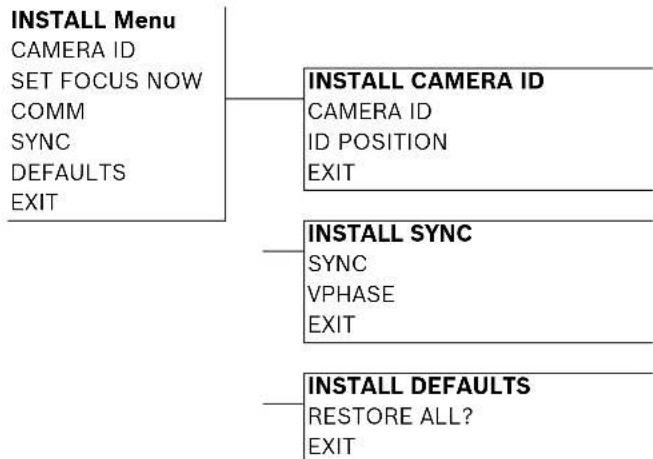
flowchart
graph TD
    A["INSTALL Menu"] --> B["CAMERA ID"]
    A --> C["SET FOCUS NOW"]
    A --> D["COMM"]
    A --> E["SYNC"]
    A --> F["DEFAULTS"]
    A --> G["EXIT"]
    H["INSTALL CAMERA ID"] --> I["CAMERA ID"]
    H --> J["ID POSITION"]
    H --> K["EXIT"]
    L["INSTALL SYNC"] --> M["SYNC"]
    L --> N["VPHASE"]
    L --> O["EXIT"]
    P["INSTALL DEFAULTS"] --> Q["RESTORE ALL?"]
    P --> R["EXIT"]
4.3.1 Install Menu
| Function Selections | Description | |
| CAMERA ID Selects | submenu Accesses | the Camera ID submenu. |
| SET FOCUS NOW | Completely opens the lens iris for best focus. The recommended focus procedure is:– Unlock the focus locking screw.– From the INSTALL menu highlight SET FOCUS NOW.– Turn the lens focus adjustment as required– Tighten the lens focus locking screw.– Exit the menu selection. | |
| COMM ON, OFF Turns on Bilinx communication. See notice below. | ||
| SYNC | Selects submenu Accesses the synchronization functions. | |
| DEFAULTS | Selects submenu | Returns all settings for all modes to their default. |
| EXIT | Exits this menu. | |

NOTICE!
When using Bilinx control, the COMM ON/OFF menu selection is not active. This function can be accessed only through the camera menu keys when the CTFID software is not actively running.
4.3.2 CAMERA ID Submenu
| Function | Selections | Description |
| CAMERA ID | Selects submenu | To enter up to a 17-character camera name:- Press the Menu Select key to enter the Camera ID string.- Enter up to a 17-character string name for the camera.- Use the Up and Down keys to select a character.- Use the Left and Right keys to change position in the string.- Press the Menu Select key to save and to exit the character string.- Exit the Camera ID menu. |
| ID POS | OFF, TOP, BOT | Use left or right keys to select:OFF: Camera ID not displayed.TOP: Camera ID displayed at upper left corner of display.BOT: Camera ID displayed at lower left corner of display.(The camera ID is not displayed when the OSD menu is open.) |
| EXIT | Returns to the INSTALL menu. |
5 Troubleshooting Guide
5.1 VG5 AutoDome Operation and Control
| Problem Solution | |
| No video | - Check that the Green LED on the AutoDome CPU board is on. This LED indicates video from the camera.If the Green LED is off, then:- Check that the Red LED on the AutoDome CPU board is slowly blinking. This LED indicates power to the AutoDome power supply board and to the CPU Module.Red LED on AutoDome CPU ModuleFlash SequenceIndicates:- 5 sec. on / 0.5 sec. off: Normal operation- Steady on: CPU is lockedIf the Red LED is on steady, then:- Try cycling the AutoDome power off and on.If the Red LED is off, then:If using a Bosch Pendant Power Supply Box:- Check that Green LED in Power Supply Box is on. This LED indicates mains power through the transformer.If the Green LED is off, then:- Turn off the Power.- Check the FX101 fuse for mains power to the Power Supply Box.If O.K., then:- Check the FX102 fuse for 24 V power to the AutoDome Pendant.If O.K., then:If using a non-Bosch power supply:- Check that the mains power to the power supply box is on.If O.K., then:- Check that there is 24 V output from the transformer.- Check the connector on top of the AutoDome housing for bent pins.If O.K., then:- Check the integrity of all wires and terminal connections to the AutoDome.If O.K., then:If there is power to the AutoDome, then:- Remove the camera and CPU modules from the AutoDome housing and check that the Green LED on the housing power supply board is on.If the Green LED is off, then:- Check that the fuse on the housing power supply board is good. (Try replacing the unit, if an extra camera module is available.) |
| Local Keys Disabled | - This message appears if the Camera Menu Keyboard has been disabled through the CTFID tool. Select OnLine Config>Installer Options>Miscellaneous>Camera Buttons>Disable |
| No Remote Menu Access | - Ensure that all coax, fiber and Ethernet cables are properly connected. See the VG5 AutoDome Installation Manual.If O.K., then:- Check if you can access the AutoDome OSD menus.If O.K., then: |
| Intermittent Remote Camera Access | - Check that all wiring meets Bosch recommended standards, specifications and distances. See the VG5 AutoDome Installation Manual. |
| Picture is dark | - Check that the Gain Control is set to AUTO (ON-43-ENTER).If O.K., then:- Check that the Auto Iris Level is set to the appropriate level (ON-11-ENTER).If O.K., then:- Check that the video coax is terminated with 75 Ω only at the head end. (Double termination causes dark video.)If O.K., then:- Check that the camera lens cover is removed.If O.K., then:- Check that the maximum coax distance has not been exceeded. See the VG5 AutoDome Installation Manual.If O.K., then:- Restore all camera settings (ON-40-ENTER). |
| Colors are not correct | - Reset the White Balance to the appropriate selection (ON-30-ENTER).If O.K., then:- Check that the maximum coax distance has not been exceeded. See the VG5 AutoDome Installation Manual.If O.K., then:- Restore the default settings (ON-40-ENTER). |
| Background is too bright to see subject | - Turn on backlight compensation (ON-20-ENTER). |
| Video is rolling, noisy or distorted | - Ensure that the Synch Mode is set to Internal (OFF-42-ENTER).If O.K., then:- Check that the maximum coax distance has not been exceeded. See the VG5 AutoDome Installation Manual.If O.K., then:- Check the integrity of all BNC connectors and splices.Note: Connecting a network cable to the interface board of a non-IP AutoDome causes video distortion.- Remove the network cable from the interface board RJ-45 connector.If O.K., then:- Contact Bosch Technical Support. |
| Day/Night camera does not switch automatically when image is dark | - Check that the Day/Night mode is set to AUTO (ON-56-ENTER).If O.K., then:- Set Gain Control to AUTO (ON-43-ENTER). |
| Inside of EnviroDome bubble is foggy | - Check the status of the Heater Module (ON-66-ENTER).If status reports Heater No Power, then:- Turn off the power to the AutoDome.- Check the FX103 fuse in the Power Supply Box for power (24 V) to the heater module.If O.K., then:- Check all wiring and connector pins to the heater module. |
| Low Voltage flashing on monitor display | - If using a non-Bosch power supply, confirm that it meets the Bosch AutoDome power ratings. See the AutoDome Datasheet for specifications.If O.K., then:- Check the mains input line voltage.If O.K., then:- Check that the maximum wire length from the power supply has not been exceeded.See the VG5 AutoDome Installation Manual.If O.K., then:- Measure the AC voltage input to the camera while power is applied to the camera. The voltage must be ≥ 21 VAC to stop the message. |
Bosch Security Systems, Inc.
850 Greenfield Road
Lancaster, PA 17601
U.S.A.
www.boschsecurity.com
© Bosch Security Systems, Inc., 2011
- AutoDome 100 Series Fixed Camera
- BOSCH
- Table of Contents
- Camera Setup 4
- Positioning the Camera 5
- Adjusting Focal Length (Zoom) and Focus 6
- Advanced Setup 7
- Camera Setup
- Configuring the Camera
- Positioning the Camera
- WARNING!
- CAUTION!
- Adjusting Focal Length (Zoom) and Focus
- Advanced Setup
- NOTICE!
- Accessing and Navigating Menus
- Main Menu Function
- Main Menu
- ALC Submenu
- ALC -> SHUTGAIN Submenu
- ALC -> SHUTGAIN -> DAY/NIGHT Submenu
- ENHANCED Submenu
- COLOR Submenu
- Back Light Compensation (BLC) Submenu
- Install Menu Functions
- Install Menu
- CAMERA ID Submenu
- Troubleshooting Guide
- VG5 AutoDome Operation and Control
Brand : BOSCH
Model : AutoDome VG4-163
Category : Security Camera