AW5800HTP-Pair - Kit Wi-Fi AvaLAN - Free user manual and instructions
Find the device manual for free AW5800HTP-Pair AvaLAN in PDF.


User questions about AW5800HTP-Pair AvaLAN
0 question about this device. Answer the ones you know or ask your own.
Ask a new question about this device
Download the instructions for your Kit Wi-Fi in PDF format for free! Find your manual AW5800HTP-Pair - AvaLAN and take your electronic device back in hand. On this page are published all the documents necessary for the use of your device. AW5800HTP-Pair by AvaLAN.
USER MANUAL AW5800HTP-Pair AvaLAN
natural_image
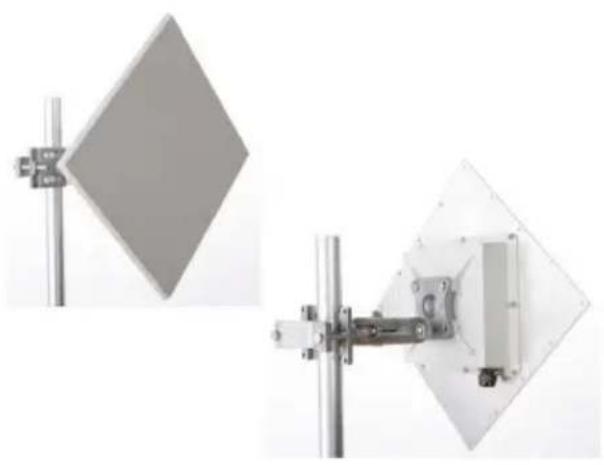
Two mechanical devices with diamond-shaped components mounted on metal posts, one with a vertical support and the other with a tilted rectangular housing (no visible text or symbols)AW5800HTP-PAIR
USER'S MANUAL
5.8 GHz Wireless Ethernet Bridge With Integrated Antennas
Industrial-grade, long-range wireless Ethernet systems
AW5800HTP-PAIR User's Manual
Thank you for your purchase of the AW5800HTP-PAIR point-to-point wireless Ethernet bridge.
The AW5800HTP-PAIR includes:
• (2) Integrated Radio & Antenna Units
• (2) 120 VAC to 18 VDC power adapters
• (2) AW-POE Power Over Ethernet Injectors
If you have any questions when configuring your AvaLAN system, the best place to get answers is to visit www.avalanwireless.com.
You will also find the latest updates there.
If more assistance is needed, send email to support@avalanwireless.com.
To speak to a live technician, please call technical support at the number below during normal business hours.
natural_image
Two mechanical device components with metallic brackets and mounting feet, one tilted and one mounted (no visible text or symbols)© 2009 by AvaLAN Wireless Systems Inc. All rights reserved. Revision 090727.0
125A Castle Drive Madison, AL 35758
Sales: (866) 533-6216 Technical Support: (650) 384-0000 Customer Service: (650) 641-3011 Fax: (650) 249-3591
Operational summary
The AW5800HTP-PAIR allows the user to create a long-range, point-to-point wireless Ethernet bridge. The two Radio & Antenna units are pre-configured as a matched pair and will transparently connect two physical LANs sharing the same subnet. (Please note that other AvaLAN 5.8 GHz radios can exist on the same LAN but cannot be used to form wireless links with the AW5800HTP-PAIR because the RF parameters are different.)
This wireless bridge conforms to IEEE 802.11a. The AW5800HTP-PAIR is configured for 5 MHz channel bandwidth (the narrowest) in order to provide the greatest range, minimum latency and most robust data communication possible. The number of RF channels and their frequencies are set by regulatory bodies, depending upon the country. The country may be set in the unit's configuration and the channel choices will be automatically limited to those available. See the table on the back cover of this manual.
One of the two units acts as the master or access point (AP). The other unit acts as the slave or subscriber unit (SU). The AP automatically scans for the best of the available radio frequency channels, encrypts Ethernet data received from the network, and transmits it wirelessly to the SU. The AP is constantly monitoring the radio link and can automatically change the channel if performance is degraded due to interference. If there is just one AW5800HTP-PAIR operating in your configuration, automatic channel selection is likely to be the best alternative. If there are more than one, manual selection with the greatest possible channel separation is a more effective choice.
In order for the two units to connect, they must be configured with:
• The same SSID (Service Set Identifier)
• The same encryption pass phrase
• The same RF channel or both units set to "Auto"
Each unit is equipped with a built-in web browser interface that may be used to change configuration parameters, check the link status or use the included tools for antenna aiming, etc. Each unit's IP address must be known in order to browse to it. The IP address may be changed through the browser interface, but this creates a “chicken and egg” problem. If the default IP addresses set by the factory are not suitable, you may need to temporarily connect them to a computer that can browse to the units.
Physical Setup
-
Before mounting the units in their final locations, you may want to perform the digital setup procedure described in the next section.
-
Mount each unit of the AW5800HTP-PAIR securely using the mounting brackets provided or other means as necessary. Maximize lightning resistance by providing a strong DC ground connection to the metal housing.
-
The units may be mounted with horizontal or vertical polarization and it is important that the antennas of the two units be pointed toward one another and be oriented with the same polarization. Because the 3 dB beamwidth of the antennas is just 10^ , careful aiming is very important – especially over long distances.
- Power is provided to the units by means of their Ethernet cables, allowing the power supplies to be located at a convenient locations. The included power-over-Ethernet injectors (POE) provide the means for adding DC power to unused wires in the cable. Decide where to place each POE based on proximity to AC power at some point along the desired path of the Ethernet cable. Plug each included power supply into an appropriate electrical outlet and into the POE. Connect an Ethernet cable between your network and the “DATA IN” port on the POE. Connect a second cable from the “P + DATA OUT” port on the POE and the AvaLAN unit. Each unit is provided with a cable clamping device that allows an RJ45 plug on the cable to pass through it and can be tightened down around the cable to provide a weatherproof seal.
Digital Setup
-
Digital configuration is done by means of the AW5800HTP-PAIR's built in browser interface. The unit should be powered on and connected at least temporarily to a network containing a computer that can run a conventional web browser.
-
The default IP address of the Access Point or master unit is 192.168.1.66. The default IP address of the Subscriber Unit or slave is 192.168.1.67. You will find the IP address of each unit on its product label. If these are acceptable in your network configuration, they needn't be changed. If not, you will need to connect each unit temporarily to a computer whose wired LAN port has an IP address of 192.168.1.xxx (with xxx not 66 or 67). In other words, the computer that will run the web browser must connect to the same subnet as each AW5800HTP-PAIR unit being configured.
-
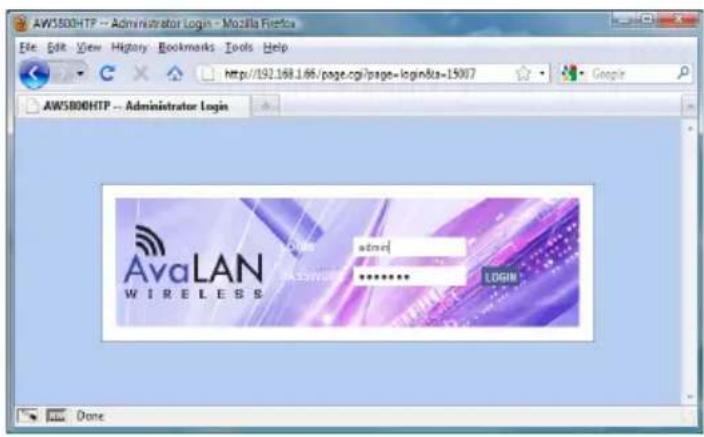
Using your web browser, connect to http://192.168.1.66 (or 67). If you are successful, you should see the login screen shown on the next page. By the way, after some period of inactivity, you may be required to login again.
text_image
AWS800HTP -- Administrator Login - Mozilla Firefox File Edit View History Bookmarks Tools Help http://192.168.1.66/page.cgi?page=login&us=15007 Google AWS800HTP -- Administrator Login AvaLAN WIRELESS Login atms ****** ...... DoneThe factory default login name is “admin” and the password is “admin01”. If access security is a concern, these should be changed as part of the configuration process.
- If your login is successful, you should see a status window similar to this:

text_image
AWS800HTP -- System Information - Microsoft Windows http://192.168.1.66/page.cgi?page=login AWS800HTP -- System Information AvaLAN WIRELESS STATUS SYSTEM INFORMATION Microsoft Windows System Information Microsoft Windows System Information Microsoft Windows System Information System Information Options 84.55.49 Hardware revision FA52(bw)(wb) rev 1 (x4f) Device name AW5800HTP.PAIR Firmware version WLIBOARD v5.26.24257 Average system load Sim: 0.08 Sem: 0.86 15mix: 0.83 System memory Total: 30168 KB Free: 12650 KB Active skis AW5800HTP, version: 1.1.18 © 2005-2018 - Auto, All WirelessThe menu in the top banner allows you to navigate from page to page. If a page contains status information such as this one, clicking the “Refresh” button will update it. If a page contains controls to set, an “Apply” button will appear in the same location. Be sure to click “Apply” to keep any changes you make before navigating away from the page. Any changes you make are temporary until you execute a “SAVE & REBOOT” by clicking the message that will appear in the upper right just underneath “LOGOUT.” You can make changes on several pages, clicking “Apply” on each page, then save and reboot once.
- STATUS Menu: There are three screens in this section that describe the current condition of the unit and the RF link to its corresponding mate. The most important of these screens is STATUS >> Wireless:

text_image
AWS800HTP -- Wireless - Mozilla Firefox File Edit View History Bookmarks Tools Help http://102.108.1.66/page.cgi?page=wFstat AW5800HTP -- Wireless STATUS CONFIG#NATG SYSTEM TOOLS System&Information interfaces Wireless E-800NT Refresh Wireless Statistics Interface Parent Status Link Level Noise Invalid network ID Decryption errors Invalid fragments Entry count errors Missed bwacns ath0 up 65 -23 -88 0 0 0 0 0 0 Wireless Configuration Country United States Interface Parent MAC address RTZ mode Channel CSSID ath0 00:15:60:65:37:38 A 19 AWS800HTP-PAIR Stations/Access-Points Interface Parent Mode HW address Quality Signal level Noise level Data rate ath0 ath0 Master 99:15:60:65:37:45 65 -23 dBm -60 dBm 4 Moe © 2005-2010 AvalLAN WirelessThe Wireless Statistics section describes what is happening with the RF radio interface in this unit. If operating normally and connected to the other unit, it will show that it is “up” and linked, with a healthy signal level. The Wireless Configuration section shows the RF configuration parameters. The Stations/Access-Points section shows information about the linked unit. If it shows “No Peers/Access-Points found” then the RF link is not working.
- CONFIGURATION Menu: Here is where the operating parameters for the wireless bridge are set. If the defaults work for you, no changes are necessary — just plug in and play. If not, here are the modifications you might need. Remember to click “Apply” if you change anything on a page, followed by “Save & Reboot” to make the changes permanent when done.
CONFIGURATION >> Network:
Network Settings: Set the IP address, Subnet mask and Default gateway to values that are appropriate for your network.
CONFIGURATION >> Wireless Basic:
Country Code: Choose the country the units will be operated in from the dropdown list. You are responsible for verifying that your settings will comply with government regulations.
Basic Wireless Settings: Set the SSID to a string of your choice. It must be set to the same value in both units and different from the SSID of any other wireless network in the area. SSID must match between the two units and should be different from the SSID of any other wireless network in the area.
User's Manual AW5800HTP-PAIR
Channel is a drop-down list that allows fixed or automatic selection of the RF channel from the available choices in your country. This choice must be made alike in both units.
CONFIGURATION >> Wireless Security:
You should choose a Passphrase of your own. The Authentication method and Passphrase must be set the same in both units.
CONFIGURATION >> Wireless Advanced:
The radio used in each unit has a +10 dBm offset. For example, to set a transmit power of 24 dBm, move the slider or enter 14 in the box. Depending on the operating environment for your wireless bridge, you may wish to set a value lower than the default maximum of 18, implying +28 dBm or about 600 mW transmitted power.
- SYSTEM Menu: There is only one item in this section that needs attention. You may need to use other items in this menu, but do so only when instructed by AvaLAN Technical Support.
SYSTEM >> Account:
Administrative Account: Choose a login and password for this browser interface (and make sure you don't forget it).
- TOOLS Menu: There are three tools accessible from this menu that may be useful for establishing your wireless connection or troubleshooting problems.
TOOLS >> Site Survey:
Clicking the “Scan” button on this screen initiates a survey of wireless devices whose signals are received by this unit. All available RF channels are scanned. You should see the Master unit of the pair if scanning from the Slave, but not vice versa. If you see another network, you will probably want to manually select a different channel to avoid loss of performance.
TOOLS >> Antenna Alignment:
You will need to have at least a minimum RF connection to use this tool, but it can help you to orient the antennas for the largest signal. Click “Start” and the bar graph will grow by one bar per second until you stop. The vertical scale is logarithmic (dB) and the bars should get taller or shorter with antenna adjustments. Click “Stop” when you have completed aligning your antennas.
TOOLS >> Traffic Generator:
This tool generates TCP or UDP traffic over the RF link and measures the throughput. Configure one of the two units as a Server and the other as a Client. Clicking "Start" at both ends causes the rapid exchange of traffic and throughput statistics. Be sure to stop the Server when finished using this tool or the link performance will be degraded.
Frequency Channels
| Frequency Band | Channel Number | Frequency MHz | Regulatory Domain | |||
| FCC and Americas | Europe - EMEA Japan | Rest of World | ||||
| Lower Band(FCC specifies Indoor use, ≤24 dBm) | 34 5170 OK | |||||
| 36 5180 Indoor Only OK | ||||||
| 38 5190 OK | ||||||
| 40 5200 Indoor Only OK | ||||||
| 42 5210 OK | ||||||
| 44 5220 Indoor Only OK | ||||||
| 46 5230 OK | ||||||
| 48 5240 Indoor Only OK | ||||||
| Middle Band(Indoor or outdoor use, ≤27 dBm) | 52 5260 OK OK OK | |||||
| 56 5280 OK OK OK | ||||||
| 60 5300 OK OK OK | ||||||
| 64 5320 OK OK OK | ||||||
| H Band | 100 | 5500 | OK | |||
| 104 | 5520 | OK | ||||
| 108 | 5540 | OK | ||||
| 112 | 5560 | OK | ||||
| 116 | 5580 | OK | ||||
| 120 | 5600 | OK | ||||
| 124 | 5620 | OK | ||||
| 128 | 5640 | OK | ||||
| 132 | 5660 | OK | ||||
| 136 | 5680 | OK | ||||
| 140 | 5700 | OK | ||||
| Upper Band(FCC specifies Outdoor use, ≤30 dBm) | 149 | 5745 | Outdoor Only | OK | ||
| 153 | 5765 | Outdoor Only | OK | |||
| 157 | 5785 | Outdoor Only | OK | |||
| 161 | 5805 | Outdoor Only | OK | |||
| ISM Band 165 | 5825 | OK | OK | |||
Limited Warranty
This product is warranted to the original purchaser for normal use for a period of 360 days from the date of purchase. If a defect covered under this warranty occurs, AvaLAN will repair or replace the defective part, at its option, at no cost. This warranty does not cover defects resulting from misuse or modification of the product.
Compliance Statement ( Part 15.19 )
This device complies with Part 15 of the FCC Rules.
Operation is subject to the following two conditions:
-
This device may not cause harmful interference, and
-
This device must accept any interference received, including interference that may cause undesired operation.
Warning ( Part 15.21 )
Changes or modifications not expressly approved by the party responsible for compliance could void the user's authority to operate the equipment.
RF Exposure (OET Bulletin 65)
To comply with FCC RF exposure requirements for mobile transmitting devices, this transmitter should only be used or installed at locations where there is at least 20cm separation distance between the antenna and all persons.
Information to the User - Part 15.105 (b)
This equipment has been tested and found to comply with the limits for a Class B digital device, pursuant to part 15 of the FCC Rules. These limits are designed to provide reasonable protection against harmful interference in a residential installation. This equipment generates, uses and can radiate radio frequency energy and, if not installed and used in accordance with the instructions, may cause harmful interference to radio communications. However, there is no guarantee that interference will not occur in a particular installation. If this equipment does cause harmful interference to radio or television reception, which can be determined by turning the equipment off and on, the user is encouraged to try to correct the interference by one or more of the following measures:
--Reorient or relocate the receiving antenna.
--Increase the separation between the equipment and receiver.
--Connect the equipment into an outlet on a circuit different from that to which the receiver is connected.
--Consult the dealer or an experienced radio/TV technician for help.