AW5802xTR-Pair - Wi-Fi Router AvaLAN - Free user manual and instructions
Find the device manual for free AW5802xTR-Pair AvaLAN in PDF.


User questions about AW5802xTR-Pair AvaLAN
0 question about this device. Answer the ones you know or ask your own.
Ask a new question about this device
Download the instructions for your Wi-Fi Router in PDF format for free! Find your manual AW5802xTR-Pair - AvaLAN and take your electronic device back in hand. On this page are published all the documents necessary for the use of your device. AW5802xTR-Pair by AvaLAN.
USER MANUAL AW5802xTR-Pair AvaLAN
USER'S MANUAL ADDENDUM Matched Pair Bridges
Certain AvaLAN radios are sold as matched pairs, pre-configured as a wireless Ethernet bridge. The manual supplied with the pair does not include information about the pair configuration, hence this addendum.
This addendum applies to these products:
AW900xTR-PAIR
AW2400xTR-PAIR
AW5802xTR-PAIR
AW900iTR-PAIR AW2400iTR-PAIR
AW900xTP-PAIR AW2400xTP-PAIR AW5802xTP-PAIR
AW900S-PAIR AW2400S-PAIR
The pair configuration as shipped from the factory consists of these features:
- One unit of the pair is configured as an Access Point and the other is configured as a Subscriber Unit.
- The Access Point is given the IP Address 192.168.17.17.
- The Subscriber Unit is given the IP Address 192.168.17.18.
- User-specified encryption keys are disabled and the two radios are keyed to each other using the "Auto-Key" method. Note: For the AWxxxS-PAIR FIPS 140-2 radios, follow the instructions in the High Security Supplement to program the security features.
- RF Channel selection is set to automatic mode.
If these configuration parameters work for you in your system, you need only to connect antennas, power and LAN and the pair should work transparently, looking just like an Ethernet cable.
If you need to change any of the pair's parameters, you may use the browser interface as described in the accompanying manual. You might need to do this if you need to set the pair to a particular channel, or you wish to provide your own encryption keys. If the default IP Addresses won't work in your system, the best way to change them is by using the ipfinder utility described in the manual and downloadable from www.avalanwireless.com.
In case of difficulty, you may find additional help under the Support tab on our website or by contacting AvaLAN Technical Support using the information in the manual.
Revision 02.05.2013
Industrial-grade, long-range wireless Ethernet systems

text_image
AvaLAN WIRELESS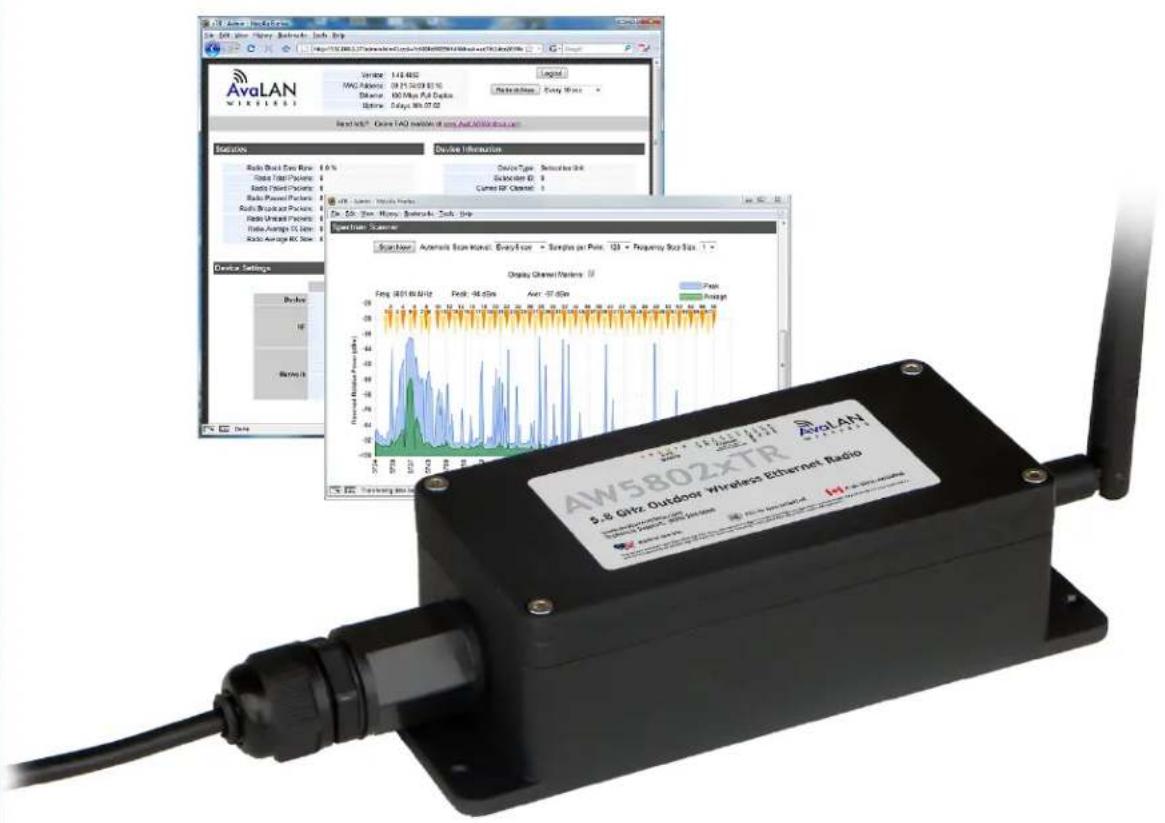
text_image
AW5802XTR 5.8 GHz Outdoor Wireless Ethernet Radio AW5802XTR 5.8 GHz Outdoor Wireless Ethernet RadioAW5802xTR
USER'S MANUAL
5.8 GHz Outdoor Wireless Ethernet Radio
Industrial-grade, long-range wireless Ethernet systems
Thank you for your purchase of the AW5802xTR 5.8 GHz Outdoor Wireless Ethernet Radio. This unit is intended for use with other AW5802 Family products to form point-to-point or point-to-multipoint wireless Ethernet systems. It is not compatible with AvaLAN's older AW5800 Family or the high speed AW58100 Family.
The AW5802xTR includes:
• (1) AW5802xTR Radio
• (1) AW5-5800 Omnidirectional Antenna
• (1) 120 VAC to 12 VDC power adapter
• (1) AW-POE Power Over Ethernet Injector
Table of Contents
Quick Start Guide 3
Operational Summary 5
Physical Setup 6
Digital Configuration 7
LED Status Information 10
Web Interface Status Information 11
Technical Specifications 12
Frequency Channels 13
Warranty and Regulatory Information 13
If you have any questions when configuring your AvaLAN system, the best place to get answers is to visit www.avalanwireless.com. You will also find the latest documentation and firmware there. If more assistance is needed, send email to support@avalanwireless.com.
To speak to a live technician, please call technical support at the number below during normal business hours.
© by AvaLAN Wireless Systems Inc. All rights reserved.
Revision 02.05.2013
125A Castle Drive
Madison, AL 35758
Sales: (866) 533-6216
Technical Support: (650) 384-0000
Customer Service: (650) 641-3011
Fax: (650) 249-3591
Quick Start Guide
To create a wireless link, you need one AW5802xTR configured as a master (Access Point) and one or more AW5802xTR radios configured as clients (Subscriber Units). We recommend connecting and powering up the units on the bench before deploying in the field because it is much easier to troubleshoot problems and to adjust the configuration if necessary without having to climb poles to do it. Activate the AW5802xTR units one at a time until they can be given distinct IP addresses.
Step 1. Gather the parts: In addition to the AvaLAN radios, the accompanying AW-POE Power Over Ethernet Injectors and 12 VDC Power Adapters, you will need a CAT5 cable and a PC with a LAN connection.
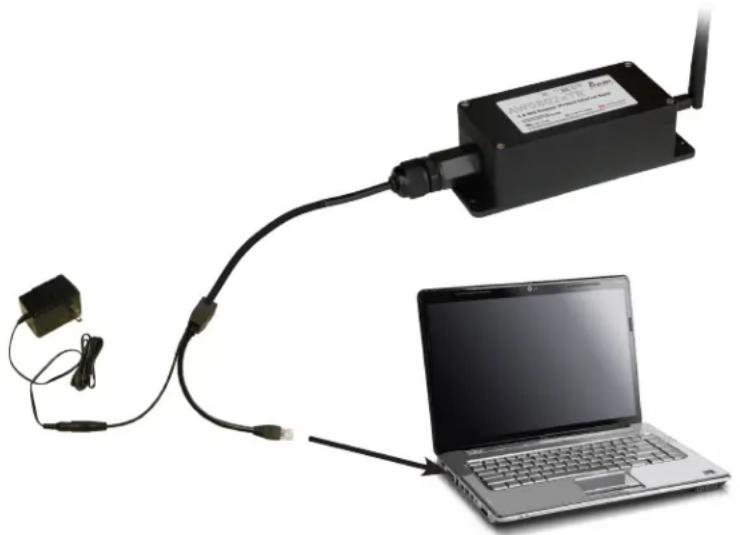
Step 2. Make the connections: Connect a radio to the PC as shown in the diagram. Plug in the power supply to turn on the radio.
natural_image
Laptop connected via cable to a black electronic device with antenna, shown from above (no text or symbols visible)Step 3. The default IP address of the radio is written on its product label. This default address is usually 192.168.17.17. The default login password is “password.” You must configure your PC’s wired LAN port to the same subnet and an IP address different from this one. With this configuration in place, you should be able to use a web browser on your PC to log in to the radio’s interface.
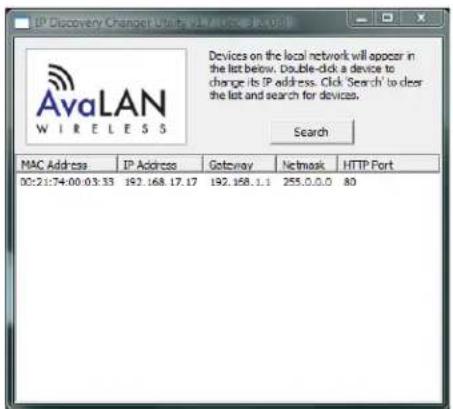
Step 4. If you are not able to change your PC's LAN configuration (usually because of an incompatible subnet), another method is available to change the radio's IP address to something your PC can browse to. Download the AvaLAN IP Finder Utility from our website: http://avalanwireless.com/marketing_resources/downloads/ipfinder.zip. Unzip to a folder of your choice and run ipfinder.exe (a stand alone executable). You should see a window similar to that shown on the next page:
text_image
IP Discovery Change Us AvaLAN W I RE E L S S Devices on the local network will appear in the list below. Double-click a device to change its IP address. Click 'Search' to clear the list and search for devices. Search MAC Address IP Address Gateway Network HTPF Port 00:21:74:00:03:33 192.168.17.17 192.168.1.1 255.0.0.0 80The AW5802xTR should appear in the list, showing you its MAC Address, IP Address, etc. If it does not, click "Search" to regenerate the list. If it still does not appear, you have a connection issue and need to re-examine the cabling. If it does appear in the list and you wish to change the IP Address, double click the radio's line in the list and a second screen will appear that allows you to change the address, subnet mask and gateway.
Step 5. Using your favorite web browser on the PC, browse to the IP Address of the radio:
http://192.168.17.17 [or whatever IP Address has been configured]
This screen should appear:

text_image
Firefox Live Demo Link | xTR - Index 75.76.254.182-0005 Version: 1.66.4264 MAC Address: 60.21.74.04.28.72 Ethernet: 109 Mbps Full Duplex Uptime: 9 days 14th 56:18 Password: Login Refresh Now Every 10 sec Need help? Online FAQ available at www.Aval AN/Wireless.com Statistics Radio RSSI: -58 dBm Radio Block Error Rate 6.0 % Radio Total Packets 3125713 Radio Paired Packets 0 Radio Passed Packets 3125713 Radio Broadcast Packets 2996776 Radio Unicart Packets 128937 Radio Average TX Size 103 bytes Radio Average RX Size 102 bytes Device information Device Type Access Pointof Subscriber IDs issued: 1
Current RF Channel: 33 Connected Subscribers: 1 RF Connected Yes Radio Active Active Product Code: 4 Radio Version: 10 Radio Firmware Release: 092 Network Settings IP Address: 192.168.1.14 Network Mask: 255.0.0.0 Default Gateway: 192.168.1.1 HTTP Port: 6085Step 6. Repeat the above process for each of your AW5802 Family radios, making sure to give each one a unique IP address and making note of the addresses assigned. Once you have verified that all radios can be browsed to, proceed to the detailed configuration steps in this manual.
Operational summary
The AW5802xTR Radio allows the user to create a long-range, wireless Ethernet network with up to 16 subscriber units per access point. The configuration may include any combination of AW5802xTR, and AW5802xTP radios.
Configuring a wireless link with the AW5802xTR requires the establishment of seven elements:
• Each radio must know whether it is to be an access point (AP) or subscriber unit (SU).
• Each radio must have an IP address that is unique among all others on the same network.
- The AP must know how many SUs are expecting communication with it.
- The AP and all SUs must agree on which radio frequency channel they are using. This can be manually set or allowed to change automatically.
• Each SU must be assigned a unique subscriber ID to specify which time division slot it will use when communicating with the AP.
- The AP and all SUs must share a common 8 digit hex Network Name.
- The AP and all SUs must share a common 32 digit hex encryption key.
AW5802xTR radios are configured by connecting to a computer that will run a web browser and setting parameters via their built-in browser interfaces. This browser interface also provides link quality statistics and a graphical spectrum scan to assist in setup and resolving connection problems.
The access point (AP) automatically scans for the best of the 59 available radio frequency channels, encrypts Ethernet data received from the network, and transmits it wirelessly to the correct subscriber unit (SU). The AP is constantly monitoring the radio link and can automatically change the channel if performance is degraded due to interference. If two AP units are very close to one another, they may interfere with each other if operating on adjacent frequency channels. Place them at least 10 feet apart or manually select non-adjacent channels for their operation. Also, the SU should be placed at least 10 feet from the AP while testing to avoid overloading the radio's receiver.
Any 10/100 BaseT Ethernet client device (ECD) can be connected to an AW5802xTR subscriber unit. Each SU encrypts Ethernet traffic received from the attached ECD and transmits the data wirelessly to its AP. Each SU can be plugged directly into an ECD without adding drivers or loading software. Essentially, once the AP/SU pair is configured and running it behaves like a continuous Ethernet cable.
The Ethernet packets that are transmitted over the wireless link are encrypted using FIPS 197 validated 128-bit AES. They are also provided with error correction to make sure that the information is received correctly. Each packet is divided into smaller sub blocks. This step improves overall data rate because an error in one sub block can be detected and corrected without needing to retransmit the entire packet. If an erroneous sub block is received, a retransmit is requested. For this re-transmitted sub block, Forward Error Correction is applied, adding enough redundant bits to the data to allow recovery of up to 3 bits in every 16. This FEC sub block is much larger and consequently takes longer to transmit but has a very high probability of being received correctly. Of course, if the interference is great enough, this robust error correction scheme will still fail. Retransmission of bad sub blocks will be attempted 3 times before reporting a packet failure.
Physical Setup
Step 1. Before mounting the radio in its final location, you may want to perform the digital configuration procedure described in the next section.
Step 2. Mount the AW5802xTR securely. Maximize lightning resistance by providing a strong DC ground connection to the metal housing. Connect the AW5802xTR's RPTNC RF connector to a suitable antenna. A simple omni-directional dipole unit (AW5-5800) is included. This antennas provides 5 dBi of gain in the plane perpendicular to its long axis. The antennas on linked units should be oriented parallel to each other and not pointed toward each other. (There is very little signal coming from the end of the antenna.)

text_image
RIGHT WRONG! Do not aim the omni-antennae directly at each otherStep 3. Power is provided to the unit by means of the Ethernet cable, allowing the power supply to be located at a convenient location. The included power-over-Ethernet injector (POE) provides the means for adding DC power to unused wires in the cable. It is most convenient to plug the male RJ-45 connector of the POE directly into your LAN router or switch and the accompanying power supply into a 120 VAC outlet near by. The LAN cable to the radio plugs into the female RJ-45 jack and will carry DC power to it. The AW5802xTR is provided with a cable clamping device that allows an RJ45 plug on the cable to pass through it and can be tightened down around the cable to provide a weatherproof seal.
Note: For pole mounted applications, a mounting kit (AW-XPM) is orderable from our website.

natural_image
Metal plate with four U-shaped metal connectors and a separate metallic bracket (no text or symbols visible)Digital Configuration
This section of the manual assumes that you have successfully powered up a radio and are able to browse to its IP address as discussed in the Quick Start Guide earlier.
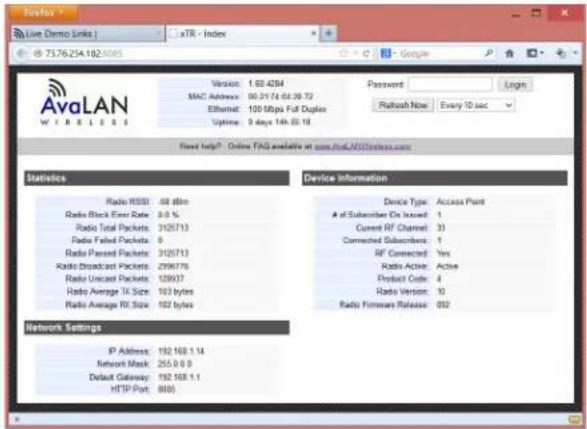
Login: Browse to the radio you wish to designate as the master (Access Point) first. This login page should appear:
text_image
AvaLAN W I R E L I S S 73.76.254.182.5085 73.76.254.182.5085 xTR - Index Version: 1:00:4284 MAC Address: 00.21.74.04.26.72 Ethernet: 100 Mbps Full Duplex Uptime: 9 days 14th 05:18 Password: Login Receipt Now Every 10 sec Fixed help? Online FAQ available at www.vaal.NOServices.com Statistics Radio RSSI: 48 dbln Radio Block Enter Rate: 0.0 % Radio Total Packets: 3125713 Radio Failed Packets: 0 Radio Passed Packets: 3125713 Radio Broadcast Packets: 2996776 Radio Uncase Packets: 128937 Radio Average TK Size: 163 bytes Radio Average RX Size: 162 bytes Device information Device Type: Access Pointof Subscribers On Invest: 1
Current RF Channel: 33 Connected Subscribers: 1 RF Connected: Yes Radio Active: Active Product Code: 4 Radio Version: 10 Radio Provider Release: 052 Network Settings IP Address: 192.168.1.14 Network Mask: 255.0.0.0 Default Gateway: 192.168.1.1 HTTP Port: 8085This initial page presents many useful pieces of information: operating statistics, current radio configuration and firmware version numbers.
The default login Password is “password”. Enter it into the box in the top right corner of the login page and click “Login” to go to the Admin page. If you have changed the password and have forgotten what it is, the only way to recover is to remove the radio’s cover, being very careful not to damage the water tight gasket. With the radio powered on, press the small white reset button on the PC board and hold it for at least 5 seconds. This resets the radio to the factory default IP address and password.
text_image
Live Demo Links 75.76.214.102.8005.ssems.html?word=441.2003.Secand90&math.bcl248/27 Version: 1.63.4264 MAC Address: 00.21.74.04.28.72 Ethernet: 100 Mbps Full-Duplex Uptime: 9 days 14h 58:26 Need help? Online FAQ available at www.AvaL.NWilesns.com Statistics Radio RSSI: 50 dBm Radio Black Error Rate: 0.0 % Radio Total Packets: 3126038 Radio Failed Packets: 0 Radio Dressed Packets: 3126038 Radio Broadcast Packets: 2957074 Radio Unsolid Packets: 128564 Radio Average Tx Size: 213 bytes Radio Average Rx Size: 102 bytes Device Information Device Type: Access Plantof Subscriber IDs Issued: 1
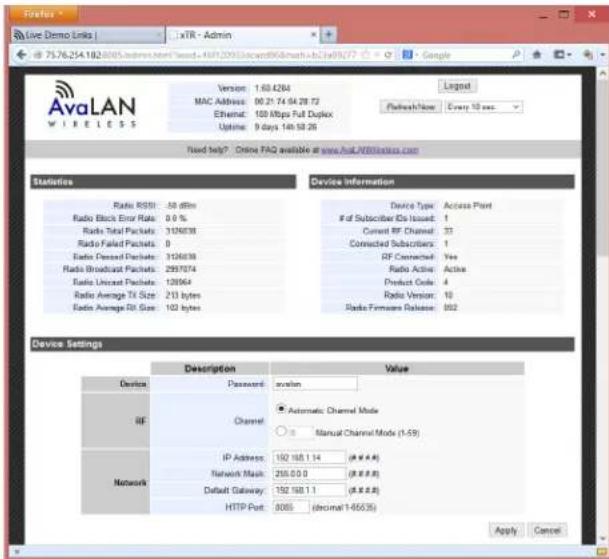
Current RF Channel: 37 Connected Subscribers: 1 RF Connected: Yes Radio Active: Active Product Code: 4 Radio Version: 10 Radio Firmware Release: 002 Device Settings Description Value Device Password:avalan RF Channel●Automatic Channel Mode○Manual Channel Mode (1-59) Network IP Address: 192.188.1.14 (#####) Network Mask: 206.0.0.0 (#####) Default Gateway: 192.188.1.1 (#####) HTTP Port: 8005 (decimal 1-66635) Apply CancelAdmin Page Settings: The Admin page has Statistics and Device Information sections similar to the Login page plus the addition of several new sections.
Device Settings: Here you may change the Login Password, select the RF Channel to use (or enable Automatic Channel Mode) and modify the Network configuration.
RF Channel selection: In Automatic Channel Mode, the Access Point radio will choose a channel based on avoiding interference from other RF sources, changing it as necessary if block error rates rise. The Subscriber Units will search for and select the frequency channel used by the Access Point. If you have multiple AW5802 Family Access Points operating in the same vicinity or other known sources of interference, choose a channel manually. We recommend also setting the Subscriber Units paired with each Access Point to the same channel so that they won't have to hunt for it.
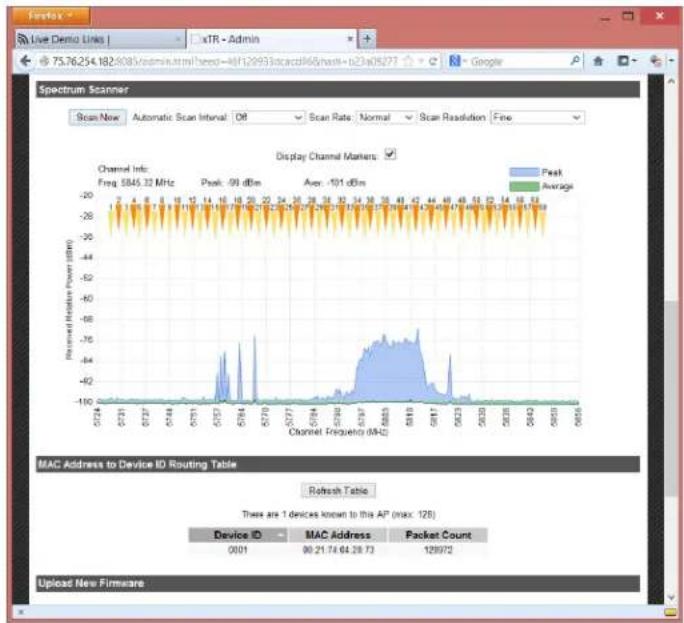
Spectrum Scanner: Scrolling down on the Admin page brings you to the Spectrum Scanner as shown here:
line
MAC Address to Device ID Routing Table There are 1 devices known to this AP (max: 128) Device ID | MAC Address | Packet Count | | :--- | :--- | :--- | | 0001 | 90.217464.2873 | 129972 | | Peak | 99 dBm | - | | Average | -101 dBm | - | | Freq | 5845.33 MHz | - | | Channel Frequency (MHz) | 5724 | - | | Channel Frequency (MHz) | 5721 | - | | Channel Frequency (MHz) | 5727 | - | | Channel Frequency (MHz) | 5744 | - | | Channel Frequency (MHz) | 5751 | - | | Channel Frequency (MHz) | 5753 | - | | Channel Frequency (MHz) | 5754 | - | | Channel Frequency (MHz) | 5757 | - | | Channel Frequency (MHz) | 5777 | - | | Channel Frequency (MHz) | 5784 | - | | Channel Frequency (MHz) | 5792 | - | | Channel Frequency (MHz) | 5797 | - | | Channel Frequency (MHz) | 5803 | - | | Channel Frequency (MHz) | 5812 | - | | Channel Frequency (MHz) | 5817 | - | | Channel Frequency (MHz) | 5823 | - | | Channel Frequency (MHz) | 5830 | - | | Channel Frequency (MHz) | 5840 | - | | Channel Frequency (MHz) | 5850 | - | | Channel Frequency (MHz) | 5860 | - | | Channel Frequency (MHz) | 5866 | - | Display Channel Markers: - Peak: 99 dBm - Average: -101 dBm - Peak: 99 dBm - Average: -101 dBm - Peak: 99 dBm - Average: -101 dBm - Peak: 99 dBm - Average: -101 dBm - Peak: 99 dBm - Average: -101 dBm - Peak: 99 dBm - Average: -101 dBm - Peak: 101 dBm - Average: -101 dBm - Peak: 101 dBm - Average: -101 dBm - Peak: 101 dBm - Average: -101 dBm - Peak: 101 dBm - Average: -101 dBm - Peak: 101 dBm - Average: -101 dBm - Peak: 100 dBm - Average: -101 dBm - Peak: 100 dBm - Average: -101 dBm - Peak: 100 dBm - Average: -101 dBm - Peak: 100 dBm - Average: -101 dBm - Peak: 100 dBm - Average: -101 dBm - Peak: 101 dBm - Average: -101 dBm - Peak: 101 dBm - Average: -101 dBm - Peak: 100 dBm - Average: -101 dBm - Peak: 100 dBm - Average: -101 dBm - Peak: 101 dBm - Average: -101 dBm - Peak: 100 dBm - Average: -101 dBm - Peak: 100 dBm - Average: -101 dBm - Peak: 100 dBm - Average: -101 dBm - Peak: 101 dBm - Average: -101 dBm - Peak: 100 dBm - Average: -101 dBm - Peak: 101 dBm - Average: -101 dBm - Peak: 100 dBm - Average: -101 dBm - Peak: 100 dBm - Average: -101 dBm - Peak: 101 dBm - Average: -101 dBm - Peak: 102 dBm - Average: -101 dBm - Peak: 102 dBm - Average: -101 dBm - Peak: 102 dBm - Average: -101 dBm - Peak: 102 dBm - Average: -101 dBm - Peak: 102 dBm - Average: -101 dBm - Peak: 103 dBm - Average: -101 dBm - Peak: 103 dBm - Average: -101 dBm - Peak: 103 dBm - Average: -101 dBm - Peak: 103 dBm - Average: -101 dBm - Peak: 103 dBm - Average: -101 dBm - Peak: 104 dBm - Average: -101 dBm - Peak: 104 dBm - Average: -101 dBm - Peak: 104 dBm - Average: -101 dBm - Peak: 104 dBm - Average: -101 dBm - Peak: 104 dBm - Average: -101 dBm - Peak: 105 dBm - Average: -101 dBm - Peak: 105 dBm - Average: -101 dBm - Peak: 105 dBm - Average: -101 dBm - Peak: 105 dBm - Average: -101 dBm - Peak: 106 dBm - Average: -101 dBm - Peak: 106 dBm - Average: -101 dBm - Peak: 106 dBm - Average: -101 dBm - Peak: 107 dBm - Average: -101 dBm - Peak: 107 dBm - Average: -101 dBm - Peak: 107 dBm - Average: -101 dBm - Peak: 108 dBm - Average: -101 dBm - Peak: 108 dBm - Average: -101 dBm - Peak: 108 dBm - Average: -101 dBm - Peak: 109 dBm - Average: -101 dBm - Peak: 109 dBm - Average: -101 dBm - Peak: 109 dBm - Average: -101 dBm - Peak: 22.22222222222222222222222222222222222222222222222222222222222222222222222222222222222222The Spectrum Scanner controls are self-explanatory. Executing a scan interrupts data flow, so you will normally want to turn automatic scanning off. Please note that this Spectrum Scanner works well with Internet Explorer and Firefox browsers, but may not work with Chrome or Safari due to browser javascript differences.
MAC Address Routing Table: Another section visible in this screen shot is the MAC Address to Device ID Routing Table. If radios are linked, this information allows you to determine exactly which devices are communicating through each Subscriber Unit's Device ID.
Scrolling down to the bottom of the Admin Page reveals two more sections as shown on the next page of this manual:

text_image
MAC Address to Device ID Routing Table Referee Table There are 1 devices known to this AP (max: 128) Device ID MAC Address Packet Count 0001 90.21.74.64.28.73 125881 Upload New Firmware Browse for firmware file on local computer: Browse... Upload Firmware Cancel Advanced Links Warning! These links are only for use by advanced users! Please proceed with caution. Advanced Admin Fast Spectrum ScannerUpload New Firmware: From time to time, updates to the firmware are made available through our website at www.avalanwireless.com/downloads.
If needed, these may be downloaded to your PC and then installed in the AW5802xTR radio using this Upload New Firmware section of the Admin page. The firmware should be updated for every member of the linked set at the same time to keep them consistent. Please follow the readme instructions provided with the new download. Some older radios may need tech support help with the upgrade.
Advanced Links: In this section there are buttons to link to an Advanced Admin page and a Fast Spectrum Scanner page. The Fast Spectrum Scanner feature works very much like the one on the Admin Page but is more intrusive, being likely to seriously disrupt the network data flow when used.
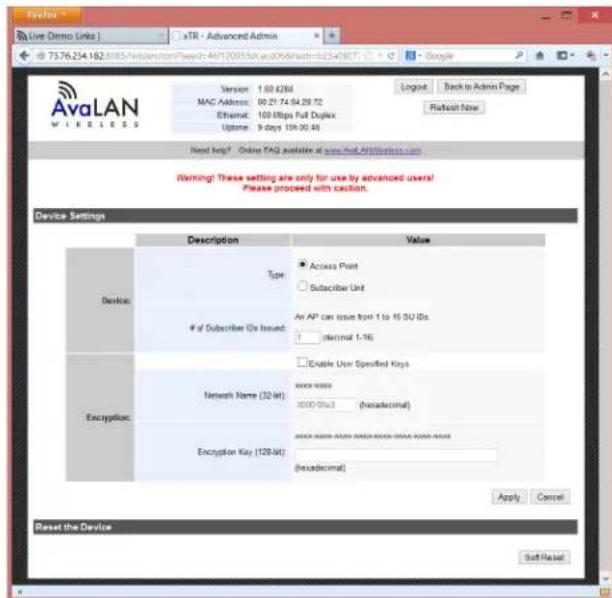
Despite the dire warning, an essential step in the digital configuration process must be done on the Advanced Admin page. Click the Advanced Admin button to be taken there:
text_image
AvalAN W I R E L I S S Version: 1.63 KB4 MAC Address: 00:21:74:94:28:72 Ethernet: 100 Mbps Full Dxplus Uptime: 9 days 10x00:46 Login: Back to Admin Page Platform Name Need help? Online FAQ available at www.Aval.AvalLANE.com Warning! These setting are only for use by advanced users! Please proceed with caution. Device Settings Description Value Device Type: Access Print Subscriber Unitof Subscriber IDs issued:
An AP can issue from 1 to 15 SU IDs decimal 1-16 Encryption: Enable User Specified Keys Network Name (32-bit): xxxx-xxxxxx xxxx-01a3 (hexadecimal) Encryption Key (128-bit): xxxx-xxxxxx-xxxx-xxxx-xxxx-xxxx-xxxx-xxxx-xxxx-xxxx-xxxx-xxxx-xxxx-xxxx-xxxx-xxxx-xxxx-xxxx-xxxx-xxxx-xxxx-xxxx-xxxx-xxxx-xxxx-xxxx-xxxx-xxxx-xxxx-xxxx-xxxx-xxxx-xxxx-xxxx-xxxx-xxxx-xxxx-xxxx-xxxx-xxxx-xxxx-xxxx-xxxx-xxxx-xxxx-xxxx-xxxx-xxxx-xxxx-xxxx-xxxx-xxxx-XXXXXXX Apply Cancel Reset the Device Soft ResetAdvanced Admin Page Settings: On the Advanced Admin page, set the parameters as follows:
- Choose Device Type: Access Point or Subscriber Unit.
- For Subscriber Units, assign unique ID numbers in numeric order from 1 to 63.
- For an Access Point, enter the number of Subscriber Units that will be communicating with it.
- Click the box labeled "Enable User Specified Keys."
- Choose an 8-digit hex (0-9 and A-F) Network Name that will be common among the AP and its SUs and enter it. The hyphen is required.
- Choose a 32-digit hex encryption key and enter it. Again, the hyphens are required. This key must also match among all the radios in the set so make a note of it as well.
After entering the parameters, click the "Apply" button to save them to the radio.
Linking All The Radios: When all of the radios are keyed and operating, connect them to your network and Ethernet devices as desired and cycle the radio's power to begin normal operation. Browser management of the SUs can be performed over the wireless links. Note: avoid plugging actively linked radios into the same Ethernet switch because this will corrupt the switch's routing table and may cause network problems just as if you had plugged a CAT5 cable directly between two ports.
text_image
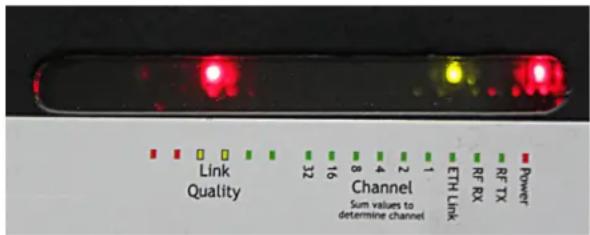
Link Quality 32 16 8 4 2 1 ETH Link RF RX RF TX Power Channel Sum values to determine channelStatus LEDs: The top cover of each radio provides a window showing status lights with a legend on the product label:
If the radio does not have power, of course all LEDs will be off.
If the radio is powered up but the Eth Link LED is off, you do not have an Ethernet cable connection.
If the radio has not acquired a wireless link with a partner, the channel LEDs will scan in binary fashion looking for a signal. The left-most Link Quality LED will be on if the radio is the Access Point, but off if the radio is a Subscriber Unit.
If the radio has acquired sync and is operating normally, the RF Tx and RF Rx LEDs should be blinking, the Channel LEDs will indicate the RF Channel being used and the Link Quality LEDs will light based on the received signal strength. (The more of these that are lit, the stronger the signal). Either these LEDs or the Radio RSSI value in the Statistics section of the login page may be used for antenna aiming purposes.
Radio Status Information: The Login or Admin pages of the radio's built-in web browser interface provide many useful pieces of information that let you know how well the wireless link is working:
| Top of Web Page | |
| Version Current version of the radio's Ethernet interface. | |
| MAC Address Radio's hardware MAC | Address. |
| Ethernet Status of Ethernet connection: 10 Mbps or 100 Mbps, full or half duplex, connected or disconnected. | |
| Uptime Total time radio has been | active since last power cycle or hardware reset. |
| Device Information | |
| Device Type Access Point (master) or Subscriber Unit (client) | |
| # of Subscriber IDs Issued For Access Point only, up to 63 permitted. | |
| Subscriber ID For Subscriber Unit only, the ID selected for this radio. | |
| Current RF Channel The RF Channel in use. See table in this manual for center frequency. | |
| Connected Subscribers Access Point only, how many SUs are currently connected (16 maximum). | |
| RF Connected Yes or No | |
| Radio Active | Active or Standby |
| Product Code | 4 for multi-point radio |
| Radio Version | Specific radio module in use (AW5802 Family is 10) |
| Radio Firmware Release | Current version of radio module firmware. |
| Statistics | |
| Radio RSSI | Received Signal Strength Indicator. The radios operate best with this value between -30 and -70 dBm |
| Radio Block Error Rate | Should be less than 10% (check RSSI or spectrum scan if greater.) Higher values indicate degraded data rate, not necessarily lost data. |
| Radio Total Packets | # of Ethernet packets received since last reset. |
| Radio Failed Packets | # of packets unsuccessfully transmitted. |
| Radio Passed Packets | # of packets successfully transmitted. |
| Radio Broadcast Packets | Traffic simultaneously addressed to all devices on the network. |
| Radio Unicast Packets | Traffic sent to a single destination. |
| Radio Average TX Size | Average bytes per packet transmitted. |
| Radio Average RX Size | Average bytes per packet received. |
Technical specifications
CHARACTERISTIC SPECIFICATION/DESCRIPTION
| RF transmission rate 1.536 Mbps | |
| Ethernet throughput 935 Kbps | |
| Receiver Sensitivity -97 dBm at 10 | -4 BER |
| Radio link budget 150 dB when used with 22 dBi antennas | |
| Range 30 miles line-of-sight with 22 dBi antenna | |
| Operating Frequency Range 5.728 | 125 GHz to 5.846909 GHz |
| RF channels/bandwidth 59 non-overlapping channels with 2.048 MHz spacing and 1.75 MHz bandwidth | |
| Frequency selection Automatic or manually selectable via web browser interface. | |
| Connector types RF: RPTNC Female / 10/100 base T Ethernet RJ-45 | |
| Status LEDs Power, Ethernet link, RF TX, RF RX, Channel (6), Link Quality (6) | |
| Error correction technique Sub-block error detection and retransmission with Forward Error Correction | |
| Power regulation | Built-in switching regulator |
| Browser management tools | QoS Statistics, Network Settings, Spectrum Analyzer, Firmware Upgrade |
| Power consumption | Transmit: 2.2 Watts Receive: 1.2 Watts |
| Voltage | 9 to 48 VDC via unused pins in RJ-45 jack - pins 4,5 positive, 7,8 ground |
| Transmit current draw | 180 mA at 12 VDC |
| Temperature range | -40°C to +70°C |
| Size | 200 x 80 x 55 mm not including connectors; 0.570 Kg |
| Warranty | 1 Year Parts & Labor, XTRa-Care Extended Warranty 2 Year Extension available at nominal cost |
| Compatibility | May be mixed in combination with AW5802xTR and AW5802xTP radios, not compatible with older 5800x, 5800i, 5800xTR, 5800iTR and also not compatible with the higher speed 58100 product family. |
Frequency Channels
| Channel | Center Frequency | Channel | Center Frequency | Channel | Center Frequency | Channel | Center Frequency |
| 0 Auto Mode | |||||||
| 1 | 5728.125 MHz | 16 | 5758.845 MHz | 31 | 5789.565 MHz | 46 | 5820.285 MHz |
| 2 | 5730.173 MHz | 17 | 5760.893 MHz | 32 | 5791.613 MHz | 47 | 5822.333 MHz |
| 3 | 5732.221 MHz | 18 | 5762.941 MHz | 33 | 5793.661 MHz | 48 | 5824.381 MHz |
| 4 | 5734.269 MHz | 19 | 5764.989 MHz | 34 | 5795.709 MHz | 49 | 5826.429 MHz |
| 5 | 5736.317 MHz | 20 | 5767.037 MHz | 35 | 5797.757 MHz | 50 | 5828.477 MHz |
| 6 | 5738.365 MHz | 21 | 5769.085 MHz | 36 | 5799.805 MHz | 51 | 5830.525 MHz |
| 7 | 5740.413 MHz | 22 | 5771.133 MHz | 37 | 5801.853 MHz | 52 | 5832.573 MHz |
| 8 | 5742.461 MHz | 23 | 5773.181 MHz | 38 | 5803.901 MHz | 53 | 5834.621 MHz |
| 9 | 5744.509 MHz | 24 | 5775.229 MHz | 39 | 5805.949 MHz | 54 | 5836.669 MHz |
| 10 | 5746.557 MHz | 25 | 5777.277 MHz | 40 | 5807.997 MHz | 55 | 5838.717 MHz |
| 11 | 5748.605 MHz | 26 | 5779.325 MHz | 41 | 5810.045 MHz | 56 | 5840.765 MHz |
| 12 | 5750.653 MHz | 27 | 5781.373 MHz | 42 | 5812.093 MHz | 57 | 5842.813 MHz |
| 13 | 5752.701 MHz | 28 | 5783.421 MHz | 43 | 5814.141 MHz | 58 | 5844.861 MHz |
| 14 | 5754.749 MHz | 29 | 5785.469 MHz | 44 | 5816.189 MHz | 59 | 5846.909 MHz |
| 15 | 5756.797 MHz | 30 | 5787.517 MHz | 45 | 5818.237 MHz | ||
Limited Warranty
This product is warranted to the original purchaser for normal use for a period of 360 days from the date of purchase. If a defect covered under this warranty occurs, AvaLAN will repair or replace the defective part, at its option, at no cost. This warranty does not cover defects resulting from misuse or modification of the product.
If you wish, you may purchase extended warranty for this product. AvaLAN's XTRa-Care Extended Warranty provides a two-year extension plus free overnight (Continental USA only) product replacement. Visit our website for more details.
Regulatory Compliance
Compliance Statement ( Part 15.19 )
This device complies with Part 15 of the FCC Rules.
Operation is subject to the following two conditions:
-
This device may not cause harmful interference, and
-
This device must accept any interference received, including interference that may cause undesired operation.
Warning ( Part 15.21 )
Changes or modifications not expressly approved by the party responsible for compliance could void the user's authority to operate the equipment.
RF Exposure ( OET Bulletin 65 )
To comply with FCC RF exposure requirements for mobile transmitting devices, this transmitter should only be used or installed at locations where there is at least 20cm separation distance between the antenna and all persons.
Information to the User - Part 15.105 (b)
This equipment has been tested and found to comply with the limits for a Class B digital device, pursuant to part 15 of the FCC Rules. These limits are designed to provide reasonable protection against harmful interference in a residential installation. This equipment generates, uses and can radiate radio frequency energy and, if not installed and used in accordance with the instructions, may cause harmful interference to radio communications. However, there is no guarantee that interference will not occur in a particular installation. If this equipment does cause harmful interference to radio or television reception, which can be determined by turning the equipment off and on, the user is encouraged to try to correct the interference by one or more of the following measures:
--Reorient or relocate the receiving antenna.
--Increase the separation between the equipment and receiver
--Connect the equipment into an outlet on a circuit different from that to which the receiver is connected.
--Consult the dealer or an experienced radio/TV technician for help.