
TK-C2201WPUA - Surveillance Camera JVC - Free user manual and instructions
Find the device manual for free TK-C2201WPUA JVC in PDF.


| Product Type | Outdoor Dome Surveillance Camera |
| Model | TK-C2201WPU (USA/Canada), TK-C2201WPE (Europe) |
| Image Sensor | CCD (1/3-type, inferred from specifications) |
| Horizontal Resolution | 550 TV lines (typical) |
| Video S/N Ratio | 52 dB (typical, AGC OFF) |
| Minimum Illumination (Color) | 0.05 lx (typical, 50%, F1.2, AGC HIGH) |
| Minimum Illumination (B&W) | 0.03 lx (TK-C2201WPU) / 0.006 lx (TK-C2201WPE) (typical) |
| Lens | 3.75x varifocal, 2.8–10.5 mm, F1.2 (wide) – F2.7 (tele) |
| Angle of View (Wide) | 99.5° (H) × 73.2° (V) |
| Angle of View (Tele) | 27.4° (H) × 20.6° (V) |
| Pan / Tilt / Rotation Range | ±175° pan, ±80° tilt, ±100° rotation |
| Power Supply | AC 24 V (60 Hz for WPUA / 50/60 Hz for WPE) or DC 12 V; UL Listed Class 2 only |
| Power Consumption | 2.3 W (TK-C2201WPUA) / 220 mA (TK-C2201WPE); with heater: 20 W / 1 A |
| Weight | Approx. 1.3 kg (2.9 lbs) |
| Operating Temperature | -10°C to 50°C (14°F to 122°F); with heater: -30°C to 50°C |
| Environmental Protection | IP66 (vandal-resistant, tamper-proof) |
| Special Functions | DAY/NIGHT auto IR cut, 3D noise reduction, 4-area privacy mask, BLC, AWC |
| Monitor Type Selection | LCD or CRT (selectable via switch) |
| Accessories Included | Silica gel, wrench, template, instructions (warranty card for WPUA) |
| Fall Prevention | Wire required (not provided) to secure camera unit |
Frequently Asked Questions - TK-C2201WPUA JVC
User questions about TK-C2201WPUA JVC
0 question about this device. Answer the ones you know or ask your own.
Ask a new question about this device
Download the instructions for your Surveillance Camera in PDF format for free! Find your manual TK-C2201WPUA - JVC and take your electronic device back in hand. On this page are published all the documents necessary for the use of your device. TK-C2201WPUA by JVC.
USER MANUAL TK-C2201WPUA JVC
(For USA and Canada)
TK-C2201WPE
(For Europe)
INSTRUCTIONS

For Customer Use:
Enter below the Serial No. which is located on the body. Retain this information for future reference.
Model No. TK-C2201WPU, TK-C2201WPE
Serial No.
Introduction
Contents
Introduction
Contents 2
Features 3
Operating Precautions 4
Name of Parts 6
Setup
About Connection Cables 10
Setting the Switches 12
Installation
Mounting the Camera 13
Adjustment
Adjusting Image 23
Adjusting the Auto White Balance 28
Others
Specifications 29
Thank you for purchasing this product.
Before use, please read these "INSTRUCTIONS" and the included information materials to ensure proper use of this product.
These instructions are for TK-C2201WPU/TK-C2201WPE.
TK-C2201WPE is not evaluated by UL.
Features
- Easy DAY/NIGHT function (TK-C2201WPU)
- DAY/NIGHT surveillance with auto IR cut filter on/off (Color/B&W shooting) (TK-C2201WPE) • 3D noise reduction (3DNR)
- 4 areas privacy mask • Built-in display mode (CRT or LCD selectable)
- Outdoor-ready vandal and tamper resistant structure (complies with IP66)
How to read this manual
Conventions and symbols
Note
Memo
: Indicates operating precautions.
: Indicates reference data regarding limitations on functions, usage and the like.
: Indicates a reference page or item.
Contents of this manual
- JVC holds the copyright to this manual. Any part or all of this manual may not be reproduced without prior consent from the company.
- Product names of other companies described in this manual are trademarks or registered trademarks of the respective companies. Symbols such as ™, ®, and © are omitted in this manual.
- Design, specifications and other contents described in this manual are subject to change for improvements without prior notice.
Operating Precautions
■ Storage and Location of Use
- Do not install the camera in the following places.
- In a place with vapor or oil, for example in a kitchen.
- When the ambient temperature rises above or falls below the acceptable range (from -10 °C to 50 °C)
- In a place at which corrosive gases are emitted.
- Near a source of radiation, X-rays, strong radio waves or magnetism.
- In a place subject to vibration.
- In a place with excessive dirt.
- Using this unit in the vicinity of the transmitting antenna of a radio or TV, devices that emit strong electromagnetic waves such as a transformer or motor, or wireless devices such as a transistor or mobile phone may give rise to noises in the image and changes in its color.
- Do not install in an environment where there is cold air or near the air outlet of an air conditioner. The dome cover may become foggy as a result of sudden temperature changes.
- Though this camera is IP66 compliant, there is no guarantee against water seepage under any circumstances. (IP66 evaluation was not conducted by UL.)
■ Maintenance
- Clean the dome cover lens using a lens wiper cloth (or a tissue). For tough stains, wipe with a neutral detergent diluted with water, followed by wiping with a dry cloth. Do not use benzene or thinner to wipe the camera. Doing so may melt the surface or cause it to fog.
■ Energy Conservation
- When the camera is not in use for a long time, turn off the power for safety and energy conservation reasons.
■ Copyright Protection
- With the exception of the user being the copyright holder or when permission such as for duplication has been granted by the copyright holder, permission is required in principle for the duplication, modification, or transmission of copyrighted material.
- Unauthorized duplication, modification, or transmission of copyrighted material may constitute a copyright infringement, and the user may be liable to compensate for any damages. When using copyrighted material, be sure to check the license agreement of the copyrighted material thoroughly.
- When rights or rights holders are involved with regard to the targeted duplicating subject, permission may be required for shooting or using (processing) it. Be sure to check the licensing conditions thoroughly.
■ Disclaimer
- We will not be responsible for any inconveniences or disturbances caused in the event of privacy invasion as a result of camera footages of this product.
Others
- When using this camera with [AGC] set to "MID" or "HIGH", the sensitivity increases automatically for dark images and the screen may appear grainy, but this is not a malfunction.
- If the DAY/NIGHT switch is turned to "AUTO", the mode changes automatically to black and white in dark places. As the sensitivity level is increased in this case, the screen may appear grainy and more white spots may appear. When switching between modes, the brighter area on the screen is emphasized and visibility may be reduced. However, this is not a malfunction.
- When shooting an extremely bright object (e.g. lamp), the image on the screen may have white vertical tailings (smear) or expansion (blooming) may appear around it. This is a characteristic of the CCD and not a malfunction.
- When the white balance of this camera is set to "ATW-N" or "ATW-W" and depending on the conditions of the object, the color tone may differ slightly from the actual color due to the principle of the automatic tracking white balance circuit. This is not a malfunction.
- When this camera is used under high temperatures, vertical stripes may appear on the screen. This is a characteristic of the CCD and not a malfunction.
- When this camera is moved from a cold to a warm place, condensation may occur and the camera may not work. In this case, leave the camera at room temperature for about one hour before turning on the power.
- When the power supply voltage is momentarily disrupted or drops due to lightning, turning on the air-conditioner or the like, image distortion or noise may occur.
- When the power supply voltage of the camera drops, the input protection circuit inside the camera operates, and the camera may be turned off. Make use of a voltage rating within ±10% for the camera's power supply voltage.
- This unit enlarges the rotation angle to support wide range setup. When the zoom of the lens is set to WIDE end and the tilt angle is set around ±80°, a part of this camera appears in the image depending on the rotation angle. In this case, adjust the image angle if necessary. (page 24)
- To prevent fogging resulting from temperature changes, be sure to insert the silica gel at the location specified. (page 16)
- The 3D noise reduction function of this camera may result in afterimage of a moving subject. Afterimage is more likely to occur when using the camera with [DNR LEVEL] set to "HIGH". This is not a malfunction.
Name of Parts
Camera

① Mounting Hole × 2
(page 14)
② Fall Prevention Wire Mounting Screw
(page 14)
③ Conduit Plug/Hole (side)
(page 21)
④ Dome Cover
(page 13)
⑤ Inner Dome
(page 13)
⑥ Video signal output connector (BNC)
(page 10) (page 15)
⑦ Protection Cover
(page 15)
8 Power Supply Cable
(page 11) (page 15)
⑨ Hole for Connecting Cables, Conduit Hole
(page 20)
10 Base
(page 19)
⑪ Dome Cover Fastening Screw ×3
(page 13)
Name of Parts (Continued)
Camera (Interior)
The dome cover and inner dome are removed.

① Focus Adjustment Ring
(page 25)
② Zoom Adjustment Ring
(page 25)
③ Rotation Knob
(page 24)
④ Fall Prevention Wire (To prevent the dome cover from dropping)
(page 13)
⑤ Camera Unit Fastening Screw ×2
(page 19)
⑥ Space for Inserting Heater
When mounting the heater (sold separately: KA-ZH215U), read the instruction manual of the heater before mounting.
⑦ Power Supply Connector for Heater
For connecting to the power supply connector of the heater.
⑧ Tilt Fastening Screw ×2
(page 24)
⑨ [MONITOR] Terminal (RCA pin)
(page 23)
10 Lug Plate
(page 16)
⑪ Space for Inserting Silica Gel
(page 16)
12 Focus Adjust Gear
(page 25)
13 Shooting Direction Mark
(page 24)
14 Pan Center Mark
(page 24)
15 Rotation Center Mark
(page 24)
16 Function Selection Switches
(page 12)
17 [MENU] Button
Display the menu screen.
Refer to the attached manual "MENU SETTING" for more details about setting the menu.
18 Status Indication Lamp
Lights up when the power is turned on.
19 [▲, ▼, ◀, ▶]/[SET] Button
This allows user to select menu screens and change or confirm settings.
Fine Focus Adjustment (page 26)
Auto White Balance Adjustment (page 28)
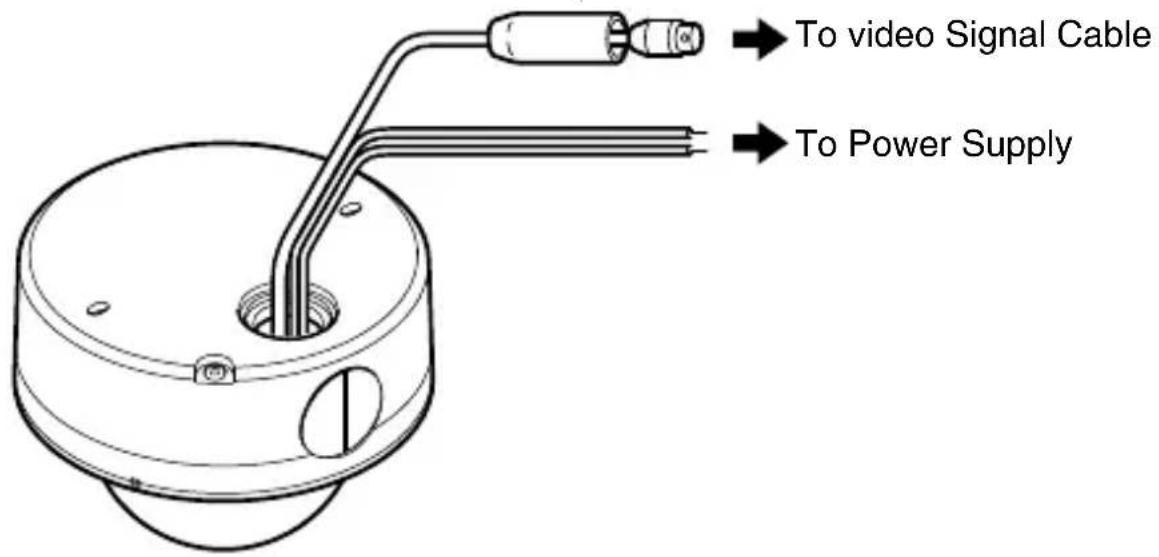
About Connection Cables
The maximum connection distance varies with the type of cable used.
- Be sure to turn off the power of devices before connecting cables.
Memo
- Connect to AC 24 V power supply if using the heater (sold separately: KA-ZH215U).
Video signal cable (coaxial cable)
Connect a 75 Ω coaxial cable (BNC) such as RG-59 to the video signal output connector (BNC).
DC 12 V or AC 24 V power supply cable
Connect the power cord to the DC 12 V or the AC 24 V power supply.
The unit is to be powered by a UL Listed Class 2 power supply only. (For USA and Canada)
The AC 24 V and DC 12 V power supply shall conform to the following:
UL Listed Class 2 power supply only,
Class 2 not wet and Class 3 wet wiring (For USA)
Isolated power supply only (For Europe)
This installation shall be in accordance with the National Electrical Code, ANSI/NFPA 70.
The following table shows the connection distances when 2-core VVF (vinyl-insulated vinyl sheath cables) are used. (Reference value)
| Conductor diameter | Maximum connection distance: DC 12 V (not using heater) | Maximum connection distance: AC 24 V (not using heater) | Maximum connection distance: AC 24 V (using heater) |
| 1.0 mm (AWG 18) | 50 m (160 ft) 130 | m (420 ft) 40 m (130 ft) | |
| 1.6 mm (AWG 14) | 140 m (450 ft) 350 | m (1100 ft) 120 m (390 ft) | |
| 2.0 mm (AWG 12) | 220 m (720 ft) 550 | m (1800 ft) 180 m (590 ft) |
Note
- If thin cables are used, the resistance of the cables will be high and a significant voltage drop will occur when the camera is at its maximum power consumption. Either use a thick cable with low resistance or place the power supply near to the camera and shorten the length of the cable to restrict the voltage drop at the rated current of camera to below 10 %. If voltage drop occurs during operation, the performance will be unstable.
- Do not connect the AC 24 V cable to commercial power supply. If it is connected by mistake, the internal circuit may be damaged. Do not use the camera and make sure to send it to the nearest JVC dealer for inspection.
- Do not connect DC 12 V and AC 24 V cables at the same time.
- When connecting the DC 12 V cables, ensure that the polarities are correct.
Color of the cables red: +12 V, black: GND
- When using a DC 12 V power supply, ensure that the polarities of the cable are correct.
Setting the Switches
Before mounting the camera, set the function setting switches on the camera. To set the switches, use a fine-tipped screwdriver.
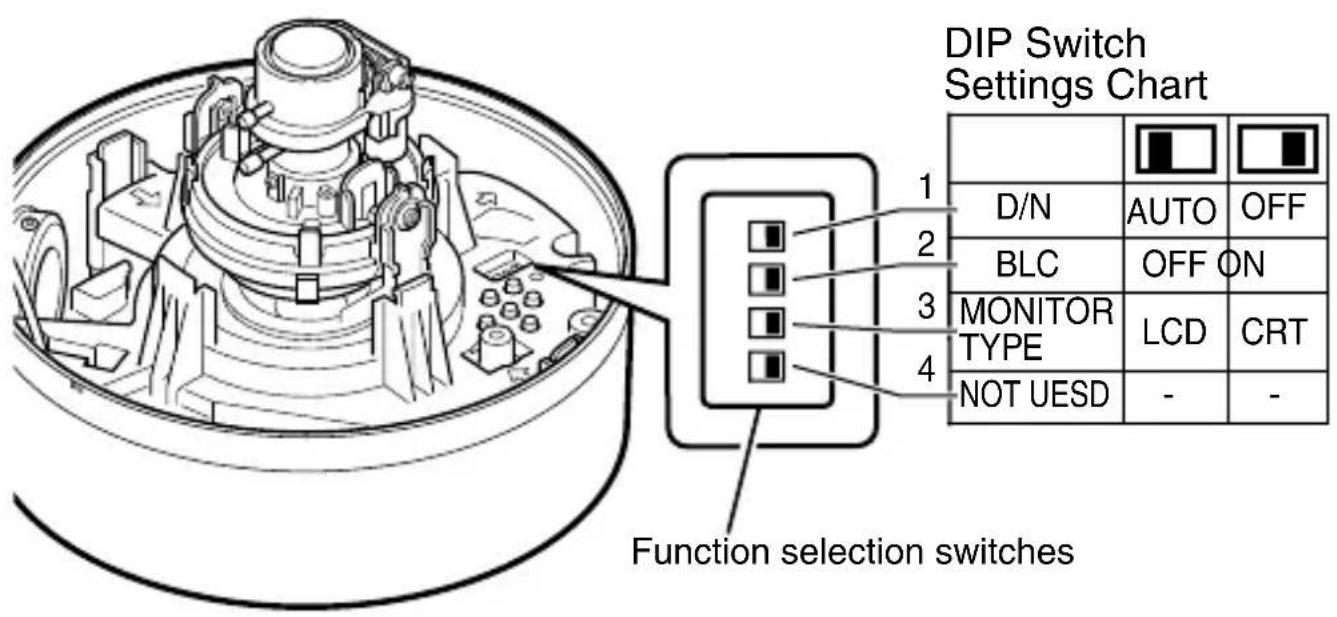
1 [D/N AUTO/OFF] Day & Night Switch
Set this to "AUTO" when shooting a subject with continually changing brightness (day/night). The image switches to color when the subject is bright, and black and white when it is dark. The image is set to color at all times when "OFF" is selected. (Default setting: AUTO)
Memo You can set the image to black and white at all times using the menu. (TK-C2201WPE only)
2 [BLC OFF/ON] Backlight Compensation Selector Switch
Set this to "ON" when shooting in backlight. The subject becomes easier to see as brightness is adjusted according to the photometry area set in [BLC AREA] of the menu.
(Default setting: OFF)
Memo: Refer to [BLC AREA] in the "MENU SETTING" (separate).
3 [MONITOR TYPE LCD/CRT] Monitor Type Selector Switch
Set this to "LCD" or "CRT" according to the monitor in use.
(Default setting: LCD)
Memo: Refer to [LCD TYPE] in the "MENU SETTING" (separate).
Mounting the Camera
Selecting a mounting method
- Mount directly to the ceiling or on the wall (page 13)
- Mounting the Camera Using the Conduit Hole at the Bottom of the Base (page 19)
- Mounting the Camera Using the Conduit Hole at the Side of the Base (page 21)
- Mounting the Camera using the Electrical Box (page 22)
Memo: When mounting the camera to the ceiling, ensure to wear safety glasses to protect the eye from any falling objects.
Mounting the camera directly to the ceiling or on the wall
When mounting to a wall, replace areas indicated as "ceiling" in the procedures by "wall".
■ Preparing the camera
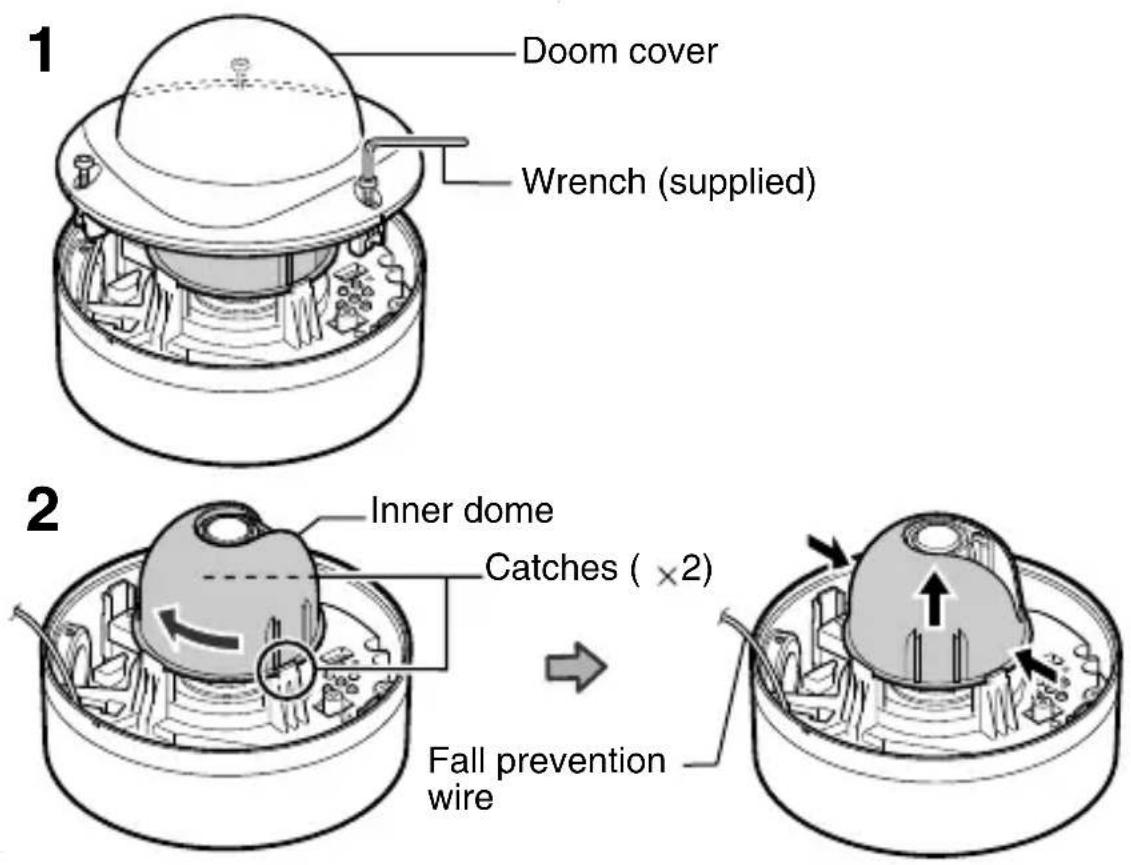
1 Remove the dome cover (screws x3)
2 Remove the inner dome from the catches (two locations)
The inner dome can be easily removed by turning it about 45 degrees and gripping it from both sides near the catches as illustrated in the diagram.
Mounting the Camera (Continued)
■ Mounting the Camera Unit
1 Make a hole (Φ30 mm) in the ceiling using the template provided. 2 Mount the fall prevention wire for connecting the camera unit to the ceiling.
The fall prevention wire is not provided. Prepare a wire, taking into due consideration the length, strength, pull, and material (insulating).
① Remove the fall prevention wire fastening screw on the bottom of the camera unit to mount the fall prevention wire. ② Mount the fall prevention wire at a structurally strong location.
3 Mount the camera unit to the ceiling.
Pull the cables from the ceiling and camera towards the lens as illustrated in the diagram, align the (↑) mark to the shooting direction and mount the camera to the ceiling. Align the (↑) mark upwards when mounting the camera on the wall.

Note: The screws for mounting the camera are not provided. Use a suitable type of screws according to the material of the mounting location.
■ Connecting the cable
For safety reasons, turn on the power only after all the connections are complete. The status indicator lights up when the camera is turned on.
1 Connect the coaxial cable (page 10).
Lower the protection cover and connect the connectors.
Upon connecting, restore the protection cover to cover the connectors. This will isolate and protect the metallic parts of the connectors.
2 Connect the power supply cable (page 11)
3 Wrap insulation tapes around the connecting parts of the power supply cables
Memo: Wrapping insulation tapes will improve future work conditions, as well as reduce penetration by noise and other objects.
4 Wrap the insulation tape
5 Push the connector of the connected coaxial cable back to the ceiling.

Mounting the Camera (Continued)
■ Process after connection
Fill the conduit hole and mounting holes with sealing agent and insert the silica gel.
1 Fill the conduit hole and the screw mounted holes (2 locations) with sealing agent (GE silicon)
Note: Seal the holes completely. Failure to do so may cause water or moisture to enter, thereby fogging the lens and dome cover.
2 Remove the silica gel (provided) from its bag and insert in the position as shown in the diagram

Note:
- When mounting the camera under raining conditions, make sure that rain does not enter into the camera.
- Be sure to use the silica gel provided. Failure to do so may fog up the camera lens and dome cover.
- If you are not adjusting the camera angle soon after mounting the camera, insert the silica gel (provided) only after adjustment.
Prolonged exposure to air will make the silica gel (provided) less effective.
■ Adjusting images
After mounting is completed, adjust the images while checking the actual image. ( page 23)
■ Mounting the Dome Cover
Attach the dome cover back when all settings are finished.
1 Mount the inner dome
Mount the inner dome in a way that supports the tilt direction of the lens. Insert the inner depression of the inner dome into the protruding parts beside the fastening screw. Push it in until it is fixed by the catches (2 locations).

Mounting the Camera (Continued)
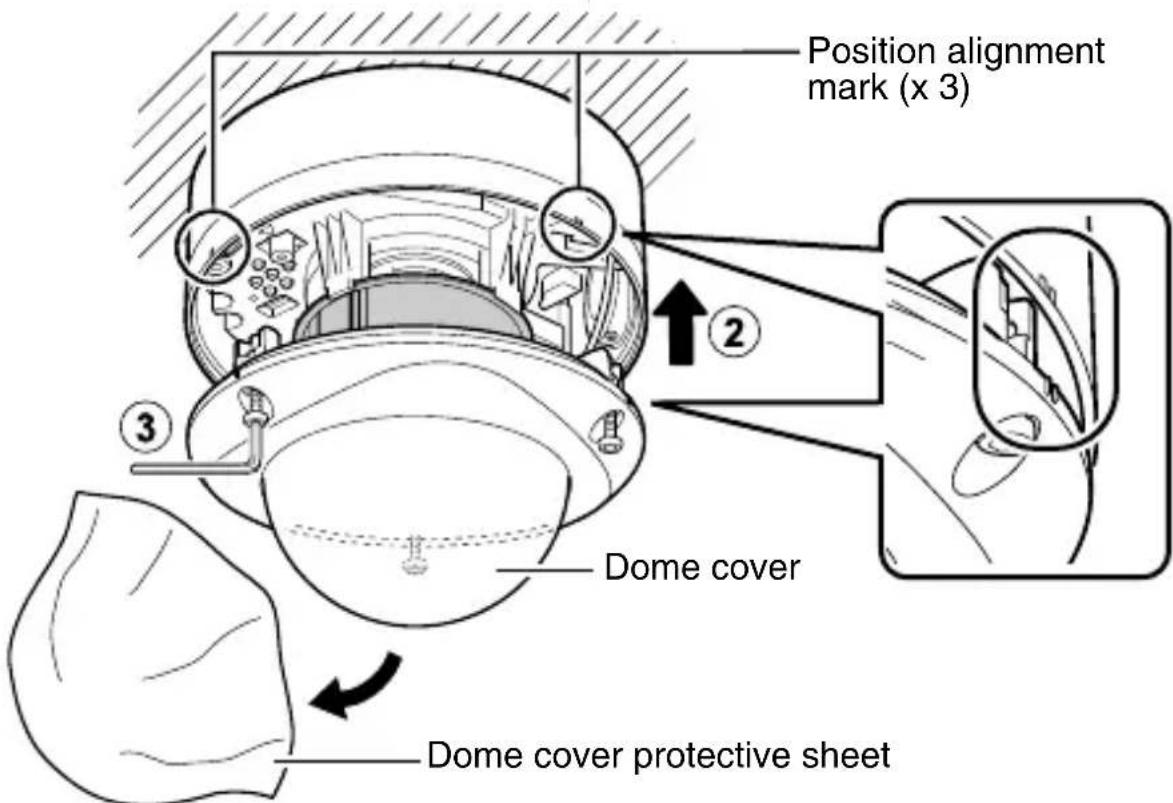
2 Mount the dome cover
① Clean the dust and dirt on the dome cover. ② Align the position marks (3 locations) on the camera unit and dome cover, followed by pressing in directly to mount the cover. ③ Tighten the dome cover fastening screw.
Note
- Ensure that the silica gel (provided) has been inserted before mounting the dome cover.
- Be sure to secure the dome cover firmly. If it is not firmly secured, the cover can drop or the humidity inside the camera can increase and fog up the interior of the cover.
- When the cover is removed again after mounting the dome cover, the field angle may changed. If the field angle is changed, re-adjust the focus and the field angle.
- Ensure that the fall prevention wire of the dome cover is not caught between the dome cover and the base. Failure to do so may prevent the dustproof and waterproof functions from working properly.
Mounting the Camera Using the Conduit Hole at the Bottom of the Base
Conduit hole: G3/4-14 UNC (TK-C2201WPU), M25 (TK-C2201WPE)
1 Remove the dome cover and inner dome (page 13)
2 Remove the camera unit from the base and mount the fall prevention wire to the camera unit
① Loosen the camera unit fastening screw (2 locations) with a screwdriver. ② Press the catch (2 locations) inwards and remove the camera from the base. ③ Remove the fall prevention wire fastening screw on the base to mount the fall prevention wire. (The fall prevention wire is not provided.)

Mounting the Camera (Continued)
3 Wind the sealing tape
Wind the sealing tape around the pipe junction (where the conduit hole thread lines with the pipe screw hole) two or more times.
4 Mount the base to the pipe
Turn and screw the base unit to the pipe in the clockwise direction.
Note When screwing the pipe, do not screw beyond 12 mm. Doing so can damage the camera interior.
5 Secure the base unit to the ceiling
Use the M4 screw (x2) to secure the base firmly to the ceiling.
- Make sure there is no gap between the ceiling and the base.
- The M4 screws are not provided. Use a suitable type of screws according to the material of the mounting location.
Note
6 Mount the fall prevention wire to a structurally strong location

7 Connect the cables (page 15)
Push the connector of the connected coaxial cable back to the pipe.
8 Mount the camera unit to the base
① Push in until the catch (2 locations) snaps on. Make sure that the cables and the fall prevention cable are not caught between the camera and the base during mounting. ② Fasten the camera unit fastening screw (2 locations) to secure the camera.
Note
9 The procedures for the following are the same as that for normal camera mounting
- Process after connection (page 16)
- Adjusting images (page 23)
- Mounting the dome cover ( page 17)
Mounting the Camera Using the Conduit Hole at the Side of the Base
If the camera cannot be mounted directly to the ceiling, use the conduit hole at the side of the base to mount the camera to the pipe.
Conduit hole: G3/4-14 UNC (TK-C2201WPU), M25 (TK-C2201WPE)
1 Remove the dome cover and inner dome (page 13). 2 Remove the camera unit from the base and mount the fall prevention wire to the camera unit.
Refer to "Mounting the Camera Using the Conduit Hole at the Bottom of the Base" (page 19), step 2.
3 Wind the sealing tape.
Wind the sealing tape around the pipe junction (where the conduit hole thread lines with the pipe screw hole) two or more times.
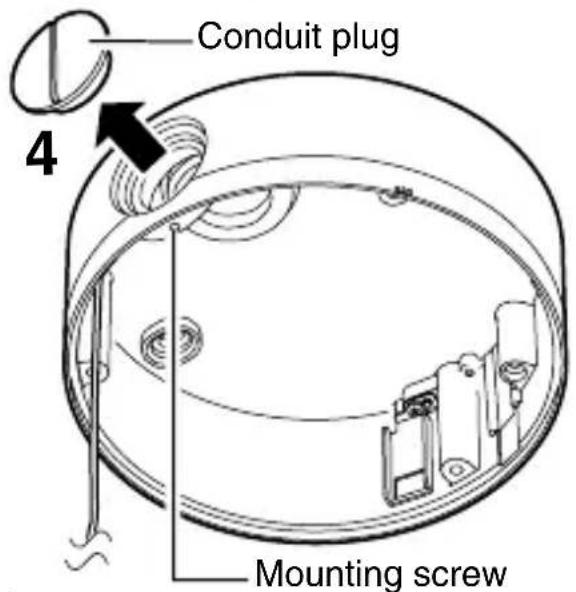
4 Remove the conduit plug from the base.
Loosen the mounting screw (M3 x 6 mm) using a flathead screwdriver and remove the conduit plug at the side of the base.
5 Mount the conduit plug that was removed to the conduit hole at the bottom of the base.
6 Mount the base to the pipe.
Screw the pipe to the conduit hole at the side of the base.
Note:
When screwing the pipe, do not screw beyond 12 mm. Doing so can damage the camera interior.

7 Refer to "Mounting the Camera Using the Conduit Hole at the Bottom of the Base" (page 19), steps 6 to 9.
Mounting the Camera (Continued)
Mounting the Camera using the Electrical Box
1 Remove the dome cover and inner dome (page 13).
2 Mount the camera unit to the electrical box
Mount the camera unit to the electrical box using the mounting hole (2 locations) with the M4 screw (2 pieces).
Note: The screws are not provided.

M4 Screw
3 The procedures for the following are the same as those for normal camera mounting.
- Connecting the cable (page 15)
- Process after connection (page 16)
- Adjusting images (page 23)
- Mounting the dome cover (page 17)
Adjusting Image
After mounting the camera, adjust the images while looking at the actual image. Discharge the static electricity from your body by touching the metallic part of the monitor terminal before handling the camera, as static electricity may cause the camera to malfunction.
1 Mount the monitor
Connect the monitor terminal of this camera to a monitor to adjust the camera's shooting direction, image, and focus.
2 Turn on the camera

Adjusting Image (Continued)
3 Adjust the shooting direction of the camera
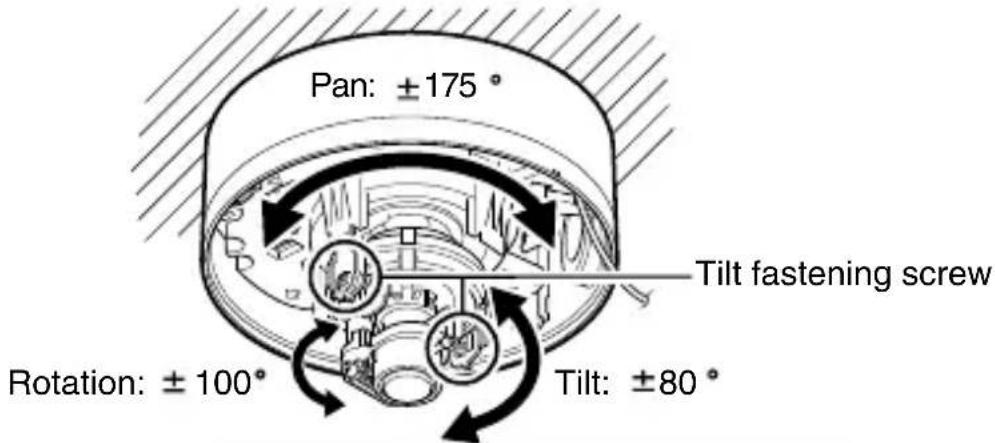
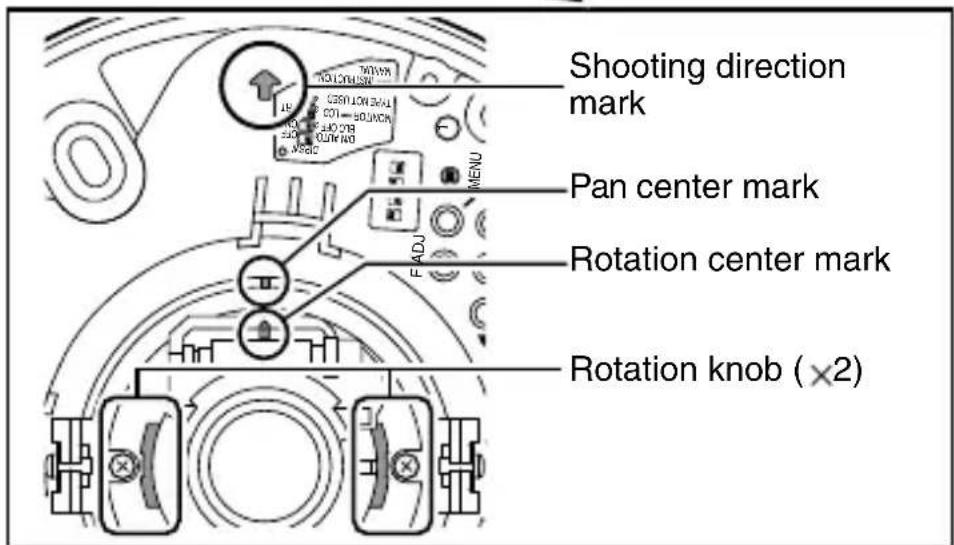
Adjust the camera for pan, tilt, and rotation, and face the camera towards the subject.
Memo
- Rotate both pan ± 175° and rotation ± 100° from the positions aligned with the camera's shooting direction mark, pan center mark, and rotation center mark. Be sure to hold the rotation knob and adjust the rotation without holding the lens unit.
- Loosen the tilt fastening screw before performing tilt adjustment.
- After adjusting the field angle, tighten and secure the tilt fastening screw so that the field angle will not be misaligned.
- Moving the camera beyond its adjustable range may deteriorate the performance of this camera.
- As this camera has a wide tilt/rotation range, a part of this camera may appear on the screen depending on the field angle and direction.
- Do not hold the lens unit when adjusting the camera direction. Applying force on the lens unit may damage it.
4 Adjust the image size
Loosen the fastening screw for the zoom adjustment ring and move the ring to the left/right to adjust the image size. After adjustment is complete, fasten the screw.
5 Adjust the focus
① Hold the focus adjust gear knob, shift the catch from point A to point B as illustrated in the diagram to disengage the gear.
Note
To prevent the gear shaft from breaking when the gear is opened too far out from B, remove the gear shaft from the bearing (C in diagram). In this case, re-insert the shaft back into the bearing C and return it to the original position before using.
② Loosen the fastening screw for the focus adjustment ring and move the ring to the left/right to adjust the focus.

Adjusting Image (Continued)
6 Fine adjust the focus
① Press and hold the [▲] button. - Focus adjust mode will be activated and "FOCUS ADJUST MODE" is displayed on the monitor screen. - The contours are emphasized as the iris opens and the depth of field becomes shallow. - After adjustment, press [▼, ◀, ▶]/[SET]/[MENU] to exit focus adjust mode. The mode is also automatically deactivated after about 30 seconds.
Memo
- During the focus adjust mode, the electronic shutter will function automatically. As a result the screen will appear grainy. This is not a malfunction.
② Shoot the subject. ③ Return the catch to A in the diagram, and then rotate the knob to adjust the focus to the optimum position. ④ Rotate the focus adjust gear knob one base pitch in the direction of the arrow in the diagram to correct the focus shift when mounting the dome cover. ⑤ Peel off the protection sheet temporarily and cover the dome cover to check the focus. After checking, paste the protection sheet back on the dome cover.

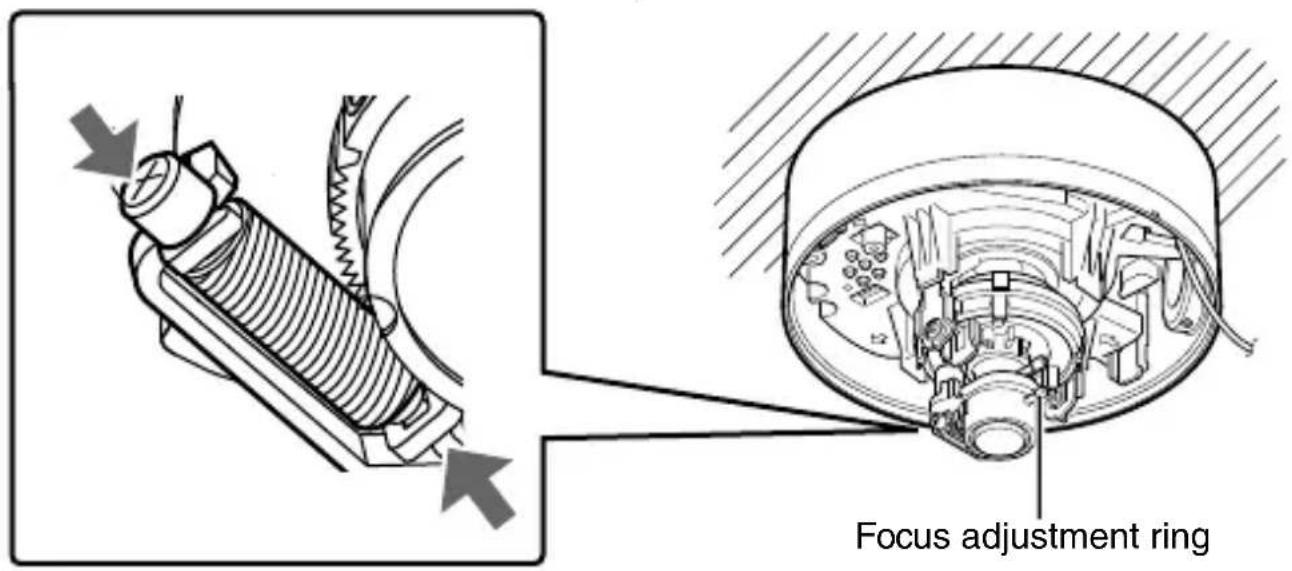
7 Tighten the fastening screw of the focus adjustment ring
Hold and press the focus adjust gear between your fingers in the direction of the arrows in the diagram, and tighten the fastening screw of the focus adjustment ring.
Adjusting the Auto White Balance
Each light source has its own color temperature. Therefore, when the main light source lighting the subject is changed, adjust the white balance again.
1 Press the [MENU] button. 2 Select [WHITE BALANCE] with the [▲/▼] button and "AWC" with the [◀/▶] button, then press the [SET] button.
3 Zoom in to fill the screen with white.
Place a white object at the center of the screen, under the same lighting condition as the subject to be shot and zoom in to fill the screen with white.
4 Press the [SET] button.
Auto white balance adjustment begins. During operation, "AWC OPERATION" is displayed on the screen.
5 Adjustment is complete.
When the appropriate white balance is acquired, "AWC OK" is displayed.
SET button MENU button
| WHITE BALANCE CONTROL | |
| ▷ AWC SET | |
| R GAIN | 160 |
| B GAIN | 160 |
| AWC OPERATION | |
AWC OPERATION (during operation)

AWC OK (adjustment completed)
■ Error display
If auto white balance adjustment is not successful, the following messages will appear on the monitor.
AWC ERROR : NG (Subject error)
Displayed when there is not enough white color on the subject or the color temperature is not suitable.
Fill the screen with a white object thoroughly and adjust the white balance again.
AWC ERROR : LOW LIGHT (Insufficient Illumination)
Displayed when the light is low. Increase the illumination, then readjust the white balance.
AWC ERROR : HIGH LIGHT (Excessive Illumination)
Displayed when the light is too bright. Decrease the illumination, then readjust the white balance.
AWC ERROR : TIME OVER (Subject movement)
Displayed when the subject moves. Keep the subject still, then readjust the white balance.
Specifications
Horizontal resolution : 550TV lines (typical)
Video S/N ratio : 52 dB (typical, AGC OFF)
Minimum illumination : Color mode: 0.05 lx (typical, 50 %, F1.2, AGC HIGH)
Black and White mode: 0.03 lx (TK-C2201WPU) (typical, 50 %, F1.2, AGC HIGH) 0.006 lx (TK-C2201WPE) (typical, 50 %, F1.2, AGC HIGH)
Zoom ratio : 3.75
Focal length : 2.8 mm to 10.5 mm
Maximum aperture ratio : F 1.2 (f = 2.8 mm) F 2.7 (f = 10.5 mm)
Minimum aperture : Equivalent to F 360
Angle of view : f = 2.8 mm
99.5° (H) × 73.2° (V) f = 10.5 mm 27.4° (H) × 20.6° (V)
Angle adjustment range : Pan: ±175°
Tilt: ±80° Rotation: ±100°
Power supply: AC 24 V 60 Hz, DC 12 V UL Listed Class 2 power supply only (TK-C2201WPU) AC 24 V 50 Hz/60 Hz, DC 12 V (TK-C2201WPE)
Power/current consumption: 2.3 W (TK-C2201WPU) 220 mA (TK-C2201WPE) when using heater (KA-ZH215U): 20 W (TK-C2201WPU) 1 A (TK-C2201WPE)
Mass: approx. 1.3 kg
Ambient temperature: -10 °C to 50 °C (14 °F to 122 °F) (Operation) 0 °C to 40 °C (32 °F to 104 °F) (Recommended) when using heater (KA-ZH215U): -30 °C to 50 °C (-22 °F to 122 °F) (Operation) -20 °C to 40 °C (-4 °F to 104 °F) (Recommended)
Specifications (Continued)
Accessories: (TK-C2201WPU)
WARRANTY CARD × 1
INSTRUCTIONS × 3
Silica gel × 1
Wrench × 1
Template × 1
(TK-C2201WPE)
INSTRUCTIONS × 5
Silica gel × 1
Wrench × 1
Template × 1
■ External dimensions [Unit: mm (inch)]

Screw for conduit (bottom surface, side surface) (TK-C2201WPU: G3/4-14 UNC, TK-C2201WPE: M25)

* Specifications and appearance of this camera are subject to change for improvements without notice.
OUTDOOR DOME CAMERA
TK-C2201WPE
TK-C2201WPU/
JVC


- TK-C2201WPE
- INSTRUCTIONS
- FOR CUSTOMER USE
- INTRODUCTION
- CONTENTS
- SETUP
- INSTALLATION
- ADJUSTMENT
- OTHERS
- FEATURES
- HOW TO READ THIS MANUAL
- NOTE
- MEMO
- OPERATING PRECAUTIONS
- STORAGE AND LOCATION OF USE
- MAINTENANCE
- ENERGY CONSERVATION
- COPYRIGHT PROTECTION
- DISCLAIMER
- NAME OF PARTS
- CAMERA
- NAME OF PARTS (CONTINUED)
- CAMERA (INTERIOR)
- ⑥ SPACE FOR INSERTING HEATER
- ⑦ POWER SUPPLY CONNECTOR FOR HEATER
- ⑧ TILT FASTENING SCREW ×
- ⑨ [MONITOR] TERMINAL (RCA PIN)
- LUG PLATE
- ⑪ SPACE FOR INSERTING SILICA GEL
- FOCUS ADJUST GEAR
- SHOOTING DIRECTION MARK
- PAN CENTER MARK
- ROTATION CENTER MARK
- FUNCTION SELECTION SWITCHES
- [MENU] BUTTON
- STATUS INDICATION LAMP
- [▲, ▼, ◀, ▶]/[SET] BUTTON
- ABOUT CONNECTION CABLES
- VIDEO SIGNAL CABLE (COAXIAL CABLE)
- DC 12 V OR AC 24 V POWER SUPPLY CABLE
- SETTING THE SWITCHES
- [D/N AUTO/OFF] DAY & NIGHT SWITCH
- [BLC OFF/ON] BACKLIGHT COMPENSATION SELECTOR SWITCH
- [MONITOR TYPE LCD/CRT] MONITOR TYPE SELECTOR SWITCH
- MOUNTING THE CAMERA
- SELECTING A MOUNTING METHOD
- MOUNTING THE CAMERA DIRECTLY TO THE CEILING OR ON THE WALL
- PREPARING THE CAMERA
- REMOVE THE DOME COVER (SCREWS X3)
- REMOVE THE INNER DOME FROM THE CATCHES (TWO LOCATIONS)
- MOUNTING THE CAMERA (CONTINUED)
- MOUNTING THE CAMERA UNIT
- MOUNT THE CAMERA UNIT TO THE CEILING
- CONNECTING THE CABLE
- CONNECT THE COAXIAL CABLE (PAGE 10)
- CONNECT THE POWER SUPPLY CABLE (PAGE 11)
- WRAP INSULATION TAPES AROUND THE CONNECTING PARTS OF THE POWER SUPPLY CABLES
- WRAP THE INSULATION TAPE
- PUSH THE CONNECTOR OF THE CONNECTED COAXIAL CABLE BACK TO THE CEILING
- PROCESS AFTER CONNECTION
- FILL THE CONDUIT HOLE AND THE SCREW MOUNTED HOLES (2 LOCATIONS) WITH SEALING AGENT (GE SILICON)
- REMOVE THE SILICA GEL (PROVIDED) FROM ITS BAG AND INSERT IN THE POSITION AS SHOWN IN THE DIAGRAM
- ADJUSTING IMAGES
- MOUNTING THE DOME COVER
- MOUNT THE INNER DOME
- MOUNT THE DOME COVER
- MOUNTING THE CAMERA USING THE CONDUIT HOLE AT THE BOTTOM OF THE BASE
- REMOVE THE DOME COVER AND INNER DOME (PAGE 13)
- REMOVE THE CAMERA UNIT FROM THE BASE AND MOUNT THE FALL PREVENTION WIRE TO THE CAMERA UNIT
- WIND THE SEALING TAPE
- MOUNT THE BASE TO THE PIPE
- SECURE THE BASE UNIT TO THE CEILING
- MOUNT THE FALL PREVENTION WIRE TO A STRUCTURALLY STRONG LOCATION
- CONNECT THE CABLES (PAGE 15)
- MOUNT THE CAMERA UNIT TO THE BASE
- THE PROCEDURES FOR THE FOLLOWING ARE THE SAME AS THAT FOR NORMAL CAMERA MOUNTING
- MOUNTING THE CAMERA USING THE CONDUIT HOLE AT THE SIDE OF THE BASE
- MOUNTING THE CAMERA USING THE ELECTRICAL BOX
- MOUNT THE CAMERA UNIT TO THE ELECTRICAL BOX
- THE PROCEDURES FOR THE FOLLOWING ARE THE SAME AS THOSE FOR NORMAL CAMERA MOUNTING
- ADJUSTING IMAGE
- MOUNT THE MONITOR
- TURN ON THE CAMERA
- ADJUSTING IMAGE (CONTINUED)
- ADJUST THE SHOOTING DIRECTION OF THE CAMERA
- ADJUST THE IMAGE SIZE
- ADJUST THE FOCUS
- FINE ADJUST THE FOCUS
- TIGHTEN THE FASTENING SCREW OF THE FOCUS ADJUSTMENT RING
- ADJUSTING THE AUTO WHITE BALANCE
- ERROR DISPLAY
- SPECIFICATIONS
- SPECIFICATIONS (CONTINUED)
- EXTERNAL DIMENSIONS [UNIT: MM (INCH)]
Brand : JVC
Model : TK-C2201WPUA
Category : Surveillance Camera