REALiS 4K500ST Pro AV - Video projector CANON - Free user manual and instructions
Find the device manual for free REALiS 4K500ST Pro AV CANON in PDF.


User questions about REALiS 4K500ST Pro AV CANON
0 question about this device. Answer the ones you know or ask your own.
Ask a new question about this device
Download the instructions for your Video projector in PDF format for free! Find your manual REALiS 4K500ST Pro AV - CANON and take your electronic device back in hand. On this page are published all the documents necessary for the use of your device. REALiS 4K500ST Pro AV by CANON.
USER MANUAL REALiS 4K500ST Pro AV CANON
MULTIMEDIA PROJECTOR
4K500ST
User's Manual
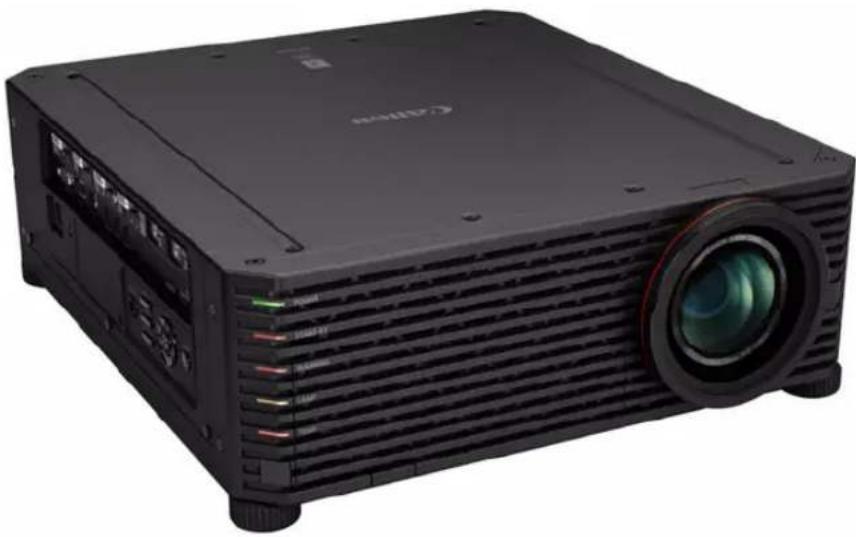
natural_image
Black Sony projector with visible lens and control panel (no text or symbols)
AISYS
Aspectual Illumination System
HDMI ^TM
HIGH DEFINITION MULTIMEDIA INTERFACE
PJLink™
Safety Instructions
Before Use
Basic Guide
Installation Procedure
Connection Procedure
Projection Procedure
Convenient Features
Advanced Guide
Using Menus
Menu Settings
Advanced Projection
Other Information
Maintenance
Product Specifications
Troubleshooting
How to Use This Manual
Thank you for purchasing a Canon projector.
The 4K500ST Multimedia Projector (hereinafter referred to as “the projector”) is a high-performance projector that is capable of projecting a high-resolution computer screen and high-quality digital image on a large screen.
This Manual
This is the user's manual for the 4K500ST Multimedia Projector. The "Basic Guide" section describes installation and basic use of the projector. Descriptions of menus and how to connect the projector to a network are given in the "Advanced Guide" section. Read this manual thoroughly to make the most of your projector. Installation of the projector should be performed by a qualified technician, if possible. Contact the Canon Customer Support Center for further information.
Symbols of Button Operations
The projector can be operated using the buttons on the remote control or on the side of the projector. The remote control allows you to operate all functions of the projector.
In this document, the button's operations are shown as below.

text_image
Operation of buttons on side of projector Remote control button operation Indicate the buttons to be pressed When the Language Selection Screen Appears A screen appears when the projector is turned on for the first time. You can select a language to be used by the projector for displaying menus and messages in the window. Select the desired language with the pointer buttons and press the OK. button. You can change the language from the menu at a later time. (P-116) If the language select on screen is out of focus, adjust the focus. (P67) Remote control Projector Language2 English Python Cronics Orange Java Language3 Java Java Java Java Java Java Java Java Java Java Java Java Java Java Java Java Java Java Java Java Java Java Java Java Java Java Java Java Java Java Java Java Java Java Java Java Java Java Java Java Java Java Java Java Java Java Java Java Java Java An item highlighted in orange will be selected.Symbols Used in This Manual
Sections labeled with these symbols give the following kinds of information.

A precaution about operation or restriction is given here.

Indicates supplemental information to note in use.
Table of Contents
How to Use This Manual...... 2
Projector Highlights...... 4
Safety Instructions...... 5
Precautions for Use 12
Installation and Handling Precautions .... 13
Precautions on the Lamp 14
Precautions for the Batteries of the Remote Control 15
For Safe Use 17
Before Installation.... 18
Precautions When Carrying/Shipping the Projector.... 18
Precautions for Installation.... 18
Open Source Software 23
Before Use 24
Included Accessories 24
Part Names 25
Preparing the Remote Control...... 32
Basic Guide ......35
Installation Procedure 36
Setting Up the Projector.... 36
Ceiling Mounting.... 38
Parts Lineup 39
Mounting Position.... 40
Assembly and Installation.... 42
Adjust the Projection Angle.... 48
Relationship between Projecting Distance and Image Size .... 50
Lens Shift Function 51
Connection Procedure .... 53
Connecting a Computer 53
Connecting AV Equipment.... 54
Multi Input 4K Projection.... 55
Plugging the Projector In 59
Projection Procedure...... 60
Step 1 Turn the Projector On .... 60
Step 2 Select an Input Signal.... 63
Step 3 Adjust the Image ...... 65
Step 4 Select an Aspect Ratio (Screen Aspect) Matching the Screen....72
Step 5 Adjusting Keystone Distortion 73
Step 6 Select the Image Quality (Image Mode) ...... 76
Step 7 Turn the Projector Off...... 79
Convenient Features......80
Advanced Guide ....83
Using Menus ....84
Menu Configuration 84
Basic Menu Operations 85
Menu Settings......87
Input settings 87
Image adjustment 90
Install settings.... 97
System settings 108
Network settings 122
Completing Computer Settings for a Network Connection .... 130
Checking Projector Information ..... 148
Advanced Projection......149
Projecting from Multiple Projectors at Once (Edge Blending) 149
Advanced Registration to Adjust Projected Images 153
Adjusting Peripheral Focus ...... 157
Other Information ......159
Maintenance....160
Cleaning the Projector.... 160
Cleaning the Air Filter.... 160
Replacing the Air Filter.... 161
Replacing the Lamp.... 163
Replacement Lamp 164
Lamp Replacement Procedure ...... 165
Product Specifications .....168
Displayed Test Patterns 168
Supported Signal Types...... 169
Specifications.... 174
Troubleshooting......180
LED Indicator Details.... 180
Symptoms and Solutions...... 181
Index......186
Option....188
Projector Highlights
4K Projection Using 4096 x 2400 LCOS Panels
Outstanding projection resolution of up to 4096 x 2400 is possible, using three 0.76 inch liquid crystal on silicon (LCOS) panels in conjunction with dual high-performance image processors and a new 4K-compatible wide zoom lens.
Bright Yet Compact
Projects images at a bright 5,000 lumens but is also compact, at 470 x 533.5 x 175 mm (18.5 x 6.9 x 21.0 in., W x D x H). (P174)
Supports Fully Digital Input
Projects multiple sources of input in 4K, with two terminals for HDMI and four for DVI input. A single HDMI terminal can be used for 3840 x 2160 (30 Hz) video signals. (P55)
Peripheral Focus Adjustment
Image focus can be adjusted on the edges of the screen, enabling use in dome projection. (P102, P157)
Edge Blending
Blend the overlapping edges of images from multiple projectors to make the overall image more seamless. (P103)
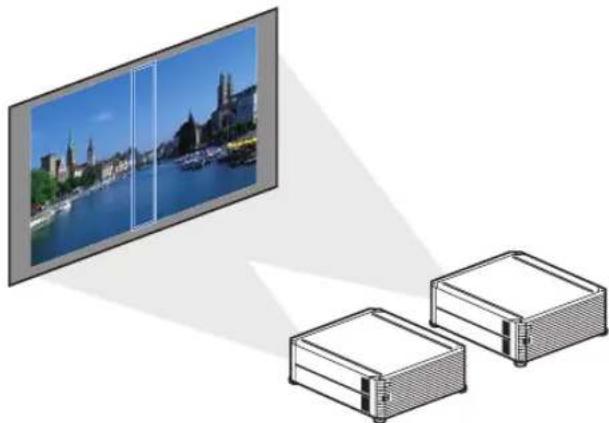
natural_image
Illustration of a TV screen displaying a cityscape with buildings, connected to two server units (no text or symbols present)High-Precision Image Registration
Precise correction of red, green, or blue misalignment in different areas of the screen is possible by color and area. (P101)
Superior Video Viewing Experience
Refinements in motion blur reduction make video projection more enjoyable to watch. (P115)
Safety Instructions
Before installing and operating the projector, read this manual thoroughly.
This projector provides many convenient features and functions. Operating the projector properly enables you to manage those features and maintain it in good condition for many years to come.
Improper operation may result in not only shortening the product life, but also malfunctions, fire hazards, or other accidents.
If your projector does not seem to be operating properly, read this manual again, check operations and cable connections, and try the solutions in the
“Troubleshooting” section in the back of this manual. If the problem still persists, contact the Canon Customer Support Center.

CAUTION
RISK OF ELECTRIC SHOCK DO NOT OPEN

CAUTION: TO REDUCE THE RISK OF ELECTRIC SHOCK, DO NOT REMOVE COVER (OR BACK). NO USER-SERVICEABLE PARTS INSIDE EXCEPT LAMP REPLACEMENT. REFER SERVICING TO QUALIFIED SERVICE PERSONNEL.

THIS SYMBOL INDICATES THAT DANGEROUS VOLTAGE CONSTITUTING A RISK OF ELECTRIC SHOCK IS PRESENT WITHIN THIS UNIT.

THIS SYMBOL INDICATES THAT THERE ARE IMPORTANT OPERATING AND MAINTENANCE INSTRUCTIONS FOR THIS UNIT IN THE OWNER'S MANUAL.
CAUTION
Not for use in a computer room as defined in the Standard for the Protection of Electronic Computer / Data Processing Equipment, ANSI / NFPA 75.

Safety Precautions
WARNING:
• THIS APPARATUS MUST BE GROUNDED.
• TO REDUCE THE RISK OF FIRE OR ELECTRIC SHOCK, DO NOT EXPOSE THIS APPLIANCE TO RAIN OR MOISTURE.
- This projector produces intense light from the projection lens. Do not stare directly into the lens, otherwise eye damage could result. Be especially careful that children do not stare directly into the beam.
• Install the projector in a proper position. Otherwise it may result in a fire hazard. - Allowing the proper amount of space on the top, sides, and rear of the projector cabinet is critical for proper air circulation and cooling of the unit. The diagrams shown here indicates the minimum space required. If the projector is to be built into a compartment or similarly enclosed, these minimum distances must be maintained.

- Do not cover the ventilation slots on the projector. Heat build-up can reduce the service life of your projector, and can also be dangerous.
- If the projector is unused for an extended time, unplug the projector from the power outlet.
- Do not project the same image for a long time.
An afterimage may remain on the LCD panels due to the characteristics of the panels of the projector.

CAUTION ON HANGING FROM THE CEILING
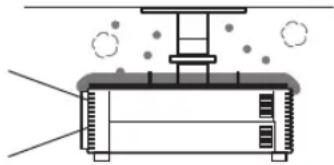
When hanging the projector from the ceiling, clean the air intake vents and top of the projector periodically with a vacuum cleaner. If you leave the projector unclean for a long time, the cooling fans can be clogged with dust, and it may cause a breakdown or a disaster.
DO NOT SET THE PROJECTOR IN GREASY, WET, OR SMOKY CONDITIONS SUCH AS IN A KITCHEN TO PREVENT A BREAKDOWN OR A DISASTER. IF THE PROJECTOR COMES IN CONTACT WITH OIL OR CHEMICALS, IT MAY BECOME DETERIORATED.
■READ AND KEEP THIS OWNER'S MANUAL FOR LATER USE.
All the safety and operating instructions should be read before beginning to operate the product.
Read all of the instructions given here and retain them for later use. Unplug this projector from the AC power supply before cleaning. Do not use liquid or aerosol cleaners on the projector. Use a damp cloth for cleaning.
Follow all warnings and instructions marked on the projector.
For added protection of the projector during a lightning storm, or when it is left unattended or unused for long periods of time, unplug it from the wall outlet. This will prevent damage due to lightning and power surges.
Do not expose this unit to rain or use near water... for example, in a wet basement, near a swimming pool, etc...
Do not use attachments not recommended by the manufacturer as they may result in hazards.
Do not place this projector on an unstable cart, stand, or table. The projector may fall, causing serious injury to a child or adult, and serious damage to the projector. Use only with a cart or stand recommended by the manufacturer, or sold with the projector. Wall or shelf mounting should be carried out in accordance with the manufacturer's directions, and should use a mounting kit approved by the manufacturers.
An appliance and cart combination should be moved with care. Sudden stops, excessive force, and uneven surfaces may cause the appliance and cart combination to overturn.

Slots and openings in the rear and front of the cabinet are provided for ventilation, to insure reliable operation of the equipment and to protect it from overheating.
The openings should never be covered with cloth or other materials, and the bottom opening should not be blocked by placing the projector on a bed, sofa, rug, or other similar surface. This projector should never be placed near or over a radiator or heat register.
This projector should not be placed in a built-in installation such as a book case unless proper ventilation is provided.
Safety Instructions
Never push objects of any kind into this projector through cabinet slots as they may touch dangerous voltage points or short out parts that could result in a fire or electric shock. Never spill liquid of any kind onto the projector.
Do not install the projector near the ventilation duct of air-conditioning equipment.
This projector should be operated using only the type of power source indicated on the marking label. If you are not sure of the type of power supplied, contact the Canon Customer Support Center or local power company.
Do not overload wall outlets and extension cords as this can result in fire or electric shock. Do not allow anything to rest on the power cord. Do not locate this projector where the cord may be damaged by people walking on it.
Do not attempt to service this projector yourself as opening or removing covers may expose you to dangerous voltages or other hazards. Refer all servicing to qualified service personnel.
Unplug this projector from the wall outlet and refer servicing to qualified service personnel under the following conditions:
a. When the power cord or plug is damaged or frayed.
b. If liquid has been spilled into the projector.
c. If the projector has been exposed to rain or water.
d. If the projector does not operate normally after following the operating instructions. Adjust only those controls that are covered in the operating instructions as improper adjustment of other controls may result in damage and will often require extensive work by a qualified technician to restore the projector to normal operating condition.
e. If the projector has been dropped or the cabinet has been damaged.
f. When the projector exhibits a distinct change in performance—this indicates a need for servicing.
When replacement parts are required, be sure the service technician uses replacement parts specified by the manufacturer that have the same characteristics as the original parts. Unauthorized substitutions may result in fire, electric shock, or injury.
Upon completion of any service or repairs to this projector, ask the service technician to perform routine safety checks to determine that the projector is in safe operating condition.
AC Power Cord Requirement
The AC Power Cord supplied with this projector meets the requirements for use in the country you purchased it.
AC Power Cord for the United States and Canada:
The AC Power Cord used in the United States and Canada is listed by the Underwriters Laboratories (UL) and certified by the Canadian Standard Association (CSA).
The AC Power Cord has a grounding-type AC line plug. This is a safety feature to ensure the plug fits into the power outlet. Do not try to tamper with this safety feature. Should you be unable to insert the plug into the outlet, contact your electrician.
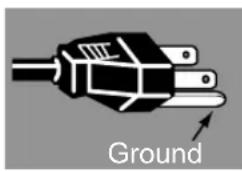
natural_image
Diagram of a hand holding an electrical plug with a labeled 'Ground' arrow (no other text or symbols)THE SOCKET-OUTLET SHOULD BE INSTALLED NEAR THE EQUIPMENT AND EASILY ACCESSIBLE.

For the U.S. and Canada, LAMP (S) INSIDE THIS PRODUCT CONTAIN MERCURY AND MUST BE RECYCLED OR DISPOSED OF ACCORDING TO LOCAL, MUNICIPAL, STATE, PROVINCIAL, OR FEDERAL LAWS.
For lamp recycling and disposal information please call 1-800-OK-CANON for the U.S. and Canada.

Only for European Union and EEA (Norway, Iceland and Liechtenstein)
These symbols indicate that this product is not to be disposed of with your household waste, according to the WEEE Directive (2012/19/EU), the Battery Directive (2006/66/EC) and/or national legislation implementing those Directives.

If a chemical symbol is printed beneath the symbol shown above, in accordance with the Battery Directive, this indicates that a heavy metal (Hg = Mercury, Cd = Cadmium, Pb = Lead) is present in this battery or accumulator at a concentration above an applicable threshold specified in the Battery Directive.

This product should be handed over to a designated collection point, e.g., on an authorized one-for-one basis when you buy a new similar product or to an authorized collection site for recycling waste electrical and electronic equipment (EEE) and batteries and accumulators. Improper handling of this type of waste could have a possible impact on the environment and human health due to potentially hazardous substances that are generally associated with EEE. Your cooperation in the correct disposal of this product will contribute to the effective usage of natural resources.
For more information about the recycling of this product, please contact your local city office, waste authority, approved scheme or your household waste disposal service or visit www.canon-europe.com/weee, or www.canon-europe.com/battery.
Federal Communication Commission Notice
Model: 4K500ST
This device complies with Part 15 of the FCC Rules. Operation is subject to the following two conditions:
- This device may not cause harmful interference, and
- This device must accept any interference received, including interference that may cause undesired operation.
Note: This equipment has been tested and found to comply with the limits for a Class A digital device, pursuant to Part 15 of the FCC Rules. These limits are designed to provide reasonable protection against harmful interference when the equipment is operated in a commercial environment. This equipment generates, uses, and can radiate radio frequency energy and, if not installed and used in accordance with the instruction manual, may cause harmful interference to radio communications. Operation of this equipment in a residential area is likely to cause harmful interference in which case the user will be required to correct the interference at his own expense. The cable with a ferrite core provided with the projector must be used with this equipment in order to comply with Class A of the FCC Rules. Use of a shielded cable is required to comply with Class A of FCC Rules. Do not make any changes or modifications to the equipment unless otherwise specified in the instructions. If such changes or modifications should be made, you could be required to stop operation of the equipment.
Warning:
This is a class A product. In a domestic environment this product may cause radio interference in which case the user may be required to take adequate measures. The cable with a ferrite core provided with the projector must be used with this equipment in order to comply with Class A.
Use of a shielded cable is required to comply with Class A.
Safety Symbols in this Manual
This section describes the safety symbols used in this manual. Important projector safety information is identified by the following symbols. Always observe the safety information by these symbols.
Denotes the risk of death or serious injury from improper handling if the information is not observed. To ensure safe use, always observe this information.
Denotes the risk of injury from improper handling if the information is not observed. To ensure safe use, always observe this information.

Prohibition
Denotes prohibited actions.

Caution
Denotes required actions or information that must be observed.
Precautions for Use
As this section contains important safety-related information, be sure to read the following carefully beforehand in order to use your projector correctly and safely.

Warning
During installation, keep the projector plug easily accessible so that the projector can be unplugged immediately if necessary, or keep a circuit breaker within reach.
If the following situations occur, turn the power off, remove the power plug from the power outlet and contact the Canon Customer Support Center. Failure to do so could cause a fire or result in an electric shock.
- If smoke is emitted
- If an unusual smell or noise is emitted
- If water or other liquid has entered the projector
- If metal or any other foreign material has entered the projector
- If the projector is knocked over or dropped and the cabinet is damaged
Pay attention to the following points for handling the power cord. Failure to do so may cause a fire, electric shock or personal injury.

- Do not place any objects on the power cord and do not allow it to become trapped under the projector.
- Do not cover the power cord with a carpet.
- Do not modify or excessively bend, twist, pull, wind, or bundle the power cord.
- Keep the power cord away from heaters and other sources of heat.
- Do not use a damaged power cord. If the power cord is damaged, purchase a replacement from your dealer.
- The power cord included with this projector is for use exclusively with this product. Do not use this cord for other products.
- Be sure to connect the ground wire of the power cord to ground.
- Be sure to connect the ground wire before connecting the power plug to the outlet. Also when you disconnect the ground wire, be sure to unplug the power plug from the outlet beforehand.

Warning
Pay attention to the following points regarding the power source, power plug and handling of the connector. Failure to do so may cause a fire, electric shock or personal injury.

Prohibition
- Do not use any power source with a voltage other than the voltage indicated (AC 100–240 V).
- Do not pull the power cord and be sure to hold the power plug or connector when removing. Incorrect handling may damage the power cord.
- Do not insert any metal objects into the contact parts of the power plug or connector.
- Do not remove the power plug or connector with wet hands.
- Insert the power plug and connector securely up to the base. Additionally, do not use a damaged power plug or an outlet that is loose.
- When using an extension cord, do not exceed the cord's rated capacity.

Caution

Caution
- Periodically inspect the power plug and outlet and remove any dust or dirt from between the plug and the outlet.
Installation and Handling Precautions
Pay attention to the following points regarding installation and handling of the projector. Failure to do so may cause a fire, electric shock or personal injury.
- Do not use the projector where it might get wet, such as outdoors or by bathtubs or showers.
- Do not place containers containing a liquid on top of the projector.
- Do not touch the projector itself, the power cord, or the cable if lightening strikes.
- Do not move the projector until you have switched off the power, removed the power plug from the power outlet and unplugged any other cables.
- Unplug the projector before cleaning or maintenance.

Warning
Pay attention to the following points regarding installation and handling of the projector. Failure to do so may cause a fire, electric shock or personal injury.

Prohibition
- Do not remove the cabinet from the projector or disassemble it. The interior of the projector contains high-voltage components as well as parts that are hot. If inspection, maintenance or repair is required, contact the Canon Customer Support Center.
- Do not disassemble or modify the projector (including consumable parts) or the remote control.
- Do not look directly into the exhaust vents during use.
- Do not insert any object into vents in the projector, such as the air intake vent or exhaust vents.
- Do not place a pressurized can in front of the exhaust vents. The pressure of the contents of the can may increase due to heat from the exhaust vents and this could result in an explosion.
- When cleaning off dust or dirt from the projector lens etc., do not use any kind of spray that is flammable. As the temperature of the lamp inside the projector is high, it could ignite, causing a fire.
- As strong light beams are emitted while the projector is in use, do not look directly into the projector lens. Doing so could cause an eye injury. Pay particular attention to prevent small children from doing so.
- When setting the projector on a high surface for projection, be sure the surface is flat and stable.
- For ceiling mounting precautions, refer to the installation manual included with the ceiling mount (sold separately).

Prohibition
Precautions on the Lamp
This projector uses a high-pressure mercury lamp, which must be handled carefully and correctly as described below.
The mercury lamp has the following characteristics.
• The lamp will gradually become darker over time.
- Impact, abrasion, or use of worn-out lamps may cause lamps to rupture (accompanied by a loud noise) or burn out.
- Lamps are more likely to rupture after the lamp replacement message is displayed (see “Replacing the Lamp” (P163)). Replace the lamp with a new one as soon as possible.
- Useful life of lamps varies widely from lamp to lamp and depending on the environment of use. Some lamps may fail or rupture soon after they are first used.
- Be prepared by keeping a spare lamp.

Warning
Note the following precautions during lamp replacement or when a lamp has ruptured. Failure to do so could result in an electric shock or personal injury.
- Before replacing the lamp, always unplug the projector and wait at least an hour.
- Ruptured lamps may scatter shards of glass inside the projector. Contact the Canon Customer Support Center for cleaning and inspection of the projector interior and lamp replacement.
Precautions when replacing lamps that stop working

- If illumination suddenly stops, either when you turn the projector on or after it has been on for a while, the lamp may have ruptured. In this case, never attempt to replace the lamp by yourself. Always request service from the Canon Customer Support Center.
- With ceiling-mounted projectors, the lamp may fall out when you open the lamp cover, or during replacement. During replacement, stand to the side of the lamp cover, not directly under it.
- If the lamp ruptures, dust and gas (containing mercury vapor) may come out of the exhaust vents. If this happens, immediately open the windows and doors to provide ventilation to the room.
- If you accidentally inhale gas from the lamp or get any pieces in your eyes or mouth, consult a doctor immediately.
Precautions for the Batteries of the Remote Control
Pay attention to the following points regarding handling of batteries. Failing to do so could result in a fire or personal injury.

- Do not heat, short circuit or disassemble the batteries, or place them in a fire.
- Do not attempt to recharge the batteries that are included with the remote control.
- Remove the batteries when they are flat or when the remote control will not be used for a long period of time.
- When replacing the batteries, replace both at the same time. Also, do not use two batteries of a different type at the same time.
- Insert the batteries with the + and - terminals in the correct directions.
- If any liquid from inside the batteries leaks out and contacts your skin, be sure to wash the liquid off thoroughly.


Caution
Pay attention to the following points regarding installation and handling of the projector.
- If the projector will not be used for a long period of time, be sure to remove the power plug from the power outlet to ensure safety. Failure to do so presents a risk of fire if dust accumulates on the plug or outlet.
- Parts of the cabinet around and above the exhaust vents may become hot during projection. Touching these areas during operation could cause burns to the hands. Pay particular attention in preventing young children from touching these parts. Additionally, do not place any metal objects around or above the exhaust vents. Due to the heat from the projector, doing so could cause an accident or personal injury.
- Do not place the projector where it may be exposed to oily smoke or steam, such as near kitchen counters or humidifiers. Doing so may cause fire or electric shock.
- Do not place any heavy objects on top of the projector or sit / stand on it. Pay particular attention to prevent small children from doing so. The projector may be knocked over and this could result in damage or a personal injury.
- Do not place the projector on an unstable or slanted surface. Doing so may cause the projector to fall or be knocked over and could result in a personal injury.
- Do not place any objects in front of the lens during projection. Doing so could cause a fire.
- Presenters in front of the projector should stand where the light does not seem too bright, and where their shadow does not fall on the screen.
When handling the lamp, pay attention to the following points.

Prohibition
- Be sure not to handle the lamp immediately after it has been used. Be sure to switch off the power and wait for approximately 1 hour for the lamp and the projector to cool down sufficiently. Failure to do so could result in a burn or personal injury due to heat from the lamp or projector.
! Caution
Pay attention to the following points when carrying or transporting the projector.

- This projector is a precision instrument. Do not knock it over or subject it to impacts. Doing so may cause a malfunction.
- Do not reuse any packaging or shock-absorbent materials that were supplied with the projector at the time of purchase for transporting or shipping the projector. Protection of the projector cannot be guaranteed if used packaging or shock-absorbent materials are reused. Fragments from shock-absorbent material may also enter the interior of the projector which could cause a malfunction.
- Disconnect the cables connected to the projector. Carrying the projector while the cables are attached may cause an accident.
- Retract the adjustable feet before moving the projector. Leaving the feet extended may cause damage.
Pay attention to the following points when installing or using the projector.
- Do not touch the lens with bare hands. Doing so may result in deterioration of image quality.
- If the projector is abruptly taken from a cool to a warm location, condensation may form on the lens or mirrors, which may cause a blurred image. Wait until the condensation has evaporated for the image projected to return to normal.
- Do not install the projector in a location where the temperature is high or low. Doing so may cause a malfunction. For guidelines on operating temperatures, see "Product Specifications".
- Do not place any objects on top of the projector that may change shape or color due to heat.
- Projector settings must be adjusted when using the projector at high altitudes or in upward or downward projection. Failure to adjust the settings may shorten the lamp life or damage the lamp. For details, contact the Canon Customer Support Center.
- Do not install the projector near high-voltage electrical power lines or an electrical power source.
- Do not use the projector on a soft surface such as carpet or sponge mat, etc. Doing so could cause heat to build up inside the projector and this could result in a malfunction.
- Do not block the air intake or exhaust vents of the cooling fan. If the air intake or exhaust vent is blocked, heat cannot be released from inside the projector, which may shorten the useful life of the lamp or cause malfunction.
- Installing the projector in the wrong direction may cause a malfunction or accident. Do not install the projector with one side raised, or with the projector tilted toward the left or right.
• Install the projector with sufficient space between air intakes and exhaust vents and walls. Failure to do so could cause a malfunction. - Do not install the projector in a location that is damp, or where there is a lot of dust, oily smoke or tobacco smoke. Doing so could cause contamination of optical components such as the lens and the mirror and may result in deterioration of image quality.

Precautions When Carrying/Shipping the Projector
Prepare the projector as described below before carrying it.

- Disconnect the cables connected to the projector. Carrying the projector with the cables attached may cause an accident.
- Retract the adjustable feet before moving the projector. Leaving the feet extended may cause damage.
- Do not carry or move the projector alone. Have at least one assistant.
Precautions for Installation
Be sure to read “Safety Instructions” and “For Safe Use” (P5 – P17). Also take the following precautions during installation.

- Do not strike the projector or subject it to impact. Doing so may cause a malfunction.
- Do not install the projector so that it is inclined or standing vertically. The projector may be damaged if it tips over.
- Do not block the air intake or exhaust vents of the cooling fan.

text_image
Air intake vent Exhaust ventBlocking the vents may trap heat inside the projector, which may shorten the useful life of the lamp or damage the projector.
■Do Not Use in the Following Environments
- Locations with excessive humidity, dust, oily smoke or tobacco smoke Adhesion to the lens, mirrors or other optical parts may reduce image quality.
- Near high-voltage power lines or sources of electrical power This may cause malfunction.
- On soft surfaces such as carpets or cushioned mats Heat may build up inside the projector and damage it.
- Locations with excessive temperature or humidity This may damage the projector. Acceptable ranges for operating and storage temperature and humidity are as follows.
| Operating temperature | Operating humidity Storage temperature | |
| 0°C (32°F) – 40°C (104°F) | Up to 85% | -20°C (-4°F) – 60°C (140°F) |
■Do Not Touch the Lens with Bare Hands
Do not touch the lens with bare hands. Doing so may adversely affect picture quality.
■ Allow a 30 Min. Warm Up before Focus Adjustment (P67), if Possible
The focus position may not stabilize immediately after startup, due to lamp heat. When adjusting focus, it is also helpful to use the test pattern (10) (P107, P168).
■ Install at a Sufficient Distance from Walls and Other Obstructions

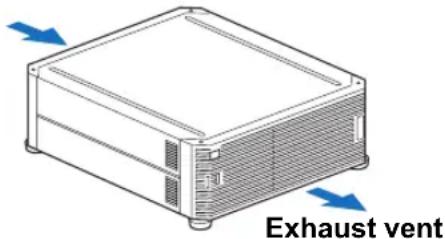
If the air intake or exhaust vent is blocked, heat will accumulate inside the projector, possibly resulting in a shortened projector lifetime or a malfunction. Do not install in a closet, on a bookshelf, or in other narrow spaces with poor ventilation. Install in a wellventilated location. (Ensure a minimum clearance of 50 cm (1.6 ft.) above, on both sides, and behind the projector, as shown below.)
Air intake vent
natural_image
Illustration of a server rack unit with blue directional arrows indicating exhaust vent (no text or symbols on the device itself)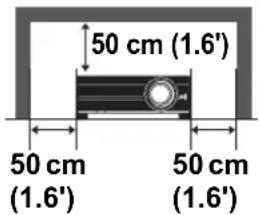
text_image
50 cm (1.6') 50 cm (1.6') 50 cm (1.6')
text_image
50 cm (1.6')■Be Careful of Condensation
If the temperature of the room rises suddenly, moisture in the air may condense on the projector lens and mirror, causing the image to become blurred. Wait until the condensation has evaporated for the image projected to return to normal.
■ At Altitudes above 2,300 m (7,545.8'), Adjust the Settings
Projector settings must be adjusted when using the projector at altitudes of 2,300 m (7,545.8') or higher. Specifically, refer to instructions for [High altitude] (P102) in the [Install settings] menu.
■When Using Mounted on the Ceiling
When the projector is used mounted on the ceiling or installed in a high location, it is necessary to periodically clean the air intake and exhaust vents, and the area around the air filter. Dust that accumulates in intake or exhaust vents may impair ventilation, raising the temperature inside and posing a risk of damage or fire. Use a vacuum cleaner or similar means to remove dust from the intake vent and exhaust vent.
natural_image
Pure diagram of a mechanical or electrical component with no text, numbers, or symbols■Install Facing in the Correct Direction

Caution
- The projector can be installed facing any direction ^*1 , as shown below. However, projection upward or downward may shorten the useful life of the lamp. [Install settings] of the projector must also be adjusted. Specifically, for upward or downward projection, refer to instructions for [Vertical projection] (P102) in the [Install settings] menu.
- Do not attempt to install the projector for upward or downward projection by yourself. Always request installation by a qualified technician or the Canon Customer Support Center.

flowchart
graph TD
    A["Upward projection: Inclination of the projector should be no more than 10° from the vertical axis.*2"] --> B["Central circle"]
    C["Downward projection: Inclination of the projector should be no more than 10° from the vertical axis.*2"] --> B
    B --> D["Central block with two monitors"]
    B --> E["Central box with one monitor"]
    B --> F["Central box with one monitor"]

text_image
If installing the projector on the floor or hanging from the ceiling, the left / right inclination of the projector should be no more than 10°.*2 Do not use the projector standing on its side.*2*1 No optional accessories are available for installing the projector in ways other than ceiling installation (P37, P188).
*2 Failure to do so may damage the lamp.

- When installing the projector facing upward or downward, specify which way the projector is facing in [Install settings] > [Professional settings] > [Vertical projection]. (P102)
- When mounting the projector on the ceiling, it is more convenient to install the projector right-side up, with the adjustable feet facing down.
Copyright Notice
Please note that enlarging or reducing the size of an image for commercial purposes or public presentation may infringe on the legally protected copyright or the copyright holder of the original material.
Ensure Network Security
Take measures to ensure network security. Note that Canon is not liable in any way for direct or indirect loss from network security incidents, such as unauthorized access.
Examples of Security Measures
- Use in an intranet environment.
- Assign a private IP address.
- Use behind a firewall.
- Change passwords regularly.
About Trademarks
- Ethernet is a registered trademark of Xerox Corporation.
- Microsoft, Windows, Windows Vista, Windows 7, Windows 8 and Windows 8.1 are registered trademarks or trademarks of Microsoft Corporation in the United States and / or other countries.
• Mac, Mac OS and Macintosh are trademarks of Apple Inc., registered in the United States and / or other countries. - HDMI, the HDMI logo and High-Definition Multimedia Interface are trademarks or registered trademarks of HDMI Licensing, LLC.
- PJLink is a registered trademark of JBMIA and pending trademark in some countries.
- PJLink is a registered trademark, or an application has been submitted for trademark, in Japan, the United States and / or other countries or regions.
- AMX is a trademark of AMX Corporation.
- Crestron®, Crestron RoomView®, and Crestron Connected™ are registered trademarks of Crestron Electronics, Inc.
- All other trademarks are the property of their respective owners.
Open Source Software
The product contains Open Source Software modules. For details, see "ThirdPartySoftware.pdf" (Third-Party Software License) in the OpenSourceSoftware folder in the LICENSE folder on the Setup CD-ROM. Each module's license conditions are also available in the same folder.
■Software under the GNU General Public License Version 2
Contained programs are free software; you can redistribute them and/or modify them under the terms of the GNU General Public License attached to each copy of the program.
Each program is distributed in the hope that it will be useful, but WITHOUT ANY WARRANTY; without even the implied warranty of MERCHANTABILITY or FITNESS FOR A PARTICULAR PURPOSE. Please see “NO WARRANTY” and “NO SUPPORT” stated below. For more detail, please see full text of the GNU General Public License.
NO WARRANTY
BECAUSE THE PROGRAM IS LICENSED FREE OF CHARGE, THERE IS NO WARRANTY FOR THE PROGRAM, TO THE EXTENT PERMITTED BY APPLICABLE LAW. EXCEPT WHEN OTHERWISE STATED IN WRITING THE COPYRIGHT HOLDERS AND/OR OTHER PARTIES PROVIDE THE PROGRAM "AS IS" WITHOUT WARRANTY OF ANY KIND, EITHER EXPRESSED OR IMPLIED, INCLUDING, BUT NOT LIMITED TO, THE IMPLIED WARRANTIES OF MERCHANTABILITY AND FITNESS FOR A PARTICULAR PURPOSE. THE ENTIRE RISK AS TO THE QUALITY AND PERFORMANCE OF THE PROGRAM IS WITH YOU. SHOULD THE PROGRAM PROVE DEFECTIVE, YOU ASSUME THE COST OF ALL NECESSARY SERVICING, REPAIR OR CORRECTION.
IN NO EVENT UNLESS REQUIRED BY APPLICABLE LAW OR AGREED TO IN WRITING WILL ANY COPYRIGHT HOLDER, OR ANY OTHER PARTY WHO MAY MODIFY AND/OR REDISTRIBUTE THE PROGRAM AS PERMITTED ABOVE, BE LIABLE TO YOU FOR DAMAGES, INCLUDING ANY GENERAL, SPECIAL, INCIDENTAL OR CONSEQUENTIAL DAMAGES ARISING OUT OF THE USE OR INABILITY TO USE THE PROGRAM (INCLUDING BUT NOT LIMITED TO LOSS OF DATA OR DATA BEING RENDERED INACCURATE OR LOSSES SUSTAINED BY YOU OR THIRD PARTIES OR A FAILURE OF THE PROGRAM TO OPERATE WITH ANY OTHER PROGRAMS), EVEN IF SUCH HOLDER OR OTHER PARTY HAS BEEN ADVISED OF THE POSSIBILITY OF SUCH DAMAGES.
NO SUPPORT
Canon Inc., and all its subsidiaries or its dealers do not make any support service regarding the source code. Canon Inc., and all its subsidiaries or its dealers shall not respond to any questions or enquiries, from you or any other customers, regarding the source code.
Before Use
Included Accessories
Before use, make sure the following items are included in the package.
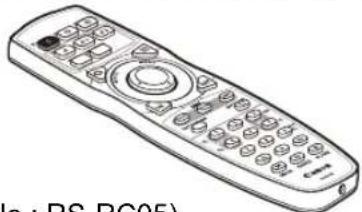
- Remote control • Batteries for the remote control
natural_image
Line drawing of a remote control with keypad and buttons (no text or symbols)
(AA size x2)
(part No.: RS-RC05)

Optional remote controls are also available (RS-RC04). However, some buttons are not supported with this projector. The RS-RC05 can also be used as a wired remote. (P33)
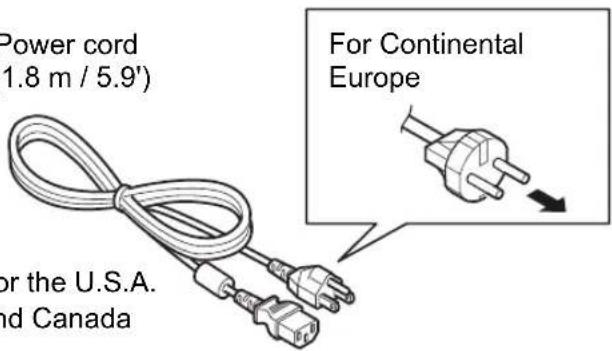
• Power cord (1.8 m / 5.9')
text_image
Power cord (1.8 m / 5.9') For the U.S.A. and Canada For Continental Europe- Lens cap
- Important Information

natural_image
Blank white rectangle with a thin gray border (no text or symbols)- User's Manual (CD-ROM)

- Warranty Card
■Always remove the lens cap before projection.
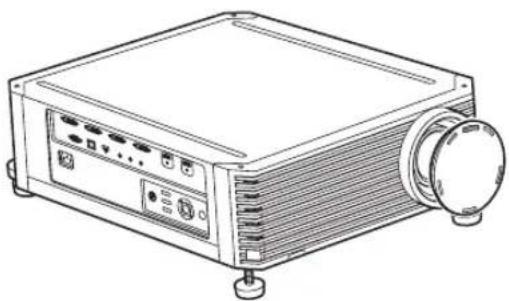
natural_image
Line drawing of a portable projector with control panel and spool (no text or symbols)Part Names
Projector
■Front Side
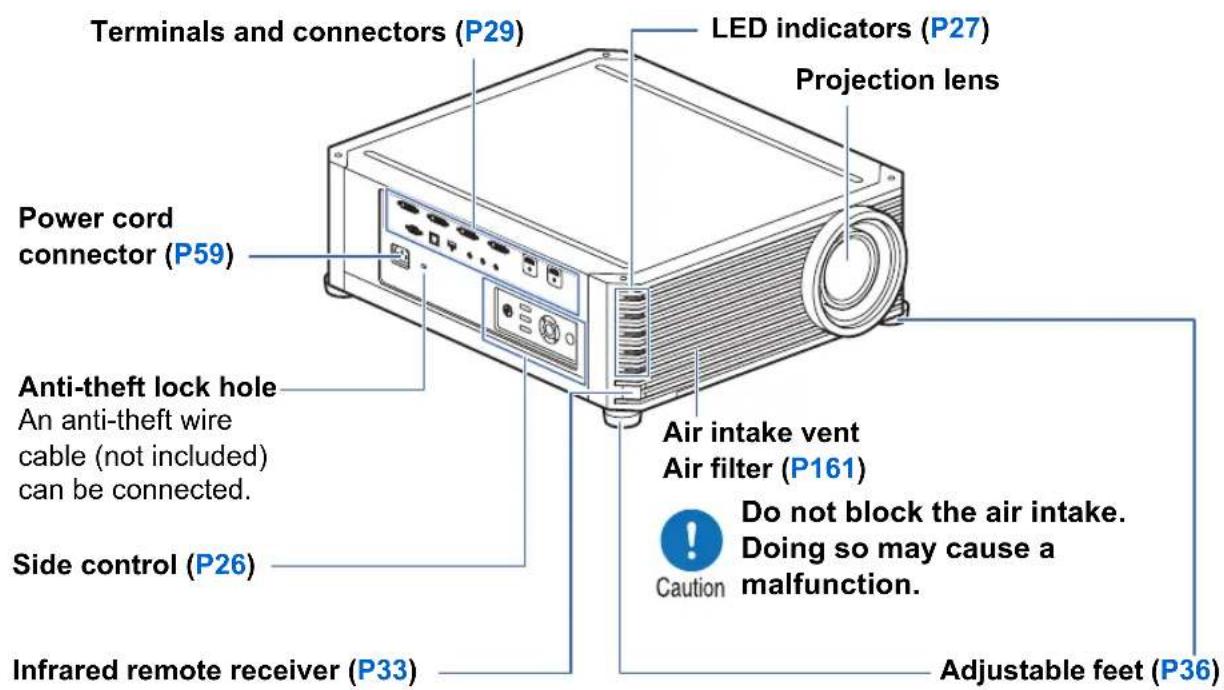
text_image
Terminals and connectors (P29) LED indicators (P27) Projection lens Power cord connector (P59) Anti-theft lock hole An anti-theft wire cable (not included) can be connected. Side control (P26) Infrared remote receiver (P33) Air intake vent Air filter (P161) Do not block the air intake. Doing so may cause a malfunction. Caution Adjustable feet (P36)■Rear Side
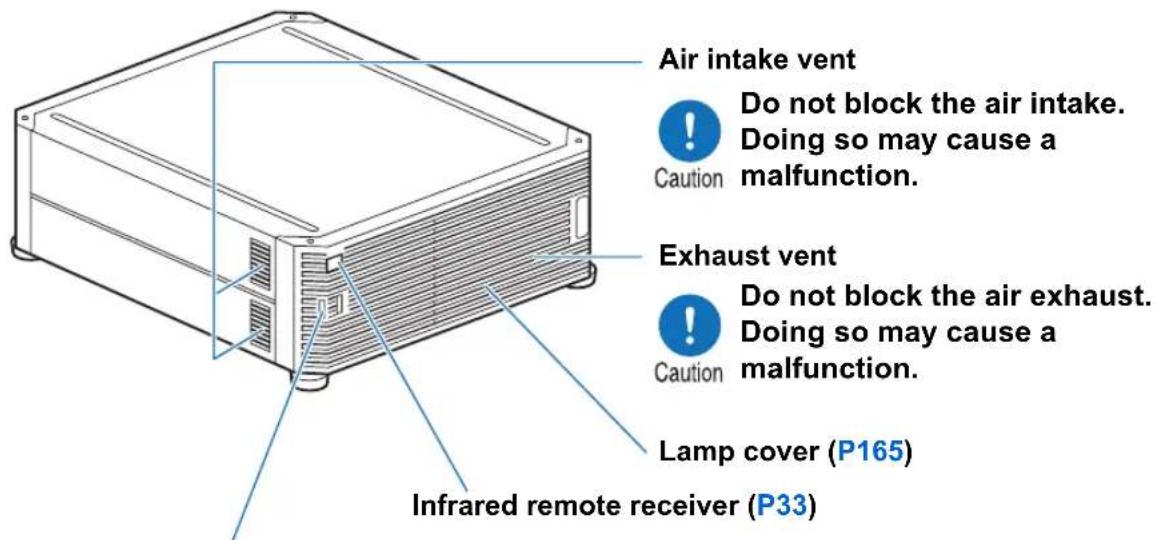
text_image
Air intake vent Do not block the air intake. Doing so may cause a malfunction. Caution Exhaust vent Do not block the air exhaust. Doing so may cause a malfunction. Caution Lamp cover (P165) Infrared remote receiver (P33)Security bar
A wire or cable can be attached to deter theft.
Side Control

text_image
(1) (2) INPUT POWER (3) LENS (4) KEYSTONE (5) OK L VOL - UP R VOL + DOWN (6) MENU (7)(1) POWER button (P60, P79)
Turns the projector on or off.
(2) INPUT button (P63)
Switches the input signal.
(3) LENS button (P67)
Each time the button is pressed, the adjustment window changes, from focus (P67) to zoom (image size) (P68) to lens shift (image position) (P70).
To adjust the image, use the [▲/ [▼ or [ ] ◀[ ] buttons.
After the focus adjustment window, the marginal focus adjustment window is also displayed for adjusting focus of image edges (P157), depending on the [Marginal focus] setting (P102).
(4) KEYSTONE button (P73)
Corrects keystone distortion.
(5) Pointer / VOL buttons (P85)
Up, down, left, or right in menu navigation or other operations. Adjust the sound volume.
[◀VOL– button: Decreases the volume.
[▶] VOL+ button: Increases the volume.
(6) OK button (P86)
Determines the item selected from the menu.
(7) MENU button (P84)
Displays a menu on the screen.
LED Indicators

text_image
POWER STANDRY WARNING LAMP TEMPThe projector status is shown by the LED indicators (off / lit / flashing).
- POWER (green) : Lights up or flashes under normal conditions when the power is on.
- STAND BY (red) : Lights up or flashes during standby or when the projector is shutting down.
- WARNING (red) : Lights up or flashes when an error occurs.
- LAMP (orange) : Lights up or flashes when a problem occurs with the lamp or lamp cover.
• TEMP (red) : Lights up or flashes when the internal temperature is high.
■LED Indicator Displays
The LED indicators flash or illuminate to indicate the operating status of the projector.
For details on warnings, see "LED Indicator Details" (P180).
Legend: Example of when the POWER indicator is on; ☐Off : Lit : Flashing
| LED indicator | Operating status | ||||
| POWER(green) | STANDBY(red) | WARNING(red) | LAMP(orange) | TEMP(red) | |
| A projector is not plugged in. | |||||
| In standby mode. | |||||
| Resuming operation (projection) after standby (flashes once). | |||||
| Cooling down while entering standby or power management mode from power on. | |||||
| Power is on. (Projecting.) | |||||
| In power management mode, with the lamp off. | |||||
| The time for replacing the lamp is near. (In standby mode.) | |||||
| The time for replacing the lamp is near. (During projection) | |||||
| Internal temperature is high. (In standby mode.) | |||||
| Internal temperature is high. (During projection) | |||||
| A lamp error has occurred. | |||||
| A temperature error has occurred. | |||||
| The lamp cover is open. | |||||
| • An air filter error has occurred (flashes 3 times).• A fan error has occurred (flashes 4 times).• A power error has occurred (flashes 5 times). | |||||

Caution
- A flashing LAMP indicator means that it is almost time to replace the lamp. Prepare a replacement lamp.
- Lamps that are still used after the timing for lamp replacement are more likely to rupture. Replace the lamp with a new one as soon as possible.
Input Terminal

text_image
(1) (2) CONTROL (3) (4) AUDIO IN AUDIO OUT REMOTE (6) (7) (8)(5) CRESTRON connected(1) Digital PC / DVI-D terminal (DVI-D) (P53)
Connects the external monitor output from a computer.
Receives digital PC signal (Digital PC).
(2) HDMI terminal (HDMI) (P53, P54)
Receives digital video signals (HDMI).
Carries both video and audio signals across a single cable.
(3) Service port (CONTROL) (P177)
Used for executing user commands (P178 - P179).
(4) LAN port (P122)
Connects the LAN cable (shielded twisted pair).
Used to connect the projector to a network.
(5) USB port (P119) Connects a USB flash drive. Used for firmware updates.
(6) AUDIO IN terminal (AUDIO IN) (P53, P54) Receives audio input. Audio supplied to this terminal is played through the internal speaker when you select [Audio in] as the source audio terminal for the selected source video.
(7) AUDIO OUT terminal (AUDIO OUT) (P53, P54) Outputs the audio to external AV equipment. This outputs the audio signal that corresponds to the projected image signal.
(8) Terminal for wired remote control (REMOTE) (P33) This terminal is used to connect the remote control using a cable.
Remote Control
The remote control allows you to operate all functions of the projector.

text_image
(1) POWER AUTO PC INPUT (11) DIGITAL ANALOG HDMI COMPONENT (12) (2) ASPECT MENU (3) OK EXIT (4) LENS FOCUS ZOOM SHIFT TEST PATTERN KEYSTONE (5) (6) D.ZOOM VOL 4 5 6 7 8 9 UTE Ch 0 Fn (7) (8) (9) IMAGE FREEZE BLANK (10) Canon RS-RC05(1) POWER button (P60, P79)
Turns the projector on or off.
(2) ASPECT button (P72, P88)
Changes the aspect ratio mode.
(3) Pointer buttons (P85)
Selects the upper, lower, left or right item in the menu. Also used to assign a channel to the remote control.
(4) OK button (P86)
Determines the item selected from the menu.
Adjusts the image size.

Increase the image size.

Decrease the image size.
(6) FOCUS button (P67)
Adjusts focusing.

Moves the focus position further away.

Moves the focus position nearer.
By pressing the FOCUS button twice, you can also adjust the focus at image edges (P157), depending on the [Marginal focus] setting (P102).
(7) TEST PATTERN button (P107)
Displays the test pattern.
(8) D.ZOOM button
Not used with this product.
(9) Ch button (P113)
Changes the remote control channel when the remote control is used via the infrared transmitter.
(10) IMAGE button (P76)
Switches the image mode (image quality).
(11) AUTO PC button
Not used with this product.
(12) INPUT button (P63)
Switches the input signal.
(13) Change input buttons
Change the input signal between Digital PC and HDMI.
ANALOG 1, ANALOG 2 and
COMPONENT are not used with this product.
(14) MENU button (P84)
Displays a menu on the screen.
(15) EXIT button (P86)
Cancels functions such as menu display or test pattern during operation and returns to the image display.
(16) SHIFT button (P70)
Moves the lens up, down, left or right.
[▲/ [ ]▼[ ] /◀] buttons:
Move the lens.
(17) KEYSTONE button (P73)
Corrects keystone distortion.
The [Keystone] setting enables both horizontal/vertical keystone correction (by adjusting top/bottom/left/right length) and corner correction.
(18) VOL button
Adjusts the sound volume.
[▶] button, [3] button:
Increases the volume.
[◀button, [6] button:
Decreases the volume.
(19) MUTE button
Mutes the sound.
(20) Numerical buttons (P118, P124, P126)
Enter password and TCP/IP setting values.
(21) Fn button
Not used with this product.
(22) BLANK button (P80)
Temporarily blacks out the image.
(23) FREEZE button (P80)
Freezes the projected image.
(24) Terminal for wired remote control (P33)
Connects a cable to the projector for remote control operation.

text_image
POWER AUTO PC INPUT DIGITAL ANALOG HDMI COMPONENT (13) (14) (15) ASPECT MENU (16) OK EXIT LENS FOCUS ZOOM SHIFT TEST PATTERN KEYSTONE (17) 1 2 3 D.ZOOM VOL 4 5 6 7 8 9 UTE Ch 0 Fn IMAGE FREEZE BLANK Canon RS-RC05 (18) (19) (20) (21) (22) (23) (24)Preparing the Remote Control
■Installing Remote Control Batteries
1 Open the battery compartment lid. Raise the battery cover tab while pushing it.
2Insert batteries. Insert 2 new AA batteries in the compartment with the + and – terminals positioned correctly.
3Close the compartment lid. Insert the tab into the remote control notch (1) and push the battery cover down (2).

natural_image
Line drawing of a car's side panel with a handle and arrow indicating rotation (no text or symbols)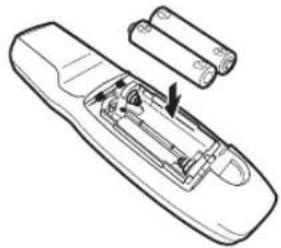
natural_image
Line drawing of a remote control device with battery and cable (no text or symbols)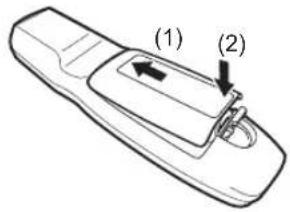
text_image
(1) (2)
- If buttons on the remote control are inoperative when you attempt to operate the projector, replace the batteries with new ones.
- Do not drop the remote control or subject it to impact.
- Do not spill any liquids on the remote control. Doing so may cause a malfunction.


Pay attention to the following points when handling the batteries. Failing to do so could result in a fire or personal injury.
- Do not heat, short circuit or disassemble the batteries, or place them in a fire.
- Do not attempt to recharge the batteries that are included with the remote control.
- Remove the batteries when they are flat or when the remote control will not be used for a long period of time.
- When replacing the batteries, replace both at the same time. Also, do not use two batteries of a different type at the same time.
- Insert the batteries with the + and - terminals in the correct directions.
- If any liquid from inside the batteries leaks out and contacts your skin, be sure to wash the liquid off thoroughly.
■Remote Control Operating Range
The remote control is an infrared type. Point it at the infrared remote receiver on the front or rear of the projector to operate it.

text_image
25° 25° 8 m (26.3') 25° 8 m (26.3') 25°
- Use the remote control within an angle of 25^ in any direction from directly in front of the infrared remote receiver.
- The remote control may be inoperative if there is an obstacle between the remote control and the projector or the infrared remote receiver on the projector is exposed to direct sunlight or strong light of lighting equipment.
- When you use 2 or more projectors at the same time, you can change the channel settings to prevent the 2 remote controls from interfering with each other. (P113)
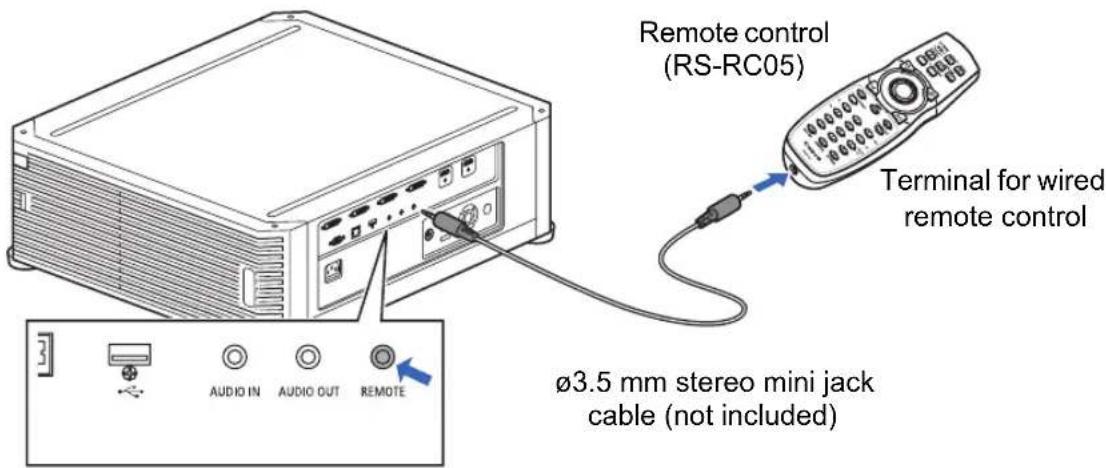
■Using the Remote (RS-RC05) in a Wired Connection
The remote control can also be used in a wired connection with the projector. Use a cable with a 3.5 mm stereo mini jack (not included).
text_image
Remote control (RS-RC05) Terminal for wired remote control Ø3.5 mm stereo mini jack cable (not included)
- Infrared operations cannot be performed if a cable is connected to the projector or the remote control.
- Use a cable with a 3.5mm stereo mini jack (not included) with a length of 30m (98.4') or less.
Basic Guide
Safety Instructions
Before Use
Basic Guide
Installation Procedure
Connection Procedure
Projection Procedure
Convenient Features
Advanced Guide
Using Menus
Menu Settings
Advanced Projection
Other Information
Maintenance
Product Specifications
Troubleshooting
Installation Procedure
Before setting up the projector, be sure to read "Before Installation" (P18).
Setting Up the Projector
■Positioning the Projector in Front of the Screen
Place the projector in front of the screen.

• To avoid keystone distortion, install the projector so that it is at right angles to the screen.
- The screen must not be exposed to direct sunlight or light from lighting equipment. In a bright room, it is recommended that lights be turned off, curtains be drawn, and other steps taken to make the screen easier to see.
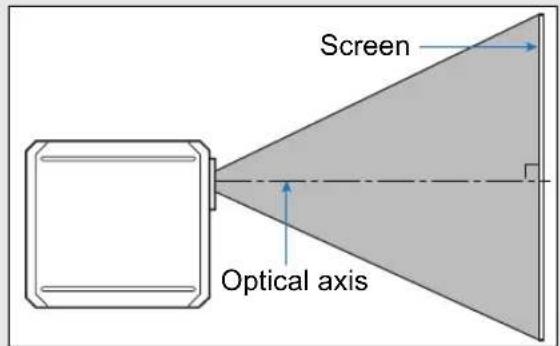
text_image
Screen Optical axis■Floor Installation
To adjust the projection position when the projector is installed on the floor, use the lens shift function (P51, P70) to adjust up / down / left / right.
For information about the relationship between screen size and projection distance, refer to page 50.

natural_image
Diagram showing a truck inside a frame with an attached rack, no text or symbols presentLens shift
■Installation on High Surfaces
Using the lens shift function (P51), you can project images toward a lower level. When setting the projector on a high surface for projection, make sure the surface is flat and stable, and install the projector right-side up with the adjustable feet facing down.

natural_image
Illustration of people viewing a presentation screen with charts and pie charts (no text or symbols)
Failure to do so poses a risk of the projector falling and causing accidents or injury.
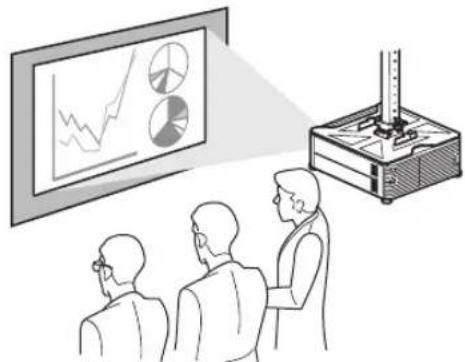
■Ceiling Mounting or Rear Projection
You can mount the projector on the ceiling (ceiling mounting) or place it behind the screen (rear projection) if you use a translucent screen.
natural_image
Illustration of people observing a presentation screen with charts and pie charts, next to a scientific instrument (no text or symbols present)Ceiling mounting

natural_image
Illustration of a projector projecting onto a screen to three people watching (no text or symbols present)Rear projection

Remove the caps on top of the projector before installing a ceiling attachment.

When mounting the projector on the ceiling, it is more convenient to install the projector right-side up, with the adjustable feet facing down.
Ceiling Mounting
Ceiling Attachment Part No.: RS-CL15 (Option)

Warning
Make sure the followings when you install and handle the ceiling attachment. Otherwise, it may result in fire, electric shock or injury.

- Make sure to prepare stable scaffolding when installing the ceiling attachment.
- Make sure to fully insert the power plug and connectors when connecting the projector. Never use a damaged plug or loosen outlet.

- Make sure to tighten screws for the ceiling attachment securely and never loosen or remove them.
- Never look into a lens when adjusting the projection because a high-intensity light is projected from the projector. It may result in eye damage.
- During projection, never put an object in front of the projector's lens.

Caution
Make sure the followings when you install and handle the ceiling attachment.

- Make sure to ask the Canon Customer Support Center if you want to install the ceiling attachment. An inappropriate installation may cause an accident.
Parts Lineup
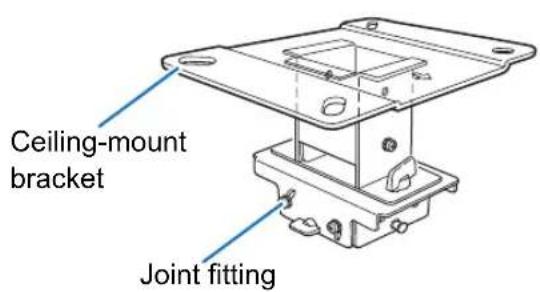
■Parts Included with RS-CL15
Weight: RS-CL15 (6.9 kg/15.2 lbs)
- Ceiling-mount bracket and Joint fitting • Base bracket
text_image
Ceiling-mount bracket Joint fitting
natural_image
Technical line drawing of a mechanical housing or bracket component (no text or symbols)
The Ceiling-mount bracket must be separated from the Joint fitting, before installation.
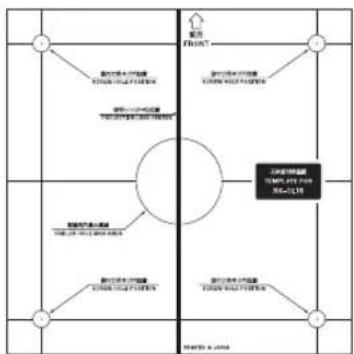
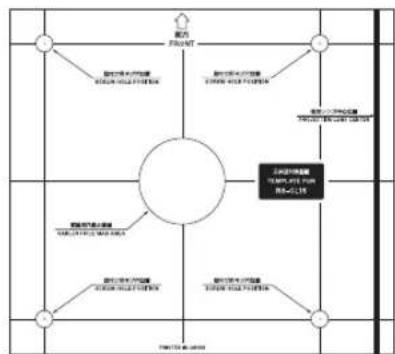
- Template sheet for a ceiling-mount hole: 2 shts.
flowchart
graph TD
    A["Room 1"] --> B["Room 2"]
    B --> C["Room 3"]
    C --> D["Room 4"]
    D --> E["Room 5"]
    E --> F["Room 6"]
    F --> G["Room 7"]
    G --> H["Room 8"]
    H --> I["Room 9"]
    I --> J["Room 10"]
    J --> K["Room 11"]
    K --> L["Room 12"]
    L --> M["Room 13"]
    M --> N["Room 14"]
    N --> O["Room 15"]
    O --> P["Room 16"]
    P --> Q["Room 17"]
    Q --> R["Room 18"]
    R --> S["Room 19"]
    S --> T["Room 20"]
    T --> U["Room 21"]
    U --> V["Room 22"]
    V --> W["Room 23"]
    W --> X["Room 24"]
    X --> Y["Room 25"]
• M6 screw (25 mm/1.0") : 4 pcs.

- Anti-fall wires: 2 pcs.

B 4K500STA
flowchart
graph TD
    A["中心区域"] --> B["客厅"]
    A --> C["客厅"]
    A --> D["客厅"]
    A --> E["客厅"]
    A --> F["客厅"]
    A --> G["客厅"]
    A --> H["客厅"]
    A --> I["客厅"]
    A --> J["客厅"]
    A --> K["客厅"]
    A --> L["客厅"]
    A --> M["客厅"]
    A --> N["客厅"]
    A --> O["客厅"]
    A --> P["客厅"]
    A --> Q["客厅"]
    A --> R["客厅"]
    A --> S["客厅"]
    A --> T["客厅"]
    A --> U["客厅"]
    A --> V["客厅"]
    A --> W["客厅"]
    A --> X["客厅"]
    A --> Y["客厅"]
    A --> Z["客厅"]
    A --> AA["客厅"]
    A --> AB["客厅"]
    A --> AC["客厅"]
    A --> AD["客厅"]
    A --> AE["客厅"]
    A --> AF["客厅"]
    A --> AG["客厅"]
    A --> AH["客厅"]
    A --> AI["客厅"]
    A --> AJ["客厅"]
    A --> AK["客厅"]
    A --> AL["客厅"]
    A --> AM["客厅"]
    A --> AN["客厅"]
    A --> AO["客厅"]
    A --> AP["客厅"]
    A --> AQ["客厅"]
    A --> AR["客厅"]
    A --> AS["客厅"]
    A --> AT["客厅"]
    A --> AU["客厅"]
    A --> AV["客厅"]
    A --> AW["客厅"]
    A --> AX["客厅"]
    A --> AY["客厅"]
    A --> AZ["客厅"]
    A --> BA["客厅"]
    A --> BB["客厅"]
    A --> BC["客厅"]
    A --> BD["客厅"]
    A --> BE["客厅"]
    A --> BF["客厅"]
    A --> BG["客厅"]
    A --> BH["客厅"]
    A --> BI["客厅"]
    A --> BJ["客厅"]
    A --> BK["客厅"]
    A --> BL["客厅"]
    A --> BM["客厅"]
    A --> BN["客厅"]
    A --> BO["客厅"]
    A --> BP["客厅"]
    A --> BQ["客厅"]
    A --> BR["客厅"]
    A --> BS["客厅"]
    A --> BT["客厅"]
    A --> BU["客厅"]
    A --> BV["客厅"]
    A --> BW["客厅"]
    A --> BX["客厅"]
    A --> BY["客厅"]
    A --> BZ["客厅"]
Use the template sheet (B) for the projector.
• M4 screw (15 mm/0.6") : 10 pcs.

- Washer (Toothed Lock Washer): 1 pc.

• M5 screw (12 mm/0.5") with washer: 4 pcs.

• Assembly/Installation Manual (this manual): 1
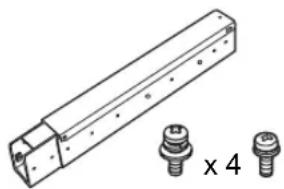
■Extension pipe RS-CL08 / RS-CL09 (option)
Weight: RS-CL08 (2.2 kg/4.9 lbs)/RS-CL09 (3.4 kg/7.5 lbs)
Use an optional extension pipe (RS-CL08 / RS-CL09) according to the ceiling height. For details, contact our local agent.
RS-CL08
Outer/inner pipes and outer/inner covers
M5 screw (12 mm/0.5") : 4 pcs.
M3 screw (10 mm/0.4") : 1 pc.
* The length is adjustable between 35 cm/1.1' and 55 cm/1.9' in steps of 5 cm/0.2'.
RS-CL09
Outer/inner pipes and outer/inner covers M5 screw (12 mm/0.5") : 4 pcs.
M3 screw (10 mm/0.4") : 1 pc.
* The length is adjustable between 55 cm/1.9' and 95 cm/3.1' in steps of 5 cm/0.2'.
natural_image
Technical line drawing of a mechanical component with two bolted features and a 4x4 scale indicator (no text or symbols present)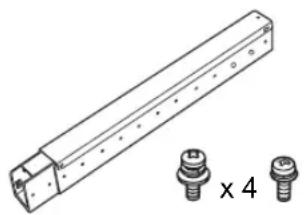
natural_image
Technical line drawing of a mechanical component with two bolted pins, one labeled 'x 4' (no text or symbols on the component itself)Mounting Position
Install the projector straight in front of the screen. You can adjust the screen position using the lens shift feature.

- Before mounting the Ceiling Attachment, be sure to check the strength of the ceiling. The ceiling should be strong enough to support the projector and Ceiling Attachment (and optional extension pipe). If the ceiling is not strong enough, be sure to reinforce it. The projector may fall and you may get injured.
- Make sure to perform the installation operation by at least two persons. Please be careful not to drop any object and pinch a finger during the installation operation.
- To prevent falling caused by earthquake or vibration, take anti-fall measures using tension wires or the like for installation. The projector may fall and you may get injured.

Caution
- At least 50 cm (1.6') around the intake and 50 cm (1.6') around the vent should be clear. Otherwise, it may damage the projector due to bad exhaust ventilation.
Installation Dimensions
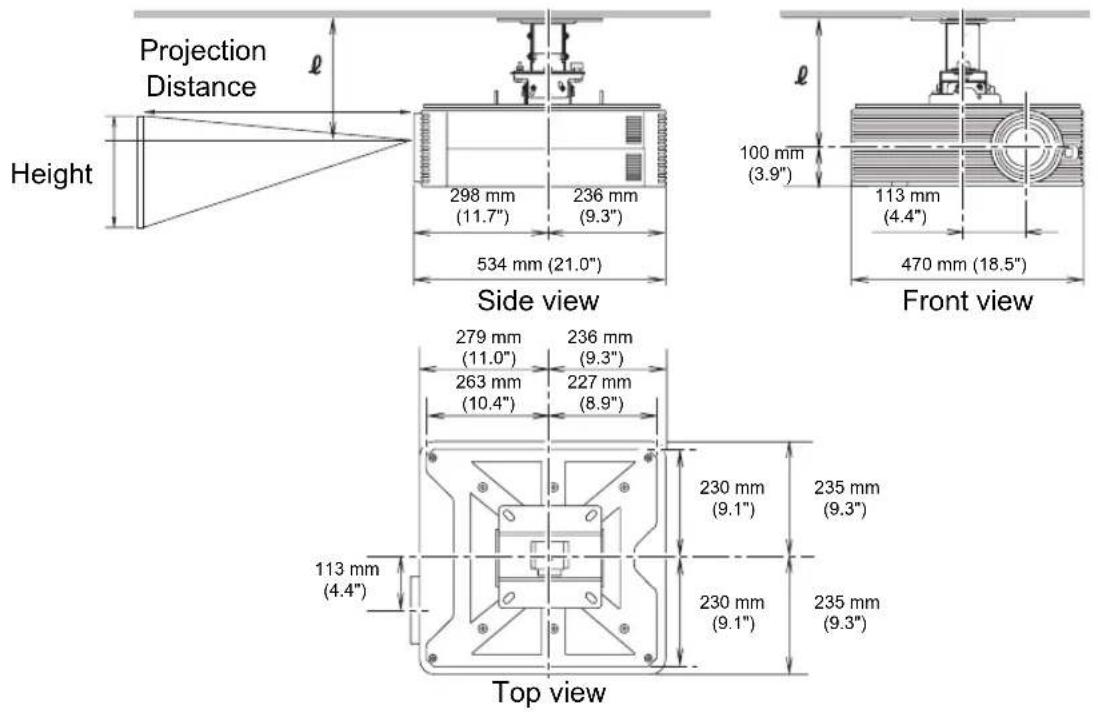
Distance from ceiling to lens center (A)
| RS-CL15 When RS-CL08 is used When RS-CL09 is used | ||
| 22.9 cm (9.0") | 57.9 cm (22.8") to 77.9 cm (30.7") | 77.9 cm (30.7") to 117.9 cm (46.4") |
Ceiling-mount bracket
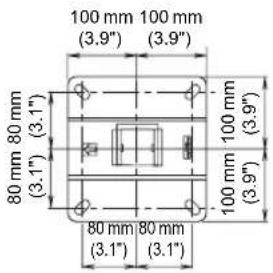
text_image
100 mm 100 mm (3.9") (3.9") 80 mm 80 mm (3.1") (3.1") 100 mm 100 mm (3.9") 80 mm 80 mm (3.1") (3.1") 100 mm 100 mm (3.9")Assembly and Installation
■Installation to flat and level Ceiling
Preparation: Separate the Joint fitting from the Ceiling-mount bracket temporarily
Remove four M5 screws to separate Joint fitting from the Ceiling-mount bracket.

text_image
Direction to the screen1 Make a hole in the ceiling
- Use the template sheet (B) to make holes in the ceiling for securing the Ceiling-mount bracket.
- Make holes to thread cables through.

Caution
- Always use the included template sheet (B) to determine where to make holes.
- The template sheet (B) is labeled with the direction to the screen, as well as the optical axis (center of the lens).
2Secure the Ceiling-mount bracket to the ceiling
Use four M13 screws, to secure the Ceiling-mount bracket to the ceiling with the arrow facing toward the screen.
- Before securing the Ceiling-mount bracket, be sure to remove the template sheet (B).
- The M13 screws are not included in the supplied parts. Prepare the M13 screws suitable for the ceiling structure.

text_image
Direction to the screen3 Attach the Base bracket to the projector
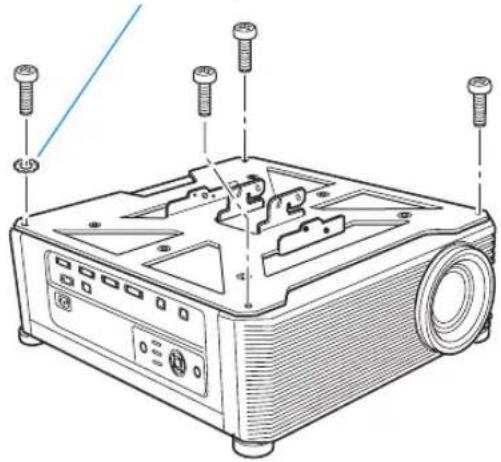
1 Remove the four screws at each corner on top of the projector.
2 Install the attached M6 screws at the four screw fastening positions on the Base bracket. Attach the included toothed lock washer in the back-left position, as shown at right.
4 Attach the anti-fall wire
Secure the terminal clamp with the attached M4 screw at (A) on the Base bracket.
• Make sure to fasten and tighten the screw securely.
5Pull cables out of the cable hole in the ceiling
- As depicted in the diagram, let cables pass through the hole on ceiling-mount clamp.
- If cables are too thick, make a hole at a different position than the hole on the ceiling-mount clamp, and let them pass through the new hole.
6 Attach the Joint fitting to the Ceiling-mount bracket
Secure the Ceiling-mount bracket using the four M5 screws removed during preparation.
Washer (Toothed Lock Washer)
natural_image
Line drawing of a projector with screw holes and control panel (no text or symbols)
text_image
Diagram of a projector with labeled parts and close-up insets showing mechanical components
natural_image
Technical diagram of an electrical switchgear assembly with wiring and connectors (no text or labels)Direction to the screen
7 Hook the Base bracket to the Joint fitting and secure it temporarily
Hook the Base bracket on the protrusion (A) of the Joint fitting, and secure it temporarily using the four supplied M5 screws (B).
- Pull out the cables.
- Be sure to secure screws (B) tightly after making the adjustment discussed in “Adjust the Projection Angle” (P48).

text_image
A B B8Connect cables
Connect cables to the projector.
After completion of installation, adjust the projection angle (P48).

natural_image
Line drawing of a projector with attached cables and control panel (no text or symbols)■Installation to a High Ceiling
Use optional extension pipe RS-CL08 or RS-CL09 for high ceiling.
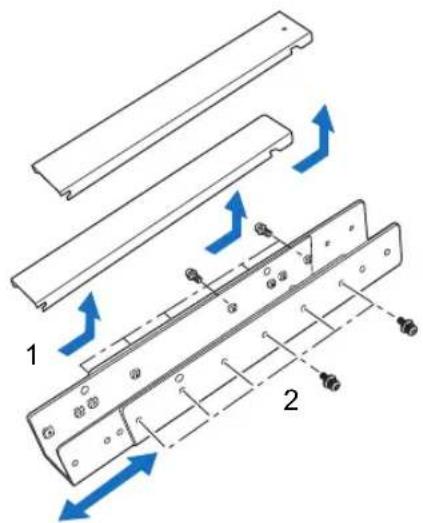
Preparation: Adjust the pipe length according to the ceiling height
1 Remove the covers of outer and inner pipes by slightly sliding them and lift up as shown.
2 Remove four M5 screws from the sides of the outer pipe, adjust the inner pipe length according to the projector installation height, and then secure the four M5 screws.
- When attaching screws in step 2, insert the screws and leave an unused screw hole between them. When the extension pipe is stretched to its maximum length, insert the screws in two adjacent screw holes.
text_image
Technical diagram showing assembly steps of a mechanical component with labeled parts and directional arrows indicating motion.Extended length when extension pipe is attached (when lens shift is 0%)
| Mounting hole position | Distance from ceiling to lens axis ( ) | |
| RS-CL08 RS-CL09 | ||
| a 57.9 cm | (22.8") 77.9 cm (30.7") | |
| b 62.9 cm | (24.8") 82.9 cm (32.6") | |
| c 67.9 cm | (26.7") 87.9 cm (34.6") | |
| d 72.9 cm | (28.7") 92.9 cm (36.6") | |
| e 77.9 cm | (30.7") 97.9 cm (38.5") | |
| f 102.9 cm | (40.5") | |
| g 107.9 cm | (42.5") | |
| h 112.9 cm | (44.4") | |
| i 117.9 cm | (46.4") | |

text_image
b d f h a c e g i ℓ ℓ'1 Separate the Joint fitting from the Ceiling-mount bracket temporarily (Preparation on page 42)
2 Make a hole in the ceiling (Step 1 on page 42)
3 Secure the Ceiling-mount bracket to the ceiling (Step 2 on page 42)
4 Attach the Base bracket to the projector (Step 3 on page 43)
5 Attach the anti-fall wire (Step 4 on page 43)
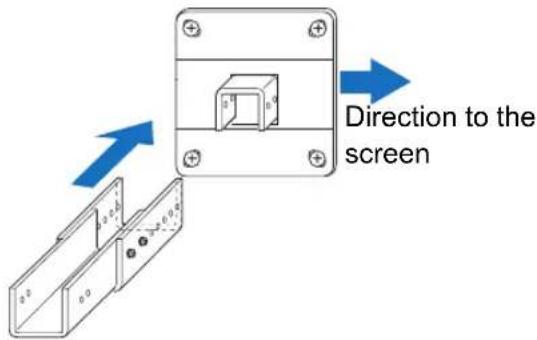
6 Attach the top of the extension pipe to the Ceiling-mount bracket
Secure to the extension pipe using the four supplied M5 screws.
- The open end of the pipe should face the open end of the Ceiling-mount bracket as shown.
text_image
Direction to the screen
text_image
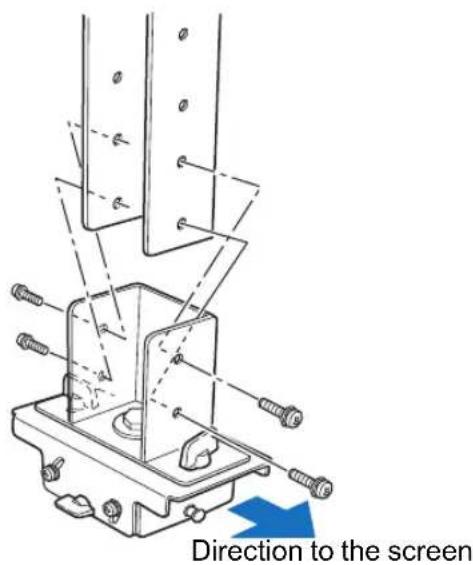
Direction to the screen7 Attach the Joint fitting to the bottom of the extension pipe
Use the four M5 screws removed from the Ceiling-mount bracket during preparation.
text_image
Direction to the screen8Hook the Base bracket to the Joint fitting and secure it temporarily
Hook the Base bracket on the protrusion (A) of the Joint fitting, and secure it temporarily using the four supplied M5 screws (B).
- Pull out the cables.
- Be sure to secure screws (B) tightly after making the adjustment discussed in “Adjust the Projection Angle” (P48).
9Put the cables in to the pipe and attach the covers
Thread any cables that are too thick for the ceiling-mount bracket hole through a separate hole you have opened.
1 Pull the cables out of the cable hole in the ceiling.
2 Put the cables inside the pipe.
3 Close the inner cover of the pipe and then close outer cover of the pipe.
Secure to the extension pipe using the supplied M3 screw.
4 Connect the cables to the projector.

text_image
A B B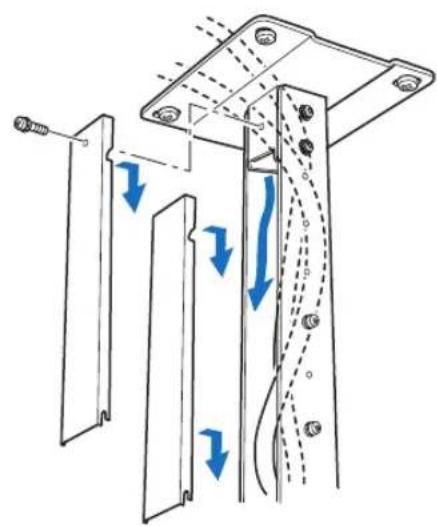
natural_image
Technical diagram of a mechanical assembly with directional arrows indicating motion or force (no text or symbols present)Adjust the Projection Angle
Turn on the projector, project an image, and then adjust the projection angle and screen slant angle.

Caution
• After completion of adjustment, tighten the screws and check that every fitting is secured firmly.
- Be sure to hold the projector from falling until the Ceiling-mount bracket and Base bracket are secured firmly.

text_image
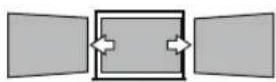
Adjust the vertical projection angle. Adjust the horizontal projection angle. Adjust the screen slant angle. Adjust the vertical projection angle. Adjust the screen slant angle.■Adjust the horizontal projection angle
1 Loosen two wing screws (A). Move the projector horizontally to adjust the horizontal projection angle.
2 When the projector is correctly positioned, tighten the wing screws.

text_image
5° 5°■Adjust the vertical projection angle
1 First loosen four screws (B) and then loosen two wing screws (C). Move the projector vertically to adjust the vertical projection angle.
2 When the projector is correctly positioned, first tighten the wing screws (C) and next tighten the four screws (B).


text_image
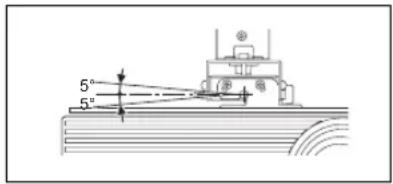
5° 20°■Adjust the screen inclination
1 Loosen four screws (D), and then adjust the slant angle of the projector.
2 When the projector is correctly positioned, tighten the four screws (D).

text_image
5° 5°
Precautions when replacing lamps that stop working
- If illumination suddenly stops, either when you turn the projector on or after it has been on for a while, the lamp may have ruptured. In this case, never attempt to replace the lamp by yourself. Always request service from the Canon Customer Support Center.
- With ceiling-mounted projectors, the lamp may fall out when you open the lamp cover, or during replacement. During replacement, stand to the side of the lamp cover, not directly under it.
- If the lamp ruptures, dust and gas (containing mercury vapor) may come out of the exhaust vents. If this happens, immediately open the windows and doors to provide ventilation to the room.
- If you accidentally inhale gas from the lamp or get any pieces in your eyes or mouth, consult a doctor immediately.
Relationship between Projecting Distance and Image Size
The projected image size is determined by the distance to the screen (projection distance), the size of the image (P68), and the level of focus (P67). Refer to the following table and decide the distance between the projector and screen.

text_image
Height Image Size (diagonal) Width4K500ST
| Image Size (Dia.) | 4096 x 2160 4096 x | 2400 | Projection distance [m (feet)] | |||
| Width [cm (in)] | Height [cm (in)] | Width [cm (in)] | Height [cm (in)] | Wide limit | Tele limit | |
| 40 | 90 (35.4) | 47 (18.5) | 88 (34.6) | 51 (20.1) | 0.9 (3.0) | 1.1 (3.6) |
| 60 135 ( | 53.1) 71 (28.0) | 131 (51.6) | 77 (30.3) 1.3 ( | 4.3) 1.7 (5.6) | ||
| 80 | 180 (70.9) | 95 (37.4) | 175 (68.9) | 103 (40.6) | 1.8 (5.9) | 2.3 (7.5) |
| 100 225 ( | 88.6) 118 (46.5) | 219 (86.2) | 128 (50.4) 2. | 2 (7.2) 2.9 (9.5) | ||
| 120 | 270 (106.3) | 142 (55.9) | 263 (103.5) | 154 (60.6) | 2.7 (8.9) | 3.5 (11.5) |
| 140 315 ( | 124.0) 166 (65.4) | 307 (120.9) | 180 (70.9) | 3.1 (10.2) 4.1 (13.5) | ||
| 160 | 359 (141.3) | 190 (74.8) | 351 (138.2) | 205 (80.7) | 3.6 (11.8) | 4.7 (15.4) |
| 180 404 ( | 159.1) 213 (83.9) | 394 (155.1) | 231 (90.9) | 4.0 (13.1) 5.3 (17.4) | ||
| 200 | 449 (176.8) | 237 (93.3) | 438 (172.4) | 257 (101.2) | 4.5 (14.7) | 5.8 (19.0) |
| 220 | 494 (194.5) | 261 (102.8) | 482 (189.8) | 282 (111.0) | 4.9 (16.1) | 6.4 (21.0) |
| 240 | 539 (212.2) | 284 (111.8) | 526 (207.1) | 308 (121.3) | 5.4 (17.7) | 7.0 (23.0) |
| 260 | 584 (229.9) | 308 (121.3) | 570 (224.4) | 334 (131.5) | 5.9 (19.4) | 7.6 (24.9) |
| 280 | 629 (247.6) | 332 (130.7) | 614 (241.7) | 360 (141.7) | 6.3 (20.7) | 8.2 (26.9) |
| 300 | 674 (265.4) | 355 (139.8) | 657 (258.7) | 385 (151.9) | 6.8 (22.3) | 8.8 (28.9) |
| 350 | 786 (309.4) | 415 (163.4) | 767 (302.0) | 449 (176.8) | 7.9 (25.9) | 10.3 (33.8) |
| 400 | 899 (353.9) | 474 (186.6) | 877 (345.3) | 514 (202.4) | 9.0 (29.5) | 11.8 (38.7) |
| 450 | 1011 (398.0) | 533 (209.8) | 986 (388.2) | 578 (227.6) | 10.2 (33.5) | 13.2 (43.3) |
| 500 | 1123 (442.1) | 592 (233.1) | 1096 (431.5) | 642 (252.8) | 11.3 (37.1) | 14.7 (48.2) |
| 550 | 1236 (497.2) | 652 (256.7) | 1205 (474.4) | 706 (278.0) | 12.4 (40.7) | 16.2 (53.1) |
| 600 | 1348 (530.7) | 711 (279.9) | 1315 (517.7) | 770 (303.1) | 13.6 (45.3) | 17.7 (58.1) |
Lens Shift Function
You can reposition the image in all directions by pressing the SHIFT button on the remote control, which moves the lens up, down, left, or right. For instructions, refer to "Adjusting the Image Position" (P70).
■Amount of Lens Shift
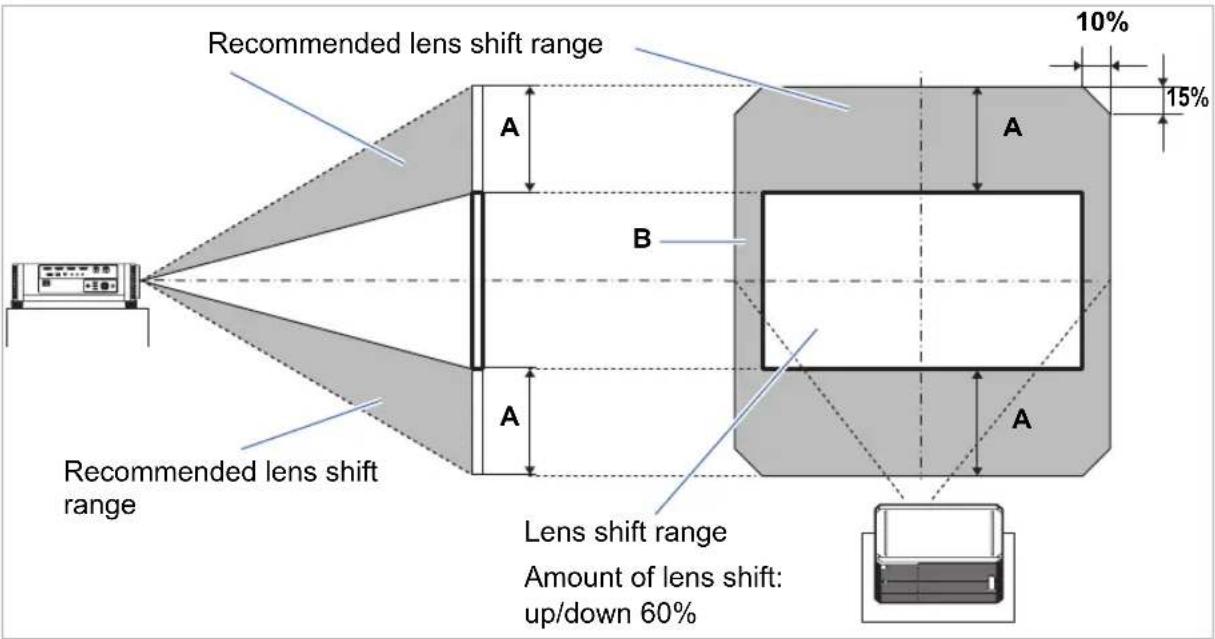
The amount of lens shift is indicated as a percentage relative to the image height and width. The lens shift ranges for the projector are as follows.
| A (Amount of vertical shift) ±60% |
| B (Amount of horizontal shift) ±10% |
The lens can be shifted up or down and to the left or right. Performance using lens shift is ensured within the recommended range described below. However, peripheral dimness or blurriness may occur in the corners outside the last 10% of the horizontal lens shift range and outside the last 15% of the vertical lens shift range. In this case, adjust lens shift to within the recommended range.
text_image
Recommended lens shift range A B A A Recommended lens shift range Lens shift range Amount of lens shift: up/down 60% 10% 15%4K500ST
Maximum vertical (A) and horizontal (B) movement using lens shift
(reference values [cm (in)])
| Image size (Dia.) | 4096 x 2400 4096 x 2160 | |||
| A | B | A | B | |
| 40 | 31 (12.2) | 9 (3.5) | 28 (11.0) | 9 (3.5) |
| 60 46 (18.1) 1 | 3 (5.1) 43 (16.9) | 13 (5.1) | ||
| 80 | 62 (24.4) | 18 (7.1) | 57 (22.4) | 18 (7.1) |
| 100 77 (30.3) | 22 (8.7) 71 (28.0) | 22 (8.7) | ||
| 120 92 (36.2) | 26 (10.2) 85 (33.5) | 27 (10.6) | ||
| 140 108 (42.5) | 31 (12.2) 100 (39.4) | 31 (12.2) | ||
| 160 | 123 (48.4) | 35 (13.8) | 114 (44.9) | 36 (14.2) |
| 180 139 (54.7) | 39 (15.4) 128 (50.4) | 40 (15.7) | ||
| 200 | 154 (60.6) | 44 (17.3) | 142 (55.9) | 45 (17.7) |
| 220 169 (66.5) | 48 (18.9) 156 (116.9) | 49 (19.3) | ||
| 240 | 185 (72.8) | 53 (20.9) | 171 (67.3) | 54 (21.3) |
| 260 200 (78.7) | 57 (22.4) 185 (72.4) | 58 (22.8) | ||
| 280 | 216 (85.0) | 61 (24.0) | 199 (78.3) | 63 (24.8) |
| 300 231 (90.9) | 66 (26.0) 213 (83.9) | 67 (26.4) | ||
| 350 | 269 (105.9) | 77 (30.3) | 249 (98.0) | 79 (31.1) |
| 400 308 (121.3) | 88 (34.7) 284 (111.8) | 90 (35.4) | ||
| 450 | 347 (136.6) | 99 (39.0) | 320 (126.0) | 101 (39.8) |
| 500 | 385 (151.6) | 110 (43.3) | 355 (139.8) | 112 (44.1) |
| 550 | 424 (166.9) | 121 (47.6) | 391 (153.9) | 124 (48.8) |
| 600 | 462 (181.9) | 132 (52.0) | 427 (168.1) | 135 (53.1) |

• (A) values are the approximate vertical lens shift distance from the central image position within the supported lens shift range.
• (B) values are the approximate horizontal lens shift distance from the central image position within the supported lens shift range.

- Watch projected images as you perform lens shift adjustment.
- When the image no longer moves, you have reached the limit of the lens shift range.
Connection Procedure

Caution
Before connecting the projector to other equipment, turn off both the projector and the other equipment.

For instructions on connecting multiple sources of input for 4K projection, refer to "Multi Input 4K Projection" (P55).
Connecting a Computer

flowchart
graph TD
    A["Computer"] --> B["AUDIO output terminal"]
    B --> C["DVI-D cable (not included)"]
    C --> D["HDMI cable (not included)"]
    D --> E["DVI-D terminal"]
    E --> F["AUDIO OUT terminal"]
    F --> G["HDMI terminal"]
    G --> H["Audio cable (not included)"]
    H --> I["Mini jack RCA terminal"]
    I --> J["Amplified speakers"]
    style A fill:#f9f,stroke:#333
    style J fill:#bbf,stroke:#333
Connecting AV Equipment

flowchart
graph TD
    A["Amplified speakers\nMini jack RCA terminal"] --> B["Audio cable (not included)"]
    A --> C["Audio cable (not included)"]
    A --> D["Audio OUT terminal"]
    A --> E["HDMI terminal"]
    B --> F["1 1 1 2"]
    C --> G["3 3 3 4"]
    D --> H["1 1 2"]
    E --> I["DVI-D"]
    E --> J["1 2"]
    E --> K["HDMI"]
    E --> L["CRESTRON connected"]
    F --> M["CONTROL"]
    G --> N["AUDIO IN"]
    G --> O["AUDIO OUT"]
    G --> P["REMOTE"]
    H --> Q["1 2 3"]
    I --> R["1 2"]
    J --> S["1 2"]
    K --> T["1 2"]
    L --> U["1 2"]
    M --> V["HDMI cable (not included)"]
    N --> W["HDMI terminal"]
    O --> X["AV equipment"]
Multi Input 4K Projection
■Definition of 4K
4K refers to high-resolution video with a horizontal resolution of about 4,000 pixels, which is four times the resolution of full HD (1920 x 1080).
Although 4K is a convenient description, it encompasses several different resolutions, such as 3840 x 2160, 3840 x 2400, 4096 x 2160, and 4096 x 2400. (4096 x 2160 is also referred to as Ultra HD, and 3840 x 2400 as WQUXGA.) The projector supports resolutions up to 4096 x 2400. For details, check the table of supported signals. (P169)

other
| Dimension | Value | |---|---| | Top Section | 1920 x 1080 | | Middle Section | 3840 x 2160 | | Bottom Section | 4096 x 2400 |■4K Support Using Digital Signals and Multiple Inputs
The projector is equipped with DVI-D and HDMI (1.4) inputs for digital signals.
However, these signals cannot be used as-is for 4K projection.
DVI-D is classified as single-link or dual-link, depending on the dot clock. Projecting resolutions with a dot clock higher than 165 MHz requires a dual-link plug and cable.
The following resolutions are supported.
- 1920 x 1200 (single-link; vertical frequency: 60 Hz)
- 2560 x 1600 (dual-link; vertical frequency: 60 Hz)
- 4096 x 2160 (dual-link; vertical frequency: 24 Hz)
However, most current computers are limited to a maximum DVI-D output resolution of 2560 x 1600.
For HDMI 1.4, the following resolutions are supported.
• 1920 x 1080 (vertical frequency: 60 Hz)
- 3840 x 2160 (vertical frequency: 24 Hz / 25 Hz / 30 Hz)
• 4096 x 2160 (vertical frequency: 24 Hz)

Single-link plug

Dual-link plug
To avoid the limitation with DVI-D that a single signal line cannot carry video with a resolution of 4096 x 2400 (vertical frequency: 60 Hz) even with a dual-link cable, the projector enables you to project multiple lines of input at once. This feature is called Multi Input mode.
| Number of dual-link cables 1 4 | ||
| Compatible video signals | 4096 x 2160(vertical frequency: 24 Hz) | 4096 x 2400(vertical frequency: 60 Hz) |
■Connections for Multi Input Mode
Multi Input mode requires that the computer's video output (whether dual-link compatible DVI-D or HDMI) support split-screen display or display in four quadrants. To connect the projector to computers, use up to four DVI cables and two HDMI cables.
Refer to the following figure.
Connect up to four dual-link DVI-D cables

flowchart
graph TD
    A["Server"] --> B["Device 1"]
    A --> C["Device 2"]
    A --> D["Device 3"]
    A --> E["Device 4"]
    B --> F["Computer Interface"]
    C --> F
    D --> F
    E --> F
    F --> G["Signal Flow Arrow"]
    G --> H["Computer Interface"]
Connect workstations by using four dual-link DVI cables
Connect up to two HDMI cables
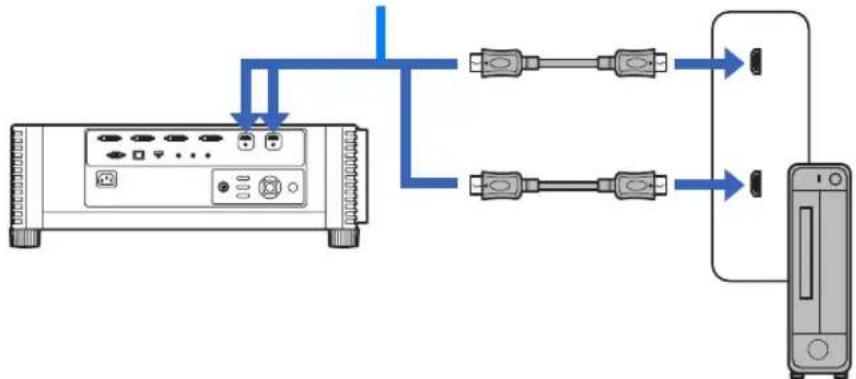
flowchart
graph TD
    A["Device"] --> B["Switch"]
    A --> C["Switch"]
    A --> D["Switch"]
    B --> E["Server"]
    C --> E
    D --> E
Connect desktop computers by using two HDMI cables
Connect up to one HDMI cable
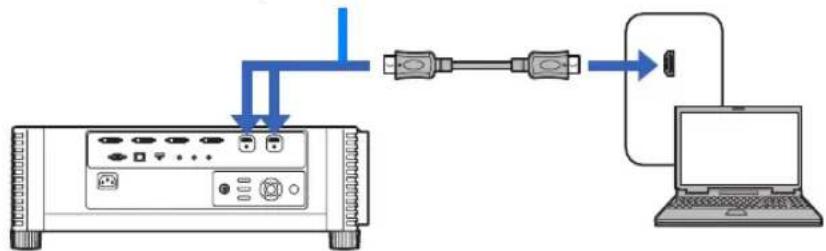
flowchart
graph TD
    A["Device with ports"] -->|Signal| B["USB cable"]
    B --> C["Laptop with cable"]
Connect notebook computers by using one HDMI cable

You cannot project on two or four screens when the projector is connected to multiple computers or pieces of AV equipment.
■Settings for Multi Input Mode
Select how to combine four DVI inputs or two HDMI inputs to form an image. Check computer video output settings in advance, because you must match the display layout (whether split-screen display or display in four quadrants).

Multi Input Mode
Specify the type of image (including resolution) supplied to the terminals. Use [Normal] for most signals. For specific signals, use [Single], [1x2], [2x2], or [1x4] as needed. For details, check the table of supported signals. (P169)
• [Normal] setting
Supports many typical images, including [Single], [1x2], [2x2], and [1x4].
• [Single] setting
Supports many specialized signals from a single piece of connected equipment.
• [1x2] setting
Supports many specialized signals when two signals are supplied.
- [2x2] setting Supports many specialized signals when four signals are supplied, for projection in a 2x2 layout.
- [1x4] setting Supports many specialized signals when four signals are supplied, for projection side by side.
1In the [Install settings] menu, select [Professional settings] > [Multi input mode select].
![CANON REALiS 4K500ST Pro AV - 1In the [Install settings] menu, select [Professional settings] > [Multi input mode select]. - 1](/content/2026/06/1199025/images/513300c5e6d9c1faf25e75c4435681b2316272e1b42916eca56e301af59e04a1.jpg)
text_image
Professional settings Panel drive mode 4096×2160 Multi input mode select DVI optimizer RGB alignment High altitude Off Vertical projection Off Fan speed setting Normal Marginal focus Off Edge blending Off Return2Select the input mode to use.

text_image
Multi input mode select Select the following items to obtain appropriate screen settings on the PC. DVI input mode Normal HDMI input mode Normal ReturnDVI input mode
Specify the combination of DVI input. Choose from [Normal], [Single], or [1x2], [2x2], or [1x4].
- Normal
- Single
• DVI 1x2
• DVI 2x2
• DVI 1x4
HDMI input mode
Specify the combination of HDMI input. Choose from [Normal], [Single], or [1x2].
- Normal
- Single
- HDMI 1x2
These examples show projection in the case of [1x2], [2x2], and [1x4].

1 2
When this setting is set to [Normal], the EDID (unique ID that conveys to computers the model name and setting values of connected display devices) is a list that consists of video signals used with one or multiple projector terminals. On the video output equipment, you can specify video signals for use with a different number of terminals.

[Multi input mode select] window is displayed automatically if the input terminals do not match the settings configured by using the INPUT button.
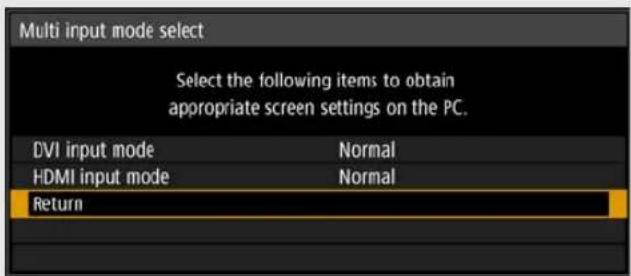
text_image
Multi input mode select Select the following items to obtain appropriate screen settings on the PC. DVI input mode Normal HDMI input mode Normal Return■4K Projection Notes
Colors may appear distorted when images are viewed from the side on some screens, but this does not indicate a problem with the projector. For best results, use a matte screen with a wide viewing angle.
Plugging the Projector In
Connect the power cord to the projector and plug it in.

natural_image
Line drawing of a server rack with attached power outlet and cable (no text or symbols)
- Be sure to connect the ground wire of the power cord to ground.
- Be sure to connect the ground wire before connecting the power plug to the outlet. Also when you disconnect the ground wire, be sure to unplug the power plug from the outlet beforehand.

- Fully insert the power cord plug into the socket.
• After turning off the projector, wait at least 5 minutes before turning it on again. Turning the projector on immediately after turning it off may shorten the lamp life. - Unplug the power cord when the projector is not in use.
Step 1 Turn the Projector On
1 Check the connection between the projector and the computer or AV equipment. (P53, P54)
For instructions on connecting the power cord, refer to "Plugging the Projector In" (P59).
2Press the POWER button.
The [POWER] indicator initially flashes green, after which it remains lit.
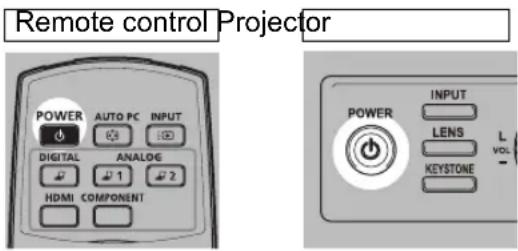
text_image
Remote control Projector POWER AUTO PC INPUT DIGITAL ANALOG HDMI COMPONENT POWER INPUT LENS L KEystone - VDThe countdown window is displayed for approximately 20 seconds, and then the projection is started. Press the OK or EXIT button to hide the countdown window.

- Network functions are not available until about 40 seconds after you plug the projector in.
- Some noise may appear in the projected image during the first few minutes, until the image stabilizes.
- A window appears when the projector is turned on for the first time. You can select a language to be used by the projector for displaying menus and messages in the window. Select the desired language with the pointer buttons and press the OK button. (P61)
You can change the language from the menu at a later time. (P116)
3Turn on the computer or AV equipment power.
Images from the computer or AV equipment are now projected.
Changing Operations When Projector is Turned On
You can change operations when the projector is turned on as follows.
- You can turn on the projector by connecting the power cord, without pressing the POWER button. (P115)
- You can change the countdown window. (P109)
- You can skip the countdown window. (P109)
When the Projector Is Left Idle
If no signal is received, the power management feature automatically turns off the projector after a certain period of inactivity (by default, 15 minutes). (P114)
■When the Language Selection Screen Appears
A screen appears when the projector is turned on for the first time. You can select a language to be used by the projector for displaying menus and messages in the window. Select the desired language with the pointer buttons and press the OK button.
You can change the language from the menu at a later time. (P116) If the language selection screen is out of focus, adjust the focus. (P67)
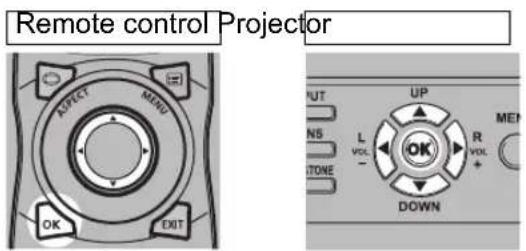
text_image
Remote control Projector OK EXIT DIRECT MEND L VOL - TONE UP R VOL + DOWN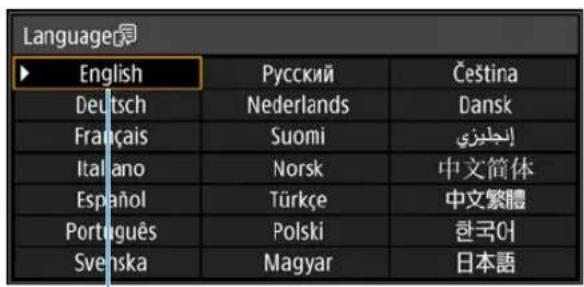
text_image
Language English Pycckii Čeština Deutsch Nederlands Dansk Français Suomi İngölizé Italiano Norsk 中文简体 Español Türkçe 中文繁體 Português Polski 한국어 Svenska Magyar 日本語An item highlighted in orange will be selected.
■When the Password Input Screen Appears
If you have set a password, the password input screen appears. Enter your password. (P117)
■When "No signal" Appears
With a notebook computer, the user must turn on the external monitor output. (P62) Press the INPUT button to select the input signal. (P63)
■When Notebook Computer Screen Does Not Appear
Set your notebook computer to output signals to an external monitor. For more details, refer to "Changing Notebook Computer Screen Output" (P62).
■Adjusting Image
- Set the display resolution of the computer to the highest resolution or the resolution closest to that setting. (P65)
- Use the ZOOM button on the remote control to resize the projected image. (P68)
- If the image is blurry, use the FOCUS button on the remote control to adjust focus. (P67)
- Correct any keystone distortion by pressing the KEYSTONE button. (P73)
- Select a screen mode (aspect) according to the aspect ratio of the screen, type of input image signal etc. (P72)
- Select an image mode depending on the projected image. (P76)

The image can also be adjusted by projecting a test pattern (P168).
Changing Notebook Computer Screen Output
For projection from a notebook computer, the computer settings must be adjusted to switch display output.
This operation is not required for a desktop computer.
■Turning on External Monitor Output
You can turn on the external monitor output via keyboard operation.
To turn on the external monitor output with most computers, press the function key ([F1] to [F12]) which is marked with the external monitor icon while holding down the [Fn] key.

text_image
While pressing Key press a key such as .
- The function key you use and the method used to turn on the external monitor output vary depending on the model. For details, see the manual for your notebook computer.
- With Windows 8.1, Windows 8 or Windows 7, you can turn on image output by holding down the Windows logo key and pressing the [P] key.
Step 2 Select an Input Signal
Select the input signal in the [Input] menu when you want to project a digital PC or AV equipment signal, or to switch between inputs when multiple computers or multiple sets of AV equipment are connected.
Skip this step if you have not changed the input signal since the last projection.
1 Press the INPUT button to display the window shown below.

text_image
Remote control Projector POWER AUTO PC INPUT DIGITAL ANALOG HDMI COMPONENT INPUT LENS L VOL KEystone DO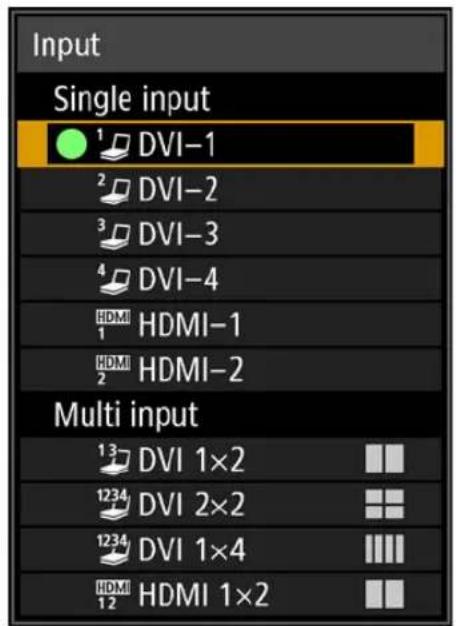
text_image
Input Single input ¹ DVI-1 ² DVI-2 ³ DVI-3 ⁴ DVI-4 HDMI HDMI-1 HDMI 2 HDMI-2 Multi input ¹³ DVI 1×2 ¹²³⁴ DVI 2×2 ¹²³⁴ DVI 1×4 HDMI 12 HDMI 1×2The currently active input signal is marked with a green circle and enclosed by a orange border.
Names of input signals available for projection are displayed in white, and unavailable signal names are grayed out.
2Press the [ ] △[ ] buttons to select the input signal.
You can also switch from one DVI-D input source to the next by pressing the DIGITAL button, or from one HDMI input source to the next by pressing the HDMI button.
3Press the OK button to confirm the input signal type.

- You can also switch to your preferred input signal for projection by pressing buttons on the remote control to switch input signals (specifically, the DIGITAL or HDMI button).
- In multi input mode, the projector combines two or four sources of input for projection together. As sources of input for projection at 4K or other resolutions, choose from [DVI 1x2], [DVI 2x2], [DVI 1x4], or [HDMI 1x2]. (P55)
- Signals you supply for Multi Input mode must meet certain conditions. If the signals do not meet these requirements, a [ ! ] icon is displayed.
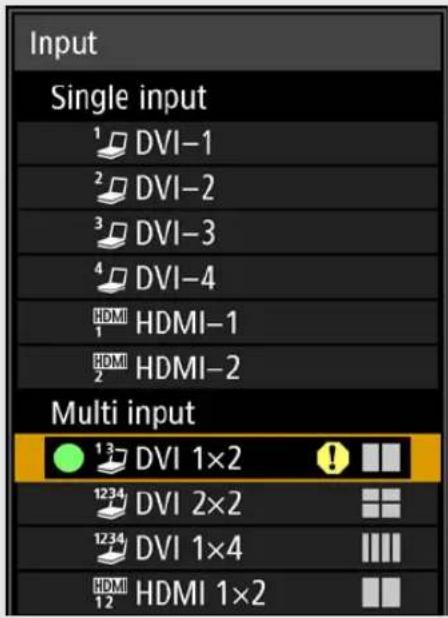
text_image
Input Single input ¹ DVI-1 ² DVI-2 ³ DVI-3 ⁴ DVI-4 HDMI HDMI-1 HDMI HDMI-2 Multi input ¹³ DVI 1×2 ¹²³⁴ DVI 2×2 ¹²³⁴ DVI 1×4 HDMI 1×2Step 3 Adjust the Image
Setting the Display Resolution of the Computer
Based on the maximum resolution of the projector, set the display resolution of the computer to the resolution closest to the output signal resolution of the projector.
(P169)
Maximum resolution
- 4096 x 2160: When [Panel drive mode] is set to [4096x2160].
- 4096 x 2400: When [Panel drive mode] is set to [4096x2400].
■Windows 8.1 / Windows 8
1Move the cursor toward the upper or lower right corner to access the menu.
2Click [Settings], and then click [Control Panel].
3From [Control Panel Home] - [Appearance and Personalization], select [Adjust screen resolution].
4Click the [Resolution] tab, and move the slider to select the resolution closest to the maximum output signal resolution of the projector.
5Click the [OK] button.
Windows 7
1 Open the [Control Panel] from the start menu, then select [Appearance and Personalization] - [Adjust screen resolution] in the [Control Panel Home].
2Click the [Resolution] tab, and move the slider to select the resolution closest to the maximum output signal resolution of the projector.
3Click the [OK] button.
■Windows Vista
1 Open the [Control Panel] from the start menu, then select [Appearance and Personalization] - [Adjust screen resolution] in the [Control Panel Home].
2Select the resolution closest to the maximum output signal resolution of the projector from the [Resolution] list.
3Click the [OK] button.
■Mac OS X
1 Open the Apple Menu and select [System Preferences].
2In the [System Preferences] window, click the [Displays] icon to display the Display window.
3Select the [Display] tab and select the resolution closest to the maximum output signal resolution of the projector from the [Resolutions] list.
4Close the [System Preferences] window.
Focusing, Resizing, or Moving the Image
■Adjusting Image Focus
To adjust the focus, press the FOCUS button on the remote control or the LENS button on the projector.
1Press either the FOCUS button on the remote control or the LENS button on the projector to display the focus adjustment window.
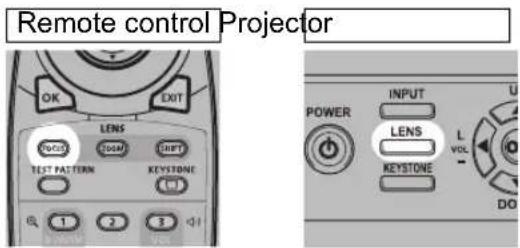
text_image
Remote control Projector OK EXIT LENS VCLK TEMP SHIFT TEST PATTERN KEYSTONE 1 2 3 POWER INPUT LENS VCLK KEYSTONE DO
text_image
Focus adjustment2Press the pointer buttons to adjust the focus.

text_image
Remote control Projector AFFECT MIND OK EXIT PUT UP NS L VOL ME? ITONE - R VOL + DOWNTo adjust the focus, use the [A] / [ ] button on the remote control or projector.
3When the focus is adjusted optimally, press the OK button or the FOCUS button.

If the screen is curved, you can adjust the focus of the image edges. Refer to "Marginal focus" (P102) and "Adjusting Peripheral Focus" (P157).
■Adjusting Image Size
The size of the projected image can be adjusted by pressing the ZOOM button on the remote control or the LENS button on the projector. Change the projector installation position if your desired image is too large or too small to adjust it with the zoom function. (P36)
1 Press the ZOOM button on the remote control to display the zoom adjustment window.
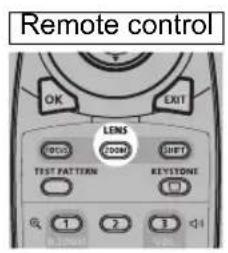
text_image
Remote control OK EXIT LENS OFF DOCK SHIFT TEST FATTERN KEYSTONE 1 2 3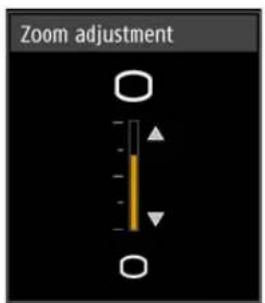
text_image
Zoom adjustmentPress the LENS button on the projector repeatedly to switch between windows for parameters adjusted by controlling the lens.
To access the zoom adjustment window, press the LENS button twice (or three times if you have set [Marginal focus] to [On]).

text_image
Projector POWER INPUT LENS L VOL KEystone DOPress twice.

flowchart
graph TD
    A["Lens shift adjustment"] --> B["Zoom adjustment"]
    B --> C["Marginal focus adjust."]
    C --> D["Is set to [Off"].]
    D --> A
    B --> E["When [Marginal focus"] is_set_to["Off"].]
2Press the pointer buttons to adjust the image size.

text_image
Remote control ADECT MIND OK EXIT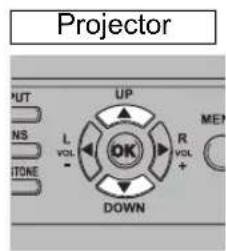
text_image
Projector OUT INS L VOL - ITONE UP R VOL + DOWN ME?
flowchart
graph TD
    A["Group 1"] --> B["Group 2"]
    B --> C{Decision Point}
    C -->|Yes| D["Group 3"]
    C -->|No| E["Group 4"]
    D --> F["Feedback Loop"]
    E --> F
    F --> G["End"]
Screen
To enlarge the image, use the [▲] button on the remote control or projector. To reduce the image, use the ▼ button on the remote control or projector.
3When the desired image size is selected, press the OK button or the ZOOM button.
■Adjusting the Image Position
To adjust the screen position up, down, left, or right, press the SHIFT button on the remote control or the LENS button on the projector. It can change the projected screen to the most suitable position by moving the position of the lens up/down/left/right. (P51)
1 Press the SHIFT button on the remote control to display the lens shift adjustment window.

text_image
Remote control OK 201 LENS 000 200M SHIFT TEST PATTERN KEYSTONE 1 2 3 BLOW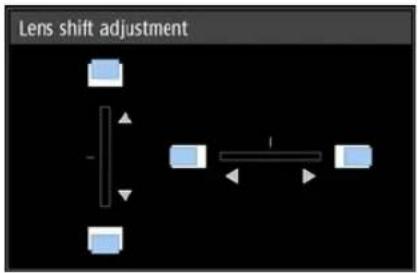
text_image
Lens shift adjustmentPress the LENS button on the projector repeatedly to switch between windows for parameters adjusted by controlling the lens.
To access the lens shift adjustment window, press the LENS button three times (or four times if you have set [Marginal focus] to [On]).
text_image
Projector POWER INPUT LENS L VOL KEystone U DO
flowchart
graph TD
    A["Press three times."] --> B["Lens shift adjustment"]
    B --> C["Focus adjustment"]
    C --> D["When [Marginal focus"] is_set_to["On"].]
    D --> E["Marginal focus adjust."]
    E --> F["When [Marginal focus"] is_set_to["Off"].]
    F --> G["Zoom adjustment"]
    G --> H["End"]
2Press the pointer buttons to adjust.

text_image
Remote control Projector ASPECT MENO OK EXIT PUT UP NS L VOL R VOL TIME DOWN ME? OK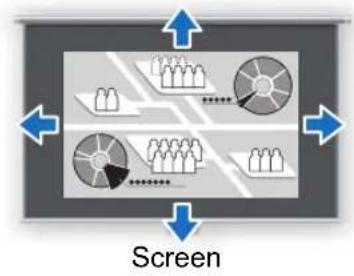
flowchart
graph TD
    A["User Group"] --> B["Group 1"]
    A --> C["Group 2"]
    A --> D["Group 3"]
    A --> E["Group 4"]
    A --> F["Group 5"]
    B --> G["Screen"]
    C --> G
    D --> G
    E --> G
    F --> G
To raise or lower the image, use the [A] / [ ] buttons on the remote control or projector.
To move the image left or right, use the [◀] / [ ] buttons on the remote control or projector.
To continue moving the image in a specific direction, hold down the corresponding button.
3When the desired position is reached, press the OK button.
Resetting the Position
The lens position after movement with the lens shift function is not returned when the power is turned off. To return it to its original position, perform reset.
During screen position adjustment, press and hold the SHIFT button on the remote control or the LENS button on the projector to display the [Lens shift reset] window. Two options are available: 50% (home position) or 0%. Use the pointer buttons to select an option, and then press the OK button.

text_image
Lens shift reset Returns the lens shift pos. to the preset pos. Preset positions 50% (Home pos.) OK
- The lens position may be reset slightly misaligned from the position you chose, whether 50% (home position) or 0% .
- For precise positioning, use the lens shift function to fine-tune the position.
Step 4 Select an Aspect Ratio (Screen Aspect) Matching the Screen
Select an optimum screen mode (aspect) according to the aspect ratio of the screen, type of input image signal and so on for the projection to make best use of the screen size.
[Aspect]: In general, select [Auto].
You may need to change the setting depending on the resolution of the computer or other AV equipment connected.
Select the Aspect
Select [Aspect] based on the input signal type, aspect ratio of the screen and resolution.
Types of Aspect Ratios
Auto
An image is projected at the aspect ratio of the input signal. Select this mode for normal image projection.
True size
The image is projected with the original resolution of the input signal. Screens of computers with a lower display resolution than the projector are displayed smaller but clearer than in other aspect ratios.

There may be some cases when this cannot be selected, depending on the input signal and/or resolution.
Selecting an Aspect Ratio
Press the ASPECT button on the remote control and select an appropriate aspect ratio. Press the ASPECT button to change the aspect ratio type.
Remote control
text_image
REFLECT MEND OK EXITExample:

flowchart
graph TD
    A["Auto"] --> B["True size"]
    B --> A
You can also select any aspect ratio from [Aspect] in the menu. (P88)
Step 5 Adjusting Keystone Distortion
To correct keystone distortion, press the KEYSTONE button.
Two types of correction are available: horizontal/vertical correction and corner correction.
Use horizontal/vertical keystone correction to adjust image width or height distortion separately, and use corner correction to adjust the position of each corner of the image.
For instructions on switching keystone correction, refer to "Keystone" (P98).

- Keystone correction may not be effective in some lens shift positions.
- If keystone distortion is excessive and cannot be fully corrected, straighten the projector so that it faces the screen directly.
- Signals are processed digitally when keystone distortion is corrected. The image may look different from the original one. In addition, the aspect ratio of the image may change.
■Horizontal/Vertical Keystone Correction
1 Press the KEYSTONE button on the remote control or projector to display the horizontal-vertical keystone adjustment window. (When [Keystone] is set to [Horizontal-vertical keystone].)
![CANON REALiS 4K500ST Pro AV - Press the KEYSTONE button on the remote control or projector to display the horizontal-vertical keystone adjustment window. (When [Keystone] is set to [Horizontal-vertical keystone].) - 1](/content/2026/06/1199025/images/1d5daecf6b9815691674f89879fca2eea4d45f93f3e0a57af44898a5984bdbf5.jpg)
text_image
Remote control Projector OK EXIT LENS TEST PATTERN 1 2 3 4 POWER INPUT LENS L VOL KEystone DO![CANON REALiS 4K500ST Pro AV - Press the KEYSTONE button on the remote control or projector to display the horizontal-vertical keystone adjustment window. (When [Keystone] is set to [Horizontal-vertical keystone].) - 2](/content/2026/06/1199025/images/fdc8e164d07e161ccac4e6bef1a7595fe033111d68053e7dd110c5d847388069.jpg)
text_image
Horizontal–vertical keystone adjustment +0 +02Press the pointer buttons to adjust the dimensions.
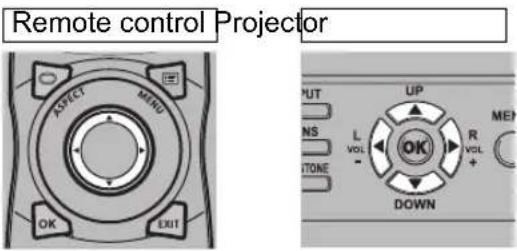
text_image
Remote control Projector OK EXIT MIND ATTCT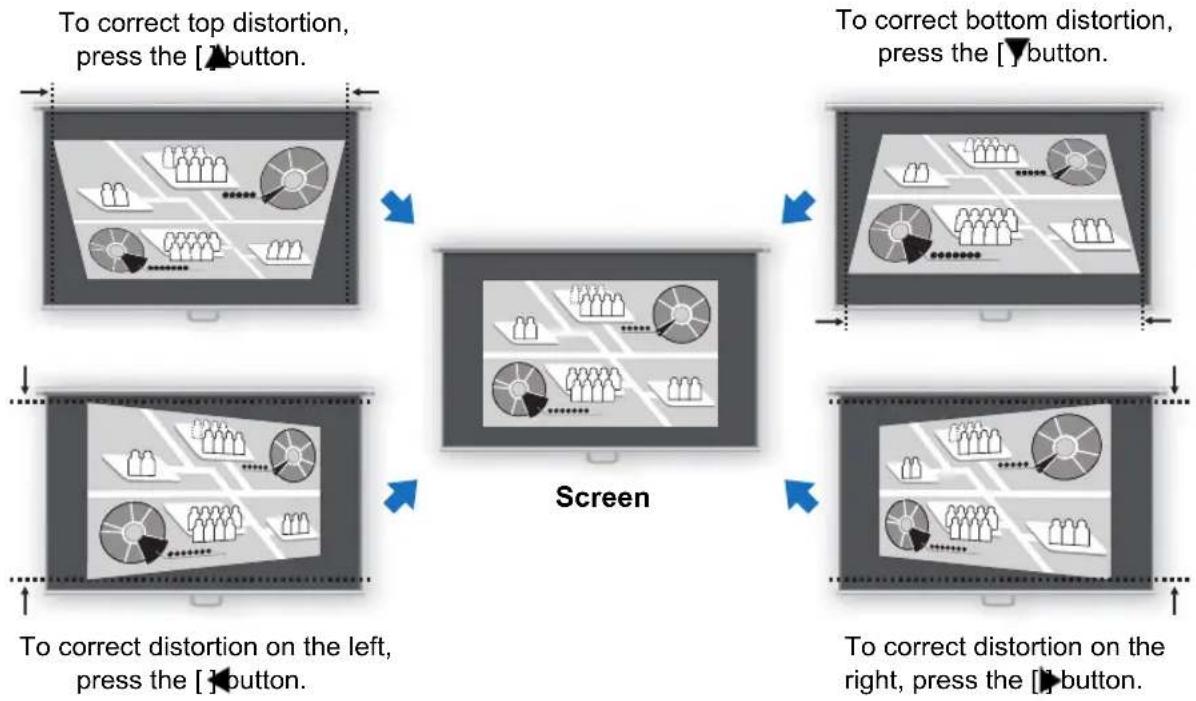
flowchart
graph TD
    A["To correct top distortion, press the [▲button."]] --> B["Screen"]
    C["To correct bottom distortion, press the [▼button."]] --> B
    D["To correct distortion on the left, press the [▼button."]] --> B
    E["To correct distortion on the right, press the [▼button."]] --> B
3 When keystone distortion has been corrected, press the OK button.
■Corner Adjustment
1 Press the KEYSTONE button on the remote control or projector to display the corner adjustment window. (When [Keystone] is set to [Corner adjustment].)
![CANON REALiS 4K500ST Pro AV - Press the KEYSTONE button on the remote control or projector to display the corner adjustment window. (When [Keystone] is set to [Corner adjustment].) - 1](/content/2026/06/1199025/images/fb3f1f5191d16b02389e53a55dc744e9527c1ffb8910a4644cf907eb9bbcc137.jpg)
text_image
Remote control Projector OK EXIT LENS 150V 200V LEFT TEST PATTERN KEYSTONE 1 2 3 106 POWER INPUT LENS L VOL - KEYSTONE DO![CANON REALiS 4K500ST Pro AV - Press the KEYSTONE button on the remote control or projector to display the corner adjustment window. (When [Keystone] is set to [Corner adjustment].) - 2](/content/2026/06/1199025/images/729c96d8cd8f4efd5ff9099d7bc00d684a80cf40f19184732215fbb984ecae0b.jpg)
text_image
Corner adjustment Choose corner to adjust.2Press the pointer button of the corner for correction, and then press the OK button.
Remote control Projector
![CANON REALiS 4K500ST Pro AV - Press the KEYSTONE button on the remote control or projector to display the corner adjustment window. (When [Keystone] is set to [Corner adjustment].) - 3](/content/2026/06/1199025/images/7dcd81516fb553f07ecf10f14f0ab18763aa47544c586da582cd374158987c45.jpg)
text_image
ASPECT MAND OK EXIT![CANON REALiS 4K500ST Pro AV - Press the KEYSTONE button on the remote control or projector to display the corner adjustment window. (When [Keystone] is set to [Corner adjustment].) - 4](/content/2026/06/1199025/images/09cd31430e271c128197fc3669ba6a7f2f886d3a48064f82e85a3cd335a1f5e8.jpg)
text_image
OUT L VOL - UP OK R VOL + DOWN ME7![CANON REALiS 4K500ST Pro AV - Press the KEYSTONE button on the remote control or projector to display the corner adjustment window. (When [Keystone] is set to [Corner adjustment].) - 5](/content/2026/06/1199025/images/7816849c10098602543b1bd2b7b14e50fa8094de948a74573acb40edd4e0aaa9.jpg)
text_image
Corner adjustment Choose corner to adjust.3Press the pointer buttons to adjust the corner.
Remote control Projector
![CANON REALiS 4K500ST Pro AV - Press the KEYSTONE button on the remote control or projector to display the corner adjustment window. (When [Keystone] is set to [Corner adjustment].) - 6](/content/2026/06/1199025/images/296ccef4d5fdf991675109fb8e01883c4eb0cd66521d5abf1a372858e9085f22.jpg)
text_image
AFFECT MEND OK EXIT![CANON REALiS 4K500ST Pro AV - Press the KEYSTONE button on the remote control or projector to display the corner adjustment window. (When [Keystone] is set to [Corner adjustment].) - 7](/content/2026/06/1199025/images/1ef677c8afbaa007ac34c0f93f7aa76303ff0bde08bebc679249fb25ba791a71.jpg)
text_image
OUT L VOL - UP R VOL + DOWN MET![CANON REALiS 4K500ST Pro AV - Press the KEYSTONE button on the remote control or projector to display the corner adjustment window. (When [Keystone] is set to [Corner adjustment].) - 8](/content/2026/06/1199025/images/d1cba0018b865d05818444dde254448a8da5169e3577e0aa0e29db81097c45ae.jpg)
text_image
Corner adjustment Use arrow keys to adjust.4 When you have finished correcting, press the OK button.
■Resetting the Keystone Adjustment
Reset adjustment as follows.
First, press the KEYSTONE button on the remote control twice to display the [Keystone reset] window.
Next, select [OK] with the [◀] button, and then press the OK button.
Your specified keystone adjustment is now reset.

text_image
Horizontal–vertical keystone reset Horizontal–vertical keystone adjustment will be reset. OK? OK Cancel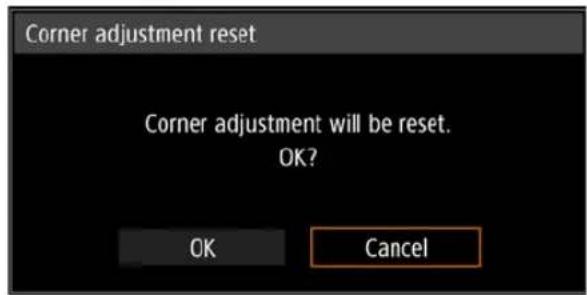
text_image
Corner adjustment reset Corner adjustment will be reset. OK? OK CancelStep 6 Select the Image Quality (Image Mode)
You can select an image mode to suit the projected image.
In each image mode, you can further adjust the brightness (P92), contrast,
sharpness, gamma, color adjustment (P93), advanced adjustment (P93), and lamp mode. (P96)
Image Modes
Available image modes vary depending on the selected input signal.
○: Compatible ÷ Not compatible
| Image mode | Compatible input signals | Functions(1) Ambient Light in Room(2) Types of Images(3) Good For | |
| Digital PC HDMI | |||
| Standard | ○ | ○ | (1) Bright(2) Computer screens, or media played with video software(3) Whites and natural colors |
| Presentation | ○ | ○ | (1) Bright(2) Images mainly consisting of text(3) Keeps the screen bright |
| Dynamic | — | ○ | (1) Bright(2) Media played with video software(3) Keeps the screen bright |
| Video | — | ○ | (1) Somewhat dark(2) Video from camcorders(3) Close to the color space of TVs |
| Photo/sRGB | ○ | ○ | (1) Somewhat dark(2) Digital photos from sRGB-compatible cameras(3) Conforms to the sRGB standard |
| DICOM SIM | ○ | ○ | (1) Adjust gamma to suit the surrounding brightness.(2) Monochrome (medical images, for example)(3) Adjusted to the GSDF curve specified in DICOM Standard Part 14 |
| User 1 – 3 | ○ | ○ | Up to 3 user-selected combinations of image quality settings can be stored in the memory (P92). Stored settings can be selected as an image mode. |
■Selecting an Image Mode
Press the IMAGE button on the remote control to select.
The image mode changes each time the IMAGE button is pressed. (The displayed image modes vary depending on the selected input signal.)

flowchart
graph TD
    A["User 1"] --> B["Standard"]
    A --> C["Presentation"]
    A --> D["Photo/sRGB"]
    A --> E["DICOM SIM"]
    B --> F["Remote control"]
    C --> F
    D --> F
    E --> F
You can also select any image mode from the [Image mode] menu. (P91)
- User settings 1 - 3 are displayed when the desired image settings have been created and stored using the user memory function in the image adjustment menu. (P91)
Projecting an Image in the DICOM SIM Mode
In the DICOM simulation mode (hereinafter referred to as “DICOM SIM”), this projector can project a monochrome medical image such as an X ray radiography, CT image, MRI image, etc. in the tone similar to the DICOM (Digital Imaging and Communications in Medicine) standard. Typically, to project the image according to the DICOM standard, it requires the grayscale tone correction using a luminance meter according to the environment. In this projector, there are 21 types of tone settings for various ambient lights. You can correct the tone in a simplified manner by selecting the DICOM test pattern (P168).
It is suited to project an image in a medical lecture, academic conference, in-hospital conference, etc.
This projector is not the display monitor for a medical image. It cannot be used for the radiological image reading or medical examination.

- It is recommended to check the tone every time when using this projector since it does not have the tone correction and calibration functions against the secular change.
- It may take approximately 30 minutes until the projection brightness of this projector becomes stabled.
■Switching the mode to the DICOM SIM Mode
1 Press the IMAGE button on the remote control until [DICOM SIM] is displayed or select [DICOM SIM] from [Image mode] in the [Image adjustment] menu.


text_image
HDMI-1 Image adjustment Image mode Create profile Brightness Contrast Sharpness Gamma Color adjustment Advanced adjustment Lamp mode Reset Standard Presentation Dynamic Video Photo/sRGB ▶ DICOM SIM User 1 User 2 User 32Press the TEST PATTERN button on the remote control until [DICOM] is displayed or select [On] from [Test pattern] in the [Install settings] menu.
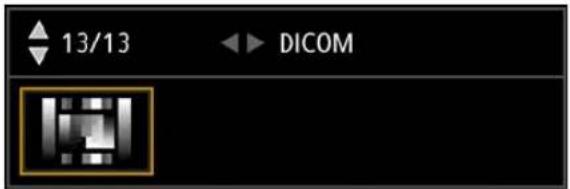
text_image
13/13 DICOM3As you watch the test pattern, adjust the items in the following menus.
- Brightness
- Contrast
- Sharpness
- Gamma
4Press the OK button after the setting.

Perform one of the followings to obtain an appropriate projection:
- Darken the ambient light
- Reduce the image size
- Reduce the projection distance
Step 7 Turn the Projector Off
1 Press the POWER button to display the window shown below.

text_image
Remote control Projector POWER AUTO PC INPUT DIGITAL ANALOG HDMI COMPONENT POWER INPUT LENS L VOL - KEYSTONE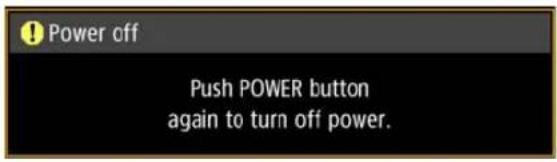
text_image
Power off Push POWER button again to turn off power.2When this window is displayed, press the POWER button again to turn off the power.
After you turn the projector off, the lamp goes off, the [STAND BY] indicator flashes in red, and the projector starts cooling down. After cooling down, the projector enters standby mode. In standby mode, the [STAND BY] indicator remains lit instead of flashing.

If you want to continue projecting without turning off the power, press a button other than POWER, or else wait until the confirmation message disappears.

- The projector cannot be turned on while the lamp is cooling down.
• After turning off the projector, wait at least 5 minutes before turning it on again. It may shorten the lamp life if you turn on the projector immediately after turning it off. - Using the projector for extended periods may shorten the life of the lamp and internal optical components.
- Unplug the projector if it will not be used for an extended period.
Convenient Features
This section describes features convenient during presentations and in other situations.
Temporarily Blacking Out an Image
Projection can be temporarily blanked after a presentation, or to divert the audience's attention away from the screen.

text_image
Remote control 1 2 3 4 5 6 7 8 9 OK 0 For 520 FREEZE 20 IMAGE BLANKPress the BLANK button to black out the image. Press the BLANK button again to show the image.
- You can set the screen state while blacking out the image in the menu. (P109)
- The lamp remains illuminated while the image is blacked out.
Freezing the Picture
Projection can be temporarily frozen during computer operations that would be distracting, or to pause playback of video or animation.
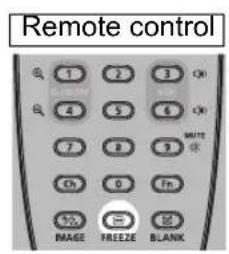
text_image
Remote control 1 2 3 ON 4 5 6 ON 7 8 9 WRITE Ch 0 Fn ½ m IMAGE FREEZE BLANKPress the FREEZE button to freeze the moving image. The projector shows the following icon.
Press the FREEZE button again to return to the original display.

text_image
Screen- It is also cancelled when the input signal is terminated.
Projecting a Test Pattern from the Menu

text_image
Remote control OK EXIT LEMS DOCU DOCK SHIFT TEST PATTERN KEYSTONE R 1 2 3 OKEven without any input signals, the projector can project a test pattern. Test patterns can be projected during installation to check how the projector is installed.
To project a test pattern, press the TEST PATTERN button on the remote control.
To stop test pattern projection, press the TEST PATTERN button again.
For details on projecting test patterns, see "Install settings" (P97) or "Displayed Test Patterns" (P168).
Specifying Power-Saving Settings
Set power-saving settings as needed.
The following four settings are available. For details, refer to the page describing each function.
- Lamp mode (P96)
Adjust lamp and fan power consumption in the image mode.
• Power management mode (P114)
Automatically turns off the lamp or the power after a certain period if the projector is idle without an input signal.
• Power management duration (P114)
Specify the period after which the lamp or the projector should go off automatically if left idle without an input signal when [Power management mode] is set to [Lamp off] or [Standby].
• Network standby settings (P125)
Conserves energy in standby mode.
Advanced Guide
Safety Instructions
Before Use
Basic Guide
Installation Procedure
Connection Procedure
Projection Procedure
Convenient Features
Advanced Guide
Using Menus
Menu Settings
Advanced Projection
Other Information
Maintenance
Product Specifications
Troubleshooting
Use the menus to set the operation of the projector in detail.
Menu Configuration
The menu screen is divided into 6 tabs as shown below.

[Input settings] tab (P87)
You can set the type of signal or the method of projection of the images input.
![CANON REALiS 4K500ST Pro AV - [Input settings] tab (P87) - 1](/content/2026/06/1199025/images/5fa6d3b625a951c70925dbe82e47467df0708bdfb660e799f141386793c51f4c.jpg)
[Image adjustment] tab (P90)
You can adjust the image quality and colors according to your preference.
![CANON REALiS 4K500ST Pro AV - [Image adjustment] tab (P90) - 1](/content/2026/06/1199025/images/e018955cb88747132fde831bc6be6619400bcee084ab5ab0e123b4ac9675c02f.jpg)
[Install settings] tab (P97)
This setting is used when installing the projector.
![CANON REALiS 4K500ST Pro AV - [Install settings] tab (P97) - 1](/content/2026/06/1199025/images/3270a70699d006e1ca8300e7cf9701908794d9f801ed7700094caa2aa4c1a36e.jpg)
[System settings] tab (P108)
You can set the operation of the projector.
![CANON REALiS 4K500ST Pro AV - [System settings] tab (P108) - 1](/content/2026/06/1199025/images/001b5b39b3cbf39ccdb1e213d48cae20d66431b157c5c23d4b4036b1dfd7eb28.jpg)
[Network settings] tab (P123)
These settings are for when using the projector from a PC via a network.
For the network settings, refer to "Network settings" (P122).
![CANON REALiS 4K500ST Pro AV - [Network settings] tab (P123) - 1](/content/2026/06/1199025/images/4fb1e529e3a92277c04a64ffef5185bd1e7149ce19f3e55328ae447c2a44f422.jpg)
[Information] tab (P148)
You can check information about the signal types of the images projected and other information.
![CANON REALiS 4K500ST Pro AV - [Information] tab (P148) - 1](/content/2026/06/1199025/images/da613fea5b02b7cad77f99503b67740a3e791433bce587da25c861b1ea18c598.jpg)
HDMI-1
![CANON REALiS 4K500ST Pro AV - [Information] tab (P148) - 2](/content/2026/06/1199025/images/f1286a04716dd2218fe98b145b1325567a9557f3a10f4e96eff4860d1e1857a2.jpg)
![CANON REALiS 4K500ST Pro AV - [Information] tab (P148) - 3](/content/2026/06/1199025/images/47286a648098f4ff57ef84e8006f9f8222b3ded5275a69bcedafcf6fb39ab1ee.jpg)
![CANON REALiS 4K500ST Pro AV - [Information] tab (P148) - 4](/content/2026/06/1199025/images/5e74cf2d940aae85c6211f1c251c645dab148915221c83c27aa6781441fdc5f1.jpg)
![CANON REALiS 4K500ST Pro AV - [Information] tab (P148) - 5](/content/2026/06/1199025/images/26fdf1d03e734ab5cd080b0a35869f3ae1547a418bc26a5805beb005544e54d9.jpg)
![CANON REALiS 4K500ST Pro AV - [Information] tab (P148) - 6](/content/2026/06/1199025/images/4d676dd28b44465e9c9c0a1e5906d8f9a73e3361e05125a7e70059a1b0e15377.jpg)
![CANON REALiS 4K500ST Pro AV - [Information] tab (P148) - 7](/content/2026/06/1199025/images/cde46639f23e2bb4105d9e6489c957c73deadf0897bf890a76aa4f03a0e6aa95.jpg)
Input settings
Aspect
Input level
Super white
Color space
Progressive
Auto
Auto
Off
Auto
Contents of menu Menu items
Basic Menu Operations
1 Press the MENU button to display the menu window.
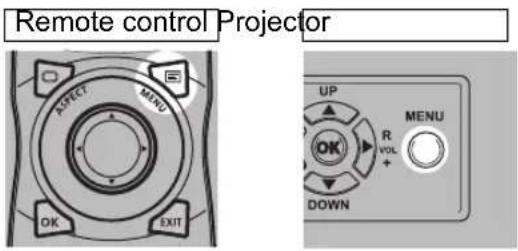
text_image
Remote control Projector OP R VOL + DOWN EXIT ATT MIND OR OK UP MENU
text_image
HDMI-1 Input settings Aspect Auto Input level Auto Super white Off Color space Auto Progressive2Press the [ ] /[ ] buttons to select a tab.
![CANON REALiS 4K500ST Pro AV - 2Press the [ ] /[ ] buttons to select a tab. - 1](/content/2026/06/1199025/images/1777441d50a167c9ed82433d591540d712a36e4bb0787d552c53da82e0a8d682.jpg)
text_image
Remote control Projector ASPECT MIND OK EXIT PUT UP NS L VOL TONE R VOL DOWN MEN![CANON REALiS 4K500ST Pro AV - 2Press the [ ] /[ ] buttons to select a tab. - 2](/content/2026/06/1199025/images/f4a04c4bc94a029f1007b1918279d5a08973acfaa5cce84d3f2ae71a43553d8d.jpg)
text_image
HDMI-1 Image adjustment Image mode Standard Create profile Brightness +0 Contrast +0 Sharpness +2 Gamma +0 Color adjustment Advanced adjustment Lamp mode Full power Reset- If the tab position is not highlighted in orange, press the [ ]N [ ] Buttons to move the current selection to the top.
3Press the [ ] ▲[ ] buttons to select an item.
![CANON REALiS 4K500ST Pro AV - 3Press the [ ] ▲[ ] buttons to select an item. - 1](/content/2026/06/1199025/images/a3b646470bf343ef8656ecb1c1e687cd40e79c60152501908b934777b0f4559f.jpg)
text_image
Remote control Projector OFF MND OK EXIT OUT UP NS L VOL - TONE R VOL + DOWN MEI![CANON REALiS 4K500ST Pro AV - 3Press the [ ] ▲[ ] buttons to select an item. - 2](/content/2026/06/1199025/images/1325dfbc7135e975c6b1db559cb29998a778297e93e4a49d0315642d5f50cc2f.jpg)
text_image
HDMI-1 Image adjustment Image mode Standard Create profile Brightness +0 Contrast +0 Sharpness +2 Gamma +0 Color adjustment Advanced adjustment Lamp mode Full power Reset4Select contents.
How to select the contents varies depending on the item.
Selecting from a list Example: Aspect (P88)
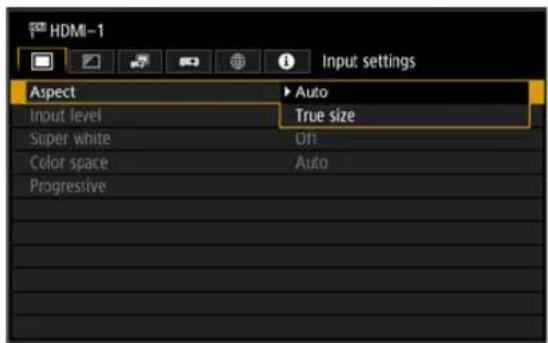
text_image
HDMI-1 Input settings Aspect ▶ Auto Input level True size Super white Off Color space Auto Progressive- Select [Aspect].
- Press the OK button or [▶button to display a list of the contents.
- Use the [ ] Buttons to select the desired contents.
- When you have found the contents you desired, press the OK button or [▶].
Adjusting with the [ ]/ [ ]buttons
Example: Contrast (P92)
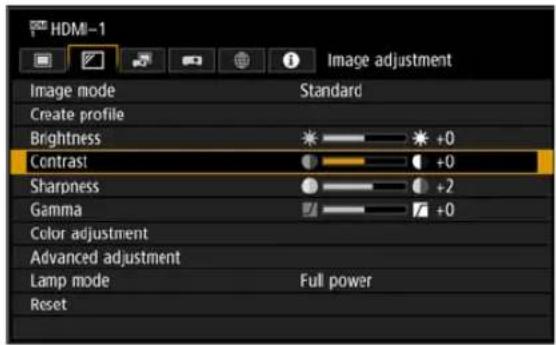
text_image
HDMI-1 Image adjustment Image mode Standard Create profile Brightness +0 Contrast +0 Sharpness +2 Gamma +0 Color adjustment Advanced adjustment Lamp mode Full power Reset- Select [Contrast].
- Use the [ ]◀ [ ] ▶buttons to adjust the setting.
Selecting from a different screen (1) password (P124)
Example: Register network

text_image
Register network password Enter new password. * * * * Cancel- Select [Register network password]. A different screen is displayed.
- Use the [ ] ▼ [ ] ▶ [ ] / ▼ buttons or number buttons on the remote control to enter the projector network password.
Selecting from a different screen (2) (P94)
Example: Random noise reduction

text_image
Advanced adjustment Random noise reduction Off MPEG noise reduction Off Dynamic gamma Off Mem. color correct 6-axis color adjust Off Fine-Tune Gamma Return- Select [Advanced adjustment].
- Press the OK button to display a different screen.
- Select [Random noise reduction].
- Use the [ ] ▲ [ ] Buttons to select the setting.
- When you have completed the settings, press the OK button.
5Pressing the MENU button causes the menu screen to disappear. The menu screen will also disappear if the EXIT button is pressed.
Menu Settings
Input settings
This section describes settings for aspect ratio, etc.

text_image
HDMI-1 Input settings Aspect Auto Input level Auto Super white Off Color space Auto Progressive(When the input signal is HDMI-1)
| Menu Function | Details | |
| Aspect Select an image aspect ratio. P88 | ||
| Input level Select the input level for HDMI signal. P88 | ||
| Super white | Select super white mode compatibility for HDMI signals. | P88 |
| Color space Select the color space for HDMI signal. P89 | ||
| Progressive | Select progressive processing for still images in cinematic content or moving images in videos. | P89 |
Menus that are not available are grayed out or hidden.
Aspect

[Input settings] > [Aspect]
Select a projection aspect ratio for images.
| Option Function | |
| Auto An image is projected | at the aspect ratio of the input signal. |
| True size | The image is projected with the original resolution of the input signal. |
Menus that are not available are hidden.

The ASPECT button on the remote control can also be used to select the [Aspect] settings.
Input level

[Input settings] > [Input level]
Adjust the input level for content projected via HDMI.
| Option Function | |
| Auto Automatically switches the input level based on the input signal. | |
| Normal Limits the input level to 16 - 235. | |
| Expanded Enables a full input level of 0 - 255. |

- This setting is only available with RGB HDMI signals.
- In [Auto] mode, the signal level is selected automatically. (Some equipment may not support this.)
- If HDMI output can be set to [Normal] or [Expanded], we recommend [Expanded]. The contrast of images will be improved and dark scenes will be rendered more realistically. In this case, set [Input Level] to [Auto] or [Expanded].
For more detailed information, refer to the user's manual for the AV equipment connected to the projector.
Super white

[Input settings] > [Super white]
Select to project white signals in HDMI input that are in a range of 16-235 at 100%-109% brightness (235-255).
| Option Function | |
| Off | Disable super white. Project white signals with an input level of 235 at 100% brightness. All white signals with an input value exceeding 235 are also projected at 100% brightness. |
| On | Convert input signals in a range of 16-235 so that an input level of 255 is projected as white 109% at 100% brightness. |

- Super white has no effect when [Input level] is set to [Expanded].
- Switch this setting to [Off] if projection looks distorted or unnatural when it is [On].
- Setting this option to [On] will darken the overall image.
Color space

[Input settings] > [Color space]
Select the color space for HDMI signal.
| Option Function | |
| Auto Selects the optimal color format for input signals. | |
| RGB Forces the projector to handle the input signal as an RGB signal. | |
| YCbCr | Forces the projector to handle the input signal as a color difference signal. |
Progressive

[Input settings] > [Progressive]
Performs progressive processing optimized for still images in cinematic content or moving images in videos, when interlaced HDMI signals (1080i, 1035i, 576i, or 480i) are supplied.
| Option Function | |
| Off Does not perform | progressive processing. |
| Film/auto | Suitable for still images or typical moving images. Performs progressive processing for video or cinematic content. |
| Video 1 | Suitable for projecting video with high image quality and relatively slow movement. Performs progressive processing optimized for HD video. |
| Video 2 | Suitable for projecting video with faster movement. Performs progressive processing optimized for fast-moving video. |
| 25p/30p (PsF) | Performs progressive processing optimized for 1080 Psf/25 or 1080 Psf/30 video (25 or 30 fps, respectively). |

Select [Off] when flickers and horizontal lines are noticeable in media that has a lot of fast-moving action.
Image adjustment
This section describes image quality settings such as brightness, contrast, and sharpness.
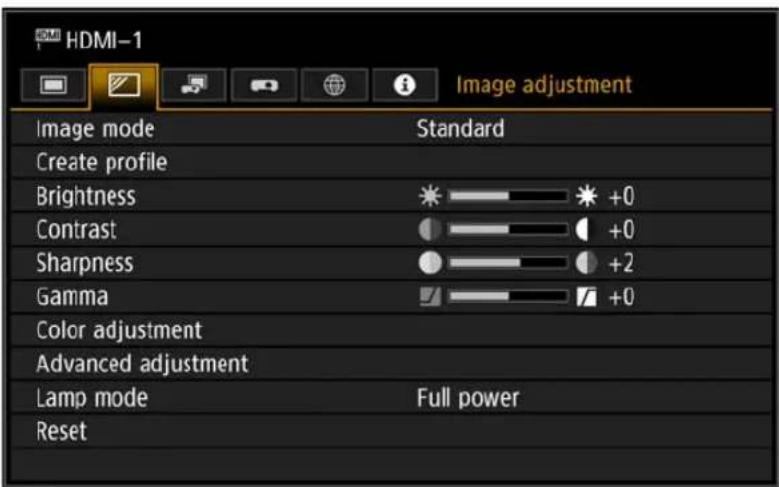
text_image
HDMI-1 Image adjustment Image mode Standard Create profile Brightness +0 Contrast +0 Sharpness +2 Gamma +0 Color adjustment Advanced adjustment Lamp mode Full power Reset(When the input signal is HDMI-1)
| Menu Function | Details | |
| Image mode * Select overall image quality to suit the projected image. P91 | ||
| Create profile Save desired image quality settings as profiles. P92 | ||
| Baseline image mode Shows the image mode that is basis of the profile. P92 | ||
| Brightness * Adjust image brightness. P92 | ||
| Contrast * Adjust image contrast. P92 | ||
| Sharpness * Adjust image sharpness. P92 | ||
| Gamma * Correct loss of detail in shadows or highlights. P92 | ||
| Color adjustment * | Fine-tune image colors. | P93 |
| Advanced adjustment * | Fine-tune noise reduction and color tone. | P93 |
| Lamp mode * | Select the lamp brightness. | P96 |
| Reset | Restore the current image quality settings to defaults. | P96 |
Menus that are not available are grayed out or hidden.
* Adjustments are stored as modified settings for the current input signal and image mode.
Image mode

[Image adjustment] > [Image mode]
Select the overall image quality for projected images. Can also be selected by pressing the IMAGE button on the remote control.
| Option | Function | ||
| Room Brightness | Types of Images Good For | ||
| Standard Bright | Computer screens, or media played with video software | Whites and natural colors | |
| Presentation Bright | Images mainly consisting of text | Keeps the screen bright | |
| Dynamic Bright Video content Keeps the screen bright | |||
| Video | Somewhat dark | Video from camcorders | Close to the color space of TVs |
| Photo/sRGB | Somewhat dark | Digital photos from sRGB-compatible cameras | Conforms to the sRGB standard |
| DICOM SIM | Adjust gamma to suit the surrounding brightness. | Medical or other monochrome images | Conforms to gamma values used for medical images * Conforms to DICOM Standard Part 14. However, the projector cannot be used in diagnosis or similar applications. |
| User 1 - 3 | Up to 3 user profiles can be stored for your selected image quality settings (P92). Stored profiles are available in this setting as an image mode. | ||
Menus that are not available are grayed out or hidden.

- You can adjust the image quality by adjusting the following items in each image mode: [Brightness], [Contrast], [Sharpness], [Gamma], [Color adjustment], [Advanced adjustment], and [Lamp mode]
- If flickering occurs in Presentation mode, try switching to sRGB or Standard mode.
Create profile

[Image adjustment] > [Create profile]
Save desired image quality settings in up to 3 user profiles.

- The saved settings consist of the brightness, contrast, sharpness, gamma, color adjustment, advanced adjustment, and lamp mode.
- Although only 3 user profiles are displayed, separate profiles apply depending on whether DVI-D or HDMI signals are supplied. As a result, it is possible to save up to 6 settings.
- The image mode name which was the basis for the settings change is also saved in the user memory. When a user memory is selected as the image mode, the image mode that was the base for that user memory is displayed in the menu as [Baseline image mode].
Brightness

[Image adjustment] > [Brightness]
Adjust image brightness.
Contrast

[Image adjustment] > [Contrast]
Sharpen or soften image contrast.
Sharpness

[Image adjustment] > [Sharpness]
Adjust image sharpness.
Gamma

[Image adjustment] > [Gamma]
Correct image areas that are too dark or too bright to see clearly.

For more detailed adjustment, use Fine-Tune Gamma (P96).
Color adjustment

[Image adjustment] > [Color adjustment]
Adjust color-related settings such as color level, color balance, and color temperature.

text_image
Color adjustment Color level Color balance Color temperature R Gain G Gain B Gain R Offset G Offset B Offset Return(In image modes other than DICOM SIM.)
| Submenu Function | |
| Color level Adjusts the intensity of colors. | |
| Color balance Adjusts the color balance of a purplish or greenish image. | |
| Color temperature Adjusts the white color temperature. | |
| R / G / B Gain Adjust the gain of each color. | |
| R / G / B Offset Adjusts the color offset of each color. | |

In [DICOM SIM] image mode, [Color temperature] is not adjusted with numeric values but set to one of the following five presets.
Preset 1: Adjust brightness relative to DICOM Standard Part 14.
Preset 2: Adjust color tone relative to DICOM Standard Part 14.
Preset 3: Adjust color to conform to DICOM Standard Part 14.
Preset 4 (Clear Base): Adjust color to suit the color of X-ray film.
Preset 5 (Blue Base): Adjust color to suit the color of X-ray film.
Advanced adjustment

[Image adjustment] > [Advanced adjustment]
Fine-tune noise reduction and color tone.
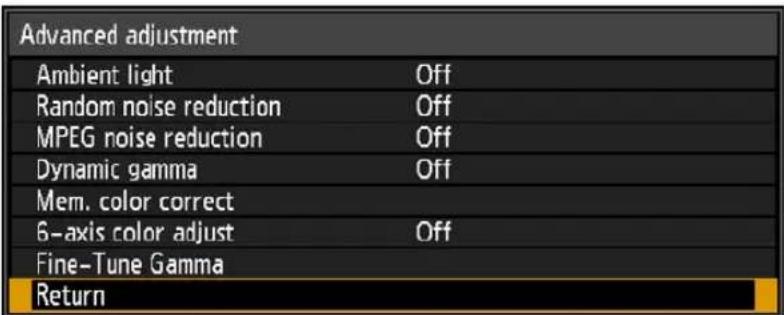
text_image
Advanced adjustment Ambient light Off Random noise reduction Off MPEG noise reduction Off Dynamic gamma Off Mem. color correct 6-axis color adjust Off Fine-Tune Gamma Return| Ambient lightMinimize the effect of ambient light on the screen. | ||
| Submenu Function | ||
| Off Projects an image with no correction. | ||
| Adjust | Type | Tungsten For ambient light from conventional light bulbs or fluorescent light of this color. |
| Fluorescent For ambient light from a “day white” fluorescent source. | ||
| Level | L For an ordinary brightness of ambient light. | |
| H For bright ambient light. | ||
| Examples of Ambient Light Level Settings | ||
| Level Example Location | ||
| L Projection room, sports bar, etc. | ||
| H Conference room, lecture room, etc. | ||
| [2556] The [Ambient light] setting is available in [Photo/sRGB] image mode. | ||
| Random noise reductionReduce random image noise*.* Effective on noise with an irregular frequency or amplitude. | ||
| Option Function | ||
| Off Disables random noise reduction. | ||
| Weak | Specify one of three levels of intensity of the random noise reduction.Middle | |
| Strong | ||
 Select [Weak] for fast-moving images or [Strong] for slow-moving images. Select [Weak] for fast-moving images or [Strong] for slow-moving images. | ||
| MPEG noise reductionReduce MPEG image noise. | ||
| Option Function | ||
| Off Disables MPEG noise reduction. | ||
| Weak | Specify one of three levels of intensity of the MPEG noise reduction.Middle | |
| Strong | ||
| Dynamic gamma You can adjust the gradation representation of light and dark portions of an image automatically. | |
| Option Function | |
| Off Disable dynamic gamma adjustment. | |
| Weak | Specify one of three levels of dynamic gamma adjustment.Middle |
| Strong | |
| Mem. color correct (Flesh/Sky/Green) Enhances skin tones, blue skies, and greens, so that these colors are more consistent with people's remembered impressions. | |
| Option Function | |
| Off Disable correction. | |
| Weak | Specify the level of correction.Middle |
| Strong | |
| 6-axis color adjust Fine-tune RGB (red, green, blue) and CMY (cyan, magenta, yellow) hues in images. | |
| Submenu Function | |
| Off Disables 6-axis color adjustment. | |
| Adjust | 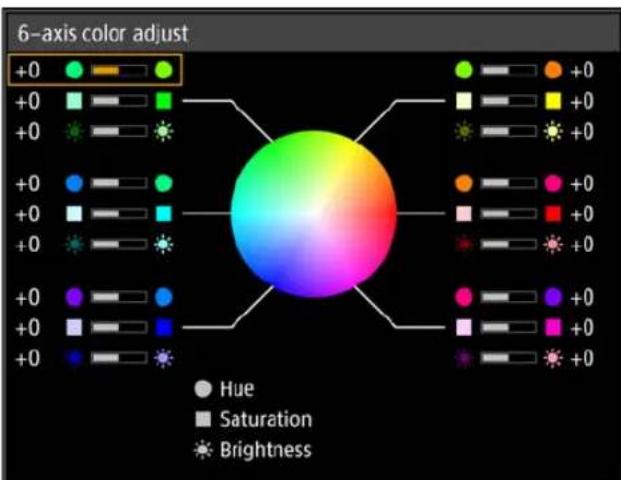 |
| Use the [▲/[]▼buttons to select [ Hue], [ Satuation], or [Brightness], and use the [ ] / [ ] buttons for adjustment. | |
| Reset Returns all adjustment values to zero. | |
Fine-Tune Gamma
Adjust white, red, green, and blue gamma curves. Red, green, and blue can be adjusted separately. Adjustments to white are also applied to the three other colors. Note that adjusting any color will overwrite previous adjustments.
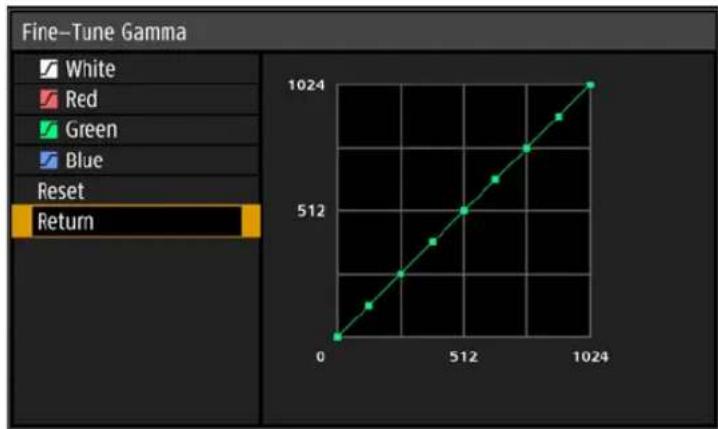
line
| X | Y | | ---- | ---- | | 0 | 0 | | 512 | 512 | | 1024 | 1024 |
- [Fine-Tune Gamma] is available in image modes other than [DICOM SIM] (Optimal image mode: [Photo/sRGB].).
- For details on gamma correction, see page 92.
- Use input signals or a test pattern for adjustment.

Image resolution may seem lower when [Random noise reduction] or [MPEG noise reduction] is applied.
Lamp mode

[Image adjustment] > [Lamp mode]
Reducing the lamp brightness reduces power consumption and cooling fan noise.
| Option Function | |
| Full power Projects | images at full brightness. |
| Power saver Reduces | lamp brightness to save energy. |
Reset

[Image adjustment] > [Reset]
Restore the current image quality settings to defaults.
| Option Function | |
| OK Resets the image adjustment settings. | |
| Cancel Cancels resetting of the image adjustment settings. |

- Performing reset when [Image mode] is set to a profile from [User 1] to [User 3] will restore the settings originally saved for that user profile.
- Only the setting for the combination of input signal and image mode for the current projection is reset.
Install settings
Adjust projection to suit the screen or the type of images, or how the projector is installed.

text_image
HDMI-1 Install settings Positional lock Off Image flip H/V None Keystone Horizontal-vertical keystone Professional settings Lens – Position Screen color Normal Iris Open Test pattern Off(When the input signal is HDMI-1)
| Menu Function | Details | |
| Positional lock | Operation of installation related functions can be prohibited. | P98 |
| Image flip H/V | Specify settings for projection from behind the screen, from the ceiling, or both. | P98 |
| Keystone Set the type of keystone correction. P98 | ||
| Professional settings Specify advanced installation settings. P99 | ||
| Lens - Position | Store information about the lens position (including focus, zoom, and lens shift settings), which can be used to restore the lens to these positions. | P106 |
| Screen color Adjust projection colors to suit the screen color. P106 | ||
| Iris | Reduce the difference in brightness among models when multiple projectors are used together, by adjusting the lens aperture. | P107 |
| Test pattern | Project a test pattern to check the resolution and color of projection during installation. | P107 |
Positional lock

[Install settings] > [Positional lock]
Operation of installation-related functions can be prohibited.
- Image flip H/V • Keystone • Professional settings • Lens - Position (Save position, Lens shift reset)
| Option Function | |
| Off The positional lock is not used. | |
| On Prevents adjustment of installation-related functions. | |
Image flip H/V

[Install settings] > [Image flip H/V]
Specify the orientation of how the projector is installed.
| Option Function | |
| None Select for normal projection, without inversion. | |
| Ceiling mounted | Select when the projector is installed upside-down on the ceiling.The projected image is inverted in the vertical direction. |
| Rear | Select this to project an image from behind the screen.The projected image is inverted in the horizontal direction. |
| Rear, Ceiling mounted | Select when the projector is installed upside-down on the ceiling and behind the screen.The projected image is inverted in both vertical and horizontal directions. |

- To hang the projector from the ceiling, use the optional bracket. Contact the Canon Customer Support Center for more detailed information.
- Image flipping will reset any adjustment for keystone distortion. In this case, redo the adjustment.
- Adjusting the [Image flip H/V] setting does not alter button assignments in the projector's side controls.
Keystone

[Install settings] > [Keystone]
Two types of keystone correction are available: horizontal/vertical keystone and corner adjustment. Keystone correction can also be reset. Keystone correction can also be applied by pressing the KEYSTONE button.
| Option Function | |
| Horizontal-vertical keystone | Apply horizontal-vertical keystone correction. Image height and length is adjusted. |
| Corner adjustment | Apply corner adjustment. Each corner of the image can be repositioned. |
| Reset Resets the specified keystone value. | |
Professional settings

[Install settings] > [Professional settings]
Specify advanced installation settings.
| Professional settings | |
| Panel drive mode | 4096×2160 |
| Multi input mode select | |
| DVI optimizer | |
| RGB alignment | |
| High altitude | Off |
| Vertical projection | Off |
| Fan speed setting | Normal |
| Marginal focus | Off |
| Edge blending | Off |
| Return | |
| Panel drive modeSelect the LCD panel vertical resolution to use. | ||
| Option Function | ||
| 4096x2160 Use a resolution of 4096 x 2160 lines. | ||
| 4096x2400 | Use a resolution of 4096 x 2400 lines. Select this option only when a signal with a resolution of 4096 x 2400 is supplied. | |
| Changing the panel drive mode resets the following values.- Horizontal-vertical keystone- Corner adjustmentAdjustment values stored for edge blending vary depending on the panel drive mode. | ||
| Multi input mode selectSelect how to combine four DVI inputs or two HDMI inputs to form an image. | ||
| Submenu Function | ||
| DVI input mode | Normal For use with [Single], [DVI 1x2], [DVI 2x2], or [DVI 1x4] DVI input. | |
| Single For use with one DVI input signal (one connection). | ||
| DVI 1x2 For use with two DVI input signals. | ||
| DVI 2x2 For use with four DVI input signals projected in a 2x2 layout. | ||
| DVI 1x4 For use with four DVI input signals projected side by side. | ||
| HDMI input mode | Normal For use with [Single] or [HDMI 1x2] HDMI input. | |
| Single For use with one HDMI input signal (one connection). | ||
| HDMI 1x2 For use with two HDMI input signals. | ||
| Colors may appear distorted when images are viewed from the side on some screens with [DVI 1x4] or [HDMI 1x2]. For best results, use a matte screen with a wide viewing angle. | ||
| DVI optimizerOptimizes images from DVI signals. | ||
| Submenu Function | ||
| DVI dual link auto setting | On Automatically determine whether DVI terminals are used in single- or dual-link mode and switch settings accordingly. | |
| Off Disable automatic determination of single- or dual-link mode from DVI terminals, and project images in single-link mode. | ||
| DVI-1 equalizer setting | Adjust the equalizer value for DVI terminals.Choose lower values for higher amplification, or higher values for lower amplification.Example of equalizer settings• Decrease values to amplify signals that have been attenuated by a long cable.• Signals may be too strong if noise occurs when using a short cable, or when using an active cable, signal corrector, or repeater. If so, increase values to attenuate and correct the signals. | |
| DVI-2 equalizer setting | ||
| DVI-3 equalizer setting | ||
| DVI-4 equalizer setting | ||
| (YZW)When a dual-link cable is used, any noise in the signal line may prevent normal projection. If this occurs, set [DVI dual link auto setting] to [Off].In some cases when DVI terminals are used, the cable may not be a good match for the projector, which may cause video noise or prevent the signal from being detected. If this occurs, adjust values in each setting from [DVI-1 equalizer setting] to [DVI-4 equalizer setting]. | ||
| RGB alignmentCorrect color misalignment. | ||
| Submenu Function | ||
| Registration | Color misalignment affecting the entire image can be corrected by moving red, green, or blue components into position, in 1-pixel increments. | |
| Advanced registration | Precise correction of red, green, or blue misalignment in different areas of the screen is possible by color and area.For detailed instructions, refer to “Advanced Registration to Adjust Projected Images” (P153).[Off] Disable local correction of color misalignment.[Adjust] Display a menu for local correction of color misalignment. | |
| Submenu Function | ||
| 5-point adjustment | Off Disable adjustment. | |
| Adjust Enter 5-point adjustment mode (in screen corners and at the center). | ||
| Manual adjustment | Precise adjustment based on 54 points (in a 6 x 9 grid). | |
| Reset Restore | the original position, before adjustment. | |
| With advanced registration, checkered or halftone image areas may be affected by uneven colors or image artifacts. | ||

- [Registration] and [Advanced registration] settings are retained even if you change the panel drive mode.
- 5-point adjustment enables basic correction of color misalignment across the screen, by moving adjustment points in the center and each corner. To correct registration only in certain areas, try manual adjustment.
- Any values you set in 5-point adjustment are retained if you subsequently perform manual adjustment. For more precise correction after 5-point adjustment, perform manual adjustment.
- Any manual adjustment values you set before switching to 5-point adjustment are cleared.
| High altitudeSwitch the fan mode to suit installation at low or high altitudes (above 2,300 m [7,545.8 ft.]). | |
| Option Function | |
| Off Setting for altitudes lower than 2,300 m (7,545.8 ft.). | |
| On Setting for altitudes of 2,300 m (7,545.8 ft.) or higher. | |
| [87A1] Incorrect settings may shorten the useful life of the lamp or other parts. | |
| Vertical projectionYou can ensure adequate cooling by switching the fan mode to suit upward- or downward-facing installations. | |
| Option Function | |
| Off Does not alter the fan mode. | |
| Upward Setting for use when the projector faces upward. | |
| Downward Setting for downward projection. | |
| [TX32] Be sure to perform this setting to use vertical projection.Projecting vertically without using this setting will shorten the useful life of the lamp and other parts.Even if you complete this setting, vertical projection will result in a shorter useful life of the lamp and other parts than horizontal projection. | |
| Fan speed settingTo ensure that optical parts last as long as possible, you can increase the fan speed. | |
| Option Function | |
| Normal Sets the fan to a slower speed. Use when quiet operation is required. | |
| High speed | Increases the fan speed, for a relatively longer useful life of optical parts. Although the fan will be louder, use this setting if the useful life of optical parts is most important. |
| Marginal focusIn dome projection, image focus can be adjusted on the edges of the screen, and the remote control can be used to activate and deactivate this focus adjustment. For detailed instructions, refer to “Adjusting Peripheral Focus” (P157). | |
| Option Function | |
| Off Disable remote focusing of image edges. | |
| On | Enable remote focusing of image edges. To access the adjustment window, press theLENSbutton on the projector repeatedly or press theFOCUSbutton on the remote control. |
| Reset Restore edge focusing to the standard position. | |
| Setting this function to [Off] only prevents display of the adjustment window.Adjustment values are still retained. Use this setting to prevent remote focusing of image edges. | |
an speed setting
| Option Function | |
| Normal Sets the fan to a slower speed. Use when quiet operation is required. | |
| High speed | Increases the fan speed, for a relatively longer useful life of optical parts. Although the fan will be louder, use this setting if the useful life of optical parts is most important. |
| Marginal focusIn dome projection, image focus can be adjusted on the edges of the screen, and the remote control can be used to activate and deactivate this focus adjustment. For detailed instructions, refer to “Adjusting Peripheral Focus” (P157). | |
| Option Function | |
| Off Disable remote focusing of image edges. | |
| On | Enable remote focusing of image edges. To access the adjustment window, press theLENSbutton on the projector repeatedly or press theFOCUSbutton on the remote control. |
| Reset Restore edge focusing to the standard position. | |
| [3X22] Setting this function to [Off] only prevents display of the adjustment window.Adjustment values are still retained. Use this setting to prevent remote focusing of image edges. | |
Edge blending
Brightness and colors of overlapping edges of images from multiple projectors, which form a blending area, can be adjusted for a more seamless appearance. For detailed instructions, see "Projecting from Multiple Projectors at Once (Edge Blending)" (P149).
[Off] Disable blending.
[Adjust] Display the menu for blending area adjustment.
| Edge blending | ||
| Side | Width | Start position |
| Left | 0 | 0 |
| Right | 0 | 0 |
| Top | 0 | 0 |
| Bottom | 0 | 0 |
| Color blending adjustment | Off | |
| Black level adjustment | Off | |
| Marker | Off | |
| Reset | ||
| Return | ||
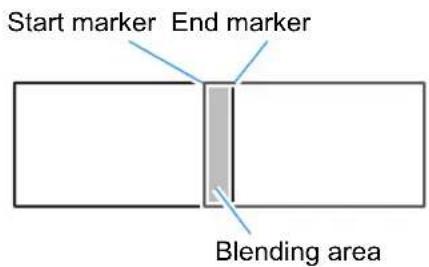
text_image
Start marker End marker Blending areaWhen adjusting the image projected from the right side

Adjustment may not eliminate different colors or brightnesses in the blending area.

For best edge-blending results, use all projectors in the same image mode (Optimal image mode: [Photo/sRGB].) and make the following adjustments.
(1) Brightness, contrast, R/G/B gain, R/G/B offset, black level, color blending, color temperature, color level, color balance, sharpness, gamma
(2) Color adjustment, by using 6-axis color adjustment
(3) Gamma adjustment, by fine-tuning gamma
(4) Corner adjustment, using keystone correction
| Submenu Function | ||
| Side | Submenu Function | |
| Left | Select the direction of the blending area to adjust. | |
| Right | ||
| Top | ||
| Bottom | ||
| Width Specify | the width between the start and end markers. | |
| Start position | Moves the position of the start marker. Large blending areas may cover input signal dialog boxes and other interface elements. In this case, momentarily set edge blending to [Off] and check the display.Although the starting marker is normally aligned with the image edge, it can also be aligned toward the center of the image. In this case, the black blending area will lie outside of the starting marker. Large blending areas may cover input signal dialog boxes and other interface elements. In this case, momentarily set edge blending to [Off] and check the display.Although the starting marker is normally aligned with the image edge, it can also be aligned toward the center of the image. In this case, the black blending area will lie outside of the starting marker. | |
| Color blending adjustment | Adjust unwanted colors or discrepancies between colors in the blending area. | |
| Submenu Function | ||
| Off Do not adjust colors of blended images. | ||
| Adjust | Adjust unwanted colors or discrepancies between colors in the blending area. | |
| Option Function | ||
| WhiteSimultaneously adjust red, green, and blue to correct unwanted colors or discrepancies in the blending area. | ||
| Red/Green/BlueIndividually adjust red, green, and blue to correct unwanted colors or discrepancies in the blending area. | ||
| Submenu Function | |
| Black level adjustment | Because black is lighter in the blending area than in other areas, you can adjust the black level outside the blending area to make this difference in brightness less noticeable. Position of end marker (hidden) Left image  Area A: Black level cannot be adjusted. Area B: Adjust to a black level different from that of area D. Area C: Adjust to provide a smooth transition relative to the black levels of areas B and D. Area A: Black level cannot be adjusted. Area B: Adjust to a black level different from that of area D. Area C: Adjust to provide a smooth transition relative to the black levels of areas B and D. |
| Off Do not adjust the black level. | |
| Area Adjust areas C - A to smoothen the boundaries of the blending area. | |
| Submenu Function | |
| Side Select the direction to adjust from Left/Right/Top/Bottom. | |
| A-Width/B-Width/C-Width Adjust the widths of areas A - C. | |
| Black level Adjust the black level brightness and color of areas B and D. | |
| Submenu Function | |
| B/D-area base Adjust the black level brightness of B/D areas. | |
| B/D-area red / green / blue Adjust the red, green, and blue components of B/D area black levels individually. | |
| Adjustment values are restored even if the dialog box is no longer displayed after you select [Adjust] again after setting [Black level adjustment] to [Off]. | |
| Marker | Show the blending area markers. |
| Option Function | |
| Off Hide the blending area markers. | |
| On Show the blending area markers. The start marker is red, and the end marker is green. | |
| Reset Reset the marker settings. | |
Lens - Position

[Install settings] > [Lens - Position]
The projector can store information about the lens position. Up to three sets of lens information (including, focus, zoom, and lens shift settings) can be saved, and the lens can be restored to these positions as needed.
| Submenu Function | |
| Load position 1-3 | Restores the lens to the positions saved using [Save position 1] - [Save position 3]. |
| Save position 1-3 Saves the lens position as one of the available positions (1-3). | |
| Lens shift reset Restores the lens to the original position. | |

- When saved lens positions are restored, images may be slightly misaligned, relative to the saved position.
- Specifying a somewhat smaller image size than the screen size (image area) enables you to switch among multiple lens positions without the image extending off the screen.
- When precise positioning is needed, use lens shift, zoom, and focus functions to fine-tune the position.

- [Save position] and [Lens shift reset] are not available when [Positional lock] is set to [On] (P98).
- [Load position] is grayed out and not available unless positions have been stored to a [Save position].
- The following setting values are stored: focus, zoom, lens shift, keystone, corner adjustment, and screen color.
Screen color

[Install settings] > [Screen color]
You can adjust the color quality of the images projected according to the color of the projection screen.
| Submenu Function | |
| Normal | Select this if a standard type of projection screen is used. The images are projected in a light quality similar to that of natural light. |
| Greenboard | Select if a dark green surface such as a blackboard is used as the screen. The color quality similar to [Normal] is obtained on the greenboard. |
| Adjust Select to fine-tune red, green and blue. | |
Iris

[Install settings] > [Iris]
The difference in brightness among models can be reduced when multiple projectors are used together, by adjusting the lens aperture.
| Submenu Function | |
| Open Disables aperture adjustment. | |
| Close 1-3 Specify the aperture value in a range of 1-3. |

The [Iris] setting does not affect power consumption.
Test pattern

[Install settings] > [Test pattern]
You can project a test pattern (P168) to check resolution, color, and other details even without supplying an input signal. Also available by pressing the TEST PATTERN button on the remote control.
| Option Function | |
| Off Disable test pattern display. | |
| On Enable test pattern display. | |

- While the test pattern menu is displayed, you can use the [ ] [ ] buttons to switch patterns. Additionally, options of test pattern that have options can be changed with the [ ] [ ] buttons.
- The test pattern menu is no longer displayed after a little while, but you can view it again by pressing the [√] buttons.
System settings
Customize projector and remote control operation, beeping, and other details after startup, during standby, and in other situations.

text_image
HDMI-1 System settings User screen settings On screen Remote control/Side control Audio in terminal select Serial communication Power management mode Standby Power management duration 15 min. Direct power on On Motion blur reduction Off Language English Other settings(When the input signal is HDMI-1)
| Menu | Function Details | |
| User screen settings | Customize user screens shown at startup, when no signal is detected, and in other situations. | P109 |
| On screen | Set the display position and whether to show or hide menus, help information, and warning or caution icons. | P110 |
| Remote control/Side control | Specify operation with remote control or projector buttons. | P112 |
| Audio in terminal select Select the terminal for audio input. P113 | ||
| Serial communication Display serial communication setting values. P114 | ||
| Power management mode | You can specify to turn off the lamp or projector automatically after a certain period if the projector and remote control are not used and there is no input signal. | P114 |
| Power management duration | Specify how long before the lamp is turned off or the projector enters standby, depending on the [Power management mode] setting. | P114 |
| Direct power on | You can turn on the projector by connecting the power cable without pressing the POWER button. | P115 |
| Motion blur reduction | Motion blur is blurring that occurs during video playback. Motion blur reduction can make this blurring less noticeable. | P115 |
| Language | You can select the language in which the menus are displayed. | P116 |
| Other settings | Set a password, reset counters for lamp or air filter replacement, and access other settings and information. | P117 |
User screen settings

[System settings] > [User screen settings]
Capture a logo and specify logo display settings.
| User screen settings | |
| Logo capture | |
| Logo position | Center |
| No signal screen | Blue |
| Screen when blank | Black |
| Projector on | Canon logo |
| Return | |
| Logo captureRegisters the current image as a user logo. Registered user logos can be shown when no signal is received, when the BLANK button is pressed, or as the startup image. | |
| Option Function | |
| OK | Display the image for logo registration.Align the image with the red boundary lines indicating the portion that will be stored, and then press the OK button. The portion of the image within the boundary lines is now registered. |
| Cancel Cancels logo registration. | |
| Logo positionSpecify the position of registered user logos as follows.You can specify the position after a logo has been registered. Choose from upper left, upper right, center, lower left, or lower right. | |
| No signal screenCustomize the screen shown when no input signals are received. | |
| Option Function | |
| Black The screen is all black. | |
| Blue The screen is all blue. | |
| User logo The user logo is projected. | |
| Screen when blankSelect the screen shown when projection is temporarily blanked out by pressing the BLANK button on the remote control. | |
| Option Function | |
| Black The screen is all black. | |
| Blue The screen is all blue. | |
| User logo The user logo is projected. | |
| Projector onSelect a logo to project after startup until input signals can be projected. | |
| Option Function | |
| Skip A black screen is projected. | |
| Canon logo Displays the Canon logo that was registered in advance at the factory. | |
| User logo The user logo is projected. | |
On screen

[Sysetm settings] > [On screen]
Specify display details for on-screen menus, help, and warning or precaution icons.
| On screen | |
| Menu position | Center |
| Menu display time | Normal |
| Guide | On |
| Show input status | On |
| Lamp warning display | On |
| Air filter warning display | On |
| Overheat warning display | Off |
| Return | |
Menu position
Reposition menu display.
Choose from upper left, upper right, center, lower left, or lower right.

Only [Center] is available when edge blending is used. Other display positions are grayed out and not available.
Menu display time
Extend menu display from the standard 10 or 30 seconds to 3 minutes.
Option Function
| Normal The menu is | displayed for 10 or 30 seconds. |
| Extended The menu | is displayed for 3 minutes. |
| The following display times are also changed. | |
| Item [Normal] [Extended] | ||
| MENU screen 30 seconds 3 minutes | ||
| - Input (P63)- Keystone adjustment (P73)- Keystone reset (P75)- Focus (P67), Zoom (P68), Lens shift (P70), Lens shift reset (P71)- Marginal focus (P102)- Aspect (P72)- Image mode (P76)- G a m m a ( P92)- Volume adjustment (P26, P31) | 10 seconds | 3 minutes |

RGB alignment is shown for 3 minutes, regardless of the [Normal] or [Extended] option.
| GuideShows the guide screen. | |
| Option Function | |
| Off Hides the guide | screen. |
| On Shows the guide | screen. |
| [18-4]The guide screen is shown at the following cases.No input signal is detected.An invalid button is pressed in [BLANK] or [FREEZE] mode. (P31)When positional lock (P98) is set to [On] and buttons locked by this feature arepressed. | |
| Show input statusSpecify whether signal status is shown when there is no signal or when you are completingsignal settings. | |
| Option Function | |
| Off The input status | is not displayed. |
| On The input status | is displayed. |
| Lamp warning displaySpecify whether to show a lamp replacement message after the lamp has been used for aspecified period. | |
| Option Function | |
| Off The prepare lamp | message and the lamp warning are not displayed. |
| On The prepare lamp | message and the lamp warning are displayed. |
| [6427]When it is almost time to replace the lamp, the projector's [LAMP] indicator willflash. For details, see “LED Indicator Displays” (P28).Setting display to [Off] will disable both the message to prepare a replacement lampand the warning to replace the lamp. To review the replacement timing, check thelamp counter (P118).Lamps that are still used after the timing for lamp replacement are more likely torupture. Replace the lamp with a new one as soon as possible. | |
| Air filter warning displayA message advising you to perform cleaning can be set to display when the filter needscleaning. | |
| Option Function | |
| Off The air filter warning is not displayed. | |
| On The air filter warning is displayed. | |
| [508C]Setting [Air filter warning display] to [Off] will disable display of the warning to cleanthe air filter. We recommend checking the air filter counter (P119) occasionally toknow when to replace the filter. | |
| Overheat warning displaySpecify whether the icon warning of high temperature is shown when the internal temperature is high and the projector may overheat. | |
| Option Function | |
| Off Disable high temperature warning icon display. | |
| On Enable high temperature warning icon display. | |
Remote control/Side control

[System settings] > [Remote control/Side control]
Specify which operations are available using buttons on the remote control or in the projector's side controls.
| Remote control/Side control | |
| Beep | On |
| Key repeat | On |
| Key lock | Off |
| Remote control channel | Independent |
| Return | |
| BeepYou can select whether a beep sounds or not when you operate the projector. | |
| Option Function | |
| Off Disables the beep. | |
| On Enables the beep. | |
| The beep will not sound if you mute the projector sound with the MUTE button on the remote control. | |
| Key repeatKey repeat enables projector or remote control buttons to be held down instead of pressing them repeatedly. | |
| Option Function | |
| Off Key repeat is not enabled. | |
| On Key repeat is enabled. | |
| Key lockLock the projector to prevent direct or remote control operation. | |
| Option Function | |
| Off Disables the key lock. | |
| Main unit | Operation is not possible using the main unit.Use the remote control. |
| Remote (wireless) | Disables infrared remote control operations (P33). Use buttons on the main unit.Operation is also possible with a wired remote control. |
To Unlock Key Lock Function
Turn off the projector and unplug the power plug. Hold down the OK button on the main unit and plug in the power cord, as you continue to hold down the OK button. In a moment, a beep will sound, and the controls will be unlocked.

When you access this setting from the projector's side controls, [Main unit] is not available. Similarly, when you access the setting from the remote control, [Remote (wireless)] is not available.
Remote control channel
Separate channels can be assigned to up to four projectors so that a single remote control can be used with each projector.
Selecting the Projector Channel
If a wired remote control is used, there is no need to set the remote control channel.
Option Function
| Ch1Ch2Ch3Ch4 | Select the remote control channel to use with this projector. |
| Independent Can be controlled from a remote control set to any channel. | |
Selecting a Channel on the Remote Control
After changing the projector channel from the menu, always change the remote control channel accordingly.
| Ch1 | Hold down both the Ch button and [1] button for 3 seconds. |
| Ch2 | Hold down both the Ch button and [2] button for 3 seconds. |
| Ch3 | Hold down both the Ch button and [3] button for 3 seconds. |
| Ch4 | Hold down both the Ch button and [4] button for 3 seconds. |
| Independent | Hold down both the Ch button and [0] button for 3 seconds. |
Audio in terminal select

[System settings] > [Audio in terminal select]
Select the terminal for audio input.
| Option Function | |
| Off No audio is output. | |
| Audio in Use audio signals from AUDIO IN for audio output. | |
| HDMI-1 | Only available when the input signal is set to [HDMI-1] or [HDMI 1x2]. Audio signals from HDMI 1 are output. |
| HDMI-2 | Only available when the input signal is set to [HDMI-2] or [HDMI 1x2]. Audio signals from HDMI 2 are output. |
Serial communication

[System settings] > [Serial communication]
You can check setting values for the service port (CONTROL) used for serial communication.
| Option Function | |
| Stop bit Length of mark representing the end of data bits. | |
| Baud rate Modulation rate, in bits per second. | |
| Data bits Number of bits of data. | |
| Parity Number of parity bits. | |
Power management mode

[System settings] > [Power management mode]
You can specify to turn off the lamp or projector automatically after a certain period if the projector and remote control are not used and there is no input signal.
| Option Function | |
| Disabled Disable power management mode. | |
| Lamp off Only turns the lamp off. | |
| Standby Turns the projector off and puts it in standby. | |

• After the lamp is turned off, projection resumes when:
- the same input signal is restored.
- the remote control or projector is operated.
- the power is turned on.
- After the projector enters standby, restoring projection requires the same steps as when turning the projector on normally.
- When [Disabled] is selected, [Direct power on] (P115) is not available.
Power management duration

[System settings] > [Power management duration]
Specify how long before the lamp is turned off or the projector enters standby, depending on the [Power management mode] setting.
| Option Function | |
| 5 min. - 60 min. | After 30 seconds without an input signal when the projector is idle, the projector starts displaying a countdown of the selected time. |

- If conditions that would start countdown are met while you are blanking projection, blanking is canceled.
- Once countdown begins, audio output stops.
Direct power on

[System settings] > [Direct power on]
You can turn on the projector by connecting the power cable without pressing the POWER button.
| Option Function | |
| Off The POWER button must be pressed to turn the projector on. | |
| On You can turn on the projector by connecting the power cable only. | |

- Before enabling direct power on, be sure to set [Power management mode] to an option other than [Disabled]. When [Disabled] is selected, [Direct power on] is not available.
- After turning off the projector, wait at least 5 minutes before turning it on again. It may shorten the lamp life if you turn on the projector immediately after turning it off.
Motion blur reduction

[System settings] > [Motion blur reduction]
Motion blur is blurring that occurs during video playback. Motion blur reduction can make this blurring less noticeable.
| Option Function | |
| Off Motion blur reduction | is not performed. |
| Weak | Reduce motion blur for fast-moving images. Note that images may be slightly darker, and flickering may occur. |
| Strong | Reduce motion blur for images moving faster than with [Weak]. Note that images may be darker, and flickering may occur. |

- If setting the projector to [Strong] or [Weak] produces distracting flickering, set it to [Off].
- [Motion blur reduction] is not available in [DICOM SIM] image mode. The menu is grayed out.
Language

[System settings] > [Language]
Select the menu display language.
| Language | |||
 English Russian Czech English Russian Czech |  |  | |
 German Dutch Danish German Dutch Danish |  |  | |
 French Finnish Arabic French Finnish Arabic |  |  | |
 Italian Norwegian Chinese (Simplified) Italian Norwegian Chinese (Simplified) |  |  | |
 Spanish Turkish Chinese (Traditional) Spanish Turkish Chinese (Traditional) |  |  | |
 Portuguese Polish Korean Portuguese Polish Korean |  |  | |
 Swedish Hungarian Japanese Swedish Hungarian Japanese |  |  | |
Other settings

[System settings] > [Other settings]
Lock operation with a password, set a password, reset counters for lamp or air filter replacement, and access other settings and information.
| Other settings | |
| Password settings | Off |
| Register password | |
| Adjust panel characteristics | |
| Lamp counter | |
| Air filter counter | |
| Power counter | 3 |
| Firmware | 01.000000 |
| Factory defaults | |
| Return | |
| Password settingsDisables the projector unless the correct password is entered. | |
| Option Function | |
| Off The projector can be used even if no password is entered. | |
| On The projector cannot be used unless you enter your password. |
| To Cancel the Password | |
| Cancellation on the Projector | Turn off the projector and unplug the power plug. Hold down the MENU button on the side control and connect the power plug. Make sure to keep holding down the MENU button until a beep sounds. When the projector beeps, the password is canceled. (The entered password is also reset.) |
| Cancellation on the Remote Control | To forcibly cancel the password from the remote control, in standby state press the MENU button 3 times, then press the POWER button. |

- You cannot set [On] unless you have completed [Register password].
Once you set a password, the password entry screen appears at power-on.
Enter a 4 digit password.
Enter the password using the [▲] / [▶] / [▼] / [◀] buttons or number buttons on the remote control.
If the password is valid, the projection starts. If you enter a wrong password three times, the power will be turned off. - The projector also goes off after 3 minutes of inactivity on the password input screen.
| Register passwordYou can register a password for starting projection.Enter a 4 digit password.Enter the password using the pointer buttons [▲(1) / [ ] (2) / [ ] (3) / [ ] (4) ▲r the number buttons on the remote control.The 4-digit password is entered from the left to right digits. When the final digit is entered, the password is automatically registered.Press the MENU button to abort the registration. | |
| Adjust panel characteristicsAdjust projection to compensate for how long the projector has been used, the projection environment, and other factors. | |
| Submenu Function | |
| Gamma restore | Restore the original gamma if, after the projector has been used for some time, you notice that tone curves have changed, or if neutral colors have become tinted. Gamma restore can only be used when the lamp has been on for approximately 30 minutes or longer. |
| Submenu Function | |
| Off Returns to the factory default without performing Gamma restore. | |
| Adjust Restore the original gamma and apply the result. | |
| • Restoring gamma will restore tone curves and neutral colors as closely as possible to defaults, but original projection cannot be matched exactly.• If Gamma restore is performed, the adjustment screen will be projected for approximately 8 minutes.• To stop Gamma restore, press the POWER or EXIT button.Cancellation will return the setting to [Off]. | |
| Adjust panel temperature | Used when the gamma has changed in response to other changes, such as changes in ambient temperature.Compensates for changes in gradation caused by a change in LCOS panel temperature. |
| Submenu Function | |
| Off Do not adjust the panels to suit the temperature. | |
| Adjust Adjust the panels to suit the temperature. | |
| Lamp counterYou can reset the lamp counter that indicates the time for lamp replacement.For details on lamp counter display, see “Replacing the Lamp” (P163).Do not reset the lamp counter except when you have replaced the lamp. Otherwise, the lamp counter cannot indicate the correct timing for replacing the lamp.Lamps are more likely to rupture once the lamp replacement message has been displayed (P163). Replace the lamp with a new one as soon as possible. | |
Air filter counter
This resets the counter which reminds you of the time for cleaning and replacing the air filter.

For details on replacing or cleaning the filter, see P160 - P163.
Power counter
Display the total time that the projector has been on.

This value is not reset even if [Factory defaults] is executed.
Firmware
Update the projector firmware.
Check the version indicated before updating the firmware.
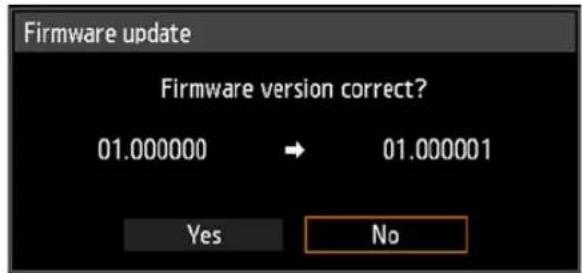
text_image
Firmware update Firmware version correct? 01.000000 → 01.000001 Yes NoUpdate the projector firmware as follows.
- Download updated firmware from the Canon website and store it at the root directory on a USB flash drive.
- Insert the USB flash drive in the USB port.
- Follow the instructions shown to complete the update process.

- Firmware versions shown here are for illustration only and differ from actual versions.
- In some cases, it may not be possible to download updates. For details, contact the Canon Customer Support Center.

Firmware updating takes a few minutes. During the update, the LED indicator will flash in red. Do not turn off the projector while the LED is flashing. After the update, the projector will automatically turn itself off and enter standby mode.
| Factory defaultsYou can reset the menu item settings and restore the system settings to the factory defaults. | |
| Option Function | |
| OK Settings are reset to default. | |
| Cancel Settings are not reset to default. |
Main factory defaults
Input settings
| Submenu Default | Value |
| Aspect Auto | |
| Input level Auto | |
| Super white On | |
| Color space Auto | |
| Progressive Film/auto |
Image adjustment
| Submenu Default | Value | |
| Image Mode Standard | ||
| Advanced adjustment | ||
| Ambient light Off | ||
| Random noise reduction | Off | |
| MPEG noise reduction | Off | |
| Dynamic gamma * | ||
| Mem. color correct | * | |
| 6-axis color adjust | Off | |
| Lamp mode | Full power | |
Install settings
| Submenu Default | Value | |
| Positional lock | Off | |
| Image flip H/V | None | |
| Keystone | Horizontal- vertical keystone | |
| Professional settings | ||
| Panel drive mode | 4096x2160 | |
| Multi input mode select | Normal | |
| DVI optimizer | ||
| DVI dual link auto setting | On | |
| DVI equalizer setting | 12 | |
| RGB alignment | ||
| Registration | 0 | |
| Advanced registration | Off | |
| High altitude | Off | |
| Vertical projection | Off | |
| Fan speed setting | Normal | |
| Marginal focus | Off | |
| Edge blending | Off | |
| Screen color | Normal | |
| Iris | Open | |
| Test pattern | Off | |
* [Low] in [Dynamic] or [Video] image mode with HDMI input.
Main factory defaults
System settings
| Submenu Default | Value | |
| User screen settings | ||
| Logo capture Cancel | ||
| Logo position Center | ||
| No signal screen Blue | ||
| Screen when blank Black | ||
| Projector on Canon logo | ||
| On screen | ||
| Menu position Center | ||
| Menu display time Normal | ||
| Guide On | ||
| Show input status On | ||
| Lamp warning display On | ||
| Air filter warning display | On | |
| Overheat warning display | Off | |
| Remote control/Side control | ||
| Beep On | ||
| Key repeat On | ||
| Key lock Off | ||
| Remote control channel | Independent | |
| Audio in terminal select | ||
| DVI-1 | Audio in | |
| DVI-2 | Audio in | |
| DVI-3 | Audio in | |
| DVI-4 | Audio in | |
| DVI 1x2 | Audio in | |
| DVI 2x2 | Audio in | |
| Submenu Default | Value | |
| DVI 1x4 | Audio in | |
| HDMI-1 | HDMI-1 | |
| HDMI-2 | HDMI-2 | |
| HDMI 1x2 | HDMI-1 | |
| Power management mode | Standby | |
| Power management duration | 15 min. | |
| Direct power on | Off | |
| Motion blur reduction | Off | |
| Other settings | ||
| Password settings | Off | |
| Adjust panel characteristics | ||
| Gamma restore | Off | |
| Adjust panel temperature | Off | |
Network settings
| Submenu Default | Value | |
| Network settings lock | Lock | |
| Network password setting | On | |
| Network standby settings | Low-power | |
| Network function | Off | |
| Detailed settings | ||
| DHCP | Off | |
| PJLink | On | |
| AMX Device Discovery | Off | |
| Crestron RoomView | Off | |

This function does not reset the following values.
- Selected input signal
- Lamp counter
- Language
- Remote control channel
- Network settings
- Air filter counter
- Lens - Position
- Professional settings (Registration, Advanced registration, High altitude, Vertical projection)
- User profile
- Marginal focus setting value
- Gamma restore
- Adjust panel temperature
- Power counter
Network settings
Network Connection Overview
Connecting the projector to a network enables you to control the projector from a computer and receive notification of projector errors via email.
Depending on the method of network connection, preparation on the computer side may be necessary. The following is an explanation of preparation on the computer side.
Connection Methods
To connect the projector to a computer network, use a LAN cable.

flowchart
graph TD
    A["Laptop"] --> B["Hub or router, etc."]
    C["Laptop"] --> B
    D["Laptop"] --> E["LAN cable (shielded twisted pair; not included)"]
    F["LAN port"] --> G["LAN cable with shielded twisted pair"]
- When the [Network function] setting of the projector is set to [Off] (Network Connections is disabled), switch it to [On] to enable it. (P125)
- Referring to “Checking Projector Information” (P148), check that the projector IP address does not overlap with other computers that are on the same LAN. To set a projector IP address, follow the instructions in “Completing Computer Settings for a Network Connection” (P130) and use the web screen, or use projector TCP/IP settings. (P126)
- When you connect the computer to the network for the first time, it is also necessary to perform settings on the computer. In this case, consult the network administrator regarding the necessary settings.

In a network environment where a DHCP server is operating, choose [On] on the projector [DHCP] screen to enable the DHCP function and connect it. (P126)
Completing Projector Settings
Settings described in this section apply to the network connections, setting a network password, and other aspects of networked projection.

text_image
HDMI-1 Network settings lock Unlocked Network password setting On Register network password Network standby settings Low-power Network function On Detailed settings PJLink On AMX Device Discovery Off Crestron RoomView Off(When the input signal is HDMI-1)
| Menu Function | Details | |
| Network settings lock Lock | network settings to prevent changes. P124 | |
| Network password setting | Specify whether network settings are password-protected. | P124 |
| Register network password | Set a network password. P124 | |
| Network standby settings | Specify the extent of network functionality in standby mode. | P125 |
| Network function Enable or | disable network functions. P125 | |
| Detailed settings Display and set network connection details. P126 | ||
| PJLink Enable or disable PJLink. P128 | ||
| AMX Device Discovery Enable or disable AMX Device Discovery. P129 | ||
| Crestron RoomView | Enable or disable Crestron RoomView. | P129 |
Network settings lock

[Network Settings] > [Network settings lock]
You can lock/unlock the network settings so that they cannot be changed.
| Option Function | |
| Unlock | Cancels the lock and allows other network settings to be changed. The password must be entered in order to cancel the lock. Use the [▲/ [▼/ [ ]buttons or number buttons on the remote control to enter the four-digit network password. |
| Lock Lock the settings. | |

Forcibly canceling the network lock
Press these buttons in the following order to cancel the lock: [▲[OK] [ ] ▶K] [ ] [OK]. This operation resets the network password to [▲[ ] [ ] [1] [1] [1] [1]).

Setting [Network password setting] to [Off] leaves network settings unlocked.
Network password setting

[Network settings] > [Network password setting]
You can set whether or not a password is required in order to change the projector network settings.
| Option Function | |
| Off A network password is not used. | |
| On A network password is used. |
Register network password

[Network settings] > [Register network password]
Use the [▲/ [ ]▶[ ] /▼] buttons or number buttons on the remote control to enter the projector network password.
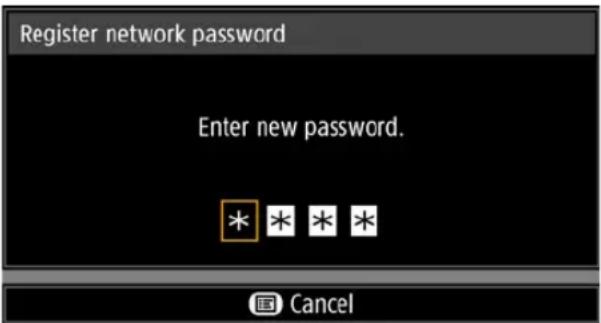
text_image
Register network password Enter new password. * * * * CancelNetwork standby settings

[Network settings] > [Network standby settings]
Specify the network function operating status in standby mode as follows.
| Option Function | |
| Normal | All network functions are available even in standby mode, including the web screen, control over the network, and PJLink. |
| Low-power | All network functions are available even in standby mode. However, the projector may be less responsive than usual when some functions are initially used. |

- [Low-power] may delay access over the network for some functions. For faster access, select [Normal].
- Power consumption when Network function is [On] varies depending on whether Network standby settings is set to Normal or Low-power.
Network function

[Network settings] > [Network function]
Enable or disable network function.
Specifying [Off] can save energy.
| Option Function | |
| Off Disable the network function. | |
| On Enable the network function. | |
Detailed settings

[Network settings] > [Detailed settings]
View or manually change the IP address, gateway address, and other network connection settings. Available only when the network function is [On].
| Detailed settings | ||||
| IP address | 192. | 168. | 254. | 254 |
| Gateway address | 0. | 0. | 0. | 0 |
| MAC address | 00:00:00:00:00:00 | |||
| DHCP | Off | |||
| TCP/IP settings | ||||
| Network setting initialization | ||||
| Return | ||||
| Menu Function | |
| IP address IP address of the projector. | |
| Gateway address Gateway address of the projector. | |
| MAC address MAC address of the projector. | |
| DHCP | IP settings must beches the DHCPconfiguredteway address),d from the DHCPnd gateway address |
| TCP/IP settings | This menu is not available (grayed out) when [DHCP] (P126)is [On].If an invalid value is entered, the message “Invalid entry”appears. If this occurs, enter a valid value. |
| Network setting initialization | The following network settings are initialized.Settings configured from the projector menuNetwork settings lock (P124)Network password setting (P124)Register network password (P124)Network standby settings (P125)Network function (P125)Detailed settings (P126)PJLink (P128)AMX Device Discovery (P129)Crestron RoomView (P129)Settings configured from the web screen[Password] (P136)[Network] (P137)[Mail] (P138)[Mail auth] (P139)[SNMP] (P140)[Projector info.] (P141)[PJLink] (P142) |
PJLink

[Network settings] > [PJLink]
You can enable or disable the PJLink network function of the projector.
When the function is turned on, control is possible via the network using commands that meet PJLink standards.
| Option Function | |
| Off Disables the PJLink function. | |
| On Enables the PJLink function. | |

- The projector conforms to Class 1 as defined in PJLink standards established by the Japan Business Machine and Information System Industries Association (JBMIA). This projector supports all commands that are defined by PJLink Class 1, and has been verified as conforming to the PJLink standard Class 1 definition.
- For details on using PJLink, see "Setting PJLink [PJLink]" (P142).
What is PJLink?
In September 2003, the PJLink Working Group was established under the Data Projector Committee. During the first year, this PJLink Working Group standardized PJLink as a new interface specification for projectors.
PJLink is a unified standard for operation and control of projectors.
It allows centralized control of projectors and operation from a controller for all projectors regardless of manufacturer.
The objective is for JBMIA to improve convenience for users and expand the use of projectors through early systemization for network monitoring and control of projectors, which will become the mainstream in the future.
Class 1: Standardization of control and monitoring specifications for basic projector functions
Basic projector control: Power control, input selection, etc.
Acquisition of projector information and status: Power status, input selection status, error status, lamp use time, etc.
JBMIA: Japan Business Machine and Information System Industries Association.
The JBMIA is an organization which was launched in 1960 and changed its name on April 1, 2002.
PJLink website: http://pjlink.jbmia.or.jp/english/

PJLink is a registered trademark of JBMIA and pending trademark in some countries.
PJLink is a registered trademark, or an application has been submitted for trademark, in Japan, the United States and / or other countries or regions.
AMX Device Discovery

[Network settings] > [AMX Device Discovery]
This setting enables other equipment compatible with AMX Device Discovery to detect the projector over a network. For networks without AMX Device Discovery, select [Off].
| Option Function | |
| Off Disables AMX Device | Discovery. |
| On | Enables AMX Device Discovery. The projector will periodically send out AMX beacon packets over the network. |

For details on AMX Device Discovery, visit the AMX website.
http://www.amx.com/
Crestron RoomView

[Network settings] > [Crestron RoomView]
Crestron RoomView enables centralized management of multiple projectors over a network. Networked projectors can be remotely controlled to troubleshoot issues, check the useful life of lamps, or turn the projectors on or off. Specify whether to use Crestron RoomView.
| Option Function | |
| Off Disable Crestron RoomView. | |
| On | Enables Crestron RoomView. A port for RoomView will be opened, and the projector will respond to CIP packets. Communication is possible via the RoomView Express/Server application or via Crestron Controller. (P142) |

For details on Crestron RoomView, visit the Crestron ^® website.
http://www.crestron.com/
Completing Computer Settings for a Network Connection
Specifying an IP Address
Instructions for setting a computer's IP address are as follows for each operating system.
■Windows 8.1 / Windows 8
1 Right-click on the start screen background and click [All Apps] in the lower right.
- Windows 8.1 Users:
Click the down arrow in the lower left of the start screen.
2Click [Control Panel].
- From the Desktop:
Press Win+X.
In the shortcut menu displayed in the lower left, click [Control Panel].
3Click [View network status and tasks].
- In Icon View:
Click [Network and Sharing Center].
4Click [Change adapter settings].
5Right-click [Ethernet], and then click [Properties].
6In the [This connection uses the following items] list, select [Internet Protocol Version 4 (TCP/IPv4)] and click the [Properties] button. Make a note of the original network settings (IP address, subnet mask, default gateway, etc).
7 Select [Use the following IP address] and set the IP address and subnet mask.
The factory default IP address for the projector is "192.168.254.254". Set an IP address which is different from this.
8 When finished, click the [OK] button, and then click the [Close] button in the [Ethernet Properties] window to close it.
■Windows 7
1 From the PC [Start] menu, select [Control Panel].
2Click on [Network and Internet], then click on [View network status and tasks].
3From the menu on the left side of the window, click on [Change adapter settings].
4Right-click [Local Area Connection], and open [Properties].
5Select [Internet Protocol Version 4 (TCP/IPv4)] and click the [Properties] button. Make a note of the original network settings (IP address, subnet mask, default gateway, etc).
6Select [Use the following IP address] and set the IP address and subnet mask.
The factory default IP address for the projector is “192.168.254.254”. Set an IP address which is different from this.
7 When the settings are completed, click the [OK] button and then click the [OK] button on the [Local Area Connection Properties] window to close it.
■Windows Vista
1 From the PC [Start] menu, select [Control Panel].
2Click on [View network status and tasks].
3From the menu on the left side of the window, click on [Manage network connections].
4Right-click [Local Area Connection], and open [Properties].
5Select [Internet Protocol Version 4 (TCP/IPv4)] and click the [Properties] button. Make a note of the original network settings (IP address, subnet mask, default gateway, etc).
6Select [Use the following IP address] and set the IP address and subnet mask.
The factory default IP address for the projector is “192.168.254.254”. Set an IP address which is different from this.
7 When the settings are completed, click the [OK] button and then click the [OK] button on the [Local Area Connection Properties] window to close it.
■Mac OS X
1 Open the Apple Menu and select [System Preferences].
2In the System Preferences window, click [Network] to display the Network window.
3Select [Built-in Ethernet] and click the [TCP/IP] tab. Make a note of the original network settings (IP address, subnet mask, router, DNS server, etc.).
4Create a new network environment and set the IP address and subnet mask.
The factory default IP address for the projector is "192.168.254.254". Set an IP address which is different from this.
5Click [Apply] to close the network preference window.
■Resetting the IP Address Setting of the Computer
Follow the same procedure as for changing the IP address and reset the values to the original values based on the notes taken before the change.
Setting Up the Network
■Displaying the Network Configuration Screen
1 Turn on the computer and projector.

Network functions are not available for the first 40 seconds after projector startup.
2 Launch a web browser, enter "http://(projector IP address)" in the address bar, and press the Enter key.
The projector web screen appears.

text_image
Canon 4K500ST Temperature anomaly Projector name Canon Projector001 Comment MAC address DEJAD/DEAD/BRE27 IP address 192.168.254.254 Power status System standby Lamp time full power 6 Lamp time power saver 6 Lamp time converted 6 Fiber time 34 Projector control SettingsThe following information is displayed.
| Projector control Displays the projector control screen. | |
| Settings Shows the settings screen. | |
| Projector name The name of the projector on the network | |
| Comment Relevant notes, such as where the projector is installed | |
| MAC address The MAC address of the projector | |
| IP address The IP address of the projector | |
| Power status The power status of the projector | |
| Lamp time full power Lamp operating time in [Full power] lamp mode | |
| Lamp time power saver Lamp operating time in [Power saver] lamp mode | |
| Lamp time converted Lamp operating time (converted value) | |
| Filter time Air filter operating time | |
| Alert | Error message (if an error has occurred)Temperature abnormalityFaulty lampFaulty cooling fanFaulty power supplyFaulty air filter unitFaulty lens connector |

The factory default IP address is "192.168.254.254". If DHCP settings are used, ask the network administrator for the projector IP address. It is possible to check the IP address from the projector menu. (P126)
3Click [Settings] on the web screen.
The password input window appears.
Menu Settings
4Enter the user name and password on the password input window, then click [OK].
The factory default user name is "root" and the password is "system". The settings screen is displayed. Complete the network settings on this screen.
![CANON REALiS 4K500ST Pro AV - 4Enter the user name and password on the password input window, then click [OK]. - 1](/content/2026/06/1199025/images/c4a30489609e363f738b1cef33f12681c2a144f920c11fd6537da95e832c020e.jpg)
text_image
4K500ST Canon Projector001 Projector control Back to top Password User name Tool 4-15 characters Mail New password **** 4-15 characters Confirm new password **** 4-15 characters OK Cancel Send test mail SNMP Projector info. PLink Crestron Initiate![CANON REALiS 4K500ST Pro AV - 4Enter the user name and password on the password input window, then click [OK]. - 2](/content/2026/06/1199025/images/25bcb01ec8f2af169fa19ba1fccbba1c28696bdba3d3b026a2bda553bce5df4b.jpg)
To control the projector from the computer, click [Projector control]. (P146)
■Network Setting
1Select a function to set up from the settings screen menu.
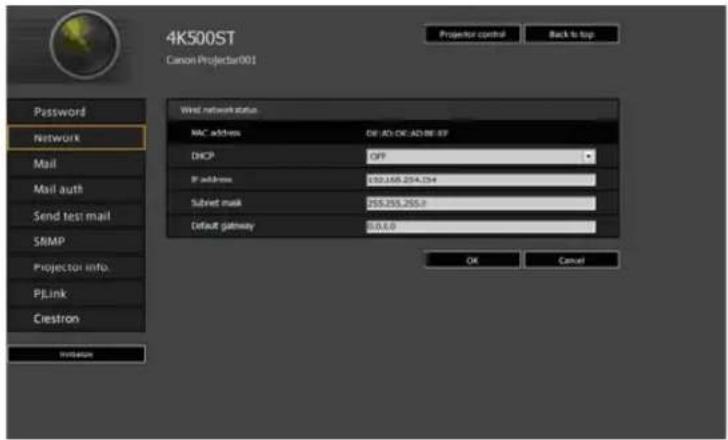
text_image
4K500ST Canon Projectar001 Password Network Mail Mail auth Send test mail SNMP Projector info. PLink Crestron Internet Wrist network status MAC address DIF-AD-OK-AD-BF-BF DHCP OPP IP address 192,168,254,234 Submit mask 255,255,255.0 Default gateway 0.0.0.0 OK Cancel2Enter setting details in the fields shown (1), and then click [OK] (2).

text_image
4K500ST Canon Projector001 Projector control Back to top Password Network Mail Mail auth Send test mail SNMP Projector info. PJLink Ciestron Initiate To: G: From: SMTP server IP address SMTP server port number SMTP server IP address Time zone Mail requestInterval Mail request Dates Error repeat Text@salesSoftware.jp Text@salesSoftware.jp Projector@cason.co.jp 192.168.50.19 25 192.168.50.19 COM+OS-001 Osaka, Sapporo, Tokyo $0 $3 OFF OK Cancel (1)(2)
3A confirmation window appears. Check the contents and if they are correct, click [Apply].
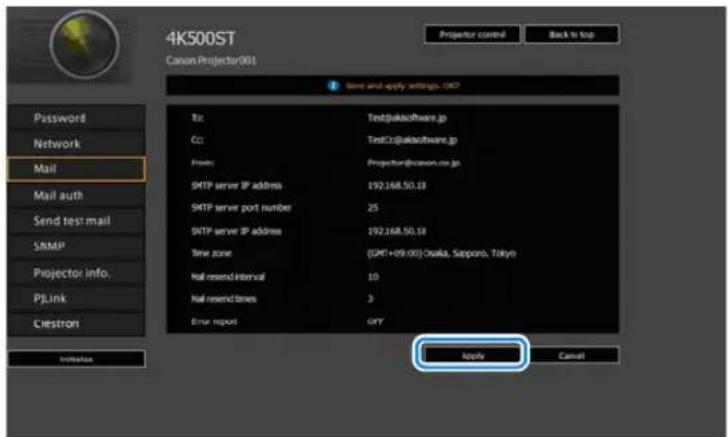
text_image
4K500ST CanonProjector001 Projector control Back to top Save and apply settings, OK? Password Network Mail Mail auth Send test mail SMTP Projector info. PJLink Ciestron Initiate Tkt: Test@akisoftware.jp Co: TestCo@akisoftware.jp From: Projector@kison.co.jp SMTP server IP address: 192.168.50.18 SMTP server port number: 25 SMTP server IP address: 192.168.50.18 Time zone:(GMT+09:00)Osaka, Sapporo, Tokyo Mail request interval: 10 Mail request times: 3 Error report: OKY Apply CancelThe settings are applied to the projector.
Selecting [Network] or [Password] in the menu will cause this message to be displayed: "Save completed. Please change setting and reconnect."
If you select functions other than above, "Save completed" is displayed. Click [Back to top] to return to the top page of the web screen.

text_image
4K500ST Canon Projector001 Projector control Back to top Save and apply settings: OK? Password Network Mail Mail auth Send test mail SNMP Projector info. PLink Ciestron Initiation T#: Test@akisoftware.jp G#: TestCo@akisoftware.jp From: Projector@kacin.co.jp SMTP server IP address 192.168.50.18 SMTP server port number 25 SMTP server IP address 192.168.50.18 Time zone (GMT+09.00) Osaka, Sapporo, Tokyo Mail sendInterval 10 Mail send times 3 Error request: OKY Apply CancelMenu Settings
Setting a Password [Password]
From [Password] in the settings screen, you can set a user name and password for web screen login. For the setting procedure, refer to "Network Setting" (P134).
![CANON REALiS 4K500ST Pro AV - Setting a Password [Password] - 1](/content/2026/06/1199025/images/ede1451230c85ceb4479ff16b44f60e5fe1c8b8aee5049c097db7af78ce543dc.jpg)
text_image
4KS00ST Canon Projector901 Projector control Back to top Password User name root 4-15 characters New password ******** 4-15 characters Confirm new password ******** 4-15 characters OK Cancel Initiate| Item Explanation | Factory default setting | |
| User name | When logging into the web screen, enter the user name in 1-byte alphanumeric characters and symbols (4 -15 characters). | root |
| New password | When logging into the web screen, enter the password in 1-byte alphanumeric characters and symbols (4 -15 characters). | system |
| Confirm new password | For confirmation, enter the same password that you entered in [New password]. | system |
Setting Basic Information [Network]
From [Network] in the settings screen, you can log into the web screen and set basic network information. For the setting procedure, refer to "Network Setting" (P134).
![CANON REALiS 4K500ST Pro AV - Setting Basic Information [Network] - 1](/content/2026/06/1199025/images/7d33849227190811951c66d03aa8e24208db4185f3303024120f2758fdc8692a.jpg)
text_image
4K500ST Canon Projector001 Projector control Back to top Password Network Mail Mail auth Send test mail SNMP Projector info. PJLink Crestron Initialize Vessel network status NIC address DEAD.DEAD:BE:EF DHCP OFF P address 192.168.254.254 Subnet mask 235.255.235.8 Default gateway 0.0.0.0 OK Cancel| Item Explanation | Factory default setting | |
| MAC address Shows the projector's MAC address. The MAC address of the projector | ||
| DHCP Select whether to turn the DHCP function on or off. If the function is on, because the IP address is acquired from the server, it is not possible to enter the following items.[IP address][Subnet mask][Default gateway] | OFF | |
| IP address Enter the IP address of the projector in 1-byte numbers. | 192.168.254.254 | |
| Subnet mask Enter the subnet mask in 1-byte numbers. | 255.255.255.0 | |
| Default gateway Enter the default gateway IP address in 1-byte numbers. | 0.0.0.0 | |
![CANON REALiS 4K500ST Pro AV - Setting Basic Information [Network] - 2](/content/2026/06/1199025/images/b23533919ba914a03449634896c315922d2e50c6ebda05475d0f0a3211fd8cc9.jpg)
If settings related to TCP/IP were changed, it is necessary to disconnect and reconnect to the network.
If the network subnet mask was changed, select [Subnet mask] in the above screen and set the new subnet mask.
Setting Up Email [Mail]
From [Mail] in the settings screen, you can set the items necessary to send error mails and test mails. For the setting procedure, refer to "Network Setting" (P134).
![CANON REALiS 4K500ST Pro AV - Setting Up Email [Mail] - 1](/content/2026/06/1199025/images/999f8374c2e577d58911ee089cee9e177bff79f7f90f8c2d4b8b9a3d80909a6f.jpg)
text_image
4K500ST Canon Projector001 Projector control Back to top Password Trx:Txt@aklsoftware.jp Network C::TxtCo@aklsoftware.jp Mail From: Projector@kwn.com.jp Mail auth SNTP server IP address 192.168.50.18 Send test mail SNTP server port number 25 SNMP SNTP server IP address 192.168.50.18 Projector info. PJLink Time zone:(GMI+09.00) Osaka, Sapporo, Tokyo Crestron Nail send/interval 10 OK Cancel Initiate OK Cancel| Item Explanation | Factory default setting | |
| To: Enter the recipient address for error mails in 1-byte alphanumeric characters and symbols (1 - 63 characters). | MailUserAccount | |
| Cc: Enter the CC address for error mails in 1-byte alphanumeric characters and symbols (1 - 63 characters). | ||
| From: Enter the sender address for error mails in 1-byte alphanumeric characters and symbols (1 - 63 characters). | Projector@canon.co.jp | |
| SMTP server IP address Enter the SMTP server IP address in 1-byte numbers. | 0.0.0.0 | |
| SMTP server port number Enter the SMTP server port number in 1-byte numbers (1 - 65535). | 25 | |
| SNTP server IP address Enter the SNTP server IP address in 1-byte numbers. | 0.0.0.0 | |
| Time zone Select the time zone where the projector is used. | (GMT) Dublin, Lisbon, London | |
| Mail resend interval* Enter the interval for resending mail when an error occurred (unit: seconds) within the range of 0 - 59 seconds using 1-byte numbers. | 10 | |
| Mail resend times Enter the number of times to resend mail when an error occurred within the range of 0 - 255 using 1-byte numbers. | 3 | |
| Error report Select whether to turn the error mail sending function on or off. | OFF | |
* When the interval is set to 0 seconds, repeated attempts to send mail are made (as set in [Mail resend times]) without pausing between attempts.
Mail Authentication Settings [Mail auth]
From [Mail auth] in the settings screen, you can configure the settings for authentication of mail that is sent when an error occurs. For the setting procedure, refer to "Network Setting" (P134).
![CANON REALiS 4K500ST Pro AV - Mail Authentication Settings [Mail auth] - 1](/content/2026/06/1199025/images/c8e2a01521049ba80b07b4c2df1312eac87c170242f6c4438f061129a588c32b.jpg)
text_image
4K500ST Carbon Projector001 save and apply settings, OK? Mail authentication OFF User name Password POP3 server IP address 0.0.0.0 POP3 server port number 110 POP before SMTP response time 300 Apply Cancel Password Network Mail Mail auth Send test mail SMTP Projector info. PLink Crestron Initiate| Item Explanation | Factory default setting | |
| Mail authentication Select | the mail authentication method.If OFF is selected, the other mail authentication settings cannot be changed. | OFF |
| User name | Enter the user name to use for mail authentication in 1-byte alphanumeric characters and symbols (1 - 63 characters). | |
| Password | Enter the password for mail authentication in 1-byte alphanumeric characters and symbols (1 - 63 characters). | |
| Confirm password For confirmation, enter the same password as you entered in [Password]. | ||
| POP3 server IP address | Enter the POP3 server IP address in 1-byte numbers. | 0.0.0.0 |
| POP3 server port number | Enter the POP3 server port number in 1-byte numbers (1 - 65535). | 110 |
| POP before SMTP response time | Enter the SMTP authentication timeout period after POP3 authentication (unit: milliseconds) using 1-byte numbers (0 - 9999 milliseconds). | 300 |
Sending a Test Mail [Send test mail]
From [Send test mail] in the settings screen, you can send a test mail to the mail address that was set in [Mail]. The settings cannot be changed from this screen.
![CANON REALiS 4K500ST Pro AV - Sending a Test Mail [Send test mail] - 1](/content/2026/06/1199025/images/cf20717d610077ceb1f08077ff0df7e8c3ad12fcc85ff283a5379d1090d0c883.jpg)
text_image
4K500ST Canon Projector001 Projector control Back to top Password Network Mail Mail auth Send test mail SNMP Projector info. PJLink Crestron Initialize Tx: MallUserAccount C: From: Projector@canon.co.jp Subject: Canon Projector test Send| Item Explanation | |
| To: | The recipient address which was set from [Mail] in the settings screen (P138) is displayed. |
| Cc: | The CC address which was set from [Mail] in the settings screen (P138) is displayed. |
| From: | The sender address which was set from [Mail] in the settings screen (P138) is displayed. |
| Subject: The | predetermined mail title “Canon Projector test” is displayed. |
SNMP Settings [SNMP]
From [SNMP] in the settings screen, you can configure the settings related to control of projectors which use SNMP (Simple Network Management Protocol). For the setting procedure, refer to “Network Setting” (P134).
![CANON REALiS 4K500ST Pro AV - SNMP Settings [SNMP] - 1](/content/2026/06/1199025/images/3f24cd5352631d49b26ed303ce6ecec7d84f054478709a194261bd1d324a3d9c.jpg)
text_image
4K500ST Canon Projector001 Projector control Back to top Password OFF Network Mail Mail auth Send test mail SNMP Projector info. PJLink Ciestron Initiate Received community Password B-15 characters Ciestron gateway B-15 characters OK Cancel| Item Explanation | Factory default setting | |
| SNMP Select the SNMP function version. If OFF is selected, the SNMP function will be turned off and the other settings in this screen cannot be changed. | OFF | |
| Receive community Enter | the community name which will receive projector information in 1-byte alphanumeric characters and symbols (1 - 15 characters). | |
| Password Enter the community settings password in 1-byte alphanumeric characters and symbols (8 - 15 characters). It can be set only when the SNMP version is V3. | ||
| Confirm password For confirmation, enter the same password as you entered in [Password]. | ||
Setting Projector Information [Projector info.]
From [Projector info.] in the settings screen, you can enter relevant comments such as projector names and locations where projectors are installed so that the information can be used to identify projectors when multiple projectors are installed on the network. For the setting procedure, refer to "Network Setting" (P134).
![CANON REALiS 4K500ST Pro AV - Setting Projector Information [Projector info.] - 1](/content/2026/06/1199025/images/49faab4696c98c0be881d385386faa2c831481c840e3d2e8a34d43ea29722ac6.jpg)
text_image
4K500ST Canon Projector001 Projector control Back to top Password Caseo Projector001 Network Caemon Mail Mail auth Send test mail SNMP Projector info. PLink Crestron Initiate Comment OK Cancel| Item Explanation Factory default setting | ||
| Projector name Enter the | projector name in 1-byte alphanumeric characters and symbols (1 - 63 characters). | Canon Projector001 |
| Comment | Enter any relevant notes, such as where the projector is installed. | |
![CANON REALiS 4K500ST Pro AV - Setting Projector Information [Projector info.] - 2](/content/2026/06/1199025/images/be5278ed94eff1f0c2352401582ad1a6bb5dfdfb1944d8aecac405e879afd281.jpg)
Some characters such as # cannot be used for [Projector name] and [Comment].
Menu Settings
Setting PJLink [PJLink]
From [PJLink] in the settings screen, you can set the PJLink functions which are the standard for projector management on a network. For the setting procedure, refer to “Network Setting” (P134). For information about PJLink, refer to “What is PJLink?” (P128).
![CANON REALiS 4K500ST Pro AV - Setting PJLink [PJLink] - 1](/content/2026/06/1199025/images/e4d3d2e7baae1ecbcd6bf04769c26745d76f8888873848ac62db6855c1f99637.jpg)
text_image
4K500ST Canon Projector 001 Projector control Back to top Password CR Network FLRK authentication CR Mail Password ****** Send test mail ****** SRMP CR Projector info. PLink CR Crestron CR Initiate OK Cancel| Item Explanation | Factory default setting | |
| PJLink Turn the PJLink function on or off. If OFF is selected, the PJLink function will be turned off and the other settings in this screen cannot be changed. | ON | |
| PJLink authentication Select whether to turn the PJLink authentication function on or off. If OFF is selected, it is not possible to change the following items. [Password] [Confirm password] | ON | |
| Password Enter the PJLink authentication password in 1-byte alphanumeric characters (1 - 32 characters). | system | |
| Confirm password For confirmation, enter the same password that you entered in [Password]. | system | |
Setting Up a Controller Manufactured by Crestron Electronics [Crestron Controller]
The [Crestron e-Control] screen will open. For details on the Crestron Controller, visit the Crestron website.
http://www.crestron.com/
Setting Errors
When a setting-related error occurs, the error name is displayed on the screen, and a “!” mark is displayed next to the input field which caused the error.

text_image
4K500ST Canon Projectar001 Password setting since Password User name full 4-15 characters New password ********+ 4-15 characters Confirm new password ********+ 4-15 characters OK CancelThe error meanings are as shown below.
| Error Meaning | |
| Input error A setting outside the valid range | was set on the settings screen. |
| Password setting error The set password and confirmation password did not match. | |
| Invalid SMTP The SMTP server IP address has not been set. | |
| System failed to connect SMTP server. Failed to connect to the SMTP server when sending a test mail. | |
| System failed to connect POP3 server. Failed to connect to the POP3 server attempting to send a test mail. | |
| System doesn’t support this auth type. An authentication type was set which is not supported by the server. | |
| System failed to authenticate. Authentication failed attempting to send a test mail. | |
| The system failed to send the test mail. Sending of test mail failed due to a connection failure with the SMTP server or an error which does not ordinarily occur. | |
Resetting Network Settings to the Default Settings
1 Perform steps 1 - 3 on "Displaying the Network Configuration Screen" (P132) to display the settings screen.
2Click [Initialize].
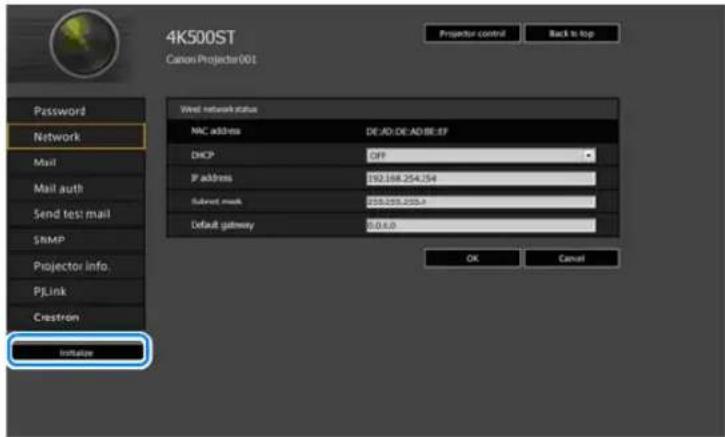
text_image
4K500ST Canon Projector 001 Password Network Mail Mail auth Send test mail SNMP Projector info. PJLink Crestron Instalizer Word network status NAC address DE:AD:DE:AD:BE:EP DHCP Off IP address 192.168.254.154 Subnet mask 255.255.255.2 Default gateway 0.0.0.0 OK Cancel3A confirmation window appears. Click [OK].
■Error Notification Mails
The messages shown in the following error list are sent when an error occurs in the projector.
Error list
| Errors related to temperature | Error name T | temperature abnormality |
| Text The | temperature inside the projector is too high for some reason or the outside air temperature is higher than the specified one.If the problem is inside the projector, check whether the projector is installed and operated normally, turn off the projector to cool its inside, and retry projection. If the same warning occurs again, the projector may be defective. Contact your dealer. | |
| Errors related to the lamp | Error name F | Faulty lamp |
| Text The | lamp has burnt out. Replace the lamp with a new one. If the same warning occurs again, the lamp drive circuit may be defective. Contact your dealer. | |
| Errors related to the fan | Error name F | Faulty cooling fan |
| Text The | cooling fan or another component may be defective.Contact your dealer. | |
| Errors related to the air filter | Error name F | Faulty air filter unit |
| Text The | air filter unit is not installed properly.Check whether the air filter unit is installed properly.If it is installed properly, the air filter unit detection switch may be defective. Contact your dealer. | |
| Errors related to the power | Error name F | Faulty power supply |
| Text The | voltage of part of the power supply is abnormally high or anyother problem has occurred in the power supply.Contact your dealer. |
Controlling the Projector from a Computer
When the projector is connected to a network, it is possible to control the projector from a computer via the network.
1Turn on the computer and projector.
2Launch a web browser, enter "http://(projector IP address)" in the address bar, and press the Enter key.
The projector web screen appears.

The factory default IP address is "192.168.254.254". If DHCP settings are used, ask the network administrator for the projector IP address. It is possible to check the IP address from the projector menu.
3Click [Projector control] on the web screen.
The password input window appears.
4Enter the user name and password on the password input window, then click [OK].
The factory default user name is "root" and the password is "system".
The projector control screen appears.
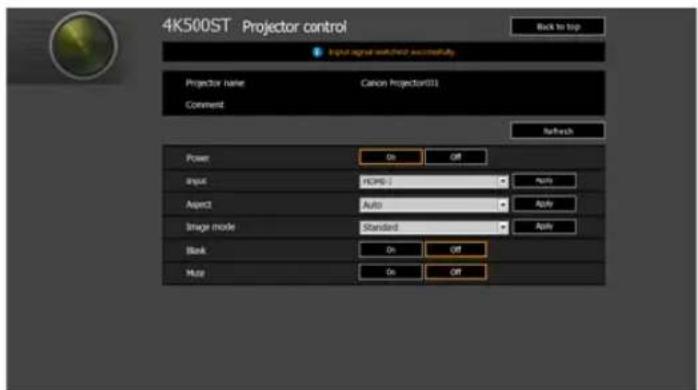
text_image
4K500ST Projector control Back to top Input signal watched successfully Projector name Canon Projector331 Comment Refresh Power On Off Input HCPG-1 Auto Apply Aspect Auto Apply Image mode Standard Apply Blank On Off Merge On OffThe projector can be controlled from this screen.
| Item Explanation | |
| Projector name | The name of the connected projector is displayed. (P141) |
| Comment | Shows notes, such as where the projector is installed. (P141) |
| Refresh Refreshes | the displayed contents with the most recent information. |
| Power Turns projector power on or off. | |
| Input Select an input signal and click [Apply] to change to that input signal. (P63) | |
| Aspect | Select an aspect and click [Apply] to change to that aspect. (P72) |
| Image mode Select an image mode and click [Apply] to change to that image mode. (P76) | |
| Blank Switches the blank setting on or off. (P80) | |
| Mute Switches the mute setting on or off. (P31) | |
5When the operations are finished, click [Back to top] to return the initial web screen.

text_image
4K500ST Projector control Input signal switched successfully. Back to top Projector name Canon Projector23 Comment Refresh Power On Off Input HDMI-1 Apply Aspect Auto Apply Image mode Standard Apply Blank On Off Rule On OffChecking Projector Information
You can check information about the signal types of the images projected and other information.
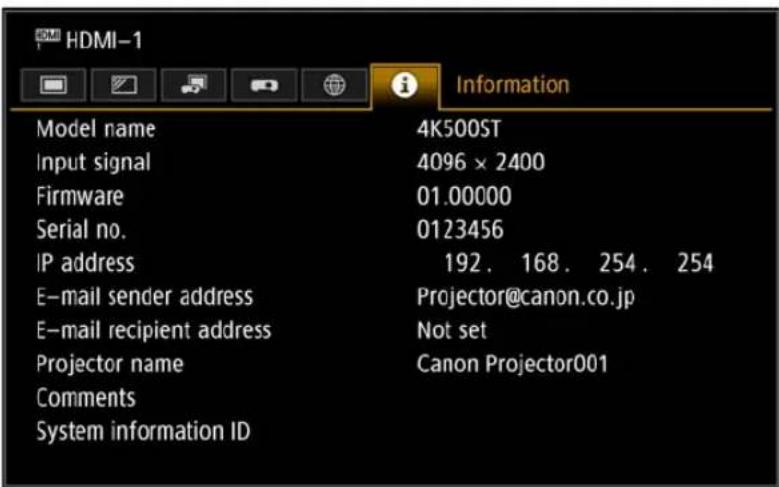
text_image
HDMI-1 Information Model name 4K500ST Input signal 4096 × 2400 Firmware 01.00000 Serial no. 0123456 IP address 192. 168. 254. 254 E-mail sender address Projector@canon.co.jp E-mail recipient address Not set Projector name Canon Projector001 Comments System information ID| Menu Function | |
| Model name Shows the model name. | |
| Input signal | Details of the input signal currently selectedInformation such as the type, resolution, frequency, and color format of the signal is displayed. |
| Firmware Current firmware version | |
| Serial no. Serial number unique to this projector | |
| IP address IP address used when connected to a network. | |
| E-mail sender address* | Sender e-mail address used for sending error mails (P138) |
| E-mail recipient address* | Displays [Already set] or [Not set] to show whether a recipient e-mail address has been set for receiving error mails. (P138) |
| Projector name* Name which identifies this projector on the network | |
| Comments* | Comments such as the location in which the projector is installed are displayed. (P141) |
| System information ID System information. Normally this is not displayed. | |
* The values are not displayed when network functions are [Off].
Advanced Projection
Projecting from Multiple Projectors at Once (Edge Blending)
Overlapping edges of images from multiple projectors used together can be blended to make the overall image more seamless.
■Basic Instructions
Follow these steps when using two projectors side by side.
1In the [Install settings] menu, select [Professional settings] > [Edge blending] > [Adjust].
![CANON REALiS 4K500ST Pro AV - 1In the [Install settings] menu, select [Professional settings] > [Edge blending] > [Adjust]. - 1](/content/2026/06/1199025/images/d5e79b8bef7d9f32e41f71bfee6485b2ed15864bcddaa61ddcb8319d8052803a.jpg)
- If you have already completed edge blending settings, selecting [Adjust] will apply them.
- To restore the default settings before adjustment, select [Reset].
2Set [Marker] to [On].
Marker lines are projected on the images. The red marker indicates the start position for adjustment, and the green marker, the end position.
| Edge blending | ||
| Side | Width | Start position |
| Left | 0 | 0 |
| Right | 0 | 0 |
| Top | 0 | 0 |
| Bottom | 0 | 0 |
| Color blending adjustment | Off | |
| Black level adjustment | Off | |
| Marker | Off | |
| Reset | ||
| Return | ||
![CANON REALiS 4K500ST Pro AV - 2Set [Marker] to [On]. - 1](/content/2026/06/1199025/images/72581152b206e6a2624b0ccbb2830715f458bab0ed4cc0d795bf56ca44cd5845.jpg)
By default, the green and red markers are displayed in the same position, so only the red marker is visible.
3Adjust [Start position] for the side where images overlap. Move the start marker to the outer edge of the overlapping area, or press a number button on the remote control to specify the start position.
4Adjust [Width]. Move the end marker to the inner edge of the overlapping area, or press a number button on the remote control to specify the width of the area to correct.
The area between the starting and ending markers is called the blending area. Values indicated for this blending area are adjusted to match manually entered blending area values. Shading is applied to this area, and the brightness is adjusted to match portions that overlap with other areas. After you complete settings for one image, do the same thing for the other one to specify the blending area. Adjust the settings to make the blending area for each image the same.
5Set [Marker] to [Off].
■Color Adjustment
In overlapping projection, portions of images in the overlapping area that pick up other colors or are miscolored may be more noticeable. You can make this overlapping area appear less distracting by performing Color blending adjustment.
1 In the [Install settings] menu, select [Professional settings] > [Edge blending] > [Adjust] > [Color blending adjustment] > [Adjust].
2As you watch the image, adjust the value to eliminate unwanted colors in the overlapping area.
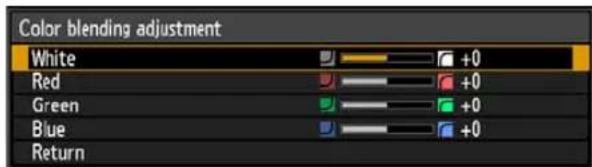
text_image
Color blending adjustment White Red Green Blue ReturnFirst adjust red, green, and blue together by changing the [White] value, and then adjust [Red], [Green], and [Blue] values individually.
3Repeat this adjustment on all projectors.
■Black Level Adjustment
In overlapping projection, dark colors are projected with less intensity than other colors in the overlapping area. You can make this overlapping area less distracting by adjusting the black level of non-overlapping image areas.
Left image Right image

text_image
Area where dark colors look lighter Position of end marker (hidden) D-area Blending areaHere, the non-overlapping image area (from the end marker toward the center of the image) is called area "D."
Normally, three areas are identified in the context of end markers: A, B, and C. In the following instructions, only area D is adjusted, and the widths of A, B, and C are left at the default value of 0.

To prepare for adjustment, set [No signal screen] to [Black], start projection with no input signal, and turn off the room lights, so that you can check dark image areas. (P109)
1 In the [Install settings] menu, select [Professional settings] > [Edge blending] > [Adjust] > [Black level adjustment] > [Adjust].
2Select [Adjustment type] > [Black level].
3After selecting [D-area base], as you watch the image, adjust the values so that the brightness and colors of the blending area and area D match.
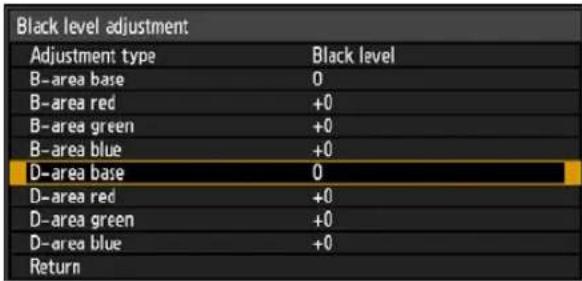
text_image
Black level adjustment Adjustment type Black level B-area base 0 B-area red +0 B-area green +0 B-area blue +0 D-area base 0 D-area red +0 D-area green +0 D-area blue +0 ReturnAdjust [D-area base] to lighten the black level, and adjust [Red], [Green], and [Blue] to obtain an optimal black level color tone, as needed.
4 Repeat this adjustment on all projectors.
■ Smoother Overlapping Areas
The black level along the right edge of area D (along the blending area) may be more noticeable than that of surrounding areas.
By adjusting the black level of area B, you can make the transition smoother.
To compensate, adjust each area as follows.
Left image Position of end marker (hidden)
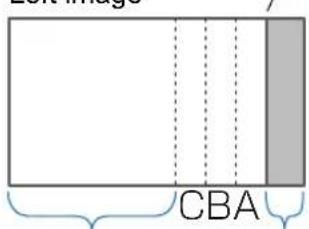
text_image
CBAArea A: Black level cannot be adjusted.
Area B: Adjust to a black level different from that of area D.
Area C: Adjust to provide a smooth transition relative to the black levels of areas B and D.
When the projected image has multiple blending areas (on the top, bottom, and each side), the width of areas A, B, and C must be adjusted to suit these blending areas.
In this example, instructions are given for adjusting area B.
1 In the [Install settings] menu, select [Professional settings] > [Edge blending] > [Adjust] > [Black level adjustment] > [Adjust].
2Select [Adjustment type] > [Area] > [Side] > [Right].
3Select [B-width], and then specify the width of area B.
Adjust the width of area B so that it roughly matches the area where the black level of area B stands out. This will make the width of area D narrower.
![CANON REALiS 4K500ST Pro AV - 3Select [B-width], and then specify the width of area B. - 1](/content/2026/06/1199025/images/97fb4b1e54f4b120f33f437d0d7bfe91ff1e3f17adf98ff3005168ca5ab42a68.jpg)
text_image
Black level adjustment Adjustment type Area Side Right A-width 0 B-width 0 C-width 0 Return4Select [Adjustment type] > [Black level]. Adjust [B-area base] as you watch the image.
![CANON REALiS 4K500ST Pro AV - 4Select [Adjustment type] > [Black level]. Adjust [B-area base] as you watch the image. - 1](/content/2026/06/1199025/images/3bd559282235e6dca29ef744710d78c3cc60ce4956e5ea1d087428b10874ca12.jpg)
- Results of adjusting the black level of area B are applied to all sides.
- Blending can be fine-tuned by adjusting [Adjustment type] > [Black level] > [Red], [Green], and [Blue].
5As you watch the image, adjust the width of areas A, B, and C.
6Readjust the black level of area B, as needed.
To reduce distracting colors and colors that are out of alignment in areas where the images overlap, perform [Color blending adjustment] targeting the main tone in the envisaged projected image.

If you perform adjustments using [Color blending adjustment] or other menus, that may not eliminate the distracting colors and differences in brightness in areas where the images overlap.
Advanced Registration to Adjust Projected Images
Any values you set in 5-point adjustment are retained if you subsequently perform manual adjustment. For more precise correction after 5-point adjustment, perform manual adjustment.
This feature enables precise correction of red, green, or blue misalignment in different areas of the screen by color and area.
Two methods of registration are available: 5-point adjustment (using points in the corners and center of the screen) and more precise manual adjustment based on 54 points (in a 6 x 9 grid).

- Adjust zoom and lens shift as needed before using [Advanced registration].
- Performing keystone adjustment will prevent accurate adjustment with [Advanced registration]. If keystone adjustment is required, complete adjustment with [Advanced registration] first.
■Registration Using 5-Point Adjustment
5-point adjustment enables basic correction of color misalignment across the screen, by moving adjustment points in each corner and the center.
1In the [Install settings] menu, select [Professional settings] > [RGB alignment] > [Advanced registration] > [Adjust] > [5-point adjustment] > [Adjust].
The projector enters 5-point adjustment mode, and a point selection window is displayed.

text_image
Advanced registration 5-point adjustment Off Manual adjustment ▶Adjust Reset Return
- Two sizes of point selection windows are used, depending on [Panel drive mode].
- With advanced registration, checkered or halftone image areas may be affected by uneven colors or image artifacts.
2 Use the [▲] / [▼] / [◀] / [▶] buttons to select the point for correction, and then press the OK button.
The projector enters color selection mode.
![CANON REALiS 4K500ST Pro AV - Use the [▲] / [▼] / [◀] / [▶] buttons to select the point for correction, and then press the OK button. - 1](/content/2026/06/1199025/images/a2fce067f6ffb7bea24a5f3e4f5303d27a5424761068614f9e60cbaa274d7b2a.jpg)
text_image
Point adjustment Select the point to adjust, and press the OK button. Red +0 +0 Blue +0 +0 Return3Select [Red] or [Blue] as the color, and then press the OK button.
![CANON REALiS 4K500ST Pro AV - 3Select [Red] or [Blue] as the color, and then press the OK button. - 1](/content/2026/06/1199025/images/3de6a0fd41de06109b28f58e6d5c2d4a5ed3afe5e7099fc40a67ab38d8d8fa15.jpg)
- Select [Chart] to toggle between display of the point selection window and source signal.
- Accessing the 5-point adjustment window during test pattern projection will show the test pattern instead of your supplied signal.
4Use the [ ] △ / [ ] / [ ] buttons to align the adjustment points.
![CANON REALiS 4K500ST Pro AV - 4Use the [ ] △ / [ ] / [ ] buttons to align the adjustment points. - 1](/content/2026/06/1199025/images/2ec359cc8be4d1379eb439f31a88d9b7e691545f228ffac2f3a5d373643215a0.jpg)
text_image
5-point adjustment Red Blue Chart Return5Press the OK button to return to the window for color selection mode.
6 Repeat this process to align the remaining colors and adjustment points.
■Manual Registration
Use manual adjustment to correct registration only in certain areas.

Any manual adjustment values set before switching to 5-point adjustment are cleared.
1In the [Install settings] menu, select [Professional settings] > [RGB alignment] > [Advanced registration] > [Adjust] > [Manual adjustment]. The projector enters manual adjustment mode, and a point selection window is displayed.
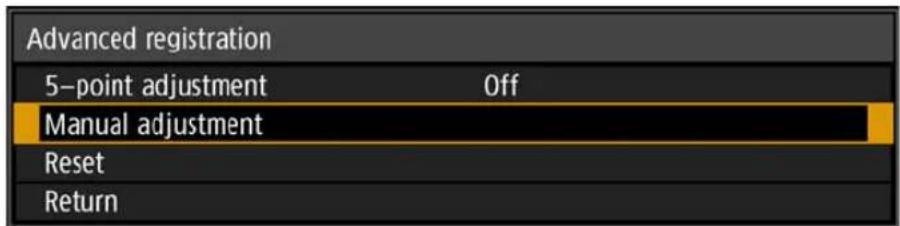
text_image
Advanced registration 5-point adjustment Off Manual adjustment Reset Return
- Two sizes of point selection windows are used, depending on [Panel drive mode].
- With advanced registration, checkered or halftone image areas may be affected by uneven colors or image artifacts.
2 Use the [ ] ▲ / ▼ / [ ] buttons to select the point for correction, and then press the OK button.
The projector enters color selection mode.
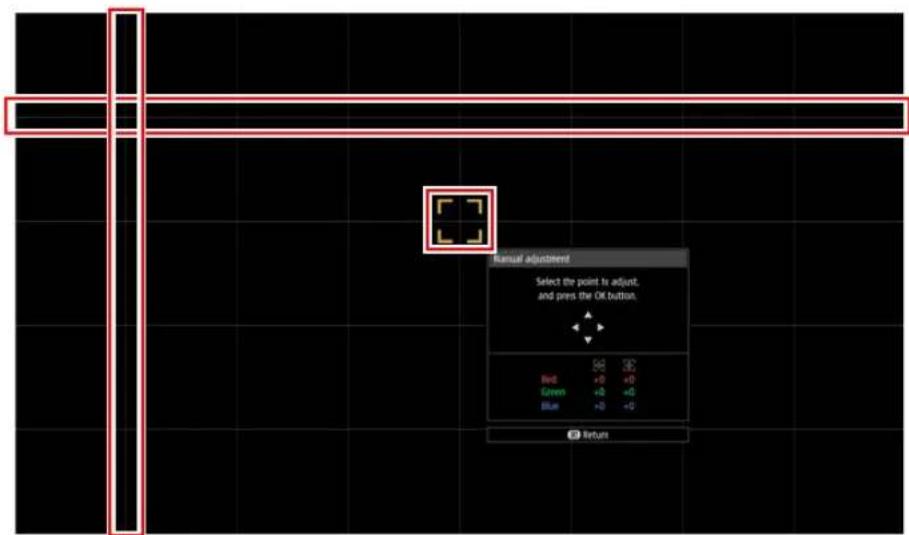
text_image
Manual adjustment Select the point to adjust, and press the OK button. Red Green Blue Returns3Select [Red], [Green], or [Blue] as the color, and then press the OK button.
![CANON REALiS 4K500ST Pro AV - 3Select [Red], [Green], or [Blue] as the color, and then press the OK button. - 1](/content/2026/06/1199025/images/48a216779da484d58aed8995b003ace707c5eb0e36fb7d6de8a0d94825203d92.jpg)
- Select [Chart] to toggle between display of the point selection window and source signal.
- Accessing the manual adjustment window during test pattern projection will show the test pattern instead of your supplied signal.
4Use the [ ] ▲/ [ ] / [ ] buttons to align the adjustment points.
![CANON REALiS 4K500ST Pro AV - 4Use the [ ] ▲/ [ ] / [ ] buttons to align the adjustment points. - 1](/content/2026/06/1199025/images/40db573e7028871bbfc4229524193ad274899de30db48accc2297ccb9dd96728.jpg)
text_image
Manual adjustment Red Green Blue Chart Return5Press the OK button to return to the window for color selection mode.
6 Repeat this process to align the remaining colors and adjustment points.
■Resetting Image Registration
Clears the values set in 5-point adjustment or manual adjustment.
1 In the [Install settings] menu, select [Professional settings] > [RGB alignment] > [Advanced registration] > [Adjust] > [Reset].
A confirmation message for resetting is displayed.

text_image
Advanced registration reset Advanced registration settings will be reset. OK? OK Cancel2Select [OK] to reset the adjustment.
The following tasks are executed.
- Values set in 5-point adjustment are cleared.
- 5-point adjustment is deactivated.
- Values set in manual adjustment are cleared.
Adjusting Peripheral Focus
This feature enables focus adjustment around the edges of the screen.
- Use marginal focus adjustment for curved screens, such as domes.
- Use marginal focus adjustment to bring images on flat screens into focus if image edges remain warped after you adjust the overall focus.

[Marginal focus] must be set to [On] in advance. (P102)
■Bringing Image Edges into Focus
To adjust peripheral focus, press the FOCUS button on the remote control or the LENS button on the projector.
1 Press the FOCUS button on the remote control twice to display the marginal focus adjustment window.
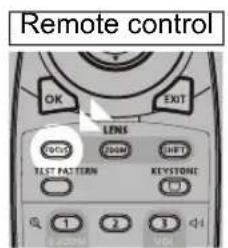
text_image
Remote control OK EXIT LENS 100% 240% LEFT LAST PATTERN KEYSTONE 1 2 3Press twice.

text_image
Marginal focus adjust.Pressing the LENS button on the projector repeatedly switches between windows for lens-related parameters.
Press the LENS button twice to display the marginal focus adjustment window.
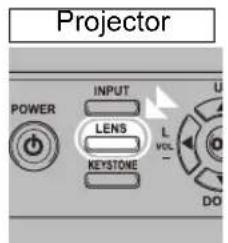
text_image
Projector POWER INPUT LENS L VOL - KEystone DO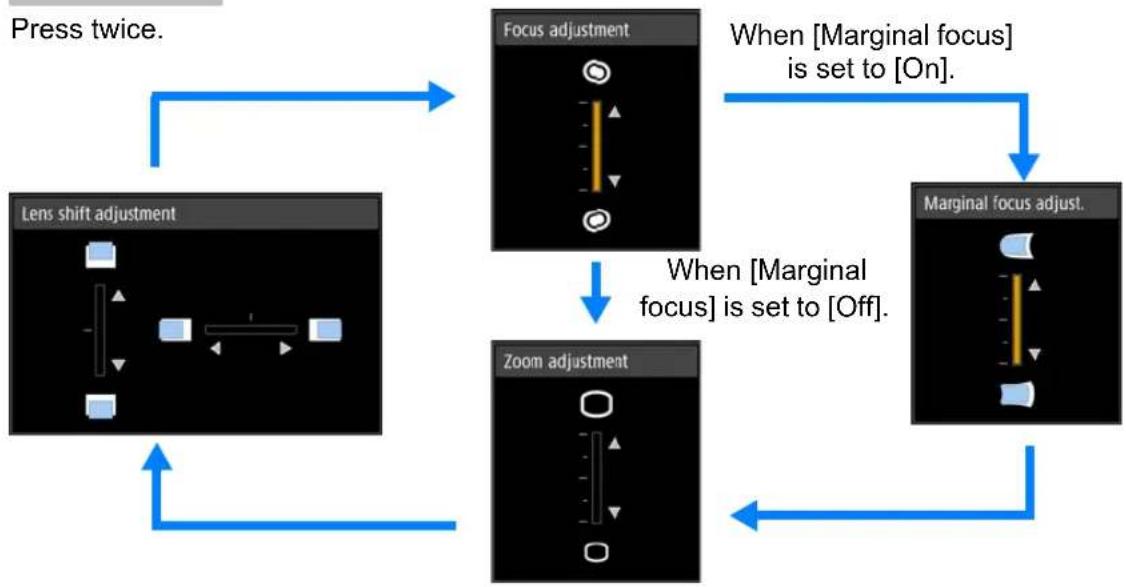
flowchart
graph TD
    A["Press twice."] --> B["Lens shift adjustment"]
    B --> C["Focus adjustment"]
    C --> D["When [Marginal focus"] is_set_to["On"].]
    D --> E["Marginal focus adjust."]
    E --> F["Zoom adjustment"]
    F --> G["When [Marginal focus"] is_set_to["Off"].]
    G --> A
2Press the pointer buttons to adjust the focus at image edges.
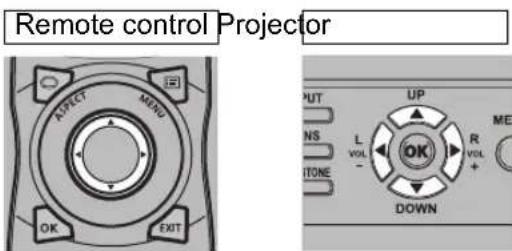
text_image
Remote control Projector ASPECT MENO OK EXIT PUT NS L VOLT ITONE UP R VOLT DOWN MEPress the [▲/ [ ]buttons to move the peripheral focus farther away.
Press the [▲/ [ ]◀buttons to move the peripheral focus nearer.
3Once image edges are in focus, press the OK or FOCUS button.
■Resetting Adjustment
Clears the values set in marginal focus adjustment.
In the [Install settings] menu, select [Professional settings] > [Marginal focus] >
[Reset] to reset the adjustment.

Marginal focus adjustment
Resetting the marginal focus. This may take a while.
The following tasks are executed.
- Values set in marginal focus adjustment are cleared.
• [Marginal focus] is set to [Off].

Setting [Marginal focus] to [Off] will not reset the setting value for peripheral focus.
Other Information
Safety Instructions
Before Use
Basic Guide
Installation Procedure
Connection Procedure
Projection Procedure
Convenient Features
Advanced Guide
Using Menus
Menu Settings
Advanced Projection
Other Information
Maintenance
Product Specifications
Troubleshooting
Cleaning the Projector
Clean the projector frequently to prevent dust from settling on the surface.
A dirty lens may ruin the quality of the projected image.
Before cleaning the projector, always turn it off, unplug it after the cooling fan stops, and wait at least one hour. Otherwise, you may get burned because the main unit is very hot immediately after the projector is turned off.
Wipe the projector's main unit softly with a soft cloth.
If the projector is heavily soiled, soak the cloth in water with a small amount of detergent in it, squeeze the cloth thoroughly, and then wipe the projector with it. After cleaning, wipe the projector with a dry cloth.

natural_image
Line drawing of a hand inserting a component into a mechanical housing (no text or symbols)
- Never use volatile cleaning liquid or benzine, as these may damage the finish of the projector.
- When using a chemical dust cloth, make sure to read the instructions thoroughly.
- When cleaning the projector's lens, use a commonly available air blower or lens cleaning paper. The lens surface is easily damaged, so do not use a hard cloth or tissues.
Request Internal Cleaning Regularly
Dust that accumulates over long periods without cleaning may eventually cause fire or electric shock. Once a year, request internal cleaning from the Canon Customer Support Center. (Note that a fee is charged.) Cleaning before damp, rainy seasons is especially effective.
Cleaning the Air Filter
The air filter protects the lens and mirror inside the projector from dust and dirt. Should the air filter become clogged with dust, the projector may be damaged since it will block the air flow into the projector and raise the internal temperature of the projector. The following screen is displayed when turning on the projector if the air filter needs to be cleaned. Clean the air filter if it is displayed.

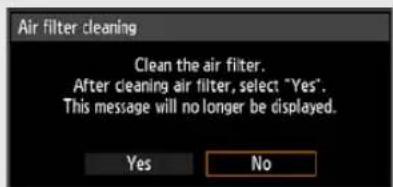
text_image
Air filter cleaning Clean the air filter. After cleaning air filter, select "Yes". This message will no longer be displayed. Yes No- Only the [◀], [▶], OK, POWER, EXIT, FOCUS, ZOOM and SHIFT buttons are available while this screen is displayed. (When you press the POWER button, the "Push POWER button again to turn off power." message appears.)
- When this screen has disappeared after being displayed for 10 seconds, all buttons become operable.
Follow the procedure below when cleaning the air filter.
1 Turn the power of the projector off and pull out the power plug.
2Hook your finger around the air filter handle on the front of the projector and remove the air filter. Use a vacuum cleaner to clean off the dust.

natural_image
Line drawing of a hand using a hammer to cut a rectangular object with a tool (no text or symbols)
Do not rinse the air filter in water. This may damage the air filter and projector.

- If the air filter cleaning screen is displayed when turning on the projector after cleaning the air filter, select [Yes] and press the OK button. The air filter counter is reset, and the message is no longer displayed.
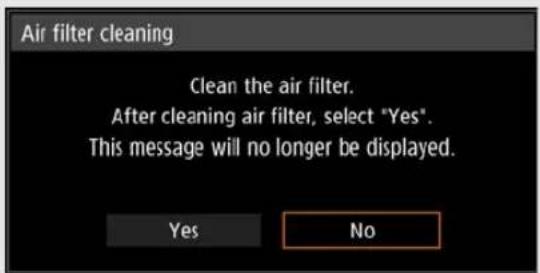
text_image
Air filter cleaning Clean the air filter. After cleaning air filter, select "Yes". This message will no longer be displayed. Yes No- This screen is not displayed when [Air filter warning display] is set to [Off]. (P111) Reset the air filter counter manually. (P119)
Replacing the Air Filter
Follow the procedure below when replacing the air filter.
1 Turn off the projector power and remove the power plug.
Maintenance
2Pull out the filter cover tab on bottom while lifting up.
3Open the filter cover and remove it.
4Remove the air filter.
5 Holding the new air filter by the tab, insert the air filter in the projector.
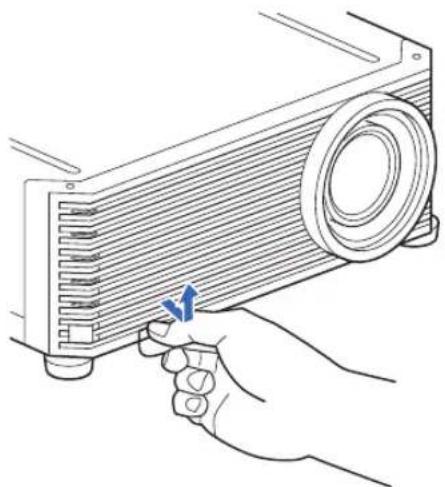
natural_image
Line drawing of a hand holding a projector with a blue arrow pointing to the blade (no text or symbols)
natural_image
Line drawing of a hand inserting a fan into a heat exchanger (no text or symbols)
natural_image
Line drawing of a hand inserting a component into a projector housing (no text or symbols)
natural_image
Line drawing of a hand inserting a component into a projector housing (no text or symbols)6Align the filter cover tab with the groove and close the filter cover.

natural_image
Illustration of a hand inserting a fan into a projector housing (no text or symbols)
- Handle the air filter carefully. If damaged, the air filter will not work properly.
- We recommend cleaning or replacing the air filter (part no: RS-FL03) when you replace the lamp.
- Contact the Canon Customer Support Center for further information.
- Replacement air filter part number: RS-FL03
• This can also be purchased from the Canon website.
Replacing the Lamp
When the usage time of the lamp exceeds a certain amount of time, the following message (two types) is displayed for 10 seconds every time the projector is turned on.
2,700 hours to less than 3,000 hours

text_image
Lamp replacement Obtain a new lamp. Do you want to display this message again? Yes NoPrepare a new lamp when this screen is displayed.
- Only the [◀], [▶], OK, POWER, EXIT, FOCUS, ZOOM and SHIFT buttons are available while this screen is displayed.
- When you press the POWER button, "Push POWER button again to turn off power." message appears.
• After this screen has been displayed for 10 seconds and disappeared, all buttons become operable. - This message will not be displayed again if you select [No] in response to the message "Do you want to display this message again?".
3,000 hours or more

Lamp replacement
Replace with the new lamp.
If a lamp replacement message is displayed, refer to "Lamp Replacement Procedure" (P165).
- Only the POWER, OK, EXIT, FOCUS, ZOOM and SHIFT buttons are available while this screen is displayed.
- When you press the POWER button, the "Push POWER button again to turn off power." message appears.
- When this screen has disappeared after being displayed for 10 seconds, all buttons become operable.
- You can check the usage time of the lamp in [Lamp counter] in the [System settings] menu. (P118)
- This screen is not displayed when [Lamp warning display] is set to [Off]. (P111)

- Lamps are more likely to rupture once the lamp replacement message has been displayed. Replace the lamp with a new one as soon as possible.
- Lamps should be replaced about every 3,000 hours. Note that there is no guarantee about how long lamps will last.
- Useful life of lamps varies widely from lamp to lamp and depending on the environment of use. Some lamps may fail or rupture soon after they are first used.
- Dispose of used lamps in accordance with local regulations.
Replacement Lamp
This projector uses the following lamps.
Lamp part no.: RS-LP10
Contact the Canon Customer Support Center when purchasing a replacement lamp.

Precautions when replacing lamps that stop working If the illumination suddenly stops when the projector is in use or after you turn it on, the lamp may be broken. In this case, never attempt to replace the lamp by yourself. Always request service from the Canon Customer Support Center. Additionally, with ceiling-mounted projectors, the lamp may fall out when you open the lamp cover or while you are attempting to replace it. During replacement, stand to the side of the lamp cover, not directly under it. If the lamp breaks and any glass shards or other pieces get in your eyes or mouth, consult a doctor immediately.
Before replacing the lamp, always turn off the projector, unplug it after the cooling fan stops, and wait at least one hour. Do not touch the lamp immediately after turning the projector off. It is very hot initially and poses a risk of burns.

- Be sure to use the specified lamp.
- Contact the Canon Customer Support Center for further information. This can also be purchased from the Canon website.
- Do not touch the inner glass surface when you replace the lamp. Doing so may cause deterioration to the projector's performance.
- Handle lamps with care. Impact or abrasion may cause lamps to rupture while they are in use. If a lamp ruptures, contact the Canon Customer Support Center and follow the instructions in “Precautions when replacing lamps that stop working” (P15).
- When replacing the lamp, do not remove any screws other than those specified.
Lamp Replacement Procedure
Replace the lamp as follows.
1 Turn off the projector power and remove the power plug.
2Loosen the lamp cover screw.
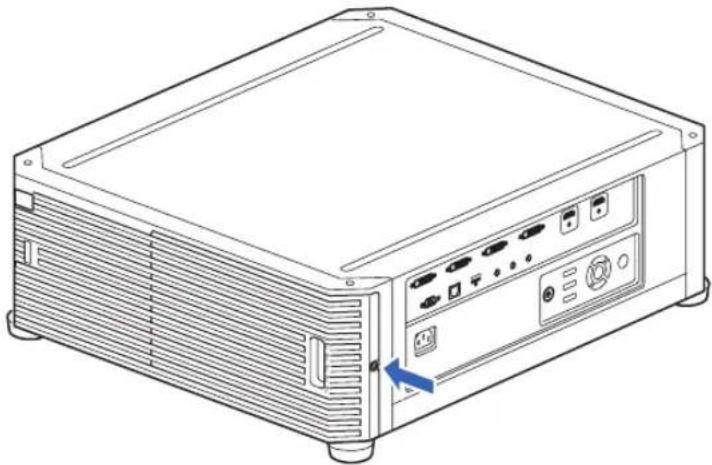
natural_image
Line drawing of a server rack unit with ports and a blue arrow indicating a component (no text or symbols)Maintenance
3Hook your finger around the lamp cover handle, and open the cover in the direction of the arrow.
The lamp cover screw is attached to the lamp cover to prevent it from falling off.
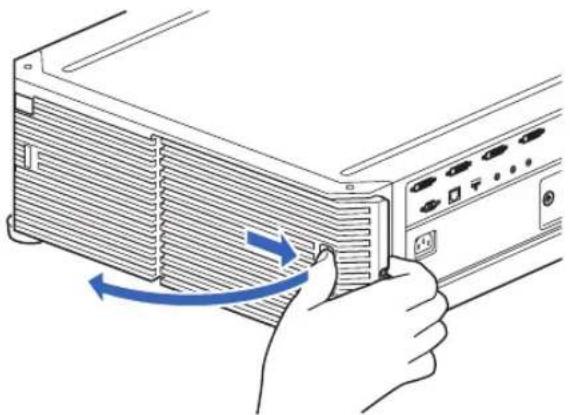
natural_image
Illustration of a hand inserting a component into a rack-mounted device (no text or symbols visible)4Loosen the 3 screws on the inside of the lamp unit, and then slowly pull out the lamp unit in the direction of the arrow. Even when the screws are loosened, they will remain attached to the lamp unit.
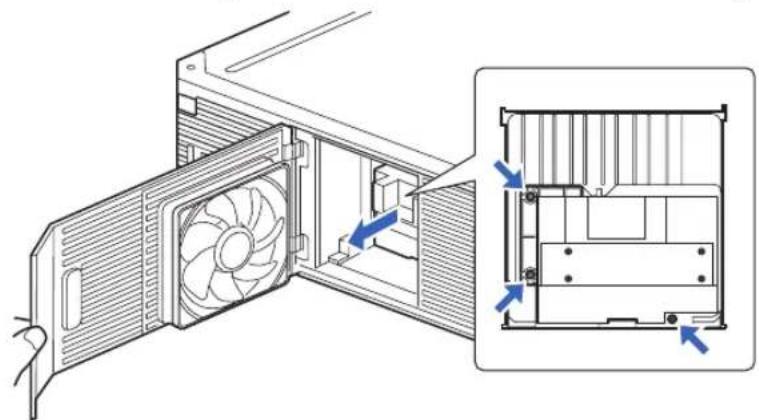
natural_image
Technical line drawing of a computer tower fan assembly with an inset showing internal components (no text or symbols)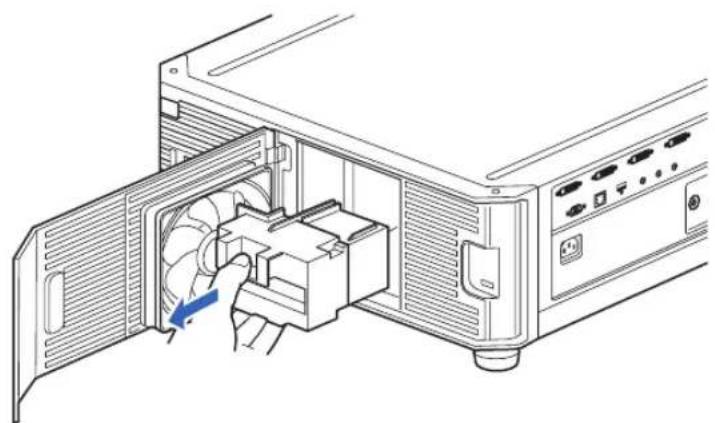
natural_image
Technical line drawing of an open industrial device with a blue arrow indicating airflow or cooling (no text or symbols present)5 Insert the new lamp unit all the way in, and secure it with the 3 screws.
6Close the lamp cover and tighten the screw.
7 Turn on the power. Bring up the menu and select [System settings] > [Other settings] > [Lamp counter].
![CANON REALiS 4K500ST Pro AV - Turn on the power. Bring up the menu and select [System settings] > [Other settings] > [Lamp counter]. - 1](/content/2026/06/1199025/images/87492edc4ad9df3851d6a751b51ddbfd93704ef56fc4eb648270c8dea146ba15.jpg)
text_image
DVI-1 System settings User screen settings On screen Remote control/Side control Audio in terminal select Communication settings Power management mode Disabled Power management duration 5 min. Direct power on On Motion blur reduction Off Language English Other settings Other settings Password settings Off Register password Adjust panel characteristics Lamp counter Air filter counter Power counter 3 Firmware 01.00000 Factory defaults Return8Select [Reset] - [Yes] to reset the lamp counter.
![CANON REALiS 4K500ST Pro AV - 8Select [Reset] - [Yes] to reset the lamp counter. - 1](/content/2026/06/1199025/images/1c8fe56800ca43599782c6aaa0d123485f974803f391ee5b37b625afd8af9247.jpg)
flowchart
graph LR
    A["Lamp counter"] --> B["3100"]
    B --> C["Reset"]
    B --> D["Return"]
    E["Lamp counter reset"] --> F["Only do this after changing the lamp.<br>Reset the lamp counter?"]
    F --> G["Yes"]
    F --> H["No"]
![CANON REALiS 4K500ST Pro AV - 8Select [Reset] - [Yes] to reset the lamp counter. - 2](/content/2026/06/1199025/images/0dc34c033e2f5691c7c07ca3dc0c19d38acf520200ab176337909f3e73cebdfd.jpg)
- We recommend cleaning or replacing the air filter (part no.: RS-FL03) when you replace the lamp.
• To order air filters, contact the Canon Customer Support Center.
Displayed Test Patterns
To access the test pattern menu, from the [Install settings] menu, select [Test pattern] (P107) > [On], or press the TEST PATTERN button on the remote control. While the test pattern is displayed, you can use the [▲/ [ ]▼buttons to switch patterns. Also, if there is an option pattern available, you can use the [◀/ [ ]▶ buttons to switch pattern.
The following test patterns can be displayed.
Use [▲/ [ ]▼o switch patterns
Use [◀] / [ ] to switch option patterns
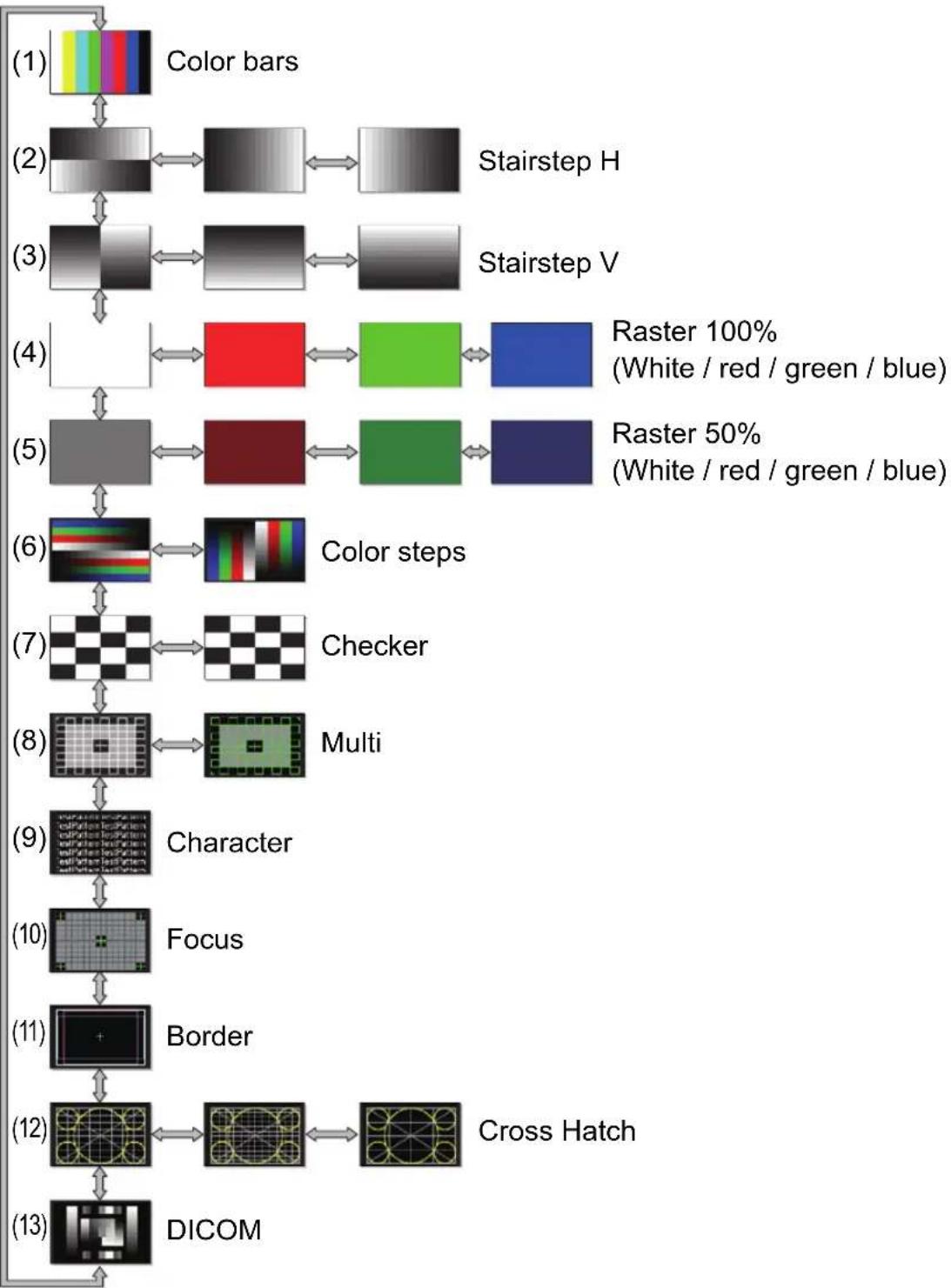
flowchart
graph TD
    A["Color bars"] --> B["(2)"]
    B --> C["Stairstep H"]
    B --> D["(3)"]
    D --> E["Stairstep V"]
    E --> F["(4)"]
    F --> G["Raster 100% (White / red / green / blue)"]
    F --> H["Raster 50% (White / red / green / blue)"]
    G --> I["(5)"]
    H --> J["(6)"]
    I --> K["Color steps"]
    J --> L["Checker"]
    K --> M["(7)"]
    L --> N["Checker"]
    M --> O["(8)"]
    N --> P["Multi"]
    O --> Q["(9)"]
    P --> R["Character"]
    Q --> S["(10)"]
    R --> T["Focus"]
    S --> U["Border"]
    T --> V["(11)"]
    U --> W["(12)"]
    V --> X["Cross Hatch"]
    W --> Y["(13)"]
    X --> Z["DICOM"]
Supported Signal Types
This projector supports the following signal types.
If your computer or AV equipment is compatible with any of these signals, the projector will determine the type of input signal automatically to project the image correctly.
HDMI (single)
1
| Signalresolution | Horizontalfrequency[kHz] | Verticalfrequency[Hz] | Dot clock[MHz] | HDMI multi inputmode | Horizontalblanking interval FP^*1 , SW^*2 , BP^*3 | Vertical blankinginterval FP^*1 , SW^*2 , BP^*3 |
| 640x480 31. | 469 59.940 | 25.175 Normal | Single 16, 9 | 6, 48 10, 2, 33 | ||
| 720x480 31. | 469 59.940 | 27.000 Normal | Single 16, 6 | 2, 60 9, 6, 30 | ||
| 720x576 31. | 250 50.000 | 27.000 Normal | Single 12, 6 | 4, 68 5, 5, 39 | ||
| 800x600 37. | 879 60.317 | 40.000 Normal | Single 40, 1 | 28, 88 1, 4, 23 | ||
| 1280x720 | 18.000 24.000 59.400 | Normal, Single 1760, 40, 220 5, 5 | 20 | |||
| 37.500 50.000 74.250 | Normal, Single 440, 40, 220 | 5, 5, 20 | ||||
| 45.000 60.000 74.250 | Normal, Single 110, 40, 220 | 5, 5, 20 | ||||
| 1024x768 | 48.363 | 60.004 | 65.000 | Normal, Single | 24, 136, 160 | 3, 6, 29 |
| 1366x768 | 47.712 | 59.790 | 85.500 | Single | 70, 143, 213 | 3, 3, 24 |
| 48.000 60.000 72.000 | 14, 56, 64 | 1, 3, 28 | ||||
| 1440x900 | 55.469 59.901 88.750 | Normal | Single 48, 32, 80 | 3, 6, 17 | ||
| 55.935 | 59.887 | 106.500 | Normal, Single | 80, 152, 232 | 3, 6, 25 | |
| 1280x1024 | 63.981 | 60.020 | 108.000 | Normal, Single | 48, 112, 248 | 1, 3, 38 |
| 1920x1080(I) | 28.125 | 50.000 | 74.250 | Normal, Single | 528, 44, 148 | 4.5, 10, 30.5 |
| 31.250 | 50.000 | 72.000 | 32, 168, 184 | 45.5, 10, 114.5 | ||
| 33.750 60.000 74.250 | Normal | Single 88, 44, 148 | 4.5, 10, 30.5 | |||
| 1920x1080 | 27.000 | 24.000 | 74.250 | Normal, Single | 638, 44, 148 | 4, 5, 36 |
| 56.250 | 50.000 | 148.500 | Normal, Single | 528, 44, 148 | 4, 5, 36 | |
| 67.500 60.000 148.500 | Normal, Single 88, 44, 148 4, 5, 36 | |||||
| 2048x1080 | 66.576 | 59.924 | 147.000 | Normal, Single | 48, 32, 80 | 3, 10, 18 |
| 67.500 | 60.000 | 148.500 | Normal, Single | 44, 44, 64 | 4, 5, 36 | |
| 2560x1080 | 26.400 | 24.000 | 99.000 | Normal, Single | 998, 44, 148 | 4, 5, 11 |
| 56.250 | 50.000 | 185.625 | Normal, Single | 548, 44, 148 | 4, 5, 36 | |
| 66.636 | 59.978 | 181.250 | 48, 32, 80 | 3, 10, 18 | ||
| 66.000 | 60.000 | 198.000 | Normal, Single | 248, 44, 148 | 4, 5, 11 | |
| 1920x1200 | 74.038 | 59.950 | 154.000 | Normal, Single | 48, 32, 80 | 3, 6, 26 |
| 74.556 | 59.885 | 193.250 | Normal, Single | 136, 200, 336 | 3, 6, 36 | |
| 2048x1200 | 74.049 | 59.959 | 163.500 | Normal, Single | 48, 32, 80 | 3, 10, 22 |
| 2560x1440 | 88.787 | 59.951 | 241.500 | Single | 48, 32, 80 | 3, 5, 33 |
| 2560x1600 | 98.713 | 59.972 | 268.500 | Normal, Single | 48, 32, 80 | 3, 6, 37 |
| 3840x2160 | 52.593 23.993 266.750 | 216, 400, 616 | 3, 5, 24 | |||
| 52.438 | 23.999 | 209.750 | 48, 32, 80 | 3, 5, 17 | ||
| 54.000 | 24.000 | 297.000 | Normal, Single | 1276, 88, 296 | 8, 10, 72 | |
| 56.250 | 25.000 | 297.000 | Normal, Single | 1056, 88, 296 | 8, 10, 72 | |
| 67.500 | 30.000 | 297.000 | Normal, Single | 176, 88, 296 | 8, 10, 72 | |
| 4096x2160 | 52.561 23.979 284.250 | 224, 432, 656 | 3, 10 | 19 | ||
| 52.397 | 23.980 | 223.000 | 48, 32, 80 | 3, 10, 12 | ||
| 54.000 | 24.000 | 297.000 | Normal, Single | 1020, 88, 296 | 8, 10, 72 | |
When you apply the settings in the HDMI multi input mode column, formats in corresponding rows are identified in the EDID. No information is provided in the EDID for fields that are blank, so the computer output format must be configured manually.
HDMI 1x2
| 1 | 2 |
| Combined multi input resolution | Resolution at each input terminal | Horizontal frequency [kHz] | Vertical frequency [Hz] | Dot clock [MHz] | HDMI multi input mode | Horizontal blanking interval FP^*1 , SW^*2 , BP^*3 | Vertical blanking interval FP^*1 , SW^*2 , BP^*3 |
| 1280x480 640x480 31.469 59.940 25.175 | Normal, 1x2 | 16, 96, 48 10, 2, 33 | |||||
| 1440x480 720x480 31.469 59.940 27.000 | Normal, 1x2 | 16, 62, 60 9, 6, 30 | |||||
| 1440x576 720x576 31.250 50.000 27.000 | Normal, 1x2 | 12, 64, 68 5, 5, 39 | |||||
| 2560x720 1280x720 | 37.500 50.000 74.250 | Normal, 1x2 | 440, 40, 220 5, 5, 20 | ||||
| 45.000 60.000 74.250 | Normal, 1x2 | 110, 40, 220 5, 5, 20 | |||||
| 3840x1080 1920x1080(I) | 28.125 50.000 74.250 | Normal, 1x2 | 528, 44, 148 4.5, 10, 30.5 | ||||
| 33.750 60.000 74.250 | Normal, 1x2 | 88, 44, 148 | 4.5, 10, 30.5 | ||||
| 3840x1080 | 1920x1080 | 67.500 | 60.000 | 148.500 | Normal, 1x2 | 88, 44, 148 | 4, 5, 36 |
| 2560x1600 | 1280x1600 | 98.611 | 59.910 | 142.000 | 1x2 | 48, 32, 80 | 3, 10, 33 |
| 3840x2160 | 1920x2160 | 52.512 | 23.956 | 132.750 | 104, 200, 304 | 3, 10, 19 | |
| 52.404 | 23.983 | 109.000 | 48, 32, 80 | 3, 10, 12 | |||
| 54.000 | 24.000 | 148.500 | 1x2^*5 | 638, 44, 148 | 8, 10, 72 | ||
| 112.500 | 50.000 | 297.000 | 1x2 | 528, 44, 148 | 8, 10, 72 | ||
| 133.293 | 59.988 | 277.250 | 48, 32, 80 | 3, 10, 49 | |||
| 135.000 | 60.000 | 297.000 | Normal, 1x2 | 88, 44, 148 | 8, 10, 72 | ||
| 133.320 60.000 266.640 | 8, 32, 40 | 48, 8, 6 | |||||
| 4096x2160 | 2048x2160 | 52.515 | 23.957 14 | 2.000 | 112 | 216, 328 3, 10, 19 | |
| 52.423 | 23.992 11 | 5.750 | 48, 32, 80 3, 10, 12 | ||||
| 54.000 | 24.000 | 148.500 | 1x2 | 510, 44, 148 | 8, 10, 72 | ||
| 112.500 | 50.000 | 297.000 | 1x2 | 484, 44, 64 | 8, 10, 72 | ||
| 133.265 | 59.975 | 294.250 | 48, 32, 80 | 3, 10, 49 | |||
| 133.320 60.000 283.704 | 8, 32, 40 | 48, 8, 6 | |||||
| 135.000 | 60.000 | 297.000 | Normal, 1x2 | 44, 44, 64 | 8, 10, 72 | ||
| 3200x2400 | 1600x2400 | 148.011 | 59.948 | 260.500 | 1x2^*4 | 48, 32, 80 | 3, 10, 56 |
| 3840x2400 | 1920x2400 | 148.140 | 60.000 | 296.280 | 8, 32, 40 | 55, 8, 6 | |
When you apply the settings in the HDMI multi input mode column, formats in corresponding rows are identified in the EDID. No information is provided in the EDID for fields that are blank, so the computer output format must be configured manually.

Colors may appear distorted when images are viewed from the side on some screens, but this does not indicate a problem with the projector. For best results, use a matte screen with a wide viewing angle.
DVI (single)
1
| Signalresolution | Horizontalfrequency[kHz] | Verticalfrequency[Hz] | Dot clock[MHz] | DVI multi inputmode | Horizontalblanking interval FP^*1 , SW^*2 , BP^*3 | Vertical blankinginterval FP^*1 , SW^*2 , BP^*3 |
| 640x480 31. | 469 59.940 | 25.175 Normal | Single 16, 9 | 6, 48 10, 2, 33 | ||
| 800x600 37. | 379 60.317 | 40.000 Normal | Single 40, 1 | 28, 88 1, 4, 23 | ||
| 1280x720 45 | 000 60.000 | 74.250 Normal | Single 110 | 40, 220 5, 5, 20 | ||
| 1024x768 48 | 363 60.004 | 65.000 Normal | Single 24, | 136, 160 3, 6, 29 | ||
| 1366x768 | 47.712 59.790 85.500 | Single | 70, 143, 213 3, | 3, 24 | ||
| 48.000 | 60.000 | 72.000 | 14, 56, 64 | 1, 3, 28 | ||
| 1440x900 | 55.469 59.901 88.750 | Normal, Single 48, 32, 80 | 3, 6, 17 | |||
| 55.935 59.887 106.500 | Normal, Single 80, 152, | 232 3, 6, 25 | ||||
| 1280x1024 | 63.981 | 60.020 | 108.000 | Normal, Single | 48, 112, 248 | 1, 3, 38 |
| 1920x1080 | 27.000 24.000 74.250 | Normal, Single 638, 44, 148 4, 5, 36 | ||||
| 67.500 60.000 148.500 | Normal, Single 88, 44, 148 4, 5, 36 | |||||
| 2048x1080 | 66.576 | 59.924 | 147.000 | 48, 32, 80 | 3, 10, 18 | |
| 67.500 | 60.000 | 148.500 | Normal, Single | 44, 44, 64 | 4, 5, 36 | |
| 2560x1080 | 66.636 | 59.978 | 181.250 | 48, 32, 80 | 3, 10, 18 | |
| 66.000 | 60.000 | 198.000 | Single | 248, 44, 148 | 4, 5, 11 | |
| 1920x1200 | 74.038 | 59.950 | 154.000 | Normal, Single | 48, 32, 80 | 3, 6, 26 |
| 74.556 | 59.885 | 193.250 | Normal, Single | 136, 200, 336 | 3, 6, 36 | |
| 2048x1200 | 74.049 | 59.959 | 163.500 | Normal, Single | 48, 32, 80 | 3, 10, 22 |
| 2560x1440 | 88.787 | 59.951 | 241.500 | Single | 48, 32, 80 | 3, 5, 33 |
| 3840x2160 | 52.438 | 23.999 | 209.750 | Single | 48, 32, 80 | 3, 5, 17 |
| 4096x2160 52 | 397 23.980 223.000 | 48, 32, 80 3, | 10, 12 | |||
When you apply the settings in the DVI multi input mode column, formats in corresponding rows are identified in the EDID. No information is provided in the EDID for fields that are blank, so the computer output format must be configured manually.
DVI 1x2
1
3
| Combined multi input resolution | Resolution at each input terminal | Horizontal frequency [kHz] | Vertical frequency [Hz] | Dot clock [MHz] | DVI multi input mode | Horizontal blanking interval FP^*1 , SW^*2 , BP^*3 | Vertical blanking interval FP^*1 , SW^*2 , BP^*3 |
| 2560x1080 | 1280x1080 | 66.493 | 59.850 | 95.750 | 1x2 | 48, 32, 80 | 3, 10, 18 |
| 2560x1440 | 1280x1440 | 88.715 | 59.902 | 127.750 | 1x2 | 48, 32, 80 | 3, 10, 28 |
| 2560x1600 | 1280x1600 | 98.611 | 59.910 | 142.000 | Normal, 1x2 | 48, 32, 80 | 3, 10, 33 |
| 3840x2160 | 1920x2160 | 52.512 23 | 956 132.750 | 104, 200, 304 | 3, 10, 19 | ||
| 52.404 23 | 983 109.000 | 48, 32, 80 | 3, 10, 12 | ||||
| 54.000 | 24.000 | 148.500 | Normal^*5 , 1x2 | 638, 44, 148 | 8, 10, 72 | ||
| 4096x2160 | 2048x2160 | 52.515 23 | 957 142.000 | 112, 216, 328 | 3, 10, 19 | ||
| 52.423 | 23.992 | 115.750 | 48, 32, 80 | 3, 10, 12 | |||
| 54.000 | 24.000 | 148.500 | Normal^*5 , 1x2 | 510, 44, 148 | 8, 10, 72 |
When you apply the settings in the DVI multi input mode column, formats in corresponding rows are identified in the EDID. No information is provided in the EDID for fields that are blank, so the computer output format must be configured manually.
DVI 2x2
| 1 | 3 |
| 2 | 4 |
| Combined multi input resolution | Resolution at each input terminal | Horizontal frequency [kHz] | Vertical frequency [Hz] | Dot clock [MHz] | DVI multi input mode | Horizontal blanking interval FP^*1 , SW^*2 , BP^*3 | Vertical blanking interval FP^*1 , SW^*2 , BP^*3 |
| 3840x2160 | 1920x1080 | 27.000 24 | .000 74.250 | Normal, 2x2 | 638, 44, 148 4, 5, | 36 | |
| 66.587 59 | .934 138.500 | Normal, 2x2 | 248, 32, 80 3, 5, | 23 | |||
| 67.158 59 | .963 173.000 | Normal, 2x2 | 2128, 200, 328 3, | 5, 32 | |||
| 67.500 60 | .000 148.500 | Normal, 2x2 | 88, 44, 148 4, 5, | 36 | |||
| 4096x2160 | 2048x1080 | 66.576 | 59.924 | 147.000 | 2x2 | 48, 32, 80 | 3, 10, 18 |
| 67.160 | 59.964 | 183.750 | 128, 216, 344 | 3, 10, 27 | |||
| 67.500 60 | .000 148.500 | Normal, 2x2 | 44, 44, 64 | 4, 5, 36 | |||
| 4096x2304 | 2048x1152 | 70.992 | 59.909 | 156.750 | Normal^*4 , 2x2^*4 | 48, 32, 80 | 3, 5, 25 |
| 71.584 | 59.903 | 197.000 | Normal^*4 , 2x2^*4 | 136, 216, 352 | 3, 5, 35 | ||
| 72.000 | 60.000 | 162.000 | Normal^*4 , 2x2^*4 | 26, 80, 96 | 1, 3, 44 | ||
| 3200x2400 | 1600x1200 | 74.006 | 59.924 | 130.250 | 2x2^*4 | 48, 32, 80 | 3, 4, 28 |
| 75.000 | 60.000 | 162.000 | 2x2^*4 | 64, 192, 304 1, | 3, 46 | ||
| 3840x2400 | 1920x1200 | 74.556 | 59.885 | 193.250 | Normal^*4 , 2x2^*4 | 136, 200, 336 | 3, 6, 36 |
| 74.038 | 59.950 | 154.000 | Normal^*4 , 2x2^*4 | 48, 32, 80 | 3, 6, 26 | ||
| 4096x2400 | 2048x1200 | 74.582 | 59.905 | 205.250 | 136, 216, 352 | 3, 10, 32 | |
| 74.049 | 59.959 | 163.500 | Normal^*4 , 2x2^*4 | 48, 32, 80 | 3, 10, 22 |
When you apply the settings in the DVI multi input mode column, formats in corresponding rows are identified in the EDID. No information is provided in the EDID for fields that are blank, so the computer output format must be configured manually.
DVI 1x4
| 1 | 2 | 3 | 4 |
| Combined multi input resolution | Resolution at each input terminal | Horizontal frequency [kHz] | Vertical frequency [Hz] | Dot clock [MHz] | DVI multi input mode | Horizontal blanking interval FP^*1 , SW^*2 , BP^*3 | Vertical blanking interval FP^*1 , SW^*2 , BP^*3 |
| 3840x2160 9 | 60x2160 | 134.036 59 | 918 178.000 | 80, 104, 184 | 3, 10, 64 | ||
| 133.259 | 59.973 | 149.250 | f_x4^* | 48, 32, 80 3, | 10, 49 | ||
| 133.319 60 | 000 138.652 | 8, 32, 40 48, | 8, 6 | ||||
| 135.000 60 | 000 148.500 | Normal, 1x | 4 44, 22, 74 8, 10 | 72 | |||
| 4096x2160 1 | 024x2160 | 134.055 59 | 926 188.750 | 80, 112, 192 | 3, 10, 64 | ||
| 133.235 | 59.962 | 157.750 | f_x4^* | 48, 32, 80 3, | 10, 49 | ||
| 133.320 60 | 000 147.185 | 8, 32, 40 48, | 8, 6 | ||||
| 135.000 60 | 000 148.500 | Normal, 1x | 4 22, 22, 32 8, 10 | 72 | |||
| 4096x2304 1 | 024x2304 | 142.103 | 59.959 | 168.250 | f_x4^* | 48, 32, 80 3, | 10, 53 |
| 143.111 | 59.979 20 | 1.500 80, 112 | 192 3, 10, 69 | ||||
| 142.199 | 60.000 | 156.988 | f_x4^* | 8, 32, 40 52 | 8, 6 | ||
| 3840x2400 9 | 60x2400 | 147.991 | 59.940 | 165.750 | f_x4^* | 48, 32, 80 3, | 10, 56 |
| 149.096 59 | 974 198.000 | 80, 104, 184 | 3, 10, 73 | ||||
| 148.139 | 60.000 | 154.065 | Normal ^*4 , 1x4*4 | 8, 32, 40 55 | 8, 6 | ||
| 4096x2400 1 | 024x2400 | 148.970 59 | 924 209.750 | 80, 112, 192 | 3, 10, 73 | ||
| 148.015 | 59.949 | 175.250 | f_x4^* | 48, 32, 80 3, | 10, 56 | ||
| 148.139 | 60.000 | 163.546 | Normal ^*4 , 1x4*4 | 8, 32, 40 55 | 8, 6 |
When you apply the settings in the DVI multi input mode column, formats in corresponding rows are identified in the EDID. No information is provided in the EDID for fields that are blank, so the computer output format must be configured manually.

Colors may appear distorted when images are viewed from the side on some screens, but this does not indicate a problem with the projector. For best results, use a matte screen with a wide viewing angle.

text_image
Blanking interval Active video FP SW BP Active video Video signal Sync signal*1 FP: Front porch
*2 SW: Sync width
*3 BP: Back porch
*4 Only when [Panel drive mode] is set to [4096x2400].
*5 Only when [Panel drive mode] is set to [4096x2160].
Specifications
■Projector
| Model name 4K500ST | |||
| Display system RGB liquid crystal system: reflective (LCOS) : 3 panels | |||
| Optical system | Color separation by dichroic mirror / polarizing beam splitter and color composition by prism | ||
| Display device | Type / No. of panels Reflective liquid crystal panel (LCOS) / 3 panels | ||
| Size / Aspect ratio 0.76" / 15.36:9 | |||
| Drive system Active matrix system | |||
| Number dots / Total number dots | 9,830,400 (4096 x 2400) x 3 panels / 29,491,200 | ||
| Projection lens | Zoom ratio / Focal length / F value | 1.3x / 17.2 – 22.3 mm / f2.6 | |
| Zooming / Focus adjustment | Motorized / Motorized | ||
| Lens shift | V: ±60% (motorized)H: ±10% (motorized) | ||
| Light source, power consumption | 250-NSHA 400 W / 300 W (Lamp mode Full power / Power saver) | ||
| Image size (projection distance) | 40" to 600"(0.9 m to 17.7 m / 3.0' to 58.1') | ||
| Number of colors 16,770,000 colors (full color) | |||
| Brightness*1*2(in presentation mode) | 5000 lumen | ||
| Contrast ratio*2 | 2500:1 (Fully white:fully black, presentation mode) | ||
| Ratio of brightness at periphery to center*2 | 88% | ||
| Audio output monaural | |||
| Speaker 5W x 1 | |||
| Maximum input resolution 4096 | x 2400 | ||
| Model name | 4K500ST | ||
| Video signals | HDMI input | HDMI(single) | 640 x 480, 720 x 480, 720 x 576, 800 x 600, 1280 x 720,1024 x 768, 1366 x 768, 1440 x 900, 1280 x 1024, 1920 x1080, 2048 x 1080, 2560 x 1080, 1920 x 1200, 2048 x 1200,2560 x 1440, 2560 x 1600, 3840 x 2160*3, 4096 x 2160*3 |
| HDMI1 x 2 | 1280 x 480, 1440 x 480, 1440 x 576, 2560 x 720, 3840 x 1080,2560 x 1600, 3840 x 2160, 4096 x 2160, 3200 x 2400*4, 3840 x2400*5 | ||
| Digital PCinput | DVI(single) | 640 x 480, 800 x 600, 1280 x 720, 1024 x 768, 1366 x 768,1440 x 900, 1280 x 1024, 1920 x 1080, 2048 x 1080, 2560 x1080, 1920 x 1200, 2048 x 1200, 2560 x 1440, 3840 x 2160*3,4096 x 2160*3*5 | |
| DVI 1 x 2 | 2560 x 1080, 2560 x 1440, 2560 x 1600, 3840 x 2160*3,4096 x 2160*3 | ||
| DVI 2 x 2 | 3840 x 2160, 4096 x 2160, 4096 x 2304*4, 3200 x 2400*4,3840 x 2400*4, 4096 x 2400*4 | ||
| DVI 1 x 4 | 3840 x 2160, 4096 x 2160, 4096 x 2304*4, 3840 x 2400*4,4096 x 2400*4 | ||
| Input terminal | DVI-D terminal Digital PC (29-pin DVI connector) | ||
| HDMI terminal Digital PC, Digital video | |||
| LAN terminal | Network connection (RJ-45) 10BASE-T / 100BASE-TX /1000BASE-T | ||
| USB port USB Type A | |||
| CONTROL terminal RS-232C (D-sub 9-pin) | |||
| REMOTE terminal Wired remote control (3.5ø stereo mini jack) | |||
| AUDIO IN terminal Audio signal (3.5ø stereo mini jack) | |||
| AUDIO OUT terminal Audio signal (3.5ø stereo mini jack) | |||
| Input signal | Digital PC TMDS (Transition Minimized Differential Signaling) | ||
| Audio Impedance = 47kΩ or more | |||
| Noise 39 / 34dB (Lamp mode: Full power/Power saver) | |||
| Operating temperature 0°C (32°F) - 40°C (104°F) | |||
| Power supply AC100V - 240V 50 / 60Hz | |||
| Power consumption | Full power 600W | ||
| Power saver | 470W | ||
| Standby | Networking off | 0.4W | |
| Low-power networkingon | 0.8W | ||
| Dimensions | 470 mm (W) x 175 mm (H) x 533.5 mm (D) /18.5 (W) x 6.9 (H) x 21.0 (D) in (including the projection) | ||
| Mass | 17.6 kg / 38.8 lbs | ||
| Accessories | Remote control, remote control dry-cell batteries, power cord,lens cap, Important Information, User's Manual (CD-ROM)and Warranty Card | ||
Product Specifications
*1 In full power lamp mode
*2 Compliance with ISO21118-2012
*3 Only low frequencies (24-30 Hz) supported
*4 Only supported when [Panel drive mode] is set to [4096x2400]
*5 EDID not supported
* 99.99% or more of the LCD panel pixels are effective. During projection, 0.01% or less of pixels may stay lit or unlit due to the characteristics of the LCD panel.
* Using the projector continuously for an extended period of time may accelerate the deterioration of optical parts.
* Product specifications and appearance are subject to change without notice.
■Remote Control
| Model number RS-RC05 | |
| Power supply DC 3 | 0V, using two AA-size batteries |
| Operating range Approx. 8 m / 26.2' ±25° horizontal and vertical (to infrared remote receiver) | |
| Dimensions | 51 mm (W) x 28 mm (H) x 176 mm (D) /2.0 (W) x 1.1 (H) x 6.9 (D) in |
| Weight 100 g / 3.5 oz | |
■External View
4K500ST
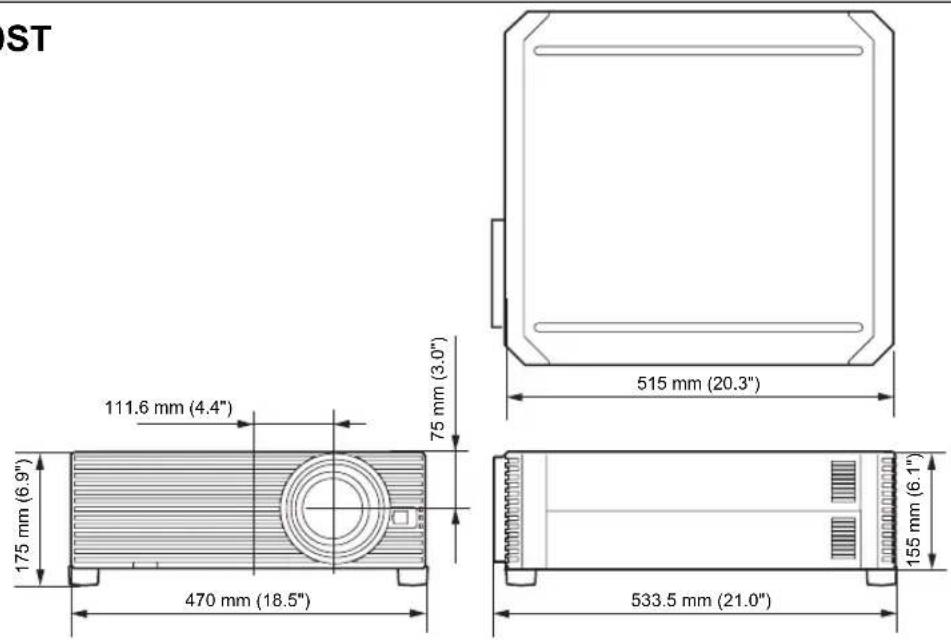
text_image
ST 111.6 mm (4.4") 75 mm (3.0") 515 mm (20.3") 175 mm (6.9") 470 mm (18.5) 533.5 mm (21.0)■Service Port (CONTROL)
Pin assignment
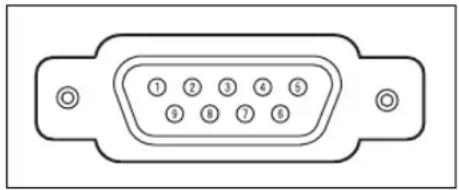
natural_image
Line drawing of a 16-pin D-sub connector (no text or symbols)| Pin No. | Signal | |||
| 1 | O | P | E | N |
| 2 | RxD | |||
| 3 | TxD | |||
| 4 | O | P | E | N |
| 5 | GND | |||
| 6 | O | P | E | N |
| 7 Internal pull-up | ||||
| 8 | O | P | E | N |
| 9 | O | P | E | N |
Communication format
Communication mode : RS-232C, asynchronous, half-duplex communication
Communication speed : 19200bps
Character length : 8 bits
Stop bits : 2 bits
Parity : None
Flow control : None
Main user commands
| Commands ASCII representation Binary representation | |||
| Power supply | Power on POW | ER=ON50h 4Fh 57h 45h 52h 3Dh 4Fh 4Eh 0Dh | |
| Power off POW | ER=OFF | 50h 4Fh 57h 45h 52h 3Dh 4Fh 46h 46h 0Dh | |
| Power status acquisition | GET=POWER | 47h 45h 54h 3Dh 50h 4Fh 57h 45h 52h 0Dh | |
| Input source | HDMI-1 INPUT=HDMI1 | 49h 4Eh 50h 55h 54h 3Dh 48h 44h 4Dh 49h 31h 0Dh | |
| HDMI-2 INPUT=HDMI2 | 49h 4Eh 50h 55h 54h 3Dh 48h 44h 4Dh 49h 32h 0Dh | ||
| HDMI 1x2 INPUT=HDMI1X2 | 49h 4Eh 50h 55h 54h 3Dh 48h 44h 4Dh 49h 31h 58h 32h 0Dh | ||
| DVI-1 INPUT=D-RGB1 | 49h 4Eh 50h 55h 54h 3Dh 44h 2Dh 52h 47h 42h 31h 0Dh | ||
| DVI-2 INPUT=D-RGB2 | 49h 4Eh 50h 55h 54h 3Dh 44h 2Dh 52h 47h 42h 32h 0Dh | ||
| DVI-3 INPUT=D-RGB3 | 49h 4Eh 50h 55h 54h 3Dh 44h 2Dh 52h 47h 42h 33h 0Dh | ||
| DVI-4 INPUT=D-RGB4 | 49h 4Eh 50h 55h 54h 3Dh 44h 2Dh 52h 47h 42h 34h 0Dh | ||
| DVI 1x2 INPUT=D-RGB1X2 | 49h 4Eh 50h 55h 54h 3Dh 44h 2Dh 52h 47h 42h 31h 58h 32h 0Dh | ||
| DVI 2x2 INPUT=D-RGB2X2 | 49h 4Eh 50h 55h 54h 3Dh 44h 2Dh 52h 47h 42h 32h 58h 32h 0Dh | ||
| DVI 1x4 INPUT=D-RGB1X4 | 49h 4Eh 50h 55h 54h 3Dh 44h 2Dh 52h 47h 42h 31h 58h 34h 0Dh | ||
| Input source acquisition | GET=INPUT | 47h 45h 54h 3Dh 49h 4Eh 50h 55h 54h 0Dh | |
| Image Mode | Standard IMAGE=STANDARD | 49h 4Dh 41h 47h 45h 3Dh 53h 54h 41h 4Eh 44h 41h 52h 44h 0Dh | |
| Presentation IMAGE=PRESENTATION | 49h 4Dh 41h 47h 45h 3Dh 50h 52h 45h 53h 45h 4Eh 54h 41h 54h 49h 4Fh 4Eh 0Dh | ||
| Photo/sRGB IMAGE=PHOTO_SRGB | 49h 4Dh 41h 47h 45h 3Dh 50h 48h 4Fh 54h 4Fh 5Fh 53h 52h 47h 42h 0Dh | ||
| DICOM SIM IMAGE=DCM_SIM | 49h 4Dh 41h 47h 45h 3Dh 44h 43h 4Dh 5Fh 53h 49h 4Dh 0Dh | ||
| Dynamic IMAGE=DYNAMIC | 49h 4Dh 41h 47h 45h 3Dh 44h 59h 4Eh 41h 4Dh 49h 43h 0Dh | ||
| Video IMAGE=VIDEO | 49h 4Dh 41h 47h 45h 3Dh 56h 49h 44h 45h 4Fh 0Dh | ||
| User 1 IMAGE=USER_1 | 49h 4Dh 41h 47h 45h 3Dh 55h 53h 45h 52h 5Fh 31h 0Dh | ||
| User 2 IMAGE=USER_2 | 49h 4Dh 41h 47h 45h 3Dh 55h 53h 45h 52h 5Fh 32h 0Dh | ||
| User 3 IMAGE=USER_3 | 49h 4Dh 41h 47h 45h 3Dh 55h 53h 45h 52h 5Fh 33h 0Dh | ||
| Image mode acquisition | GET=IMAGE | 47h 45h 54h 3Dh 49h 4Dh 41h 47h 45h 0Dh | |
| Brightness | Brightness value setting | BRI=CR 42h 52h 49h 3Dh | 0Dh |
| Brightness acquisition | GET=BRI47h 45h 54h 3Dh 42h 52h 49h 0Dh | ||
| Sharpness | Sharpness value setting | SHARP=0Dh | 53h 48h 41h 52h 50h 3Dh0Dh |
| Sharpness acquisition | GET=SHARP | 47h 45h 54h 3Dh 53h 48h 41h 52h 50h 0Dh | |
| Contrast | Contrast value setting | CONT=0Dh | 43h 4Fh 4Eh 54h 3Dh0Dh |
| Contrast acquisition | GET=CONT47h 45h 54h 3Dh 43h 4Fh 4Eh 54h 0Dh | ||
| Aspect | Auto ASPECT=AUTO | AUTO | 41h 53h 50h 45h 43h 54h 3Dh 41h 55h 54h 4Fh 0Dh |
| True size ASPECT=TRUE | TRUE | 41h 53h 50h 45h 43h 54h 3Dh 54h 52h 55h 45h 0Dh | |
| Aspect value acquisition | GET=ASPECT | 47h 45h 54h 3Dh 41h 53h 50h 45h 43h 54h 0Dh | |
| Lamp mode | Full power LAMP=FULL | P=FULL | 4Ch 41h 4Dh 50h 3Dh 46h 55h 4Ch 4Ch 0Dh |
| Power saver LAMP=ECO4Ch 41h 4Dh 50h 3Dh 45h 43h 4Fh 0Dh | ECO4Ch 41h 4Dh 50h 3Dh 45h 43h 4Fh 0Dh | ||
| Lamp mode value acquisition | GET=LAMP47h 45h 54h 3Dh 4Ch 41h 4Dh 50h 0Dh | ||
| Blank | Blank On BLANK=ON42h 4Ch 41h 4Eh 4Bh 3Dh 4Fh 4Eh 0Dh | ON42h 4Ch 41h 4Eh 4Bh 3Dh 4Fh 46h 46h 0Dh | |
| Blank Off BLANK=OFF | OFF | Off42h 4Ch 41h 4Eh 4Bh 3Dh 4Fh 46h 46h 0Dh | |
| Blank acquisition | BLANK | BLANK47h 45h 54h 3Dh 42h 4Ch 41h 4Eh 4Bh 0Dh | |
LED Indicator Details
When there is a problem with the projector, the LED indicator on the side of the projector illuminates or flashes continuously after the projector is turned off.
- Wait until the cooling fan stops and disconnect the power plug from the electrical outlet before dealing with the problem.
| LED indicator status | Meaning Cause and countermeasure | |
| WARNING and TEMP are lit. | Temperature abnormality | The temperature inside the projector is too high for some reason or the outside air temperature is higher than the operating range. If the problem is inside the projector, check whether the projector is installed and operating normally, unplug the projector from the power outlet to cool down the projector interior and then restart projection. If the air intake or exhaust vent is blocked, remove the obstacle. If the air filter is clogged, clean or replace it. (P160, P161) If the same warning occurs again, there may be a malfunction in the projector. Contact the Canon Customer Support Center. |
| WARNING and LAMP are lit. | Faulty lamp The lamp does not illuminate. If the lamp does not illuminate, replace it. If the same warning occurs again, there may be a malfunction in the lamp drive circuit. Contact the Canon Customer Support Center. | |
| WARNING (only) flashes 3 times repeatedly. | Filter error The air filter is not installed. Check whether or not the air filter is installed correctly. Contact the Canon Customer Support Center if the same warning occurs again. | |
| WARNING flashes 3 times, LAMP is lit. | Faulty lamp cover | The lamp cover is open. Unplug the projector from the power outlet, then install the lamp cover correctly and turn on the projector again. If the lamp cover has been installed properly, there may be a malfunction in the lamp cover detection switch. Contact the Canon Customer Support Center. |
| WARNING (only) flashes 4 times repeatedly. | Faulty cooling fan | There may be a malfunction in the cooling fan or another component. Unplug the projector from the electrical outlet, then plug it back into the outlet and turn on the projector again. Contact the Canon Customer Support Center if the same warning occurs again. |
| WARNING (only) flashes 5 times repeatedly. | Faulty power supply | Abnormal voltage is applied to some parts in the power supply or another failure may have occurred. Unplug the projector from the electrical outlet, then plug it back into the outlet and turn on the projector again. Contact the Canon Customer Support Center if the same warning occurs again. |
Symptoms and Solutions
■You Cannot Turn on the Projector
| Cause Countermeasure | |
| The power cord is not connected correctly. | Check whether the power cord is connected correctly. (P59) |
| The power cord has just been connected. | Wait at least one second after plugging the projector in until you press the POWER button. You cannot turn the projector on immediately after plugging it in. (P60) |
| The lamp cover is open. | Unplug the projector from the power outlet, then install the lamp cover correctly and turn on the projector again. |
| The safety device is activated because the air intake or the exhaust vent is blocked and the internal temperature of the projector has increased. | When the safety device is active, the [POWER] indicator does not turn on when you connect the power cord. You cannot disable this safety device. Remove any obstacle that is blocking the air intake or exhaust vent and contact the Canon Customer Support Center. |
| The air filter is not installed correctly. | Check whether the air filter is installed correctly. (P161) |
| Key lock is enabled. | Check that Key lock (P112) is not enabled for the projector or the remote control. |
■You Cannot Project an Image from the Projector
| Cause Countermeasure | |
| A cable is not connected correctly. | Check whether the projector is connected to the computer or AV equipment correctly. (P53 - P54) |
| 20 seconds have not elapsed since the projector was turned on. | When the projector is turned on, the opening window is displayed for approximately 20 seconds. To project an image immediately, press the OK button on the remote control or side control. (P26, P30) |
| No image is sent from the AV equipment. | Check whether an image is played on the connected video camcorder, DVD, etc. |
| Connection with the input terminal has not been performed correctly. | Check whether the AV equipment is connected to the projector input terminal correctly. (P29) |
| No input signal type has been selected for the connected AV equipment. | Check that the same input signal has been correctly selected for the connected AV equipment from the [INPUT] menu. (P63) |
| The input signal type is incorrect. | Check whether the selected input signal type is correct. (P63, P169) |
| The BLANK function has been selected. | Press the BLANK button on the remote control. (P80) |
| No image is projected due to a problem with the computer. | Turn first the projector and then the computer off and then back on again. |
| The external monitor output is not set on the notebook computer correctly. | Turn on the external monitor output on the notebook computer. To turn on the external monitor output, press the [LCD] or [VGA] function key or a key with an icon for the external monitor, while holding down the [Fn] key on the keyboard of the notebook computer. With Windows 8.1 / Windows 8 / Windows 7, you can turn on image output by holding down the Windows logo key and pressing the [P] key. (P62) The combination of keys used to perform this operation varies depending on the model of notebook computer. For more detailed information, refer to the manual that came with your computer. |
| The displayed image is not the same as that displayed on the computer. | Check whether the dual screen (multi-display) mode is selected on the computer. If dual screen mode is selected, change the computer display output to mirroring mode.The output setting method varies among computer manufacturers. For more detailed information, refer to the manual that came with your computer. |
■There is no Sound
| Cause Countermeasure | |
| The audio cable is not connected correctly. | Check the audio cable connection. (P53, P54) |
| The MUTE function is enabled. | Press the MUTE button on the remote control. (P31) |
| The volume level is adjusted to the minimum. | Press the VOL button on the remote control or the VOL+ button on the side control to adjust the volume level. (P26, P31) |
| An audio cable with a built-in resistor is used. | Use an audio cable without a built-in resistor. |
| Audio in terminal select is [Off]. | Change the Audio In terminal to the appropriate setting. (P113) |
■The Projected Image Is Blurred
| Cause Countermeasure | |
| The image is out of focus. | Adjust the focus. (P67) |
| The distance to the screen is too short. | Check whether the distance to the screen is appropriate. (P50) |
| The projector is not placed straight in front of the screen. | Check whether the projector is placed obliquely to the screen. A slight error in the projection angle can be corrected through the keystone adjustment function. (P73) |
| The projector has been moved to a place where the temperature varies a lot. | When the projector is moved from a location where the temperature is low to a location where the temperature is high, condensation may form on the lens. The condensation will evaporate after a period of time and the projector will be able to project a normal image. |
| The lens is stained. Clean | the lens. (P160) |
| Video is blurred. Activate | motion blur reduction. (P115) |
| Motion blur reduction is not available. | Motion blur reduction is not available in DICOM SIM image mode. |
■You Cannot Project an Image Appropriately
| Cause Countermeasure | |
| The projected image is inverted in the vertical or horizontal direction. | The ceiling mounted / rear projection setting is incorrect. Check the [Image flip H/V] setting in the [Install settings] menu. (P98) |
| A computer cable is used in which some pins are not connected. | Use a computer cable in which all pins are connected. |
■The Projector Power Turns Off
| Cause Countermeasure | |
| The air intake or exhaust vent is blocked. | Check whether the air intake or exhaust vent is blocked. If the air intake or exhaust vent is blocked, the temperature inside the projector will increase and the power is automatically turned off to protect the projector. (The [WARNING] indicator and [TEMP] indicator are lit.) Wait until the projector temperature drops, then make sure that the intake and exhaust vents are not blocked and turn on the projector. (P25, P60) |
| The air filter is dirty. Check | whether the air filter is clogged with dust.If the air filter is clogged, clean or replace the air filter. (P160, P161) |
| The lamp has ruptured (or there is a lamp malfunction). | If the lamp has ruptured, follow the instructions in “Precautions when replacing lamps that stop working” (P15). |
| The operating temperature is inappropriate. | Check whether the operating temperature is between 0°C (32°F) and 40°C (104°F). (P18)Projector settings must be adjusted when using the projector at altitudes of 2,300 m (7,545.8') or higher.In the [Install settings] menu, set [High altitude] under [Professional settings] to [On]. (P102) |
■The Projector Cannot Join the Network
| Cause Countermeasure | |
| The LAN cable (shielded twisted pair) is not connected correctly. | Check whether the LAN cable (shielded twisted pair) is connected to the projector correctly. (P122) |
| The projector has not been on long enough (less than about 40 seconds). | Network connections are not available until about 40 seconds after startup. Wait at least 40 seconds, and then try to connect again. (P132) |
■You Cannot Operate the Remote Control
| Cause Countermeasure | |
| Batteries are not installed properly or they have run out. | Check whether batteries are installed correctly. If batteries are installed correctly, replace them with new batteries. (P32) |
| You are operating the remote control from the outside of the remote control operating range. | Check whether you are operating the remote control within the remote control operating range of the main unit of the projector. (P33) |
| There is an obstacle between the projector and the remote control. | Remove the obstacle between the infrared remote receiver of the main unit of the projector and the remote control or point the remote control in an obstacle-free path. |
| You are operating the remote control in an unsuitable operating environment. | Check whether the infrared remote receiver of the main unit of the projector is exposed to direct sunlight or strong light of lighting apparatus. (P33) |
| The channel setting of the remote control does not match the setting of the projector. | Check whether the channel setting of the remote control has been changed. You can check the [Remote control channel] setting in the [System settings] menu. (P113) |
| The key lock function is preventing operation of the remote control. | Check whether [Key lock] is enabled to disable the remote control operation.In the [System settings] menu, set [Key lock] to [Off]. (P112) |
Numerics
6-axis color adjust.... 95
A
Adjusting keystone distortion ..... 73
Air filter.... 161
Ambient light 94
AMX Device Discovery 129
ASPECT....72
Aspect 72
AUDIO IN terminal 29
AUDIO OUT terminal 29
Auto (Aspect) 72
B
BLANK 80
Brightness 92
C
Ceiling mounted.... 37, 98
Contrast 92
Corner Adjustment.... 74
Crestron RoomView.... 129
D
Digital PC / DVI-D terminal 29
Direct power on.... 115
Display resolution (Preparing the computer) 65
Dynamic gamma 95
E
Effect of ambient light 94
F
FREEZE....80
G
Gamma 92
H
HDMI terminal 29, 53, 54
|
IMAGE....77
Image adjustment....84, 90
Image mode (Image quality) .....76
Information 84, 148
INPUT 63
Input signal select 63
Input terminal 29
Connecting to AV equipment .....54
K
Key lock....112
KEYSTONE....73
Keystone 73
L
Lamp mode 96
Lamp replacement ....163, 165
LAN port 29
Language 116
LED indicator....27, 180
Lens shift....51, 70
Logo display ....109
M
Memory color correction....95
MENU....84
Menu 84
Multi input....55, 99
N
Network password 124
Network settings 84, 122
Noise reduction.... 94
0
OK....26,30
Optical zoom 68
P
Password 117, 118
PJLink 128, 142
POWER 60,79
Power-Saving Settings...... 81
Projecting from Multiple Projectors at Once (Edge Blending).... 149
Projector on.... 109
R
Rear projection.... 37, 98
Remote control.... 30, 31, 32, 113
Reset.... 75, 96, 120
S
Screen color.... 106
Selecting a language 61, 116
Setting display status 87
Sharpness....92
Side control.... 26
Signal type 169
Super white....88
System settings.... 84, 108
T
Test pattern....168
True size (Aspect) 72
Turning on external monitor output (preparing the notebook computer) 62
U
USB Port 29
W
WARNING indicator .....27, 180
•Ceiling attachment Part No.: RS-CL15
- Ceiling-mount pipe (400 - 600 mm / 15.7 - 23.6 in) Part No.: RS-CL08*
- Ceiling-mount pipe (600 - 1000 mm / 23.6 - 39.4 in) Part No.: RS-CL09*
•Air filter Part No.: RS-FL03
- Lamp assembly with replacement air filter Part No.: RS-LP10F
- Remote control Part No.: RS-RC05
- Remote control Part No.: RS-RC04
* Use the above materials to hang the projector from the ceiling.
Canon
CANON INC.
30-2, Shimomaruko 3-chome, Ohta-ku, Tokyo 146-8501, Japan
CANON U.S.A. INC.
One Canon Park, Melville, New York 11747, U.S.A.
For all inquires concerning this product, call toll free in the U.S. 1-800-OK-CANON
CANON EUROPE LTD.
3 The Square, Stockley Park, Uxbridge, Middlesex, UB11 1ET United Kingdom
CANON EUROPA N.V.
Bovenkerkerweg 59, 1185 XB Amstelveen, The Netherlands