LX-MH502Z - Video projector CANON - Free user manual and instructions
Find the device manual for free LX-MH502Z CANON in PDF.


User questions about LX-MH502Z CANON
0 question about this device. Answer the ones you know or ask your own.
Ask a new question about this device
Download the instructions for your Video projector in PDF format for free! Find your manual LX-MH502Z - CANON and take your electronic device back in hand. On this page are published all the documents necessary for the use of your device. LX-MH502Z by CANON.
USER MANUAL LX-MH502Z CANON
MULTIMEDIA PROJECTOR
LX-MH502Z
User's Manual
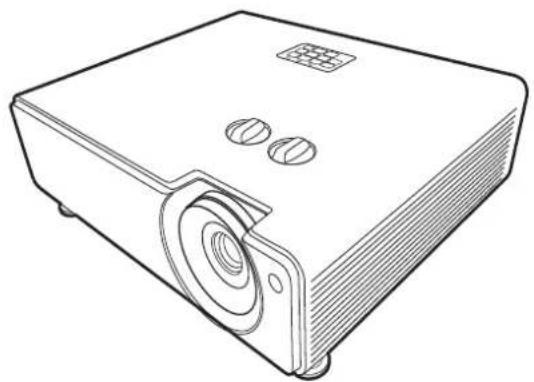
natural_image
Line drawing of a rectangular electronic device with a speaker and three circular buttons (no text or symbols)Table of Contents
Safety instructions .... 3
For Safe Use 14
Before Installation 16
Introduction 21
Shipping contents 21
Projector exterior view 23
Controls and functions.... 24
Positioning your projector 26
Choosing a location 26
Layout of the projector 27
Adjusting the projected image 29
Connection 31
Operation 33
Starting up the projector 33
Using the menus.... 34
Switching input signal 34
Shutting down the projector 35
Menu operation 36
Menu System 36
PICTURE menu 39
DISPLAY menu 43
INSTALLATION menu 44
SYSTEM SETUP: BASIC menu 45
SYSTEM SETUP: ADVANCED menu 46
INFORMATION menu 48
Controlling the projector remotely through a web browser (e-Control®) 49
Controlling the projector using PJLink application 51
Maintenance 54
Care of the projector 54
Light source information 55
Troubleshooting 57
Specifications 59
Projector specifications 59
Dimensions 61
Timing chart 61
Projector Control 65
Control Commands 65
System Requirement 65

Safety instructions
WARNING:
• THIS APPARATUS MUST BE GROUNDED.
• TO REDUCE THE RISK OF FIRE OR ELECTRIC SHOCK, DO NOT EXPOSE THIS APPLIANCE TO RAIN OR MOISTURE.
- This projector produces intense light from the projection lens. Do not stare directly into the lens, otherwise eye damage could result. Be especially careful that children do not stare directly into the beam.
• Install the projector in a proper position. Otherwise it may result in a fire hazard.
- Do not cover the ventilation slots on the projector. Heat build-up can reduce the service life of your projector, and can also be dangerous.
- If the projector is unused for an extended time, unplug the projector from the power outlet.

CAUTION ON HANGING FROM THE CEILING
When hanging the projector from the ceiling, clean the air intake vents and top of the projector periodically with a vacuum cleaner. If you leave the projector unclean for a long time, the cooling fans can be clogged with dust, and it may cause a breakdown or a disaster.
DO NOT SET THE PROJECTOR IN GREASY, WET, OR SMOKY CONDITIONS SUCH AS IN A KITCHEN TO PREVENT A BREAKDOWN OR A DISASTER. IF THE PROJECTOR COMES IN CONTACT WITH OIL OR CHEMICALS, IT MAY BECOME DETERIORATED.
■ READ AND KEEP THIS OWNER'S MANUAL FOR LATER USE.
All the safety and operating instructions should be read before beginning to operate the product.
Read all of the instructions given here and retain them for later use. Unplug this projector from the AC power supply before cleaning. Do not use liquid or aerosol cleaners on the projector. Use a damp cloth for cleaning.
Follow all warnings and instructions marked on the projector.
For added protection of the projector during a lightning storm, or when it is left unattended or unused for long periods of time, unplug it from the wall outlet. This will prevent damage due to lightning and power surges.
Do not expose this unit to rain or use near water... for example, in a wet basement, near a swimming pool, etc...
Do not use attachments not recommended by the manufacturer as they may result in hazards.
Do not place this projector on an unstable cart, stand, or table. The projector may fall, causing serious injury to a child or adult, and serious damage to the projector. Use only with a cart or stand recommended by the manufacturer, or sold with the projector. Wall or shelf mounting should be carried out in accordance with the manufacturer's directions, and should use a mounting kit approved by the

manufacturers. An appliance and cart combination should be moved with care. Sudden stops, excessive force, and uneven surfaces may cause the appliance and cart combination to overturn.
Slots and openings in the rear and front of the cabinet are provided for ventilation, to insure reliable operation of the equipment and to protect it from overheating.
The openings should never be covered with cloth or other materials, and the bottom opening should not be blocked by placing the projector on a bed, sofa, rug, or other similar surface. This projector should never be placed near or over a radiator or heat register.
This projector should not be placed in a built-in installation such as a book case unless proper ventilation is provided.
Never push objects of any kind into this projector through cabinet slots as they may touch dangerous voltage points or short out parts that could result in a fire or electric shock. Never spill liquid of any kind onto the projector.
Do not install the projector near the ventilation duct of air-conditioning equipment.
This projector should be operated using only the type of power source indicated on the marking label. If you are not sure of the type of power supplied, contact the Canon Customer Support Center or local power company.
Do not overload wall outlets and extension cords as this can result in fire or electric shock. Do not allow anything to rest on the power cord. Do not locate this projector where the cord may be damaged by people walking on it.
Do not attempt to service this projector yourself as opening or removing covers may expose you to dangerous voltages or other hazards. Refer all servicing to qualified service personnel.
Unplug this projector from the wall outlet and refer servicing to qualified service personnel under the following conditions:
a. When the power cord or plug is damaged or frayed.
b. If liquid has been spilled into the projector.
c. If the projector has been exposed to rain or water.
d. If the projector does not operate normally after following the operating instructions. Adjust only those controls that are covered in the operating instructions as improper adjustment of other controls may result in damage and will often require extensive work by a qualified technician to restore the projector to normal operating condition.
e. If the projector has been dropped or the cabinet has been damaged.
f. When the projector exhibits a distinct change in performance—this indicates a need for servicing.
When replacement parts are required, be sure the service technician uses replacement parts specified by the manufacturer that have the same characteristics as the original parts. Unauthorized substitutions may result in fire, electric shock, or injury.
Upon completion of any service or repairs to this projector, ask the service technician to perform routine safety checks to determine that the projector is in safe operating condition.
AC Power Cord Requirement
The AC Power Cord supplied with this projector meets the requirements for use in the country you purchased it.
AC Power Cord for the United States and Canada:
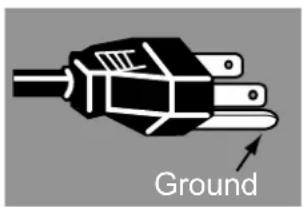
The AC Power Cord used in the United States and Canada is listed by the Underwriters Laboratories (UL) and certified by the Canadian Standard Association (CSA). The AC Power Cord has a grounding-type AC line plug. This is a safety feature to ensure the plug fits into the power outlet. Do not try to tamper with this safety feature. Should you be unable to insert the plug into the outlet, contact your electrician.
text_image
GroundTHE SOCKET-OUTLET SHOULD BE INSTALLED NEAR THE EQUIPMENT AND EASILY ACCESSIBLE.


Only for European Union and EEA (Norway, Iceland and Liechtenstein)
These symbols indicate that this product is not to be disposed of with your household waste, according to the WEEE Directive (2012/19/EU), the Battery Directive (2006/66/EC) and/or national legislation implementing those Directives.
If a chemical symbol is printed beneath the symbol shown above, in accordance with the Battery Directive, this indicates that a heavy metal (Hg = Mercury, Cd = Cadmium, Pb = Lead) is present in this battery or accumulator at a concentration above an applicable threshold specified in the Battery Directive.
This product should be handed over to a designated collection point, e.g., on an authorized one-for-one basis when you buy a new similar product or to an authorized collection site for recycling waste electrical and electronic equipment (EEE) and batteries and accumulators. Improper handling of this type of waste could have a possible impact on the environment and human health due to potentially hazardous substances that are generally associated with EEE. Your cooperation in the correct disposal of this product will contribute to the effective usage of natural resources.
For more information about the recycling of this product, please contact your local city office, waste authority, approved scheme or your household waste disposal service or visit www.canon-europe.com/weee, or www.canon-europe.com/battery.
For CA, USA only
Included lithium battery contains Perchlorate Material - special handling may apply.
See www.dtsc.ca.gov/hazardouswaste/perchlorate/ for details.
Federal Communication Commission Notice
Multimedia Projector, Model: LX-MH502Z
This device complies with Part 15 of the FCC Rules. Operation is subject to the following two conditions:
(1) This device may not cause harmful interference, and
(2) this device must accept any interference received, including interference that may cause undesired operation.
Note: This equipment has been tested and found to comply with the limits for a Class B digital device, pursuant to Part 15 of the FCC Rules. These limits are designed to provide reasonable protection against harmful interference in a residential installation. This equipment generates, uses and can radiate radio frequency energy and, if not installed and used in accordance with the instructions, may cause harmful interference to radio communications. However, there is no guarantee that interference will not occur in a particular installation. If this equipment does cause harmful interference to radio or television reception, which can be determined by turning the equipment off and on, the user is encouraged to try to correct the interference by one or more of the following measures:
- Reorient or relocate the receiving antenna.
- Increase the separation between the equipment and receiver.
- Connect the equipment into an outlet on a circuit different from that to which the receiver is connected.
- Consult the dealer or an experienced radio / TV technician for help.
The cable with a ferrite core provided with the projector must be used with this equipment in order to comply with Class B limits in Subpart B of Part 15 of the FCC Rules.
Use of a shielded cable is required to comply with class B limits in Subpart B of Part 15 of FCC Rules.
Do not make any changes or modifications to the equipment unless otherwise specified in the instructions. If such changes or modifications should be made, you could be required to stop operation of the equipment.
Canon U.S.A. Inc.
One Canon Park, Melville, New York 11747, U.S.A.
Tel No. 1-800-OK-CANON (1-800-652-2666)
Safety Symbols in this Manual
This section describes the safety symbols used in this manual. Important projector safety information is identified by the following symbols. Always observe the safety information by these symbols.
 Warning Warning | Denotes the risk of death or serious injury from improper handling if the information is not observed. To ensure safe use, always observe this information. |
| Caution | Denotes the risk of injury from improper handling if the information is not observed. To ensure safe use, always observe this information. |
 | Denotes the risk of electric shock from improper handling if the information is not observed. To ensure safe use, always observe this information. |
 | Denotes the risk of burns from improper handling if the information is not observed. To ensure safe use, always observe this information. |
 | Denotes the risk of eye injury from laser emission if usage restrictions are not observed. |
 Prohibition Prohibition | Denotes prohibited actions. |
 Caution Caution | Denotes required actions or information that must be observed. |
Precautions for Use
As this section contains important safety-related information, be sure to read the following carefully beforehand in order to use your projector correctly and safely.

Warning
Power Supply
During installation, keep the projector plug easily accessible so that the projector can be unplugged immediately if necessary, or keep a circuit breaker within reach. If the following situations occur, turn the power off, remove the power plug from the power outlet and contact the Canon Customer Support Center. Failure to do so could cause a fire or result in an electric shock.

- If smoke is emitted
- If an unusual smell or noise is emitted
- If water or other liquid has entered the projector
- If metal or any other foreign material has entered the projector
- If the projector is knocked over or dropped and the cabinet is damaged
Pay attention to the following points regarding the power source, power plug and handling of the connector. Failure to do so may cause a fire or electric shock.


- Do not place any objects on the power cord and do not allow it to become trapped under the projector.
- Do not cover the power cord with a carpet.
- Do not modify or excessively bend, twist, pull, wind, or bundle the power cord.
- Keep the power cord away from heaters and other sources of heat.
- Do not use a damaged power cord. If the power cord is damaged, purchase a replacement from your dealer.
- Do not use any power source with a voltage other than the voltage indicated (AC 100–240 V).
- Do not insert any metal objects into the contact parts of the power plug or connector.
- The power cord included with this projector is for use exclusively with this product. Do not use this cord for other products.

Warning
Pay attention to the following points regarding the power source, power plug and handling of the connector. Failure to do so may cause a fire or electric shock.

- Do not remove the power plug or connector with wet hands.
- Insert the power plug and connector securely up to the base.
- Additionally, do not use a damaged power plug or an outlet that is loose.
- Do not pull the power cord and be sure to hold the power plug or connector when removing. Incorrect handling may damage the power cord.
- Do not exceed the rated capacity of the outlet (as by using it for more than one piece of equipment), which poses a risk of fire from overheating.
- Before using an extension cord, check carefully to avoid exceeding the cord's rated capacity.

Caution

- Periodically inspect the power plug and outlet and remove any dust or dirt from between the plug and the outlet.
- Do not touch the projector itself, the power cord, or the cable if lightening strikes.
- Do not move the projector until you have switched off the power, removed the power plug from the power outlet and unplugged any other cables.
- Unplug the projector before cleaning or maintenance.
Installation and Use
Pay attention to the following points regarding installation and handling of the projector. Failure to do so may cause a fire, electric shock or personal injury.

- Do not use the projector where it might get wet, such as outdoors or by bathtubs or showers.
- Do not place containers containing a liquid on top of the projector.

- Do not remove the cabinet from the projector or disassemble it. The interior of the projector contains high-voltage components as well as parts that are hot. If inspection, maintenance or repair is required, contact the Canon Customer Support Center.
Prohibition
- Do not disassemble or modify the projector (including consumable parts) or the remote control.
 Warning Warning | |
| Pay attention to the following points regarding installation and handling of the projector. Failure to do so may cause a fire, electric shock or personal injury. | |
 Prohibition Prohibition | ·Do not install the projector in a location that is damp or dusty, or where there is a lot of oily smoke or steam. Oil can degrade the plastic, which could result in a ceiling-mounted projector falling from its mounting.·Make sure to implement anti-fall measures such as an anti-fall wire when installing the projector in high places, for example, installing it on the ceiling.·Do not look directly into the exhaust vents during use.·Do not insert any object into vents in the projector, such as the air intake vent or exhaust vents.·Do not place a pressurized can in front of the exhaust vents. The pressure of the contents of the can may increase due to heat from the exhaust vents and this could result in an explosion.·When cleaning off dust or dirt from projector parts such as the lens or filter, never use any spray that is flammable. Internal parts that become hot may ignite and cause a fire.·Do not use adhesives, lubricants, oils, or alkaline detergents for maintenance of the projector. They could adhere to the cabinet and damage it, possibly resulting in the projector falling from its mounting and causing an accident or personal injury.·As strong light beams are emitted while the projector is in use, do not look directly into the projector lens. Doing so  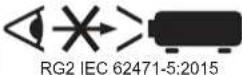 could cause an eye injury. Pay particular attention to prevent small children from doing so.·Light from the projector is classified as Risk Group 2 (RG2) according to IEC 62471-5:2015.·If children may approach the projector or touch it, always ensure the projector is used under adult supervision.·Do not hold or install optical instruments (such as magnifying glasses, reflectors, or glasses) in the path of light from the projector. If projected light is refracted or reflected and enters people's eyes, it may result in eye injury.·When setting the projector on a high surface for projection, be sure the surface is flat and stable.·Do not use the projector on a soft surface such as carpet or sponge mat, etc.·For ceiling mounting or other installation work, request service from a qualified technician or the Canon Customer Support Center. Poor installation work could result in an accident. could cause an eye injury. Pay particular attention to prevent small children from doing so.·Light from the projector is classified as Risk Group 2 (RG2) according to IEC 62471-5:2015.·If children may approach the projector or touch it, always ensure the projector is used under adult supervision.·Do not hold or install optical instruments (such as magnifying glasses, reflectors, or glasses) in the path of light from the projector. If projected light is refracted or reflected and enters people's eyes, it may result in eye injury.·When setting the projector on a high surface for projection, be sure the surface is flat and stable.·Do not use the projector on a soft surface such as carpet or sponge mat, etc.·For ceiling mounting or other installation work, request service from a qualified technician or the Canon Customer Support Center. Poor installation work could result in an accident. |
 Caution Caution | |

Warning
Laser Light Source

- The projector is designated as a Class 1 laser product according to IEC/EN 60825-1:2014.
- The equipment is designated as a Class 3R laser product according to IEC/EN 60825-1:2007.
- Complies with FDA performance standards for laser products except for deviations pursuant to Laser Notice No. 50, dated June 24, 2007.
- Laser parameters Wavelength: 449 nm – 461 nm Maximum power: < 95W Pulse duration: 1.12 ms

- The projector incorporates a laser module. Disassembly or modification is dangerous and must not be attempted.
- Operate and adjust the projector only as described in this manual. Incorrect operation or adjustment poses a risk of exposure to potentially hazardous laser light.

- Do not use when damaged. Even if the projector is used as described in this manual, failure to discontinue use when it is damaged (as indicated by screen abnormalities) may result in fire, electric shock, or eye injury from laser light.
- The Laser module is equipped in this product. Use of controls or adjustments or performance of procedures other than those specified herein may result in hazardous radiation exposure.

- For assistance when disposing of the projector, contact the Canon Customer Support Center. Do not disassemble the projector yourself when disposing of it.
Explanatory and warning labels are located in the following positions on the projector.
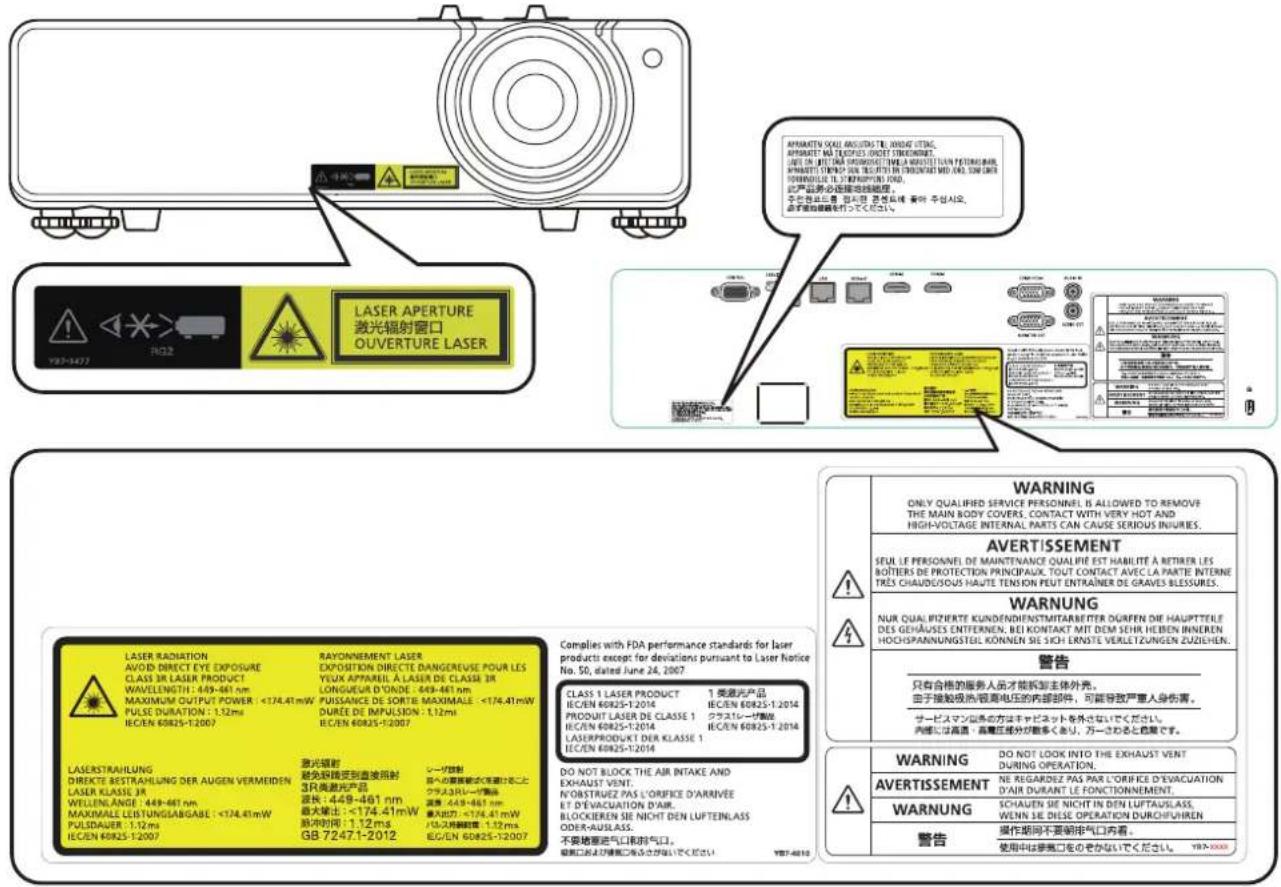
text_image
APARAMETEN GOLI, ANGUSTING TIL, VENTAGE UTING, APARAMETE NA TELES OF DIRECT STRONGERES, LARGE ON LUTTERA GROVATION LABORATE STAFFICUM FLOWING APARAMETE STAFFICUM FLOWING LABORATE STAFFICUM FLOWING LABORATE STAFFICUM FLOWING LABORATE STAFFICUM FLOWING LABORATE STAFFICUM FLOWING LABORATE STAFFICUM FLOWING LABORATE STAFFICUM FLOWING LABORATE STAFFICUM FLOWING LABORATE STAFFICUM FLOWING LABORATE STAFFICUM FLOWING LABORATE SISTEMA DE LA PROTECTION DURING LABORATE STAFFICUM FLOWING LABORATE STAFFICUM FLOWING LABORATE STAFFICUM FLOWING LABORATE STAFFICUM FLOWING LABORATE STAFFICUM FLOWING LABORATE STAFFICUM FLOWING LABORATE STAFFICUM FLOWING LABORATE STAFFICUM FLOWING LABORATE STAFFICUM FLOWING
Warning
Remote Control Batteries
Pay attention to the following points regarding handling of batteries. Failing to do so could result in a fire or personal injury.

Prohibition

Caution
- Do not heat, short circuit or disassemble the batteries, or place them in a fire.
- Do not attempt to recharge the batteries that are included with the remote control.
- Remove the batteries when they are flat or when the remote control will not be used for a long period of time.
- Insert the batteries with the + and - terminals in the correct directions.
- If any liquid from inside the batteries leaks out and contacts your skin, be sure to wash the liquid off thoroughly.

Warning
Handling
Pay attention to the following points regarding installation and handling of the projector.

- If the projector will not be used for a long period of time, be sure to remove the power plug from the power outlet to ensure safety. Failure to do so presents a risk of fire if dust accumulates on the plug or outlet.
- Do not plug headphones or earphones into the AUDIO OUT terminal. Doing so may cause hearing impairment.
- Do not set the volume too high initially. Doing so may cause hearing impairment from sudden sounds played at high volume. Lower the volume before turning off the projector, and after startup, raise it gradually.
- Do not touch parts of the cabinet around and above the exhaust vents, which may become hot during projection. Pay particular attention in preventing young children from touching these parts. Additionally, do not place any metal objects around or above the exhaust vents. Such objects may become hot from the projector, which may result in burns or other injury.
- Do not place any heavy objects on top of the projector or sit / stand on it. Pay particular attention to prevent small children from doing so. The projector may be knocked over and this could result in damage or a personal injury.

- Do not place the projector on an unstable or slanted surface. Doing so may cause the projector to fall or be knocked over and could result in a personal injury.
- Do not place any objects in front of the lens during projection. Doing so could cause a fire.

For Safe Use

Caution
Carrying and Installation
Pay attention to the following points when carrying or transporting the projector.

- This projector is a precision instrument. Do not knock it over or subject it to impacts. Doing so may cause a malfunction.
- Retract the adjustable feet before moving the projector. Leaving the feet extended may cause damage.
- Do not touch the lens with bare hands. Any smudges or fingerprints on the lens may affect image quality.
- Protection of the projector cannot be guaranteed if used packaging or shock-absorbent materials are reused. Fragments from shock-absorbent material may also enter the interior of the projector which could cause a malfunction.
Pay attention to the following points when installing or using the projector.

- Be careful of condensation.
If the projector is abruptly taken to a warmer location, or if the room temperature rises abruptly, moisture in the air may condense on the lens and mirror, causing the image to become blurred. In this case, wait a while and make sure the moisture has evaporated before resuming use. - Do not install the projector in a location where the temperature is high or low. Doing so may cause a malfunction. The temperature range for operation and storage are as follows.
Operating temperature: 0°C to 40°C (32°F to 104°F)
Humidity: up to 90%
Storage temperature: -10^ to 65^ ( 14^ to 149^ )
- When using the projector at an altitude of 1,201 m (3,940') to 3,000 m (9,843'): From the projector menu, set "High Altitude Mode" to On. (page 44)
- Do not block the air intake or exhaust vents. Blocking the vents may trap heat inside the projector, which may shorten the useful life of optical components or other parts and damage the projector.
- Install the projector leaving at least 50 cm (1.6') between air intake/exhaust vents and walls on each side of the projector. Leave a gap of at least 2 cm (0.8") from the bottom of the projector. There is an air intake underneath the projector. Failure to leave enough space may trap heat inside the projector and damage it.
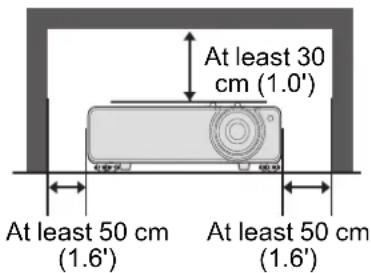
text_image
At least 30 cm (1.0') At least 50 cm (1.6') At least 50 cm (1.6')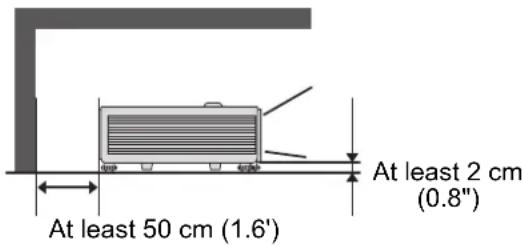
text_image
At least 50 cm (1.6') At least 2 cm (0.8')- Do not place any objects on top of the projector that may change shape or color due to heat.
- Do not install the projector near high-voltage electrical power lines or an electrical power source.
Before Installation
Precautions When Carrying/Shipping the Projector
Note the following precautions when carrying or shipping the projector.

- Disconnect the cables connected to the projector. Carrying the projector with the cables attached may cause an accident.
- Retract the adjustable feet. Leaving the feet extended when the projector is moved may cause damage.
- Do not expose the projector to strong impact or vibration.
Precautions for Installation
Be sure to read "Safety instructions" and "For Safe Use" (page 3 – page 14). Also take the following precautions during installation.

- Do not strike the projector or subject it to impact. Doing so may cause a malfunction.
- Do not install the projector standing on one side or in other unsteady positions. The projector may be damaged if it tips over.
■ Do Not Use in the Following Environments

- Locations with excessive humidity, dust, oily smoke or tobacco smoke
Adhesion to the lens, mirrors or other optical parts may reduce image quality. And oil can degrade the plastic, which could result in a ceiling-mounted projector falling from its mounting. - Near high-voltage power lines or sources of electrical power This may cause malfunction.
- On soft surfaces such as carpets or cushioned mats Heat may build up inside the projector and damage it.
- Locations with excessive temperature or humidity
- Locations subject to vibration or impact
- Near heat or smoke detectors
- Near the ocean, or near air conditioner vents
- Locations where corrosive gases occur, such as sulfur gas from hot springs
This may damage the projector. Acceptable ranges for operating and storage temperature and humidity are as follows.
| Operating temperature | Operating humidity Storage | temperature |
| 0°C to 40°C (32°F to 104°F) | Up to 90% -10°C to 65°C | (14°F to 149°F) |
■ Do Not Touch the Lens with Bare Hands

Caution
Do not touch the lens with bare hands. Any smudges or fingerprints on the lens may affect image quality.
■ Allow a 30 Min. Warm Up before Focus Adjustment, if Possible
Immediately after startup, the heat of the light source may prevent stable focus.
■ Install at a Sufficient Distance from Walls and Other Obstructions

If the air intake or exhaust vent is blocked, heat will accumulate inside the projector, possibly resulting in a shortened projector lifetime or a malfunction. Similarly, do not install in narrow, enclosed spaces with poor ventilation. Install in a well-ventilated location. Ensure a minimum clearance of 30 cm (1.0') above, 50 cm (1.6') on both sides, and 50 cm (1.6") behind the projector, as shown below. Also ensure a minimum clearance of 2 cm (0.8") below the projector.
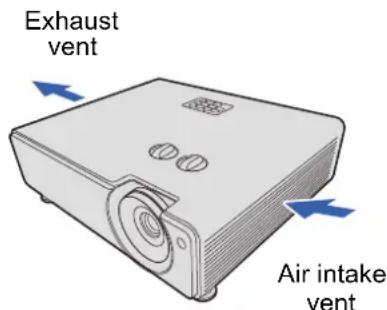
text_image
Exhaust vent Air intake vent■ Be Careful of Condensation
If the temperature of the room rises suddenly, moisture in the air may condense on the projector lens and mirror, causing the image to become blurred. Wait until the condensation has evaporated for the image projected to return to normal.
■ At Altitudes above of 1,201 m (3,940') to 3,000 m (9,843'), Adjust the Settings
Projector settings must be adjusted when using the projector at altitudes of 1,201 m (3,940') to 3,000 m (9,843'). Specifically, refer to instructions for "High Altitude Mode" (page 44) in the "INSTALLATION" menu.
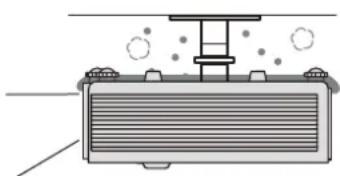
■ When Using Mounted on the Ceiling

When using the projector mounted on the ceiling or installed in a high location, clean around the air intake and exhaust vents periodically. Dust that accumulates in intake or exhaust vents may impair ventilation, raising the temperature inside and posing a risk of damage or fire. Use a vacuum cleaner or similar means to remove dust from the intake vent and exhaust vent.
Do not install the projector in a location that is damp or dusty, or where there is a lot of oily smoke or steam. Oil can degrade the plastic, which could result in a ceiling-mounted projector falling from its mounting.
natural_image
Diagram of a heat exchanger or cooling unit with cooling fins and cooling tower (no text or labels)■ Installation to Project Up, Down, or at an Angle

- Projection is possible upward, downward, or in a variety of directions, but do not block the air intake and exhaust vents. In particular, always ensure a minimum clearance of 2 cm (0.8") from the air intake vent on the bottom, 50 cm (1.6') from the air intake/exhaust vents on the both sides of the projector.
• There are no options for installing the projector.
- Do not attempt to install the projector for upward or downward projection by yourself. Always request installation by a qualified technician or the Canon Customer Support Center.
- Referring to the following illustration, when the projector is installed in a tilt angle over ±45 degrees, you need to select 360 & Portrait at the Light Source Mode in the Light Source Settings menu.

flowchart
graph TD
    A["Top Vehicle"] --> B["Left Side"]
    C["Midplane"] --> D["Right Side"]
    E["Bottom Vehicle"] --> F["Left Side"]
    G["Top Vehicle"] --> H["Right Side"]
    I["Midplane"] --> J["Left Side"]
    K["Bottom Vehicle"] --> L["Right Side"]
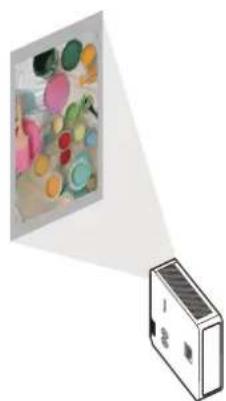
■ Precautions for Portrait (Upright) Installation
natural_image
Illustration of a solar panel emitting colorful spherical objects from a wall-mounted air conditioner unit (no text or symbols visible)
- Do not block the air intake or exhaust vents. In particular, because there are air intake/exhaust vents, always ensure a minimum clearance of 2 cm (0.8") from the right side, 50 cm (1.6') from top and bottom sides.
- Note that the projector can only be positioned as illustrated above (not the other way around).
- When the projector is installed in a portrait position, 360 & Portrait at the Light Source Mode in the Light Source Settings menu.
Copyright Notice
Please note that enlarging or reducing the size of an image for commercial purposes or public presentation may infringe on the legally protected copyright or the copyright holder of the original material.
Ensure Network Security
Take measures to ensure network security. Note that Canon is not liable in any way for direct or indirect loss from network security incidents, such as unauthorized access.
Before use, configure projector, computer, and network security settings appropriately.
- Set up the projector for connections only within your protected network, behind a firewall or the like, instead of direct Internet connections.
About Trademarks
- Ethernet is a registered trademark of Xerox Corporation.
- Microsoft and Windows are registered trademarks or trademarks of Microsoft Corporation in the United States and / or other countries.
• Mac, Mac OS and Macintosh are trademarks of Apple Inc., registered in the United States and / or other countries. - HDMI, the HDMI logo and High-Definition Multimedia Interface are trademarks or registered trademarks of HDMI Licensing, LLC.
- HDBaseT™ and the HDBaseT Alliance logo are trademarks of the HDBaseT Alliance.
- PJLink is a registered trademark of JBMIA and pending trademark in some countries.
- PJLink is a registered trademark, or an application has been submitted for trademark, in Japan, the United States and / or other countries or regions.
- AMX is a registered trademark of Harman International Industries, Inc.
- Crestron®, Crestron RoomView®, and Crestron Connected™ are registered trademarks of Crestron Electronics, Inc.
- All other trademarks are the property of their respective owners.
Third party software
This product includes third party software modules.
- uIP (micro IP) version 0.9
Please see the below licence text concerning the licence condition.
Copyright © 2001-2003, Adam Dunkels.
All rights reserved.
Redistribution and use in source and binary forms, with or without modification, are permitted provided that the following conditions are met:
- Redistributions of source code must retain the above copyright notice, this list of conditions and the following disclaimer.
- Redistributions in binary form must reproduce the above copyright notice, this list of conditions and the following disclaimer in the documentation and/or other materials provided with the distribution.
- The name of the author may not be used to endorse or promote products derived from this software without specific prior written permission.
THIS SOFTWARE IS PROVIDED BY THE AUTHOR "AS IS" AND ANY EXPRESS OR IMPLIED WARRANTIES, INCLUDING, BUT NOT LIMITED TO, THE IMPLIED WARRANTIES OF MERCHANTABILITY AND FITNESS FOR A PARTICULAR PURPOSE ARE DISCLAIMED. IN NO EVENT SHALL THE AUTHOR BE LIABLE FOR ANY DIRECT, INDIRECT, INCIDENTAL, SPECIAL, EXEMPLARY, OR CONSEQUENTIAL DAMAGES (INCLUDING, BUT NOT LIMITED TO, PROCUREMENT OF SUBSTITUTE GOODS OR SERVICES; LOSS OF USE, DATA, OR PROFITS; OR BUSINESS INTERRUPTION) HOWEVER CAUSED AND ON ANY THEORY OF LIABILITY, WHETHER IN CONTRACT, STRICT LIABILITY, OR TORT (INCLUDING NEGLIGENCE OR OTHERWISE) ARISING IN ANY WAY OUT OF THE USE OF THIS SOFTWARE, EVEN IF ADVISED OF THE POSSIBILITY OF SUCH DAMAGE.
Third party software support
Canon Inc., Canon's affiliated companies, as well as sales companies do not offer any support services for these programs. We are unable to respond to questions or inquiries from you or any other parties regarding these programs.
Introduction
Shipping contents
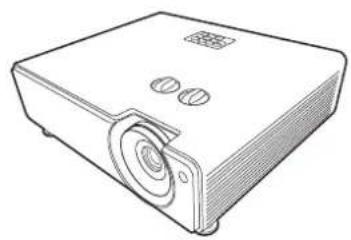
Carefully unpack and verify that you have all of the items shown below. If any of these items are missing, please contact your place of purchase.
Standard accessories
natural_image
Line drawing of a projector with three buttons and a speaker grille (no text or symbols)Projector

QSG Important Information
(US)

(EU)

(China)
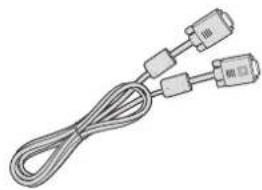
natural_image
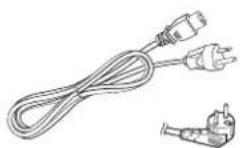
Coiled cable with two connectors (no text or symbols visible)Computer cable 1.8 m (70.8") (5K.1VC09.501)
Warranty card
Power cord 1.8 m (70.8")
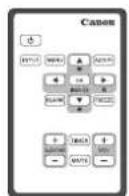

Remote control (type number: LV-RC08)
Battery (type number: CR2025)
Using the remote control for the first time Pull the tab before using the remote control.

text_image
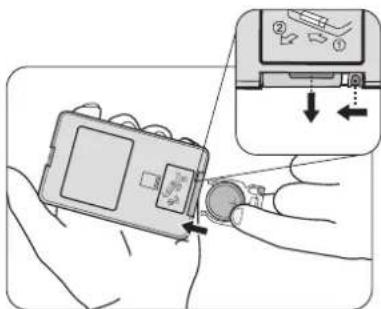
CableReplacing the remote control battery
- Pull out the battery holder.

Please follow the illustrated instructions. Push and hold the locking arm while pulling out the battery holder.
-
Insert the new battery in the holder. Note the positive polarity should face outward.
-
Push the holder into the remote control.

- Risk of explosion if battery is replaced by an incorrect type.
- Dispose of used batteries according to the instructions.
- Use of a battery of wrong type may cause explosion. Use Lithium coin battery, type CR2025 only.
- Dispose of used batteries according to your local regulations. Discard used battery promptly. Batteries may explode if mistreated. Do not recharge, disassemble, or dispose of in fire.
- Be careful in handling the battery according to the instructions.
- Load the battery with its positive (+) and negative (-) sides correctly oriented as indicated on the remote control.
- Keep batteries out of reach of children and pets.
- The remote control battery and battery holders can be a choking hazard if swallowed accidentally by small children. Make sure these are placed out of the reach of children. If they are swallowed accidentally, contact a physician immediately.
- Remove the battery if the remote control is not used for a long time.
- Never put battery in mouth for any reason as it can easily be accidentally swallowed. If battery is accidentally swallowed, contact your physician or your poison control center.
- Dispose of the used battery with cellophane tape wrapping both ends of it.
- If any liquid leaks from the battery and comes into contact with skin, wash it off thoroughly with water.
- The remote control and battery may contain chemicals that can be hazardous to health and environment.
- If the battery holder cannot be firmly attached to the remote control, stop using it and keep it out of reach of children.
- Do not leave a battery in an extremely high temperature surrounding environment that can result in an explosion or the leakage of flammable liquid or gas.
- A battery should not be subjected to extremely low air pressure that may result in an explosion or the leakage of flammable liquid or gas.
text_image
Diagram showing a hand holding a digital camera with an inset close-up highlighting the camera's adjustment mechanism.Projector exterior view

text_image
Labeled diagram of a projector with numbered parts for identification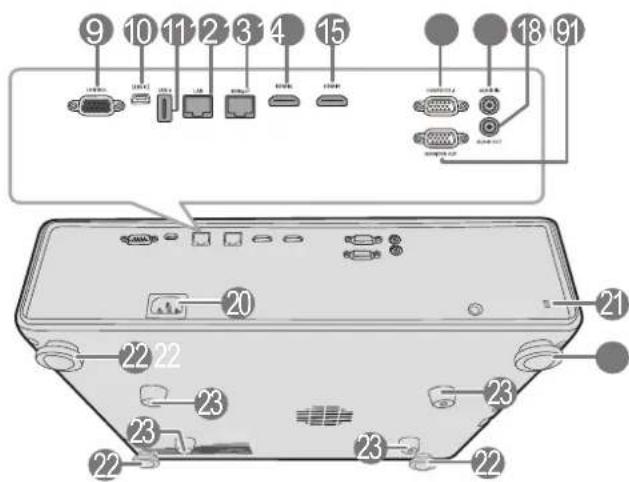
text_image
Diagram of a computer rear panel with labeled ports and connectors, showing internal components and numbered labels.Ceiling mount screw: M4 x 4 Screw hole depth: 12 mm
- External control panel (See "Controls and functions" on page 24 for details.)
- Vent (heated air exhaust)
- Adjuster foot
- Focus ring and Zoom ring
- Projection lens
- Front IR remote sensor
- Lens shift dial x 2
- Vent (air intake)
- CONTROL port
- SERVICE port
- USB power out
- LAN port
- HDBaseT input terminal
- HDMI2 input terminal
- HDMI1 input terminal
- COMPUTER input terminal
- Audio input terminal (stereo mini jack)
- Audio output terminal (stereo mini jack)
- Monitor output terminal
- AC power cord inlet
- Anti-theft lock hole
- Adjuster foot
- Ceiling mount holes
Controls and functions
Projector & Remote control

text_image
Canon POWER TEMP LIGHT MENU MODE OK BLANK INPUT 13 14 15 16 17 13- Focus ring
Adjusts the focus of the projected image.
- Zoom ring
Adjusts the size of the image.
- Lens shift dial
Shifts the projection lens horizontally.
- Lens shift dial
Shifts the projection lens vertically.
- LIGHT indicator light
Indicates the status of the light source.
Lights up or flashes when the light source has developed a problem.
- TEMPerature indicator light
Lights up red if the projector's temperature becomes too high.
- POWER indicator light
Lights up or flashes when the projector is under operation.
- MENU
Turns on the On-Screen Display (OSD) menu. Goes back to previous OSD menu, exits and saves menu settings.
- Top IR remote sensor

flowchart
graph TD
    A["10"] --> B["INPUT"]
    B --> C["MENU"]
    C --> D["OK"]
    D --> E["IMAGE"]
    E --> F["FREEZE"]
    F --> G["D-ZOOM"]
    G --> H["TIMER"]
    H --> I["MUTE"]
    I --> J["VOL"]
    J --> K["8"]
    J --> L["13"]
    J --> M["21"]
    J --> N["15"]
    J --> O["22"]
    J --> P["16"]
    J --> Q["13"]
    J --> R["23"]
    J --> S["20"]
- POWER (ON/STANDBY)
Toggles the projector between standby mode and on.
-
Left
-
BLANK
Used to hide the screen picture.
- Keystone/Arrow keys ( □Up, / □▼ Down)
Manually corrects distorted images resulting from an angled projection.
- MODE
Selects an available image mode.
- ▶ Right/
Activates panel key lock. When the On-Screen Display (OSD) menu is activated, the #11, #13, and #15 keys are used as directional arrows to select the desired menu items and to make adjustments.
- OK
Enacts the selected On-Screen Display (OSD) menu item.
It is not used for image mode switching function on this product.
- INPUT
Displays the source selection bar.
- TIMER
Not available.
- D.ZOOM (+,-)
Not available.
- MUTE
Temporarily mutes the audio.
- AUTO PC
Automatically determines the best picture timings for the displayed image.
- FREEZE
Not available.
- VOL (+,-)
Adjusts the sound level.
Remote control effective range
Infra-Red (IR) remote control sensors are located on the front and top of the projector. The distance between the remote control and the sensors should not exceed 8 meters (\~ 26 feet).
Use the remote control within an angle approximately 30^ in any direction from directly in front of the infrared remote receiver.
Make sure that there are no obstacles between the remote control and the IR sensors on the projector that might obstruct the infra-red beam.

You may not be able to perform operations if there are any obstacles between the remote control and the projector.

You may not be able to operate the remote control if direct sunlight or strong light is shining onto the remote IR receiver.

The remote control may interfere with other equipment or remote control.

natural_image
Line drawing of a projector with a screen and control panel, showing internal components (no text or symbols)Positioning your projector
Choosing a location
Your room layout or personal preference will dictate which installation location you select. Take into consideration the size and position of your screen, the location of a suitable power outlet, as well as the location and distance between the projector and the rest of your equipment.
Your projector is designed to be installed in one of the possible installation locations:
1. Front Table
Select this location with the projector placed on the table in front of the screen.
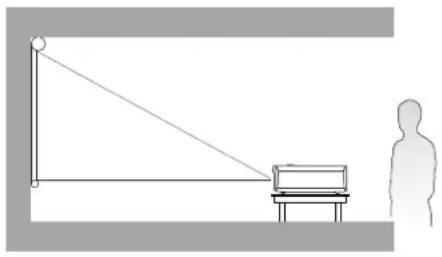
natural_image
Simple line drawing of a simple pendulum setup with a person silhouette beside it (no text or symbols)2. Rear Table
Select this location with the projector placed on the table behind the screen. Note that a special rear projection screen is required.
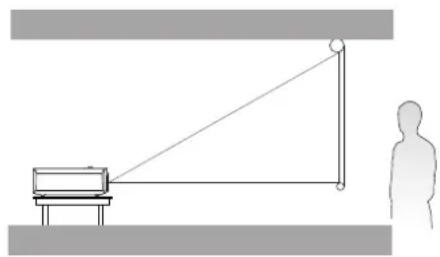
natural_image
Simple line drawing of a person observing a screen mounted on a table, with a human silhouette in the background (no text or symbols)Set Rear Table in the Projector Mode menu after you turn the projector on.
3. Rear Ceiling
Select this location with the projector suspended upside-down from the ceiling behind the screen. Note that a special rear projection screen and qualified projector ceiling mount kit are required for this installation location.
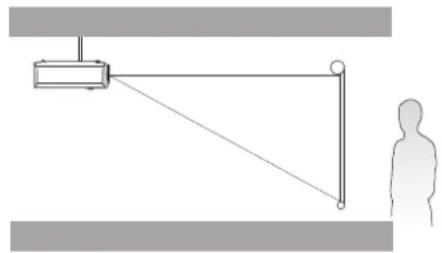
natural_image
Simple line drawing of a pulley system with a human silhouette, no text or symbols presentSet Rear Ceiling in the Projector Mode menu after you turn the projector on.
4. Front Ceiling
Select this location with the projector suspended upside-down from the ceiling in front of the screen. Purchase a qualified projector ceiling mount kit from your dealer to mount your projector on the ceiling.

natural_image
Simple line drawing of a mechanical linkage system with a human silhouette (no text or symbols)Set Front Ceiling in the Projector Mode menu after you turn the projector on.
For ceiling mounting, you need the ceiling mount kit to be available for this projector. Ask a specialist for installation. For details, consult your dealer.
- The warranty on this projector does not cover any damage caused by use of any non-recommended ceiling mount kit or installation of the ceiling mount kit in an improper location.
- Make sure to implement anti-fall measures such as an anti-fall wire when installing the projector in high places, for example, installing it on the ceiling.
- Please refer to page 18, when projecting Upward, Downward, or at an Angle.
- Please refer to page 18, when projecting Portrait (Upright) Installation.
Layout of the projector
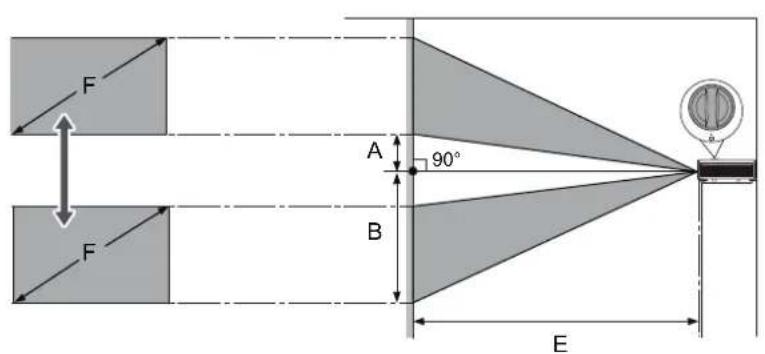
Image size varies depending on the distance between the screen and the projector.
Front projection
- When adjusting the projection position vertically in lens shift
- When adjusting the projection position horizontally in lens shift
text_image
F A 90° B E
text_image
F C D 90° E CameraA: Distance from the center of the lens to the bottom edge of the projected image (when lens shift is raised to its highest level)
B: Distance from the center of the lens to the bottom edge of the projected image (when lens shift is lowered to its lowest level)
C: Lens center movement distance (when lens shift is set to maximum left)
D: Lens center movement distance (when lens shift is set to maximum right)
E: Projection distance from the projector to the screen
F: Size of the projected image
- The screen aspect ratio is 16:9 and the projected picture is in a 16:9 aspect ratio
| Screen size | Size of the projected image (F) | Projection distance (E) | Offset (A) | Offset (B) | Offset (C, D) | ||||||||||
| Diagonal Height Width | Shortest (Wide) | Longest (Tele) | |||||||||||||
| Inch | cm | Inch | cm | Inch | cm | Inch | cm | Inch | cm | Inch | cm | Inch | cm | Inch | cm |
| 60 | 152 | 29 | 75 | 52 | 133 | 71 | 180 | 113 | 287 | 2.9 | 7.5 | 32.4 | 82 | 12.0 | 31 |
| 70 | 178 | 34 | 87 | 61 | 155 | 83 | 210 | 132 | 335 | 3.4 | 8.7 | 37.8 | 96 | 14.0 | 36 |
| 75 | 191 | 37 | 93 | 65 | 166 | 88 | 225 | 141 | 359 | 3.7 | 9 | 40.4 | 103 | 15.0 | 38 |
| 87 | 221 | 43 | 108 | 76 | 193 | 103 | 261 | 164 | 417 | 4.3 | 11 | 46.9 | 119 | 17.4 | 44 |
| 95 | 241 | 47 | 118 | 83 | 210 | 112 | 285 | 179 | 455 | 4.7 | 12 | 51.2 | 130 | 19.0 | 48 |
| 100 | 254 | 49 | 125 | 87 | 221 | 118 | 299 | 189 | 479 | 4.9 | 12 | 53.9 | 137 | 20.0 | 51 |
| 120 | 305 | 59 | 149 | 105 | 266 | 141 | 359 | 226 | 575 | 5.9 | 15 | 64.7 | 164 | 24.1 | 61 |
| 150 | 381 | 74 | 187 | 131 | 332 | 177 | 449 | 283 | 719 | 7.4 | 19 | 80.9 | 205 | 30.1 | 76 |
| 180 | 457 | 88 | 224 | 157 | 398 | 212 | 539 | 340 | 862 | 8.8 | 22 | 97.1 | 247 | 36.1 | 92 |
| 200 | 508 | 98 | 249 | 174 | 443 | 236 | 599 | 377 | 958 | 9.8 | 25 | 107.9 | 274 | 40.1 | 102 |
| 250 | 635 | 123 | 311 | 218 | 553 | 295 | 749 | — | — | 12.3 | 31 | 134.8 | 342 | 50.1 | 127 |
| 300 | 762 | 147 | 374 | 261 | 664 | 354 | 898 | — | — | 14.7 | 37 | 161.8 | 411 | 60.1 | 153 |

All measurements are approximate and may vary from the actual sizes.
We recommend that if you intend to permanently install the projector, you should physically test the projection size and distance using the actual projector in situ before you permanently install it, so as to make allowance for this projector's optical characteristics. This will help you determine the exact mounting position so that it best suits your installation location.
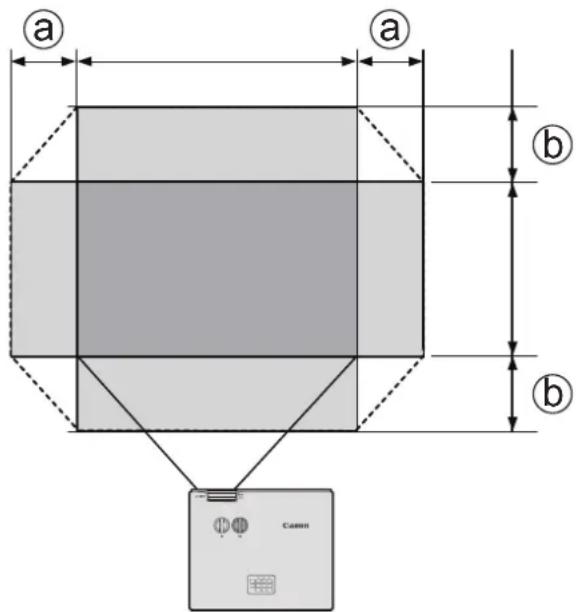
The projection range for lens shift
text_image
a a b b Casera: Maximum horizontal range (H × 23%)
b: Maximum vertical range (V × 60%)

Be sure to stop turning the Lens shift dial when you hear a clicking sound indicating that the knob has reached its limit. Over-turning the knob may cause damage.

You cannot move the image to both the horizontal and vertical maximum values.
Adjusting the projected image
Adjusting the projection angle
The projector is equipped with 4 adjuster feet. These adjusters change the image height and projection angle. To adjust the projector, screw the adjuster foot to fine tune the horizontal angle. To retract the foot, screw the rear adjuster foot in a reverse direction.
If the projector is not placed on a flat surface or the screen and the projector are not parallel to each other, the projected image becomes trapezoidal. To correct this situation, see "Correcting keystone" on page 30 for details.

flowchart
graph TD
    A["Component 1"] --> B["Central Shaft"]
    C["Component 2"] --> B
    D["Component 3"] --> B
    B --> E["Return to Column"]
    style A fill:#f9f,stroke:#333
    style C fill:#f9f,stroke:#333
    style D fill:#f9f,stroke:#333

Do not look into the lens while the light source is on. The strong light from the light source may cause damage to your eyes.
Auto-adjusting the image
In some cases, you may need to optimize the picture quality. To do this, press AUTO PC. Within 3 seconds, the built-in Intelligent Auto Adjustment function will re-adjust the values of Frequency and Clock to provide the best picture quality.
The current source information will be displayed in the corner of the screen for 3 seconds.

This function is only available when PC signal (Computer) is selected.
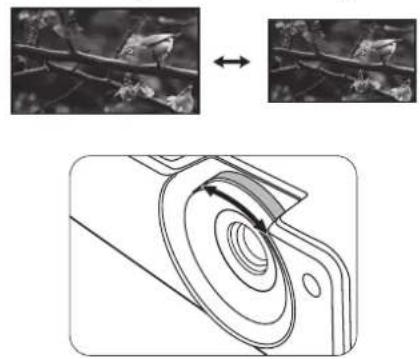
Fine-tuning the image size and clarity
- Adjust the projected image to the size that you need using the zoom ring.
natural_image
Diagram showing bird feeding behavior with magnified views of the bird (no text or symbols)- Sharpen the image by rotating the focus ring.

natural_image
Diagram showing bird habitat transformation from a photo frame to a camera lens, with no visible text or symbols.
Allow a 30 min. warm up before focus adjustment, if possible. Immediately after startup, the heat of the light source may prevent stable focus. (Page 17)
Correcting keystone
Keystoning refers to the situation where the projected image becomes a trapezoid due to angled projection.
Use the keystone keys on the projector or remote control to display the keystone page. After the keystone page is displayed, press □ to correct keystoning at the top of the image. Press △ to correct keystoning at the bottom of the image.

text_image
Press ▽/▲. Press ▽.
- You can correct the vertical keystone. However, the adjustment ranges are limited in such correction.
- When the keystone adjustment is carried out, the adjustment value is indicated. Note that this value doesn't mean a projection angle.
- The allowable range of the adjustment value in the keystone adjustment varies depending on the installation conditions.
- Images may not be projected in a shape of a regular rectangle or with its aspect ratio 4:3, depending on the installation conditions of the projector and the screen.
- When the keystone adjustment takes effect, the resolution decreases. In addition, stripes may appear or straight lines may bend in images with complicated patterns. They are not due to product malfunctions.
- Noise may appear on the screen during the keystone adjustment because of the type of the video signal being projected and the setting values of the keystone adjustment. In such cases, set the keystone adjustment values in the range where the image is displayed without noise.
- When the keystone adjustment is carried out, the image may not be displayed correctly because of the type of input signal.
Connection
When connecting a signal source to the projector, be sure to:
- Turn all equipment off before making any connections.
- Use the correct signal cables for each source.
- Ensure the cables are firmly inserted.
| 1 | RS-232C cable |
| 2 | USB cable |
| 3 | LAN cable |
| 4 | HDMI cable |
| 5 | Computer cable(supplied) |
| 6 | Audio cable |

flowchart
graph TD
    A["Base Cable"] --> B["HDBaseT matrix"]
    B --> C["Router"]
    C --> D["Monitor"]
    D --> E["Notebook or desktop computer"]
    B --> F["COMPUTER-1"]
    B --> G["COMPUTER-2"]
    B --> H["AUDIO-R"]
    B --> I["AUDIO-DUT"]
    B --> J["Speaker"]
    B --> K["Speaker"]
    style A fill:#f9f,stroke:#333
    style B fill:#ccf,stroke:#333
    style C fill:#cfc,stroke:#333
    style D fill:#fcc,stroke:#333
    style E fill:#cff,stroke:#333
    style F fill:#ffc,stroke:#333
    style G fill:#ffc,stroke:#333
    style H fill:#ffc,stroke:#333
    style I fill:#ffc,stroke:#333
    style J fill:#ffc,stroke:#333
    style K fill:#ffc,stroke:#333

- In the connections above, some cables may not be included with the projector (see "Shipping contents" on page 21). They are commercially available from electronics stores.
- The connection illustrations are for reference only. The rear connecting jacks available on the projector vary with each projector model.
- Many notebooks do not turn on their external video ports when connected to a projector. Usually a key combo like FN + function key with a monitor symbol turns the external display on/off. Press FN and the labeled function key simultaneously. Refer to your notebook's documentation to find your notebook's key combination.
- If the selected video image is not displayed after the projector is turned on and the correct video source has been selected, check that the video source device is turned on and operating correctly. Also check that the signal cables have been connected correctly.
Connecting multiple sources through HDBaseT
HDBaseT is a connectivity standard that combines HD digital video, audio, Ethernet, and various control signals. These signals are transmitted with one CAT5e (or above) cable up to 100 meters in length. With the use of HDBaseT switching matrix (commercially available), you may connect multiple sources to your projector with HDBaseT connection.

When connecting the RJ45 cable, avoid coiling and intertwining the cable as it may cause signal noise or interruption.

The illustration below is for reference only, actual layout may vary.

flowchart
graph TD
    A["Projector"] --> B["LAN/HDBaseT"]
    B --> C["HDBaseT matrix"]
    C --> D["HD Connect"]
    D --> E["IR TX"]
    D --> F["IR RX"]
    C --> G["LAN cable"]
    G --> H["Blu-ray player"]
    H --> I["Notebook computer"]
    C --> J["VGA IN YPbPr RJ45"]
    C --> K["Lan"]
    C --> L["HDMI RS232 RJ45"]
    C --> M["Engine"]
    C --> N["Engine"]

- Use a shielded LAN cable rated at CAT5e or better.
• Maximum transmission distance is 100 m.
• However, maximum transmission distance may be shorter in some environments. - Do not use the LAN cable when it is coiled or bundled.
- Inserting or removing the LAN cable during projection may cause noise.
- Connectivity with all HDBaseT transmitters on the market is not guaranteed.
- Some HDBaseT transmitters may not enable correct projection when used to connect source equipment to the projector.
Operation
Starting up the projector
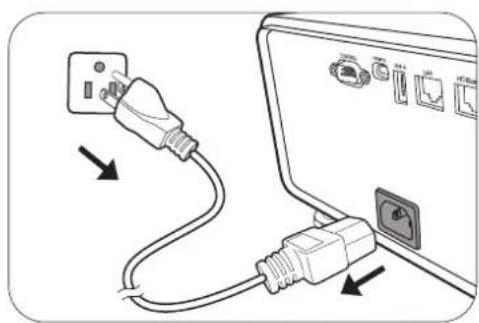
- Plug the power cord into the projector and into a wall socket. Turn on the wall socket switch (where fitted). Check that the POWER indicator light on the projector lights red after power has been applied.

- Ask your installation specialist to provide an Earth leakage breaker. When you do not use the projector, be sure to shut down the main power by the breaker.
- Please use the original accessories (e.g. power cord) only with the device to avoid possible dangers such as electric shock and fire.
- In order to ensure the safety in case of trouble with the projector, use an electrical outlet having an earth leakage breaker to supply the power to the projector. If you do not have such outlet, ask your dealer to install it.

natural_image
Diagram showing two connected electrical plugs with arrows indicating connection (no text or symbols present)- Press ⏻ on the projector or remote control to start the projector. The power indicator flashes green and stays green when the projector is on.
(If necessary) Rotate the focus ring to adjust the image clearness.

- If the projector is still hot from previous activity, it will run the cooling fans for approximately 90 seconds before energizing the light source.
- To maintain the light source life, once you turn the projector on, wait at least 5 minutes before turning it off.
-
After POWER is pressed, the image may flicker before the light source becomes stable. This is not a product malfunction.
-
If the projector is activated for the first time, select your OSD language following the on-screen instructions.
- If you are prompted for a password, press the arrow keys to enter a 6-digit password. See "Security Settings" on page 46.
- Switch all of the connected equipment on.
- The projector will search for input signals. The current input signal being scanned appears. If the projector does not detect a valid signal, the message "No Signal" will continue displaying until an input signal is found.
You can also press INPUT to select your desired input signal. See "Switching input signal" on page 34.

If the frequency/resolution of the input signal exceeds the projector's operating range, you will see the message "Out of Range" displayed on the background screen. Please change to an input signal which is compatible with the projector's resolution or set the input signal to a lower setting. See "Timing chart" on page 61.
Using the menus
The projector is equipped with On-Screen Display (OSD) menus for making various adjustments and settings.

The OSD screenshots below are for reference only, and may differ from the actual design.
Below is the overview of the OSD menu.

text_image
PICTURE Image Mode Standard User Mode Settings Brightness 50 Contrast 50 Color 50 Tint 50 Sharpness 7 Advanced Reset Current Image Mode HDMI 1 EXIT Exit ① Main menu icon ④ Current input signal ② Main menu ⑤ Status ③ Sub-menu ⑥ Button operation guidanceTo access the OSD menu, press MENU on the projector or remote control.
- Use the arrow keys (▲/▼)▶the projector or remote control to move through the menu items.
- Use OK on the projector or remote control to confirm the selected menu item.
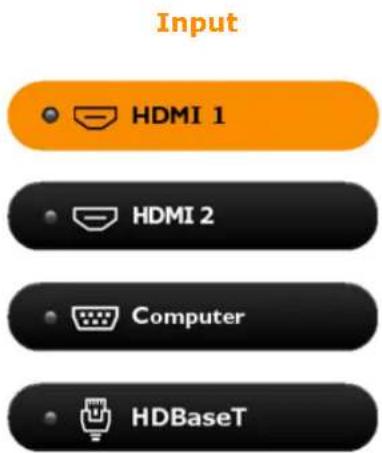
Switching input signal
The projector can be connected to multiple devices at the same time. However, it can only display one full screen at a time. When starting up, the projector automatically searches for the available signals.
Be sure the SYSTEM SETUP: BASIC > Auto Input
Search menu is On if you want the projector to automatically search for the signals.
To select the source:
-
Press INPUT. A source selection bar appears.
-
Press ▲ until your desired signal is selected and press OK.
Once detected, the selected source information will appear at the corner of the screen for seconds. If there is multiple equipment connected to the projector, repeat steps 1-2 to search for another signal.
text_image
Input HDMI 1 HDMI 2 Computer HDBaseT
The brightness level of the projected image will change accordingly when you switch between different input signals.
Shutting down the projector
-
Press and a confirmation message will appear prompting you. If you don't respond in a few seconds, the message will disappear.
-
Press ⏻ a second time.
-
The power indicator becomes a steady red and fans stop. Disconnect the power cord from the power outlet.
natural_image
Diagram showing two connected electrical plugs with arrows indicating connection (no text or symbols present)
The indicator lights may stay lit even after you unplug the power cord. However, this is not a malfunction.
Menu operation
Please note that the on-screen display (OSD) menus vary according to the signal type selected and the projector model you are using.

* Indicates an item that is factory-set.
*1 When high dynamic range signal information is input, the image mode automatically becomes HDR.
^*2 When 4K shift setting is off, this mode is fixed.
Menu System
| Main menu Sub-menu Options | |||
| PICTURE | Image Mode | Presentation/Standard*/sRGB/Movie/DICOM/User 1/User2/(HDR)* ^1 /(FHD)* ^2 | |
| User Mode Settings | Load Settings | Presentation/Standard/sRGB/Movie/DICOM/User 1/User 2 | |
| Rename User Mode | |||
| Brightness | |||
| Contrast | |||
| Color | |||
| Tint | |||
| Sharpness | |||
| Advanced | Select Gamma | 1.6/1.8/2.0/2.1/2.2*/2.3/2.4/2.5/2.6/2.8 | |
| ColorTemperature | High/Middle*/Low | ||
| Red Gain/Green Gain/BlueGain/Red Offset/GreenOffset/Blue Offset | |||
| 6-axis ColorAdjust | Select Color | ||
| Hue | |||
| Gain | |||
| Saturation | |||
| MoviePro | Color Enhancement | ||
| Skin Tone | |||
| Super Resolution | |||
| Reset Current Image Mode Reset/Cancel | |||
| DISPLAY | Aspect Ratio | Auto*/Real/4:3/16:9/16:10 | |
| Position | |||
| Overscan Adjustment | |||
| Phase | |||
| H. Total Dots | |||
| 4K shift On*/Off | |||
| INSTALLATION | Projector Mode | Front Table*/Rear Table/Front Ceiling/Rear Ceiling | |
| Test Pattern On/Off* | |||
| Light Source Settings | Light Source Mode | Normal*/Eco/360 & Portrait | |
| Light Source Information | Light Source Usage Time | ||
| Normal | |||
| Eco | |||
| 360 & Portrait | |||
| High Altitude Mode On/Off* | |||
| SYSTEM SETUP: BASIC | Language | English*/Français/Deutsch Italiano/Espanol/Pysckii 繁體中文/简体中文/日本語/한국어 Svenska/Türkçe/Čeština/Português 17u/Suomi/Magyar/العربية/Nederlands Română/Norsk/Dansk Polski/Kazaxckii/Tiếng Viêt | |
| Background Color | Green/Black/Blue* | ||
| Splash Screen | Black/Blue/Canon* | ||
| Auto Power Off | Disable/5 min/10 min/15 min/20 min*/25 min/30 min | ||
| Direct Power On On/Off* | |||
| Menu Settings | Menu Position | Center*/Top-Left/Top-Right/Bottom-Left | |
| Menu Display Time | Always On/5 sec/10 sec/15 sec*/20 sec/25 sec/30 sec | ||
| Reminder Message | On/Off* | ||
| Rename Input | |||
| Auto Input Search On*/Off | |||
| HDR*1 | HDR Auto*/SDR | ||
| EOTF Low/Mid*/High | |||
| Audio Settings | Volume | ||
| Mute On/Off* | |||
| HDMI Range | Auto*/Full Range/Limited Range | ||
| Security Settings | Change Password | ||
| Power On Lock | On/Off* | ||
| Panel Key Lock On/Off* | |||
| Control Port Setting RS232/LAN*/HDBaseT | |||
| SYSTEM SETUP: ADVANCED | Network Settings | Wired LAN | Status |
| DHCP On/Off* | |||
| IP Address | |||
| Subnet Mask | |||
| Default Gateway | |||
| DNS Server | |||
| Apply | |||
| PJLink Certification | On/Off* | ||
| Change PJLink | Password | ||
| AMX Device Discovery | On/Off* | ||
| MAC Address | |||
| Standby LAN | Enable Network Standby Mode | On/Off* | |
| Auto Disable Network Standby Mode | 20 min*/1 hr/3 hr/6 hr/96 hr | ||
| Reset All Settings Reset/Cancel* | |||
| INFORMATION | Input | ||
| Image Mode | |||
| Resolution | |||
| Color Format | |||
| Light Source Usage Time | |||
| Firmware Version | |||

^*1 It becomes grayed out when the image mode is not HDR.
PICTURE menu
| Function Description | |
| Image Mode | The projector is preset with several predefined image modes so that you can choose one to suit your operating environment and input signal picture type.·Presentation: Suitable for using in a bright room and projecting images with a lot of text.·Standard mode: Suitable for projecting computer screens or colorful images (movies), etc.sRGB mode: Suitable for projecting photos from a digital camera that supports sRGB. Compatible with the sRGB standard.·Movie mode: Suitable for projecting colorful images (movies).·DICOM mode: Suitable for projecting medical images (movies). This projector is not the display monitor for a medical image. It cannot be used for the radiological image reading or medical examination.·User 1/User 2: You can save image quality settings that you have made as a custom setting. You can then select the saved settings as an image mode.·HDR: When the input signal is HDR signal, it is adjusted to the optimum gamma and color. |
| User Mode Settings | ·Load SettingsThere are 2 user-definable modes if the current available image modes are not suitable for your need. User 1 (Presentation mode based) is for PC sources, and User 2 (Standard mode based) is for Video sources.1. Go to PICTURE > Image Mode.2. Press ◀/▶ to select User 1 or User 2.3. Press ▼ to highlight User Mode Settings, and press OK. The User Mode Settings page is displayed.4. Select Load Settings and press OK.5. Press ▲ to select a image mode that is closest to your need.6. Press OK and MENU to return to the PICTURE menu.7. Press ▼ to select the sub-menu items you want to change and adjust the values with ◀.►The adjustments define the selected user mode. |
| User Mode Settings | • Rename User ModeSelect to rename the customized image modes (User 1 or User 2). The new name can be up to 9 characters including English letters (A-Z, a-z), digits (0-9), and space (_).1. Go toPICTURE > Image Mode.2. Press ◀/▶ to selectUser 1 or User 2.3. Press▼ to highlightUser Mode Settings, and pressOK. TheUser Mode Settingspage is displayed.4. Press▼ to highlightRename User Modeand press OK. TheRename User Modepage is displayed.5. Use▲/▼to ▶elect desired characters.6. When done, pressMENUto exit. |
| Brightness | The higher the value, the brighter the image. Adjust this control so the black areas of the image appear just as black and that detail in the dark areas is visible. |
| Contrast | The higher the value, the greater the contrast. Use this to set the peak white level after you have previously adjusted the Brightness setting to suit your selected input and viewing environment. |
| Color | Lower setting produces less saturated colors. If the setting is too high, colors on the image will be overpowering, which makes the image unrealistic. |
| Tint | The higher the value, the more greenish the picture becomes. The lower the value, the more reddish the picture becomes. |
| Sharpness | The higher the value, the sharper the picture becomes. |
| Advanced | • Select GammaGamma refers to the relationship between input source and picture brightness.•1.6/1.8/2.0/2.1: Select these values according to your preference.•2.2/2.3: Increases the average brightness of the picture. Best for a lit environment, meeting room or family room.•2.4/2.5: Best for viewing movies in a dark environment.•2.6/2.8: Best for viewing movies which are mostly composed of dark scenes. |
| Function Description | |
| Advanced | • Color TemperatureThe options available for color temperature* settings vary according to the signal type selected.1. High: The image becomes tinted with blue. (cold colors).2. Middle: The image uses standard colors.3. Low: The image becomes tinted with red. (warm colors).*About color temperatures:There are many different shades that are considered to be "white" for various purposes. One of the common methods of representing white color is known as the "color temperature". A white color with a low color temperature appears to be reddish white. A white color with a high color temperature appears to have more blue in it.You can also set a preferred color temperature by adjusting the following options.• Red Gain/Green Gain/Blue Gain: Adjusts the contrast levels of Red, Green, and Blue.• Red Offset/Green Offset/Blue Offset: Adjusts the brightness levels of Red, Green, and Blue. |
| • 6-axis Color Adjust6-axis Color Adjust provides six sets (RGBCMY) of colors to be adjusted. When you select each color, you can independently adjust its range and saturation according to your preference.• Select Color: Selects a color from among Red, Yellow, Green, Cyan, Blue, or Magenta.Hue: Increase in the range will include colors consisted of more proportions of its two adjacent colors. Please refer to the illustration for how the colors relate to each other.For example, if you select Red and set its range at 0, only pure red in the projected picture will be selected. Increasing its range will include red close to yellow and red close to magenta.Gain: Adjusts the values to your preference. The contrast level of the primary color you select will be affected. Every adjustment made will reflect to the image immediately.Saturation: Adjusts the values to your preference. Every adjustment made will reflect to the image immediately.Saturation is the amount of that color in a video picture. Lower settings produce less saturated colors; a setting of "0" removes that color from the image entirely. If the saturation is too high, that color will be overpowering and unrealistic. | |
| Function Description | |
| Advanced | • MoviePro• Color Enhancement: Allows you to fine-tune the saturation of colors with larger flexibility. It modulates complex color algorithms to flawlessly render saturated colors, fine gradients, intermediate hues and subtle pigments.• Skin Tone: Provides a smart adjustment of hue only for calibrating people's skin color, not other colors in the image.• Super Resolution: It is a super-resolution technology which radically enhances Full HD content in terms of colors, contrast, and textures. |
| Reset Current Image Mode | Returns all of the adjustments you've made for the selected Image Mode (including preset modes, User 1, and User 2) to the factory preset values.1. Press OK. The confirmation message is displayed.2. Use ◀/► to select Reset and press OK. The current image mode returns to the factory preset settings. |
DISPLAY menu
| Function Description | |
| Aspect Ratio | There are several options to set the image's aspect ratio depending on your input signal source.·Auto: Scales an image proportionally to fit the projector's native resolution in its horizontal or vertical width. 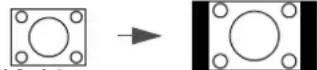 4:3 picture·Real: The image is projected as its original resolution, and resized to fit within the display area. 4:3 picture·Real: The image is projected as its original resolution, and resized to fit within the display area.  4:3 picture 4:3 picture 10:9 picture 10:9 picture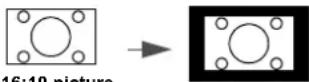 10:10 picture·4:3: Scales an image so that it is displayed in the center of the screen with a 4:3 aspect ratio. 10:10 picture·4:3: Scales an image so that it is displayed in the center of the screen with a 4:3 aspect ratio. 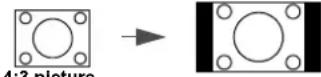 7:9 picture·16:9: Scales an image so that it is displayed in the center of the screen with a 16:9 aspect ratio. 7:9 picture·16:9: Scales an image so that it is displayed in the center of the screen with a 16:9 aspect ratio. 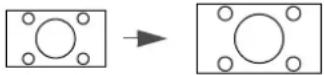 16:9 picture·16:10: Scales an image so that it is displayed in the center of the screen with a 16:10 aspect ratio. 16:9 picture·16:10: Scales an image so that it is displayed in the center of the screen with a 16:10 aspect ratio. 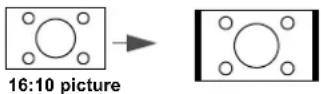 |
| Position | Displays the position adjustment page. To move the projected image, use the directional arrow keys. This function is only available when a PC signal (Computer) is selected. |
| Overscan Adjustment | Conceals the poor picture quality in the four edges. The greater the value, the more portion of the picture is concealed while the screen remains filled and geometrically accurate. Setting 0 means the picture is 100% displayed. |
| Phase | Adjusts the clock phase to reduce image distortion. 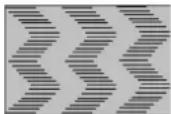 This function is only available when a PC signal (Computer) is selected. This function is only available when a PC signal (Computer) is selected. |
| H. Total Dots | Adjusts the horizontal width of the image. This function is only available when a PC signal (Computer) is selected. |
| 4K shift | Switches the display resolution.·Off: Switches to FHD resolution. Image Mode will automatically be set to fixed mode (FHD).·On (recommended): Switches to 4K resolution. |
INSTALLATION menu
| Function Description | |
| Projector Mode | The projector can be installed on a ceiling or behind a screen. See "Choosing a location" on page 26. |
| Test Pattern | Is used to adjust the image size and focus and check that the projected image is free from distortion. To close the test pattern, press MENU and select Off.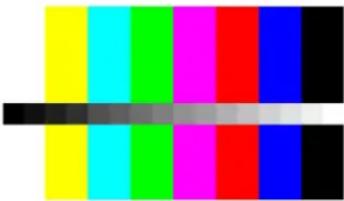 |
| Light Source Settings | • Light Source Mode: Selects a suitable light source power from among the provided modes. See "Saving power" on page 55.• Light Source Information: See "Light source information" on page 55. |
| High Altitude Mode | We recommend you use the High Altitude Mode when your environment is between 1,201 m to 3,000 m above sea level, and ambient temperature is between 5°C–30°C.Operation under "High Altitude Mode" may cause a higher decibel operating noise level because of increased fan speed necessary to improve overall system cooling and performance.If you use this projector under other extreme conditions excluding the above, it may display auto shut-down symptoms, which is designed to protect your projector from over-heating. In cases like this, you should switch to High Altitude mode to solve these symptoms. However, this is not to state that this projector can operate under any and all harsh or extreme conditions.Do not use the High Altitude Mode if your altitude is between 0 m and 1,200 m and ambient temperature is between 0°C and 40°C. The projector will be over cooled, if you turn the mode on under such a condition. |
SYSTEM SETUP: BASIC menu
| Function Description | |
| Language | Sets the language for the On-Screen Display (OSD) menus. |
| Background Color | Sets the background color for the projector. |
| Splash Screen | Allows you to select which screen will be displayed during projector start-up. |
| Auto Power Off | Allows the projector to turn off automatically if no input signal is detected after a set period of time to prevent unnecessary waste of light source power. |
| Direct Power On | Allows the projector to turn on automatically once the power is fed through the power cord. |
| Menu Settings | ·Menu Position: Sets the On-Screen Display (OSD) menu position.·Menu Display Time: Sets the length of time the OSD will remain active after your last key press.·Reminder Message: Sets the reminder messages on or off. |
| Rename Input | Renames the current input source to your desired name.On the Rename Input page, use ▲/▼/◄/► and OK to set the desired characters for the connected source item.When done, press MENU to exit and save the changes. |
| Auto Input Search | Allows the projector to automatically search for the signals. |
SYSTEM SETUP: ADVANCED menu
| Function Description | |
| HDR | • HDR: The projector supports HDR imaging sources. It can automatically detect the dynamic range of the source, and optimize image gamma and color settings to reproduce contents under wide range of light conditions. You can manually set it to SDR forcibly.• EOTF: The projector can automatically adjust the brightness levels of your image according to the input source. Normally, the default setting "Mid" is recommended. If the brightness of the projected image is dark, please use "Low". When giving priority to gradation property, please use "High". |
| Audio Settings | • Volume: Adjusts the sound level.• Mute: Temporarily turns off the sound. |
| HDMI Range | • Auto: Sets the projector to detect the HDMI range of the input signal automatically.• Full Range: Sets the HDMI color range as 0 - 255.• Limited Range: Sets the HDMI color range as 16 - 235. |
| Security Settings | For security purposes and to prevent unauthorized use, you may set up password security for the projector. This limits use of the projector to only those who know the correct password. If you enter an incorrect password 5 times in succession, the projector will automatically shut down in a short time.⚠️ You will be inconvenienced if you enable this function yet forget the password somehow. Do make a note of your password, and keep the note in a safe place for later recall.You will be asked to set a new password if no password has been set before. As the on-screen display indicates, the 4 arrow keys (▲/▶/▼/◀) respectively represent 4 digits (1, 2, 3, 4). Use the arrow keys to set a 6-digit password. The digits display as ***** when you enter them.• Change PasswordYou will be asked to enter the current password before changing to a new one.• Power On LockYou will be asked to enter the current password before changing the setting.⚠️ Once a password has been set and the power on lock is enabled, the projector cannot be used unless the correct password is entered every time the projector is started.⚠️ If you forget the password, reset the password function:1.Turn the projector off.2.Unplug the power cord.3.Long press on Ⓐ and until the power cord was plugged after POWER indicator light goes off.Now the password function has been reset and the Power On Lock is Off. You can turn on the projector without entering any password. |
| Panel Key Lock | With the control keys on the projector locked, you can prevent your projector settings from being changed accidentally (by children, for example). When the Panel Key Lock is on, no control keys on the projector and remote control will operate except ⏻.(POWER).To release panel key lock, press any key of the projector once to display the panel key lock warning. With the warning being displayed, press ▶ Right/ 🔊 on the projector or remote control again. (Press and hold the key on the projector for 3 seconds.). Keys on the remote control are still in use when panel key lock is enabled. If you turn off the projector without disabling panel key lock, the projector will still be in locked status the next time it is turned on. Keys on the remote control are still in use when panel key lock is enabled. If you turn off the projector without disabling panel key lock, the projector will still be in locked status the next time it is turned on. |
| Control Port Setting | Allows you to select a preferred control port: through the RS232/LAN port (CONTROL or LAN port on the projector), or the HDBaseT port (HDBaseT input port on the projector). |
| Network Settings | This projector is equipped with network function. You can manage and control the projector from a remote computer using a web browser when they are properly connected to the same local area network.Wired LANStatus: Shows the connection status.DHCP: Select On if you are in a DHCP environment and IP Address, Subnet Mask, Default Gateway, DNS Server settings will be automatically retrieved. Select Off if you are in a non-DHCP environment and make adjustments to below settings.IP AddressOnly available when DHCP is set to Off. Use ◄/► to select a column and use ▲ ▼ to adjust the value. |
| IP AddressSubnet MaskDefault GatewayDNS ServerApplyEnacts these settings. | |
| IP AddressSubnet MaskDefault GatewayDNS ServerApplyEnacts these settings. | |
| IP AddressSubnet MaskDefault GatewayDNS ServerApplyEnacts these settings. | |
| • IP Address | Only available when DHCP is set to Off. Use ◀/► to select a column and use ▲ to adjust the value. |
| • Subnet Mask | |
| • Default Gateway | |
| • DNS Server | |
| • Apply | Enacts these settings. |
| Function Description | |
| Standby LAN | Enable Network Standby Mode: Allows the projector to provide the network function in standby mode.Auto Disable Network Standby Mode: When a certain period of time elapses without network communication during standby mode, the network function is disabled. For instance, if you set it to 20 minutes, the network standby mode will be automatically disabled if there is no network communication for 20 minutes. |
| Reset All Settings | Returns all settings to the factory preset values. Te following settings will still remain: PICTURE, Aspect Ratio, 4K shift, Projector Mode, Light Source Mode, EOTF, Audio Settings, Security Settings, Network Settings, Standby LAN, "Tools" menu in e-Control® on page 49, and PJLink password. Te following settings will still remain: PICTURE, Aspect Ratio, 4K shift, Projector Mode, Light Source Mode, EOTF, Audio Settings, Security Settings, Network Settings, Standby LAN, "Tools" menu in e-Control® on page 49, and PJLink password. |
INFORMATION menu
| Function Description | |
| Input | Shows the current signal source. |
| Image Mode | Shows the Image Mode. |
| Resolution | Shows the native resolution of the input signal. |
| Color Format | Shows input color format. |
| Light Source Usage Time | Shows the number of hours the light source has been used. |
| Firmware Version | Shows the firmware version of your projector. |
Controlling the projector remotely through a web browser (e-Control®)
With a proper LAN cable connection and LAN Control settings, you can operate the projector from a computer using a web browser or PJLink application when the computer and the projector are connected to the same local area network.

Recommended operating systems: Windows7/8.1/10, Mac OS X v10.4/10.5/10.6/10.7/10.11.
- Enter the address of the projector in the address bar of your browser and press Enter.


Recommended web browsers: IE11, Chrome v55.0 / 56.0 / 57.0 3/ 64.0.3282, Firefox v50.0 / 51.0 / 52.0, Safari v8.0 / 9.0 / 10.0.
- The remote network operation page is displayed. This page allows you to operate the projector as if you were using the remote control or control panel on the projector.
- Main page
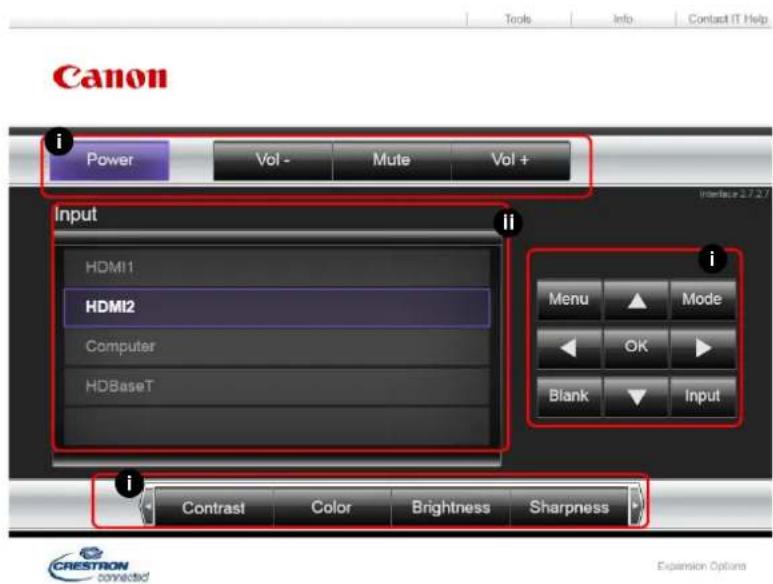
text_image
Canon Power Vol - Mute Vol + Input HDMI1 HDMI2 Computer HDBaseT i Menu Mode OK Blank Input Contrast Color Brightness Sharpness i CRESTRON connected Expansion Optionsi. These buttons function the same as the ones on the OSD menus, projector or remote control. See "Projector & Remote control" on page 24 and "Menu operation" on page 36 for details.
ii. To switch input source, click on your desired signal.

When you use the projector control panel or remote control to change the OSD menu settings, it may take a while for the web browser to synchronize these changes with the projector.
- Tools page
The tools page allows you to manage the projector, configure the Network Settings and secure access of remote network operation on this projector.
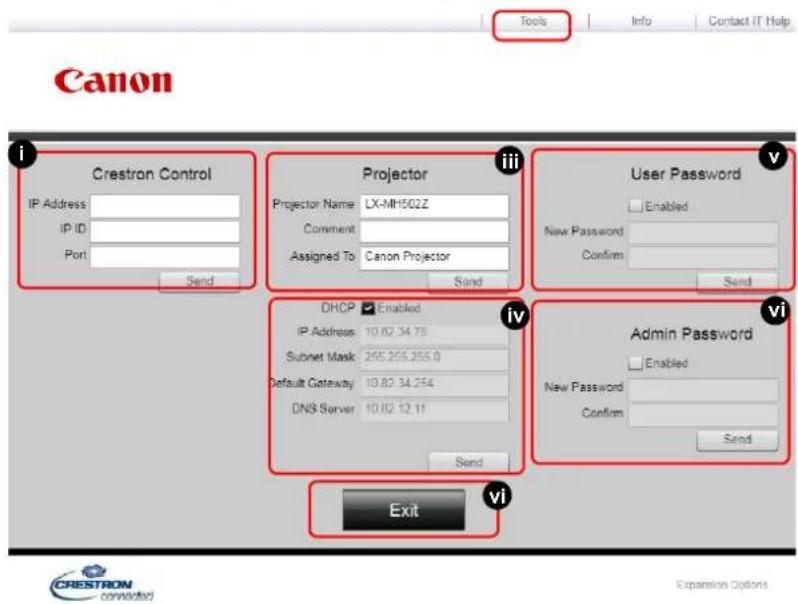
text_image
Tools Info Contact IT Help Canon i Crestron Control IP Address IP ID Port Send Projector Projector Name LX-MH502Z Comment Assigned To Canon Projector Send User Password Enabled New Password Confirm Send iv DHCP Enabled IP Address 10.82.34.75 Subnet Mask 255.255.255.0 Default Gateway 10.82.34.254 DNS Server 10.82.12.11 Send Admin Password Enabled New Password Confirm Send vi Exit v CRESTRON connected Expansion Optionsi. When using the Crestron Control System, please refer to the user manual of Crestron Control system for setup information.
ii. You can name the projector, keep track of its location and the person in charge of it.
iii. You can adjust the Network Settings.
iv. Once set, access to the remote network operation on this projector has been password-protected.
v. Once set, access to the tools page has been password-protected.

• After making the adjustments, press the Send button and the data will be saved in the projector.
- Once the password is set, the Log Out button will display beside the Tools button.
- Write down your selected password in advance or right after the password is entered so that it is available to you should you ever forget it.
- If you did not write down your password, and you absolutely do not remember it you can reset the password by following procedure.
- Open log in screen of e-Control® by your web browser.
- Long press MENU and ▶ on the projector for 3 seconds.
- Now the password has been reset.
• The software is available in English language.
- When DHCP is turned on, there is a possibility of stopping the webpage connection. If this happens, please check the new IP address of the projector and enter the new address to connect again.
vi. Press this button to go back to the remote network operation page.
- Info page
The info page displays the information and status of this projector.

text_image
Canon Projector Information Projector Name LX-MH502Z Comment TiLAN FW version 0.44/0.12 MAC Address 00.60 E9.29 10.07 Resolution 1440X900.60Hz Light Source Timer 12 Assigned To Canon Projector Projector Status Power Status Power ON Input HDMI2 Image Mode DICOM Image flip H/V Front Table Light Source Mode Normal Error Status 0 No Error Exit CRESTRON connected Expansion Optionsi. The information you entered in the Tools page will display here and these columns are empty when you use e-Control® for the first time.
ii. When the projector is in abnormal conditions, the following information will display.

When the projector is in normal conditions or in any abnormal conditions other than the ones mentioned below, the Error Status column will be "0:No Error".
| Error Status Description | |
| 3: Light source fail | The light source fails to ignite or turns off during operation. |
| 3: Over Temp The projector | temperature is too high or cannot be detected. |
| 3: Fan Lock The fan rotation speed cannot be set or detected. | |
| 3: Over Light Source Usage Time | The light source is still in use after the light source warning messages display. |
$$ (3 = \text { Error }) $$
iii. Press this button to go back to the remote network operation page.
Controlling the projector using PJLink application
This projector supports standard protocol PJLink for projector control and you can control and monitor projector's operations using the same application among projectors of different models and different manufacturers.
About PJLink
- To use PJLink function, the PJLink application software is required.
- For the specifications of PJLink, access to the Web site of Japan Business Machine and Information System Industries Association (JBMIA). (http://pjlink.jbmia.or.jp/english)
- This projector is fully compliant to the specifications of JBMIA PJLink Class 1. It supports all the commands defined by PJLink Class 1, and the compliance has been verified with the PJLink standard specifications Version 1.4.
Utilizing the password function
To prevent unauthorized connection to the projector via PJLink application, the projector includes an option for setting up password security. To set the password, see "Network Settings" on page 47.
PJLink Commands
This projector supports standard protocol PJLink for projector control. Supported commands are as below.
| Command | Control details Notes | |
| POWR Power control | 0 = Power off1 = Power on | |
| POWR? | Inquiry about the power state | 0 = Standby1 = Power on |
| INPT Input switching 11 = COMPUTER1 | 31 = HDMI132 = HDMI251 = HDBaseT | |
| INPT? | Inquiry about input switching | |
| AVMT Mute | control 10 = BLANK disable | 11 = BLANK enable20 = Audio mute disable21 = Audio mute enable30 = BLANK and audio mute disable31 = BLANK and audio mute enable |
| AVMT? | Inquiry about the mute state | |
| ERST? | Inquiry about the error state | 1st byte: Fan error, 0 or 22nd byte: Light source error, 0 or 23rd byte: Temperature error, 0 or 24th byte: Always 05th byte: Always 06th byte: Other errors, 0 or 2* 0 or 2 mean as follows:0 = No error detected, 2 = Error |
| LAMP? | Inquiry about the light source state | 1st value (1 to 4 digits): Cumulative light source operating time (This item shows a lamp operating time (hour) calculated based on thatLight Source Mode is Eco.)2nd value: 0 = Light source off, 1 = Light source on |
| INST? | Inquiry about the available inputs | The following value is returned."11 31 32 51" |
| NAME? | Inquiry about the projector name | The command responds with the projector name specified in the Tools page. |
| INF1? | Inquiry about the manufacturer name | "Canon" is returned. |
| INF2? | Inquiry about the model name | "LX-MH502Z" is returned. |
| INFO? | Inquiry about other information | "4K UHD" is returned. |
| CLSS? | Inquiry about the class information | "1" is returned. |

- The PJLink "INPT?" will be replied only when the source is displayed on screen. When there is no signal, "ERR3" will be answered.
-
The above-mentioned control may not be performed correctly or the monitoring data may not be obtained correctly in the following conditions:
-
During standby
- During input source switching
- During command processing
- During AUTO PC execution
-
Before the splash screen disappears after the power is turned on.
-
Use 1 computer to control/monitor 1 projector.
- For how to control/monitor using PJLink, see the operation manual of the PJLink application you use.
- When you monitor the projector's operating state using this function by issuing inquiry commands successively, issue an inquiry command after receiving the response to the previous inquiry command from the projector.
Glossary
For more detail of the glossary below, refer to the technical book that is commercially available.
| Term Description | |
| DHCP | Abbreviation for Dynamic Host Configuration Protocol. This protocol automatically assigns IP Address to networked devices. |
| IP Address Numerical address to identify networked computers. | |
| Subnet Mask | A numeric value to define the number of bits used for a network address of a divided network (or subnet) in an IP Address. |
| Default Gateway | A server (or router) to communicate across networks (subnets) that are divided by Subnet Mask. |
Maintenance
Care of the projector
Cleaning the lens
Clean the lens whenever you notice dirt or dust on the surface. Please be sure to turn off the projector and let it cool down completely before cleaning the lens.
- Blow away dust and dirt from the lens lightly with a blower. And wipe off the dirt with a soft cloth. Do not use cleaners that contain organic solvents.
- Never use any type of abrasive pad, alkaline/acid cleaner, scouring powder, or volatile solvent, such as alcohol, benzene, thinner or insecticide. Using such materials or maintaining prolonged contact with rubber or vinyl materials may result in damage to the projector surface and cabinet material.
Cleaning the projector case
Before you clean the case, turn the projector off using the proper shutdown procedure as described in "Shutting down the projector" on page 35 and unplug the power cord.
- Do not use adhesives, lubricants, oils, or alkaline detergents for maintenance of the projector. They could adhere to the cabinet and damage it, possibly resulting in the projector falling from its mounting and causing an accident or personal injury.
- To remove dirt or dust, wipe the case with a soft, lint-free cloth.
- To remove stubborn dirt or stains, moisten a soft cloth with water and a neutral pH detergent. Then wipe the case.

Never use wax, alcohol, benzene, thinner or other chemical detergents. These can damage the case.
Storing the projector
If you need to store the projector for an extended time, please follow the instructions below:
- Make sure the temperature and humidity of the storage area are within the recommended range for the projector. Please refer to "Specifications" on page 59 or consult your dealer about the range.
- Retract the adjuster feet.
- Remove the battery from the remote control.
- Pack the projector in its original packing or equivalent.
Light source information
Getting to know the light source hour
When the projector is in operation, the duration (in hours) of light source usage is automatically calculated by the built-in timer.
To obtain the light source hour information:
- Go to INFORMATION.
- Go to INSTALLATION > Light Source Settings > Light Source Information
Saving power
- Setting the Light Source Mode
Go to > INSTALLATION > Light Source Settings > Light Source Mode and press ◀/▶ to select a suitable light source mode from among the provided modes.
Setting the projector in Eco/360 & Portrait mode saves power.
| Light source mode | Description |
| Normal Provides full light source brightness | |
| Eco | Lowers brightness to save power and decreases the fan noise |
| 360 & Portrait | Lowers brightness to save power. When the projector is installed in a tilt angle over ±45 degrees and portrait projection, you need to select 360 & Portrait.Refer to page 18. |
- Setting Auto Power Off
This function allows the projector to turn off automatically if no input signal is detected after a set period of time to save power.
To set Auto Power Off, go to SYSTEM SETUP: BASIC > Auto Power Off and press ◀/▶.

- The apparent brightness of the projected image will vary depending on the ambient lighting conditions, selected input signal contrast/brightness settings, and is directly proportional to projection distance.
- The light source brightness will decline over time and may vary within the light source manufacturers specifications. This is normal and expected behavior.
Indicators
| Light | Status & Description | ||
| POWER | TEMP | LIGHT | |
| Power events | |||
| Red Off | Off Stand-by mode. | ||
| Green Flashing | Off Off | Powering up. | |
| Green Off | Off Normal operation. | ||
| Orange Flashing | Off Off | Normal power-down cooling. | |
| Green Off | Red Color | Wheel start fail. | |
| Red Flashing | Off Off | Scaler shutdown fail (data abort). | |
| Light source events | |||
| Off Off | Red Light source error in normal operation. | ||
| Off Off | Red Flashing | Light source is not lit up. | |
| Thermal events | |||
| Red Red | Off | Fan 1 error (the actual fan speed is outside the desired speed). | |
| Red | Red Flashing | Off | Fan 2 error (the actual fan speed is outside the desired speed). |
| Red Green | Off | Fan 3 error (the actual fan speed is outside the desired speed). | |
| Red | Green Flashing | Off | Fan 4 error (the actual fan speed is outside the desired speed). |
| Red Flashing | Red Off | Fan 5 error (the actual fan speed is outside the desired speed). | |
| Red Flashing | Red Flashing | Off | Fan 6 error (the actual fan speed is outside the desired speed). |
| Red Flashing | Green Off | Fan 7 error (the actual fan speed is outside the desired speed). | |
| Red Flashing | Green Flashing | Off | Fan 8 error (the actual fan speed is outside the desired speed). |
| Green Red | Off | Temperature 1 error (over limited temperature, 55°C (131°F)). | |
Troubleshooting

The projector does not turn on.
| Cause Remedy | |
| There is no power from the power cord. | Plug the power cord into the AC power jack on the projector, and plug the power cord into the power outlet. If the power outlet has a switch, make sure that it is switched on. |
| Attempting to turn the projector on again during the cooling process. | Wait until the cooling down process has completed. |

No picture
| Cause Remedy | |
| The video source is not turned on or connected correctly. | Turn the video source on and check that the signal cable is connected correctly. |
| The projector is not correctly connected to the input signal device. | Check the connection. |
| The input signal has not been correctly selected. | Select the correct input signal with the INPUT key. |

Blurred image
| Cause Remedy | |
| The projection lens is not correctly focused. | Adjust the focus of the lens using the focus ring. |
| Depending on video signal timing, the projector needs to fine-tune for less blurred image. | Adjust Phase in the DISPLAY menu. |

Remote control does not work.
| Cause Remedy | |
| The battery is out of power. Replace the battery with new one. | |
| There is an obstacle between the remote control and the projector. | Remove the obstacle. |
| You are too far away from the projector. | Stand within 8 meters (26 feet) of the IR remote sensor. |

The password is incorrect.
| Cause Remedy | |
| You do not remember the password. | See "Security Settings" on page 46. |

Web page does not appear in web browser.
| Cause Remedy | |
| LAN control settings or LAN cable connection are problematic. | Verify the LAN control settings. Please see "Network Settings" on page 47 for details. Make sure the LAN cables are properly connected. |
| The projector's network settings are not reflected, or the IP address of the projector entered in the browser's address bar is wrong. | Please reload the web page in the browser. If you do not see it even after updating the web page, please check the IP address of the projector. |
Specifications
Projector specifications
| Model name | LX-MH502Z | |
| Display system | 1-CHIP DLP® | |
| Optical system | Time division color extraction, sequential display | |
| Display device | Type | DMD |
| Size / Aspect ratio | 0.47" x 1 / 16:9 | |
| Drive system | DLP® x 1 chip | |
| Number of pixels | 2,073,600 (1920 x 1080) | |
| Resolution (4K shift ON/OFF) | 8,294,400 (3840 x 2160)/2,073,600 (1920 x 1080) | |
| Projection lens | Zoom ratio | 1.6x |
| Zooming / Focusing system | Manual / Manual | |
| Lens shift | V: ±60%, H: ±23% | |
| Focal length | f = 14.3mm ~ 22.9mm | |
| F number | F1.81–F2.1 | |
| Light source | Laser-Phosphorus | |
| Image size (projection distance) | Wide: 60"~300" (1.80m~8.98m/5.91'~29.46')Tele: 60"~200" (2.87~m~9.58m/9.42'~31.43') | |
| Number of colors | 1,073,000,000 colors | |
| Brightness*1 (in presentation mode, HDMI input) | 5000 lumen | |
| Contrast ratio*1 (Fully white: fully black, presentation mode) | 50000:1 | |
| Ratio of brightness at periphery to center*1 | 80% | |
| Speaker | 10W · monaural x 1 | |
| Maximum input resolution | 3840 x 2160 dots | |
| Video signals | Analog PC input | WUXGA/WSXGA+/UXGA/SXGA+/WXGA+/FWXGA/WXGA/SXGA/XGA/SVGA/VGA/MAC |
| HDMI input | From connected computers:3840 x 2160/WUXGA/WSXGA+/UXGA/SXGA+/WXGA+/FWXGA/WXGA/SXGA/XGA/SVGA/VGAFrom connected AV equipment:2160p/1080p/1080i/720p/576p/576i/480p/480i | |
| Terminals | Mini Dsub15 x 2 | Analog PC input / Analog PC output |
| HDMI x 2 | Digital PC/Digital video input | |
| Mini jack x 2 | Audio input x 1, Audio output x 1 | |
| Dsub9 | RS-232C connection | |
| RJ-45 x 2 | Network connection (100BASE-TX/10BASE-T)/HDBaseT input | |
| USB mini B | Service port | |
| USB type A | Power out | |
| Input signal | Digital PC | TMDS (Transition Minimized Differential Signaling) |
| Analog PC | 0.7Vp-p, positive polarity, impedance = 75ΩHorizontal / vertical synchronization: TTL level, negative or positive polarity | |
| Audio | Impedance = 600Ω or more | |
| Noise | 39 / 37dB (Light source mode: normal/eco):4K shift ON37 / 35dB (Light source mode: normal/eco):4K shift OFF | |
| Operating temperature | 0°C (32°F) to 40°C (104°F) | |
| Power supply | AC100V~240V 50 / 60Hz | |
| Maximum power consumption | AC100V~120V; 550 W (Normal), < 400 W (Eco)AC220V~240V; 510 W (Normal), < 380 W (Eco) | |
| Standby mode power consumption | AC100V~120V; < 0.4 W (LAN:Off), < 1.5 W (LAN:On)AC220V~240V; < 0.5 W (LAN:Off), < 2 W(LAN:On) | |
| Dimensions | W: 450 mm, H: 154 mm, D: 379 mm / W:17.7", H: 6.1", D:15.0"(Not including protrusion: W: 450 mm, H: 125 mm, D: 379 mm / W:17.7", H: 4.9", D:15.0") | |
| Weight | Approx. 9.3 kg (20.5 lbs) | |
| Accessories | Remote control, remote control dry-cell battery, power cord, PC cable, Important Information and Warranty Card | |

• *1 Compliance with ISO21118-2012
- To protect the projector, light output may be lowered as the ambient temperature rises.
- Using the projector continuously for an extended period of time may accelerate the deterioration of optical parts.
- Product specifications and appearance are subject to change without notice.
Dimensions
450 mm (W) x 154 mm (H) x 379 mm (D)

text_image
Canon 379 450 154 Unit: mm Tolerance:±2 mmTiming chart
Supported timing for D-sub input
- Supported PC timings
| Resolution Mode | Refresh Rate (Hz) | Horizontal Frequency (kHz) | Clock (MHz) | |
| 720 x 400 720 x 400_70 70.087 31.469 28.3221 | ||||
| 640 x 480 | VGA_60 | 59.940 | 31.469 | 25.175 |
| VGA_72 | 72.809 | 37.861 | 31.500 | |
| VGA_75 | 75.000 | 37.500 | 31.500 | |
| VGA_85 | 85.008 | 43.269 | 36.000 | |
| Resolution | Mode | Refresh Rate (Hz) | Horizontal Frequency (kHz) | Clock (MHz) |
| 800 x 600 | SVGA_60 | 60.317 | 37.879 | 40.000 |
| SVGA_72 | 72.188 | 48.077 | 50.000 | |
| SVGA_75 | 75.000 | 46.875 | 49.500 | |
| SVGA_85 | 85.061 | 53.674 | 56.250 | |
| SVGA_120 (Reduce Blanking) | 119.854 77.4 | 25 83.000 | ||
| 1024 x 768 | XGA_60 | 60.004 | 48.363 | 65.000 |
| XGA_70 | 70.069 | 56.476 | 75.000 | |
| XGA_75 | 75.029 | 60.023 | 78.750 | |
| XGA_85 | 84.997 | 68.667 | 94.500 | |
| XGA_120 (Reduce Blanking) | 119.989 97.5 | 51 115.500 | ||
| 1152 x 864 1152 x 864_75 75.00 67.500 | 108.000 | |||
| 1280 x 720 | 1280 x 720_60 60 | 45.000 74.250 | ||
| 1280 x 720_120 120 | 90.000 148.500 | |||
| 1280 x 768 | 1280 x 768_60(Reduce Blanking) | 60 47.396 | 68.25 | |
| 1280 x 768_60 59.870 | 47.776 | 79.5 | ||
| 1280 x 800 | WXGA_60 59.810 | 49.7 | 02 83.500 | |
| WXGA_75 74.934 | 62.7 | 95 106.500 | ||
| WXGA_85 84.880 | 71.5 | 54 122.500 | ||
| WXGA_120 (Reduce Blanking) | 119.909 101 | 563 146.25 | ||
| 1280 x 1024 | SXGA_60 | 60.020 | 63.981 | 108.000 |
| SXGA_75 75.025 | 79.9 | 76 135.000 | ||
| SXGA_85 85.024 | 91.1 | 46 157.500 | ||
| 1280 x 960 | 1280 x 960_60 60.000 | 60.000 | 108 | |
| 1280 x 960_85 85.002 | 85.938 | 148.500 | ||
| 1360 x 768 | 1360 x 768_60 60.015 | 47.712 | 85.500 | |
| 1440 x 900 | WXGA+_60 (Reduce Blanking) | 60 55.469 | 88.75 | |
| WXGA+_60 | 59.887 | 55.935 | 106.500 | |
| 1400 x 1050 SXGA+_60 59.978 | 65.317 121.750 | |||
| 1600 x 1200 | UXGA 60.000 | 75.000 | 162.000 | |
| 1680 x 1050 | 1680 x 1050_60(Reduce Blanking) | 59.883 | 64.674 | 119.000 |
| 1680 x 1050_60 | 59.954 | 65.290 | 146.250 | |
| 640 x 480@67Hz | MAC13 | 66.667 | 35.000 | 30.240 |
| 832 x 624@75Hz | MAC16 | 74.546 | 49.722 | 57.280 |
| 1024 x 768@75Hz MAC19 | 75.020 | 60.241 | 80.000 | |
| 1152 x 870@75Hz | MAC21 75.06 | 68.68 | 100.00 | |
| 1920 x 1080@60Hz | 1920 x 1080_60(Reduce Blanking) | 60 | 67.5 | 148.5 |
Supported timing for HDMI (HDCP)/HDBaseT input
- Supported PC timings
| Resolution Mode | Refresh Rate (Hz) | Horizontal Frequency (kHz) | Clock (MHz) | |
| 640 x 480 | VGA_60 | 59.940 | 31.469 | 25.175 |
| VGA_72 | 72.809 | 37.861 | 31.500 | |
| VGA_75 | 75.000 | 37.500 | 31.500 | |
| VGA_85 | 85.008 | 43.269 | 36.000 | |
| 720 x 400 720 x 400_70 70.087 31.469 28.3221 | ||||
| 800 x 600 | SVGA_60 | 60.317 | 37.879 | 40.000 |
| SVGA_72 | 72.188 | 48.077 | 50.000 | |
| SVGA_75 | 75.000 | 46.875 | 49.500 | |
| SVGA_85 | 85.061 | 53.674 | 56.250 | |
| SVGA_120 (Reduce Blanking) | 119.854 77.425 | 83.000 | ||
| 1024 x 768 | XGA_60 | 60.004 | 48.363 | 65.000 |
| XGA_70 | 70.069 | 56.476 | 75.000 | |
| XGA_75 | 75.029 | 60.023 | 78.750 | |
| XGA_85 | 84.997 | 68.667 | 94.500 | |
| XGA_120 (Reduce Blanking) | 119.989 97.551 | 115.500 | ||
| 1152 x 864 1152 x 864_75 75.00 | 67.500 108.000 | |||
| 1280 x 720 | 1280 x 720_60 | 60 | 45.000 74.250 | |
| 1280 x 720_120 | 120 90.000 | 148.500 | ||
| 1280 x 768 | 1280 x 768_60(Reduce Blanking) | 60 | 47.396 | 68.25 |
| 1280 x 768_60 | 59.870 47.776 | 79.5 | ||
| 1280 x 800 | WXGA_60 | 59.810 49.702 | 83.500 | |
| WXGA_75 | 74.934 62.795 | 106.500 | ||
| WXGA_85 | 84.880 71.554 | 122.500 | ||
| WXGA_120 (Reduce Blanking) | 119.909 | 101.563 146.25 | ||
| 1280 x 1024 | SXGA_60 | 60.020 | 63.981 | 108.000 |
| SXGA_75 75.025 | 79.976 135.000 | |||
| SXGA_85 85.024 | 91.146 157.500 | |||
| 1280 x 960 | 1280 x 960_60 | 60.000 60.000 | 108 | |
| 1280 x 960_85 | 85.002 85.938 | 148.500 | ||
| 1360 x 768 | 1360 x 768_60 | 60.015 47.712 | 85.500 | |
| 1440 x 900 | WXGA+_60 (Reduce Blanking) | 60 | 55.469 | 88.75 |
| WXGA+_60 | 59.887 55.935 | 106.500 | ||
| 1400 x 1050 | SXGA+_60 | 59.978 65.317 | 121.750 | |
| 1600 x 1200 | UXGA | 60.000 75.000 | 162.000 | |
| 1680 x 1050 | 1680 x 1050_60(Reduce Blanking) | 59.883 64.674 | 119.000 | |
| 1680 x 1050_60 59.954 | 65.290 146.250 | |||
| 640 x 480@67Hz | MAC13 | 66.667 35.000 | 30.240 | |
| 832 x 624@75Hz | MAC16 | 74.546 49.722 | 57.280 | |
| Resolution | Mode | Refresh Rate (Hz) | Horizontal Frequency (kHz) | Clock (MHz) |
| 1024 x 768@75Hz MAC19 75.020 60.241 80.00 | ||||
| 1152 x 870@75Hz MAC21 75.06 68.68 100.00 | ||||
| 1920 x 1080@60Hz | 1920 x 1080_60(Reduce Blanking) | 60 67.5 14 | 8.5 | |
| 3840 x 2160 3840 x 2160_30 30 67.5 297 | ||||
| 3840 x 2160 | 3840 x 2160_60 (only via HDMI-2 port) | 60 135 | 594 | |
• Supported Video timings
| Timing Resolution | Horizontal Frequency (kHz) | Vertical Frequency (Hz) | Dot Clock Frequency (MHz) | |||
| 480i | 720(1440) x 480 15 | 73 | 59.94 | 27 | ||
| 480p | 720 x 480 | 31.47 | 59.94 | 27 | ||
| 576i | 720(1440) x 576 15 | 63 | 50 | 27 | ||
| 576p | 720 x 576 | 31.25 | 50 | 27 | ||
| 720/50p | 1280 x 720 | 37.5 | 50 | 74.25 | ||
| 720/60p | 1280 x 720 | 45.00 | 60 | 74.25 | ||
| 1080/24P | 1920 x 1080 | 27 | 24 | 74.25 | ||
| 1080/25P | 1920 x 1080 28.13 | 25 | 74.25 | |||
| 1080/30P | 1920 x 1080 33.75 | 30 | 74.25 | |||
| 1080/50i | 1920 x 1080 28.13 | 50 | 74.25 | |||
| 1080/60i | 1920 x 1080 33.75 | 60 | 74.25 | |||
| 1080/50P | 1920 x 1080 56.25 | 50 | 148.5 | |||
| 1080/60P | 1920 x 1080 | 67.5 | 60 | 148.5 | ||
| 2160/24P | 3840 x 2160 | 54 | 24 | 297 | ||
| 2160/25P | 3840 x 2160 56.25 | 25 | 297 | |||
| 2160/30P | 3840 x 2160 | 67.5 | 30 | 297 | ||
| 2160/50P | 3840 x 2160 (only via HDMI-2 port) | 112.5 | 50 | 594 | ||
| 2160/60P | 3840 x 2160 (only via HDMI-2 port) | 135 | 60 | 594 | ||
Projector Control
Control Commands
You can control this projector by sending commands via CONTROL port or LAN port.
System Requirement
CONTROL port
| RS-232C HDBaseT LAN | |||
| Connection Cable Dsub9 | RJ45(CAT5e or better) | RJ45 | |
| Communication Mode | RS-232-C asynchronous, half-duplex communication | TCP/IP | |
| Baud Rate 9600 9600 | |||
| Character Length 8 bit | |||
| Parity Check None | |||
| Stop Bits 1 bit | |||
| Flow Control None | |||
TCP/IP Connection
| Port | WEB:80Control command(Telnet):33336CrestronControl:41794FLASH UI:843 |
Control Command
| Function | Read/Write | Operation | Command (ASCII) |
| Power | Write | Power On | pow=on |
| Write | Power off | pow=off | |
| Read | Power Status | pow=? | |
| Source Selection | Write | COMPUTER | sour=RGB |
| Write | HDMI 1 | sour=hdmi | |
| Write | HDMI 2 | sour=hdmi2 | |
| Write | HDbaset | sour=hdbaset | |
| Read | Current source | sour=? | |
| Image Mode | Write | Presentation | appmod=preset |
| Write | Standard | appmod=std | |
| Write | sRGB | appmod=srgb | |
| Write | Movie | appmod=movie | |
| Write | DICOM | appmod=dicom | |
| Write | User 1 | appmod=user1 | |
| Write | User 2 | appmod=user2 | |
| Read | Image Mode | appmod=? | |
| Picture Setting | Write Contrast + con=+ | ||
| Write Contrast - con=- | |||
| Read Contrast value con=? | |||
| Write Brightness + bri=+ | |||
| Write Brightness - bri=- | |||
| Read Brightness value bri=? | |||
| Write Color + color=+ | |||
| Write Color - color=- | |||
| Read Color value color=? | |||
| Write Tint + tint=+ | |||
| Write Tint - tint=- | |||
| Read Tint value tint=? | |||
| Write Sharpness + sharp=+ | |||
| Write Sharpness - sharp=- | |||
| Read Sharpness value sharp=? | |||
| Write Skin Tone + skintone=+ | |||
| Write Skin Tone - skintone=- | |||
| Read Skin Tone value skintone=? | |||
| Write Color Temperature-Warm ct=low | |||
| Write Color Temperature-Normal ct=mid | |||
| Write Color Temperature-Cool ct=high | |||
| Read Color Temperature Status ct=? | |||
| Write Aspect 4:3 asp=4:3 | |||
| Write Aspect 16:9 asp=16:9 | |||
| Write Aspect 16:10 asp=16:10 | |||
| Write Aspect Auto asp=auto | |||
| Write Aspect Real asp=real | |||
| Read Aspect Status asp=? | |||
| Write Overscan Adjustment + overscan=+ | |||
| Write Overscan Adjustment - overscan=- | |||
| Read Overscan Adjustment value overscan=? | |||
| Write Auto auto | |||
| Write Red Gain + rgain=+ | |||
| Write Red Gain - rgain=- | |||
| Read Red Gain value rgain=? | |||
| Picture Setting | Write Green Gain + ggain=+ | ||
| Write Green Gain - ggain=- | |||
| Read Green Gain value ggain=? | |||
| Write Blue Gain + bgain=+ | |||
| Write Blue Gain - bgain=- | |||
| Read Blue Gain value bgain=? | |||
| Write Red Offset + roffset=+ | |||
| Write Red Offset - roffset=- | |||
| Read Red Offset value roffset=? | |||
| Write Green Offset + goffset=+ | |||
| Write Green Offset - goffset=- | |||
| Read Green Offset value goffset=? | |||
| Write Blue Offset + boffset=+ | |||
| Write Blue Offset - boffset=- | |||
| Read Blue Offset value boffset=? | |||
| Write Gamma Selection-1.6 gamma=1.6 | |||
| Write Gamma Selection-1.8 gamma=1.8 | |||
| Write Gamma Selection-2.0 gamma=2.0 | |||
| Write Gamma Selection-2.1 gamma=2.1 | |||
| Write Gamma Selection-2.2 gamma=2.2 | |||
| Write Gamma Selection-2.3 gamma=2.3 | |||
| Write Gamma Selection-2.4 gamma=2.4 | |||
| Write Gamma Selection-2.5 gamma=2.5 | |||
| Write Gamma Selection-2.6 gamma=2.6 | |||
| Write Gamma Selection-2.8 gamma=2.8 | |||
| Read | Gamma Selection Status | gamma=? | |
| Operation Settings | Write Splash Screen -Logo splash=canon | ||
| Write Splash Screen -Black splash=black | |||
| Write | Splash Screen -Blue | splash=blue | |
| Write | Splash Screen Status | splash=? | |
| Write | Background Color - Black | background=black | |
| Write | Background Color - Blue | background=blue | |
| Write | Background Color - Green | background=green | |
| Read | Background Color States | background=? | |
| Write | Projector Position-Front Table | pp=FT | |
| Write | Projector Position-Rear Table | pp=RE | |
| Operation Settings | Write | Projector Position-Rear Ceiling | pp=RC |
| Write | Projector Position-Front Ceiling | pp=FC | |
| Read | Projector Position Status | pp=? | |
| Write Auto Input Search On qas=on | |||
| Write Auto Input Search Off qas =off | |||
| Read | Auto Input Search status | qas=? | |
| Write | Menu Display Time -Always On | menutime=on | |
| Write | Menu Display Time -5 sec | menutime=5s | |
| Write | Menu Display Time -10 sec | menutime=10s | |
| Write | Menu Display Time -15 sec | menutime=15s | |
| Write | Menu Display Time -20 sec | menutime=20s | |
| Write | Menu Display Time -25 sec | menutime=25s | |
| Write | Menu Display Time -30 sec | menutime=30s | |
| Read | Menu Display Time Status | menutime=? | |
| Write Menu Position - Center menuposition=center | |||
| Write | Menu Position - Top-Left | menuposition=tl | |
| Write | Menu Position - Top-Right | menuposition=tr | |
| Write | Menu Position - Bottom-Right | menuposition=br | |
| Write | Menu Position - Bottom-Left | menuposition=bl | |
| Read Menu Position Status menuposition=? | |||
| Write | Reminder Message - On | reminder=on | |
| Write | Reminder Message - Off | reminder=off | |
| Read | Reminder Message Status | reminder=? | |
| Write Direct Power On-On directpower=on | |||
| Write Direct Power On-Off directpower=off | |||
| Read Direct Power On-Status directpower=? | |||
| Lamp Control | Read Light Hour Itim=? | ||
| Write Normal | mode lampm=Inor | ||
| Write Eco mode lampm=eco | |||
| Write 360 & Portrait lampm=portrait | |||
| Read Light Mode Status lampm=? | |||
| Miscellaneous | Read Model Name modelname=? | ||
| Write Blank On blank=on | |||
| Write Blank Off blank=off | |||
| Read Blank Status blank=? | |||
| Write Menu On menu=on | |||
| Write Menu Off menu=off | |||
| Write Up up | |||
| Write Down down | |||
| Write Right right | |||
| Write Left left | |||
| Write Enter/OK enter | |||
| Write Language + lang=+ | |||
| Write Language - lang=- | |||
| Read Language Status lang=? | |||
| Write Auto Power Off -disable | apoff=dis | ||
| Write Auto Power Off - 5 min apoff=5 | |||
| Write Auto Power Off - 10 min | apoff =10 | ||
| Write Auto Power Off - 15 min | apoff =15 | ||
| Write Auto Power Off - 20 min | apoff =20 | ||
| Write Auto Power Off - 25 min | apoff =25 | ||
| Write Auto Power Off - 30 min | apoff =30 | ||
| Read Auto Power Off Status apoff=? | |||
| Write High Altitude Mode On highaltitude=on | |||
| Write High Altitude Mode Off highaltitude=off | |||
| Read High Altitude Mode status | highaltitude=? | ||
| Write Key Lock On keylock=on | |||
| Write Key Lock Off keylock=off | |||
| Read Key Lock status keylock=? | |||
Control Response
| Type Condition Response Example | |||
| Write Success | Echo command | < BLANK=ON<CR> >BLANK=ON | |
| Read Success Query result | < BLANK=?<CR> >BLANK=ON | ||
| Write | Command cannot be executed in some conditions | Block item | In LAN standby ON: < BLANK=ON<CR> >Block item |
| Write | Command is incorrect | Unsupported item | < BLANK=ONN<CR> >Unsupported item |
| Write | Command is incorrect or over size | Illegal format | Case 1: <BLANK=ONNNNNNNNNNNNNNNNNNNNNNNNNNNNNNNNNNNNNNNNNNNNNNNNNNNNNNNNNNNNNNNNNNNNNNNNNNNNNNNNNNNNNNNNNNNNNNNNNNNNNNNNNNNNNNNNNNNNNNNNNNNNNNNNNNNNNNNNNNNNNNNNNNNNNNNNNNNNNNNNNNNNNNNNNNNNNNNNNNNNNNNNNNNNNNNNNNNNNNNNNnnlllegal format |

- If the projector didn't receive
to finish a command within 5 seconds, it will timeout and you need to resend the command. - No case sensitive.
Canon
CANON INC.
30-2, Shimomaruko 3-chome, Ohta-ku, Tokyo 146-8501, Japan
CANON U.S.A. INC.
One Canon Park, Melville, New York 11747, U.S.A.
For all inquires concerning this product, call toll free in the U.S. 1-800-OK-CANON
CANON EUROPE LTD.
3 The Square, Stockley Park, Uxbridge, Middlesex, UB11 1ET United Kingdom
CANON EUROPA N.V.
Bovenkerkerweg 59, 1185 XB Amstelveen, The Netherlands