MMP8575 - Mp3 player MEMOREX - Free user manual and instructions
Find the device manual for free MMP8575 MEMOREX in PDF.


User questions about MMP8575 MEMOREX
0 question about this device. Answer the ones you know or ask your own.
Ask a new question about this device
Download the instructions for your Mp3 player in PDF format for free! Find your manual MMP8575 - MEMOREX and take your electronic device back in hand. On this page are published all the documents necessary for the use of your device. MMP8575 by MEMOREX.
USER MANUAL MMP8575 MEMOREX
Is it live or is it Memorex?TM
MMP8575
User's Guide
2GB MP3/WMA
Digital Audio Player
natural_image
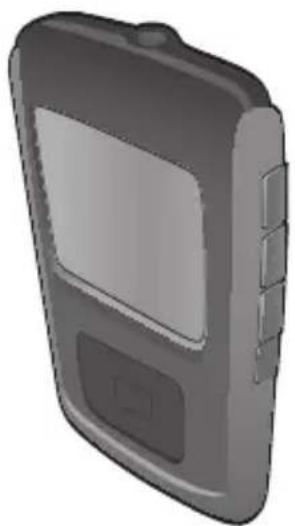
3D rendered image of a gray rectangular electronic device with a screen and buttons (no text or symbols visible)Before operating this product, please read these instructions completely.
PRECAUTIONS
COPYRIGHT:
- Distributing copies of MP3, WMA with DRM or WAV tracks without permission is a violation of international copyright laws.
SAFETY:
- Vibration experienced during walking or exercising will not affect the player. However, dropping the player or dropping a heavy object on the player may result in damage or sound distortion.
- Avoid spilling any liquid onto or into the player.
- Do not leave the player in a location near heat sources; in a location subject to direct sunlight, excessive dust, sand, moisture, rain or mechanical shock; on an unlevel surface; or in a car with the windows closed during periods of excessive heat.
ROAD SAFETY:
- Do not use headphones while driving, cycling or operating any motorized vehicle. It may create a traffic hazard and it is illegal in some areas. It can be potentially dangerous to play your headset at a high volume while walking, especially at pedestrian crossings. You should exercise extreme caution or discontinue use in potentially hazardous situations.
FCC WARNING:
- This equipment may generate or use radio frequency energy. Changes or modifications to this equipment may cause harmful interference unless the modifications are expressly approved in the instruction manual. The user could lose the authority to operate this equipment if an unauthorized change or modification is made.
This Class B digital apparatus complies with Canadian ICES-003.
This device complies with Part 15 of the FCC rules. Operation is subject to the following two conditions: 1) This device may not cause interference, and 2) This device must accept any interference received, including interference that may cause undesired operation.
Warning: Changes or modifications to this unit not expressly approved by the party responsible for compliance could void the user's authority to operate the equipment.
NOTE: This equipment has been tested and found to comply with the limits for a Class B digital device, pursuant to Part 15 of the FCC Rules. These limits are designed to provide reasonable protection against harmful interference in a residential installation. This equipment generates, uses and can radiate radio frequency energy and, if not installed and used in accordance with the instructions, may cause harmful interference to radio communications.
However, there is no guarantee that interference will not occur in a particular installation. If this equipment does cause harmful interference to radio or television reception, which can be determined by turning the equipment off and on, the user is encouraged to try to correct the interference by one or more of the following measures:
- Reorient or relocate the receiving antenna.
- Increase the separation between the equipment and receiver.
- Connect the equipment into an outlet on a circuit different from that to which the receiver is connected.
- Consult the dealer or an experienced radio/TV technician for help.
Shield cable must be used with this unit to ensure compliance with class B FCC limits.
text_image
Tested To Comply With FCC Standards FOR HOME OR OFFICE USEDear Customer:
Selecting fine audio equipment such as the unit you've just purchased is only the start of your musical enjoyment. Now it's time to consider how you can maximize the fun and excitement your equipment offers. This manufacturer and the Electronic Industries Association's Consumer Electronics Group want you to get the most out of your equipment by playing it at a safe level. One that lets the sound come through loud and clear without annoying blaring or distortion and, most importantly, without affecting your sensitive hearing.
Sound can be deceiving. Over time your hearing “comfort level” adapts to higher volumes of sound. So what sounds “normal” can actually be loud and harmful to your hearing. Guard against this by setting your equipment at a safe level BEFORE your hearing adapts.
To establish a safe level:
- Start your volume control at a low setting.
- Slowly increase the sound until you can hear it comfortably and clearly, and without distortion.
Once you have established a comfortable sound level:
- Set the dial and leave it there.
Taking a minute to do this now will help to prevent hearing damage or loss in the future. After all, we want you listening for a lifetime.
We Want You Listening For A Lifetime
Used wisely, your new sound equipment will provide a lifetime of fun and enjoyment. Since hearing damage from loud noise is often undetectable until it is too late, this manufacturer and the Electronic Industries Association's Consumer Electronics Group recommend you avoid prolonged exposure to excessive noise. This list of sound levels is included for your protection.
Decibel
Level Example
30 Quiet library, soft whispers
40 Living room, refrigerator, bedroom away from traffic
50 Light traffic, normal conversation, quiet office
60 Air conditioner at 20 feet, sewing machine
70 Vacuum cleaner, hair dryer, noisy restaurant
80 Average city traffic, garbage disposals, alarm clock at two feet
THE FOLLOWING NOISES CAN BE DANGEROUS UNDER CONSTANT EXPOSURE:
90 Subway, motorcycle, truck traffic, lawn mower
100 Garbage truck, chain saw, pneumatic drill
120 Rock band concert in front of speakers, thunderclap
140 Gunshot blast, jet engine
180 Rocket launching pad
Information courtesy of the Deafness Research Foundation.

text_image
We Want You LISTENING For a Lifetime
text_image
EIA EST. 1924LOCATION OF CONTROLS
text_image
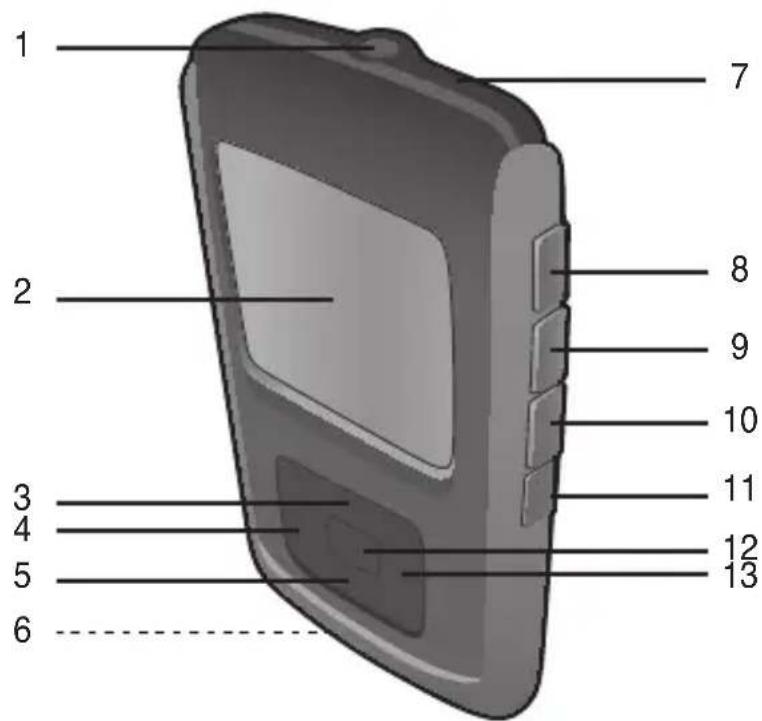
1 2 3 4 5 6 7 8 9 10 11 12 13- Headphone Jack
- Display
- Navigation ▲ Button
- Navigation Button ◀/Skip/Search ◀
- Navigation ▼ Button
-
USB Jack
-
Reset Button (Inside the Recess Hole)
- Volume + Button
- Volume - Button
- MENU/Lock Button
- Power On/Off/Stop Button
- Enter/Play/Pause ▶II Button
- Navigation ▶/Skip/Search ▶Button
POWER SOURCE
This unit comes with a built-in Lithium Polymer rechargeable battery. It is recommended that the battery be fully charged before using for the first time and when the battery indicator at the top right of the display becomes empty. Below are the icons which will give the rechargeable battery status:
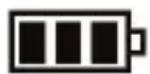
FULL 50% EMPTY
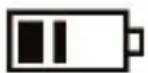
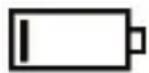
TO CHARGE THE BATTERY WITH THE COMPUTER
-
Connect the USB Cable to the USB port on the computer and the small end to the USB port on the bottom of this unit. Press the Power On/Off/Stop button; the battery indicator at the top right of the display will start filling with bars to indicate it is being charged.
-
When the battery is fully charged, the battery indicator will be full.
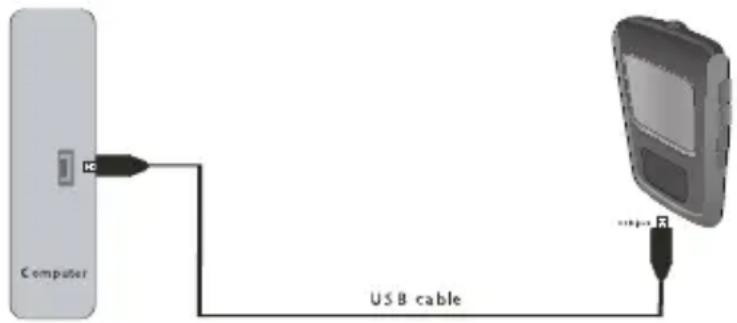
text_image
Computer USB cableNOTE:
- It takes approx. three hours to charge the battery from empty to full. When fully charged, the unit can playback for approx. 20 hours.
- When charging the battery with your computer, you can only use your computer to transfer files to the player; the player's other functions will be unavailable.
- When the battery is empty, if you connect the unit to the computer, it will start charging automatically. If it does not start charging, press the Power On/Off/Stop button to charge up the battery.
INSTALL "DIGITAL AUDIO PLAYER" SOFTWARE
TO INSTALL THE "DIGITAL AUDIO PLAYER" CD SOFTWARE
For Windows ME, Windows2000 or Windows XP:
Windows will automatically detect the audio player without installing the CD software when the USB cable is connected.
For Macintosh OSX:
Macintosh OSX will automatically detect the audio player without installing the CD software. Do not install the software when using a Macintosh.
For Windows98SE:
The USB mass storage function will not be activated without driver installation. To activate the USB mass storage function, please use the installation CD-Rom to install the driver.
For Windows 98SE, if you are connecting your player to your computer for the first time, please follow these instructions:
Procedure to Install Player Driver
- Insert the Installation CD-Rom into the CD Drive, then the installation screen will appear. If the installation screen doesn't automatically appear, double-click my computer then double-click on the CD drive, then the installation screen will appear. Click on the Windows 98 firmware icon. Then click on the MMP8575 icon.
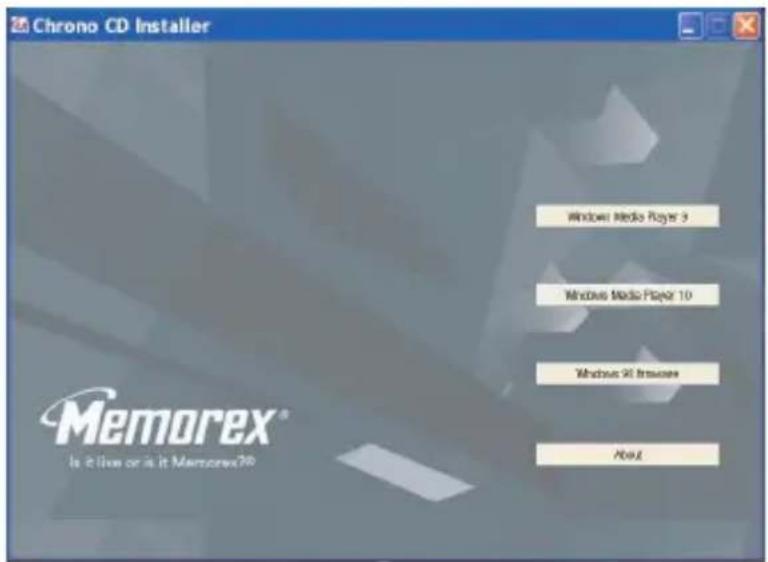
text_image
Chrono CD Installer Windows Media Player 9 Windows Media Player 10 Windows 21 Immersion About Memorex® Is it like or is it Memorex70WINDOWS 98 DRIVER INSTALLATION
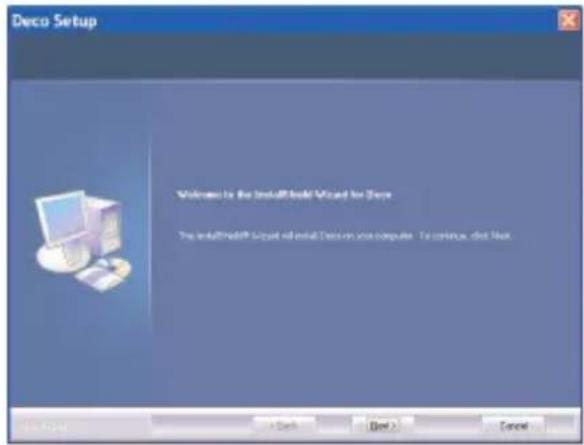
- At the Welcome screen, click NEXT.
- Read the License Agreement. If you accept the terms of the license agreement, select and dot the circle at the left of "I accept the terms of the license agreement". Then click NEXT.
- At the Setup screen, click NEXT. It is recommended to leave the destination folder as it is.
text_image
Deco Setup Welcome to the InstallBuild Wizard for Deve The InstallBuild Wizard will install Deve on user computer. To continue, click Next.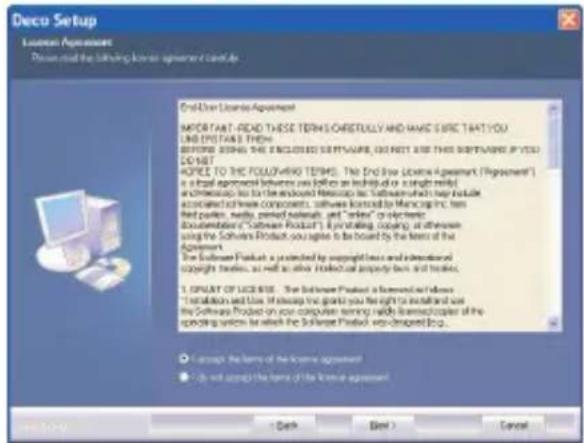
text_image
Deco Setup License Agreement Please read the following license agreement card-up End User License Agreement MOTOR PART: READ THESE TERMS CHECKLY AND NAME SURE THAT YOU LINE P |\NATE\IFENDS BEFORE USING THE EXCLUDED SOFTWARE, OR NOT SEE THIS SOFTWARE (IF YOU DO NOT) APPRO TO THE FOLLOWING ITEMS. The End Use License Agreement (Regrisement) is a legal approval between us or its own or a right-mitted and otherwise, to be allowed here you. Software which may include associated software components, software licensed by Mancap Inc. then file printer, vinyl, printed materials, and "orders" or electronic Software Product's Software Product). By publishing, copying, at timesom using the Software Product you rights to be issued by the Terms of the Agreement. The Software Product is protected by copyright and authorized copyright website, as well as other Intellectual property keys and tables. 1. SMART OF USE ITEMS - The Software Product is licensed and issued "Installation and Use. If always not grant you for right to install and use the Software Product on your computer running randomly licensed copies of the operating system to switch the Software Product was contracted into... ○ Accept the terms of the license agreement ● Do not use the terms of the license agreement OK Cancel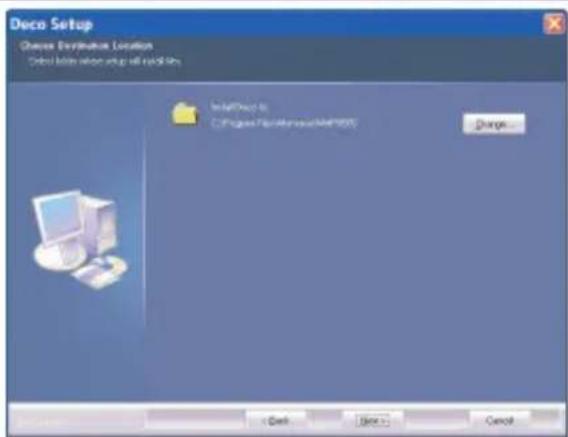
text_image
Deco Setup Change Distribution Location Delete list in order setup will add files InstallDirect to: C:\Program Files\Microsoft\MM1997\ Change Dark Save... CancelWINDOWS 98 DRIVER INSTALLATION (CONTINUED)
-
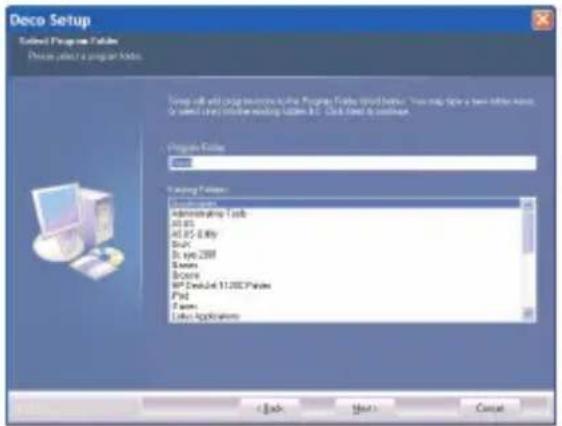
At the Program Folder screen, click NEXT. It is recommended to leave the program folder as it is.
-
Click "Install" to start the installation.
-
When finished, the InstallShield Wizard Complete screen will appear. Click FINISH to exit the Install program and complete the Windows 98 Driver installation.
text_image
Deco Setup Select Programs Table Please click a program table. Program Files C:\Program Files\Adobe\Adobe\Adobe\Adobe\Adobe\Adobe\Adobe\Adobe\Adobe\Adobe\Adobe\Adobe\Adobe\Adobe\Adobe\Adobe\Adobe\Adobe\Adobe\Adobe\Adobe\Adobe\Adobe\Adobe\Adobe\Adobe\Adobe\Adobe\Adobe\Adobe\Adobe\Adobe\Adobe\Adobe\Adobe\Adobe\Adobe\Adobe\Adobe\Adobe\Adobe\Adobe\Adobe\Adobe\Adobe\Adobe\Adobe\Adobe\Adobe\Adobe\ Adobe C:\Program Files\Adobe\Adobe\Adobe\Adobe\Adobe\Adobe\Adobe\Adobe\Adobe\Adobe\Adobe\Adobe\Adobe\Adobe\Adobe\Adobe\Adobe\Adobe\Adobe\Adobe\Adobe\Adobe\Adobe\Adobe\Adobe\Adobe\Adobe\Adobe\Adobe\Adobe\Adobe\Adobe\Adobe\Adobe\Adobe\Adobe\Adobe\Adobe\Adobe\Adobe\Adobe\Adobe\Adobe\Adobe\Adobe\Adobe\Adobe\nC:\Program Files\Codoc C:\Program Files\Codoc C:\Program Files\Codoc C:\Program Files\Codoc C:\Program Files\Codoc C:\Program Files\Codoc C:\Program Files\Codoc C:\Program Files\Codoc C:\Program Files\Codoc C:\Program Files\Codoc C:\Program Files\Codoc C:\Program Files\Codoc C:\Program Files\Codoc C:\Program Files\Codoc C:\Program Files\Codoc C:\Prud C:\Prud C:\Prud C:\Prud C:\Prud C:\Prud C:\Prud C:\Prud C:\Prud C:\Prud C:\Prud C:\Prud C:\Prud C:\Prud C:\Prud C:\Prud C:\Prud C:\Prud C:\Prud C:\Prud C:\Prud C:\Prud C:\Prud C:\Prud C:\Prud C:\Prust C:\Prust C:\Prust C:\Prust C:\Prust C:\Prust C:\Prust C:\Prust C:\Prust C:\Prust C:\Prust C:\Prust C:\Prust C:\Prust C:\Prust C:\Prust C:\Prust C:\Prust C:\Prust C:\Prust C:\Prust C:\Prust C:\Prust C:\Prust C:\Prust C:\Prut C:\Prust C:\Prust C:\Prust C:\Prust C:\Prust C:\Prust C:\Prust C:\Prust C:\Prust C:\Prust C:\Prust C:\Prust C:\Prust C:\Prust C:\Prust C:\Prust C:\Prust C:\Prust C:\Prust C:\Prust C:\Prust C:\Prust C:\Prust C:\Prust C:\Prus C:\Prust C:\Prust C:\Prust C:\Prust C:\Prust C:\Prust C:\Prust C:\Prust C:\Prust C:\Prust C:\Prust C:\Prust C:\Prust C:\Prust C:\Prust C:\Prust C:\Prust C:\Prust C:\Prust C:\Prust C:\Prust C:\Prust C:\Prust C:\Prust C:\Prush C:\Prush C:\Prush C:\Prush C:\Prush C:\Prush C:\Prush C:\Prush C:\Prush C:\Prush C:\Prush C:\Prush C:\Prush C:\Prush C:\Prush C:\Prush C:\Prush C:\Prush C:\Prush C:\Prush C:\Prush C:\Prush C:\Prush C:\Prush C:\Prush C:\Prushi C:\ C:\ C:\ C:\ C:\ C:\ C:\ C:\ C:\ C:\ C:\ C:\ C:\ C:\ C:\ C:\ C:\ C:\ C:\ C:\ C:\ C:\ C:\ C:\ C:\ C:\ C:\ C:\ C:\ C:\ C:\ C:\ C:\ C:\ C: C: C: C: C: C: C: C: C: C: C: C: C: C: C: C: C: C: C: C: C: C: C: C: C: C: C: C: C: C: C: C: C: C: C: C: C: C: C: C: C: C: C: C: C: C: C: C: C: C: C: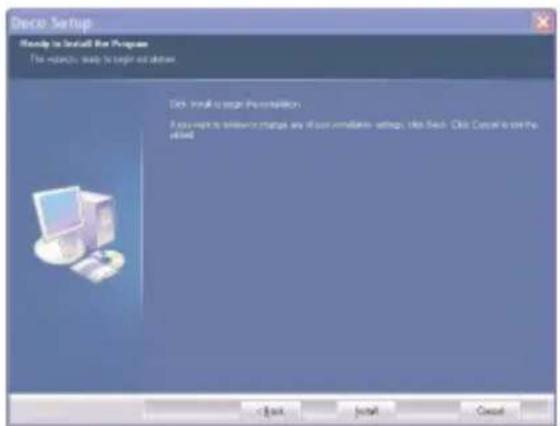
text_image
Delco Setup Ready to Install Box Program The remote, easy to upgrade configuration. Click install to install the configuration. Access rights to ensure that any if occurred: settings, this Back, this Cancel is set the option.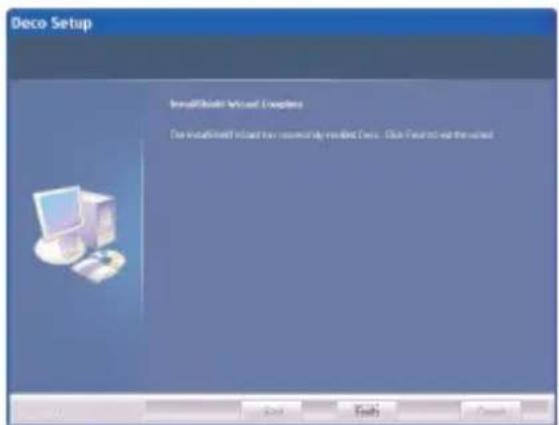
text_image
Deco Setup InstallShield Wizard Creations One installed will install from approximately 1200000 units. Click Final to add the next step OK Finish CancelWINDOWS MEDIA PLAYER 10 INSTALLATION
Windows Media Player 10 is for use with Windows XP only. For Windows ME and Windows 2000, please install Windows Media Player 9. For Windows 98SE, please visit www.Microsoft.com to download the corresponding Windows Media Player for your computer.
Once you have installed Windows Media Player 10, you can transfer MP3 files, WMA files, WMA files with DRM 9 or DRM 10 to your player using the "Sync" function.
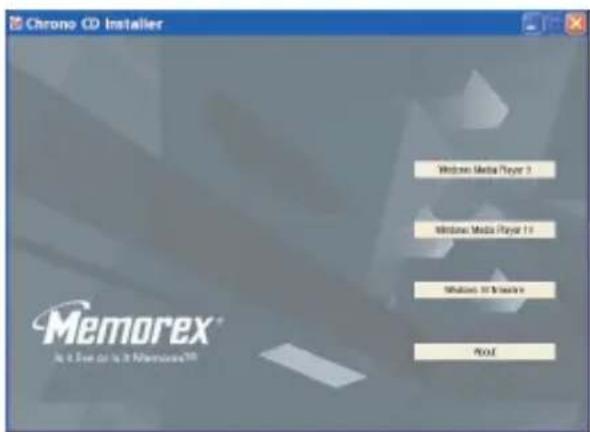
- Insert the Installation CD-Rom into the CD Drive, then the installation screen will appear. If the installation screen doesn't automatically appear, double-click "My Computer" then double-click on the CD drive, then the installation screen will appear. Click on the Windows Media Player 10 Setup icon.
- Installation will begin.
- Read the License Agreement, then click I ACCEPT.
text_image
Chrono CD Installer Windows Media Player 2 Windows Media Player 11 Windows 3.0 Windows Model Memorex® Is it free or to it Microsoft®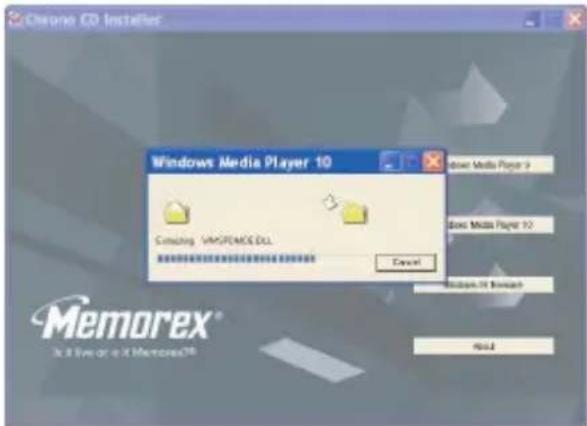
text_image
Chrome CD Installer Windows Media Player 10 Creating: VANGEMODELL Cancel Show Media Player 2 Show Media Player 10 Show X8 March Memorex® X: 8 Box or eX Memorex® Next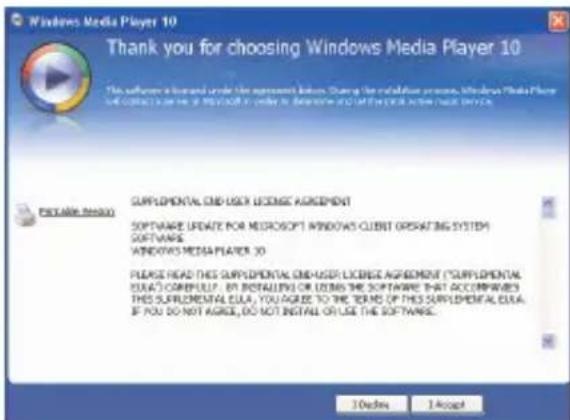
text_image
Thank you for choosing Windows Media Player 10 This software is bound under the agreement below. During the installation process, Windows Media Player and contracts on the file of Microsoft Word or other OS versions or devices. SUPPORTS: USB User License Agreement SOFTWARE UPDATE FOR MICROSOFT WINDOWS CLIENT ORISATING SYSTEM SOFTWARE WINDOWS MEDIA PLAYER 30 PLEASE READ THIS SUPPLEMENTAL EBIT-USER LICENSE AGREEMENT ("SUPPLEMENTAL EUA") COMPLETELY. BY INSTALLING OR USING THE SOFTWARE THAT ACCUMPLIWED THIS SUPPLEMENTAL EUA, YOU AGREE TO THE TERMS OF THIS SUPPLEMENTAL EUA. IF YOU DO NOT ADEGE, DO NOT INSTALL OR USE THE SOFTWARE. I Orders I AcceptWINDOWS MEDIA PLAYER 10 INSTALLATION (CONT.)
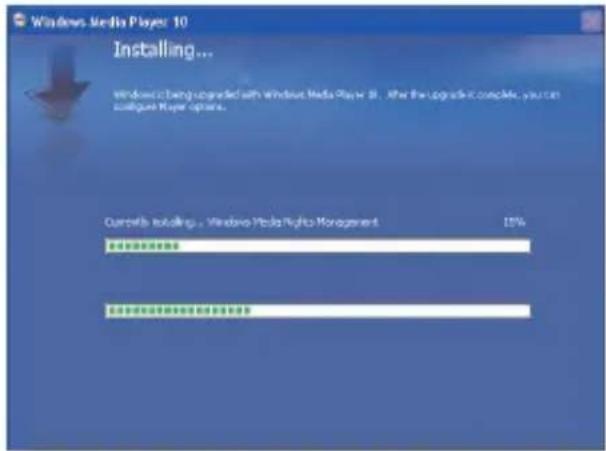
- Installation will continue.
- At the Welcome screen, click NEXT.
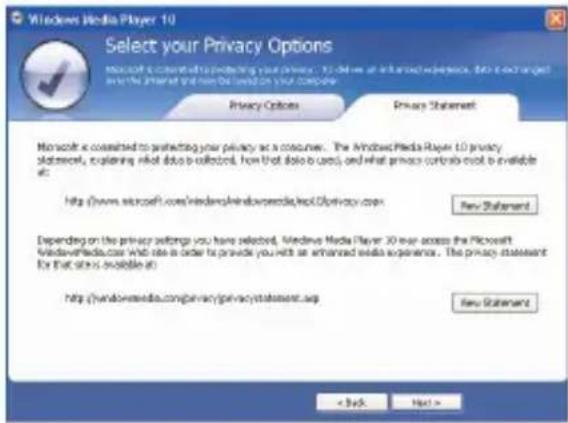
- Select the desired privacy options.
text_image
Windows Media Player 10 Installing... windows being upgraded with Windows Media Player 10. After the upgrade it complete, you can configure Mayer options. Current Installing - Windows Media Rights Management 15% 已安装到现有媒体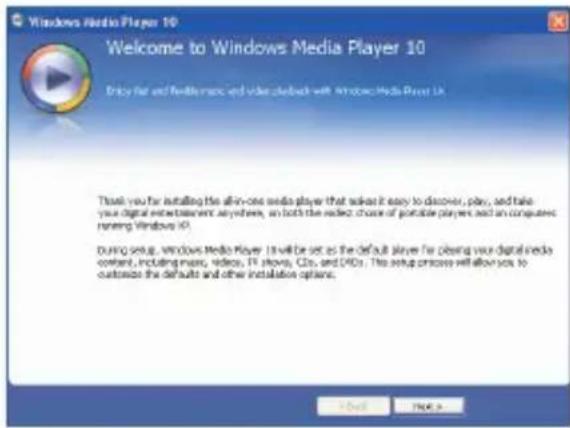
text_image
Windows Media Player 10 Welcome to Windows Media Player 10 Enjoy the media music and video playback with Windows Media Player 10 Thank you for installing the all-in-one media player that takes it easy to discover, play, and take your digital entertainment anywhere, as both the video choice of portable players and an computer running Windows 10. During setup, Windows Media Player 10 will be set as the default player for closing your digital media content, including music, videos, TV shows, CDs, and DVDs. The setup processes will allow you to customize the defaults and other installation options.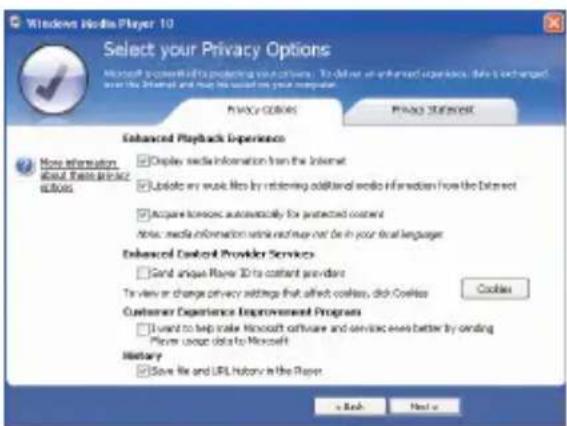
text_image
Windows Media Player 10 Select your Privacy Options Microsoft system to protect virtual resources. To deliver an enhanced experience, data is exchanged over the Internet and must be continued your computer. Privacy Options Privacy Statement Enhanced Playback Experience How information about their privacy details ■ Display media information from the Internet ■ Update my music files by maintaining additional media information from the Internet ■ Acquire licenses automatically for protected content Note: media information works and may not be in your local language. Enhanced Comfort Provider Services ■ Send unique User ID to constant providers To view or change privacy settings that affect cookies, disk cookies Cookies Customer Experience Improvement Programs ■ I used to help make Microsoft software and services even better by sending players based data to Microsoft History ■ Save file and URL History in the PlayerWINDOWS MEDIA PLAYER 10 INSTALLATION (CONT.)
- Click on Privacy Statement to view the Statement, if desired. When finished, click Next.
- Read the instructions and tick the check boxes as desired. Then click on More Options and tick the check boxes as desired.
- Click "Finish" to finish the installation of the Windows Media Player 10.
text_image
Windows Media Player 10 Select your Privacy Options Microsoft is considered to protect your privacy. To derive an enhanced experience, this is exchanged and the Internet that now be used on your computer. Privacy Options Privacy Statement Microsoft is considered to protect your privacy as a consumer. The Microsoft Media Player 10 privacy statement, explaining what data is collected, how that data is required, and what privacy controls email is available at: http://www.microsoft.com/webmasterlab/servizielle/locate/privacy.com New Statement Depending on the privacy settings you have selected, Microsoft Media Player 10 ever access the Microsoft media/servizielle.com who role in order to provide you with an enhanced experience. The privacy statement for that site is available at: http://windowsmedia.com/privacy/privacy/statement.asp New Statement < Back Next >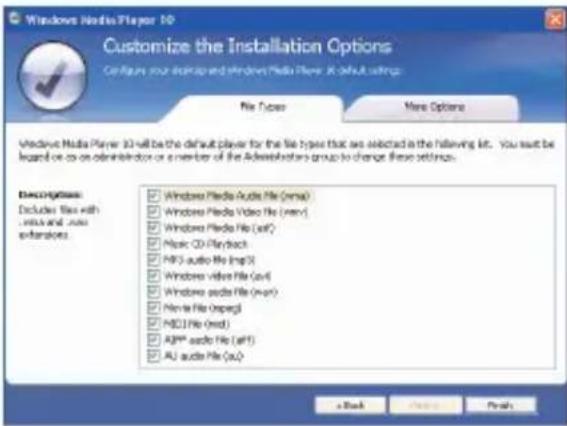
text_image
Windows Media Player 30 Customize the Installation Options Configure your desktop and Windows Media Player 30 default settings. File Fuses More Options Windows Media Player 30 will be the default player for the file type that are selected in the following list. You must be leged or as an administrator or a member of the Administrator group to change these settings. Description: Includes files with vina and audio enhances. Windows Media Audio File (mina) Windows Media Video File (*.vn) Windows Media File (.xf) Music CD Playback NPS audio file (*.nq) Windows video file (.cv) Windows audio file (*.vm) File file (*.bmp) NPS file (*.nf) APP audio file (.xf) AU audio file (.ux) a Book Delete Finish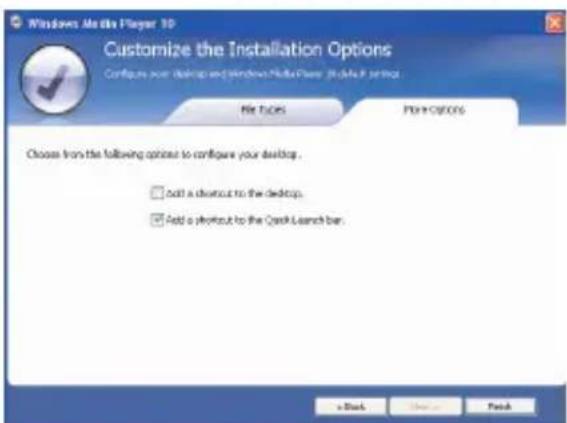
text_image
Windows Media Player 3D Customize the Installation Options Configure your desktop and Windows Media Player (MSMA) server. File Names Print Options Choose from the following options to configure your desktop. Add a shortcut to the desktops. Add a shortcut to the Quick Search bar. + Back Next FinishDOWNLOADING AND TRANSFERRING FILES
TRANSFERRING FILES
You can download digital music files from the Internet or use encoding software to convert music that you have on an audio CD into MP3 or WMA format. Once these files are stored on your computer you can easily copy them to your player.
For Windows XP, if you already installed Windows Media
Player 10, you can transfer music files (MP3, WMA, WMA files with DRM 9 or DRM 10) to the player through the "Sync" function of Windows Media Player 10. Connect your computer to the USB port on your computer using the USB cable. "MPTPlayer", "MMP8575" or "MMP8565" will appear in your "My Computer" folder which indicates the player is connected. Also, the player will display the above figure. Then, follow the procedure on page 16 to transfer music files to the player.
For Windows ME, Windows 2000, Windows 98 or Windows XP (without Windows Media Player 10), transfer music files as follows:
- Connect your player to the USB port on your computer using the USB cable as shown on page 6.
- A "Removable Disk" window will automatically pop-up on your computer screen.
- To add more files and songs to your player, simply drag and drop MP3 or WMA files from anywhere on your computer into the "Removable Disk" window.
IMPORTANT: A WMA file with DRM 9 or DRM 10 will not play back if you directly drag and drop it into the "Removable Disk" window. You must use Windows Media Player 10 to transfer copy-protected files as described on page 16.
TRANSFER MODE
USB Connected Ready
DOWNLOADING AND TRANSFERRING FILES (CONT.)
TRANSFERRING AUDIO FILES TO YOUR DIGITAL AUDIO PLAYER USING A MACINTOSH COMPUTER
Make sure to use a Macintosh computer with an operating system of 10.0 or layer to transfer audio files.
- Turn on your computer.
- Turn on your digital audio player.
- Connect the smaller end of the cable to the USB jack on the player and the larger end of the cable to the USB port on your Macintosh.
- Your computer will automatically recognize your player and mount a hard disk icon onto your desktop.
- Locate the folder where your audio files are stored on your computer's hard drive. Simply drag and drop the audio files onto the mounted hard disk drive icon of your digital audio player located on your desktop.
- After you have finished your transfer, put away the digital audio player hard disk icon(s) by dragging it to the Trash icon or Control-click its icon and choose Eject from the File menu or select Eject from the File drop-down menu located at the top of your screen. You can also use the keyboard shortcuts by selecting the digital audio player hard disk icon and pressing the Command-E keys.
- Your player is ready to play the files you transferred.
DOWNLOADING AND TRANSFERRING FILES (CONT.)
For Windows XP, you can also utilize the previously installed Windows Media Player 10 software to convert music on an audio CD into MP3 or WMA format as follows:
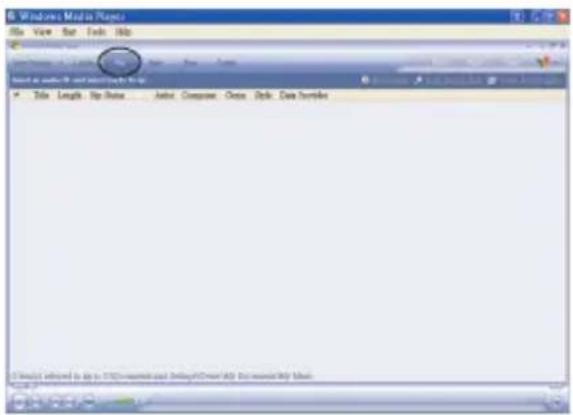
- Open the Windows Media Player 10 Browser, then click on the "Rip" icon on the top tool bar. Insert a Music CD into the CD-Rom drive of your computer.
NOTE: For Windows 98SE, Windows ME and Windows 2000, please use the Windows Media Player 9 to convert music on an audio CD into MP3 or WMA format.
-
Click on the "Tools" menu option at the top menu bar, then click on "Options"; the Option setting menu will appear. Click on Rip Music and set the Rip Music to the desired location on your computer. Then, set the desired format for the newly ripped music (MP3 format or Windows Media Audio format). Adjust the audio quality as desired. When finished, click "OK" to confirm the settings.
-
Click on the "Rip Music" icon to start ripping the music to your computer.
-
When the music tracks are ripped; connect the player to your computer. Open the "MPT Player", "MMP8575" or "MMP8565" window and open the ripped music location window.
-
To add the transferred/ripped music files/songs to your player simply drag and drop the MP3 and/or WMA files into the "MPT Player", "MMP8575" or "MMP8565" window.
-
When the files are finished loading into the player, follow the "Safely Remove Hardware" procedure as shown on page 17.
text_image
Windows Media Player File View Bar Tech Help Name: Windows Media Player Title: Length: Up Date: Author: Company: One: Style: Data Samples C:\Users\info\to-132\Myself\ndt\delg\Control\Add\Myself\Myf\lntel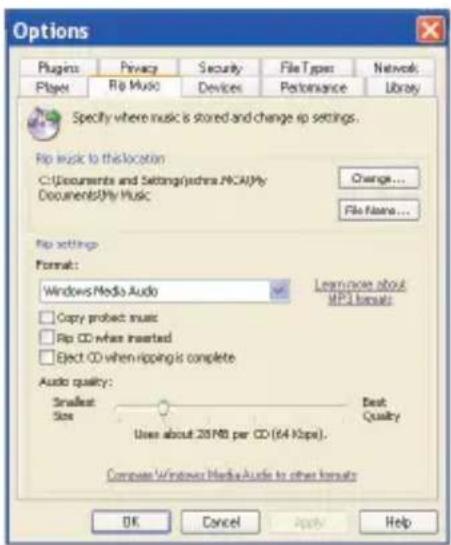
text_image
Options Plugins Privacy Security File Types Network Player Rip Music Devices Performance Library Specify where music is stored and change ip settings. Rip music to this location C:\Documents and Settings\china.MCA\My Documents\My Music Change... File Name... Rip settings Format: Windows Media Audio Learn more about MP3 format: Copy project music Rip CD when inserted Eject CD when ripping is complete Audio quality: Smallest Size Best Quality User about 20MB per CD (64 Kbps). Compose Windows Media Audio to other formats OK Cancel Apply HelpDOWNLOADING AND TRANSFERRING FILES (CONT.)
TRANSFERRING MP3/WMA FILES AND WMA FILES WITH DRM 9 OR DRM 10 USING THE WINDOWS MEDIA PLAYER 10 (FOR WINDOWS XP ONLY)
To transfer MP3 files/WMAfiles/WMAfiles with DRM 9 or 10 to the player, follow the procedure described below using the previously installed Windows Media Player 10. Before beginning the procedure please turn the unit on and connect the unit to the computer as previously described.
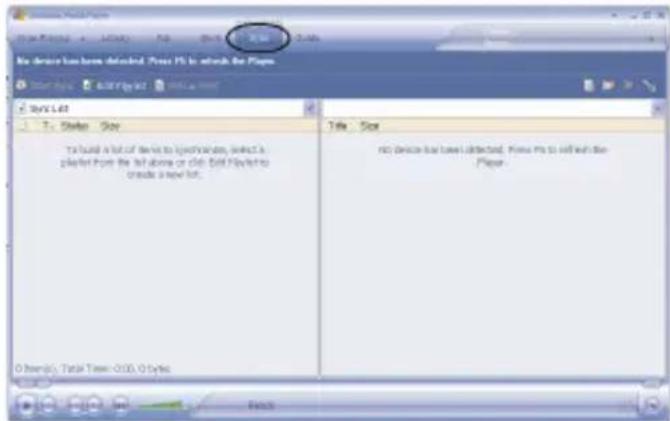
- Open the "Windows Media Player Browser 10" and click on "Sync".
- Click on the "Sync List" pull-down menu to locate the music files you wish to download. Then make sure to tick the box next to the files.
- Select the Portable Device ("MPT Player", "MMP8575" or "MMP8565") that you want to copy to from the right side drop-down menu. Click "Start Sync" to start transferring music files to the player.
- After finished transferring all the desired files to your unit, follow the "Safely Remove Hardware" procedure on the next page.
NOTES:
- For WMAfiles with DRM 10, you can only use Windows Media Player 10 to transfer files to your player.
- For Windows ME and Windows 2000, please use Windows Media Player 9 to transfer WMA files with DRM 9 to the player. For Windows 98SE, please visit www.Microsoft.com to download the corresponding Windows Media Player to transfer music files to the player.
text_image
No device has been detected. Prime PS is enough for Player Start: 100% Start: 100% T: Start To build a list of devices to log/stopbox, select a player from the list above or close. Start is set to create a new list. Title: Start no device has been detected. Prime PS is enough for Player. Other (i): Total Times: 0.05.0 Bytes. Finish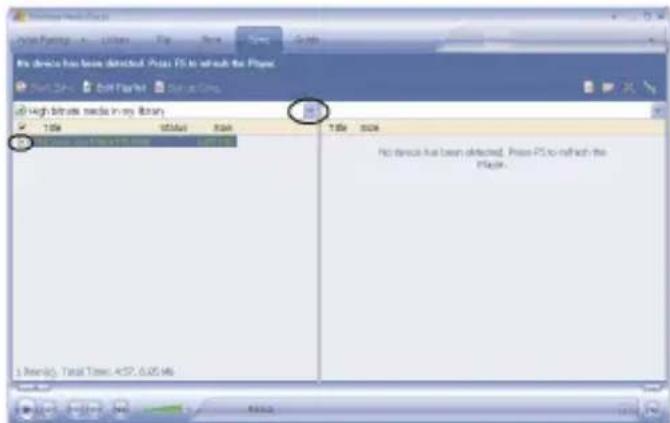
text_image
My device has been detected. Press PS to refresh the Player. High bitrate media in my library. 100 150 200 250 300 350 400 450 500 No device has been detected. Press PS to refresh the Player. 1 March, Total Times: 457, 6.05 Hz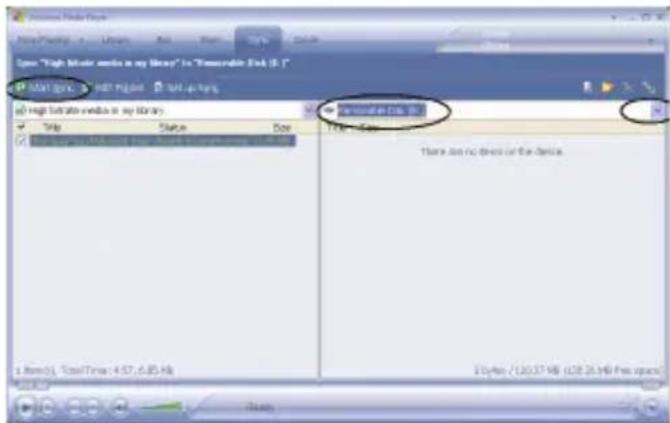
text_image
Open "High Monitor media in my memory" to "Disposable Disk (S.1)" a) Start point: 345.0000 b) High Monitor media in my library: Title Status Box [ ] [ ] [ ] Personal Data (S.1) There do no drive on the device. s Item(s): TotalTime: 4.57.6.85 Hz 20/Jan / 120.37 KB (128.26 KB Free space)SAFELY REMOVE HARDWARE
SAFELY REMOVING YOUR PLAYER FROM THE COMPUTER
NOTE: To avoid damage to your player or data loss, always follow the procedure listed below before disconnecting your player from the USB port on your computer.
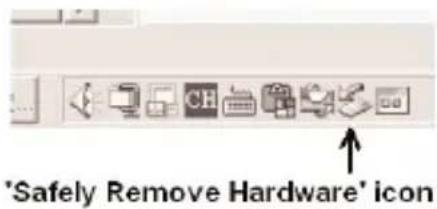
Using your mouse, double click the "Safely Remove Hardware" icon on the task bar.
From the "Safely Remove Hardware" window, select "USB Mass Storage Device" and click the "Stop" button. The "Stop a Hardware Device" window will pop-up as shown:
text_image
'Safely Remove Hardware' icon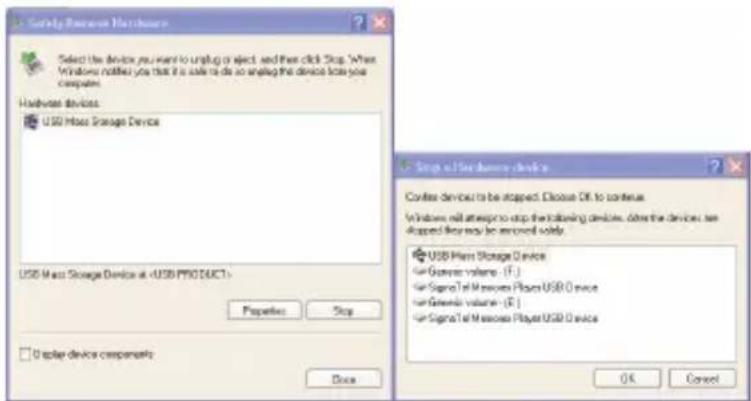
text_image
Sensify Resource Hardware Select the device you want to unplug or reject and then click Shop. When Windows notified you that it is able to do so unplug the device lists your computers. Hardware devices: USB Max Storage Device USB Max Storage Device atClick "OK". When the "Safe to Remove Hardware" window is displayed, you may remove the player from the USB cable or remove the USB cable from the computer.
NOTES:
- If the “Safely Remove Hardware” icon is not displayed on the task bar, please double click on My Computer. Right click on “Removable Disk” and left click on “Eject”. Then it is safe to remove the player from the computer.
- The "Safely Remove Hardware" procedure is not necessary for Win98 and Win98SE users.
- If you are using Windows XP and the Windows Media Player 10 software is already installed, then you do not need to follow the above “Safely Remove Hardware” procedure.
OPERATION
natural_image
Close-up of a computer monitor with a scroll wheel and an arrow pointing to the right side (no text or symbols visible)Turn the unit on by pressing the Power On/Off/Stop button; the Memorex start screen will appear in the display temporarily. Then the Music Player menu will appear and the MP3/WMA track's information will appear in the display. To turn the unit off, press and hold the Power On/Off/Stop button; "Hold Down To Power Off" will appear in the display. The unit will turn off after it counts up from one to three. Do not release the Power On/Off/Stop button until the unit turns off.
LOCK SWITCH
1
natural_image
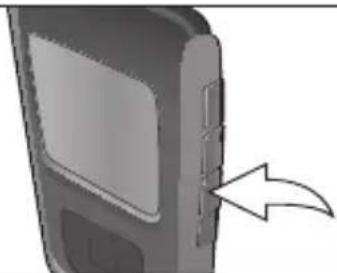
Close-up of a computer monitor with a scroll wheel, showing a button and an arrow pointing to the right side (no text or symbols visible)With the unit on, press and hold the MENU/Lock button until LOCKED appears in the display; no buttons will function. This is useful when you do not want the track changed by accidentally pressing a button. Press and hold the MENU/Lock button until UNLOCKED appears in the display to cancel the Lock function.
NOTE: After you have transferred music files to the player, when you turn on the player, the "Memorex" start screen will appear in the display temporarily followed by "Internal Updating Music Library". It will take several seconds to several minutes to update the player's library depending on the number of songs that you transferred to the player. When done, the Music Player menu will appear in the display.
OPERATION (CONTINUED)
TO LISTEN TO MP3s/WMAs/WAVs
1
text_image
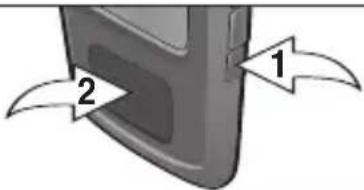
Diagram showing two labeled arrows pointing to a device component with numbered annotationsTurn the unit on by pressing the Power On/Off/Stop button ①; the Memorex start screen will appear in the display temporarily. Then the Music Player menu will appear and the MP3/WMA's track information will appear in the display. Press the Enter/Play/Pause
▶II button ② to start playback; the MP3 information will appear/scroll across the display.
2
text_image
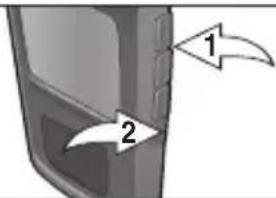
Diagram showing two labeled arrows pointing to a vehicle door panel, with numbers 1 and 2 indicating directional movement.Press the VOLUME +/- buttons ① to increase or decrease the volume. To stop playback, press the Power On/Off/Stop button ②; the Stop indicator will appear.
3
natural_image
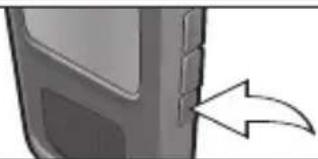
Close-up of a computer tower with a double-headed arrow pointing to the front panel (no text or symbols visible)To turn the unit off, press and hold the Power On/Off/Stop button; "Hold Down To Power Off" will appear in the display. The unit will turn off after it counts up from one to three. Do not release the Power On/Off/Stop button until the unit turns off.
NOTE:
• See pages 7-16 for information on uploading MP3, WMA and WAV files to this unit.
NOTE (AUTO RESUME): Each time you exit the Music Player mode or turn the unit off, when the unit is turned back on or you enter the Music Player mode again, this unit will resume at the beginning of the last track which was playing before turning the power off or changing mode. There is no resume function for Shuffle Repeat mode.
OPERATION (CONTINUED)
TO PAUSE PLAYBACK
1
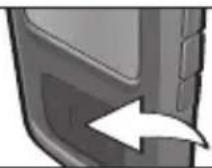
During playback, if you wish to pause the file momentarily, press the Enter/Play/Pause ▶■ button; playback will pause, the Pause indicator will appear and the timer will stop counting.
2
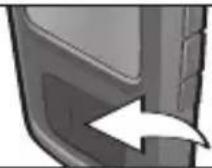
Press the Enter/Play/Pause ▶■ button again to resume playback; the sound will return, the Play indicator will appear and the timer will start counting again.
TO SELECT/BROWSE THROUGH THE FILES
1
text_image
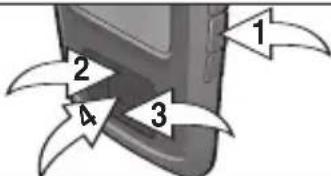
1 2 3 4Press the MENU/Lock button ①; the Main menu will appear. Select the desired Browse option (Artist, Genre, Album or All Songs) using the Navigation ▲② or ▼③ button, then press the Enter/Play/Pause ▶Ⅱ button ④. A list will appear separating the files into the selected search criteria. At the next screen, select the next desired option (for example, POP if browsing by Genre) using the Navigation ▲② or ▼③ button, then press the Enter/Play/Pause ▶Ⅱ button ④. At the next screen, scroll through and select a file using the Navigation ▲② or ▼③ button, then press the Enter/Play/Pause ▶Ⅱ button ④ to select the music file and start playback of the file.
2
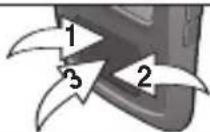
For the Browse option, see more details below: Artist: All Artists will be shown in the display. Select the desired Artist using the Navigation ▲① or ▼② button, then press the Enter/Play/Pause ▶Ⅱ button ③. All the Artist's albums will appear; select the desired album using the Navigation ▲① or ▼② button, then press the Enter/Play/Pause ▶Ⅱ button ③. Then, select the desired song using the Navigation ▲① or ▼② button, then press the Enter/Play/Pause ▶Ⅱ button ③ to start playback. Album: All the albums will appear. Select the desired album using the Navigation ▲① or ▼② button, then press the Enter/Play/Pause ▶Ⅱ button ③. Then, select the desired song using the Navigation ▲① or ▼② button, then press the Enter/Play/Pause ▶Ⅱ button ③ to start playback. All Songs: The song's name will appear in the display. Select the desired song using the Navigation ▲① or ▼② button, then press the Enter/Play/Pause ▶Ⅱ button ③ to start playback.
OPERATION (CONTINUED)
FORWARD/REVERSE SKIP
1
natural_image
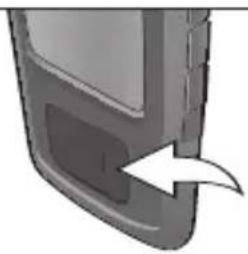
Close-up of a door handle with a white arrow pointing to the side panel (no text or symbols visible)During playback, press the Navigation ▶/Skip/Search ▶ button to advance the player to the beginning of the next file. Press the Navigation ▶/Skip/Search ▶ button repeatedly to advance the player to higher-numbered files.
2
natural_image
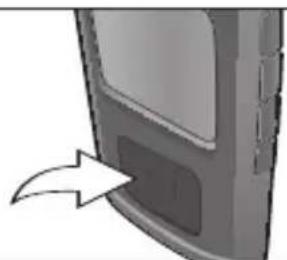
Close-up of a door handle with an arrow pointing to the side panel (no text or symbols visible)During playback, press the Navigation ◀/Skip/Search ◀ button to move the player back to the beginning of the currently playing file. Press the Navigation ◀/Skip/Search ◀ button repeatedly to move the player back to lower-numbered files.
HIGH-SPEED MUSIC SEARCH
1
natural_image
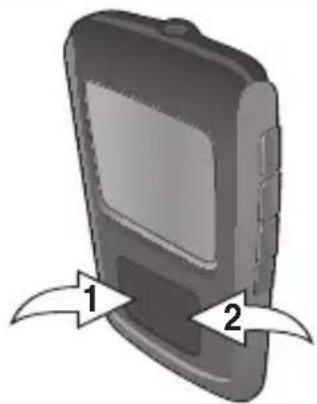
Illustration of a desktop computer with two labeled buttons (1 and 2) pointing to its screen area (no text or symbols on the device itself)During playback, press and hold the Navigation/Skip/Search ◀ / ◀◀ ① or ▶ / ◀◀ ② button to move the player forward or backward within a file to locate a specific musical passage. The player will move forward or backward at high speed as long as the button is held. When you release the button, normal playback will resume.
OPERATION (CONTINUED)
SETTING THE EQUALIZER
1
text_image
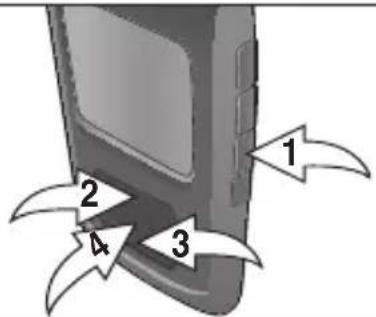
1 2 3 4Press the MENU/Lock button ①; the Main menu will appear. Scroll to Settings using the Navigation ▲② or ▼③ button then press the Enter/Play/Pause ▶Ⅱ button ④ to select it.
2
text_image
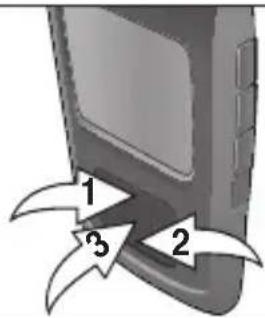
1 2 3Scroll to Equalizer using the Navigation ▲ ① or ▼ ② button then press the Enter/Play/Pause ▶ II button ③ to select it.
3
text_image
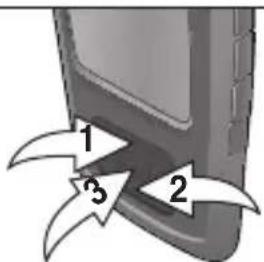
1 2 3Select a desired EQ setting (Normal, Rock, Jazz, Classical, Pop or X-Bass using the Navigation ▲① or ▼② button then press the Enter/Play/Pause ▶II button ③ to select it.
4
natural_image
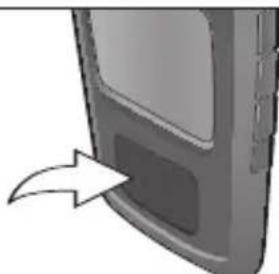
Close-up of a computer monitor with a curved arrow pointing to the side panel (no text or symbols visible)Press the Navigation ◀/Skip/Search 🔊 button twice to exit the menus. The selected EQ mode will appear at the top of the display.
NOTE: You can also press the MENU/Lock button twice to exit and return to the Music Player menu. Also, if no button has been pressed for 25 seconds, the unit will automatically return to the Music Player menu.
OPERATION (CONTINUED)
SETTING THE PLAY MODE
1
text_image
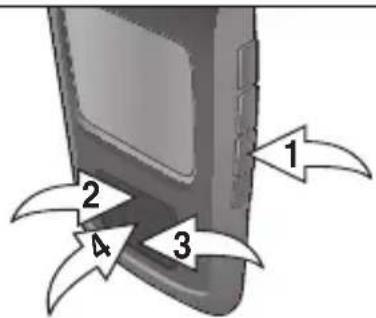
1 2 3 4Press the MENU/Lock button ①; the Main menu will appear. Scroll to Settings using the Navigation ▲② or ▼③ button then press the Enter/Play/Pause ▶II button ④ to select it.
2
text_image
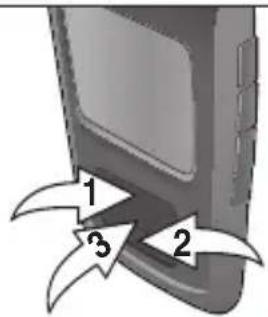
1 2 3Scroll to Play Mode using the Navigation ▲ ① or ▼ ② button then press the Enter/Play/Pause ▶ II button ③ to select it.
3
text_image
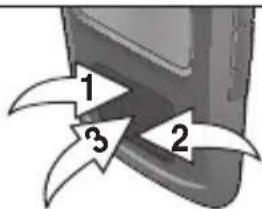
1 2 3Select the desired Play mode using the Navigation ▲ ① or ▼ ② button, then press the Enter/Play/Pause ▶ II button ③ to select it. Normal: Normal playback Repeat Track: Repeats the current track Repeat All: Repeats all of the files Shuffle: Randomly plays the files once and then stops Shuffle Repeat: Randomly plays all the files repeatedly
4
natural_image
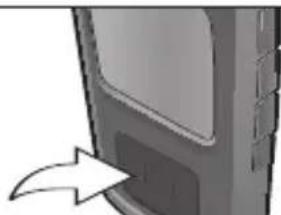
Close-up of a computer monitor with a white arrow pointing to its side panel (no text or symbols visible)Press the Navigation ◀/Skip/Search ◀ button twice to exit the menus. The selected Play mode symbol will appear at the top of the display.
OPERATION (CONTINUED)
SETTING THE CONTRAST
1
text_image
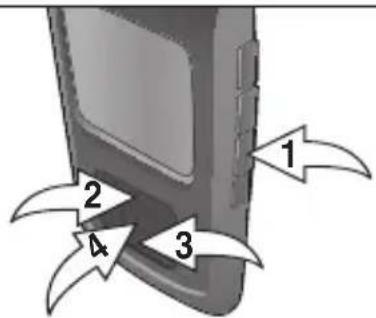
1 2 3 4Press the MENU/Lock button ①; the Main menu will appear. Scroll to Settings using the Navigation ▲② or ▼③ button then press the Enter/Play/Pause ▶II button ④ to select it.
2
text_image
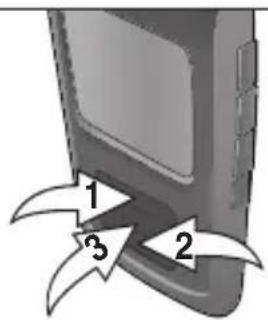
1 2 3Scroll to Contrast using the Navigation ▲ ① or ▼ ② button then press the Enter/Play/Pause ▶ II button ③ to select it.
3
text_image
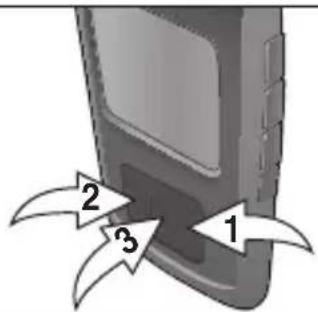
Diagram of a device with labeled parts 1, 2, and 3 pointing to a component or interface.Press the Navigation ▶ ① to increase or Navigation ◀ ② button to decrease the contrast, then press the Enter/Play/Pause ▶ II button ③.
4
natural_image
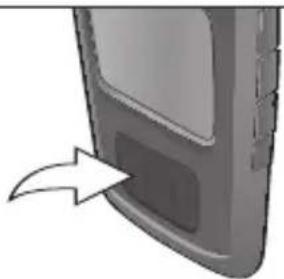
Close-up of a mobile phone's front panel with a curved arrow pointing to the side (no text or symbols visible)Press the Navigation ◀/Skip/Search ◀ button twice to exit the menus.
OPERATION (CONTINUED)
SETTING THE BACKLIGHT
1
text_image
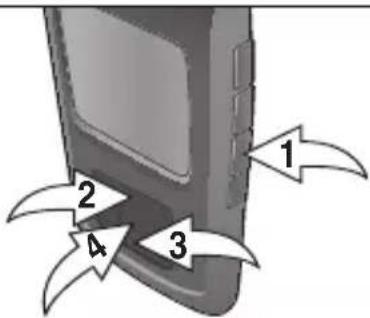
1 2 3 4Press the MENU/Lock button ①; the Main menu will appear. Scroll to Settings using the Navigation ▲② or ▼③ button then press the Enter/Play/Pause ▶II button ④ to select it.
2
text_image
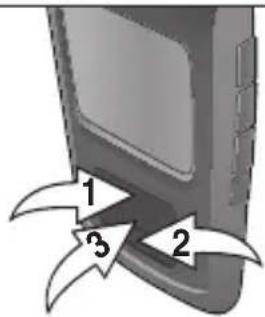
1 2 3Scroll to Backlight using the Navigation ▲ ① or ▼ ② button then press the Enter/Play/Pause ▶ II button ③ to select it.
3
text_image
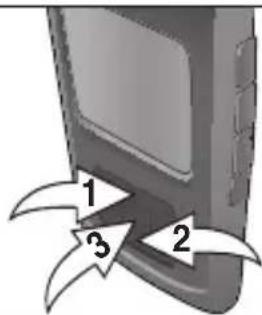
1 2 3Press the Navigation ▲ ① or ▼ ② button to select the desired backlight time (time the backlight will stay on after a button is pressed-Off, 3 seconds, 5 seconds, 10 seconds or Always On), then press the Enter/Play/Pause ▶ II button ③.
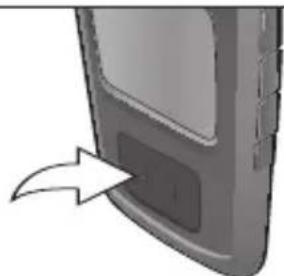
4
natural_image
Close-up of a smartphone door with a curved arrow pointing to the left side (no text or symbols visible)Press the Navigation ◀/Skip/Search 🔊 button twice to exit the menus.
OPERATION (CONTINUED)
SETTING THE POWER SAVINGS
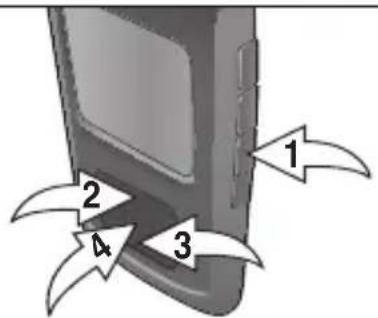
1
text_image
1 2 3 4Press the MENU/Lock button ①; the Main menu will appear. Scroll to Settings using the Navigation ▲② or ▼③ button then press the Enter/Play/Pause ▶Ⅱ button ④ to select it.
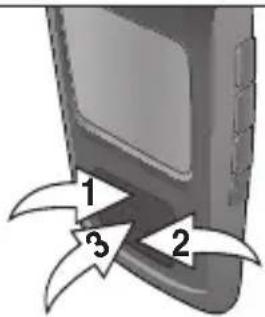
2
text_image
1 2 3Scroll to Power Savings using the Navigation ▲ ① or ▼ ② button then press the Enter/Play/Pause ▶ II button ③ to select it.
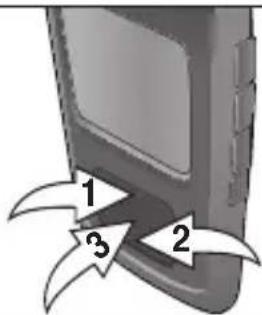
3
text_image
1 2 3Press the Navigation ▲ ① or ▼ ② button to select the desired Power Savings (time the unit will stay on before turning off due to inactivity –Disable, 1 Minute, 3 Minutes or 5 Minutes), then press the Enter/Play/Pause ▶ II button ③. NOTE: Select Disable to disable this feature and not have the unit enter the Power Savings mode.
4
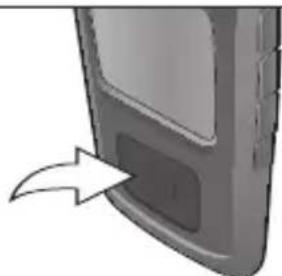
natural_image
Close-up of a smartphone door with a curved arrow pointing to the side panel (no text or symbols visible)Press the Navigation ◀/Skip/Search 🔊 button twice to exit the menus.
OPERATION (CONTINUED)
SETTING THE LANGUAGE
1
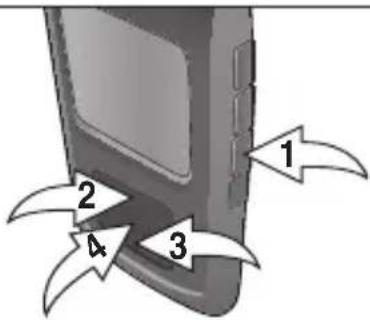
text_image
1 2 3 4Press the MENU/Lock button ①; the Main menu will appear. Scroll to Settings using the Navigation ▲② or ▼③ button then press the Enter/Play/Pause ▶II button ④ to select it.
2
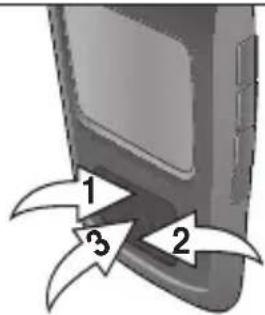
text_image
1 2 3Scroll to Language using the Navigation ▲ ① or ▼ ② button then press the Enter/Play/Pause ▶ II button ③ to select it.
3
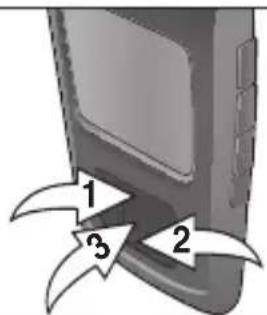
text_image
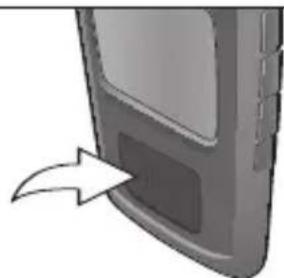
1 2 3Press the Navigation ▲ ① or ▼ ② button to select the desired Language the text on the display will be in (English, Traditional Chinese, Spanish, Italian, French, Dutch or Japanese), then press the Enter/Play/Pause ▶ II button ③.
4
natural_image
Close-up of a mobile phone door with a curved arrow pointing to the side panel (no text or symbols visible)Press the Navigation ◀/Skip/Search ◀ button twice to exit the menus.
OPERATION (CONTINUED)
TO VIEW THE SYSTEM INFO (ABOUT)
1
text_image
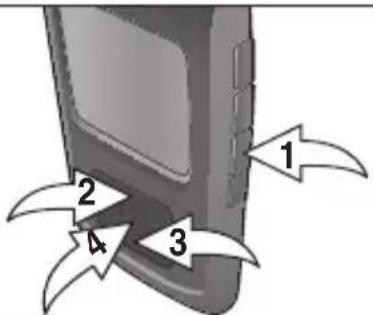
1 2 3 4Press the MENU/Lock button ①; the Main menu will appear. Scroll to Settings using the Navigation ▲② or ▼③ button then press the Enter/Play/Pause ▶Ⅱ button ④ to select it.
2
text_image
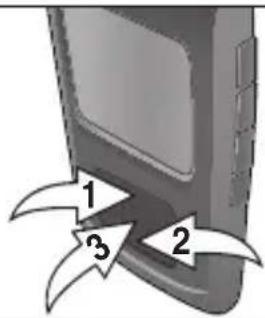
1 2 3Scroll to About using the Navigation ▲ ① or ▼ ② button then press the Enter/Play/Pause ▶ II button ③ to select it. The unit will then display the Version, Internal media (the total internal memory) and Internal Free Space.
3
natural_image
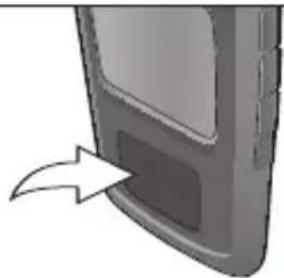
Close-up of a smartphone door with a curved arrow pointing to the side panel (no text or symbols visible)Press the Navigation ◀/Skip/Search ◀ button three times to exit the menus.
TROUBLESHOOTING GUIDE
If you experience a problem with this unit, check the chart below before calling for service.
| SYMPTOM CAUSE SOLUTION | ||
| Unit will not Battery is low on. described on page 6. | ||
| Unit is not turned Press on. button to turn the unit on. | ||
| No sound. Headphones | are not Insert headphones inserted. | |
| Volume is set too Raise low. Volume + button. | the volume using the | |
| The MP3 or WMA files are corrupted. files. | Download uncorrupted | |
| No files are in the Upload player. | d files to the unit as described on pages 13-16. | |
| The computer is not recognizing the player. | The player is not securely connected. | Make sure player is securely connected. |
| Win98 Driver isn't installed or computer is not compatible. | Install Win98 driver and/or see pages 7-12 for compatibility. | |
| WMA files with DRM can't playback. | Incorrect downloading methods. | See page 16 to download WMA files with DRM. |
TROUBLESHOOTING GUIDE (CONTINUED)
| SYMPTOM CAUSE SOLUTION | ||
| No buttons work. | The Lock feature is Deactivate Lock feature as activated. described on page 18. | |
| Unit needs to be reset Reset unit and/or or firmware needs to be updated. pages 31-32. | ||
| Unit acting erratically. Unit needs to be reset Reset unit and/or or firmware needs to be updated. pages 31-32. | ||
FORMATTING THE PLAYER
Formatting the Player
WARNING! Do not format this player unless it stops working and you are instructed to do so by technical support personnel.
- Use the USB cable to connect the player and the computer.
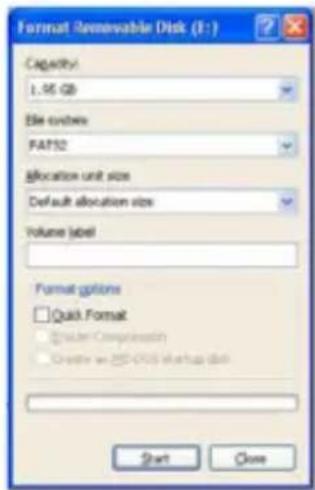
- Double click on My Computer, then right click "MPT Player", "MMP8575" or "MMP8565" or "Removable Disk" and left click on "Format".
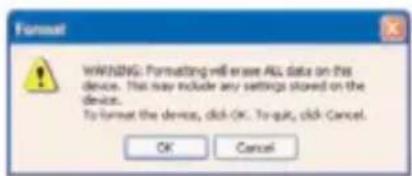
3a. For "MPT Player", "MMP8575" or "MMP8565" at the "Format" window, click OK to confirm and the player will start to format (see figure to the right). When finished, click "OK" to close the Format window.
text_image
Format-Removable Disk (L:) Capacity: 1.95 GB File customs FAT52 Allocation unit size Default allocation size Volume label Format options □ Quick Format □ Quick Compressor □ Create as: [SPTC] Startup disk Start CloseFormat window for "Removable Disk"
text_image
WARNING: Formatting will erase ALL data on this device. This may include any settings stored on the device. To format the device, click OK. To quit, click Cancel. OK CancelFormat window for "MPT Player", "MMP8575" or "MMP8565"
3b. For "Removable Disk", at the "Format" window, select "FAT 32" from the file system pull-down menu, then click "Start" to format the unit (see figure above).
NOTE: Make sure you have selected "FAT 32" at the file system pull-down menu; otherwise, after formatting, the player will not work properly. Then, click OK to confirm and the player will start to format. When finished, click "Close" to close the Format window.
UPDATING THE FIRMWARE
WARNING! Do not update the firmware unless you are experiencing problems with your digital audio device. Incorrect or faulty firmware installation will cause the player to stop functioning.
- Download the updated firmware at www.memorexelectronics.com.
- Unzip the file, then double click setup.exe in the Desktop folder to install the software to your computer.
- Connect the player to the computer using the supplied USB cable and the installation screen will appear. (If the installation screen does not appear, unplug the USB cable and turn off the unit). Connect to the computer again and press and hold the Power On/Off/Stop button until the installation screen appears.
- Follow the on-screen instructions to install the driver.
- When finished, click START and locate the newly installed software "Deco" and select "Firmware Download".
RESETTING THE UNIT
If the unit acts erratically, reset the unit by inserting a thin object (such as a paper clip) into the recessed RESET button. For the RESET button, see page 5 for the button's location.
SPECIFICATIONS
Audio Frequency Range 20Hz – 20KHz
Headphones Output 5mW, 32ohm (Max. Vol)
S/N Ratio 85db (MP3)
File Support MP3 MPEG 1/2/2.5 Layer 3
WMA Windows Media Audio (WMA file with
DRM9 or DRM 10)
Bit Rate 32kbps–320kbps (MP3)
32kbps-192kbps (WMA)
General Dimension 1.8 (W) x 3.2 (H) x 0.6 (D) inches
Weight 1.7 ounces
USB USB 2.0
Built-in Memory 2GB
Max. Playtime Approx. 20 hours
Supported OS Win ME, 2000, XP and Mac OSX
Win 98SE (Driver is required)
Operating Temperature 23^ F to 104^ F ( -5^ C to 40^ C)
Rechargeable Battery Li-Polymer Rechargeable Battery
DC 3.7V, 530mAh
Specifications are subject to change without notice.
FOR FIRMWARE UPGRADE, PLEASE VISIT OUR WEBSITE AT WWW.MEMOREXELECTRONICS.COM TO CHECK IF THERE IS NEW FIRMWARE AVAILABLE.
FOR ADDITIONAL SET-UP OR OPERATING ASSISTANCE, PLEASE VISIT OUR WEBSITE AT
WWW.MEMOREXELECTRONICS.COM
OR CONTACT CUSTOMER SERVICE AT (954) 660-7100.
PLEASE KEEP ALL PACKAGING MATERIAL FOR AT LEAST 90 DAYS IN CASE YOU NEED TO RETURN THIS PRODUCT TO YOUR PLACE OF PURCHASE OR TO MEMOREX.
FOR PARTS AND ACCESSORIES, CONTACT FOX INTERNATIONAL AT 1-800-321-6993.
Memcorp, Inc.
Weston, FL
Printed in China
Visit our website at www.memorexelectronics.com
(A)
