SG Home CVR - Security Camera KJB Security Products - Free user manual and instructions
Find the device manual for free SG Home CVR KJB Security Products in PDF.


User questions about SG Home CVR KJB Security Products
0 question about this device. Answer the ones you know or ask your own.
Ask a new question about this device
Download the instructions for your Security Camera in PDF format for free! Find your manual SG Home CVR - KJB Security Products and take your electronic device back in hand. On this page are published all the documents necessary for the use of your device. SG Home CVR by KJB Security Products.
USER MANUAL SG Home CVR KJB Security Products
| Table of Contents | |
| Introduction | 2 |
| Includes | 2 |
| Quick Setup Guide | 3 |
| SG Home® Cloud Subscription Plans | 4 |
| Features | 5 |
| Setup | 6 |
| Live Viewing | 7 |
| Camera Menu & Settings | 8 |
| SG Home® Menu & Settings | 10 |
| Reset Instructions | 11 |
| PIR Placement Chart | 12 |
| LED Chart | 12 |
| Specifications | 13 |
| Frequently Asked Questions | 14 |
| Products Line & Reset Button | 18 |
| Warnings & Precautions | 23 |
| Warranty & Disclaimers | 25 |
SG Home® Electric & Battery CVRs Introduction
Thank you for purchasing your SG Home® Cloud Video Recording System (CVR). Before getting started, allow us to introduce some of the main features of your hidden camera. SG Home® CVR cameras allow for live viewing of the camera and cloud storage of the event recordings. You can access the camera or video recording from anywhere using our free SG Home® App. Event notifications alert you when the hidden camera detects activity in your home or office. Connect up to 4 cameras on one ultra-secure cloud account, view live s video and download your recordings from all cameras onto your tablet or smart phone. You can immediately record or take pictures of any suspicious event in real-time allowing you to view them from your local drive and in the SG Home® App.
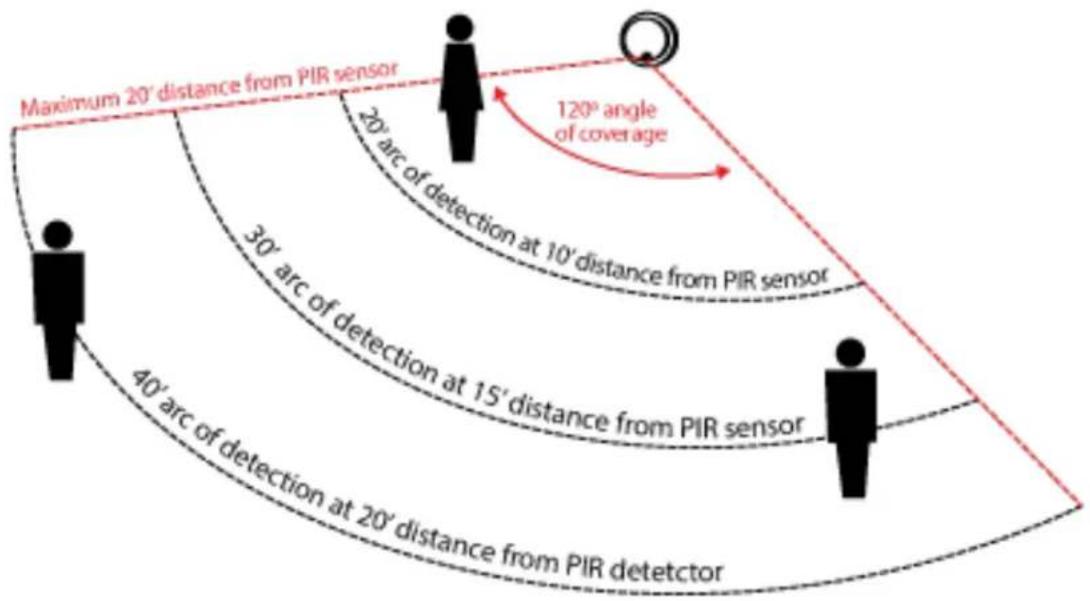
For all event notifications, our cameras use PIR to detect motion. PIR (Passive Infrared) is the most accurate form of notification, creating less false triggers than other motion activated cameras. There is a 2 second start up, so place your camera accordingly to see how to best place your camera using the PIR Chart (on page 12).
Our SG Home® CVRs do not come standard with a subscription account. In order to take full advantage of our Cloud Recording System, you need to sign up for a cloud subscription plan. A subscription plan is required for storage of your video files you can select the plan with the number of recordings that would work best for you (see page 4). Follow this link to purchase your subscription plan. www.sghomecloud.com/subscriptions
Our entire line of SleuthGear ^® hidden cameras are designed and assembled in Nashville, TN USA backed by our 1 year warranty. Visit www.sleuthgear.com to see the entire line of SleuthGear ^® hidden cameras.
Includes
- SG Home ^® Electric or Battery CVR Camera by SleuthGear ^®
- Battery Pack & USB charging cable (Battery models)
• AC Power Cable (Electric models) - Quick Setup Guide
More Resources:
SG Home Manual: www.kjbsecurity.com/technical-support/docs
Reset Guide: www.kjbsecurity.com/technical-support/docs
Video Tutorials: youtube.com/kjbsecurityproducts
Questions: Reach us at support@kjbsecurty.com
Quick Setup Guide
Step 1. Download the SG Home® App from Apple Store or Google Play store to your smart phone or tablet. Press SIGN UP on the login screen to create a secure account. Connect the power supply, and power on the camera. Battery models: charge the battery pack first for approximately 10 hours for a full charge.
Step 2. After logging into the SG Home® App, press '+' at the top right of the screen to add a camera to your account.
Step 3. Follow the on-screen instructions to select your 2.4 GHz Wi-Fi network and enter your Wi-Fi password. Please note: Cameras DO NOT work on 5 GHz networks.
Apple devices: The App chooses the network your device is currently connected to. If necessary, temporarily leave the App to switch to your preferred network. Then return to the App and press 'Next' to enter the network password.
○ Android devices: Select the preferred network from the dropdown list in the app, then press 'Next' to enter the network password. If necessary, press SCAN to search for available networks.
Step 4. Follow the on-screen instructions and select your camera's I.D. (ex. Device_KJxxxxxxxx) to set up your camera on Wi-Fi and create a unique camera password: Note: This is the password for the camera only, not the password for your wireless network or the app login.
Apple devices: Create a unique camera password and press 'Next'. Temporarily leave the App and go to settings on your phone or tablet, access the Wi-Fi. Under Choose Networks find the cameras I.D. (ex. Device_KJxxxxxxx) from the list of available networks. Select cameras I.D. It will move from list to become the Wi-Fi ID. Once you see this then return to App and continue setup in the App. Wait for the Wi-Fi icon to show in the status bar before starting step 5.
- Android devices: Select the camera's network from the dropdown list in the app, then press NEXT to create a unique camera password. If necessary, press SCAN to search for available networks. Note: You will enter a password for access to the camera. This is the password for the camera only, not the password for your wireless network or the App login. You will have two new passwords: one for the app login and one for the camera. Please make note of these passwords for future reference as they are unique only to you.
Step 5. Wi-Fi setup is complete when you see the green checkmark. Press FINISH to return to SG Home® Cameras list and begin viewing real time video. Note: If you type in the wrong Wi-Fi Password, you can still get the green check mark. The App cannot verify your password. Your device will not be connected to the Wi-Fi network and will not be online. You will have to do a hard reset on the device so you can see the camera ID in your WiFi Settings. To find the reset button look for your device under the Product Line in the back of your manual. You will have to reset up your camera by following Steps 2-5.
All devices: There may be a few seconds delay while your device reconnects to your network and the App logs back in to the servers to retrieve your camera list.
Step 6. Sign up for your desired SG Home® Subscription Plan. (See page 4.)
SG Home® Subscription Plans
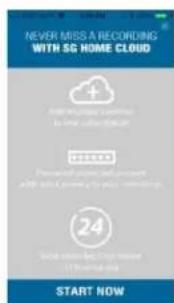
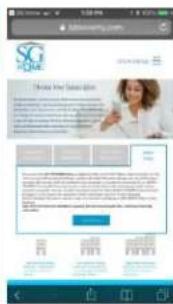
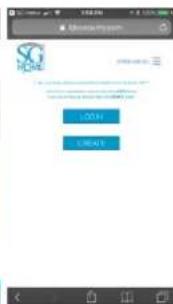
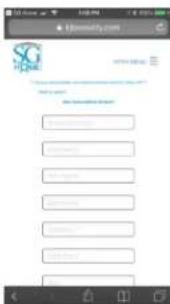
Subscribe to SG Home Cloud for Affordable Peace of Mind: www.sghomecloud.com/subscriptions
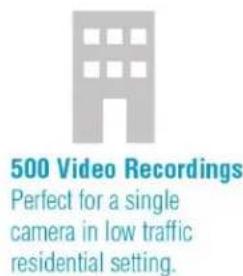
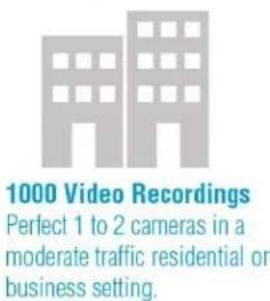
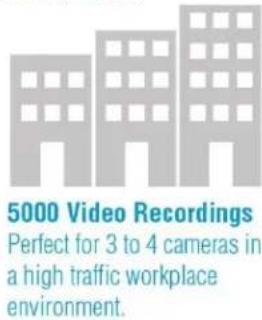
With a cloud recording subscription SG Home Hidden Cameras record video to the cloud every time motion is detected. You choose the amount of data stored in the cloud when you choose your subscription plan. When your plan quota is reached, the oldest video recordings are replaced with new ones. The free SG Home app allows you to save and download video recordings to a local device.
1
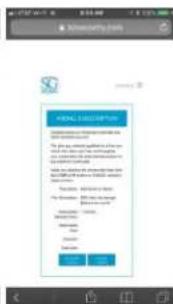
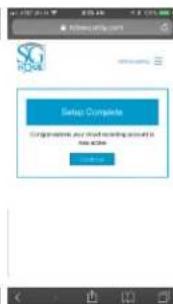
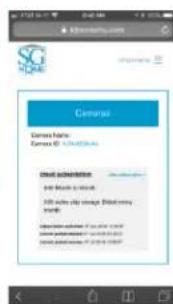
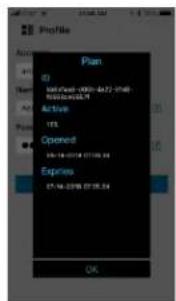
Add camera to the SG Home app (see reverse.) Then visit www.sghomecloud/subscriptions. Click SELECT PLAN to choose your preferred subscription. For a single camera we recommend no less than 500 video recordings, for 2 cameras no less than 1000 video recordings and for 3 or more no less than 5000 recordings.
2
After clicking the SELECT PLAN button to select your subscription you will be prompted for your account information. Use the same user name and password entered into your iOS or Android app in the NEW SUBSCRIPTION ACCOUNT fields. Complete the form by entering the required billing and credit card information then click ADD BILLING INFORMATION.
Features
• HD Recording | 720P Resolution: 1280x720p
• Cloud Storage: Subscription Based
• Watch Live Video and Recorded Video from Anywhere at Anytime
• Event Notifications so you always know what is taking place in your home or office
• Use on multiple smart devices
• Share your account with one other user
- Place cameras in different locations and View on One Device
- Indoor & Outdoor Hidden video Surveillance System (select models)
- 120° Wide Angle Lens Captures More Area than Ever Before
- Long Lasting Rechargeable Battery using PIR Sensor Provides up to 90 Days of Standby (Battery models)
• Night Vision – Hidden IR Lights Capture Video at Night (select models)
• Time & Date Stamped Files
- Fast Start Up – From PIR Trigger to Record in 2 Seconds, Nothing Captures Video Faster
• 1 Year Manufacturer's Warranty
Setup
SG Home® App Installation
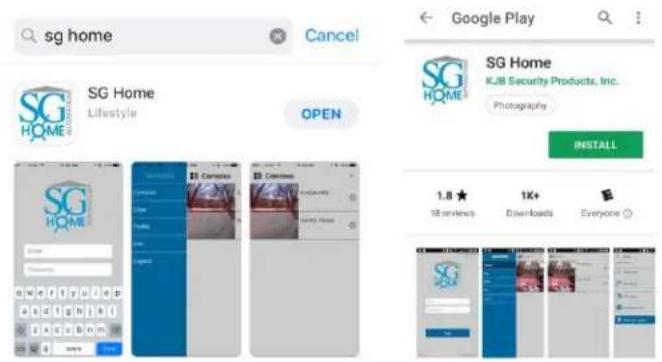
Search for "SG Home" in the App Store on your Device and install it on your smart phone or tablet.
SG Home® App Sign Up
▶ Click on the sign up button in lower left
Enter email, name, and create password. Click Next.
The App will ask for activation code, enter activation code (sent to your email address in previous step). The email will come from email address: 'eacMgr (voipservice@mail.ntut.edu.tw)'.
Adding your Camera to your Device
Power on the camera
Open the SG Home® App on your device and then press the ‘+’ button.
In the next screen, will direct you to choose the 2.4Ghz WiFi network you want your camera connected to. Go to the settings ensure that your device is connected to the WiFi network that you want your camera to be on. Then go back into the SG Home® App and click on the "Next" button.
You will be asked to enter your WiFi password now. If you have not set your WiFi password before, it can usually be found on the back of your WiFi router.
The next step is setting a password for your camera. Be sure to write it down somewhere or use a password you can remember.
Now that you have set a password, the App will direct you to connect your device to the camera. Click the "Settings" button; it will redirect you out of the App to your Device Settings.
For Apple: Click Settings, Scroll up to the top of your settings, Select Wi-Fi and click the WiFi network labelled "Device_KJ*******".
- For Android: Scroll and click the WiFi network labelled "Device_KJ********".
Give your device about 10 seconds to establish the connection. Once connected, return back to the SG Home® App. A Loading Screen will appear, then select the 'Next' button.
Next Screen few screen will say "Please Wait...Connecting...", "Please wait...Camera Rebooting...", and "Please wait...Syncing cloud...". Once Connected, select the 'Finish' under the Green Check Mark.
The device is now connected to the camera. Click on the link in the app and it will pull up a live view. The example below shows a camera that has been set up on the SG Home® App.
Apple Device

Android Device

Please Note: The Bluetooth function on the Speaker will not work while connecting. Plug the device in, but do not power on the switch on the top. Once connected to your WiFi network, the Bluetooth function will work fine.
Live View
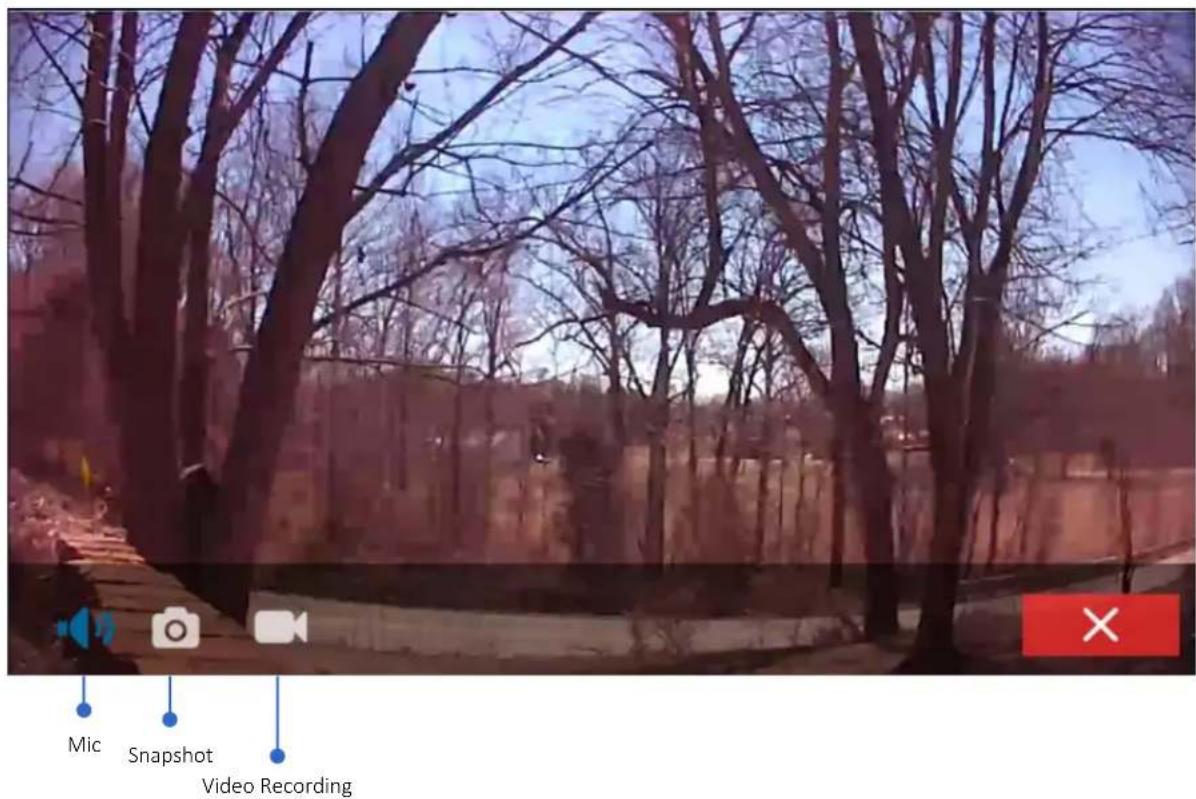
Snapshot
• Used for taking still pictures while in live view
- Tap Camera icon to take pictures
- Pictures are stored in Local Media on SG Home® App
Mic
• This feature is only available to law enforcement and for export.
- Record audio with video
- Tap mic icon to enable/disable mic
Video Recording
• Used to record video while using live view
- Tap video recorder icon to start/stop recording
• Videos stored in Local Media on SG Home® App
Camera Setup
In the SG Home® App, tap the icon that looks like a gear located next to the added camera. This will bring you to the setup menu shown below.
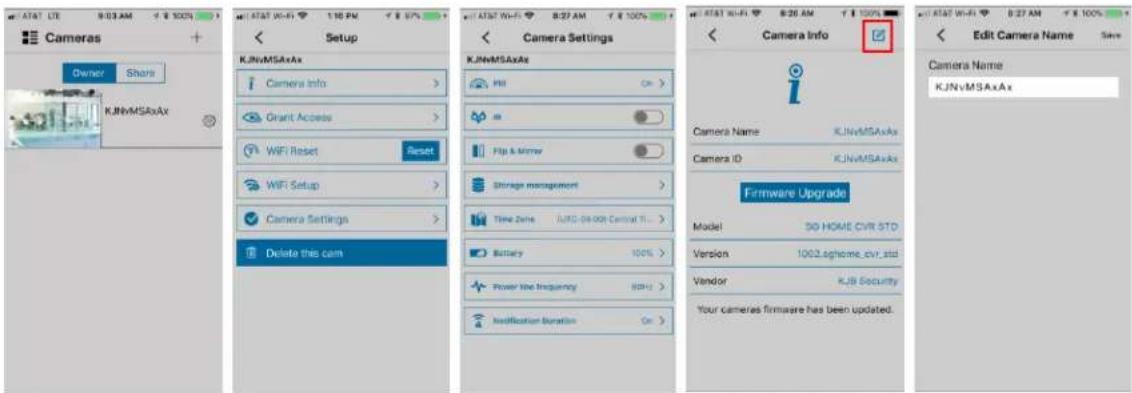
Camera Info
From here you can edit the camera's name.
IR Filter factory default is Black and White to see Color set to off, as shown above.
The Camera ID, displayed as the devices network before connecting camera, is displayed here.
Selecting 'Firmware Upgrade' gives the applications Model, Version, and Vendor Information. This will also search for any needed firmware upgrade.
WiFi Reset
The WiFi Reset will reset the camera.
The camera's WiFi network will display after selecting the reset button. The camera will be removed from the SG Home® App and must be set up again for viewing.
WiFi Setup
This is used if you need to move your camera to a new Wi-Fi connection. It will enable you to connect your camera to another WiFi network.
Camera Settings
Selecting 'Camera Settings' gives the following options
- PIR—The PIR is what senses motion and turns the camera on to record. The PIR can be turned on/off from here. Note: If PIR is turned off the camera will not record unless the user is in live view mode and taps the record video icon.
- IR—The IR is what allows the camera to see in low light. Only certain camera models have IRs. The IRs will only turn on if there is not adequate light for the camera. The IRs can be turned off so that they never turn on, regardless of lighting. Note: The camera picture switches to black and white when IRs are on.
- Flip and Mirror—Rotating viewing 180 degrees
• Storage Management—Clips used on Cloud Storage
• Time Zone—The cameras time zone can be set here - Battery—Currently unavailable
• Power Line Frequency—Defaulted to 60 Hz
Delete this Camera
Used to remove the camera at any time from the SG Home® App.
Alerts/Notifications
Have your camera send your smart device alerts when it senses activity
- This function is accessible through notifications in your smart device settings
- To access this function, go to notifications under your smart device settings and select the SG Home® App.
SG Home Menu
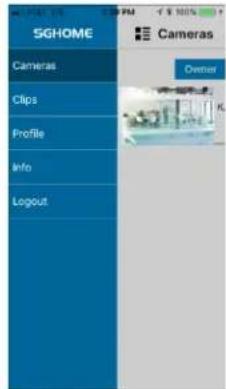
The screenshot below displays menu available when clicking on 'Cameras' from the main screen when opening SG Home® App.
Cameras
Selecting 'Cameras' brings you to the main page that displays all connected cameras.
Clips
Access, view and download recordings. Also set the desired recording time for future recordings.
- Video is automatically recorded to the Cloud when camera senses motion. To view these videos, select 'Cloud' and tap on video to view.
- Video recorded to the Cloud can be pre-set to record between 15-30 second duration clips. Select 'Cloud Playback Setup' to set the record time for future recordings. Turning this function off will turn automated recording off on the camera.
- Videos and pictures can be manually recorded from the live view mode. To view these videos or pictures, click on 'Local' and select the appropriate icon for video or picture.
Profile
View your SG Home® profile name and reset password from here.
Info
▶ Find below in general information
- App Version
• C2C Module Version - Registration Server
- Registration State
- About (Terms and
Conditions)
• SG Home-Subscribe to Cloud
• SG Home Official Website
Logout
Logout of SG Home
Resetting Camera
At times you may have a need to reset your camera, whether it is due to an App update, moving the camera to another WiFi network or other reasons.
There are 2 ways of doing this:
- Resetting Camera from App (as long as your camera is connected successfully on the WiFi network)
- Resetting Camera manually using the reset button
▶ Resetting Camera from App
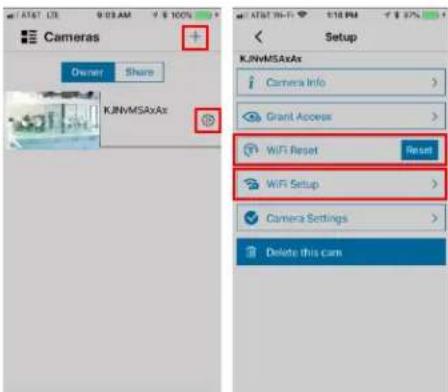
- Click on gear icon located next to camera you would like to reset
- Then click on WiFi Reset and follow prompts to reset camera
Resetting Camera Manually using Button (See Pages 18-22)
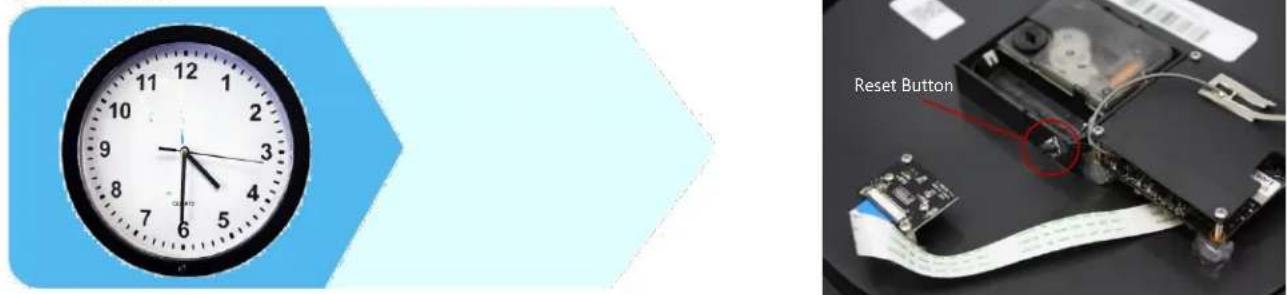
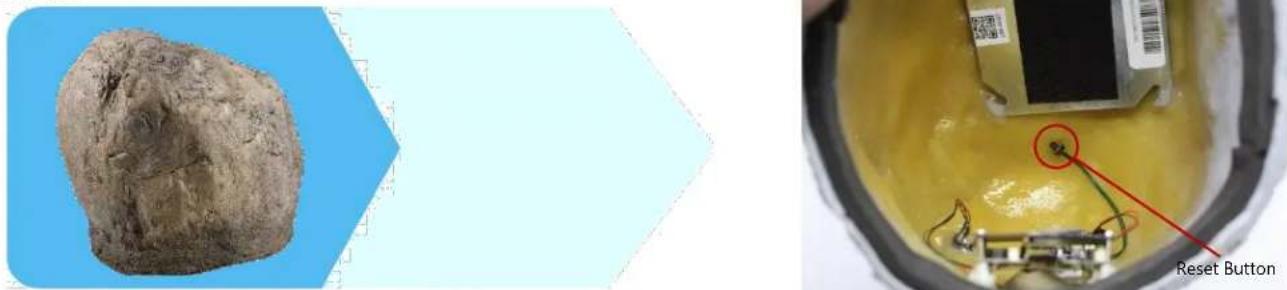
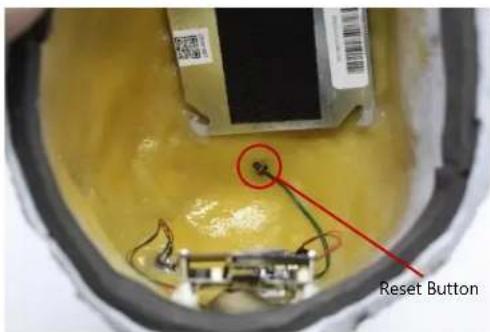
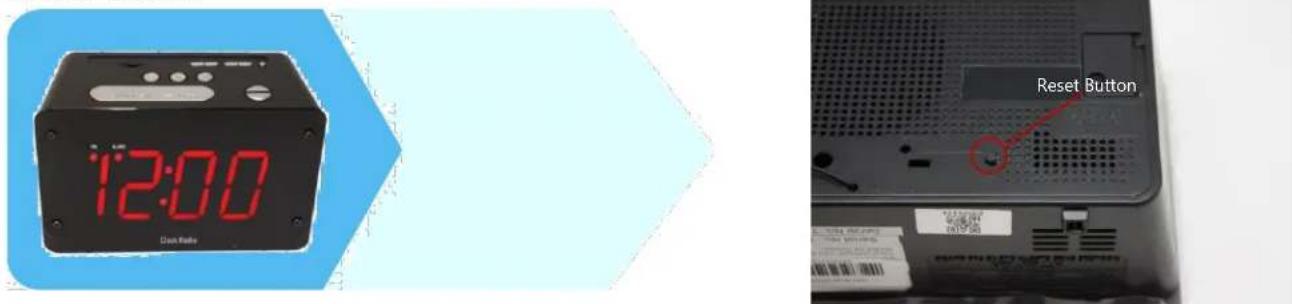
- Locate the reset button on your camera. If you can open your camera to access the inside, the reset button will be located near the board. If you can't open the camera to access the inside, then the reset button will be sticking out of the bottom or back of the unit.
- With the system powered off, press and hold the reset button about 5 seconds. For SG Home® Electric models, you must unplug the system from AC power. For SG Home® Battery models, you may either turn the battery switch off, or simply disconnect the battery from the power jack. You may need to use a pin or small paperclip to press the reset button on some models.
- Open the SG Home® App. If the Camera system is not in your list already, then follow the Quick Guide Steps to add the camera back into the App. If the camera system is already in your list, then go to the Settings (Gear Icon)→WiFi Setup and follow the on-screen directions.
PIR Placement Chart
Space Guidelines for PIR Placement
| Operation Temperature | 0°C ~ 50°C (32°F ~ 122°F) |
| Video Resolution | 720P [1280x720] |
| Video Format | MPEG4 |
| Video Compression | H.264 |
| Video Recording Schedule | PIR | Motion Detection | Continuous | None |
| Recording Frame Rate | Up to 30 fps |
| WiFi Standard | 802.11b/g/n |
| Antenna Gain | 3 dBi |
| Playback | On Device or Download/Send Recordings to Computer |
| Recording Storage | Cloud |
| Video Storage Mode | Overwrite |
| Field of View | 125° |
| Apple Requirements | iOS 5.1 or higher |
| Android Requirements | Android 2.3 or higher |
| Audio Recording | Optional (Law Enforcement/Export only) |
| Power Supply | 5V D/C |
| Power Consumption (while recording) | Nominal 2.0W |
| Additional Specifications for SG Home® Battery product line only | |
| Battery Life | Up to 90 days on standby / 16 hours continuous |
Frequently Asked Questions
Q. Is there a cost to view unlimited live stream?
A. Unlimited live stream viewing is included in all SG Home® plans.
Q. Is it possible to review a video without subscribing to one of the SG Home plans?
A. You can live view from the SG Home ^® App and you can live record to the local drive in the SG Home ^® App. But you will not receive event notifications, and it will not record on its own or store on the local or Cloud drive unless you do it manually. In order to access the full benefits of your cloud camera, you must select a SG Home ^® Cloud Recording Plan.
Q. How do I select a plan?
A. Go to our subscriptions page and select the plan with the features you would like and place your order.www.sghomecloud.com/subscriptions
Q. How many cameras am I permitted to have for each account?
A. For each account, you can have a maximum of 4 cameras. However, you can have an unlimited number of accounts each one must have a unique email address.
Q. How many plan(s) am I required to have?
A. It depends on the number of cameras you wish to have. For example, if you want a total of 12 cameras, then you will be required to sign up for 3 separate plans (one plan for every 4 cameras).
Q. What happens when I change my subscription?
A. If you upgrade your plan, your subscription will take effect immediately and a prorated invoice will be sent to you for the remainder of the month. If you are downgrading your plan, your subscription will take effect at the beginning of the next billing period. Any adjustments to your subscriptions may be made at any time; however the renewal date will remain the same as the initial subscription.
Q. How do I change the email address on my account?
A. You have to use the same email address you signed up with; you cannot change it on the account. You would have to delete all of your cameras off the account, delete your account and start again. This will remove any cloud recordings, any discounts or prorated subscriptions. You will have to start the subscription process over and you must register with a valid email address.
Q. What happens if I close my account, my subscription lapses or I delete a camera off my account?
A. If you delete your camera or close your account, all of your data will be lost. Download all recordings before deleting your account or camera.
Q. What happens when I cancel my account?
A. When you cancel your subscription to a plan, all your video recordings will be permanently deleted and you will not be able to recover them. If there is unused time on your subscription it will be not be refunded.
Q. How do I remove a Camera from my account?
A. Choose which camera you wish to remove, click on the camera settings (gear icon) choose delete camera.
Q. What are Recordings?
A. Recordings are clips. Each clip is a 30 second Video File, unless you are in your trail period, clips are only 15 seconds.
Q. How long are my recordings?
A. If you choose the free trail 500 Recording Subscription during your free trail you will have 15 second clips for 30 days. Once the free trial ends the standard 500 recording plan will have 30 second recordings. If you choose a Full Subscription Plan for 1000 or 5000 Recordings, during your first month you will have a prorated amount but have full access to 30 second recordings.
Q. Is it possible for SG Home® to view my video recordings?
A. No. SG Home does not have access to your videos or live stream. The only individuals who can view your videos or live stream are those people that have the app and you have entrusted your credentials to.
Q. Where is the SG Home® Cloud Hosted?
A. SG Home Cloud is hosted on the AWS Amazon Web Services Cloud.
Q. How often do my recordings refresh?
A. Your recordings refresh every 7 days or when you meet the max recordings on your account whichever comes first. Recordings will begin to record overwrite your existing video files stored on the cloud. Be sure to download any files you desire before the overwriting process begins. Example: My camera has stored 100 clips from May 11^th to May 17^th , my oldest clip would be deleted on May 17^th . OR My camera has stored 500 recordings from May 11^th to May 13^th , my oldest clip would be deleted when the 501 recording needs to be stored.
Q. How long are video recordings saved in the cloud?
A. It will depend upon the plan that you have selected. SG Home® currently offers plans with up to 500, 1000 and 5000 recordings over the prior 7 day period. All the video recordings from all devices in your account for the prior 7 days will be available in the cloud unless the number of recordings within the prior 7 days exceeds the number of recordings for your plan then only the maximum number of recordings will be available in the cloud. For example, if you have selected a 1000 recordings plan and in the prior 7 days all your devices recorded only 900 videos, all 900 recordings will be available. However if your devices recorded more than 1000 video recordings within the prior 7 days only the most recent 1000 videos recorded will be available in the cloud, therefore you potentially will not have 7 days video recordings history. NOT WITHSTANDING THE STORAGE LIMITATION ON THE CLOUD, YOU ARE ALWAYS FREE TO DOWNLOAD ANY AND ALL VIDEO RECORDINGS TO YOUR PHONE OR OTHER DEVICE FOR STORAGE.
Q. How do I save the video to my device?
A. To download your recordings just touch the download button next to the recording you wish to save. The recording will save to your camera roll or photo gallery. From there you can email the file or download to your computer from your device. Please note: If you don't have enough memory on your device, you need to make room or send yourself the recordings.
Q. How can I view the recording on my Computer?
A. You can send a recording to yourself or download to your computer via the device.
Q. Am I able to sell my SG Home® cameras?
A. SG Home will not take any action to preclude you from selling your SG Home ^® cameras. However, if you decide to sell your camera, you must cancel your subscription which will delete all your recorded videos immediately. The purchaser of your SG Home ^® camera will then need to set up his/her own subscription with an SG Home ^® plan.
Q. Why did I get the green checkmark but my camera isn't online?
A: If you type in the wrong WiFi Password, you can still get the green check mark because the App cannot verify your password. Your device will not be connected to the network and will not be online. You will have to do a hard reset on the device so you can see the camera ID in your WiFi Settings. To find the reset button look for your device under the Product Line in the back of your manual. You will have to reset up your camera by following Steps 2-5.
Q. Do I have to do anything with my SG Home® cameras if I change my WiFi password or router?
A. Yes. You will need to reconnect the camera to the new WiFi (the same way you initially setup the camera).
Q. How do I change the time on the camera?
A. Simply select the desired camera and then click the gear icon to get into the settings, then click camera settings and then time zone.
Q. How are the SG Home® cameras impacted by a power outage?
A. In the event of a power outage the camera will turn off and no recordings will be made until the power is restored. Once the power is restored the camera will reconnect itself to the WiFi automatically. No further setup required.
Q. Why do I have a PIR?
A. The battery operated hidden camera systems were designed to be a long life battery-operated hidden video camera and CVR. To accomplish extended battery life, your camera uses a technology known as PIR (Passive Infrared). You'll find the PIR sensor located next to or near your camera. The PIR sensor regulates the power to the internal video recording components and is the triggering system that initiates recording. When there is no activity in range of the PIR sensor, the camera and the CVR will be powered down. When the sensor is triggered, it will send a signal to turn on the camera and begin recording almost instantly. The less activity the longer the camera will maintain battery life. Live viewing & downloading recordings are available any time, the battery will last up to 8 hours in this mode. Remember, live viewing uses up battery life.
Q. How do I receive fewer notifications?
A. Select the desired camera and then click the gear icon to get into the settings, then click notifications.
Q. How do I stop my SG Home ^® camera from recording?
A. It's simple. Select the desired camera that you want to stop the recordings on, click the gear icon to get into the settings, click on camera settings and then on the PIR motion settings and turn it off.
Q. If I turn off notifications, am I still able to record?
A. Yes. The camera recording function will work regardless of the notification settings.
For units that have Night Vision (IRs); not all units come with this option, please check your receipt:
Q. Why are my Night Vision images not that bright?
A. Covert placement of the camera and IR sensor affect image quality in each individual product form. Move the unit to different locations to test the video quality. You will experience pixilation with any night vision camera. SleuthGear ^® strives to maintain a balance between creating a reliable hidden camera and recording in extreme low light conditions.
While SleuthGear® makes a concerted effort to test Night Vision products in different low-light situations; we cannot replicate every possible lighting environment at a customer's location.
Product Line | Reset Button
Wall Clock
Smoke Detector
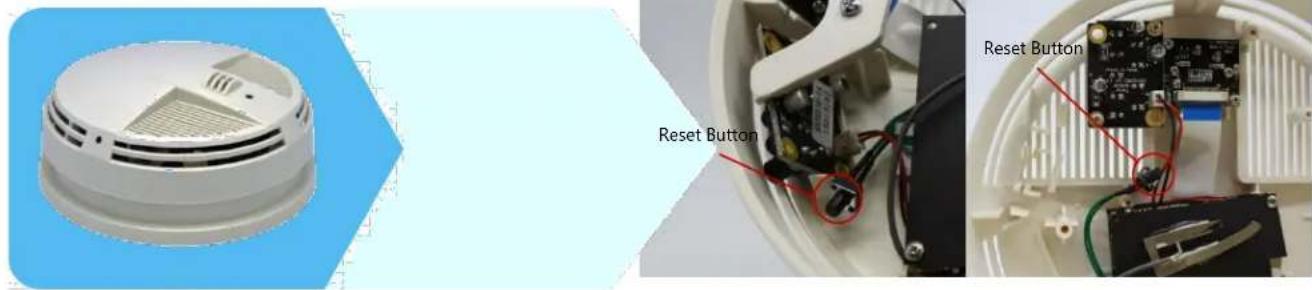
Side View
Bottom View
Rock
Clock Radio
Bluetooth Speaker

natural_image
Black semi-circular object on a blue background, no text or symbols visible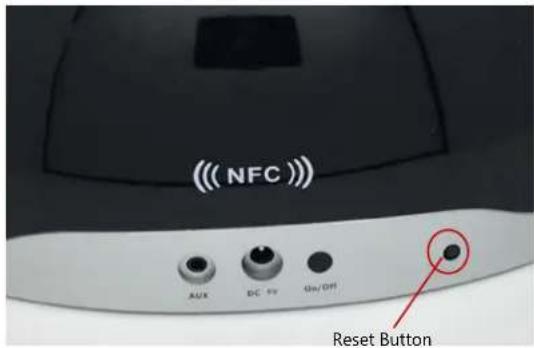
Electrical Box

natural_image
White electrical switch device with warning symbol and circular button, set against a blue background (no text or labels)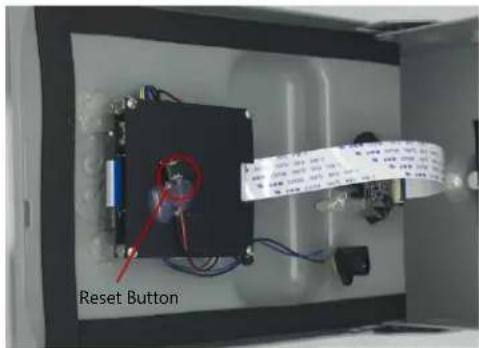
Cable Box
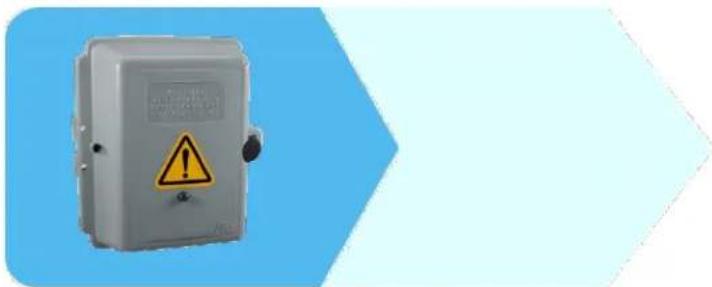
natural_image
Exterior view of a gray electrical control box with warning symbol and warning label (no text or symbols on device)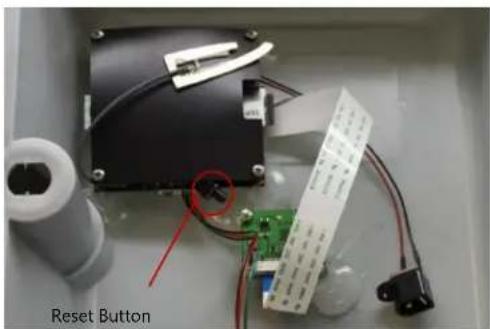
natural_image
Interior view of an electronic device with a reset button, circuit board, and wiring (no readable text or symbols)Outdoor Power Strip
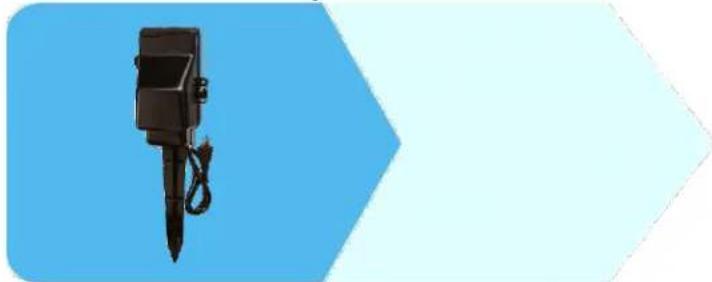
natural_image
Black handheld device with cable and probe against a blue background, next to a light blue arrow shape (no text or symbols)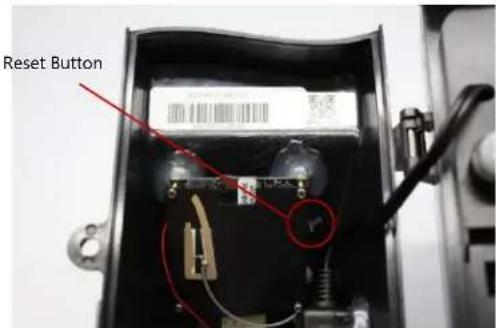
Air Freshener

natural_image
Illustration of a ceramic vase with olive branch and leaf motif, set against blue and light blue background (no text or symbols)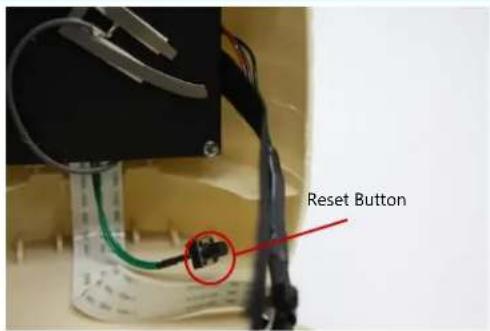
Plant

natural_image
Potted green leafy plant with white flowers against a blue background (no text or symbols)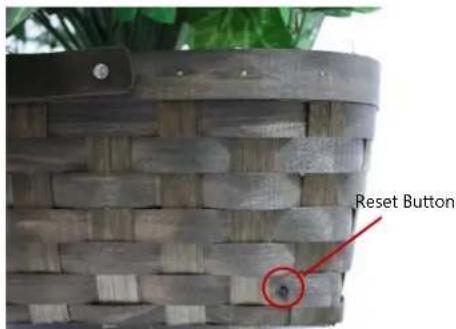
Teddy Bear

natural_image
Illustration of a teddy bear toy sitting on a blue background (no text or symbols)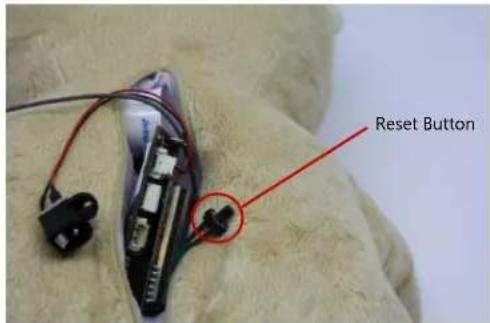
Mantel Clock

natural_image
Decorative analog clock with a wooden frame against a blue background (no visible text or symbols)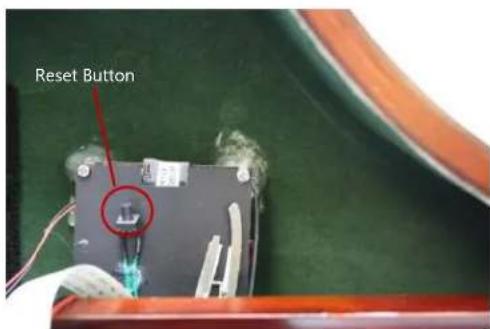
DVD Player
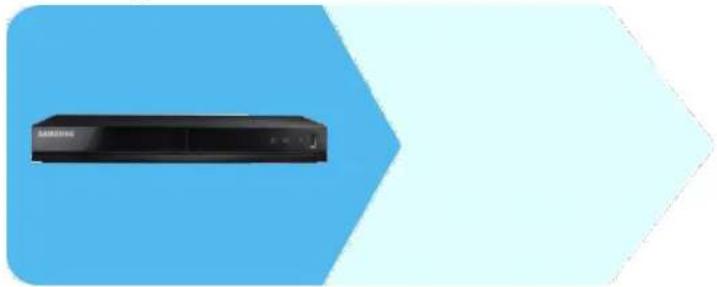
natural_image
Exterior view of a Samsung audio device on a blue background (no text or symbols visible)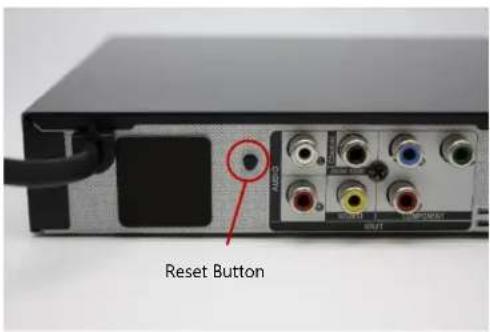
Bird Feeder

natural_image
Simple 3D model of a wooden house with green roof and green base, set against a blue background (no text or symbols)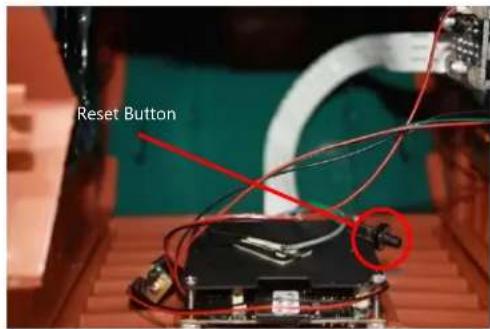
Oscillating Fan
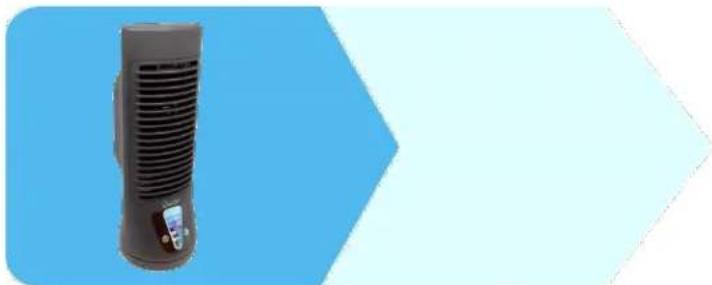
natural_image
Exterior view of a gray industrial air conditioner unit against a blue background (no text or symbols visible)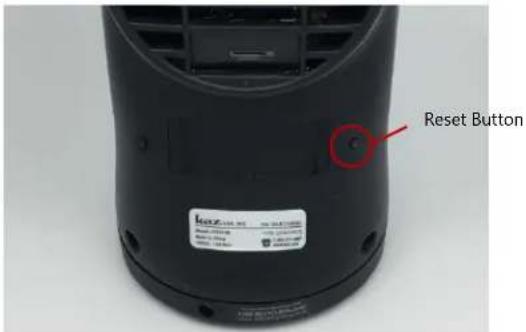
Air Purifier
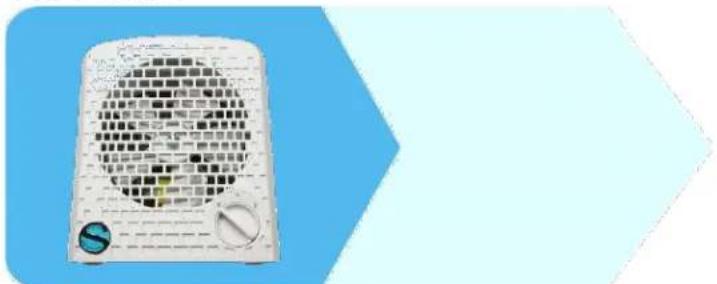
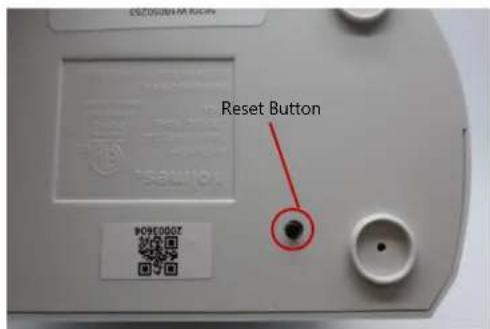
Rectangle Clock

natural_image
Illustration of a wooden analog clock with engraved numerals, set against a blue background (no text or symbols on the clock face)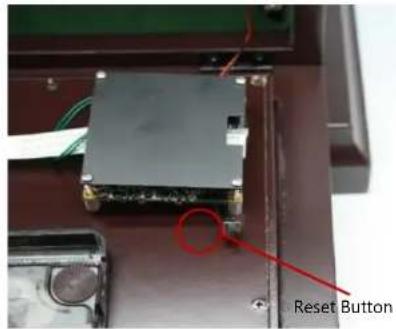
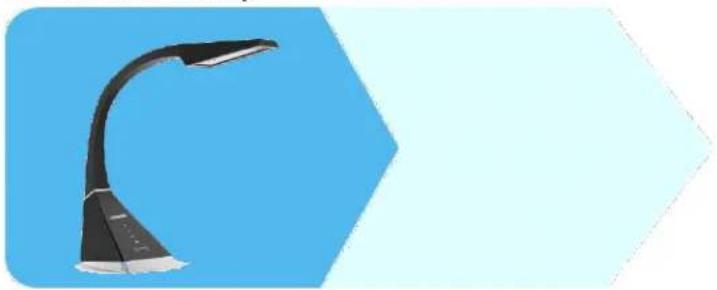
LED Desk Lamp
natural_image
Modern desk lamp with adjustable arm against a solid blue background, no text or symbols visible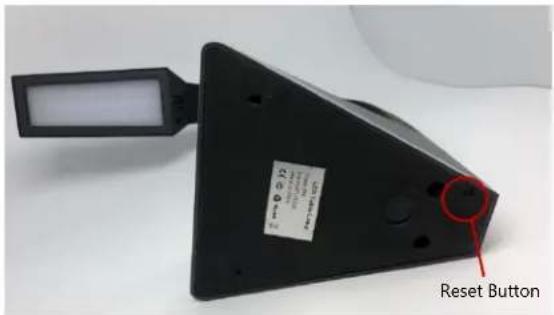
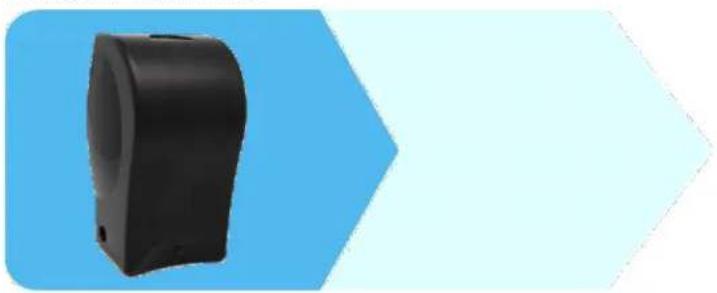
Room Freshener
natural_image
Black cylindrical object with a small hole on a blue background, no text or symbols visible.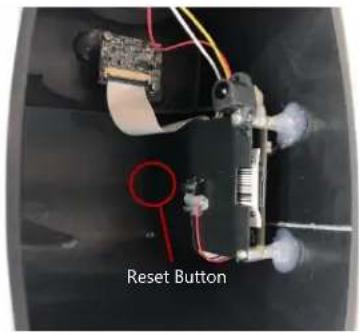
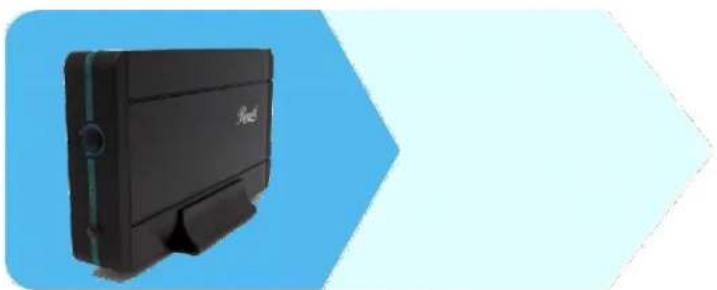
Hard Drive Enclosure
natural_image
Black rectangular device with a logo on its side, placed against a blue background (no visible text or symbols)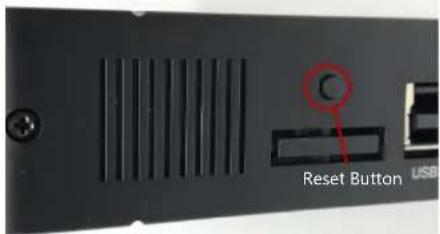
Warnings & Precautions

Do not open/modify the device, as it may cause damage to the unit and void the Warranty. For internal repairs, consult your dealer or an Authorized Service Center.

Do not use any accessories or power supplies other than what comes with the device; otherwise it could void the warranty.

Protect from humidity. Do not put it in water and be careful to protect it from rain, sea water, or high humidity environment. Do not operate the unit near a bath tub, shower, sink, swimming pool, etc.

Protect from high temperatures. To avoid damage or mis-operation of the device, only use in temperature of 0 \~ +40°C(32 \~ 104°F).

Do not bring the device suddenly from a hot to a cold place, or vice versa. This may cause damage to the inside of the unit by creating condensation.
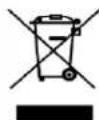
EU Environmental Protection
The symbol of crossed-out garbage shows that this product should not be treated as household waste, as it falls into the category of electric/electronic equipment for recycling. This electronic device should not be disposed of in regular trash. We strongly advise you to contact your local authority for proper disposal of this product.
Battery Pack Information | Battery Models
The battery pack is to be charged with the provided USB cable inserted into either a USB port on a computer, or an A/C adapter (not included) with a USB connection similar to most modern smart phone chargers. While both methods are sufficient, the A/C adapter method will charge the battery more quickly. You can purchase additional battery packs using the part# A1028 through the retail company you purchased your camera(s) from. If they do not have the part# listed on their website, you can call or email them and ask for an A1028 battery.
Traveling with Batteries
Batteries and battery-powered devices are safe to travel with if you follow these simple guidelines from the U.S. Department of Transportation:
- If possible, keep spare batteries in the original retail packaging, to prevent unintentional activation or short-circuiting.
- If an on/off switch is present, be sure the switch is in the OFF POSITION. DO NOT TRANSPORT BATTERY WHILE ACTIVATED.
- For loose batteries, place a strip of insulated tape across the battery's contacts or place each battery in its own protective case, plastic bag or package to protect them from contact with metal objects, such as coins, keys or jewelry. CONTACT WITH METAL OBJECTS CAN SHORT-CIRCUIT THE BATTERY LEADING TO HIGH HEAT, LEAKAGE OR RUPTURE, RESULTING IN PERSONAL INJURY OR PROPERTY DAMAGE.
• Take steps to prevent crushing, puncturing or putting a high degree of pressure on the battery, as this can cause an internal short-circuit, resulting in overheating. - DON'T store batteries or battery-powered devices in hot places — elevated temperatures can lead to capacity loss, leakage or rupture.
- DON'T mix old and new batteries, or mix different types or makes of batteries. This can cause leakage or rupture, resulting in personal injury or property damage.
• DON'T give batteries to young children.
Per the U.S. Department of Transportation, "batteries pose little risk contained in the devices they power and that taking the battery out of the device does not enhance safety."
For the latest in battery and battery-powered device transportation, please visit http://safetravel.dot.gov/.
For additional information contact: support@kjbsecurity.com, 615.620.1370 or 1.800.590-4272.
Manufacturer's Limited Warranty
Manufacturer warrants all Covert Video and SleuthGear ^® Hidden Video Products (Product) assembled and sold by Manufacturer to be free of defects in material and workmanship, subject to the following conditions. The duration of Manufacturer's warranty with respect to the Product is limited to one (1) year from the date of sale to the original consumer purchaser only for Products delivered within the fifty (50) states of the United States, District of Columbia, or the possessions and territories of the United States
No other express warranties are made with respect to any Product. All implied warranties, including warranties of merchantability and fitness for a particular purpose are limited to the warranty period set forth above. This warranty is not transferable and applies only to the original consumer purchaser of the Product.
Manufacturer will, as its sole obligation under this warranty, replace or repair, at its option, any Product that does not conform to this warranty. Under no circumstances will the Manufacturer issue credit or give a refund for Product covered by this warranty. Furthermore, under no circumstances will Manufacturer be liable for any Incidental or consequential damages under this warranty or any implied warranties.
What is not covered:
This limited warranty does not cover Products that in Manufacturer's judgment have damage resulting from any (i) deviation from Manufacturer's operating instructions as printed in Manufacturer's catalog or on any packaging, labels or other literature provided with a Product, (ii) installation of a Product in a manner which is inconsistent with Manufacturer's written instructions, (iii) alteration, modification of or tampering with a Product, (iv) misuse, (v) neglect, (vi) abuse, (vii) accident, (viii) power surge, static electricity or other electrical discharge, (ix) normal wear and tear, (x) commercial use, (xi) service by anyone other than a Manufacturer authorized repair facility, or (xii) other improper application, installation or operation of the Product. Or, (xiii) have been purchased from inventory clearance or liquidation sales or other sales in which Manufacturer expressly disclaims its warranty obligation pertaining to the Product.
How you (the Customer) can get service:
To obtain warranty service during the warranty period, you must return the defective Product with the original receipt to the original place of purchase. Contact them for return instructions.
If warranty service is needed at any time during the warranty period, the purchaser will be required to furnish a sales receipt/proof of purchase indicating the date of purchase, amount paid and place of purchase. Customers who fail to provide such proof of purchase will be charged for the repair of any Product.
How state law relates to the warranty:
Some states do not allow limitations on how long implied warranties last, or the exclusion or the limitation of incidental or consequential damages. So the above limitations or exclusions may not apply to you. This warranty gives you specific legal rights. You may also have other rights that may vary from state to state.
NO PERSON IS AUTHORIZED BY MANUFACTURER TO MODIFY OR ADD TO THIS LIMITED WARRANTY.
For warranty information on Products delivered outside the United States please contact the original place of purchase.
DO NOT ATTEMPT TO RETURN PRODCUT TO ORIGINAL MANUFACTURER, AS THIS PRODUCT HAS BEEN MODIFIED AND IS NO LONGER SUBJECT TO ORIGINAL MANUFACTURER'S WARRANTY. IN THE CASE OF A DEFECTIVE PRODUCT, CONTACT PLACE OF PURCHASE FOR RETURN PROCEDURE.
IT IS THE USER'S RESPONSIBILITY TO ENSURE THAT THIS EQUIPMENT IS USED IN ACCORDANCE WITH THE LAW(S) OF THE JURISDICTION IN WHICH THIS EQUIPMENT IS UTILIZED.
THIS PRODUCT MAY BE SUBJECT TO THE JURISDICTION OF THE U.S. WIRE AND COMMUNICATIONS ACT (18 UNITED STATES CODE §§ 2510-2522) (HEREINAFTER REFERRED TO AS "ACT") REGARDING SURREPTITIOUS RECORDING DEVICES. THE USES OF SUCH PRODUCTS ARE REGULATED BY THE ACT. ADDITIONALLY, THE LAWS OF SOME STATES, COUNTIES, CITIES OR LOCALITIES MAY PROHIBIT THE POSSESSION AND/OR USE OF THIS OR SIMILAR PRODUCTS. IT IS THE RESPONSIBILITY OF THE RETAIL BUYER AND/OR FINAL CONSUMER (HEREINAFTER REFERRED AS "BUYER") TO ASCERTAIN, UNDERSTAND, AND OBEY ANY AND ALL APPLICABLE LOCAL, STATE, AND FEDERAL LAWS REGARDING POSSESSION AND USE OF THIS PRODUCT. BY PURCHASING THIS PRODUCT THE BUYER REPRESENTS THAT IT WILL INDEMNIFY THE MANUFACTURER AND/OR DISTRIBUTOR AND HOLD THEM HARMLESS FOR ANY POSSESSION, USE AND/OR MISUSE THAT VIOLATE ANY FEDERAL, STATE OR LOCAL LAW OR REGULATION REGARDING AUDIO AND/OR VIDEO DEVICES. BUYER AGREES TO CONSULT WITH AN ATTORNEY AT LAW REGARDING POSSESSION OR APPROPRIATE USE OF A COVERT DEVICE. NOTE THAT LAWS AND REGULATIONS VARY FROM STATE TO STATE. IF BUYER EXPORTS THIS PRODUCT, THE BUYER WILL COMPLY WITH US EXPORT CONTROL LAWS AND ANY APPLICABLE DEPARTMENT OF COMMERCE, STATE AND TREASURY REGULATIONS GOVERNING EXPORTS AND SALES TO PROHIBITED END USERS. DIVERSION OR RE-EXPORT CONTRARY TO U.S. LAW IS PROHIBITED. BUYER SHALL COMPLY WITH ALL APPLICABLE FEDERAL, STATE, AND LOCAL LAWS AND REGULATIONS GOVERNING THE SALE OF THIS PRODUCT, INCLUDING U.S. EXPORT CONTROL LAWS AND THE U.S. DEPARTMENT OF COMMERCE AND TREASURY REGULATIONS GOVERNING SALES TO PROHIBITED END USERS.
PART 15 LOW POWER: ANY CHANGES OR MODIFICATIONS TO THIS EQUIPMENT WITHOUT THE EXPRESS AUTHORIZATION OF THE MANUFACTURER COULD VOID THE USER'S AUTHORITY TO OPERATE THIS EQUIPMENT (RULE 15.21 OF THE FCC).
THIS EQUIPMENT HAS BEEN TESTED AND HAS BEEN FOUND TO BE IN COMPLIANCE WITH THE LIMITS FOR A CLASS B DIGITAL DEVICE, PURSUANT TO PART 15 OF THE FCC RULES. THESE LIMITS ARE DESIGNED TO PROVIDE REASONABLE PROTECTIONS AGAINST HARMFUL INTERFERENCE IN A RESIDENTIAL INSTALLATION. THIS EQUIPMENT USES, GENERATES AND CAN RADIATE RADIO FREQUENCY ENERGY AND IF NOT INSTALLED AND USED IN ACCORDANCE WITH INSTRUCTIONS, MAY CAUSE HARMFUL INTERFERENCE TO RADIO COMMUNICATIONS.

- SG Home® Electric & Battery CVRs Introduction
- Includes
- More Resources:
- Quick Setup Guide
- SG Home® Subscription Plans
- Subscribe to SG Home Cloud for Affordable Peace of Mind: www.sghomecloud.com/subscriptions
- Features
- Setup
- SG Home® App Installation
- SG Home® App Sign Up
- Adding your Camera to your Device
- Live View
- Snapshot
- Mic
- Video Recording
- Camera Setup
- Camera Info
- WiFi Reset
- WiFi Setup
- Camera Settings
- Delete this Camera
- Alerts/Notifications
- SG Home Menu
- Cameras
- Clips
- Profile
- Info
- Logout
- Resetting Camera
- PIR Placement Chart
- Frequently Asked Questions
- Is there a cost to view unlimited live stream?
- Is it possible to review a video without subscribing to one of the SG Home plans?
- How do I select a plan?
- How many cameras am I permitted to have for each account?
- How many plan(s) am I required to have?
- What happens when I change my subscription?
- How do I change the email address on my account?
- What happens if I close my account, my subscription lapses or I delete a camera off my account?
- What happens when I cancel my account?
- How do I remove a Camera from my account?
- What are Recordings?
- How long are my recordings?
- Is it possible for SG Home® to view my video recordings?
- Where is the SG Home® Cloud Hosted?
- How often do my recordings refresh?
- How long are video recordings saved in the cloud?
- How do I save the video to my device?
- How can I view the recording on my Computer?
- Am I able to sell my SG Home® cameras?
- Why did I get the green checkmark but my camera isn't online?
- Do I have to do anything with my SG Home® cameras if I change my WiFi password or router?
- How do I change the time on the camera?
- How are the SG Home® cameras impacted by a power outage?
- Why do I have a PIR?
- How do I receive fewer notifications?
- How do I stop my SG Home ® camera from recording?
- If I turn off notifications, am I still able to record?
- Why are my Night Vision images not that bright?
- Product Line | Reset Button
- Warnings & Precautions
- EU Environmental Protection
- Battery Pack Information | Battery Models
- Traveling with Batteries
- Manufacturer's Limited Warranty
- What is not covered:
- How you (the Customer) can get service:
- How state law relates to the warranty:
Brand : KJB Security Products
Model : SG Home CVR
Category : Security Camera