DVR508 - Surveillance Camera KJB Security Products - Free user manual and instructions
Find the device manual for free DVR508 KJB Security Products in PDF.


| Product Type | DVR Security System |
| Brand | KJB Security Products |
| Model | DVR508 |
| Video Input Channels | 8 Channels (expandable up to 16) |
| Recording Resolution | 1080p (1920x1080) at 30fps |
| Compression Format | H.264 |
| Internal Storage | 1TB Hard Disk Drive (expandable up to 6TB) |
| Remote Access | Via mobile app (iOS/Android) and web browser |
| Motion Detection | Yes, with customizable zones and alerts |
| Network Interface | 1x RJ-45 10/100 Base-T Ethernet port |
| Power Supply | DC 12V / 2A adapter included |
| Dimensions (HxWxD) | 1.75 x 12.5 x 9.0 inches (rackmount) |
| Weight | 5.5 lbs (approx.) |
| Operating Temperature | 14°F to 122°F (-10°C to 50°C) |
| Compatible Cameras | Analog HD cameras (AHD, TVI, CVI, CVBS) |
| Key Functions | Live view, playback, backup via USB, network recording |
| Maintenance | Clean vents with dry cloth; avoid liquids |
| Safety | Surge protection; use only supplied power adapter |
| Spare Parts | Replacement adapters, remote controls available |
| Repairability | Modular design; hard drive and fan replaceable |
Frequently Asked Questions - DVR508 KJB Security Products
User questions about DVR508 KJB Security Products
0 question about this device. Answer the ones you know or ask your own.
Ask a new question about this device
Download the instructions for your Surveillance Camera in PDF format for free! Find your manual DVR508 - KJB Security Products and take your electronic device back in hand. On this page are published all the documents necessary for the use of your device. DVR508 by KJB Security Products.
USER MANUAL DVR508 KJB Security Products
DVR Controls & Accessories
I. DVR
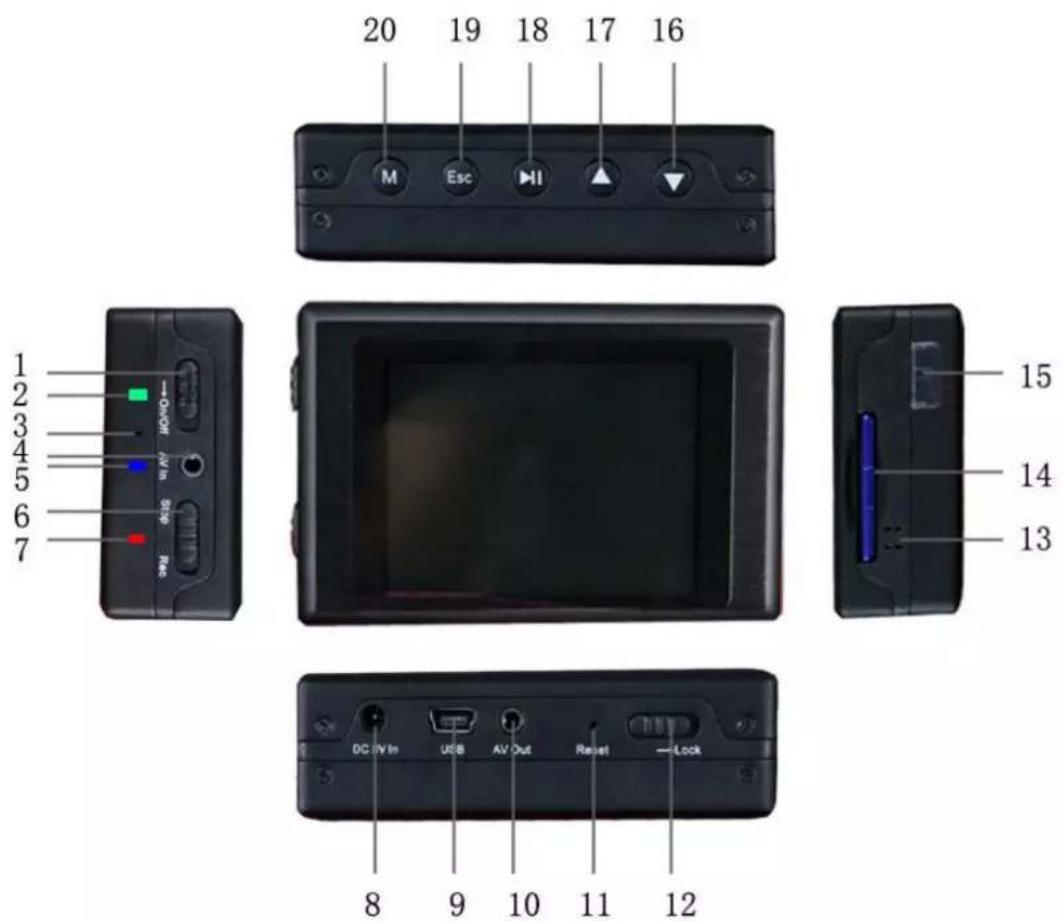
| 1 | Power On/Off | 6 | Stop/Record | 11 | Reset Button | 16 | Down |
| 2 | Charge LED | 7 | Power/Record LED | 12 | Button Lockout | 17 | Up |
| 3 | Internal Mic | 8 | Power Supply Input | 13 | Internal Speaker | 18 | Play/Pause/Enter |
| 4 | Audio/Video Input | 9 | USB Port | 14 | Memory Card Slot | 19 | Exit/Back |
| 5 | Low Power LED | 10 | Audio/Video Output | 15 | Remote Sensor | 20 | Menu |
II. Remote Control
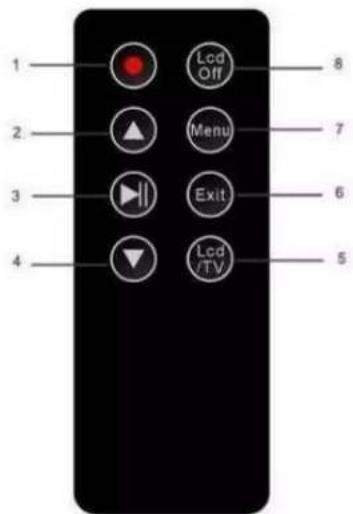
| 1 | Record/Stop |
| 2 | Up |
| 3 | Play/Pause/Enter |
| 4 | Down |
| 5 | Output Selection |
| 6 | Exit/Back |
| 7 | Menu |
| 8 | LCD Off |
III. Accessories
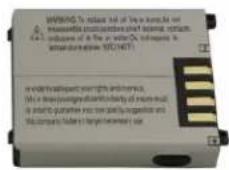
Battery
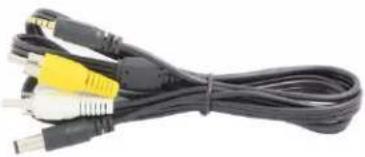
natural_image
Coiled black cable with multiple connectors and a yellow connector (no text or symbols visible)Video & 5V DC Cable
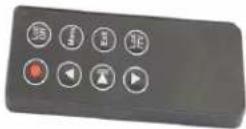
Remote Control
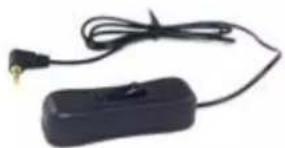
natural_image
Black handheld electronic device with cable and connector (no visible text or symbols)Wired Remote
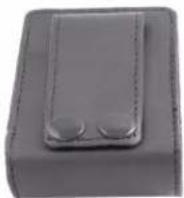
Carrying Case
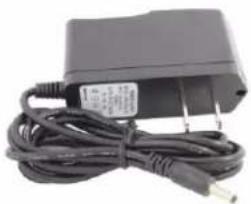
natural_image
Black electronic device with attached cable and power plug (no visible text or symbols)Power Supply
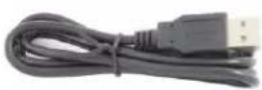
USB Cable
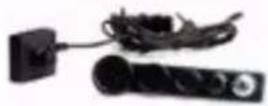
Button Camera
Basic Operation
I. Connecting a Video Source
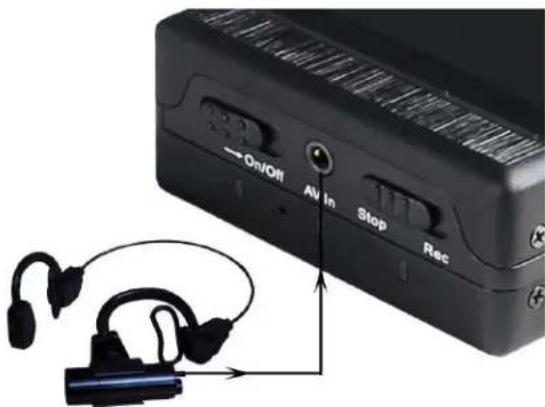
- Use the included Button Camera: Plug the camera's pin connector into the AV In
- Use the included Video Cable: Plug the cable's pin connector into the AV In. Connect the cable to another camera or video source using the RCA connections(yellow for video). The cable can also supply 5VDC(400ma MAX) of power to a compatible type camera.
II. Turning the DVR On & Off
• To turn the device on, slide the On/Off switch
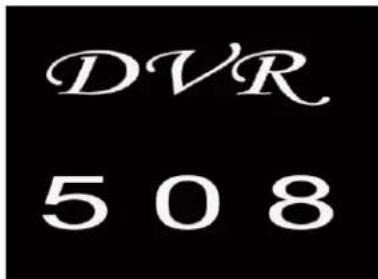
LED will power on and the screen will display the DVR508 splash screen(pictured below), at which point the switch may be released.
- To turn the device off, slide the On/Off switch forward and hold it in that position. The DVR508 splash screen will appear before the screen turns off, at which point the switch may be released. Once completely powered down, the red LED will also turn off.
III. On Screen Display(OSD)
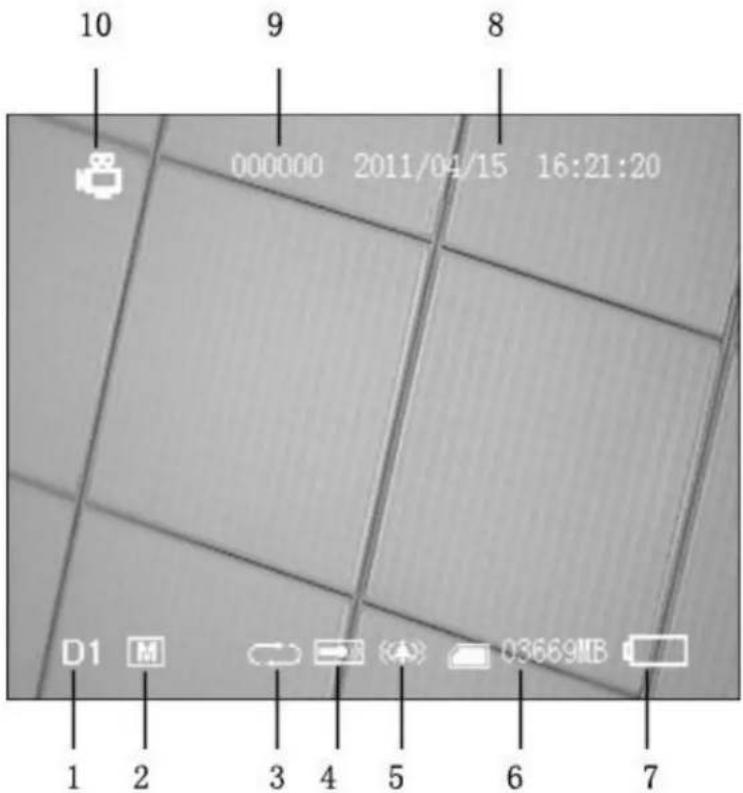
| 1 | Resolution | 4 | Int/Ext Mic Selection | 7 | Battery Capacity | 10 | Recording Mode |
| 2 | Quality | 5 | Vibration On/Off | 8 | Date & Time Stamp | - | - |
| 3 | Overwrite On/Off | 6 | Memory Capacity | 9 | Device Name | - | - |
Note: The OSD may be toggled On/Off using either the Esc key on the DVR body or the Exit key on the wireless remote.
IV. Assigning a Device Name
- Using Notepad or a similar program, create a text file on the memory card and name it PSDVR001.
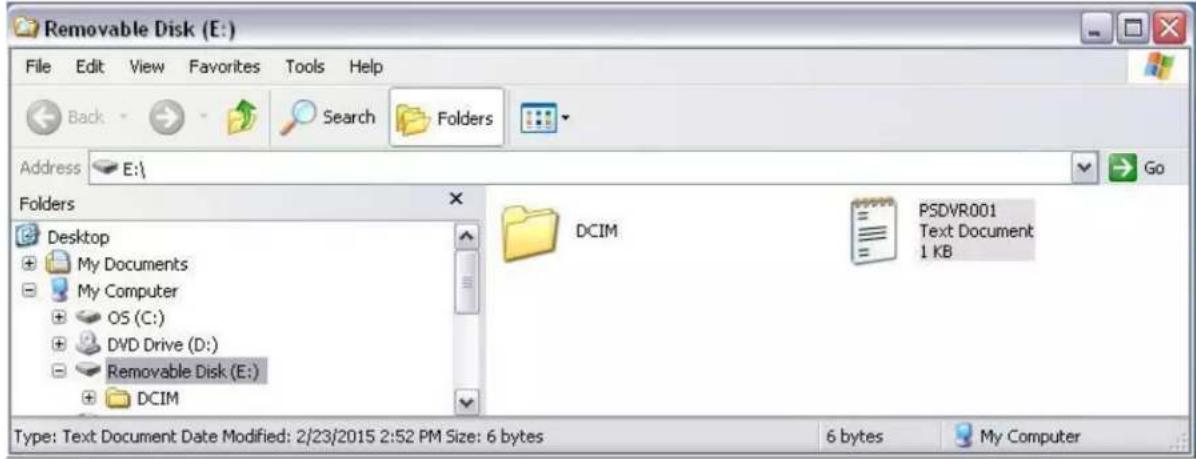
- Type the desired name in the text file. The Device Name may be up to 6 characters in length.
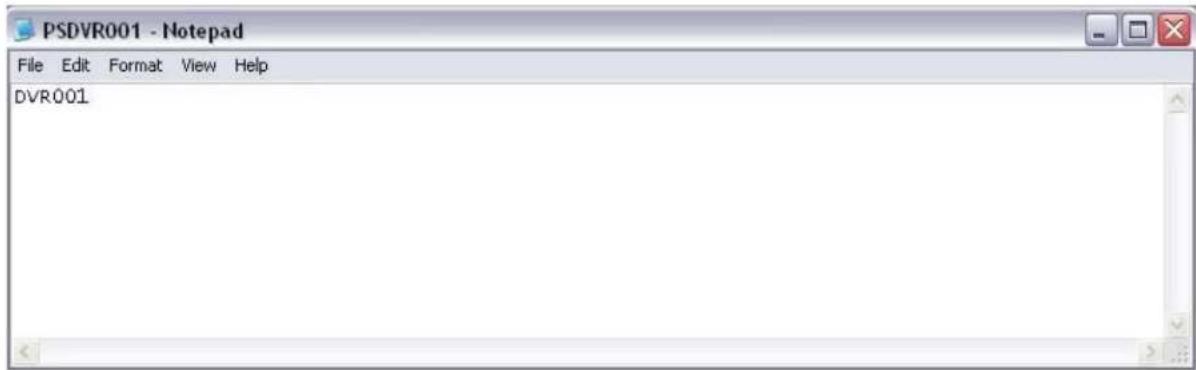
- Place the memory card in the device and power it on. The device name will automatically be updated.
- The device name will only show on the OSD when Timestamp is turned On in the Recorder Setting menu.
V. Menu Access
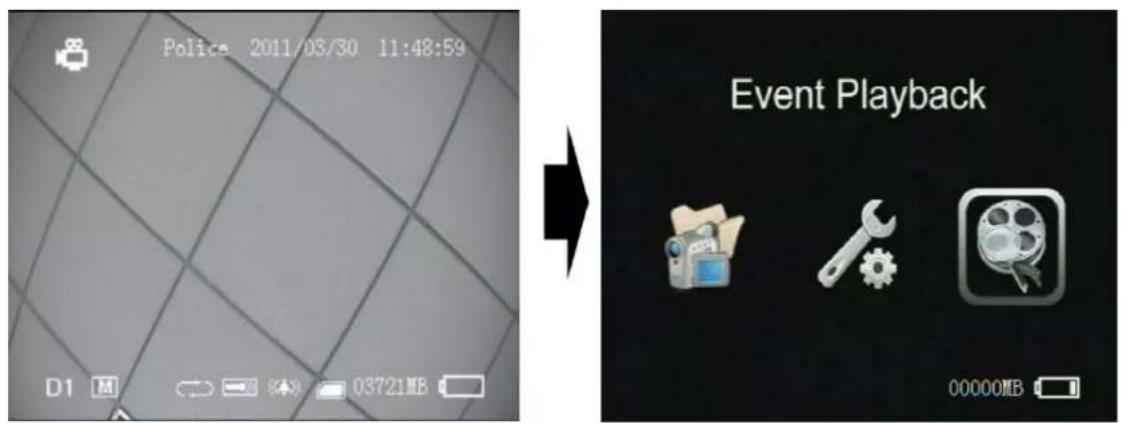
To access the device menus, press the Menu button 📂. There are three sub-menus: Recorder Setting, System Setting & Event Playback. See Device Menu & Settings section for a breakdown of each.
VI. Recording Modes
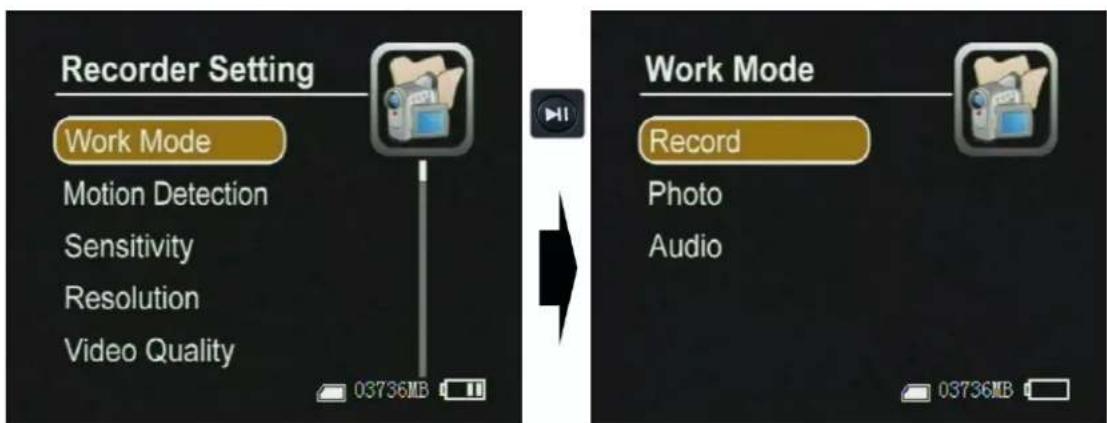
There are three recording modes on this device. To switch modes, access them under Work Mode in the Recorder Setting menu.
- Record - Video recording mode. Recordings will be saved as AVI files in the “Record Files” folder.
- Photo - Still picture mode. Photos will be saved as JPG files in the "Photo Files" folder.
- Audio - Audio only recording mode. Recordings will be saved as WAV files in the “Audio Files” folder.
VII. Make a Recording
In any of the three recording modes, a recording can be made in one of three ways once a memory card has been inserted and AV input device attached for video or photos:
- With the device powered on, slide the Stop/Record switch or take a photo. To stop the recording or prepare to take an position. Repeat the process for additional recordings or p
from Stop to Rec to begin recording - To have a recording started or photo taken immediately upon turning the device on using the Power On/off switch, slide the Record/Stop button from Stop to Rec while the unit is off. Once fully booted, the device will be recording or take a photo. To stop the recording or prepare to take another photo, return the switch to the Stop position. Refer to #1 above for additional recordings while powered on.
- With the device turned off, plug the wired remote into the AV Out AV Out, making sure the switch is up on the same side as the cable. To turn the device on and start a recording or take a photo, press the switch down in the direction of the cable. To stop the recording or prepare to take another photo and turn the device off, press the switch down in the opposite direction away from the cable.

Note: If recording in Video mode and Motion Detection is turned on in the menu, a recording will not start until motion is detected by the camera.
VIII. Motion Detection
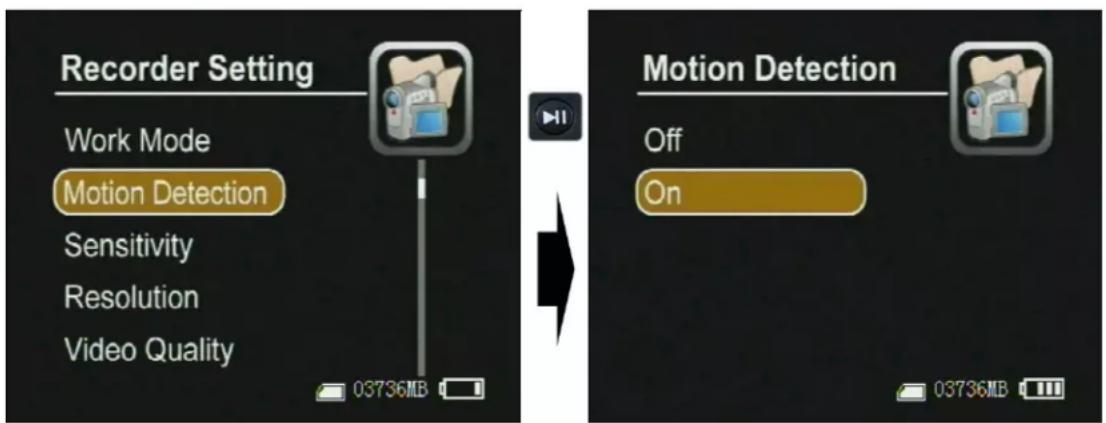
- When Motion Detection is turned On in the Recorder Setting menu, the DVR will automatically record or take a photo when motion is detected while using a camera.
○ Video Mode – The Stop/Record switch must be moved to Rec for motion detection to begin. To stop motion detection, return the switch to Stop.
○ Photo Mode – A photo will be taken once motion is detected, regardless of which position the Stop/Record switch is in.
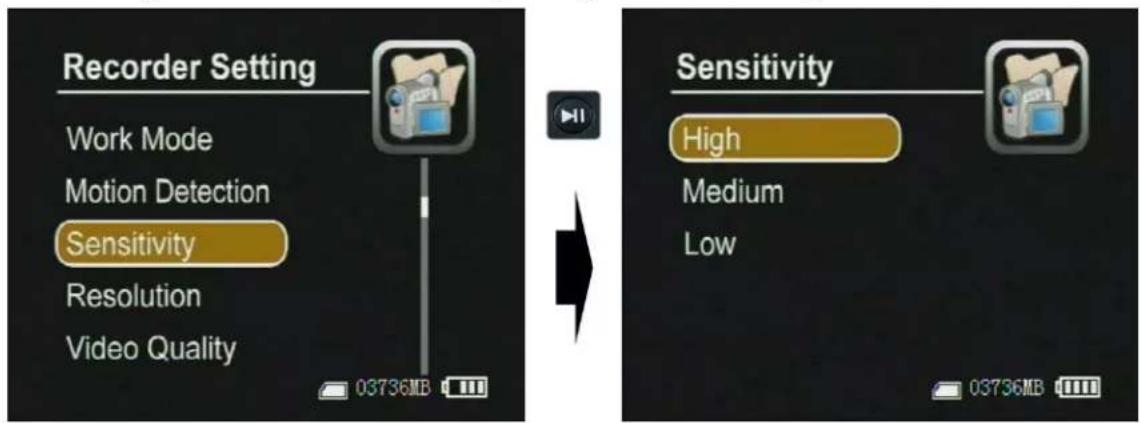
- The Sensitivity of the motion detection may be adjusted between High, Medium and Low.
File Access, Playback & Management
I. File Access on the Device
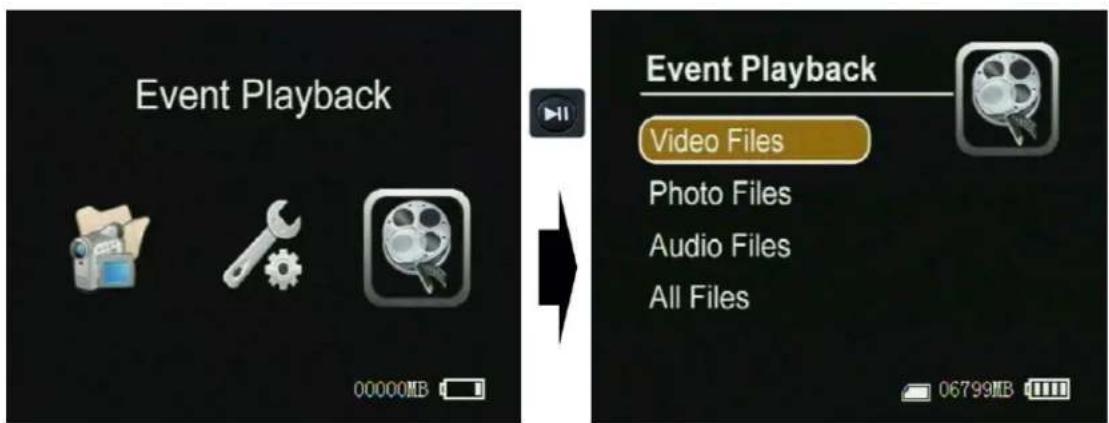
- Files may be accessed through the Event Playback menu, where they are sorted by recording type.
- Access the Event Playback menu by pressing the Menu Button and navigating to it.
II. Playback on the Device
i. Video Playback
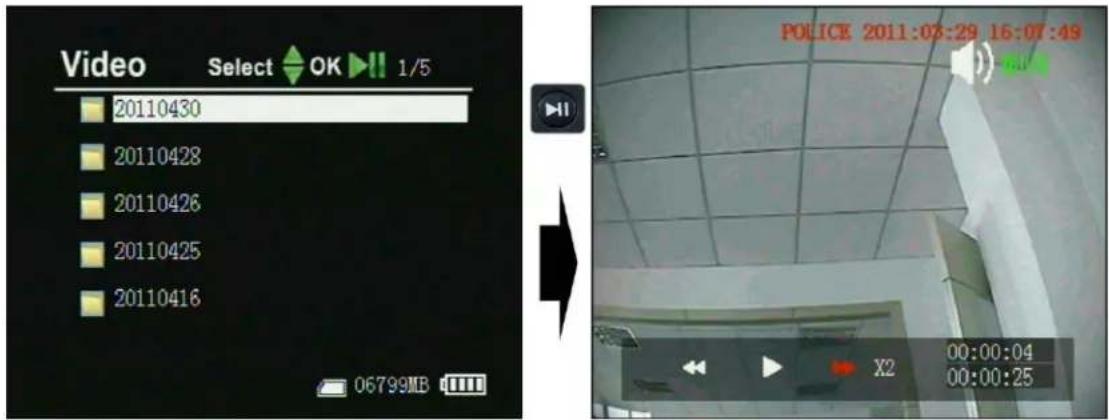
- Files are stored in folders by date. Navigate to and select the desired folder to view the recorded video files.
- Once the desired file is selected, press the Play button to start playback.
- To adjust the volume of the internal speaker, repeatedly press either the Up or Down button to reach the desired level.
- To fast forward or reverse, press and hold either the Up ▲ or Down ▼ button for approximately 2 seconds. Playback can be done at speeds of 2x, 4x, 8x or 20x in either direction. To increase the speed of the fast forward or reverse to the next level, repeat the process.
ii. Browse Photos
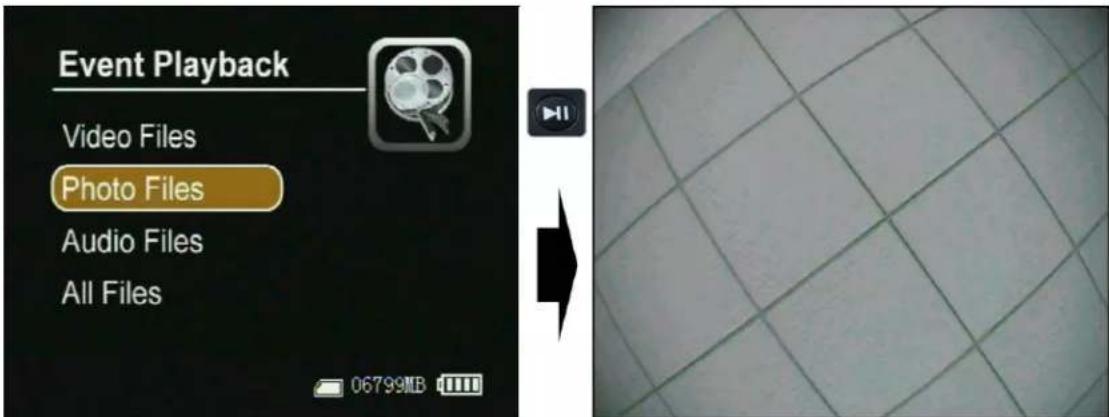
- Files are stored in folders by date. Navigate to and select the desired folder to view the photos files.
- Once the desired file is selected, press the Play button 📋 to view the photo.
- To browse through other photos while viewing, repeatedly press either the Up or Down button to navigate through all photos in the current folder.
iii. Audio Playback
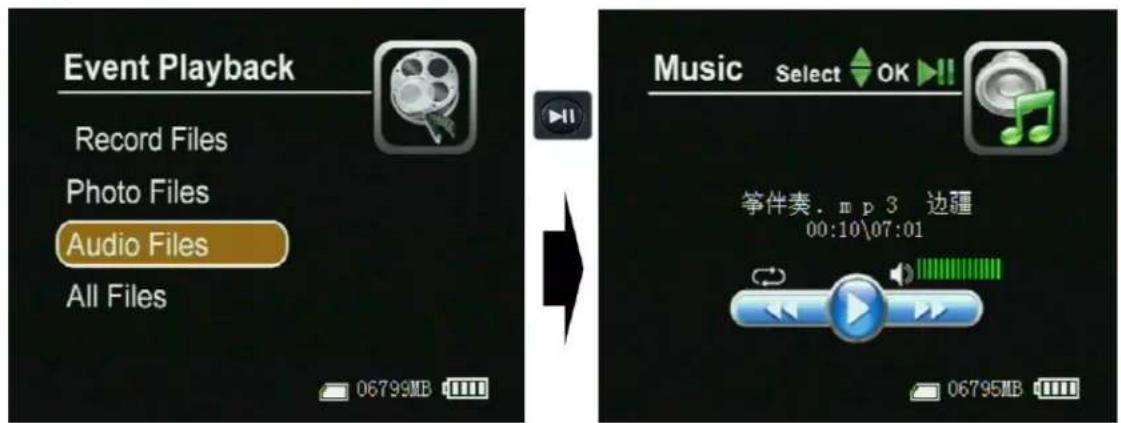
- Files are stored in folders by date. Navigate to and select the desired folder to play the audio files.
- Once the desired file is selected, press the Play button to start playback.
III. Managing the Files
i. Deleting Files on the Device
-
Select the folder or file to be deleted
-
Press the Menu button

- Enter and confirm the password(default is 000000) by pressing the Enter button

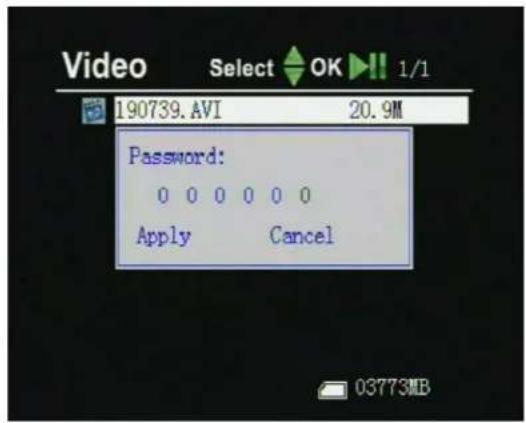
- To delete the selected folder or file, select Current. To delete the selected folder or all files in the same folder as the selected file, select All.
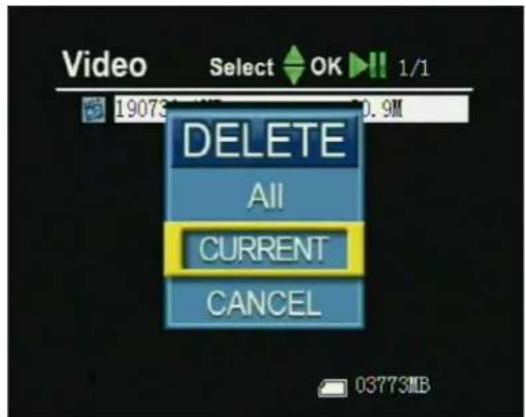
- To confirm your selection and delete the folder or file(s), select Yes. To go back to change your selection or to cancel the process, select No.
ii. File Access & Managing on the Device from a Computer
- With the device off or powered on, Connect the device to a computer using the included USB cable.
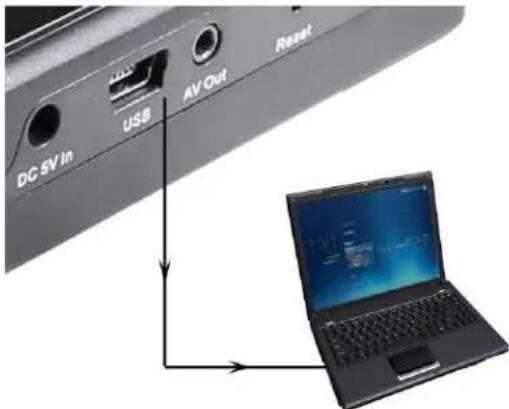
-
If the device is off, power it on. Once recognized by the computer, the device will ask for a password before finalizing the connection.
-
Enter and confirm the password(default is 000000) by pressing the Enter button

- The device will be shown as a removable disk in the computer's file browser. The Video, Photo and Audio folders are contained within the DCIM folder.
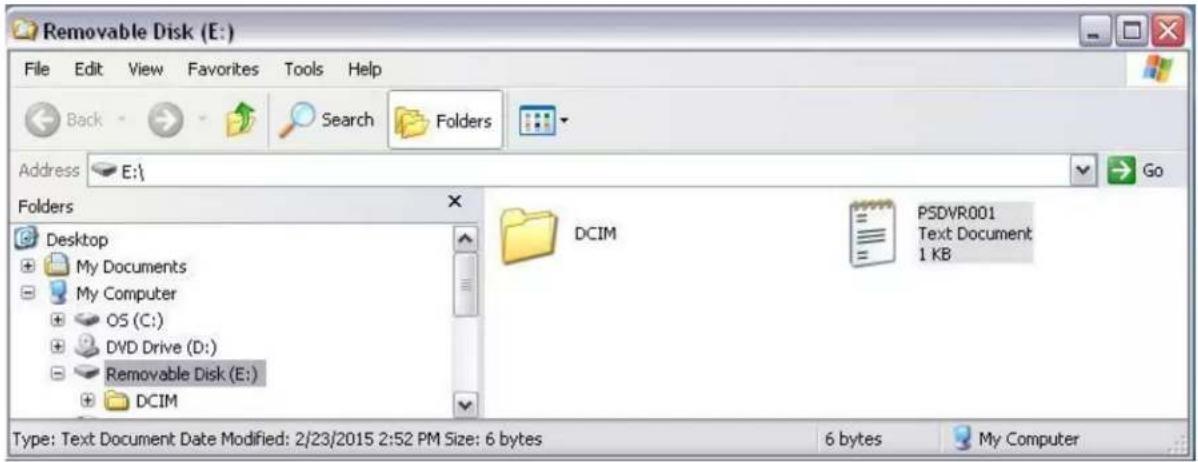
- Copy, delete and backup files as desired.
- When finished, remember to always disconnect the device within the computer's operating system using the Safely Remove Hardware function.

- Once disconnected from the OS, the USB cable may be removed. Once removed, the device will automatically power down.
Device Menu & Settings
I. Recorder Setting
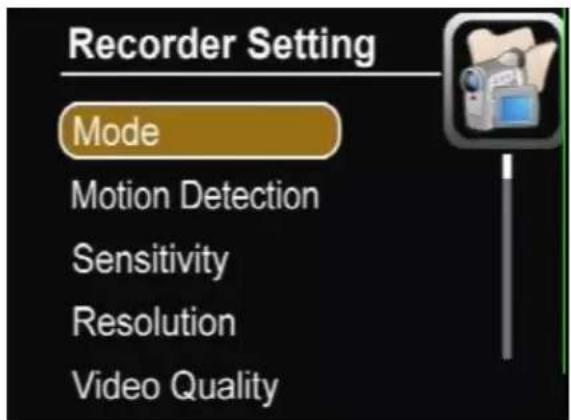
- Mode – Recoding mode
o Video – Video recording
○ Photo – Still pictures
○ Audio – Audio only
- Motion Detection – Video or photo recording triggered by motion across the video input
○ Off
○ On
- Sensitivity – If Motion Detection is On, the level of the detection may be adjusted here
○ High
○ Medium
○ Low
- Resolution – Resolution of recorded video and photos
• Video Quality – Quality of recorded video at any given resolution
○ High (8Mbps)
○ Medium (3.5Mbps)
○ Low (2.5Mbps)
- Time Stamp – Toggles the time stamp shown on the On Screen Display
○ Off
○ On
- File Length – The maximum duration of a recorded video or audio file in minutes. Once the maximum length is reach, the device will automatically create a new file and continue recording without interruption.
- Frame Rate – The rate of frames per second(FPS) during video recording
○ 15 FPS
○ 30 FPS
• Audio Record Volume – Volume control for audio recording by the device
- Microphone Select – Audio input selection for recording
- Internal Mic
○ External Mic
- Overwrite – Choice to have new files overwrite old ones on the memory card once it is full and out of additional memory. When turned on, the oldest files will be deleted as new ones are recorded.
- Off – Recording will be stopped when the memory card is full
- On – Recording will continue by deleting the oldest files in succession as new ones are added
II. System Setting
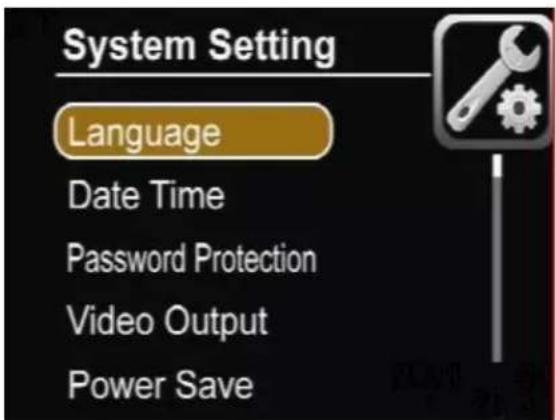
• Language – Menu and OSD language
○ English
○ Simple Chinese
○ Traditional Chinese
- Date Time – Date and time setup
- Password Protection – Password menu for USB connection, deleting files & formatting the memory card. By default, all are enabled and the password is 000000
- USB Password – For allowing the device to connect to a computer and access the memory
- Enable
- Set – Change the password
- Disable
- Delete Password – For allowing access to delete files from the device
- Enable
- Set – Change the password
- Disable
- Format Password – For allowing access to format the memory card
- Enable
- Set – Change the password
■ Disable
- Video Output – Switch from using the device's built-in display to an external monitor via the AV Out and included video cable
- LCD – Device's built-in display
o PAL – Output PAL video(Euro) - NTSC – Output NTSC video(US)
• Power Save – Power saving menu for device and LCD
- Power Off – The time in minutes before the device will automatically turn off after no activity
■ 5 Min
■ 10 Min
20Min
- Never
- LCD Off – The time in seconds or minutes before the display will automatically turn off after no activity
■ 10 Sec
■ 1 Min
- 5 Min
■ 10 Min
- Never
• Vibe Alert – Toggles vibration alerts on or off
○ Off - No alerts
- On – Vibrates when any of the following conditions occur
■ No video signal
- No memory card
- Recording started
- Recording stopped
- Battery is low
- Beep – Confirmation beep any time a button is pushed
○ Off
○ On
- Format – Erase all data stored on the memory card(password protected)
o No – Cancels and returns to the menu
- Yes – Confirms and formats the memory card
- Firmware Update – Used to update the firmware
- No – Cancels and returns to the menu
-
Yes – Confirms and starts the upgrade process from firmware file on the memory card
-
SD Card Info – Displays memory card capacity and free space
-
Default Setup – Returns all settings and options to factory default
-
No – Cancels and returns to the menu
- Yes – Confirms and resets the device
- Version – Displays the current firmware revision number
III. Event Playback
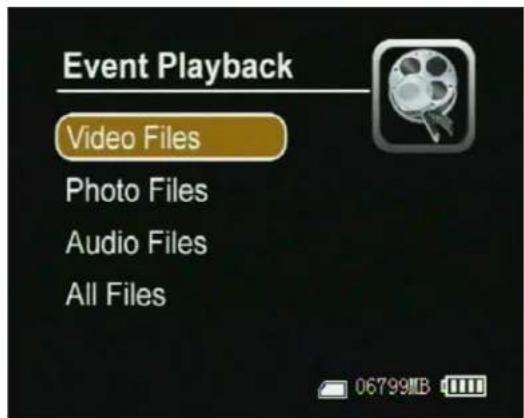
• Video Files – Video files stored in folders by date
- Photo Files – Photo files stored in folders by date and hour(24h)
• Audio Files – Audio files stored in folders by date
- All Files – All files stored
Specifications
| Video Compression | MPEG4 |
| Video File Format | AVI |
| Video Resolution | 720x576(D1); 720x480(D1); 640x480(VGA) |
| Frame Per Second | 15fps; 30fps |
| Photo File Format | JPEG |
| Built-in Display | High Resolution 2.5” TFT True Color LCD |
| Storage | SD card, up to 32GB |
| AV Input | 2.5mm, supports 5V(400mA MAX) power supply to camera |
| AV Output | 2.5mm, PAL or NTSC |
| Multiple Recording Modes | Manual; Auto; Motion Detection |
| Time Stamp | Supported |
| Computer Connection | Mini USB |
| Power Input | 5.0V DC |
| Battery | 3.7V 1000mAh Li-ion |
| Power Consumption | 200mA |
| Continuous Recording Time | ~2.5 hours |
| Size | 79mm x 51mm x 22mm (3.11in x 2.01in x 0.87in) |
| Weight | 85g (3oz), including battery |

- DVR Controls & Accessories
- DVR
- Remote Control
- Accessories
- Basic Operation
- Connecting a Video Source
- Turning the DVR On & Off
- Assigning a Device Name
- Menu Access
- Recording Modes
- Make a Recording
- Motion Detection
- File Access, Playback & Management
- File Access on the Device
- Playback on the Device
- i. Video Playback
- ii. Browse Photos
- iii. Audio Playback
- Managing the Files
- i. Deleting Files on the Device
- ii. File Access & Managing on the Device from a Computer
- Device Menu & Settings
- Recorder Setting
- System Setting
- Event Playback
Brand : KJB Security Products
Model : DVR508
Category : Surveillance Camera