HBT100UB - Water heater SEADA - Free user manual and instructions
Find the device manual for free HBT100UB SEADA in PDF.


User questions about HBT100UB SEADA
0 question about this device. Answer the ones you know or ask your own.
Ask a new question about this device
Download the instructions for your Water heater in PDF format for free! Find your manual HBT100UB - SEADA and take your electronic device back in hand. On this page are published all the documents necessary for the use of your device. HBT100UB by SEADA.
USER MANUAL HBT100UB SEADA
HBT100UB HDMI USB KVM Extender over Cat5e/Cat6(HDBaseT)
SEADA
Showing the World
User Manual
VER 1.0
Thank you for purchasing this product
For optimum performance and safety, please read these instructions carefully before connecting, operating or adjusting this product. Please keep this manual for future reference.
Surge protection device recommended
This product contains sensitive electrical components that may be damaged by electrical spikes, surges, electric shook, lighting strikes, etc. Use of surge protection systems is highly recommended in order to protect and extend the life of your equipment.
Table of Contents
- Introduction......2
- Features.... 2
- Package Contents.... 2
- Specifications.... 3
- Operation Controls and Functions.... 4
- IR Cable Pin Assignments....7
- Connection Diagram....8
- Application Example.... 11
Caution:
The extender using UTP cable termination follows the standard of IEEE-568B.

text_image
1 2 3 4 5 6 7 8 T568B 1 2 3 4 5 6 7 8 T568B 1 White and Orange 2 Orange 3 White and Green 4 Blue 5 White and Blue 6 Green 7 White and Brown 8 BrownDirect interconnection method
1. Introduction
The HDMI USB KVM (Keyboard, Video, Mouse) Extender is a tool which can extend your HDMI signal over 328fts/100meters to a compatible display. It is designed to convert HDMI signal to standard HDBaseT signal which can be transmitted by CAT5e/CAT6/CAT7 cable. It also supports Transfer Bidirectional Infrared control signal and RS232 control signal. With LAN serving connection and external digital and analog audio capability that gives users the convenience of additional audio connection. It also supports the connection of USB host and 2 USB device ports. So you can control the Source in the Sink side which is 328fts outside, also you can control the Sink in the Source side which is 328fts outside using the HDMI Extender.
2. Features
☆ Fully compliant with HDMI 1.4, and compatible with HDMI 2.0 (4K2K@60Hz with YCbCr 4:2:0).
☆ HDCP2.2 and DVI compatible.
☆ Supports HDBaseT 2.0 specification over a single CAT5e/6/7 cable up to 100m/328ft.
Supports pass-through of HD audio formats: LPCM2/5.1/7.1 CH, Dolby Digital, DTS, Dolby TrueHD, DTS-HD Master Audio and more.
POE(Power Over Ethernet)function support, either TX or RX powered 24V@1A, another don't need power form the DC jack.
☆ Full HD support: 1080p@60Hz@24/36/48bit/pixels.
☆ Supports USB 2.0 control.
☆ Supports external Bi-Directional SPDIF IN/OUT and available for multichannel audio.
☆ Supports stereo audio with PCM 2CH.
Transfer Bidirectional Infrared control signal together with the HDMI signal.
Transfer Bidirectional RS232 control signal together with the HDMI signal.
Transfer Bidirectional Ethernet signal together with the HDM signal.
3. Package Contents
1.HDMI USB KVM Extender Transmitter 1PCS
2.HDMI USB KVM Extender Receiver 1PCS
3.Wideband IR Tx 2PCS
4.Wideband IR Rx 2PCS
5.24V/1A DC power adaptor 1PCS
6.Operation Manual 1PCS
7. Phoenix male jack----2PCS
8.Mounting ears----4PCS
4. Specifications
| Technical | |
| Video Bandwidth | 340MHz[10.2Gbps] |
| Transmitter input ports | 1x HDMI, 1×LAN, 1×USB-H, 1x IR in, 1×Optical(Spdif in), 1×Audio in, 1×RS-232 |
| Transmitter output ports | 1xIR out, 1xOptical (Spdif out), 1xHDBaseT OUT, 2xUSB-D |
| Receiver input ports | 1xIR in, 1xOptical (Spdif in), 1xHDBaseT IN, 1xUSB-H |
| Receiver output ports | 1x HDMI, 1xLAN, 2xUSB, 1xIR out, 1x Audio out, 1xRS232,1xOptical (Spdif out), |
| Power Supply | DC 24V 1A |
| ESD Protection | Human-body Model: ±8kV (Air-gapdischarge), ±4kV (Contact discharge) |
| Dimensions | 160(W) X 97 (D) X 28 (H) |
| Weight | 450g x 2 |
| Operating Temperature | 0°C ~ 40°C / 32°F ~ 104°F |
| Storage Temperature | -20°C ~ 60°C / -4°F ~ 140°F |
| Relative Humidity | 20~90% RH (non-condensing) |
| Power Consumption | 12W |
5. Operation Controls and Functions

Transmitter Front Panel
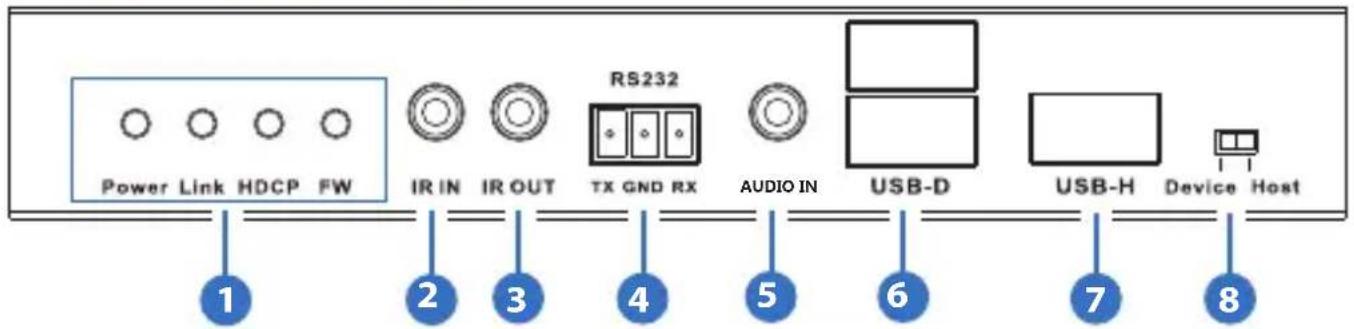
text_image
Power Link HDCP FW IR IN IR OUT RS232 TX GND RX AUDIO IN USB-D USB-H Device Host 1 2 3 4 5 6 7 8| Number | Name | 3 4 Function description |
| 1 | Power LED illuminates when power has been supplied to the unit | |
| Link LED | The connection status indicating lamp.Illuminate: The Transmitter and Receiver is good connections.Flashing: The Transmitter and Receiver is poor connections.Dark: The Transmitter and Receiver is no connections | |
| HDCP LED | The HDCP status indicating lamp.Illuminate: The HDMI signal with HDCP.Flashing: The HDMI signal without HDCP.Dark: No HDMI signal. | |
| FW LED | Light is flashing on behalf of the unit work normally | |
| 2 IR IN | Chanel 1 IR Receiver. Connect with Wideband IR Rx | |
| 3 | IR OUT | Chanel 2 IR Transmitter. Connect with Wideband IR Tx |
| 4 | RS232 TX/RX | Connect to a PC or Laptop with 3-pin Relay cable for the transmission of RS-232 commands. |
| 5 | AUDIO IN | Connect to a PC or Laptop stereo output port via 3.5mm audio cable. |
| 6 | USB-D | Connect to USB peripheral devices such as printer, keyboard, mouse, flash driver or ...etc. |
| 7 | USB-H | Connect from PC or Laptop for data transmit to or control from the Receiver's USB-D slots. |
| 8 | USB-H/USB-D SELECT | Select USB host or USB device.Note: If the unit work to change the state, required again to power |
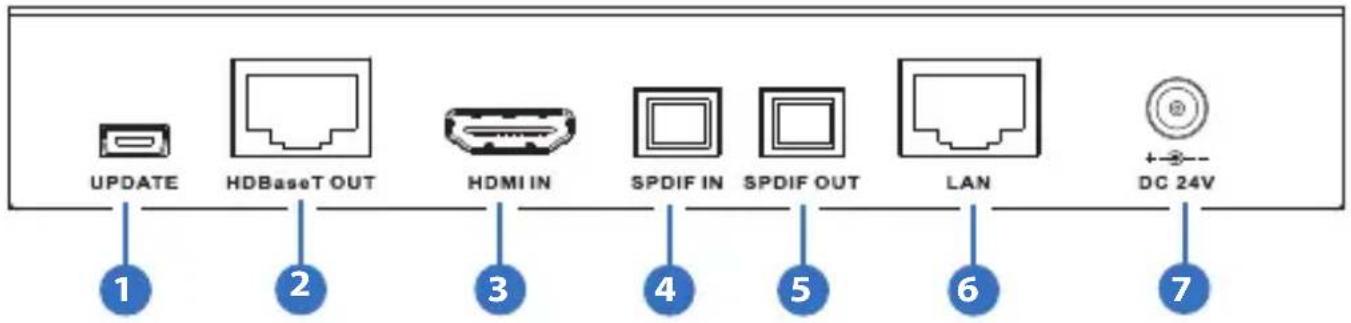
text_image
UPDATE HDBaseT OUT HDMI IN SPDIF IN SPDIF OUT LAN DC 24V| Number | Name | 3 4 Function description |
| 1 | UPDATE | Reserved for manufacturer use only |
| 2 | HDBaseT OUT | Standard HDBaseT signal output port. Connect HDBaseT receiver with a Cat5e/6/7 cable. |
| 3 | HDMI IN | This slot is where you connect the HDMI source |
| 4 | SPDIF IN (Optical in) | Connect to audio source equipment such as DVD or Blu-ray player for audio signal sending to Receiver's SPDIF OUT(Optical out). |
| 5 | SPDIF OUT (Optical out) | Connect to speaker with coaxial input for audio signal output from Receiver's SPDIF IN(Optical in) |
| 6 | LAN | This slot provide Internet signal from receiver or to receiver |
| 7 | DC IN Plug the 24 | V DC power supply into the unit |












text_image
Power Link HDCP FW IR IN IR OUT RS232 TX GND RX AUDIO OUT USB-D USB-H Device Host 1 2 3 4 5 6 7 8| Number | Name | 3 4 Function description |
| 1 | Power LED illuminates when power has been supplied to the unit | |
| Link LED | The connection status indicating lamp.Illuminate: The Transmitter and Receiver is good connections.Flashing: The Transmitter and Receiver is poor connections.Dark: The Transmitter and Receiver is no connections | |
| HDCP LED | The HDCP status indicating lamp.Illuminate: The HDMI signal with HDCP.Flashing: The HDMI signal without HDCP.Dark: No HDMI signal. | |
| FW LED | Light is flashing on behalf of the unit work normally | |
| 2 IR IN | Chanel 1 IR Receiver. Connect with Wideband IR Rx | |
| 3 | IR OUT | Chanel 2 IR Transmitter. Connect with Wideband IR Tx |
| 4 | RS232 TX/RX | Connect to a PC or Laptop with 3-pin Relay cable for the transmission of RS-232 commands. |
| 5 | AUDIO OUT | Connect to speaker via 3.5mm audio cable |
| 6 | USB-D | Connect to USB peripheral devices such as printer, keyboard, mouse, flash driver or ...etc. |
| 7 | USB-H | Connect from PC or Laptop for data transmit to or control from the Receiver's USB-D slots. |
| 8 | USB-H/USB-D SELECT | Select USB host or USB device.Note: If the unit work to change the state, required again to power supply. |
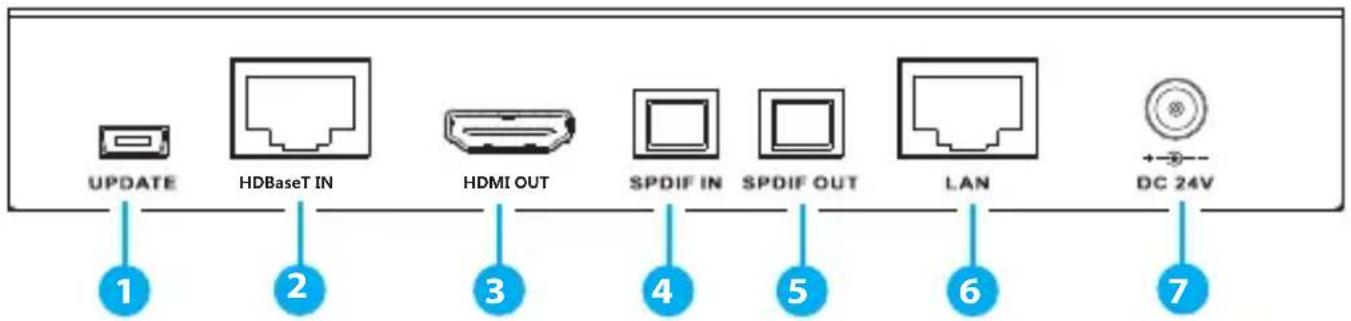
text_image
UPDATE HDBaseT IN HDMI OUT SPDIF IN SPDIF OUT LAN DC 24V 1 2 3 4 5 6 7| Number | Name | 3 4 Function description |
| 1 | UPDATE | Reserved for manufacturer use only |
| 2 | HDBaseT IN | Standard HDBaseT signal output port. Connect HDBaseT Transmitter with a Cat5e/6/7 cable |
| 3 | HDMI OUT | This slot is where you connect the a HDMI equipped TV/monitor. |
| 4 | SPDIF IN (Optical in) | Connect to audio source equipment such as DVD or Blu-ray player for audio signal sending to Receiver's SPDIF OUT(Optical out). |
| 5 | SPDIF OUT (Optical out) | Connect to speaker with coaxial input for audio signal output from Receiver's SPDIF IN(Optical in) |
| 6 | LAN | This slot provide Internet signal from receiver or to receiver |
| 7 | DC IN Plug the 24 | V DC power supply into the unit |
6. IR Cable Pin Assignments
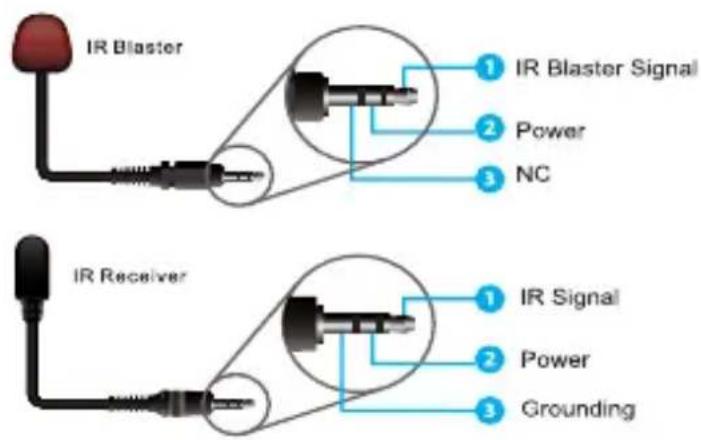
text_image
IR Blaster 1 IR Blaster Signal 2 Power 3 NC IR Receiver 1 IR Signal 2 Power 3 Grounding7. Connection Diagram
※ Picture 1
POE(Power Over Ethernet) Application Example
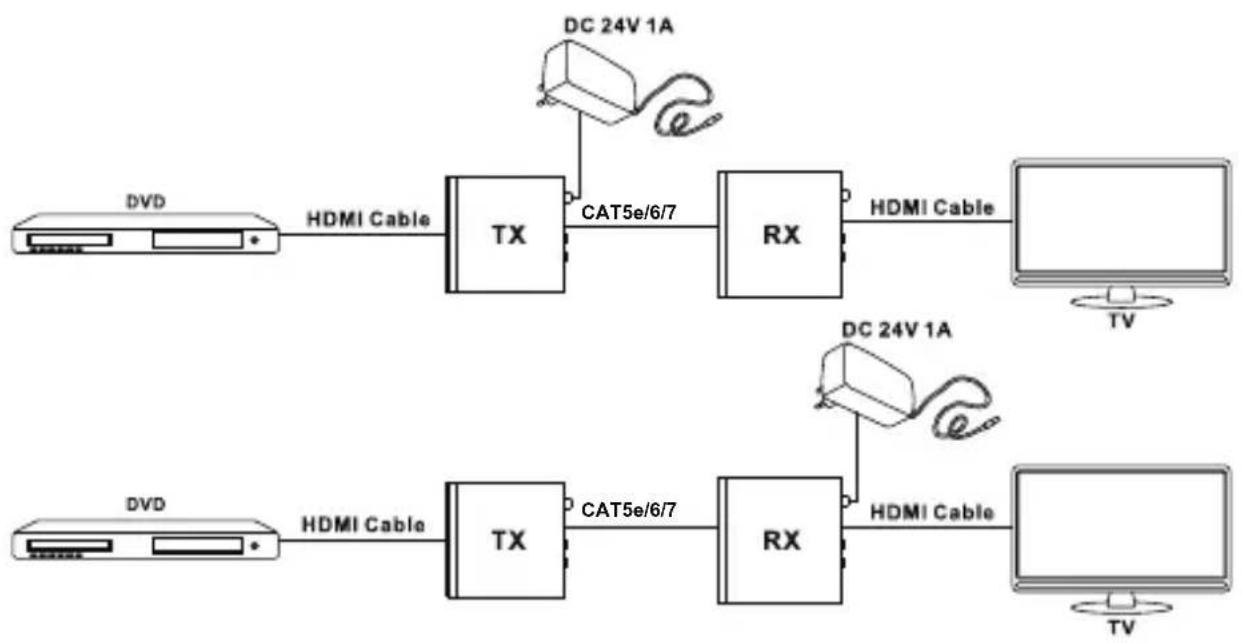
flowchart
graph LR
    A["HDMD"] -->|HDMI Cable| B["TX"]
    B -->|CAT5e/6/7| C["RX"]
    C -->|HDMI Cable| D["TV"]
    E["HDMD"] -->|HDMI Cable| F["TX"]
    F -->|CAT5e/6/7| G["RX"]
    G -->|HDMI Cable| H["TV"]
    I["DC 24V 1A"] --> J["Device"]
    K["DC 24V 1A"] --> L["Device"]
※ Picture 2
Bidirectional Infrared control Application Example

flowchart
graph LR
    A["Device"] -->|DVD| B["HDMI Cable"]
    B --> C["TX"]
    C -->|UTP Cable| D["RX"]
    D -->|HDMI Cable| E["TV"]
    C --> F["TV Remote"]
    D --> G["DVD Remote e"]
    D --> H["Rx1"]
    F --> I["Radio"]
    G --> J["Radio"]
    H --> K["Radio"]
※ Picture 3 Bidirectional RS232 control Application Example
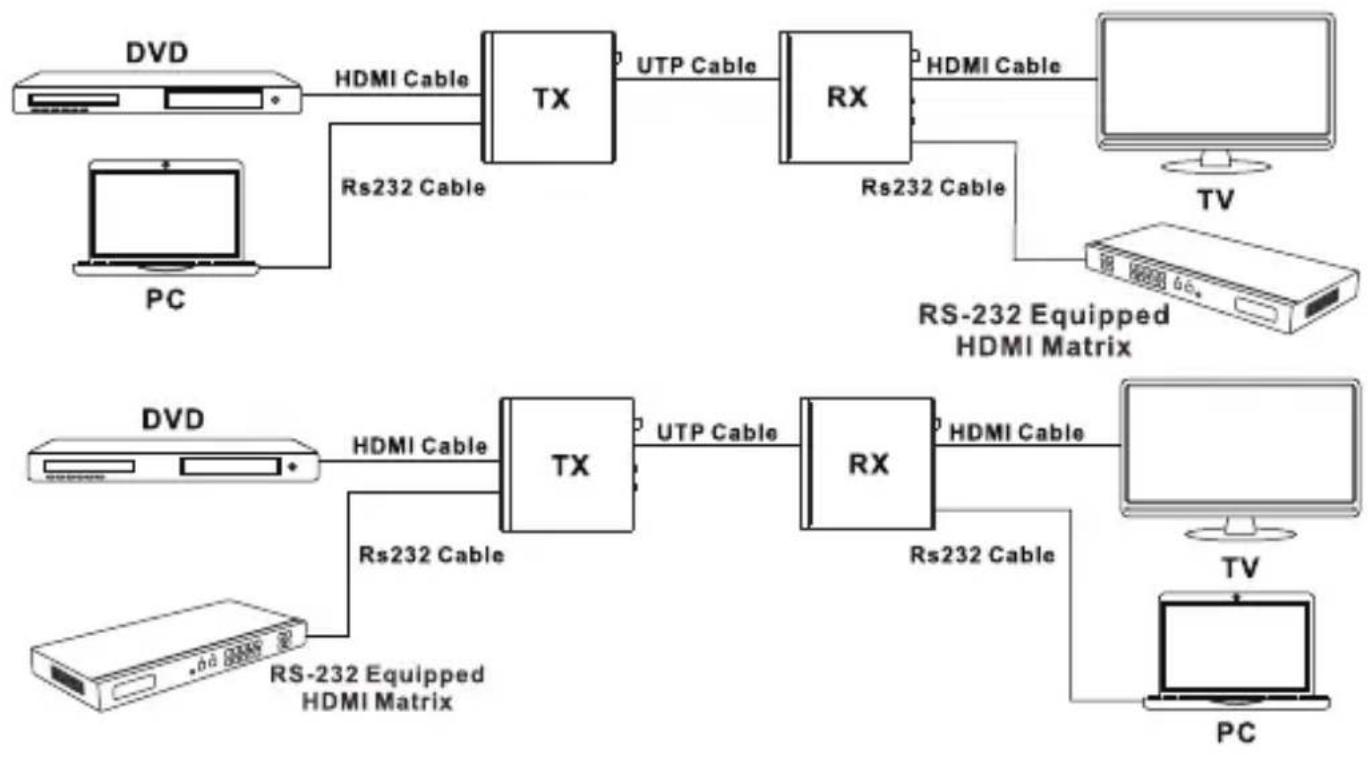
flowchart
graph LR
    subgraph Top_Down
        A["PC"] -->|Rs232 Cable| B["TX"]
        B -->|UTP Cable| C["RX"]
        C -->|Rs232 Cable| D["TV"]
        D --> E["PC"]
    end

    subgraph Bottom_Down
        F["PC"] -->|Rs232 Cable| G["TX"]
        G -->|UTP Cable| H["RX"]
        H -->|Rs232 Cable| I["TV"]
        I --> J["PC"]
    end

    A -->|HDMI Cable| B
    F -->|HDMI Cable| G
    G -->|HDMI Cable| H
    style Top_Down fill:#f9f,stroke:#333
    style Bottom_Down fill:#bbf,stroke:#333
※ Picture 4 Bidirectional Ethernet signal Application Example
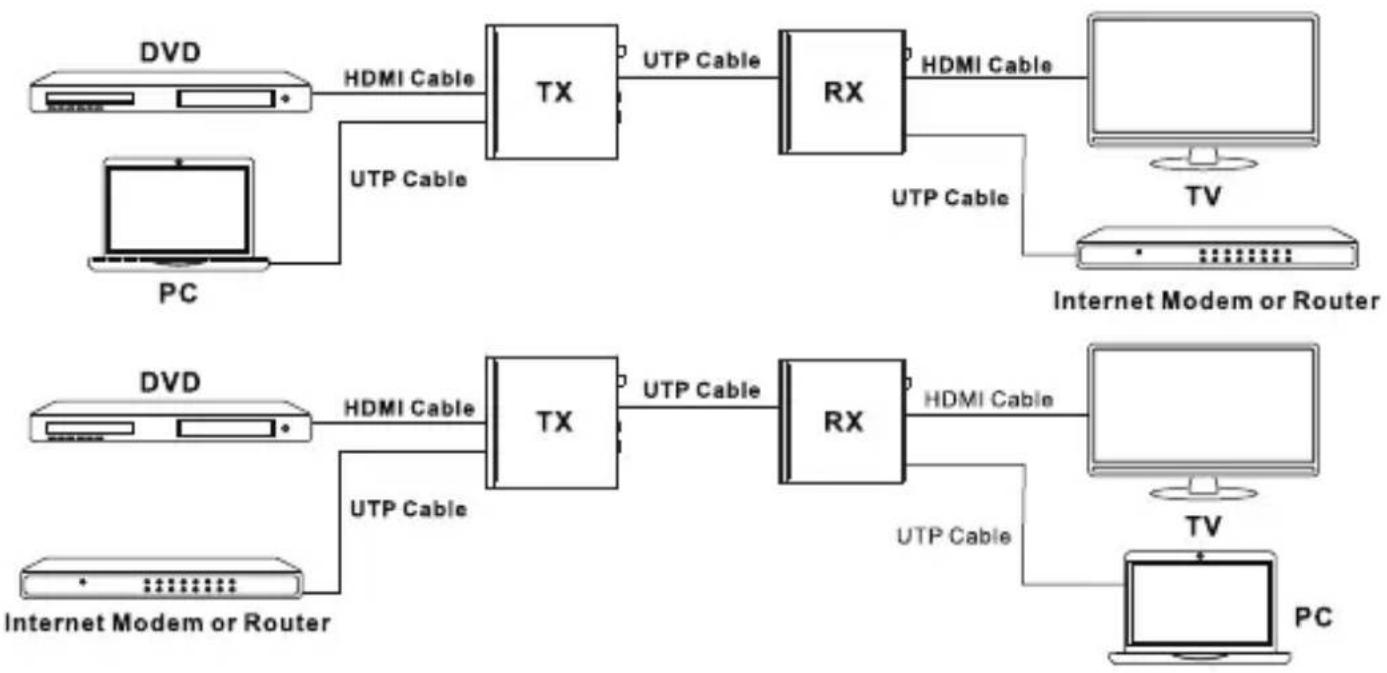
flowchart
graph LR
    subgraph_Top_1_DVD["Top_DVD"]
        A["PC"] -->|HDMI Cable| B["TX"]
        B -->|UTP Cable| C["RX"]
        C -->|HDMI Cable| D["TV"]
        C -->|UTP Cable| E["Internet Modem or Router"]
    end
    subgraph_Top_2_DVD["Top_DVD"]
        F["PC"] -->|HDMI Cable| G["TX"]
        G -->|UTP Cable| H["RX"]
        H -->|HDMI Cable| I["TV"]
        H -->|UTP Cable| J["Internet Modem or Router"]
    end
    style Top_1_DVD fill:#f9f,stroke:#333
    style Top_2_DVD fill:#f9f,stroke:#333
※ Picture 5
USB control Application Example
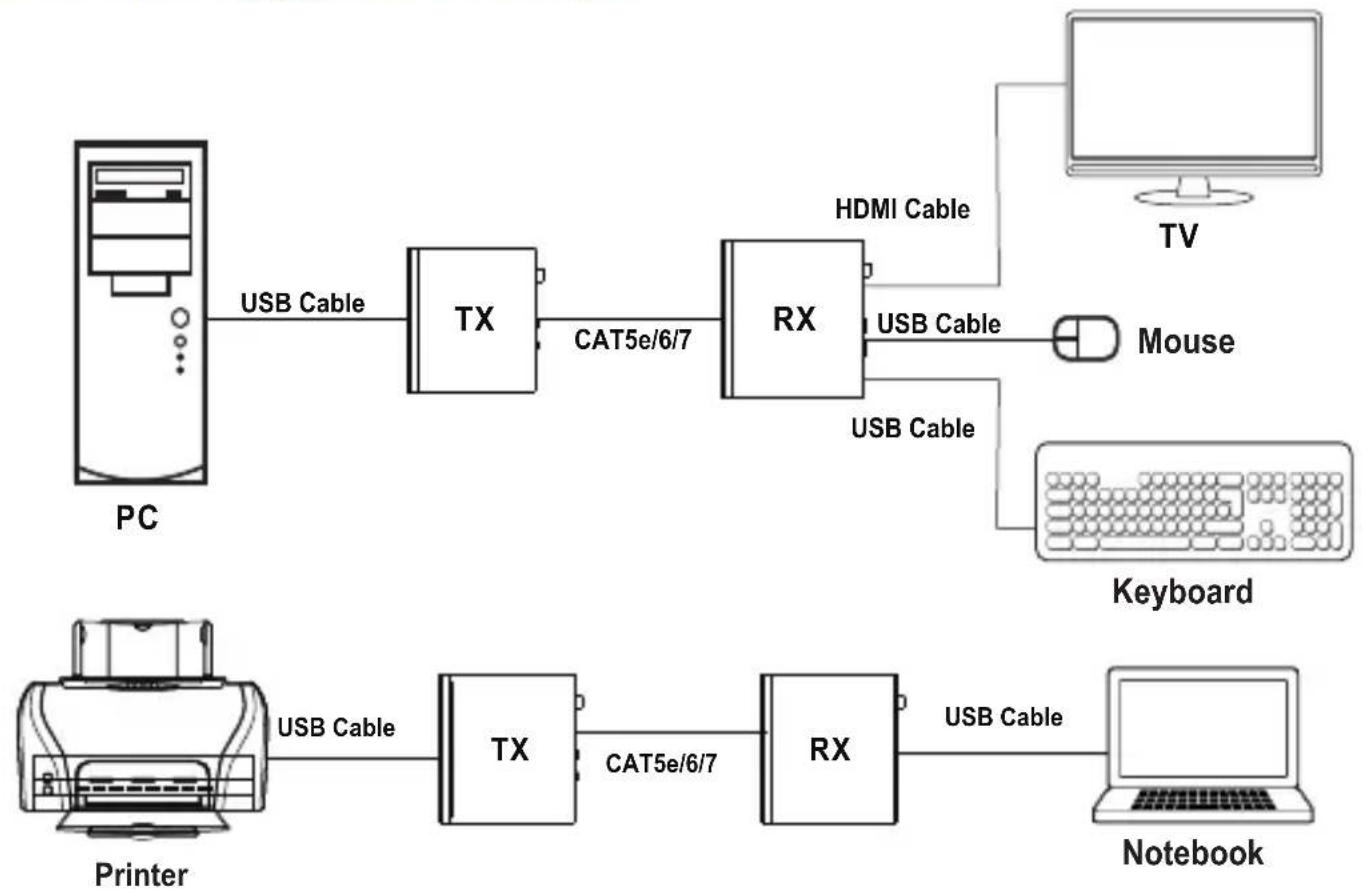
flowchart
graph LR
    PC["PC"] -->|USB Cable| TX["TX"]
    TX -->|CAT5e/6/7| RX["RX"]
    RX -->|USB Cable| Mouse["Mouse"]
    RX -->|USB Cable| Keyboard["Keyboard"]
    Mouse -->|USB Cable| Keyboard
    Printer["Printer"] -->|USB Cable| TX["TX"]
    TX -->|CAT5e/6/7| RX["RX"]
    RX -->|USB Cable| Notebook["Notebook"]
※ Picture 6 Digital Audio bidirectional transmission Application Example
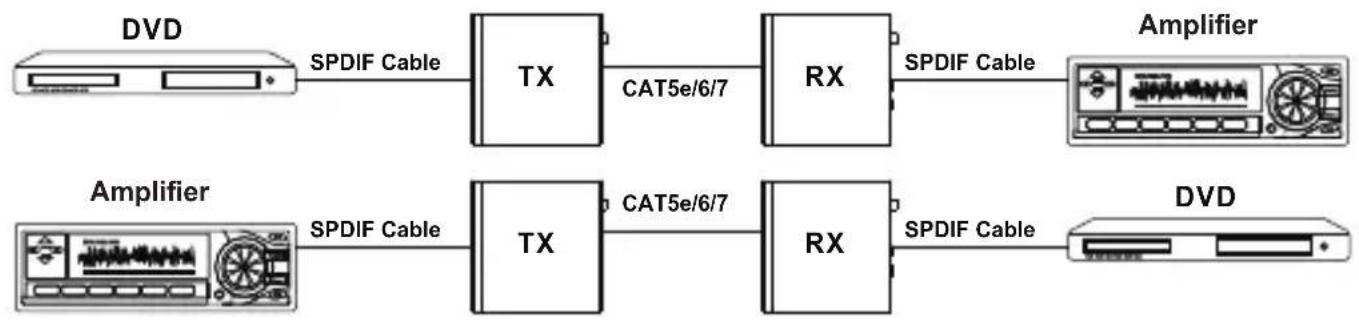
flowchart
graph LR
    A["DVD"] -->|SPDIF Cable| B["TX"]
    B -->|CAT5e/6/7| C["RX"]
    C -->|SPDIF Cable| D["Amplifier"]
    E["Amplifier"] -->|SPDIF Cable| F["TX"]
    F -->|CAT5e/6/7| G["RX"]
    G -->|SPDIF Cable| H["DVD"]
8. Application Example

flowchart
graph TD
    A["TV or Monitor"] --> B["USB Keyboard"]
    B --> C["Notebook"]
    D["DVD or Blu-ray Player"] --> E["TX"]
    E --> F["RS-232 Equipped PC or Notebook"]
    G["Power Supply"] --> H["TX"]
    H --> I["RX"]
    I --> J["Notebook"]
    K["Power Supply"] --> L["TX"]
    L --> M["RX"]