
NMV-171 - Mp3 player Naxa - Free user manual and instructions
Find the device manual for free NMV-171 Naxa in PDF.


| Product Type | Digital MP4 Player (MP3 Player) |
| Brand | Naxa |
| Model | NMV-171 |
| Display | 1.5-inch CSTN color screen (128x128 pixels) |
| Memory Capacity | Internal memory 128 MB or higher |
| Supported Audio Formats | MP1, MP2, MP3, WMA, WAV |
| Supported Video Format | AMV |
| FM Radio Frequency Range | 76 MHz – 90 MHz / 87 MHz – 108 MHz |
| FM Channel Storage | 20 channels per frequency band (total 40) |
| Voice Recording | WAV format, sample rate 8 KHz |
| Equalizer Presets | Natural, Rock, Pop, Classical, Soft, Jazz, DBB |
| Playback Modes | Normal, Repeat One, Folder, Repeat Folder, Repeat All, Shuffle, Intro |
| Backlight Colors | 7 colors |
| Languages Supported | 24 languages (including English, Chinese, Japanese, etc.) |
| Battery Type | Internal rechargeable battery (3.7V) |
| Playback Time | Up to 6 hours |
| Connectivity | USB 1.1 (High Speed), earphone jack |
| Audio Output Power | 10mW (L) + 10mW (R) into 32Ω |
| Signal-to-Noise Ratio (Audio) | 85 dB |
| Frequency Response | 20 Hz – 20 kHz |
| FM SNR | 45 dB |
| Operating Systems Supported | Windows 98/SE/ME/2K/XP, Mac OS 10, Linux 2.4.2, Windows 7 |
| Unique Feature | "Secret Space" password-protected encrypted storage |
| Firmware Upgrade | Available via download |
Frequently Asked Questions - NMV-171 Naxa
User questions about NMV-171 Naxa
0 question about this device. Answer the ones you know or ask your own.
Ask a new question about this device
Download the instructions for your Mp3 player in PDF format for free! Find your manual NMV-171 - Naxa and take your electronic device back in hand. On this page are published all the documents necessary for the use of your device. NMV-171 by Naxa.
USER MANUAL NMV-171 Naxa
NMV-171/ Digital MP4 Player with PLL Digital FM Radio with SD Card Slot and Speaker.

natural_image
Illustration of a naxa mobile phone with control knob and rotary dial (no text or symbols on device body)User Manual
NMV-171 is a new generation media player, supporting MP1, MP2, MP3, WMA, or WAV files. Its perfect tone in high reliability with refined exterior design brings you an ultra performance.
Overview
●Refined exterior design
Unique design fits for hand.
- Multi file format support!
This player recognize MP1, MP2, MP3, WMA and video in AMV format.
●Firmware upgrade available
You can download upgrade software from website enhancing player's function.
- FM stereo radio
Powerful automatic or manual tuning capability, save up to 40 channels (20 channels in each system).
•e-Documents
You can download text files into the player and read it any time as you like.
- Driver free USB memory
Manage your files in USB memory without specified software, no need drivers in WIN2000 or furthers.
- 'Secret Space'
You can separate part of the memory encrypting and hiding in using programs provided, where data
cannot be seen or written by others.
- Recorder / Repeat
Voice can be recorded and saved in WAV format. Phase/Contrast repeat available.
- Equalizer
Normal, Rock, Pop, Classic, Soft, Jazz, Bass
- Backlight colors
This player provides 7 backlight colors.
- Play modes
Normal, Single Repeat, Play Catalog, Repeat Catalog, Repeat All, Shuffle, Lyric.
- Timing turning off
The player provides Sleep and battery saving mode, more convenience for you!
- Complete dynamical menu
Visualized dynamical menus with text instructions make you easy control.
Declarations
Welcome to choose our produce, please read this manual carefully.
Functions and performance may change without prior notice.
If any difference between produce and this manual, please visit our website
Contents
• Overview....1
- Declarations....1
- Know your player....4
Exterior and Keys....4
Display....4
Battery Level....4
Basic Functions....5
Access to Menus....5
Scrolling....5
List of Menus ....5
Volume Adjust 7
Switch On/Off 7
Play & Stop 7
Start/Stop Recording ....7
Keys Processing ....7
Keys function definition 7
Keys processing definition 8
Play music....8
Simple Actions 8
Equalizer mode 8
Synchronous Lyric Display....9
Voice Recorder....9
Recording on 'Record Mode' 9
Select Record Type....10
Play recorded files ....11
Using FM radio 11
Using Photo 11
Settings....12
Entry settings 12
Options introduction 12
List of menu 13
Play Videos 15
Reading Documents....15
• Browsing Pictures....16
• Using USB Disk....16
• Other Settings ....16
Choose other fold....16
Delete Files 16
Play Mode 17
Tempo rate....18
Repeat Mode....18
A-B Repeat....18
Karaoke 18
Contrast Function....19
Repeat Times 19
Repeat Interval....19
New Function Recommends ....19
Secret Space Function....19
Troubleshooting....21
Technical Specifications ......21
Know your player

● Exterior and Key
1 Earphone hole ⑥ Mode
2 USB port ⑦ Last
3 Play/pause/Power off/on ⑧ VOL +
4 Last
- Display
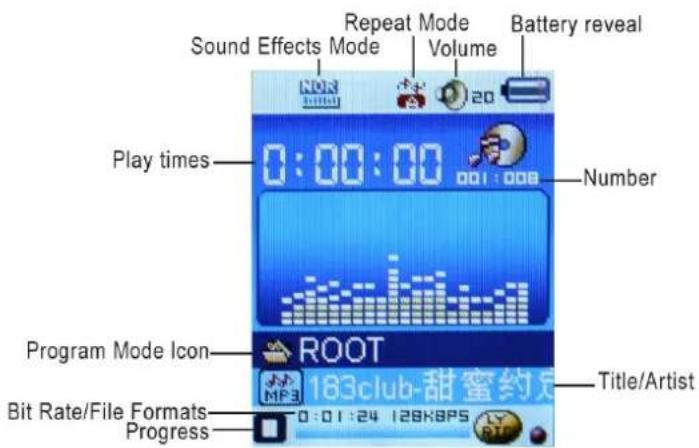
Battery Level
The player shows capacity in 9 levels
Battery is full on 3.7V. As time goes on, capacity indication will reduce.
☐ Indicator shows blank when battery almost ran out. You should charge your battery at that time.

Please switch on the player before charge. This player cannot be charged in case of power off/

Please switch off power when not using the player.
Basic Functions
- Access to Menus
Press Mode to access menus.
- Scrolling
○ Scroll music, menus
- Fast Forward / Reverse when playing music.
• List of Menus
To access different menu functions from main menu.
Music Mode:

Video play:

Recorder Mode:

Voice Mode:
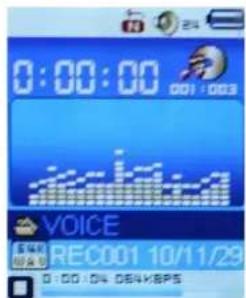
FM Mode:

Photo Mode:

Set Up Mode:
E-Book Mode:
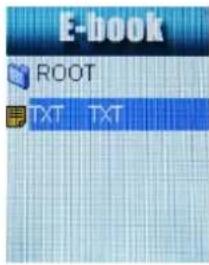
USB Mode (Connect to PC):

natural_image
Illustration of two white devices on a yellow textured surface, labeled 'CONNECT' at top (no other text or symbols)• Volume Adjust
Press VOL+ to increase volume, press VOL- to decrease.
- Switch on/off
Press and hold Play to switch on when the player is off. Press and hold Play to switch off when the player is on.
• Play & Pause; exit from submenu
On music mode, Press Play to play music. When playing music, press Play to pause; press and hold to stop playing.
• Start / Stop recording
On recording mode, press Play to stop.
Keys Processing
• Keys Functions Definition
- Play: Play, Pause, Stop
- MODE: Entry main menu or exit from current menu.
- REC: Entry voice record interface.
- A-B: Access Repeat Mode interface..
- VOL+: Volume increase
- VOL-: Volume decrease.
-
Next: Next, FF, Volume increase
-
Last: Previous, Rev, Volume decrease
- USB: USB outlet
- Earphone: Standard earphone outlet
- ON/OFF: Power switch
• Key Processing Definition
Keys processing includes 4 actions: Press, Press and Hold, Push, Hold. If not mentioned, all actions are Press.
Press: Press a key and valid immediately;
Press and Hold: Press a key and hold it at least 1.2s this action valid only once.
Push: Push a key, and valid when released.
Hold: events occur in such frequency then the key is holding such as Fast Forward and Reverse.
Play music
• Simple actions
- Put earphone plug into earphone outlet;
- Press and hold Play to switch the player on, then entry Music Mode and press Play to play music.
- Select a music: Last: Previous music;
Next: Next music.
- For AMV files, video play will apply.
- Equalizer Mode
- When playing music

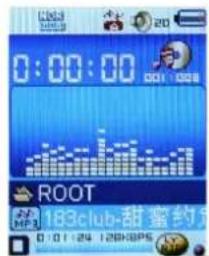
- Press Mode to entry play submenu;
- Push Next choosing Equalizer Mode;
- Press Mode to entry 'Equalizer Mode' submenu.
Select an equalizer:

- Detail of each equalizer (EQ):
Natural
| Rock |
| Pop |
| Classical |
| Soft |
| Jazz |
| DBB |
- Push Next to select an EQ and press Mode to confirm.
• Synchronize Lyric Display
The player supports lyric files with *.LRC suffix, and displays synchronously.
How to use lyric files?
Please make sure the lyric has the same name to the music
For example:
Music file: Journey.mp3
Lyric file: Journey.lrc
How to know if lyric available?
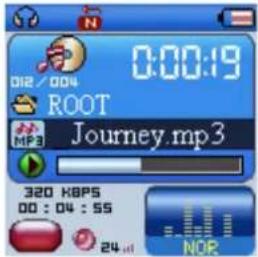
If lyric matched, a red icon will be displayed on the left down corner of screen,
- When marched lyric available :
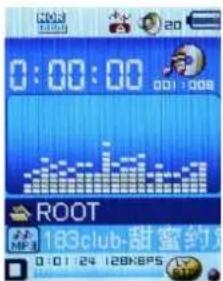
- Press and hold Mode to entry lyric interface;

-
Lyric displays
-
Press Mode return to music mode.
Play Videos
- Entry main menu, press Next scrolling to "MOVIE" (Only available to AMV files):

- Press MODE to entry:

- Press PLAY to starting play

Please make sure the battery has enough capacity before making record. Each fold can save up to 99 voice recording files.
- Recording on "Record mode"
- .Entry main menu:

-
Push Next scroll to Record mode
-
Push Mode to select Record mod, screen will display as below:

- Press Play to start recording.

Voice will be recorded in current fold which set through 'Record stop / Main fold'

If displayed "Memory full", it means no space to save new record files, please delete other files to release
memory space.

If "Fold full" shown, it means there are 99 record files in this fold. Please choose another one.

The player only responses to Play and A-B when record processing
- Select Record Type
-
When in the interface of 'Record stop'
-
Press Mode to entry record submenu

-
Push next scrolling into 'Record type' submenu then presses Mode to select it.
-
Press Next to choose appropriate type and press Mode to select it
-
Press Play to start recording.
Play recorded files

- Entry main menu
- Push Next to choose 'Play mode'
- Push Mode to entry playing interface
- Press Play again to play the file.
- Choose voice record files。
Last: Select previous file;
Next: Select the next file;
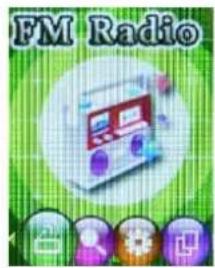
Using FM radio
- Entry main menu;
- Push Next scrolling "FM Mode"
- Push Mode to entry

- Auto tuning
Hold Last/Next 2 seconds to start the channel search in 100 KHz interval upwards or downwards. To stop tuning, push Last/Next.
- Manual tuning
Push Last: Downward 100 KHz
Push Next: Upward 100 KH
- Save current channel:

Push Mode to entry FM submenu
Press Mode again to save channel.
- Listening to a saved channel:
You can press Play to choose a saved channel.
- Volume control
VOL+: Increase volume;
VOL-: Decrease volume

: 20 channels can be saved each in “General Frequency” and “Japan Frequency”
- Photo Mode:
- This function is available for JPG/GIF/BMP format.
2, On main menu, press Next/Last choosing Browsing pictures.
3, Press Mode to entry corresponding submenu:

4, Press Next or Last choosing the document you want to read, then press Play to play it..
Set Up Mode:
• Entry Settings
You can set system performances here, options may vary in different firmware version
- Entry main menu
- Push Next Scrolling into "Settings"
- Press Mode to entry.
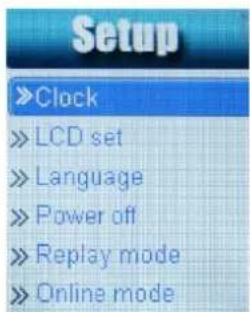
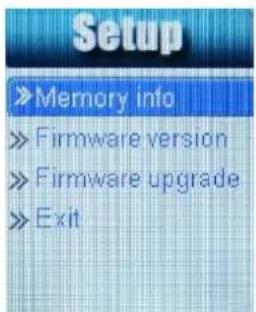
- Options introduction:
| (Clock) Setting date and time when saving recorded file | |
| (LCD set) | Screensaver setting |
| (Language) Choosing different languages | |
| (Power off) Off time/Sleep time | |
| (replay mode) Manual replay/Auto replay | |
| (online mode) Setting display's contrast | |
| (Memory info) Multiply driver/Normal only/Encrypted only | |
| (Firmware Ver.) Version of player's firmware | |
| (Upgrade Firm.) Use for upgrade firmware | |
| (Exit) Exit from Setting interface | |
• List of menus:
o'Recording time' Setting
- System setting interface
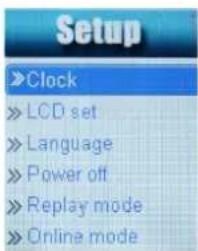
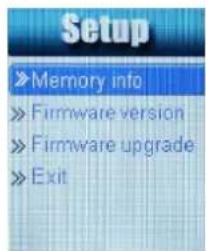
- Press Mode to entry 'Recording time' interface
Recording time:
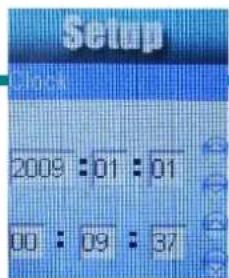
- Push VOL+ setting from years (VOL- from seconds). While setting, year on twinkling.
- Push Next the value will increase (Last on opposite)
- After setting, press Mode to exit.
- “Screensaver” Setting
- Press Mode entry screensaver setting;

-
Push Next for choosing (Last for previous)
-
After setting, press Mode to exit.
○ Language Setting
This player has 24 display languages: Simplified Chinese, Trad Chinese;, English,::Japanese, Korean, French, Germany, Italian, Spanish, Portuguese, Dutch, Swedish, Czech, Danish, Polish, Thai and Russian. Poland; Turkey, Hebrew, Thai, Hungarian, Romanian, Arabic, Indonesian, Greek,
- Press Mode to entry 'Language' interface

-
Push Next / Last to scrolling.
-
After setting, press Mode to exit.
○Turning off Setting
Please note:
You can set time in seconds on 'Battery saving' mode, allow the player shut down automatically when player become stop and idle for the period you have set. This function id void if the time set to 0.
You can set time in minutes on 'Sleep mode', allow the player shut down automatically when the player become idle (regardless current status) for the period you have set. It is designed for listening music before sleep. Please note: Sleep mode valid only once after setting, you have to set again if you want to use it next time.
- 'Repeat Settings'
Please consult into 'Sound Setting'
Note: in "Manual Mode" you should set repeat point manually.
In “Automatic Mode” the player can identify sentence automatically when on A-B repeat. (This function is designed for repeat sentences in language studies.)
o'PC connection' Setting
Please consult into 'Sound Setting'
Some operation systems (Windows 2K SP4 or prior) may not recognize a USB disk with two symbols.
Therefore, you have to choose an active disk here when using 'Secret Space' function only the active disk can be found in PC.
o'Memory status'
You can check total memory space and the percentage of usage.
o'Firmware version'
You can find the player's firmware's version.
o'Firmware upgrade'
Use for upgrade player's firmware.

Tips: Press Play can exit current menu quickly. The function is valid on all other menus.
E-book Mode:
-
On main menu, press Next/Last choosing E-book,
-
Press Mode to entry corresponding submenu:

- Press Next or Last choosing the document you want to read, then press Play to read it.
Note: If you are set in 'Manual play' you must scroll text via Next or Last; texts can be scrolled automatically under 'Auto play' set.
Other settings
- Choose other fold (Stop submenu)
You can classify files into several different folders that ease to manage them (folders should be created on PC).
The player can identify 9 folders in root
| 1. When stopped 2. Press Mode to entry Stop submenu | |
 | 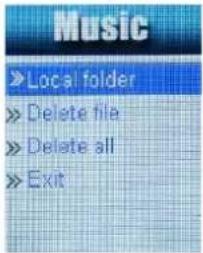 |
3. Press Mode to entry folder choosing interface | 4. Press Next or Last to choose a folder |
| 5. Press Mode to entry selected folder. | |
Please note: You can set folders independently in Music / Recorder / Play mode
- Delete file (Stop submenu)
You delete correspond files/channels in each Music/Play/FM modes.
1When Stopped. (No stop interface in FM mode) | 2.Press Mode to entry Stop submenu |
1. Press Next or Last to choose ‘Delete file’ or ‘Delete all’ | 4. Press Mode to entry delete interface. |
5.Press Mode to confirm delete | |
‘Delete all’ will delete all files in current folder of current mode. I.e. Choose ‘Delete all’ in Music mode will delete all music files; recorder files will not be affected.
On FM mode, all saved channel will be removed.

Please safely removed player and unplug USB cable after delete files on PC, otherwise some files will
not be removed.
• Play mode (Play submenu)
You can choose different play mode (i.e. repeat, shuffle) when playing music or recorded files.
The first option on Play submenu is 'Play mode'
○ REPEAT
| (Normal) | Playing music files in sequence until the end of folder |
| (Repeat One) | Repeat single music file |
| (Folder) | Play all music files in folder |
| (Repeat Folder) | Repeat all music files in folder |
| (Repeat All) | Repeat all music files |
○SHUFFLE
| Random) | Play music files in folder randomly |
○INTRO
| (Intro) | Play the 10s of each music files in sequence |
• Tempo rate(Play submenu)
You can choose different play speed and not affect to sound. (Only valid to MP3 files)
- While playing music
- Push Mode to entry play submenu
- Push Next scrolling to 'Play speed' option
- Push Mode to entry
- Push Next for faster, Last for slower
Note:
Play speed will applied to all music file
• Repeat mode (Play submenu)
Press A-B to entry or
Entry from Play submenu:
○ A-B Repeat
- When play music or recorder
- Push Mode to entry play submenu
- Push Next scrolling into 'Repeat Mode' option
- Push Mode to entry
Repeat Mode: 'A' of Symbol flashes, waiting for starter A
- Push Next to select 'A'
'B' of symbol flashes, waiting ender B - Push Next to select B
Symbol 📋 fixed and starting repeat between A-B, while playing, you can push Last to reset A point.

In repeat mode, you can press VOL+ or VOL- to adjust playing speed
- Karaoke Mode (No such Function in Playing mode)
- A-B repeating 2. Push Next entry Karaoke mode


-
Repeat symbol' will be replaced to karaoke symbol'. Player begins recording voice to the length of A-repeat period.
-
Upon time reaches, player resume play music file and the symbol replaced to 'push Next entry contrast function.

Press Last returns to Repeat A-B status.
○Contrast Function (No such Function in playing mode)
-
While entry contrast function, repeat symbol displayed as "+, the original sound will be played.
-
While finish original, repeat symbol will be replaced to", player will play the voice recorded.

Push Last return to 'Karaoke mode'

Press Mode to exit repeat mode upon above three modes.
• Repeat times (Play submenu)
Please consult into 'Backlight time setting'
Repeat time determines the times of play A-b repeat until exit
• Repeat interval (Play submenu)
Please consult into 'Backlight time setting'
Repeat interval determines the time period between previous repeat (in seconds).
• New Function Recommends!

About Secret Space
Some MP3 user may worry about divulging secret. They do not want others to find private information contained, therefore these data have to be removed before lend their own MP3 to others. It makes some trouble.
However, this problem has totally solved by 'Secret Space' technique!
You can use provided software to divide the whole USB disk into two parts, and encrypt one of them. You can move your privacy into the encrypted part; they will be protected by password.
To active 'Secret Space':
- Connect your player to PC
- Run MP3 Player Disk Tool which can be found in provided CDROM

- Click 'Allocation and Encrypt' card, Allocate appropriate space and set username and password, and then click Start.

- After space allocation, shown as below:

- Click 'OK' to restart.
- After restart you will find two disks (only one disk can be seen on Windows 2K SP4or prior), click the
encrypted disk (the second one), you will find three files, two are hidden, one is executable

- Running executable file 'RdiskDecrypt.exe' and input username and password. If all are correct, disk will be opened, and files can be copied into.

- You must enter username and password each time access encrypted disk.

Warning: Divide one disk into parts will remove all data, and so does combine process.

Warning: Please remember username and password. If you forget it, you can only making combine processing
and you will loss all encrypted data.
- Troubleshooting
| No Power Check if battery had | installed properlyMake sure you have switched the player on |
| No Sound Make sure volume | is not on 0 position and the connection to earphone is validPlease make sure the earphone is cleanDamaged MP3 files may have noise and even cannot be played |
| Strange characters on display | Make sure you have chose correct language |
| FM has bad performance | Adjust place of player and earphoneSwitch off power appliance nearbyEarphone can be used as antenna |
| Cannot Download Music | Check USB cable, and make sure the player is properly connected to the PCCheck if the driver has well installedMake there is still blank memory |
Technical Specifications
| Dimension | ||
| Weight | ||
| Screen 1.5 CSTN (128*128) | ||
| Connecting to PC High Speed USB1.1 (Read 1000K Byte, Write800K Byte) | ||
| Memory 128M or above | ||
| Power Supply Max 6 hours play mode | ||
| Voice Recorder Sample rate 8KHz | ||
| Format WAV (32K bps), | ||
| Time | ||
| MP3、WMA、WMV、ASF | Max. Output (L) 10mW + (R)10mW (32Ohm) | |
| MP3 Bit rate 8K bps – 320K bps | ||
| WMA、WMV、ASF Bit rate | 5K bps – 384K bps | |
| Freq. Response 20Hz to 20KHz | ||
| SNR 85dB | ||
| Distortion | ||
| FM Radio Freq. Range 76MHz – | 90MHz / 87MHz – | 108MHz |
| Max. Stored Channels | 20 + 20 | |
| Max. Output (L) 10mW + (R)10mW (32Ohm) | ||
| SNR 45dB | ||
| Supported Music Formats MP1, Operate Temperature 23 to 104 | MP2, MP3, WMA, WAV | |
| F degree | ||
| Languages Display Simplified Chinese, English, Traditional Chinese, Japanese, Korean, Russian, Hebrew, Thai, French, German, Italian, Dutch, Portuguese, Spanish, Swedish, Czech, Polish, Finnish, Danish, Hungarian, Slovakian, Croatian, Romanian, Turkish, Slovenian.. | ||
| Supported Systems | Windows98/SE/ME/2K/XP、Mac OS 10、Linux 2.4.2、Windows 7 | |
Please note: Design and characters may change without prior notice.
- User Manual
- Overview
- Declarations
- Contents
- Know your player
- ● Exterior and Key
- Battery Level
- Basic Functions
- Keys Processing
- • Key Processing Definition
- Play music
- • Simple actions
- - Equalizer Mode
- • Synchronize Lyric Display
- Play Videos
- - Select Record Type
- Play recorded files
- Using FM radio
- - Photo Mode:
- Set Up Mode:
- • Entry Settings
- - Options introduction:
- • List of menus:
- - “Screensaver” Setting
- E-book Mode:
- Other settings
- - Delete file (Stop submenu)
- • Play mode (Play submenu)
- • Tempo rate(Play submenu)
- • Repeat mode (Play submenu)
- ○ A-B Repeat
- - Karaoke Mode (No such Function in Playing mode)
- ○Contrast Function (No such Function in playing mode)
- • Repeat times (Play submenu)
- • Repeat interval (Play submenu)
- • New Function Recommends!
- About Secret Space
- - Troubleshooting
Brand : Naxa
Model : NMV-171
Category : Mp3 player