V323i - Smartphone MOTOROLA - Free user manual and instructions
Find the device manual for free V323i MOTOROLA in PDF.


| Product Type | Smartphone |
| Brand | Motorola |
| Model | V323i |
| Dimensions | Approx. 89 x 46 x 24 mm |
| Weight | Approx. 85 g |
| Battery | Li-Ion 820 mAh, removable |
| Display | 1.8-inch CSTN, 128x160 pixels |
| Camera | VGA (640x480) |
| Connectivity | Bluetooth 1.2, USB 1.1 |
| Operating System | Motorola proprietary OS |
| Memory | ~2 MB internal, microSD slot |
| Main Functions | Calling, SMS, MMS, FM radio, basic games |
| Security | Phone lock, SIM lock, keypad lock |
| Cleaning | Wipe with dry cloth; avoid liquids |
| Spare Parts | Battery, charger, earpiece available online |
| Repairability | Moderate; proceed with caution |
| General Info | Released 2006, GSM 850/900/1800/1900 |
Frequently Asked Questions - V323i MOTOROLA
User questions about V323i MOTOROLA
0 question about this device. Answer the ones you know or ask your own.
Ask a new question about this device
Download the instructions for your Smartphone in PDF format for free! Find your manual V323i - MOTOROLA and take your electronic device back in hand. On this page are published all the documents necessary for the use of your device. V323i by MOTOROLA.
USER MANUAL V323i MOTOROLA
Introducing your new Motorola V323i CDMA wireless phone. Here's a quick anatomy lesson.

text_image
Left Soft Key Motorola Right Soft Key Camera Key Volume Keys Smart/ Speakerphone Key Make & answer calls. In home screen, open Main Menu. In Main Menu, select options. Clear/Back Key Turn on & off, hang up, or exit menus.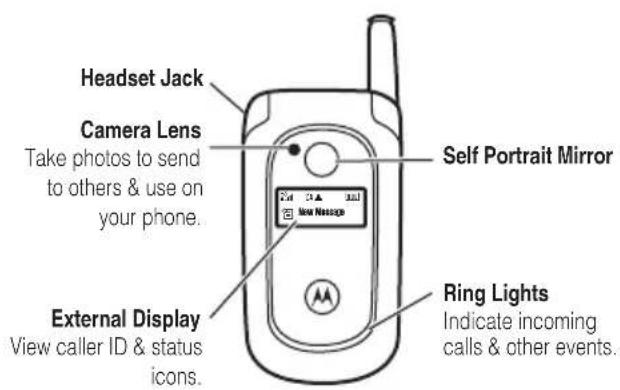
text_image
Headset Jack Camera Lens Take photos to send to others & use on your phone. External Display View caller ID & status icons. Self Portrait Mirror Ring Lights Indicate incoming calls & other events.Home Screen
text_image
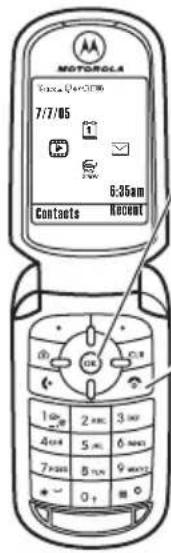
MOTOROLA Space Q-4008 7/7/05 6:35am Contacts Recent 1 2 3 4 5 6 7 8 9 + - 0 +② Press the ok key to open the Main Menu.
① Press and hold the Power Key 📷 for a few seconds, or until the screen lights up, to turn on your phone.
Main Menu
text_image
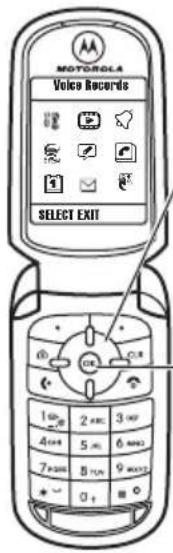
MOTOROLA Voice Records SELECT EXIT 1 2 3 4 5 6 7 8 9 + - 0 + -③ Press the Navigation Key up, down, left, or right ( ·· ) to highlight a menu feature.
④ Press the ok key to select.
Motorola, Inc.
Consumer Advocacy Office
1307 East Algonquin Road
Schaumburg, IL 60196
www.hellomoto.com
1-800-331-6456 (United States
1-888-390-6456 (TTY/TDD United States for hearing impaired)
1-800-461-4575 (Canada)
Certain mobile phone features are dependent on the capabilities and settings of your service provider's network. Additionally, certain features may not be activated by your service provider, and/or the provider's network settings may limit the feature's functionality. Always contact your service provider about feature availability and functionality. All features, functionality, and other product specifications, as well as the information contained in this user's guide are based upon the latest available information and are believed to be accurate at the time of printing. Motorola reserves the right to change or modify any information or specifications without notice or obligation.
MOTOROLA and the Stylized M Logo are registered in the US Patent & Trademark Office. All other product or service names are the property of their respective owners. Java and all other Java-based marks are trademarks or registered trademarks of Sun Microsystems, Inc. in the U.S. and other countries.
© Motorola, Inc., 2006.
Manual Number: 6809504A36-0
contents
menu map 6
Use and Care 8
essentials 9
about this guide. . . . . . 9
battery 10
turn it on & off ..... 12
make a call.... 12
answer a call ..... 12
adjust volume ..... 12
change the call alert... 13
store a phone
number 13
call a stored
phone number..... 14
view your phone
number 14
main attractions ..... 15
take & send a photo . . . 15
send a multimedia
message ..... 17
receive a multimedia
message ..... 19
cable connections .... 20
Bluetooth®
connections ..... 20
TTY operation ..... 22
basics 24
home screen ..... 24
text entry.... 27
handsfree speaker....33
external display ..... 33
codes & passwords . . . 34
lock & unlock phone ... 35
customize....36
store your name
& phone number ..... 36
ring styles & alerts....36
set answer options . . . 37
set wallpaper ..... 37
set screen saver ..... 38
backlight 38
AGPS & your
location 39
AGPS limitations
& tips 39
conserving battery
power 40
calls 41
change active line.... 41
turn off a call alert.... 41
redial a number..... 41
automatic redial ..... 41
recent calls ..... 42
return a missed call ... 43
notepad 43
attach number ..... 43
emergency calls ..... 43
AGPS during an
emergency call ..... 44
speed dial 45
voicemail 45
other features ..... 47
advanced calling ..... 47
contacts 49
messages.... 52
personalize ..... 54
call times 59
handsfree 60
data & fax calls ..... 62
network 63
personal organizer ... 63
security.... 65
fun & games. 66
service & repairs..... 68
Specific Absorption
Rate Data.... 69
Safety and General
Information 72
Industry Canada
Notice to Users..... 77
FCC Notice To Users... 78
Motorola Limited
Warranty for the
United States
and Canada 79
Hearing Aid
Compatibility with
Mobile Phones ..... 83
Information from
the World Health
Organization 84
Smart Practices
While Driving 87
index 89
contents
menu map
main menu

Settings
- (see next page)

Media Gallery
- Camera
- Pictures
- Sounds
- Video Camera

Ring Styles
- Style
- Style Detail
- Ring Lights
- Event Lights

Brew

Voice Records

Contacts

Datebook

Messaging
• Voic email
- New TXT Msg
- Inbox
- Drafts
- Saved
• Quick Notes
- Sent
- Settings

Extras
- Recent Calls
- Tools
This is the standard main menu layout.
Your phone's menu may be a little different.
settings menu
Personalize
• Home Screen
- Main Menu
• Voice Dial Setup
- Skin
- Greeting
- Wallpaper
- Screen Saver
- Sound Settings
In-Call Setup
- In-Call Timer
- Answer Options
- M S G A l e r t
Security
- Phone Lock
- Lock Keypad
- Lock Application
- Restrict Calls
- New Passwords
- Data Connection
Initial Setup
- SpeakerPhone
- Auto PIN Dial
• Auto Redial - Backlight
- TTY Setup
- Sc r o l l
- Language
- Battery Save
- Brightness
• D T M F - Hyphenation
- Master Reset
- Master Clear
Network Options
• Current Network
- Analog Only
- Set Mode
- Service Tone
- Call Drop Tone
Car Settings
• Auto Answer
- Auto Handsfree
• Power-off Delay
- Charger Time
Headset
• Auto Answer
- Voice Dial
Location
- Location On
• 9 1 1 O n l y
Connection
- Incoming Call
- Bluetooth Link
Phone Status
• My Tel. Number
- Active Line
- Battery Meter
- Other Information
menu map
Use and Care
To care for your Motorola phone, please keep it away from:

liquids of any kind dust and dirt
Don't expose your phone to water, rain, extreme humidity, sweat, or other moisture.

Don't expose your phone to dust, dirt, sand, food, or other inappropriate materials.

extreme heat or cold cleaning solutions
Avoid temperatures below -10^/14^ or above 45^/113^ .

To clean your phone, use only a dry soft cloth. Don't use alcohol or other cleaning solutions.

microwaves the ground
Don't try to dry your phone in a microwave oven.
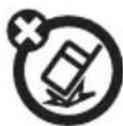
Don't drop your phone.
essentials
CAUTION: Before using the phone for the first time, read the Important Safety and Legal Information included in the gray-edged pages at the back of this guide.
about this guide
This guide shows how to locate a menu feature as follows:
Find it: Press OK > Media Gallery > Pictures
This means that, from the home screen:
1 Press OK to open the menu.
2 Press the navigation key ◆ to scroll to Gallery, and press OK to select it.
3 Press the navigation key ◆ to scroll to Pictures, and press OK to select it.
symbols

This means a feature is network/subscription dependent and may not be available in all areas. Contact your service provider for more information.

This means a feature requires an optional accessory.
battery
battery tips
Battery life depends on the network, signal strength, temperature, features, and accessories you use.
• Always use Motorola Original batteries and
chargers. The warranty does not cover damage caused by
non-Motorola batteries and/or chargers.
- New batteries or batteries stored for a long time may take more time to charge.
- When charging your battery, keep it near room temperature.
When storing your battery, keep it uncharged in a cool, dark, dry place.

- Never expose batteries to temperatures below -10°C (14°F) or above 45°C (113°F). Always take your phone with you when you leave your vehicle.
- It is normal for batteries to gradually wear down and require longer charging times. If you notice a change in your battery life, it is probably time to purchase a new battery.

Contact your local recycling center for proper battery disposal.
Warning: Never dispose of batteries in a fire because they may explode.
Before using your phone, read the battery safety information in the "Safety and General Information" section included in this guide.
battery installation
1

natural_image
Line drawing of a mobile phone with a stylus and handle (no text or symbols)2

natural_image
Line drawing of a mobile phone with an arrow indicating upward motion (no text or symbols)3
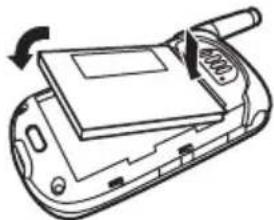
natural_image
Line drawing of a mobile phone with a scroll and a paper lid, showing a scroll wheel (no text or symbols)4
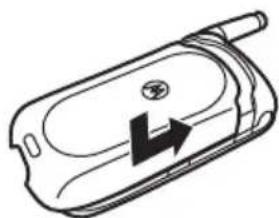
natural_image
Line drawing of a mobile phone casing with an arrow indicating left side (no text or symbols)battery charging
New batteries are not fully charged. Plug the battery charger into

natural_image
Line drawing of a mobile device with a plug inserted, showing internal components (no text or symbols)your phone and an electrical outlet. Your phone might take several seconds to start charging the battery. Your display shows Charge Complete when finished.
Tip: Relax, you can't overcharge your battery. It will perform best after you fully charge and discharge it a few times.
turn it on & off
To turn on your phone, press and hold 📋 for a few seconds or until the display turns on. If prompted, Teclac encen
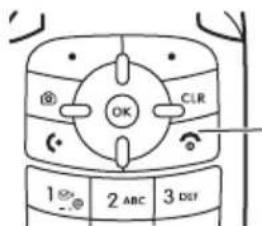
text_image
OK CLR 1 2 ABC 3 DEFenter your four-digit unlock code.
To turn off your phone, press and hold 🔒 for two seconds.
make a call
Enter a phone number and press 🔒 to make a call.
To "hang up," close the flip or press.
answer a call
When your phone rings and/or vibrates, just open the flip or press 🔒 to answer.
To "hang up," close the flip or press.
adjust volume
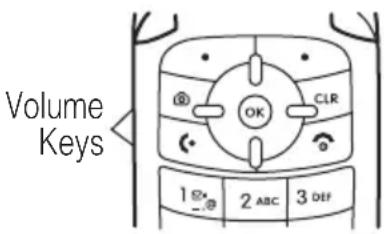
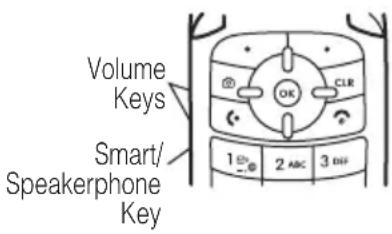
Press the volume keys up or down to:
- increase or
decrease
earpiece volume during a call
- increase or decrease the ringer volume setting when the home screen is visible (with the flip open)
• turn off an incoming call alert
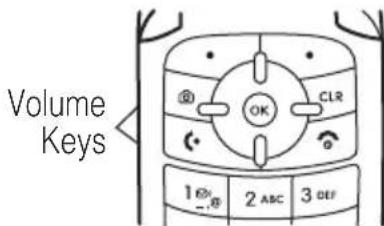
text_image
Volume Keys 1 ⏻ 2 ABC 3 DEFchange the call alert
flip open
From the home screen, press the down volume key to switch to lower call alert
text_image
Volume Keys 1 2 ABC 3 DEFvolume, then vibrate, and finally silent alert. Press the up volume key to cycle back from silent alert to vibrate and then to the lowest alert volume setting.
flip closed
Press the up or down volume key, then press the smart/speakerphone key to scroll through the alert styles: Loud, Soft, Vibrate, Vibrate then Ring, and Silent. The alert styles are shown on the phone's external display.
After scrolling to the desired alert style, press the up or down volume key to save the setting and return to the home screen.
store a phone number
You can store a phone number in Contacts:
1 Enter a phone number in the home screen.
2 Press the Store key.
3 Enter a name and other details for the phone number. To select a highlighted item, press OK.
4 Press the Done key to store the number.
To edit or delete a Contacts entry, see page 50.
To store an email address, press
OK > Contacts > [New Entry] > Email Address.
Enter the new contact's name and email address information.
call a stored phone number
Find it: Press OK > Contacts
1 Scroll to the Contacts entry.
Shortcut: In Contacts, press keypad keys to enter the first letters of an entry you want. You can also press ✕ and # to see the entries you use frequently, or entries in other categories.
2 Press ☐ to call the entry.
view your phone number
Find it: Press OK > Settings > Phone Status > My Tel. Number
Tip: Want to see your phone number while you're on a call? Press Options > My Tel. Number.
main attractions
You can do much more with your phone than make and receive calls!
take & send a photo
You can take a photo with your phone and sent it in a multimedia message to other wireless phone users.
To activate your phone's camera:
1 Press the camera key 📷.
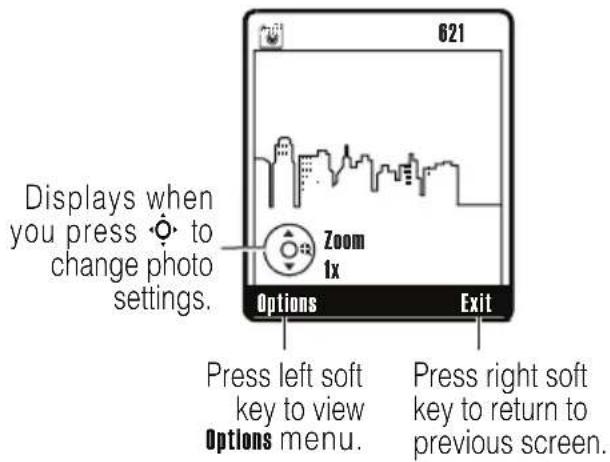
Your phone displays the active viewfinder image:
text_image
621 Displays when you press to change photo settings. Zoom 1x Options Exit Press left soft key to view Options menu. Press right soft key to return to previous screen.2 Point the camera lens at the photo subject.
Press ◆◆ up and down to select one of these settings:
- Zoom—Press ◆ left and right to increase or decrease image size.
- Style—Press ◆ left or right to scroll to Color, Black and White, Antique, or Negative.
- Lighting Conditions—Press ◆◆ left or right to scroll to Automatic, Sunny, Cloudy, Indoor (Home), Indoor (Office), or Night.
Press Options to open the Pictures menu and adjust camera settings (see page 16).
3 Press 📷 to take a photo.
4 Press Options to view the Store Options menu selections: Store Only, Apply as Wallpaper, Apply as Screen Saver, Apply as Contacts Entry.
or
Press Send to go to the Send Options menu and send the photo in a multimedia message or send it to an online album.
adjust camera settings
When the camera is active, press Options to open the Pictures menu, which can include these options:
| options | |
| Go To Pictures | View pictures and photos stored on your phone. |
| Auto-Timed Capture | Set a timer for the camera to take a photo. |
| Camera Setup | Change resolution, image quality, or shutter tone. |
| Capture Title | Assign a name to a captured photo. |
| View Free Space | See how much memory remains for storing pictures. |
send a multimedia message

A multimedia message contains embedded media objects (possibly including photos, pictures, animations, sounds, and voice records). You can send a multimedia message to other wireless phones with multimedia messaging capabilities and to email addresses.
create & send message
Note: You can send the message after entering a recipient phone number or email address and the message text. You do not need to complete the other entry fields.
Find it: Press OK > Messaging > Create Message
1 Scroll to New Picture Message and press Select.
2 Enter message text.
Press OPTIONS to open the MMS Menu (see "mms message options" on page 18).
3 With Insert highlighted, press Select to open the Insert Options menu.
4 Scroll to one of the following options and press Select:
• Picture—Insert a saved picture or photo.
- New Picture—Take a new photo to insert into the message (see “take & send a photo” on page 15.
• Voice Record—Insert a voice record.
• Sound—Insert a saved sound.
- Quick Text—Insert a prewritten message. Your phone comes with several quick text messages, and you can create additional ones.
main attractions
5 After you add a multimedia object, press Send To.
6 Scroll to an entry to receive the message and press OK.
or
Scroll to [New Number] and press OK to enter a phone number. On the To: screen, enter the number and press Ok, or press Options to select a number from Contacts.
or
Scroll to [New Email Address] and press OK to enter an email address.
7 Press SEND to send the message.
or
Press OPTIONS to open the Send To Menu, which can include these options:
- Message Options—Open the Message Options menu to copy other recipients, enter a
18 main attractions
message subject, add attachments, set message priority, or request a message delivery report.
- Message Details—View detailed information about the message.
- Save to Drafts—Save the message to the Drafts folder.
- Abort Message—Cancel the message and return to the Message Center.
mms message options
While creating a multimedia message, press Options to open the MMS Menu:
| options | |
| Insert | Insert a multimedia object. |
| Message Options | Open the Message Options menu to copy other recipients, enter a message subject, add attachments, set message priority, or request a message delivery report. |
| Set Page Timing | Specify how long each multimedia object is displayed. |
| Message Details | View detailed information about the message. |
| Entry Mode | Select a text entry mode (see page 27). |
| Entry Setup | Specify default primary and secondary entry modes (see page 27). |
| Cancel Message | Cancel the message and return to the Message Center. |
receive a multimedia message

When you receive a multimedia message or letter, your phone sounds an alert and displays the ☑ (message waiting) indicator and a New Message notification.
To view a multimedia message press READ.
- Photos, pictures, and animations are displayed when you read the message.
- A sound file begins playing when the message text is displayed. Use the volume keys to adjust the volume.
Note: You may have to select an indicator embedded in the message text to play a sound file.
If the message includes an attached file, select the file indicator or filename and press VIEW (for an image file), PLAY (for a sound file), or OPEN (for an object such as a Contacts or datebook entry or an unknown file type).
cable connections

Your phone has a mini-USB port so you can connect it to a computer.
If you use a USB cable connection:
- Make sure to connect the phone to a high-power USB port on your computer (not a low-power one such as the USB port on your keyboard or bus-powered USB hub). Typically, USB high-power
ports are located directly on your computer.
Note: If you connect your phone to a low-power USB port, the computer may not recognize your phone.
- Make sure both your phone and the computer are turned on Bluetooth® connections.
Bluetooth® connections

Your phone supports Bluetooth connections. You can connect your phone to a Bluetooth headset or car kit, or connect to another device to exchange and synchronize files.
Your phone currently supports the following Bluetooth profiles:
- headset (optional Motorola Original™ accessory)
- Handsfree Car Kit (optional Motorola Original accessory)
For more Bluetooth wireless connections support, go to www.motorola.com/Bluetoothsupport.
Note: All multimedia (video player, audio player, shutter tones) will play from the speakerphone when your phone is connected to another Bluetooth device.
turn Bluetooth power on/off
Set Bluetooth power to be on whenever your phone is on.
Find it: Press OK > Settings > Connection > Bluetooth Link > Setup
1 Scroll to Power and press Change.
2 Scroll to On and press Select.
To extend battery life, use the above procedure and set Bluetooth power to Off when not in use. If you turn Bluetooth power Off, your phone will not connect to accessories until you turn Bluetooth power On and reconnect to the accessories.
pair with headset, handsfree device, or computer
Before you try to connect to another Bluetooth device, make sure your phone's Bluetooth power is On and the device is in pairing mode (see the user guide for the device you are attempting to pair with). You cannot perform pairing while your phone is connected to another device.
To pair your phone to a headset accessory, handsfree car kit, or PC that supports Bluetooth wireless connections:
Find it: Press OK > Settings > Connection > Bluetooth Link > Handsfree > [Look For Devices]
Your phone displays a list of device(s) located within range of the phone. If your phone is already connected to a device, your phone lists that device and identifies it with a \ (in-use indicator). Once a connection is established with a device, no other device can connect to your phone until the currently connected device is disconnected.
1 Highlight a device in the list of devices your phone found.
2 Press OK to connect the device.
3 If the device requests permission to bond with your phone, select YES and enter the
device PIN code to create a secure connection with the device.
Note: The default PIN code is 0000.
When the connection is made, the ⚙ (Bluetooth) indicator or a Bluetooth message displays in the home screen.
For specific information about an accessory, refer to the instructions that came with it.
TTY operation

You can use an optional TTY device with your phone to send and receive calls. You must plug the TTY device into the phone's headset connector and set the phone to operate in one of three TTY modes.
Note: Use a TSB-121 compliant cable (provided by the TTY manufacturer) to connect the TTY device to your phone.
22 main attractions
Note: Set the phone to level 4 (middle setting) for proper operation. If you experience a high number of incorrect characters, adjust the volume as needed to minimize the error rate.
Note: For optimal performance, your phone should be at least 12 inches (30 centimeters) from the TTY device. Placing the phone too close to the TTY device may cause high error rates.
set TTY mode
When you set your phone to a TTY mode, it operates in that mode whenever the TTY device is connected:
Find it: Press OK > Settings > Initial Setup
1 Scroll to TTY Setup and press CHANGE.
2 Scroll to the desired TTY mode and press SELECT.
TTY Setup can include these options:
| option | |
| Voice | Return to standard voice mode. |
| TTY | Transmit and receive TTY characters. |
| VCO | Receive TTY characters but transmit by speaking into microphone. |
| HCO | Transmit TTY characters but receive by listening to earpiece. |
When your phone is in a TTY mode, your phone displays the international TTY mode, the international TTY symbol, and the mode setting during an active TTY call.
return to voice mode
To return to standard voice mode, select Voice from the TTY Setup menu.
basics
See page 1 for a basic phone diagram.
home screen
The home screen shows when you turn on the phone. To dial a number from the home screen, press number keys and 🔒.
Note: Your home screen may look different from the one below.

text_image
7/7/05 6:35am Contacts Recent Label Clock Right Soft Key LabelLeft Soft KeySoft key labels show the current soft key functions. For soft key locations, see page 1.
Status indicators can show at the top of the home screen:

text_image
System Status Indicators 11/7/06 6:35am Contacts Recentsystem status indicators
| option | |
| Signal Strength Indicator | Vertical bars show the strength of the network connection. |
| ▲ Roaming Indicator | Indicates phone is in a digital coverage area and is roaming off network. |
| option | |
| Digital Indicator | Indicates phone is in a CDMA digital coverage area. |
| Analog Indicator | Indicates phone is in an analog coverage area. |
| 1X 1X Indicator | Indicates phone is in a 1x-RTT coverage area. |
| SSL Indicator | Indicates application verification is via SSL during a download session. |
| Voice Privacy Indicator | Indicates Voice Privacy is set to On and is enabled during active call. |
| → Data Call, Tethered, or Embedded WAP/BREW Application Indicator | Shows during data call, tethered mode, or WAP/BREW application. |
| No Service Indicator | Phone is in area with no service coverage. |
| TTY Indicator | Phone is in TTY mode (see page 22). |
| Voice Call Indicator | Shows during an active voice call. |
| E911 Indicator | Shows when E911 is On. |
| Location On Indicator | Shows when Location is set to On. |
| Keypad Lock Indicator | Shows when keypad lock is set to On. |
| option | |
| Battery Level Indicator | Shows battery charge level. The more bars, the greater the charge. |
| All Sounds Off | Indicates Master Volume is set to Off. |
| Alarm Only | Indicates Master Volume is set to Alarm Only. |
| Vibrate On | Indicates Master Volume is set to Vibrate On. |
| Sound On, Vibrate On | Indicates Master Volume is set to Sound On and Vibrate On. |
| Message Indicator | Displays when you receive a new message. |
menu shortcuts
Your phone displays four menu icons in the middle of the home screen.

text_image
11/7/06 Contacts RecentPress ◦ left, right, up, or down to open the menu for the corresponding icon.
You can change the menu icons that appear in the home screen or set your phone not to display icons in the home screen (see page 57).
text entry
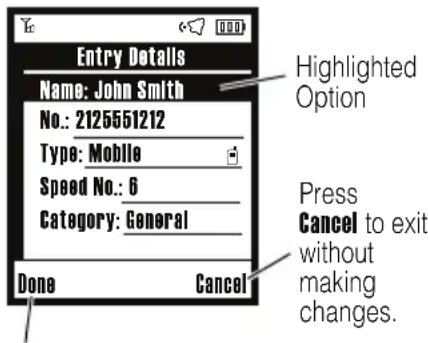
Some features let you enter text. The following is a sample of a screen for entering information for a Contacts entry:
text_image
Entry Details Name: John Smith No.: 2125551212 Type: Mobile Speed No.: 6 Category: General Done Cancel Highlighted Option Press Cancel to exit without making changes.Press Done to save all changes.
The following is a sample screen for composing a message:

text_image
Flashing cursor indicates insertion point. Options Cancel Press Cancel to exit without making changes. Press Options to view Message Menu.choose a text entry mode
Multiple text entry modes make it easy for you to enter names, numbers, and messages. The mode you select stays active until you choose another mode.
To select an entry mode, press ✕ in a text entry view:
| entry mode | |
| Primary | The primary text entry mode. |
| Numeric | Enter numbers only (see page 32). |
| Symbol | Enter symbols only (see page 32). |
| Secondary | The secondary text entry mode. |
Tip: You can also select a text entry method from any text entry screen by pressing Options > Entry Mode.
set up a text entry method
From any text entry screen, press Options > Entry Setup, select Primary Setup or Secondary Setup, and choose:
| entry method | |
| iTAP English | Let the phone predict each English word as you press keys. |
| iTAP Français | Let the phone predict each French word as you press keys. |
| iTAP Español | Let the phone predict each Spanish word as you press keys. |
| iTAP Portuguêsse | Let the phone predict each Portuguese word as you press keys. |
| Tap | Enter letters and numbers by pressing a key one or more times. |
| entry method | |
| Tap Extended | Enter letters, numbers, and symbols by pressing a key one or more times. |
| None | Hide the Secondary setting (only available for Secondary Setup). |
Note: Your phone may not contain all of the languages listed above.
When you select the Primary or Secondary text entry method, the following indicators identify the text
| primary secondary | ||
| 1 | 2 | Tap, no capital letters |
| 1↑ | 2↑ | Tap, capitalize next letter only |
| 1↑ | 2↑ | Tap, all capital letters |
| 1↓ | 2↓ | iTAP, no capital letters |
| 1↑ | 2↑ | iTAP, capitalize next letter only |
| 1↑ | 2↑ | iTAP, all capital letters |
The 123 indicator identifies Numeric entry method. The @ indicator identifies Symbol entry method.
tap method
This is the standard method for entering text on your phone.
Regular Tap method cycles through the letters and numbers of the key you press. The Tap
Extended method cycles through letters, numbers, and symbols.
1 Press a keypad key one or more times to select a letter, number, or symbol.
2 Enter the remaining characters.
Tip: Press ◆ right or ☒ to insert a space.
When you enter text with the Tap or Tap Extended method, the soft key functions change.

text_image
Character displays at insertion point. abc 1 Msg 158 I | After 2 seconds, character is accepted and cursor moves to next position. Select Cancel Press Cancel to cancel entry & return to previous screen. Press Select to accept and store text.When you enter three or more characters in a row, your phone may guess the rest of the word. For example, if you enter prog, you might see:

text_image
abc1 Msg 143 This is a program Press - right to accept Program, or press * to reject it and enter a space after prog. Select CancelIf you want a different word, continue pressing keys to enter the remaining characters.
- The first character of every sentence is capitalized. If necessary, press ◦ down to change the character to lowercase before the cursor moves to the next position.
- Press ◆ to move the flashing cursor to enter or edit message text.
- If you don't want to save your text or text edits, press 🔒 to exit without saving.
iTAP® method
The iTAP method lets you enter words using one key press per letter. The iTAP software combines your key presses into common words, and predicts each word as you enter it.
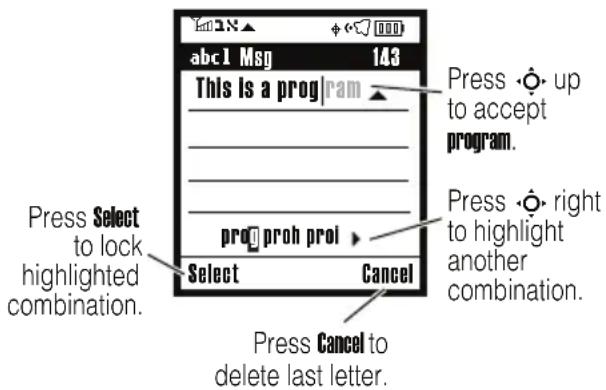
1 Press keypad keys to show possible letter combinations at the bottom of the screen.
2 Scroll left or right to highlight the combination you want.
3 Press Select to lock a highlighted combination.
You can press keys to add more letters to the end of the combination.
or
Press ☒ to enter the highlighted combination when it spells a word. A space is inserted after the word.
For example, if you press 7 7 6 4, your phone displays letter combinations that match your key presses:
text_image
abc1 Msg 143 This is a prog ram Press Select to lock highlighted combination. prog proh proi Select Cancel Press Cancel to delete last letter. Press up to accept program. Press right to highlight another combination.If you enter a word your phone does not recognize, your phone stores the word to use as a future word option. When you run out of phone memory for unrecognized words, your phone deletes the oldest word to add new words.
numeric method
When using the numeric method, press the number keys to enter the numbers you want.
symbol method
When using the symbol entry method:
1 Press keypad keys to show possible letter combinations at the bottom of the screen.
2 Scroll left or right to highlight the symbol you want.
3 Press Select to enter the highlighted symbol.
handsfree speaker
Note: You must open your phone's flip to use the speakerphone
You can use your phone's handsfree speaker to make calls without holding the phone to your ear.
During a call (with the flip open), press and hold the smart/speaker phone key to turn the
text_image
Volume Keys Smart/ Speakerphone Keyhandsfree speaker on. Your phone displays Speaker Phone and plays a soft audio alert.
The handsfree speaker stays on until you press and hold the smart/speakerphone key again or turn off the phone.
Note: The handsfree speaker won't work when your phone is connected to a handsfree car kit or headset.
external display
When you close your phone, you can use the external display for the following:
• View time and phone status information.
- Set phone alert styles.
• View message notifications.
To set the phone alert style using the external display.
1 Press the volume keys up or down to scroll through styles.
2 Press the smart/speakerphone key to select the displayed style.
3 Press the volume keys up or down to return to the home screen.
To view an unanswered call when you see X Missed Calls in the external display:
Note: Because the microphone and earpiece are unavailable when the phone is closed, you must use a headset or other handsfree device with this feature.
1 Press the smart/speakerphone key to view the received calls list.
2 Press the volume keys up or down to scroll through and select a call.
3 Press the smart/speakerphone key to view the selected call.
codes & passwords
Your phone's four-digit unlock code is originally set to 1234. The six-digit security code is originally set to 000000. If your service provider didn't change these codes, you should change them:
Find it: Press OK > Settings > Security > New Passwords.
If you forget your unlock code: At the Enter Unlock Code prompt, try entering 1234 or the last four digits of your phone number. If that doesn't work:
1 Press OK to display the unlock code bypass screen.
2 Enter your six-digit security code and press OK.
If you forget your security code, contact your service provider.
lock & unlock phone
You can lock your phone to keep others from using it. To lock or unlock your phone, you need the four-digit unlock code.
Note: You can make emergency calls on a locked phone (see page 43). A locked phone still rings or vibrates for incoming calls or messages, but you need to unlock it to answer.
To manually lock your phone:
Find it: Press OK > Settings > Security > Phone Lock > Lock Now
Enter the four-digit unlock code, then press OK.
To automatically lock your phone whenever you turn it off:
Find it: Press OK > Settings > Security > Phone Lock > Automatic Lock
Enter the four-digit unlock code, pressOK, then select On.
customize
store your name & phone number
Find it: Press OK > Settings > Phone Status > My Tel. Number
If you don't know your phone number, contact your service provider.
ring styles & alerts
Your phone rings and/or vibrates to notify you of an incoming call or to signal certain other events. This ring or vibration is called an alert.
set a style
Find it: Press OK > Ring Styles
1 Scroll to Style and press Change.
2 Scroll to the desired ring style and press Select.
set alerts
Your phone includes alerts for Calls, Inbox, Voicemail, Alarms, Data Calls, Fax Calls, and Reminders.
You can specify a detailed setting for each type of alert:
Find it: Press OK > ☆ Ring Styles
1 Scroll to Style Detail and press Change.
2 Scroll to the desired alert type and press Change.
3 Scroll to the desired detail setting and press Select.
4 Repeat steps 2 and 3 for each alert you want to set.
set answer options
You can use different ways to answer an incoming call. To turn on or turn off an answer option:
Find it: Press OK > Settings > In-Call Setup > Answer Options
| options | |
| Multi-Key | Answer by pressing any key. |
| Open To Answer | Answer by opening the flip. |
set wallpaper
Set a photo, picture, or animation as a wallpaper (background) image in your home screen.
Note: Your theme can set your wallpaper (page 38).
Press OK > Settings > Personalize > Wallpaper.
| options | |
| Picture | Press ◆◆ up or down to select a picture, or select None for no wallpaper. |
| Layout | Select Center to center the image in the display, Tile to repeat the image across the display, or Fit-to-screen to resize the image, if needed, to fit on the screen. |
set screen saver
Set a photo, picture, or animation as a screen saver image.
The screen saver image displays when the flip is open and no activity is detected for a specified time period. The image shrinks to fill the display, if necessary. An animation repeats for one minute, then the first frame of the animation displays.
Tip: Turn off the screen saver to extend battery life.
Find it: Press OK > Settings > Personalize > Screen Saver
To select a picture to use as a screen saver
1 Scroll to Picture and press Change to view available pictures.
2 Scroll to the image you want and press SELECT.
customize
Select [None] to turn off the screen saver.
To specify how long your phone must be inactive before it displays the screen saver:
1 Scroll to Delay and press Change.
2 Scroll to 1 minute minutes or 10 minutes, and press Select.
Select Off if you don't want your phone to display a screen saver.
backlight
Set the amount of time that the display and keypad backlights remain on, or turn off backlights to extend battery life.

Find it: Press OK > Settings > Initial Setup > Backlight
AGPS & your location

Your phone can use the automatic location information feature, along with Assisted Global Positioning System (AGPS) satellite signals, to tell the network where you are physically located.
When ALI is set to Location On, your phone displays the ⊕ (ALI on) indicator. Services may use your known location to provide useful information (for example, driving directions, or the location of the nearest bank). Your phone prompts you when the network or a service asks for your location. You can refuse at this point.
When ALI is set to 911 Only, your phone displays the ⊗ (ALI off) indicator, and the phone does not send location information unless you call the emergency phone number (such as 911).
Find it: Press OK > Settings > Location > Location On or 911 Only
AGPS limitations & tips
Your phone uses Assisted Global Positioning System (AGPS) satellite signals to estimate your location. If your phone cannot find strong satellite signals, your AGPS might be slower, less accurate, or it might not work at all. AGPS provides only an approximate location, often within 150 feet (45 meters) but sometimes much farther from your actual location.
To improve AGPS accuracy:
- Go outside and away from underground locations, covered vehicles, structures with metal or concrete roofs, tall buildings, and
customize
foliage. Indoor performance might improve if you move closer to window, but some window sun-shielding films can block satellite signals.
- Move away from radios, entertainment equipment, and other electronic devices that might interfere with or block AGPS satellite signals.
- Move away from radios, entertainment equipment, and other electronic devices that might interfere with or block AGPS satellite signals.
- Extend your phone antenna.
- Hold your phone away from your body, and point the phone antenna toward the sky. Do not cover the antenna area with your fingers.
AGPS uses satellites controlled by the U.S. government and subject to changes implemented in accordance with the Department of Defense AGPS user policy and the Federal Radio Navigation Plan. These changes might affect AGPS performance.
conserving battery power
Your phone includes an ambient light sensor and Battery Save feature to help you extend battery life. When you set Battery Save to On, your phone automatically turns off the keypad backlight when sufficient ambient light is available. Inhibiting or covering the sensor may cause intermittent backlight functioning.
Find it: Press OK > Settings > Initial Setup > Battery Save
calls
To make and answer calls, see page 12.
change active line

Change the active phone line to make and receive calls from your other phone number.
Find it: Press OK > Settings > Phone Status > Active Line
turn off a call alert
You can press the volume keys to turn off a call alert before answering the call.
redial a number
1 Press ☐ from the home screen.
2 Scroll to the entry you want to call and press 🔒.
automatic redial
When you receive a busy signal your phone displays Call Failed, Number Busy, you can press 📋 or the Retry key to redial the number.

When you set Auto Redial to On, your phone automatically redials a busy number for four minutes. When the call connects, your phone rings or vibrates once, displays Redial Successful, and completes the call.
Find it: Press OK > Settings > Initial Setup > Auto Redial
calls
When automatic redial is turned off, you can manually activate the feature to redial a phone number. When you hear a fast busy signal and see Call Failed, press 📄 or RETRY.
recent calls
Your phone keeps lists of incoming and outgoing calls, even for calls that didn't connect. The most recent calls are listed first. The oldest calls are deleted as new calls are added.
Tip: Press ☐ from the home screen to view the dialed calls list.
Find it: Press OK > Extras > Recent Calls
1 Scroll to Received or Dialed and press SELECT.
2 Scroll to a call entry.
Note: Scroll to a call. A √ next to a call means the call connected.
3 To call the number, press ☐.
To see call details (like time and date), press VIEW.
To open the Last Calls Menu (see the table following these steps), press OK.
The Last Calls Menu can include these options:
| option | |
| Store | Create a Contacts entry with the number in the No. field. Store does not appear if the number is already stored. |
| Delete | Delete the entry. |
| Delete All | Delete all entries in the list. |
| Send Message | Open a new text message with the number in the To field. |
| Add Digits | Add digits after the number. |
| Attach Number | Attach a number from the Contacts or recent calls lists. |
return a missed call
Your phone keeps a record of your unanswered calls, and shows X Missed Calls, where X is the number of missed calls.
1 Press the View key to see the received calls list.
2 Scroll to the call you want to return, then press Ⓒ.
notepad
The most recent set of digits that you enter are stored in your phone/s notepad memory. These digits can be a number that you called ar a number that you entered and want to save for later.
To retrieve a number stored in the notepad
Find it: Press OK > Extras > Recent Calls > Notepad
Press 🔒 to call the number.
Press Options to open the Options menu to attach a number or insert a special character.
Press Store to create a Contacts entry with the number in the No. field.
attach number
While dialing (with digits visible on the screen), press OK > Attach Number to attach a number from Contacts or the recent calls list.
emergency calls
Your service provider programs one or more emergency phone numbers, such as 911 or 112, that you can call under any circumstances, even when your phone is locked.
Note: Emergency numbers vary by country. Your phone's preprogrammed emergency number(s) may not work in all locations, and sometimes an emergency call cannot be placed due to network, environmental, or interference issues.
1 Enter the emergency number.
2 Press ☐ to call the emergency number.
AGPS during an emergency call

When you make an emergency call, your phone can use Assisted Global Positioning System (AGPS) satellite signals to tell the emergency response center your approximate location.
The AGPS feature has limitations, so always tell the emergency response center your best knowledge of your location. Remain on the phone for as long as the emergency response center instructs you.
AGPS might not work for emergency calls:
- Your phone's AGPS feature must be turned on (see page 39).
- Your local emergency response center might not process AGPS location information. For details, contact your local authorities.
For best results:
- Go outside and away from underground locations, covered vehicles, structures with metal or concrete roofs, tall buildings, and foliage. Indoor performance might improve if you move closer to
windows, but some window sun shielding films can block satellite signals.
- Move away from radios, entertainment equipment, and other electronic devices that might interfere with or block AGPS satellite signals.
If your phone cannot find strong AGPS satellite signals, the location of the nearest cell tower in contact with your phone is automatically provided to the emergency response center.
speed dial
Each entry you store in Contacts is assigned a unique speed dial number.
Tip: To see an entry's speed dial number, press OK> Contacts, then scroll to the entry and press VIEW.
Note: Your service provider may have already assigned speed dial number 1 to your voice mail number.
To speed dial a number:
1 Enter the speed dial number for the entry you want to call and press #.
2 Press ☐ to call the number.
voicemail
Your network stores the voicemail messages you receive. To listen to your messages, call your voicemail number.

Note: Your service provider may include additional information about using this feature.
When you receive a voicemail message, your phone shows the voicemail message
indicator ☐ and New Voicemail. Press Call to listen to the message.
To check voicemail messages:
Find it: Press OK > Messaging > Voicemail > CALL
Enter your four-digit unlock code if necessary and press OK.
Your phone may prompt you to store your voicemail phone number. If you don't know your voicemail number, contact your service provider.
Note: You can't store ap (pause), w(wait), or n (number) character in this number. If you want to store a voicemail number with these characters, create a Contacts entry for it. Then, you can use the entry to call your voicemail.
advanced calling
features
voice dial
Press and release the voice key (on the right side of the phone), then (within two seconds) say:
- "Name dial," followed by the name of a Contacts entry.
or
• "Digit dial," followed by a number.
You can use Digit Dial for numbers stored in Contacts.
features
auto PIN dial

Some networks require an authenticating PIN code to allow outgoing calls. Use Auto PIN Dial to dial your PIN code automatically.
To activate Auto PIN Dial and save your PIN code:
Press OK > Settings > Initial Setup
Auto PIN Dial
features
DTMF tones
Press OK > Settings > Initial Setup > DTMF
To send DTMF tones during a call, press the number keys.
To send stored numbers as DTMF tones during a call, highlight a number in Contacts or the recent calls lists, then press
OK > Send Tones.
features
insert special characters

While entering a number, press
OPTIONS. Then select one of the following:
Insert Pause—Your phone waits until the call connects before it dials the next digit(s) in the series.
Insert Wait—Your phone waits until the call connects, then prompts you for confirmation before it dials the next digit(s).
Insert 'n'—Your phone prompts you to enter a number.
contacts
features
create entry
Press OK > Contacts > [New Entry]
Phone Number
create mailing list
Create a mailing list as a single Contacts entry:
Press OK > Contacts > [New Entry]
Mailing List
You can add or delete entries to or from a mailing list. Use a group name provided by your phone or create your own name.
When you send a message to a mailing list, the message goes to all Contacts entries in that list.
features
set ringer ID for an entry
Assign a ring alert (ringer ID) to an entry:
Press OK > Contacts
Scroll to the entry and press Options, then scroll to Edit and press Select. Scroll to Ringer ID and press r. Scroll to the desired ringer_name and press Select, then press Done to save the setting.
Activate ringer IDs:
Press OK > Ring Styles > style Detail > Ringer IDs
| features |
| set picture ID for an entryAssign a photo or picture to show when you receive a call from an entry:PressOK>ContactsScroll to the entry and pressOptions, then scroll toEditand pressSelect. Scroll toPictureand pressOK. Scroll up or down to the desired picture and pressSelect, then pressDoneto save the setting. |
| set primary numberSet the primary number for aContactsentry with multiple numbers:PressOK>ContactsScroll to the entry and pressOptions, then scroll toSet Primaryand pressSelect. |
| features |
| view all or primary numbersView all numbers or only primary numbers for entriesPressOK>ContactsPressOptions, then scroll to Contacts Setup and press Select. Scroll to View and press Change, then select All Contacts or Primary Contacts. Press Done to save your selection. |
| edit entryPressOK>ContactsScroll to the entry and press Options, then scroll to Edit and press Select. |
| delete entryPressOK>ContactsScroll to the entry and press Options, then scroll to Delete and press Select. |
features
copy entry
Press OK > Contacts
Scroll to the entry and press Options, then scroll to Copy Entry and press Select. Enter a location number and press Ok
copy multiple entries
Press OK > Contacts
Press Options, then scroll to Copy Entries and press Select. Enter the range of entries to copy in the From[start] and From[end] fields. Next, enter a location number where you want the entries to be copied in the To[start] field. Press Done to copy the entries.
features
set category for an entry
Press OK > Contacts
Scroll to the entry and press Options, then scroll to Edit and press Select. Scroll to Category, then scroll left or right to the category you want. Press Done to save your selection.
set category view for entries
You can show All entries, entries in a predefined category, or entries in a category you create.
Press OK > Contacts
Press Options, then scroll to Categories and press Select. Scroll to the desired category and press OK. Press Exit to save your selection.
Shortcut: To see other categories in Contacts, press ☒ or #.
features
sort entries
Set the order in which entries are listed:
Press OK > Contacts
Scroll to an entry and press Options, then scroll to Setup and press Select. Scroll to Sort by and press Change. Scroll to Name, Speed No., or Email and press Select. Press Done to save your setting.
set speed dial number
Press OK > Contacts
Scroll to the entry and press Options, then scroll to Edit and press Select. Scroll to Speed No. and press OK. Enter the speed dial number and press Ok, then press Done to save the setting.
messages
features
send text message
Press OK > Messaging
Create Message > New Text Message
Press Options to perform various actions on the message.
use MMS template
Open an MMS template with preloaded media:
Press OK > Messaging > Create Message
Picture Msg Templates


features
view sent messages

Press OK > Messaging > Outbox
Scroll to the message and press Open (OK).
Press Options to perform various actions on the message.
send quick text

Quick Text is a prewritten message that you can quickly select and send. Your phone comes with several quick notes, and you can create additional ones.
Press OK > Messaging > Quick Text
Scroll to the quick text you want to send and press Options, then scroll to Send and press Select.
features
read received messages

Press OK > Messaging > Inbox
Scroll to the message and press Open (OK).
Press Options to perform various actions on the message.
drafts

View messages saved in Drafts folder:
Press OK > Messaging > Drafts
Scroll to the message and press Open (OK).
Press Options to perform various actions on the message.
features
erase messages

Delete all messages or only messages from the Outbox or Drafts folder:
Press OK > Messaging
Press Options, then scroll to and select Erase Messages.
personalize
speech commands
Advanced Speech Recognition enables you to place calls and access some menu options by speaking commands to your phone.
1 Press and release the voice key on the right side of the phone.
Your phone displays and speaks Say a command, followed by a list of voice commands.
Note: If the speakerphone is not turned on and you want to activate it, press the smart/speakerphone key.
2 Say one of the following commands: Name Dial, Digit Dial, Voicemail, Redial, or Received.
Tip: Speak numbers at a normal speed and volume, pronouncing each digit distinctly. Avoid pausing between digits.
Your phone opens the corresponding menu or performs the corresponding action.
adapt advanced speech recognition to your voice
For most people, Advanced Speech Recognition works well for voice dialing without any initial setup. However, if the phone is frequently unable to recognize numbers correctly when you use voice dialing, you may be able to improve your results by adapting it to your voice.
Note: If the phone is used by several people, reset voice dialing to the original setting before proceeding. This ensures that you are not saving your settings over someone else's.
Find it: Press OK > Settings > Personalize > Voice Dial Setup > Adapt Digits
1 Press START.
2 When the phone prompts you to say the first digit sequence, wait for the beep,
then repeat the digits in a normal tone of voice.
3 If the recording sounds acceptable (no mistakes or background noises), say "Yes" or press YES.
or
If the recording is not acceptable, say "No" or press NO. When prompted to say the digits again, wait for the beep and say the digits again. The phone will prompt you to repeat this process with up to twelve additional sets of digits.
4 When the phone prompts, "More Adaptation?", press YES to continue or NO to end the process.
When the adaptation process is complete, the phone will say "Adaptation Complete."
Tip: When adapting speech recognition to your voice:
- Choose a quiet place for recording.
- Wait for the beep before you speak.
- Speak at a normal speed and volume, pronouncing each digit distinctly. Avoid pausing between digits.
- If you make a mistake while recording a sequence of digits, or if an unexpected noise spoils the recording, record that sequence again.
To reset speech recognition to the factory defaults:
Find it: Press OK > Settings > Personalize > Voice Dial Setup > Reset Digits
more personalizing features
| features |
| ring volumePress OK > Ring Styles > Style Detail> Ring Volume |
| keypad volumePress OK > Ring Styles > Style Detail> Key Volume |
| remindersSet your phone to play reminder alerts for picture, text, or voicemail messages that you receive:Press OK > Ring Styles > Style Detail>Reminders |
features
message alerts
Set whether or not you are alerted to messages while you are on a call:
Press OK > 📋 Ring Styles > Style Detail
Msg Alert
skin
Choose a phone skin that sets the look and feel of your phone's screen:
Press OK > Settings > Personalize > Skin
greeting
Change the greeting that appears when you turn on your phone:
Press OK > Settings > Personalize > Greeting

features
change home screen soft key labels
Press OK > Settings > Personalize
Home Screen > Home Keys > Left Soft Key or Right Soft Key
banner
Create a heading to display on your phone's home screen:
Press OK > Settings > Personalize
Main Menu > Banner
text layout
Set home screen text to be left justified or centered:
Press OK > Settings > Personalize
Home Screen > Layout
| features |
| clock viewDisplay an analog clock or digital time readout in the home screen:PressOK>Settings>Personalize>Home Screen>Clock |
| menu viewDisplay the main menu as icons or a text list:PressOK>Settings>Personalize>Main Menu>View |
| show or hide menu iconsShow or hide menu feature icons in the home screen:PressOK>Settings>Personalize>Home Screen>Home Keys>Icons |
| features |
| menu languagePressOK>Settings>Initial Setup>Language |
| scrollSet the scroll bar to stop or wrap around in menu lists:PressOK>Settings>Initial Setup>Scroll |
| master resetReset all options except unlock code, security code, and lifetime timer:PressOK>Settings>Initial Setup>Master ResetTo reset all options, you need to enter the Security Code (000000). |
features
master clear
Reset all options except unlock code, security code, and lifetime timer, and clear all user settings and entries:
This option erases all user-entered information stored in your phone memory, including Contacts entries and downloaded files. Once you erase the information, it cannot be recovered. It resets all options to their factory settings except for the unlock code, security code, and lifetime timer.
Press OK > Settings > Initial Setup
Master Clear
To reset all options, you need to enter the Security Code (000000).
call times
Network connection time is the elapsed time from the moment you connect to your service provider's network to the moment you end the call by pressing Ⓤ. This time includes busy signals and ringing.
The amount of network connection time you track on your resettable timer may not equal the amount of time for which you are billed by your service provider. For billing information, please contact your service provider directly.
features
set in-call timer
Press OK > Settings > In-Call Setup
In-Call Timer

| features | |
| view call times |  |
| Press OK > Extras > Recent Calls > Call Times | |
| Scroll to Last Call, Dialed, Received, Roam Calls, Home Calls, CSD Calls, All Calls, or Lifetime Calls, and press Select. | |
| view data times |  |
| Press OK > Extras > Recent Calls > Data Times | |
| view data volumes |  |
| Press OK > Extras > Recent Calls > Data Volumes | |
handsfree
Note: The use of wireless devices and their accessories may be prohibited or restricted in certain areas. Always obey the laws and regulations on the use of these products.
| features |
| accessory volume settings(car kit or headset) |
| Adjust volume levels of car kit accessory:During an active call, press your phone’s up or down volume keys. |
| external speakerphone |
| Activate a connected external speakerphone during a call:Press the smart/speakerphone key on the left side of the phone. |
features
auto answer
(car kit or headset)

Automatically answer calls when connected to a car kit or headset:
Press OK > Settings > Car Settings or Headset > Auto Answer
voice dial
(headset)

Enable voice dial with headset send/end key:
Press OK > Settings > Headset > Voice Dial
auto handsfree
(car kit)

Automatically route calls to a car kit when connected:
Press OK > Settings > Car Settings
Auto Handsfree
features
power-off delay
(car kit)

Set the phone to stay on for a period of time after the ignition is switched off:
Press OK > Settings > Car Settings
Power-off Delay
charger time
(car kit)

Charge your phone for a period of time after the ignition is switched off:
Press OK > Settings > Car Settings
Charger Time
data & fax calls
features
data settings
Specify call type for next call:
Press OK > Settings > Connection
Incoming Call
Scroll to Next Call and press Change, then select Normal, Data In Only, or Fax In Only.
send data or fax

Connect your phone to the device, then place the call through the device application.
features
receive data or fax

Connect your phone to the device, then answer the call through the device application.
talk then fax

Connect your phone to the device, then:
Press OK > Dialing Menu > Talk Then Fax
Press 📄 to make the call.
network
features
network settings
View network information and adjust network settings:
Press OK > Settings > Network Options

personal organizer
features
add datebook event
Press OK > Datebook

Scroll to the desired day and press Options, then scroll to New and press Select.
features
view datebook event
View or edit event details:

Press OK > 1 Datebook
Scroll to the desired day and press OK, then scroll to the event and press OK.
event reminder
Press View to view an event reminder.

Press Exit to dismiss an event reminder.
copy datebook event
Copy a datebook event to another date and/or time:

Press OK > Datebook
Scroll to the desired day and press OK, then scroll to the event and press Options. Scroll to Copy and press Select.
| features |
set alarm Press OK > Extras > Tools> Alarm Clock Press OK > Extras > Tools> Alarm Clock |
turn off alarm To turn off an alarm, pressDisableor [IMAGE].To set an eight-minute delay, pressSNOOZE. To turn off an alarm, pressDisableor [IMAGE].To set an eight-minute delay, pressSNOOZE. |
create voice record Note: Recording phone calls issubject to varying state and federal lawsregarding privacy and recording ofconversations.Press and hold the voice key and beginrecording. Release the voice key whenfinished. Note: Recording phone calls issubject to varying state and federal lawsregarding privacy and recording ofconversations.Press and hold the voice key and beginrecording. Release the voice key whenfinished. |
| features |
play voice record  Press OK > ☑ Voice RecordsScroll to the voice record you wish to play and press OK. Press OK > ☑ Voice RecordsScroll to the voice record you wish to play and press OK. |
calculator  Calculate numbers:Press OK > ☑ Extras > Tools > Calculator Calculate numbers:Press OK > ☑ Extras > Tools > Calculator |
convert currency  Press OK > ☑ Extras > Tools > CalculatorPress Options, then scroll to Exchange Rate and press Select Enter the desired exchange rate and press Ok. Enter the amount to be converted, then press Options. Scroll to Convert Currency and press Select. Press OK > ☑ Extras > Tools > CalculatorPress Options, then scroll to Exchange Rate and press Select Enter the desired exchange rate and press Ok. Enter the amount to be converted, then press Options. Scroll to Convert Currency and press Select. |
security
features
lock application
Press OK > Settings > Security
Lock Application
When prompted, enter the unlock code and press Ok. Then scroll to the application you wish to lock and press Change.
restrict calls
Restrict outgoing or incoming calls:
Press OK > Settings > Security > Restrict Calls
When prompted, enter the unlock code and press Ok. Select Outgoing Calls or Incoming Calls and press Change. With Allow: highlighted, press Change, then select All, None, or Contacts, and press Select.
features
change unlock and security codes
Press OK > Settings > Security
New Passwords > Unlock Code or Security Code
Set up a location code to control access to the Location function (see page 39):
Press OK > Settings > Security
New Passwords > Location Code
fun & games
features
launch browser
Start a browser session:
Press OK > Brew
Note: The menu option on your phone for starting a browser session may be different than the one shown above.

features
manage pictures
Press OK > Media Gallery > Pictures

To view a picture, scroll to the picture title and press OK.
Press Options to open the Pictures Menu, which can include the following options: Send In Message, Send to online album, Apply As, Zoom, New, Details, Change Details, Delete, Move, Copy, Mark, Mark All. Assign to Category, View Free Space.
Note: The Pictures Menu includes different options for locked or preloaded images.
features
manage sounds

Manage sounds and create playlists:
Press OK > Media Gallery > Sounds
To play a sound, scroll to the sound title and press OK.
To create a playlist, scroll to [New Playlist] and press OK.
Press Options to open the Sounds Menu, which can include the following options: New, Categories, Sounds Setup, View Free Space.
service & repairs
If you have questions or need assistance, we're here to help.
Go to
www.motorola.com/consumer/support, where you can select from a number of customer care options. You can also contact the Motorola Customer Support Center at 1-800-331-6456 (United States), 1-888-390-6456 (TTY/TDD United States for hearing impaired), or 1-800-461-4575 (Canada).
Specific Absorption Rate Data
This model wireless phone meets the government's requirements for exposure to radio waves.
Your wireless phone is a radio transmitter and receiver. It is designed and manufactured not to exceed limits for exposure to radio frequency (RF) energy set by the Federal Communications Commission (FCC) of the U.S. Government and by the Canadian regulatory authorities. These limits are part of comprehensive guidelines and establish permitted levels of RF energy for the general population. The guidelines are based on standards that were developed by independent scientific organizations through periodic and thorough evaluation of scientific studies. The standards include a substantial safety margin designed to assure the safety of all persons, regardless of age or health.
The exposure standard for wireless mobile phones employs a unit of measurement known as the Specific Absorption Rate, or SAR. The SAR limit set by the FCC and by the Canadian regulatory authorities is 1.6 W/kg. ^1 Tests for SAR are conducted using standard operating positions accepted by the FCC and by Industry Canada with the phone transmitting at its highest certified power level in all tested frequency bands. Although the SAR is determined at the highest certified power level, the actual SAR level of the phone while operating can be well below the maximum value. This is because the phone is designed to operate at multiple power levels so as to use only the power required to reach the network. In general, the closer you are to a wireless base station, the lower the power output.
Before a phone model is available for sale to the public in the U.S. and Canada, it must be tested and certified to the FCC and Industry Canada that it does not exceed the limit established by each government for safe exposure. The tests are performed in positions and locations (e.g., at the ear and worn on the body) reported to the FCC and available for review by Industry Canada. The highest SAR value for this model phone when tested for use at the ear is 1.60 W/kg, and when worn on the body, as described in this user guide, is 1.49 W/kg. (Body-worn measurements differ among phone models, depending upon available accessories and regulatory requirements). ^2
While there may be differences between the SAR levels of various phones and at various positions, they all meet the governmental requirements for safe exposure. Please note that improvements to this product model could cause differences in the SAR value for later products; in all cases, products are designed to be within the guidelines.
Additional information on Specific Absorption Rates (SAR) can be found on the Cellular Telecommunications & Internet Association (CTIA) Web site:
http://www.phonefacts.net
or the Canadian Wireless Telecommunications Association (CWTA)
Web site:
http://www.cwta.ca
- In the United States and Canada, the SAR limit for mobile phones used by the public is 1.6 watts/kg (W/kg) averaged over one gram of tissue. The standard incorporates a substantial margin of safety to give additional protection for the public and to account for any variations in measurements.
- The SAR information includes the Motorola testing protocol, assessment procedure, and measurement uncertainty range for this product.

natural_image
Abstract black and white geometric logo with stylized letter M (no text or symbols)MOTOROLA
Important Safety and Legal Information
Safety and General Information
This section contains important information on the safe and efficient operation of your mobile device. Read this information before using your mobile device.*
Exposure to Radio Frequency (RF) Energy
Your mobile device contains a transmitter and receiver. When it is ON, it receives and transmits RF energy. When you communicate with your mobile device, the system handling your call controls the power level at which your mobile device transmits.
Your Motorola mobile device is designed to comply with local regulatory requirements in your country concerning exposure of human beings to RF energy.
Operational Precautions
For optimal mobile device performance and to be sure that human exposure to RF energy does not exceed the guidelines set forth in the relevant standards, always follow these instructions and precautions.
External Antenna Care
If your mobile device has an external antenna, use only a Motorola-supplied or approved replacement antenna. Use of unauthorized antennas, modifications, or attachments could damage the mobile device and/or may result in your device not complying with local regulatory requirements in your country.
DO NOT hold the external antenna when the mobile device is IN USE. Holding the external antenna affects call quality and may cause the mobile device to operate at a higher power level than needed.
Product Operation
When placing or receiving a phone call, hold your mobile device just like you would a landline phone.
If you wear the mobile device on your body, always place the mobile device in a Motorola-supplied or approved clip, holder, holster, case, or body harness. If you do not use a body-worn accessory supplied or approved by Motorola, keep the mobile device and its antenna at least 2.5 centimeters (1 inch) from your body when transmitting.
When using any data feature of the mobile device, with or without an accessory cable, position the mobile device and its antenna at least 2.5 centimeters (1 inch) from your body.
Using accessories not supplied or approved by Motorola may cause your mobile device to exceed RF energy exposure guidelines. For a list of Motorola-supplied or approved accessories, visit our Web site at: www.motorola.com.
RF Energy Interference/Compatibility
Nearly every electronic device is subject to RF energy interference from external sources if inadequately shielded, designed, or otherwise configured for RF energy compatibility. In some circumstances your mobile device may cause interference with other devices.
Follow Instructions to Avoid Interference Problems
Turn off your mobile device in any location where posted notices instruct you to do so. These locations include hospitals or health care facilities that may be using equipment that is sensitive to external RF energy.
In an aircraft, turn off your mobile device whenever instructed to do so by airline staff. If your mobile device offers an airplane mode or similar feature, consult airline staff about using it in flight.
Pacemakers
If you have a pacemaker, consult your physician before using this device.
Persons with pacemakers should observe the following precautions:
- ALWAYS keep the mobile device more than 20 centimeters (8 inches) from your pacemaker when the mobile device is turned ON.
• DO NOT carry the mobile device in the breast pocket. - Use the ear opposite the pacemaker to minimize the potential for interference.
- Turn OFF the mobile device immediately if you have any reason to suspect that interference is taking place.
Hearing Aids
Some mobile devices may interfere with some hearing aids. In the event of such interference, you may want to consult your hearing aid manufacturer or physician to discuss alternatives.
Other Medical Devices
If you use any other personal medical device, consult your physician or the manufacturer of your device to determine if it is adequately shielded from RF energy.
Safety Information
Driving Precautions
Check the laws and regulations on the use of mobile devices in the area where you drive. Always obey them.
When using your mobile device while driving, please:
- Give full attention to driving and to the road. Using a mobile device may be distracting. Discontinue a call if you can't concentrate on driving.
- Use handsfree operation, if available.
- Pull off the road and park before making or answering a call if driving conditions so require.
Responsible driving practices can be found in the "Smart Practices While Driving" section at the end of this guide and/or at the Motorola Web site: www.motorola.com/callsmart.
Operational Warnings
Obey all posted signs when using mobile devices in public areas, such as health care facilities or blasting areas.
Automobile Air Bags
Do not place a mobile device in the air bag deployment area.
Potentially Explosive Atmospheres
Areas with potentially explosive atmospheres are often but not always posted, and can include fueling areas such as below decks
on boats, fuel or chemical transfer or storage facilities, or areas where the air contains chemicals or particles, such as grain, dust, or metal powders.
When you are in such an area, turn off your mobile device, and do not remove, install, or charge batteries. In such areas, sparks can occur and cause an explosion or fire.
Damaged Products
If your mobile device or battery has been submerged in water, punctured, or subjected to a severe fall, do not use it until you take it to a Motorola Authorized Service Center. Do not attempt to dry it with an external heat source, such as a microwave oven.
Batteries and Chargers
If jewelry, keys, beaded chains, or other conductive materials touch exposed battery terminals, this could complete an electrical circuit (short circuit), become very hot, and could cause damage or injury. Be careful when handling a charged battery, particularly when placing it inside a pocket, purse, or other container with metal objects. Use only Motorola Original batteries and chargers.
Caution: To avoid risk of personal injury, do not dispose of your battery in a fire.

Your battery, charger, or mobile device may contain symbols, defined as follows:
| Symbol Definition | |
 | Important safety information follows. |
 | Do not dispose of your battery or mobile device in a fire. |
 | Your battery or mobile device may require recycling in accordance with local laws. Contact your local regulatory authorities for more information. |
 | Do not throw your battery or mobile device in the trash. |
 | Your mobile device contains an internal lithium ion battery. |
 | Do not let your battery, charger, or mobile device get wet. |
 | Listening at full volume to music or voice through a headset may damage your hearing. |
Choking Hazards
Your mobile device or its accessories may include detachable parts, which may present a choking hazard to small children. Keep your mobile device and its accessories away from small children.
Glass Parts
Some parts of your mobile device may be made of glass. This glass could break if the product is dropped on a hard surface or receives a substantial impact. If glass breaks, do not touch or attempt to remove. Stop using your mobile device until the glass is replaced by a qualified service center.
Seizures/Blackouts
Some people may be susceptible to epileptic seizures or blackouts when exposed to flashing lights, such as when playing video games. These may occur even if a person has never had a previous seizure or blackout.
If you have experienced seizures or blackouts, or if you have a family history of such occurrences, please consult with your physician before playing video games or enabling a flashing-lights feature (if available) on your mobile device.
Discontinue use and consult a physician if any of the following symptoms occur: convulsion, eye or muscle twitching, loss of awareness, involuntary movements, or disorientation. It is always a good idea to hold the screen away from your eyes, leave the
Safety Information
lights on in the room, take a 15-minute break every hour, and stop use if you are very tired.
Caution About High Volume Usage

Listening at full volume to music or voice through a headset may damage your hearing.
Repetitive Motion
When you repetitively perform actions such as pressing keys or entering finger-written characters, you may experience occasional discomfort in your hands, arms, shoulders, neck, or other parts of your body. If you continue to have discomfort during or after such use, stop use and see a physician.
Industry Canada Notice to Users
Operation is subject to the following two conditions: (1) This device may not cause interference and (2) This device must accept any interference, including interference that may cause undesired operation of the device. See RSS-GEN 7.1.5.
Industry Canada Notice
FCC Notice To Users
Motorola has not approved any changes or modifications to this device by the user. Any changes or modifications could void the user's authority to operate the equipment. See 47 CFR Sec. 15.21.
This device complies with part 15 of the FCC Rules. Operation is subject to the following two conditions: (1) This device may not cause harmful interference, and (2) this device must accept any interference received, including interference that may cause undesired operation. See 47 CFR Sec. 15.19(3).
If your mobile device or accessory has a USB connector, or is otherwise considered a computer peripheral device whereby it can be connected to a computer for purposes of transferring data, then it is considered a Class B device and the following statement applies:
This equipment has been tested and found to comply with the limits for a Class B digital device, pursuant to part 15 of the FCC Rules. These limits are designed to provide reasonable protection against harmful interference in a residential installation. This equipment generates, uses and can radiate radio frequency energy and, if not installed and used in accordance with the instructions, may cause harmful interference to radio communications. However, there is no guarantee that interference will not occur in a particular installation. If this equipment does cause harmful interference to radio or television reception, which can be determined by turning the equipment off and on, the user is
encouraged to try to correct the interference by one or more of the following measures:
• Reorient or relocate the receiving antenna.
- Increase the separation between the equipment and the receiver.
- Connect the equipment to an outlet on a circuit different from that to which the receiver is connected.
- Consult the dealer or an experienced radio/TV technician for help.
Motorola Limited Warranty for the United States and Canada
What Does this Warranty Cover?
Subject to the exclusions contained below, Motorola, Inc. warrants its telephones, pagers, messaging devices, and consumer and professional two-way radios (excluding commercial, government or industrial radios) that operate via Family Radio Service or General Mobile Radio Service, Motorola-branded or certified accessories sold for use with these Products ("Accessories") and Motorola software contained on CD-ROMs or other tangible media and sold for use with these Products ("Software") to be free from defects in materials and workmanship under normal consumer usage for the period(s) outlined below. This limited warranty is a consumer's exclusive remedy, and applies as follows to new Motorola Products, Accessories and Software purchased by consumers in the United States or Canada, which are accompanied by this written warranty:
Products and Accessories
| Products Covered Length of Coverage | |
| Products and Accessories as defined above, unless otherwise provided for below. | One (1) year from the date of purchase by the first consumer purchaser of the product unless otherwise provided for below. |
| Decorative Accessories and Cases. Decorative covers, bezels, PhoneWrap^TM covers and cases. | Limited lifetime warranty for the lifetime of ownership by the first consumer purchaser of the product. |
| Monaural Headsets. Ear buds and boom headsets that transmit mono sound through a wired connection. | Limited lifetime warranty for the lifetime of ownership by the first consumer purchaser of the product. |
| Consumer and Professional Two-Way Radio Accessories. | Ninety (90) days from the date of purchase by the first consumer purchaser of the product. |
| Products and Accessories that are Repaired or Replaced. | The balance of the original warranty or for ninety (90) days from the date returned to the consumer, whichever is longer. |
Exclusions
Normal Wear and Tear. Periodic maintenance, repair and replacement of parts due to normal wear and tear are excluded from coverage.
Batteries. Only batteries whose fully charged capacity falls below 80% of their rated capacity and batteries that leak are covered by this limited warranty.
Abuse & Misuse. Defects or damage that result from: (a) improper operation, storage, misuse or abuse, accident or neglect, such as physical damage (cracks, scratches, etc.) to the surface of the product resulting from misuse; (b) contact with liquid, water, rain, extreme humidity or heavy perspiration, sand, dirt or the like, extreme heat, or food; (c) use of the Products or Accessories for commercial purposes or subjecting the Product or Accessory to abnormal usage or conditions; or (d) other acts which are not the fault of Motorola, are excluded from coverage.
Use of Non-Motorola Products and Accessories. Defects or damage that result from the use of Non-Motorola branded or certified Products, Accessories, Software or other peripheral equipment are excluded from coverage.
Unauthorized Service or Modification. Defects or damages resulting from service, testing, adjustment, installation, maintenance, alteration, or modification in any way by someone other than Motorola, or its authorized service centers, are excluded from coverage.
Altered Products. Products or Accessories with (a) serial numbers or date tags that have been removed, altered or obliterated; (b) broken seals or that show evidence of tampering; (c) mismatched board serial numbers; or (d) nonconforming or non-Motorola housings, or parts, are excluded from coverage.
Communication Services. Defects, damages, or the failure of Products, Accessories or Software due to any communication service or signal you may subscribe to or use with the Products Accessories or Software is excluded from coverage.
Software
| Products Covered Length of Coverage | |
| Software. Applies only to physical defects in the media that embodies the copy of the software (e.g. CD-ROM, or floppy disk). | Ninety (90) days from the date of purchase. |
Exclusions
Software Embodied in Physical Media. No warranty is made that the software will meet your requirements or will work in combination with any hardware or software applications provided by third parties, that the operation of the software products will be uninterrupted or error free, or that all defects in the software products will be corrected.
Software NOT Embodied in Physical Media. Software that is not embodied in physical media (e.g. software that is downloaded from the internet), is provided "as is" and without warranty.
Who Is Covered?
This warranty extends only to the first consumer purchaser, and is not transferable.
What Will Motorola Do?
Motorola, at its option, will at no charge repair, replace or refund the purchase price of any Products, Accessories or Software that does not conform to this warranty. We may use functionally equivalent reconditioned/refurbished/pre-owned or new Products, Accessories or parts. No data, software or applications added to your Product, Accessory or Software, including but not limited to personal contacts, games and ringer tones, will be reinstalled. To avoid losing such data, software and applications please create a back up prior to requesting service.
How to Obtain Warranty Service or Other Information
| USA Phones | 1-800-331-6456Pagers1-800-548-9954Two-Way Radios and Messaging Devices1-800-353-2729 |
| Canada All Products | 1-800-461-4575 |
| TTY | 1-888-390-6456 |
| For Accessories and Software, please call the telephone number designated above for the product with which they are used. | |
You will receive instructions on how to ship the Products, Accessories or Software, at your expense, to a Motorola Authorized Repair Center. To obtain service, you must include: (a) a copy of your receipt, bill of sale or other comparable proof of purchase; (b) a written description of the problem; (c) the name of your service provider, if applicable; (d) the name and location of the installation facility (if applicable) and, most importantly; (e) your address and telephone number.
Warranty
What Other Limitations Are There?
ANY IMPLIED WARRANTIES, INCLUDING WITHOUT LIMITATION THE IMPLIED WARRANTIES OF MERCHANTABILITY AND FITNESS FOR A PARTICULAR PURPOSE, SHALL BE LIMITED TO THE DURATION OF THIS LIMITED WARRANTY, OTHERWISE THE REPAIR, REPLACEMENT, OR REFUND AS PROVIDED UNDER THIS EXPRESS LIMITED WARRANTY IS THE EXCLUSIVE REMEDY OF THE CONSUMER, AND IS PROVIDED IN LIEU OF ALL OTHER WARRANTIES, EXPRESS OR IMPLIED. IN NO EVENT SHALL MOTOROLA BE LIABLE, WHETHER IN CONTRACT OR TORT (INCLUDING NEGLIGENCE) FOR DAMAGES IN EXCESS OF THE PURCHASE PRICE OF THE PRODUCT, ACCESSORY OR SOFTWARE, OR FOR ANY INDIRECT, INCIDENTAL, SPECIAL OR CONSEQUENTIAL DAMAGES OF ANY KIND, OR LOSS OF REVENUE OR PROFITS, LOSS OF BUSINESS, LOSS OF INFORMATION OR DATA, SOFTWARE OR APPLICATIONS OR OTHER FINANCIAL LOSS ARISING OUT OF OR IN CONNECTION WITH THE ABILITY OR INABILITY TO USE THE PRODUCTS, ACCESSORIES OR SOFTWARE TO THE FULL EXTENT THESE DAMAGES MAY BE DISCLAIMED BY LAW.
Some states and jurisdictions do not allow the limitation or exclusion of incidental or consequential damages, or limitation on the length of an implied warranty, so the above limitations or exclusions may not apply to you. This warranty gives you specific legal rights, and you may also have other rights that vary from state to state or from one jurisdiction to another.
Laws in the United States and other countries preserve for Motorola certain exclusive rights for copyrighted Motorola software such as the exclusive rights to reproduce and distribute copies of the Motorola software. Motorola software may only be copied into, used in, and redistributed with, the Products associated with such Motorola software. No other use, including without limitation disassembly of such Motorola software or exercise of the exclusive rights reserved for Motorola, is permitted.
Hearing Aid Compatibility with Mobile Phones
Some Motorola phones are measured for compatibility with hearing aids. If the box for your particular model has "Rated for Hearing Aids" printed on it, the following explanation applies.
When some mobile phones are used near some hearing devices (hearing aids and cochlear implants), users may detect a buzzing, humming, or whining noise. Some hearing devices are more immune than others to this interference noise, and phones also vary in the amount of interference they generate.
The wireless telephone industry has developed ratings for some of their mobile phones, to assist hearing device users in finding phones that may be compatible with their hearing devices. Not all phones have been rated. Phones that are rated have the rating on their box or a label on the box.
The ratings are not guarantees. Results will vary depending on the user's hearing device and hearing loss. If your hearing device happens to be vulnerable to interference, you may not be able to use a rated phone successfully. Trying out the phone with your hearing device is the best way to evaluate it for your personal needs.
M-Ratings: Phones rated M3 or M4 meet FCC requirements and are likely to generate less interference to hearing devices than phones that are not labeled. M4 is the better/higher of the two ratings.
T-Ratings: Phones rated T3 or T4 meet FCC requirements and are likely to be more usable with a hearing device's telecoil ("T Switch" or "Telephone Switch") than unrated phones. T4 is the better/higher of the two ratings. (Note that not all hearing devices have telecoils in them.)
Hearing devices may also be measured for immunity to this type of interference. Your hearing device manufacturer or hearing health professional may help you find results for your hearing device. The more immune your hearing aid is, the less likely you are to experience interference noise from mobile phones.
Hearing Aids
Information from the World Health Organization
Present scientific information does not indicate the need for any special precautions for the use of mobile phones. If you are concerned, you may want to limit your own or your children's RF
exposure by limiting the length of calls or by using handsfree devices to keep mobile phones away from your head and body.
Source: WHO Fact Sheet 193
Further information: http://www.who.int./peh-emf
Product Registration
Online Product Registration:
direct.motorola.com/hellomoto/Motosupport/source/registration.asp
Product registration is an important step toward enjoying your new Motorola product. Registering helps us facilitate warranty service, and permits us to contact you should your product require an update or other service. Registration is for U.S. residents only and is not required for warranty coverage.
Please retain your original dated sales receipt for your records. For warranty service of your Motorola Personal Communications Product you will need to provide a copy of your dated sales receipt to confirm warranty status.
Thank you for choosing a Motorola product.
Export Law Assurances
This product is controlled under the export regulations of the United States of America and Canada. The Governments of the United States of America and Canada may restrict the exportation
or re-exportation of this product to certain destinations. For further information contact the U.S. Department of Commerce or the Canadian Department of Foreign Affairs and International Trade.
Wireless: The New Recyclable
Your wireless mobile device can be recycled. Recycling your mobile device reduces the amount of waste disposed in landfills and allows recycled materials to be incorporated into new products.
The Cellular Telecommunications Industry Association (CTIA) and its members encourage consumers to recycle their mobile devices and have taken steps to promote the collection and environmentally sound recycling of end-of-life devices.
As a mobile device user, you have an important role in ensuring that this device is recycled properly. When it comes time to give this mobile device up or trade it in for a new one, please remember that the mobile device, the charger, and many of its accessories can be recycled. It's easy. To learn more about CTIA's Recycling Program for Used Wireless Devices, please visit us at:
recycling.motorola.young-america.com/index.html
Export Law
California Perchlorate Label
Some mobile phones use an internal, permanent backup battery on the printed circuit board that may contain very small amounts of perchlorate. In such cases, California law requires the following label:
"Perchlorate Material – special handling may apply. See www.dtsc.ca.gov/hazardouswaste/perchlorate."
There is no special handling required by consumers.
Smart Practices While Driving
Drive Safe, Call Smart ^SM
Check the laws and regulations on the use of mobile devices and their accessories in the areas where you drive. Always obey them. The use of these devices may be prohibited or restricted in certain areas. Go to
www.motorola.com/callsmart for more information.
Your mobile device lets you communicate by voice and data—almost anywhere, anytime, wherever wireless service is available and safe conditions allow. When driving a car, driving is your first responsibility. If you choose to use your mobile device while driving, remember the following tips:
- Get to know your Motorola mobile device and its features such as speed dial and redial. If available, these features help you to place your call without taking your attention off the road.
- When available, use a handsfree device. If possible, add an additional layer of convenience to your mobile device with one of the many Motorola Original handsfree accessories available today.
- Position your mobile device within easy reach. Be able to access your mobile device without removing

TM
your eyes from the road. If you receive an incoming call at an inconvenient time, if possible, let your voice mail answer it for you.
- Let the person you are speaking with know you are driving; if necessary, suspend the call in heavy traffic or hazardous weather conditions. Rain, sleet, snow, ice, and even heavy traffic can be hazardous.
- Do not take notes or look up phone numbers while driving. Jotting down a "to do" list or going through your address book takes attention away from your primary responsibility—driving safely.
- Dial sensibly and assess the traffic; if possible, place calls when your car is not moving or before pulling into traffic. If you must make a call while moving, dial only a few numbers, check the road and your mirrors, then continue.
- Do not engage in stressful or emotional conversations that may be distracting. Make people you are talking with aware you are driving and suspend conversations that can divert your attention away from the road.
Driving Safety
- Use your mobile device to call for help. Dial 911 or other local emergency number in the case of fire, traffic accident, or medical emergencies.*
- Use your mobile device to help others in emergencies. If you see an auto accident, crime in progress, or other serious emergency where lives are in danger, call 911 or other local emergency number, as you would want others to do for you.*
- Call roadside assistance or a special non-emergency wireless assistance number when necessary. If you see a broken-down vehicle posing no serious hazard, a broken traffic signal, a minor traffic accident where no one appears injured, or a vehicle you know to be stolen, call roadside assistance or other special non-emergency wireless number.*
index
1X indicator 25
A
accessories 9
accessory connector port 1
alarm clock 64
alarm only indicator 26
alert
set 36
turn off 41
all sound off indicator 26
analog indicator 25
answer a call 12, 37
attach a number 42, 48
B
backlight 38
banner 57
battery 11
extending battery life 10
battery level indicator 26
browser 66
C
calculator 64
call
answer 12, 37
end 12
external speakerphone 60
make 12
call times 59, 60
caller ID 50
car kit 60
clock
analog 58
digital 58
codes 34, 35
Contacts 42, 48, 49
copy entry 51
create entry 49, 50
create mailing list 49
primary number 50
set category view 51
set entry category 51
set entry view 50
set speed dial 52
sort entries 52
D
data call 62
volume meters 60
data call/tethered/embedded
WAP/BREW indicator
26
index
data times 60
dial a phone number 12
dialed calls 42
digital indicator 25
display 24
drafts folder 53
DTMF tones 48
E
E911 indicator 26
emergency number 43
end a call 12
end key 1, 12
Enter Unlock Code message 34
export regulations 85
external display 33
F
fax call 62
flip 12, 37
G
greeting 57
H
handsfree speaker 33
handsfree use 60
headset
accessory, using 60
headset jack 1
hearing aids 83
home screen 24
soft key indicators 57
|
indicators
1X 25
alarm only 26
all sounds off 26
analog 25
battery level 26
data
call/tethered/embe
dded WAP/BREW 26
digital 25
E911 26
keypad lock 26
location on 26
message 26
no service 26
roaming 25
signal strength 25
sound on & vibrate on 26
SSL 25
TTY 26
vibrate on 26
voice call 26
voice privacy 25
iTAP text entry method 31
K
keypad lock indicator 26
keypad volume 56
L
layout
text 57
location on indicator 26
lock
phone 35
M
make a call 12
master clear 59
master reset 58
menu
icons, show or hide 58
language 58
scroll 58
show icons or list 58
message
drafts 53
erase 54
MMS template 52
quick text 53
text message 52
view sent message 53
message indicator 26
messages
alerts 57
Missed Calls message 43
MMS template 52
N
navigation key 1, 9
network settings 63
no service indicator 26
notepad 43
number. See phone number
numeric entry method 32
0
open to answer 37
optional accessory 9
optional feature 9
P
passwords. See codes
perchlorate label 86
phone
network settings 63
phone number 14
picture ID 50
power key 1, 12
Q
quick text 53
R
received calls 42
recent calls 42
recycling 85
index
redial 41
reminders 56
return a call 43
ring style, setting 36
ring volume 56
ringer ID 49
roaming indicator 25
s
safety information 72
safety tips 87
security code 34
send key 1, 12
signal strength indicator 25
skin 57
soft keys 1, 24
indicators 57
sound on & vibrate on
indicator 26
speakerphone
automatic answer 61
speakerphone, external activating 60
SSL indicator 25
store your number 14
symbol entry mode 32
T
tap text entry method 30
telephone number. See phone number
text entry 27
text layout 57
TTY indicator 26
turn on/off 12
U
unlock
phone 34, 35
unlock code 34, 35
V
vibrate on indicator 26
voice call indicator 26
voice dial 47, 61
voice privacy indicator 25
voicemail 45
voicemail message indicator 45
volume
keypad 56
ring 56
W
wallpaper 37
warranty 79
WHO information 84
Y
your phone number 14
U.S. patent Re. 34,976

MOTOMANUAL
V323i
CDMA
Español
Consumer Advocacy Office
1307 East Algonquin Road
Schaumburg, IL 60196
www.hellomoto.com
© Motorola, Inc., 2006.
natural_image
Line drawing of a mobile phone with a stylus and handle (no text or symbols)2

natural_image
Line drawing of a mobile phone casing with an arrow indicating upward motion (no text or symbols)3
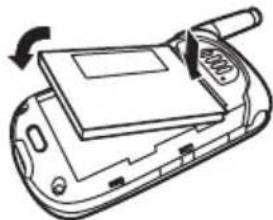
natural_image
Line drawing of a foldable electronic device with a scroll wheel and scroll wheel (no text or symbols)4
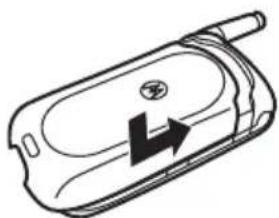
natural_image
Line drawing of a mobile phone casing with an arrow indicating left side (no text or symbols)carga de la batería
natural_image
Line drawing of a mobile phone with a USB cable inserted (no text or symbols)text_image
OK CLR 1 2 ABC 3 DEFTecla de encendido
Oprima OK > brew Brew
natural_image
Abstract black and white geometric logo with stylized letter M (no text or symbols)MOTOROLA
www.motorola.com/callsmart.
direct.motorola.com/hellomoto/Motosupport/source/registration.asp