
BO-QC350 - Smartwatch EPSON - Free user manual and instructions
Find the device manual for free BO-QC350 EPSON in PDF.


| Product Type | Quint Controller Dock for MOVERIO BT-350 |
| Model Number | BO-QC350 (H882A) |
| Rated Voltage / Current | DC 15V, 4.0 A |
| Output Voltage / Current | DC 5.0 V, max 1.5 A per controller |
| Connection Interface | USB 2.0 (data communication) |
| Supported OS (Epson Moverio Admin) | Windows 7 / 8.1 / 10 |
| Operating Temperature | 0 to 40°C (humidity 10–90% non-condensing) |
| Storage Temperature | -25 to 70°C (humidity 10–90% non-condensing) |
| Dimensions (D x W x H) | 260 x 150 x 83.3 mm |
| Weight (without controllers) | Approx. 0.8 kg |
| AC Adapter Input | 100–240 VAC, 50–60 Hz, 1.5 A |
| Charging Capacity per Dock | Up to 5 controllers |
| Maximum Expandable Docks | 4 docks (total up to 20 controllers) |
| Charging Method | Magnet case with USB attachment (BT-350 controller) |
| LED Indicators | Controller LED: normal charging, error (pink flashing) |
| Management Software | Epson Moverio Admin (install/uninstall apps, sync data, OS update) |
| Cleaning Instructions | Wipe with dry or slightly damp cloth; avoid solvents |
| Safety Certifications | Class A IT equipment; use only supplied AC adapter |
| Warranty | Refer to Epson service center |
Frequently Asked Questions - BO-QC350 EPSON
User questions about BO-QC350 EPSON
0 question about this device. Answer the ones you know or ask your own.
Ask a new question about this device
Download the instructions for your Smartwatch in PDF format for free! Find your manual BO-QC350 - EPSON and take your electronic device back in hand. On this page are published all the documents necessary for the use of your device. BO-QC350 by EPSON.
USER MANUAL BO-QC350 EPSON
| 取扱説明書 | JA |
| User's Guide | EN |
| Guide de l'utilisateur | FR |
| Bedienungsanleitung | DE |
| Gebruikershandleiding | NL |
| Manuale dell'utente | IT |
| Manual de usuario | ES |
| Manual do Utilizador | PT |
| Brugerhändbog | DA |
| Käyttäjän opas | FI |
| Brukerhändbok | NO |
| Bruksanvisning | SV |
| Uživatelská příručka | CS |
| Használati útmutató | HU |
| Przewodnik użytkownika | PL |
| Руководство по эксплуатации | RU |
| Посібнику користувача | UK |
| Пайдаланушы нускаулығы | KK |
| Kullanım Kılavuzu | TR |
| AR | |
| 使用说明书 | SC |
| 使用説明書 | TC |
| 사용자 가이드 | KO |
| HE |
Before Use
This device is a controller dock for exclusive use with the MOVERIO BT-350 controller. By using one of the devices, you can connect up to five controllers to charge and manage them simultaneously from a computer. You can also charge and manage up to 20 controllers simultaneously by expanding connections with up to 4 devices.
![graph TD A["Power Supply"] --> B["Switch"] B --> C["Laptop"] C --> D["Storage Unit 1"] C --> E["Storage Unit 2"] C --> F["Storage Unit 3"] C --> G["Storage Unit 4"]](/content/2026/06/1195005/images/227d2eb181ce4ebee4c97169e432ed1dc2074a632c5e3602a83ce9acd43dd117.jpg)
Safety Precautions
Read this manual and the manual supplied with the MOVERIO BT-350 carefully before using this product. Keep this manual and the other manual at hand for immediate reference whenever necessary.
| DANGER | Handling the product improperly by ignoring this symbol will result in imminent danger leading to death or serious injury. |
| WARNING | Handling the product improperly by ignoring this symbol can lead to death or serious injury. |
| CAUTION | Handling the product improperly by ignoring this symbol can lead to injury and property damage. |

DANGER
Do not use or charge this product in high temperature places (40°C or higher). Furthermore, do not leave or store this product in places that are 70°C or higher. Doing so may cause heat, smoke, ruptures, fire, or leaks. Be sure to use this product within the ranges of the ambient temperature conditions.

WARNING
Do not use this device to charge any other devices except for the controller supplied with the MOVERIO BT-350. Doing so may cause heat, explosion, fire, leaks, or other damage.
Do not use this product in a location with volatile substances such as alcohol or paint thinner, or near fire. Doing so may cause electric shock or fire.
Do not continue using this product if it is in abnormal states such as emitting smoke, strange odor, or unusual noise. Doing so may cause electric shock or fire. If an abnormality occurs, immediately disconnect the AC cable from the outlet and then contact your local dealer or the Epson service center.
Do not continue using this product if foreign matter or water or other liquid gets inside. Doing so may cause electric shock or fire. Immediately disconnect the AC cable from the outlet and then
contact your local dealer or the Epson service center.
Check that no foreign material or liquid, such as oil or water, is attached to the charge terminal. The charge terminal may be damaged, or the controller may not be charged.
Do not use metal, such as a wire, to connect (short-circuit) the charging terminal. Also, do not carry or store this product with metal necklaces, hairpins, or the like. Doing so may cause heat, smoke, ruptures, fire, or leaks.
Do not expose the charging terminal to water. Doing so may cause heat, smoke, ruptures, fire, or leaks.
Never attempt to disassemble or repair this product yourself as doing so is dangerous.
Do not use this product in a location where flammable gas, explosive gas, etc. may be present in the atmosphere. Do not use aerosol sprayers containing flammable gas inside or around this product. Doing so may cause fire due to the gas igniting.
Do not connect cables in ways other than those mentioned in this manual. Doing so may cause fire. It may also damage other devices.
Do not touch any part inside this product unless instructed to do so in this manual. Doing so may cause electric shock or burns.

CAUTION
Do not install or store this product in an unstable location or a location where it will be subject to vibration from other devices. Doing so may cause this product to fall or tip over, which may lead to an injury.
Do not stand on or place heavy objects on this product. Doing so may cause this product to fall or break, which may lead to an injury.
Connect the controller, cables, and optional products the correct way in accordance with the proper procedures. Failure to do so may cause fire or injury. Follow the instructions in this manual to insert/install them properly.
Be sure to disconnect all the cables from the product before you move it. Failure to do so may cause damage to the cables, which may lead to electric shock or fire.
Do not place this product in a location that is very hot, humid, or dusty. Doing so may cause malfunction or fire.
This device uses magnets for the charging terminal and the magnet case. Do not charge the device if any metallic objects are stuck to these areas. Doing so may cause malfunction or fire. If magnetic cards are brought too close to the magnets, they may become unreadable.
Do not remove the controller from the device or subject it to vibrations during communication. If the controller is disconnected during communication, data may be corrupted or the controller may malfunction.
Depending on the computer being used, you may not be able to perform a normal USB connection. For more information on computers that can be used, see the "Epson Moverio Admin" User's Guide from the MOVERIO BT-350 technical information website (https://tech.moverio.epson.com/en/bt-350/).
Cautions on the Power Supply
WARNING
Make sure you use the AC adapter supplied (SWITCH-MODE POWER SUPPLY model number: 6A-601DB15). Using any other AC adapters may cause malfunction, fire, or electric shock.
Names and Functions
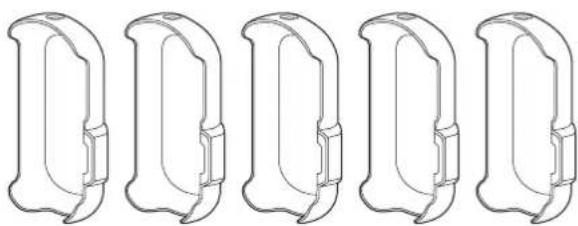
Magnet Case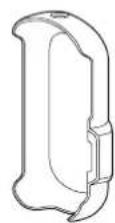
USB attachment
(Supplied with the BT-350)
Attaching/Removing the Magnet Case
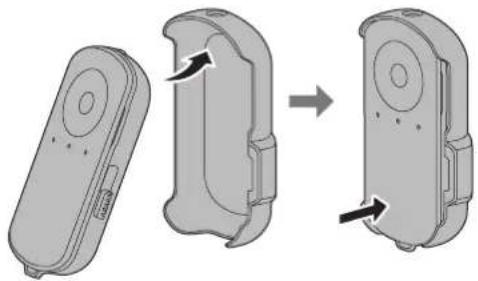
You need to attach the magnet case to charge the controller using this device.
EN
Attaching the Magnet Case
1 Connect the USB attachment to the controller's micro-USB connector.
Make sure you connect the USB attachment in the correct direction.
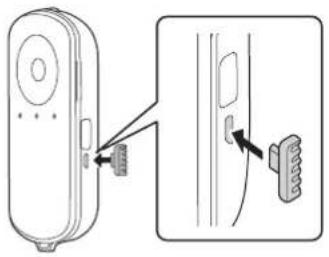
2 Place the controller in the magnet case.
Removing the Magnet Case
1 When connecting to the headset, disconnect the controller connector.
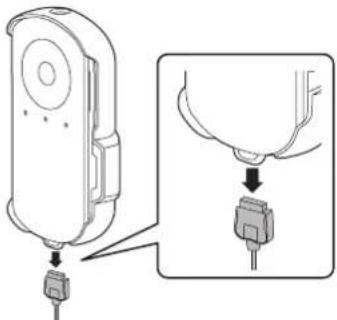
2 Lift the protruding section near the headset connector to remove the controller.
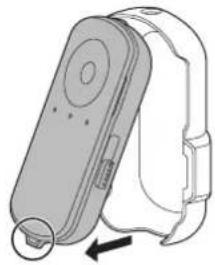
CAUTION
Make sure you disconnect the controller connector first. If you lift the connector and cable to remove the magnet case while the connector is connected, the connected part may break, and you will not be able to use the controller.
3 Remove the USB attachment.
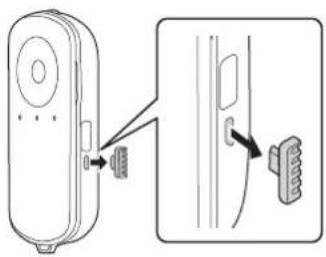
Charging the Controller

CAUTION
Taking into account the heat generated when charging, we recommend charging at an ambient temperature of 5 to 30°C.
Make sure there are no metallic objects stuck to the magnets for the charging terminal and the magnet case. If any metallic objects are stuck to the magnets, the controller may not charge.
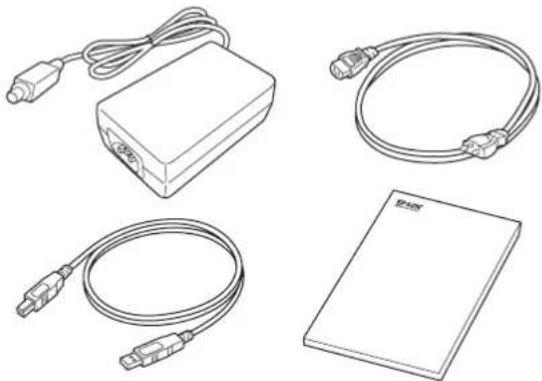
Make sure you use the AC cable supplied. Using any other cables may cause problems to occur.

Connect the Quint Controller Dock, AC adapter, and AC cable.
The LED on the AC adapter turns on, and the device is on.
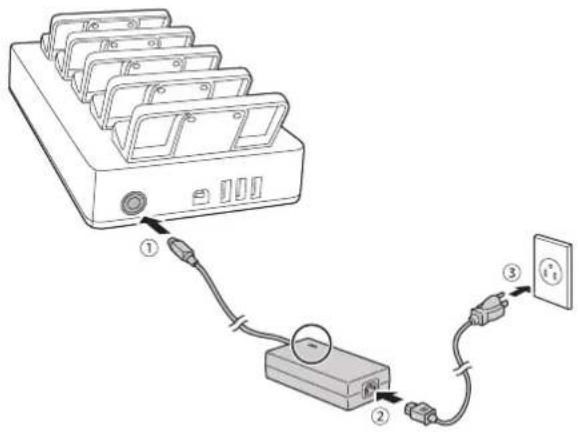

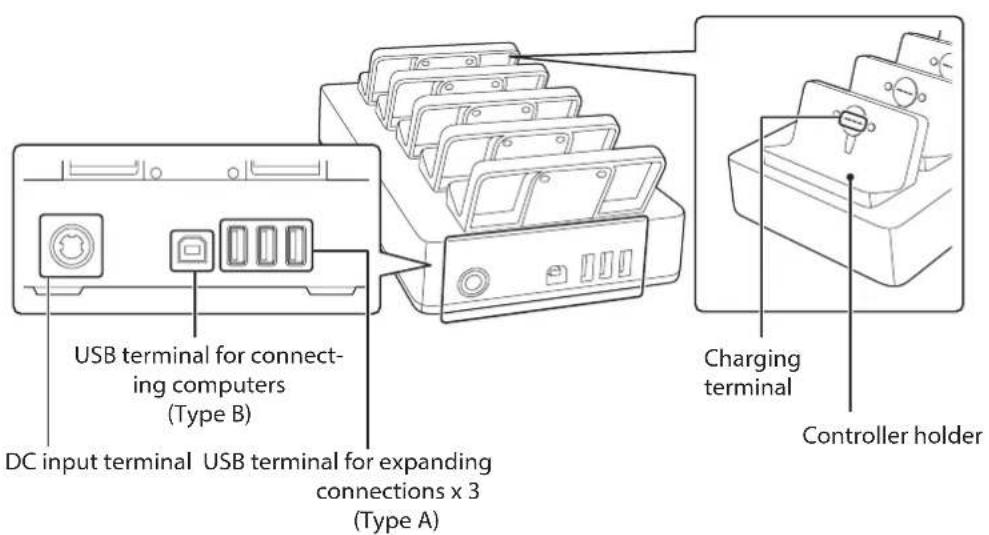
Make sure that the concave sections (two positions) on the back of the magnet case fit over the protruding sections (two positions) on the controller holder, and then place the controller.
Press until you hear it click into place, and check that the magnets are connected.
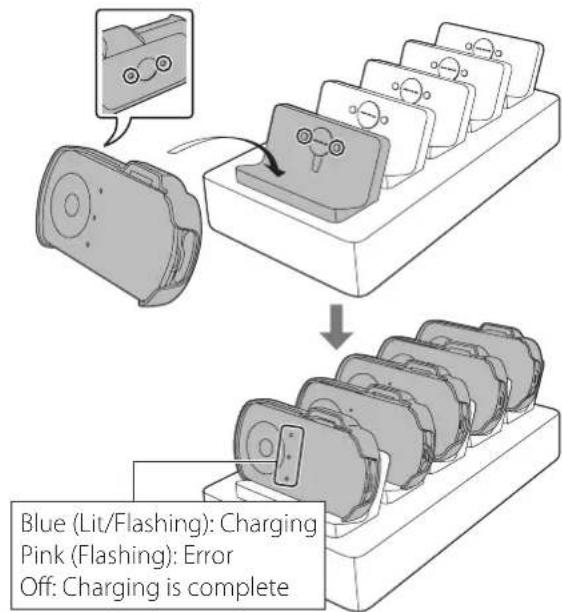
- If the LED indicator on the controller does not light, check that the AC adapter, AC cable, and magnet case are connected correctly.
- If the LED indicator flashes pink (error status), remove the controller from the controller holder, and then place it again. If the error cannot be resolved, contact your local dealer or the Epson service center.
Expanding Connections
You can connect three additional charging bays to a main device allowing you to charge up to 20 controllers at the same time.
You can also connect to a computer to manage controllers simultaneously.
When expanding the number of connections, connect three docks in parallel to the main dock. Make sure you connect as shown in the following illustration.
![graph TD A["Device 1"] --> B["Computer"] C["Device 2"] --> B D["Device 3"] --> B E["Device 4"] --> B F["Device 5"] --> B G["Device 6"] --> B H["Device 7"] --> B I["Device 8"] --> B J["Laptop"] --> K["Network"] B --> L["External Connection"] style A fill:#f9f,stroke:#333 style C fill:#f9f,stroke:#333…](/content/2026/06/1195005/images/0d9eb90a8a1f38d13c8e75958ef0edf0aa49758dc2feca79eb14338e45536452.jpg)

CAUTION
The USB terminals for expanding connections are for exclusive use with this device. Do not connect the terminals to any other devices.
You cannot connect five or more docks. Make sure you can connect up to four docks.
We recommend using the USB cables supplied when connecting a computer and when expanding connections.
Managing Controllers (Epson Moverio Admin)
By connecting a computer (Windows) and using Epson Moverio Admin, you can simultaneously manage controllers that have been placed in the docks, and perform the following operations.
- Check the charge status • Install/uninstall applications
- Synchronize data
- Update the OS
For more information, see the "Epson Moverio Admin" User's Guide from the MOVERIO BT-350 technical information website (https://tech.moverio.epson.com/en/bt-350/).
Maintenance
Cleaning the Device
Make sure the AC cable is disconnected from the outlet and then wipe off any dirt with a dry or slightly damp cloth.

CAUTION
Do not use alcohol, benzene, paint thinner, trichloroethylene, or ketone solvent. Using such solvents may cause deterioration or damage to the plastic or rubber parts.
Cleaning the Charging Terminal
Charging may not be performed properly if there is dirt or foreign matter on the charging terminal. Make sure the AC cable is disconnected from the outlet and then wipe off any dirt with a dry cloth or cotton swab. We recommend cleaning the charging terminal regularly (about once every month).

CAUTION
The charging terminal may be very hot after charging. Do not touch them soon after charging. Wait a while for them to cool before you attempt to clean them.
Take care not to damage the charging terminal with a finger or hard object.
Do not expose the charging terminal to water. Use a dry cloth or cotton swab for cleaning.
Specifications
| Model number BO-QC350 (H882A) | ||
| Rated voltage/current DC 15V 4.0 A | ||
| Output Output voltage DC 5.0 V | ||
| Output current Maximum: 1.5 A | ||
| Connection specifications Data communication USB 2.0 | ||
| Supported OS for Epson Moverio Admin Windows 7/8.1/10 | ||
| Operating temperature 0 to 40°C humidity 10 to 90% (no condensation) | ||
| Storage temperature -25 to 70°C humidity 10 to 90% (no condensation) | ||
| External dimensions (D x W x H) 260 x 150 x 83.3 mm | ||
| Weight Approx. 0.8 kg (without controllers) | ||
| AC adapter Electrical rating | 100 - 240 VAC 50 - 60 Hz 1.5 A | |
General Notes
Restrictions on Usage
When this product is used for applications requiring high reliability/safety such as transportation devices related to aviation, rail, marine, automotive, etc.; disaster prevention devices; various safety devices; or functional/precision devices, you should use this product only after considering fail-safes and redundancies in your design to maintain safety and total system reliability. Because this product was not intended for use in applications requiring extremely high reliability/safety such as aerospace equipment, main communication equipment, nuclear power control equipment, or medical equipment related to direct medical care, please make your own judgment on this product's suitability after a full evaluation.
Voluntary Control of Radio Interference
This equipment is Class A information technology equipment. In a domestic environment, this equipment may cause radio interference, in which case the user may be required to take adequate measures. Take the appropriate measures in this situation.
Intellectual Property Rights
Trademarks
EPSON and EXCEED YOUR VISION are registered trademarks of Seiko Epson Corporation.
All other products and brand names are trademarks and/or registered trademarks of their respective companies. Epson disclaims any interest in those marks.


- BEFORE USE
- SAFETY PRECAUTIONS
- DANGER
- WARNING
- CAUTION
- CAUTIONS ON THE POWER SUPPLY
- NAMES AND FUNCTIONS
- ATTACHING/REMOVING THE MAGNET CASE
- EN
- ATTACHING THE MAGNET CASE
- CONNECT THE USB ATTACHMENT TO THE CONTROLLER'S MICRO-USB CONNECTOR
- PLACE THE CONTROLLER IN THE MAGNET CASE
- REMOVING THE MAGNET CASE
- WHEN CONNECTING TO THE HEADSET, DISCONNECT THE CONTROLLER CONNECTOR
- LIFT THE PROTRUDING SECTION NEAR THE HEADSET CONNECTOR TO REMOVE THE CONTROLLER
- REMOVE THE USB ATTACHMENT
- CHARGING THE CONTROLLER
- CONNECT THE QUINT CONTROLLER DOCK, AC ADAPTER, AND AC CABLE
- EXPANDING CONNECTIONS
- MANAGING CONTROLLERS (EPSON MOVERIO ADMIN)
- MAINTENANCE
- CLEANING THE DEVICE
- CLEANING THE CHARGING TERMINAL
- GENERAL NOTES
- INTELLECTUAL PROPERTY RIGHTS
Brand : EPSON
Model : BO-QC350
Category : Smartwatch