
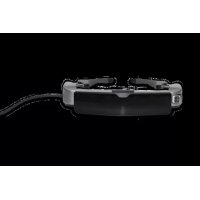
Moverio BT-30C - Smartwatch EPSON - Free user manual and instructions
Find the device manual for free Moverio BT-30C EPSON in PDF.


| Product Type | Smart glasses / Head-mounted display |
| Model Number | BT-30C (H962A) |
| Display Technology | Si-OLED |
| Panel Size | 0.43 inches (16:9) |
| Resolution | 1280 x 720 pixels |
| Field of View | Approximately 23° (diagonal) |
| Virtual Screen Size | 40 inches at 2.5 m virtual distance |
| Color Depth | 24-bit (16.77 million colors) |
| Weight (Headset) | Approx. 95 g (without controller, shade, cables) |
| Weight (Total) | Approx. 151 g (including controller) |
| Dimensions (Headset) | 195 x 174 x 40 mm (W x D x H) without shade |
| Controller Dimensions | 29 x 62 x 20 mm |
| Power Source | Powered by connected smart device via USB Type-C |
| Power Consumption | Rated 4.5 W |
| Rated Voltage/Current | 5.0 V / 0.9 A |
| Connectors | USB Type-C (DisplayPort Alt Mode), 4-pin mini jack (earphones) |
| Sensors | Geomagnetic, accelerometer, gyroscope |
| Supported Operating Systems | Android 8.0 or later, Windows 10 or later |
| Video Input | USB Type-C DisplayPort Alt Mode (1080p/30Hz, 720p/30Hz) |
| Included Accessories | Shade, lens holder, nose pads (regular and for glasses), temple adjustment pads, carrying case, user guide, safety instructions, CD-ROM |
Frequently Asked Questions - Moverio BT-30C EPSON
User questions about Moverio BT-30C EPSON
0 question about this device. Answer the ones you know or ask your own.
Ask a new question about this device
Download the instructions for your Smartwatch in PDF format for free! Find your manual Moverio BT-30C - EPSON and take your electronic device back in hand. On this page are published all the documents necessary for the use of your device. Moverio BT-30C by EPSON.
USER MANUAL Moverio BT-30C EPSON
Make sure you read the "Safety Instructions" sheet before use.
© Seiko Epson Corporation 2019. All rights
reserved.
2019.03
*413751500*
Included Items
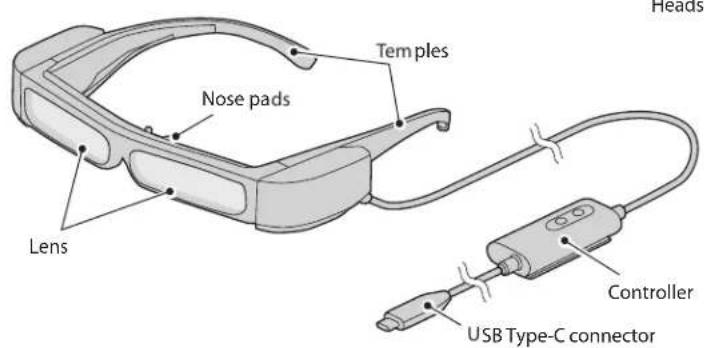
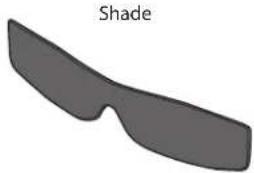
Temple adjustment pads (×2)
User's Guide (this document) Safety Instructions Document CD-ROM
Lens holder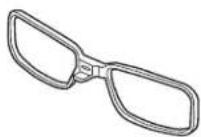
Nose pads for glasses
Carrying case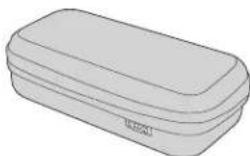
(for Europe, the Middle East, and Africa)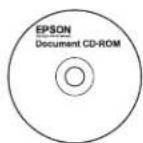
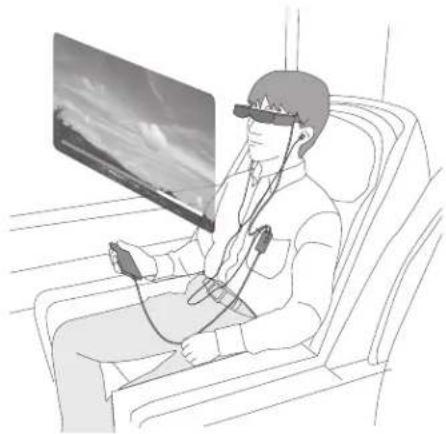
- This product is powered using the battery in your smart device. Make sure that the smart device is sufficiently charged before use.
- You need to provide your own smart device.
Storing in the carrying case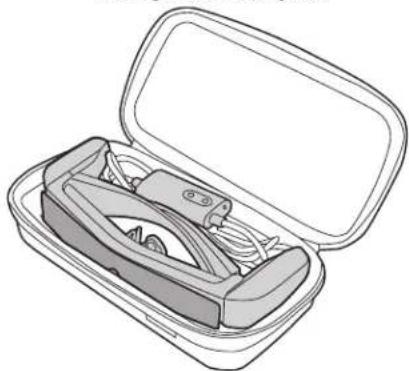
- Store the headset in the position shown in the diagram.
- Store the shade and the lens holder while they are attached to the headset.
Watching Movies
1
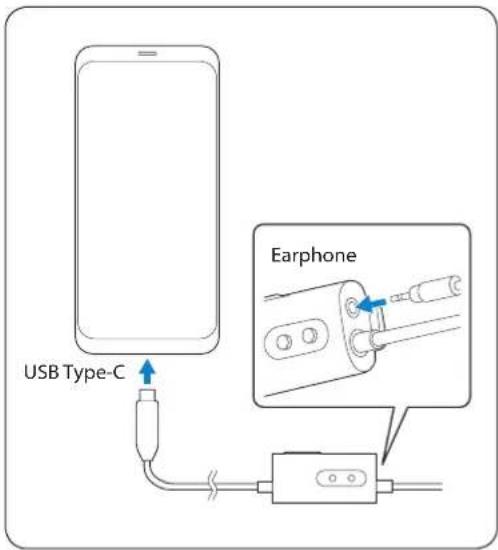
While the movie is playing on your smart device, connect the headset cable to the smart device.
Connect commercially available earphones to the earphone jack on the controller.

- Connect a smart device that supports USB Type-C DisplayPort Alternate Mode.
- We recommend using earphones that comply with CTIA standards. Also, when using 3-pin earphones, the microphone function does not work. You may hear some noise when connecting or disconnecting the earphones or USB Type-C connector during content playback, so be sure to take off your earphones first.
- Depending on the smart device and the app being used, phone calls may be audible from the smart device even if earphones are connected. We recommend checking in advance what happens when you receive a phone call while watching a video.
2
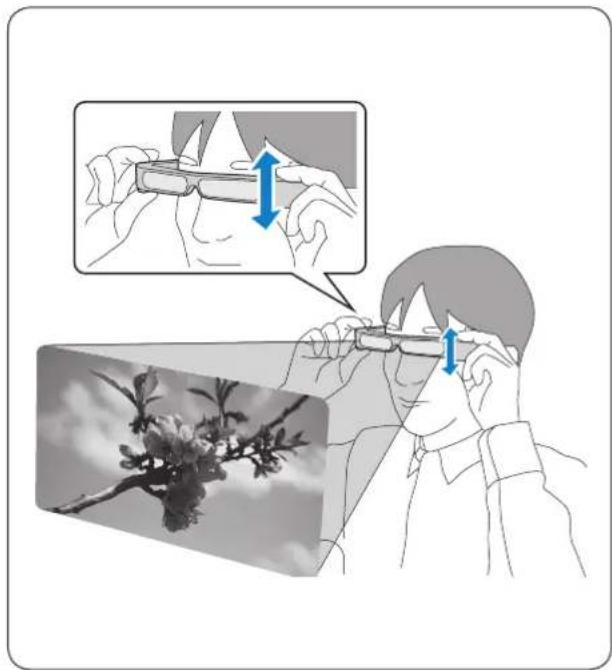
Put on the headset and earphones, and then adjust the position of the headset so that you can see the image.

Do not apply excessive force when opening the temples.

- Turn the screen of your smart device sideways to display the image at full screen size. • How an image is perceived varies depending on the individual.
- Check the following points if you cannot see the image.
- Cables are connected correctly.
- Your smart device supports video output in USB Type-C DisplayPort Alternate Mode.
- The smart device is on, not in sleep mode.
- The case of the smart device is not obstructing the USB Type-C port.
3
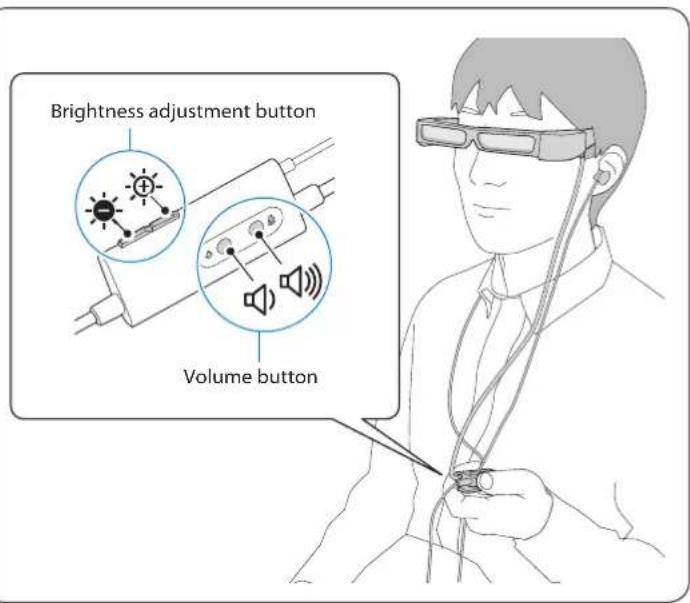
Adjust the brightness of the screen and the volume.

You can clip the controller to your clothes using the clip on the back. Note that some clothes may be damaged by the clip.

- Even if you adjust the brightness on your smart device, this will not be applied to the image. Use the controller to make adjustments.
- If you cannot hear the audio, check the volume of the smart device.
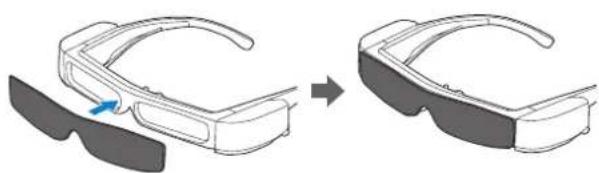
Difficult to View the Screen in Bright Surroundings
You can view the screen easily by attaching the shade supplied. The shade is magnetic and can be attached easily.
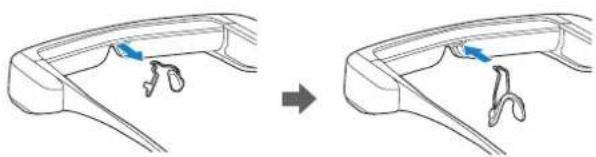
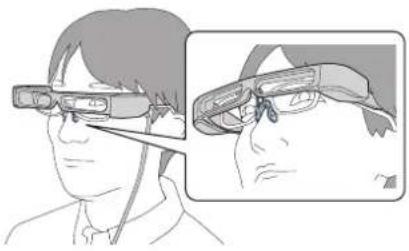
When Wearing over Glasses
By replacing the nose pads with the one supplied for glasses, you can wear the headset over glasses. (The headset can only be worn over glasses that are approximately 145 mm [5.71 inches] wide.)

- Make sure that you do not damage the glasses and the headset when wearing.
- You may not be able to wear the headset over the glasses depending on the shape of your glasses.
Remove the nose pads, and then attach the nose pads for glasses.

The nose pads for glasses is worn on the nose from over the glasses.
If the Headset Does Not Fit Correctly
If the headset is loose and does not fit correctly, you can narrow the width at the temples of the headset by using the temple adjustment pads supplied.
Fold in the arms of the headset, and then stick the temple adjustment pads to the outside of the temple section.
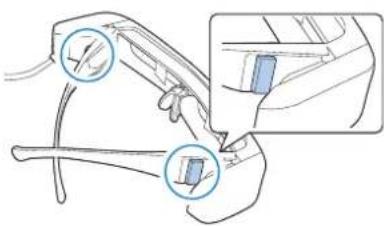
When Attaching the Lens to the Headset
You can use the lens holder supplied to easily wear the headset over your glasses.
Have lenses inserted into the lens holder by your local optician, and then attach it to the headset. (The cost of the lenses must be borne by the customer. Depending on the optician, they may not be able to provide this service.)
Lens holder adaptable lenses
| Lens (W × H) | 50 × 24 mm (1.97 × 0.94 inches) |
| Nose width | 20 mm (0.79 inch) |
| Frame PD | 70 mm (2.76 inches) |
| Curve | 4 |

You may not be able to see images correctly if you use special lenses such as colored lenses, mirrored lenses, or polarized lenses.

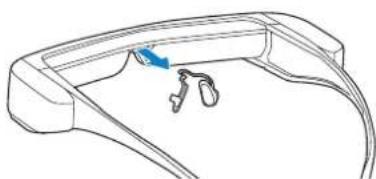
Remove the nose pads from the headset.

Grip the metal section of the nose pads between your fingertips, and pull it straight in the direction shown by the arrow. Do not grip it by the silicon section as this can easily be ripped.

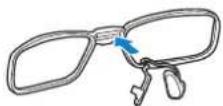
Attach the nose pads to the lens holder.

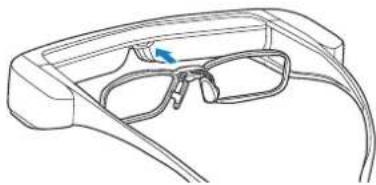
Attach the lens holder to the headset.

When the accuracy of the headset's sensor is low
If the geomagnetic sensor is not operating correctly, wave the headset in a figure 8 shape while a smart device is connected to calibrate the sensor.
![graph TD A["Step 1: Initial state"] --> B["Step 2: Intermediate state"] B --> C["Step 3: Final state"]](/content/2026/06/1195004/images/00eb3b9dae2da6979c95eb3072f70d0bbc33f147da9b4b7f38862f3c0c1bfcc1.jpg)
Introducing MOVERIO Link
The MOVERIO Link is an app for Android devices. The following outlines the main features.
- Display and adjust the screen brightness and volume level
- Screen lock for smart devices (preventing accidental operations)
- Switch between 2D and 3D (the supported 3D format is the side-by-side format)
Download MOVERIO Link from Google Play.
Product Specifications
| Model Number BT-30C (H962A) | ||
| Display format Si-OLED | ||
| Panel size 0.43" wide panel (16:9) | ||
| Resolution 1280 × 720 | ||
| Angle of view Approximately 23 degrees (diagonally) | ||
| Virtual screen size 40" support (virtual viewing distance 2.5 m [8.2 feet]) | ||
| Color reproduction 24 bit color (approximately 16,770,000 colors) | ||
| Connectors 4 pin mini jack (earphones with microphone complying with the CTIA standard) Type-C | *, USB | |
| Operating temperature 5 to 35°C (41 to 95°F) humidity 20 to 80% (no condensation) | ||
| Storage temperature -10 to 60°C (14 to 140°F) humidity 10 to 90% (no condensation) | ||
| Exterior dimensions (W × D × H) | Headset 195 × 174 × 40 mm (7.7 × 6.9 × 1.6 inches) without the shade | |
| Controller 29 × 62 × 20 mm (1.1 × 2.4 × 0.8 inches) | ||
| Mass Approx. 151 g (5.3 ounces) | ||
| Without the controller, shade, or cables | Approx. 95 g (3.4 ounces) | |
| Earphone output Max. voltage 150 mVrms or less | Voltage with broadband characteristics 75 mVrms or more | |
| Sensors | geomagnetic sensor/accelerometer sensor/gyroscopic sensor | |
*1 Restrictions in operation may occur, such as buttons not operating, when using an adapted plug.
Video Input
| USB Type-C | Video interface | DisplayPort Alternate Mode (DP Alt Mode) |
| Resolution (frame rate) | 1080p(30Hz), 720p (30Hz) | |
| EDID | Supported | |
| HDCP | Supported |
Data Communication
| USB Type-C | USB protocol | USB 2.0 |
| Supported operating systems | Windows | Windows 10 or later |
| Android Android 8 or later |
Power
| USB Type-C USB Type-C Current @ 1.5 A | ||
| Electricity consumption | Rated power consumption | 4.5 W |
| Rated voltage/Rated current | 5.0 V/0.9 A | |
Trademarks
"EPSON" is a registered trademark of the Seiko Epson Corporation. "EXCEED YOUR VISION" is a registered trademark or a trademark of the Seiko Epson Corporation. Windows is a registered trademark of the Microsoft Corporation in the USA and other countries. USB Type-C™ is a trademark of the USB Implementers Forum. Android and Google Play are trademarks of Google LLC. Other product names used herein are also for identification purposes only and may be trademarks of their respective owners. Epson disclaims any and all rights in those marks.


- MAKE SURE YOU READ THE "SAFETY INSTRUCTIONS" SHEET BEFORE USE
- INCLUDED ITEMS
- WATCHING MOVIES
- DIFFICULT TO VIEW THE SCREEN IN BRIGHT SURROUNDINGS
- WHEN WEARING OVER GLASSES
- IF THE HEADSET DOES NOT FIT CORRECTLY
- WHEN ATTACHING THE LENS TO THE HEADSET
- WHEN THE ACCURACY OF THE HEADSET'S SENSOR IS LOW
- INTRODUCING MOVERIO LINK
- TRADEMARKS
Brand : EPSON
Model : Moverio BT-30C
Category : Smartwatch