MPQC124i - Tablet MPMAN - Free user manual and instructions
Find the device manual for free MPQC124i MPMAN in PDF.


User questions about MPQC124i MPMAN
0 question about this device. Answer the ones you know or ask your own.
Ask a new question about this device
Download the instructions for your Tablet in PDF format for free! Find your manual MPQC124i - MPMAN and take your electronic device back in hand. On this page are published all the documents necessary for the use of your device. MPQC124i by MPMAN.
USER MANUAL MPQC124i MPMAN
natural_image
Desktop screen with abstract blue background and floating purple light effects (no readable text or symbols)For Model No.
MPQC124i
EN
User Manual
This manual contains important safety precautions and information of correct use. Please be sure to read this manual carefully before use so as to avoid any accidents.
Do not place the product in hot, wet or dusty environment, especially in summer, do not leave the product inside a car with all windows closed.
Avoid dropping, impacting or shaking the product violently, otherwise it may cause damages or malfunctions.
Select a proper volume to avoid ear problem when using earphones.
Do not cross the road or drive vehicles, using headphones to avoid traffic accidents.
Be sure to use the provided chargers and accessories in the package.
Be sure to charge the product when the following situations take place,
- The battery icon shows lower or empty.
- System automatically shut down and it turns off soon after restart.
- Operation keys do not respond properly.
- The device shows on the top right corner.
Specification
Hardware
| 10.1" High Definition IPS LCD Touch Screen (800x1280 pixel) |
| Capacitive multi-touch (5 touch) point |
| CPU : Quad core Cortex MT8163 processor |
| RAM : DDR3L 1GB(3D accelerator possible for 3D games) |
| Wi-Fi (IEEE802.11 a/b/g/n, 2.4/5GHz dual band) for internet connection |
| USB host for OTG function |
| G-sensor |
| Micro SD card slot recognizing up to 32GB |
| Built-in speaker & Built-in MIC |
| 5V power adapter |
| Compatible with keyboard, mouse |
| Dimension : 264.5 x 164.5 x 10.8mm |
Software
| Android 6.0 |
| Google browser |
| Wi-Fi connection |
| e-Book function (all e-book formats supported by application) |
| 1080P HD file playback |
| VOIP phone function with Wi-Fi connection |
| Possible to view/edit MS office files by application |
| Video : AVI, RM/RMVB, FLV, MPG4-1, MPEG-2 etc. |
| Audio : MP3, WMA, AAC, WAV etc. |
| Photo : JPEG, BMP, GIF, PNG, TIFF |
Name
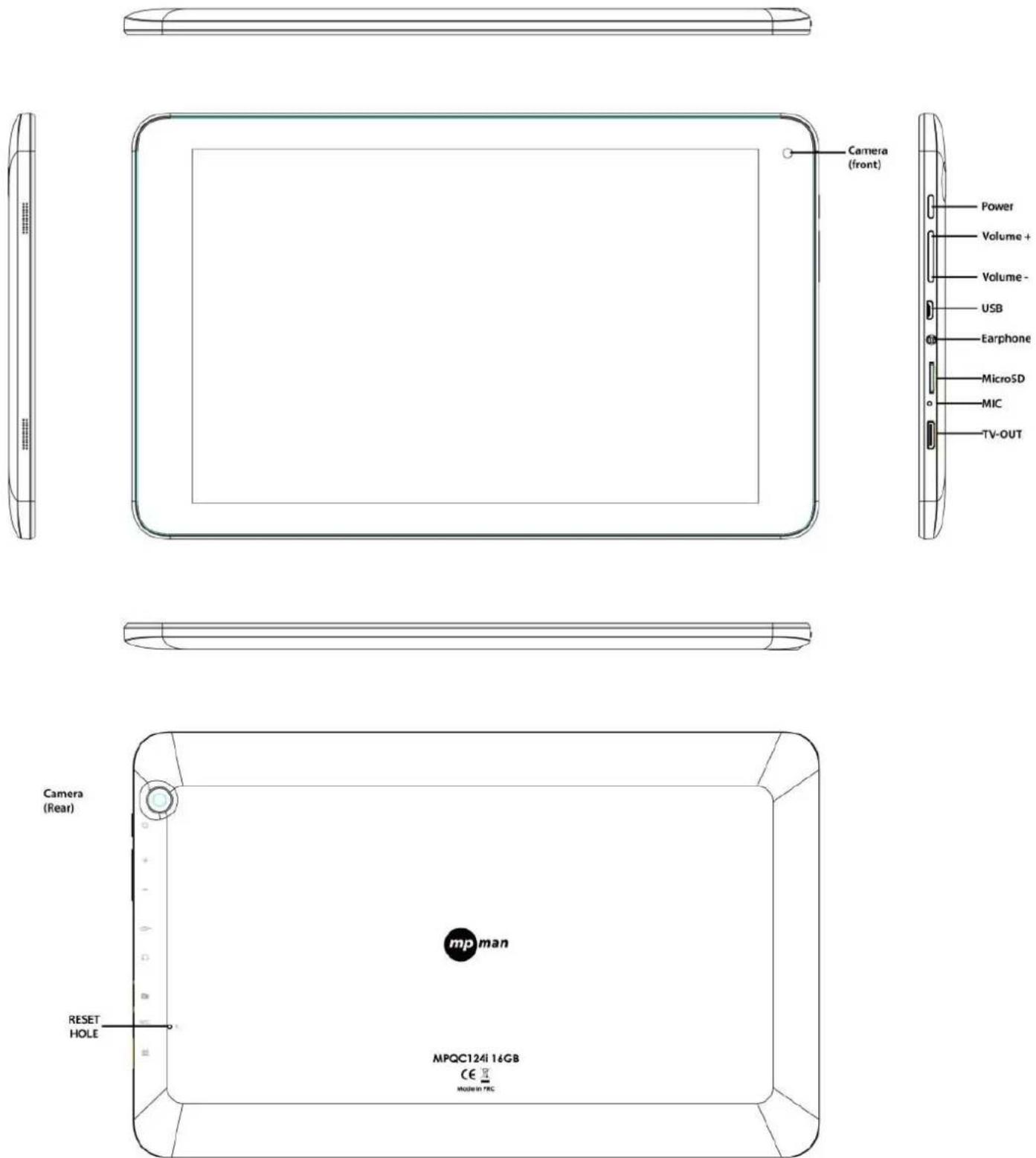
Important Notice
- If the device is freezing or stuck, press the reset button(a small hole) located at left side of microSD card slot. Another way to turn off the device by force is to hold pressing power button for more than 10 seconds
- When the performance is slow after using some applications, it is recommended to close running application in setting menu.
- Use"File Manager" at main menu to search files.
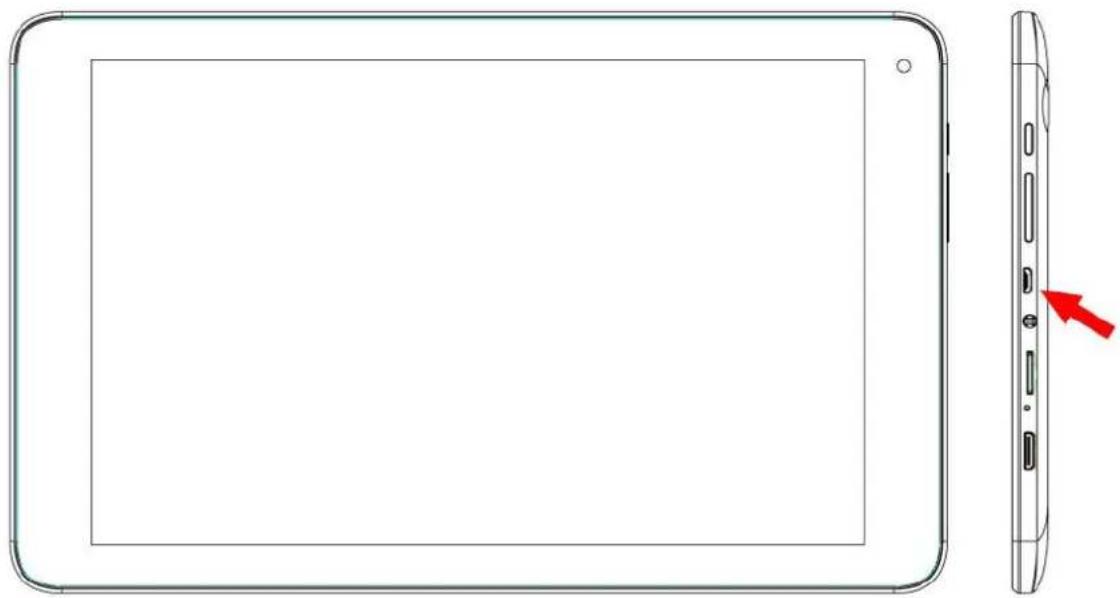
Charging
- Be sure to use the power adapter (5V) that is provided in the package, otherwise, the device may be damaged and does not work.
- See the battery icon ( ) on the status bar to check charging.
- It takes approx. 5-6 hours to be fully charged from empty battery. Do not charge more than 10 hours to protect the device.
natural_image
Line drawing of a tablet device showing front and side views with a red arrow pointing to a component (no text or symbols)Note
The device is equipped with high performance processor. It may be warm in case of using long or while charging, but not the problem.
1. Power On/Off
Long press power button to turn on/off the device. It may take a minute to boot the device. Short press power button to turn on/off the screen. (Standby mode. Refer to 3. below)
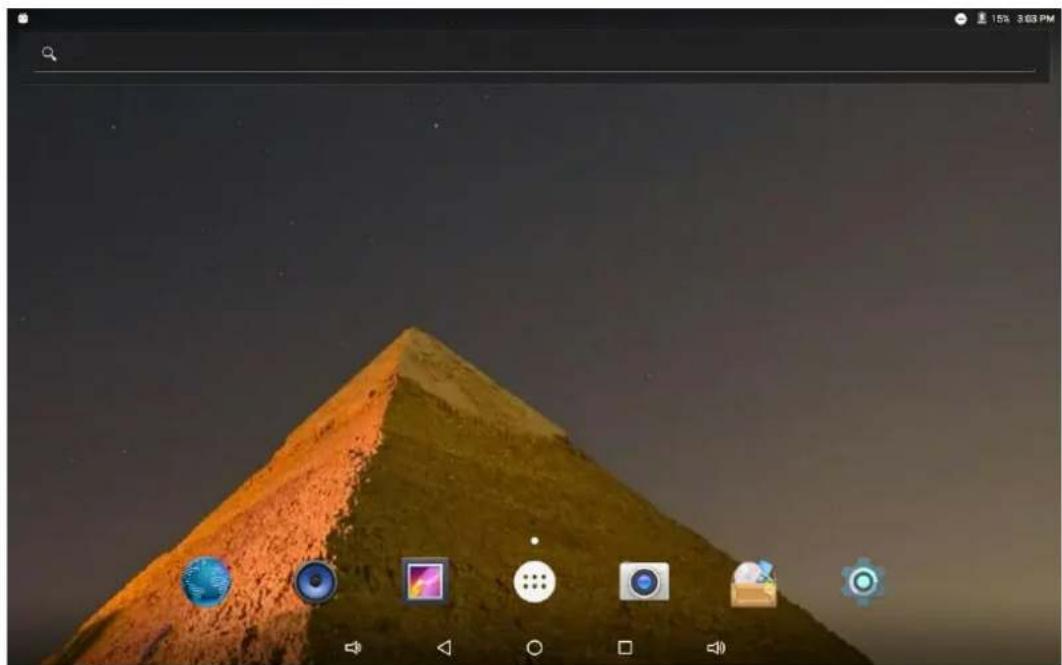
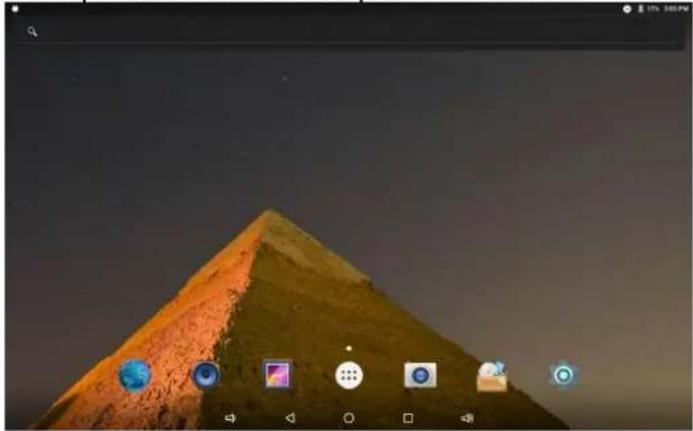
2. Desktop
After turning on the device, desktop displays with shortcut icons and notification bar.
text_image
Screenshot of a macOS desktop with application icons on a mountain screen, showing time, battery, and app icons.3. Standby mode(Screen off mode) / Unlock the screen
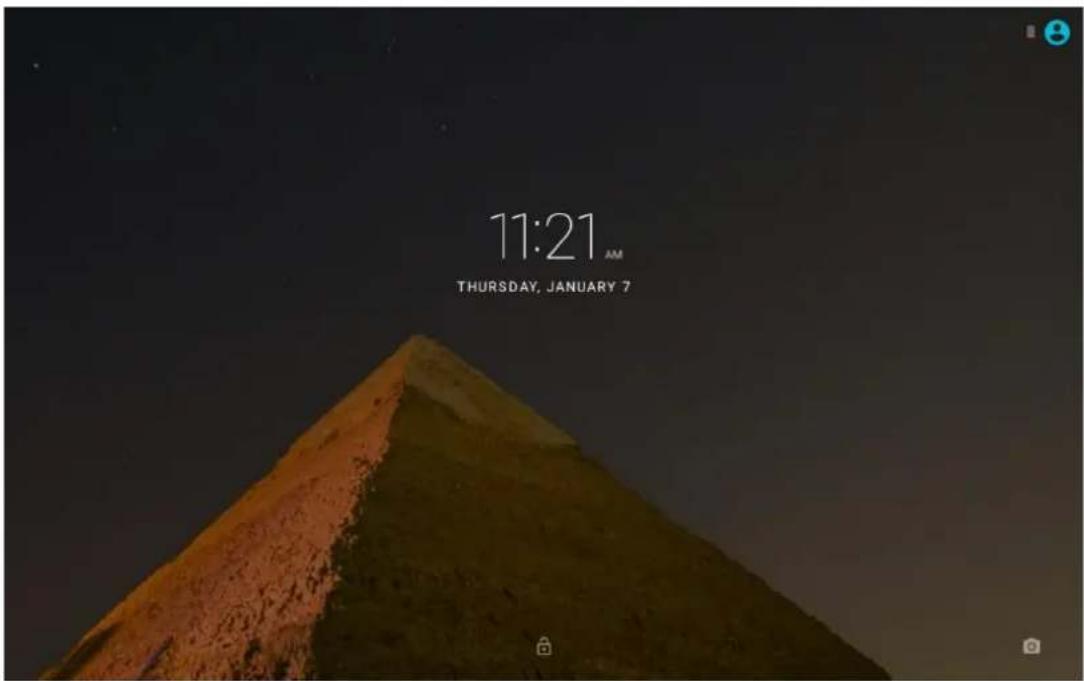
Short press the power button to turn on/off the screen (standby mode on/off). After standby mode off, swipe up the lock icon in order to unlock the screen.
text_image
11:21 AM THURSDAY, JANUARY 74. System Setting
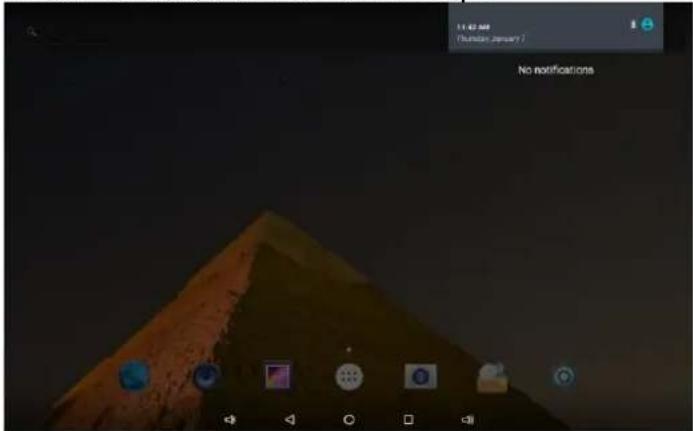
- Swipe down from the top of the screen.
natural_image
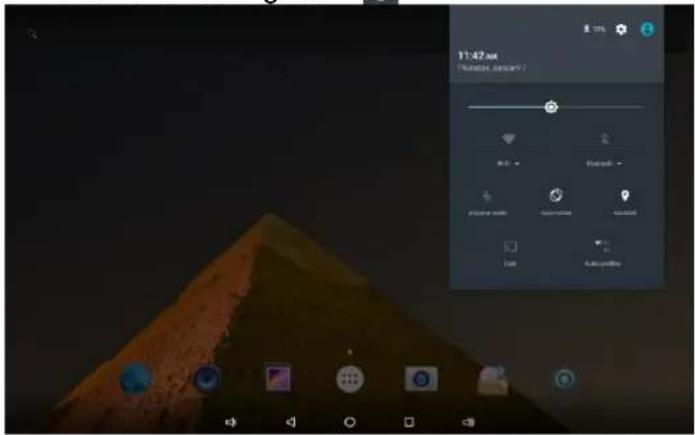
Computer desktop with a pyramid on a hilltop, showing app icons for stars, clouds, and home items (no readable text or symbols)- Touch notification bar on the top.
text_image
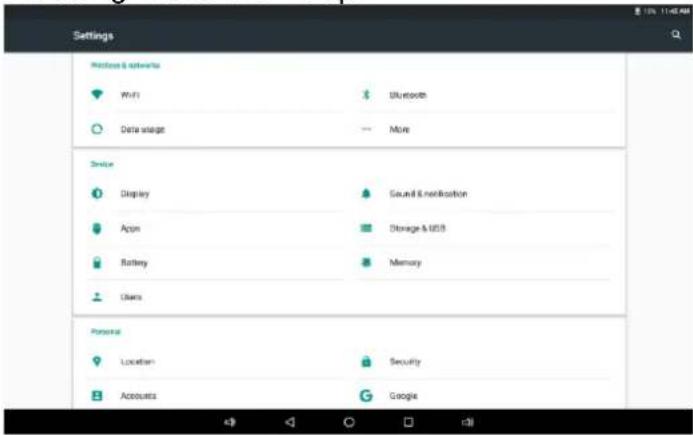
11:42 AM Thursday, January 7 No notifications- Touch the setting icon

text_image
11:42 AM Status: January 2023- Setting menu shows up.
text_image
Settings Network & services WiFi Data usage Bluetooth More Device Display Appm Battery Users Sound & notification Storage & USB Memory Personal Location Security Accounts GoogleWi-Fi
text_image
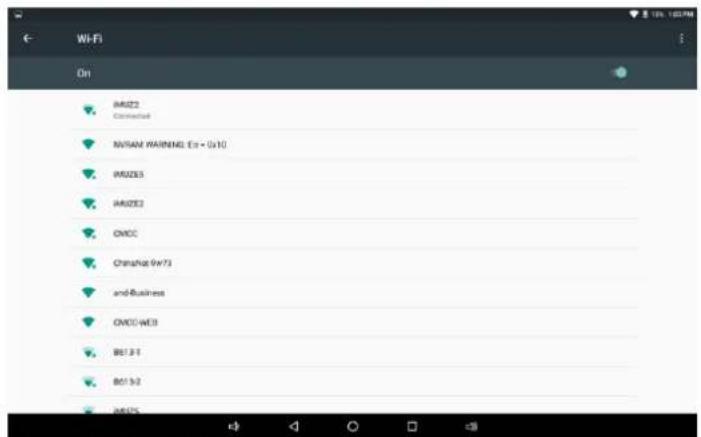
Wi-Fi On IMU22 Connected NVRAM WARNING Ex + 0x10 IMU265 IMU262 OMOC ChinaNet 9x73 and-Business OMOC-WE3 BE1.8.1 BE1.8.2 IMU25Turn On Wi-Fi.
The device will automatically search the available Wi-Fi signals. Select the network you want to connect with.
Bluetooth
text_image
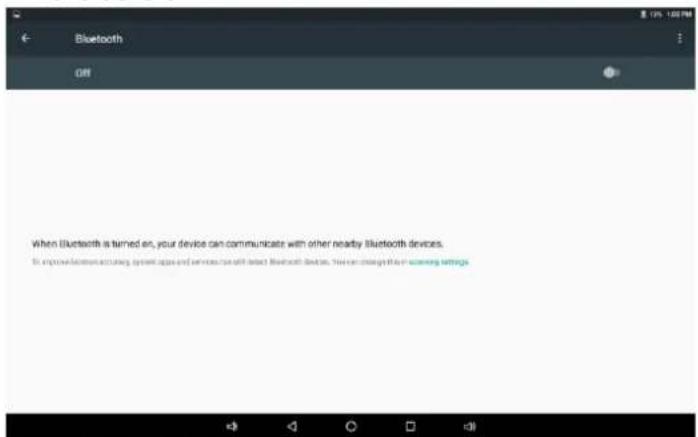
When Bluetooth is turned on, your device can communicate with other nearby Bluetooth devices. In improve wireless operating system apps and services like to select Bluetooth devices. You can recognize in scanning settingsTurn On Bluetooth.
The device will be visible to nearby devices while Bluetooth is tuned on.
Display
text_image
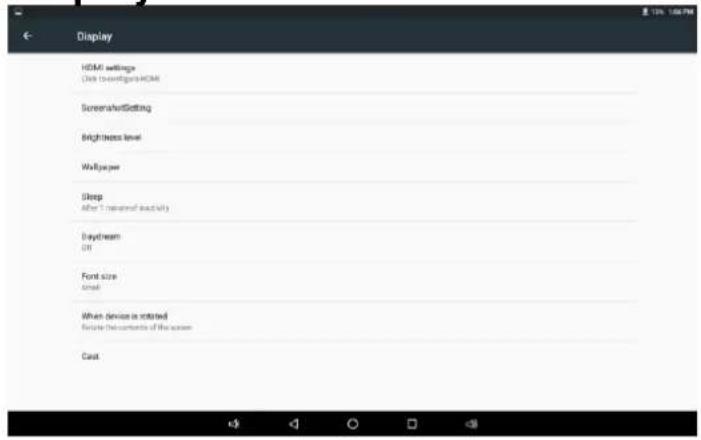
Display HDMI settings Click to investigate HDMI Screen/vert/Getting Brightness level Wallpower Sleep After 1 metered activity Daydream Off Font size Email When device is rotated Replace contents of the screen CastSet up each settings as you wish.
Sound & Notification
text_image
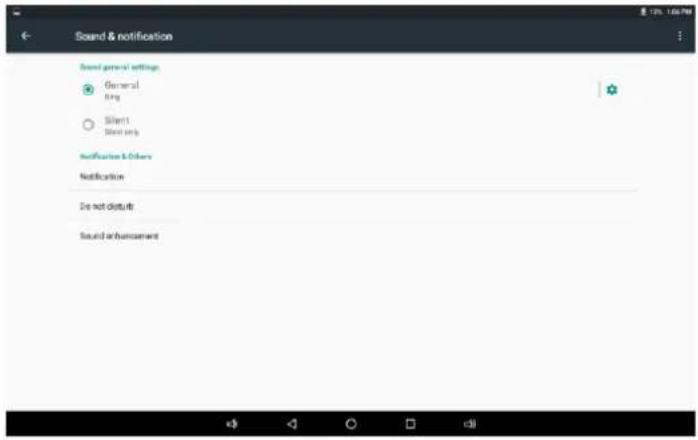
Sound & notification Sound general settings General Ring Silent Street only Notification & Others Notification Do not disturb Sound enhancementSet up each settings as you wish.
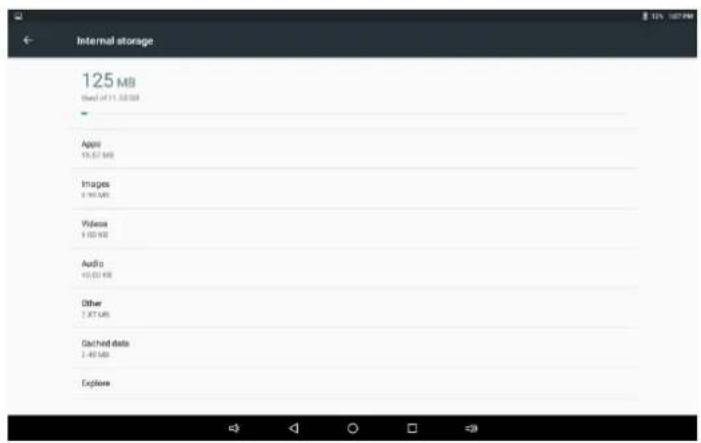
Storage
text_image
Internal storage 125 MB Used of 11.00 GB Apps 16.57 MB Images 4.90 MB Videos 1.00 MB Audio 40.03 KB Other 2.87 KB Cached data 2.40 MB ExploreCheck the device memory and Micro SD card stauts.
Battery

area
Battery | Time Point | Power Saving (%) | | :--- | :--- | | 7 PM | 100 | | 7/29 | 80 | | 10H | 60 | | 4 PM | 40 | | 8/5 | 20 | | 2 PM | 5 |Check the battery usage.
Apps

text_image
Apps Android Keyboard (AGSP) 164.85 Browser 8.02 KB Calculator 12.60 KB Calendar 20.00 KB Camera 84.00 KB Clock 83.00 KB Contacts 12.00 KB Downloads 0.00 KB Email 294.68Manage downloaded or running applications.
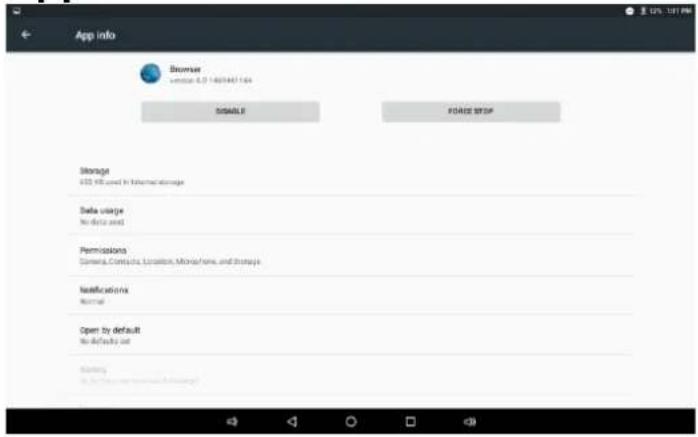
Apps – Uninstall
text_image
App info Bcuser version 6.0.1489467.164 DISABLE FOOD STOP Storage 652 KB used in Internet Storage Data usage No data used Permissions Camera, Contacts, Location, Monaphone, and Storage Notifications Normal Open by default No default set Binary No default selected belowTouch the application to manage. Touch disable the selected application.
Location
Google's location service – Let apps use data from sources such as Wi-Fi and mobile networks to determine your approximate location.
Security
Manage security options on the device.
Setting for the screen lock, Password visibility, Unknown sources and etc.
Accounts
Create your account. After connecting Wi-Fi network, the e-mailing system synchronizes your account with the device. Emails are automatically downloaded into the device.
Language & input
Language- Choose your preferable language.
Keyboard & input method – Change keyboard & keyboard settings.
Speech – Manage settings for Voice input, Text-tospeech output, Voice control.
Date & time
Set date & time and format
About tablet
See status, legal information, ETC
5. How to connect/disconnect the device with/from the computer
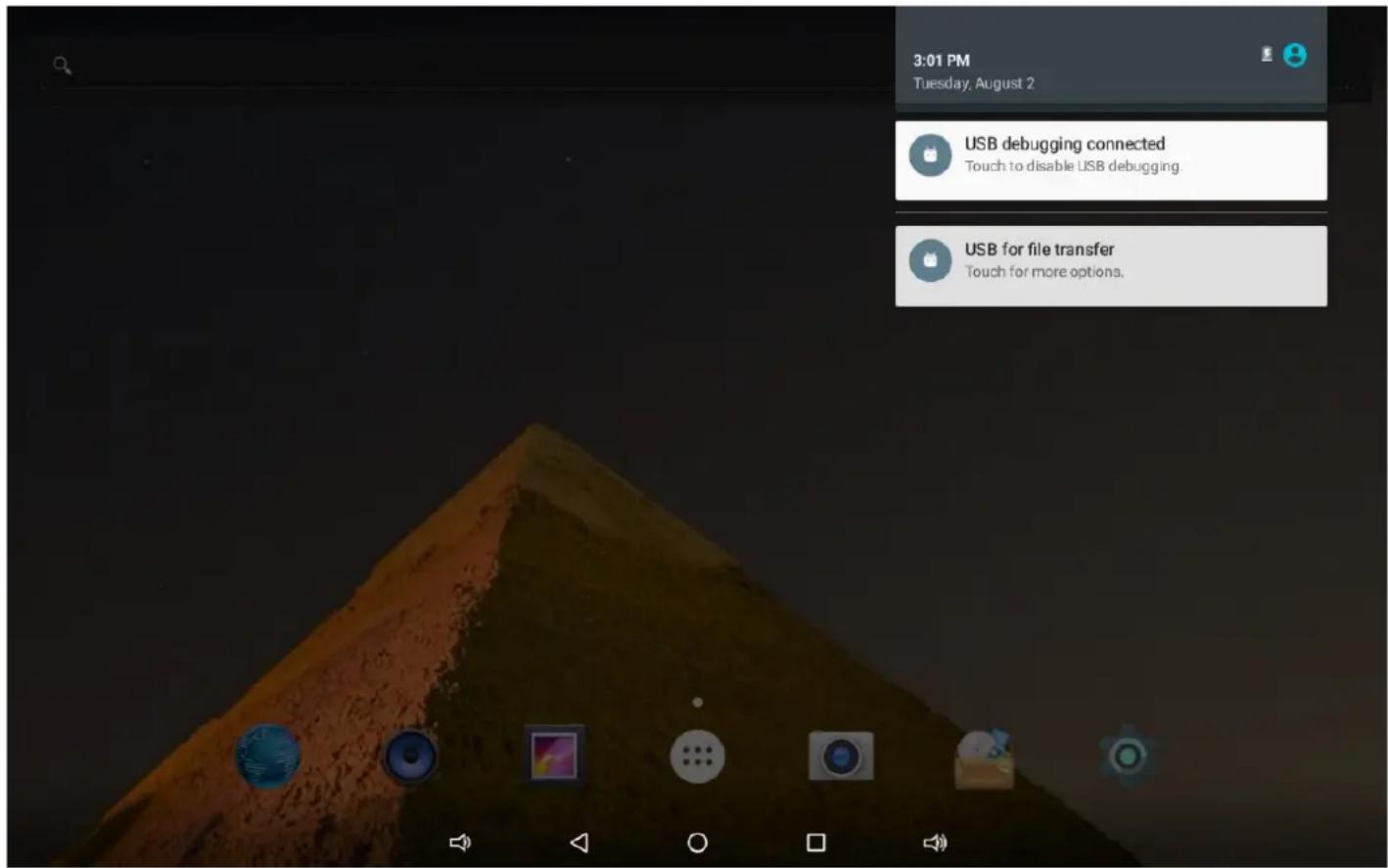
Connect the device with PC.
"Connected as a media device" or Connected as a USB storage" show up as below.
text_image
3:01 PM Tuesday, August 2 USB debugging connected Touch to disable USB debugging. USB for file transfer Touch for more options.6. How to install Applications(.apk file) into the device
Method 1.
- Connect the device with internet. See above [Wi-Fi] in order to connect internet. Connect the device with PC
- Run "Play store" and search the applications you want to install.
- Follow the instruction on the screen for installation.
Method 2.
- With your computer, search application le(.apk) that you want to install into the device.
- Download the le(.apk) into your computer.
- Connect the device with your computer. See above [How to connect/disconnect the device with/from the computer.]
- Copy and paste .apk file into the device and disconnect it from your computer.
- Run "File manager" and find .apk file that was copied into the device.
- Press the file to install and follow the instruction on the screen.
Note
You may only download adult applications if you are at least 18 years of age, or at least the age of majority in the jurisdiction where you reside or from which you download adult applications. If you do not meet these requirements, then you do not have permission to download adult applications.
In case of any problems including legal issues from the breach by end-user's own decision, the manufacturer shall not be responsible.
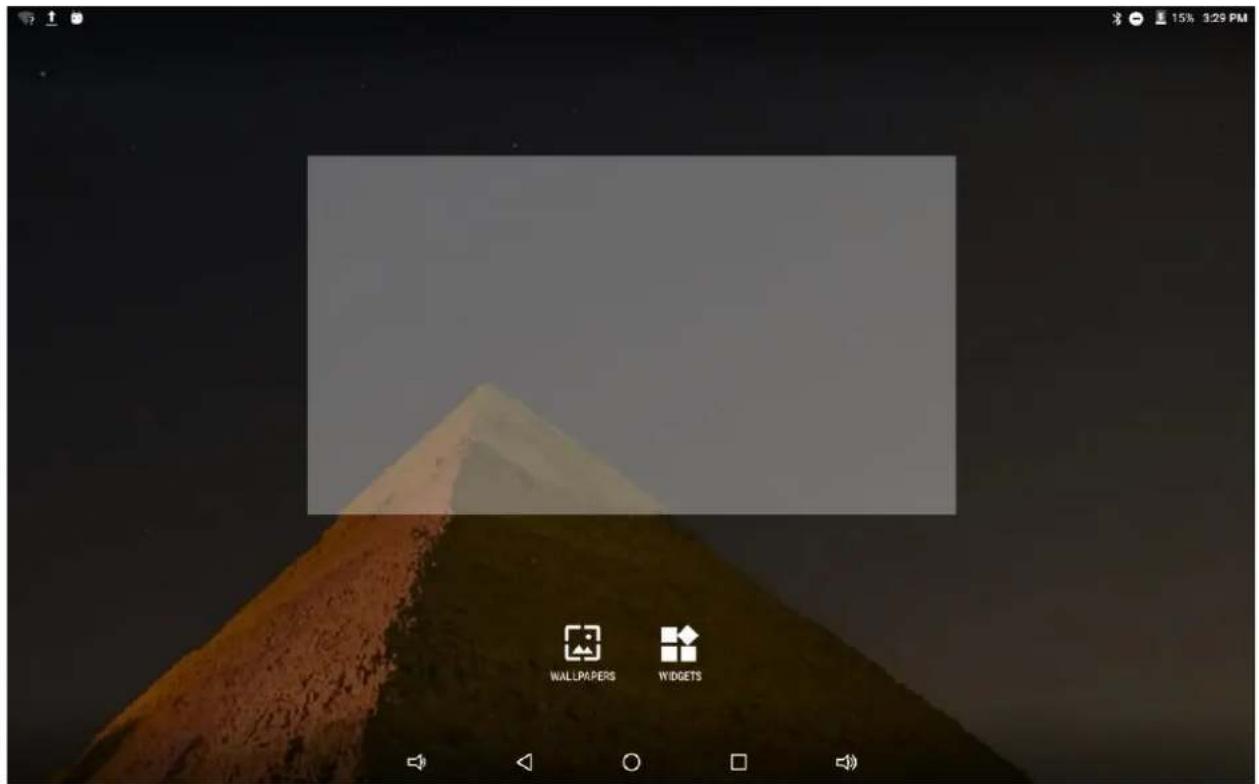
7. How to change wallpaper and widgets
On Desktop screen, touch and hold somewhere in the screen.
Select "WALLPAPERS" or "WIDGETS"
WALLPAPERS
Select one of categories of wallpaper.
Select one you desire and press Set wallpaper.
WIDGETS
Touch and hold your desired wiget icon for 1 second.
And drag it to desktop screen.
text_image
15% 1:29 PM WALLPAPERS WIDGETS8. How to make desktop icons
- Touch the Apps icon on the desktop screen.
- Touch and hold your desired application for 1 second.
- And drag it to desktop screen.
Specification
| OS | Android 6.0 | |
| CPU | Quad core cortex MT8163 processor | |
| SDRAM | DDR3L 1GB (3D accelerator possible for 4D games) | |
| Display | 10.1" IPS 800 x 1280 Capacitive touch panel | |
| Multi touch screen | 5 point | |
| Built-in flash memory | 16GB | |
| IO ports | Audio port | 3.5ø earphones |
| USB port | 1 x 5pin micro USB (2.0 high speed) | |
| Charging port | 5V 2A | |
| HDMI port | YES (Mini HDMI Type C) | |
| Micro SD | Micro SD card | |
| OTG port | Same as USB port | |
| Button | Power, VOL-, VOL+, Reset | |
| Speaker | Frequency response : 20Hz – 20k Hz, N/S : >90% | |
| G-Sensor | Yes | |
| Camera | 0.3MP (front), 2.0MP (rear) | |
| Wi-Fi | 802.11a/b/g/n, 2.4/5GHz dual band | |
| Power | Adaptor 5V -2A USB Type A Connector | |
| Battery | 3.7V Li-Polymer | |
| Dimension | 264.5 x 164.5 x 10.8mm | |
| Charging time (By charger) | 5~6 hours | |
For more information please check our website www.mpmaneurope.com

CE