V25 - Camera EASYPIX - Free user manual and instructions
Find the device manual for free V25 EASYPIX in PDF.


| Product Type | Digital Camera |
| Brand | Easypix |
| Model | V25 |
| Image Sensor | 1/3.2" CMOS |
| Effective Pixels | 12 Megapixels (interpolated) |
| Optical Zoom | None (digital zoom only) |
| Digital Zoom | 4x |
| Display | 2.4" TFT LCD |
| Storage Media | SD/SDHC card (up to 32GB) |
| Internal Memory | 16 MB |
| Power Source | 2x AAA batteries (alkaline or rechargeable) |
| Dimensions (W x H x D) | 95 x 62 x 30 mm |
| Weight (without batteries) | 105 g |
| Interface | USB 2.0 |
| Video Recording | 720p HD at 30 fps |
| Photo Resolution | Up to 4000x3000 pixels |
| Focus Range | 1.2 m to infinity (normal), 0.3 m (macro) |
| White Balance | Auto, Daylight, Cloudy, Fluorescent, Incandescent |
| ISO Sensitivity | Auto, 100, 200, 400 |
| Self-Timer | 2s, 10s |
| Maintenance | Clean lens with soft, dry cloth; avoid moisture |
| Safety | Keep away from water and extreme temperatures; remove batteries if not used for long |
| Spare Parts & Repairability | Contact Easypix support or authorized service center |
Frequently Asked Questions - V25 EASYPIX
User questions about V25 EASYPIX
0 question about this device. Answer the ones you know or ask your own.
Ask a new question about this device
Download the instructions for your Camera in PDF format for free! Find your manual V25 - EASYPIX and take your electronic device back in hand. On this page are published all the documents necessary for the use of your device. V25 by EASYPIX.
USER MANUAL V25 EASYPIX
natural_image
Line drawing of a digital camera with front panel, display screen, and control buttons (no text or symbols on main body)User Manual
Table of contents
Introduction
Features ....1
Package contents 2
Camera overview 2
Getting Started
Attaching the hand strap ....5
Inserting the batteries ....5
Turning the camera on and off 6
Inserting an SD card ....6
Using the LCD display 7
Changing LCD settings 7
Understanding the LCD icons 8
Taking still images or videos
Selecting the camera mode .....11
Taking pictures 11
Adjusting the camera settings using the camera buttons ....11
Using the digital zoom 12
Using the flash 12
Using the self-timer ....13
Taking sequences ....13
Changing the focus setting ....14
Recording videos 14
Adjusting the camera settings using the menus .....15
Using the scene settings 15
Setting the resolution 16
Setting the date stamp 16
Setting the white balance 17
Exposure Settings ....18
Setting the encircled exposure 19
Setting the quality 20
User Manual
Customizing the camera 21
Enabling sound effect 21
Setting the welcome picture 21
Setting the USB options 23
Setting the date and time 23
Setting the TV out 23
Setting the frequency 24
Setting the auto power off function 25
Setting the language .....25
Restoring defaults....27
Memory Formatting....27
Playing games on the camera screen 28
Reviewing photos or movie clips
Zooming in 30
Deleting files 31
Protecting files 31
Editing images ....32
Resizing images 32
Rotating images 32
Cropping files ....33
Deleting a voice memo 34
Using the slideshow function ....35
Setting the starting point 35
Setting the slideshow interval 36
Setting the direction 36
Repeating the slideshow 37
Starting the slideshow 37
Ordering prints 38
Using DPOF 38
Using Direct-Print 39
Connecting to a PC or TV
Connecting to a PC ....41
Installing the software ....41
Changing the USB setting ....42
Connecting the USB cable 42
Connecting to a TV ....43
Setting the output mode ....43
Viewing images on the TV ....44
Appendix
Specifications 45
Error Messages....46
Congratulations on purchasing this digital camera. Your digital camera is compact and ergonomic and capable of taking pictures at resolutions as high as 12 megapixels (4032 x 3024 pixels, extrapolated resolution). The digital camera can also record movies and has an 8× digital zoom.
Features
- Compact, stylish design
- Digital zoom 8x
- 5.0 megapixel high-resolution CMOS (2592 × 1944 pixels)
• Maximum resolution 12 megapixels (4032 x 3024 pixels, extrapolated resolution)
• Video capture resolution of 320 × 240 , 30 fps; 640x480, 24fps
• Super Large 2.5 Inch LCD - Voice memo
• Supports SD card media
• Built-in 32MB Memory - Self-timer mode
• Continuous shooting mode
• Full-speed USB2.0 Port
• TV output
• Built-in microphone and speaker
User Manual
Package contents
Make sure that your package contains the following components. If anything is missing or damaged, contact your dealer immediately. Retain the packaging in case you need to ship the digital camera in the future.
- Digital camera
- H a n d s t r a p
- Quick start guide
- User manual (on CD)
• AAA batteries × 2 - USB cable
• CD-ROM including drivers and software
• Audio/Video Cable - Recharger
Camera overview
Familiarize yourself with the controls of the digital camera with the illustrations below.
Front view

text_image
Flash Microphone Lens =8.55mm 1:3.0 LEDRear View
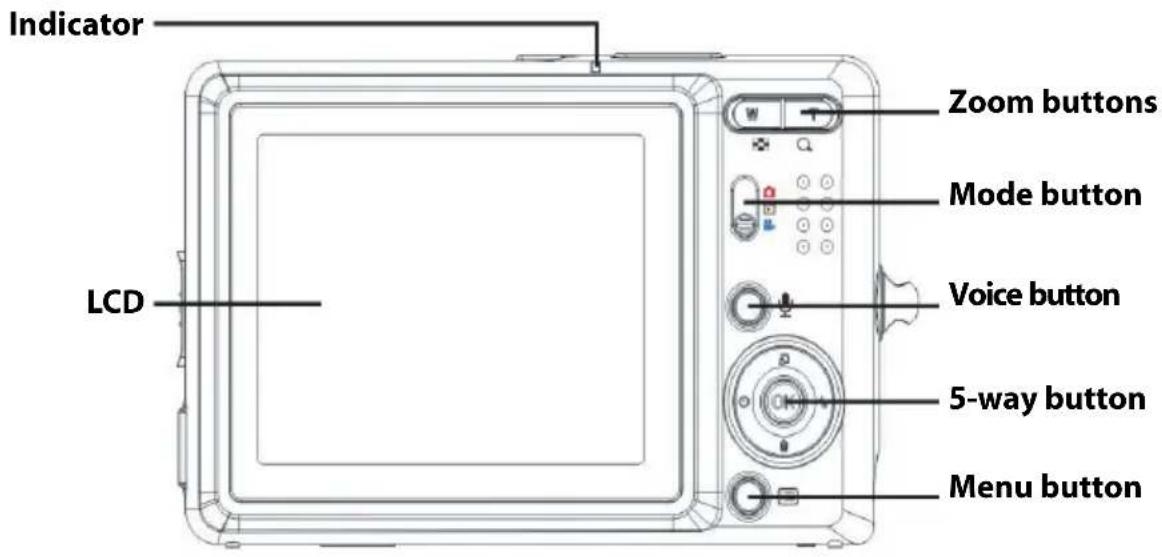
text_image
Indicator LCD Zoom buttons Mode button Voice button 5-way button Menu buttonSide Views
Right Left

text_image
Hand strap eyelet Focus button I/O InterfaceUser Manual
Top View

text_image
Power button Speaker Shutter buttonBottom View

text_image
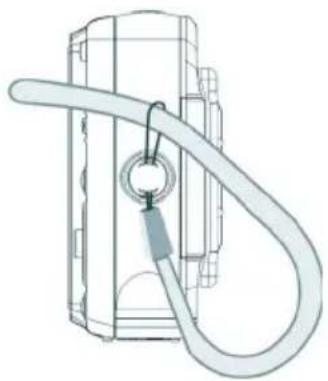
Tripod mount SD card compartment Battery compartmentAttaching the hand strap.
- Thread the short loop of the hand strap through the hand strap eyelet on the camera
- Thread the long loop of the hand strap through the short loop.
- Pull the long loop tight.
natural_image
Technical line drawing of a mechanical device with a coiled cable and attached ring (no text or symbols)Inserting the batteries
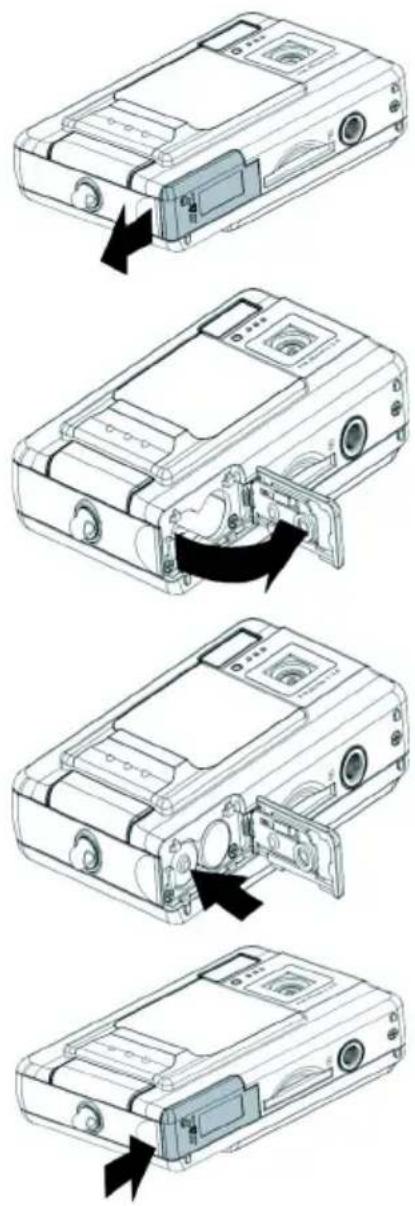
-
Slide the battery/memory card cover on the underside of the camera in the direction of the arrow.
-
Open the cover.
-
Insert the batteries into the compartment observing correct polarity.
-
Close the cover and snap it into place in the direction of the arrow.
text_image
Technical diagram showing five sequential steps of a device's internal components, with arrows indicating assembly or disassembly.User Manual
Turning the camera on and off
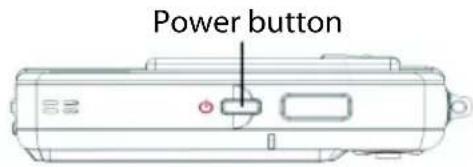
Press the Power button on top of the camera to turn camera on.
text_image
Power buttonPress the Power button again to turn the camera off.
Inserting an SD card
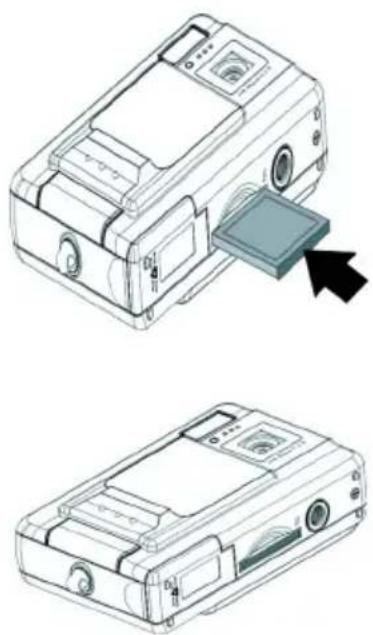
- According to the direction indicated by the arrow, position the label on the SD card toward the front of the camera. Then push the card into the slot until it stops.
natural_image
Technical line drawings of a device with an arrow pointing to a component (no text or symbols present)Note: SD cards can only be inserted facing one direction. If the card does not enter the slot easily, do not force it. Make sure the card is facing the correction direction.
Using the LCD display
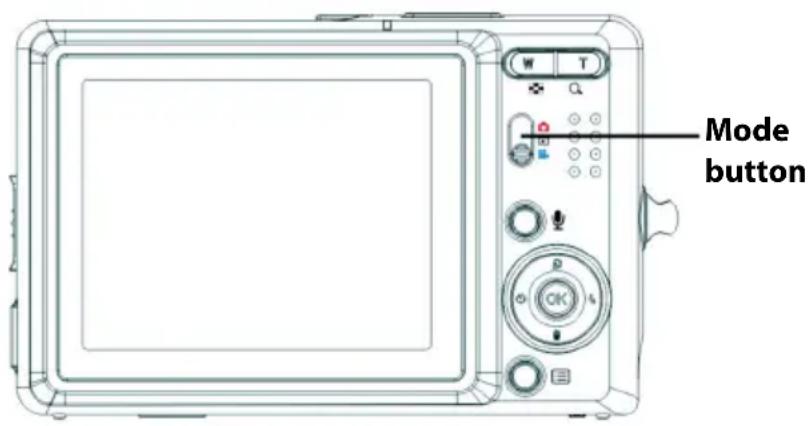
The LCD functions as a view finder, allowing you to frame pictures and video in Picture or Video mode, and view pictures and videos in Playback mode. The LCD allows you to adjust the camera's settings through the on-screen menus.
The LCD displays icons to indicate camera settings.
Changing LCD settings
text_image
Mode buttonThe LCD starts in normal setting. In Picture or Video mode:
- Press the OK button once to turn on the red framing grid.
- Press the OK button again to turn off the framing grid and icons.
- Press the OK button again to turn off the LCD.
- Press the OK button again turn the LCD on and display the icons.
In Playback mode:
- Press the OK button to turn off the icons.
- Press the OK button again to turn off the LCD.
- Press the OK button again to turn the LCD on and display the icons.
User Manual
Understanding the LCD icons
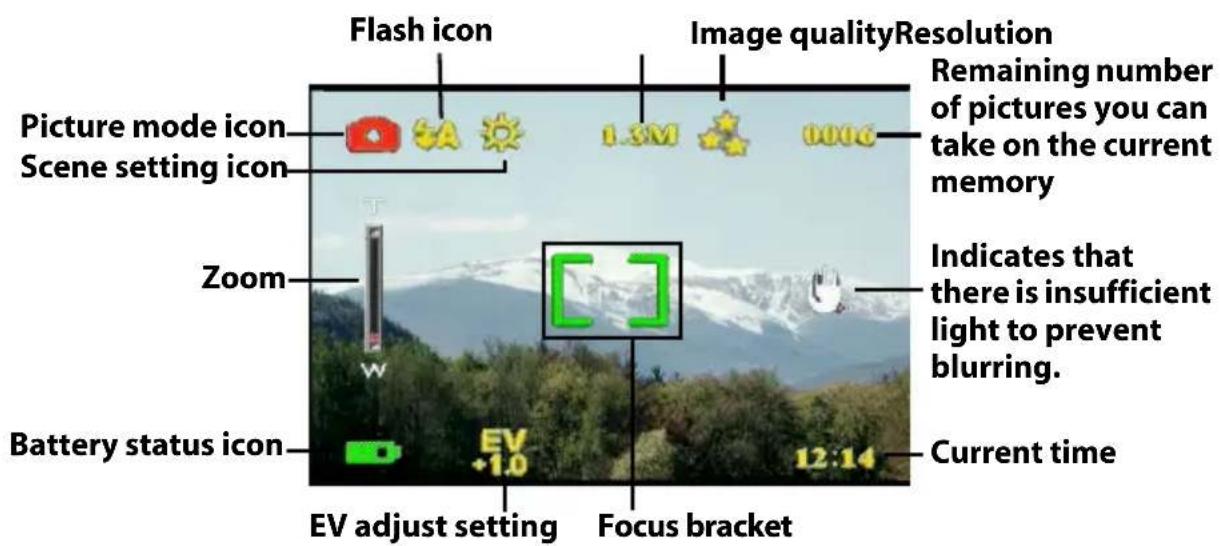
Each mode has different icons to indicate settings.
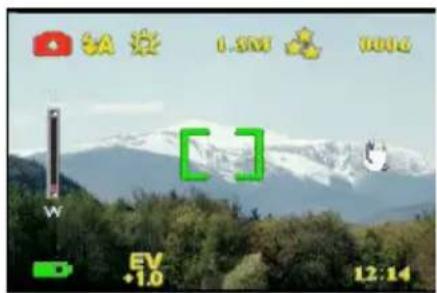
Picture mode
text_image
Flash icon Image qualityResolution Picture mode icon Scene setting icon 1.3M 0006 Remaining number of pictures you can take on the current memory Zoom Indicates that there is insufficient light to prevent blurring. Battery status icon EV adjust setting Focus bracket Current time EV +1.0 12:14Playback mode
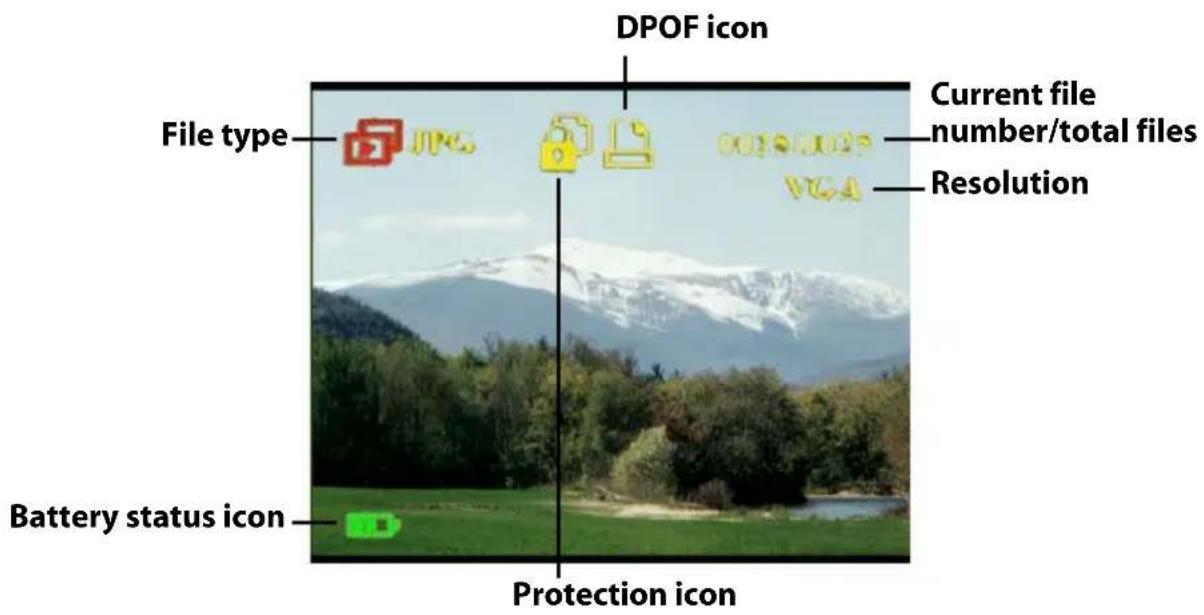
text_image
DPOF icon File type Current file number/total files Resolution Battery status icon Protection iconVideo mode
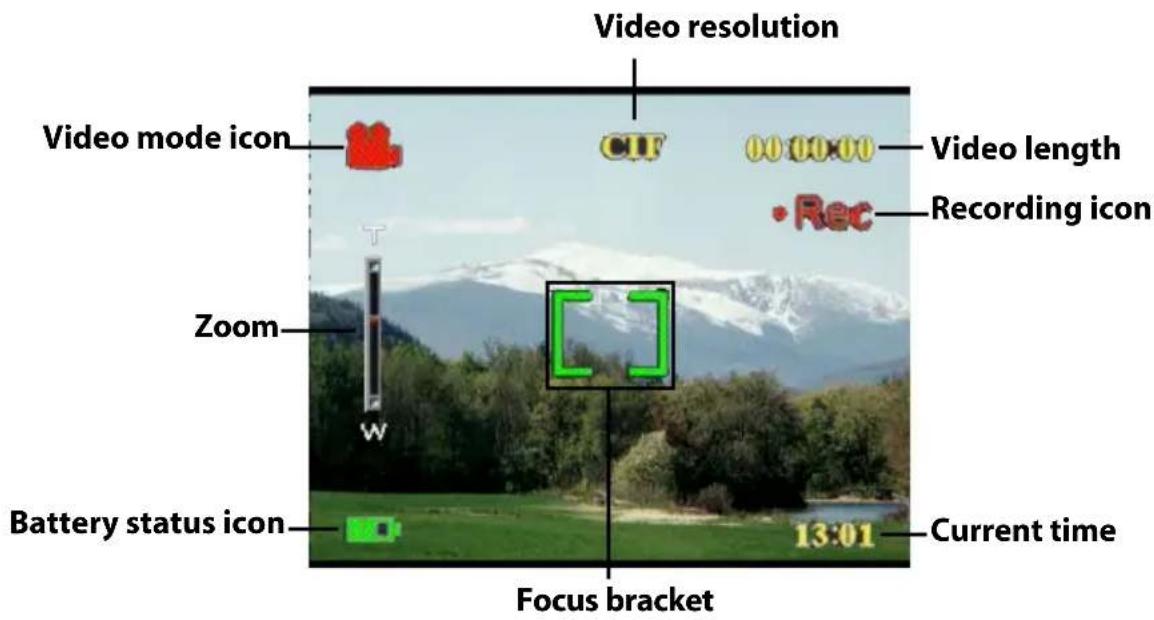
text_image
Video resolution Video mode icon CIF 00:00:00 Video length Recording icon Zoom W Battery status icon 13:01 Current time Focus bracketChapter 3 Taking still images or videos
Selecting the camera mode
The digital camera has two capture modes: Picture and Video. Use Picture mode to capture still images and audio. Use Video mode to capture video and audio.
Use the third mode, Playback mode, to view pictures and videos, and listen to audio.
Use the Mode switch to change modes.
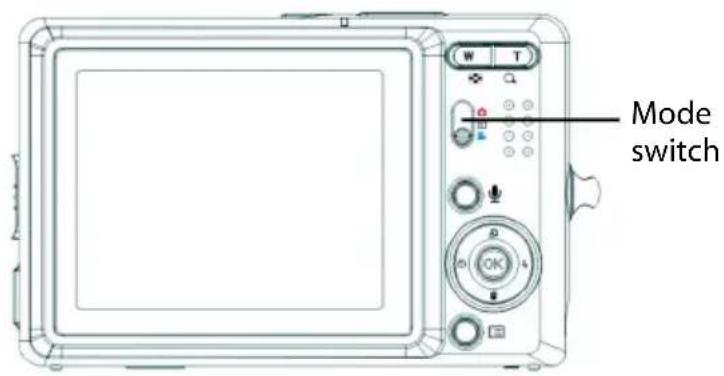
text_image
Mode switch- Slide the switch to the upper position to select Photo mode.
- Slide the switch to the middle position to select Play mode.
- Slide the switch to the lower position to select Video mode.
Taking pictures
- Turn the camera on. Make sure the camera is in Picture mode.
- Frame the picture using the LCD.
- Press the Shutter button.
natural_image
Mountain landscape with snow-capped peaks and a camera interface overlay (no readable text or symbols on the landscape itself)Adjusting the camera settings using the camera buttons
You can use adjust the camera settings to take better pictures.
Using the digital zoom
The camera has an 8× digital zoom, allowing you to take enlarge the subject without moving closer.
-
Frame the picture using the LCD.
-
Turn the camera on. Make sure the camera is in Picture or Video mode.
-
Press the Zoom in button to increase the zoom and take a close up picture of the subject with more detail. Press the
Zoom out button to decrease the zoom and take a wider picture with less detail.
- Press the Shutter button to take the picture.

text_image
6A 1:50 10:00 W EV .10 12:14Using the flash
The flash has three settings for different lighting conditions. Move the 5-way button left repeatedly to cycle through the different flash settings.
| Icon Description | |
| ZA | Flash is fired automatically if required. |
| Flash is enabled. | |
| Flash is disabled. | |
Using the self-timer
The self-timer allows you to take hands-free pictures and videos such as self portraits or group photos.
- Turn the camera on. Make sure the camera is in Picture mode.
- Set the camera on a stable surface such as a tripod or table and frame the picture.
-
Frame the picture, making any zoom or flash settings necessary
-
The self-timer has two delay settings.
Press the Right arrow once turn on the self-timer with a two second delay. The icon appears. Press the Right arrow again to set the delay to 10 seconds. The icon appears.

text_image
VGA W 10 13:06- Press the Shutter button. The counter begins counting down on the LCD. The LED on the front of the camera flashes once a second to count down.
Note: To cancel the self timer, press the Right button until no icon is displayed.
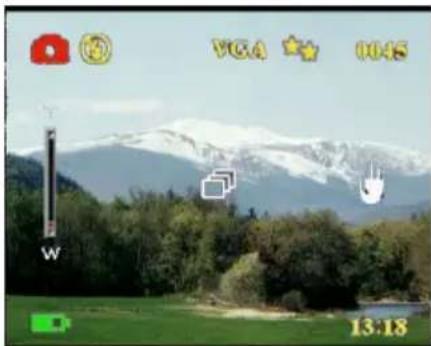
Taking sequences
You can take sequences of pictures very quickly one after the other using the sequence setting. You can use this to make an action series.
-
Turn the camera on. Make sure the camera is in Picture mode.
-
Press the Right arrow three times to turn on the Sequence setting. The icon appears.
-
Frame the picture using the LCD.
-
Press the Shutter button.
natural_image
Scenic landscape with snow-capped mountains, trees, and a camera interface (no readable text or symbols)User Manual
Changing the focus setting
You can change the focus setting of the digital camera for different conditions. Change the setting using the Focus switch.
| Icon Description | |
| Adjusts the focus setting for subjects close to the lens. | |
| Adjusts the focus setting for subjects distant from the lens | |
Recording videos
- Turn the camera on. Make sure the camera is in Video mode.
- Frame the picture using the LCD.
- Press the Shutter button. The video begins to record.
- Press the Shutter button when you have finished to stop recording.

natural_image
Scenic landscape with snow-capped mountains, trees, and a river (no text or symbols visible)Adjusting the camera settings using the menus
You can adjust settings using the on-screen menu. This enables you to configure the camera settings and capture pictures with optimum quality.
Note: The LCD must be switched on to access the on-screen menu.
Using the scene settings
Use this menu item to specify a setting according to the light environment in which you are taking pictures. To set the scene, do the following:
- Turn on the camera and switch to picture mode.
- Press Menu.
- Move the 5-way button left or right to navigate to the Capture menu (Video menu in Video mode).
- Move the 5-way button up or down to highlight the Scene submenu.
- Move the 5-way button right to open the Scene menu
- Move the 5-way button up or down to select from the scene options:
-Auto
- Portrait
- Scenery
- Night scene
- Motion
- Couple shot
- Sepia
- B/W
- P i n k
- Green
- Blue
- Press OK when finished.
Note: In video mode, only Auto, Sepia and B/W scene options are available.

text_image
Capture Setup Scene Resolution Date stamp White balance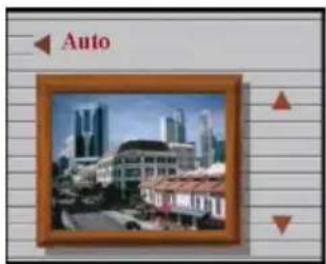
natural_image
Exterior view of a modern cityscape with skyscrapers and buildings, framed in a wooden frame (no signage or text)Setting the resolution
Use this menu item to select the resolution of the image as follows:
- Press Menu.
- Move the 5-way button left or right to navigate to the Capture menu.
- Move the 5-way button up or down to highlight the Resolution submenu.
- Move the 5-way button right to open the Resolution submenu
-
Move the 5-way button up or down to select from the scene options:
-
Turn on the camera and switch to picture mode.
-12.0M
-10.0M
- 5.0 M
- 3 . 1 M
- 1 . 3 M
- VGA
- Press OK when finished.

text_image
Capture Setup Scene Resolution Date stamp White balance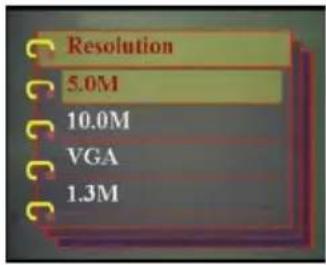
text_image
Resolution 5.0M 10.0M VGA 1.3MSetting the date stamp
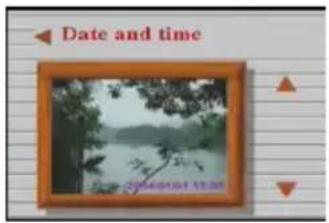
The date stamp menu enables you to imprint the time and the date on the image. To set the date stamp, do the following:
- Press Menu.
- Move the 5-way button left or right to navigate to the Capture menu.
- Move the 5-way button up or down to highlight the Date stamp submenu.
-
Move the 5-way button right to open the Date stamp menu.
-
Turn on the camera and switch to picture mode.

text_image
Capture Setup Scene Resolution Date stamp White balance-
Move the 5-way button up or down to select from the date stamp options:
-
Date and time
- No stamp
- Only date
-
Only time
-
Press OK when finished.
text_image
Date and time 2014.01.01 12:00Setting the white balance
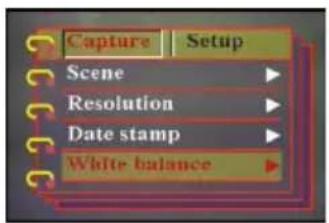
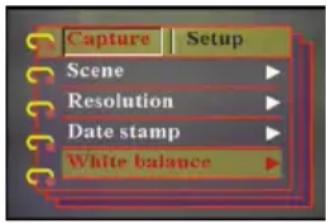
The white balance enables you to change the preset white balance setting to suit the lighting conditions in which the picture is taken.
- Turn on the camera and switch to picture mode.
- Press Menu.
- Move the 5-way button left or right to navigate to the Capture menu.
- Move the 5-way button up or down to highlight the White balance submenu.
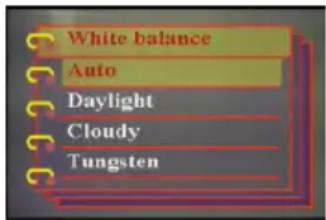
- Move the 5-way button right to open the White balance submenu.
- Move the 5-way button up or down to select from the date stamp options:
- Auto
- Daylight
- Cloudy
- T u n g s t e n
- Fluorescent
- Press OK when finished.
text_image
Capture Setup Scene Resolution Date stamp White balance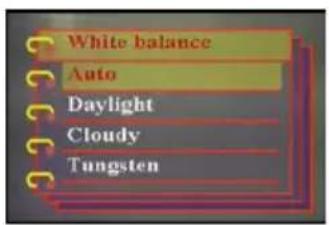
text_image
White balance Auto Daylight Cloudy TungstenExposure Settings
By using the Exposure Adjusting menu, you can set the quantity of light entering into the camera when you take picture. The EV compensation is expressed as a single number that is used by the digital camera to calculate the correct combination of aperture and shutter speed for producing optimum quality pictures. Setting a higher EV compensation value will over-expose a shot while setting a lower value will under-expose a shot. Exposure can be adjusted from -2.0 to +2.0. The value is shown on the LCD display. To change the EV compensation value, do the following:
- Press Menu.
- Move the 5-way button left or right to navigate to the Capture menu.
- Move the 5-way button up or down to highlight the EV adjust submenu.
- Move the 5-way button right to open the EV adjust submenu.
- Move the 5-way button up or down to adjust the EV value between -2.0 through +2.0. Select Normal for the default value.
-
Press OK when finished.
-
Turn on the camera and switch to picture mode.

text_image
Capture Setup Resolution Date stamp White balance EV adjust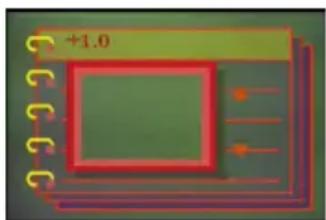
natural_image
Close-up of a microchip or integrated circuit package with a red square and gold contacts, no visible text or symbols.Setting the encircled exposure
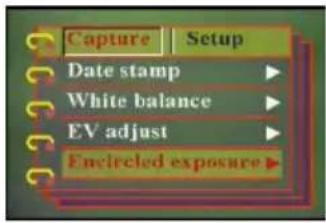
Use the following procedure to set the encircled exposure:
- Press Menu.
- Move the 5-way button left or right to navigate to the Capture menu.
-
Move the 5-way button up or down to highlight the Encircled exposure submenu.
-
Turn on the camera and switch to picture mode.
-
Move the 5-way button right to open the Encircled exposure submenu.
-
Move the 5-way button up or down to select one of the following values:
-0.3 EV
-0.5 EV
- 1.0 EV
- Press OK when finished.
text_image
Capture Setup Date stamp White balance EV adjust Encircled exposure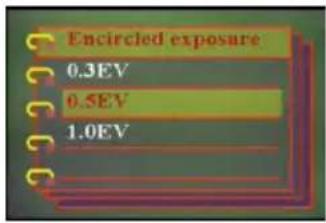
text_image
Encircled exposure 0.3EV 0.5EV 1.0EVSetting the quality
Do the following to specify the image or video quality:
- Turn on the camera and switch to picture or video mode.
- Press Menu.
- Move the 5-way button left or right to navigate to the Capture menu (Video menu in Video mode).
- Move the 5-way button up or down to highlight the Image quality
text_image
Capture Setup Scene Resolution Date stamp White balancesubmenu in the picture mode or Video Quality submenu in the video mode.
- Move the 5-way button up or down to select from the quality options:
- Picture mode
- Basic 1:16
- Better 1:12
- Best 1:8
- Video mode
- CIF 20 fps
- CIF 30 fps
- VGA 15fps
-
VGA 24fps
-
Press OK when finished.
text_image
White balance Auto Daylight Cloudy TungstenCustomizing the camera
You can customize the camera according to your preferences. Refer to the following sections for more information.
Enabling sound effect
Do the following to enable the sound effect:
- Turn on the camera and switch to picture mode.
- Press Menu.
- Move the 5-way button left or right to navigate to the Setup menu.
- Move the 5-way button up or down to highlight the Sound effect submenu.
- Move the 5-way button right to open the Sound effect submenu.
- Move the 5-way button up or down to select On to enable the sound effect or Off to disable the sound effect.
- Press OK when finished.

text_image
Setup Sound effect Welcome USB Date and time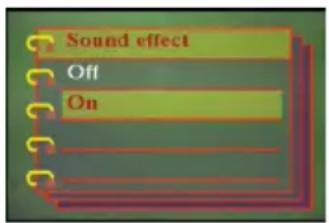
text_image
Sound effect Off OnSetting the welcome picture
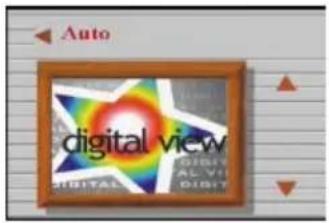
Use the following procedure to specify the welcome picture shown when the camera is turned on.
- Press Menu.
- Move the 5-way button left or right to navigate to the Setup menu.
-
Move the 5-way button up or down to highlight the Welcome submenu.
-
Turn on the camera and switch to picture mode.

text_image
Setup Game Sound effect Welcome USB Date and timeUser Manual
- Move the 5-way button right to open the Welcome submenu
-
Move the 5-way button up or down to select one of the following options:
-
Auto
- Off
-
Custom pic
-
Press OK when finished.
text_image
Auto digital view DIGITAL DIGIT DIGITAL DIGITSetting the USB options
Use this option to specify whether the camera is used for storage or as a web camera when connected to the PC. Refer to “Changing the USB setting” on page 42 for more details.
Setting the date and time
Use this option to set the date and time as follows:
- Turn on the camera and switch to picture mode.
- Press Menu.
- Move the 5-way button left or right to navigate to the Setup menu.
- Move the 5-way button up or down to highlight the Date and time submenu.
- Move the 5-way button right to open the Date and time submenu.
- Move the 5-way button left or right to move between the various date (yy/mm/dd) and time (hh:mm) fields.
- Move the 5-way button up or down to change the various date and time fields.
- Press OK when finished.
Setting the TV out
Use this option to specify the TV out format. See “Setting the output mode” on page 43 for more information.
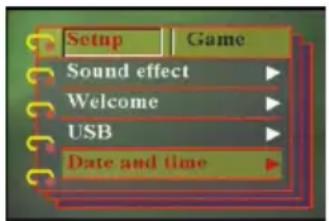
text_image
Setup Game Sound effect Welcome USB Date and time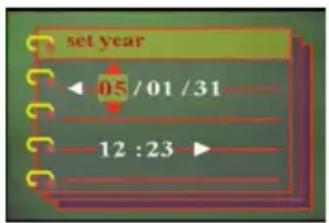
text_image
set year ← 05 / 01 / 31 12 : 23 ►Setting the frequency
Use the frequency menu to set the frequency of the camera. This value should be the same as the frequency of the power supply at the location where you are using the camera. This prevents lights flickering when taking pictures or video.
- Press Menu.
- Move the 5-way button left or right to navigate to the Setup menu.
- Move the 5-way button up or down to highlight the Frequency submenu.
- Move the 5-way button right to open the Frequency submenu.
- Move the 5-way button up or down to select 50Hz or 60Hz.
-
Press OK when finished.
-
Turn on the camera and switch to picture mode.

text_image
Setup USB Date and time TV out Frequency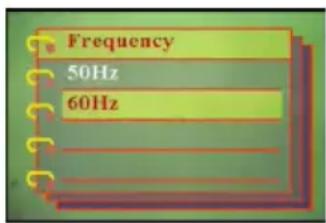
text_image
Frequency 50Hz 60HzSetting the auto power off function
The auto power off function turns off power automatically after a specified period in order to conserve power. Use the following procedure to set the auto power off interval.
- Turn on the camera and switch to picture mode.
- Press Menu.
- Move the 5-way button left or right to navigate to the Setup menu.
- Move the 5-way button up or down to highlight the Auto power off submenu.
- Move the 5-way button right to open the Auto power off submenu.
-
Move the 5-way button up or down to select from one of the following options:
-
1 minute
- 2 minutes
- 5 minutes
-
Never
-
Press OK when finished.
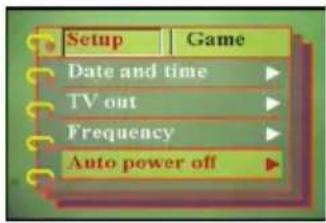
text_image
Setup Date and time TV out Frequency Auto power off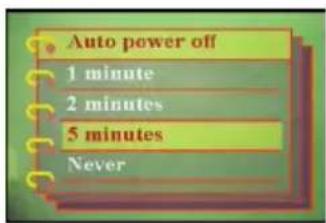
text_image
Auto power off 1 minute 2 minutes 5 minutes NeverSetting the language
To set the menu language, do the following:
- Turn on the camera and switch to picture mode.
- Press Menu.
- Move the 5-way button left or right to navigate to the Setup menu.
- Move the 5-way button up or down to highlight the Language submenu.
- Move the 5-way button right to open the Language submenu.

text_image
Setup Game TV out Frequency Auto power off Language-
Move the 5-way button up or down to select from one of the following options:
-
English
- German
- French
- Italian
- Spanish
- Dutch
- C z e c h
- Polish
- Russian
- Traditional Chinese
– Simplified Chinese - Korean
- Japanese
– Bulgarian -
Portuguese
-
Press OK when finished.

text_image
Language English Deutsch Français ItalianoRestoring defaults
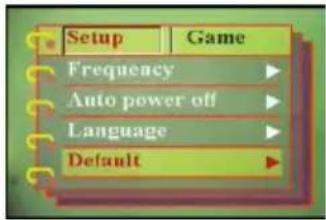
Use the setup menu to restore the camera settings to their default values as follows:
- Turn on the camera and switch to picture mode.
- Press Menu.
- Move the 5-way button left or right to navigate to the Setup menu.
- Move the 5-way button up or down to highlight the Default submenu.
- Move the 5-way button right to open the Default submenu.
- Move the 5-way button up or down to select Confirm to reset the camera or Cancel to cancel the operation.
- Press OK when finished.
text_image
Setup Frequency Auto power off Language Default
flowchart
graph TD
    A["Default"] --> B["Confirm"]
    B --> C["Cancel"]
Memory Formatting
Format the camera's memory by the following steps:
- Turn on the camera and switch to picture mode.
- Press Menu.
- Move the 5-way button left or right to navigate to the Setup menu.
- Move the 5-way button up or down to highlight the Format submenu.
- Move the 5-way button right to open the Format submenu.
- Press the 5-way button's UP or DOWN buttons to select OK in order to format the memory, or select Cancel to cancel the operation.
- Press OK when finished. The memory of the camera is formatted. All files, including protected files, are deleted.

text_image
Setup Auto power off Language Default Format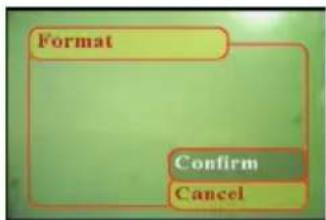
text_image
Format Confirm CancelWarning: Memory formatting will delete all files stored in the memory. Make sure you have backed up any files you still want.
Playing games on the camera screen
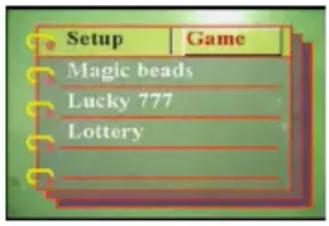
Four games are provided as an additional feature. You can use the buttons and the LCD of the camera to play games. To select a game, do the following:
- Turn on the camera and switch to picture mode.
- Press Menu.
- Move the 5-way button left or right to navigate to the Games menu.
-
Move the 5-way button up or down to highlight one of the following games:
-
Magic beads
- Lucky 777
- Lottery
-Boxman -
Tiling
-
Move the 5-way button right to select the game and start playing.
- Press Menu to stop the game at any time.
text_image
Setup Magic beads Lucky 777 LotteryChapter 4 Reviewing photos or movie clips
Move the Mode switch to center to switch to playback mode.
The LCD screen displays the most recent image. If the most recent file is a video

text_image
Mode switchclip, it displays the first frame of the movie clip on the screen. No image is displayed if the most recent file is an audio file.

Image file Video file Audio file
To browse through your images and video or audio clips, do the following:
- Move the 5-way button right or left to skip to the next or previous file.
- If the file is a video clip, press the Shutter to start playing the video clip. Press OK to stop playback. Playback status is displayed on the screen, along with the playback icon.
- If the file is an audio clip, press the Shutter to start playing the audio clip.

text_image
AVI 00:00:24 00:00:08Press OK to stop playback. Playback status is displayed on the screen, along with the playback icon.
- You can attach a voice memo to an image by pressing the Voice button. Press the button again to stop recording. To play a voice memo, please press the Shutter button. To learn about deleting the voice memo, see "Deleting a voice memo" on page 34.
Zooming in
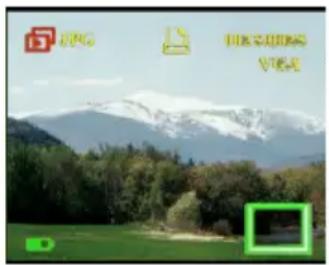
You can use the digital zoom feature to zoom in and examine the fine details of the picture. Press the Zoom in button to magnify the image and the Zoom out button to decrease the zoom ratio. The zoom ratio is indicated by the zoom window over the thumbnail image at the lower right corner of the screen.
The magnified image is initially centered on the LCD. To pan the view and see different parts of the magnified image, move the 5-way button left, right, up, or down. The lower right corner shows the thumbnail image along with the zoom area highlighted.
natural_image
Scenic landscape with snow-capped mountains and greenery, no visible text or symbols
natural_image
Mountain landscape with snow-capped peaks and green trees, no visible text or symbolsDeleting files
In playback mode, you can easily delete any pictures or audio/video clips that you are not satisfied with, before transferring them to the PC. To delete unwanted files, do the following:
- In playback mode, use the 5-way button to browse to the image or audio/video clip that you want to erase.
- Move the 5-way button down to display the Erase menu.
-
Using the 5-way button, select one of the following options:
-
All: erases all files.
- Current: erases the currently selected file.
-
Cancel: cancels the delete operation.
-
Press OK to confirm the operation.
The selected files are deleted.

text_image
Erase All Current CancelProtecting files
To lock images or audio/video clips in order to prevent them from being deleted accidentally, do the following:
- In playback mode, use the 5-way button to browse to the image or audio/video clip that you want to protect.
- Move the 5-way button up to display the Protect menu.
-
Using the 5-way button, select one of the following options:
-
Current
- All
-
Cancel
-
Press OK to confirm the operation.
The selected files are protected.

text_image
Protect Current All CancelIf the selected file is previously protected, the Unprotect menu is displayed when you move the 5-way button up. Remove the lock if required in a manner similar to protecting the image.
User Manual
Editing images
The playback menu has various options to enable you to edit pictures by resizing, cropping, or rotating. Refer to the following sections for more details.
Resizing images
To resize an image, do the following:
- In playback mode, use the 5-way button to browse to the image that you want to resize.
- Press Menu.
- Move the 5-way button left or right to navigate to the Edit menu.
- Move the 5-way button up or down to highlight the Resize submenu.
- Move the 5-way button right to open the Resize submenu.
- Move the 5-way button up or down to select from the resize options: VGA, 1.3M, 3.1M, or 5.0M.
- Press OK when finished.
Rotating images
To rotate an image, do the following:
- In playback mode, use the 5-way button to browse to the image that you want to rotate.
- Press Menu.
- Move the 5-way button left or right to navigate to the Edit menu.
- Move the 5-way button up or down to highlight the Rotate submenu.
- Move the 5-way button right to open the Rotate submenu.

text_image
Edit Slide Resize Rotate Crop Customize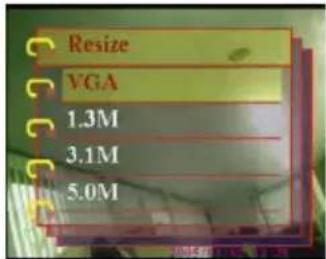
text_image
Resize VGA 1.3M 3.1M 5.0M
text_image
Edit Slide Resize Rotate Crop Customize- Move the 5-way button up or down to select one of the following options:
- Rotate
- Save
- Cancel
- Press OK when finished.

text_image
Rotate Rotate Save CancelCropping files
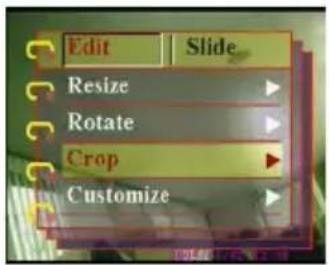
The cropping feature enables you to cut off unwanted parts of the picture. To crop an image, do the following:
-
In playback mode, use the 5-way button to browse to the image that you want to crop.
-
Press Menu.
-
Move the 5-way button left or right to navigate to the Edit menu.
-
Move the 5-way button up or down to highlight the Crop submenu.
-
Move the 5-way button right to open the Crop submenu.
-
Move the 5-way button up or down to select one of the following options:
- 4:3
- 3:2
-
Move the 5-way button right to start cropping.
-
The cropping window is displayed on the image. Use the 5-way button to move the cropping window and select the area to be cropped.
-
Press OK when finished.
text_image
Edit Slide Resize Rotate Crop Customize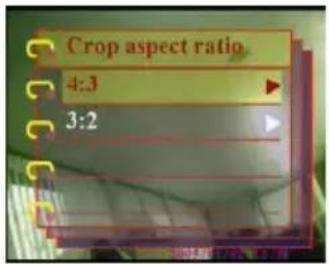
text_image
Crop aspect ratio 4:3 3:2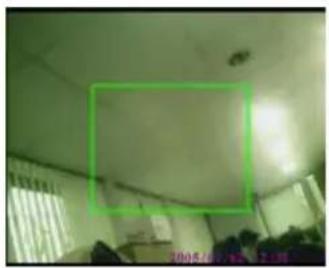
natural_image
Interior view of a dimly lit room with ceiling and windows, no visible text or symbolsUser Manual
Deleting a voice memo
You can use the playback menu to delete a voice memo attached to an image. To delete a voice memo, do the following:
-
In playback mode, use the 5-way button to browse to the desired image with a voice memo.
-
Press Menu.
-
Move the 5-way button left or right to navigate to the Edit menu.
-
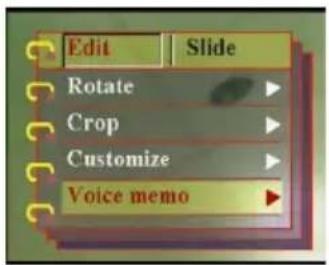
Move the 5-way button up or down to highlight the Voice Memo submenu.
-
Move the 5-way button to open the Voice memo submenu.
-
Select Delete to delete the voice memo attached to the image or select Cancel to cancel the operation.
-
Press OK when finished.
text_image
Edit Slide Rotate Crop Customize Voice memo
text_image
Voice memo Delete CancelUsing the slideshow function
The slideshow feature of the camera enables you to view all the images automatically on the LCD screen. You can set the slideshow interval, direction, etc. and customize the slideshow as required.
Note: Audio/video clips are not played back during the slide show. The first frame of the video clips are displayed during the slide show.
Refer to the following sections to set up a slide show.
Setting the starting point
To specify the starting point of the slide show, do the following:
- Press Menu.
- Move the 5-way button left or right to navigate to the Slide menu.
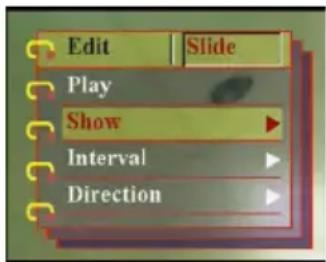
- Move the 5-way button up or down to highlight the Show submenu.
- Move the 5-way button right to open the Show submenu.
- Move the 5-way button up or down to select one of the following options:
- From current
- From first
-
From last
-
Press OK when finished.
text_image
Edit Slide Play Show Interval Direction
text_image
Show From current From first From lastUser Manual
Setting the slideshow interval
To set the interval between consecutive images during the slide show, do the following:
- Press Menu.
- Move the 5-way button left or right to navigate to the Slide menu.
- Move the 5-way button up or down to highlight the Interval submenu.
-
Move the 5-way button right to open the Interval submenu.
-
Move the 5-way button up or down to select one of the following options for the interval:
-
1 sec
- 3 sec
-
5 sec
-
Press OK when finished.

text_image
Edit Slide Play Show Interval Direction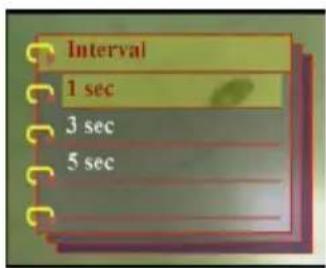
text_image
Interval 1 sec 3 sec 5 secSetting the direction
To specify the order in which the slide show displays the images, do the following:
- Press Menu.
- Move the 5-way button left or right to navigate to the Slide menu.
- Move the 5-way button up or down to highlight the Direction submenu.
-
Move the 5-way button right to open the Direction submenu.
-
Move the 5-way button up or down to select one of the following options:
-
Backward
-
Forward
-
Press OK when finished.

text_image
Edit Slide Play Show Interval Direction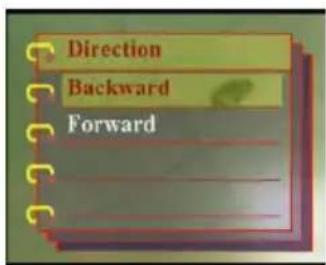
text_image
Direction Backward ForwardRepeating the slideshow
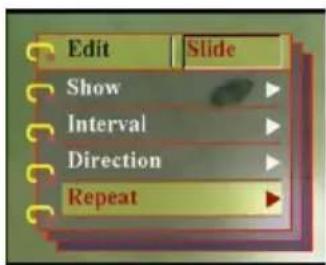
To loop the slideshow repeatedly, do the following:
- Press Menu.
- Move the 5-way button left or right to navigate to the Slide menu.
- Move the 5-way button up or down to highlight the Repeat submenu.
- Move the 5-way button right to open the Repeat submenu.
- Move the 5-way button up or down to select Yes to repeat the slideshow or No to display the slide show only once.
- Press OK when finished.
text_image
Edit Slide Show Interval Direction Repeat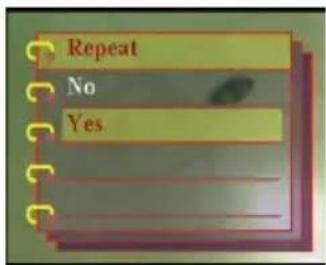
text_image
Repeat No YesStarting the slideshow
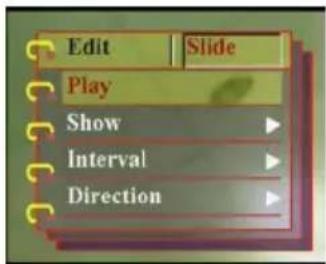
After setting up the slide show, you are now ready to start the slide show. To start the slide show, do the following:
- Press Menu.
- Move the 5-way button left or right to navigate to the Slide menu.
- Move the 5-way button up or down to open the Play submenu.
- Press OK. The slide show starts. Press the OK button at any time to stop the slide show.
text_image
Edit Slide Play Show Interval DirectionUser Manual
Ordering prints
You can set up printing information for printing the digital images taken with your digital camera. Refer to the following sections for more information:
Using DPOF
The DPOF (Digital Print Order Format) refers to a format that is used for recording the print specifications of images. Use the following procedure to set the DPOF information for a selected image.
- In playback mode, use the 5-way button to browse to the desired image.
- Press Menu.
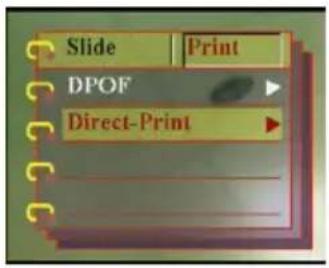
- Move the 5-way button left or right to navigate to the Print menu.
- Move the 5-way button up or down to highlight the DPOF submenu.
- Move the 5-way button right to open the DPOF submenu.
- Use the 5-way button to select Current to set the DPOF information for the current image or Reset to clear the DPOF information for the image.
- Press OK.
The DPOF information is stored with the image as indicated by the DPOF icon. This information enables you to take prints for the image from a DPOF-compatible printer.

text_image
Slide Print DPOF Direct-Print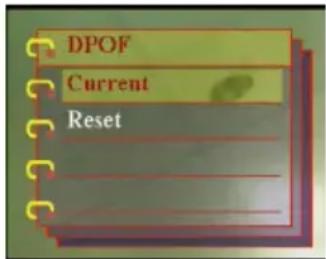
text_image
DPOF Current Reset
natural_image
Scenic landscape with snow-capped mountains, trees, and a green field (no text or symbols visible)Using Direct-Print
You can also connect a printer to the digital camera using the USB port and take prints directly. To set the number of prints for an image, do the following:
-
In playback mode, use the 5-way button to browse to the desired image.
-
Press Menu.
-
Move the 5-way button left or right to navigate to the Print menu.
-
Move the 5-way button up or down to highlight the Direct-Print submenu.
-
Move the 5-way button right to open the Direct-Print submenu.
-
Use the 5-way button to select Current to print the current image or Cancel to cancel the operation.
-
Press OK.
-
Use the 5-way button to select the Copies option and set the number of copies to be printed by moving the button left or right.
-
Select the Print option and press OK to start printing.
text_image
Slide Print DPOF Direct-Print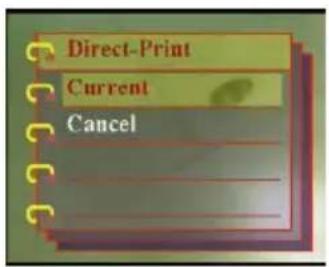
text_image
Direct-Print Current Cancel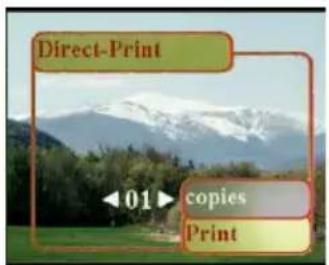
text_image
Direct-Print 01 copies PrintThis chapter describes how to connect the digital camera to a TV for reviewing your pictures and videos, or to a PC to transfer your files.
Connecting to a PC
You can connect your camera to a PC via the USB port and transfer photos to the PC. You can also use the camera as a web camera and use it for video conferencing. Refer to the following sections for more information.
Installing the software
The software CD provided with the digital camera contains the software driver required to use the camera as a web camera and to transfer data from it. It also contains various software applications to help you view and edit your digital photos and videos. To install the software, do the following:
- Insert the CD into your PC's CD drive. The CD menu is displayed.
-
Select one of the following options:
-
Digital Camera Driver
– Ulead Photo Explorer 8.0SE
– Ulead Video Studio 7.0SE - Ulead Cool 360
- Acrobat Reader
-
User Manual
-
Click Install to start the installation. Follow the instructions on the screen to complete the installation.
User Manual
Changing the USB setting
You can use the camera as a storage device and transfer the photos to the PC. You can also use it as a web camera for video conferencing. To configure the USB setting, do the following:
- In picture mode, press Menu to display the menu.
- Move the 5-way button left or right to navigate to the Setup menu.
- Move the 5-way button up or down to highlight the USB submenu.
- Move the 5-way button right to open the USB submenu.
- Move the 5-way button up or down to select one of the following options:
- Storage
- P C camera
- Press OK when finished.

text_image
Setup Sound effect Welcome USB Date and time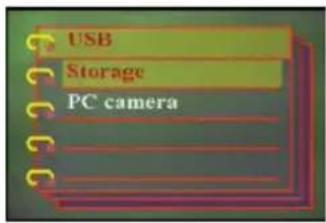
text_image
USB Storage PC cameraConnecting the USB cable
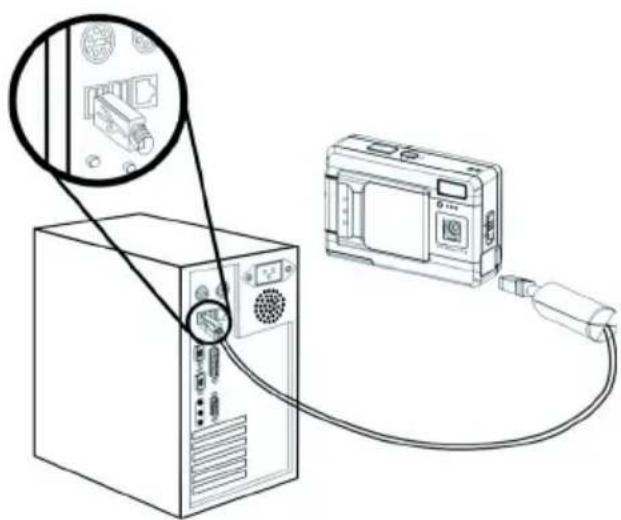
To connect the camera to the PC, do the following:
- Turn on the camera.
- Connect the digital camera to the computer with the USB cable.
- The LCD displays Memory or Camera and Close. All camera buttons are disabled.
text_image
Diagram showing connection between a computer tower and a digital camera via cable, with an inset magnified view of the device's internal components.Connecting to a TV
You can connect the digital camera to a TV and use the TV screen to review your images and play back your video clips.
Setting the output mode
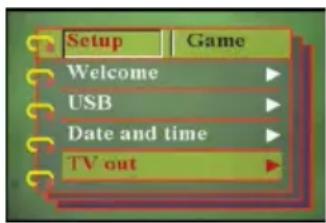
Before connecting the camera to a TV, you need to set the TV output mode and make sure it matches that of your TV. to set the TV output mode, do the following:
- In picture mode, press Menu to display the menu.
- Move the 5-way button left or right to navigate to the Setup menu.
- Move the 5-way button up or down to highlight the TV out submenu.
- Move the 5-way button right to open the TV out submenu.
- Move the 5-way button up or down to select the NTSC or PAL option.
- Press OK when finished.
text_image
Setup Game Welcome USB Date and time TV out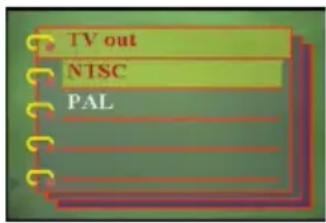
text_image
TV out NTSC PALUser Manual
Viewing images on the TV
To view images and videos on the TV, do the following:
- Turn the camera on and set it to playback mode using the mode switch.
- Connect the TV out jack on your digital camera to the audio / video input ports on your TV using the AV cable provided. The LCD screen turns off.
- Use the procedures described in "Review-

text_image
Video Audioing photos or movie clips" on page 29 to play back the files on your camera.
Specifications
| Image sensor 1/1.8-inch CMOS | |
| Resolution 5 megapixels (2592 × 1944 pixels) | |
| Extrapolated resolution | 12 megapixels |
| Shutter speed 1/4 ~ 1/1000 second | |
| Zoom 8× digital zoom | |
| LCD 2.5 Inch TFT | |
| Internal memory 32 MB SDRAM | |
| Supported media | Secure Digital card |
| Image JPEG/EXIF 2.1/DPOF | |
| Video AVI (CIF) | |
| Audio WAV | |
| Connections USB 2.0 | |
| Power 2 × AAA batteries | |
| Weight 85 g | |
Error Messages
| Error Message Possible causes Solutions | ||
| Card Full The card | is full, and no more files can be stored on the card. | Delete some files or insert another card. |
| Write-Protect Card | has been write protected. | Move the card's write protect switch to turn off write protection |
| Card Error • The card may be damaged.• The card may require formatting. | • Form at the card• Insert another card. | |
| Picture Error The picture cannot be viewed with the camera | View the image on a computer. If the picture cannot be viewed, the file may be damaged. | |
| No picture There are no files on the memory or card. | • Take pictures or video.• Insert another card. | |
| Card Setup The card is not formatted | Format the card. | |
| Battery Empty Battery does not have sufficient charge for camera to operate. | • Replace batteries• Recharge batteries. | |