V10 - Camera EASYPIX - Free user manual and instructions
Find the device manual for free V10 EASYPIX in PDF.


| Product Type | Digital Camera |
| Model | V10 |
| Brand | Easypix |
| Max Resolution | 3600 x 2700 (10.0 MP interpolated) |
| Sensor | 3.1 MP CMOS |
| Digital Zoom | Up to 8x |
| Lens Aperture | F3.0 |
| Internal Memory | 16 MB NAND |
| Storage Media | SD/MMC card |
| Video Resolution | Up to VGA (640x480) at 30 fps with audio |
| File Formats | JPEG, EXIF 2.2, WAV, DPOF, HTML, AVI |
| Flash Modes | Auto, Force On, Force Off |
| Self-Timer | 2 sec or 10 sec |
| Continuous Shooting | Yes, up to 3 shots |
| Focus Range | Normal: 86-153 cm; Macro: 19-22 cm; Infinity: 153 cm to infinity |
| White Balance | Auto, Daylight, Cloudy, Tungsten, Fluorescent |
| ISO Sensitivity | Auto, ISO 100 |
| Exposure Compensation | -2 to +2 EV in 0.5 steps |
| Color Effects | Normal, Sepia, B/W, Pink, Green, Blue |
| Display | 1.5-inch LTPS LCD |
| Connectivity | USB 2.0 Full Speed (mini B), TV-out (NTSC/PAL) |
| Power Source | 2 x AAA alkaline or rechargeable batteries |
| Dimensions | 86 x 55 x 25 mm |
| Weight | 85 g (without batteries) |
| Languages | 13 languages including English, German, French, etc. |
| Auto Power Off | 2 minutes |
| Spare Parts / Repairability | Batteries and SD card are user-replaceable; other repairs should be done by qualified service |
| Maintenance | Keep lens clean; store in dry place; remove batteries if not used for long periods |
| Safety | Do not mix battery types; keep away from heat; use only as directed |
Frequently Asked Questions - V10 EASYPIX
User questions about V10 EASYPIX
0 question about this device. Answer the ones you know or ask your own.
Ask a new question about this device
Download the instructions for your Camera in PDF format for free! Find your manual V10 - EASYPIX and take your electronic device back in hand. On this page are published all the documents necessary for the use of your device. V10 by EASYPIX.
USER MANUAL V10 EASYPIX
Thank you for purchasing this camera.
Equipped with three shooting modes (Capture Mode, Video Mode, and Playback mode), this camera will fulfill your entire digital picture processing needs. This card-sized and lightweight camera offers a max resolution of 10 megapixels high-quality image along with precise 8x digital zoom. The built-in internal memory can store your images and videos. Through the USB cable connection, pictures and video clips can be easily transferred from the camera to the PC. The TV-out function allows pictures and images to be screened through the TV unit. Continuous shooting function allows users to take multiple frames in quick succession.
To make the best out of this camera, it is strongly suggested that you read through this manual prior to operating this camera.
Quick Start
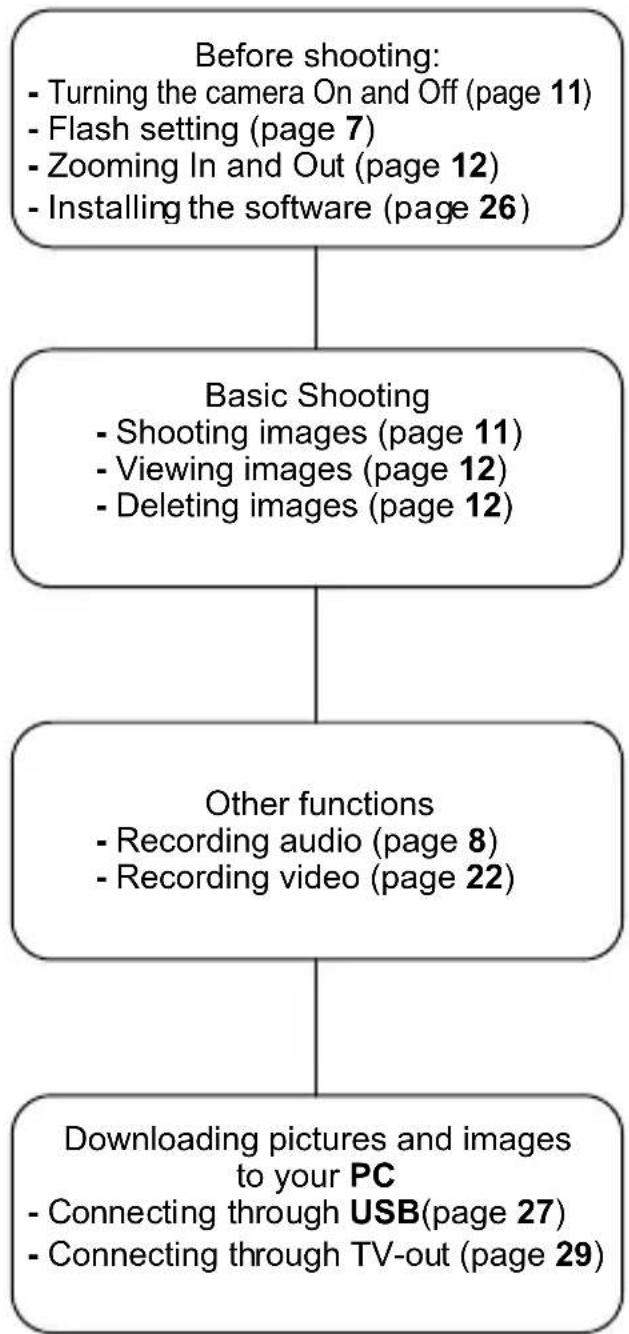
This quick start provides an overview function of this camera. For quick reference, please refer to the following flow chart:
flowchart
graph TD
    A["Before shooting:<br>- Turning the camera On and Off (page 11)<br>- Flash setting (page 7)<br>- Zooming In and Out (page 12)<br>- Installing the software (page 26)"] --> B["Basic Shooting<br>- Shooting images (page 11)<br>- Viewing images (page 12)<br>- Deleting images (page 12)"]
    B --> C["Other functions<br>- Recording audio (page 8)<br>- Recording video (page 22)"]
    C --> D["Downloading pictures and images to your PC<br>- Connecting through USB(page 27)<br>- Connecting through TV-out (page 29)"]
Preface 1
Quick Start 2
Prior to Operating the Camera.... 4
Unpacking the Camera 4
Identifying Components 5
Basic Function Buttons 6
Loading the Batteries....9
Insert SD card....9
Basic Settings 10
Formatting the Internal Memory and SD Card.... 10
Basic Operating Procedure....11
Turning the Camera ON/OFF 11
Basic Shooting Skills ....11
Zooming In/Out 12
Viewing Pictures 12
Protecting and Deleting Pictures 12
Three Main Modes and Instructions 13
Capture Mode 15
Video Mode.... 22
Playback Mode 24
Making Connections 26
Installing Software.... 26
Connecting through the USB 27
Connecting through TV-out.... 29
Appendix.... 30
Prior to Operating the Camera
Setting up this digital camera is quick and simple. Follow these steps, and you'll be on your way to infinite boundaries.
Unpacking the Camera
- Clear all items from the box. (It is highly recommended that the box and wrappings are kept for future usage)
- Double check for the following items:
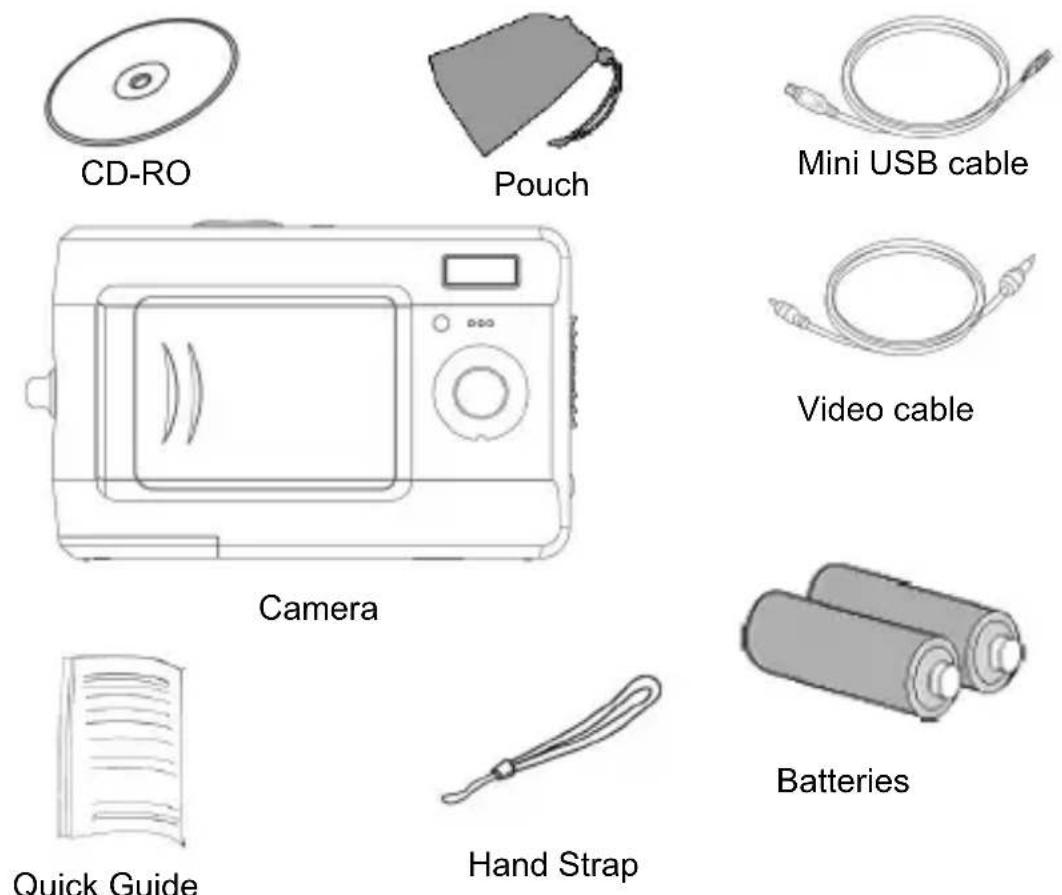
Quick Guide
Identifying Components

Basic Function Buttons
This section will explain the basic function buttons to instantly operate this camera.
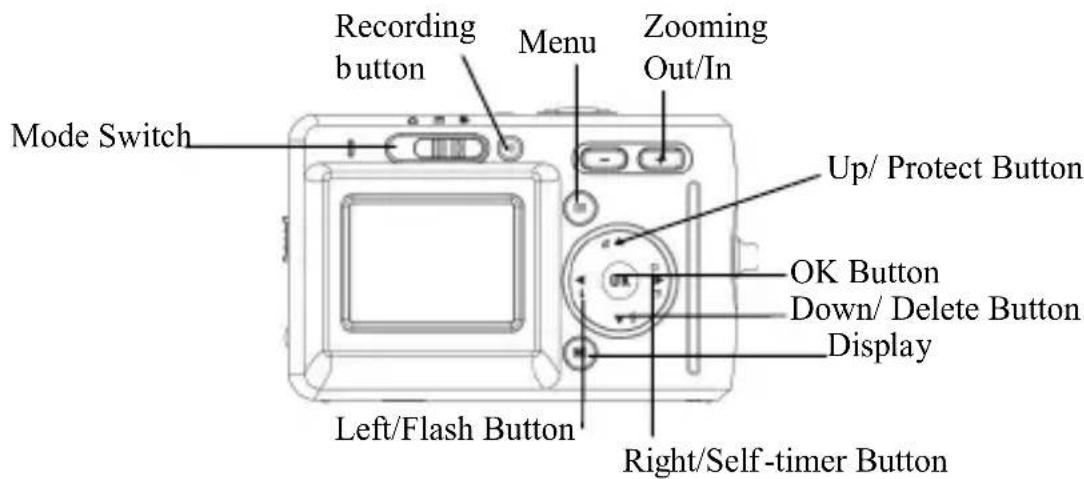
Self-timer: The self-timer function is used in any of the following modes: Capture and Video. A tripod is highly recommended when using the self-timer. Press the right button to select self-time (press once (twice) to activate the shutter 2 (10) seconds after the shutter button is pressed fully.) When the icon appears on the LCD, press the shutter button to activate.

Continuous shot: This function allows 3 continuous shots.
Continuously press the right button three times to activate this function.
NOTE: 1. Turn off the Flash prior to using the continuous shot function.
- Under continuous shot, the flash will remain inactive.
- If the internal or SD card have run out of memory, the continuous shot will not function.

Flash: This button can set flash as Force Off, Force On and Auto.
Force off: Default setting of flash mode.
Auto: Press flash button once to automatically activate the flash.
Force on: Press flash button twice again for force on.
Zoom: This camera has 8x digital zoom.
| Resolution | Digital | Zoom |
| 10.0M(3600x2700) | x1 | |
| 7.0M(3072x2304) | x1 | |
| 6.0M(2880x2160) | x1 | |
| 5.0M(2560x1920) | x1 | |
| 4.0M(2304x1728) | x1 | |
| 3.0M(2048x1536) | x8 | |
| 2.0M(1600x1200) | x8 | |
| 1.3M(1280x960) | x8 | |
| VGA (640x480) x8 |
In Capture/Playback/Video mode:
Zoom in: Press "Zoom in" button to magnify image
Zoom out: Press "Zoom out" button to narrow the image

Menu: This function allows you to change settings of this camera in
Capture/ Video/ Playback mode.

Display: This button allows you to turn the display On or Off.
In “Capture” and “Video” mode: All “capture” information is displayed in the default setting. Press once to dispay with 3x3 grid (grids can help users to compose a picture). Press the second time to hide the information and press the third time to turn off LCD.
In “Playback” mode: All “Playback” information is displayed in the default setting. Press once to hide the information and once more to turn off LCD.
Focusing Switch: This button enables you to manually adjust from co" "Normal" and "Infinity" according to the shooting distance.

Audio Record: This button allows you to record audio.
In the “Capture” and “Video” modes, press the “Audio Record” button to start recording. Press this button again to stop recording and return to previous mode.
In the "Playback" mode, press this button to record a voice memo for the current picture.
Tip:
- The voice memo allows you to record a voice memo of 20 seconds for the current picture.
- You can play back the recorded file and voice memo on your PC.
Loading the Batteries
This camera uses 2 AAA batteries.
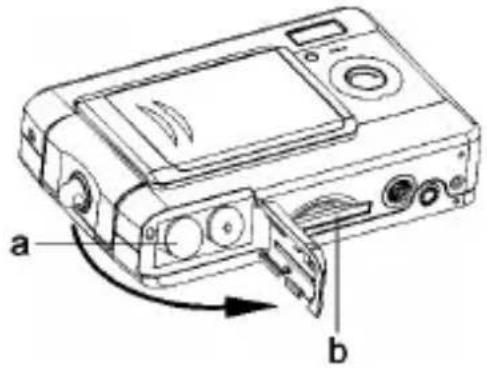
- Slide the battery cover in the direction of the arrow, then lift to open.
- Load the included batteries into the battery compartment. (a)
Insert SD card
Insert the SD card into the slot. (b)
CAUTION! 1. It is recommended that rechargeable batteries be used.
- To improve battery performance, replace all installed batteries at the same time and keep batteries away from heat
- Do not mix battery types or it may cause a fire or explosion. Use only one battery type at one time.
- Batteries should be inserted in the battery compartment with the “+” and “-” sides facing correctly.
NOTE: 1. Do not open the battery compartment while the USB file transfer is in process.
- Once new batteries are loaded, users will need to reset the date and time.
-
Do not open the battery cover or remove the batteries when the camera is in its "ON" status. Only remove the batteries when the camera is not in use, or in its "OFF" status.
-
If you do not plan on using the camera for a long period of time, please remove the batteries.
-
This camera, built in a memory, is ready for use without a SD memory card.
Basic Settings
Upon turning the camera on, a “welcome image” will appear on the LCD display. Please proceed with the following settings:
Note: To select a “Welcome Image”, users can select “Setup” in the “Menu” in “Capture” mode.
Language Preference Setting
13 laguages are available for selection in this camera. Please refer to "Language" setting under "Setup". (Page 20)
Date and Time Setting
Please refer to the "Date and Time" setting under setup function. (Page 19)
Formatting the Internal Memory and SD Card
1. Formatting SD Card
Prior to its initial usage, format the SD card. To format the SD card, please insert your compatible SD card into SD slot. Then proceed with the following steps:
1). Press "Menu" button in the "Capture" mode and select "Formatting".
2). Press "OK" button to confirm. The SD card will be formatted.
2. Formatting the Internal Memory
1). Take out SD card from the slot and format the Internal Memory by following the above mentioned steps.
NOTE: 1. Prior to formatting the SD card, deactivate the “Protect SD card” function.
- The internal memory cannot be formatted when the SD card is in the camera.
Basic Operating Procedure
From this section, you will learn how to turn the camera on and off, shoot pictures, zoom in and out, view and protect pictures.
Turning the Camera ON/OFF
- To Turn the camera on or off, press the power button located on top of the camera.

natural_image
Technical line drawing of a mechanical component with a circular button and mounting base (no text or symbols)**The backside LED indicator will remain green while the power is turned on**
Basic Shooting Skills
-
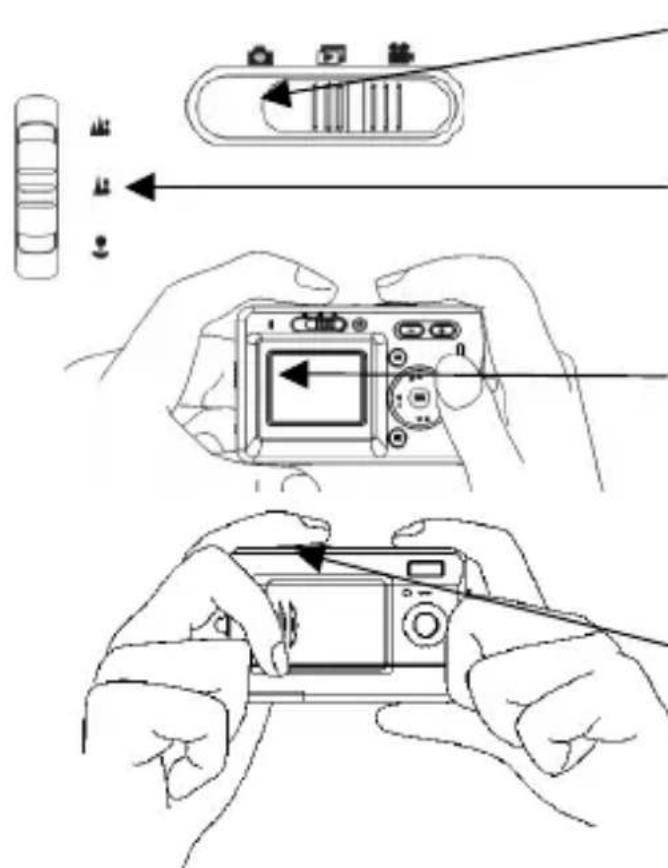
Slide the mode switch to the Capture Mode.
-
Slide the focus switch to the corresponding position.
-
Look for your subject in the LCD display and try to focus it inside the display.
-
When you are set, press the shutter button once.
Zooming In/Out
This camera has 8x digital zoom. The zoom bar, located on the left side of the LCD display, informs users of the zoom status while the zoom in or out button is pressed. Users can see the result from LCD display.
Viewing Pictures
Slide the mode switch to “Playback” mode. Users can review still images stored in the camera. The last picture will appear in the LCD display.
Note: To zoom in/out pictures, please press “+” or “-” button and then “OK” button. Users will be able to move around the picture.
Protecting and Deleting Pictures
To protect or delete pictures you just shoot, you just need to slide up or down the "OK" button.
Three Main Modes and Instructions
This section will describe the three modes included in this camera.
An in-depth coverage of these modes will be further described. You may press “Menu” button to make coresponding setting in “Capture”, “Video” and “Playback” mode.
| Items | Indications | Page | |
Capture Mode | Capture | SceneResolutionDate stampW/BEV adjustColor EffectImage QualityISO | 15 |
| Setup | Sound EffectWelcomeUSBDate and TimeTV-OutFrequencyLanguagesDefaultFormat | ||
| Game | Magic beadsLucky 777Lottery | ||
Playback Mode | Edit | ResizeRotateCropCustomizeVoice Memo | 24 |
| DPOF | CurrentReset | ||
| Slide Play | ShowIntervalDirectionRepeat | ||
Video Mode | Video | ResolutionColor EffectFrame rate | 22 |
Capture Mode


Slide the mode switch to the Capture Mode. Press the "Menu" button to access the following options. Please press right/left arrow to select "Capture/Setup/Game". Once you have selected the option, press Up/Down arrow to adjust the setting. Press "OK" to confirm the setting or press "Menu" button to quit.
"Capture"/"Scene"
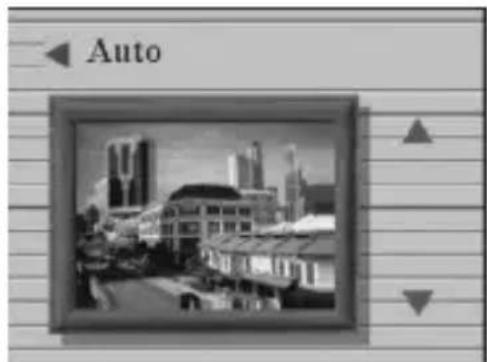
Under this mode, the camera will automatically adjust an ideal setting for users to take their pictures. When the camera is set to "Auto" (the default setting of the camera), it will prepare the best setting for users to take their pictures.
Auto
Portrait
Scenery
Flower
Natural Green
Night Scene
Night scene Portrait
Couple shot
Pre-view
natural_image
Black-and-white photo of a cityscape with buildings and skyscrapers, framed in a frame (no visible text or symbols)"Couple Shot" enables you to shoot two images separately and then merge them as one image.
-
Make sure the targeted object to be displayed on the left side of the LCD display and press the shutter button.
-
Target at another object to display it on the right side of the LCD display and press the shutter button. The two images will be merged as one.
"Pre-view" enables you to shoot an object and put it a saved background.
-
Press the shutter button to shoot your desired background, which will be displayed in the translucent mode on the LCD display.
-
Please stand in front of the shot background. Before pressing the shutter button, your friend just needs to make sure the focused background is overlapping the translucent background displayed on the LCD display. The background of the new image will be the pre-shot background.
"Capture"/"Resolution"
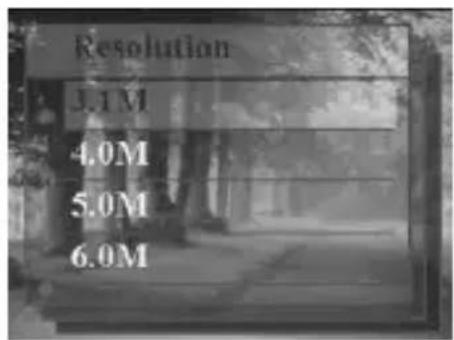
This mode allows you to set the record resolution.
VGA
1.3M
2.0M
3.1M
4.0M
5.0M
6.0M
7.0M
10.0M
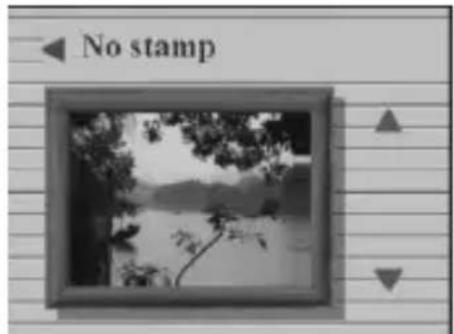
"Capture"/"Date Stamp"
The date can be set in this mode.
No stamp
Only date
Only time
Date and time
"Capture"/"White Balance"
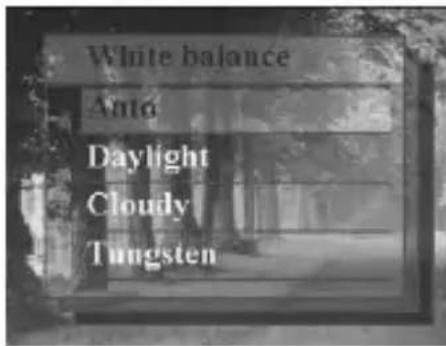
Normally, the “Auto” WB setting will set the optimum white balance automatically. If natural colors cannot be obtained with auto WB, you can set the white balance manually to suit the respective light source. Users can select the following white balance:
Auto
Daylight
Cloudy
Tungsten
Fluorescent
"Capture"/"EV adjust"
Exposure compensation is used to alter the camera's standard exposure setting. You can darken or lighten
the image. (increased exposure)
Adjust in 0.5 EV in the range -2 to 2.

"Capture"/"Color effect"
This mode allows can set the color tone of a picture.
Normal
Sepia
B/W
Pink
Green
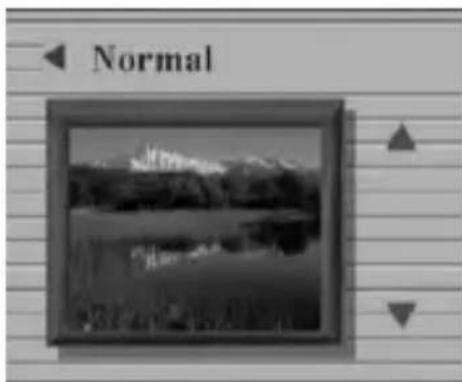
Blue
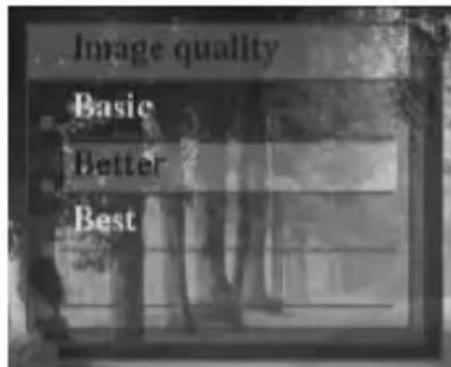
"Capture"/"Image Quality"
Basic
Better
Best
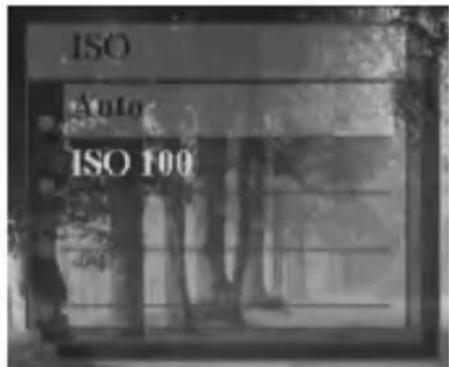
"Capture"/"ISO"
The ISO speed can be adjusted in this mode.
Auto
ISO100
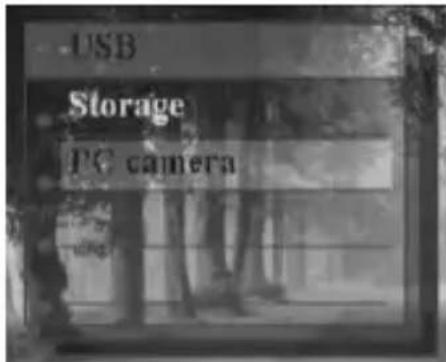
"Setup"/"USB"
This mode allows you to connect a PC, which will become a storage device or PC camera.
Storage
PC camera
"Setup"/"Sound Effect"
This function allows you to turn the sound effect on or off:
Off
On

"Setup"/"Date and time"
Reset date and time when change battery.
Edit date and time
XX/XX/XX
XX:XX
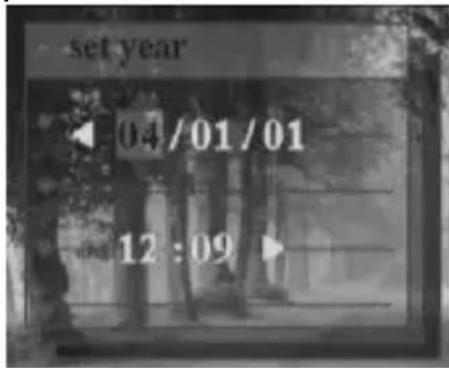
Date format: YY/MM/DD
Time format: 24 hours
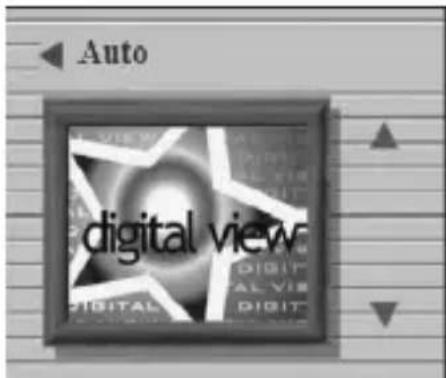
"Setup"/"Welcome"
You can select your favorite image or picture as the welcome image.
Off
Auto
Custom Pic
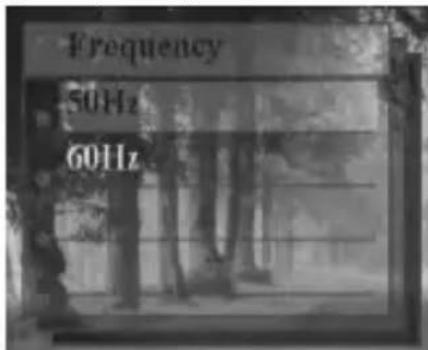
"Setup"/"Frequency"
This mode allows you to select corresponding frequency.
50Hz
60Hz
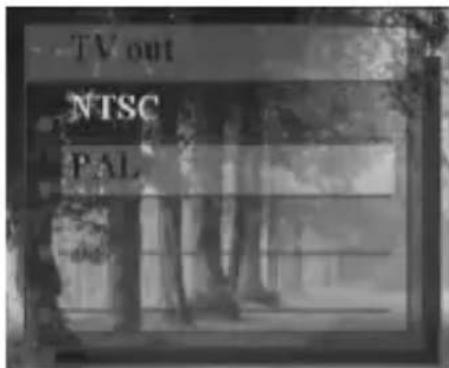
"Setup"/"TV-out"
Depending on where your location, different region requires different system for TV-out function. Connect Video cable for TV out.
NTSC
PAL
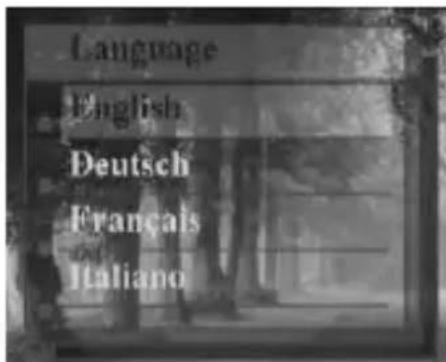
"Setup"/"Language"
Users can select from the following languages:
English
German
French
Italian
Spanish
Dutch
Czech
Polish
Russian
Simplified Chinese
Traditional Chinese
Korean
Japanese
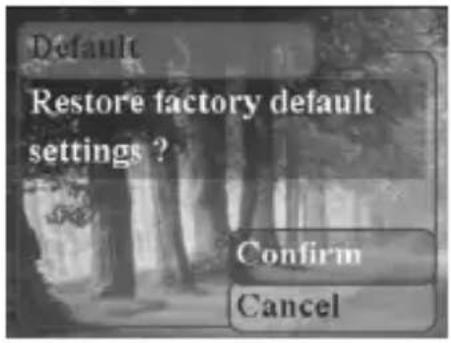
"Setup"/"Default"
Resets the camera to factory setting.
"Setup"/ "Format"
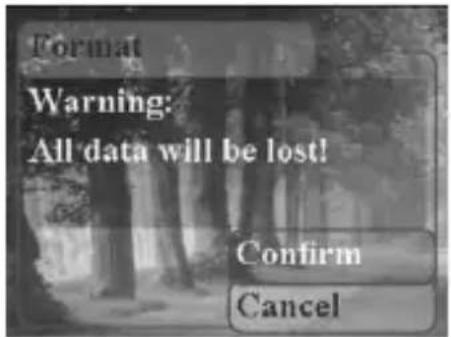
"Game"
This mode allows you to select your favorite games while you don't take pictures.
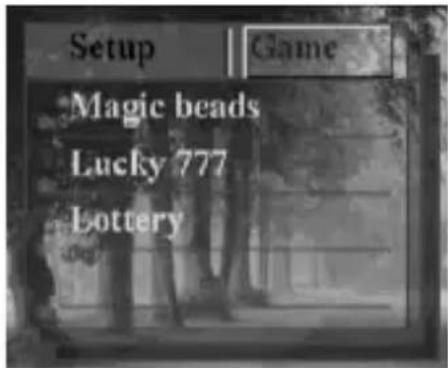
Tip: This camera offers you 3 games, “Magic Beads”, “Lucky 777” and “Lottery”.
Video Mode


"Video Mode" allows you to use the camera as a video recorder. The length is based on the capacity of the internal memory or SD card.
- Slide the mode switch to "Video Mode".
- To start recording a video, press the shutter button. The camera will check the capacity of the memory prior record a video. If it is full, a warning sign will display on the LCD, and will automatically exit the recording state.
- If there are no warning messages, the camera will start recording. To stop recording, press the shutter button again.
- To play a video, please slide to "Playback Mode" and press "OK" button.
Note!
To set the “Self-timer” under the recording mode, press the “right” button once to activate the “Self-timer”. You will have two or ten seconds to get ready after pressing shutter button. The remaining seconds will appear on the LCD display.
Tip: 1. The file format is AVI
2
When you playback video in PC, system will require W
Media Player 9.0 codec. Please link to Microsoft server for getting the codec. Or you can playback the video through bundled AP.
"Video"/"Frame rate"
20 fps
30 fps

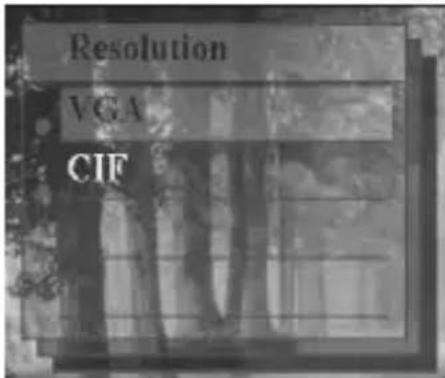
"Video"/"Resolution"
This option allows you to select different image sizes.
CIF(320*240)
VGA(640*480)
"Video"/"Color Effect"
Normal
Sepia
B/W

Playback Mode


Slide the mode switch to the “Playback Made” . You may press zoom in/zoom out to magnify or minify pictures. Press up/down or right/left button to review pictures.
Users can press "Menu" button to set "Edit" and "Print" options.
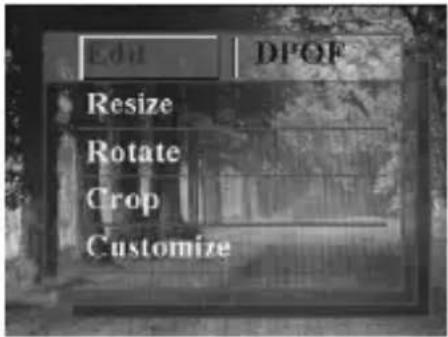
"Edit"
This mode allows you to modify pictures after taking these pictures.
Resize
Rotate
Crop
Customize
Voice Memo
“DPOF”
Current
Reset

Tip: DPOF is a format used to record automatic print information from cameras. By specifying which pictures are to be printed, the pictures can be printed easily by DPOF-compatible printing service labs or on a personal DPOF-compatible printer.
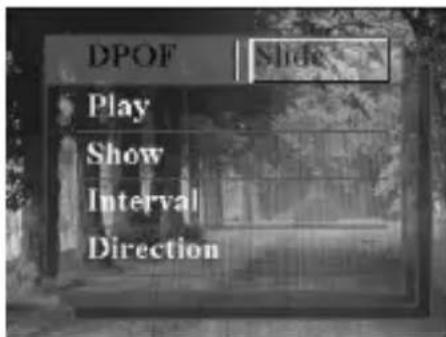
"Slide"
This mode allows you to playback pictures as a slide show. You may set up the way to playback and interval time according to your preference.
Play
Show
Interval
Direction
Repeat
Making Connections
In this section you will be able to connect the camera to your PC to download or edit photos.
Installing Software
- Insert the CD-ROM into the CD-ROM driver.
- If you connect your camera to a PC for the first time, please click "Digital Camera Driver". Select desired options out of 4 options and press the "Install" button.
- The installation wizard will guide you through the installation.

Caution: 1. During the installation, the operation system may need to reboot.
- If you didn't install the driver before plugging in the USB device. System will detect new device. Please insert the installation CD-ROM and install the driver from the CD-ROM drive following Hardware Wizard instructions.
Connecting through the USB
This section will show you how to download images from camera to PC through the USB cable.
-
This camera can download pictures or videos to your PC with MSDC support as well as transfer real-time pictures with the picture function of the system.
-
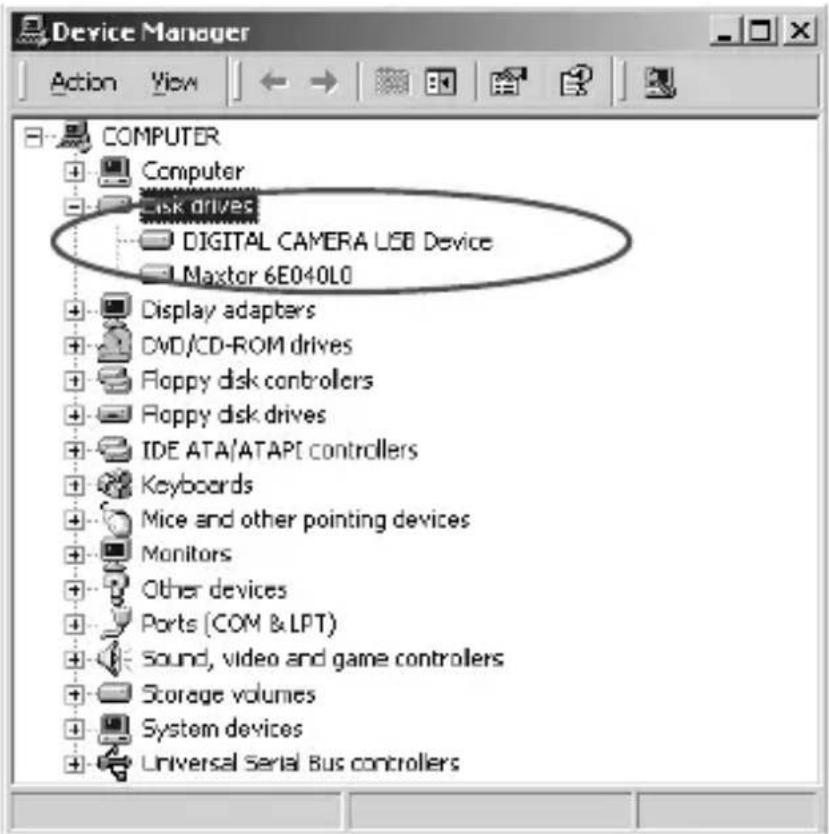
After the camera is set to the "Storage" mode and connected to a PC, an external storage device called "DIGITAL CAMERA USB Device" will appear in "Device Manager". You can find the recorded files by opening a corresponding portable driver in "My Computer"
-
Copy or remove these files to from camera to your PC. You can start to edit the pictures according to your desired.
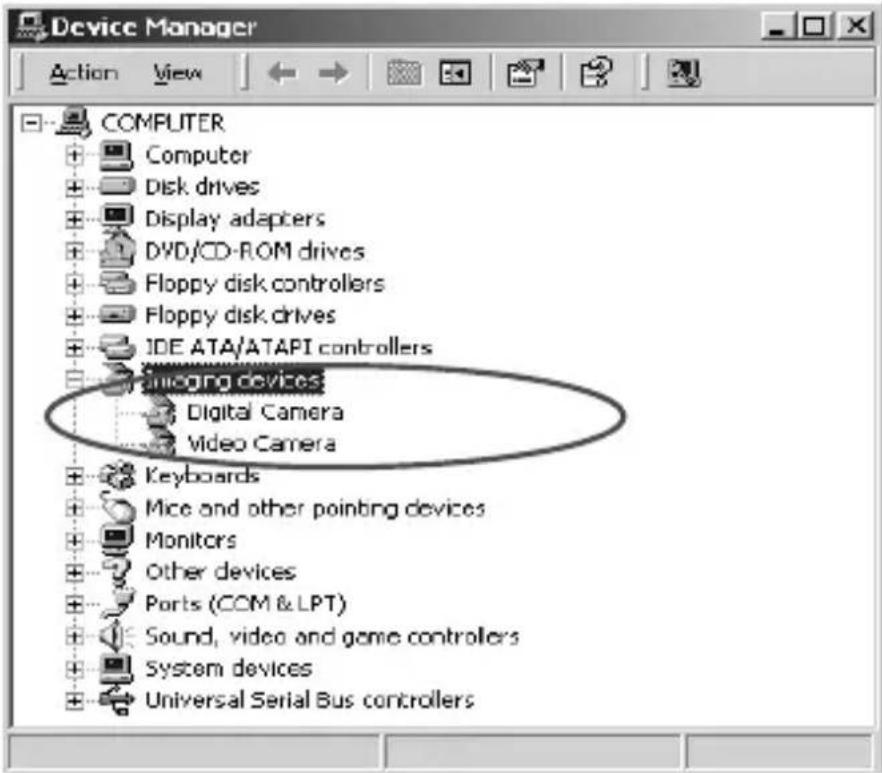
- After the camera is set to the “PC Camera” mode and connected to a PC, two imaging devices, “Digital Camera” and “Video Camera” will appear in “Device Manager”. You can review real-time pictures with the imaging program of the operation system, namely “Accessories.”
NOTE: 1. Voice memo files will include three different file format as “.jpg”, “.wav” and “.html”. Which have the same file name, but format. The recommended format for users (desiring to include their recorded voice memo in their selected pictures) is HTML.
2. The sound is saved in “.wav” format.
3. The picture device requires support of DirectX ^® 8.1 or higher.
Connecting through TV-out
Before you proceed, please determine your corresponding “TV-Out” mode. This camera will enable you to achieve full camera functions by TV-out connection. User can enable each function through the TV monitor instead of the LCD display.
- Connect the video cable into the video out connector.
- Connect the other end of the video cable into the TV's video-in jack.
- Turn the camera ON, you should then be able to operate the camera with TV screen. (The LCD will turn off while connected to TV-out)
Appendix
Camera Default Setting
| Resolution | 3.1M(2048*1536) |
| Scene | Auto |
| Image Quality Better | |
| White Balance Auto | |
| EV Adjust Normal | |
| Color Effect Normal | |
| ISO | Auto |
| Date and Time 2004/01/01 12:00:00 | |
| Sound Effect Yes | |
| Languages | English |
| TV-out | NTSC |
| USB | Storage |
| Frequency | 60Hz |
| Video Frame Rate | 30fps |
| Date stamp | None |
LED Status
| Condition | Status LED Timer LED Camera | ||
| Green Red Red | |||
| Power Off Off Off | Off | ||
| Standby | On | Off | Off |
| Strobe charging On | Flicker Off | ||
| Processing | Flicker | Off | Off |
| Battery low Off Flicker Off | |||
| USB connection On | Off Off | ||
| Self-timer | On | Off | Flicker |
| Video Recording | On Off Flicker | ||
Information Code
| Error | Possible Cause | Corrective Action |
| Card Full | No more pictures can be stored | Remove the pictures or insert another card |
| Write-Protect Card has been protected | To remove write-protect latch of card | |
| Card Error | Cannot record, playback or erase pictures in this card | To format this card or replace another card |
| Picture Error | This recorded picture cannot be playback with camera | To view the image through PC. If it can not be done, the picture is damaged. |
| No picture | There's no image in storage, so there's nothing in playback | To take pictures or insert another card with images. |
| Card Setup | This card is not formatted | To format this card before using. |
| Battery Empty | Battery low for taking pictures | Installing new or charged batteries. |
Specifications
| Features | Content |
| Max. Resolution | 3600x2700 |
| Still Image Size | 3600x2700 / 3072x2304(Interpolated)2880x2160(Interpolated)2560x1920(Interpolated)2304x1728(Interpolated)2048x15361600x12001280x960640x480 |
| Sensor | 3.1M CMOS |
| Lens Aperture F3.0 | |
| Digital Zoom Up to 8x digital zoom | |
| Internal Memory 16MB NAND | |
| Estimated number of storaged pictures (compression rate 1: 8) | 640x480 160 Shots1280x960 39 Shots1600x1200 25 Shots2048x1536 15 Shots2304x1728 12 Shots2560x1920 9 Shots2880x2160 7 Shots3072x2304 6 Shots / 3600x2700 4 Shots |
| Storage media SD/MMC | |
| Focus distance Marco: 19—22cm | Normal: 86—153cmInfinity: 153--∞ |
| Video(with Audio) Up to 30fps@VGA | |
| Continuous shot Yes | |
| Self-timer | 2/10 sec. |
| Compatibility | WIN98/ME/2000/XP(Storage,PC camera)MAC 9.1 and above(Storage) |
| File Format JPEG/EXIF | 2.2/WAV/DPOF/HTML/AVI |
| Dimension | 86x55x25 (mm) |
| Weight | 85g |
| Flash range 3-6 feet | |
| Flash Manual Setting Auto/Force on/Force off | |
| USB Output B type mini USB2.0 full speed | |
| Video Output NTSC/PAL | |
| Battery type | AAA Alkaline, rechargeable batteriesx2 |
| LCD | 1.5” LTPS |
| Playback Zoom Up to 16x(CIF) | |
| Auto Power Off 2 minute | |
| USB storage class support MSDC | |
| Multiple languages E/F/G/I/S/K/J/R/P/C/D/TC/SC | |
| Tripod mount Plastic | |
| Body material Plastic | |
Packing List
| Batteries | 2xAAA Alkaline |
| USB Cable | Yes |
| Video cable | Yes |
| Quick Guide | Yes |
| Hand Strap | Yes |
| Pouch | Yes |
| CD-ROM | Yes |
- Quick Start
- Prior to Operating the Camera
- Unpacking the Camera
- Basic Function Buttons
- Tip:
- Loading the Batteries
- Insert SD card
- Basic Settings
- Language Preference Setting
- Date and Time Setting
- Formatting the Internal Memory and SD Card
- Formatting SD Card
- Formatting the Internal Memory
- Basic Operating Procedure
- Turning the Camera ON/OFF
- Basic Shooting Skills
- Zooming In/Out
- Viewing Pictures
- Protecting and Deleting Pictures
- Three Main Modes and Instructions
- Capture Mode
- "Capture"/"Scene"
- "Capture"/"Resolution"
- "Capture"/"Date Stamp"
- "Capture"/"White Balance"
- "Capture"/"EV adjust"
- "Capture"/"Color effect"
- "Setup"/"Sound Effect"
- "Setup"/"Date and time"
- "Setup"/"Welcome"
- "Setup"/"Frequency"
- "Setup"/"TV-out"
- "Setup"/"Language"
- Video Mode
- Playback Mode
- "Edit"
- "Slide"
- Making Connections
- Installing Software
- Connecting through the USB
- Connecting through TV-out
- Appendix
Brand : EASYPIX
Model : V10
Category : Camera