V11 - Camera EASYPIX - Free user manual and instructions
Find the device manual for free V11 EASYPIX in PDF.


| Product Type | Digital Camera |
| Model | V11 |
| Brand | Easypix |
| Sensor Resolution | 3 Megapixels (CMOS) |
| Digital Zoom | 4x |
| Image Resolution Options | 640x480, 2048x1536, 3072x2304, 3840x2880 |
| Video Resolution | 320x240 (10fps), 640x480 (VGA) |
| Video Format | AVI |
| Audio Recording | Yes (audio only mode) |
| Storage Media | SD Card (capacity not specified) + built-in memory |
| Power Source | 3 x AAA 1.5V alkaline batteries |
| Battery Life (estimated for stills) | ~126-170 shots (with mixed flash usage) |
| Dimensions (approx.) | 90 x 60 x 30 mm (standard compact size) |
| Weight (approx. without batteries) | 100 g |
| Display | LCD screen (size not specified) |
| Flash Modes | No Flash, Auto, Forced Flash |
| Focus Range | Normal: 78cm-15cm, Macro: not specified, Far: 155cm-infinity |
| White Balance | Auto, Sunny, Cloudy, Tungsten, Incandescent 1/2 |
| Self-Timer | 2 sec, 10 sec |
| Connectivity | USB 2.0, AV out (NTSC/PAL) |
| PC Camera Function | Yes (via USB driver) |
| Languages | English, Traditional/Simplified Chinese, French, German, Italian, Spanish |
| Maintenance | Clean lens with special cloth; avoid ethanol; store in dry place |
| Operating Temperature | 0°C to 40°C |
| Included Accessories | USB cable, AV cable, wrist strap, software CD, user manual |
Frequently Asked Questions - V11 EASYPIX
User questions about V11 EASYPIX
0 question about this device. Answer the ones you know or ask your own.
Ask a new question about this device
Download the instructions for your Camera in PDF format for free! Find your manual V11 - EASYPIX and take your electronic device back in hand. On this page are published all the documents necessary for the use of your device. V11 by EASYPIX.
USER MANUAL V11 EASYPIX
Chapter 1 Getting started
Foreword:
Thank you for purchasing this camera. With a compact and user-friendly design, this product should meet all of your basic requirements for processing digital pictures. This camera equips 3 Mega-pixel CMOS resolution, and 4X digital zoom. It supports the Secure Digital card, TV-out function, video and audio recording function. Moreover, it can be used as a video camera head. This camera also allows you easily transmit your pictures via a USB cable when connecting to a computer.
Table of contents
1.1 Check the package .... 1
1.2 Camera parts 2
1.2.1 Front view....2
1.2.2 Back view....2
1.2.3 Top view 3
1.2.4 Bottom view....3
1.2.5 Right side view ....3
1.3 Installing the batteries and SD card 4
1.3.1 Installing the batteries....4
1.3.2 Installing the SD card 4
2.1 Preparation before basic operation 5
2.1.1 Power on/off 5
2.1.2 Setting the time/language....5
2.1.3 Formatting the built-in memory and SD card....6
2.1.4 Video output format 6
2.1.5 USB connection....6
2.1.6 Auto power-off....7
2.1.7 Default setting 7
2.2 Starting the basic operation....8
2.2.1. Camera modes....8
2.2.2. Video recording mode 10
2.2.3. Audio recording mode 11
2.2.4. Playback mode....11
2.2.5. Deleting pictures or videos 13
2.2.6. Image protection....14
2.2.7. DPOF print 15
2.3 Advanced setup 15
2.3.1 Under the mode, press the button.....15
2.3.2 Press the button under the mode.....17
3.1 Connecting to a PC or a TV set 18
3.1.1 Installing the software....18
3.1.2 Change the USB setting....18
3.1.3 Connecting the USB cable 19
3.1.4 Transmitting the pictures and videos to a computer .....19
3.1.5 Connecting to a TV set....20
3.1.6 Viewing pictures or videos on a TV screen....21
1.1 Check the package
Take out all items from the packaging box and make sure that the listed items are included. (It is recommended that keeping packing box and materials for future usage.)

1.2 Camera parts
Get to know the camera with the following illustrations.
1.2.1 Front view
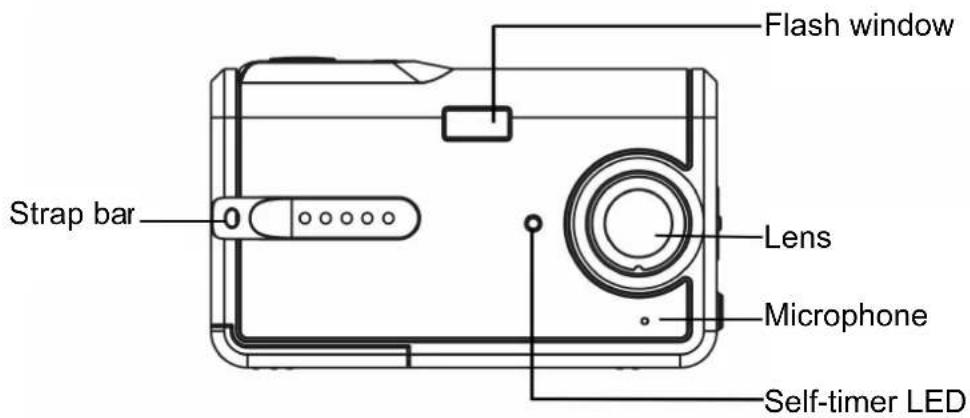
1.2.2 Back view
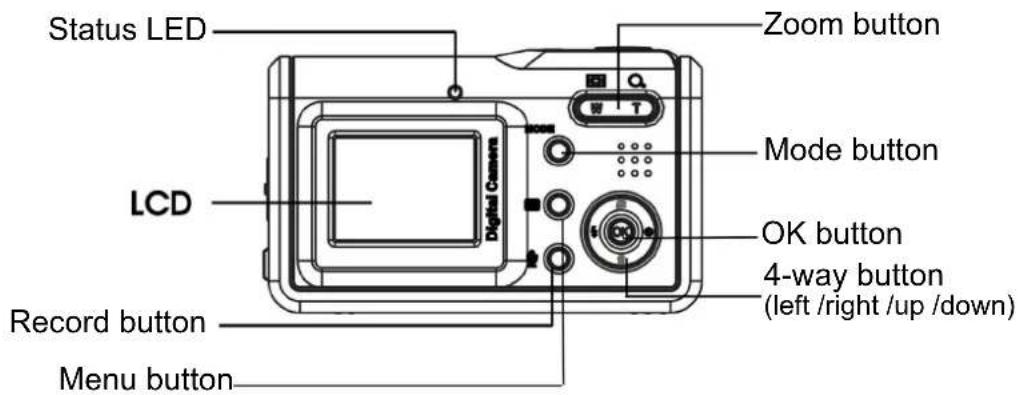
Note: Use 4-way button:
Press the 4-way button left: Use your thumb to turn the OK button to the left.
Press the 4-way button right: Use your thumb to turn the OK button to the right.
Press the 4-way button up: Use your thumb to turn the OK button to the up.
Press the 4-way button down: Use your thumb to turn the OK button to the down.
Press the 4-way button joystick in the center: Use your thumb to turn the OK button.
1.2.3 Top view

1.2.4 Bottom view
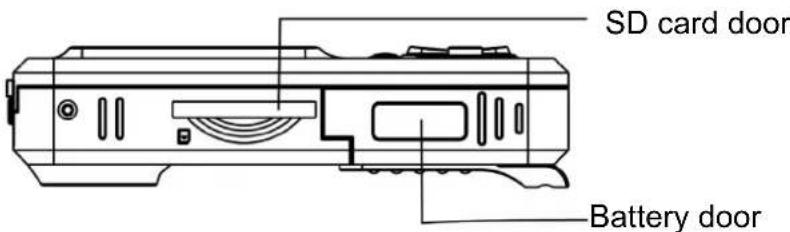
1.2.5 Right side view
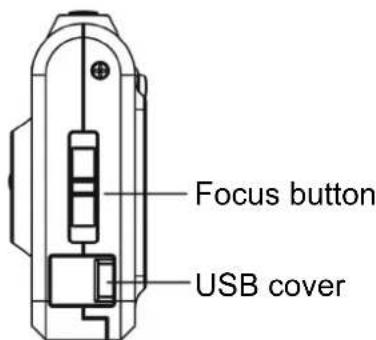
1.3 Installing the batteries and SD card
1.3.1 Installing the batteries
The camera uses 3 AAA 1.5V alkaline batteries.

■ Slide the battery door according to the instructed direction as shown and open it.
■ Insert the batteries into the battery compartment. (See page 22 for battery life)
Note: To improve performance, exhausted batteries should be replaced. If Ni-HM rechargeable batteries are used, make sure they are fully recharged. Make sure that the batteries are inserted in the battery compartment according to the correct polar
1.3.2 Installing the SD card
natural_image
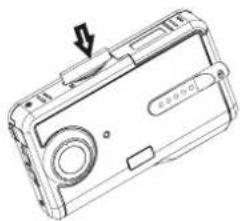
Line drawing of a digital camera module with no visible text or symbols- Insert the SD card according to the arrow direction as shown. Push the memory card to the bottom of the socket. Make sure the SD card is completely inserted.
■ Push the SD card inward according to the arrow direction as shown to eject the SD card.
Note: When the camera is powered on, do not open the battery/SD card compartment. Please remove the battery or the SD card when not using the camera for long period. The pictures will be stored on the SD card if the card is inserted. When the SD card is not inserted, the shot information will be temporarily stored in the SDRAM in the camera. When the battery is removed, the information will disappear automatically.
2.1 Preparation before basic operation
2.1.1 Power on/off
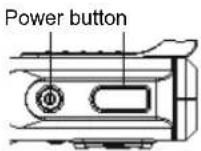
■ Press the power button. The camera powers on or off after emitting two beeps.
Note: When the camera is powered on, the LED turns into green and "welcome image" is displayed on the LCD. After 2 to 3 seconds, the interface for taking pictures appears.
If no operation is activated within a certain amount of time, the camera will power off automatically. (See page 7 for setup)
2.1.2 Setting the time/language
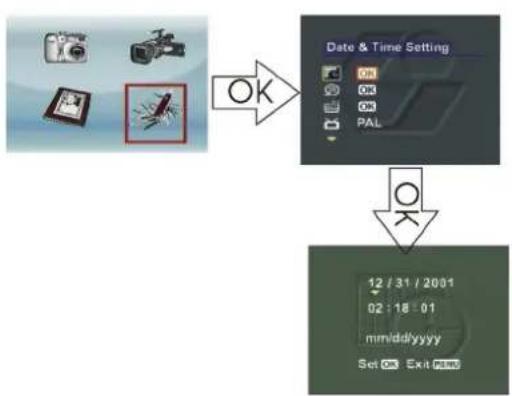
(1) Press the MODE button to enter the main menu. Using the
4-way button to highlight the time/language ☐; press the center 4-way button to select it.
(2) Press the OK button to enter the Setup menu.
flowchart
graph TD
    A["Camera icon"] -->|OK| B["Date & Time Setting"]
    B --> C["12/31/2001\n02:18:01\nmm/dd/yyyy\nSet: Exit"]
- Press the Up/Down button to move the red box and select "Date&Time setting".
- Press the OK button to enter the submenu "Date&Time setting".
■ Press the Left/Right button to move the yellow arrow to select the time and date.
■ Press the Up/Down button to change the date and time setting.
■ Press the OK button to save and exit. Press the MENU button to exit without saving.
(3) Press the OK button to enter the Language submenu.
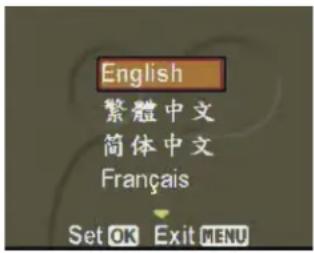
■ Press the Up/Down button to move the red box to select the language.
■ Press the OK button to save and exit. Press the MENU button to exit without saving.
Note: Seven languages, including English, traditional Chinese, simplified Chinese, French, German, Italian and Spanish, are available for the camera.
2.1.3 Formatting the built-in memory and SD card
(1) Press the OK button to enter the Formatting submenu.
(2) The LCD will show the "Formatting will delete all data. Continue or not?" message.
(3) Press the OK button to save and exit. Press the MENU button to exit without saving.
Note: Before formatting the SD card, please unlock the SD card's write-protect switch.
When an SD card is inserted in the camera, the built-in memory cannot be formatted.
2.1.4 Video output format
(See page 20 for setup)
2.1.5 USB connection
(See page 19 for setup)
2.1.6 Auto power-off
Press the OK button to enter the Setting menu:
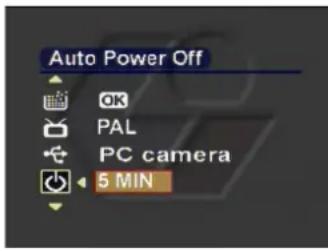
■ Press the Up/Down button to move the red box to select "Auto power-off".
■ Press the Left/Right button to select the power-off time. Available options are:
30 seconds
1 MIN
3 MIN
5 MIN
2.1.7 Default setting
Press the OK button to enter the Setting menu:

■ Press the Up/Down button to move the red box and select "Default setting"
- Press the OK button and the LCD shows "The settings will be set to default values, continue or not?" message.
■ Press the OK button to restore the factory settings.
2.2 Starting the basic operation
2.2.1. Camera modes
Using this function to take pictures. You can also make use of the focus adjustment, digital zoom and flash settings to get better image quality.
LCD icons:
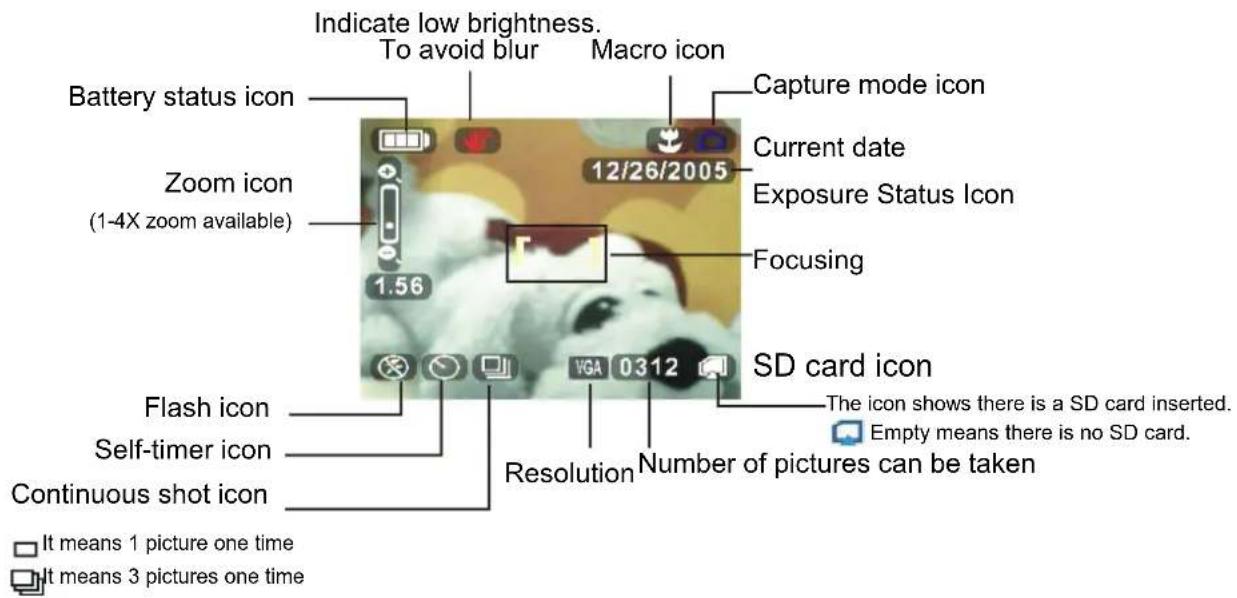
Basic camera modes:
Power on the camera and enter the mode directly. Or, press the MODE button to enter the main menu. Move the red box to select .Press OK to enter the mode.

natural_image
Close-up of hands holding a white digital camera with a screen and control buttons (no visible text or symbols)■ Hold the camera with your hands. Frame a subject with the viewfinder and focus on the center of the subject.
- Press the shutter and two "beeps" will be heard. The pictures taken will be kept on the screen for 1 to 3 seconds. The camera will then return to the mode automatically.

Note: You should hold the camera steadily when taking a picture. If the camera is shaken, the picture will be blurry. Keep your hands or the wrist trap away from the lens. Pictures will be saved in JPG format.
Focus adjustment
Before taking a picture, the focus adjustment button may be moved up or down to adjust the focus.
| [8C-X] | Far foucs | 155cm~infinite | distance |
 | Normal focus | 78cm~15cm | |
| [T322] | Near focus | 155cm~infinite | distance |
Digital zoom:
Under the mode, press W on the control key to zoom-in (to magnify the subject). Press T to zoom-out (to shrink the subject). A zoom indicator will appear on the screen. You may choose from 1 to 4 X magnification of your subject.
Flash mode:
Under the ☐mode, the camera can be shifted among 3 flash modes according to different light conditions.
| No Flash Ideal for places where a picture with natural effect will be taken even at dusk or under weak light. | |
| _A | Auto flash Automatic light compensation. |
| Forced flash Ideal for taking a picture of a subject in front of a light source. |
2.2.2. Video recording mode
LCD icons:

Basic video recording mode:
(1) Press the MODE to enter the main menu.
(2) Press the Left/Right button to move the red box and select
Press the OK button to enter the mode.


natural_image
Close-up photo of a white dog resting on its back, with blurred background and no visible text or symbols.■ Frame your subject with the viewfinder or LCD.
■ Press the shutter button and activate video recording. A timer appears on the bottom of the screen to indicate the recording time.
- Press W or T of the button to zoom in or out (W – zoom out, T – zoom in). A zoom indicator will appear.
■ Press the shutter button again to terminate the video recording.
Note: The video is saved as an AVI file.
The button is disabled during video recording.
Chapter 2 Basic Operation
2.2.3. Audio recording mode
Press the 🎨 button to activate audio recording. The LCD shows the following:

Please note that audio recording is activated as soon as the audio recording mode is entered. The timer begins to indicate the recording time. Press the ⏻ button to terminate audio recording.
2.2.4. Playback mode
(1) Press the MODE button to enter the main menu.
(2) Press the Left/Right button to move the red box and select Press the OK button to enter the Playback mode.
(3) Press the Left/Right button to select the picture or video clip to display or play back.


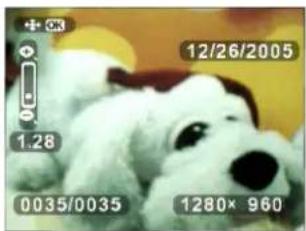
Displaying pictures on the full screen
natural_image
Close-up photo of a white dog's face with soft lighting and no visible text or symbols- Press the W or T of the button to zoom in/out the display of a single picture (W – zoom out, T – zoom out). A zoom indicator will appear on the bottom of the screen.

natural_image
Close-up of a white teddy bear lying on a patterned surface with heart-shaped decorations (no text or symbols visible)■ Press the OK button to enable a magnified view of the picture according to the zooming magnification.
■ Press the Up/Down/Left/Right button to view different parts of the picture.
Playing the video on the full screen
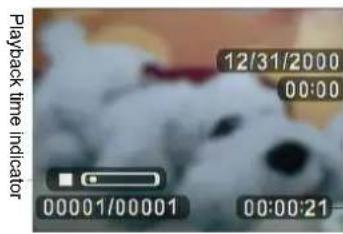
Playback status indicator
- Press the OK button to play the image. The “(play) occurs on the left bottom of the screen to indicate the playback status.
Note: Press the "OK" button to shift between "▶" (Play) and "■" (Pause). The latest picture or video will be played back on the screen automatically. When a video is being played, the zoom in/out function is disabled and the button is also disabled.
Slide show
To automatically display pictures or videos, enter the mode and then press the button.

- Press the Up/Down button to move the red box and select the "Slide show" menu.
■ Press the OK button and system will play the pictures or videos automatically and repeatedly.
Chapter 2 Basic Operation
2.2.5. Deleting pictures or videos
➢ Deleting a single picture or video
To delete a picture or video, select the picture or video to be deleted and press the 📄 button.

- Press the Up/Down button to move the red box and select the Delete menu.

- Press the OK button and a message will appear on the screen: "Are you sure you want to delete the file?"
■ Press the OK button to confirm the deletion and the next picture or video will appear on the screen. Press the MENU button and exit without saving.
➢ Deleting all pictures or videos
To delete all pictures or videos, enter the playback interface and press the button.

- Press the Up/Down button to move the red box and select the Delete All menu.
- Press the OK button and a message will appear on the screen: "Are you sure you want to delete all files?"
■ Press the OK button to confirm the deletion. Press the MENU button to exit without saving.
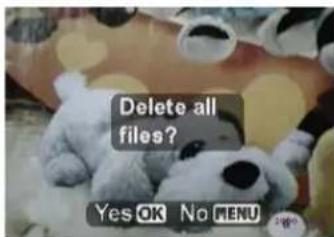
Note: All pictures or videos that have not been protected will be deleted. A message will then appear on the screen: "No image data."
2.2.6. Image protection
Protecting a single picture or video
To protect a picture or video, select the picture or video to be protected and press the button.

- Press the Up/Down button to move the red box and select the Protect menu.
■ Press the Up/Down button to move the red box and select On to enable protection or select Off to disable protection.
Protecting all pictures or videos
To protect all pictures and videos, enter the playback interface and press the 🔒 button.

- Press the Up/Down button to move the red box and select the Protect All Files menu.
■ Press the OK button and a message will appear on the screen: "Protect all files?"
■ Press the OK button to confirm the protection. Press the MENU button to exit without saving.
Note: Before disabling the protection for protected pictures or videos, the Delete menu/ Delete All menu is disabled. A protection icon will appear in the top right corner of a protected picture or video.
Chapter 2 Basic Operation
2.2.7. DPOF print
DPOF (Digital Print Order Format) refers to a format in which the print specifications for the picture taken by a digital camera are recorded in the storage media, like an SD card. The recorded specifications include information about which picture is to be printed.
To print a picture, the picture to be printed should be selected at first. Then press the ☐ button.
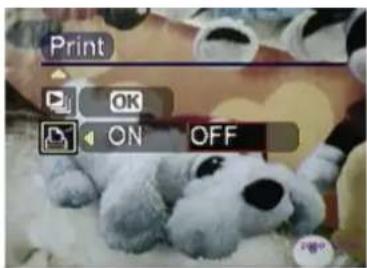
■ Press the Up/Down button to move the red box. Select the Print menu.
■ Press the Left/Right button to move the red box. Select the ON button to register the print information on the storage media. Select the Off button to cancel print information.
2.3 Advanced setup
This chapter introduces various functions of the camera to facilitate your taking better pictures.
2.3.1 Under the mode, press the button
| Name | Icon | Options | Instruction |
Resolution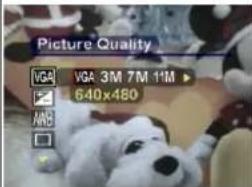 | VGA3M7M11M | 640X4802048X1536(Default)3072X23043840X2880 | This option is used for changing the resolution of a picture. For printing a 4x3 picture, the minimum resolution is 640x480. For printing a 14x10 picture, the minimum is 2048x1536. |
Exposure value status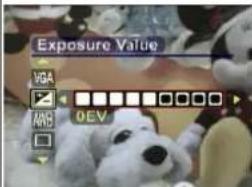 | -2.0EV-1.5EV-1.0EV-0.5EV0EV (Default)+0.5EV+1.0EV+1.5EV+2.0EV | When the subject is too bright or dark in contrast to the background, this brightness setting is used for adjusting the brightness of the images.Rectification range: 9 levels with an increment of 0.5.+ Positive compensation: Darken the picture.- Negative compensation: Brighten the picture. | |
White balance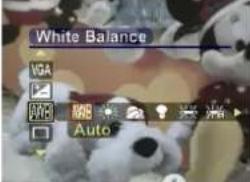 | AWB     | Auto (Default)SunnyCloudyTungsten lampIncandescencelamp 1Incandescencelamp 2 | The color of the subject changes due to the color of reflected light. Pictures taken under different light conditions will have a different color temperature. If you are familiar with color temperature adjustments, you may change this setting by yourself. |
Burst Snapshot |   | Single (default)Multiple | The setting for taking multiple pictures enables burst snapshots for a series of motions. With this setting activated, a press on the shutter will activate 3 snapshots within a short time. |
Self timer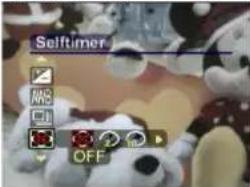 |    | Off(default)2 SEC10 SEC | This is used to make a snapshot of yourself when you are alone. You can set the timer for taking the picture as a 2 second or 10 second delayed snapshot. |
Time Stamp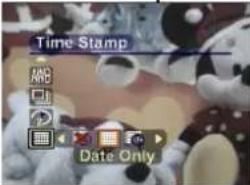 |    | OFF(Default)Setting the dateDate and time | When the picture or video is printed or stored in a computer, the date or time of taking the picture or video will appear on the lower right corner of the picture. |
2.3.2 Press the button under the mode
| Video Resolution |  | 320X240 (10 frames/second) |
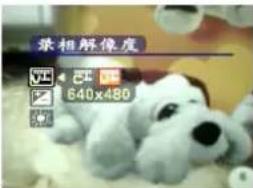 | 640X480 | |
| Exposure Value |  | -2.0EV |
| -1.5EV | ||
 | -1.0EV | |
| -0.5EV | ||
| 0EV(default) | ||
| +0.5EV | ||
| +1.0EV | ||
| +1.5EV | ||
| +2.0EV | ||
| White balance | AWB | Auto(Default) |
 | Sunny | |
| Cloudy | ||
| Tungsten lamp | ||
| Incandescence lamp 1 | ||
| Incandescence lamp 2 |
3.1 Connecting to a PC or a TV set
This chapter discusses how to connect the camera to a PC to transmit files or to a TV set to view pictures or videos.
3.1.1 Installing the software
The CD-ROM contains a driver program for using the camera as a networked camera to transmit data and various programs helpful for you in viewing and editing the pictures and videos. Follow the steps below: Insert the CD-ROM in the CD drive of your PC and the system will automatically read the disc. The following information will be displayed on the screen:

— Digital Camera Driver
— Ulead Photo Explorer 8.0SE
— Ulead Video Studio 7.0SE
— Ulead Cool 360
— Adobe Acrobat Reader
— Camera User manual
■ Press Install to activate the installation. Follow the instruction on the screen to complete the installation.
3.1.2 Change the USB setting
Press the MODE button to enter the main menu and move the red box to
select


- Press the Up/Down button to move the red box and select the "USB connection" menu.
■ Press the Left/Right button to select:
Memory
Video camera head
3.1.3 Connecting the USB cable
Execute the following operations to connect the camera to a PC:
■ Connect the smaller end of the USB cable into the camera. An icon for storage will be displayed on the LCD and then the LCD is powered off.
- Plug the bigger end of the USB cable into the USB port.
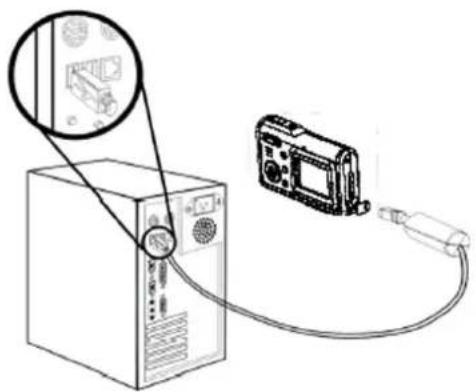
3.1.4 Transmitting the pictures and videos to a computer
This section describes how to copy the pictures and videos to a PC for viewing on a Windows2000/ME/98SE operation system.
First, double click My Computer and then double click Removable Disk.
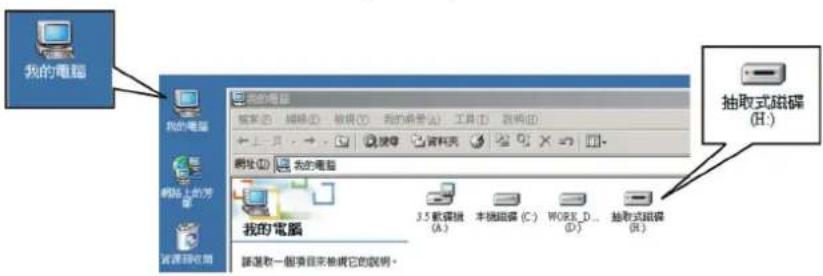
■ Double click to open the folder DCIM.
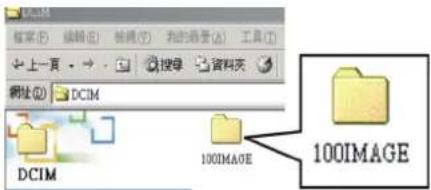
■ Double click to open the folder 100IMAGE.
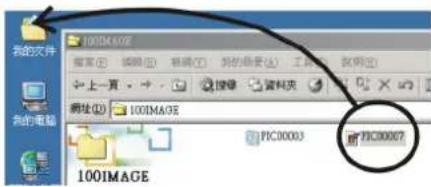
- Drag the pictures or videos to be transmitted into My Folder.
Note: How to remove the USB cable from the computer
Double click

on the task bar.
Select

(USB Disk)
and then press "Stop".
Make sure that the device is selected in the window "Stop the hardware device" and then press "OK". The screen will show that the hardware device is now ready for being removed safely. You can now unplug the camera.
3.1.5 Connecting to a TV set
You can connect your camera to a TV set and view the pictures or videos on the TV screen.
First, set the output mode.
Before connecting the camera to a TV set, you should follow the steps below to activate the TV output mode and make sure that the output mode matches the mode of the TV set:

■ Press the Up/Down button to move the red box and select the Video Output Mode menu. You may select the following settings according to your requirements:
NTSC
PAL
3.1.6 Viewing pictures or videos on a TV screen
To view the pictures or videos on the TV screen, you should do the following:
Power on the camera and press the MODE button to shift to the mode.

Use the AV cable to connect the output port of the camera to the video input port of the TV set. The LCD will be turned off automatically. The pictures or videos will be displayed on the TV screen.
Battery life:
| Test dataTest condition | The number of the pictures taken (forced flash and then no flash, every other 30 seconds.) | The number of the pictures taken when no flash is available due to low power |
| 2048 x 1536 pixels pictures | 126 pictures 170 pictures | |
Note: The pictures were taken under normal indoor temperatures. Three (3) standard batteries were used. One picture with forced flash was taken every 30 seconds and then one picture without flash was taken every other 30 seconds. The camera was powered off and then powered back up again after 10 pictures were taken.
Frequency
When the shipment of the camera is made, the light frequency of the camera has been adjusted to meet the local standards. Different frequency causes different picture/video effects. Please refer to the following specifications to make frequency adjustment when you are traveling abroad or encounter noise.
| Countries and regions | UK | Germany | Italy | Spain | Holland | Portugal |
| Setting | 50Hz | 50Hz | 50Hz | 50Hz | 50Hz | 50Hz |
| Countries and regions | France | US | Taiwan | Japan | Korea | China |
| Setting | 60Hz | 60Hz | 60Hz | 60Hz/50Hz | 60Hz | 50Hz |
LED information
| Status of the camera | Power LED Self-Timer LED | ||
| Green | Red | Green | |
| Power-off | Off | Off | Off |
| Stand-by | On | Flash(1Hz) | Off |
| Recharging the flash unit | On | On | Off |
| Processing | On | Off | Off |
| Low power Off Flash (1Hz) Off | |||
| USB | connection | On | Off |
| Self-timer | On | Off | Flash |
| Video | recording On | Off | On |
Troubleshooting
| Trouble | Cause | Solution |
| Cannot power on the camera | No power in the batteries.The batteries are inserted in wrong polar direction. | Replace the batteries with fully charged ones.Orient the batteries in the direction as described in the instructions. |
| Picture taking or video taking are not available | The memory is full.The SD card is write-protected. | 1. Delete files to release some memory.2. Disable the write-protection |
| The flash can not be activated | Check whether the flash is set to OFF. | Set the flash to auto/on |
| The images are blurry | The camera shakes when taking a picture.The subject is out of the focus range. | 1. Securely fix the camera so that it does not move.2. Adjust the distance between the camera and |
Off (1Hz)
| the subject. | ||
| The images are not stored | Before storing the images, the camera turned itself off. | If the Low power message appears, replace the batteries at once. |
| The pictures cannot be stored onto a computer through a USB cable | The driver program is not installed.Incorrect installation. | 1. Before connecting the USB cable, install the driver and power on the camera.2. Remove the driver and related programs and then reinstall them in accordance with the User's Guide. |
| The pictures can not be viewed on a TV screen | The data cable is not connected properly.The TV end of cable is not plugged in properly | Use an AV cable to connect with the TV.Set the PAL/NTSC mode properly. |
| The camera can not be used as a PC camera head. | The camera is not set as a video camera head | Set the camera as a video camera head |
| The camera is down or does not operate properly. | The flash has been used continuously.High humidityThe camera has been used near a magnetic field | Take out the batteries to power off the camera completely. Power on it again after 10 seconds. |
Important:
Using the camera under 0 °C or above 40 °C is not recommended.
Don't leave the camera in direct sunlight. Don't place the camera in extreme temperatures, such as close to an air-conditioner or a heater.
Store the camera in a dry place.
For your own safety, avoid using the camera during an electrical storm.
Salt and alkali may cause serious damage to the camera.
Don't clean the camera with ethanol.
Don't use the camera in water or in a place where the camera can easily get wet.
Don't bump, drop or dismantle the camera.
If the camera becomes wet by accident, power it off and remove its batteries.
Don't use your hands to directly wipe the lens. If the lens is blurred, please clean it with special cleaning cloth.
Store pictures you have taken on a computer to avoid losing them.
- Chapter 1 Getting started
- Foreword:
- Table of contents
- Check the package
- Camera parts
- Front view
- Back view
- Note: Use 4-way button:
- Top view
- Bottom view
- Right side view
- Installing the batteries and SD card
- Installing the batteries
- Installing the SD card
- Preparation before basic operation
- Power on/off
- Setting the time/language
- Formatting the built-in memory and SD card
- Video output format
- USB connection
- Auto power-off
- Default setting
- Starting the basic operation
- Camera modes
- LCD icons:
- Basic camera modes:
- Focus adjustment
- Digital zoom:
- Flash mode:
- Video recording mode
- Basic video recording mode:
- Chapter 2 Basic Operation
- Audio recording mode
- Playback mode
- Displaying pictures on the full screen
- Playing the video on the full screen
- Slide show
- Deleting pictures or videos
- ➢ Deleting a single picture or video
- ➢ Deleting all pictures or videos
- Image protection
- Protecting a single picture or video
- Protecting all pictures or videos
- DPOF print
- Advanced setup
- Connecting to a PC or a TV set
- Installing the software
- Change the USB setting
- Connecting the USB cable
- Transmitting the pictures and videos to a computer
- Note: How to remove the USB cable from the computer
- Connecting to a TV set
- Viewing pictures or videos on a TV screen
- Battery life:
- Frequency
- Important:
Brand : EASYPIX
Model : V11
Category : Camera