AX-581 - Camera EASYPIX - Free user manual and instructions
Find the device manual for free AX-581 EASYPIX in PDF.


| Product Type | Digital Camera with 8x Optical Zoom |
| Brand | Easypix |
| Model | AX-581 |
| Dimensions (W x H x D) | 111 x 70 x 105 mm |
| Power Supply | 4 AA batteries or 2 CR-V3; DC-in 6.0V 2.0A |
| Image Sensor | CCD, Max Resolution 3648 x 2736 (10 MP) |
| Optical Zoom | 8x |
| Digital Zoom | Up to 4x |
| Internal Memory | 16 MB |
| Storage Media | SD/MMC card |
| LCD Display | 1.6" TFT, 354 x 240 pixels |
| Viewfinder | Electronic viewfinder with dioptre adjustment |
| Shutter Speed | 16 sec to 1/2000 sec |
| Focus Range (Normal) | 50 cm to infinity |
| Macro Mode | 20 cm to 50 cm |
| Shooting Modes | Scene, Program, Aperture Priority, Shutter Priority, Manual, Playback, Movie, Setup |
| Video Recording | MPEG4, 320 x 240 at 30 fps, no limit |
| Flash | Pop-up, modes: Force off, Auto red-eye, Force on, Slow |
| Continuous Shooting | Up to 3 shots per second |
| Self-Timer | 3 or 10 seconds |
| White Balance | Auto, Preset (Sunny, Cloudy, etc.), One-touch custom |
| ISO Sensitivity | Auto, 50, 100, 200, 400 |
| Connectivity | USB 2.0 (Full Speed), AV out (NTSC/PAL) |
| Compatible Operating Systems | Windows 98/ME/2000/XP, Mac OS 9.1 and above |
| Body Material | Plastic with metal tripod mount |
| Accessories Included | Manual, A/V cable, USB cable, CD-ROM, shoulder strap, AA batteries, lens cap with strap |
Frequently Asked Questions - AX-581 EASYPIX
User questions about AX-581 EASYPIX
0 question about this device. Answer the ones you know or ask your own.
Ask a new question about this device
Download the instructions for your Camera in PDF format for free! Find your manual AX-581 - EASYPIX and take your electronic device back in hand. On this page are published all the documents necessary for the use of your device. AX-581 by EASYPIX.
USER MANUAL AX-581 EASYPIX
The camera is equipped with eight modes (Scene selection, Programmed, Aperture priority, Shutter speed priority, Manual exposure, Playback, Movie, Setup) for your exploration. In combination with all the above mode function, not only will this camera serve as a digital camera, but it can also be used in recording short movies and audio recording.
This camera offers 5.36 mega pixels high-quality image along with precise 32 x zoom (8 x optical plus 4 x digital). The built-in 16MB internal memory can store your images and videos. Its auto focus lens supports a macro mode from 20cm to 50cm. Normally, it can takes pictures ranging from 50cm to infinite. Through the USB cable connection, pictures can be easily transferred from the camera to the PC. It also provides an AV output function to perform the operation through TV. Continuous shooting function is also available for users to take multiple frames of scenes in quick succession. Here are its main features:
- P.A.S.M. (Playback, Aperture, Scene, Manual exposure) mode
- MPEG4 audio and video recording
- 8 x optical lens
- Electronic view finder
- Orientation sensor for still image rotate
- Popup flash
- 15 scene modes
- Histogram on display
- Cropping and frame editing function with 6 frames to choose from
- 3x3 image thumbnail display
- Built-in speakers
To make the best out of this camera, we strongly suggest that you read through this manual prior to operating this camera.
Table of Contents
Preface .... 1
Prior to Operating the Camera 3
Unpacking the Camera 3
Attaching the lens and strap on the camera 4
Identifying Components 5
Loading the Batteries and SD Memory Card 6
Basic Settings 7
Formatting the Internal Memory and SD Card 7
Basic Operating Procedure 8
Turning the Camera On/Off 8
Basic Shooting 9
Auto-Focus Function 9
Zooming In/Out 9
Viewing Pictures 10
Protect Pictures .... 10
Erase Pictures 10
Basic Functions Buttons 10
Eight Main Modes and Instructions 15
Scene Mode 17
P.A.S.M. Mode 19
Playback Mode 23
Movie and Audio Mode 26
Setup Mode 27
Making Connections 32
Installing Software 32
Connecting through the USB 33
Connecting through AV-out 33
Appendix 34
Prior to Operating the Camera
Setting up this digital camera is quick and simple. Follow these steps, and you'll be on your way to infinite boundaries.
Unpacking the Camera
- Clear all items from the box. (It is highly recommended that the box and wrappings are kept for future usage)
- Double check for the following items:
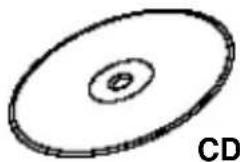
CD-ROM

natural_image
Simple line drawing of a coiled cable or wire with two connectors, labeled 'Min' at the bottom (no other text or symbols)Mini USB Cable

natural_image
Line drawing of a DSLR camera with lens and control panel (no text or symbols)Camera

natural_image
Line drawing of a coiled cable with two connectors (no text or symbols)Video Cable
natural_image
Abstract black ink brushstroke on white background (no text or symbols)Shoulder Strap
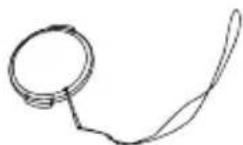
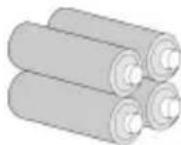
Lens cap Quick Batteries
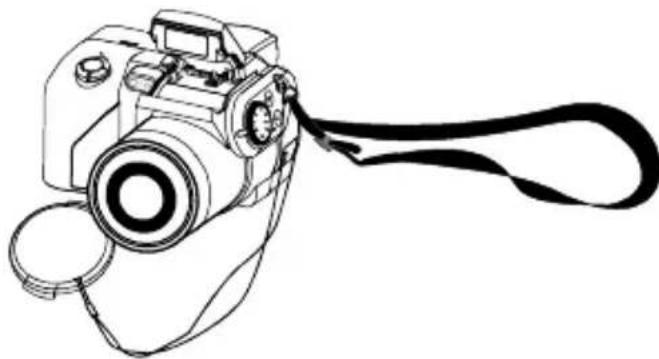
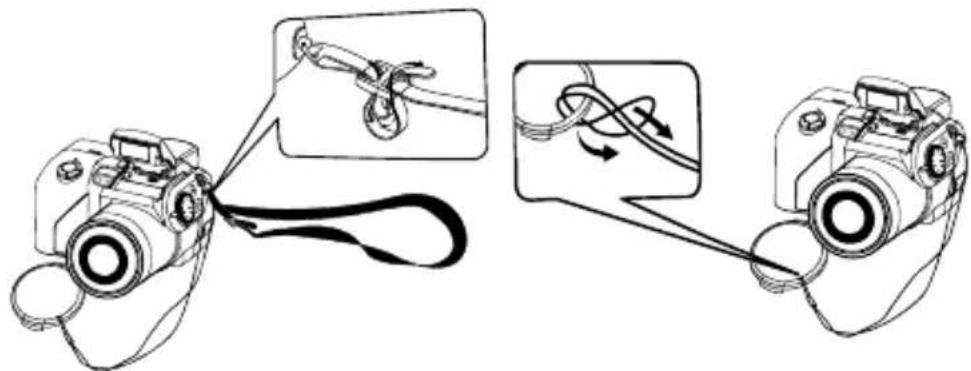
Attaching the lens and strap on the camera
natural_image
Line drawing of a DSLR camera with a strap, shown in black and white (no text or symbols)The lens cap and strap are attached in one. To remove or cap the lens cap, press on both sides of the retractable knob.
natural_image
Diagram showing two DSLR camera setups with rope routing and a close-up of the rope being twisted (no text or symbols present)Thread the strap through the strap hole of the camera and the lens cap. Adjust the strap to the desired length.
Identifying Components
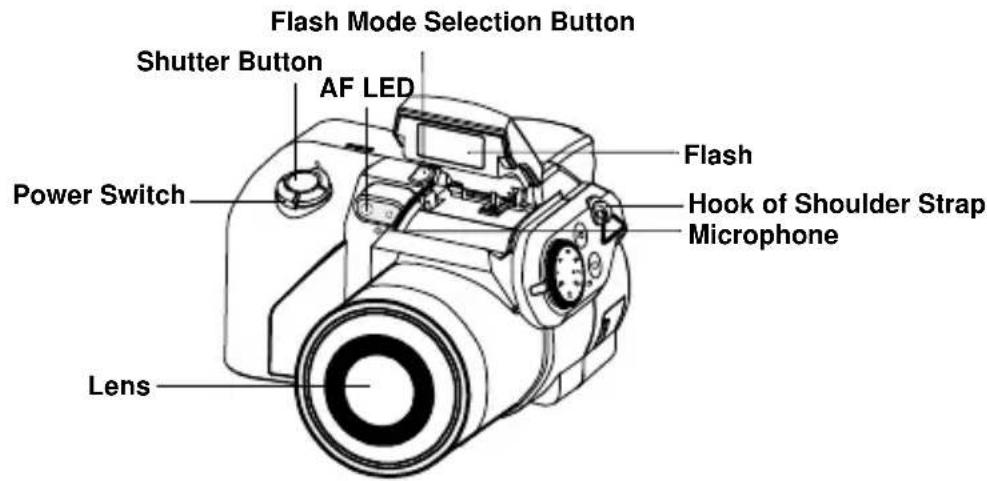


Loading the Batteries and SD Memory Card
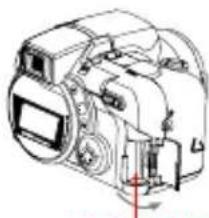
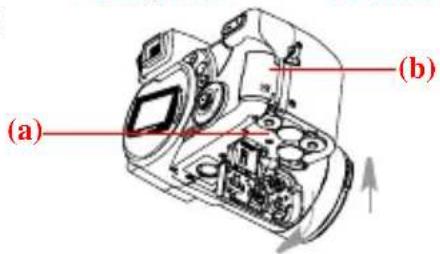
This camera uses 4 AA batteries or CR-V3 x 2. The batteries and SD card are located in separate compartments. The battery compartment is located at the bottom of the camera, while the SD card compartment is located at the back of the camera.
- Slide the battery cover in the direction of the arrow, then lift to open.
- Load the batteries into the battery compartment. (a)
- Close the battery cover.
- Flip the SD card compartment cover, and insert the SD card into the slot. (b)
- Close the SD card cover.

natural_image
Line drawing of a DSLR camera with lens, screen, and control panel (no text or symbols)Battery Cover
natural_image
Technical line drawing of a DSLR camera with no visible text or symbolsSD Card Card
CAUTION!
- Use only the specified battery or AC power adapter (6.0V 2A) with this camera. Other power sources may cause fire.
- To improve battery performance, replace all installed batteries at the same time and keep batter way from heat.
- To dispose off batteries, please refer to index of battery manufacturer.
- Do not mix battery types or it may cause a fire or explosion. Use only one battery type at one time
- Batteries should be inserted in the battery compartment with the "+" and "-" sides facing correctly.
- For alternative power source, the optional AC Adapter kit is available.
NOTE:
- Upon loading new batteries, users will need to reset their Basic Settings
- Do not open the battery cover or remove the batteries when the camera is in its ON status. Only remove the batteries and SD card when the camera is not in use, or in its OFF status.
- If you do not plan on using the camera for a long period of time, please remove the batteries and SD card.
Basic Settings
Upon turning the camera ON, a "welcome image" will appear on the LCD display. Turn the mode dial to the Setup Mode. Please proceed with the following settings:
Language Preference Setting
There are a total of twelve languages to choose from to interact with this camera. Please refer to Setup Mode. (Page 30)
Date and Time Setting
Please refer to the Date and Time setting under Setup Mode. (Page 27)
Formatting the Internal Memory and SD Card
To take more pictures effectively, format the content of the SD Card. To format SD card, please insert your compatible SD card into SD slot. Then proceed with the following steps:
- Turn the Mode Dial to Setup Mode.
- Press the Menu button to enter Setup menu to select "Format".
- You will then be asked "Format SD card?" on the LCD Display.
- Press the OK button to confirm and proceed with formatting.
As a result, once you withdraw the SD Card from the camera, the LCD display will show the following message for confirmation: "Format internal memory?" Then, press OK button to complete formatting internal memory.
Basic Operating Procedure
This section provides simple and basic directions to get you started with your camera. From this section, you will learn how to turn the camera on and off, shoot pictures, use the Auto Focus function, Zooming In and Out, and Playback your pictures. A description is also included for the EVF & LCD function.
Turning the Camera On/Off
- Remove the lens cap
-
Slide the Power switch in the direction of arrow.
-
power LED lights up and the power is on.
- turning off the power (slide the switch again)
- Auto power-off function operates when batteries are used only.
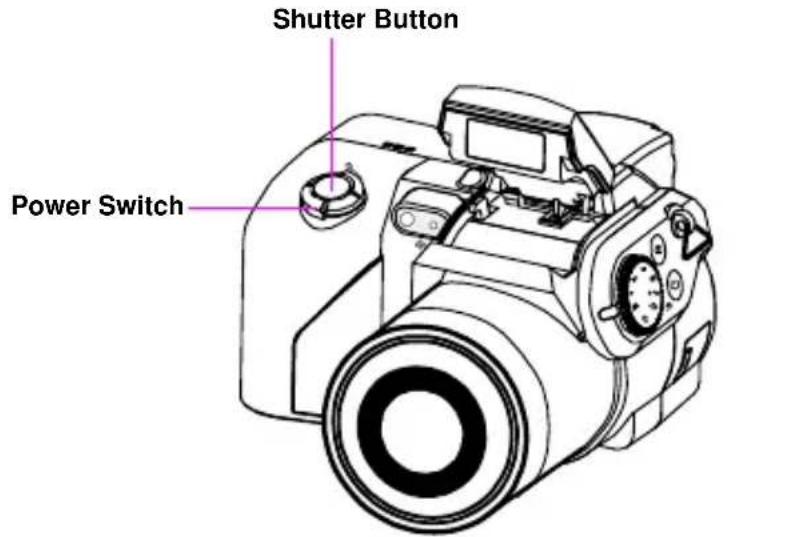
**The backside LED indicator will remain green while the power is turned on**
Tip: The LCD display will warn users to open the lens cap when the lens cap is on.
Basic Shooting
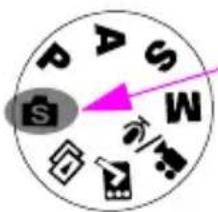
2.) Look into the viewfinder /LCD and try to align your subject in the box.
- Turn the mode dial to the Scene Mode

natural_image
Line drawing of a hand holding a DSLR camera with no visible text or symbols
natural_image
Line drawing of hands holding a camera lens (no text or symbols)3.)When you are set, press the shutter button once.
Tip: Do not cover the lens or flash with your finger.
Auto-Focus Function
When the shutter release is pressed halfway, the Auto-Focus function will activate and the camera lens will automatically focus. Follow these steps to activate this function:
- Under normal situation, the crop mark is yellow. Once the shutter is pressed halfway to activate the Auto-Focus function, the crop mark will turn green. If it fails, the crop mark will turn red.

- Fully press the shutter button to take the picture.
Zooming In/Out
This camera has 8 x optical zoom and 4 x digital zoom. The zoom bar located on the right side of the LCD display, informs users of the zoom status while the zoom in or out button is pressed. While the zoom button is pressed, there will be 15 levels of zoom magnifications, from W(Wide) to T(Tele) of zoom bar; The zoom lens can automatically protrude and retract. An additional 8 levels of zoom magnification (0.5x/each), from
T(tele)to 4x (4x Digital Zoom) of zoom bar will activate, when the zoom button is pressed. Users can see the result from LCD display.
- Once you have aligned your subject in the LCD display, press the zoom in or out button to select your preferred distance.
Viewing Pictures
To instantly view the pictures you just took, simply turn the mode dial to the Playback Mode. For an in-depth description of Playback Mode, please refer to page 23.
Protect Pictures
To instantly protect the pictures you just took, press the menu button and select the protect function. To protect pictures under playback mode, press the AE/AF/protect button and press ok.
Erase Pictures
To instantly erase the picture, turn the mode dial to the Playback Mode, then press the down button and OK to delete the current picture.
Basic Functions Buttons
The camera includes the following basic functions.

AE-L AF-L
AE/AF lock and Protect: These three functions can be activated under this button. Under playback mode, press this button to protect the picture. AE lock locks the exposure at a different place from the point of focus. After locking the exposure, you can recompose the shot while maintaining the desire exposure level. AF lock locks the focus on the subject and recomposes the shot. This is useful for backlight and spotlighted subjects.
AE Lock: Press "L" button once for AE lock AF Lock: Press "L" button twice for AF lock
Normal: Press "L" button again for normal
Tip: AF button locks the focus object for a sequence shooting. Pressing the snap button halfway can proceed AF lock for only one image, but next.

Menu: This button allows quick access to the menu function.

Flash: This button sets flash as Force off / Auto Red eye reduction / Force on / Slow. To activate the first strobe, press the flash button for flash mode selection and select the desired flash setting. The flash button will have to pop up in order to activate the flash mode. If not, the flash will not function and users will not be able to select the type of flash. When the flash pops up, the default setting will be force on, followed by Auto, Slow and Off.

Force on: Press flash button for force on. This is also the default setting.
Auto Red eye reduction: Press flash button once for auto red eye
Slow: Used for slow shot
Force off: When the flash is off
Tip: Push down the flash pop-out when not in use.

EVF/LCD: This button allows users to switch in between the LCD and EVF (Electronic View Finder) to operate this camera.
Dioptre Adjustment: This enables users to adjust the far or nearsightedness of the viewfinder.
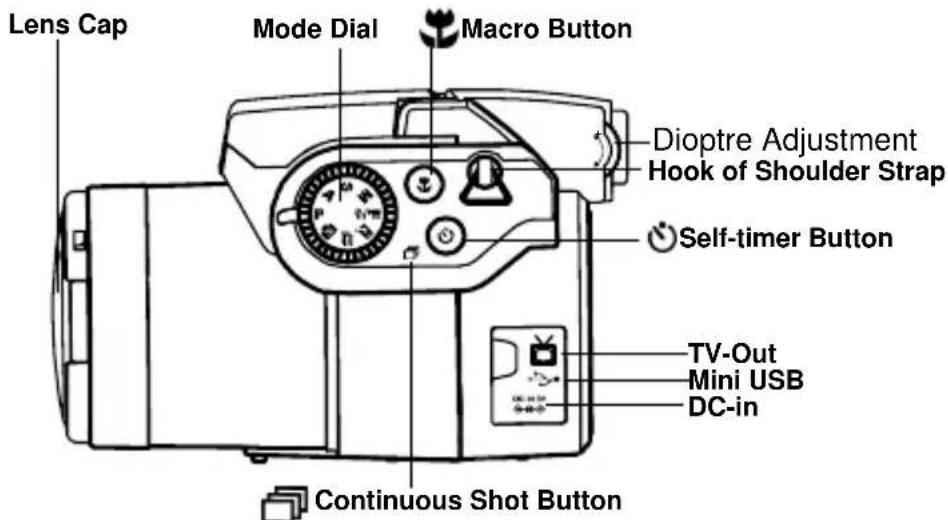

Macro: The macro function allows users to take close-up pictures in a distance within 20cm to 50cm. Press the Macro button to access Macro function.

Self-timer: The self-timer function is used in capture and video mode with a time frame of 3 to 10 seconds. A tripod is highly recommended when setting the self-timer to 3 seconds.

Continuous shot: This function allows 3 continuous shot. Turn the mode dial to P. A. S. M. & scene mode. press selftimer/continuous shot button twice, and press the shutter button.
Note:
- Flash will not be available under continuous mode.
2.During the shooting, images will not display on the LCD. - The focus and white balance are adjusted for the first image, which will also be used for the other images.
- Continuous shot and self-timer share the same button.
Zoom: This camera has 8 x optical zoom and 4 x digital zoom.
| Resolution Digital Zoom | |
| 10 M (3648 x 2736) x 1 | |
| 5.0M (2560 x 1920) x 4 | |
| 3.0M (2048 x 1536) x 4 | |
| 1.3M (1280 x 960) x 4 | |
| VGA (640 x 480) x 4 |
Under Capture Mode:

Zoom in: Press Zoom in button for magnify image
Zoom out: Press Zoon out button for narrow the image
Under Playback mode: (Magnify / Thumbnail)

Zoom in: Press Zoom in button for magnify image
Zoom out: Press Zoon out button for thumbnail (3x3)

EVF/LCD Display: This button allows you to turn the display On or Off for the electronic view finder & LCD. When EVF is selected, LCD will not be on.
Tip:
HV / Histogram Value
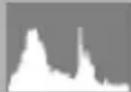
Histogram Value showing the brightness and contrast of the subject. It enables precise exposure control. In playback mode, histogram showing the brightness and contrast information of recorded pictures. You can set. histogram display by pressing up on the five-way switch in shooting and playback modes.
Eight Main Modes and Instructions
This section will describe the eight modes included in this camera. An in-depth coverage of these modes will be further described. Under each of the following modes, users can choose to proceed with the modes either by looking at the LCD or through the electronic view finder. To switch between the electronic view finder or LCD, press on the EVF/LCD button.
| Items Indications Page | ||
Scene Mode 17 |     Auto Sport Landscape Night Auto Sport Landscape Night [6B3W] [ASZY]Portrait Selt Portrait Night Portrait [6B3W] [ASZY]Portrait Selt Portrait Night Portrait    Sunset Beach Back Light Autumn[W268] Sunset Beach Back Light Autumn[W268]    Natural Sky Party Text Natural Sky Party Text | |
Program mode |    Image Quality Resolution White Balance Image Quality Resolution White Balance   Digital Filter ISO Rating Metering Digital Filter ISO Rating Metering [BXAZ]Focus Area L/R Adjustment [BXAZ]Focus Area L/R Adjustment | 19 |
Aperture priority mode |    Image Quality Resolution White Balance Image Quality Resolution White Balance   Digital Filter ISO Rating Metering Digital Filter ISO Rating Metering  Focus Area L/R Adjustment Focus Area L/R Adjustment | |
Shutter speed priority mode | ||
| Manual exposure modeM | ||
Playback Mode 23 | ||
Movie and Audio Mode[S234]  | 26 | |
| Setup Mode 27 | |
| Date and Time Self-timer Option | |
| Slide show Interval Audio Value | |
| Sound Effect Instant Preview Rotation | |
| Auto Power Off Background Editing | |
| Languages TV-Out Format | |
| File Number Restoring |
Scene Mode
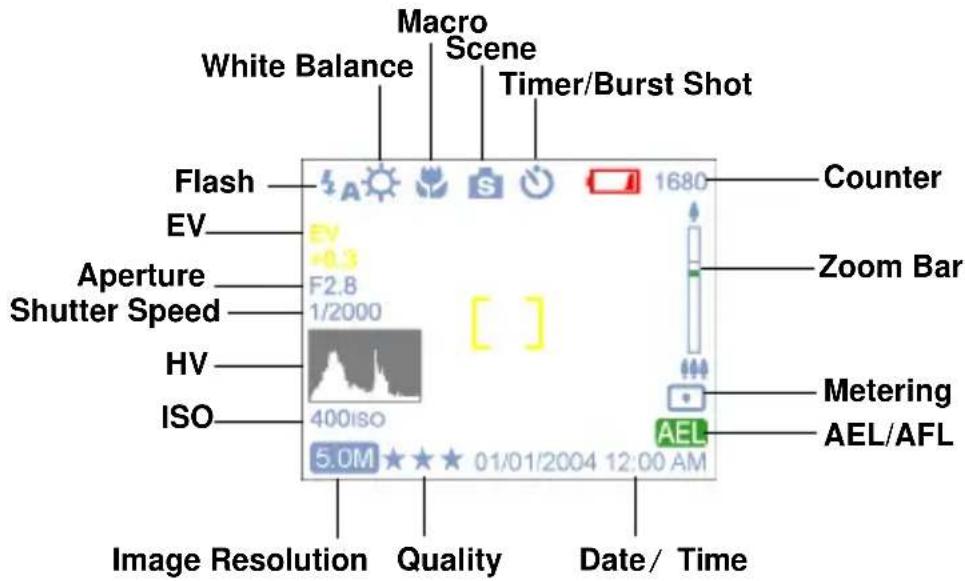
Turn the dial rotator to the Scene Mode. Press the Menu button to access. Press Up/Down arrow to select the settings. Once you have selected the option, press Left/Right arrow to adjust the setting. Press OK to return to the list of options.
Scene
Users can select from the following scenes to include in their pictures: Auto/Sport/Landscape/Night/ Portrait/Self Portrait/Night Portrait/ Sunset/Beach/Back light Autumn/Natural/Sky/Party/Text
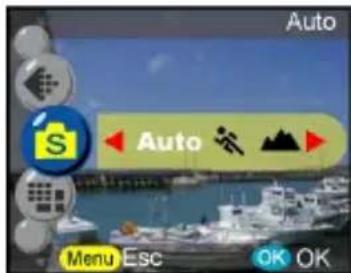

Sport- This is for fast-moving subjects when you want to freeze the action.

Landscape- This is used for wide scenic views. This setting cannot be used under macro setting.

Night- Night scenes. A tripod is recommended when using this setting.

Portrait- This mode blurs the background to focus on the subject.

Self Portrait- Enables you to take a picture of yourself while holding the camera. Point the lens towards you and take a shot.

Night Portrait- This mode is for images taken during twilight or at night. The flash illuminates the subject while a slow sync speed captures a natural exposure of the background. A tripod is recommended when using this setting.

Sunset- To enhance the red hue for taking sunset picture.

Beach- This is for taking beach view with enhanced blue color.

Back light- For taking the picture of back light object by changing metering.

Autumn- This is for foliage views.

Natural- This is suitable for forest or grasslands views.

Sky- This is for sky views.

Party- Enables you to take pictures under a darker environment with different lighting. A tripod is recommended when using this setting.

Text- This mode will project the text by enhancement of the black and white contrast.
Tip: Users can also change the resolution and image quality under Scene Mode.
P.A.S.M. Mode
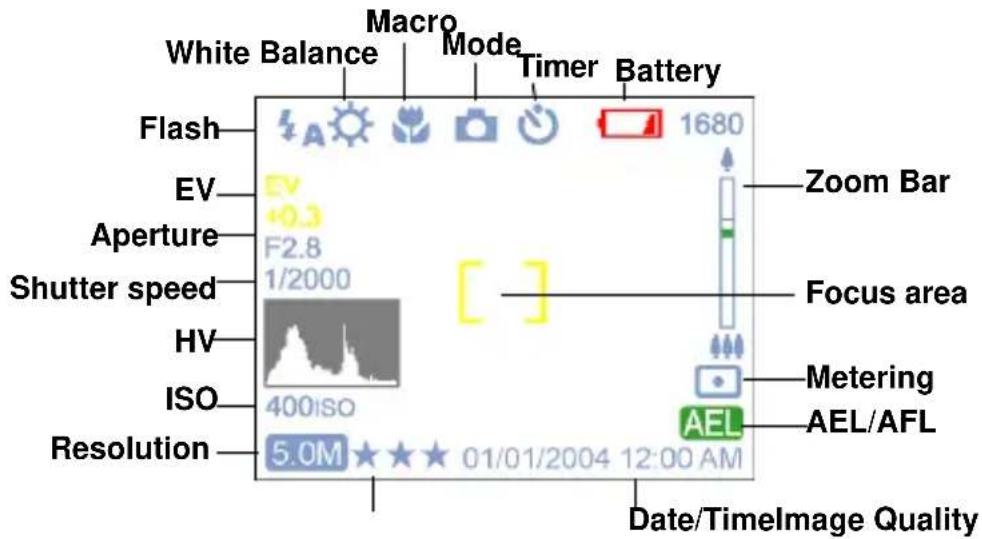
P.A.S.M. Mode include four modes that are adjustable through the mode dial.
P mode-This mode allows you to take general still pictures. The camera will automatically set the aperture and shutter speed to suit the scene's brightness.
Aperture Priority- The Aperture value that can be selected from F2.8 to F3.41.
Shutter Priority- In this mode, the shutter speed can be select from 1/2000 sec to 16.
Manual- In this mode, you set both the shutter speed and the aperture value. The exposure level can be viewed on the LCD.
Tip: The larger or brighter the aperture value (lower f/number) the more blurred the background will become.
Resolution
This mode allows you to set the record resolution.
10 M (3648 × 2736)
5.0M (2560 x 1920)
3.0M (2048 x 1536)
1.3M (1280 x 960)
VGA ( 640 x 480)

Image Quality
The widely-used JPEG format is used for image-recording quality setting.Users can select from the following quality:


White Balance
Normally, the "Auto" WB setting will set the optimum white balance automatically. If natural colors cannot be obtained with auto WB, you can set the white balance manually to suit the respective light source. Users can select the following white balance:
Auto:Auto

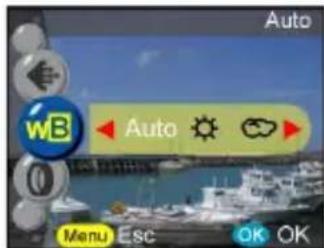
Tip: (Follow these steps for One-touch WB)
- Press OK to confirm one-touch WB.
- To set the desired WB press the L/R button to change the WB value.
- Take pictures by pressing the shutter button with the new WB setting.
- To reset WB again, press "OK" button again.
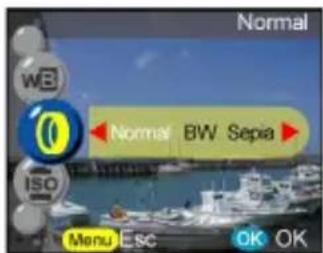
Digital Filter
This sets and converts according to the different colors and effects:
Normal/BW/Sepia/Red/Pink/Purple/Blue/Green/Yellow/Solarize
/Negative Artwork
Solarize-This effect creates the impression that the image has been exposed to light.
Negative Artwork- Having the light and dark parts opposite to what they were in the original picture.
ISO Rating
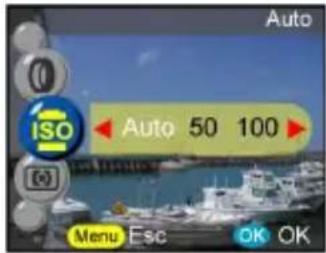
The ISO speed is the sensitivity to light. The higher the ISO speed number, the higher the sensitivity is to light.
Auto
50
100
200
400
Metering
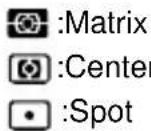
This calculates the best overall exposure value. The camera has three
metering modes :

Focus Area
User can change the crop mark location of LCD display by rotator, it provides a widely focus area setting.
Normal
Set

Tip: (Follow these steps for Focus Area)
- The crop mark will be removed once the focus area function is confirmed.
- Select the desired focus area using the joystick.
- Press OK to confirm the setting and start taking pictures.
- Focus area function can proceed after taking shot, users can continue to move the focus area.
- Press menu again to exit the focus area function.
- By pressing the ok button, the focus setting will be saved.
L/R adjustment
For users to define the adjustable parameter of L/R button, once the setting is complete, users can press L/R button to change the value after quitting menu. Here are the 5 parameters:

EV- Exposure compensation is used to alter the camera's standard exposure setting. You can darken or lightness the image. (increased exposure)

Sharpness- Enhances the borders of the subject.

Saturation- Saturation is the degree of color intensity associated with color's perceptual difference from a white, black or gray of equal lightness
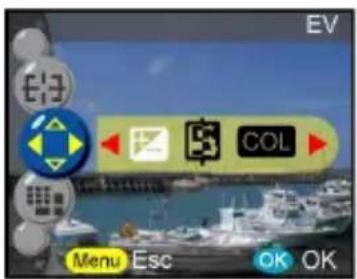

Contrast- Exaggerate lightness differences between foreground and background colors

Manual WB- Manually adjusts fine changes to the white balance.
Playback Mode

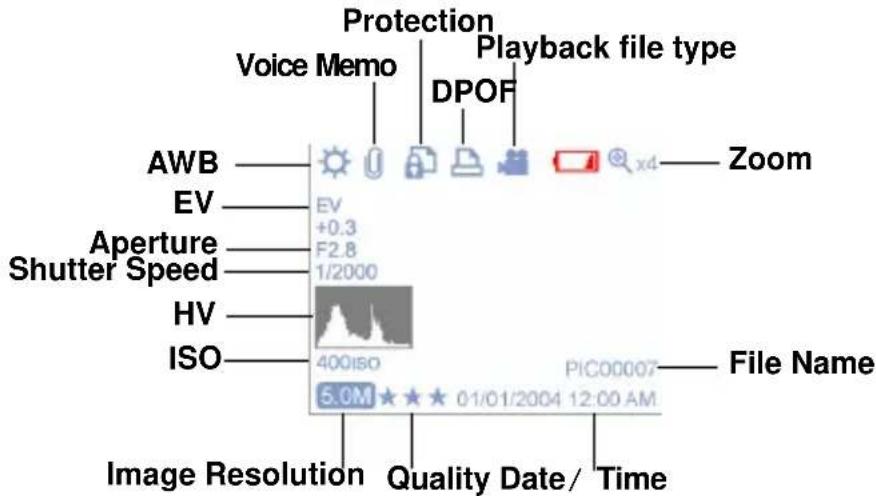
Turn the mode dial to the Playback Mode. Users can view the images by pressing the Left/Right button or press up button to get the image information. To view thumbnails and magnify pictures, press zoom in/out button. Users will be able to set the following functions after entering menu.
Erase
User can erase current or all images under this mode. Users can select to
erase:
Erase Current
Erase All

Tip: To immediately delete a picture while reviewing images, press the menu button, select the erase option and press ok.
Protection
You can prevent images from accidental erasure.
This function choose to:

:Protect Current

:Protect All

:Unprotect Current

:Unprotect All

Rotation
This function rotates images 90^ and 270^ clockwise, mirror, or flip the image up.
Normal
90 degree
270 degree
Mirror
Flip up

Frame Editing
This camera provides 6 frames for image editing. Camera will create a new image with the frame which select by user.

Crop Picture
Users can crop images through the desired magnified area.
- Press ok to confirm the image selection and start the modification.
- The navigation arrows will appear on screen.
- Use joystick and zoom button to navigate the image.
- Press ok button to crop.

Tip:
-Camera will create a new image which cannot be re-cropped.
- Image size will vary according to the cropping
Slide Show
Allow user to slide show all images.
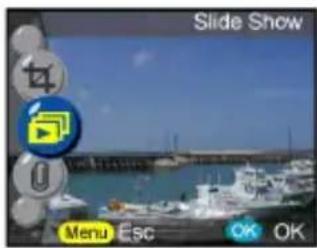
Tip:
--press OK button for interruption.
- refer to page 28 (slide show internal setting) to the slide show timing setting
Voice Memo
This function provides 20 seconds voice memo for still image. Select "Voice Memo" and press OK to start the recording session. A recording bar will indicate how much time is left in the recording session. Press OK to end the recording.

Tip: To view the recorded memo, quit menu and press OK again to enter control bar. Press "erase" to delete any voice memo.
DPOF
DPOF is a format used to record automatic print information from cameras. By specifying which pictures are to be printed, the pictures can be printed easily by DPOF-compatible printing service labs or on a personal DPOF-compatible printer. Users can select to print:
Current
All
Reset

Movie and Audio Mode

Movie and Audio Mode allows you to use the camera as a movie and audio recorder. Video mode is the default for this mode, press the ok button to enter this mode. Users can switch modes by pressing the menu button. Rotate to the Video/Audio mode. To record video:
- Press the shutter to start recording.
- To stop recording, press the shutter button again.
To record audio:
- Press the right button, where a audio recording frame will appear on the LCD/EVF.
- Press the shutter button to start audio recording.
- To exit audio recording, press the shutter button.
Note!
- Flash will not function when shooting movies.
- Zoom function can not be achieve while recording.
- Press the self-timer button once to activate the Self-timer. You will have 3 to 10 seconds to get ready after pressing shutter button..The countdown will be displayed on the LCD and followed by a beep sound.
- The icons can be removed from the display by pressing the up button once.
Tip: 1. The file format of movie will be MPEG 4. (.asf)
- When you playback video in PC, system will require Windows Media Player 9.0 codec. Please link to Microsoft server for the codec, or you can playback the movie through bundled application software.
Setup Mode
Turn the mode dial to the Setup Mode. Press the Up/Down button to select the function, press the Left/Right button to choose the desired setting and press OK to confirm.
Users will be able to set the following functions:
Date and Time
Reset date and time when change battery. Users can select to set:
Date
Date format
Time
Time format

Tip: Dates can be set in these formats:
YYYY/MM/DD
MM/DD/YYYY
Time can be set in these format:
12hr
24hr
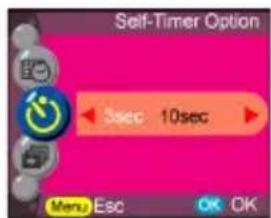
Self-timer Option
This function provides users different timer setting. A tripod is highly recommended when operating this function:
3 seconds
10 seconds
Slide show Interval
Under this setting, users can set the interval of seconds they want the slide show to proceed per slide. Users can select:
3 seconds
5 seconds
10 seconds

Audio Volume
Users can adjust the audio value of audio, video and voice memo functions.:
High
Middle
Low

Sound Effect
This function allows users to turn the sound effect on or off:
On
Off

Instant Review
Sets the time for the picture to be previewed right after the picture is taken:
1 second
3 seconds
5 seconds
Off

Image Rotation
When shooting the picture vertically (over 45 degree) the image can be automatically rotated and display horizontally in playback mode:
- Automatic (default)
2.Off

Auto Power Off
This setting automatically turns off the camera. Users can select the following minutes to Auto Power Off the camera.
Off
3 minutes
1 minute
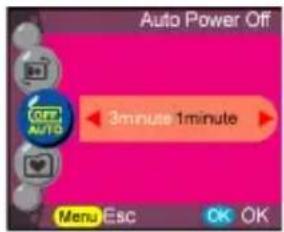
Tip: Prior to shutting off, the LCD will shut itself automatically
Background Editing
Allows users to select their preferred image or taken photo as background.
Image 1
Image 2
My Photo
Editing
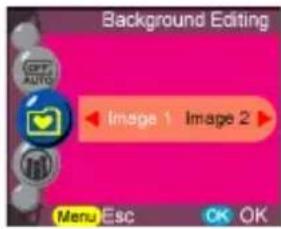
Tip: This background will be replaced the default images of welcome page and setup mode background. My photo will retain last set photo. To change new photo, select editing for thumbnails and press OK button to confirm new photo.
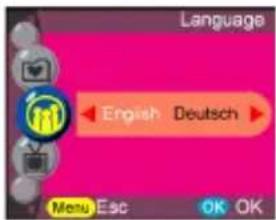
Language
Users can select from the following languages:
English
German
French
Spanish
Italian
Dutch
Russian
Polish
Japanese
Korean
Simplified Chinese
Traditional Chinese
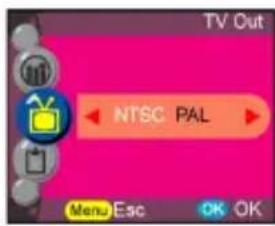
TV out
Depending on where your location, different region requires different system for TV-out function. Connect Video cable for TV out.
NTSC
PAL
Format
Formats the internal or external memory. Press OK button to confirm or menu button to escape formatting.

File Number
The image count will restore to zero once the pictures in memory been erased under reset condition. Sets the order of pictures stored in the camera:
Reset- File number counting from one.
Series- File number counting from serial number.
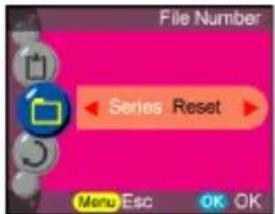
Tip: This setting will retain until user to change the selection.
Restoring
Resets the camera to factory setting.

Making Connections
In this section you will be able to connect the camera to your PC to download or edit photos.
Installing Software
- Insert the CD-ROM into your CD-ROM drive.
- Click "Digital Camera Driver" and Install if your operating system is Windows 98. Users can pick 4 selections and press Install (it can all be done at the same time).
- The installation wizard will guide you through the installation.
- You will be able to use the application once it's installed.
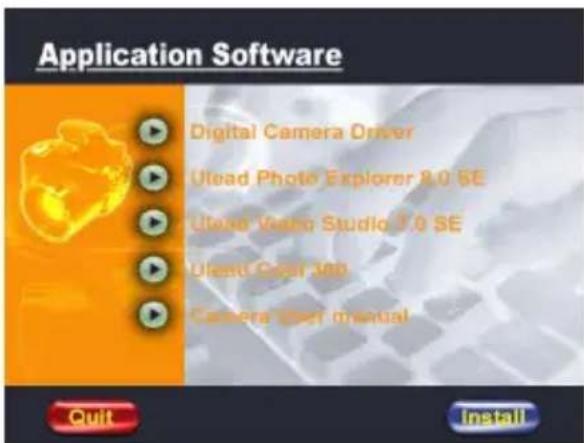
Caution:
- Driver is for uploading pictures to you computer, if the operation system is Win 98
- If you didn't install the driver before plugging in the USB device. System will detect new device. Please insert the CD-ROM and complete the driver installation.
Connecting through the USB
This section will show you how to download images from camera to PC through the USB cable..
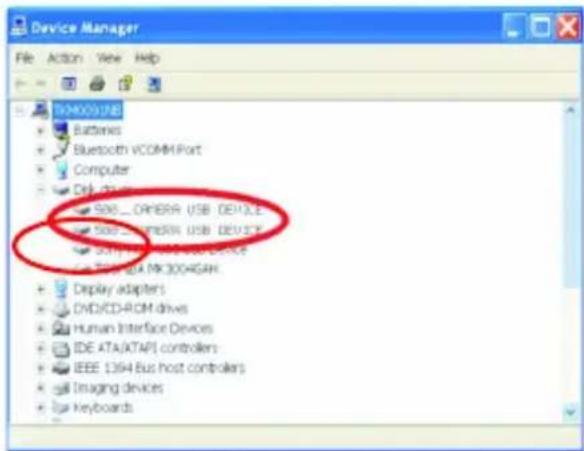
- This camera allows users to move the images or movies from camera to PC by MISC support.
- When the camera is connected to your PC, there will be 2 external storage under "My computer" named "500_CAMERA".
- Simply click the folder named "1005MDSC", you can find the recorded files.
- Copy or remove these files from the camera to your PC. Users can edit these images accordingly.
NOTE:
- Voice memo files will include three different file format as ".jpg", ".wav" and ".html". Which have the same file name, but format. The recommended format for users (desiring to include their recorded voice memo in their selected pictures) is HTML.
- You may find the recorded files of internal and external memory from 2 external storage respectively.
Connecting through AV-out
Before you proceed, please determine your corresponding AV-Out mode. This camera will enable you to achieve full camera functions by AV-out connection. User can enable each function through the TV monitor instead of the LCD display.
- Connect the video cable into the video out connector.
- Connect the other end of the video cable into the TV's video-in jack.
- Turn the camera ON, you should then be able to operate the camera with TV screen. (The LCD/EVF will turn off while connected to AV-out)
Appendix
Camera Default Setting
| Scene Mode Auto | |
| Movie Mode Video | |
| Resolution 5M (2560 x 1920) | |
| Image Quality *** | |
| White Balance Auto | |
| Digital Filter Color | |
| ISO 100 | |
| Metering Matrix | |
| Sharpness Middle | |
| Date and Time 2004/1/1 | |
| Self-timer Option 10 seconds | |
| Slide Show Interval 3 seconds | |
| Audio Volume Middle | |
| Sound Effect Off | |
| Instant Review Off | |
| Image rotation | automatic |
| Auto Power Off 1 minute | |
| Display | LCD panel on |
| Background Editing | Image 1 |
| Language | English |
| TV Out | NTSC |
| File Number Series | |
LED Status
| Camera Condition | Status LED AF/Timer LED | LED Behavior | |
| Power off Off Off - | |||
| Standby Green Off "Green" LED will be | truned off when snap, LED will be lighted again when ready for moving. | ||
| Strobe charging | Orange (Flicker) | Off When recharging, "Orange" LED will be flickered and turned to "Green" when charging ready. | |
| Processing Green (Flicker) | Off Processing are meant that "Green" LED will be flicker under AF process and saving image. | ||
| Warning/Error | Red (Flicker) Off If error, then LED will be changed from "Green" to "Red" flicker. The "Red" LED will stop flicker and turn to "Green" after one sec. | ||
| Out of focus Red (Flicker) Off If error, then LED will be changed from "Green" to "Red" flicker. The "Red" LED will stop flicker and turn to "Green" after one sec. | |||
| Battery low Red (Flicker) Off Note: The "Red" | LEDwill keep flickering in battery low condition. | ||
| USB plug in Green Off "Green" | LED will be | off and turn on again when USB plug-in ready. | |
| TV-out Green | Off "Green" LED | will be | off and turn on again when TV out connect-ing ready. |
| Self-timer Green Red | (Flicker) | "Timer" LED will be flicker with count-down second. | |
| Auto focus Green Off Press S1, "Green" | LED will be flickered till AF successful. If NG, then LED will be turned to "Red" and releasing button for normal. ("Green") | ||
| Video/Audio recording | Red (Slow Flicker) | Red (slow Flicker) | When recording video/audio, the "Red" LED will be flicker slowly. |
Appendix
Information Code
| Error Possible Cause | Corrective Action | |
| Card Full No more pictures can be stored | Remove the pictures or insert another card | |
| Write-Protect Card | has been pro-tected | To remove write-pro-tect latch of card |
| Card Error Cannot | record, play-back or erase pictures on this card | To format this card or replace another card |
| Picture Error This | recorded picture cannot be playback with camera | To view the image through PC. If it cannot be done, the picture is damaged |
| No picture There's | no image in storage, so there's nothing in playback | To take pictures or insert another card with images |
| Card Setup This card is not for-matted | To format this card before using | |
| Battery Empty Battery low for taking pictures | Installing new or charged batteries | |
Specifications
| Features | Content |
| Max. Resolution 3648 x 2736 | |
| Still Image Size 10 M (3648 x 2736) | 5.0M (2560 x 1920)3.0M (2048 x 1536)1.3M (1280 x 960)VGA (640 x 480) |
| Image Sensor CCD | |
| Sensitivity equivalent ISO Auto, 50, | 100, 200, 400 |
| Lens Aperture Wide : F2.8 to F5.58 | Tele : F3.41 to 6.82 |
| Optical Zoom 8x optical zoom | |
| Digital Zoom Up to 4x digital zoom | |
| Viewfinder Electronic Viewfinder (color) Dioptre adjustment | |
| Shutter speed 16 sec ~ 1/2000 sec. | |
| Internal Memory 16MB NAND | |
| Estimated number of storable pictures | 10 M (3648 x 2736): 5 pictures5.0M (2560 x 1920): 10 pictures3.0M (2048 x 1536): 16 picures1.3M (1280 x 960): 42 picuresVGA ( 640 x 480): 149 picures |
| Storage media SD/MMC | |
| Focus distance 50cm ~ infinity | |
| Macro 20 ~50 cm | |
| Video/Audio Clip 320 x240, 30pfs, no limit | |
| Continuous shot 3 shots / sec | |
| Rotate Rotates the still image 90 | degree. (anti-clockwise or clockwise) |
| Self-timer 3 or 10 sec. self-timer | |
| Compatibility WIN98/ME/2000/XP | MAC 9.1 and above |
| File Format MPEG4/JPEG/EXIF 2.2/DPOF | |
| Dimension 111 (W) x 70(H) x 105 (D) mm | |
| Flash Pop-up | range: 3 -10 feetModes: Force off / Auto Red eye reduction / Force / Slow |
| USB Output B type mini USB 2.0 full speed | |
| Video Output NTSC/PAL | |
| Battery type AA Alkaline, Ni-MH, Ni-Cd, CR-V3 and RCR-V3 | |
| DC-in 6.0V 2.0A | |
| LCD 1.6" TFT, 354 x 240 | |
| Playback Zoom Up to 8x | |
| USB storage class support MSDC | |
| Multiple languages E/F/G/I/S/D/R/P/TC/SC/K/J | |
| Tripod mount Metal | |
| Body material Plastic | |
Appendix
Accessories
| User manual A/V connecting cable | |
| CD-ROM Shoulder strap | |
| AA alkaline batteries Lens cap | |
| USB cable Lens cap strap |
- Table of Contents
- Prior to Operating the Camera
- Unpacking the Camera
- Attaching the lens and strap on the camera
- Identifying Components
- Loading the Batteries and SD Memory Card
- CAUTION!
- NOTE:
- Basic Settings
- Language Preference Setting
- Date and Time Setting
- Formatting the Internal Memory and SD Card
- Basic Operating Procedure
- Turning the Camera On/Off
- Basic Shooting
- Auto-Focus Function
- Zooming In/Out
- Viewing Pictures
- Protect Pictures
- Erase Pictures
- Basic Functions Buttons
- Tip:
- HV / Histogram Value
- Eight Main Modes and Instructions
- Scene
- P.A.S.M. Mode
- Resolution
- Image Quality
- White Balance
- Auto:Auto
- Tip: (Follow these steps for One-touch WB)
- Digital Filter
- ISO Rating
- Metering
- Focus Area
- Tip: (Follow these steps for Focus Area)
- L/R adjustment
- Playback Mode
- Erase
- Protection
- Rotation
- Frame Editing
- Crop Picture
- Slide Show
- Voice Memo
- DPOF
- Movie and Audio Mode
- To record audio:
- Note!
- Setup Mode
- Date and Time
- Self-timer Option
- Slide show Interval
- Audio Volume
- Sound Effect
- Instant Review
- Image Rotation
- Auto Power Off
- Background Editing
- Language
- TV out
- Format
- File Number
- Restoring
- Making Connections
- Installing Software
- Caution:
- Connecting through the USB
- Connecting through AV-out
- Appendix
Brand : EASYPIX
Model : AX-581
Category : Camera