 ManualGo.com
 P1-S - PIONEER - Free user manual and instructions
Find the device manual for free P1-S PIONEER in PDF.


Download the instructions for your in PDF format for free! Find your manual P1-S - PIONEER and take your electronic device back in hand. On this page are published all the documents necessary for the use of your device. P1-S by PIONEER.
USER MANUAL P1-S PIONEER
Operating Instructions
CAUTION TO PREVENT THE RISK OF ELECTRIC SHOCK, DO NOT REMOVE COVER (OR BACK). NO USER-SERVICEABLE PARTS INSIDE. REFER SERVICING TO QUALIFIED SERVICE PERSONNEL.
WARNING This equipment is not waterproof. To prevent a fire or shock hazard, do not place any container filled with liquid near this equipment (such as a vase or flower pot) or expose it to dripping, splashing, rain or moisture.
WARNING To prevent a fire hazard, do not place any naked flame
sources (such as a lighted candle) on the equipment: D3427a AN En
Operating Environment
Operating environment temperature and humidity:
+5 °C to +35 °C (+41 °F to +05 °F); less than 85 %RH cooling vents not blocked)
Do not install this unit in à poorly ventilated area, or in locations exposed ta high humidity or direct sunlight (or strong artificial light)
WARNING Store small parts out of the reach of children and infants. accidentally swallowed, contact a doctor immediately.
VENTILATION CAUTION When installing this unit, make sure to leave space around the unit for ventilation to improve heat radiation (at least 10 em at top, 10 cm at rear, and 10 cm at each Side).
WARNING Slots and openings in the cabinet are provided for ventilation to ensure reliable operation of the product, and to protect it from overheating To prevent fire hazard, the openings should never be blocked or covered with items (such as newspapers, table-cloths, curtains) or by operating the equipment on thick carpet or a bed
= 10cm Do not install your speakers overhead on the ceiling or wall, The grill is designed to be detachable, and as such it may fall and cause damage or personal injury if
installed overhead SGK008 A1 En
POWER-CORD CAUTION Handie the power cord bythe plug. Do not pull out the plug by tugging the card and never touch the power cord when your hands are wet as this could cause a short circuit or electric shock. Do not place the unit, a piece of furiture, ete., on the power cord, or pinch the cord. Never make a knot in the cord or tie it with other cords. The power cords should be routed such that they are not likely to be stepped on. À damaged power cord can cause a fire or give you an electrical shock. Check the power cord once in a while. When you find it damaged, ask your nearest PIONEER authorized service center or your dealer for a replacement.
CAUTION This product is a class 1 laser product classified under the Safety of laser products, IEC 60825-1:2007.
CLASS 1 LASER PRODUCT
CAUTION The 6/1 STANDBY/ON switch on this unit will not completely shut off all power from the AC outlet Since the power cord serves as the main disconnect device for the unit, you will need to unplug it from the AC outlet to shut down all power. Therefore, make sure the unit has been installed so that the power cord can be easily unplugged from the AC outlet in case of an accident, To avoid fire hazard, the power cord should also be unplugged from the AC outlet when left unused for à long period of time (for example, when on vacation)
This product is for general household purposes. Any failure due to use for other than household purposes (such as long-term use for business purposes in à restaurant or use in a car or ship) and which requires repair will be charged for even during the warranty period
Do not attach these speakers to the wall or ceiling, as
they may cause injury in the event of a fall SGkOo7+ At En
Information for users on collection and
Symbol for equipment
Symbel examples) for batteries
posal of old equipment and used batteries
These symbols on the products, packaging, and/or accompanying documents mean that used electrical and electronic products and batteries should not be mixed with general household waste
For proper treatment, recovery and recycling of old products and used batteries, please take them to applicable collection points in accordance with your national legislation.
By disposing ofthese products and batteries correct, you will help to save valuable resources and prevent any potential negative effects on human health and the environment which could otherwise arise from inappropriate waste handling
For more information about collection and recycling of old products and batteries, please contact your local municipality, your waste disposal service or the point of sale where you purchased the items.
These symbols are only valid in the European Union.
For countries outside the European Union:
If you wish to discard these items, please contact your local authorities or dealer and ask for the correct method of disposal.
er is moved suddeniy from a cold place into a warm room (in winter, for example) or if the temperature in the room in which the player is installed rises suddenly due to a heater, etc, water droplets {condensation} may form inside on operating parts and the lens). When condensation is present, the player wil not operate properiy and playback is not possible. Let the player stand at room temperature for 1 or 2 hours with the power turned on (the time depends on the extent of condensation). The water droplets wil dissipate and playback will become passible. Condensation can also oceur in the summer if the player is exposed ta the direct wind from an air-conditioner. this happens, move the player to a different place.
Thank you for purchasing this PIONEER product, To obtain the best performance from this product, please read this manual carefully. will guide you in operating your PIONEER product
Accessories . Before you start General …
Loading the batteries.
Controls . Remote cont Front panel
Connecting your equipments . Stereo recelver .
CD player . Connecting the stereo recelver and CD player. AC power connection .
General control . To turn the power on Setting the clock General functions .
Listening to a CD or MP3AWMA disc . Disc playback …
Various disc functions. Advanced CD or MP3/WMA disc playback . MP3/WMA folder mode (only for MP3/WMBA files). Listening to the iPod/iPhone/iPad mi Supported models.
Connecting your iPod/iPhone/iPad mini . Playing an IPod/iPhone/iPad mini.
Listening to USB mass storage device/MP3 player Connecting a USB device . Playing a USB device .
Listening to the FM radio . Tuning to à FM radio station .
Using the Radio Data System (RDS) .
Introduction to RDS Listening to the DAB (XC:-POTDAB only) . Selecting DAB. .
Timer and sleep operation Setting the wake-up timer. Sleep operation ..
Condensation I problem occurs . Factory reset, clearing all memory Before transporting the unit . Care of compact discs Cleaning the cabinet. Caution for when the unit is installed in a rack with a glass door .… About playable music file formats Specifications. About iPod/iP! ad mini Disclaimer for Third Party Content
XC-POT/XC-PO1DAB CD Receiver System consists of a stereo receiver and CD player
Please confirm that the following accessories are included.
FM aerial x 1 (XC-PO1 only) DAB/FM aerial x 1 {XC-PO1DAB oniy)
Speaker caution sheet
+ Use the unit on a firm, level surface free from vibration.
+ Keep the unit away from direct sunlight, strong magnetic fields, excessive dust, humidity and electronic/electrical equipment (home computers, facsimiles, etc.) which generate electrical noise.
+ Do not place anything on top of the unit.
+ Do not expose the unit to moisture, to temperatures higher than 60 °C (140 #F) or to extremely low temperatures.
+ Ifyour system does not work properiy, disconnect the AC power lead from the wall socket. Plug the AC power lead back in, and then turn on your system.
+ In case of an electrical storm, unplug the unit for safety
+ Hold the AC power plug by the head when removing it from the wall socket, as pulling the lead can damage internal wires.
+ The AC power plug is used as a disconnect device and shall always remain readily operable.
+ Do not remove the outer cover, as this may result in electric shock. Refer internal service to your local PIONEER service facility.
+ The ventilation should not be impeded by covering the ventilation openings with items, such as newspapers, tablecloths, curtains, etc.
+ No naked flame sources, such as lighted candles, should be placed on the apparatus.
+ Attention should be drawn to the environmental aspects of battery disposal
+ The apparatus is designed for use in moderate climates,
+ Do not touch this stereo receiver's bottom panel while the power is on or just after it is turned off. The bottom panel becomes hot when the power is on (or right after it is turned off) and could cause burns.
+ The voltage used must be the same as that specified on this unit. Using this product with a higher voltage other than that which is specified is dangerous and may result in a fire or other type of accident causing damage. PIONEER will not be held responsible for any damage resulting from use of this unit with a voltage other than that which is specified
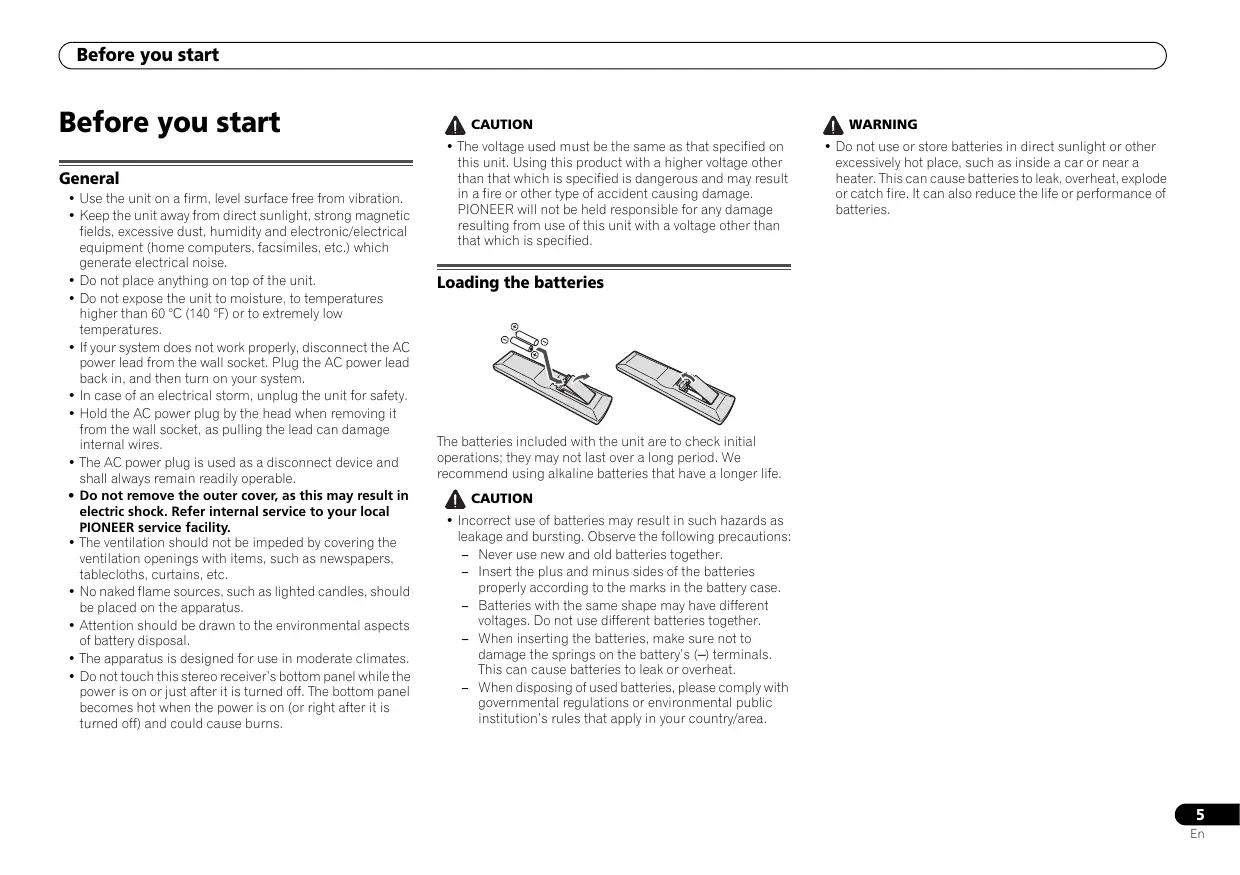
Loading the batteries
The batteries included with the unit are to check initial operations: they may not last over a long period. We recommend using alkaline batteries that have a longer li. À caurion + Incorrect use of batteries may result in such hazards as leakage and bursting, Obsenv the following precautians: — Never use new and old batteries together. — Insert the plus and minus sides of the batteries properiy according ta the marks in the battery case. — Batteries with the same shape may have different voltages. Do not use different batteries tagether. When inserting the batteries, make sure not to damage the springs on the battery's (-) terminals. This can cause batteries to leak or overheat — When disposing of used batteries, please comply with governmental regulations or environmental public institution’'s rules that apply in your country/area.
+ Do not use or store batteries in direct sunlight or other excessively hot place, such as inside a car or near a heater. This can cause batteries to leak, overheat, explode or catch fire. I can also reduce the life or performance of batteries.
There are functions which can be operated only when the remote control is set in either of the stereo receiver control mode or CD player control mode, and functions which can be operated
regardiess of the mode of the remote control
Buttons for general operations The following functions are available regardiess of the mode of the remote control 1 6 SYSTEM Press to turn on and off the stereo receiver and CD player (page 13) 2 O RECEIVER Press to turn on and off the stereo receiver (page 19) 3 oc Press ta turn on and off the CD player (page 13). 4 Input function buttons Use to selectthe input source forthe sterea receiver (page 14). 5. Playback control buttons Use the buttons to control playback. 6 A OPEN/CLOSE Press to open or close the disc tray (page 15). 7 Remote control mode selection buttons CONTROL RCV — Press to operate the functions available only in the stereo receiver control mode. CONTROL CD — Press to operate the functions available oniy in the CD player control mode: 8 CDæUSB Press to select the CD or iPod/USB function for the CD player. 9 DIRECT Use to listen tothe sound source in the original sound quality (page 14) 10 TREBLE +/— Press to adjust the treble (page 14) 11 SLEEP Press to select the amount of time before the stereo receiver turns off (Off - 30 min. - 60 min. - 90 min.). You can check the remaining time by pressing the SLEEP button once (page 25)
Press to adjust the bass (page 14).
13 cLOCK Press to check the current time (page 13).
14 INPUT Use to select the input source for the stereo receiver (page 14)
Use to set the listening volume (page 13).
16 MUTE Use to mute the volume (page 14)
17 REPEAT Press to repeat the playback of trackfile (pages 16, 19, 20)
18 SHUFFLE Press to shuffle the playback order of tracks/iles (pages 17. 19, 20).
Buttons available for the stereo receiver control mode
The following functions are available only when the remote control is in the stereo receiver control mode.
@ important + Press the CONTROL RCV button before pressing the following buttons.
Press to set the clock (page 13).
Use to select system setting and switch modes. TUNE #/4 — Use to find radio frequencies (pages 21,23). PRESET æ/=+ — Use Lo select preset radio stations (pages 21, 22)
6 ENTER Press to confirm actions.
7° SETUP Press to access the setup menu (pages 14, 27)
Use to enter the number (page 21):
9 Tuner control buttons
BAND - XC-P01:Switches between FM ST (stereo) and FM MONO radio bands (pages 21, 22). XC-P01DAB: Switches between FM ST (stereo) and FM MONO, and DAB radio bands (pages 21, 22, 23). TUNER EDIT — Use to memorize/name stations for recall (page 21).
10 TIMER Press to set the wake-up timer or check the current setting
11 DIMMER Press to adjust the brightness of the display (page 13)
12 DISPLAY Press to display information ofthe current mode (pages 22, 24)
13 RETURN Press to exit the current menu screen.
14 CLEAR Press to clear the specified settings.
Buttons available for the CD player control mode
The following functions are available only when the remote contral is in te CD player control mode.
+ Press the CONTROL CD button before pressing the following buttons.
1 TOP MENU Press todisplay the iPod/Phone/iPad mini top menu (page 19) 2 tes
Use to select system setting and switch modes.
3 ENTER Press to confirm actions.
4 SETUP Press to access the setup menu (pages 14, 27)
Use to enter the number (pages 16, 17, 20)
6 CLEAR Press to clear a programmed track (page 17)
7 DIMMER Press to adjust the brightness of the display (page 13)
Use to select a folder of a MP3/AWMA disc or of a USB mass storage device (page 18).
Test of the remote control
Check the remote control after checking all the connections. Point the remote control direct at the remote sensor on the stereo receiver, The remote cantral can be used within the range shoun below
1 GA STANDEY/ON Press to turn on and off the stereo receiver (page 13)
Lights when the DIRECT function is on (page 14)
Lights when the timer is set (page 25)
Receives signals from the remote control.
Use to set the listening volume (page 13).
7. PHONES (headphone) socket
Connect headphones. When the headphones are connected there is no sound output from the speakers (page 14)
8 PRESET Use to select preset radio stations (page 21)
9 DIRECT Use ta listen to the sound source inthe original sound quality (page 14)
1 G/1 STANDEY/ON Press to turn on and off the CD player (page 13)
Connect our iPod/iPhone/iPad mini or USB mass storage as an audio source (pages 19, 20)
Press to select the CD or iPod/USB playback.
Use to stop the playback.
Use to select the desired track or folder to be played back.
Use to select the desired track or folder to be played back.
9 » Use to play back or resume playback from the paused point
é Connecting your equipments
Connecting your equipments
Before making or changing the connections, turn off the power and disconnect the power cord from the AC outlet
Stereo receiver Right speaker
Te CONTROL OUT socket of other Pioneer component
Supplied FM aerial (XC-PO1), DAB/FM ae
Connectthe supplied FM aerial wire or DAB/FM aerial wire to the FM socket or DAB/FM socket, and position the aerial wire in the direction where the strongest signal can be received.
LÉ Connect ine DaByEM De serial to the DAB/FM XC-POIDAB:
Use an external FM aerial (15 ohms coaxial cable) for better reception. When an external FM aerial is used, disconnect the supplied FM aerial wire.
+ Placing the aerial on the unit or near the AC power lead may cause noise pickup. Place the aerial away from the unit for better reception
Wall socket D Ac 220 V0 2201.50 10
Use speakers with an impedance of 4 ohms as lower
impedance speakers can damage the unit
1 Loosen the knobs of the speaker output terminals.
2. insert the speaker cable wires into each of the terminal post holes (positive (+) cable to the red knob, and negative (-) cable to the black knob), then tighten the knobs.
3. Connect the other ends of the cables to the terminals of speakers (make sure the positive and negative (+/-) terminals on the speakers match those on the stereo receiven).
+ These spsakerterminals carry HAZARDOUS LIVE voltage To prevent the risk of electric shock when connecting or disconnecting the speaker cables, disconnect the power cord before tuching any uninsulated parts.
+ Do not mistake the right and the left channels. The right speaker is the one on the right side when you face the unit.
+ Do not let the bare speaker wires touch each other.
+ Make sure that all the bare speaker wire is tuisted together and inserted fully into the speaker terminal. # any of the bare speaker wire touches the back panel, it may cause the power to cut off as a safety measure.
Controlling the unit using a remote control of other Pioneer component
This unit can be controlled using a remote control of other Pioneer component if the stereo receiver is connected to the component with a monaural mini-plug cord (commercial available).
Using other subwoofer
You can connect a subwoofer with an amplifier to the SUBWOOFER OUT socket.
Fee To audio input socket
Stereo receiver (XC-PO1 for example)
To SUBWOOFER OUT socket
Commercially available subwoofer (amplifier buit in)
+ No sound is output from the subwoofer without a buil-in amplifier.
Connecting a network audio device You can connect a network audio device to the stereo receer using a RCA audio cable (commercially available)
NEhwork audio player
Stereo Audio cable receiver {commercially (XC-POT for available)
+ To select NETWORK input On remote control: Press the NETWORK button, or press. the INPUT button repeatedly until NETWORK is displayed in the front panel display. On stereo receiver: Turn the SOURCE knob until NETWORK is displayed in the front panel display.
Connecting digital audio device
You can connect a digital audio device to the stereo receiver using an optical or coaxial cable (commercially available)
Optical cable (commercially available)
Digital recording device
Digital recording device rs
Coaxial cable (commercially available)
+ To select digital input:
On remote control: Press the DIG IN 1/2 button repeatediy, or press the INPUT button repeatedly until DIGITAL IN 1 (for optical input) or DIGITAL IN 2 (for coaxial input) is displayed in the front panel display:
On stereo receiver: Turn the SOURCE knob until DIGITAL IN 1 (for optical input) or DIGITAL IN 2 (for coaxial input) is displayed in the front panel display.
Digital signal formats that can be input to the stereo receiver include linear PCM signals with sampling rate and quantitative bits up to 192 kHz/24 bits. (Depending on the connected device and environment, operation may not be successful)
é Connecting your equipments
CD player —— ner Des a E LS mn nd "50 (AC 220 V to 230 V, 50 Hz) n NT + The audio af iPod/Phane/iPad mini is not output from the Connecting to a digital audio device COAXIAL OUT socket of the CD player.
You can connect the CD player to a digital device using a coaxial cable (commercial available)
AV receiver, D/A converter, etc.
Coaxial cable {commercially
CD player available)
Connecting the stereo receiver and CD player Connect the stereo receiver and CD player using the supplied remote control cable and RCA audio cable.
Stereo receiver (XC-PO1 for example)
+ Make sure to connect the sterea receiver and the CD player using the supplied remote control cable and RCA audio cable.
AC power connection Afterchecking allthe connections have been made correct, plug the AC power lead of this unit into the wall socket
+ Unplug the AC power lead from the wall socket ifthe unit will not be in use for a prolonged period of time.
+ Handle the power cord by the plug. Do not pull out the plug by tugging the cord and never touch the power cord when your hands are wet as this could cause a short circuit or electric shock, Do not place the unit, a piece of furniture, etc. on the power cord, or pinch the cord. Never make a knot in the cord or tie it with other cords. The power cards should be routed such that they are not likely to be stepped on. À damaged power cord can cause a fire or give you an electrical shock. Check the power cord once in a while. When you find it damaged, ask your nearest PIONEER authorized service centre or your dealer for a replacement.
To turn the power on
Press the © SYSTEM button on the remote control ta turn on both of the stereo receiver and CD player.
To turn on the stereo receiver only: Press the © RECEIVER button on the remote control or the %/1 STANDBY/ON button on the stereo receiver.
To turn on the CD player only: Press the © CD button on the remote control or the OA STANDBY/ON button on the CD player.
To turn off the unit, press the © SYSTEM/Ô RECEIVER/© CD button onthe remote control, ar press the 6/1 STANDBY/ON button on the stereo receiver/CD player.
Setting the clock OU OU OU à
In this example, the clock is set ta the 24-hour (0:00) display. 1" Turn on the stereo receiver.
Refer to To {um the power on above for details
2 Press the CONTROL RCV button on the remote control. 3. Press the CLOCK button on the remote control.
The current day and time are displayed.
The default setting (Sun 0:00) is displayed when the first time you set the clock
The time is displayed in the 24-hour
vo display format (0:00 - 23:80) MG 007 > T2timeis displayed in the 12-hour
display format (AM 0:00 - PM 11:59)
7 Use æ/=+ to set the hour, then press ENTER. 8 Use æ/=+ to set the minute, then press ENTER to confirm. 4 Note + Press the CLOCK or RETURN button to exit the setting mode without setting the clock
To confirm the time display:
Press the CLOCK button. The current time and day are displayed in the front panel display of the stereo receiver far 5 seconds.
@ Note + The current time and day display is canceled if, — the volume is adjusted. —_ the SETUP, BASS +/— TREBLE +/— DIRECT, or SLEEP button is pressed. the stereo receiver is tumed off. the input source for the stereo receiver is changed
To readjust the clock: Perform ‘Setting the clock’ from step 1
Hthe AC power cord of the stereo receiver is disconnected from the wall socket, the clock setting is cleared. Set the clock.
To change the 24-hour or 12-hour display:
1 Clear all the programmed contents.
Refer to Factory reset, clearng all memory on page 27 for details. 2. Perform “Setting the clock” from step 1 onwards.
og DES Display brightness control
Select the stereo receiver or CD player by pressing the CONTROL RCV or CONTROL CD button on the remote control.
Press DIMMER button to dim the display brightness, The brightness can be controlled in four steps.
Pressthe VOLUME +/- on the remote control to increase or decrease volume, or turn the VOLUME knob on the stereo receiver to the right to increase volume, and to the left to decrease the volume:
+ The sound level at a given volume setting depends on speaker efficiency, location, and various other factors. It is advisable to avoid exposure to high volume levels. Do notturn the volume on to full at switch on. Listen to music at moderate levels, Excessive sound pressure from earphones and headphones can cause hearing loss.
+ Ifyou tum off and on the stereo receiver with the volume set to 61 ar higher, the volume starts at 60.
+ When the DIRECT function is off, the volume can be set from minimum to 60
The volume is muted temporarily when pressing the MUTE button on the remote control. Press again to restare the volume.
Press the DIRECT button on the remote control or on the stereo receiver to listen to the sound source in the original sound quality. The DIRECT indicator lights in the front panel display ofthe stereo receiver when the DIRECT function is on. Press the DIRECT button again to cancel the DIRECT function.
+ Ifthe DIRECT function is turned off when the volume is set to 6 ar higher, the volume is automatically set to 60.
Bass control Press the BASS + button on the remote control to emphasize the bass, and the BASS — button to de-emphasize it.
+ This function is not available whenthe DIRECT function is on.
+ pressing the INPUT button on the remote control repeatedl) or tuming the SOURCE knob on the stereo receiver to the right, the input source is switched in the following order.
CD/USB— TUNER —> NETWORK DIGITALIN2 «€ DIGITAL IN 1
Hturning the SOURCE knob to the left, the order is reversed.
+ The backup function will memorize the input mode and restare it in case of a power failure or that the AC power cord is disconnected.
Plug headphones (commercially available) into the PHONES socket on the stereo receiver.
Treble control Press the TREBLE + button on the remote control to emphasize the treble, and the TREBLE — button to de-emnphasize it
+ This function is not available whenthe DIRECT function is on.
The input source for the stereo receiver can be selected by pressing the INPUT button repeatedly or each input selection button (CD/USB, TUNER, NETWORK, and DIG IN 1/2) on the remote control, or tuming the SOURCE knob on the stereo receiver.
+ Do not turn the volume on to full at switch on and listen to music at moderate levels. Excessive sound pressure rom earphones and headphones can cause hearing loss.
+ Before plugging in or unplugging the headphone, reduce the volume.
Be sure your headphone has a 3.5 mm diameter plug and
impedance between 16 and 50 ohms. The recommended
impedance is 32 ohms.
+ Plugging in the headphone disconnects the speakers automatically
Auto power down setup The unit turns off automatically if no operations are performed for specified period of time. + Defauit setting: 6H 1 Select the stereo receiver or CD player by pressing the CONTROL RCV or CONTROL CD button on the remote control. 2 Press the SETUP button. 3 Press +/* to specify the amount of time. You can select 0.5 (CD player only), 2, 4 or 6 hours, or off (it n0 automatic shutoff is desired). 4 Press the ENTER button. Note + Pressthe RETURN button to exit the setting mode without setting the auto power down function.
+ If setting the auto power down for the stereo receiver, both of the stereo receiver and CD player are automatically turned off after the specitied period of time has elapsed.
I setting the auto power down for the CD player, onlythe CD player is automatically turned off after the specified period of time has elapsed
(Listening to a CD or MP3/WMA disc
Listening to a CD or MP3/ WMA disc
+ See About playable music file formats on page 28 for more on supported music file formats.
+ This system cannot record on CD-R/RW
+ Some audio CD-R and CD-RW discs may not be playable due to the state ofthe disc or the device that was used for recording
1 Tum on the stereo receiver and CD player.
Refer to To um the power on on page 13 for details,
2. Press the CD/USB button on the remote control to select the CD/USB input for the stereo receiver.
You can also select the CD/USB input by pressing the INPUT
button on the remote control repeated, or tuming the
SOURCE knob on the stereo receiver.
3. Press the CD 4 USB button on the remote control to select CD function for the CD player.
You can also select the CD function by pressing the CD/USB
button on the CD player.
4 Press the A OPEN/CLOSE to open the disc tray.
You can also use the À button on the CD player.
5 Place a disc on the disc tray, label side up.
6 Press the A OPEN/CLOSE button to close the You can also use the À button on the CD player.
7. Press the » button to start playback.
You can also use the D/I button on the CD player. After the last track is played, the unit will stop automatically,
+ Do not place two discs in one disc traÿ.
+ Do not play discs of special shapes (heart, octagon, etc.) It may cause malfunctions.
+ Do not push the disc tray while it is moving
+ Ifthe power fails while the tray is open, wait until the power is restored.
+ Be sure to place 8 cm disc in the middle ofthe disc tray.
+ “Can't Play” will appear for the file which cannot be played back with this CD player.
+ Due tothe structure of the disc information, it takes longer to read an MP3/WMA disc than a normal CD (approximately 20 to 90 seconds)
+ “MP3" or “WMA? will appear after the unit reads information on an MP3 or WMBA disc.
+ IFTV or radio interference occurs during CD operation, move the unit away from the TV or radio.
Listening to a CD or MP3/WMA disc
Various disc functions
Advanced CD or MP3MMA disc playback
jon | OnCD | Remote ï pos Function | layer | control Operation 7 DT © [Pme CET Play See mb = Press in playbat lens se Stop © On) fo 0000 DT © ler 0 © mode, Press the à or lonne om nova noue Pause ®/M button to resume playback from the paused point. Der Press in he playback © © C0 co mou Track up/ 1 jou press he button Dion n he stop mode, pres 1e > or» a start playbat Direct track search desired rack. By using the numeric buttons, the desired track on the Be en Pressandhoiginine | SUrrent disc can be played Fast = Ferd |© © CC pc: le. 1 Press the CONTROL CD button on the remote control. Release the button to | 2. Use the numeric buttons to select a track to be played reverse : . resume playback back. + The numeric buttons allow you to select up to number Resume playback: 9 Hthe M button is pressed while playing back a disc, the + When selecting number 10 or higher, use the “+10 Playback stops and the system memorizes the stopped track button. To resume the playback of the track you have stopped. press « When selecting number 100 or higher, use the “+100 the» (18) button while M blinks in the front panel display buttons. of the CD player. The playback resumes from the beginning of he track you have stopped. À. For example, to choose 13 1 Press the “+10” button. To cancel the resume playback: Lt 2. Pressthe “3" button.
Press the I button while M blinks in the front panel display ofthe CD player.
Selected track number
. For example, to choose 130 Press the “+100” button. Press the “+10* button three times. Press the “" button. 4 Note + A track number higher than the number of tracks on the disc cannot be selected + During shuffle play, direct track search is not possible.
To stop playback: Press the & button.
Repeat play Repeat play can play one track, all tracks or a programmed sequence continuoush.
+ During repeat play, “7” is displayed
CD F008 TOO To repeat one track: Press the REPEAT button repeatediy until “Repeat One appears. Press the » (1) button
To repeat all tracks: Press the REPEAT button repeatediy until *Repeat Al appears. Press the » (1) button:
To repeat desired tracks: Perform steps of Programmed play (CD format only) on page 17. and then press the RÉPEAT button repeatediy until “Repeat Al appears.
To cancel repeat play: Press the REPEAT button repeatedly until *Repeat Off appears and T5" disappears
+ After performing repeat play, be sure to press the button, Otherwise, the disc will play continuously
g to a CD or MP3/WMA disc
Shuffle play The tracks on the disc can be played in shuffle order automaticall,.
+ During shuffle play, "3€" is displayed.
F008 TOO To shuffle play all tracks: Press the SHUFFLE button on the remote control.
To cancel shuffle play: Press the SHUFFLE button and * ><" disappears.
+ IFyou press the wæt button during shuffle play, you can move to the track selected next by the shuffle operation On the other hand, the Hé button does not allow you to move to the previous track, The beginning of the track being played will be located.
+ In shuffle play, the unit will select and play tracks automatically. (You cannot select the order of the tracks.)
Programmed play (CD format only)
You can chaose up to 82 tracks for playback in the order you
1 Press the CONTROL CD button on the remote control.
2. Press the PROGRAM button in the stop mode to enter the programming mode.
3° Press the k#« or »>1 button or numeric buttons on the remote control to select the desired track.
4 Press the ENTER button to save the track number. 5 Repeat steps 3 and 4 for other tracks.
Up ta 32 tracks can be programme. If you make a mistake. the programmed tracks can be cleared by pressing the CLEAR button.
Adding tracks to the program: Stop the playing mode, then follow steps 3 and 4 to add tracks. The newtracks will be stored after the last track of the
button to start playback.
To clear the programmed tracks: Press the CLEAR button. The last track is cleared. Repeat the operations to clear all the tracks to be cleared.
+ When a disc is ejected, the programme is automatically cancelled
+ Ifthe CD player turms off or you change the function from CD to another, the programmed selections will be cleared
+ During the program operation, shuffle play is not possible.
Displaying disc information Press the CONTROL CD button on the remote control, and then press the DISPLAY button repeatedly while playing back to display the disc information:
For discs in the CD format, the remaining playback time of the track, the elapsed playback time of the disc, and the remaining playback time of the disc are displayed in order.
MP3/WMA folder mode (only for MP3WMA files)
To play back MP3MWMA (Windows Media Audio) fi
There are many music sites an the internet that you can
download MP3WMA (Windows Media Audio) music files.
Follaw the instructions from the website on how to download
the music flles, You can then play back these downloaded
music files by burning them to a CD-R/RW disc.
+ Your downloaded sang/fles are for personal use only. Any
ather usage of the song without auner's permission, is against the law
CHistening to a CD or MP3/WMA disc
About folder playback order H MP3/WMA files are recorded in several folders, a folder number will be set to each folder automatically, Press the CONTROL CD button on the remote control, and then press the PLAY MODE to select the folder playback mode. These folders can be selected by the FOLDER +/- button on the remote control. Ithere is no supported file formats inside the selected folder, the folder is skipped and the next folder will be selected. Example: How to set folder number if MP3/AWMA format files are recorded as the figure below
+ ROOT folder is set as folder 1
+ Playback will be in the order of the diagram below.
+ Up to 255 folders and 999 files can be read.
Media layer example Folder J Audiofile O<C) © Root
Layerl Layer? Layer3 © Layer4 Layers
MP3/WMA playback in the folder mode 1 Press the CONTROL CD button on the remote control. 2 Press the PLAY MODE button to select the folder
“The song title, artist name, and the album name will only be displayed during playback.
To cancel the folder playback mode, stop the playback, press the PLAY MODE button. and select the normal playback
+ IfProtected"is displayed, it means Copyright protected
playback mode. mode. Disc info is displayed. Note CD FOLDER F008 TO05
T L Total folders Total tracks
First track number in the folder
+ Title, Artist and Album name are displayed if they are recorded on the disc.
+ In case of playback with the folder mode on, press FOLDER +/-. and the folder can be selected even though itis in playback/pause mode. It will continue playback/ pause mode in the 1st track of the selected folder.
+ Display content can be changed by pressingthe DISPLAY button.
Total folders and Total tracks (in the stop mode) Folder number and Track number (while playing back}
J Album name display" File name display
WMA file” is selected. + If*Can't Play” is displayed, it means “Not supported playback file” is selected
+ Pioneer cannot under any circumstances accept responsibility or any direct or indirect loss arising from any inconvenience or loss of recorded material resulting from the iPod/iPhone/iPad mini failure.
+ This system has been developed and tested for the software version of iPod/iPhone/iPad mini indicated on the website of Pioneer (http-//pioneer jp/homeav/support/ ios/euf)
+ Installing software versions other than indicated on the website of Pioneer ta your iPod/iPhone/iPad mini may result in incompatibility with this system.
+ iPod/iPhone/iPad mini is charged ifitis connected to the CD player when the power of the CD player is on!
+ iPod/iPhone/iPad mini is licensed for reproduction of nor-copyrighted materials or materials the user is legally permitted to reproduce.
2. Press the CD/USB button on the remote control to select the CD/USB input for the stereo receiver.
You can also select the CD/USB input by pressing the INPUT
button on the remote control repeated, or tuming the
SOURCE knob on the stereo receiver.
3. Press the CD 4 USB button on the remote control to select iPod/USB function for the CD player.
You can also select the iPod/USB function by pressing the
CD/USB button on the CD player.
4 Connect the USB connector cable (commercially available) to an iPod/iPhone/iPad mini.
Playing an iPod/iPhone/iPad mini
The buttons on the remote control and the CD player can be used for controlling an iPod/iPhone/iPad mini
Function | ©n CD | Remote Operation player | control _ = TOP [Pr tie CONTROL Display MENU | CD button stand the menu press lo access ne IPod PhonefiPad mini menu = 1/47 [Fest CONTROL ENTER | CD baton lt an use /Confirm o control the iPod/ PhoneiPad mini menu - Press in te stop Play © | © frs
Press in the playback mode. Press the » or 2H button to resume playback from the paused point
Pause | © @C Loading" appears on the display panel as the CD player starts recognizing the connected iPod/iPhone/iPad mini When the track number is displayed, the files in the iPod/ iPhane/iPad mini are ready to be played back
Connecting your iPod/iPhoneliPad mi
À caurion + Unplug all accessories from the iPod/iPhone/iPad mini before connecting it to the CD player: 1° Turn on the stereo receiver and CD player. Refer to To turn ie power on on page 13 for details
+ USB connector do not support VIDEO out.
+ IF°No Device” is displayed or an iPod/iPhane/iPad mini does not work properiy after connecting the iPod/iPhone/ iPad mini to the CD player and selecting the iPod/USB mode, turn off the CD player and reconnect the iPod/ iPhone/iPad mini to the CD player.
Hit still does not work properly, try resetting the iPod.
Press in the playback or stop/pause mode. I you press the button
DM button to start playback of the
desired track. Fast es andhognn ire forward, | ES vs playback mode. reverse C0) | ricase he button to resume playback REPEAT = REPERT. | Press rpeat te playback of fils SHUFFLE — Ÿ SHUFALE | Press to play tacite
Listening to USB mass storage de:
Listening to USB mass storage device/MP3 player
You can listen to two-channel audio using the USB interface on the front of CD player.
+ See About playable music file formats on page 28 for supported music file formats.
Connecting a USB device
1" Turn on the stereo receiver and CD player.
Refer to To um the power on on page 13 for details,
2. Press the CD/USB button on the remote control to select the CD/USB input for the stereo receiver.
You can also select the CD/USB input by pressing the INPUT
button on the remote control repeatedy, or turing the
SOURCE knob on the stereo receiver.
3 Press the CD USB button on the remote control to select iPod/USB function for the CD player.
You can also select the iPod/USB function by pressing the
CD/USB button on the CD player.
4 Connect a USB device to the CD player via USB connector.
USB ma storage device
Loading" appears on the display panel as the CD player starts recognizing the connected USB device:
When the total numbers of falders and tracks are displayed the files in the USB device are ready to be played back
* Pioneer cannot guarantee compatibiliy (operation and/or bus poner) with all USB mass storage devices and assumes no responsibility for any loss of data that may occur when connected to the CD player.
+ This includes playback of WMA/MPS/WAV files (except files with copy-protection or restricted playback)
+ Compatible USB devices include external magnetic hard drives, portable flash memory (particularly keydrives) and digital audio players (MP3 players) of format FAT16/22. It is not possible to connect the CD player to a personal computer for USB playback
+ The CD player does not support a USB hub.
+ With large amounts of data, it may take longer forthe CD player to read the contents of a USB device.
Fast ua Press and hold in the forward/ playback mode. ra CIC) | Ré ne vuttonto resume playback REPEAT. = REPEAT Press torepeatte playback of files, SHUFFLE - SHUFFLE | Presstoplaybaciies in random order? = Numerc_ | Press tre CONTROL buttons _ | CD button first, and number use o specif trac number°
Playing a USB device The buttons on the remote control and the CD player can be used for playback controls of files in a USB device.
Press in the stop pause mode.
Press in the playback
as som me [© © ones Track up/ | ve the stop/pause mode, en GO)
button to start playback of the
See Repeat play on page 16 for details:
See Shuffle play on page 17 for details.
MP3/WMA/WAV files Lo be played back can be specified from folders. See About folder playback order on page 18 for details.
© important + Ifan error message is displayed, try following the points below — Turn on and off the CD player — Reconnect the USB device: — Select another input source, then switch back to iPod/ USB. — Use a dedicated AC adapter (supplied with the device) for USB power. Hit does not clear the problem, the USB device may not be compatible with the CD player.
+ Ifthe selected file cannot be played back, the CD player automatically skips to the next playable file.
+ Non-roman characters in the playlist are displayed as in the front panel display.
Listening to the FM radio
Tuning to a FM radio station Tune to FM radio broadcasts using the automatic (search) and manual (step) tuning functions. Once you are tuned to a Station, you can memorize the frequency for recall later.
1" Turn on the stereo receiver.
Refer to To um the power on on page 18 for details.
2. Press the TUNER button on the remote control to select the TUNER input.
You can also select the TUNER input by pressing the INPUT
button on the remote control repeatediy, or turning the
SOURCE knob on the stereo receiver.
3. Press the CONTROL RCV button on the remote control.
4 Press the BAND button to change the band, if necessary.
XC-PO': Each press switches the band between FM stereo
XC-PO1DAB: Each press switches the band between FM
(Stereo or mono) and DAB (for details on DAB, see Listening
Lo the DAB (IC-POIDAB only) on page 23).
5 Tune to a station.
Automatic tuning To search for stations in the currently selected band, press and hold TUNE 4/4 for about a second. The stereo receiver will start searching for a station, and stop when it has found one. Repeat to search for other stations, Manual tuning To change the frequency one step at a time, press TUNE 4/4 High speed tuning Press and hold TUNE #/4 for high speed tuning. Release the button at the frequency you want
Y — Lights when a normal broadcast channel.
ST Lights when a stereo FM broadcast is being received in
Hthe 7 or F indicator does not light when tuning to an FM station because the signal is weak, set the stereo receiver to the mono reception mode
1 Press the CONTROL RCV button on the remote control. 2 Press BAND to select FM MONO.
This should improve the sound quality and allow you to enjoy the broadcast
Saving station presets
H you often listen to a particular radio station, it is convenient to have the stereo receiver store the frequency for easy recall whenever you want to listen to that station, This saves the effort of manually tuning in each time. This unit can memorize up to 40 stations.
1 Tune to a station you want to memorize.
See Tuning to a FM radio station above for more on this.
2 Press the CONTROL RCV button on the remote control. 3. Press TUNER EDIT.
The preset number is blinking,
4 Press PRESET æ/=+ to select a station preset number. You can also use the numeric buttons. See Direct track search on page 16.
he preset number stops blinking and the stereo receiver stores the station.
+ Ifthe stereo receiver is left disconnected from the AC power outlet for over a month, the station memaries will be lost and will have to be reprogrammed.
* Stations are stored in stereo. Even if the station is stored in the FM MONO mode, T is displayed when recalled
Listening to station presets
Preset stations beforehand. See Saving station presets above if
stations have not been preset.
1 Press the CONTROL RCV button on the remote control.
2 Press PRESET 4/=b to select the station preset you want.
You can also use the numeric buttons or the PRESET button
on the stereo receive.
Naming preset stations For easier identification, you can name all of your preset stations. 1 Choose the station preset you want to name. See Listening to station presets above for how to do this. 2. Press the CONTROL RCV button on the remote control. 3. Press TUNER EDIT twice. he cursor at the first character position blinks on the display. 4° input the name you want. Choose a name up fo eight characters long, + Use æ/=+ to select character position + Use #/4 to select characters. + The name is stored when ENTER is pressed
(Using the Radio Data System (RDS)
Using the Radio Data System (RDS)
Introduction to RDS Radio Data System (RDS) is a system used by most FM radio stations to provide listeners with various kinds of information—the name of the station and the kind of show they are broadcasting, for example:
One feature of RDS is that you can search by type of program: For example, you can search for a station that is broadcasting a show with the program type, JAZZ.
You can search the following program types:
NEWS - News FINANCE - Stock market AFFAIRS - Current affairs: reports, commerce, trading, INFO - General information £tc.
SPORT - Sport CHILDREN - Programs for
children SOCIAL - Social affairs
EDUCATE - Educational
DRAMA - Radio plays, etc
CULTURE - National or RELIGION - Programs
regional culture, theater, etc. concerning religion
SCIENCE - Science and PHONE IN - Public expressing
technology their views by phone
VARIED — Usually talk based TRAVEL - Holdaÿ-type travel
material, such 28 quiz shows rather than tra announcements
or interviews. POP M - Pop music LEISURE - Leisure interests. ROCK M - Rock music and hobbies
JAZZ - Jazz COUNTRY - Country music NATION M - Popular music in à language other than English OLDIES - Popular music from the "505 and "605
FOLK M Folk music DOCUMENT - Documentary
EASY M Easy listening LIGHT M Light classical music
OTHER M - Music not fiting above categories WEATHER - Weather reports
+ In addition, there are three other program types, ALARM, ALARMTST. and NO TYPE. ALARM and ALARMTST are used for emergency announcements. NO TYPE’ appears when a program type cannot be found.
Searching for RDS programs
You can search for a program type listed above
1 Tu on the stereo receiver.
Refer to To um the power on on page 18 for details.
2. Press the TUNER button on the remote control to select ‘he TUNER input.
You can also select the TUNER input by pressing the INPUT
button on the remote control repeatedi, or turing the
SOURCE knob on the stereo receiver.
3 Press the CONTROL RCV button on the remote control.
4 Press the BAND button to select the FM band.
+ RDS is only possible in the FM band
6 Press PRESET æ/= to select a program type.
7. Press ENTER to search for the program type.
The system starts searching through the station presets for a
match, and stops when it finds one. Repeat to search for
H*NO PTY" is displayed it means the tuner could not find that
program type at the time of the search
+ RDS searches station presets only. no stations have
been preset, or if the program type could not be found among the station presets “NO PTV" is displayed FINISH” means the search is complete
playing RDS information
Use the RDS DISP or DISPLAY button to display the different
types of RDS information available.
1 Press the CONTROL RCV button on the remote control.
2. Press the RDS DISP or DISPLAY button for RDS information.
Each press changes the display as follows:
+ Program Service Name (PS) - The name ofthe radio station.
+ Program Type (PTY) — This indicates the kind of program currently being broadcast.
+ Radio Text (RT) - Messages sent by the radio station. For example, atalk radio station may provide a phone number asRT.
+ Current tuner frequency (FREQ)
+ Ifany noise is picked up while displaying the RT scroll, some characters may be displayed incorrectiy.
+ If you see "NO TEXT in the RT display, it means no RT datais sent from the broadcast station. If no PS data, “NO NAME” is displayed
+ Inthe PTY display, “NO PTY" may be shown
istening to the DAB (XC-P01DAB only)
Listening to the DAB (XC-PO1DAB only)
DAB (Digital Audio Broadcasting) is a digital transmission system where audio signals are converted to digital signals for broadcasting.
DAB broadcasts a group of data called multiplex (ensemble) which may contain one or more stations (services). Each station contains a primary service and there may be one or more secondary services.
This allows several programs or services to be transmitted on a single frequency
DAB SIGNAL MULTIPLEX ENSEMBLE)
Q S SERVICES | /\ services &@
2. Press the TUNER button on the remote control to select the TUNER input.
You can also select the TUNER input by pressing the INPUT
button on the remote control repeatediy, or tuming
SOURCE knob on the stereo receiver.
3. Press the CONTROL RCV button on the remote control.
4 Press the BAND button repeatedly to select *DAB*.
Using the auto scan function manually
Using DAB for the very first time
The very first time you use DAB, press the AUTO TUNE button to run the Auto Scan.
Ha new DAB station is introduced, or you move to a new area, you can run the Auto Scan function again:
See Selecting DAB above for more on this.
2 Press the CONTROL RCV button on the remote control. 3. Press the AUTO TUNE button.
Selecting DAB stations
See Selecting DAB above for more on this.
2 Press the CONTROL RCV button on the remote control. 3. Press the TUNE 4/4 button to select a DAB service.
4 Press the ENTER button to listen to the service. The station is tuned.
he primary senice is selected, brackets < > are layed. While the secondary senvice is selected, brackets O are displayed
H you select a station that cannot be received properly, DAB. No Tuned” is displayed.
Listening to the DAB (XC-PO1DAB only)
playing DAB rai 1 Select DAB.
See Selecting DAB on page 23 for more on this.
2. Press the CONTROL RCV button on the remote control. 3 Press the RDS DISP or DISPLAY button repeatedly to display information about the selected DAB station.
Program Type Displays the type of program.
BBC News SNR (Signal Noise Rate) Noise may be generated and reception quality may become poor according ta Signal Noise Rate. If reception quality is poor, move the antenna in different directions to find a position where the good rate is displayed.
DLS (Dynamic Label Segment) When tuned to a station which is broadcasting DLS text data, the text will scroll across the display,
BBC DAB Stereo Frequency Displays the frequency of the current multiplex.
Multiplex Name Displays the name of the current multiple.
BEC BBC Station Bitrate
Displays the bit rate.
1 Press the CONTROL RCV button on the remote control.
2 Press the TOP MENU button.
3 Pressthe +/= button to select the item to be set, then press the ENTER button.
The following settings are available for DAB.
DRC The DRC (Dynamic Range Control) function lets you change the dynamic range of the received sound depending on the
content of the broadcast s0 that the sound is easier to hear even when the volume is low
Press the %/ button to select the following options, and
then press the ENTER button.
DRC:Off : DRC is switched off
Any DRC level broadcast will be ignored. This is the default
DRC:On : Applies DRC level as sent with the broadcast
Component Reset Deletes all the stations. While ‘Reset: es?" appears, press the ENTER button.
Ç Timer and sleep operation
Timer and sleep operation
Setting the wake-up timer
The unit turns on and plays the desired source (CD, DAB (XC- PO1DAB oniy), TUNER PRESET, NETWORK, DIGITAL IN 1, or DIGITAL IN 2) at a preset time.
Before setting timer:
+ Checkthat the clock is set to the correct time (Seting the clock on page 18). it is not set, you cannot use the timer function
* Fortimer playback: Load a disc to be played
1 Turn on the stereo receiver.
Refer to To um the power on on page 18 for details.
2 Press the CONTROL RCV button on the remote control.
3. Press the TIMER button.
4 Press /=+ button to select ‘Timer Set’ within ten seconds, then press ENTER.
When setting the wake-up timer forthe first time, only Timer
5 Select the source you want to play. Use %/=+ button to select CD. DAB (XC-P01DAB only) TUNER PRESET, NETWORK, DIGITAL IN 1, or DIGITAL IN 2. 6_ Press ENTER.
H TUNER PRESET is selected in step 5, use select a preset
7. Set the day(s) of the week.
Use 4/=+ button to choose the day(s)
The timer can be set as follows EVERYDAY SUNDAY MONDAY TUESDAY WEDNESDAY THURSDAY FRIDAY SATURDAY MON-FRI TUE-SAT SAT-SUN
9 Set the switch-on time. Use 4/= button to set the hour, then press ENTER. Setthe minute in the same way, and then press ENTER.
10 Set the switch-off time.
Set as above, and then press ENTER.
11 Use /= button to set the volume.
The volume level that can be set for the wake-up timer is up +060.
The TIMER indicator lights, and the settings can be confirmed in the front panel display of the stereo receiver. 13 Tu off the stereo receiver.
Refer to To um the power on on page 18 for details,
Tuning the wake-up timer onfoff
H you have already set the wake-up timer, you can switch it
1 Tum on the stereo receiver.
Refer to To turn the power on on page 18 for details,
2 Press the CONTROL RCV button on the remote control.
3. Press the TIMER button.
4° Press +/* button to select ‘Timer On' or ‘Timer Off within ten seconds, then press ENTER.
When ‘Timer On" is selected, the timer indicator lights, and
the settings can be confirmed in the front panel display ofthe
5 When Timer On'is selected, turn off the stereo receiver.
Refer to To um the power on on page 13 for details.
Reusing the memorised timer setting
The timer setting will be memorised once it is entered. To
reuse the same setting, perform the following operations.
1 Turn on the stereo receiver.
Refer to To um the power on on page 13 for details.
2 Press the CONTROL RCV button on the remote control.
3. Press the TIMER button.
4 Press 4/=+ button to select Timer Call within ten seconds, then press ENTER.
The TIMER indicator lights, and the settings can be
confirmed in the front panel display of the stereo receiver.
Sleep operation Press SLEEP to change the amount of time before the stereo receiver sitches into standby (30 min. —60 min. - 90 min. — off, + When the sleep timeris set, "*#" is displayed in the front panel display of the stereo recèiver. + You can check the remaining sleep time at any time by pressing SLEEP once.
(Additional information
Additional information
Troubleshooting chart
Many potential problems can be resolved by the ouner without calling a service technician:
H something is wrong with this product, check the following before calling your authorized PIONEER dealer or senvice centre.
The clock is not set to the correct time.
—+ Did a power failure occur?
—+ Reset the clock. (Refer to page 13)
When a button is pressed, the unit does not respond.
— Have you correctiy selected the stereo receiver or CD player using the CONTROL RCV or CONTROL CD button on {he remote control before using the function button?
— Set the unit to the power stand-by mode and then turn it back on.
— Ifthe unit still malfunctions, reset it. (Refer to page 27)
— Is the volume level set to “Min?
— Is the volume muted?
— Are the headphones connected?
— Are the speaker wires di
Playback does not start.
Playback stops in the middle or is not performed properiy. —+ Is the disc loaded upside domn?
—+ Does the disc satisfy the Standards?
—+ Is the disc distorted or scratched?
Playback sounds are skipped, or stopped in the middle of a track.
— Is the unit located near excessive vibrations?
—+ Is the disc very dirty?
—+ Has condensation formed inside the unit?
The remote control does not operate.
— 1s the AC power lead of the unit plugged in?
—+ Is the battery polarty correct?
—+ Are the batteries dead?
—+ Is the distance ar angle incorrect?
+ Does the remote control sensor receive strong light?
+ Are the stereo receiver and CD player connected cor Ale uple remate control able an REA audio cable?
Tuner The radio makes unusual noises continuously. —+ Is the unit placed near the TV or computer?
— Isthe FM aerial placed proper? Move the aerial away from the AC power lead if it is located nearby
DAB DAB reception is poor. — Check the connections, and adjust the location and position of aerial, After that, execute Auto Scan function manual.
{Reler to page 23) — Ifthe reception environment changed by removal, te. execute Auto Scan function manually. (Refer to page 23)
usB Device cannot be detected. — Is there any MP3WMAAWAV file available? —+ Is the device properly connected?
—+ Is itan MTP device?
Playback does not start.
—+ Is ia false MP3 file?
iPod/iPhone/iPad mini
No sound is produced.
— The iPod'iPhone/iPad mini is not playing.
—+ The iPod/Phone/iPad mini is not properiy connected to the unit
— Is the AC power lead of the unit plugged in?
—+ Audio of iPod/Phone/iPad mini cannot be heard via the headphones connected to the unit
— Audio of iPod/iPhone/iPad mini is not output from the COAKIAL OUT socket of the CD player.
iPod/iPhone/iPad mini will not charge.
—+ The iPod/iPhone/iPad mini is not making full contact with the connector.
—+ The iPod/iPhone/iPad mini is not supported. Refer to Supported models on page 19 for compatible models.
“This accessory is not made to work with iPhone” or “This
accessory is not supported by iPhone” appears on iPhone
—+ iPhone is not properly docked.
Sudden temperature changes, storage or operation in an extremely humid environment may cause condensation inside the cabinet (CD pickup, etc.) or on the transmitter on the remote control. Condensation can cause the unit to malfunction. IFthis happens, leave the power on with no disc in the unit until normal playback is possible (about 1 hour) Wipe off any condensation on the transmitter with a soft cloth before operating the unit.
If problem occurs When this product is subjected to strong external interference (mechanical shock, excessive static electricity abnormal supply voltage due to lightning, etc.) or f it is operated incorrectiy, it may malfunction
If such a problem occurs, do the following:
1 Set the unit to the stand-by mode and turn the power on agai
2. Ifthe unit is not restored in the previous operation, unplug and plug in the unit again, and then turn the power on. Note
+ Ineither operation above restores the unit, clear all the
memary by resetting it
(Additional information
Factory reset, clearing all memory À cauTIoN
+ lfiPod/iPhone/iPad mini is connected to the unit disconnect it
* Perform the following operations for the stereo receiver and CD player separately to reset both of the stereo receiver and CD player.
1° Turn on the unit.
Refer to To tumn the poner on on page 13 for details.
2. Select the stereo receiver or CD player by pressing the CONTROL RCV or CONTROL CD button on the remote control.
3. Press the SETUP button.
The stereo receiver or CD player is restarted automatically
+ This operation will erase all data stored in memory including clock, timer settings, tuner preset, and CD program.
Before transporting the unit Remove the iPod/iPhone/iPad mini, USB memory device and disc from the unit, Then, set the unit ta the power stand-by mode. Carrying the unit with iPod/iPhone/iPad mini or USB memory device left docked or discs left inside might damage the unit.
Care of compact dises
Compact discs are fairly resistant to damage, however mistracking can occur due to an accumulation of dirt on the disc surface. Follow the guidelines below for maximum enjoyment from your CD collection and player.
+ Do not write on either side of the dise, particularly the nor-label side from which signals are read. Do not mark this surface.
+ Keep your discs away from direct sunlight, heat, and excessive moisture.
+ Always hold the CDs by the edges. Fingerprints, dirt, or water on the CDs can cause noise or mistracking. Ia CD is dirty or does not play propery, clean it with a soft, dry cloth, wiping straight out from the centre, along the radius.
No . YES ÊTA Correct
Cleaning the cabinet Periodically wipe the cabinet with a soft cloth and a diluted soap solution, then with a dry cloth,
À cauTIoN + Do not use chemicals for cleaning (petrol, paint thinner, etc). t may damage the cabinet
+ Do not apply oil to the inside of the unit. It may cause malfunctions.
Caution for when the unit is installed in a rack with a glass door
Do not press the A OPEN/CLOSE on the remote control to open the disc tray while the glass dooris closed. The doorwill hamper the movement of the disc tray, and the unit could be damaged.
About playable music file formats This CD player supports the following music file formats; + Note that some file formats are not available for playback although they are listed as playable file formats. Also, the compatibilty of file formats varies depending an the type of server. Check with your server to ensure the compatibility of file formats supported by your server.
Category Extension Stream m3" mpè MPEG-1/2 Audio Layer Sampling frequency 32H, 44.1 KH, 48 KH Quantization bitrate Gb Channel 2ch Eitrate 32Kbps lo 320 kbps VERCER Suppored/Suppored wma wma WMAZ/TER Sampling frequency 32H AA KA, 48 Ke Quantization bitrate Gb Channel 2ch Eitrate 32Kbps lo 320 kbps VERCER Suppored/Suppored WAvS war LPCM Sampling frequency 8 KHZ, 18 Hz, 22.05 Ke, 24 KHz. 32KH, 44.1 KA, 48 Ke Quanizalion biais Bb 16 bi Channel 2h
“MPEG Layer-3 audio decoding technology licensed frem Fraunhafer IS and MP3 is a type of audio codec which is processed by significant compre: sound quality
jomsan multimedia. jon from the original audio source with very little loss in
WMA files are Advanced System Format files that include audio files which aré is developed by Microsoft as an audio format file for Windows Media Player
compressed with Windows Media Audio codec. WMA Supported for US
As part of our policy of continuous improvement, PIONEER reserves the right to make design and specification changes for product improvement without prior notice. The performance specification figures indicated are nominal values of production units. There may be some deviations from these values in individual units.
“The specifications are applicable when the power supply is 230 V.
1 kHz, 0.7 % T.H.D., 4 ohms) Guaranteed speaker impedance 4 ohms to 16 ohms Headphones recommended: 32 ohms
Tuner section XC-POT Frequency range (FM) Antenna input (FM) XC-PO1DAB: Frequency range (FM) Frequency range (DAB)
87.5 MHz to 108 MHz ohms unbalanced
87.5 MHz to 108 MHz 174.928 MHz to 239.200 MHz (BAND II)
Antenna input (DAB/FM) 75 ohms unbalanced
Digital audio input Coaxial digital input Optical digital input
RCA jack Optical digital jack Miscellaneous Power source Power consumption
AC 220 V to 230 V, 50 Hz
Power on «sw Power stand-by 0.3Worless Dimensions (excluding the foot) Width 285 mm Height 88 mm Depth 287 mm Weight 41 kg
(Additional information
Digital audio characteristics
Frequency range 4 Hz to 20 kHz
S/N ratio 110 dB Dynamic range 100 dB Total harmonic distortion 0.003 % Connectors
Front USB connector SV,1A Coaxial digital audio output RCA jack
Miscellaneous Pawer source Power consumption
AC 220 V to 230 V, 50 Hz
Power on 2W Power stand-by 0.3Worless Dimensions (excluding the foot)
“Made for iPod” and “Made for iPhone" mean that an electronic accessory has been designed to connect specifically to iPod or iPhone, respectively, and has been certfied by the developer to meet Apple performance standards. Apple is not responsible for the operation of this device or its compliance with safety and regulatory standards. Please note that the use of this accessony with iPod or iPhone may affect wireless performance.
iPhone, iPod, iPod nano and iPod touch are trademarks of Apple Inc, registered in the U.S. and other countries. Lightning is a trademark of Apple Inc.
Disclaimer for Third Party Content
Access to content provided by third parties requires a high speed internet connection and may also require account registration and a paid subscription:
Third party content services may be changed, suspended interrupted, or discontinued at any time without notice, and Pioneer disclaims any liability in connection with such occurrences.
Pioneerdoes not represent or warrant that content services will continue to be provided or available for a particular period of time, and'any such warranty, express or implied, is disclaimed.
© 2013 PIONEER CORPORATION. All rights reserved
http://www.pioneer.co.uk http://www.pioneer.eu
© 2013 PIONEER CORPORATION. All rights reserved.
PIONEER ELECTRONICS AUSTRALIA PTY. LTD.