
XW-SMA4-K - Bluetooth speaker PIONEER - Free user manual and instructions
Find the device manual for free XW-SMA4-K PIONEER in PDF.


| Product type | Portable Bluetooth speaker |
| Brand | Pioneer |
| Model | XW-SMA4-K |
| Dimensions (W x H x D) | Approx. 200 x 100 x 80 mm |
| Weight | Approx. 500 g |
| Power supply | Built-in rechargeable Li-ion battery, charging via USB-C |
| Battery life | Up to 8 hours of continuous playback |
| Connectivity | Bluetooth 4.2, USB port, 3.5mm auxiliary input |
| Main features | Bluetooth playback, hands-free compatible, app control |
| Care and cleaning | Wipe with a soft, dry cloth. Avoid solvents. |
| Safety | Do not expose to water or excessive heat. Use appropriate charger. |
| Spare parts and repairability | Battery and cables available through after-sales service. Online repair guide. |
| Box contents | Speaker, USB cable, quick start guide |
| Warranty | 2 years (according to applicable legislation) |
Frequently Asked Questions - XW-SMA4-K PIONEER
User questions about XW-SMA4-K PIONEER
0 question about this device. Answer the ones you know or ask your own.
Ask a new question about this device
Download the instructions for your Bluetooth speaker in PDF format for free! Find your manual XW-SMA4-K - PIONEER and take your electronic device back in hand. On this page are published all the documents necessary for the use of your device. XW-SMA4-K by PIONEER.
USER MANUAL XW-SMA4-K PIONEER
Wireless Sound System

Made for
iPod iPhone iPad
IMPORTANT

The lightning flash with arrowhead symbol, within an equilateral triangle, is intended to alert the user to the presence of uninsulated "dangerous voltage" within the product's enclosure that may be of sufficient magnitude to constitute a risk of electric shock to persons.
CAUTION
RISK OF ELECTRIC SHOCK DO NOT OPEN
CAUTION:
TO PREVENT THE RISK OF ELECTRIC SHOCK,DO NOT REMOVE COVER (OR BACK).NO USER-SERVICEABLE PARTS INSIDE.REFER SERVICING TO QUALIFIED SERVICE PERSONNEL.

The exclamation point within an equilateral triangle is intended to alert the user to the presence of important operating and maintenance (servicing) instructions in the literature accompanying the appliance.
D3-4-2-1-1_A1_En
CAUTION
The standby/on button on this unit will not completely shut off all power from the AC outlet. Since the power cord serves as the main disconnect device for the unit, you will need to unplug it from the AC outlet to shut down all power. Therefore, make sure the unit has been installed so that the power cord can be easily unplugged from the AC outlet in case of an accident. To avoid fire hazard, the power cord should also be unplugged from the AC outlet when left unused for a long period of time (for example, when on vacation).
D3-4-2-2-2a*A1En
VENTILATION CAUTION
When installing this unit, make sure to leave space around the unit for ventilation to improve heat radiation (at least 10cm at top, 10cm at rear, and 10cm at each side).
WARNING
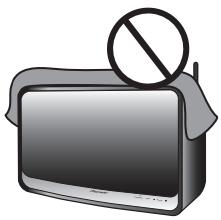
Slots and openings in the cabinet are provided for ventilation to ensure reliable operation of the product, and to protect it from overheating. To prevent fire hazard, the openings should never be blocked or covered with items (such as newspapers, table-cloths, curtains) or by operating the equipment on thick carpet or a bed.
D3-4-2-1-7b*A1En
If the AC plug of this unit does not match the AC outlet you want to use, the plug must be removed and appropriate one fitted. Replacement and mounting of an AC plug on the power supply cord of this unit should be performed only by qualified service personnel. If connected to an AC outlet, the cut-off plug can cause severe electrical shock. Make sure it is properly disposed of after removal.
The equipment should be disconnected by removing the mains plug from the wall socket when left unused for a long period of time (for example, when on vacation).
D3-4-2-2-1a_A1_En
WARNING
To prevent a fire hazard, do not place any naked flame sources (such as a lighted candle) on the equipment.
D3-4-2-1-7a_A1_En
WARNING
Before plugging in for the first time, read the following section carefully.
The voltage of the available power supply differs according to country or region. Be sure that the power supply voltage of the area where this unit will be used meets the required voltage (e.g., 230 V or 120 V) written on the AC adapter label.
D3-4-2-1-4*A1_EN
This product is for general household purposes. Any failure due to use for other than household purposes (such as long-term use for business purposes in a restaurant or use in a car or ship) and which requires repair will be charged for even during the warranty period.
K041_A1_En
When using this product, confirm the safety information shown on the bottom of the unit and the AC adapter label. D3-4-2-2-4_B1_En
WARNING
Do not use or store batteries in direct sunlight or other excessively hot place, such as inside a car or near a heater. This can cause batteries to leak, overheat, explode or catch fire. It can also reduce the life or performance of batteries.
D3-4-2-3-3_A1_En
When disposing of used batteries, please comply with governmental regulations or environmental public institution's rules that apply in your country/area.
D3-4-2-3-1_B1_En
CAUTION
Danger of explosion if battery is incorrectly replaced.
Replace only with the same or equivalent type recommended by the manufacturer.
D3-4-2-3-2_A1_En
CAUTION
RISK OF EXPLOSION IF BATTERY IS REPLACED BY AN INCORRECT TYPE.
DISPOSE OF USED BATTERIES ACCORDING TO THE INSTRUCTIONS.
"Perchlorate Material -special handling may apply.
See
www.dtsc.ca.gov/hazardouswaste/perchlorate.
(Applicable to California, U.S.A.)
WARNING
Store small parts out of the reach of children and infants. If accidentally swallowed, contact a doctor immediately.
Store the AC adapter out of the reach of children and infants.
The AC adapter cord may accidentally wind around the neck and it may cause suffocation.
AC adapter CAUTION
- Make sure to grasp the body of the AC adapter when removing it from the power outlet. If you pull the power cord, it may become damaged which could lead to fire and/or electrocution.
- Do not attempt to plug in or remove the AC adapter with wet hands. This may result in electrocution.
- Do not insert the power cord of AC adapter into a power outlet where the connection remains loose despite inserting the prongs all the way into the outlet. Heat may be generated which could lead to fire. Consult with the retailer or an electrician regarding replacement of the power outlet.
POWER-CORD CAUTION
Handle the power cord by the plug. Do not pull out the plug by tugging the cord and never touch the power cord when your hands are wet as this could cause a short circuit or electric shock. Do not place the unit, a piece of furniture, etc., on the power cord, or pinch the cord. Never make a knot in the cord or tie it with other cords. The power cords should be routed such that they are not likely to be stepped on. A damaged power cord can cause a fire or give you an electrical shock. Check the power cord once in a while. When you find it damaged, ask your nearest PIONEER authorized service center or your dealer for a replacement.
S002*A1_EN
Radio wave caution
This unit uses a 2.4 GHz radio wave frequency, which is a band used by other wireless systems (Microwave ovens and Cordless phones, etc.). In this event noise appears in your television image, there is the possibility this unit (including products supported by this unit) is causing signal interference with the antenna input connector of your television, video, satellite tuner, etc. In this event, increase the distance between the antenna input connector and this unit (including products supported by this unit).
- Pioneer is not responsible for any malfunction of the compatible Pioneer product due to communication error/malfunctions associated with your network connection and/or your connected equipment. Please contact your Internet service provider or network device manufacturer.
- A separate contract with payment to an Internet service provider is required to use the Internet.
This transmitter must not be co-located or operated in conjunction with any other antenna or transmitter.
This device complies with Industry Canada licence-exempt RSS standard(s). Operation is subject to the following two conditions: (1) this device may not cause interference, and (2) this device must accept any interference, including interference that may cause undesired operation of the device.
WARNING
This equipment is not waterproof. To prevent a fire or shock hazard, do not place any container filled with liquid near this equipment (such as a vase or flower pot) or expose it to dripping, splashing, rain or moisture.
D3-4-2-1-3_A1_En
[For American Users]
IMPORTANT NOTICE
THE MODEL NUMBER AND SERIAL NUMBER OF THIS EQUIPMENT ARE ON THE REAR OR BOTTOM. RECORD THESE NUMBERS ON YOUR ENCLOSED WARRANTY CARD AND KEEP IN A SAFE PLACE FOR FUTURE REFERENCE.
D36-AP9-1_A1_En
NOTE:
This equipment has been tested and found to comply with the limits for a Class B digital device, pursuant to Part 15 of the FCC Rules. These limits are designed to provide reasonable protection against harmful interference in a residential installation. This equipment generates, uses, and can radiate radio frequency energy and, if not installed and used in accordance with the instructions, may cause harmful interference to radio communications. However, there is no guarantee that interference will not occur in a particular installation. If this equipment does cause harmful interference to radio or television reception, which can be determined by turning the equipment off and on, the user is encouraged to try to correct the interference by one or more of the following measures:
— Reorient or relocate the receiving antenna.
— Increase the separation between the equipment and receiver.
Connect the equipment into an outlet on a circuit different from that to which the receiver is connected.
— Consult the dealer or an experienced radio/TV technician for help.
D8-10-1-2 A1 En
FEDERAL COMMUNICATIONS COMMISSION DECLARATION OF CONFORMITY
This device complies with part 15 of the FCC Rules. Operation is subject to the following two conditions: (1) This device may not cause harmful interference, and (2) this device must accept any interference received, including interference that may cause undesired operation.
Product Name: Wireless Sound System
Model Number: XW-SMA1-K, XW-SMA3-K, XW-SMA4-K
Responsible Party Name: PIONEER ELECTRONICS (USA) INC.
SERVICE SUPPORT DIVISION
Address: 1925 E. DOMINGUEZ ST. LONG BEACH, CA 90810-1003, U.S.A.
Phone: 1-800-421-1404
URL: http://www.pioneerelectronics.com
D8-10-4* C1_En
The Safety of Your Ears is in Your Hands
Get the most out of your equipment by playing it at a safe level - a level that lets the sound come through clearly without annoying blaring or distortion and, most importantly, without affecting your sensitive hearing. Sound can be deceiving. Over time, your hearing "comfort level" adapts to higher volumes of sound, so what sounds "normal" can actually be loud and harmful to your hearing. Guard against this by setting your equipment at a safe level BEFORE your hearing adapts.
ESTABLISH A SAFE LEVEL:
- Set your volume control at a low setting.
- Slowly increase the sound until you can hear it comfortably and clearly, without distortion.
- Once you have established a comfortable sound level, set the dial and leave it there.
BE SURE TO OBSERVE THE FOLLOWING GUIDELINES:
- Do not turn up the volume so high that you can't hear what's around you.
- Use caution or temporarily discontinue use in potentially hazardous situations.
- Do not use headphones while operating a motorized vehicle; the use of headphones may create a traffic hazard and is illegal in many areas.
S001a_A1_En
FCC Radiation Exposure Statement:
This equipment complies with FCC radiation exposure limits set forth for an uncontrolled environment. This equipment should be installed and operated with a minimum distance of 20~cm between the radiator and your body.
Information to User
Alterations or modifications carried out without appropriate authorization may invalidate the user's right to operate the equipment.
D8-10-2_A1_En
WARNING: Handling the cord on this product or cords associated with accessories sold with the product may expose you to chemicals listed on proposition 65 known to the State of California and other governmental entities to cause cancer and birth defect or other reproductive harm.
Wash hands after handling.
D36-P5_B1_En
[For European Users]
Information for users on collection and disposal of old equipment and used batteries
(Symbol for equipment)
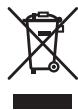
Symbol examples for batteries


These symbols on the products, packaging, and/or accompanying documents mean that used electrical and electronic products and batteries should not be mixed with general household waste.
For proper treatment, recovery and recycling of old products and used batteries, please take them to applicable collection points in accordance with your national legislation.
By disposing of these products and batteries correctly, you will help to save valuable resources and prevent any potential negative effects on human health and the environment which could otherwise arise from inappropriate waste handling.
For more information about collection and recycling of old products and batteries, please contact your local municipality, your waste disposal service or the point of sale where you purchased the items.
These symbols are only valid in the European Union.
For countries outside the European Union:
If you wish to discard these items, please contact your local authorities or dealer and ask for the correct method of disposal.
K058a_A1_En
[For Canadian Users]
This Class B digital apparatus complies with Canadian ICES-003.
D8-10-1-3_A1_En
IC Radiation Exposure Statement:
This equipment complies with IC RSS-102 radiation exposure limits set forth for an uncontrolled environment. This equipment should be installed and operated with a minimum distance of 20 cm between the radiator and your body.
[For American Users and Canadian Users]
Operating Environment
Operating environment temperature and humidity:
+5°C to +25°C (+41°F to +77°F); less than 85%RH (cooling vents not blocked)
Do not install this unit in a poorly ventilated area, or in locations exposed to high humidity or direct sunlight (or strong artificial light)
D3-4-2-1-7c*A1En
[Except American Users and Canadian Users]
Operating Environment
Operating environment temperature and humidity:
+5°C to +35°C (+41°F to +95°F); less than 85%RH (cooling vents not blocked)
Do not install this unit in a poorly ventilated area, or in locations exposed to high humidity or direct sunlight (or strong artificial light)
D3-4-2-1-7c*A1En
DANGER
About the Device
Please follow the instructions noted. Failure to do so may cause the built-in lithium-ion battery to leak, overheat, ignite, or rupture.
- Do not dispose of the device in fire or expose it to heat.
- Do not attempt to disassemble the battery or alter it in any way.
- Do not throw the device, strike it with a hammer or other object, or drive nails into it.
- Do not use or leave the device in places where it will be exposed to high temperatures, such as near a stove, inside a closed automobile or in direct sunlight.
- In the event that the built-in lithium-ion battery leaks fluid and the fluid contacts your eyes, do not rub them, but rinse with copious amounts of clean water and seek immediate medical treatment. Your eyes may be seriously harmed by exposure to such battery fluid.
- Do not allow the battery to be immersed in fresh or sea water, or become otherwise wet.
- Do not recharge the battery near a fire or in direct sunlight.
- Do not recharge the battery using any method other than as instructed.
The battery used in this device may present a risk of fire, explosion or chemical burn if mistreated.
- Never disassemble the unit or attempt to remove battery as that could cause leakage of alkaline solution or other electrolytic substance.
- Always keep the battery out of the reach of infants and small children.
WARNING
About the Device
- Do not use the device if it emits an unusual odor, heats up, changes color or shape, or if any other abnormalities occur during use, while recharging or while placed in storage.
- If the battery does not recharge completely, even after exceeding the specified time, stop recharging. Failure to do so could cause the device to heat up, rupture, or ignite.
- Recharge the battery in an environment with a temperature between 5^ ( 41^ ) and 35^ ( 95^ ). Recharging the battery under different temperatures could cause the device to heat up, rupture, or ignite, and may also deteriorate the performance and the life of the built-in lithium-ion battery.
- Do not place the device in a microwave oven or expose it to high pressure, since the device may overheat, rupture, or ignite.
- Do not place a leaking rechargeable lithium-ion battery near a source of heat or fire, since the battery could overheat, rupture, or ignite.
CAUTION
About the Device
- Do not dispose of the device in fire or water, since the rechargeable lithium-ion battery could rupture or leak battery fluid, resulting in fire or personal injury.
- If fluid leaking from a rechargeable lithium-ion battery contacts your skin or clothes, wash immediately with copious amounts of clean water. If left unattended, a skin rash could result.
CAUTION
Observe the following precautions in regard to the device's water-resistant.
- Do not place the unit in water.
- Do not expose the unit to a large amount of water.
- Do not splash the unit with water.
- Do not expose to rain.
- Do not pour or place in warm water or water containing soap or detergent.
- Do not use in a humid environment such as a bathroom.
- Do not use near or on the beach.
This could cause rust. If exposed to seawater, thoroughly wipe off the moisture immediately with a dry cloth.
- Ensure that the terminal cover is closed during use.
The rubber packing on the cover make the device water-resistant. Make sure this packing does not get soiled or damaged.
If the rubber packing does become soiled, wipe it clean with a dry, clean cloth.
- Do not open the terminal cover in humid environments in which the device could get exposed to water.
- If the device is exposed to a large amount of water or moisture, immediately wipe it down with a dry cloth.
Only open or close the terminal cover after having completely wiped off any moisture around them, with dry hands and in an environment where the unit would not get exposed to water again.
- Make sure to install the unit on a flat and stable surface. Do not use the unit upside down or in a tilted position.
Since water may reach the interior of the unit, install the unit in a proper position.
- Do not turn the unit upside down or hold it tilted when it has been exposed to water or water droplets.
Since the water might run into the interior parts of the unit, do not tilt the unit if it is wet. - If the device does get exposed to water, thoroughly dry all of the crevices on the unit's body into which water might have reached.
The water might have reached the interior of the device. Do not carry the unit if it is still wet. - Do not use the remote control, AC adapter when in proximity to water.
Only the device itself is water-resistant.
This unit has been designed with water-resistance equivalent to standards IPX2(*) as defined by the International Electrotechnical Commission (IEC).
Malfunctions due to water damage caused by improper use are not covered by product warranty, even if they occur within the warranty period.
- Depending on conditions of use, the water-resistant features are not necessarily guaranteed even during the warranty period.
*IPX2: The unit must be protected from water drops that fall vertically onto it when the unit is at an angle of 15 degrees or less.
Use in a wet environment (XW-SMA1 and XW-SMA4 only)
CAUTION
- XW-SMA1 and XW-SMA4 are not drip-proof. When using, prevent exposure to water. Do not use in the following environments.
- Humid places
- Places where the product is easily exposed to water
Near the beach or on the beach
This could cause rust.
This device uses an internal rechargeable lithium-ion battery that should last the lifetime of the device. If you suspect your battery may be dead, try charging it several times. If the battery does not recharge, please contact us for repair information.
WARNING/DISPOSAL OF UNIT [For American Users, Canadian Users]
Please do NOT attempt to change the battery yourself. If the battery has died and you do not want us to replace your battery, you should follow the disposal instructions below:
- Never dispose of used batteries/electronics with ordinary solid wastes, since they contain toxic substances.
- Always dispose of used batteries/electronics in accordance with the prevailing community regulations that apply to the disposal of batteries/electronics. If there are no local regulations concerning battery/electronics disposal, please dispose of the device in a waste bin for electronic devices.
- Many electronics retailers now recycle batteries and other electronic devices at no charge. Check to see which ones in your area do so.
Installing the unit
- When installing this unit, make sure to put it on a level and stable surface.
Don't install it on the following places:
- on a color TV (the screen may distort)
- near a cassette deck (or close to a device that gives off a magnetic field). This may interfere with the sound.
- in direct sunlight
- in extremely hot or cold areas
- in places where there is vibration or other movement
- in places that are very dusty
- in places that have hot fumes or oils (such as near a kitchen stove)
CAUTION
- When in use, do not stand the device up, prop it up against anything or hang it from anything.
- Do not sit or stand on top of the device.
- When carrying the device, hold the entire device firmly. Do not swing the device around by the frame.
- Do not attach this unit to the wall or ceiling. It may fall off and cause injury.
Thank you for buying this Pioneer product.
Please read through these operating instructions so that you will know how to operate your model properly. After you have finished reading the instructions, put them in a safe place for future reference.
Contents
01 Before you start
What's in the box. 10
Before using the remote control 10
Replace the battery 10
Using the remote control. 11
02 Connections
Connecting iPod/iPhone/iPad 12
Connecting to the network through the wired
or wireless LAN 12
Connecting using LAN cable. 12
Connecting using wireless LAN. 12
Plugging in 13
When turning on this unit for the first time 13
03 Part names and functions
Remote Control 14
Front panel 15
Rear panel. 16
04 Connect to network
Network setting 18
After completing the network settings. 25
Web Control 26
Initial menu (System Information) 27
Network Configuration 27
Friendly Name 28
05 iPod/iPhone/iPad playback
Confirming what iPod/iPhone/iPad models are supported 29
How to confirm the version of the iPod/iPhone/iPad software. 29
Connecting your iPod/iPhone/iPad 30
Playing your iPod/iPhone/iPad 30
06 Music server
Introduction. 31
About playable DLNA network devices 31
Using AirPlay on iPod touch, iPhone, iPad and iTunes. 31
About the DHCP server function 31
Playing audio files stored on PCs or other devices. 32
Connecting to the LAN network. 32
Playback with DLNA 32
Using AirPlay to enjoy music 32
07 Other connections
Connecting auxiliary devices 34
Listening to auxiliary devices 34
08 Changing the settings
Setting Quick Start Mode 35
Setting Quick Start Mode. 35
Canceling Quick Start Mode 35
Resetting the system 35
Firmware Update. 36
09 Additional information
Troubleshooting 37
Playable file formats. 41
Cautions on use. 42
When moving this unit 42
Place of installation 42
Cleaning the product 42
About network playback 42
Windows Media Player 42
Playing Windows Media Audio (WMA) files 42
Windows Media DRM. 42
DLNA 43
Content playable over a network. 43
Disclaimer for Third Party Content 43
About playback behavior over a network. 43
aacPlus 44
FLAC. 44
About iPod/Phone/iPad. 44
About Wi-Fi® 44
Audio Artistry 44
Specifications 45
- Illustrations featured in the Operating Instructions may have been modified or simplified for ease of explanation, and may therefore differ from the actual product appearance.
Chapter 1:
Before you start
What's in the box
Please confirm that the following accessories are in the box when you open it.
Remote Control
Lithium Battery (CR2025)*
Power Cord
- AC Adapter
Quick Start Guide
Warranty Card
*The lithium battery has been factory installed in the remote control unit.
Before using the remote control
The battery supplied with this unit is stored in the battery casing. Remove the protective seal from the battery casing.
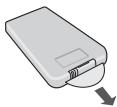

Note
- When you notice a decrease in the operating range, replace the battery.
Replace the battery
When replacing the battery, use a commercially available Lithium CR2025 battery.
1 Flip the remote control and pull out the battery holder by pushing the tab to the right.
2 Place a new battery in the casing.
Make sure the ^+ side of the battery is facing up when you place it in the space provided.
3 Push back the battery holder.
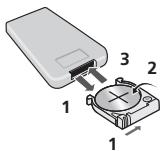
The battery included with the unit is to check initial operations; it may not last over a long period.

WARNING
About lithium battery
- Danger of explosion if battery is incorrectly replaced. Replace only with the same or equivalent type recommended by the manufacturer.
- Dispose of used battery cells immediately after replacement. Keep away from children. If swallowed, please contact a doctor immediately.
- Lithium batteries may present a fire or chemical burn hazard if misused. Do not disassemble, heat above 100^ , or incinerate.
- Do not use or store batteries in direct sunlight or other excessively hot place, such as inside a car or near a heater. This can cause batteries to leak, overheat, explode or catch fire. It can also reduce the life or performance of batteries.

Caution
Incorrect use of batteries may result in such hazards as leakage and bursting. Observe the following precautions:
- Remove the battery if the unit isn't going to be used for a month or more. In the event of battery fluid leakage, wipe up any fluid inside the case and install a new battery.
- When disposing of used batteries, please comply with governmental regulations or environmental public institution's rules that apply in your country or area.
"Perchlorate Material - special handling may apply. See www.dtsc.ca.gov/hazardouswaste/perchlorate. (Applicable to California, U.S.A.) "
Using the remote control
The remote has a range of about 7m (23 ft.) at an angle of about 30^ from the remote sensor.
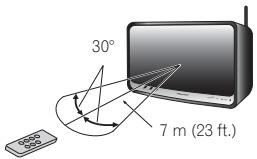
Keep in mind the following when using the remote control:
- Make sure that there are no obstacles between the remote and the remote sensor on the unit.
- Remote operation may become unreliable if strong sunlight or fluorescent light is shining on the unit's remote sensor.
- Remote controllers for different devices can interfere with each other. Avoid using remotes for other equipment located close to this unit.
- Replace the batteries when you notice a fall off in the operating range of the remote.
Chapter 2:
Connections

Caution
- Be sure to turn off the power and unplug the power cord from the power outlet whenever making or changing connections.
- Connect the power cord after all the connections between devices have been completed.
Connecting iPod/iPhone/iPad
It is possible to listen to audio when iPod/iPhone/iPad is connected to this unit. Open the terminal cover (XW-SMA3 only) (page 16).
Switch the unit into standby then connect your iPod/iPhone/ iPad to the USB terminal on the rear panel of this unit.
When the unit's power is turned ON, the iPod/iPhone/iPad connected to the unit will be charged.
When this unit is running by the built-in battery, iPod/iPhone/ iPad is not charged (XW-SMA3 only).
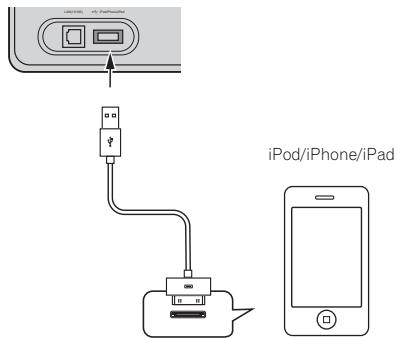
Connecting to the network through the wired or wireless LAN
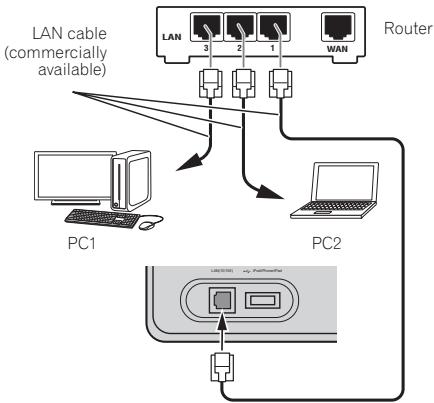
By connecting this unit to the network via the wired or wireless LAN, you can play back audio files stored on devices on the network.
Open the terminal cover (XW-SMA3 only).
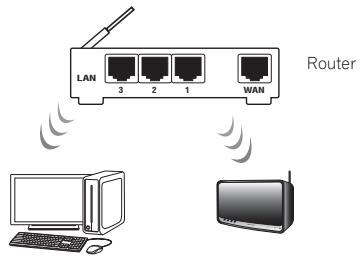
Connect the LAN connector on this unit to the LAN connector on your router (with or without the built-in DHCP server function) with a straight LAN cable (CAT 5 or higher). Also wireless connection to the network is possible.
Turn on the DHCP server function of your router.
If your router does not have a built-in DHCP server function, you have to set up the network manually.
See Connect to network on page 18.
Connecting using LAN cable
Connecting using wireless LAN

Note
1 Photo or video files cannot be played back.
- With Windows Media Player 11 or 12, you can even play back copyrighted audio files on this unit.
Plugging in
After you've finished making all connections, plug the unit into an AC outlet.

Important
- Before making or changing the connections, switch off the power and disconnect the power cord from the AC outlet.
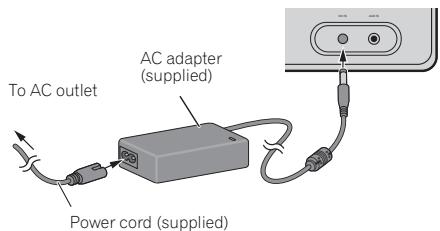
When turning on this unit for the first time
1 Open the terminal cover (XW-SMA3 only).
2 Plug the supplied AC adapter into the DC IN socket on the rear of the unit.
3 Plug the supplied power cord into the AC adapter then plug the other end into an AC outlet.
4 Press standby/on button.
5 The on indicator will flash for about 30 to 40 seconds. After about 30 to 40 seconds, the on indicator will light blue.
About startup time
About 30 seconds are required between after the power turns On until the unit is actually ready to use. The time required for startup can be reduced by setting the Quick Start Mode to On (page 35).

Important
When using the built-in battery (XW-SMA3 only)
- Be sure to charge XW-SMA3 before using for the first time.
- Approximately 3 hours are required to fully recharge the battery.
- A fully charged battery provides approximately 4 hours of use at maximum volume and approximately 6 hours at 50% volume.
- Playing time with a fully charged battery changes depending on functions used, frequency of use, ambient temperature, speaker volume and other factors.
- The furnished battery can be recharged about 300 times, although it may be less depending on conditions of use and storage.
- When the AC adapter is not connected, the battery will slowly drain even when the unit is in the standby mode. As a result, if the unit is not used for an extended period of time, recharging may be necessary before the unit can be used again.

Warning
- Do not use any AC adapter other than the supplied unit, since fire or shock may occur.
- The supplied AC adapter is designed exclusively for use with this unit. Never attempt to use it with any device for which it was not expressly designed, since fires or shocks may occur.
- Do not use any power cord other than the one supplied with this unit.
- Do not use the supplied power cord for any purpose other than this unit.
- Ambient temperature when recharging the battery should be between 5^ and 35^ . Outside this range of temperatures, the battery protection circuit may operate, preventing recharging.
Chapter 3:
Part names and functions
Remote Control
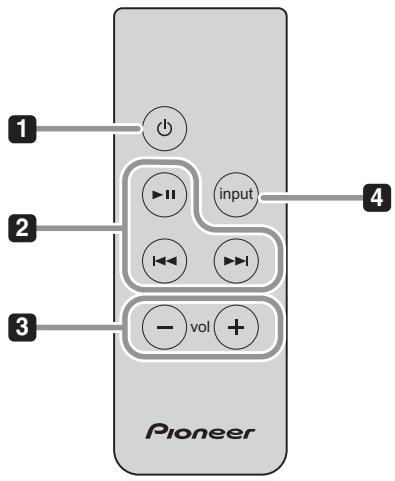
1 (standby/on) button
Switches the unit between Standby and On.
2Playback control buttons
Use when operating an iPod or AirPlay with this remote control.
3 vol - / + (volume - / + ) button
Use to adjust the listening volume.
4 input button
Press to select the input source.
Front panel
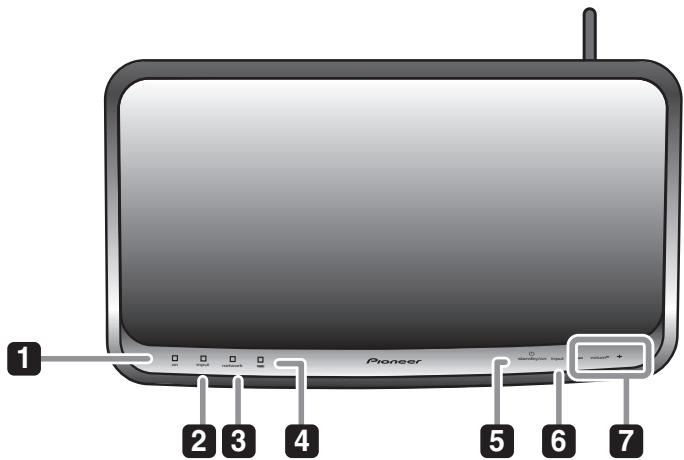
1 on (power on) indicator
When the power is on, this indicator lights.
2 input indicator
When the input source changes, this indicator lights. The indicator's color changes as noted below.
Light OFF - AUX IN
Lights blue - AirPlay
Lights red - iPod
Lights green - DLNA (DMR) Digital Media Renderer
3 network indicator
When the network status changes, this indicator lights. The indicator's color changes as noted below.
Lights blue - good connection
Flashes blue - weak signal
Flashes red - connection failure
*In the event that other colors appear, see Network setting on page 18.
4 Battery indicator (XW-SMA3 only)
Displays the built-in battery charge status, or lights when the built-in battery is being charged. The indicator changes as noted below.
- When the unit is connected to AC adapter Lights blue - Battery charging is completed.
*When battery charging is completed on the standby mode, the indicator lights off.
Lights purple - Battery is being charged.
*If the battery indicator intermittently lights purple, see Additional information on page 37.
- When this unit is not connected to AC adapter Lights blue - Battery charge is usable.
Lights red - Battery has less than one-half charge.
Flashes red - Battery charge is low.
A fully charged battery provides approximately 4 hours of use at maximum volume and approximately 6 hours at 50% volume.
The battery indicator is not designed to function as an accurate measure of remaining battery charging.
*If the battery indicator intermittently lights purple, see Additional information on page 37.
5 品 standby/on button
Switches the unit between Standby and On.
6 input button
Select the input source.
iPod AUX IN iPod (return to the beginning)
*When AirPlay or DMR play begins, the unit's input function automatically switches respectively to AirPlay or DMR. If the power is then turned OFF and later turned ON again, the unit will return to the input function last selected before AirPlay or DMR began.
7 volume - / + button
Use to adjust the listening volume.
The listening volume has a range from 0 to 50 (however, the unit is not equipped with a display to visually indicate the volume level).

Note
- When pressing the input button for 3 seconds while this unit is power on, this unit switches to the Quick Start Mode. In the Quick Start Mode, when AirPlay or DMR is played, this unit automatically turns on (page 35).
- When using the XW-SMA3, the Quick Start Mode can be set only when the AC adapter is connected.
Rear panel
Open the terminal cover before connecting other various devices to the unit (XW-SMA3 only). Before making or changing the connections, switch off the power and disconnect the power cord from the AC outlet.
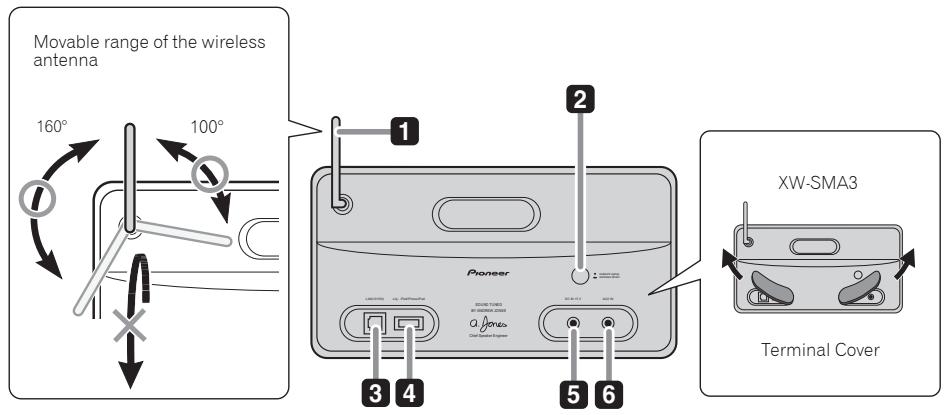
1 Wireless antenna
Receives signals from wireless devices.
2 network setup/wireless direct button
Use to set the wireless network (page 18).
3 LAN (10/100) connector
Connect this unit to other network devices using a LAN cable.
4 iPod/iPhone/iPad connector
Use to connect iPod/iPhone/iPad as an audio source. This unit does not support any USB device other than iPod/ iPhone/iPad.
5 DC IN terminal
Connect to AC adapter.
6 AUX IN jack
Use to connect an auxiliary playback device (page 34).

Caution
-
The terminal cover may be detached if pulled strongly away from the unit (XW-SMA3 only). If the terminal cover becomes detached, press the cover's protruding pins into the connector openings on the unit, then use a narrow non-pointed stick or other implement to push through from above. Take care not to injure your eyes or fingers when doing this.
-
Do not lift this device by holding the wireless antenna, since damage or personal injury may result.
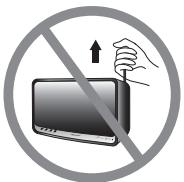
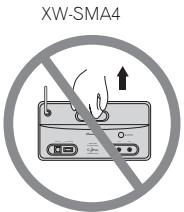
- When using XW-SMA4, do not lift this device by holding the recessed portion of the rear panel, since damage or personal injury may result.
Chapter 4:
Connect to network
Network setting
By connecting the unit to your home LAN, you can enjoy AirPlay and playback of music stored on your computer or other device.
For information regarding the format of files supported by this unit, see Playable file formats on page 41.
Methods of connection may vary depending on the device used. Confirm the type of unit, and follow the appropriate instructions.
If you select method A, C or E, confirm the LAN cable is not connected to this unit.
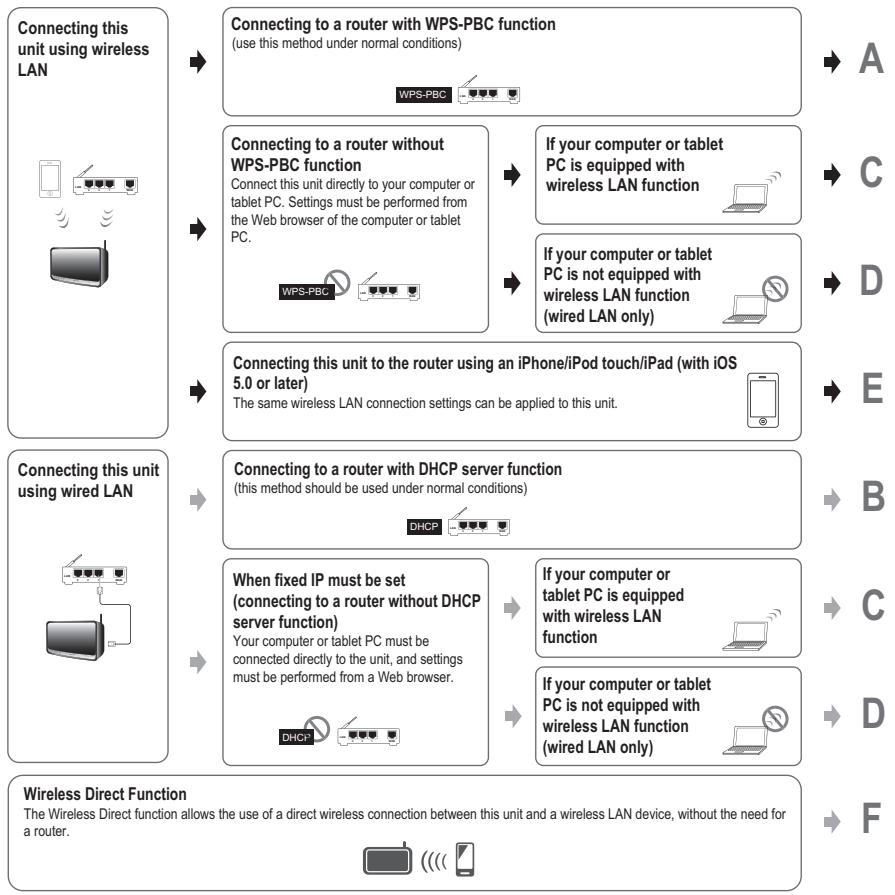
A: Connections for wireless LAN using WPS-PBC function
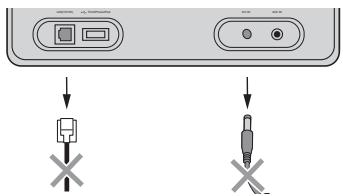
1 Confirm that the AC adapter and LAN cable are not connected to the unit.
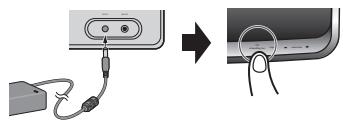
2 Connect the AC adapter, and press 念 standby/on button.
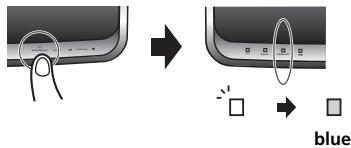
The on indicator will flash blue. Wait for about 30 to 40 seconds.
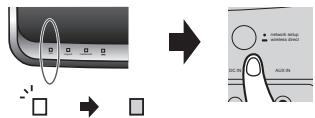
3 When the on indicator stops flashing, press the rear-panel network setup/wireless direct button.
The network indicator will change from flashing red to flashing purple.
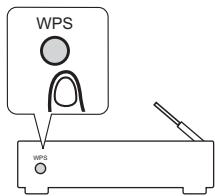
4 Within 2 minutes, press the router's WPS button.
For information regarding router operation, consult the router's Operating Instructions.
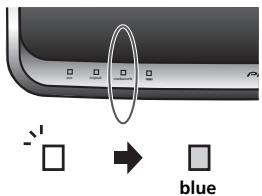
5 The network connection settings will be performed automatically, and when the connection is complete, the unit's indicator will briefly change to flashing red, then light steadily blue.
The indicator will flash blue when the signal is weak.
B: Wired connection to a router with DHCP server
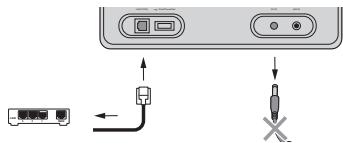
1 Disconnect the power cord from AC power before performing the connection between router and this unit.
Use a LAN cable to connect this unit and your router.
2 Connect the AC adapter, and press standby/on button.
The on indicator will flash blue. Wait for about 30 to 40 seconds.
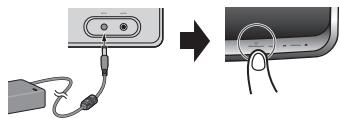
3 The on indicator's flashing will stop, and when the power is fully turned on, the network indicator will light blue.
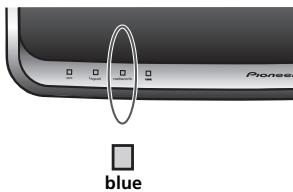
C: Connection settings from a Web browser using a computer, iPhone, tablet PC or other device supporting wireless LAN
1 Confirm that the AC adapter and LAN cable are not connected to the unit.
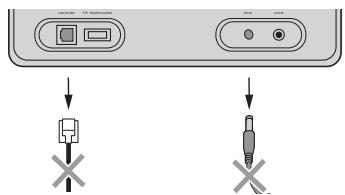
2 Connect the AC adapter, and press standby/on button.
The on indicator will flash blue. Wait for about 30 to 40 seconds.
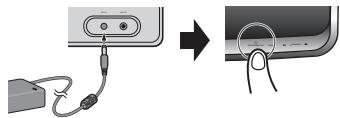
3 When the on indicator stops flashing, press and hold volume "-" button on the front panel, and then press and hold network setup/wireless direct button on the rear panel for 3 seconds.
The unit will begin rebooting (the on indicator will flash blue); wait for about 30 to 40 seconds.
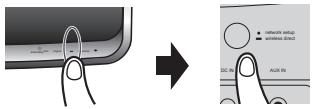
4 When the network indicator lights red, connect to the network called "Pioneer Setup:xxxxxx" from Wi-Fi network setting on the computer, iPhone, tablet PC or other device.
The "xxxxxxxx" is the device's unique identifier number.
Not all characters may be displayed, depending on the device used.
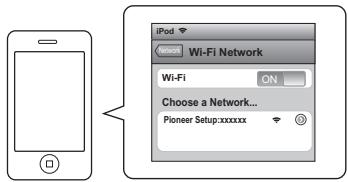
- Consult the appropriate Operating Instructions for information regarding operation of the computer, iPhone, tablet PC or other device used.
- Since this kind of connection is not encoded, a minor security risk may be involved.
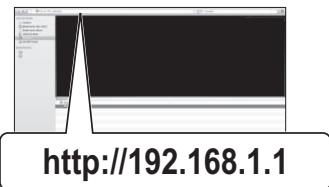
5 When the connection is established, boot your Web browser and access the URL noted below to make settings for this unit.
The Web Control menu will appear.
For Safari
Press Bookmark icon (□) at the upper left of the screen. Click ** Bonjour list (a), and then select this unit's name ("Friendly Name") (b) in Bookmark.
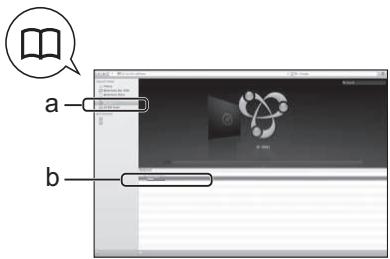
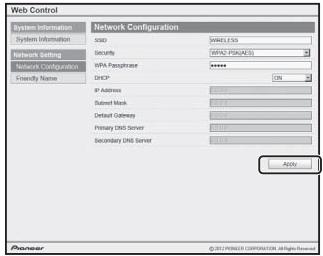
6 From the menu on the left, select "Network Configuration".
If you wish to change the Friendly Name, select "Friendly Name" from the menu and change the name before selecting "Network Configuration."
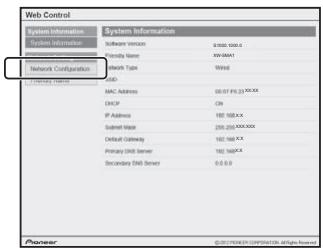
7 When the Auto/Manual selection screen appears, select "Auto."
If you are manually inputting the SSID or setting a fixed IP with a wired connection, select "Manual." For details, see Network Configuration on page 27.
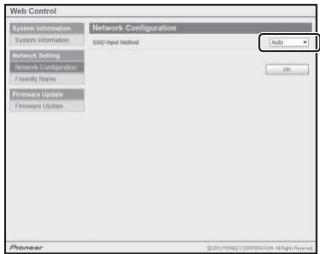
8 Select your router's SSID.
If the SSID does not appear, either repeat step (6), or use step (7) to select Manual and input the SSID manually.
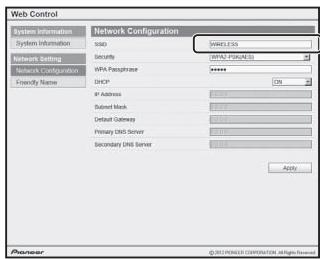
9 If you are asked to input a password, input it here.
Also, if input of a fixed IP is required, set DHCP to OFF here and make the setting.
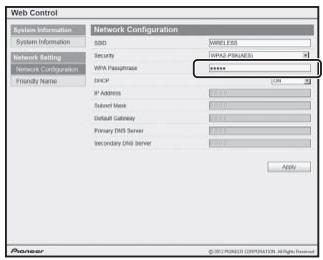
10 When settings are completed, click on Apply.
The unit will automatically power down. Confirm that the router's power is ON.
If you intend to use the unit in a wired configuration, use a LAN cable to connect the unit to the router.
11 Press standby/on button.
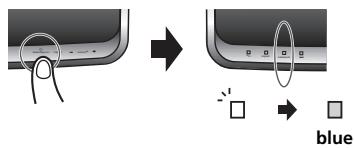
The on indicator will flash blue. When the connection is completed, the network indicator will change from flashing red to steadily lighted blue.
The indicator will flash blue when the signal is weak.
The settings are completed.
D: Using a Web browser on a computer supporting wired LAN to make connecting settings for the unit
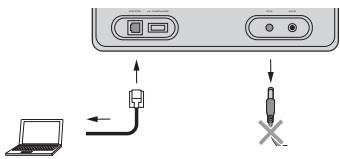
1 Use a LAN cable to connect the unit to the computer.
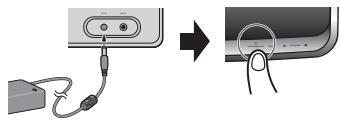
2 Connect the AC adapter, and press standby/on button.
The on indicator will flash blue. Wait for about 30 to 40 seconds.
3 Wait for the network indicator to change from flashing to steadily lighted red.
This may require up to 90 seconds or so.
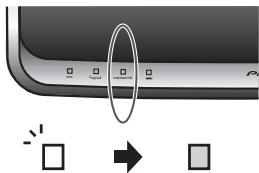
4 When the network indicator lights red, start your computer's Web browser, and access the URL noted below to make settings for this unit.
The Web Control menu will appear.
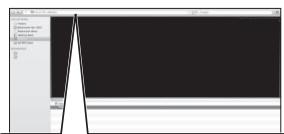
http://169.254.1.1
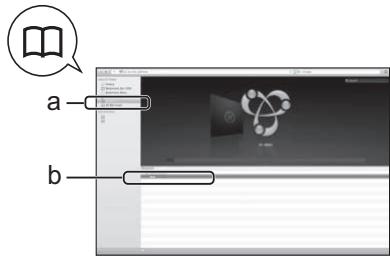
For Safari
Press Bookmark icon (□) at the upper left of the screen. Click ** Bonjour list (a), and then select this unit's name ("Friendly Name") (b) in Bookmark.
5 From the menu on the left, select "Network Configuration."
If you wish to change the Friendly Name, select "Friendly Name" from the menu and change the name before selecting "Network Configuration."
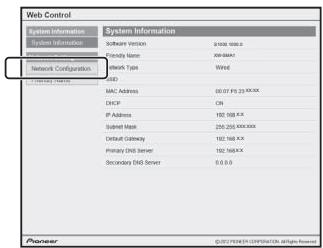
6 If using a wireless LAN connection, input the router's SSID, then select the "Security" item set on the router.
Also, if input of a fixed IP is required, set DHCP to OFF here and make the setting. For details, see Network Configuration on page 27.
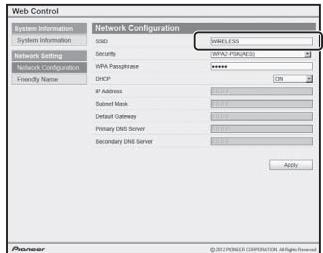
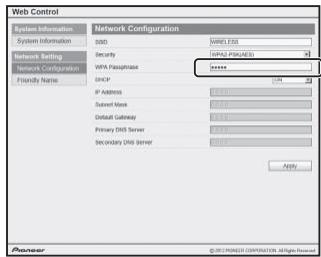
7 If a password is requested, input it here.
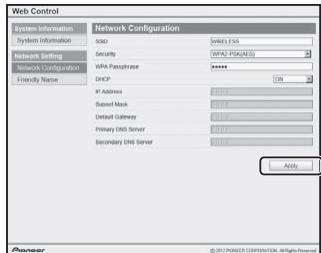
8 When settings are completed, click on Apply.
The unit will automatically power down.
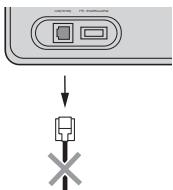
9 Disconnect the LAN cable from the unit and confirm that the router's power is ON.
If you intend to use the unit in a wired configuration, use a LAN cable to connect the unit to the router.
10 Press 口 standby/on button.
The on indicator will flash blue. When the power is completely on (on indicator lights steadily blue), the network indicator will light blue, indicating that settings are completed.
E: Connection settings using an iOS device
If you use an iPhone/iPad touch/iPad (iOS device with iOS 5.0 or later) with wireless LAN connection, apply the iOS device's connecting settings to this unit.
1 Confirm that the AC adapter and LAN cable are not connected to the unit.
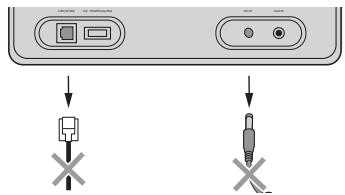
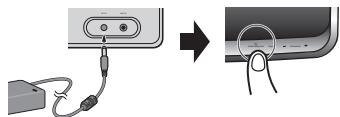
2 Connect the AC adapter, and press standby/on button.
The on indicator will flash blue. Wait for about 30 to 40 seconds.
3 When the on indicator stops flashing, use the Dock Connector to USB Cable to connect this unit to the iPod touch/iPhone/iPad (iOS device with iOS 5.0 or later).
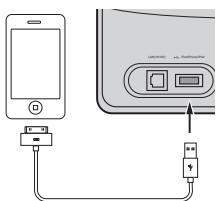
- Confirm that the iOS device has a wireless connection to your router.
- Confirm that the iOS device's screen lock is disabled.
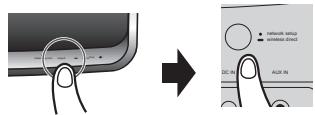
4 Press and hold input button on the front panel, and then press and hold network setup/ wireless direct button on the rear panel for 3 seconds.
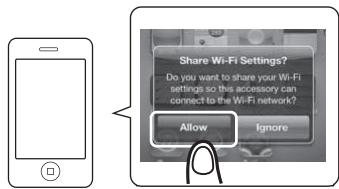
A screen like the following should appear on the iOS device.
5 Tap the "Allow" button.
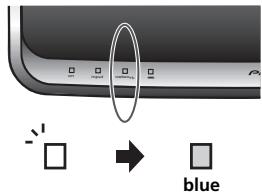
6 When the network indicator changes from flashing red to steadily lighted blue, the connection is completed.
F: Wireless Direct Function

Important
- Wireless Direct should be used only as a temporary connection under conditions where a normal router cannot be used. This connection is not encoded, so the music stream and music metadata will not be encrypted.
- Wireless Direct is intended for use with smartphones in their originally manufactured condition that receive regular updates. If a smartphone has been modified (such as "jailbreaking" or "unlocking" a phone), its security is compromised, and the wireless connection could result in unauthorized access or other intrusion. Do not use a modified phone with Wireless Direct.

Note
- Only one wireless device can be connected at the same time.
- Wireless Direct doesn't have internet connection. When you are using Wireless Direct, you will not be able to use any kind of internet service.
- When power to this unit is turned OFF, the Wireless Direct function is canceled, and the unit returns to the network setting in effect prior to using the Wireless Direct function.
1 Confirm that the AC adapter and LAN cable are not connected to the unit.
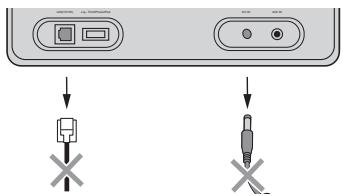
2 Connect the AC adapter, and press standby/on button.
The on indicator will flash blue. Wait for about 30 to 40 seconds.
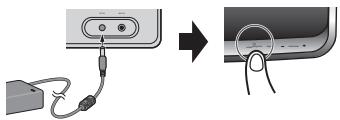
3 Confirm that the unit's on indicator stops flashing. Hold the unit's rear-panel network setup/wireless direct button depressed for 3 seconds.
The unit will begin rebooting (the on indicator will flash blue); wait for about 30 to 40 seconds.
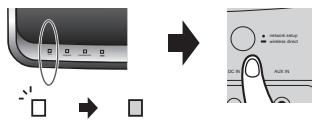
4 When the network indicator lights purple, connect to the network called "Wireless Direct:xxxxxx" from Wi-Fi network setting on the computer, iPhone, tablet PC or other device.
The "xxxxxxxx" is the device's unique identifier number. Not all characters may be displayed, depending on the device used.
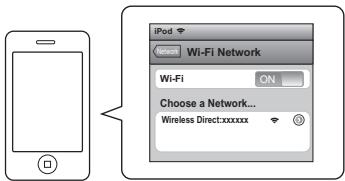
Consult the appropriate Operating Instructions for information regarding operation of the computer, iPhone, tablet PC or other device used.
This completes the connection.
The network indicator remains lighted purple.
You may now operate your iPod/iPhone/iPad to perform AirPlay, etc.
After completing the network settings
When you have completed the network settings, see Music server on page 31 and enjoy playing music.
Web Control
For method C or D in Network setting on page 18, use the Web Control menu to make the setting.
Also, you can access the Web Control menu after making the network connection.
Access Web Control using a Safari Browser
1 Be sure this unit and your computer are connected to the same wired or wireless network.
2 Launch Safari on your computer.
3 PressBookmark icon (□) at the upper left of the screen.
4 Click Bonjour list (a), and then select this unit's name (Friendly Name) (b) in Bookmark.
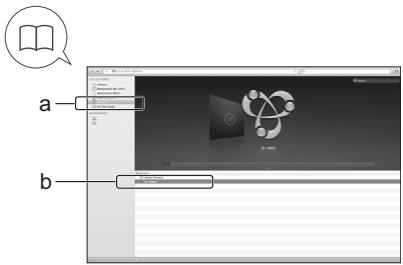
Using UPnP function to obtain access:
This unit supports UPnP, so you can access the Web Control menu from a UPnP-supported device connected to the same network. For details, consult the Operating Instructions for the respective system.
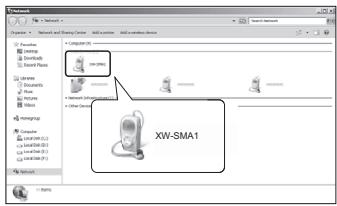
When using Windows 7/Windows Vista
1 Click on Start Documents.
2 From the Explorer menu on the left side of the screen, select Network.
This unit will appear as an icon connected to the same network.
3 Right-click on the icon and select "View device webpage".
The Web Control menu can be accessed.
When using Windows XP
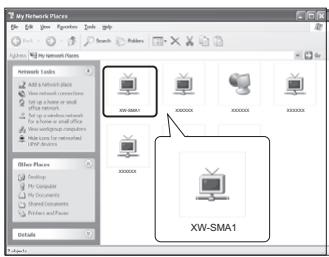
1 Click on Start My Network.
2 Click on "Display icons for UPnP devices connected to the network".
The icon for this unit will appear as connected to the same network.
3 When the icon is double-clicked.
The Web Control menu can be accessed.
Initial menu (System Information)
When Web Control is accessed, the following menu will appear. This menu can be used to confirm detailed information about the unit.
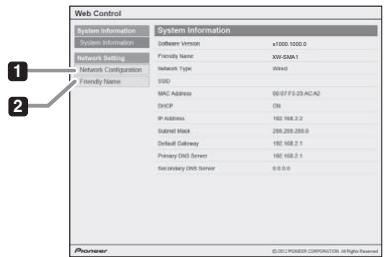
1 Network Configuration
Select this when using methods C or D in Network setting on page 18 to make initial connection settings.
2 Friendly Name
Select this to change the "Friendly Name."
Network Configuration
When using procedure C in Network setting on page 18, select AUTO or MANUAL before using this menu.
AUTO
SSID will be searched automatically, and can be selected from the next pull-down menu. This is the normal method to be used.
MANUAL
SSID and Security items must be input manually. Use this method if the SSID is not displayed when using AUTO.
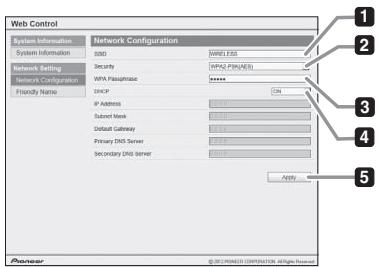
1 SSID
Using AUTO
Displays the recognized wireless access point. Select the access point you wish to connect to.
Using MANUAL
The input must be no longer than 32 characters.
2 Security
When using AUTO, this will be set automatically when selecting SSID.
Select the encryption method depending on SSID.
3 WEP Key/WPA Passphrase
If WEP is selected in step 2 Security, the WEP Key will be displayed.
Alternately, if WPA-PSK(TKIP), WPA-PSK(AES), WPA2-PSK(TKIP), or WPA2-PSK(AES) is selected in Security, "WPA Passphrase" will be displayed.
If you select None in the Security menu, no character string will be displayed.
WEP Key
Displays the WEP key in the blank type.
WPA Passphrase
Displays the WPA Passphrase in the blank type. The WPA Passphrase can be changed between 6 and 63 characters.
4 DHCP
Switches the DHCP setting between ON and OFF.
Under normal conditions, leave ON. If you wish to input a fixed IP, set this to OFF and the following input item will be requested.
| Item | Operation |
| IP address | Set the IP address. |
| Subnet Mask | Set the Subnet Mask. |
| Default Gateway | Set the Default Gateway. |
| Primary DNS Server | Set the Primary DNS Server. |
| Secondary DNS Server | Set the Secondary DNS Server. |
5 Apply
Press once settings have been completed. The unit will automatically power down.
To use a wired connection thereafter, connect a LAN cable to the router.
When using wireless connections, confirm that the LAN cable is disconnected.
Friendly Name
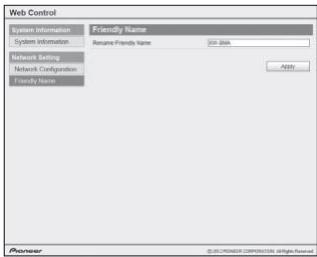
This menu can be used to change the name of this unit as seen on the network.
Chapter 5:
iPod/iPhone/iPad playback
Merely by connecting your iPod/iPhone/iPad to this unit, you can enjoy high-quality sound from your iPod/iPhone/iPad. Playback setting for iPod/iPhone/iPad music can be performed from this unit or the iPod/iPhone/iPad itself.
Confirming what iPod/iPhone/iPad models are supported
The iPod/iPhone/iPad playable on this unit are shown below.
| iPod/iPhone | Audio | Control |
| iPod nano 3/4/5/6G | ✓ | ✓ |
| iPod touch 1/2/3/4G | ✓ | ✓ |
| iPhone | ✓ | ✓ |
| iPhone 3G/3GS | ✓ | ✓ |
| iPhone 4/4S | ✓ | ✓ |
| iPad/iPad 2 | ✓ | ✓ |
- This system has been developed and tested for the software version of iPod/iPhone/iPad indicated on the website of Pioneer:
North America
http://pioneer.jp/homeav/support/ios/na/
Europe
http://pioneer.jp/homeav/support/ios/eu/
Asia and Oceania
http://pioneer.jp/homeav/support/ios/ao/
- Installing software versions other than those indicated on the website of Pioneer to your iPod/iPhone/iPad may result in incompatibility with this system.
- When using an iPod/iPhone/iPad not supported by this unit, connect a commercially available cable with stereo mini-plug to the unit's AUX IN jack (page 34).
How to confirm the version of the iPod/ iPhone/iPad software
1 From the top menu, select Settings.
From an iPod/iPhone/iPad, select Settings General.
2 Select About.
The software version will be displayed.
Note
1 - Pioneer does not guarantee that this unit plays iPod/iPhone/iPad models other than the ones specified.
- Some functions may be restricted depending on the model or software version.
iPd/1n iPad is licensed for reproduction of non-copyrighted materials or materials the user is legally permitted to reproduce.
- Features such as the equalizer cannot be controlled using this system, and we recommend switching the equalizer off before connecting.
- Pioneer cannot under any circumstances accept responsibility for any direct or indirect loss arising from any inconvenience or loss of recorded material resulting from iPod/Phone/iPad failure.
- For detailed instructions on using the iPod/iPhone/iPad, please refer to the manual supplied with the iPod/iPhone/iPad.
Connecting your iPod/iPhone/iPad

Caution
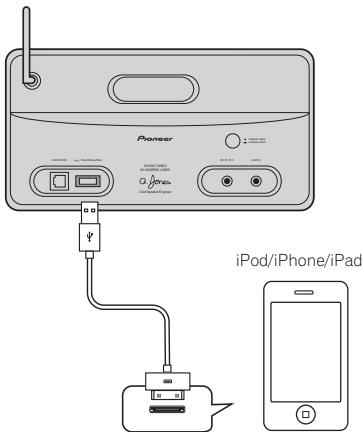
- When connecting iPod/iPhone/iPad units, always use the Dock Connector to USB Cable provided with iPod/iPhone/iPad units, or a commercially available Dock Connector to USB cable designed to support iPod/iPhone/iPad.
- This unit does not provide the Dock Connector to USB cable.
1 Open the terminal cover (XW-SMA3 only).
2 Connect your iPod/iPhone/iPad.
Playing your iPod/iPhone/iPad

Caution
- When your iPod/iPhone/iPad is connected to this unit and you wish to operate the iPod/iPhone/iPad directly, be sure to hold the iPod/iPhone/iPad steady with the other hand to prevent malfunctions due to faulty contacts.
1 Connect your iPod/iPhone/iPad.
2 Press input to select iPod as the input source.
The input indicator of the unit lights red.
The following operations are possible for iPod/iPhone/iPad.
| Button | What it does |
| ▶II (play/pause) | Press to start playback. During playback, pause/unpause playback. |
| I←(prev) | Press to return to the beginning of the currently playing track or file. Press twice to move back to the beginning of the previous track or file. |
| ▶I (next) | Press during playback to skip ahead to the beginning of the next track or file. |
| input | Switches to the previous input. |
| vol -/+(volume -/+ ) | Use to set the listening volume. |

Important
- If this unit cannot play your iPod/iPhone/iPad, perform the following troubleshooting checks:
- Check whether the iPod/iPhone/iPad is supported by this unit.
- Reconnect the iPod/iPhone/iPad to the unit. If this doesn't seem to work, try resetting your iPod/iPhone/iPad.
- Check the iPod/iPhone/iPad software is supported by this unit.
- If the iPod/iPhone/iPad cannot be operated, check the following items:
- Is the iPod/iPhone/iPad connected correctly? Reconnect the iPod/iPhone/iPad to the unit.
- Is the iPod/iPhone/iPad experiencing a hangup? Try resetting the iPod/iPhone/iPad, and reconnect it to the unit.

Tip
- When the unit's power is turned ON, the iPod/iPhone/ iPad connected to the unit will be charged.
- When this unit is running by the built-in battery, iPod/ iPhone/iPad is not charged (XW-SMA3 only).
- When input is switched from iPod to another function, the iPod/iPhone/iPad's power will be turned off automatically.
- If the unit is set to standby when an iPod/iPhone/iPad is connected, the iPod/iPhone/iPad will be turned off automatically.
- When no device is connected to the iPod/Phone/iPad connector, if the unit is not operated for 20 minutes or more, the unit's power will automatically turn OFF.
Chapter 6:
Music server
This unit can play audio files stored on PCs or other devices on a Local Area Network (LAN).
Introduction
This unit allows you to listen to audio files on a computer or other device connected to the unit via LAN interface. This chapter describes the setup and playback procedures required to enjoy these features. It is advisory that you also refer to the operation manual supplied with your network device.
- Photo or video files cannot be played back.
- With Windows Media Player 11 or Windows Media Player 12, you can even play back copyrighted audio files on this unit.
About playable DLNA network devices
This unit allows you to play music on media servers connected on an identical Local Area Network (LAN) as the unit. This unit allows you to play files stored on the following devices:
- PCs running Microsoft Windows Vista or XP Service Pack 3 with Windows Media Player 11 installed
- PCs running Microsoft Windows 7 with Windows Media Player 12 installed
- DLNA 1.0 or 1.5-compatible digital media servers (on PCs or other devices)
Files stored in a PC or DMS (Digital Media Server) as described above can be played via command from an external Digital Media Controller (DMC). Devices controlled by this DMC to play files are called DMRs (Digital Media Renderers). This unit supports this DMR function. When in the DMR mode, such operations as playing and stopping files can be performed from the external controller. Volume adjustment and the muting control are also possible.
- If connection is made to a Digital Media Controller or Digital Media Server that has not received DLNA certification, the unit may not operate properly.
Depending on the external controller being used, playback may be interrupted when the volume is adjusted from the controller. In this case, adjust the volume from the unit or remote control.
Using AirPlay on iPod touch, iPhone, iPad and
iTunes
AirPlay works with iPhone 4S, iPhone 4, iPhone 3GS, iPod touch (4th, 3rd and 2nd generations), iPad 2, iPad with iOS 4.2 or later, and iTunes 10.1 (Mac and PC) or later.
To use AirPlay, select your unit on your iPod touch, iPhone, iPad or in iTunes and start playback.
Input to the unit will switch automatically when AirPlay is in use.
The following operations can be performed when in AirPlay mode:
- Adjustment of the unit's volume from iPod touch, iPhone, iPad or iTunes.

Tip
- A network environment is required to use AirPlay.
- The unit's name that shows up in the AirPlay UI on iPod touch, iPhone, iPad and iTunes can be changed by Friendly Name on Web Control (page 28).
- AirPlay provided on this unit has been developed and tested based on the software versions for the iPod touch, iPhone, iPad and the software versions for iTunes that are indicated on the Pioneer website.
North America
http://pioneer.jp/homeav/support/ios/na/
Europe
http://pioneer.jp/homeav/support/ios/eu/
Asia and Oceania
http://pioneer.jp/homeav/support/ios/ao/
- AirPlay may not be compatible with iPod touch, iPhone, iPad or iTunes software versions other than those indicated on the Pioneer website.
About the DHCP server function
To play back audio files stored on devices on the network, you must turn on the DHCP server function of your router. In case your router does not have the built-in DHCP server function, it is necessary to set up the network manually. Otherwise, you cannot play back audio files stored on devices on the network or listen to Internet radio stations. See Network setting on page 18 for more on this.
Playing audio files stored on PCs or other devices
Connecting to the LAN network
For details on the connections, see page Connecting to the network through the wired or wireless LAN on page 12.
Playback with DLNA
Perform the playback operation on the DMR device.
1 Confirm that this unit is connected on the same network to a DMC device and a DMS device (computer, etc.) in which music files are stored.
2 Select this unit's name ("Friendly Name") from the available device list.
When playback starts, the input indicator lights green.
For details regarding operation of the DMC device, consult the operating instructions accompanying that device.
You can perform the following operations. Note that some buttons are not available for operation depending on the category currently being played back.
| Button | What it does |
| input | Returns to the previous function. |
| vol -/+ (volume -/+) | Use to set the listening volume. |
Using AirPlay to enjoy music
1 Confirm that the iPod touch, iPhone, iPad, iTunes and this unit are connected to the same wired or wireless network.
2 Play music on iPod touch, iPhone, iPad or iTunes.
3 During playback, tap the AirPlay icon (▲) displayed on the iPod touch, iPhone, iPad or iTunes.
4 Select this unit's name ("Friendly Name") from the available device list.
Operating AirPlay from an iPod/iPhone/iPad
1 Tap Music icon and start playing music.
Playback starts.
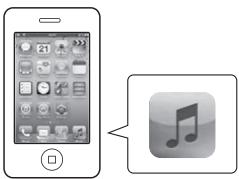
2 Tap AirPlay icon (▲).
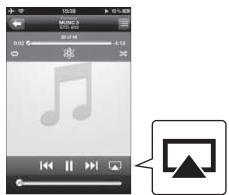
3 Select SMA.
The "xxxxxxxx" is the device's unique identifier number.
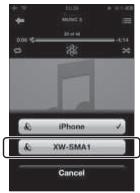
Operations using this unit's remote control
You can perform the following operations. Note that some buttons are not available for operation depending on the category currently being played back.
For iTunes, when the "Allow iTunes control from remote speakers" function is set to ON, you can use following buttons.
| Button | What it does |
| ►II (play/pause) | Press to start playback. During playback, pause/unpause playback. |
| I←(prev) | Press to return to the beginning of the currently playing track or file. Press twice to move back to the beginning of the previous track or file. |
| ►I (next) | Press during playback to skip ahead to the beginning of the next track or file. |
| input | Returns to the previous function. |
| vol -/+ (volume -/+ ) | Use to set the listening volume. |

Note
During use of AirPlay or DMR input, if no music is played or this unit's controls are not operated for 20 minutes or more, the unit's power will automatically be switched OFF.
Chapter 7:
Other connections

Caution
- Before making or changing the connections, switch off the power and disconnect the power cord from the power outlet.
- Open the terminal cover (XW-SMA3 only).

Note
- If the AUX IN mini-plug jack is connected to auxiliary phones jack, the volume of the unit will be adjusted by the volume on the playback device. If the sound is distorted after you lower the volume of the unit, try lowering the volume on the auxiliary playback device.
- This unit's AUX IN jack is designed for 1 Vms inputs. Some component CD/DVD players, however, are designed for 2 Vms output; if one of these components is connected to the unit, noise may be produced.
Connecting auxiliary devices
Connect the rear panel AUX IN mini-plug jack to your auxiliary playback device.
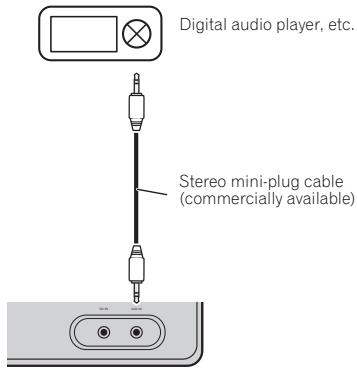
This unit's rear panel

Note
- If your iPod/iPhone/iPad is not supported by this unit's iPod/iPhone/iPad jacks (page 29), use the method noted above to connect your iPod/iPhone/iPad.
Listening to auxiliary devices
1 Press input to select AUX IN as the input source.
The input indicator does not light.
2 Start playback of the auxiliary device.

Note
- When using the AUX input, if no cord with mini-plug is connected to the AUX IN jacks, and this unit is not operated for 20 minutes or more, the unit's power will automatically be switched off.
Chapter 8:
Changing the settings
Setting Quick Start Mode
Quick Start Mode significantly reduces the time required for startup. It also allows the unit to power on automatically using AirPlay and DLNA. Follow the steps below to turn on Quick Start Mode.
Setting Quick Start Mode
1 Open the terminal cover (XW-SMA3 only).
2 Connect the AC adapter.
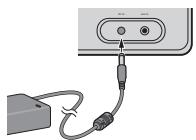
3 Press the standby/on button.
After the power turns on, it takes approximately 30 seconds for the unit to be ready to use. On indicator will go from flashing to solid blue.
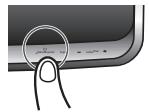
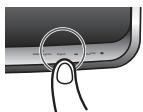
4 Hold the input button depressed for 3 seconds.
The on indicator, input indicator and network indicator will flash 4 times to signal Quick Start Mode has been turned on.
Canceling Quick Start Mode
1 Hold the input button depressed for 3 seconds when the unit is in the Quick Start Mode.
The Quick Start Mode will be canceled.
The on indicator, input indicator and network indicator each flashes twice.
Resetting the system
Use this procedure to reset all system settings to the factory default.

Important
- Disconnect all devices connected to this unit before the operation.
1 Press standby/on.
The unit turns on.
2 Press and hold input and standby/on on the unit for 3 seconds.
After all the indicators on the front panel of the main unit light, the unit turns off (standby mode).
All the settings will be reset to the factory default next time the unit turns on.

Note
- When using the XW-SMA3, after returning settings to their factory defaults, remember to connect the AC adapter. If the AC adapter is not connected, power cannot be turned ON.
Firmware Update
You can update this unit's firmware via Safari or Microsoft Internet Explorer 8/9. Download the latest firmware for your computer from the Pioneer website. The downloaded file will be compressed in the ZIP format, and must be decompressed before it can be used.

Note
- Connect the AC adapter when using the XW-SMA3 (this operation cannot be performed using battery power).
- When updating the firmware, it is necessary to connect the unit to a network by following the procedure (except method F). See Network setting on page 18.
1 Access the Web Control.
See Web Control on page 26.
2 Click Firmware Update.
3 Press Start.
The Firmware Update Prepare screen is displayed. If the screen does not switch automatically, click Click here.
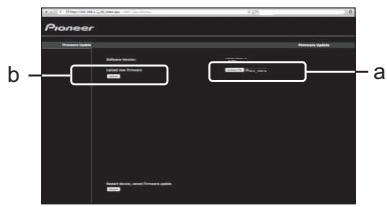
4 Confirm the location of the newest firmware (a), then press the Upload button (b).
The confirmation screen is displayed. If you continue the firmware update, press Yes. Once the firmware update process starts, you can't stop it.
5 The firmware upload status screen is displayed.
When the update is completed, unplug the power cord from its AC outlet as instructed in the display.

Important
- Never disconnect the AC power while updating is underway.
Chapter 9:
Additional information
Troubleshooting
Incorrect operations are often mistaken for trouble and malfunctions. If you think that there is something wrong with this device, check the points below. Sometimes the trouble may lie in another device. Investigate the other devices and electrical appliances being used. If the trouble cannot be rectified even after exercising the checks listed below, ask your nearest Pioneer authorized service center or your dealer to carry out repair work.
- If the unit does not operate normally due to external effects such as static electricity disconnect the power plug from the outlet and insert again to return to normal operating conditions.
General problem
| Problem | Check | Remedy |
| Settings you have made have been cleared. | Was the power cord unplugged forcibly while this unit's power was on? | Be sure to press Ⓞ standby/on on this unit or press Ⓞ (standby/on) on the remote control and wait for the on indicator on the front panel display to turn off before unplugging the power cord. |
| Difference in volume between MP3, WMA, iPod/ iPhone/iPad, AUX. | This is not a problem with this unit. | The volume may sound differently depending on the input source and recording format. |
| This unit cannot be operated with the remote control. | Are you operating from far away? | Operate from within a distance of Operate within 7 m (23 ft.), 30° of the remote sensor on the front panel (page 11). |
| Is the remote control sensor exposed to direct sunlight or strong artificial light from a fluorescent bulb, etc.? | The remote control signals may not be received properly if the remote control sensor is exposed to direct sunlight or strong artificial light from a fluorescent bulb, etc. | |
| Are the batteries dead? | Replace the batteries (page 10). | |
| The terminal cover has come off (SMA3 only). | When using the XW-SMA3, the terminal cover may be detached if pulled strongly away from the unit. If the terminal cover becomes detached, press the cover's protruding pins into the connector openings on the unit, then use a narrow non-pointed stick or other implement to push through from above. Take care not to injure your eyes or fingers when doing this. |
When an iPod/iPhone/iPad is connected
| Problem | Check | Remedy |
| Can't operate the iPod/ iPhone/iPad. | Make sure the iPod/iPhone/iPad is connected correctly (page 30). Check whether the iPod/iPhone/iPad is supported by this unit (page 29). Also, try disconnecting the iPod/iPhone/iPad then reconnecting it. If the iPod/iPhone/iPad has frozen, try resetting the iPod/iPhone/ iPad, and reconnect it to the unit. | |
| The iPod/iPhone/iPad cannot be recharged. | The iPod/iPhone/iPad can be recharged only when this unit's power is turned ON. When using the XW-SMA3, the internal battery cannot be recharged while the unit is operating on battery power. | |
| The on indicator flashes red. | Confirm that the iPod/iPhone/iPad is connected properly. Try disconnecting and reconnecting the iPod/iPhone/iPad. There is a possibility of damage to the Dock connector's USB cable. Try replacing the USB cable. |
Network
| Problem | Check | Remedy |
| Cannot access to the network. | The LAN cable is not firmly connected. | Firmly connect the LAN cable (page 12). |
| The router is not switched on. | Switch on the router. | |
| Playback does not start. | The device is currently disconnected from this unit or the power supply. | Check whether the device is properly connected to this unit or the power supply. |
| The audio files stored on devices on the network, such as a PC, cannot be played back. | Windows Media Player 11 or Windows Media Player 12 is not currently installed on your PC. | Confirm that the computer has the following software installed: Windows Media Player version 11 or 12, and server software conforming to DLNA 1.0 or 1.5. Also be sure to set the server for "media sharing" and "device selection." Procedures for operating Windows Media Player differs depending on the computer's OS and version of Windows Media Player. For details consult the Microsoft website. For details regarding operation of server software conforming to DLNA 1.0 or 1.5, consult the instructions that came with your software. |
| Confirm the file formats of the files you are trying to play with this unit. Even though a file may have an extension otherwise playable on this unit, it may not be playable or displayable due to individual characteristics. | ||
| Audio files recorded in MPEG-4 AAC or FLAC are being played back on Windows Media Player 11 or Windows Media Player 12. | Audio files recorded in MPEG-4 AAC or FLAC cannot be played back on Windows Media Player 11 or Windows Media Player 12. Try using another server. Refer to the operation manual supplied with your server. | |
| The device connected to the network is not properly operated. | Check whether the device is affected by special circumstances or is in the sleep mode. Try rebooting the device if necessary. | |
| The device connected to the network does not permit file sharing. | Try changing the settings for the device connected to the network. | |
| The folder stored on the device connected to the network has been deleted or damaged. | Check the folder stored on the device connected to the network. | |
| Network connections could be restricted due to the computer's network settings, security settings, etc. | Check the computer's network settings, security settings, etc. | |
| The LAN cable is currently disconnected. | Connect the LAN cable properly (page 12). | |
| Audio playback is undesirably stopped or disturbed. | The audio file currently being played back was not recorded in a format playable on this unit. | Check whether the audio file was recorded in a format supported by this unit. Check whether the folder has been damaged or corrupted. Even audio files listed as playable on this unit may sometimes not be played back or displayed (page 41). |
| There is heavy traffic on the network with the Internet being accessed on the same network. | Use 100BASE-TX to access the devices on the network. | |
| There is a connection routed through a wireless LAN on the same network. | There may be a shortage of bandwidth on the 2.4 GHz band used by the wireless LAN. Make wired LAN connections not routed through a wireless LAN. | |
| Install away from any devices emitting electromagnetic waves on the 2.4 GHz band (microwave ovens, game consoles, etc.). If this does not solve the problem, stop using other devices that emit electromagnetic waves. |
Wireless LAN
| Problem | Check | Remedy |
| Network cannot be accessed via wireless LAN. | The computer may determine the presence/absence of a wireless LAN in accordance with the presence/absence of the cable at the time the unit's power is turned on. When using a wireless LAN, disconnect the LAN cable from this unit and then turn the unit OFF and ON again. | |
| This unit and base unit (wireless LAN router, etc.) are too far apart or there is an obstacle between them. | Improve the wireless LAN environment by moving the unit and base unit closer together, etc. | |
| There is a microwave oven or other device generating electromagnetic waves near the wireless LAN environment. | Use the system in a place away from microwave ovens or others device generating electromagnetic waves. | |
| Avoid using devices generating electromagnetic waves as much as possible when using the system with the wireless LAN. | ||
| Wireless LAN connections cannot be established between the unit and base unit (wireless LAN router, etc.). | The unit must be set in order to establish wireless LAN connections. See Connecting using wireless LAN on page 12. | |
| The IP address settings of the unit does not match the settings of the wireless LAN router, etc. | Check the IP address settings of the unit (including the DHCP setting). If the unit's DHCP setting is on, turn the unit's power off, then turn the power back on. Check that the IP addresses of the unit match the settings of the wireless LAN router, etc. If the unit's DHCP setting is off, set an IP address matching the network of the base unit (wireless LAN router, etc.). For example, if the wireless LAN router's IP address is "192.168.1.1", set the unit's IP address to "192.168.1.XXX" (*1), the subnet mask to "255.255.255.0", the gateway and DNS to "192.168.1.1". (*1) Set the "XXX" in "192.168.1.XXX" to a number between 2 and 248 that is not assigned to other devices. | |
| The access point is set to conceal the SSID. | In this case, the SSID may not be displayed on the access point list screen. If not, set the SSID, etc., by making the wireless LAN settings on the unit manually. | |
| The SSID only supports use of single-byte alphanumeric characters, together with the underbar and certain other symbols. If using another character coding, the SSID must be updated before making network settings. For more details regarding SSID, consult your router's operating instructions. | ||
| The access point's security settings use WEP 152-bit length code key or shared key authentication. | The unit does not support WEP 152-bit length code key or shared key authentication. | |
| It may be that the router has frozen. Press the router's reset button and try making the settings again. | ||
| Doesn't play properly when using the Wireless Direct function. | The Wireless Direct function may not operate properly depending on the condition of signal reception and the wireless LAN device connected. In such cases, bring the wireless devices closer together and in other ways improve the conditions for wireless LAN' reception. |
Battery (XW-SMA3 only)
| Problem | Check | Remedy |
| Power won't turn ON. | Check the battery's remaining charge state. Connect the AC adapter and charge the battery. | |
| Can't charge the battery. Battery indicator flashes purple intermittently (flashing purple light or regular flashing of purple and other color light). | Is the accessory AC adapter connected properly? Try disconnecting the AC adapter then reconnecting it. Is the ambient temperature correct for charging? Charge the battery only when the ambient temperature is between 5 °C and 35 °C. | |
| Operating time is very short. | Is the ambient temperature too low? In cold environments, the battery will provide shorter playing time. Has the battery pack reached the end of its useful life? If time required for recharging has become long, or playing time becomes extremely short even after full recharging, the battery pack has likely reached the end of its usable life. A battery can ordinarily be recharged about 300 times, but this number may be shorter depending on surrounding conditions during play and storage. If you wish to have your unit's battery replaced, consult your Pioneer service station. | |
Playable file formats
This unit supports the following file formats. Note that the files formats listed below may not be playable. Also, the compatibility of file formats varies depending on the server (DMS) and controller (DMC) used. Check with your server and controller to ensure the compatibility of file formats supported by your server and controller.
- If an attempt is made to play files with unsupported formats, the sound may be intermittent or be accompanied by noise. In such cases, confirm that the file format is compatible with this unit.
| Category | Extension | Stream | ||
| MP3 <*> | .mp3 | MPEG-1/2 Audio Layer-3 | Sampling frequency | 32 kHz to 48 kHz |
| Quantization bitrate | 16 bit | |||
| Channel | 2 ch | |||
| Bitrate | 8 kbps to 320 kbps | |||
| VBR/CBR | Supported/Supported | |||
| WAV | .wav | LPCM | Sampling frequency | 32 kHz to 96 kHz (Wired) |
| 32 kHz to 48 kHz (Wireless) | ||||
| Quantization bitrate | 16 bit, 24 bit | |||
| Channel | 2 ch | |||
| WMA | .wma | WMA2/7/8/9 | Sampling frequency | 32 kHz to 48 kHz |
| Quantization bitrate | 16 bit | |||
| Channel | 2 ch | |||
| Bitrate | 5 kbps to 320 kbps | |||
| VBR/CBR | Supported/Supported |
| Category | Extension | Stream | ||
| AAC | .m4a | MPEG-4 AAC LC MPEG-4 HE AAC (AAC Plus v1/2) | Sampling frequency | 32 kHz to 48 kHz |
| Quantization bitrate | 16 bit | |||
| Channel | 2 ch | |||
| Bitrate | 16 kbps to 320 kbps | |||
| VBR/CBR | Supported/Supported | |||
| FLAC | .flac | FLAC | Sampling frequency | 32 kHz to 96 kHz (Wired) |
| 32 kHz to 48 kHz (Wireless) | ||||
| Quantization bitrate | 16 bit, 24 bit | |||
| Channel | 2 ch | |||
| Bitrate | — | |||
| VBR/CBR | — |
- "MPEG Layer-3 audio decoding technology licensed from Fraunhofer IIS and Thomson multimedia."
Cautions on use
When moving this unit
When moving this unit, be sure to first disconnect the iPod/ iPhone/iPad, LAN cable or any other equipment connected to the unit. Then press standby/on on this unit (or (standby/on) on the remote control), wait for the on indicator on the front panel to turn off, then unplug the power cord. Damage may occur if the unit is transported or moved when another device is connected to iPod/iPhone/iPad, LAN (10/100) terminals, or AUX IN mini-plug jacks.
Place of installation
- Choose a stable place near the TV or stereo system being used with this unit.
- Do not place this unit on top of a TV or color monitor. Also install it away from cassette decks and other devices easily affected by magnetic forces.
Avoid the following locations:
- Places exposed to direct sunlight
- Humid or poorly ventilated places
- Places where the product is easily exposed to water
- Extremely hot places
- Places exposed to vibrations
- Places in which there is much dust or cigarette smoke
- Places exposed to soot, steam or heat (kitchens, etc.)
Do not place objects on this unit
Do not place any objects on top of this unit.
Do not obstruct the ventilation holes
Do not use this unit on shaggy rugs, beds, sofas, etc., or wrapped in cloth, etc. Doing so will prevent the heat from dispersing, leading to damage.
Do not expose to heat
Do not place this unit on top of an amplifier or other device that generates heat. When rack mounting it, to avoid the heat given off by the amplifier or other audio device, place it on a shelf below the amplifier.
- Turn off the unit's power when not using it.
- Depending on signal conditions, striped patterns may appear on a TV screen and noise may enter the sound of radio broadcasts when the unit's power is on. If this happens, turn the unit's power off.
Cleaning the product
- Clean this unit using a soft cloth. For tough dirt, apply some neutral detergent diluted in 5 to 6 parts water to a soft cloth, wring out thoroughly, wipe off the dirt, then wipe again with a soft, dry cloth.
- Alcohol, thinner, benzene, insecticides, etc., could cause the print or paint to peel off. Also, leaving rubber or vinyl products in contact with this unit for long periods of time could mar the cabinet.
-
When using chemical-impregnated wipes, etc., read the cautions included with the wipes carefully.
-
Unplug the power cord from the power outlet when cleaning this unit.
About network playback
The network playback function such as Music Server of this unit uses the following technologies:
Windows Media Player
See Windows Media Player 11/Windows Media Player 12 on page 31 for more on this.
Playing Windows Media Audio (WMA) files
WMA is an audio compression technology developed by Microsoft Corporation USA.
These files can be encoded using Windows Media Player Ver. 7, Ver. 7.1, Windows Media Player for Windows XP, or Windows Media Player 9 Series.
- Windows Media is either a registered trademark or trademark of Microsoft Corporation in the United States and/or other countries.
- When encoding your files, use only applications approved by Microsoft Corporation. If a non-approved application is used, it may not operate properly.
Windows Media DRM
Microsoft Windows Media Digital Rights Management (WMDRM) is a platform to protect and securely deliver content for playback on computers, portable devices and network devices. Music Server functions as a WMDRM 10 for networked devices. WMDRM protected content can only be played on media servers supporting WMDRM.
Content owners use WMDRM technology to protect their intellectual property, including copyrights. This device uses WMDRM software to access WMDRM protected content. If the WMDRM software fails to protect the content, content owners may ask Microsoft to revoke the software's ability to use WMDRM to play or copy protected content. Revocation does not affect unprotected content. When you download licenses for protected content, you agree that Microsoft may include a revocation list with the licenses. Content owners may require you to upgrade WMDRM to access their content. If you decline an upgrade, you will not be able to access content that requires the upgrade.
This product is protected by certain intellectual property rights of Microsoft. Use or distribution of such technology outside of this product is prohibited without a license from Microsoft.
DLNA

dina
CERTIFIED
DLNA CERTIFIED® Audio Player
The Digital Living Network Alliance (DLNA) is a cross-industry organization of consumer electronics, computing industry and mobile device companies. Digital Living provides consumers with easy sharing of digital media through a wired or wireless network in the home.
The DLNA certification logo makes it easy to find products that comply with the DLNA Interoperability Guidelines. This unit complies with DLNA Interoperability Guidelines v1.5.
When a PC running DLNA server software or other DLNA compatible device is connected to this player, some setting changes of software or other devices may be required. Please refer to the operating instructions for the software or device for more information.
DLNA®, the DLNA Logo and DLNA CERTIFIED® are trademarks, service marks, or certification marks of the Digital Living Network Alliance.
Content playable over a network
- Even when encoded in a compatible format, some files may not play correctly.
- Movie or Photo files cannot be played back.
- Some functions may not be supported depending on the server type or version used.
- Supported file formats vary by server. As such, files not supported by your server are not displayed on this unit. For more information check with the manufacturer of your server.
Disclaimer for Third Party Content
ACCESS TO THIRD PARTY CONTENT SERVICES, INCLUDING ALL ASSOCIATED FEATURES AND FUNCTIONALITIES, IS PROVIDED "AS IS," "AS AVAILABLE" AND AT THE USER'S OWN RISK, WITHOUT WARRANTY OF ANY KIND. PIONEER DISCLAIMS ALL WARRANTYES, EXPRESS OR IMPLIED, IN CONNECTION WITH ACCESS TO AND USE OF CONTENT SERVICES THROUGH THIS DEVICE, INCLUDING WITHOUT LIMITATION WARRANTYES OF MERCHANTABILITY, SATISFACTORY QUALITY, FITNESS FOR A PARTICULAR PURPOSE, AND NON-INFRINGEMENT. PIONEER DOES NOT GUARantee, REPRESENT, OR WARRANTY THAT CONTENT SERVICES WILL BE FREE FROM ERRORS, INTERUPTION, LOSS, CORRUPTION, ATTACK, VIRUSES, INTERFERENCE, HACKING, OR OTHER SECURITY IntrUSION, AND PIONEER DISCLAIMS ANY LIABILITY IN CONNECTION WITH THE FOREIGNING. PIONEER IS NOT LIABLE OR RESPONSIBLE FOR ANY LOSS OR DAMAGE ASING FROM ACCESS TO OR
USE OF CONTENT. NO ORAL OR WRITTEN INFORMATION OR ADVICE GIVEN BY PIONEER OR ITS CUSTOMER SERVICES REPRESENTATIVES WILL CREATE ANY SUCH WARRANTY.
IN NO EVENT WILL PIONEER, ITS AFFILIATES, OR THEIR RESPECTIVE OFFICERS, DIRECTORS, OR EMPLOYEES BE LIABLE IN CONNECTION WITH YOUR USE OF THIRD PARTY CONTENT SERVICES THROUGH THIS DEVICE FOR PERSONAL INJURY OR SPECIAL, INCIDENTAL, INDIRECT OR CONSEQUENTIAL DAMAGES OF ANY KIND, INCLUDING WITHOUT LIMITATION DAMAGES FOR ATTORNEY'S FEES, LOST DATA OR LOST PROFITS, REGARDLESS OF THE THEORY OF LIABILITY AND WHETHER OR NOT ADVISED OF THE POSSIBILITY OF SUCH DAMAGES. IN NO EVENT WILL PIONEER'S TOTAL LIABILITY TO YOU FOR ALL DAMAGES ASRING FROM THE USE OR INABILITY TO USE THIRD PARTY CONTENT SERVICES (OTHER THAN AS MAY BE REQUIRED BY LAW IN CASES INVOLVING PERSONAL INJURY) EXCEED $10.00. THE FOREGOING LIMITATIONS WILL APPLY EVEN IF THE ABOVE REMEDY FAILS OF ITS ESSENTIAL PURPOSE. IF ANY APPLICABLE AUTHORITY HOLDS ANY PORTION OF THIS SECTION TO BE UNENFORCEABLE, THEN LIABILITY WILL BE LIMITED TO THE MAXIMUM EXTENT PERMITTED BY APPLICABLE LAW.
About playback behavior over a network
- Playback may stall when the PC is switched off or any media files stored on it are deleted while playing content.
- If there are problems within the network environment (heavy network traffic, etc.) content may not be displayed or played properly (playback may be interrupted or stalled). For best performance, a 100BASE-TX connection between player and PC is recommended.
- If several clients are playing simultaneously, as the case may be, playback is interrupted or stalled.
Depending on the security software installed on a connected PC and the setting of such software, network connection may be blocked.
Pioneer is not responsible for any malfunction of the player and/or the Music Server features due to communication error/malfunctions associated with your network connection and/or your PC, or other connected equipment. Please contact your PC manufacturer or Internet service provider.
Windows Media is either a registered trademark or trademark of Microsoft Corporation in the United States and/or other countries.
This product includes technology owned by Microsoft Corporation and cannot be used or distributed without a license from Microsoft Licensing, Inc.
Microsoft®, Windows®7, Windows®Vista, Windows®XP, Windows®2000, Windows®Millennium Edition, Windows®98, and WindowsNT® are either registered trademarks or trademarks of Microsoft Corporation in the United States and/or other countries.
aacPlus


The AAC decoder uses aesPlus developed by Coding Technologies
(www.codingtechnologies.com).
FLAC
FLAC Decoder
Copyright c 2000, 2001, 2002, 2003, 2004, 2005, 2006, 2007 Josh Coalson
Redistribution and use in source and binary forms, with or without modification, are permitted provided that the following conditions are met:
- Redistributions of source code must retain the above copyright notice, this list of conditions and the following disclaimer.
- Redistributions in binary form must reproduce the above copyright notice, this list of conditions and the following disclaimer in the documentation and/or other materials provided with the distribution.
- Neither the name of the Xiph.org Foundation nor the names of its contributors may be used to endorse or promote products derived from this software without specific prior written permission.
THIS SOFTWARE IS PROVIDED BY THE COPYRIGHT HOLDERS AND EDITORS "AS IS" AND ANY EXPRESS OR IMPLIED WARRANTY, INCLUDING, BUT NOT LIMITED TO, THE IMPLIED WARRANTY OF MERCHANTABILITY AND FITNESS FOR A PARTICULAR PURPOSE ARE DISCLAIMED. IN NO EVENT SHALL THE FOUNDATION OR EDITORS BE LIABILITY FOR ANY DIRECT, INDIRECT, INCIDENTAL, SPECIAL, EXEMPLARY, OR CONSEQUENTIAL DAMAGES (INCLUDING, BUT NOT LIMITED TO, PROCUREMENT OF SUBSTITUTE GOODS OR SERVICES; LOSS OF USE, DATA, OR PROFITS; OR BUSINESS INTERRUPTION) HOWEVER CAUSED AND ON ANY THEORY OF LIABILITY, WHETHER IN CONTRACT, STRICT LIABILITY, OR TORT (INCLUDING NEGLIGENCE OR OTHERWISE) ASING IN ANY WAY OUT OF THE USE OF THIS SOFTWARE, EVEN IF ADJISSED OF THE POSSIBILITY OF SUCH DAMAGE.
About iPod/Phone/iPad
Made for


"Made for iPod," "Made for iPhone" and "Made for iPad" mean that an electronic accessory has been designed to connect specifically to iPod, iPhone, or iPad, respectively, and has been certified by the developer to meet Apple performance standards. Apple is not responsible for the operation of this device or its compliance with safety and regulatory standards. Please note that the use of this accessory with iPod, iPhone, or iPad may affect wireless performance.
Apple, AirPlay, iPad, iPhone, iPod, iPod shuffle, iPod nano, iPod touch, iTunes, Mac and Safari are trademarks of Apple Inc., registered in the U.S. and other countries.
The AirPlay logo is a trademark of Apple Inc.
About Wi-Fi
The Wi-Fi CERTIFIED Logo is a certification mark of the Wi-Fi Alliance.
Wi-Fi CERTIFIED™, WMM™, WPA™ and WPA2™ are certification marks of the Wi-Fi Alliance.
Audio Artistry
Created by world-renowned speaker engineer Andrew Jones, this speaker offers high performance and exceptional quality to deliver a stunning music listening experience.

Chief Speaker Engineer
Specifications
Speaker section (XW-SMA1 and XW-SMA3)
Enclosure Bass-reflex type
System. 2-way 3 speaker system
Speakers:
Woofer .7.7 cm (3 1/16 in.) cone x 2
Tweeter. 2.6 cm (1 1/16 in.) semi-dome x 1
Frequency range. 50 Hz to 20 kHz
Speaker section (XW-SMA4)
Enclosure Bass-reflex type
System. 3-way 5speaker system
Speakers:
Subwoofer 10 cm (3 15/16 in.) cone x 1
Woofer .7.7 cm (3 1/16 in.) cone x 2
Tweeter. 2.6 cm (1 1/16 in.) semi-dome x 2
Frequency range. 45 Hz to 20 kHz
Miscellaneous
Power consumption
XW-SMA1 24 W
XW-SMA3. 42 W
XW-SMA4. 27 W
In standby mode. 0.5 W
In standby mode (Quick Start Mode) 3.5 W
Dimensions (without antenna):
XW-SMA1 and XW-SMA3.
12 5/8 in. (W) x 7 1/8 in. (H) x 5 3/4 in. (D)
XW-SMA4. .360 mm (W) x 210 mm (H) x 169 mm (D)
14 3/16 in. (W) x 8 5/16 in. (H) x 6 11/16 in. (D)
Weight (without package):
XW-SMA1. 2.3 kg (5.1 lbs)
XW-SMA3. 2.5 kg (5.5 lbs)
XW-SMA4. 3.8 kg (8.4 lbs)
ACadapter
Power requirements. . . . . . . AC 100 V to 240 V, 50 Hz/60 Hz
Rated output:
XW-SMA1 and XW-SMA3. DC 15 V, 4 A
XW-SMA4. DC 15 V, 4.95 A
- Wireless LAN
Wireless LAN standard . IEEE802.11b/g
Frequency band 2.4 GHz
Security. WEP, WPA™, WPA2™
- Accessories
Remote Control 1
Lithium Battery (CR2025)* 1
Power Cord
AC Adapter 1
Quick Start Guide
Warranty Card
*The lithium battery has been factory installed in the remote control unit.

Note
- Specifications and the design are subject to possible modifications without notice, due to improvements.
- This product is not designed for use in Japan.
Ubiquitous WPS2.0
Copyright © 2007-2011 Ubiquitous Corp.
Declaration of Conformity with regard to the R&TTE Directive 1999/5/EC
Manufacturer:
PIONEER CORPORATION
1-1, Shin-ogura, Saiwai-ku,
Kawasaki-shi, Kanagawa
212-0031, Japan
EU Representative's:
Pioneer Europe NV
Haven 1087, Keetberglaan 1,
9120 Melsele, Belgium
http://www.pioneer.eu
C E
[ ] XW-SMA1,XW-SMA3,XW-SMA4
English:
Hereby, Pioneer, declares that this [^*] is in compliance with the essential requirements and other relevant provisions of Directive 1999/5/EC.
Dansk:
C hactoIeTo, Pioneer DeKnapupa, ye To3n [°] OTOBaRpa Ha OCHOBHInTe
N3NCKBaHn I dpyr CbOTBeTHn
NoctaHOBJIeHn Ha DInpeKTnBa
1999/5/EC.
Polski:
To register your product, find the nearest authorized service location, to purchase replacement parts, operating instructions, or accessories, please go to one of following URLs:
Discover the benefits of registering your product online at http://www.pioneer.co.uk (or http://www.pioneer.eu).
© 2012 PIONEER CORPORATION. All rights reserved.
PIONEER CORPORATION
1-1, Shin-ogura, Saiwai-ku, Kawasaki-shi, Kanagawa 212-0031, Japan
PIONEER ELECTRONICS (USA) INC.
P.O. BOX 1540, Long Beach, California 90801-1540, U.S.A. TEL: (800) 421-1404
PIONEER ELECTRONICS OF CANADA, INC.
340 Ferrier Street, Unit 2, Markham, Ontario L3R 2Z5, Canada TEL: 1-877-283-5901, 905-479-4411
PIONEER EUROPE NV
Haven 1087, Keetberglaan 1, B-9120 Melsele, Belgium TEL: 03/570.05.11
PIONEER ELECTRONICS ASIACENTRE PTE. LTD.
253 Alexandra Road, #04-01, Singapore 159936 TEL: 65-6472-7555
PIONEER ELECTRONICS AUSTRALIA PTY. LTD.
5 Arco Lane, Heatherton, Victoria, 3202, Australia, TEL: (03) 9586-6300
PIONEER ELECTRONICS DE MEXICO S.A. DE C.V.
Blvd.Manuel Avila Camacho 138 10 piso Col.Lomas de Chapultepec, Mexico, D.F. 11000 TEL: 55-9178-4270
K002_B3_En
- Wireless Sound System
- IMPORTANT
- CAUTION
- RISK OF ELECTRIC SHOCK DO NOT OPEN
- CAUTION:
- VENTILATION CAUTION
- WARNING
- Store the AC adapter out of the reach of children and infants.
- AC adapter CAUTION
- POWER-CORD CAUTION
- Radio wave caution
- [For American Users]
- IMPORTANT NOTICE
- NOTE:
- FEDERAL COMMUNICATIONS COMMISSION DECLARATION OF CONFORMITY
- The Safety of Your Ears is in Your Hands
- ESTABLISH A SAFE LEVEL:
- BE SURE TO OBSERVE THE FOLLOWING GUIDELINES:
- FCC Radiation Exposure Statement:
- Information to User
- Wash hands after handling.
- [For European Users]
- Information for users on collection and disposal of old equipment and used batteries
- For countries outside the European Union:
- [For Canadian Users]
- IC Radiation Exposure Statement:
- [For American Users and Canadian Users]
- Operating Environment
- [Except American Users and Canadian Users]
- DANGER
- About the Device
- Use in a wet environment (XW-SMA1 and XW-SMA4 only)
- WARNING/DISPOSAL OF UNIT [For American Users, Canadian Users]
- Installing the unit
- Contents
- Before you start
- Connections
- Part names and functions
- Connect to network
- iPod/iPhone/iPad playback
- Music server
- Other connections
- Changing the settings
- Additional information
- Chapter 1:
- Before you start
- What's in the box
- Before using the remote control
- Note
- Replace the battery
- Flip the remote control and pull out the battery holder by pushing the tab to the right.
- Place a new battery in the casing.
- Push back the battery holder.
- About lithium battery
- Using the remote control
- Chapter 2:
- Connections
- Connecting iPod/iPhone/iPad
- Connecting to the network through the wired or wireless LAN
- Connecting using LAN cable
- Connecting using wireless LAN
- Plugging in
- When turning on this unit for the first time
- About startup time
- Chapter 3:
- Part names and functions
- Remote Control
- (standby/on) button
- 2Playback control buttons
- vol - / + (volume - / + ) button
- input button
- Front panel
- on (power on) indicator
- input indicator
- network indicator
- Battery indicator (XW-SMA3 only)
- 品 standby/on button
- input button
- volume - / + button
- Rear panel
- Wireless antenna
- network setup/wireless direct button
- LAN (10/100) connector
- iPod/iPhone/iPad connector
- DC IN terminal
- AUX IN jack
- Chapter 4:
- Connect to network
- Network setting
- A: Connections for wireless LAN using WPS-PBC function
- B: Wired connection to a router with DHCP server
- For Safari
- From the menu on the left, select "Network Configuration".
- When the Auto/Manual selection screen appears, select "Auto."
- Select your router's SSID.
- If you are asked to input a password, input it here.
- When settings are completed, click on Apply.
- Press standby/on button.
- If using a wireless LAN connection, input the router's SSID, then select the "Security" item set on the router.
- If a password is requested, input it here.
- When settings are completed, click on Apply.
- Disconnect the LAN cable from the unit and confirm that the router's power is ON.
- Press 口 standby/on button.
- E: Connection settings using an iOS device
- Confirm that the AC adapter and LAN cable are not connected to the unit.
- Connect the AC adapter, and press O standby/on button.
- When the on indicator stops flashing, use the Dock Connector to USB Cable to connect this unit to the iPod touch/iPhone/iPad (iOS device with iOS 5.0 or later).
- Press and hold input button on the front panel, and then press and hold network setup/ wireless direct button on the rear panel for 3 seconds.
- Tap the "Allow" button.
- When the network indicator changes from flashing red to steadily lighted blue, the connection is completed.
- F: Wireless Direct Function
- Connect the AC adapter, and press standby/on button.
- Confirm that the unit's on indicator stops flashing. Hold the unit's rear-panel network setup/wireless direct button depressed for 3 seconds.
- When the network indicator lights purple, connect to the network called "Wireless Direct:xxxxxx" from Wi-Fi network setting on the computer, iPhone, tablet PC or other device.
- After completing the network settings
- Web Control
- Access Web Control using a Safari Browser
- Using UPnP function to obtain access:
- When using Windows 7/Windows Vista
- When using Windows XP
- Initial menu (System Information)
- Network Configuration
- Friendly Name
- Network Configuration
- AUTO
- MANUAL
- SSID
- Using AUTO
- Using MANUAL
- Security
- WEP Key/WPA Passphrase
- WEP Key
- WPA Passphrase
- DHCP
- Apply
- Friendly Name
- Chapter 5:
- iPod/iPhone/iPad playback
- Confirming what iPod/iPhone/iPad models are supported
- North America
- Europe
- Asia and Oceania
- How to confirm the version of the iPod/ iPhone/iPad software
- Connecting your iPod/iPhone/iPad
- Open the terminal cover (XW-SMA3 only).
- Connect your iPod/iPhone/iPad.
- Playing your iPod/iPhone/iPad
- Connect your iPod/iPhone/iPad.
- Press input to select iPod as the input source.
- Tip
- Chapter 6:
- Music server
- Introduction
- About playable DLNA network devices
- Using AirPlay on iPod touch, iPhone, iPad and
- iTunes
- About the DHCP server function
- Playing audio files stored on PCs or other devices
- Connecting to the LAN network
- Playback with DLNA
- Using AirPlay to enjoy music
- Operating AirPlay from an iPod/iPhone/iPad
- Operations using this unit's remote control
- Chapter 7:
- Other connections
- Connecting auxiliary devices
- Listening to auxiliary devices
- Press input to select AUX IN as the input source.
- Start playback of the auxiliary device.
- Chapter 8:
- Changing the settings
- Setting Quick Start Mode
- Press the standby/on button.
- Hold the input button depressed for 3 seconds.
- Canceling Quick Start Mode
- Hold the input button depressed for 3 seconds when the unit is in the Quick Start Mode.
- Resetting the system
- Press standby/on.
- Press and hold input and standby/on on the unit for 3 seconds.
- Firmware Update
- Access the Web Control.
- Click Firmware Update.
- Press Start.
- Confirm the location of the newest firmware (a), then press the Upload button (b).
- The firmware upload status screen is displayed.
- Chapter 9:
- Additional information
- Troubleshooting
- Playable file formats
- Cautions on use
- When moving this unit
- Place of installation
- Avoid the following locations:
- Do not place objects on this unit
- Do not obstruct the ventilation holes
- Do not expose to heat
- Cleaning the product
- About network playback
- Windows Media Player
- Playing Windows Media Audio (WMA) files
- Windows Media DRM
- DLNA
- DLNA CERTIFIED® Audio Player
- Content playable over a network
- Disclaimer for Third Party Content
- About playback behavior over a network
- aacPlus
- FLAC
- About iPod/Phone/iPad
- About Wi-Fi
- Audio Artistry
- Specifications
- Speaker section (XW-SMA1 and XW-SMA3)
- Speaker section (XW-SMA4)
- Miscellaneous
- ACadapter
- - Wireless LAN
- - Accessories
- Declaration of Conformity with regard to the R&TTE Directive 1999/5/EC
- PIONEER CORPORATION
- Pioneer Europe NV
- C E
- English:
- Dansk:
- Polski:
Brand : PIONEER
Model : XW-SMA4-K
Category : Bluetooth speaker