DMX 776 - Simulateur UNIDEN - Free user manual and instructions
Find the device manual for free DMX 776 UNIDEN in PDF.


User questions about DMX 776 UNIDEN
0 question about this device. Answer the ones you know or ask your own.
Ask a new question about this device
Download the instructions for your Simulateur in PDF format for free! Find your manual DMX 776 - UNIDEN and take your electronic device back in hand. On this page are published all the documents necessary for the use of your device. DMX 776 by UNIDEN.
USER MANUAL DMX 776 UNIDEN
Welcome/Features/Terminology 3
Controls & Functions 5
Setting up the Phone 7
Choose the best location 7
Connect the base unit and
charge the handset 8
Expanding Your Phone 9
Four Handset Expandability 9
Backwards/Forwards Compatibility 9
Connect the expansion handset's charger 10
Register the Handset 11
Register the DCX770 expansion handset
to main base 12
Register the DCX640 or
DCX700 Backward/Forward
Compatible Handsets to main base 12
Changing the Digital Security Code 13
Installing the Holster 14
Optional Headset Installation 14
Using the Interface 15
Display Icons 15
Soft Key Function 16
Using the joystick 17
Entering text 19
Main Menu Options 20
Setup Menu 21
Handset Setup 21
Global Setup 23
Customize Handset 26
Using Your Phone 32
Making Calls 32
From the Handset Speakerphone 33
Receiving a call 33
Hanging Up 34
Switching to the Handset Speakerphone
During a Call 34
Moving out of range 34
Call Waiting 35
Placing a Call on Hold 36
Conferencing 36
Redialing Calls 37
Using the Handset Volume Setting Menu 38
Mute the Handset Ringer 39
Mute the Handset Microphone 40
Tone Dialing Switch-over 40
Clarity Booster 41
Find Handset 41
Using One Touch Voice Mail Access 42
Calendar & Scheduler 44
Using the Phonebook 46
Creating and Editing Phonebook Entries 46
Storing Caller ID or Redial Numbers in the
Phonebook 51
Managing the Phonebook 51
Checking the Number of Stored Entries 53
Changing the Sorting Order 53
Naming phonebook groups 54
Making Calls with the Phonebook 54
Caller ID Features 55
Using the Caller ID List 55
Deleting Caller ID numbers 56
Multi-Handset Features 57
Text Message 57
Using DirectLink Mode 61
Room/Baby Monitor 62
Intercom 63
Transferring a Call 64
Note on Power Sources 65
Power Failure 65
Battery replacement and handling 65
Warning 65
Installing a Replacement Battery 66
Low battery alert 67
Cleaning the battery charging contacts 68
General Information 69
AC Adapter Information 69
Battery Information 69
Troubleshooting 70
System Reset 72
Liquid Damage 73
Precautions & Warranty 74
I.C. Notice 76
Index 77
Welcome
Thank you for purchasing a Uniden Multi-Handset phone. This phone offers four-handset expandability, recordable ringer tones, and customizable handset displays.
Note: Illustrations in this manual are used for explanation purposes. Some illustrations in this manual may differ from the actual unit.

As an Energy Star ^® Partner, Uniden has determined that this product or product models meets the Energy Star ^® guidelines for energy efficiency. Energy Star ^® is a U.S. registered mark.
Features
• 2.4GHz Frequency Hopping Spread Spectrum
- Caller ID/Call Waiting Deluxe Options
- Backward/Forward Compatibility
- Hands-Free Speakerphone
• 100 Phone Book Locations
- Recordable Ringer Tones
• Distinctive Caller ID Options
- Animations & Wall Paper Themes
- Text Messaging
- Reminder/Calendar
- Battery Level Indicator
• Voice Mail Waiting Indicator at handset
- Direct Link Mode
- Room Monitoring
[3] Welcome/Features/Terminology
www.uniden.com
Uniden ^® is a registered trademark of Uniden America Corporation. AutoTalk, AutoStandby, DirectLink, IntegriSound and Random Code are trademarks of Uniden America.
Terminology
- Standby Mode - The handset maybe sitting on or off the cradle, but is NOT in use. (/flash or ☐key has not been pressed. No dial tone is present.
- Talk Mode - The handset is not in the cradle, and pressed and enabling a dial tone. (/flash or key has been
Controls & Functions

text_image
1 2 3
text_image
4 5 6 7 8 9 10 11 12 13 14 15 16 17 Uniden- Handset Antenna
2.Speakerphone Speaker and Ringer - Handset Battery Compartment
4.Headset Jack Cover - New Message LED
6.LCD Display - Soft Menu Keys (P.16)
- (talk)/flash (P. 32 & 35)
- hold/x'fr/int'com (Hold/Transfer/Intercom)
(P. 36 & 63) - */tone (P. 40 & 56)
11.handset Earpiece
12.Joystick (Navigates PhoneBook, Caller
ID, Redial, Ringer Volumes and Menu Display Options)(p. 17) - (end call)(P. 34)
- (speaker phone) (P. 34)
15.Handset Microphone
16.# (P. 56) - Handset Charging Contacts
[5] Controls & Functions
www.uniden.com
text_image
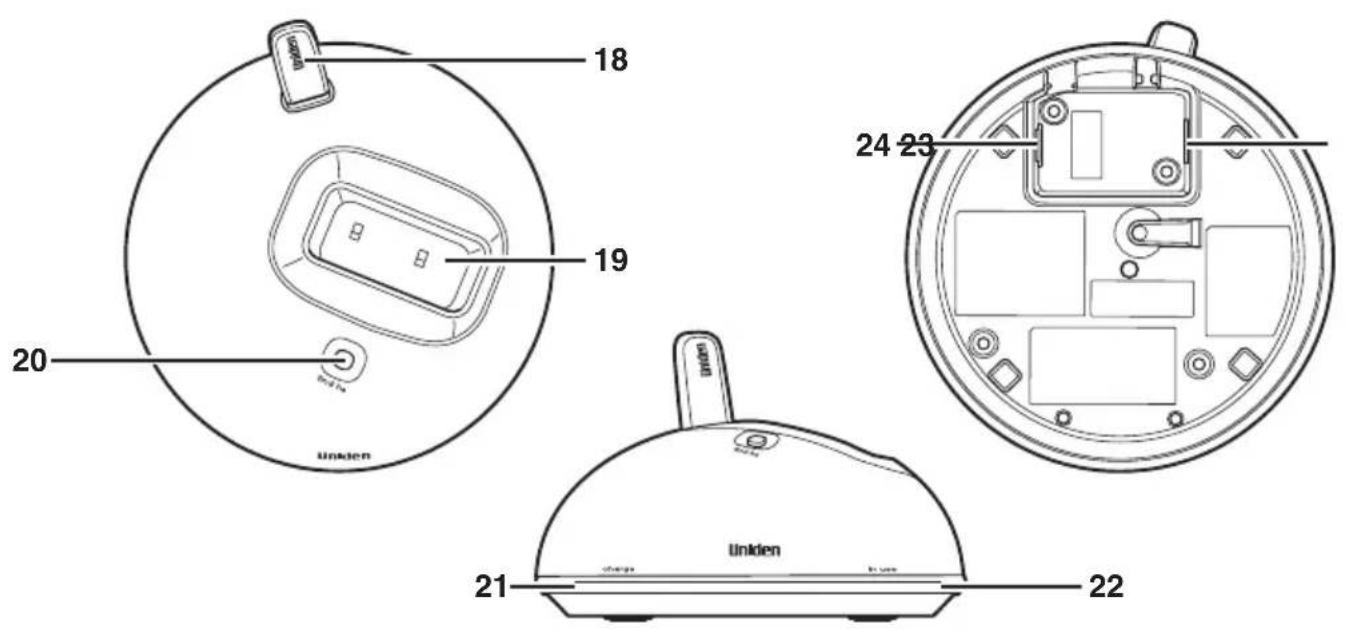
18 19 20 24 23 21 22 Uniden- Base antenna
- Base Charge Contacts
- find hs (Find Lost Handset/Pager)/(p.41)
- Handset Charge LED
- Handset In Use LED
- TEL LINE Jack
- DC IN 9V Jack
www.uniden.com
Controls & Functions [6]

If your home has specially wired alarm equipment connected to phone line, be sure that installing the system does not disable your alarm equipment.
If you have questions about what will disable alarm equipment, contact your telephone company or a qualified installer.
Setting up the Phone
Choose the best location
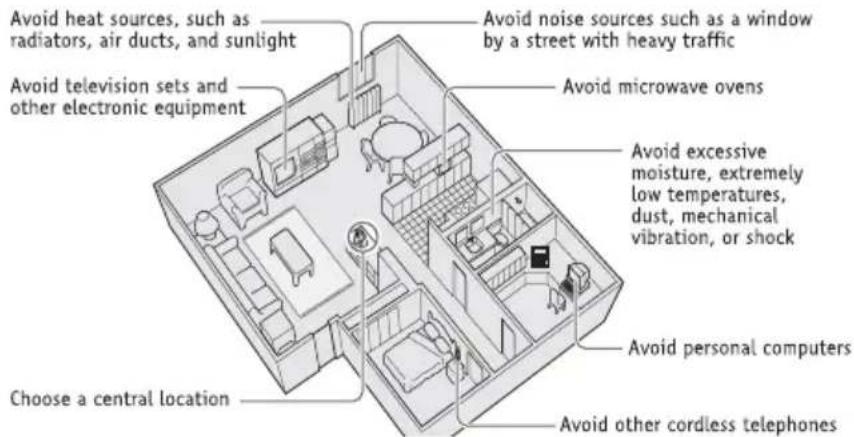
When choosing a location for your new phone, here are some important guidelines you should consider:
text_image
Avoid heat sources, such as radiators, air ducts, and sunlight Avoid television sets and other electronic equipment Choose a central location Avoid noise sources such as a window by a street with heavy traffic Avoid microwave ovens Avoid excessive moisture, extremely low temperatures, dust, mechanical vibration, or shock Avoid personal computers Avoid other cordless telephones- The location should be close to both a phone jack and a continuous power outlet (one which is not connected to a switch).
- The base and handset should be kept away from sources of electrical noise such as motors, Microwave ovens, and fluorescent lighting.
- For better reception, place the base as high as possible.
- The base should be placed in an open area for optimum range and reception.
Connect the base unit and charge the handset
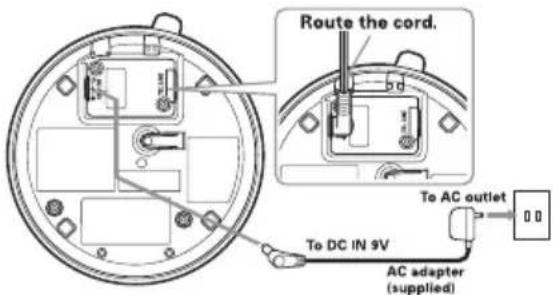
1) Connect the AC adapter to the DC IN 9V jack and to a standard 120V AC wall outlet.
2) Place the handset in the base unit with the keypad facing forward.
text_image
Route the cord. To AC outlet To DC IN 9V AC adapter (supplied)NOTE: The rechargeable battery is already installed in your phone.
3) Make sure that the charge LED illuminates. If the LED does not illuminate, check to see that the AC adapter is plugged in and the handset makes good contact with the base charging contacts.
4) Charge your handset at least 15-20 hours before plugging into the phone line.
5) Once the handset battery pack is fully charged, connect the telephone line cords to the TEL LINE jack and to a telephone outlets.

text_image
TEL Cord To telephone outlet Telephone line cord (supplied) To TEL LINE
- Use only the supplied AD-800 AC adapter. Do not use any other AC adapter.
- Do not place the power cord where it creates a trip hazard or where it could become chafed and create a fire or electrical hazard.
- Don't place the base in direct sunlight or subject it to high temperatures. The battery may not charge properly.

If your telephone outlet isn't modular, contact your telephone company for assistance.
Expanding Your Phone
Four Handset Expandability
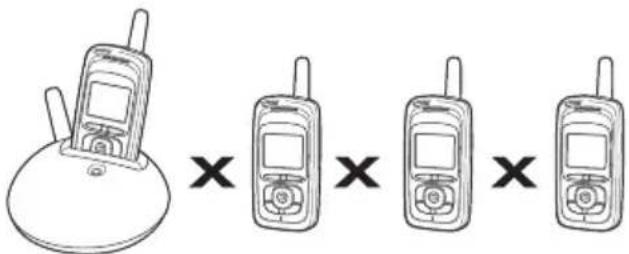
Your phone can support a total of four handsets. Expansion handsets do not need to be connected to a phone jack. Expansion handsets allow you to use additional features such as DirectLink Mode and three-way conference calling. Expansion handsets need to be registered to the base before they will operate.
text_image
Diagram showing a mobile phone with four different sizes of the same size, each represented by an X symbol indicating equal quantity.Backwards/Forwards Compatibility
Your phone is compatible with other Uniden 2.4GHz Digital Expandable Handsets. Compatible models include the DCX640 and DCX700. Visit our website for updated model listings.

text_image
BACKWARD FORWARD COMPATIBLEConnect the expansion handset's charger
The handset is powered by a rechargeable battery pack. The battery recharges automatically when the handset is placed in the charger.
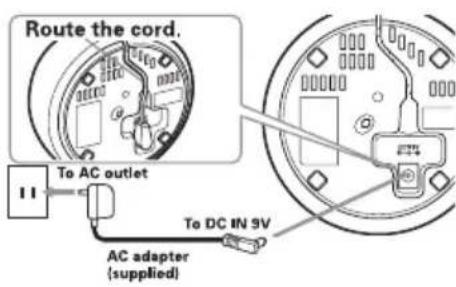
1) Connect the AC adapter to the DC IN 9V jack and to a standard 120V AC wall outlet.
2) Set the charger on a desk or tabletop, and place the handset in the charger with the keypad facing forward.
3) Make sure that the charge LED illuminates.
If the LED does not illuminate, check to see that the AC adapter is plugged in and the handset makes good contact with the base charging contacts.
4) Charge the handset battery pack for at least 15-20 hours before using your new cordless telephone for the first time.
text_image
Route the cord. To AC outlet II To DC IN 9V AC adapter (supplied)
Use only the supplied AD-0005 AC adapter. Do not use any other AC adapter.
Register the Handset
Handsets supplied with the phone are registered to the base by the factory. When charged, pre-registered handsets display a handset ID number. Handsets that have not been registered display Models vary! Charge handset on the base for registration or refer to Owner's Manual. When you register an extra handset to the base, the handset ID will be assigned. Only one handset can be registered at a time.
Register the DCX770 expansion handset to main base
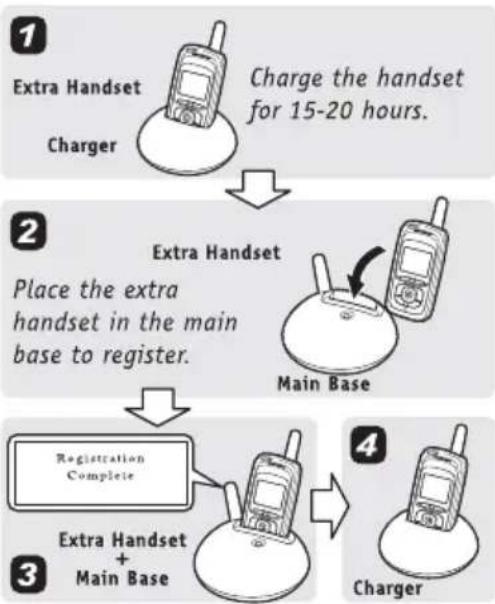
1) Before registering the extra handset, the battery pack MUST be charged for 15-20 hours.
2) Place the extra handset in the main base unit to begin registration.
3) While the handset is registering, Handset Registering will appear in the LCD. When Registration Complete is displayed, the handset has been registered to the base. If Registration Failed appears, please try these steps again.
flowchart
graph TD
    A["1 Extra Handset Charger"] --> B["Charge the handset for 15-20 hours."]
    B --> C["2 Extra Handset Place the extra handset in the main base to register."]
    C --> D["3 Registration Complete"]
    D --> E["4 Charger"]

Your phone maybe compatible with other Uniden 2.4Ghz Digital Expandable Systems. Look for the technology icon on our boxes or visit our website for a list of compatible models.
Register the DCX640 or DCX700 Backward/Forward Compatible Handsets to main base
1) Press and hold the Registration button on the back of the base.
2) Keep pressing the Registration button on the base until all LEDs on main base start to blink.
3) On the handset, press and hold # until you hear beep.
Changing the Digital Security Code
The digital security code is an identification code used to connect the handset and the base unit. Normally, setting the code is not necessary. In the rare situation that you suspect another cordless telephone is using the same security code, you can change the code. To change the digital security code:
- Perform the "System Reset" options ("De-register the Handset" and "Replacing the Base Setting") for all the handsets you have (see page 72).
- Re-register each handset by following the steps on page 12.
Installing the Holster
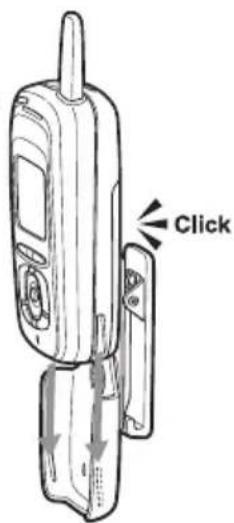
- Line up the groove on the back of the handset with the groove on the holster. It fits in the holster only one way.
- Slide the phone into the holster.
- Use the spring clip to attach the holster to your belt or pocket.
text_image
Click
You must remove the holster to charge the handset.
Optional Headset Installation
Your phone may be used with an optional headset. To use this feature, insert the headset plug into the headset jack. Your phone is ready for hands-free conversations. (Headset may be purchased by calling the Uniden Parts Department or visiting the web site. See page 65.)

natural_image
Diagram of a device casing with internal components and directional arrow (no text or symbols)Using the Interface
Display Icons
| ICON DESCRIPTION | |
 | Battery icons indicate the handset battery status. This icon cycles depending on the battery status (full, medium, low, and empty). |
 | Ringer off icon indicates that ringer is turned off. |
 | Keypad lock icon appears when the keypad is locked. |
 | Text message icon appear when you have new text messages. |
 | Mute icon appears when you mute the handset. |
 | Speaker icon appears when the handset speaker phone is used. |
| [W406] | Booster icon appears when the Clarity Booster feature is in use. |
 | Privacy icon appears when the Privacy Mode is turned on. |
Soft Key Function
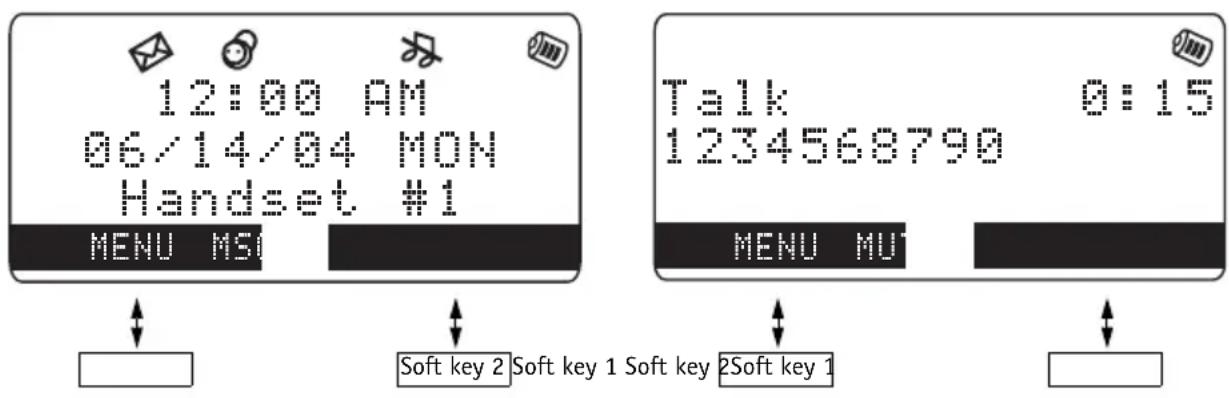
"Soft" keys are keys that change function during the operation of the phone. There are two soft keys on the handset.
The function of each soft key is determined by the text that appears directly above it. For example, when the handset is in standby mode, pressing soft key 2 access the your voice mailbox. When the handset is in talk mode, pressing soft key 2 will mute the call. Complete information on the features controlled by the soft keys can be found under each feature.
In standby mode In talk mode
text_image
12:00 AM 06/14/04 MON Handset #1 MENU MSI Soft key 2 Soft key 1 Soft key 2Soft key 1 Talk 0:15 1234568790 MENU MUTUsing the joystick
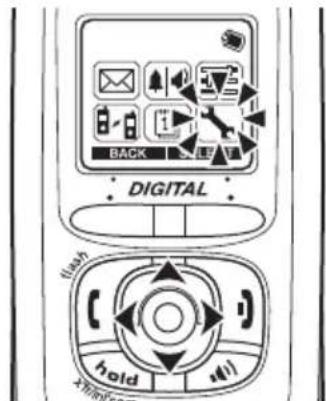
The joystick makes it easy to use your phone. The four most commonly used functions are accessible just by moving the joystick:

flowchart
graph TD
    A["Adjust the ringer"] --> B["View the phonebook"]
    B --> C["Redial a number"]
    C --> D["View the Caller ID"]
You will also use the joystick to make menu selections. To enter the menu, press in on the center of the joystick or press the Menu soft key.
text_image
DIGITAL hold X®/H12017Highlight the option you want by moving the joystick up, down, right, or left. This will move the cursor; the option currently highlighted appears in reversed out text:

text_image
flash ( ) hold mill 0 Print.comSelect the highlighted option by pressing in on the center of the joystick. (You can also press the OK soft key.) Anytime the display prompts you to press OK or the ENTER soft key, you can press the center of the joystick.
You can go back to the previous menu at any time by pressing the BACK soft key. To exit the MENU and return to standby, press the END key.
Entering text
You can use the number keypad on your phone to enter text by referring to the letters printed on each number key. When you press the number key in a text entry field, the phone displays the first letter printed on the number key. Press the number key twice to display the second letter and three times to display the third. Capital letters are displayed first, then lower case letters, then the number on the key.
If two letters in a row use the same number key, enter the first letter, then use the joystick to move the cursor to the next position to enter the second letter.
For example, to enter Movies:
| Number of times key is pressed | |||||||||
| keys | 1 | 2 | 3 | 4 | 5 | 6 | 7 | 8 | 9 |
| 1 | 1 | ||||||||
| 2 abc | A | B | C | a | b | c | 2 | ||
| 3 def | D | E | F | d | e | f | 3 | ||
| 4 ghi | G | H | I | g | h | i | 4 | ||
| 5 jkl | J | K | L | j | k | l | 5 | ||
| 6 mno | M | N | O | m | n | o | 6 | ||
| 7 pqrs | P | Q | R | S | F | g | r | s | 7 |
| 8 tuv | T | U | V | t | u | v | 8 | ||
| 9 wxyz | W | X | Y | Z | w | x | y | z | 9 |
| 0 oper | & | ( ) | < | > | / | (blank) | -- | .. | |
| . | , | : | ? | ! | @ | ' | " | * | |
| # | ∅ | ||||||||
1) Press 6 once to enter M.
2) Use the joystick to move the cursor to the right.
3) Press 6 six times to enter o.
4) Press 8 six times to enter v.
5) Press 4 six times to enter i.
6) Press 3 five times to enter e.
7) Press 7 eight times to enter s.
8) Press the center of the joystick to end your text entry.
If you make a mistake while entering a name, use the joystick to move the cursor to the incorrect character. Press the DELETE soft key to erase the incorrect character, and then enter the correct character. To delete all characters in the text entry field, press and hold the DELETE soft key.
Main Menu Options
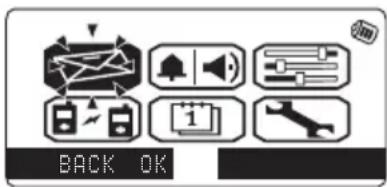
Your phone has six main menu options: Text Message, Volume Setting, Customize Handset, Link Handsets, Reminder/Calendar, and System Setup.

text_image
BACK OK
Text Message

Link Handsets

Volume Setting Reminder/Calendar


Customize Handset System Setup


If you do not press a key within 30 seconds, the phone will time out and exit the menu mode.
When setting Day and Time, the time-out period is extended to two minutes.
flowchart
graph TD
    A["Handset Setup"] --> B["Distinctive ID"]
    B --> C["AutoTalk"]
Setup Menu
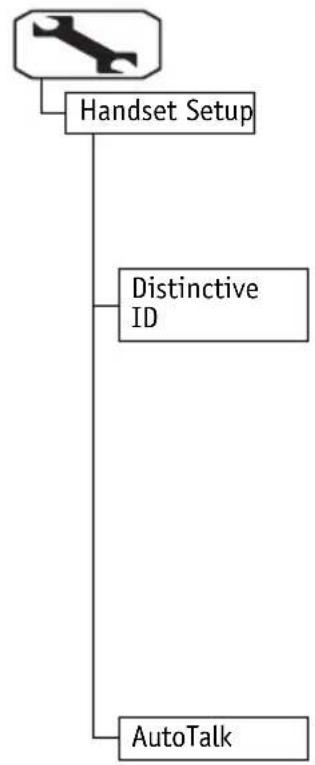
Handset Setup
The following submenu options must be set separately for each handset.

text_image
BACK OKDistinctive ID
You can assign special ringer tones to anyone in your phonebook. When your phone gets a call, it looks up the Caller ID information in your phonebook; if you've assigned a distinctive ringer to that number, the phone uses it so you know who's calling.
To turn on distinctive ringing, go to Distinctive ID and select On. A confirmation tone tells you that distinctive ringing is active.
AutoTalk
AutoTalk, lets you answer the phone just by picking it up from the cradle. To turn on AutoTalk, go to AutoTalk and select On. A confirmation tone tells you that AutoTalk is active.
[21] Setup Menu
www.uniden.com
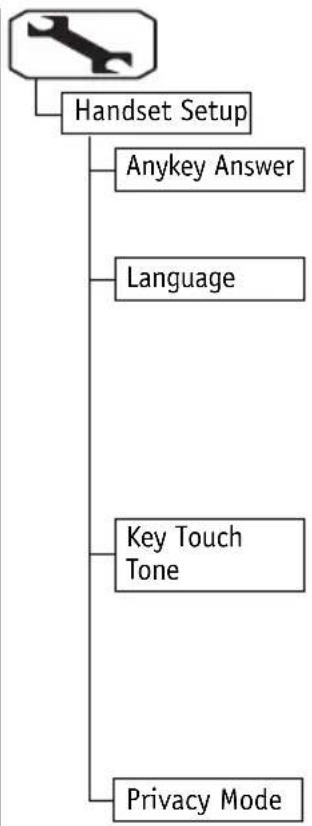
Anykey Answer
AnyKey Answer lets you answer the phone by pressing any key on the number pad. To turn on AnyKey Answer, go to AnyKey Answer and select On. A confirmation tone tells you that AnyKey Answer is active.
Language
You can change the language the menu display will use. Choose from English, French, or Spanish. To change the language, go to Language and select English, Français (French), or Español (Spanish). You'll hear a confirmation tone, and the display will use the selected language.
Key Touch Tone
Key Touch Tone is the tone your keypad makes when keys are pressed.
To turn off the tone, go to Key Touch Tone and select Off. A confirmation tone tells you that the tone has been deactivated.
Privacy Mode
If you have other registered handsets and you don't want them to interrupt you on a call, you can turn on privacy mode. As long as your handset is in privacy mode, other handsets won't be able to join your call or make any calls of their own.
flowchart
graph TD
    A["Handset Setup"] --> B["Anykey Answer"]
    A --> C["Language"]
    A --> D["Key Touch Tone"]
    A --> E["Privacy Mode"]
flowchart
graph TD
    A["Handset Setup"] --> B["LCD Contrast"]
    C["Global Setup"] --> D["Terminal"]
[23] Setup Menu
To turn on privacy mode, go to Privacy Mode and select On. You can turn on privacy mode when the phone is in standby or when you're already on a call.
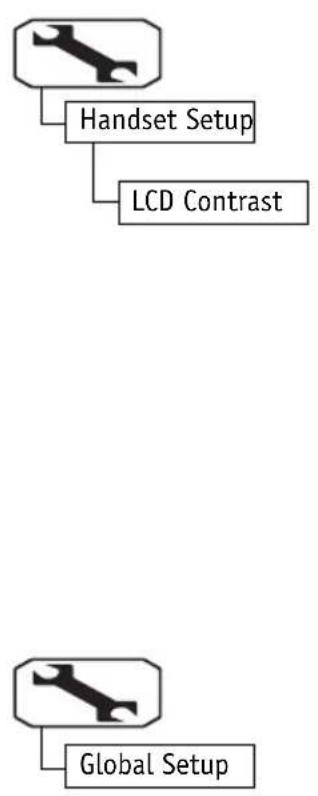
LCD Contrast
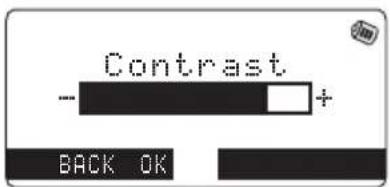
You can change the contrast of your handset display to make it easier to read. You might want to adjust the contrast whenever you change the display color. Your phone gives you 10 levels of contrast to choose from. To adjust the contrast, go to Contrast. Move the joystick up to increase the contrast and down to decrease the contrast. When you like the level of contrast, press the center of joystick to select it.
text_image
Contrast - + BACK OKGlobal Setup
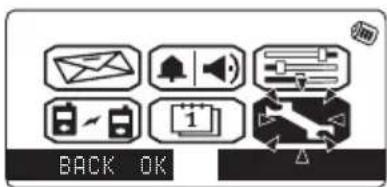
Global settings apply to all registered handsets and the base. If you change something under the global menu, you change it for all handsets. Only one handset can change global settings at a time, and you have to make sure the phone is not currently being used.
text_image
BACK OKwww.uniden.com
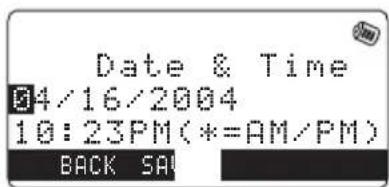
Day and Time
To change the date and time shown in the display, go to Date & Time. Move the joystick right and left to highlight the part you want to change (date, time, AM/PM). Use the number keypad or * to change each part. Press the center of the joystick when you're finished.
Call Waiting
Your phone supports Caller ID on Call Waiting, so you can see the name and number of someone who calls when you're already on the line. Your phone also supports Call Waiting Deluxe, which gives you a choice of how you want to handle a waiting call. You'll need to subscribe to these features with your phone company before you can use them.
To let your phone support these features, go to Call Waiting. Select On, and the phone will display the Call Waiting Deluxe screen. Select On. (You have to turn on Call Waiting before you can turn on Call Waiting Deluxe.)
A confirmation tone tells you that your phone is ready to use these features.
text_image
Date & Time 04/16/2004 10:23PM(*=AM/PM) BACK 5A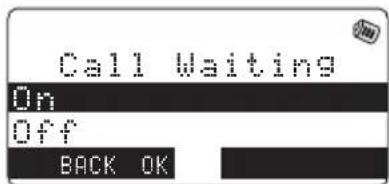
text_image
Call Waiting On Off BACK OK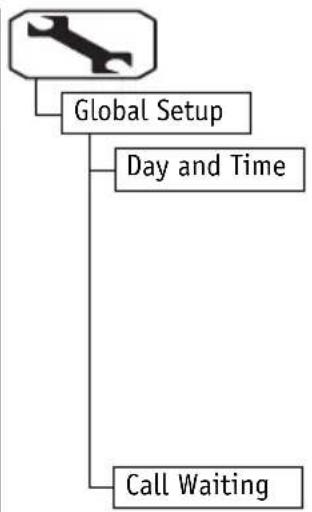
flowchart
graph TD
    A["Manual Work Icon"] --> B["Global Setup"]
    B --> C["Day and Time"]
    B --> D["Call Waiting"]

For setting Day and Time, if no key is pressed for two minutes, the phone will exit the menu mode.
flowchart
graph TD
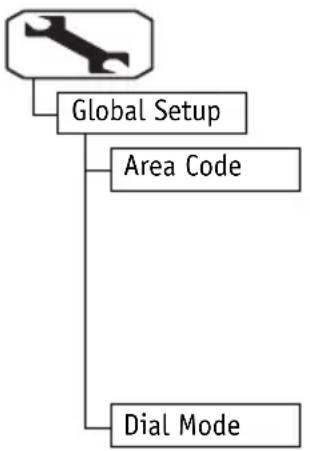
    A["Global Setup"] --> B["Area Code"]
    A --> C["Dial Mode"]
Area Code
If you can make a call by dialing only 7 digits (instead of 10), you can program your local area code in your phone. If you get a call from within your area code, you'll only see the 7-digit phone number. If you get a call from outside your area code, you'll see all 10 digits.
To enter an area code, go to Area Code. Use the number keypad to enter your 3-digit area code. Press the center of joystick when you're finished.
Dial Mode
Your phone can communicate with the telephone network in two different ways: tone dialing and pulse dialing. These days, most phone networks use a method called tone dialing, so your phone comes programmed for tone dialing.
If your phone company uses Pulse dialing, you'll need to change your phone's dial mode. There's an easy way to tell: try making a call. If your call connects, your phone's setting is fine. If not, go to Dial Mode and select Pulse. A confirmation tone tells you you've changed the dial mode, and you can try making a call again.
[25] Setup Menu
www.uniden.com
Customize Handset
This menu lets you customize your handset. You can set these options separately for each handset.

text_image
BACK OK
text_image
Ringer ToneRinger Tone
You can set a different ringer for each handset. This phone comes with 10 prerecorded songs and 10 different ringer tones; you can also record your own ringer tones (see page 27).
- Songs: Beethoven's Symphony #9 [Beethoven9], Fur Elise [Elise], We Wish You A Merry Christmas [Merry Christmas], Home Sweet Home [Home Sweet Home], Lorri Song #6 [Lorri Song], When the Irish Eyes Are Smiling [Irish Eyes], Aura Lee, Let Me Call You Sweet Heart [Sweetheart], Star Spangled Banner [Star Spangled], Old MacDonald [Old MacDonald]
- Ringer tones: Flicker, Clatter, Soft Alert, Wake Up, Light Bug, Beep Boop, Tone Board, Chip Chop, Party Clap, Reminder
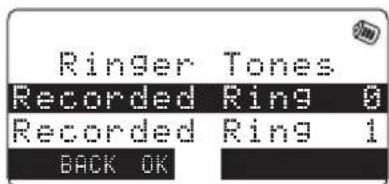
1) Go to Ringer Tones and highlight the ringer you want. (Each ringer will sound as you highlight it.)
2) Press the center of the joystick to select the ringer. You'll hear a confirmation tone, and the phone
text_image
Ringer Tones Recorded Ring 0 Recorded Ring 1 BACK OK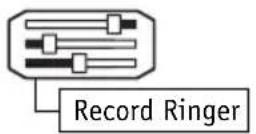
Customize Your Own Distinctive Ringer Tones
Your phone can store up to 20 different recordings to use as ringer tones (a total of 3 minutes, 15 seconds). Each recording must be between 5 and 60 seconds long.

text_image
To the headset jack To the sound source1) Connect the audio recording cable to the handset and sound source (e.g.stereo or cd player). Insert one end of the audio recording cable into the handset's headset jack and the other end into the sound source.

text_image
To start recording ringer Press [RECORD] BACK REYou can also simply use the handset's microphone by holding the handset close to the sound source.
2) Go to Record Ringer.
3) To start recording, press the RECORD soft key. The message counter displays 60 and then begins to count down.
4) When you are finished recording, press the STOP soft key. The phone will play the recorded ringer.
5) To store the ringer, press the Joystick or the SAVE soft key.
6) Enter the title of this ringer.
7) Press the center of the joystick key.
Delete Ringer
To delete a ringer tone, go to Delete Ringer and simply select the ringer you want to delete. Select Yes. The ringer is deleted from the list, and the phone stays on the ringer list.
Animations
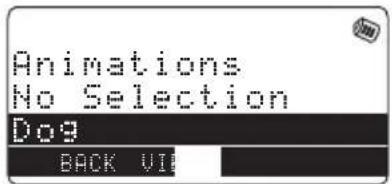
Your phone has 5 different system animations (Dog, Face, Car, Frog and Abstract) with 9 different animation schemes. The example below is for the Face animation scheme.

Ringer Volume Off


Ringer Volume Low


Ringer Volume High


Paging Done!

Deleted! TALK END Low battery
To turn on the animation, go to Animations and highlight the animation you want. Press the VIEW soft key to see the animation or the OK soft key to activate it.
text_image
Animations No Selection Dog BACK UI
flowchart
graph TD
    A["Delete Ringer"] --> B["Animations"]

Themes (wallpaper)
Your phone has 22 different wallpaper themes (including digital and analog clocks). The wallpaper will display on the handset's LCD during standby mode:


Abstract Frame Cruisin Cycling Gone Shopping Guitar


Happy B_Day Jogger New York Ollie Pagoda


Puppy Dog Roxie Sail Boat Smiley Face Soccer

Stiletto tunes

Uniden Logo
Uniden

Vacation Work Related

To turn on the wallpaper, go to Themes and highlight the wallpaper you want. Press the VIEW soft key to see the wallpaper or the SELECT soft key to activate it.
[29] Setup Menu
www.uniden.com
Banner
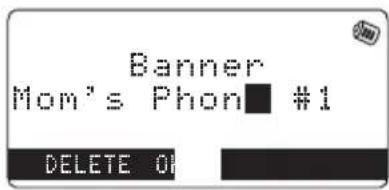
You can change the name your phone displays on the screen. If you have more than one handset, you can use the banner name to identify your handset during handset-to-handset functions like text messaging, intercom and DirectLink.
text_image
Banner Mom's Phon ■ #1 DELETE OKGo to Banner and enter the name you want to use. You can use up to 10 characters. Use the DELETE soft key to delete an existing handset name. Press the center of your joystick when you're finished.
Keypad Lock
You can lock your keypad so you don't press any keys accidentally. You can still answer calls.
To lock your keypad, go to Keypad Lock and select Lock. You'll hear a confirmation tone, and your keypad is locked.
To unlock the keypad temporally, press any key on the upper part of the handset. Keypad Locked! To unlock keypad press * key appears. Press tone/* in 20 seconds. Keypad Unlocked! Auto Lock Enable appears.

flowchart
graph TD
    A["Device"] --> B["Banner"]
    A --> C["Keypad Lock"]

The number keypad will not be locked.

text_image
Backlight ColorTo release the keypad lock, press any key on the upper part of the handset. While the display appears, press the # key. Keypad Lock Off appears.
Backlight Color
You can change the color of your phone's backlighting. There are 7 different colors choose from: Ocean, Kiwi, Sunset, Violet, Sunflower, Sky, and Polar Ice.
To change the color of the display's backlight, go toBacklight Color and select the color you want. As you scroll through the options, the phone displays the highlighted color for you.
Using Your Phone
Making Calls
1) Remove the handset from the charging cradle.
2) Slide the keypad open.
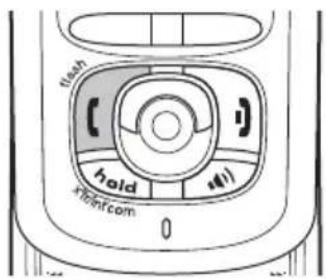
3) Press (/flash.
4) Listen for the dial tone.
5) Dial the number.
OR
1) Remove the handset from the charging cradle.
2) Slide the keypad open.
3) Dial the number.
If you need the phone to pause before dialing more digits (for example, to enter an access code or extension), press the PAUSE soft key. P appears in the display, which represents a 2-second pause.
4) Press (/flash.
text_image
flash hold rhh.com
If the line is already in use, all registered handsets that are not currently in use will display Line In Use.

- For best performance, use the speaker phone in a quiet room and let the caller finish speaking before you speak. If you or the other party has difficulty hearing, adjust the speaker volume.
- To set "Autotalk," see page 21 or to set "Anykey Answer" see page 22.
From the Handset Speakerphone
1) Remove the handset from the charging cradle.
2) Slide the keypad open.
3) Press (Speaker Phone).
4) Listen for the dial tone.
5) Dial the number.
6) When the other party answers, talk into the microphone in the middle of the handset.
Receiving a call
| Handset is in the cradle Handset is off the cradle | |
| 1)Remove the handset from the charging cradle.2)Press √flash.If AutoTalk is ON, the phone will automatically answer the call when you pick the handset up. | Press √flash.If Any Key Answer is set to On, you can also press any number key on the keypad to answer a call. |
Hanging Up
Press or return the handset to the charging cradle.
Switching to the Handset Speakerphone During a Call
To switch a normal call to the speakerphone, press (speaker phone) on the handset. To switch from a speakerphone call to a normal call, press (speaker phone).
Moving out of range
If you move your handset farther from the base unit during a call, you might start to hear more noise than usual. If you go too far from the base, you'll hear a beep and see No Signal Press Help on the display. The base will stay connected to the caller for another 30 seconds, so you can move back within range and press /flash or (speaker phone) to return to the call.

- You must subscribe through your local telephone company to receive Call Waiting or Caller ID on call waiting service.
-Your phone can't show call waiting caller ID information when a call is on hold.
Call Waiting
If you hear a call waiting tone while you're on a call, press (/flash to switch to the new call. After a short pause, you'll hear the new caller. Press (/flash again to go back to the original caller.
Call Waiting Deluxe
If you subscribe to Call Waiting Deluxe (CWDX) from your phone company, you have several different options when you get a call waiting call. When you hear the call waiting tone, instead of answering the call, you can press the center of the joystick and then select CWDX. Then, use your joystick or press 1-7 to choose from the following options:
- Ask to Hold - A prerecorded message tells the caller that you'll be available shortly, and the call is place on hold.
- Tell Busy - A prerecorded message tells the caller you are busy, and the waiting call is disconnected.
- Forward Call - The caller is sent to your voice mail box, if available.
-
Answer/Drop 1 - Disconnects the first call, and connects to the new caller.
-
Conference - Starts a conference call with your first and second callers.
6.Drop First/7.Drop Last - During a conference call, allows you to choose to drop the first or last caller.
Placing a Call on Hold
During a call, press hold/X'fr/int'com to put the call on hold. Press /flash or to go back to the call.

text_image
12:00 AM 06/14/04 MON Line On Hold MENU MSOIf you leave the call on hold for 10 seconds, the display will change to read Line on Hold. After 5 minutes, the call is disconnected.
Conferencing
If you have more than one handset, two handsets can talk to the outside caller at the same time in a conference call. Once a call is in progress, press (/flash or 📄) to join the call. To hang up, press ) or put the handset back in the cradle. The other handset will still be connected after you hang up.

If the other handset is in privacy mode, you won't be able to join the call.

• Each redial record can store up to 32 digits, but your phone only displays the first 15 digits. Digits between 16 and 32 are still there, just not displayed.
•To store redial numbers in the Phonebook, see page 51.
Redialing Calls
You can quickly redial the last ten phone numbers that were dialed from this handset.
With the phone in standby mode, slide the joystick down. This brings up the redial list. Use the joystick to scroll through the numbers, and select the number you want to dial. Press √flash to dial the selected number.

text_image
Hold Therdom Redial a number
text_image
Deleting Redial Records
If you want to delete a phone number from the redial list, go to the redial list and select the number you want to delete. Press the OPTION soft Key, and select Delete Number, and then Yes. If you want to delete all the redial records, select Delete All, and then Yes.
Using the Handset Volume Setting Menu
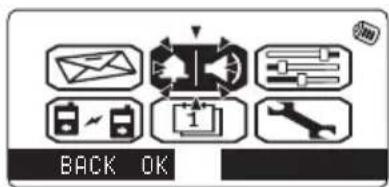
You can adjust the handset audio from Volume Setting menu.
Ringer: Adjust the handset ringer volume
You can choose from three different ringer volume settings on your handset: off, low, and high. To adjust the ringer volume, go to Ringer and select the ringer option you want to use.
Ear speaker: Adjust the handset earpiece volume
You can choose from six volume levels for the earpiece speaker. To adjust the earpiece volume, go to Ear Speaker and select the volume level you want to use.
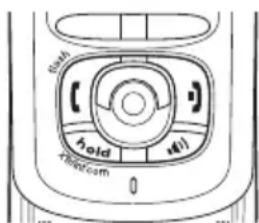
You can also adjust the earpiece volume during a call by sliding the joystick up, and then up (to make it louder) or down (to make it softer).
text_image
BACK OK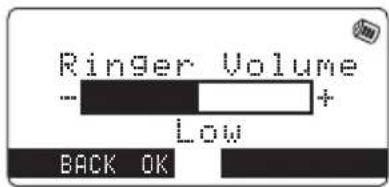
text_image
Ringer Volume - + Low BACK OK
text_image
Ear Speaker - + Volume 3 BACK OKSpeaker: Adjust the handset speaker volume. You can choose from six volume levels for the handset speakerphone. To adjust the speaker volume, go to Speaker and select the volume level you want to use.
You can also adjust the handset speaker volume during a call by sliding the joystick up, and then (to make it louder) or down (to make it softer).
Audio Tone
If you aren't satisfied with the audio quality of your phone, you can adjust the Audio Tone of the earpiece. Your phone gives you three audio tone options: low, mid, or high. Go to Audio Tone and select the option that sounds best to you. (Audio tone adjustments only apply to the earpiece, not the speakerphone.)
Mute the Handset Ringer
While the handset is ringing, you can mute the ringer for this call by pressing the MUTE soft key. The phone will ring again on the next call.
Adjust the speaker volume

text_image
Hold Hold to Bottom
text_image
High Tone Natural Tone Low Tone BACK OKMute the Handset Microphone
When you're on the phone, you can press the Mute soft key to turn off the microphone so the caller can't hear you. The display shows Mute On and ☑while the microphone is muted. To turn off muting, press the Mute soft key again.
Tone Dialing Switch-over
If your telephone company uses pulse dialing, you can switch-over to tone dialing after the call connects. This feature is useful when you need tone dialing to use any automated menu systems, such as telephone bank tellers, telephone prescription refills, customer support menus, etc.
text_image
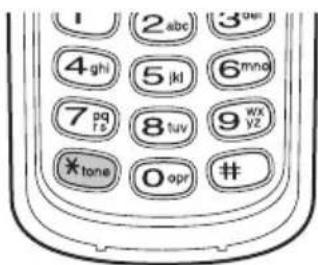
1 (2 abc) 3 main 4 ghi 5 kl 6 mng 7 pq 8 tuv 9 wx yz * tone 0 opr #If your phone is set to pulse dialing mode, make your call normally. Once your call connects, press the */tone key. Any digits you enter from then on will be sent as tone digits. When this particular call ends, the phone automatically returns to pulse dialing mode.

You can only mute the handset ringer if the handset is off the base when the phone starts ringing.

If the battery pack is completely drained, the handset will not beep.
Clarity Booster
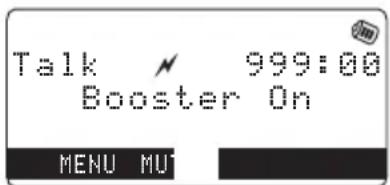
If you have interference while you are on your phone, you can improve the sound quality by turning on the clarity booster.
text_image
Talk 999:00 Booster On MENU MUTWhile you are on a call, press the center of the joystick and then select Clarity Boost. Boost On and ↗appear on the display. To turn off the Clarity Booster, repeat above steps again.
Find Handset
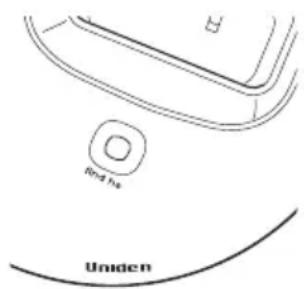
To locate the handset, press find hs on the base when the phone is in standby mode. All registered handsets beep for 60 seconds, and Paging appears on the handset display. To cancel paging, press any key on the handset or find hs on the base.
text_image
End He UnidenUsing One Touch Voice Mail Access
If you subscribe to voice mail service, you can use your phone to access your voice mailbox. The new message LED flashes whenever you have messages waiting in your voice mailbox. Just program the handset with your access number, and you can get your messages at the touch of a button on the handset. (The voice mail service provider will supply you with the access number. This number may be simply a phone number. Refer to the provider's literature). When you have messages, simply pick up the handset and press the MSG soft key. If you have not entered the access number or it has been deleted, when you press MSG, No Number Stored To store number press MENU appears and you will hear a beep. The phone returns to standby mode.
Programming your Voice Mail Access Number
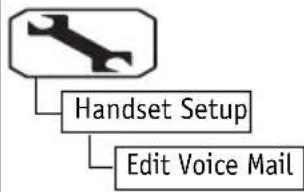
Your phone can program or delete the voice mail access number. To edit voice mail number, go to Edit Voice Mail and then enter your personal access number (up to 20 digits). Press the center of your joystick when you're finished.
If you have an access number already entered, the current number will appear in the display. To delete that number, press the DELETE soft key. If you need to have the phone wait before sending the next digits, press the PAUSE soft key.

You must subscribe to voice mail service from your telephone company in order to use this feature. The voice mail service company will provide you with the access number.
flowchart
graph TD
    A["Handset Setup"] --> B["Edit Voice Mail"]
flowchart
graph TD
    A[" wrench icon "] --> B[" Global Setup "]
    B --> C[" Voice Mail Tone "]
A P appears in the display each time you press the PAUSE soft key; each pause inserts a two-second delay in the dialing sequence, and each pause counts as one digit. Press the center of your joystick when you're finished.
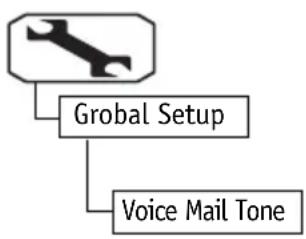
Voice Mail Tone
If your voice mail service uses an SDT message signal to alert you of a new voice mail message, you will need to turn on the Voice Mail Tone. If your voice mail service uses an

text_image
BACK OKFSK message signal to alert you of new voice mail messages, leave the Voice Mail Tone off. To turn on Voice Mail Tone, go to Voice Mail Tone and select On.
Resetting the New Message LED
If the LED remains on after you've retrieved your messages, you may need to reset the indicators. With the phone in standby mode, press and hold find hs on the base until the paging sound stops (about 5 seconds).
Calendar & Scheduler
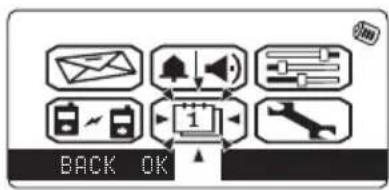
Your phone has a built-in calendar that you can use to schedule reminders and appointments (all the way through December 31, 2023). You can set alarms for up to 30 different reminders;
text_image
BACK OKSelect the Reminder/Calender option to view the calendar. Use the joystick to scroll through the calendar.
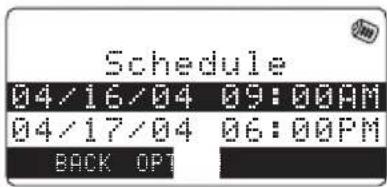
Scheduling a reminder
Go to the Calendar. Press the SKDL soft key to show all scheduled reminders, and select a reminder. Press then the OPTION soft key. Select New Entry.
text_image
Schedule 04/16/04 09:00AM 04/17/04 06:00PM BACK OPT1) Press the center of the joystick.
2) Use the number keypad or * to select the date and time of this reminder. Press the center of the joystick when you're finished.

3) If you want your phone to ring when this reminder occurs, move to the second line. Select the ringer tone you want the phone to ring.
4) Press the center of the joystick.
5) Select third line to enter a name or reminder text for this even. Edit Schedule appears. You can enter up to 32 characters. Press the center of the joystick when you're finished.
6) When everything is correct, press the DONE soft key.
Editing and deleting reminders
You can edit reminders by pressing the SKDL soft key and selecting the reminder by pressing the center of the joystick. Once the reminders is selected, you can edit the date, time, reminder tone, and text the same way you entered them for a new entry.
To delete an reminders, select the reminder and press the OPTION soft key. Select Delete entry. To delete all reminders, select Delete All.
Using the Phonebook
Your phone lets you store up to 100 entries in each handset. You can store up to 4 phone numbers for each name in your phonebook (for a total of 400 numbers), and you assign names to groups for easy searching. You can also store a special ringer tone, display, and color to each name or group. You can store a distinctive ringer tone, picture display, and backlight color to your name or group.
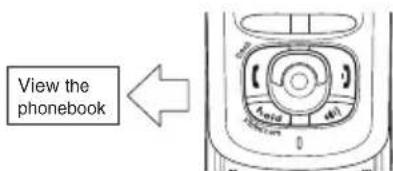
You can enter your phonebook at any time by sliding the joystick to the left.
text_image
View the phonebookCreating and Editing Phonebook Entries
Go to the phonebook and press the OPTION soft key. SelectNew Entry. Enter as much of the following information as you want. Press the center of the joystick to enter each entry and confirm the selection. When you're finished, press the DONE soft key to save this phonebook entry.
Step 1: Name
Select N and use the keypad to enter the name for this entry. You can enter up to 16 characters. If you don't want to enter a name, your phone will store this entry as

text_image
Jane Smith 101-101-1010 202-202-2020 303-303-3030 404-404-4040 Elise Gears Kiwi Group2 SpeedDial 10 BACK DOStep 2: Number
Select 📄 and enter a phone number for this entry. If you need your phone to pause between digits when it's dialing (for example, to enter an extension or an access code), press the PAUSE soft key to insert a two-second pause. You'll see a P in the display. You can stack more than one pause together if two seconds isn't long enough. Each pause counts as one digit; you can enter up to 20 digits for the phone number. Press the center of the joystick when you're finished, and your phone will go back to the current phonebook entry.
After you enter the number, press the center of the joystick. You can select an icon to remind you which number this is: home work, mobile, or general phone number. Press the center of the joystick when you're finished.
Step 3: Unique Ring
Select 📋 to attach a special ring to this phone. Select the ringer tone you want the phone to use when this person calls, or select No Selection to have the phone use its regular ringer tone. Press the center of the joystick when you're finished, and your phone will go back to the current phonebook entry.

You can save up to 4 numbers for each phonebook entry. If you try to save more than 4 numbers for a phonebook entry, your phone will display Dial data is full. You'll have to delete one of the existing numbers before you add a new one.

You can also choose the display from the themes.
Step 4: Unique Display
Select 📄 to attach a special screen display to this entry. Select the display you want the phone to use when this person calls, or select No Selection to have the phone use its regular display. You can press the VIEW soft key to see the display choices:


Lava lamp Fireworks Race Car Ollie Roxie


Good Doggy Sail Boat Abstract Geo Gears Flutter
Press the center of the joystick when you're finished, and your phone will go back to the current phonebook entry.
Step 5: Unique Color
Select A to attach a special screen color to this entry. Select the color you want the phone to use when this person calls, or select No Selection to have the phone use its regular color. As you scroll through the list, you will see the color choices. Press the center of the joystick when you're finished, and your phone will go back to the current phonebook entry.
Step 6: Phonebook Group
Select to place this entry into a phonebook group. Select the group (0-9) you want this entry to belong to, or select No Selection to leave the entry outside of any group. Press the center of the joystick when you're finished, and your phone will go back to the current phonebook entry. See page 54 for information on creating and editing groups. To select a group, see page 54.
Step 7: Speed Dial
Select 0-9 to save this number to one of the 10 speed dial numbers or No Selection if you don't want to save it to a speed dial number. If there's already a phone number saved to the speed dial number you select, your phone will ask if you want to overwrite the number. Press the center of the joystick when you're finished, and your phone will go back to the current phonebook entry.
Storing Caller ID or Redial Numbers in the Phone-book
You can store Caller ID or redial numbers in your phonebook so you can use them later. Go to the Caller ID list or redial list and select the number you want to store. (If the Caller ID information didn't include the number, then you can't store it.)
Press the OPTION soft key and select Add to Phonebook. Your phone will create a phonebook entry so you can enter the additional information shown on page 46.
If the number you want to save is already in the phonebook, your phone will display This data is already stored!.
Managing the Phonebook
With the OPTION soft key, you can delete phonebook entries, copy entries to another handset, check how many empty phonebook and speed dial entries you have available, sort your phonebook by groups, and name phonebook groups.
Deleting phonebook entries
Go to the phonebook and select the entry you want to delete. Press the OPTION soft key and select Delete Entry. Your phone will ask you to confirm select Yes.
To delete all the entries from your phonebook, go to the phonebook and press the OPTION soft key without selecting an entry. Select Delete All. Your phone will ask you to confirm select Yes.
Copying phonebook entries to another handset
When you copy entries to another handset, the group and speed dial information won't be transferred. You phone will cancel the copying process if any one of the following things occurs:
-- If the handset you are copying to doesn't have enough memory (the phone will show Not enough memory in receiving unit).
-- If the handset you are copying to already has that phone number in its phonebook.
-- A call comes in during the copying process.
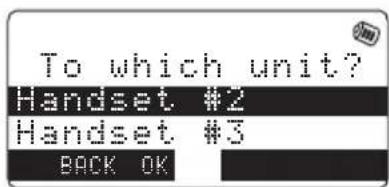
To copy a single entry, go to the Phonebook and select the entry you want to copy. Press the OPTION soft key and select Copy Entry. Select the handset you want to copy to the entry to.
text_image
To which unit? Handset #2 Handset #3 BACK OKTo copy all the phonebook entries, go to the phonebook and press the OPTION soft key without selecting an entry. Select Copy All. Select the handset you want to copy to the entry to.
Checking the Number of Stored Entries
To see how many phonebook entries you have, go to the phonebook and press, the OPTION soft key and select PhoneBk Capacity. The phone will show you how many stored names (entries) and how many stored phone numbers (total) you have.

text_image
PhoneBk Capacity Name: xxx/100 Dial: xxx/400 BACKTo see your speed dial entries, go to the phonebook and press the OPTION key and select Check 🎨 Dials. The phone will show you which speed dial numbers have phone numbers stored in them.
Changing the Sorting Order
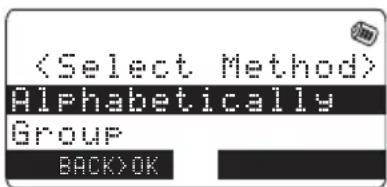
To change the sorting of your phonebook, go to the phonebook and press the OPTION soft key and select Sort. Select Alphabetically to see the list of names in alphabetical order; select Group to see the list of groups in alphabetical order. Enter a jump to the first entry beginning with
text_image
Naming phonebook groups
Your phone comes with 10 groups to organize your phonebook. You can name groups things like "Family" or "Friends" or "Softball team." This will let you find entries in your phonebook more quickly.
To name a group, go to the phonebook and press the OPTION soft key and select Edit Group Name. Select the group number (0-9) you want to edit, and enter the name you want for this group using the number keypad. Press the center of the joystick when you're finished.
Making Calls with the Phonebook
To call someone in your phonebook, go to the phonebook and select that person's phonebook entry. Select the number (one of the four available) that you want to call, and press (/flash.
Using the Speed Dial
Slide open the keypad. Press and hold the number of the speed dial entry you want to call until the phone number appears on the display. Press /flash.
Caller ID Features
If you subscribe to Caller ID from your phone company, your phone will show you the caller's phone number and name (if available) whenever a call comes in:

text_image
03/19 12:20AM 2 John Doe 101-101-1010 BACK DIIf you subscribe to both Call Waiting and Caller ID the phone also show you the name and number of call waiting calls (that is, calls that come in while you're on the line.)
Using the Caller ID List
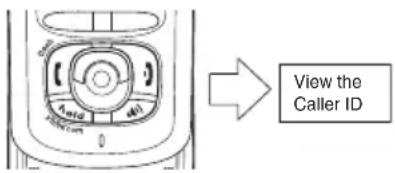
Your phone can store up to 100 Caller ID numbers. To see the Caller ID list, slide the joystick to the right.
The phone will show the Caller ID list; only the first 13 characters of the name are displayed. You can use the joystick to scroll through the list, or you enter a letter with the keypad to jump to the first caller ID name that starts with that letter. If anyone in your phonebook has called you, the icon assigned to their number will appear in the Caller ID list. When you're done looking at the list, press the BACK soft key to exit.
text_image
View the Caller IDIf you want to see how many Caller ID numbers are stored in your phone, go to the Caller ID list and press the OPTION soft key. Select CID
Capacity.

text_image
CID Capacity New :100 Total:100 BACKCalling someone from the Caller ID list
Go to the Caller ID list and select the number you want to call. If you need to add a "1" to the number for a long distance call, press */tone. If you need to add your saved area code to the number, press #. Then press (/flash to dial the number.
Deleting Caller ID numbers
To delete only one Caller ID number, go to the Caller ID list and select the number you want to delete. Press the OPTION soft key, and select Delete Entry. When the phone asks you to confirm, select Yes.
To delete all the Caller ID numbers, go to the Caller ID list and press the OPTION soft key. Select Delete All. When the phone asks you to confirm, select Yes.

When you delete a Caller ID number, you delete it permanently.
Multi-Handset Features
The features in this section require a minimum of two handsets to operate. To add additional handsets to your system, see "Expanding Your Phone" on page 9.
Text Message
You can chat with another handset using text messages and still be able to receive calls. You can use one of 10 preset messages or write a new message. You can also save 10 custom messages of your own.
text_image
BACK OKTo enter text message option, press the MENU soft key, and then select Text Message icon.
Sending a New Message
To send a brand new message, go to New Message. Enter your message, and press the center of the joystick when you're done. Select the handset you want to send the message to; the display will show Done when the message has been sent.
Sending a Preset Message
To send a preset message, go to New Message, and press the PresetMSG soft key. Select Preset Message. Select the message you want to send from the following list:
- Are you free? 6. Are you ready for a break?
- What's up? 7. Happy Birthday!!
- I need your help. 8. Happy Anniversary!!!
- What's for lunch? 9. Love You!
- What's for dinner? 10. See you later alligator!
Then, select the handset you want to send the message to; the display will show Done when the message has been sent.
Using Saved Custom Messages
You can save up to 10 custom messages for later use; each message is saved to one of the number keys (0-9). To create a custom message, go to Edit Custom Msg, and select the number key where you want to store this message. (If you want to edit an existing message, select the number of the existing message.) Enter your message (up to 32 characters, including spaces), and press the center of the joystick when you're done. Once your custom message is saved, you can send it any time you want.

text_image
Edit Custom MSG 1.Peekaboo! 2.Did you sleep BACK EDTo send your custom message, go New Message, and press the PresetMSG soft key. Select Custom Message. Select the number of the message you want to send. Then, select the handset you want to send the message to; the display will show Done when the message has been sent.
Using the Inbox and Outbox
Your phone stores the last 10 received messages in the Inbox and the last 5 sent messages in the Outbox. Unread messages have an asterisk (*) next to them. In both the Inbox and the Outbox, you can read old messages or delete them. In the Inbox, you can also reply to messages or forward them.
Reading Messages
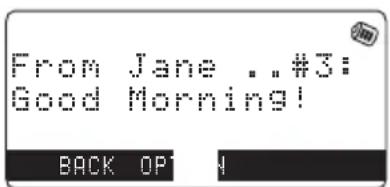
Go to Inbox or Outbox. Your phone will list the stored messages by showing the other handset's banner name. (The display will read No Messages if the box is empty.) Select the message you want read. You can use the joystick to scroll through long messages.
Once you have the message on the screen, Press the OPTION soft key to delete it, forward it, or reply to it:
text_image
From Jane ..#3: Good Morning! BACK OPDelete current message
Select Delete Message. The phone will ask you to confirm; select Yes, and the message is deleted.
Delete all messages
Select Delete ALL Msg. The phone will ask you to confirm; select Yes, and the message is deleted.
Reply to a message
Select Reply Message. Enter the reply message you want to send; press the center of the joystick when you're finished. The display will show Done when the message has been sent.
Forward a message
Select Forward Message. Select the handset you want to forward the message to. The display will show Done when the message has been sent.

- If the party is out of range, No Signal appears in the display, and the operation will be canceled.
- While a pair of handsets are in DirectLink Monitor mode, they cannot be used to make or receive calls. Other handsets can still make and receive calls.
Using DirectLink Mode
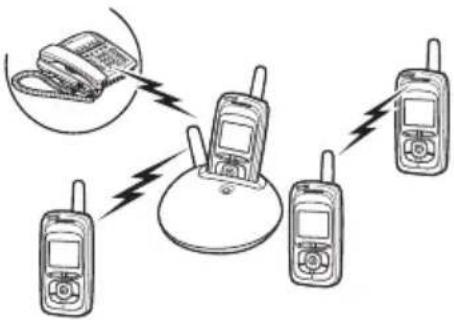
In DirectLink Mode, a pair of handsets can function as two-way radios. You can have up to two pairs of handsets in DirectLink Mode at a time. DirectLink Mode does not interfere with the main base's ability to make or receive telephone calls. You must set both handsets to DirectLink Mode to ma
text_image
Diagram showing wireless communication between three mobile phones with wireless signals and a central device, including a separate image of a keypad.Press the MENU soft kye, and select the Link Handsets option, then select DirectLink Mode. When the phone displays DirectLink by pressing center/select knob, press the center of the joystick. The phone displays In DirectLink Mode.

text_image
BACK OKTo make a DirectLink call, press the DirectLink soft key and select the handset you want to call. To cancel the call, press the CANCEL soft key. To answer a DirectLink call, press (/flash or ANSWER soft key. Press) when you want to hang up.
To exit DirectLink mode and be able to receive normal phone calls again, press the cancel soft key, and then press OK soft key.
Room/Baby Monitor
This feature allows you to monitor sounds in another room. Place a handset in the room you wish to monitor; it will function as a microphone. A second handset can be used as a remote speaker, allowing you to monitor sounds in the room.
Using Room/Baby Monitor
Press the MENU soft kye, and select the Link Handsets option, then select Room
Monitor. When the phone displays Listen to, select the handset you want to monitor. Press when you want to stop monitoring.

text_image
Illustration showing a hospital room with medical equipment and a person inside, including a close-up of the room's interior with a walkie-talkie.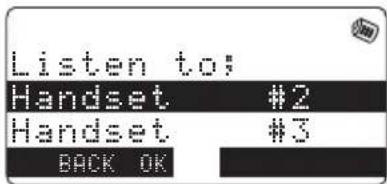
text_image
Listen to; Handset #2 Handset #3 BACK OK
- This feature only works when both handsets are within the range of the base.
- If the party is out of range, No Signal appears in the display, and the operation will be canceled.
- While a pair of handsets are in Room/Baby Monitor mode, they cannot be used to make or receive calls. Other handsets can still make and receive calls.

- If you receive an outside/intercom call or page while selecting the other handset, the operation is canceled.
- If the party does not answer within one minute, the operation is canceled.
- During an intercom call, if you receive a call, you will hear a ringer tone from the ear speaker.
Intercom
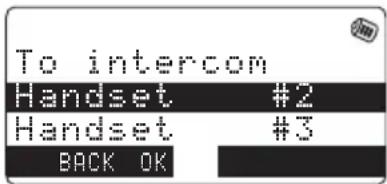
You can use the intercom to talk to another handset without using the phone line. While the phone is in standby mode, press hold/x'fr/int'com. Select the handset you want to page. If you select all, all other
text_image
To intercom Handset #2 Handset #3 BACK OKhandsets will be paged. If the handset you're trying to page is busy, the phone displays System busy. If the handset you're trying to page is out of range, the phone displays No Signal. The page is canceled.
Answering an intercom page
When the handset receives an intercom page, it sounds a tone and shows the ID of the handset that is paging. Pick up the handset and press (/flash or the ANSWER soft key to answer the page.
To hang up an intercom page, press) on either handset or return the handset to the cradle.
Transferring a Call
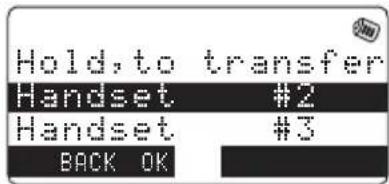
You can transfer a call from one handset to another. During a call, press hold/x'fr/int'com; this will put the call on hold. Select the handset you want to page. If you select All, all other handsets will be paged. To cancel the page and go back to the caller, press (/flash.
text_image
Hold, to transfer Handset #2 Handset #3 BACK OKAnswering a transfer page
When the handset receives a transfer page, it sounds a tone and shows the ID of the handset that is paging. Pick up the handset and press [/flash to answer the page. If you want to accept the transfer and talk to the outside caller, press [/flash.

- If all handsets are paged, only the first party to answer the page will connect.
- If you do not select a handset within ten seconds, the operation will be canceled.

A replacement Uniden adapter or battery may be purchased by contacting the Uniden Parts Department (800) 554-3988. Hours are from 8:00 a.m. to 5:00 p.m. Central Time, Monday through Friday, or www.uniden.com.
Note on Power Sources
Power Failure
During the period that the power is off you will not be able to make or receive calls with the telephone.
Battery replacement and handling
When the operating time becomes short, even after the battery is recharged, please replace the battery. With normal usage, your battery should last about one year.
Warning
To avoid the risk of personal injury or property damage from fire or electrical shock, use only Uniden AD-800 AC adapters and Uniden BT-0001 battery back with your phone.
Caution
- Use only the specified Uniden battery pack (BT-0001).
- Do not remove the batteries from the handset to charge them.
- Never throw the battery into a fire, disassemble them, or heat them.
- Do not remove or damage the battery casing.
Installing a Replacement Battery
Follow the steps below if you need to replace a battery.
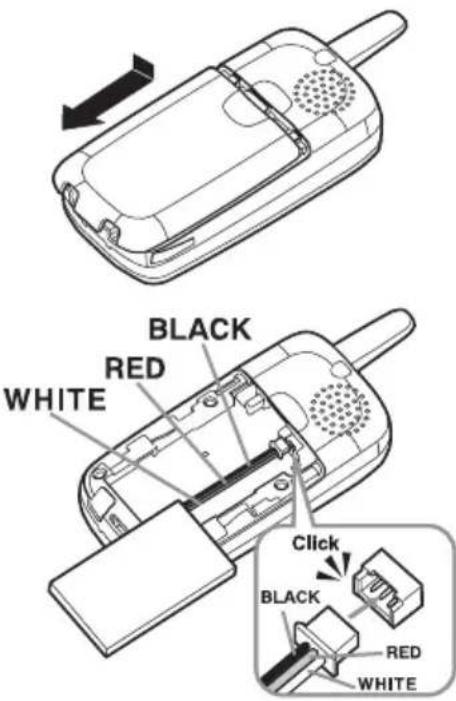
1) Press down on the handset battery case cover (use the finger indentation for a better grip) and slide the cover downward to remove.
2) Remove the existing battery and unplug the connector from the jack.
3) Plug the battery connector (red, white & black wires) into the jack inside the battery compartment. (The connector notches fit into the grooves of the jack only one way). Match the wire colors to the polarity label in the battery compartment, connect the battery and listen for a click to insure connection.
text_image
BLACK RED WHITE Click BLACK RED WHITE
- Use only the Uniden (BT-0001) rechargeable battery pack supplied with your cordless telephone.
- If you try to use the phone when the battery case cover is open, you will hear beep and see Please close the battery cover on the display. Close the battery cover tightly.

• Even when the battery pack is not being used, it will gradually discharge over a long period of time.
- For optimum performance, be sure to return the handset to the cradle after each telephone call.
- If the handset is left off of the base, the actual Talk mode duration will be reduced respective to the amount of time the handset is off the cradle.
4) Make sure you have a good connection by gently pulling on the battery wires. If the connection is secure, the battery jack will remain in place.
5) Place the battery case cover back on the handset and slide it upwards until it clicks into place.

text_image
ClickLow battery alert
When the battery pack is very low, the phone is programmed to eliminate functions in order to save power.
The battery pack needs to be charged when:
- The empty battery icon appears. - Low Battery appears in the display. If the phone is in standby mode, none
of keys will operate. If you are on a call, complete your conversation as quickly as possible, and return the handset to the cradle.
Low Battery
Cleaning the battery charging contacts
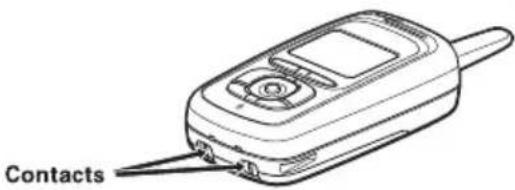
To maintain a good charge, clean the charging contacts on the handset once a month. Dampen a cloth with plain water. Gently rub the damp cloth over the charging contacts until all visible dirt is removed. Dry the contacts thoroughly before returning the handset to the cradle.
Caution: Do not use paint thinner, benzene, alcohol, or other chemical products. Doing so may discolor the surface of the telephone and damage the finish.
text_image
ContactsGeneral Information
The phone complies with FCC Parts 15 and 68. Operating temperature:
0 °C to +50 °C (+32 °F to +122 °F)
AC Adapter Information
AC Adapter part number: AD-800
Input Voltage: 120V AC 60Hz
Output Voltage: 9V DC 350mA.
Battery Information
Battery part number: BT-0001
Capacity: 650mAh, 3.7V
Specifications, features, and availability of optional accessories are all subject to change without prior notice.
Troubleshooting
If your phone is not performing to your expectations, please try these simple steps first. If these steps do not solve your problem, please call our Customer Hotline at 1-800-297-1023 (Mon - Fri 7 am to 7 pm, Sat/Sun/holidays 9 am to 5 pm, CST).
| Symptom Suggestion | |
| The charge LED won't illuminate when the handset is placed in the cradle. | Make sure the AC adapter is plugged into the base or the charger (if you have more than one handset) and wall outlet.Make sure the handset is properly seated in the cradle.Make sure the charging contacts on the handset are clean. |
| The audio sounds weak. | Move the handset and/or base away from metal objects or appliances and try again.Make sure that you are not too far from the base. |
| Can't make or receive calls. | Make sure that you are not too far from the base.Make sure the line is not in use. If an out call is already using a line, you cannot use that line to make another outside call.Check both ends of the base telephone line cord.Make sure the AC adapter is plugged into the base and wall outlet.Disconnect the AC adapter for a few minutes, and then reconnect it.Change the Digital Security Code (see page 13). |
| The handset doesn't ring or receive a page. | Make sure that you are not too far from the base.Charge the batteries in the handset for 15-20 hours by placing the handset on the base or charging cradle.Change the Digital Security Code (see page 13). |
| Severe noise interference. | Keep the handset away from microwave ovens, computers, remote control toys, wireless microphones, alarm systems, intercoms, room monitors, fluorescent lights, and electrical appliances.Move to another location or turn off the source of interference. |
| The Caller ID does not display. | The call was placed through a switchboard.Call your local telephone company to verify your Caller ID service is current.There may be a problem with your Caller ID service. |
| You cannot register the handset at the base. | Charge the battery pack for 15-20 hours.Change the Digital Security Code (see page 13). |
| The handset doesn't communicate with other handsets. | Change the Digital Security Code (see page 13).Make sure that you have registered all handsets. |
| An extra handset can't join the conversation. | Make sure there are not 2 handsets already using the conference feature.Make sure that another handset is not in privacy mode. |
| Room Monitor feature does not work. | Make sure to place the handset(s) within the range of the base. |
System Reset De-register the Handset
1) Press and hold and # for more than 5 seconds. Select Deregister HS.
2) Select the handset ID to be de-registered from the list. The phone will ask you to confirm the deregistration. Select Yes.

text_image
Replacing the Base Setting
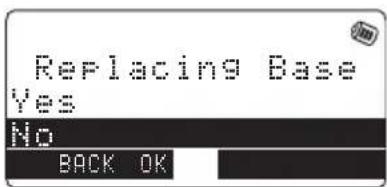
1) Press and hold end and # for more than 5 seconds. Select Replacing Base. Replacing Base appears.
2) Select Yes.
3) You will hear a confirmation tone. The base information will be deleted.

text_image
When the base information is deleted, the handset displays Models vary! Charge handset on the base for registration or refer to Owner's Manual. Re-register the handset to the base (see page 11).
text_image
Replacing Base Yes No BACK OKLiquid Damage
Moisture and liquid can damage your cordless phone. Follow the steps below if your phone gets wet:
| Case Action | |
| If the handset or base is exposed to moisture or liquid, but only the exterior plastic housing is affected. | Wipe off the liquid, and use as normal. |
| If moisture or liquid has entered the plastic-housing (i.e. liquid can be heard in the phone or liquid has entered the handset battery compartment or vent openings on the base). | Handset:1) Remove the battery cover and leave it off for ventilation.2) Disconnect the battery pack. Leave the battery cover off and the battery pack disconnected for at least 3 days.3) Once the handset is completely dry, reconnect the battery pack and the battery cover.4) Recharge the handset's battery pack for 20 hours before using.Base:1) Disconnect the AC adapter from the base, cutting off electrical power.2) Disconnect the telephone cord from the base.3) Let dry for at least 3 days.IMPORTANT: You must unplug the telephone line while recharging the battery packs to avoid charge interruption.CAUTION: DO NOT use a microwave oven to speed up the drying process. This will cause permanent damage to the handset, base and the microwave oven.After following these steps, if your cordless telephone does not work, please call our Customer Service Hotline at 1-800-297-1023. |
Precautions!
Before you read anything else, please observe the following:
Warning!
Uniden America Corporation DOES NOT represent this unit to be waterproof. To reduce the risk of fire, electrical shock, or damage to the unit, DO NOT expose this unit to rain or moisture.
Rechargeable Lithium Ion Battery Warning
- This equipment contains a rechargeable Lithium Ion battery.
- The rechargeable Lithium Ion battery contained in this equipment may explode if disposed of in a fire.
- Do not short-circuit the battery.
- Do not charge the rechargeable Lithium Ion battery used in this equipment in any charger other than the one designed to charge this battery as specified in the owner's manual. Using another charger may damage the battery or cause the battery to explode.
Rechargeable Lithium Ion Batteries Must Be Recycled or Disposed of Properly

The exclamation point within an equilateral is intended to alert the user to the presence of important operating and maintenance (servicing) instructions in the literature accompanying the appliance.
Uniden works to reduce lead content in our PVC coated cords in our products and accessories.
Warning!
The cords on this product and/or accessories contain lead, a chemical known to the State of California to cause birth defects or other reproductive harm. Wash hands after handling.
Important Safety Instructions
When using your telephone equipment, basic safety precautions should always be followed to reduce the risk of fire, electric shock and injury to persons, including the following:
- Do not use this product near water, for example, near a bath tub, wash bowl, kitchen sink or laundry tub, in a wet basement or near a swimming pool.
- Avoid using a telephone (other than a cordless type) during an electrical storm. There may be a remote risk of electric shock from lightning.
- Do not use the telephone to report a gas leak in the vicinity of the leak.
- Use only the power cord and batteries indicated in this manual. Do not dispose of batteries in a fire. They may explode. Check with local codes for possible battery disposal instructions.
- Do not disassemble any component of this product.
SAVE THESE INSTRUCTIONS
CAUTION
Risk of explosion if battery is replaced by an incorrect type.
Dispose of used batteries according to the instructions. Do not open or mutilate the battery, and disconnect the battery before shipping this product.
The FCC Wants You To Know
This equipment complies with Part 68 of the FCC rules and the requirements adopted by the ACTA. On the bottom of this equipment is a label that contains, among other information, a product identifier in the format US:AAAEQ##TXXXX. If requested, this number must be provided to the telephone company. An applicable Universal Service Order Codes (USOC) certification for the jacks used in this equipment is provided (i.e., RJ11C) in the packaging with each piece of approved terminal equipment.
A plug and jack used to connect this equipment to the premises wiring and telephone network must comply with the applicable FCC Part 68 rules and requirements adopted by the ACTA. A compliant telephone cord and modular plug is provided with this product. It is designed to be connected to a compatible modular jack that is also compliant. See installation instructions for details.
The REN is used to determine the number of devices that may be connected to a telephone line. Excessive RENs on a telephone line may result in the devices not ringing in response to an incoming call. In most but not all areas, the sum of RENs should not exceed five (5.0). To be certain of the number of devices that may be connected to a line, as determined by the total RENs, contact the local telephone company. For products approved after July 23, 2001, the REN for this product is part of the product identifier that has the format US:AAAEQ##TXXXX. The digits represented by ## are the REN without a decimal point (e.g., 03 is a REN of 0.3). For earlier products, the REN is separately shown on the label.
If this equipment causes harm to the telephone network, the telephone company will notify you in advance that temporary discontinuance of service may be required. But if advance notice isn't practical, the telephone company will notify the customer as soon as possible. Also, you will be advised of your right to file a complaint with the FCC if you believe it is necessary.
The telephone company may make changes in its facilities, equipment, operations or procedures that could affect the operation of the equipment. If this happens the telephone company will provide advance notice in order for you to make necessary modifications to maintain uninterrupted service.
Please follow instructions for repairing, if any (e.g. battery replacement section); otherwise do not substitute or repair any parts of the device except as specified in this manual.
Connection to party line service is subject to state tariffs. Contact the state public utility commission, public service commission or corporation commission for information. This equipment is hearing aid compatible.
Should you experience trouble with this equipment, please contact Uniden customer service at 800-297-1023. If the equipment is causing harm to the telephone network, the telephone company may request that you disconnect the equipment until the problem is resolved.
NOTICE: According to telephone company reports, AC electrical surges, typically resulting from lightning strikes, are very destructive to telephone equipment connected to AC power sources. To minimize damage from these types of surges, a surge arrestor is recommended.
Changes or modifications to this product not expressly approved by Uniden, or operation of this product in any way other than as detailed by the owner's manual, could void your authority to operate this product.
This device complies with part 15 of the FCC rules. Operation is subject to the following two conditions: (1) This device may not cause harmful interference, and (2) This device must accept any interference received, including interference that may cause undesired operation. Privacy of communications, may not be ensured when using this phone.
To insure the safety of users, the FCC has established criteria for the amount of radio frequency energy various products may produce depending on their intended usage. This product has been tested and found to comply with the FCC's exposure criteria. For body worn operation, the FCC RF exposure guidelines were also met when used with the Uniden accessories supplied or designed for this product. Use of other accessories may not ensure compliance with FCC RF exposure guidelines and should be avoided.
Radio Interference
Radio interference may occasionally cause buzzing and humming in your cordless handset, or clicking noises in the base. This interference is caused by external sources such as TV, refrigerator, vacuum cleaner, fluorescent lighting, or electrical storm. Your unit is NOT DEFECTIVE. If these noises continue and are too distracting, please check around your home to see what appliances may be causing the problem. In addition, we recommend that the base not be plugged into a circuit that also powers a major appliance because of the potential for interference. Be certain that the antenna on the unit is fully extended when needed.
In the unlikely event that you consistently hear other voices or distracting transmissions on your phone, you may be receiving radio signals from another cordless telephone or other source of interference. If you cannot eliminate this type of interference, you need to change to a different channel.
Finally, it should be noted that some cordless telephones operate at frequencies that may cause interference to nearby TVs and VCRs. To minimize or prevent such interference, the base of the cordless telephone should not be placed near or on top of a TV or VCR. If interference is experienced, moving the cordless telephone farther away from the TV or VCR will often reduce or eliminate the interference.
Cordless Telephone Privacy
Cordless telephones are radio devices. Communications between the handset and base of your cordless telephone are accomplished by means of radio waves which are broadcast over the open airways.
Because of the inherent physical properties of radio waves, your communications can be received by radio receiving devices other than your own cordless telephone unit. Consequently, any communications using your cordless telephone may not be private.
One Year Limited Warranty
Important: Evidence of original purchase is required for warranty service.
WARRANTOR: UNIDEN AMERICA CORPORATION ("Uniden") ELEMENTS OF WARRANTY: Uniden warrants, for one year, to the original retail owner, this Uniden Product to be free from defects in materials and craftsmanship with only the limitations or exclusions set out below.
WARRANTY DURATION: This warranty to the original user shall terminate and be of no further effect 12 months after the date of original retail sale. The warranty is invalid if the Product is (A) damaged or not maintained as reasonable or necessary, (B) modified, altered, or used as part of any conversion kits, subassemblies, or any configurations not sold by Uniden, (C) improperly installed, (D) serviced or repaired by someone other than an authorized Uniden service center for a defect or malfunction covered by this warranty, (E) used in any conjunction with equipment or parts or as part of any system not manufactured by Uniden, or (F) installed or programmed by anyone other than as detailed by the owner's manual for this product.
STATEMENT OF REMEDY: In the event that the product does not conform to this warranty at any time while this warranty is in effect, warrantor will either, at its option, repair or replace the defective unit and return it to you without charge for parts, service, or any other cost (except shipping and handling) incurred by warrantor or its representatives in connection with the performance of this warranty. Warrantor, at its option, may replace the unit with a new or refurbished unit. THE LIMITED WARRANTY SET FORTH ABOVE IS THE SOLE AND ENTIRE WARRANTY PERTAINING TO THE PRODUCT AND IS IN LIEU OF AND EXCLUDES ALL OTHER WARRANTIES OF ANY NATURE WHATSOEVER, WHETHER EXPRESS, IMPLIED OR ARISING BY OPERATION OF LAW, INCLUDING, BUT NOT LIMITED TO ANY IMPLIED WARRANTIES OF MERCHANTABILITY OR FITNESS FOR A PARTICULAR PURPOSE. THIS WARRANTY DOES NOT COVER OR PROVIDE FOR THE REIMBURSEMENT OR PAYMENT OF INCIDENTAL OR CONSEQUENTIAL DAMAGES. Some states do not allow this exclusion or limitation of incidental or consequential damages so the above limitation or exclusion may not apply to you.
LEGAL REMEDIES: This warranty gives you specific legal rights, and you may also have other rights which vary from state to state. This warranty is void outside the United States of America and Canada. PROCEDURE FOR OBTAINING PERFORMANCE OF WARRANTY: If, after following the instructions in the owner's manual you are certain that the Product is defective, pack the Product carefully (preferably in its original packaging). Disconnect the battery from the Product and separately secure the battery in its own separate packaging within the shipping carton. The Product should include all parts and accessories originally packaged with the Product. Include evidence of original purchase and a note describing the defect that has caused you to return it. The Product should be shipped freight prepaid, by traceable means, to warrantor at:
Uniden America Corporation
Parts and Service Division
4700 Amon Carter Blvd.
Fort Worth, TX 76155
(800) 297-1023, 7:00 a.m. to 7:00 p.m. Monday through Friday; 9:00 a.m. through 5:00 p.m., Saturday, Sunday and Holidays (except Thanksgiving and Christmas); all Central Time,
[75] Precautions & Warranty
www.uniden.com
I.C. Notice
TERMINAL EQUIPMENT
NOTICE: This equipment meets the applicable Industry Canada Terminal Equipment Technical Specifications. This is confirmed by the registration number. The abbreviation, IC, before the registration number signifies that registration was performed based on a Declaration of Conformity indicating that Industry Canada technical specifications were met. It does not imply that Industry Canada approved the equipment.
NOTICE: The Ringer Equivalence Number (REN) for this terminal equipment is marked on the equipment itself. The REN assigned to each terminal equipment provides an indication of the maximum number of terminals allowed to be connected to a telephone interface. The termination on an interface may consist of any combination of devices subject only to the requirement that the sum of the Ringer Equivalence Numbers of all the devices does not exceed five.
RADIO EQUIPMENT
The term "IC:" before the radio certification number only signifies that Industry Canada technical specifications were met.
Operation is subject to the following two conditions: (1) this device may not cause interference, and (2) this device must accept any interference, including interference that may cause undesired operation of the device. "Privacy of communications may not be ensured when using this telephone".
Index
A
Animations. 28
Anykey Answer ..... 22
Area Code. 25
Audio Tone 39
AutoTalk 21
B
Backlight Color ..... 31
Banner 30
Battery Replacement ..... 66
Replacement and handling 65
Beltclip 14
C
Caller ID Call Waiting..... 35
CIDCW 55
Clarity Booster 41
Conference 36
Customize Handset ..... 26
CWDX.... 35
D
Date & time ..... 24
Delete ringer 28
De-register the Handset ... 72
Dial mode..... 25
Digital security code ..... 13
DirectLink. 61
Distinctive ID ..... 21
E, F, G
Earpiece volume ..... 38
Expanding your phone ..... 9
General information ..... 69
Global set. 23
H, I, J
Handset setup 21
Hands-free conversation . . . 33
Hanging up. 34
Headset installation.....14
Hold 36
I.C. notice 76
Important safety instructions 74
In box/Out box ..... 59
Intercom 63
K, L, M, O
Key touch tone ..... 22
Keypad lock 30
Language 22
LCD contrast 23
Link handsets .....61, 62
Liquid damage....73
Making call....32
Out of range 34
P, Q
Phonebook Capacity .... 53
Copying entries.....52
Group 50
Making calls ..... 54
Name 47
Number 47
Sort order 53
Speed dial .... 50
Unique color ..... 49
Unique display ..... 49
Unique ring ..... 48
Precautions 74
Preset message ..... 58
Privacy mode.....22
R
Receiving a call ..... 33
Record ringer.....27
Redialing a call ..... 37
Register the handset ..... 11
Replacement battery.....66
Ringer tone 26
Ringer volume Handset.....38
Room/baby monitor ..... 62
S
Setting up base unit .... 8 Handset .... 66 Telephone Line .... 8
Soft Key. 16
Speaker phone 33
Speaker volume Handset 39
Storing a caller ID or redial number 51 System Setup 21
T, U
Text message In box/Out box ..... 59 Themes ..... 29 Troubleshooting ..... 70
V
Voice Mail Access....42 Edit....42 Reset the LED....43 Tone....43
W, X, Y, Z
Wall paper 29 Warranty 75
Memo
Memo
www.uniden.com
[80]
At Uniden, we'll take care of you!
Thank you for purchasing a Uniden product. If you have any questions or problems, please do not return this product to the place of purchase.


Having Trouble?
Our customer care specialists are here to help you! Call our Customer Hotline at 1-800-297-1023 Mon - Fri 7 am to 7 pm, Sat/Sun/holidays 9 am to 5 pm, CST, or visit our website at www.uniden.com.
Need a part?
To order headsets, additional handsets, replacement batteries or other accessories, call our Parts Department at 1-800-554-3988, Mon - Fri 8 am to 5pm, CST or visit our website at www.uniden.com.
Help for our Hearing Impaired Customers
If you need special assistance or have questions on the accessibility features of this product, please call 1-800-297-9314 (voice) or 1-800-874-9314 (TTY)
Uniden®
May be covered under one or more of the following U.S. patents:
4,523,058 4,595,795 4,797,916 5,381,460 5,426,690 5,434,905
5,491,745 5,493,605 5,533,010 5,574,727 5,581,598 5,650,790
5,660,269 5,661,780 5,663,981 5,671,248 5,696,471 5,717,312
5,732,355 5,754,407 5,758,289 5,768,345 5,787,356 5,794,152
5,801,466 5,825,161 5,864,619 5,893,034 5,912,968 5,915,227
5,929,598 5,930,720 5,960,358 5,987,330 6,044,281 6,070,082
6,125,277 6,253,088 6,314,278 6,418,209 6,618,015 6,671,315
6,714,630
FOR ACCESSORIES, GO ONLINE @ WWW.UNIDEN.COM
REGISTER ONLINE TODAY!
THANK YOU FOR BUYING A UNIDEN PRODUCT.
A World Without Wires
Uniden®
©2004 Uniden America Corporation, Fort Worth, Texas. Contains additional foreign articles. Custom manufactured in China.
UPZZ01356BZ