
BC72XLT - Walkie-talkie UNIDEN - Free user manual and instructions
Find the device manual for free BC72XLT UNIDEN in PDF.


| Product Type | Handheld Scanner |
| Brand | Uniden |
| Model | BC72XLT |
| Coverage Frequency | 25-1300 MHz (except cellular) |
| Scan Speed | 100 channels per second |
| Channels | 300 |
| Banks | 10 |
| Dimensions (H x W x D) | 6.4 in x 2.5 in x 1.5 in (163 x 63 x 38 mm) |
| Weight (without batteries) | 10.2 oz (289 g) |
| Power Source | 4 AA batteries (not included) |
| Battery Life (typical) | Up to 20 hours (alkaline) |
| Display | Backlit LCD with channel number and frequency |
| Key Features | Close Call RF Capture, Priority Scan, Weather Alert, SAME |
| Audio Output | Internal speaker and headphone jack (3.5mm) |
| Antenna | Removable telescopic antenna |
| Programming | Manual or via PC software (optional cable) |
| Cleaning Instructions | Wipe with a soft, dry cloth. Avoid liquids. |
| Safety Precautions | Do not operate in water or explosive environments. |
| Spare Parts Available | Antenna, belt clip, earphone, AC adapter (optional) |
| Warranty | 1 year limited |
Frequently Asked Questions - BC72XLT UNIDEN
User questions about BC72XLT UNIDEN
0 question about this device. Answer the ones you know or ask your own.
Ask a new question about this device
Download the instructions for your Walkie-talkie in PDF format for free! Find your manual BC72XLT - UNIDEN and take your electronic device back in hand. On this page are published all the documents necessary for the use of your device. BC72XLT by UNIDEN.
USER MANUAL BC72XLT UNIDEN
BC 2 Paper OM fm Page 1 Monday, October 25, 2004 3:11 PM
Uniden®
BC72XLT
OWNER'S
MANUAL
OWNER'S MANUAL
Precautions
Before you use this scanner, please read and observe the following.
IMPORTANT!
This scanning radio has been manufactured so that it will not tune to the radio frequencies assigned by the FCC for cellular telephone usage. The Electronic Communications Privacy Act of 1986, as amended, makes it a federal crime to intentionally intercept cellular or cordless telephone transmissions or to market this radio when altered to receive them. The installation, possession, or use of this scanning radio in a motor vehicle may be prohibited, regulated, or require a permit in certain states, cities, and/or local jurisdictions. Your local law enforcement officials should be able to provide you with information regarding the laws in your community.
Changes or modifications to this product not expressly approved by Uniden, or operation of this product in any way other than as detailed by this Operating Guide, could void your authority to operate this product.
EARPHONE WARNING!
Be sure to use only a monaural earphone with this scanner. You can also use an optional mono headset. Use of an incorrect earphone or mono headset might be potentially hazardous to your hearing. The output of the phone jack is monaural, but you will hear it in both headphones of a stereo headset.
Set the volume to a comfortable audio level coming from the speaker before plugging in the monaural earphone or headset. Otherwise, you might experience some discomfort or possible hearing
Precautions
2


damage if the volume suddenly becomes too loud because of the volume control or squelch control setting. This might be particularly true of the type of earphone that is placed in the ear canal.
WARNING!
Uniden does not represent this unit to be waterproof. To reduce the risk of fire or electrical shock, do not expose this unit to rain or moisture.
Uniden® and Bearcat® are registered trademarks of Uniden America Corporation. Close Call™ is a trademark of Uniden America Corporation.
Other trademarks used throughout this manual are the property of their respective holders.
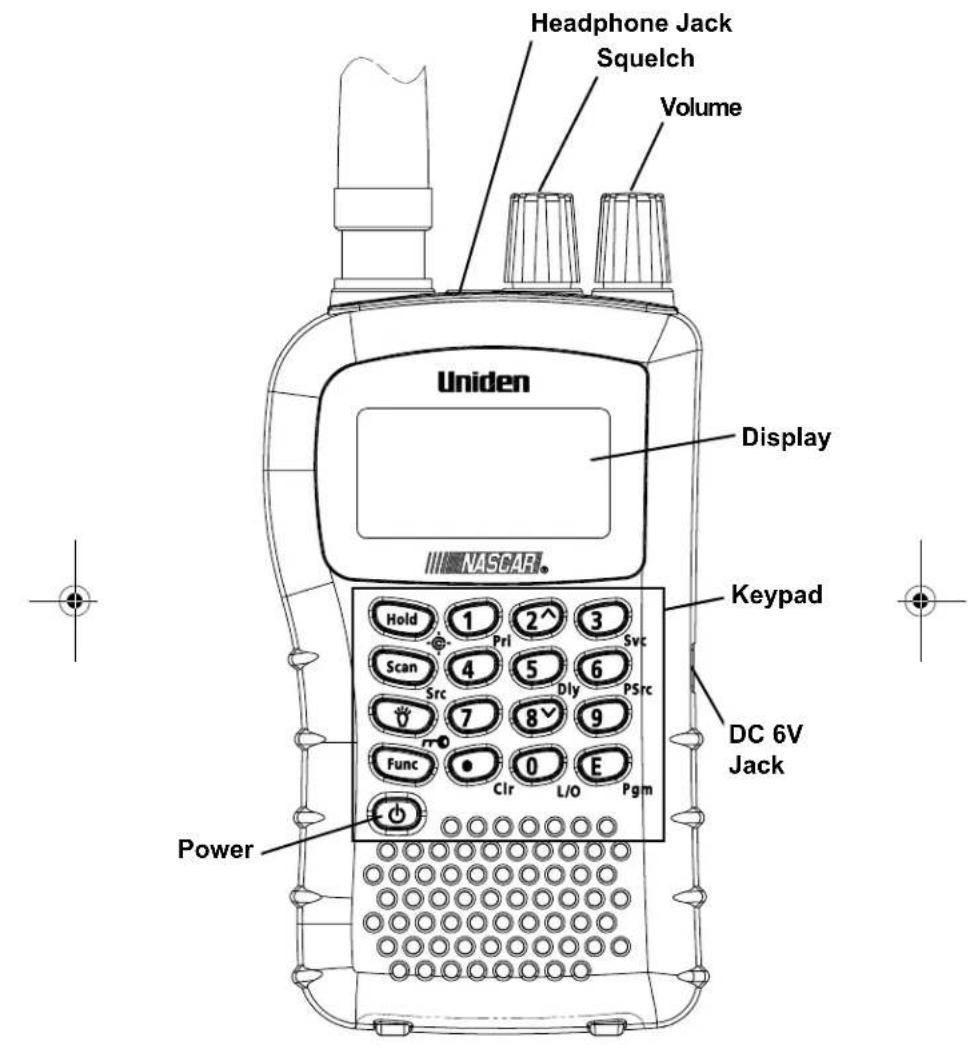
BC72XLT Controls and Display
4
BC72XLT Controls and Display

natural_image
Three geometric diagrams with crosshairs and central dots, no text or symbols present


Contents
The FCC Wants You To Know 7
Scanning Legally 7
Introduction 9
Feature Highlights 11
About This Manual 12
Understanding Scanning 14
What is Scanning? 14
What is Searching? 14
Conventional Scanning 14
Where To Obtain More Information 16
Included With Your Scanner 18
Setting Up Your Scanner 19
Using Internal Batteries 19
Using AC Power 23
Connecting the Antenna 23
Connecting an Earphone/Headphone 24
Connecting an Extension Speaker 24
Attaching the Belt Clip 25
About Your Scanner 26
A Look At The Keypad 27
A Look At The Display 30
Understanding Banks 32
Operation 33
Turning On The Scanner and
Setting Squelch 33
Storing Known Frequencies Into Channels .... 33
Searching For and Temporarily
Storing Active Frequencies 34
Scanning the Stored Channels 35
Manually Selecting a Channel 36
Special Features 37
Close Call ^TM RF Capture Technology 37
Chain Search 41
Direct Entry Search 43
Search Skip Memory 45
Delay 46
Turning Channel-Storage Banks
On and Off 47
Contents
Locking Out Channels 48
Priority 48
Using Keylock 49
Using the Display Backlight 50
Troubleshooting 51
Resetting the Scanner 53
Care and Maintenance 54
General Use 54
Location 54
Cleaning 54
Repairs.... 55
Birdies 55
Specifications.... 56
Optional Accessories 59
One-Year Limited Warranty.... 60
Contents
The FCC Wants You To Know
This scanner has been tested and found to comply with the limits for a scanning receiver, pursuant to Part 15 of the FCC Rules. These limits are designed to provide reasonable protection against harmful interference in a residential installation. This scanner generates, uses, and can radiate radio frequency energy and, if not installed and used in accordance with the instructions, may cause harmful interference to radio communications.
However, there is no guarantee that interference will not occur in a particular installation. If this scanner does cause harmful interference to radio or television reception, which can be determined by turning the scanner on and off, you are encouraged to try to correct the interference by one or more of the following measures:
- Reorient or relocate the receiving antenna
- Increase the separation between the scanner and the receiver
This device complies with Part 15 of the FCC Rules. Operation is subject to the following two conditions: 1) This device may not cause harmful interference, and 2) this device must accept any interference received, including interference that may cause undesired operation.
Scanning Legally
Your scanner covers frequencies used by many different groups, including police and fire departments, ambulance services, government agencies, private companies, amateur radio services, military operations, pager services, and wireline (telephone and telegraph) service providers. It is legal to listen to almost every transmission your scanner can receive.
The FCC Wants You To Know
7




However, there are some transmissions that you should never intentionally listen to. These include:
- Telephone conversations (cellular, cordless, or other private means of telephone signal transmission)
- Pager transmissions
- Any scrambled or encrypted transmissions
According to the Electronic Communications Privacy Act (ECPA), you are subject to fines and possible imprisonment for intentionally listening to, using, or divulging the contents of such a conversation unless you have the consent of a party to the conversation (unless such activity is otherwise illegal). This scanner has been designed to prevent the reception of cellular telephone transmissions and the decoding of scrambled transmissions. This is done to comply with the legal requirement that scanners be manufactured so they are not easy to modify to pick up these transmissions. Do not open your scanner's case to make any modifications that could allow it to pick up transmissions that are illegal to monitor. Modifying or tampering with your scanner's internal components or using it in a way other than as described in this manual could invalidate your warranty and void your FCC authorization to operate it.
In some areas, mobile use of this scanner is unlawful or requires a permit. Check the laws in your area. It is also illegal in many areas (and a bad idea everywhere) to interfere with the duties of public safety officials by traveling to the scene of an incident without authorization.
The FCC Wants You To Know
8

natural_image
Three geometric diagrams with crosshairs and a central circle, no text or symbols present

natural_image
Pure geometric diagram with crosshair and circular pattern (no text or symbols)Introduction
Thank you for purchasing a Uniden BC72XLT Handheld Scanner. The scanner is versatile, compact, and easy to use. In addition to its standard scanning features, your scanner also includes Close Call™ RF capture technology designed to help you detect and identify strong local radio signals in your area.
You can program up to 100 frequencies into the scanner's memory. The scanner lets you scan transmissions and is preprogrammed with service banks for your convenience. You can quickly search those frequencies most commonly used by police and other agencies, without tedious and complicated programming. The scanner gives you direct access to over 32,000 exciting frequencies.
Use your scanner to monitor:
• Police and fire departments (including rescue and paramedics)
• NOAA weather transmissions
• Business/Industrial radio
- Utilities
• Marine and amateur (ham radio) bands
- Air band
Introduction
9




This table lists the frequency ranges, default frequency step, default mode (AM or FM), and type of transmissions you can hear for each range.
| Frequency Range (MHz) | Step (kHz) | Mode | Transmission |
| 25.0-27.995 5 AM Citizens | Band/ | Business Band | |
| 28.0-29.695 5 FM 10 Meter | Amateur Band | ||
| 29.7-49.995 5 FM VHF Low Band | |||
| 50.0-54.0 5 FM 6 Meter | Amateur Band | ||
| 108.0-136.9875 12.5 AM Aircraft Band | |||
| 137.0-143.995 5 FM Military Band | |||
| 144.0-147.995 5 FM 2 Meter | Amateur Band | ||
| 148.0-174.0 5 FM VHF High Band, Federal Government | |||
| 406.0-419.99375 6.25 FM Federal Land Mobile | |||
| 420.0-449.99375 6.25 FM 70cm Amateur Band | |||
| 450.0-469.99375 6.25 FM UHF Standard Band | |||
| 470.0-512.0 6.25 FM UHF TV Band | |||


Introduction
10



Feature Highlights
Close Call™ RF Capture Technology - you can set the scanner so it detects and provides information about nearby radio transmissions. See "Close Call™ RF Capture Technology" on Page 37 for more information.
Pager Screen - lets you set the scanner so it does not detect pager frequencies during Close Call search.
Chain Search - lets you enter personal search bands in 10 locations and search all locations in a chain of frequency bands.
Triple-Conversion Circuitry - virtually eliminates any interference from IF (intermediate frequency) images, so you hear only the selected frequency.
Channel-Storage Banks - the scanner has 10 banks. You can store up to 10 frequencies into each bank (for a total of 100 frequencies), so you can more easily identify calls.
Two-Second Scan Delay - delays scanning for about 2 seconds before moving to another channel, so you can hear more replies that are made on the same channel.
Lock-Out Function - lets you set your scanner to skip over specified channels or frequencies when scanning or searching.
Priority Channels - lets you program one channel in each bank (10 in all) and then have the scanner check that channel every 2 seconds while it scans the bank, so you do not miss transmissions on those channels.
Six Service Banks - frequencies are preset in separate police, Fire/emergency, aircraft, ham, marine, and weather banks, to make it easy to locate specific types of calls.
Feature Highlights
11




Key Lock - lets you lock the scanner's keys to help prevent accidental changes to the scanner's programming.
Direct Access - lets you directly access any channel.
Display Backlight - makes the scanner easy to read in low-light situations.
Flexible Antenna with BNC Connector - provides adequate reception in strong signal areas and is designed to help prevent antenna breakage. Or, you can connect an external antenna for better reception.
Memory Backup - keeps the frequencies stored in memory for an extended time if the scanner loses power.
Two Power Options - let you power the scanner using internal batteries or external AC power using the included AC adapter.
Key Confirmation Tones - the scanner sounds a tone when you perform an operation correctly, and an error tone if you make an error.
Battery Low Alert - warns you when battery power gets low.
About This Manual
The screen displays used in this manual are representations of what might appear when you use your scanner. Since what you see depends on the frequencies for your area and the settings you select, you might notice some differences between what is in this manual and what appears on your scanner.
Feature Highlights
12
natural_image
Three geometric diagrams with crosshairs and central dots, no text or symbols present

natural_image
Pure geometric diagram with crosshair and circular pattern (no text or symbols)
To get the most from this manual, review the contents to become familiar with the basic functions available. If you are new to scanning, be sure to read "Understanding Scanning" on Page 14 for a quick background on the technology behind the hobby. The first thing you'll need to do is install batteries in the scanner. Then you need to connect the included antenna to the scanner. See "Using Internal Batteries" on Page 19 and "Connecting the Antenna" on Page 23 if you need any help doing this.


natural_image
Three geometric diagrams with crosshairs and a central circle, no text or symbols presentFeature Highlights
13


Understanding Scanning
This section provides you with background on how scanning works. You don't really need to know all of this to use your scanner, but some background knowledge will help you get the most from your BC72XLT.
What is Scanning?
Unlike standard AM or FM radio stations, most two-way communications do not transmit continuously. Your BC72XLT scans programmed channels until it finds an active frequency, then stops on that frequency and remains on that channel as long as the transmission continues. When the transmission ends, the scanning cycle resumes until the scanner receives another transmission.
What is Searching?
The BC72XLT can search for active frequencies. This is different from scanning because you are searching for frequencies that have not been programmed into the scanner. When you select frequency bands to search, the scanner searches for any active frequency within the lower and upper limits you specify. When the scanner finds an active frequency, it stops on that frequency as long as the transmission lasts. If you think the frequency is interesting, you can program it into one of the banks. If not, you can continue to search.
Conventional Scanning
Conventional scanning is a relatively simple concept. Each group of users in a conventional system is assigned a single frequency (for simplex systems) or two frequencies (for repeater systems). Any time one of them transmits, their transmission always goes out on the same frequency. Up until the late 1980's
Understanding Scanning
14
this was the primary way that radio systems operated.
Even today, there are many 2-way radio users who operate using a conventional system:
• Aircraft
- Amateur radio
- FRS/GMRS users
- Broadcast AM/FM/TV stations
- Many business radio users
When you want to store a conventional system, all you need to know is the frequencies they operate on. When you are scanning a conventional system, the scanner stops very briefly on each channel to see if there is activity. If there isn't, the scanner quickly moves to the next channel. If there is, then the scanner pauses on the transmission until it is over.
Simplex Operation
Simplex systems use a single frequency for both transmit and receive. Most radios using this type of operation are limited to line-of-sight operation. This type of radio is frequently used at construction job sites, and with inexpensive consumer radios such as GMRS/FRS radios. The range is typically 1-8 miles, depending upon the terrain and many other factors.
Repeater Operation
Repeater systems use two frequencies: one transmits from the radio to a central repeater; the other transmits from the repeater to other radios in the system. With a repeater-based system, the repeater is located on top of a tall building or on a radio tower that provides great visibility to the area of operation. When a user transmits (on an input frequency), the signal is picked up by the repeater and retransmitted (on an output frequency). The user's radios always
Understanding Scanning
listen for activity on the output frequency and transmit on the input frequency. Since the repeater is located very high, there is a very large line of sight. Typical repeater systems provide coverage out to about a 25-mile radius from the repeater location.
Where To Obtain More Information
By itself, this manual really only provides part of what you need to know to have fun scanning – how to program and use the scanner. The included conventional frequency guide will give you a good head start on the other part of what you need to know – what frequencies have interesting content.
Information On The Internet
The Internet is a great source for current frequencies and information about scanning.
Many web sites have lists of frequencies for your area. You can use a search engine to find and use them.
Make a list of the agencies you want to listen to, then look up the frequencies and systems used by those agencies. Here are a few useful sites:
- http://www.scannermaster.com * - frequency resources and home of Police Call.
You can also call them at 1 800 SCANNER (hours are from 9:00 a.m. to 5:30 p.m. Eastern Time Monday through Friday). - http://www.radioreference.com * - the Internet's premier source for user-supported radio system information.
- http://www.bearcat1.com - frequency information from National Communications.
Understanding Scanning
16


- svartifoss2.fcc.gov/reports/index.cfm *-
conventional frequency information on file with the US Government
* - This web site is not affiliated with Uniden Corporation.
To purchase another copy of the conventional frequency guide, contact your local dealer or:
Uniden Parts Department (800) 554-3988 (Hours are from 8:00 a.m. to 5:00 p.m. Central Time Monday through Friday.)
For more information about Uniden and our other products, visit http://www.uniden.com.


Understanding Scanning
17





BC72 Paper OM.fm Page 18 Monday, October 25, 2004 3:11 PM

Included With Your Scanner
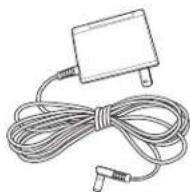
AC Adapter

Antenna

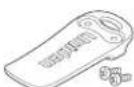
Belt Clip
Scanner
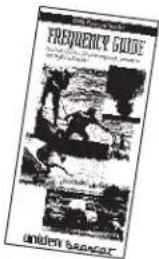
Frequency Guide

Owners Manual
If any of these items are missing or damaged, immediately contact your place of purchase or Uniden Customer Service at: (800) 297-1023, 7:00 a.m. to 7:00 p.m., Central, Monday through Friday.
Included With Your Scanner
18


Setting Up Your Scanner
These guidelines will help you install and use your new scanner:
- If your scanner receives interference or electrical noise, move the scanner or its antenna away from the source. You might also try changing the height or angle of the telescoping antenna.
- To improve the scanner's reception, use an optional external antenna designed for multi-band coverage. (You can purchase this type of antenna at a local electronics store). If the optional antenna has no cable, use 50-70 ohm coaxial cable for lead-in. A mating plug might be necessary for the optional antennas.
- Use an optional mono earphone or mono headset with proper impedance for private listening. Read the precautions on the inside front cover of this Owners Manual.
- Do not use the scanner in high-moisture environments such as the kitchen or bathroom.
- Avoid placing the scanner in direct sunlight or near heating elements or vents.
Using Internal Batteries
You can power your scanner using two alkaline or rechargeable AA batteries (not supplied).
Using Non-Rechargeable Batteries
- Make sure the power is turned off.
- Slide the battery compartment cover.
- Before you install alkaline or any other non-rechargeable batteries, use a pointed object such as a ballpoint pen to set REG. ALK. BATT./NI-MH BATT. inside the compartment to REG. ALK. BATT..
Setting Up Your Scanner
19


BC72 Paper OM.fm Page 20 Monday, October 25, 2004 3:11 PM


WARNING!
Set REG. ALK. BATT./NI-MH BATT. to NI-MH BATT. only if you are using rechargeable batteries.
Never attempt to recharge non-rechargeable batteries. Non-rechargeable batteries can get hot or burst if you try to recharge them.
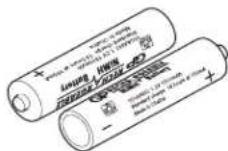
- Install two batteries in the compartment as indicated by the polarity symbols (+ and -) marked inside.

Setting Up Your Scanner
20




Cautions:
- Use only fresh batteries of the required size and recommended type.
• Always remove old or weak batteries. Batteries can leak chemicals that destroy electronic circuits. - Do not mix old and new batteries, different types of batteries (standard, alkaline, or rechargeable), or rechargeable batteries of different capacities.
5. Replace the cover.

natural_image
Technical line drawing of a walkie-talkie device (no text or symbols visible)- When flashes and the scanner beeps every 15 seconds, replace both batteries.
Using Rechargeable Batteries
You can also use two rechargeable batteries to power your scanner. Before you use Ni-MH or Ni-Cd batteries, you must charge them.
The scanner has a built-in circuit that lets you recharge Ni-MH or Ni-Cd batteries while they are in the scanner. To charge the batteries, set
REG. ALK. BATT./NI-MH BATT. inside the battery compartment to NI-MH BATT., install the batteries in the scanner, and connect an external AC adapter to the scanner's DC 6V jack (see "Using AC Power" on Page 23).
Setting Up Your Scanner
21


WARNING!
Do not connect either adapter to the scanner if non-rechargeable batteries (such as alkaline batteries) are installed in the scanner and REG. ALK. BATT./NI-MH BATT. is set to NI-MH BATT., or if you are unsure of the switch's position. Non-rechargeable batteries will get hot and can even burst if you try to recharge them.
Before you use Ni-MH or Ni-Cd batteries for the first time, charge them for 14 hours to bring them to a full charge.
Discharged batteries take about 14 hours to fully recharge.
Notes:
- The scanner might test rechargeable batteries when you install them. TSt CHArg and BATT appear. If the batteries are good, TSt disappears and the scanner charges the batteries. Otherwise, no bAtt appears and the scanner does not charge the batteries.
- Ni-MH batteries last longer and deliver more power if you occasionally let them fully discharge. To do this, simply use the scanner until it beeps every 15 seconds and BATT flashes.
• To prevent damage to Ni-MH batteries, never charge them in an area where the temperature is above 113^ F ( 45^ C) or below 40^ F ( 4^ C). - If you connect an external power source to the scanner with REG. ALK. BATT./NI-MH BATT. set to REG. ALK. BATT., CHArg and BATT appear but the scanner does NOT charge the batteries. Make sure that you use the correct batteries and set REG. ALK. BATT./NI-MH BATT. to the correct position when you connect an external power source.
Setting Up Your Scanner
22


- For longer operation, you can also use high-capacity Ni-MH batteries to power the scanner. This type of battery takes longer to recharge. You can get high-capacity Ni-MH batteries at your local electronics store.
Using AC Power
You can power the scanner using the supplied 6V, 500 mA AC adapter.
To use the scanner on AC power, plug the AC adapter into DC 6V on the side of the scanner then plug the other end into a standard AC outlet.
If rechargeable batteries are installed and REG. ALK. BATT./NI-MH BATT. is set to NI-MH BATT., the adapter powers the scanner and recharges the installed batteries at the same time.
Connecting the Antenna

To attach the supplied flexible antenna to the connector on the top of your scanner, align the slots around the antenna's connector with the tabs on the scanner's BNC connector. Then slide the antenna's connector down over the scanner's connector and rotate the antenna connector's outer ring clockwise until it locks into place.
Setting Up Your Scanner
23


Connecting an Optional Antenna
The scanner's BNC connector makes it easy to connect a variety of optional antennas, including an external mobile antenna or outdoor base station antenna.
Note: Always use 50-ohm, RG-58, or RG-8, coaxial cable to connect an outdoor antenna. If the antenna is over 50 feet from the scanner, use RG-8 low-loss dielectric coaxial cable. You can get a BNC adapter at your local electronics store.
Connecting an Earphone/Headphone

For private listening, you can plug a 18 -inch (3.5 mm) mini-plug earphone or mono headphones (not supplied) into the headphone jack on top of your scanner. This automatically disconnects the internal speaker.
Connecting an Extension Speaker
In a noisy area, an optional extension speaker, positioned in the right place, might provide more comfortable listening. Plug the speaker cable's 18 -inch (3.5-mm) mini-plug into your scanner's jack.
WARNING!
If you connect an external speaker to the scanner's headphone jack, never connect the audio output line to a power supply and ground. This might damage the scanner.
Setting Up Your Scanner
24

natural_image
Three geometric diagrams with crosshairs and central dots, no text or symbols present

natural_image
Pure geometric diagram with crosshair and circular shapes, no text or symbols present
BC72 Paper OM.fm Page 25 Monday, October 25, 2004 3:11 PM


Attaching the Belt Clip

natural_image
Technical line drawing of a walkie-talkie device (no text or symbols present)To make your scanner easier to carry when you are on the go, use the supplied belt clip. Use a Phillips screwdriver and the supplied screws to attach the clip to the scanner.
Setting Up Your Scanner
25


About Your Scanner
We use a few simple terms in this manual to explain the features of the scanner. Familiarize yourself with these terms and the scanner's features, and you can put the scanner to work for you right away. Simply determine the type of communications you want to receive, then set the scanner to scan those communications.
A frequency, expressed in kHz or MHz, is the tuning location of a station. To find active frequencies, you use the search function or refer to a frequency reference.
Besides searching within a selected frequency range, you can also search your scanner's service banks. Service banks are preset groups of frequencies categorized by the type of services that use those frequencies. For example, many amateur radio frequencies are located in the HAM service bank.
When you search and find a desired frequency, you can store it into a programmable memory location called a channel. Channels are grouped into channel-storage banks. The scanner has 10 channel-storage banks and each bank has 10 channels. You can scan the channel-storage banks to see if there is activity on the frequencies stored there.
About Your Scanner
26


A Look At The Keypad

Your scanner's keys have various functions labeled on the key tops and below the keys.
To select the function labeled on a key, simply press the key. To select the function labeled below a key, first press Func then release it. Fappears on the display. Then press the next key in the function key sequence while Fappears. aFpears or disappears as you press Func.
If your scanner's keys seem confusing at first, the following information should help you understand each key's function.
Key Name Description
Hold/
Hold – Holds the scan or the frequency search. Press and hold Hold to increment channels continuously.
Func + ⚙ - Switches between the three Close Call modes.
About Your Scanner
27




Key Name Description
Scan/Src Scan – Scans the stored channels.
Func + Src - Starts chain search or resumes searching.

- – Turns the display backlight on or off.
Func + 🔍 - Locks and unlocks the keypad.
Func Lets you use various functions
by pressing this key in combination with other keys.

Press and hold for more than 2 seconds to turn the scanner on or off.
1/Pri 1
- Enters a 1.
Func + Pri – Sets and turns the priority function on or off.

2 - Enters a 2.
Func + ^ - Selects the scan or search direction.
3/Svc 3
- Enters a 3.
Func + Svc - Sets and turns the service search function on.
4
4 - Enters a 4.
About Your Scanner
28




Key Name Description
5/Dly 5 - Enters a 5.
Func + Dly – Sets and turns the delay function on or off.
6/PSrc 6
- Enters a 6.
Func + PSrc – Sets and turns program band select mode on or off.
7
7 - Enters a 7.
8/√
8 - Enters an 8.
Func + ∨ – Selects the scan or search direction.
9 Enters a 9.
•/Clr
Enters a decimal point.
0/L/O 0
- Enters a 0.
Func + L/O – Lets you lock out a selected channel or skip a specified frequency.
E/Pgm E
- Enters frequencies into channels.
Func + Pgm – lets you program the frequency.


About Your Scanner
29


A Look At The Display

The display has indicators that show the scanner's current operating status. The display information helps you understand how your scanner operates.
BANK - appears with numbers (1-10).
- appears when you lock the keypad.
F - appears only when the function mode is on.
PGM - appears while you store a frequency into a channel.
SRCH - appears during search mode.
▼ or ▲- appears during search mode.
dBATT - appears while rechargeable batteries are charging and alerts you when the battery power gets low.
- - appears when the scanner is set to a Close Call mode.
P - appears when you select a priority channel.
About Your Scanner
30




BC72 Paper OM.fm Page 31 Monday, October 25, 2004 3:11 PM


SCN - appears when you scan channels.
HOLD - appears during scan hold mode and search hold mode.
L/O - appears when you manually select a channel you locked out or a skip frequency.
DLY - appears when you select a delay.
PRI - appears when the priority feature is turned on.
HAM, WX, POL, FIRE, AIR, or MRN - appears along with an indicator that shows the current service bank during a service search.
ALT - appears when you receive a Close Call alert while the Close Call function is on.


About Your Scanner
31





Understanding Banks
Service Banks
The scanner is preprogrammed with all the frequencies allocated to the weather, ham, marine, aircraft, police, and fire services.
Channel-Storage Banks
To make it easier to identify and select the channels you want to listen to, the 100 channels are divided into 10 channel-storage banks. Each bank has 10 channels. Use each channel-storage bank to group frequencies, such as those for the police department, fire department, ambulance services, or aircraft.
For example, the police department might use four frequencies in your town while the fire department uses an additional four. You could program the four police frequencies starting with Channel 1 (the first channel in bank 1), and program the fire department frequencies starting with Channel 11 (the first channel in bank 2).
About Your Scanner
32

natural_image
Three geometric diagrams with crosshairs and a central circle, no text or symbols present


Operation
Turning On The Scanner and Setting Squelch
Note: Make sure the scanner's antenna is connected before you turn it on.
- Turn Squelch fully counterclockwise.
- Press and hold for about 2 seconds to turn the scanner on, then turn Volume clockwise until you hear a hissing sound.
- If the scanner is scanning, press Hold to stop scanning, then turn Squelch clockwise until the hissing stops.
Storing Known Frequencies Into Channels
- Press Hold. Then enter the channel number where you want to store a frequency, then press Func and Pgm. The channel number appears.
- Use the number keys and to enter the frequency (including the decimal point) you want to store.
-
Press E to store the frequency into the channel. Notes:
-
If you entered an invalid frequency in Step 2, Error appears and the scanner beeps three times. Enter a valid frequency.
- The scanner automatically rounds the entered number to the nearest valid frequency. For example, if you enter 151.473 (MHz), your scanner accepts it as 151.475.
- When you enter a frequency into a channel, the scanner automatically turns on the delay function and DLY appears. When delay is turned on, the scanner automatically pauses scanning
Operation
33


2 seconds after the end of a transmission before scanning proceeds to the next channel. To turn the function off or on, press Func + Dly.
- If you enter a frequency that has already been entered elsewhere, the scanner sounds an error tone and displays the channel that was duplicated. If you entered the frequency by mistake, press • then enter the correct frequency. To enter the frequency anyway, press E to accept.
- To program the next channel in sequence, press E then repeat Steps 2 and 3.
Searching For and Temporarily Storing Active Frequencies
If you do not have a reference to frequencies in your area, use a search (except weather service search) to find a transmission.
Note: When the scanner starts searching, it automatically turns on the delay function. To turn delay on or off, press Func + Dly.
Service Search
You can search for weather, ham, marine, aircraft, police, or fire transmissions without knowing the specific frequencies used in your area. The scanner is preprogrammed with all the frequencies allocated to these services. To use this feature, press Func and Svc. SRCH appears and the scanner searches starting with the weather service bank. To select a different service bank, repeatedly press Func and Svc. Service mode appears on the display.
When the scanner stops on a transmission, press Hold to stop searching and listen to the transmission. Hold appears. In this mode, you can
Operation
34

natural_image
Three geometric diagrams with crosshairs and central dots, no text or symbols present
natural_image
Pure geometric diagram with crosshair and circular pattern (no text or symbols)press Func + ∧ or Func + ∨ to step through the frequencies.
To release the hold and continue searching, press Hold. Or, if you did not press Hold, simply press Func + or Func + to continue searching.
Note: Because there are many different frequencies allocated to fire and police departments, it can take several minutes to search all the service frequencies.
Storing Frequencies into Channels During Service Search
You can store frequencies you found during service search or service search hold mode into channels.
- Press Func and Pgm during service search or service search hold mode. The frequency and the lowest blank channel alternately appear.
- Press E to store the frequency into the blank channel. If you want to select another channel, press Func + ∧ or Func + ∨ before you press E. You can also use the 0-9 key to select the bank.
If you entered a frequency that has already been entered elsewhere, the scanner sounds an error tone and displays the channel that was duplicated. If you entered the frequency by mistake, press • then enter the correct frequency. To enter the frequency anyway, press E to accept.
Scanning the Stored Channels
To begin scanning channels, press Scan. The scanner scans through all non-locked channels in the activated banks. (See "Locking Out Channels" on Page 48 and "Turning Channel-Storage Banks On and Off" on Page 47). When the scanner finds a
Operation
35




transmission, it stops on it. When the transmission ends, the scanner resumes scanning.
Notes:
- If you have not stored frequencies into any channels, the scanner does not scan.
- If the scanner picks up unwanted partial, or very weak transmissions, turn Squelch clockwise to decrease the scanner's sensitivity to these signals. To listen to a weak or distant station, turn Squelch counterclockwise.
• To ensure proper scanning, adjust Squelch until the audio mutes.
Manually Selecting a Channel
You can continuously monitor a single channel without scanning. This is useful if you hear an emergency broadcast on a channel and do not want to miss any details - even though there might be periods of silence - or if you want to monitor a specific channel.
To manually select a channel, press Hold, enter the channel number then press Hold again.
Or, during scanning, if the radio stops at a channel you want to listen to, press Hold once. (Repeatedly pressing Hold at this time causes the scanner to step through the channels.) Press Scan to resume automatic scanning.

natural_image
Pure geometric crosshair symbol with concentric circles and lines, no text or labels presentOperation

natural_image
Pure geometric diagram with crosshair and circular pattern (no text or symbols)Special Features
Close Call™ RF Capture Technology
Your scanner's Close Call feature lets you set the scanner so it detects then displays the frequency of a nearby strong radio transmission. Close Call RF capture works great for finding frequencies at venues such as malls and sporting events. You can set the scanner so Close Call detection works "in the background" while you are scanning other frequencies, turn off normal scanning while Close Call is working, or turn off the Close Call feature and use the scanner normally. You can set the scanner so it alerts you when the Close Call feature detects a frequency. You can also set the frequency band where you want the scanner to look for transmissions.
Unlike searching, which requires the scanner to tune to a frequency to check for a transmission, Close Call RF capture directly detects the presence of a strong, nearby signal and instantly tunes to the source's frequency.
Notes:
- Close Call RF capture works well for locating the source of strong local transmissions such as mobile and handheld two-way radios in areas with no other strong transmission sources. However, if you are in an area with many transmission sources (such as pager radio transmitters, multi-use radio towers, traffic control devices, etc.), Close Call RF capture might not find the transmission you are searching for, or it might find a transmission other than the one you are searching for.
- Close Call RF capture cannot detect satellite dishes or any transmitter with a frequency above or below the frequency ranges listed under "Setting the Close Call Options" on Page 38.
Special Features
37



- Close Call works better with some types of transmissions than others. It might not correctly display frequency information for transmitters using a highly directive antenna (such as an amateur radio beam antenna), if there are many transmitters operating at the same time in the same area, or if the transmitter is a broadcast television station.
Setting the Close Call Options
- Press Func then press and hold for 2 seconds. One of the following Close Call options appears.
C-C. bnd: Lets you select the Close Call band.
C-C.ALt: Lets you select the Close Call alert settings.
C-C. PS: Lets you turn Pager Screen on or off. Pager Screen lets you set the scanner so it does not detect pager frequencies.
- Repeatedly press or to select the option you want, then press E.
If you selected C-C.bnd, one of the following band names appears.
bnd Lo: VHF Low Band (25.0000 - 54.0000 MHz)
bnd Air: AIR Low Band (108.0000 - 136.9875 MHz)
bnd Hi: VHF High Band (137.0000 - 174.0000 MHz)
bnd UHF: UHF Band (406.0000 - 512.0000 MHz)
Special Features
38


If you selected C-C.Alt, skip to Step 5. If you selected C-C.PS, skip to Step 7.
- Repeatedly press or until the band you want to search appears, then press E to select it. Otherwise, press • if you do not want to select it.
The scanner displays the following options.
Lo On or Lo OFF: Lets you select the VHF Lo frequency band.
Air On or Air OFF: Lets you select the Air frequency band.
Hi On or Hi OFF: Lets you select the VHF Hi frequency band.
UHF On or UHF OFF: Lets you select the UHF frequency band.
-
Repeatedly press or until the option you want appears, then press E to select it. Otherwise, press • if you do not want to select it. Then skip to Step 9.
-
Press E while C-C.Alt appears. One of the following alert options appears.
ALT bEEP: The scanner beeps when a Close Call signal is detected.
Alt Light: The scanner flashes the display backlight when a Close Call signal is detected.
ALt bP-Lt: The scanner flashes the display backlight and beeps when a Close Call signal is detected.
ALT OFF: The scanner does not provide any alert when a Close Call signal is detected.
Special Features
39




- Repeatedly press on until the option you want appears, then press E to select it. Otherwise, press if you do not want to select it. Then skip to Step 9.
- Press E while C-C.PS appears. One of the following Pager Screen options appears. PS On: The scanner ignores hits on common pager frequencies. PS OFF: The scanner alerts you when it receives hits on common pager frequencies.
- Repeatedly press or until the option you want appears, then press E to select it.
- When you select the option, press Scan to start Close Call search. Otherwise, to continue normal scanning, repeatedly press Func until Fisappears then press Scan.
Using Close Call RF Capture
To turn on the Close Call feature, press Func + once except in WX search, band select, or program mode. Appears. Every 2 seconds, the scanner checks for frequencies in the range you specified in "Setting the Close Call Options" on Page 38.
Notes:
- Set the squelch tight (where only strong signals are received) while using Close Call.
• To continue scanning normally while the Close Call feature is working, simply press Scan twice.
When the scanner finds a frequency, it sounds the alert you specified in "Setting the Close Call Options" on Page 38, and Found flashes. Press any key to confirm the displayed frequency. Press Scan to resume scanning. Or press or while the frequency and Fappear to select the band where you are searching.
Special Features
40


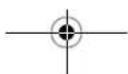


To turn on the Close Call feature and turn off normal scanning, press Func + twice. flashes. To turn off Close Call and turn on normal scanning, press Func + three times. disappears.
Chain Search
This feature lets you search through preset frequency ranges. You can also change each range to a range you set. There are three modes within this feature: chain search mode, chain search hold mode, and program band select mode.
The preset frequency ranges are:
| Bank No. | Frequency (MHz) Step (kHz) | |
| 1 | 25.0000-27.9950 | 5 |
| 2 | 28.0000-29.6950 5 | |
| 3 | 29.7000-49.9950 5 | |
| 4 | 50.0000-54.0000 5 | |
| 5 | 137.0000-143.9950 5 | |
| 6 | 144.0000-147.9950 5 | |
| 7 | 406.0000-419.99375 6.25 | |
| 8 | 420.0000-449.99375 6.25 | |
| 9 | 450.0000-469.99375 6.25 | |
| 10 | 470.0000-512.0000 6.25 | |
Chain Search Mode
Press Func + Src to start chain search mode. SRCH, the enabled search bank number, and ▼or ▲ (indicating the search direction) appear. The search bank number being searched flashes.
Special Features
41


Press 0-9 to enable or disable the search bank number being searched in this mode. Enabled bank numbers appear. (Disabled bank numbers disappear).
At least one search bank must be enabled. (The scanner sounds an error tone if you try to disable all the search banks). The search bank and the frequency where chain search starts depends on how the scanner was set before you selected chain search mode.
Chain Search Hold Mode
To start chain search hold mode, press Hold in chain search mode. The scanner stops searching and Hold appears. In this mode, pressing Func + changes the search direction downward and pressing Func + changes the search direction upward. For appears according to the current search direction.
Storing Frequencies Found During Chain Search into Channel Memory
You can store frequencies you find in chain search mode or chain search hold mode.
- Press Func + Pgm in chain search mode or chain search hold mode. The lowest blank channel and bank appear.
- Press E to store the frequency into the blank channel. To select another channel, press Func + ∧ or Func + ∨ before you press E. You can also press 0-9 to select the bank.
If you try to save a frequency that is already stored, the scanner sounds an error tone and displays the channel that was duplicated. If you entered the frequency by mistake, press • To enter the frequency anyway, press E to accept.
Special Features
42


The scanner sets itself to program mode after you store a frequency.
Setting the Search Range
You can use this mode to define the search range used during a search in each search bank. To change a search range, press Func and PSrc. SRCH appears. Then select a search bank.
When you select the search bank, the lower limit and upper limit frequency assigned in the search bank alternate on the display.
To select another search bank, press Func + PSrc or Func + ^to increase the search bank number or Func + √ to decrease it. Hold down Func + ^ or Func + √ for about 1 second to quickly move through the search bank numbers.

After choosing the search bank, follow these steps to set the lower limit and upper limit frequency.
- Enter the lower limit frequency by using the 0-9 and • keys.
- Press E to select the lower limit frequency.
- Enter the upper limit frequency by using the 0-9 and • keys.
- Press E to select the upper limit frequency.
Direct Entry Search
You can use direct entry search to search up or down from the currently displayed frequency.
- If the scanner is scanning or searching, press Hold.
- Enter the frequency you want to start from by using the number keys. (Press • to enter a decimal point).
Special Features
43


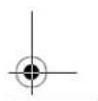


- Press Func + ∧ or Func + ∨. The scanner searches, starting from the frequency you entered in Step 2.
If you enter a frequency that is out of range, the scanner sounds an error tone and Error appears.
Press Func + ↗ to change the search direction downward or Func + ↗ to change the search direction upward. Frequencies appear during the search.
Notes:
- You can set the delay function on or off during the search or while the search stops.
- You can skip a frequency when the search stops. After the search skip frequency is set, the scanner starts direct search again.
Direct Entry Search Hold Mode
To stop searching during direct entry search, press Hold. Hold appears. In this mode, pressing Func + √ changes the search direction downward and pressing Func + ↑ changes the search direction upward. ▼or ▼ appears depending on the search direction.
Press Func + ∨ to decrease the frequency by one step or Func + ∧ to increase it by one step. Hold down ∧ or for about 1 second to quickly increase or decrease the frequency.
To resume direct search, press Func + Src or Hold.
▼ or ▲appears on the display, showing the search direction.
Special Features
44


Storing Frequencies Found During Direct Entry Search into Channel Memory
Follow these steps to store frequencies received during direct entry search mode or direct entry search hold mode.
- Press Func + Pgm in direct entry search mode or direct entry search hold mode. The frequency and lowest blank channel alternate on the display.
- Press E to store the frequency into the blank channel. To select another channel, repeatedly press Func + ∧ or Func + ∨ to select the blank channel you want, then press E. You can also use the 0-9 keys to select the bank.
If you enter a frequency that has already been entered elsewhere, the scanner sounds an error tone and displays the channel that was duplicated. If you entered the frequency by mistake, press . To enter the frequency anyway, press E to accept.
The scanner moves to program mode after you stored the frequency.
Search Skip Memory
You can skip up to 50 specified frequencies during a search. This lets you avoid unwanted frequencies or those already stored in a channel.
Notes:
- You cannot skip frequencies during WX service search.
- Search skip frequencies are shared by service search, direct entry search, chain search, and Close Call modes. If skip frequencies are sent in certain mode, the frequencies are also skipped in other search modes and Close Call mode.
Special Features
45


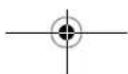

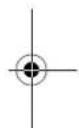

To skip a frequency, press Func and L/O when the scanner stops on the frequency during a search or a search hold. The scanner stores the frequency in memory and automatically resumes the search if it is not in hold.
Follow these steps to clear a single frequency from skip memory so the scanner stops on it during a search.
- Press Hold to stop the search.
- Press Func + ∧ or Func + ∨ to select the frequency. L/O appears.
- Press Func + L/O. L/O disappears.
To clear all the skip frequencies at once while searching or search hold, press Func then press and hold L/O until the scanner beeps.
Notes:
- If you selected all frequencies to be skipped within the search range, the scanner beeps 3 times and does not search.
- If you select more than 50 frequencies to skip, each new frequency replaces a frequency previously stored, beginning with the first stored frequency.
- Press Func + ∧ or Func + ∨ to select a skipped frequency while Hold appears. L/O appears when you select a skipped frequency.
Delay
Sometimes a user might pause before replying to a transmission. To avoid missing a reply on a specific channel, you can program a 2-second delay into any channel or frequency. The scanner continues to monitor the channel frequency for an additional
Special Features
46

natural_image
Three geometric diagrams with crosshairs and central dots, no text or symbols present

natural_image
Pure geometric diagram with crosshair and circular pattern (no text or symbols)
2 seconds after the transmission stops before resuming scanning or searching. The scanner automatically sets a delay when you store frequencies into channels or when you search frequencies. When the delay feature is on, DLY appears. If it is off, follow one of these steps to program a delay depending on how the scanner is operating,.
- If the scanner is scanning and stops on an active channel where you want to store a delay, quickly press Func + Dly before it continues scanning again. DLY appears.
- If the desired channel is not selected, manually select the channel, then press Func + Dly. DLY appears.
- If the scanner is searching, press Func + Dly while the scanner is searching. DLY appears and the scanner automatically adds a 2-second delay to every frequency it stops on in that band.
To turn off the 2-second delay, press Func + Dly while the scanner is monitoring a channel, scanning, or searching. DLY disappears.

Turning Channel-Storage Banks On and Off
You can turn each channel-storage bank on and off. When you turn off a bank, the scanner does not scan any of the 10 channels in that bank.
While scanning, press the number key that corresponds to the bank you want to turn on or off. Numbers appear at the top of the display, showing the currently selected banks.
The scanner scans all the channels within the displayed banks that are not locked out (see "Lock-
Special Features
47

natural_image
Three geometric diagrams with crosshairs and central dots, no text or symbols present

natural_image
Pure geometric diagram with crosshair and circular pattern (no text or symbols)
ing Out Channels" on Page 48). The bank number flashes when the scanner scans a channel that belongs to the bank.
Notes:
- You can manually select any channel within a bank, even if that bank is turned off.
- You cannot turn off all banks. One bank must always be active.
Locking Out Channels
You can increase the scanning speed by locking out channels that have a continuous transmission, such as a weather channel. To lock out a channel, manually select the channel, then press Func + L/O. L/O appears.
Note: You can still manually select locked-out channels.
To remove the lockout from a channel, manually select the channel, then press Func + L/O. L/O disappears.
To unlock all channels in the banks that are turned on, press Hold to stop scanning, then press Func and press and hold L/O until the scanner beeps twice.
Priority
The priority feature lets you scan through the channels and still not miss important or interesting calls on specific channels. You can program one stored channel in each bank as a priority channel (10 for the banks).
Special Features
48




If the priority feature is turned on, as the scanner scans the bank, it checks that bank's priority channel for activity every 2 seconds.
The scanner automatically designates each bank's first channel as its priority channel.
Follow these steps to select a different channel in a bank as the priority channel.
- Manually select the channel you want to select as the priority channel.
- Press Func + Pgm, then press Func + Pri. P appears to the left of the selected channel number.
- Repeat Steps 1 and 2 for the channel in each bank you want to program as a priority channel.
To turn on the priority feature, press Func + Pri during scanning. PRI appears. Then the scanner checks the designated priority channel every 2 seconds in each bank.
To turn off the priority feature, press Func + Pri. PRI disappears.
Using Keylock
Use the scanner's keylock to protect it from accidental program changes. When the scanner's keys are locked, the only controls that operate are Scan, Func, Hold, 🔊, →, and ⏻.
To turn on keylock, press Func + →
- appears. To turn off keylock, press Func + - - disappears.
Note: Using keylock does not prevent the scanner from scanning channels.
Special Features
49




BC72 Paper OM.fm Page 50 Monday, October 25, 2004 3:11 PM


Using the Display Backlight
To turn on the display light for easy viewing at night, press 🎨The display lights for 15 seconds. To turn off the light sooner, press 🎨again.

Special Features

natural_image
Three geometric diagrams with crosshairs and central dots, no text or symbols present
natural_image
Pure geometric diagram with intersecting lines and a circular pattern (no text or symbols)Troubleshooting
If your BC72XLT is not performing properly, try the following steps.
| Problem Possible Cause Suggestion | ||
| The scanner doesn't work. | The scanner might not be receiving any power. | Check the batteries or make sure the AC adapter is connected to an AC outlet and the scanner. |
| If there is a wall switch that controls power to the AC outlet where you connected the AC adapter, make sure it is on. | ||
| Improper reception. | The scanner's antenna might need to be adjusted. | Check the antenna connection or move or reposition the antenna. |
| Move the scanner. | ||
| You might be in a remote area that could require an optional multi-band antenna. Check with your dealer or local electronics store. | ||
| Scan won't stop. | The squelch might need to be adjusted. | Adjust the squelch threshold. See “Turning On The Scanner and Setting Squelch” on Page 33. |

Troubleshooting
51


[NO TEXT]
[NO TEXT]
[NO TEXT]
[NO TEXT]
[NO TEXT]
| Scan won’t stop (continued) | The antenna might need to be adjusted. | Check the antenna connection. |
| One or more channels might be locked out. | Make sure the channels you want to scan are not locked out. | |
| The channel’s frequency might not be stored in memory. | Make sure the channel’s frequency is stored in the scanner’s memory. | |
| The channel might not be active. | Wait for a transmission on the channel. | |
| Scan won’t start. | You must press Scan to scan. | Press Scan. |
| The squelch might need to be adjusted. | Adjust the squelch threshold. See “Turning On The Scanner and Setting Squelch” on Page 33. | |
| One or more channels might be locked out. | Make sure the channels you want to scan are not locked out. | |
| The antenna might need to be adjusted. | Check the antenna connection. |


Troubleshooting
52


| Weather scan doesn’t work. | The squelch might need to be adjusted. | Adjust the squelch threshold. See “Turning On The Scanner and Setting Squelch” on Page 33. |
| The antenna might need to be adjusted. | Check the antenna connection. |

Resetting the Scanner
If the scanner's display locks up or stops operating properly, you might need to reset the scanner.
Caution: This procedure clears all the information you have stored in the scanner. Before you reset the scanner, try turning it off and on to see if it begins working properly. Reset the scanner only when you are sure it is not working properly.
- Turn off the scanner.
- While holding down 2, 9, and Hold, turn on the scanner. It takes about 3 seconds to initialize and CLEAR appears.

Troubleshooting
53


Care and Maintenance
Keep the scanner dry. If it gets wet, wipe it dry immediately. Use and store the scanner only in normal temperature environments. Handle the scanner carefully: do not drop it. Keep the scanner away from dust and dirt, and wipe it with a damp cloth occasionally to keep it looking new.
General Use
- Turn the scanner off before disconnecting the power.
• Always write down the programmed frequencies in the event of memory loss. - If memory is lost, simply reprogram each channel. The display shows 000.0000 in all channels when there has been a memory loss.
• Always press each button firmly until you hear the entry tone for that key entry.
Location
- Do not use the scanner in high-moisture environments such as the kitchen or bathroom.
- Avoid placing the unit in direct sunlight or near heating elements or vents.
- If the scanner receives strong interference or electrical noise, move it or its antenna away from the source of the noise. If possible, a higher elevation might provide better reception.
- Also try changing the height or angle of the antenna.
Cleaning
- Disconnect the power to the unit before cleaning.
Care and Maintenance
54

natural_image
Three geometric diagrams with crosshairs and a central circle, no text or symbols present

natural_image
Pure geometric diagram with crosshair and circular pattern (no text or symbols)
- Clean the outside of the scanner with a mild detergent.
- To prevent scratches, do not use abrasive cleaners or solvents. Be careful not to rub the LCD window.
- Do not use excessive amounts of water.
Repairs
Do not attempt any repair. The scanner contains no user serviceable parts. Contact the Uniden Customer Service Center or take it to a qualified repair technician.
Birdies
All radios can receive "birdies" (undesired signals). If your scanner stops during Scan mode and no sound is heard, it might be receiving a birdie. Birdies are internally generated signals inherent in the electronics of the receiver.
Press L/O to lock out the channel, then press Scan to resume scanning.
If you still cannot get satisfactory results while using your scanner or if you want additional information, please call or write the Uniden Parts and Service Division. The address and phone number are listed in the Warranty at the end of this manual. If you would like immediate assistance, please call Customer Service at (800) 297-1023.
If you have Internet access, you can visit http://www.uniden.com for additional information.
Care and Maintenance
55

natural_image
Three geometric diagrams with crosshairs and a central circle, no text or symbols present


Specifications
Certified in accordance with FCC Rules and Regulations Part 15, Subpart C, as of date of manufacture.
Channels: 100
Banks: 10 (10 channels each)
Frequency Range (in MHz):
25.0-27.995 ...... Citizens Band/Business Band
28.0–29.995 10 Meter Amateur Band
30.0-49.995 VHF Low Band
50.0–54.0 ......6 Meter Amateur Band
137.0–143.995 MHz ......Military Land Mobile
144.0–147.995 2 Meter Amateur Band
148.0–174.0 VHF High Band
Above bands in 5 kHz steps
108.0-136.9875....Aircraft Band
Above bands in 12.5 kHz steps
406.0-419.99375 ......Federal Land Mobile
420.0–449.99375 70 cm Amateur Band
450.0-469.99375 UHF Standard Band
470.0-512.0 UHF TV Band
Above bands in 6.25 kHz steps
Specifications
56


Sensitivity (SINAD 12 dB)
25.005 MHz (AM) 0.5 μV
40.840 MHz (FM) 0.3 μV
49.900 MHz (FM) 0.3 μV
118.800 MHz (AM).... 0.5 μV
127.175 MHz (AM).... 0.5 μV
135.500 MHz (AM) 0.5 μV
138.150 MHz (FM).... 0.3 μV
162.400 MHz (FM) 0.3 μV
173.225 MHz (FM) 0.3 μV
406.875 MHz (FM).... 0.4 μV
453.250 MHz (FM) 0.4 μV
511.9125 MHz (FM) 0.4 μV
Operating Temperature:
Normal -20^ to +60^
Close Call -10^ to +50^
Scan Rate: 50 channels per second (max)
Search Rate
Normal 60 steps per second (max)
Hyper 180 steps per second (max)
Priority Sampling 2 seconds
Scan Delay: 2 seconds
IF Rejection (at 162.4 MHz) 90 dB
Specifications
57


IF Frequencies
1st IF (25-174 MHz)....380.6050-380.7000 MHz 1st IF (406-512 MHz)....380.6125-380.7000 MHz 2nd IF .... 21.3 MHz 3rd IF .... 450 kHz
Audio Output .... 490 mW maximum Built-in Speaker .... 32 mm dia, 8 ohm Dynamic Type
Current Drain
Squelched ....110 mA Full Output ....310 mA
Power Requirements:
2 AA Alkaline Batteries (3V DC), or 2 AA Rechargeable Ni-MH Batteries (2.4V DC), or AC Adapter (6 VDC 500mA)
Antenna: 50 ohms (Impedance)
External Jacks: ....Antenna Jack BNC Type Ext. Speaker Jack 3.5mm
DC Power Jack 4.4 mm
Size: 2^3/4 in. (W) x 1^1/4 in. (D) x 4^1/_2 in. (H) Weight: 5.8 oz
Features, specifications, and availability of optional accessories are all subject to change without notice.
Specifications
58


BC72 Paper OM.fm Page 59 Monday, October 25, 2004 3:11 PM


Optional Accessories
Contact your local Uniden Dealer or call the Uniden Parts Center at: (800)554-3988, 8:00AM to 5:00PM EST, Monday through Friday, for information about ordering these optional accessories.

natural_image
Coiled cable with connectors and a small plug, no text or symbols visibleEarphone

natural_image
Illustration of a portable electronic device labeled 'uniden' connected to a coiled cable (no text beyond label)Remote Speaker


Betty Bearcat Frequency Directory/ Local Directories

Optional Accessories
59


One-Year Limited Warranty
Important: Evidence of original purchase is required for warranty service.
WARRANTOR: UNIDEN AMERICA CORPORATION ("Uniden")
ELEMENTS OF WARRANTY: Uniden warrants, for one year, to the original retail owner, this Uniden Product to be free from defects in materials and craftsmanship with only the limitations or exclusions set out below.
WARRANTY DURATION: This warranty to the original user shall terminate and be of no further effect 12 months after the date of original retail sale. The warranty is invalid if the Product is (A) damaged or not maintained as reasonable or necessary, (B) modified, altered, or used as part of any conversion kits, subassemblies, or any configurations not sold by Uniden, (C) improperly installed, (D) serviced or repaired by someone other than an authorized Uniden service center for a defect or malfunction covered by this warranty, (E) used in any conjunction with equipment or parts or as part of any system not manufactured by Uniden, or (F) installed or programmed by anyone other than as detailed by the Operating Guide for this product.
STATEMENT OF REMEDY: In the event that the product does not conform to this warranty at any time while this warranty is in effect, warrantor will repair the defect and return it to you without charge for parts, service, or any other cost (except shipping and handling) incurred by warrantor or its representatives in connection with the performance of this warranty. THE LIMITED WARRANTY SET FORTH ABOVE IS THE SOLE AND ENTIRE WARRANTY PERTAINING TO THE PRODUCT
One-Year Limited Warranty
60


AND IS IN LIEU OF AND EXCLUDES ALL OTHER WARRANTIES OF ANY NATURE WHATSOEVER, WHETHER EXPRESS, IMPLIED OR ARISING BY OPERATION OF LAW, INCLUDING, BUT NOT LIMITED TO ANY IMPLIED WARRANTIES OF MERCHANTABILITY OR FITNESS FOR A PARTICULAR PURPOSE. THIS WARRANTY DOES NOT COVER OR PROVIDE FOR THE REIMBURSEMENT OR PAYMENT OF INCIDENTAL OR CONSEQUENTIAL DAMAGES. Some states do not allow this exclusion or limitation of incidental or consequential damages so the above limitation or exclusion might not apply to you.
LEGAL REMEDIES: This warranty gives you specific legal rights, and you might also have other rights which vary from state to state. This warranty is void outside the United States of America.

PROCEDURE FOR OBTAINING PERFORMANCE OF WARRANTY: If, after following the instructions in this Operating Guide you are certain that the Product is defective, pack the Product carefully (preferably in its original packaging). Include evidence of original purchase and a note describing the defect that has caused you to return it. The Product should be shipped freight prepaid, by traceable means, or delivered, to warrantor at:
Uniden America Corporation
Parts and Service Division
4700 Amon Carter Boulevard
Fort Worth, TX 76155
(800) 297-1023, 7:00 a.m. to 7:00 p.m., Central, Monday through Friday

One-Year Limited Warranty
61






BC72 Paper OM fm Page 64 Monday, October 25, 2004 3:11 PM
FOR A CCESSORIES, GO ONLINE & WWW.UNIDEN.COM
REGISTER ONLINE TODAY!
THANK YOU FOR BUYING A UNIDEN PRODUCT.
A World Without Wires®
Uniden
May be covered under one or more of the following U.S. patents.
4,398,334 4,409,868 4,455,879 4,461,035 4,521,015 4,597,104 4,827,100 4,841,302 4,888,815 4,932,074 4,947,458 5,014,348 6,199,109 6,408,692 6,428,826 6,438,688 6,448,256 6,466,402 5,471,880 5,483,884 5,530,296 5,548,832 5,571,071 5,574,995 5,577,076 5,596,430 5,600,223 5,642,424 5,710,992 5,839,875 6,896,422 6,991,345 6,991,603 6,012,159 6,026,769 6,034,573 6,054,270 6,202,621
©2004. Uniden America Corporation, Fort Worth, Texas Contains additional foreign articles. Custom manufactured in China. UBZZ01323ZZ


- Uniden®
- Precautions
- IMPORTANT!
- EARPHONE WARNING!
- WARNING!
- Contents
- The FCC Wants You To Know
- Scanning Legally
- Introduction
- Feature Highlights
- About This Manual
- Understanding Scanning
- What is Scanning?
- What is Searching?
- Conventional Scanning
- Simplex Operation
- Repeater Operation
- Where To Obtain More Information
- Information On The Internet
- Included With Your Scanner
- Setting Up Your Scanner
- Using Internal Batteries
- Using Non-Rechargeable Batteries
- Cautions:
- Replace the cover.
- Using Rechargeable Batteries
- Notes:
- Using AC Power
- Connecting the Antenna
- Connecting an Optional Antenna
- Connecting an Earphone/Headphone
- Connecting an Extension Speaker
- About Your Scanner
- A Look At The Keypad
- Key Name Description
- A Look At The Display
- Understanding Banks
- Service Banks
- Channel-Storage Banks
- Operation
- Turning On The Scanner and Setting Squelch
- Storing Known Frequencies Into Channels
- Searching For and Temporarily Storing Active Frequencies
- Service Search
- Storing Frequencies into Channels During Service Search
- Scanning the Stored Channels
- Manually Selecting a Channel
- Special Features
- Close Call™ RF Capture Technology
- Setting the Close Call Options
- Using Close Call RF Capture
- Chain Search
- Chain Search Mode
- Chain Search Hold Mode
- Storing Frequencies Found During Chain Search into Channel Memory
- Setting the Search Range
- Direct Entry Search
- Direct Entry Search Hold Mode
- Storing Frequencies Found During Direct Entry Search into Channel Memory
- Search Skip Memory
- Delay
- Turning Channel-Storage Banks On and Off
- Locking Out Channels
- Priority
- Using Keylock
- Using the Display Backlight
- Troubleshooting
- Resetting the Scanner
- Care and Maintenance
- General Use
- Location
- Cleaning
- Repairs
- Birdies
- Specifications
- Sensitivity (SINAD 12 dB)
- Operating Temperature:
- Search Rate
- IF Frequencies
- Current Drain
- Optional Accessories
- One-Year Limited Warranty
- WARRANTOR: UNIDEN AMERICA CORPORATION ("Uniden")
- REGISTER ONLINE TODAY!
Brand : UNIDEN
Model : BC72XLT
Category : Walkie-talkie