
IDLCD2211HDV - Television BUSH - Free user manual and instructions
Find the device manual for free IDLCD2211HDV BUSH in PDF.


| Product Type | 22" LCD TV with DVD Player |
| Screen Size | 22 inches (diagonal) |
| Display Resolution | 1366 x 768 pixels |
| Aspect Ratio | 16:9 |
| Display Colors | 16.7 million |
| Brightness | 400 cd/m² |
| Contrast Ratio | 1000:1 |
| Response Time | 5 ms |
| Viewing Angle | 170° horizontal / 160° vertical |
| TV System | DVB-T (Digital) / PAL (Analog) |
| Audio Output Power | 2 x 2W |
| Power Supply | AC 100-240V, 50/60Hz |
| Power Consumption | 60W (operating), <1W (standby) |
| Inputs | RF, AV, S-Video, YPbPr, VGA, HDMI, Headphone |
| Remote Control | Yes (with 2x AAA batteries) |
| DVD Playback | Yes (supports DVD, CD, MP3, JPEG, DivX, Xvid) |
| USB/SD Card Support | Yes (for media playback) |
| Teletext | Yes |
| Parental Lock | Yes (with password) |
| Hotel Mode | Yes (for commercial use) |
| Warranty | 1 year (Australia/New Zealand) |
Frequently Asked Questions - IDLCD2211HDV BUSH
User questions about IDLCD2211HDV BUSH
0 question about this device. Answer the ones you know or ask your own.
Ask a new question about this device
Download the instructions for your Television in PDF format for free! Find your manual IDLCD2211HDV - BUSH and take your electronic device back in hand. On this page are published all the documents necessary for the use of your device. IDLCD2211HDV by BUSH.
USER MANUAL IDLCD2211HDV BUSH
SeriesX5D 22" LCD TV

natural_image
Black-and-white photo of a desktop television displaying a snow-capped mountain range with pine trees in the background (no visible text or symbols on screen)IDLCD2211HDV
The Gold Technical Support Line: 1902 215 259
Personal Product Support
(Charges will apply at \$2.95 per minute)
Thank you for buying this Bush product, which is designed to give you many years of trouble-free service.
You may already be familiar with using a similar unit, but please take time to read these instructions. They are designed to familiarise you with the unit's many features and to ensure you get the very best from your purchase.
Safety is important
Your safety and the safety of others is important. Therefore, please ensure you read the Safety Instructions before you operate this unit.
Warranty
In the unlikely event that your product fails to work normally, please call the below Bush warranty number to discuss the problem with one of our qualified service engineers.
Australia
Bush Warranty: 1800 509 394
New Zealand
Bush Warranty: 0800 450 259
- INTRODUCTION....1
- SAFETY INSTRUCTIONS....3
- INSTALLATION....3
ACCESSORIES....4
FRONT PANEL....4
KEY BOARD 5
REAR PANEL....5
ANTENNA CONNECTION....6
CONNECTING TO PC....7
PC PRESET....8
CONNECTING TO AV EQUIPMENTS....9
- REMOTE CONTROL....10
BATTERY INSTALLATION....10
KEYS FUNCTION....11
- OPERATION....12
BASIC OPERATION....12
TELETEXT....13
- DVD OPERATION.... 19-23
- TROUBLESHOOTINGS.... 24-25
- TECHNICAL SPECIFICATION.... 26
-
WARRANTY....27
-
Do not use this apparatus near water.
- Clean only with dry cloth.
- Do not block any ventilation openings. Install in accordance with the manufacturers instructions.
- Do not install near any heat sources such as radiators, heat registers, stoves, or other apparatus (including amplifiers) that produce heat.
- Protect the power cord from being walked on or pinched particularly at plugs convenience receptacles, and the point where they exit from the apparatus.
- Only use attachments/accessories specified by the manufacturer.
- Unplug this apparatus during lightning storms or when unused for long periods of time.
- Refer all servicing to a qualified service personnel. Servicing is required when the apparatus has been damaged in any way, such as power-supply cord or plug is damaged, liquid has been spilled or objects have fallen into apparatus, the apparatus has been exposed to rain or moisture, does not operate normally, or has been dropped.
- The apparatus should not be exposed to dripping or splashing and no objects filled with liquids, such as vases, should be placed on the apparatus.
- If the television is to be built into a compartment or similar enclosed, the minimum distances must be maintained. Heat build-up can reduce the service life of your television, and can also be dangerous.
ADDITIONAL SAFETY NOTES
Never tamper with any components inside the TV, or any other adjustment controls not mentioned in this manual.
All LCD-TVs are high voltage instruments. When you clean up dust or water drops on the LCD PANEL or CABINET, the power cord should be pulled out from the receptacle, then wipe the TV with a dry soft cloth.
During thunder and lighting, unplug the power cord and antenna cord to prevent damage to your TV.
All repairs to this TV should only be performed by qualified TV service personnel.
INSTALLATION NOTES
This TV can be connected to AC 100-240 Volts, 50/60HZ power supply. Never connect to a DC supply or any other power supply.
Locate the TV in the room where light does not strike the screen. Total darkness or a reflection on the picture screen can cause eyestrain. Soft and indirect lighting is recommended for comfortable viewing.
Allow enough space between the TV and the wall to permit ventilation.
Avoid excessively warm locations to prevent possible damage to the cabinet or premature component failure.
Do not cover the ventilation openings when using the TV.
ACCESSORIES
Infrared Remote Control......1
User's Manual 1
Battery(AAA).... 2
FRONT PANEL
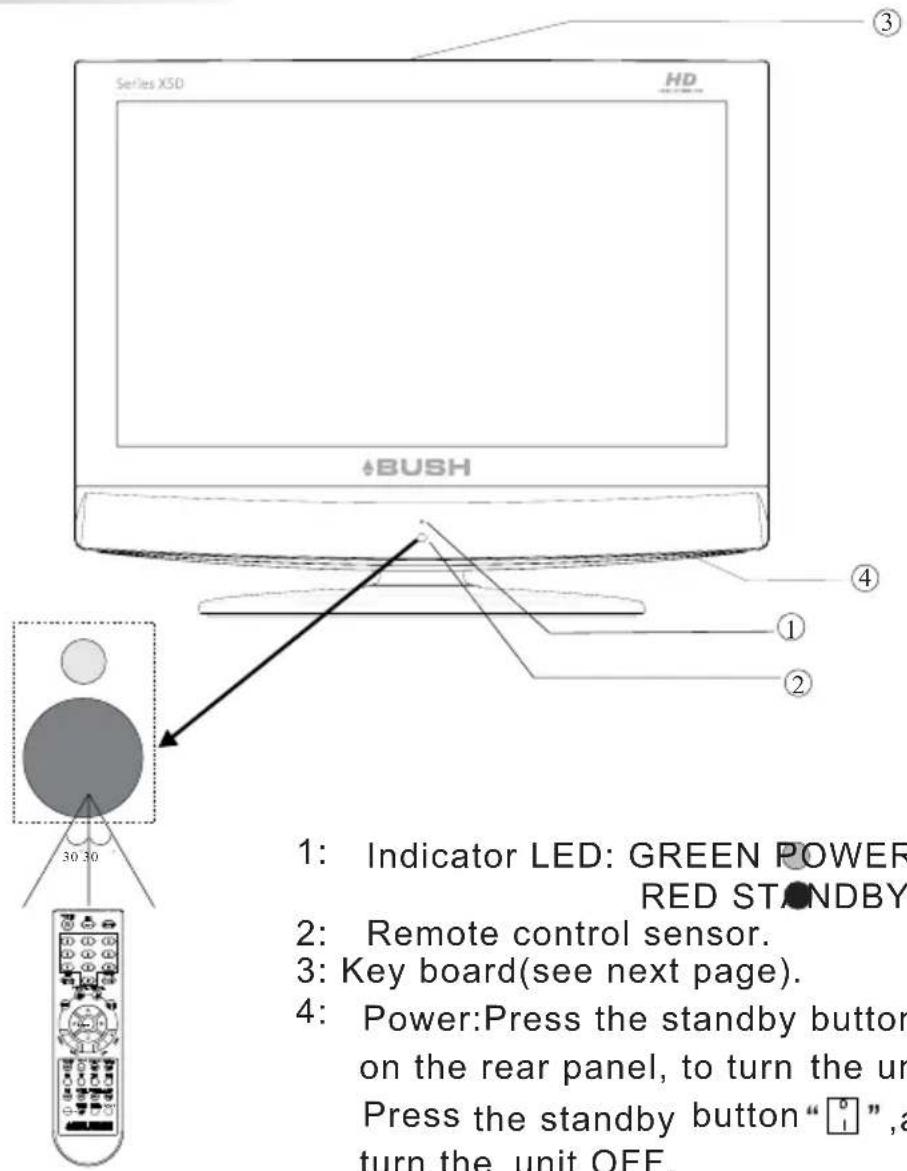
1: Indicator LED: GREEN POWER ON. RED STONDBY.
2: Remote control sensor.
3: Key board(see next page).
4: Power:Press the standby button “☐” on the rear panel, to turn the unit on. Press the standby button “☐”, again to turn the unit OFF.
KEY BOARD

- INPUT
Press to display the Input Source Menu.
- MENU
Press to display the Main Menu.
- VOL+/VOL-
Press to adjust the sound level.
In Menu mode, press VOL+/VOL- buttons to select the desired menu items.
- CH+/CH-
In TV mode, press the CH+/CH- buttons to change the channel up and down.
In MENU mode, to select the menu items.
- ⏻
Standby button turns the TV on & off.
REAR PANEL

-
ANTENNA INPUT
-
HEADPHONE JACK
-
VGA-AUDIO INPUT
-
VIDEO AND YPbPr AUDIO INPUT
-
AV INPUT
-
S-VIDEO INPUT
-
YPbPr INPUT
-
VGA INPUT
-
HDMI INPUT
ANTENNACONNECTION

Note:
AerialconnectionsIECfemale: ( ) .
Inputimpendanceunbalanced: 75.
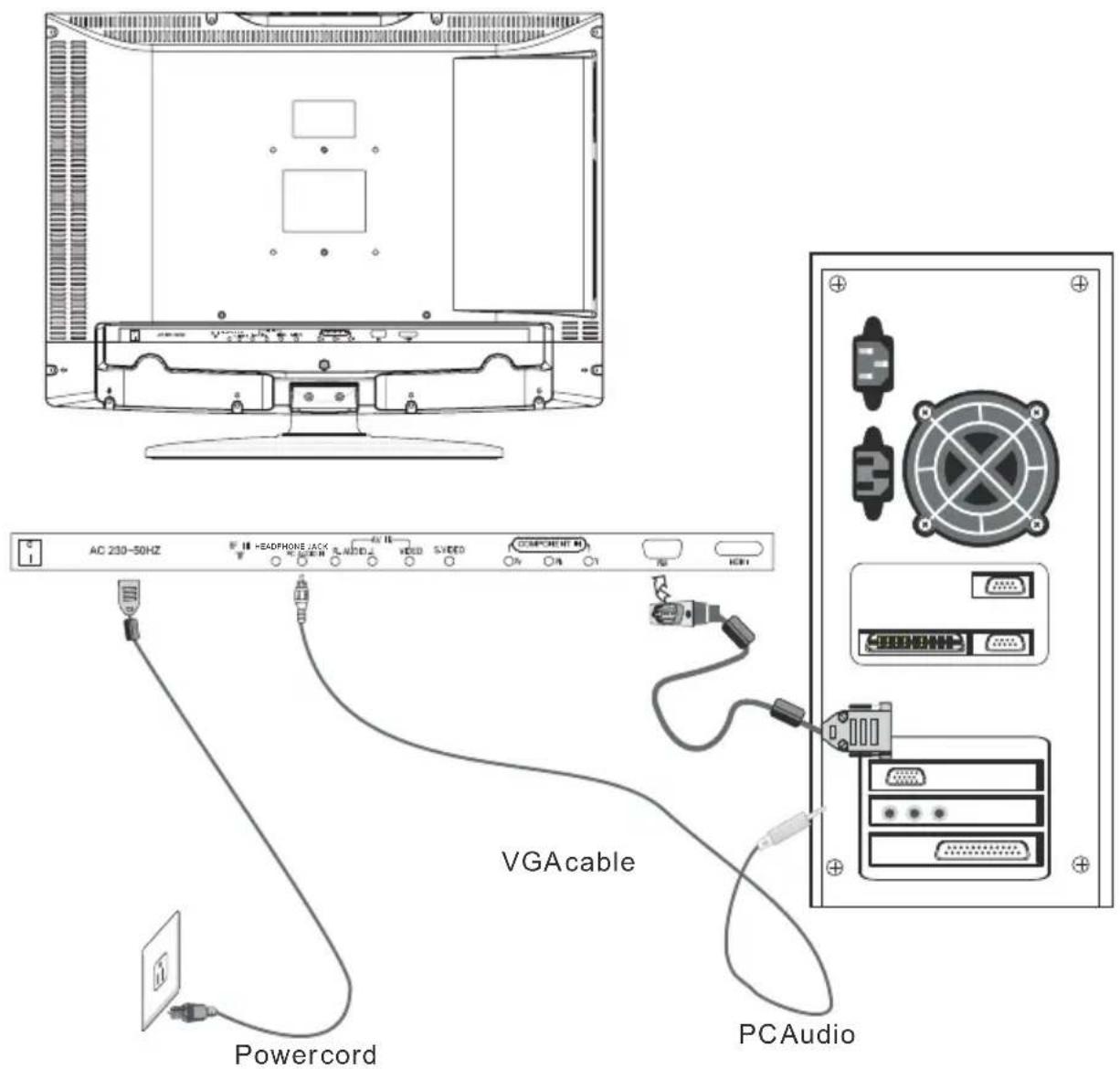
CONNECTINGTOPC
STEPS:
BesureboththeTVandcomputeraresettoPoweroff.
- . ConnectVGAandaudiocable
- . Connectthepowercord
- . . PowerontheTVswitchtheinputsourcetoVGAmode PoweronthePC.
Thissequence is very important.
PC PRESET
PRESET MODE(recommended resolution is 1024*768@60Hz)
| RESOLUTION | V.Freq.(Hz) H.Freq.(KHz) | ||
| 1 | 720*400 | 70 | 31.47 |
| 2 | 640*480 | 60 | 31.47 |
| 3 | 800*600 | 56 | 35.156 |
| 4 | 800*600 | 60 | 37.88 |
| 5 | 800*600 | 75 | 46.88 |
| 6 | 800*600 | 72 | 48.08 |
| 7 | 1024*768 | 60 | 48.36 |
| 8 | 1024*768 | 70 | 56.48 |
| 9 | 1024*768 | 75 | 60.02 |
CONNECTING TO AV EQUIPMENTS
This TV provides three groups of AV, two groups of YPbPr for convenient connection to VCR, DVD or other video equipment, and a HDMI for HD signal input.
You can use the input terminals on TV set rear as follows.
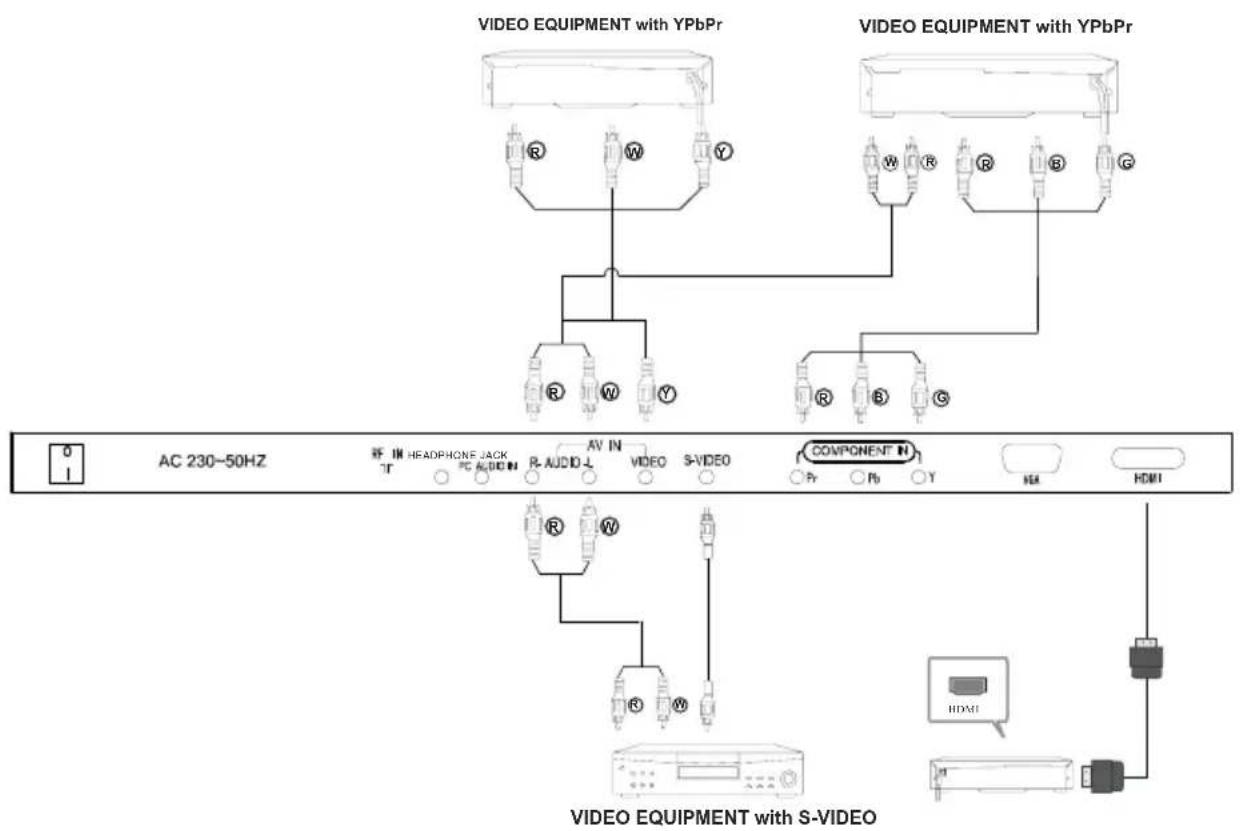
It can be connected to the following appliances: VCR, multi disc player, DVD, camcorder, video game or stereo system as well as a number of other electronic items.
YPbPr can support these video fomats:480i,576i,480p,576p,720p,1080i,1080p.
BATTERY INSTALLATION
- Remove the battery cover.
- Inserting the 2 AAA 1.5V batteries making sure the polarity (+ or -) of the batteries matches the polarity marks inside the unit.
- Mount the battery cover.
Replace with new batteries when the TV set begins to show the following symptoms: Operation is unsteady or erratic. Sometimes the TV set does not function with Remote Control Unit.

natural_image
Black cylindrical object with a white cross symbol on its surface (no text or symbols visible)
natural_image
Close-up of a black remote control switch with a metallic connector and cable inserted (no text or symbols visible)Remark:
1) Alkaline Battery Recommended.
2) Remove batteries when they are exhausted or if the remote control is not to be used for an extended period of time.
KEYS FUNCTION
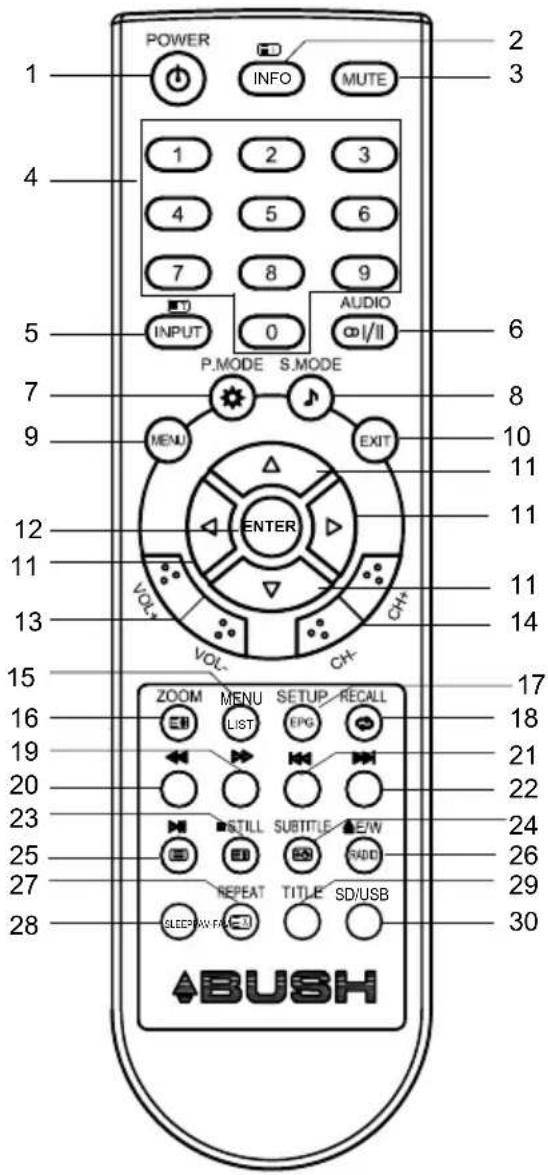
1【↓】: Turns the Power on or off.
2【INFO】: Turns the Program information menu on or off.
2 ☐:Press the Index button to view the index page.
3【MUTE】: Turns Sound on or off.
4【0-9】Number buttons: These buttons are used to select a channel number or to enter your code to unlock your password
5【INPUT】: Press the Input button to select signal source.
5 ☐:Press the Reveal button to reveal the hidden teletext information.
6 AUDIO 【∞I/Ⅱ】: This button can be used to switch between Audio options & Audio languages in DTV mode.
7【P. MODE ⚙️ : Press the P.Mode button to select the Picture mode.
8 【S.MODE】: Press the S.Mode button to select the Sound mode.
9 【MENU】:Press the Menu button to turn on the menu.
10 【EXIT】: Press the Exit button to exit the menu.
11 [↑]/[↓]/[←]/[→]: Use the Arrow buttons to navigate the menu.
12 【ENTER】: Press the Enter button to select and confirm your desired options.
13 【VOL+/-】: Press the Volume button to adjust the volume level up or down.
14 【CH+/-】: Press the Channel button to adjust the channel up or down.
15 【MENU】: Press the Menu button to enter the DVD menu.(DVD)
15 LIST: Press the List button to view the channel list.
16 【ZOOM】: Press the ZOOM button to select different screen sizes and to change the size of the Teletext.
17 【SETUP】:Press the Setup button to display the DVD menu.
17 EPG: Press the EPG (Electronic Program Guide) button to turn on or off the guide in DTV mode.
18 【RECALL】: Press the Recall button to return to the previous program.
19 : Press the Green button to fast forward play on the DVD.
20 : Press the Red button to fast reverse play on the DVD.
21 : Press the Yellow button to skip reverse play on the DVD.
22 ▶: Press the Blue button to skip forward play on the DVD.
23 ■ : Press the Stop button to stop play on the DVD.
23 【STILL】: Press the still button to hold the picture.
23 ☐: Press the Hold button to hold the Teletext page on display to prevent the page from changing.
24 ☐: Press the Subtitle button to enter into subtitle mode or subpage.
25 ▶: Press the Play / Pause button to play or pause the DVD.
25 : Press the Teletext button to view the Teletext menu.
26 ▲:Press the Eject button to open close disc tray.
26 E/W:Press the E/W button to switch between Eastern Europe and Western Europe languages in the teletext menu.
26 RADIO: Press Radio button to turn Radio on or off.
27 REPEAT: Press the Repeat button to repeat the selected title/chapter.(DVD)
27 ☒X : Press the cancel button to cancel the Teletext.
28 【SLEEP】: Press the Sleep button to set sleep timer on or off.
29 TITLE: Press the Title button to display the title content. (DVD)
29 FAV: Press the FAV-button to select the favourite channel in descending order.
30 SD/USB: Press the SD/USB button to select SD/USB mode. (DVD)
30 FAV+ : Press the FAV+ button to select the favourite channel in ascending order.
BASIC OPERATION
TURN ON /OFF THE UNIT
- Connect the TV unit to the power source using the power cord.
- Turn on the main power switch.
- When the power indicator is red, the TV is in Standby mode. Press the "button" button on remote control or on the top of the panel to turn on the TV. The indicator will now be green. Press the "button again to turn the TV back to Standby."
- To turn off the TV, press the" button on the back of the front panel.
- The power consumption is less than 1W in Standby mode. Unused for a long time, please disconnect the power cord from the wall outlet.
Note: The TV set can turn off automatically after 5 minutes while there is no signal input.
CHANNEL SEARCH
Press the INPUT button on the remote control to select the TV or DTV input mode and press the ENTER button to confirm. If you are using the unit for the first time, an Installation Guide menu will be displayed to guide you through the Channel Scan. Use the remote control to finish Channel Scan.

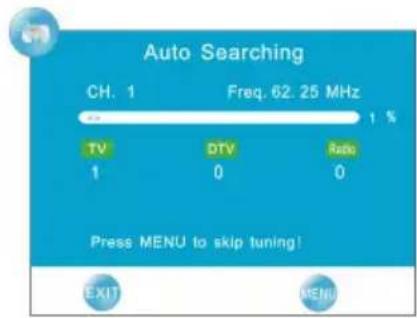
CHANGING THE CHANNEL
Press the CH- or CH+ button to select the previous or next channels or press the 0-9 buttons to enter a channel number directly. Press LIST button to view the channels list and press the buttons to select the desired TV programmes.
CHANGING THE VOLUME
Press the VOL - or VOL + button to adjust the volume level. Press the VOL - button repeatedly to decrease the volume. Press the VOL + button repeatedly to increase the volume.
CHANGING THE PICTURE MODE
Press theP.MODEbutton repeatedly to cycle through the availablepicture modes.
CHANGING THE SOUND MODE
Press the S MODE repeatedly to cycle through the available sound modes.
VIEW CHANNEL INFORAMTION
Press the INFO button to display the preset channel information.
MUTE
Press the Mutter to cut off the sound output, press this button again to resume sound output.
CHANGE INPUT SOURCE
Press the INPUT to trigger the press stance and press the ENTER button to confirm.
TELETEXT
Teletext is an information system broadcast by certain channels which can be consulted like a newspaper. It also offers access to subtitles for viewers with hearing problems or who are not familiar with the transmission language.
Display Teletext
-
Select a TV station with a teletext signal.
-
Press the ☐ button to enter the teletext mode.
-
Press the ☐ button again to enter the Mix mode.
-
Press the ☐ button a third time to exit.
Page selection
-
Enter the page number (three digit) using the NUMBER buttons. If you press a wrong number during input, you must complete the three digit number and then re-enter the correct page number.
-
The【↑】/↓】buttons and keys CH+/CH- can be used to select the following page.
Hold
You can press the ☐ button to hold a page and press it again to release the page.
≡i Index
Press the i button to enter the main index page directly.
Enlarging Text
When a page is displayed, you can double the size of the text to make it easier to read.
-
Press the ⏚ button to enlarge the top half of the page.
-
Press the ☐ button again to enlarge the bottom half of the page.
-
Press the ☐ button once more to return to the normal display.
三? Reveal mode
You can display concealed teletext information (e.g. Answer to puzzles or riddles etc.) by pressing the ☐ button. Press the ☐ button again to remove the information from the display.
Subpage
Some teletext may contain several sub-pages which are automatically paged in a certain cycle by the TV station.
-
You can select a certain subpage by pressing the SUBTITLE button directly and selecting the page number with the NUMBER buttons. Enter the subpage number, e.g.0003 for the third subpage.
-
Press the ⏻ button, again to exit the subpage mode.
-
Press the ☐ button to return to the normal TV mode.
Colour buttons(Red, Green, Yellow, Cyan)
Press these buttons when promoted by the on screen Menu. Each colour will correspond with the appropriate option.
Using the Function
Menu overview
Many function settings and adjustments of the LCD TV will begin from the Main Menu.
Press the 【MENU】button to display the Main Menu.
【MENU】buttons the [◀] / [→] buttons to cycle
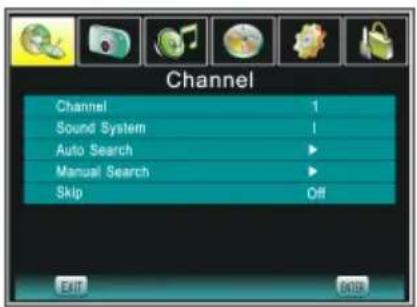
through the main menu: Channel, Picture, Sound, Timer, Option and Lock. Press the【↑】/↓ buttons to select the submenu you want. When an item in the MENU is grey, it means that the item is not available or cannot be adjusted.
Channel Menu (In TV, DTV mode)
- Press the MENU button to select the Channel Menu. Press the [←] / [→] buttons to cycle through the Main Menu.
- Press the [↑] / [↓] buttons to highlight the item to be adjusted.
- Press the buttons [e] adjust the submenu or subitem.
- When you are satisfied with your adjustment, press the EXIT button to exit the Main Menu.
- If the channel is locked or Lock System is On, you should enter the password before channel searching.
Channel
To display the current channel number and to adjust it press the
【←】/【→】 buttons.
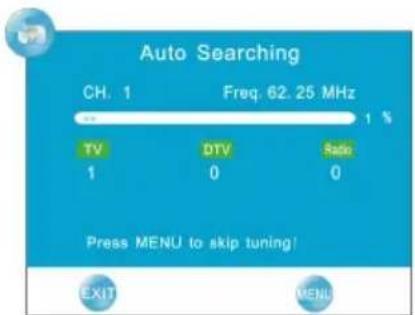
Auto Search
Press the [→] button to start Auto Search. Once the progress bar is full, the found channels will be stored. If you press the MENU button it will skip from TV to DTV searching mode.
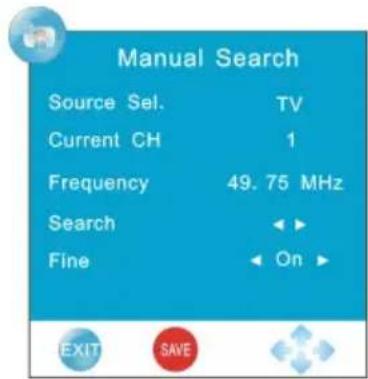
Manual Search
The Manual search option allows you to preset programs one by one. The first Source Sel. is TV, the other one is DTV. Press the RED button to save your choice of program.
Source Sel.: To display the current input source (TV/DTV)
Current CH: To display the channel number.
Frequency: To display the frequency of the program.
Search: To decrease and increase the frequency.
Fine: To adjust the frequency (In TV mode). After adjustment, the current channel number changes to yellow.
NOTE: In DTV mode, when highlighting Current CH or Frequency, the TV will begin DTV Manual Search.
Skip
You can select the skipped program function by pressing the NUMBER buttons directly. After adjustment, the current channel number changes to red.
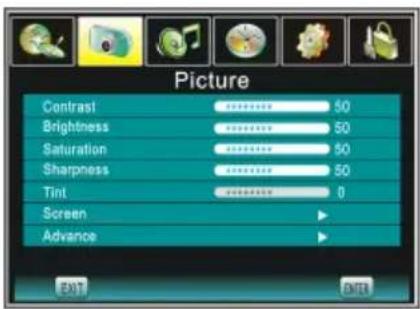
Picture Menu
- Press the MENU button to select the Picture Menu. Press the [←] / [→] buttons to cycle through the Main Menu.
- Press the [↑] / [↓] buttons to highlight the item to be adjusted.
- Press the [←] / [→] buttons to adjust the submenu or subitem.
- When you are satisfied with your adjustment, press the EXIT button to exit the Main Menu.
Contrast
Press the 【←】/【→】buttons to adjust the contrast of the picture.
Brightness
Press the [←] / [→] buttons to adjust the brightness of the picture.
Saturation
Press the [←] / [→] buttons to adjust the colour saturation.
Sharpness
Press the 【←】/【→】 buttons to adjust the Sharpness level of the picture.
Tint
Press the 【←】/【→】 buttons to adjust the tint of the picture (NTSC)
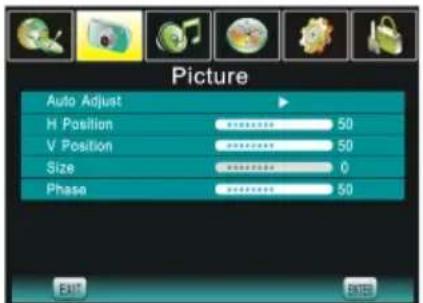
Screen(In PC-RGB mode)
Auto Adjust : Press the [→]button to adjust the position of the picture automatically.
H Position: Press the [←] / [→] buttons to adjust the horizontal position.
V Position: Press the [←] / [→] buttons to adjust the vertical position.
Size: Press the [←] / [→] buttons to adjust the size of picture.
Phase: Pressthe [←] / [→] buttons to adjust the phase of picture.
Advance
ZOOM : Press the [←] / [→] buttons to select the ZOOM mode.
Colour Temp: Press the【←】/【→】buttons to select the Colour Temp mode.
DNR: Provide the picture with dymatic noise reduction treatment.

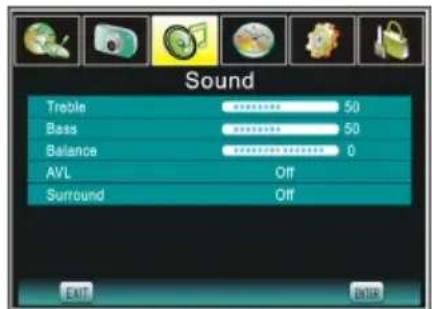
Sound Menu
- Press the MENU button to select the Sound Menu. Press the 【←】/【→】 buttons to cycle through the Main Menu.
- Press the 【↑】/【↓】 buttons to highlight the item to be adjusted.
- Press the [←] / [→] buttons to adjust the submenu or subitem.
- When you are satisfied with your adjustment, press the EXIT button to exit the Main Menu.
Treble
Press the [←] / [→] buttons to increase and decrease the level of the pitch.
Bass
Press the []/[] buttons to increase and decrease the level of the pitch.
Balance
Press the [←] / [→] buttons to adjust the audio output between left and right speakers.
AVL
AVL(Automatic Volume Control) is used to control the volume automatically.
Surround
Press the 【←】/【→】buttons to switch the surround sound.
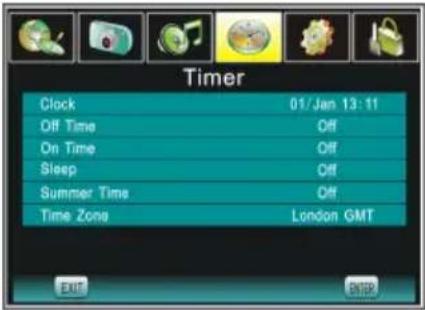
Timer Menu
MENU button to select the Timer Menu. Press the Pressthe buttons to cycle through the Main Menu to select it.
- Press the [↑] / [↓] buttons to highlight the item to be adjusted.
- Press the [←] / [→] buttons to adjust the submenu or subitem.
- When you are satisfied with your adjustment, press the EXIT button to exit the Main Menu.
Clock
You can display either the DTV Signal Stream Time or set the System Time.
Off time
Press the [→] button to set the time for the TV to switch off.
On Time
Press the [→] button to set the time for your TV to turn on.
Sleep
Press the 【←】/【→】buttons to select the Sleep Time you want.
Summer Time
Press the [←] / [→] b uttons to switch the Summer Time on or off.
Time Zone
Press the [←] / [→] buttons to select your time zone.
Option Menu
MENU buffers to select the Option Menu. Press the [←] / [→] buttons to cycle through the Main Menu.
- Press the [↑] / [↓] buttons to highlight the item to be adjusted.
- Press the [←] / [→] buttons to adjust the submenu or subitem.
- When you are satisfied with your adjustment, press the EXIT button to exit the Main Menu.
Language
Press the [←] / [→] buttons to select the OSD language
Panel Lock
Press the [←] / [→] buttons to switch the Panel Lock on or off.
When the Panel Lock is set to On, all of the buttons are locked.
Press any button for more than 5 seconds to release it.
When it is set as Off, the buttons of the TV are in normal mode.

System
Press the [→] button to display the System Information: Software Information and Signal Information (Signal Information only in DTV mode).
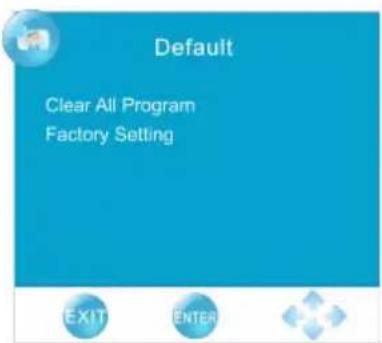
Default
Press the [→] button to clear all programs or reset default setting.
Clear All Programm: Press the [→] button to clear all programs or information.
Factory Setting: Press the [→] button to restore factory setting.
NOTE: Lock Setting and Hotel Setting can't be restored.
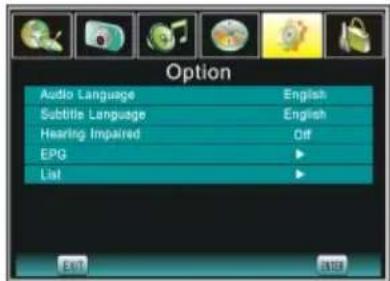
Advance
Audio Language: Press the [←] / [→] buttons to set the default Audio Language.
Subtitle Language: Press the [←] / [→] buttons to set the default Subtitle Language.
Hearing Impaired: When hearing Impaired is ON, the TV screen will turn on the subtitles and turn them off when the functions is off.
EPG (In DTV mode)
This function gives you detailed information about the channel you are watching, indicating the time of the program playing. From the EPG it is possible to check the program information for the next eight days (If the information is available from the broadcaster .)
ENTER: Press the ENTER button to change the channel.
RADIO: Press the RADIO button to switch between RADIO and DTV.
INFO: Press the INFO button to see the detailed information of the current channel.
Schedule: Press the GREEN button to see the schedule information.
DATE: Press the YELLOW button to see the detailed information of the next eight days, and you can press the [←] / [→] buttons to select the date information.
ReminderPress the BLUE button to book a program.

List (In TV/DTV mode)
Press the [→] button to display the Channel List picture. The list of programs will include all TV, DTV and Radio. When you press the [↑]/[↓] buttons to change programs, the signal quality, singal strength, frequency will display on screen.
(Only frequency in TV mode.)
DELETE: Press the RED button to delete a channel.
FAV: Press the GREEN button to set a channel as your favorite channel.
MOVE: Press the YELLOW button to move the position of the channel (In TV mode).

Lock Menu
- Press the MENU button to select the Lock Menu. Press the [←] / [→] buttons to cycle through the Main Menu. The default password is "0000".
- Press the [↓] button to enter password menu, then input the password to enter the Lock Menu.
- Press the [↑] /↓ buttons to highlight the item to be adjusted.
- Press the【←】/【→】buttons to adjust the submenu or subitem.
- When you are satisfied with your adjustment, press the EXIT button to exit the Main Menu.

※ If you forget your private password, the super password is "1225", this will always unlock your TV.
Press the NUMBER buttons on the remote control to set the new password. When the new password has been input twice, the password is set. The TV will go back to the previous menu.
Set Password
Press the 【→】 button to see the Set Password submenu. Press the NUMBER buttons to enter the new password.
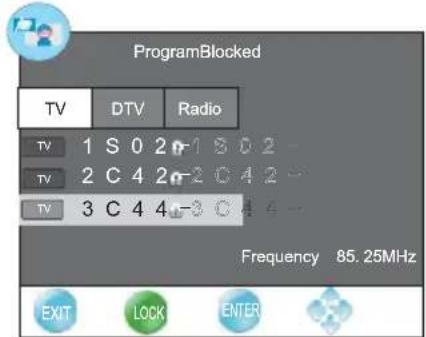
Program Blocked (In TV, DTV mode)
Press the GREEN button to lock the available program you want. Press the GREEN button again to unlock it.
Parent Lock (In DTV mode)
You can rate and lock programmes based on the censor age ratings.
NOTE: When you select "default factory setting" the Lock Setting won't change.
Hotel Mode
Press the INPUT button to display the Source Menu, then press → 1 → 4 → 7 → 0 in turn to enter into the Hotel Mode to adjust the relative settings.
On Source
Set the default signal source by pressing the 【←】 or 【→】 buttons. (The default signal source will be displayed when the TV turns on.) Optional signal sources are as follows: DTV, TV, Component, PC-RGB, HDMI, AV and S-Video.
On Channel
Set the default channel by pressing the [←] /* bilitons (The default channel will be displayed when the TV turns on).
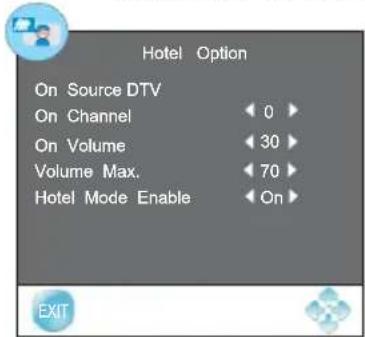
On Volume
Set the default volume by pressing the [←] /* buttons
(The default volume is the volume when the TV turns on. Remember the default volume should be less than the maximum volume).
Volume Max.
Set max volume by pressing the [←] +■] buttons. When the max volume is lower than the default volume, the max volume is the priority.
Hotel Mode Enable
Set the Hotel Mode ON/OFF by pressing the 【←】/【→】buttons. When it is "ON" and switch off at the AC power supply, the hotel mode is enabled. The TV will automatically enter into hotel mode when turns on next time.
NOTE:
When "HOTEL MODE" is "ON", the tuning and list function is locked.
When you select "default factory setting" the Hotel Setting won't change.
DVD SIDE PANEL

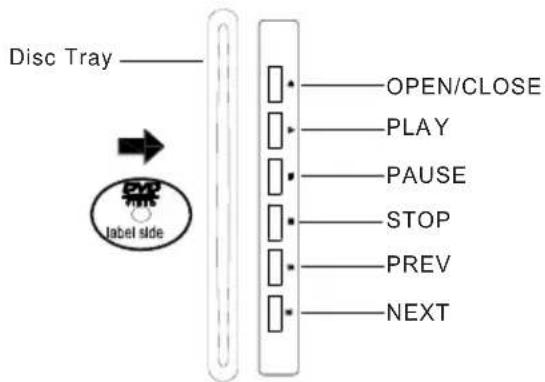
flowchart
graph LR
    A["Disc Tray"] --> B["Label side"]
    B --> C["OPEN/CLOSE"]
    B --> D["PLAY"]
    B --> E["PAUSE"]
    B --> F["STOP"]
    B --> G["PREV"]
    B --> H["NEXT"]

Caution
This DVD Player has a Class 1 laser which may be harmful to your eyes. Do not attempt to disassemble the cabinet or make any adjustments. Refer all servicing to a qualified professional.
PLAYING DVD
Basic Operation
Once you have inserted your DVD, the film may start automatically or you may be presented with a menu screen. This is dependent on the way the DVD disc has been created by the movie company.
Press the ENTER button to begin playback or use the [↓] / [↑] / [←] / [→] buttons to navigate the menu.
1. INSERT D ISC
Insert the disc in the disc tray (the printed side has to face towards the back of the unit), the disc will enter automatically. Information about the disc type will be displayed on the screen and the disc will play.
Note: Do not move this machine while playing, it will damage the disc.
2. OPEN/CLOSE
Press the ▲ button to open the disc tray and load the disc.
Press the ▲ button again to close the disc tray.
3. FAST REVERSE/FAST FORWARD
Press the 【◀】/【▶» buttons, to fast forward or fast reverse.
The DVD player uses the following speeds:
| BACKWARD X 2 / FORWARD X 2 |
| BACKWARD X 4 / FORWARD X 4 |
| BACKWARD X 8 / FORWARD X 8 |
| BACKWARD X 20 / FORWARD X 20 |
To resume normal play, press the ▶|| button.
4. SKIP REVERSE/SKIP FORWARD
Press the 【|◀◀【 】▶▶| b uttons, to skip forward or skip reverse chapters on the DVD .
5. STOP/MEMORY PLAY
When you press the STOP button the DVD player will return back to the starting menu.
Press the ▶|| button again and the DVD will resume play.
If you press the STOP button again the DVD player will completely stop play.
6. SUBTITLE
Press the SUBTITLE button to turn on the subtitles and switch among the Multi-Subtitle languages.

7. USB/SD/MS/MMC
In the DVD mode you can connect a USB device to the USB port or insert SD/MS/MMC card into the SD/MS/MMC card slot.
Press the INPUT button to display the signal source menu, then select DVD.
Press the SD/USB button to select three modes (CARD MODE, USB MODE or DISC MODE).
The TV will scan the files automatically.
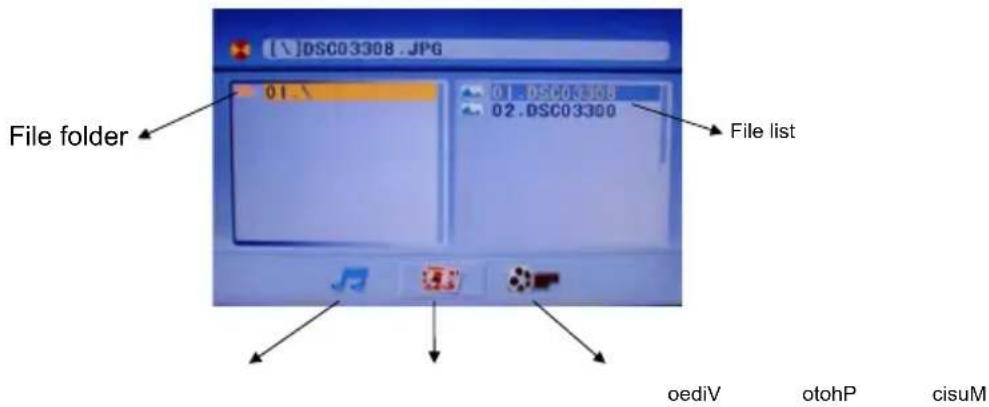
USB/SD card can support MP3, JPEG, AVI, MPEG, DIVX(Except Divx3.11, Divx6.0) and Xvid
1) To highlight the file folder press the [↓] / ↑ 1 buttons.
Press the OK button to enter, or you can press the [←] / [→] buttons to select Music mode, Photo mode or Video mode.
2) Press the [↓]/ * buttons to select files, then press the OK button to start playback.
3) Press the ■ button to stop playback, then press the 【←】 button to return to the file folder.
NOTE: The screen display will vary from disc to disc.
For protecting your memory cards and USB device, please turn the TV off before removing.
The USB port is only compatible with standard USB devices.
Make sure you insert your USB or SD/MS/MMC card correctly. If you don't you may cause damage to your card or USB.
.REPEAT
Press the REPEAT button to repeat the selected title or chapter.
REP:【OFIR】P:【CHAPTER】:RE:P【RI ETALL】L】
9. TITLE
Press the TITLE button to stop DVD play and return to the disc Title Menu.
Press the [←] / [→] buttons and OK button to select the title/chapter you desire.
ou can also use the NUMERIC buttons to select titles and chapters.
10.SYSTEM SETUP
SCREEN SAVER
To select the SCREEN SAVER item, press the [←] / [→] buttons to select ON or OFF. The SCREEN SAVER function will start-up, when the DVDplayer picture is still, there is no disc, if it has stopped playing or the disc gate has been opened for 60 seconds. This is to protect the screen.

PASSWORD
If you want to set the RATING, you should enter the DVD default password (0000) and press ENTER button to confirm. You can now enter a new password.
RATING
Some pre-recorded DVDs are supplied with parental control ratings. The Rating function allows you to prevent playback of unsuitable material by setting the rating available for playback.
Rating 1 is the lowest, rating 8 is the highest.
DEFAULT
This feature will reset the DVDs setup configuration to its factory default settings.
11. LANGUAGE SETUP
OSD LANGUAGE
Press the [↓] / ↑ keys to select the right OSD language you want and press the ENTER button to confirm.
AUDIO LANG
Press the keys to select the right AUDIO language you want and press the ENTER button to confirm.

SUBTITLE LANG
Press the keys to select the right SUBTITLE language you want and press the ENTER button to confirm.
MENU LANG
Press the [↓]/↑] keys to select the right MENU language you want and press the ENTER button to confirm.
If you have any questions, please consult the troubleshooting guide below:
Unless specifically stated, the following applies to DVDs, Audio and Photo discs.
NO PLAYBACK
- Check that the disc is inserted CORRECTLY, the printed side has to face towards the rear of the unit to be read (if the printed side is facing towards the front of the unit, there will be no playback).
- Check that the disc is not dirty or warped
● A parental rating level may be preventing playback of the DVD. Check your Rating Settings.
NO PICTURE
- Check that the system connections are correct and are connected firmly.
- Check that the main power supply is on.
PLAYS A SECTION REPEATEDLY
- Check that the Repeat functions are not activated.
- Check that the disc is not dirty or distorted.
NO SOUND
- Check if the mute function is on.
- Check that the Audio connections are correct.
- Check the volume settings.
- Check the menu audio settings.
REMOTE CONTROL DOES NOT WORK.
- Check that there are no obstructions between the remote control and the unit.
- Check that the remote control is within range of the unit.
- You may need to replace the batteries.
| Problem | Check | |||
| Picture Audio | ||||
 | Snow Noise |  | Check the Antenna position, direction and connection. | |
 | Ghost |  | Normal audio | Check the Antenna position, direction and connection. |
 | Interference | 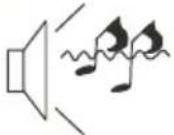 | Noise | Check the Antenna connection. Check for electrical interference by moving other electrical products away from the TV. |
 | Normal Picture |  | Mute | Check if the Mute function is on. Check the volume level. Check the audio connections. |
 | No picture Mut |  | Check the main power is on. Check the system connections are correct and connected firmly. | |
 | No colour Nor |  | Check the contrast, brightness and colour settings. | |
 | Picture breaking up |  | Normal audio or weak | Check the antenna connection. Check the cable connection. |
| LCD: | |
| ViewIng Picture Size(diagonal) | 22" |
| Resolution | 1366x768 |
| Aspect Ratio | 16:9 |
| Display colours | 16.7M |
| Brightness | 400 CD/M2 |
| Contrast ratio | 1000:1 |
| Response time | 5 ms |
| View angle | 170(H)/160(V) |
| TV: | |
| TV system | Digital TV: DVB-TAnalog TV: PAL |
| DVB-T decode | Audio: MPEG2 Audio Layer I&IVideo: MPEG2 Transport MP@HL |
| DVB-T de-modulation | Demodulator: COFDMOFDM Mod.: 2K, 8K FFT, SFN and MFNPacked Carries: 2K/8KGuard Interval: 1/4, 1/8, 1/16, 1/32 |
| Terminals: | |
| RF IN Input | 1 |
| ear phone Input | 1 |
| VGA-audio Input | 1 |
| AV Input | 1 |
| S-VIDEO Input | 1 |
| Y Pb Pr Input | 1 |
| Analog RGB(VGA) Input | 1 |
| HDMI Input | 1 |
| Others: | |
| Input Power Voltage | 100V-240V~ 50/60Hz |
| Power consumption | 60W |
| Audio Output Power (THD≤7%) | 2x2W |
NOTE: The specification shown above may be changed without prior notice for quality improvement.
Please keep your receipt as proof of purchase. This product is warranted for any defect in materials or workmanship for one year after purchase. This product is for normal domestic and office use only. This warranty does not cover damage from misuse or neglect, accidental damage, vermin infestation, excessive voltages such as lightning or power surges or any alteration that affects the performance or reliability of the product.
In the unlikely event that your product fails to work normally, please contact Bush Warranty on 1800 509 394 (Australia) or 0800 450 259 (New Zealand) and have your receipt of purchase on hand.
This warranty is subject to the following provisions:
- It is only valid within boundaries of the country of purchase.
- The product must be correctly assembled and operated in accordance with the instructions contained in the manual.
- This product must be used solely for domestic purposes.
- The warranty does not cover accidental damage.
- The warranty will be rendered invalid if the product is resold or has been damaged by inexpert repair.
- The manufacturer disclaims any liability for incidental or consequential damaged.
This warranty is in addition to, and does not diminish, your statutory or legal rights.
PO BOX 6287
Silverwater NSW 1811
www.bushaustralia.com.au
Bush Warranty: 1800 509 394 Australia
Bush Warranty: 0800 450 259 New Zealand
PO BOX 6287
Silverwater NSW 1811
www.bushaustralia.com.au
- SeriesX5D 22" LCD TV
- Safety is important
- Warranty
- Australia
- New Zealand
- ADDITIONAL SAFETY NOTES
- INSTALLATION NOTES
- ACCESSORIES
- KEY BOARD
- REAR PANEL
- ANTENNACONNECTION
- CONNECTINGTOPC
- STEPS:
- PC PRESET
- CONNECTING TO AV EQUIPMENTS
- BATTERY INSTALLATION
- Remark:
- BASIC OPERATION
- TURN ON /OFF THE UNIT
- CHANNEL SEARCH
- CHANGING THE CHANNEL
- CHANGING THE VOLUME
- CHANGING THE PICTURE MODE
- CHANGING THE SOUND MODE
- VIEW CHANNEL INFORAMTION
- MUTE
- CHANGE INPUT SOURCE
- TELETEXT
- Display Teletext
- Page selection
- Hold
- ≡i Index
- Enlarging Text
- 三? Reveal mode
- Subpage
- Colour buttons(Red, Green, Yellow, Cyan)
- Using the Function
- Menu overview
- Channel Menu (In TV, DTV mode)
- Channel
- Auto Search
- Manual Search
- Skip
- Picture Menu
- Contrast
- Brightness
- Saturation
- Sharpness
- Tint
- Advance
- Sound Menu
- Treble
- Bass
- Balance
- AVL
- Surround
- Timer Menu
- Clock
- Off time
- On Time
- Sleep
- Summer Time
- Time Zone
- Option Menu
- Language
- Panel Lock
- System
- Default
- EPG (In DTV mode)
- Lock Menu
- Set Password
- Program Blocked (In TV, DTV mode)
- Parent Lock (In DTV mode)
- Hotel Mode
- On Source
- On Channel
- On Volume
- Volume Max.
- Hotel Mode Enable
- NOTE:
- DVD SIDE PANEL
- Caution
- PLAYING DVD
- INSERT D ISC
- OPEN/CLOSE
- FAST REVERSE/FAST FORWARD
- SKIP REVERSE/SKIP FORWARD
- STOP/MEMORY PLAY
- SUBTITLE
- USB/SD/MS/MMC
- .REPEAT
- TITLE
- 10.SYSTEM SETUP
- SCREEN SAVER
- PASSWORD
- RATING
- LANGUAGE SETUP
- OSD LANGUAGE
- AUDIO LANG
- SUBTITLE LANG
- MENU LANG
- NO PLAYBACK
- NO PICTURE
- PLAYS A SECTION REPEATEDLY
- NO SOUND
- REMOTE CONTROL DOES NOT WORK.
Brand : BUSH
Model : IDLCD2211HDV
Category : Television