
IDLED2402DVD - Television BUSH - Free user manual and instructions
Find the device manual for free IDLED2402DVD BUSH in PDF.


| Product Type | LED LCD TV with DVD Combo |
| Screen Size | 23.6 inches |
| Resolution | 1920 x 1080 (Full HD) |
| Aspect Ratio | 16:9 |
| Display Colors | 16.2 million |
| Brightness | 250 cd/m² |
| Contrast Ratio | 1000:1 |
| Response Time | 8 ms |
| Viewing Angle | 160° horizontal / 160° vertical |
| TV System | DVB-T (Digital), PAL/SECAM (Analog) |
| Audio Output Power | 2 x 3W |
| Power Supply | DC 12V, 3A (external adaptor) |
| HDMI Inputs | 2 |
| VGA Input | 1 |
| PC Audio Input | 1 |
| AV Input | 1 (shared audio with YPbPr) |
| USB Input | 1 |
| YPbPr Input | 1 |
| AV Output | 1 |
| DVD Supported Discs | DVD, VCD, CD, MP3, JPEG, MPEG4, KODAK Picture CD |
| Safety Features | Auto standby (15 min no signal), parental lock |
| Cleaning Instructions | Unplug before cleaning; use dry soft cloth only |
| Wall Mount Compatible | VESA standard (screw size not specified) |
Frequently Asked Questions - IDLED2402DVD BUSH
User questions about IDLED2402DVD BUSH
0 question about this device. Answer the ones you know or ask your own.
Ask a new question about this device
Download the instructions for your Television in PDF format for free! Find your manual IDLED2402DVD - BUSH and take your electronic device back in hand. On this page are published all the documents necessary for the use of your device. IDLED2402DVD by BUSH.
USER MANUAL IDLED2402DVD BUSH
LED LCD TV/DVD Combo
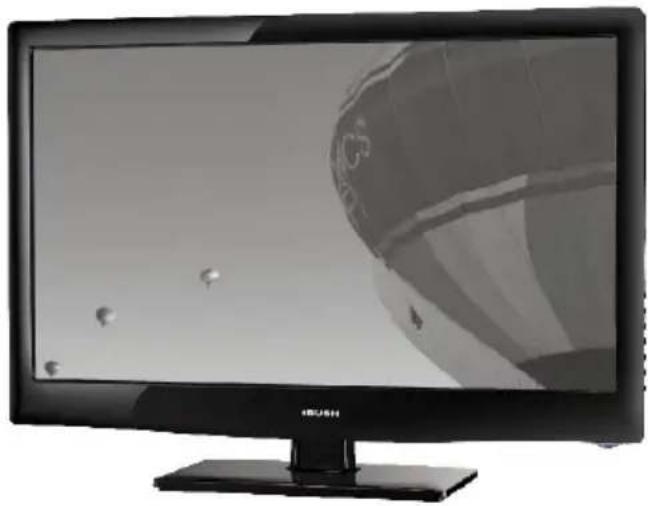
IDLED2202DVD
IDLED2402DVD
The Gold Technical Support Line: 1902 215 259
Personal Product Support
(Charges will apply at \$2.95 per minute)
Thank you for buying this Bush product, which is designed to give you many years of trouble-free service.
You may already be familiar with using a similar unit, but please take time to read these instructions. They are designed to familiarise you with the unit's many features and to ensure you get the very best from your purchase.
Safety is important
Your safety and the safety of others is important. Therefore, please ensure you read the Safety Instructions before you operate this unit.
Warranty
In the unlikely event that your product fails to work normally, please call the below Bush warranty number to discuss the problem with one of our qualified service engineers.
Australia
Bush Warranty: 1800 509 394
New Zealand
Bush Warranty: 0800 450 259
Contents
INTRODUCTION.... 1
SAFETY INSTRUCTIONS.... 3-4
BASE STAND INSTALLATION 5
WALL MOUNTING INSTALLATION....6
INSTALLATION....7-10
REMOTE CONTROL....11-12
OPERATION.... 13-18
DVD OPERATION.... 19-23
DVD TROUBLESHOOTING....24
TROUBLESHOOTING....25
TECHNICAL SPECIFICATIONS.... 26-27
WARRANTY....28
- Do not use this TV near dripping or splashing water. Do not use any liquids near this TV.
- Clean with a dry cloth only.
- Do not block any ventilation openings and install in accordance with the manufacturers instructions.
- Do place this TV near any heat radiating sources, such as; heaters, stoves, or other devices (including amplifiers) that produce heat.
- Please ensure that the power cord is protected from damage (i.e. being walked on, cut or split) especially at the inputs.
- Only use attachments/accessories specified in this manual.
- Unplug the TV during lightning storms or when the unit will be unused for long periods of time.
- Refer all servicing to a qualified service personnel. Servicing is required when the TV has been damaged in any way, such as; if the power-supply cord or plug is damaged, if liquid has been spilled or objects have fallen into the TV, if the TV has been exposed to rain or moisture, if does not operate as per this manual, or if it has been dropped.
- The TV should not be exposed to dripping or splashing and no objects filled with liquids, Such as vases, should be placed on the apparatus.
- If the television is to be built into a cabinet or similar enclosure, a small amount of distance should be maintained to ensure ventilation. Heat build-up will reduce the service life of your television, and can also be dangerous.
ADDITIONAL SAFETY NOTES
Never tamper with any components inside the TV, or any other adjustment controls not mentioned in this manual.
All LED LCD-TVs are high voltage instruments. When you clean the unit or cabinet turn off the power and use a dry soft cloth.
During thunder and lighting, unplug the power cord and antenna cord to prevent damage to your TV.
All repairs to this TV should only be performed by qualified TV service personnel.
Important Safety Instructions
Warning: To reduce the risk of electric shock, do not remove the cover or back as there are no user-serviceable parts inside. Refer all servicing to a qualified technician.
Warning: To prevent fire or electric shock hazard, do not expose the unit to any liquids or moisture.
Do not expose the TV and power adaptor to water (dripping or splashing) and no objects filled with any liquids, such as vases, should be placed on or near the unit.
Please ensure that this product is kept away from direct sunlight and heat sources.
Do not block the any of the ventilation openings. Slots and openings on the unit are provided for ventilation. The openings should never be blocked.
Do not place the product on any unstable surfaces as this may cause the unit to fall and may cause possible damage or injury.
Never place heavy or sharp objects on the panel or frame.
Only use the AC adapter included with product. Using any other adaptor will void your warranty.

This marking indicates that this product should not be disposed with other household wastes. To prevent possible harm to the environment or human health from uncontrolled waste disposal, recycle it responsibly to promote the sustainable reuse of material resources. To dispose of your LED LCD TV contact your retailer where the product was purchased for tips on safe disposal when the time comes.
ACCESSORIES
Remote Control x 1
User's M anual x1
Battery(AAA) x 2
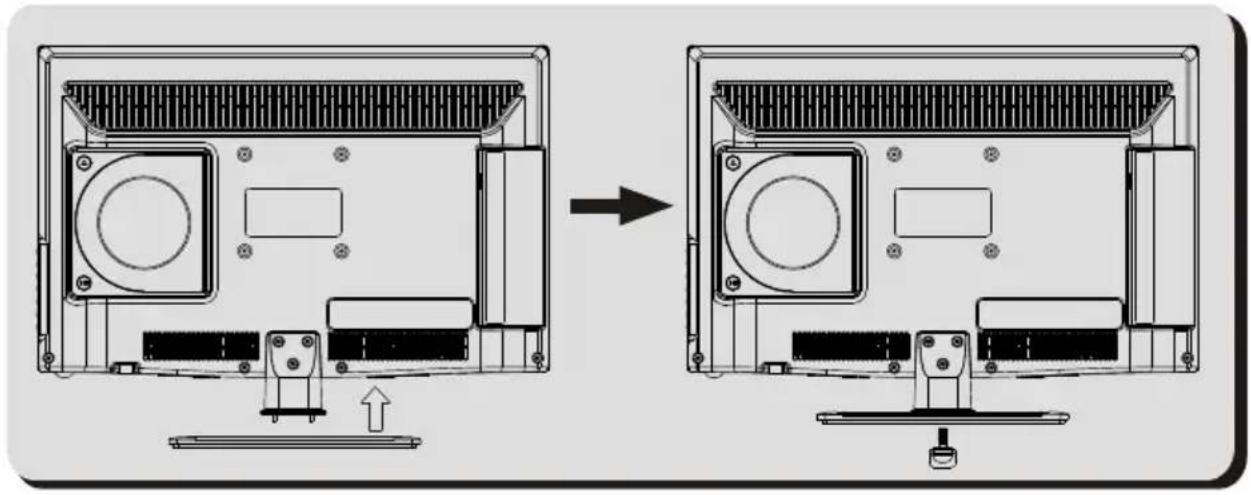
Base Stand Assembly Instruction
-
Place the TV with the display side down on a flat surface. Use a cloth to protect. Locate the bottom at the stand.
-
Fix the bottom with turning the screw tightly on the stand.
INSTALLATION NOTES
This TV can be connected to an AC 100-240 Volts, 50/60 Hz power supply. Never connect straight to a DC power supply.
Locate the TV in a room where light does not strike the screen directly. Total darkness or a reflection on the screen can cause eyestrain. Soft and indirect lighting is recommended for comfortable viewing.
Allow enough space between the TV and the wall to permit ventilation.
Avoid excessively warm locations to prevent possible damage to the cabinet or premature component failure.
WALL MOUNTING INSTALLATION GUIDELINES
This television can be wall mounted as follows:
-
Place the LED LCD Television onto a solid surface. Please place some soft material over the front of the screen to protect it from any damage.
-
Remove the screws from the lower part of the television, where the base joins to the TV, and take away the stand (put the stand somewhere safe for future use).


- Use the four screws provided to fix the TV onto a wall mounting bracket (not included) via the four VESA standard holes on the back of the television.

Front panel
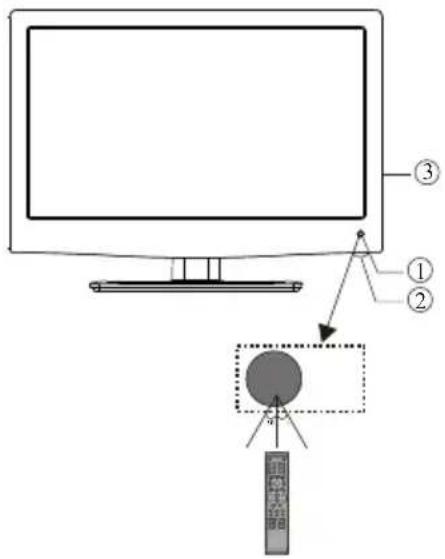
1: Remote Control Sensor.
2: Indicator LCD LED:
BLUE ● POWER ON.
RED ● STANDBY.
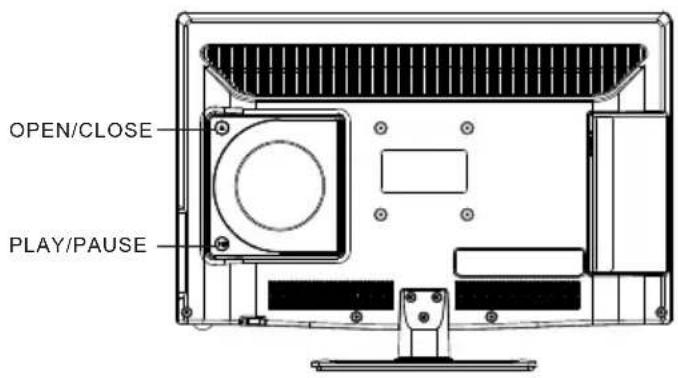
3: Side buttons (refer to image below)
Side Buttons
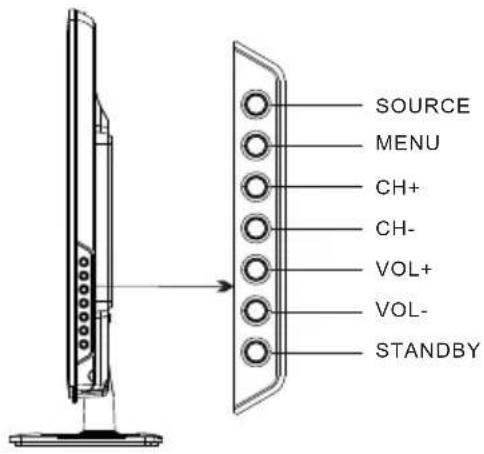
1.SOURCE :
Press the SOURCE Button to display the Input Source list.
2.MENU :
Press the MENU Button to display the Main Menu.
- CH+/CH-
Press the CH+/CH- Buttons to change the channel.
In the SOURCE Menu, press the CH+/CH- Buttons scroll through the Input Source List.
In the MAIN MENU, press the CH+/CH- Buttons to scroll through the Menu options.
- VOL+/VOL-
Press the Vol+/Vol- Buttons to adjust the Volume level.
Press the Vol+/Vol- Buttons to confirm your selection in the Input Source Menu.
- STANDBY
Press this button to turn the unit ON from STANDBY mode.
Press it again to turn the set back to STANDBY.
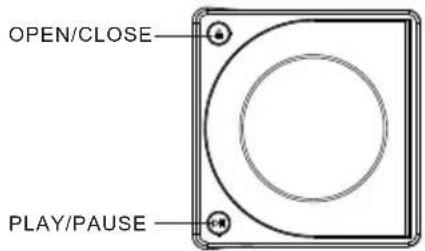
- OPEN/CLOSE
Press this button to eject yourdisc
- PLAY/PAUSE
Press this button to play disc or press again to pause.
Rear Sockets
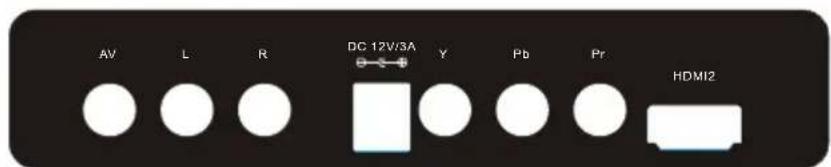
Outlined below is the Rear Sockets provided -
AV Input, R/L Audio Input, DC Power Source Input, YPbPr Input and HDMI2 Input.
Note: 1. The AV Input and YPbPr Input share one audio channel.
- When HDMI 2 is connected with DVI video source, the R/L of AV will be used for audio source input.
Side Sockets

Outlined below is the Side Sockets provided -
HDMI1 Input, USB Input, PC Audio Input, AV Output, VGA Input and RF Input.
Note: When HDMI 1 is connected with DVI video source, the "PC audio input" will be used for audio source input.
ANTENNA
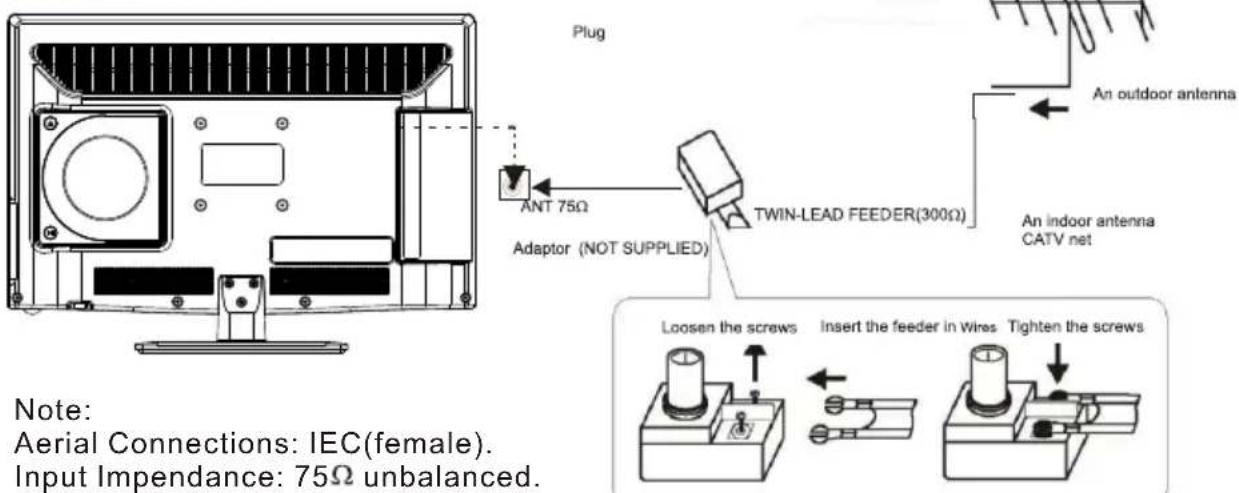
PC
STEPS:
Ensure the TV and your computer are both set to power off before your connect.
- Connect the VGA Input & PC Audio Input as above.
- Connect power supply again to your TV set.
- Turn on the TV and then press the SOURCE Buttons to select PC mode.
- Then turn the PC power on.


PC
PRESET MODE
| RESOLUTION | V.Freq.(Hz) H.Freq.(KHz) | ||
| 1 | 720*400 | 70 | 31.47 |
| 2 | 640*480 | 60 | 31.47 |
| 3 | 800*600 | 56 | 35.156 |
| 4 | 800*600 | 60 | 37.88 |
| 5 | 800*600 | 72 | 48.08 |
| 6 | 1024*768 | 60 | 48.36 |
| 7 | 1024*768 | 70 | 56.48 |
AV EQUIPMENT
Please follow one of the below instructions when connecting your TV to other devices.
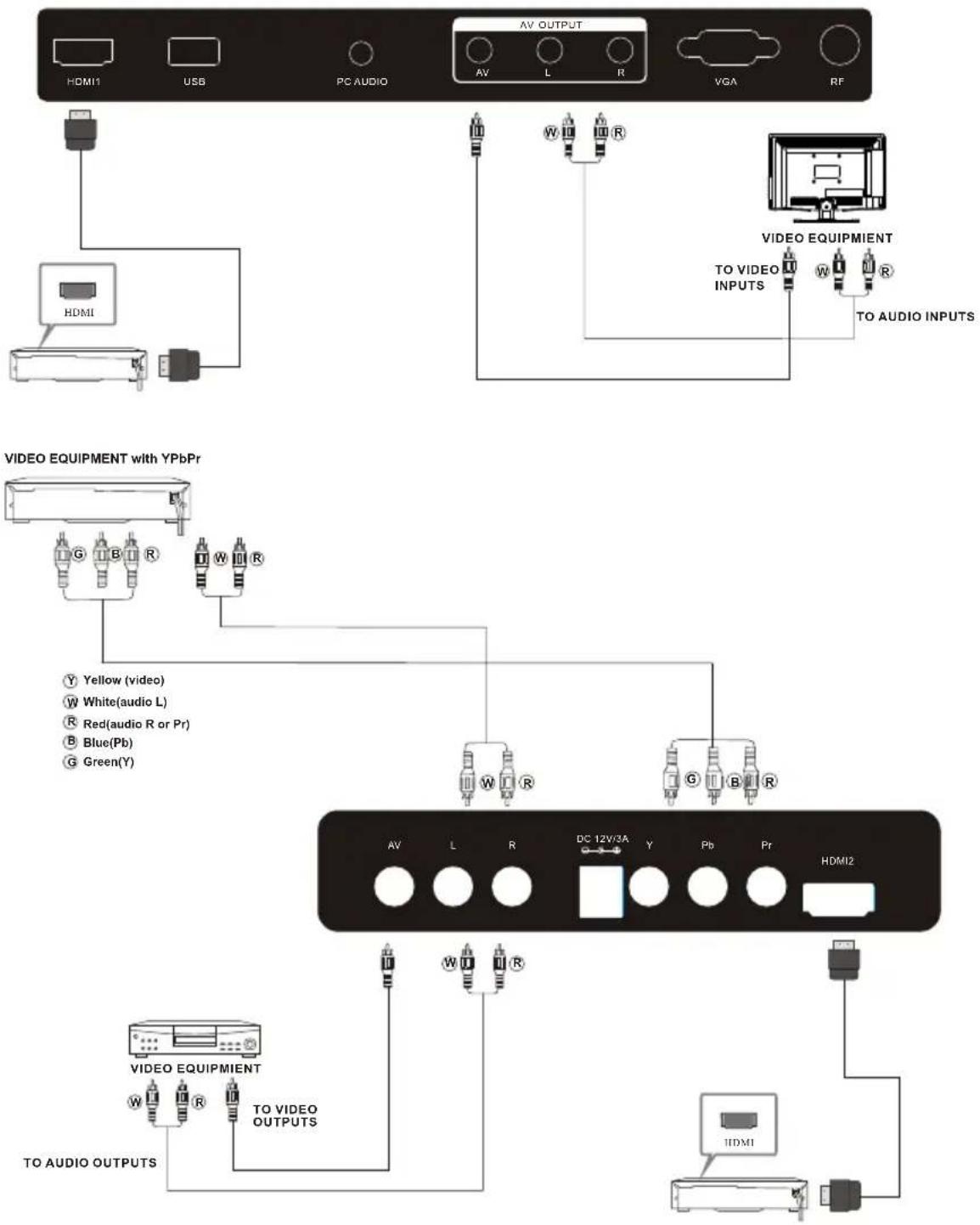
YPbPr Connection can support these video formats: 480i, 576i, 480p, 576p, 720p, 1080i and 1080P.
Remote Control - TV section

Insert Batteries Into the Remote Control

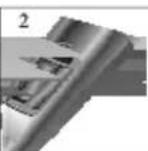
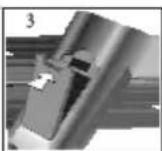
- Remove the battery cover.
- Inserting the 2 AAA 1.5V batteries making sure the polarity (+ or -) of the batteries matches the polarity marks inside the unit.
- Mount the battery cover. Replace with new batteries when the TV set begins to show the following symptoms: Operation is unsteady or erratic. Sometimes the TV set does not function with Remote Control Unit.
Remark:
1) Alkaline Battery Recommended.
2) Remove batteries when they are exhausted or if the remote control is not to be used for Long time.
1: POWER: Press to turn the unit on or off.
2:NUMERIC KEY:Press for direct access to channels.
3:TV MENU:Press to display TV Main Menu.
4:CURSOR:Press to scroll through the Menu.
6:VOL+/-:Press to adjust the sound level.
7:PIC:Press to switch between picture modes.
8:SLEEP:Press to set Sleep Timer.
9. REC: Press to record the TV program you are watching in DTV Mode
10:TV/RADIO:Press to switch between TV and Radio modes.
11: EPG: Press to display the 7 Day Electronic Program Guide For information on the show you are watching.
12:FAV:Press to access your favourite channels list in TV or DTV mode
15:REWIND:Press to rewind play in USB Mode and Timeshift Mode.
16: FAST FORWARD: Press to Fast Forward play in USB mode or Timeshift Mode.
17:PLAY:Press the Play Button in USB Mode or Time Shift Mode to begin or continue Playback.
18:PAUSE:Press the Pause Button to pause play in Time Shift or USB Mode or pause recording in Record Mode.
19:TELETEXT KEYS:Refer to page 12.
20:MUTE:Press to disable or enable the sound output.
21:TV/AUDIO:To select the available audio language of TV programs.
22:RECALL/GOTO:Press to return to the previously viewed channel.
23:SOURCE:Press to display the Input Source List.
24:OK:Press to confirm Menu selections.
25:EXIT:To exit the main menu, press the Exit Button or to cancel setting selections.
26:SOUND:Press to switch between the sound modes.
27:CH+/CH-:Press to scroll through your Channel List.
28:ASPECT:Press to change the picture aspect ratio.
29:TEXT:Press to enter or exit TELETEXT mode.
30:INFO:To display the program information of the show you are watching, press the Info Button.
33:SKIP FORWARD:Press to skip the next file or track in USB Mode.
34: SKIP BACKWARD: Press to skip the previous file or Track in USB Mode
35: SUBTITLE: To turn on Subtitles press the Subtitle Button in DTV mode.
36. ■: Press to stop playing in USB mode, or press to stop Time Shift.
37:FREEZE:Press to freeze the picture you are watching.
NOTE: For the DVD section, please refer to page 20.
TELETEXT
Teletext is an information system broadcasted by certain channels which will provide detailed program information. It also offers access to subtitles for viewers with hearing problems or who are not familiar with the transmission language(cable networks, satellite channels, etc.)
| Press: | You will obtain : |
| TEXT | This is used to access and/or exit the Teletext mode.A summary will appear with a list of items that can be accessed. Each item has a 3 digit page number. If the channel selected does not broadcast teletext, 100 will be displayed and the screen will remain blank (in this case, exit teletext and select another channel). |
| SELECTING A PAGE | To view a specific page enter the page number required by using the Numeric Buttons. The number will be displayed on the top left. The page counter will turn until the page is displayed. Repeat this operation to view another page. If the counter continues to search, this means that the page is not transmitted. |
| DIRECT ACCESS TO THE ITEMS | The coloured buttons correspond to the colour options at the bottom of the screen. The four coloured keys are used to access the items or corresponding pages. The coloured areas flash when the item or the page is not yet available. |
| INDEX | This button will open/return you to the contents page. |
| SUB PAGE | Certain pages contain sub-pages which are automatically displayed. This key is used to stop or resume sub-page acquisitionThe indication appears top left. |
| HOLD | To freeze the page. |
| REVEAL | To display or hide the concealed information. |
| LIST | The user can set four favourite pages to be directly linked to the four color keys. While list mode is activated, it is not possibility to use TOP or FLOF navigation with the colour keys. The favourite page numbers should be stored and restored to/from nonvolatile memory for each channel by the system software. |
Installation Guide

This will appear during the first time installation and when you reset the TV. You can choose any of the above languages or countries.
The TV will then automatically scan for all available stations and store the in the station list.
1.CHANNEL MENU
Press the TV MENU Button to display the Channel Menu.

1) Auto Tuning:
An Auto Scan will search for all available ATV and DTV Stations and store them in the station list.
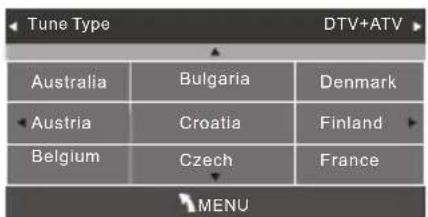
To conduct an Auto Scan, press the arrow buttons to select the Auto Scan Setting and press OK to confirm. To stop scanning at anytime, press the Menu or Exit Button.
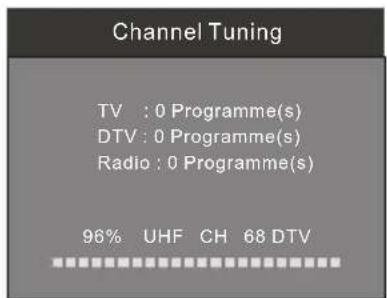
2) DTV Manual Tuning - Select the DTV Manual Tune option in the Channel Menu, to conduct a Manual scan. Use the ◀▶ Buttons manually scan through the DTV Manual Tune channels, then press OK to search.
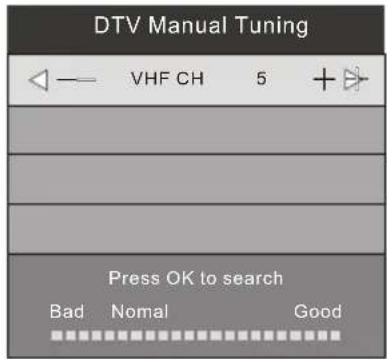
3) ATV Manual Tuning - Select the ATV Manual Tune option in the Channel Menu and follow the above steps.

NOTE:
Press the Red Teletext Button to save and store the channel you have manual scanned.
4). Program Edit:
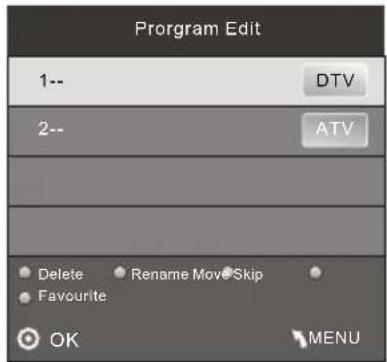

Delete
Press the Red Teletext Button to delete a program or channel in the channel list.

Rename:
This feature is only available for ATV programs. Use the ▶ to the select the channel/ program you wish to rename. Then press the Green Teletext Button to Rename. Use the ▶ Buttons to select the character to rename and then press OK to confirm. Press the MENU Button or EXIT Button to exit this option.
Note: ATV programs can only be 5 characters.

Move
Use the Arrow Buttons to select the channel you wish to move. Then press the Yellow Button to select Move function. Once active use the Arrow Buttons to move and then press OK to confirm.

Skip
Use the ▼▲ Buttons to highlight the channel/program you wish to set to Skip. Then press the Blue Teletext Button and the Skip icon will be displayed next to the program and it will be skipped in the program list. Press the Blue Button again to cancel the skip setting.

Favourite
Use the ▼▲ Buttons to select the program you wish to set to your favourites list and press the FAV Button to set. The favourite Icon will then be displayed next to the program. Press the FAV Button again to cancel setting.
2. PICTURE MENU
To enter the Picture mode, press the MENU button and then press ▶ buttons to select the Picture Menu. Once in the Picture mode, press the▼ or▲ buttons to select the picture settings you wish to adjust. To return to the Main Menu, press the MENU Button.


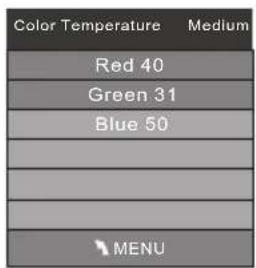
NOTE:
1) You can change the screen position in PC Mode only. You can adjust to horizontal, vertical, size and phase.
3.SOUND MENU
To enter the Sound Menu, press MENU button and then press or buttons to select the SOUND Menu. Once in the Sound Mode, press or buttons to select the settings you wish to adjust. Press MENU button to return to the Main Menu.

Note:
Auto Volume is only available when the input signal volume is too large or distorted.
4.TIME MENU
To enter the Time Menu, press MENU button & then press ◀ or ▶ buttons to select the Time Menu.
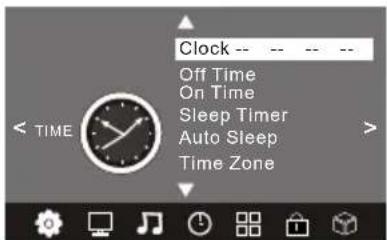
NOTE:
When you set the Auto Sleep option to ON, your TV will automatically enter into Standby Mode, when there has been no signal for 15 minutes.
5. OPTION MENU
To enter the Option Menu, press MENU button and the press ▶ or ▶ buttons to select the Option Menu. Once in Option Menu, press▼ or▲ buttons to select the settings you wish to adjust. Press MENU button to return to the Main Menu.

In PVR File System Menu you will be asked to format your USB Disk or Hard Disc for PVR Operation.
| Select Disk C: |
| Check PVR File System Start |
| USB Disk |
| Format |
| Time Shift Size |
| Speed |
| Free Record Limit 6 Hr. |
Select Disc
To view and select the USB file or the allocated space on your Hard Disc that you would like to record to, press OK button to enter the Select Disc Sub-Menu and then press or buttons on your remote control to select the particular partition/file for recording.
Press the Menu Button to return to the Main Menu.
Check PVR File System
Press the OK Button to start checking the file system of your USB storage or Hard Disk. Once Success is shown after checking, you will then be able to begin recording or or use Time Shift function. If FAIL is shown after checking, you then need to format your USB or Hard Disc and to be able to record or use Time Shift.
Format
When you format your USB or Hard Disc partition any saved data will be lost. Please ensure that you start with a blank partition on your Hard Disc to ensure you don't lose any data.

PVR File System Type
There are two types of formats: FAT32 and Hi Speed Format. You can press or buttons to choose the type of formatting. If FAT32 is selected, you will have to format whole size of your USB or the allocated partition for recording. If Hi Speed Format is selected, you will then be able to press or buttons to select the size you wish to use (for example 1G, 10G, 20G... or All). Once a particular size is booked for recording, you will be able to use the remaining space of your USB or Hard Disc for other data storage.
Please note no matter which size is booked for recording, all the data in the allocated partition of the Hard Disc will be lost after formatting.
Speed
This will show the supported speed of recording.
Record Limit
This will show the approximate time you will be able to record on to your USB or Hard Disc.
FACTORY RESET NOTE:
If you wish to reset your TV, please select the Restore Factory Default option, this will clear all settings.
6. LOCK MENU
To enter the LOCK Menu, press MENU button and then press ▶ buttons to select the LOCK Menu. The default password is 6666.
Please set a new password to so it is easy to remember. Follow the on screen steps to set.

7. APPLICATIONS MENU
To enter the Applications Menu, press MENU button and then press ▶ or ▶ buttons to select the Applications Menu. This is where you will be able to view and play your USB files.
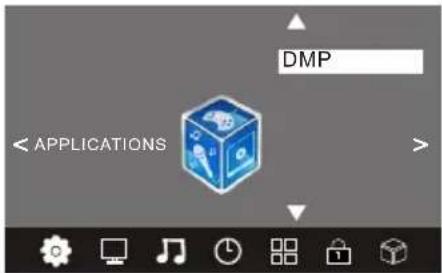
Press the OK button to enter the DMP Menu.
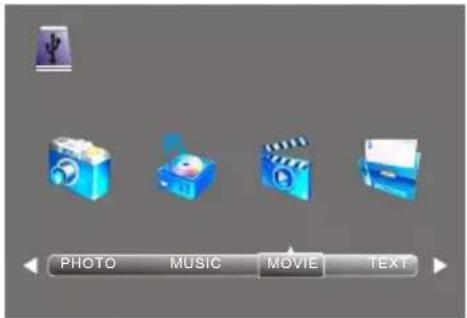
The supported formats are as below:
Photo: JPEG, BMP, PNG
Music: MP3
Movie: AVI, MP4, MKV
Text: TXT

8.EPG Menu(Electronic Program Guide).
The EPG Menu is used to look at what is being broadcasted in DTV or Radio modes. Press the EPG Button to access the EPG Menu. You will receive detailed program information of the channel you are currently watching as well as the 7 Day Program guide.

1. INFO
Use to select a program and then press the Green Button or INFO key to display the highlighted program's information.
2. Schedule
Press the Yellow Button to view the scheduled programs you have booked for watching or recording. You can also press the Red button to delete the program from your scheduled programs list.

3. Record
By pressing the Red Button you can book the program you would like to record. Please ensure a supported USB or Hard Disc is connected with TV to ensure program will be recorded successfully.
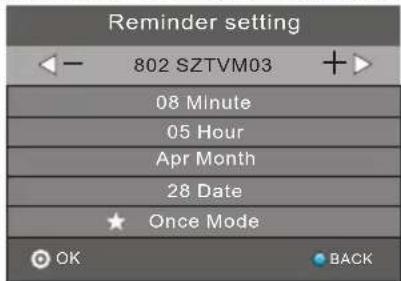
4. Remind
Press the Blue Button to book a program for future viewing and add to the schedule list.
DVD SIDE PANEL

Caution
This DVD Player has a Class 1 laser which may be harmful. Do not attempt to disassemble the cabinet or make any adjustments. Please refer all servicing to a qualified professional.
DVD OPERATION
Disc Formats Supported by this DVD Player:

MPEG4 files on discs

Multi-angle

Dolby Digital
Subtitle choices

KODAK picture CD

Audio choices

MP3 files on CD-R/CD-RW
TV Aspect Ratio modes

DVD video

Parental Lock
This item incorporates copy protection technology that is protected by U.S. patents and other intellectual property rights of Rovi Corporation. Reverse engineering and disassembly are prohibited.
The product complies with the KODAK Picture CD format and will display KODAK Picture CDs. The "KODAK Picture CD Compatible" logo is a trademark of Eastman Kodak Company and is used with permission.
Manufactured under license from Dolby Laboratories."Dolby" and the double-D symbol are trademarks of Dolby Laboratories. Confidential Unpublished Works. 1992-1997 Dolby Laboratories, Inc. All rights reserved.
Remote Control - DVD section

2:Numeric keys:Press to set the time, select title, chapter or track you wish to play. Press the ENTER/OK Button to confirm. When a VCD is playing (with PBC off), press the Numeric keys to select a track directly.
5:DVD MENU:During DVD playback, press MENU to display the disc menu.
9: DVD SETUP: Press to enter the system setting menu. Press again to exit the menu.
11: Play/Pause: Press to begin play of the DVD of media you wish to view. Press again to pause play.
12: STOP: Press to stop play of the DVD you are watching at anytime.
13: A-B: Press to repeat a segment of the disc you are watching between A and B. (DVD mode)
14:TITLE:Press to display the DVD Main Menu.
15:REV:Press to rewind play in DVD, CD MP3 or VCD mode. Press repeatedly to scroll through rewind speeds. Press the Play/Pause Button to resume play.
16: FWD: Press to fast-forward play in DVD, CD MP3 or VCD mode. Press repeatedly to scroll through fast-forward speeds. Press the Play/Pause Button to resume play
17:RETURN:Press to return to the Main Menu.
18:DISPLAY:Press to show the information of the current playing disc.
21:EJECT:Press the EjectButton in conjunction with the Open/Close Button the back of the unit to Eject your DVD.
22:GOTO:For DVD discs, press to choose the desired title and chapter and search the desired title, time and chapter time. For Super VCD, VCD, CD discs, press this button to search the desired disc time and track time and choose the desired track.
Note: During VCD playback, the PBC mode must be set to OFF.
24:OK:Press to confirm.
31:ANGLE:Press to view scenes shot from different angles. (Disc support is required)
32:PBC:During VCD/SVCD playback, press PBC to control PBC ON/OFF.
33:NEXT:During DVD,CD,MP3, or VCD playback, press NEXT to play the next chapter, title or track.
34:PREV:During DVD, CD, MP3, or VCD playback, press PREV to play the previous chapter, title or track.
35: SUBTITLE: Press to choose different captions (Requires support from disc).
37:FREEZE:Press to freeze the picture you are watching.
MENU OPERATION
Press the Setup Button on the remote control to display the DVD Setup Menu. Once in the Setup Menu use the Cursor Buttons to select your desired Settings. Then press the ENTER/OK Button to confirm. To exit the Setup Menu, press the Setup Button again.
In the Setup Menu, you may choose any of the following options:
LANGUAGE SETUP
Use the Cursor Buttons in the Setup Menu to select the Language option and display the Language sub-menu:

OSD Language
The OSD Language allows you to set Subtitle or change the on-screen display language.
Subtitle
This option provides the preset subtitle language.
MPEG4 Subtitle(optional)
Select different MPEG4 subtitle encoding option.
Note: Not all players support this item.
Audio
This option allows you to change the Audio Language of the DVD you wish to play.
DVD Menu
This option provides the film's menu language options.
VIDEO SETUP
Select Video in the setup menu to display the Video submenu:
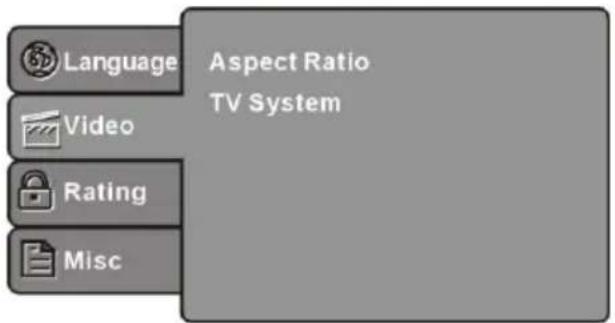
SYSTEM SETUP
Aspect Ratio
In the Video Setup Menu use the Cursor Buttons to select the aspect ratio.
Notes:
The image display ratio is related to the recorded disc format. Some discs may not be able to format to the aspect ratio of your choice.
TV System
In the Video Setup Menu use the Cursor Buttons to elect the different TV systems.
RATING SETUP
The Rating set up allows you to lock play of certain rated movies/DVDs. Use the Cursor Buttons to select the Rating option in the Setup menu and to display the Rating submenu:

Parental Control
The Parental Control Setting allows you to lock the DVD Player. You must enter the default password (6666) before setting your own password.
Setting the Password
Once you have entered the default password you will be asked to input a four digit code of your choice. Press the ENTER/Ok Button to confirm.
Note: If you forget your password, you can use the universal password 6666 to unlock.
MISC Setup
Use the CursorButton in the Setup Menu to select the MISC Menu and to display the sub-menu:
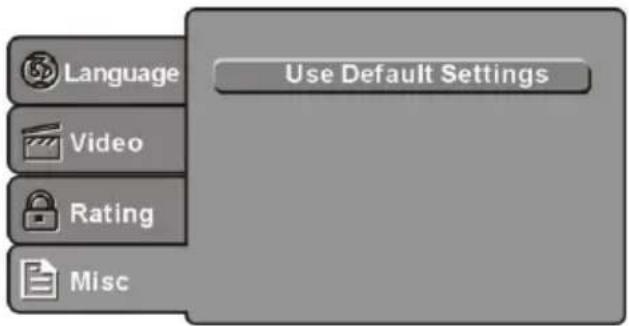
Use Default Settings
This allows you to reset your DVD settings and go back to the factory default setting. This will erase all previous settings.
MP3/WMA/JPEG/MPEG4 PLAYBACK
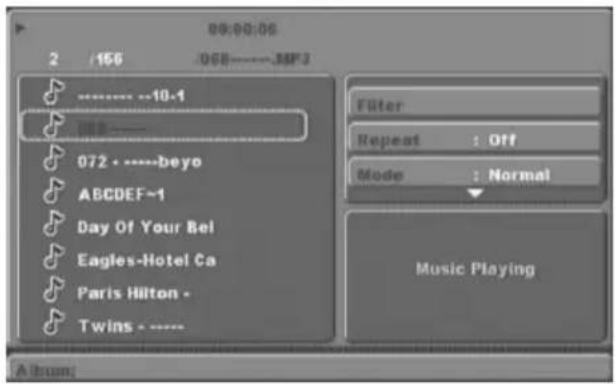
When playing an MP3, WMA, JPEG or MPEG4 disc the above screen will appear. To navigate this menu, use the ↗ Buttons to scroll through the directory options or to select tracks or files you wish to play. Press Enter/OK Buttons to confirm any selections.
Filter: This option allows you to filter and categories your file list in the directory menu.
Repeat: This option allows you to set a desired track to repeat.
Mode:The Mode option allows you to scroll through the below playing modes:
Normal:This will play the tracks or files in the order they appear in the directory.
Shuffle:The Shuffle mode allows the tracks and or files to be played at random.
Edit Mode: This option allows you to edit the directory and files and tracks displayed. Use the Cursor Buttons to select tracks or files you wish to edit and press the Enter/OK Button. To exit the Edit Mode or cancel press the exit button.
Program View: This option allows you to display the track or file directly.
Browser View: This option allows you to display track directory.
Add to Program: This option allows you to create your own playlist in the track directory.
Clear program: This option allows you to clear any playlists you have created.
PICTURE CD PLAYBACK
When you wish to view Picture files, the below directory will show.

To navigate this menu, use the ↩ Buttons to scroll through the directory options or to select tracks or files you wish to play. Press Enter/OK Buttons to confirm any selections.
If you have any questions, please consult the troubleshooting guide below:
NO PICTURE OR SOUND
- Ensure the power button is on.
- Ensure the power outlet is operational.
- Ensure the power cord is not damaged.
- Ensure the power plug is connected firmly to the outlet.
PICTURE BUT NO SOUND
- Ensure the audio is not set to mute.
- Ensure you have set the player's Audio settings correctly.
POOR PICTURE OR SOUND
- Ensure you have set the player's Audio settings correctly'
- Ensure the disc is not scratched or stained.
Disc Error Displayed
- Ensure the disc is not warped, damaged or deformed.
- Ensure the disc is not badly stained or damaged.
- Ensure the disc format is compatible with the player.
- Please check whether you have tried to play a software CD. If so, please restart the player.
REMOTE NOT WORKING
- Make sure the Main unit's POWER button is on.
- Ensure the remote batteries are working.
- Point the remote control directly at the player's IR sensor.
- Remove any obstacles between the remote and the IR sensor.
UNIT NOT WORKING
- Turn off the power, and then turn it on again.
"NO DISC" DISPLAYED
- Ensure you have put the disc on the tray.
- Ensure the disc is not upside down.
- Ensure the disc is not distorted, stained or scratched.
| Potential Issues | Inspection Check | ||
| Picture Audio | |||
 | Snow Noise |  | Check the Antenna Position and that it is connected |
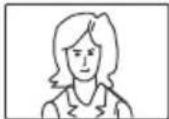 | Ghost |  Normal audio Normal audio | Check Antenna Position and that it is connected correctly |
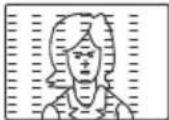 | Interference | 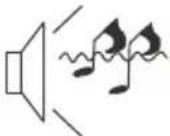 Noise Noise | Check for electrical interference |
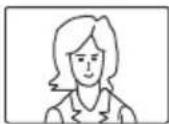 | Normal Picture | 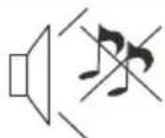 Mute Mute | Check if mute function is on. Check AV cables are connected. |
 | No picture | M1 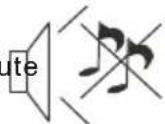 | Check is connected and on Check Cable connections Adjust Contrast, Brightness and Volume Settings |
 | No colour |  Check TV Colour Check TV Colour | Settings |
 | Picture Breaking Up | 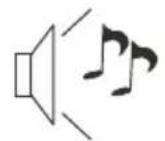 Normal Audio or Weak Normal Audio or Weak | Conduct a Channel Rescan |
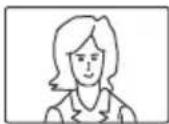 | No Colour |  Irregular Irregular | Check AV/Video settings |
 | Mosaic |  Irregular Irregular | Check Antenna connection |
 | No Display |  Normal audio Normal audio | Check Video Cables connected firmly. |
Model: IDLED2202DVD
| LED LCD : | |
| Screen Size: | 21.6 inch |
| Resolution | 1366x768 |
| Aspect Ratio | 16:9 |
| Display colours | 16.2M |
| Brightness | 250 CD/M2 |
| Contrast ratio | 1000:1 |
| Response time | 10 ms |
| View angle | 160°(H)/160°(V) |
| TV: | |
| TV system | Digital TV: DVB-TAnalog TV: PAL/SECAM |
| DVB-T decode | Audio: MPEG2 Audio Layer I&IVideo: MPEG2 Transport MP@HL |
| DVB-T de-modulation | Demodulator : COFDMOFDM Mod.: 2K, 8K FFT, SFN and MFNPacked Carries: 2K/8KGuard Interval: 1/4, 1/8, 1/16, 1/32 |
| Terminals: | |
| HDMI Input | x2 |
| VGA Input | x1 |
| PC audio input | x1 |
| AV input | x1 |
| USB Input | x1 |
| YPbPr input | x1 |
| AV Output | x1 |
| Others: | |
| Power supply | DC 12V, 3A (Power adaptor supplied) |
| Audio Output Power(THD≤7%) | 2 X 3W |
Model: IDLED2402DVD
| LED LCD : | |
| Screen Size: | 23.6 inch |
| Resolution | 1920x1080 |
| Aspect Ratio | 16:9 |
| Display colours | 16.2M |
| Brightness | 250 CD/M2 |
| Contrast ratio | 1000:1 |
| Response time | 8 ms |
| View angle | 160°(H)/160°(V) |
| TV: | |
| TV system | Digital TV: DVB-TAnalog TV: PAL/SECAM |
| DVB-T decode | Audio: MPEG2 Audio Layer I&IVideo: MPEG2 Transport MP@HL |
| DVB-T de-modulation | Demodulator : COFDMOFDM Mod.: 2K, 8K FFT, SFN and MFNPacked Carries: 2K/8KGuard Interval: 1/4, 1/8, 1/16, 1/32 |
| Terminals: | |
| HDMI Input | x2 |
| VGA Input | x1 |
| PC audio input | x1 |
| AV input | x1 |
| USB Input | x1 |
| YPbPr input | x1 |
| AV Output | x1 |
| Others: | |
| Power supply | DC 12V, 3A (Power adaptor supplied) |
| Audio Output Power (THD≤7%) | 2 X 3W |
Please keep your receipt as proof of purchase. This product is warranted for any defect in materials or workmanship. This product is warranted for any defects in the materials or workmanship for a period of 12 months after the original date of purchase. After the original date of purchase. This product is for normal domestic and office use only. This warranty does not cover damage from misuse or neglect, accidental damage, vermin infestation, excessive voltages such as lightning or power surges or any alternation that affects the performance or reliability of the product.
In the unlikely event that your product fails to work normally, please contact the Bush Warranty on 1800 509 394 (Australia) or 0800 450 259 (New Zealand) and have your receipt of purchase on hand.
This warranty is subject to the following provisions:
- It is only valid within boundaries of the country of purchase;
- The product must be correctly assembled and operated in accordance with the instructions contained in the manual;
- This product must be used solely for domestic purposes;
● The warranty does not cover accidental damage; - The warranty will be rendered invalid if the product is resold or has been damaged by inexpert repair;
● The manufacturer disclaims any liability for incidental or consequential damaged.
This warranty is in addition to, and does not diminish, your statutory or legal rights.
PO BOX 6287
Silverwater NSW 1811
www.bushaustralia.com.au
Bush Warranty: 1800 509 394 Australia
Bush Warranty: 0800 450 259 New Zealand
- SAFETY IS IMPORTANT
- WARRANTY
- AUSTRALIA
- CONTENTS
- ADDITIONAL SAFETY NOTES
- IMPORTANT SAFETY INSTRUCTIONS
- ACCESSORIES
- BASE STAND ASSEMBLY INSTRUCTION
- INSTALLATION NOTES
- WALL MOUNTING INSTALLATION GUIDELINES
- FRONT PANEL
- SIDE BUTTONS
- REAR SOCKETS
- SIDE SOCKETS
- ANTENNA
- PC
- STEPS
- AV EQUIPMENT
- REMOTE CONTROL - TV SECTION
- INSERT BATTERIES INTO THE REMOTE CONTROL
- REMARK
- TELETEXT
- INSTALLATION GUIDE
- 1.CHANNEL MENU
- AUTO TUNING
- NOTE
- DELETE
- RENAME
- MOVE
- SKIP
- FAVOURITE
- PICTURE MENU
- 3.SOUND MENU
- 4.TIME MENU
- OPTION MENU
- SELECT DISC
- CHECK PVR FILE SYSTEM
- FORMAT
- PVR FILE SYSTEM TYPE
- SPEED
- RECORD LIMIT
- FACTORY RESET NOTE
- LOCK MENU
- APPLICATIONS MENU
- 8.EPG MENU(ELECTRONIC PROGRAM GUIDE)
- INFO
- SCHEDULE
- RECORD
- REMIND
- DVD SIDE PANEL
- CAUTION
- DVD OPERATION
- MENU OPERATION
- LANGUAGE SETUP
- OSD LANGUAGE
- SUBTITLE
- MPEG4 SUBTITLE(OPTIONAL)
- AUDIO
- DVD MENU
- VIDEO SETUP
- SYSTEM SETUP
- ASPECT RATIO
- NOTES
- TV SYSTEM
- RATING SETUP
- PARENTAL CONTROL
- SETTING THE PASSWORD
- MISC SETUP
- USE DEFAULT SETTINGS
- MP3/WMA/JPEG/MPEG4 PLAYBACK
- PICTURE CD PLAYBACK
- NO PICTURE OR SOUND
- PICTURE BUT NO SOUND
- POOR PICTURE OR SOUND
- DISC ERROR DISPLAYED
- REMOTE NOT WORKING
- UNIT NOT WORKING
- NO DISC" DISPLAYED
Brand : BUSH
Model : IDLED2402DVD
Category : Television