UCCSM-12-24H - Unspecified Black Box - Free user manual and instructions
Find the device manual for free UCCSM-12-24H Black Box in PDF.


User questions about UCCSM-12-24H Black Box
0 question about this device. Answer the ones you know or ask your own.
Ask a new question about this device
Download the instructions for your Unspecified in PDF format for free! Find your manual UCCSM-12-24H - Black Box and take your electronic device back in hand. On this page are published all the documents necessary for the use of your device. UCCSM-12-24H by Black Box.
USER MANUAL UCCSM-12-24H Black Box
iPad®, Chromebook®, Tablet, and Laptop Cart, Single Frame
Mobile, secure, and powered storage for up to 10, 18, 20, 24, 27, 30, or 36 computing devices.
The perfect storage solution for tablets, notebooks, and laptops.

natural_image
Two industrial black-box medical thermostats with wheels, no visible text or symbols on the devices themselves.FEDERAL COMMUNICATIONS COMMISSION AND INDUSTRY CANADA RADIO FREQUENCY INTERFERENCE STATEMENTS
This equipment generates, uses, and can radiate radio-frequency energy, and if not installed and used properly, that is, in strict accordance with the manufacturer's instructions, may cause interference to radio communication. It has been tested and found to comply with the limits for a Class A computing device in accordance with the specifications in Subpart B of Part 15 of FCC rules, which are designed to provide reasonable protection against such interference when the equipment is operated in a commercial environment. Operation of this equipment in a residential area is likely to cause interference, in which case the user at his own expense will be required to take whatever measures may be necessary to correct the interference.
Changes or modifications not expressly approved by the party responsible for compliance could void the user's authority to operate the equipment.
This digital apparatus does not exceed the Class A limits for radio noise emission from digital apparatus set out in the Radio Interference Regulation of Industry Canada.
Black Box and the Double Diamond logo are registered trademarks of BB Technologies, Inc.
Any other trademarks mentioned in this manual are acknowledged to be the property of the trademark owners.
Table of Contents
- Specifications .... 7
- Overview.... 12
2.1 Introduction.... 12
2.2 What's Included 12
2.3 Hardware Description ...... 13
- Electrical Precautions ...... 14
3.1 Other Precautions ...... 14
- Configuration and Setup 15
4.1 Installing the Handle 15
4.2 Routing the Cable 16
4.3 Fastening the Power Bricks and Routing the Cable.... 17
- Using Your iPad, Chromebook, Tablet, and Laptop Cart.... 19
5.1 Charging Your Computers 19
5.2 Moving Your iPad, Chromebook, Tablet, and Laptop Cart ...... 19
5.3 Timer Instructions 21
1. Specifications
Table 1-1. Cart Specifications
| Part Number UCCSS20T, UCCSS20H | UCCSM18T, UCCSM18H | UCCSL18T, UCCSL18H | UCCSS30T, UCCSS30H | UCCSM27T, UCCSM27H | |
| Slot Dimensions | |||||
| Height (in.) | 13" | 13" | 13" | 8.75" | 8.75" |
| Height (cm) 33.02 cm 33.02 cm 22.22 cm 22.22 cm | |||||
| Width (in.) | 1.36" | 1.53" | 1.53" | 1.36" | 1.53" |
| Width (cm) | 3.45 cm | 3.89 cm | 3.89 cm | 3.45 cm | 3.89 cm |
| Depth (in.) | 10" | 15" | 17" | 10" | 15" |
| Depth (cm) | 25.4 | 38.1 cm | 43.2 cm | 25.4 cm | 38.1 cm |
| Device Capacity | |||||
| Number of Devices | 20 | 18 | 18 | 30 | 27 |
| External Dimensions (Including Handle)* | |||||
| Height (in.) | 44.3" | 44.3" | 44.3" | 44.3" | 44.3" |
| Height (cm) | 112.5 cm | 112.5 cm | 112.5 cm | 112.5 cm | 112.5 cm |
| Width (in.) | 33.1" | 33.1" | 33.1" | 33.1" | 33.1" |
| Width (cm) | 84 cm | 84 cm | 84 cm | 84 cm | 84 cm |
| Depth (in.) | 24.8" | 24.8" | 24.8" | 24.8" | 24.8" |
| Depth (cm) | 63 cm | 63 cm | 63 cm | 63 cm | 63 cm |
| Weight (Cart with Sliding Door) | |||||
| UCCSS20T | UCCSM18T | UCCSL18T | UCCSS30T | UCCSM27T | |
| Weight (lb.) | 134 lb. | 140 lb. | 146 lb. | 146 lb. | 155 lb. |
| Weight (kg) | 60.8 kg | 63.5 kg | 66.2 kg | 66.2 kg | 70.3 kg |
| Weight (Cart with Solid Steel Door) | |||||
| UCCSS20H | UCCSM18H | UCCSL18H | UCCSS30H | UCCSM27H | |
| Weight (lb.) | 144 lb. | 150 lb. | 156 lb. | 156 lb. | 165 lb. |
| Weight (kg) | 65.3 kg | 68 kg | 70.8 kg | 70.8 kg | 74.8 kg |
*External dimensions are the same for all single cart models. NOTE: Weight capacity for all single carts is 150 lb. (68.2 kg), stationary.
Table 1-1 (continued). Cart Specifications
| Part Number | UCCSS-12-36H, UCCSS-12-36T | UCCSM-10-10H, UCCSM-10-10T | UCCSM-10-20H, UCCSM-10-20T | UCCSM-10-30H, UCCSM-10-30T |
| Slot Dimensions | ||||
| Height (in.) | 8.75" 8.75" 8.75" 8.75" | |||
| Height (cm) | 22.22 cm 22.22 cm | 22.22 cm 22.22 cm | ||
| Width (in.) | 1.12" 1.36" 1.36" 1.36" | |||
| Width (cm) | 2.84 cm | 3.45 cm | 3.45 cm | 3.45 cm |
| Depth (in.) | 10" | 13" | 13" | 13" |
| Depth (cm) | 25.4 | 33.02 cm | 33.02 cm | 33.02 cm |
| Device Capacity | ||||
| Number of Devices | 36 | 10 | 20 | 30 |
| External Dimensions (Including Handle)* | ||||
| Height (in.) | 44.27" | 44.27" | 44.27" | 44.27" |
| Height (cm) | 112.4 cm | 112.4 cm | 112.4 cm | 112.4 cm |
| Width (in.) | 33.07" | 33.07" | 33.07" | 33.07" |
| Width (cm) | 83.99 cm | 83.99 cm | 83.99 cm | 83.99 cm |
| Depth (in.) | 25.35" | 25.35" | 25.35" | 25.35" |
| Depth (cm) | 64.39 cm | 64.39 cm | 64.39 cm | 64.39 cm |
| Weight (Cart with Sliding Door) | ||||
| UCCSS-12-36T UCCSM-10-10T UCCSM-10-20T UCCSM-10-30T | ||||
| Weight (lb.) | 211.5 lb. | 193.5 lb. | 208.5 lb. | 223.5 lb. |
| Weight (kg) | 95.9 kg | 87.8 kg | 94.6 kg | 101.4 kg |
| Weight (Cart with Solid Steel Door) | ||||
| UCCSS-12-36H | UCCSM-10-10H | UCCSM-10-20H | UCCSM-10-30H | |
| Weight (lb.) | 211.5 lb. | 193.5 lb. | 208.5 lb. | 223.5 lb. |
| Weight (kg) | 95.9 kg | 87.8 kg | 94.6 kg | 101.4 kg |
*External dimensions are the same for all single cart models. NOTE: Weight capacity for all single carts is 150 lb. (68.2 kg), stationary.
Table 1-1 (continued). Cart Specifications
| Part Number UCCSM-12-36H, UCCSM-12-36T | UCCSM-12-24H, UCCSM-12-24T | |
| Slot Dimensions | ||
| Height (in.) 8.75" 13" | ||
| Height (cm) 22.22 cm 33 cm | ||
| Width (in.) 1.1" 1.1" | ||
| Width (cm) 2.8 cm 2.8 cm | ||
| Depth (in.) 15" 15" | ||
| Depth (cm) 38.1 38.1 | ||
| Device Capacity | ||
| Number of Devices | 36 | 24 |
| External Dimensions (Including Handle)* | ||
| Height (in.) 44.27" 44.27" | ||
| Height (cm) 112.4 cm 112.4 cm | ||
| Width (in.) 33.07" 33.07" | ||
| Width (cm) 83.99 cm 83.99 cm | ||
| Depth (in.) 25.35" 25.35" | ||
| Depth (cm) 64.39 cm 64.39 cm | ||
| Weight (Cart with Sliding Door) | ||
| UCCSM-12-36T | UCCSM-12-24T | |
| Weight (lb.) | 236.5 lb. | 221.1 lb. |
| Weight (kg) | 107.3 kg | 100.3 kg |
| Weight (Cart with Solid Steel Door) | ||
| UCCSM-12-36H | UCCSM-12-24H | |
| Weight (lb.) | 236.5 lb. | 221.1 lb. |
| Weight (kg) | 107.3 kg | 100.3 kg |
*External dimensions are the same for all single cart models. NOTE: Weight capacity for all single carts is 150 lb. (68.2 kg), stationary.
Table 1-2. Power Strip Specifications
| Part Number Timer Included Power Strips | ||
| UCCSM18T, UCCSM18H | (1) 4-outlet, 4-bank timer with “always-on outlet,” 15-minute increments, 100–125 V, 50–60 Hz, 15 amp max. | (2) 12-outlet, 15 A max. |
| UCCSL18T, UCCSL18H | (2) 12-outlet, 15 A max. | |
| UCCSS20T, UCCSS20H | (2) 12-outlet, 15 A max. | |
| UCCSS30T, UCCSS30H | (3) 12-outlet, 15 A max. | |
| UCCSM27T, UCCSM27H | (3) 12-outlet, 15 A max. | |
| UCCSS-12-36T, UCCSS-12-36H | (3) 12-outlet, 15 A max. | |
| UCCSM-10-10T UCCSM-10-10H | (1) 12-outlet, 15 A max. | |
| UCCSM-10-20T, UCCSM-10-20H | (2) 12-outlet, 15 A max. | |
| UCCSM-10-30T, UCCSM-10-30H | (3) 12-outlet, 15 A max. | |
| UCCSM-12-36T, UCCSM-12-36H | (3) 12-outlet, 15 A max. | |
| UCCSM-12-24T, UCCSM-12-24H | (2) 12-outlet, 15 A max. | |
Table 1-3. Accessories Specifications
| Part Number Accessory Specs | ||
| UCCSHELFS Small device shelf Number of Slots: 10; | Slot Dimensions: 1.32"W x 10"D | |
| UCCSHELFM Medium device shelf Number of Slots: | 9; Slot Dimensions: 1.52"W x 15"D | |
| UCCSHELFL Large device shelf Number of Slots: 9; | Slot Dimensions: 1.52"W x 17"D | |
| UCCSHELF Storage shelf Height: 2U | ||
| UCC-PPM | Pop-up power module | Recesses into top laminate of cart, 2-outlet, 110–125 V |
| UCCDRAWER-2U | 2U Accessory Drawer | Height: 3.5"H (2U); Cable Access: 1.75"D; Weight: 15 lb. (6.8 kg) |
| UCCDRAWER-3U | 3U Accessory Drawer | Height: 5.25"H (3U); Cable Access: 1.75"D; Weight: 18 lb. (8.2 kg) |
2. Overview
2.1 Introduction
The iPad ^® , Chromebook ^® , Tablet, and Laptop Cart is designed to store, charge, and transport tablets, e-readers, laptops, netbooks, and other similar devices. Units are available with capacities for 18, 20, 27, or 30 separate storage slots. Each unit plugs into a typical 120-volt 15-amp outlet. Carts are available with sliding or solid-steel doors.
Please read these operating instructions carefully. They contain important advice concerning the use and safety of your cart. This Cart must only be used for its intended purpose in accordance with these operating instructions.
2.2 What's Included
- iPad, Chromebook, Tablet, and Laptop Cart with 10-, 18-, 20-, 24-, 27-, 30- or 36-device capacity; assembled
• (4) casters (installed), including: (2) locking swivel casters and (2) non-locking fixed casters
• (1) 4-outlet timer (4-bank) (installed) - Power Strips (installed): See the power strips specifications in Table 1-2 on the previous page.
- Cart handle with mounting hardware (to be installed by user)
• (1) user's manual
• (2) sets of keys
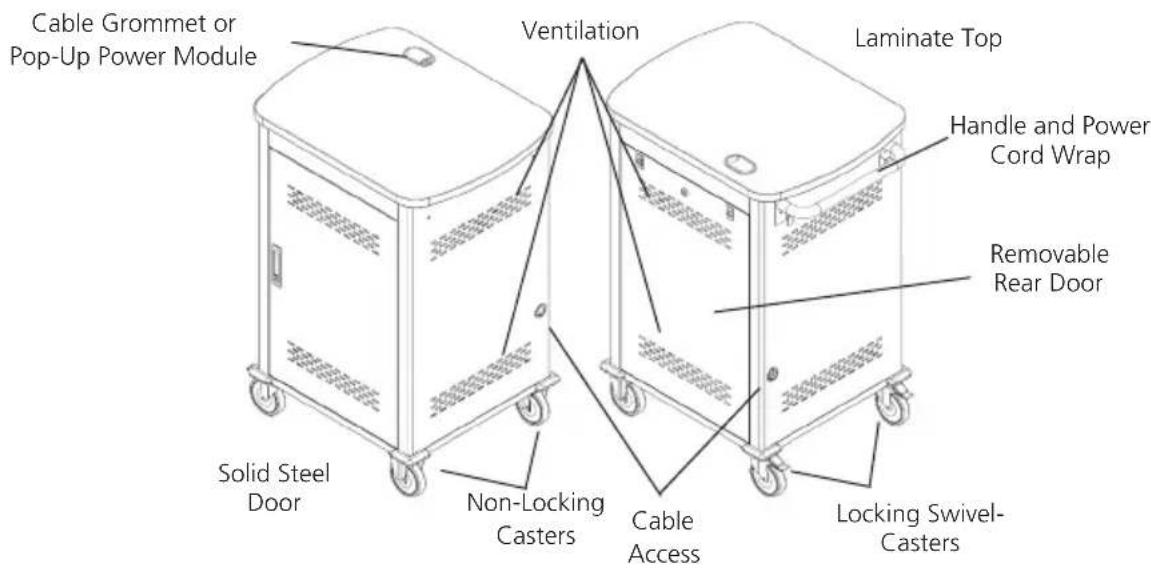
2.3 Hardware Description

text_image
Cable Grommet or Pop-Up Power Module Ventilation Laminate Top Handle and Power Cord Wrap Removable Rear Door Sliding Door Non-Locking Casters Cable Access Locking Swivel- CastersFigure 2-1. Front and back of cart with sliding door.
text_image
Cable Grommet or Pop-Up Power Module Ventilation Laminate Top Handle and Power Cord Wrap Removable Rear Door Solid Steel Door Non-Locking Casters Cable Access Locking Swivel- CastersFigure 2-2. Front and back of cart with solid steel door.
3. Electrical Precautions
- The power switch must be in the "OFF" position before plugging the Cart into a wall receptacle.
- The Cart must ONLY be connected to a 120-volt AC 15- or 20-amp power supply.
- The Cart must only be used by adults or with adult supervision.
• Always store the power cord around the cord wraps when transporting the Cart.
- Never pull the Cart by the power cord.
- Do not plug the Cart in if the switch, receptacle(s), or power cord has been damaged. All electrical components on this product must be repaired by a qualified electrician.
- Do not use an extension cord in conjunction with the Cart.
- Do not use liquids in or around the Cart environment.
- Inadequate repair can create significant hazards to users and is not covered by warranty.
- For your safety, we recommend that a qualified electrician test the circuit you will be plugging the Cart into. The circuit should be checked for ground integrity and appropriate branch circuit protection.
- The Cart ground prong must be present for safe operation. If the plug is damaged or if the ground prong has been removed, it should be replaced by a qualified electrician.
- The use of the Cart, including plugging or unplugging laptops, plugging or unplugging the Cart, operating the control switch, and engaging or releasing the directional and locked casters, must be done with adult supervision.
3.1 Other Precautions
- The Cart can be very heavy when fully loaded with laptops and should be moved about by persons physically able to do so.
- The Cart should only be used for the storage and transport of tablets, laptops, and other similar devices.
- Misuse, incorrect operation, or inadequate repair of the Cart will void the warranty.
4. Configuration and Setup
Remove and discard all packaging materials and then lock the lockable casters.
Open and inspect the Cart to verify all doors, locks, and casters are working properly.
Do not plug the Cart into a wall outlet until all configurations and setup are complete.
4.1 Installing the Handle
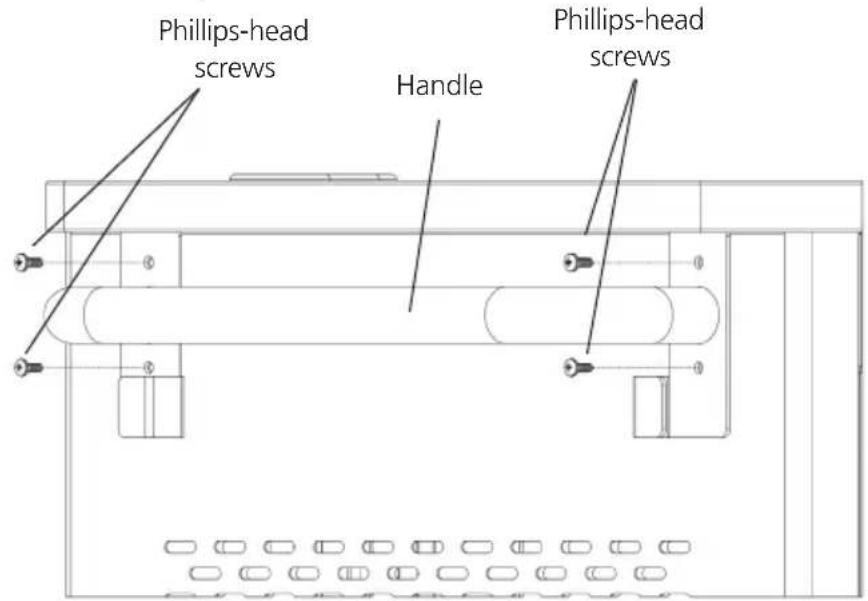
The handle/cord wrap installs on the side of the cart with the locking swivel casters.
NOTE: The casters swivel on one side of the Cart and are fixed on the other. Consider maneuverability options before installing the handle.
Step 1: Locate the side of the cart with the locking swivel casters.
Step 2. Place the handle so that the holes in the brackets are aligned with the threaded holes in the side panels.
text_image
Phillips-head screws Handle Phillips-head screwsFigure 4-1. Handle assembly.
Step 3. Using a Phillips-head screwdriver, tighten four of the Phillips-head screws into the threaded holes.
4.2 Routing the Cable (UCCSS20T, UCCSS20H, UCCSS30T, UCCSS30H)
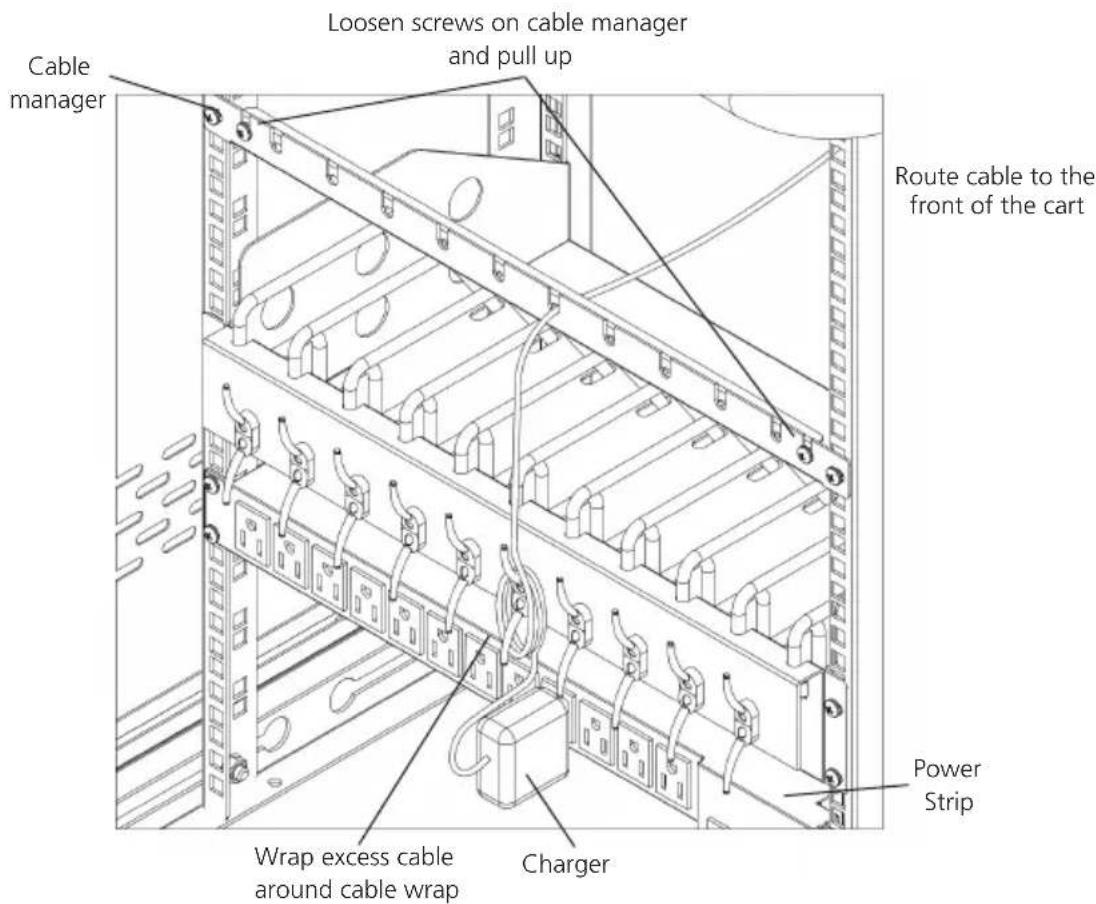
- At the back of the cart, loosen the two screws on the cable manager, pull up on the top section of the cable manager, and place the device side of the charging cable into one of the slots. (See Figure 4-2.)
text_image
Cable manager Loosen screws on cable manager and pull up Route cable to the front of the cart Cable Strip Power Strip Charger Wrap excess cable around cable wrapFigure 4-2. Small shelf routing instructions.
- Replace the top section of the cable manager and tighten the screws.
- Route the device side of the charging cable to the front of the cart and repeat step 1 for the front cable manager.
- Wrap any excess cable around the cable wrap on the back of the shelf.
- Plug the charger power plug into the power strip located below the shelf.

text_image
Loosen screws on cable manager and pull up Cable manager Route cable to the front of the cartFigure 4-3. Routing the cable.
4.3 Fastening the Power Bricks and Routing the Cable (UCCSM18T, UCCSM18H, UCCSM27T, UCCSM27H, UCCSL18T, UCCSL18H)
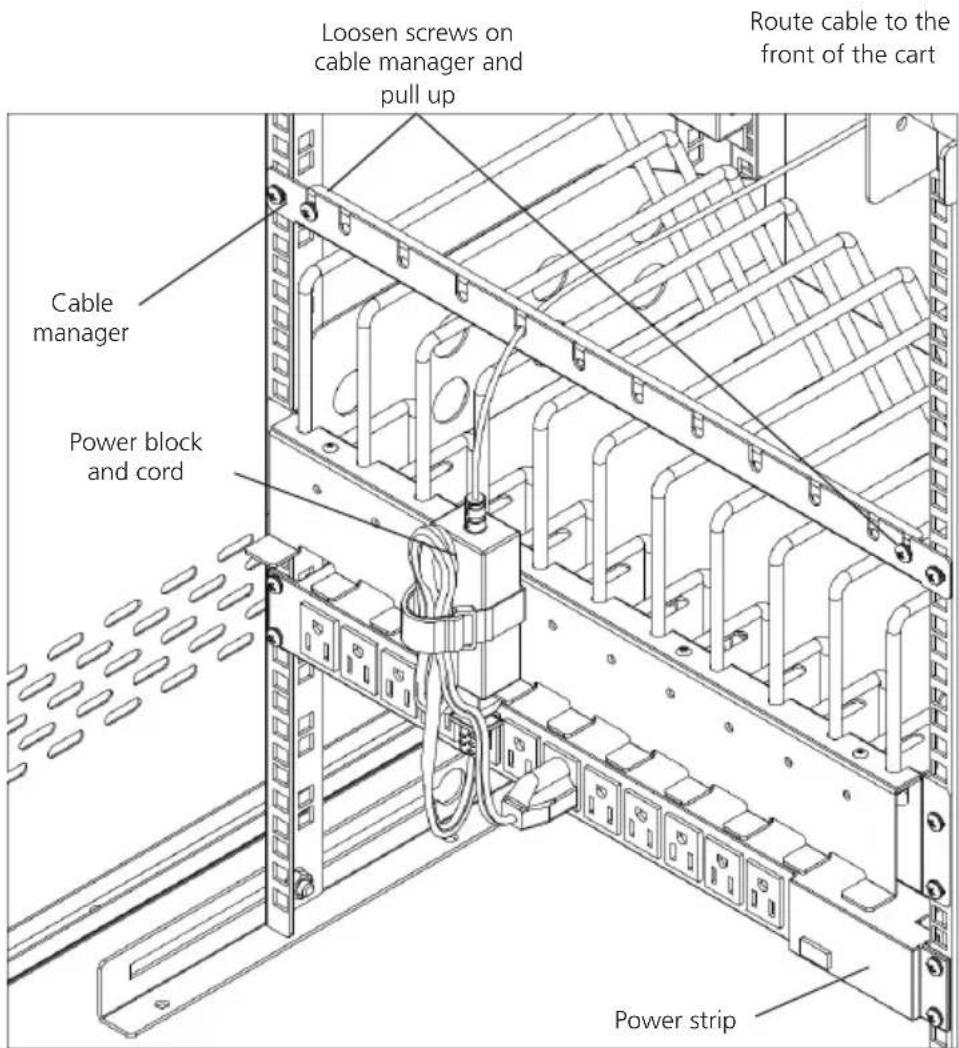
- Attach the wrapped cord and power brick to the back of the shelf using the hook and loop strap. Keep some extra cable unwrapped to plug into the power strip. (See Figure 4-4.)
- Loosen the two screws on the cable manager, pull up on the top section of the cable manager, and place the device side of the charging cable into one of the slots.
- Replace the top section of the cable manager and tighten the screws.
-
Route the device side of the charging cable to the front of the cart and repeat step 2 for the front cable manager (see Figure 4-3).
-
Plug the charger power plug into the power strip located below the shelf.
text_image
Loosen screws on cable manager and pull up Route cable to the front of the cart Cable manager Power block and cord Power stripFigure 4-4. Fastening the power brick and routing the cable.
- Using Your iPad, Chromebook, Tablet, and Laptop Cart
5.1 Charging Your Computers
- After the devices have been loaded into the Cart, plug the power cord of the Cart into a suitable receptacle.
- Locate the internal power switches on the timer and power strips of the Cart and push the switches to the ON position.
5.2 Moving Your iPad, Chromebook, Tablet, and Laptop Cart
- Turn the timer power switch to the off position.
- Remove the Cart plug from the wall receptacle and wrap the cord around the cord wrap or handle.
- Close and secure sliding or solid-steel doors.
- Your Cart comes equipped with two fixed casters and two locking swivel casters. Unlock the casters before moving the Cart to a new location.
- When you reach your desired destination, lock the casters to prevent the cart from moving and plug the Cart into a wall receptacle.
Chapter 5: Using Your iPad, Chromebook, Tablet, and Laptop Cart
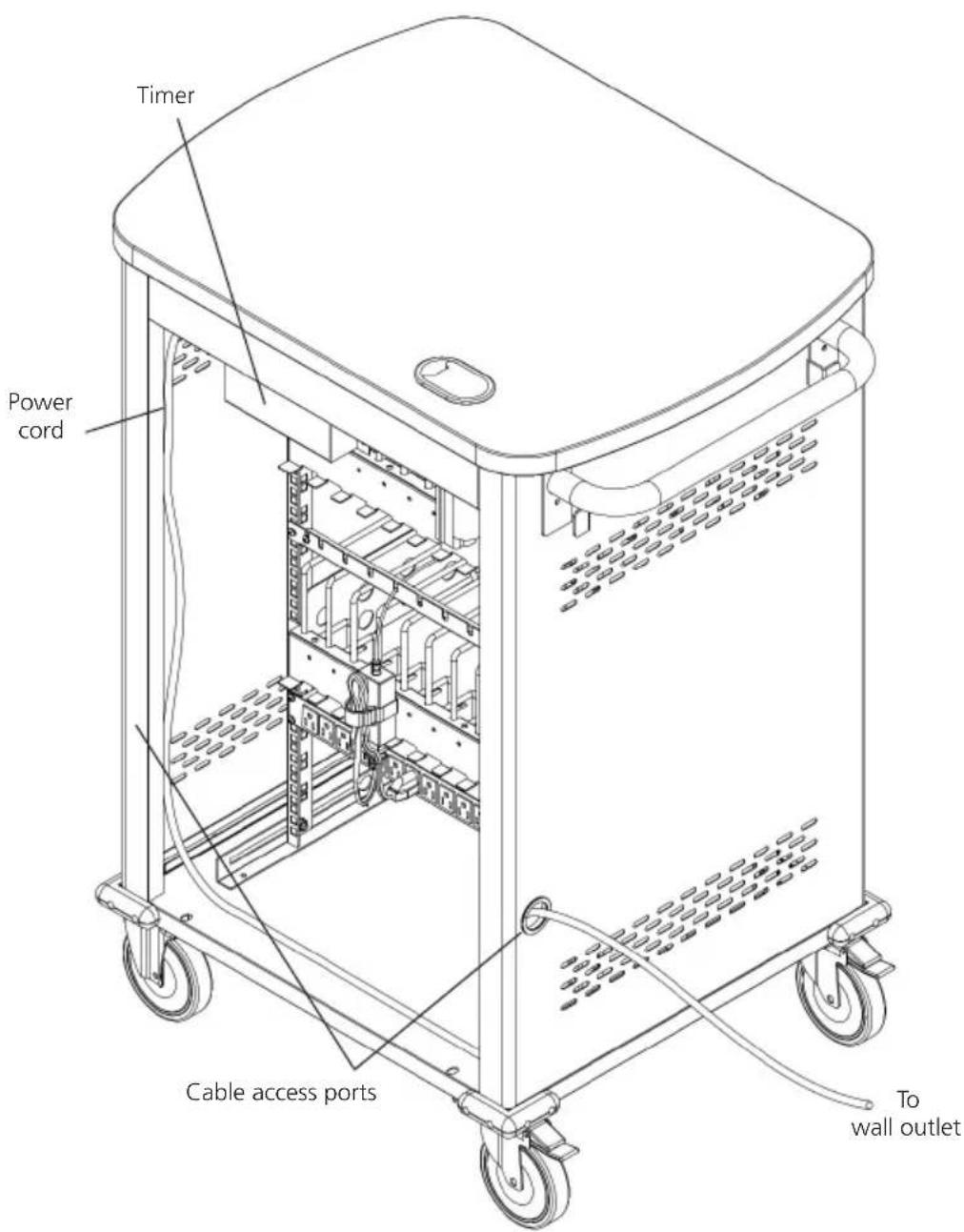
text_image
Timer Power cord Cable access ports To wall outletFigure 5-1. Plug the cart into the wall.
5.3 Timer Instructions
Before using your timer:
- For your safety, we recommend that a qualified electrician test the circuit you will plug the cart into. The circuit should be checked for ground integrity and appropriate branch circuit protection.
- The cart's ground prong must be present for safe operation. If the plug is damaged or if the ground prong has been removed, it should be replaced by a qualified electrician.
- Using the cart, including plugging it in or unplugging it, plugging in or unplugging the laptop(s) or other electrical equipment, or operating the control switch must be done with adult supervision.
The timer comes preset from the factory to alternate power between the power strips at 15-minute intervals.
All power strips cannot charge simultaneously.
By plugging the cart power cord into an approved outlet and flipping the red switches located on the timer and power strips, the cart will begin charging.
To end power, turn the red switch on the timer off and unplug the cart from the wall outlet.
Black Box Tech Support: FREE! Live. 24/7.
Tech support the way it should be.

natural_image
Close-up portrait of a smiling man with short hair, holding a small object (no text or symbols visible)Great tech support is just 60 seconds away at 724-746-5500 or blackbox.com.

BLACK BOX®
About Black Box
Black Box Network Services is your source for an extensive range of networking and infrastructure products. You'll find everything from cabinets and racks and power and surge protection products to media converters and Ethernet switches all supported by free, live 24/7 Tech support available in 60 seconds or less.
© Copyright 2015. Black Box Corporation. All rights reserved.
UCCSM20T, version 3
Appendix: Resources
Do you have technical questions about this product or similar technology? Check out the Resources listed below or contact our FREE Technical Support at 724-746-5500 or info@blackbox.com.
White Papers: To download a white paper, click on the corresponding link listed below:
| Whitepapers | |
| Cabinets and RacksRetrofitting with passive water cooling at the rack level.Extending the Life of Your Data CenterSelecting cooling systems for IT equipment cabinets is not always as simple as it might seem.Six Things to Know When Cooling IT Equipment Cabinets | Digital Signage and Multimedia (Continued)Deliver real-time communications—including emergency messaging—to students, teachers, and staff.Digital Signage for K-12Everything you need to ask when planning and evaluating digital signage.The Roadmap to Digital Signage SuccessFalling victim to these common mistakes can cost you both time and money.Seven Pitfalls to Avoid When Planning Digital SignageIndustrialConnect industrial equipment to your network by using USB.Bridging the Gap: USB ConvertersLearn about system configuration, cabling selection, transient protection, software, and device selection.The Elements of an RS-422 and RS-485 SystemWhen is fiber the ideal choice for your network?Fiber Optic TechnologyUnderstanding Power Needs for Industrial Control DevicesIndustrial Power SolutionsRun wireless even in extreme environments.Industrial WirelessInterface and Protocol ConvertersConnect industrial equipment to your network by using USB.Bridging the Gap: USB ConvertersLearn about system configuration, cabling selection, transient protection, soft-ware, and device selection.The Elements of an RS-422 and RS-485 SystemGo beyond the five-meter USB distance limitation with USB extenders! Read How to extend USB and break the five-meter barrier.Extending the Benefits of USBKVMAn overview of extension and switching technologies in high-performance KVM environments.HD Video and Peripheral Matrix Switching and ExtensionGet secure local KVM console access and secure remote IP server access.Security with the ServSwitch Wizard IPUse this transparent and reliable switching technology to avoid the limitations of traditional emulations.USB True Emulation for KVM Switches |
| CablesWhat's in the ANSI/TIA 1179 standard.ANSI/TIA 1179 Healthcare Infrastructure StandardBuyer beware: If the price seems too good to be true, it is.Counterfeit cable: The dangers, risks, and how to spot it.Using CAT 6A in 10-GBe networks.CAT 6A F/UTP vs. UTP: What You Need to KnowWhen is fiber the ideal choice for your network?Fiber Optic TechnologyKey cabling infrastructure standards.Structured Cabling Organizations and Standards | |
| Carts and Storage12 Questions to Ask When Choosing a Tablet and Laptop CartE-Learning Device Storage | |
| Communications Solutions10 Tips for Securing a Strong ROI.Voicemail to Unified Communications | |
| Compliance SolutionsThe key to protecting data in motion.Group Encryption | |
| Digital Signage and MultimediaDeliver the right message at the right time.A Beginner's Guide to Digital Signage7 Questions You to Need to Ask when Choosing a Signage System. Deliver real-time communications, including emergency messaging, to students, faculty, and staff.Choosing the Right Digital Signage SystemBest practices for creating high-value, compelling content that delivers extraordinary results.Digital Signage Content 101Why your school or university needs digital signage and how to implement it.Digital Signage in Education | |
Whitepapers
Networking
Eliminate the need to buy and install expensive network equipment by using wireless Ethernet extension.
5 Questions You Need to Ask When Choosing Wireless Ethernet Extenders
Integrate fiber optic cabling to add speed, distance, and cost savings. Media Converters
Add low-voltage devices and network equipment in industrial environments without running power. Power over Ethernet in Industrial Applications
Is your network ready? Tablets in Education
Common network mistakes that cost money, cause downtime, and create frustration. Top 10 Network Mistakes
Take these ten steps to ensure wireless success: Ten Commandments of Wireless Communications white paper. Wireless Communications
Run wireless even in extreme environments. Industrial Wireless
Wireless Networking: wireless standards, architecture, security and more white paper. A basic overview of standards, installation, and security. Wireless Networking
Network Security
The key to protecting data in motion. Group Encryption
Physical Security
See why it's just as important as software-based security. Physical Network Security
Power
Understand the power needs for industrial control devices. Industrial Power Solutions
Understanding the risks to your network and how to choose the right solution. Power Protection
Add low-voltage devices and network equipment in industrial environments without running power. Power over Ethernet in Industrial Applications
Testers and Tools
See how industrial-strength Ethernet has come of age. Ethernet in Harsh Environments
Learn about the top three growth drivers for fiber networks: greater bandwidth needs, increased storage demands, and the transition to higher network speeds.
Improve the Quality of Fiber Installations with Extended Fiber Certification
Meet the need for implementation speed without sacrificing accuracy. Proven Techniques and Best Practices for Managing Infrastructure Changes
Move your private networks in premises and campus environments towards high-speed applications. Testing Today's High-Speed Multimode Fiber Infrastructure
Use easy-to-install, standardized, plug-and-play technology. Troubleshooting Your Industrial Network
Be sure to complete this step when installing a new local area network segment. Validate LAN Installations for Optimal Service Delivery
Wireless
Ten Commandments of Wireless Communications white paper. Take these ten steps to ensure wireless success.
Wireless Communications
Run wireless even in extreme environments. Industrial Wireless
Is your network ready? Tablets in Education
A basic overview of standards, installation, and security. Wireless Networking