
UCCSM27H-ILC - Unspecified Black Box - Free user manual and instructions
Find the device manual for free UCCSM27H-ILC Black Box in PDF.


| Product Type | Rackmount LCD Console with Keyboard and Mouse |
| Display Size | 27 inches (16:9) |
| Display Resolution | 1920 x 1080 (Full HD) |
| Panel Type | LED-backlit TFT LCD |
| Brightness | 300 cd/m² |
| Contrast Ratio | 1000:1 |
| Viewing Angle | 170° horizontal / 160° vertical |
| Keyboard | Full-size 104-key membrane keyboard with touchpad |
| Touchpad | Built-in capacitive touchpad |
| Video Inputs | 1x VGA, 1x DVI-D, 1x HDMI |
| Power Supply | AC 100-240V, 50/60Hz, 0.5A |
| Power Consumption | 30W (typical) |
| Dimensions (W x D x H) | 19 x 12 x 1.75 inches (rack unit 1U) |
| Weight | 15 lbs (6.8 kg) |
| Rack Mountable | Yes, 19-inch rack, 1U height |
| Operating Temperature | 32°F to 122°F (0°C to 50°C) |
| Storage Temperature | -4°F to 140°F (-20°C to 60°C) |
| Compliance | CE, FCC Class A |
| Included Accessories | Power cord, mounting brackets, screws, user manual |
| Warranty | 2 years limited |
Frequently Asked Questions - UCCSM27H-ILC Black Box
User questions about UCCSM27H-ILC Black Box
0 question about this device. Answer the ones you know or ask your own.
Ask a new question about this device
Download the instructions for your Unspecified in PDF format for free! Find your manual UCCSM27H-ILC - Black Box and take your electronic device back in hand. On this page are published all the documents necessary for the use of your device. UCCSM27H-ILC by Black Box.
USER MANUAL UCCSM27H-ILC Black Box
iPad®, Chromebook™, Tablet, and Laptop Cart, Single Frame
Mobile, secure, and powered storage for up to 10, 18, 20, 24, 27, 30, 36, or 42 computing devices.
The perfect storage solution for tablets, notebooks, and laptops.
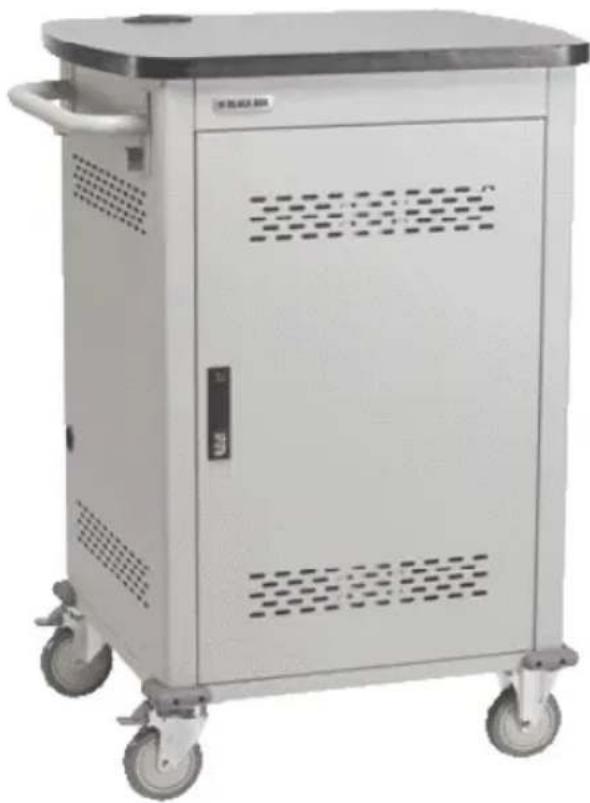
natural_image
Exterior view of a white industrial machine with wheels and ventilation slots (no visible text or symbols)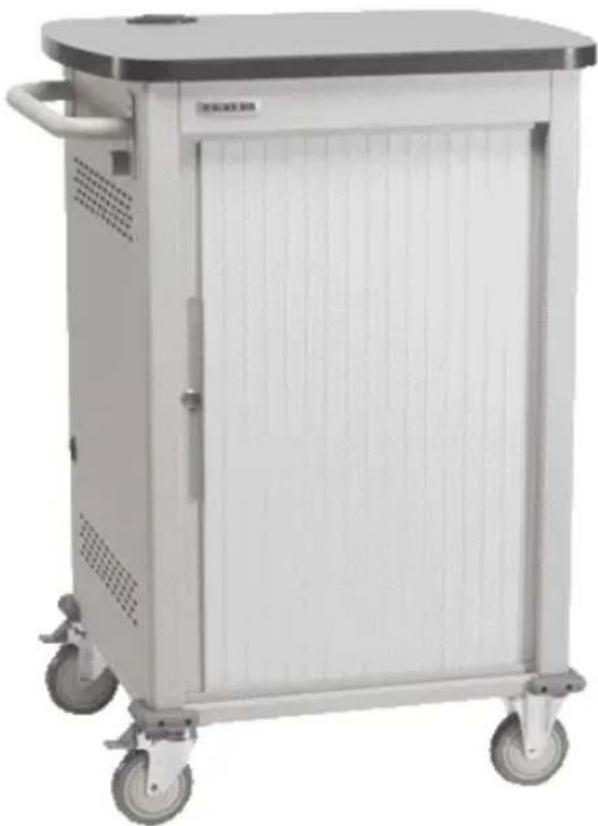
natural_image
Exterior view of a white medical or laboratory equipment cabinet with wheels and handle (no visible text or symbols)Important Safety Information
WARNING! Death or serious injury may occur when children climb on the Cart. The cart can tip over onto the child.
WARNING! Avoid uneven loading of equipment onto the cart. Uneven weight distribution could cause the cart to tip when the cart is moving. Ensure devices are distributed evenly within the cart. Excess weight on sides of cart could cause the cart to tip while in motion.
- Only adults should move the cart.
- Do not leave the cart unattended in areas where children have access.
- Do not block the air vent openings.
- The Cart can be very heavy when fully loaded with laptops and should be moved about by persons physically able to do so.
- The Cart should only be used for the storage and transport of tablets, laptops, and other similar devices.
- Misuse, incorrect operation, or inadequate repair of the Cart will void the warranty.
Electrical Precautions
DANGER! Failure to observe the following electrical safety precautions can result in fire or death by electric shock.
- The power switch must be in the "OFF" position before plugging the Cart into a wall receptacle.
- The Cart must ONLY be connected to a 110–120-volt AC, 15-amp power supply.
- The Cart must only be used by adults or with adult supervision.
- Never pull the Cart by the power cord.
- Do not plug the Cart in if the switch, receptacle(s), or power cord has been damaged. All electrical components on this product must be repaired by a qualified electrician.
- Do not use an extension cord in conjunction with the Cart.
- Do not use liquids in or around the Cart environment.
- Inadequate repair or modifications can create significant hazards to users and is not covered by warranty.
- For your safety, we recommend that a qualified electrician test the circuit you will be plugging the Cart into. The circuit should be checked for ground integrity and appropriate branch circuit protection.
- The Cart ground prong must be present for safe operation. If the plug is damaged or if the ground prong has been removed, it should be replaced by a qualified electrician.
- The use of the Cart, including plugging or unplugging laptops, plugging or unplugging the Cart, operating the control switch, and engaging or releasing the directional and locked casters, must be done with adult supervision.
FEDERAL COMMUNICATIONS COMMISSION AND INDUSTRY CANADA RADIO FREQUENCY INTERFERENCE STATEMENTS
This equipment generates, uses, and can radiate radio-frequency energy, and if not installed and used properly, that is, in strict accordance with the manufacturer's instructions, may cause interference to radio communication. It has been tested and found to comply with the limits for a Class A computing device in accordance with the specifications in Subpart B of Part 15 of FCC rules, which are designed to provide reasonable protection against such interference when the equipment is operated in a commercial environment. Operation of this equipment in a residential area is likely to cause interference, in which case the user at his own expense will be required to take whatever measures may be necessary to correct the interference.
Changes or modifications not expressly approved by the party responsible for compliance could void the user's authority to operate the equipment.
This digital apparatus does not exceed the Class A limits for radio noise emission from digital apparatus set out in the Radio Interference Regulation of Industry Canada.
Black Box and the Double Diamond logo are registered trademarks of BB Technologies, Inc.
Any other trademarks mentioned in this manual are acknowledged to be the property of the trademark owners.
Table of Contents
- Specifications 9
- Overview.... 19
2.1 Introduction.... 19
2.2 What's Included 19
2.3 Hardware Description 20
- Configuration and Setup 21
3.1 Installing the Handle 21
3.2 Routing the Cable 22
3.3 Fastening the Power Bricks and Routing the Cable....23
3.4 Installing the Cambrionix PowerPad 15S Units and Power Supplies (UCCSS30H-S and UCCSS30T-S Only)....25
3.5 HASP Option (UCCSM-10-30H-HASP and UCCSM-10-30T-HASP)..... 26
3.6 Pop-Up Power Port Option (UCCSM-10-30TP or UCCSM-10-30HP) ... 26
3.7 Stand-Off Brackets Option (UCCSM-10-30H-SO and UCCSM-12-36H-SO) 26
3.8 Using the Intelligent Charging System
(-ILC at end of product code) 27
3.9 Basket Distribution System (-BIN1 in product code) 31
- Using Your iPad, Chromebook, Tablet, and Laptop Cart.... 32
4.1 Charging Your Computers 32
4.2 Moving Your iPad, Chromebook, Tablet, and Laptop Cart ...... 32
4.3 Timer Instructions 34
1. Specifications
Table 1-1. Cart Specifications
| Part Number UCCSS20T, UCCSS20H | UCCSM18T, UCCSM18H, UCCSM18H-ILC, UCCSM18T-ILC | UCCSL18T, UCCSL18H, UCCSL18H-ILC, UCCSL18T-ILC | UCCSS30T, UCCSS30H | UCCSM27T, UCCSM27H UCCSM27T-ILC UCCSM27H-ILC | |
| Slot Dimensions | |||||
| Height (in.) | 13" | 13" | 13" | 8.75" | 8.75" |
| Height (cm) 33.02 cm 33.02 cm 33.02 cm 22.22 cm 22.22 cm | |||||
| Width (in.) | 1.36" | 1.53" | 1.53" | 1.36" | 1.53" |
| Width (cm) | 3.45 cm | 3.89 cm | 3.89 cm | 3.45 cm | 3.89 cm |
| Depth (in.) | 10" | 15" | 17" | 10" | 15" |
| Depth (cm) | 25.4 | 38.1 cm | 43.2 cm | 25.4 cm | 38.1 cm |
| Device Capacity | |||||
| Number of Devices | 20 | 18 | 18 | 30 | 27 |
| External Dimensions (Including Handle)* | |||||
| Height (in.) | 44.3" | 44.3" | 44.3" | 44.3" | 44.3" |
| Height (cm) | 112.5 cm | 112.5 cm | 112.5 cm | 112.5 cm | 112.5 cm |
| Width (in.) | 33.1" | 33.1" | 33.1" | 33.1" | 33.1" |
| Width (cm) | 84 cm | 84 cm | 84 cm | 84 cm | 84 cm |
| Depth (in.) | 24.8" | 24.8" | 24.8" | 24.8" | 24.8" |
| Depth (cm) | 63 cm | 63 cm | 63 cm | 63 cm | 63 cm |
| Weight (Cart with Sliding Door) | |||||
| UCCSS20T | UCCSM18T | UCCSL18T | UCCSS30T | UCCSM27T | |
| Weight (lb.) | 134 lb. | 140 lb. | 146 lb. | 146 lb. | 155 lb. |
| Weight (kg) | 60.8 kg | 63.5 kg | 66.2 kg | 66.2 kg | 70.3 kg |
| Weight (Cart with Solid Steel Door) | |||||
| UCCSS20H | UCCSM18H | UCCSL18H | UCCSS30H | UCCSM27H | |
| Weight (lb.) | 144 lb. | 150 lb. | 156 lb. | 156 lb. | 165 lb. |
| Weight (kg) | 65.3 kg | 68 kg | 70.8 kg | 70.8 kg | 74.8 kg |
*External dimensions are the same for all single cart models. NOTE: Weight capacity for all single carts is 150 lb. (68.2 kg), stationary.
Table 1-1 (continued). Cart Specifications
| Part Number | UCCSS-12-36H, UCCSS-12-36T | UCCSM-10-10H, UCCSM-10-10T | UCCSM-10-20H, UCCSM-10-20T |
| Slot Dimensions | |||
| Height (in.) | 8.75" 8.75" 13" | ||
| Height (cm) | 22.22 cm 22.22 cm | 33.02 cm | |
| Width (in.) | 1.12" 1.36" 1.36" | ||
| Width (cm) | 2.84 cm | 3.45 cm | 3.45 cm |
| Depth (in.) | 15" | 13" | 13" |
| Depth (cm) | 38.1 | 33.02 cm | 33.02 cm |
| Device Capacity | |||
| Number of Devices | 36 | 10 | 20 |
| External Dimensions (Including Handle)* | |||
| Height (in.) | 44.27" | 44.27" | 44.27" |
| Height (cm) | 112.4 cm | 112.4 cm | 112.4 cm |
| Width (in.) | 33.07" | 33.07" | 33.07" |
| Width (cm) | 83.99 cm 83.99 cm | 83.99 cm | |
| Depth (in.) | 25.35" | 25.35" | 25.35" |
| Depth (cm) | 64.39 cm | 64.39 cm | 64.39 cm |
| Weight (Cart with Sliding Door) | |||
| UCCSS-12-36T UCCSM-10-10T UCCSM-10-20T | |||
| Weight (lb.) | 211.5 lb. | 193.5 lb. | 208.5 lb. |
| Weight (kg) | 95.9 kg | 87.8 kg | 94.6 kg |
| Weight (Cart with Solid Steel Door) | |||
| UCCSS-12-36H | UCCSM-10-10H | UCCSM-10-20H | |
| Weight (lb.) | 211.5 lb. | 193.5 lb. | 208.5 lb. |
| Weight (kg) | 95.9 kg | 87.8 kg | 94.6 kg |
*External dimensions are the same for all single cart models. NOTE: Weight capacity for all single carts is 150 lb. (68.2 kg), stationary.
Table 1-1 (continued). Cart Specifications
| Part Number U | CCSM-10-30H, UCCSM-10-30T, UCCSM-10-30H-ILC, UCCSM-10-30T-ILC | UCCSM-12-36H, UCCSM-12-36T, UCCSM-12-36H-ILC, UCCSM-12-36T-ILC | UCCSM-12-24H, UCCSM-12-24T, UCCSM-12-24H-ILC, UCCSM-12-24T-ILC |
| Slot Dimensions | |||
| Height (in.) 8.75" 8.75" 13" | |||
| Height (cm) 22.22 cm 22.22 cm 33 cm | |||
| Width (in.) | 1.36" | 1.1" | 1.1" |
| Width (cm) | 3.45 cm | 2.8 cm | 2.8 cm |
| Depth (in.) | 13" | 15" | 15" |
| Depth (cm) | 33.02 cm | 38.1 | 38.1 |
| Device Capacity | |||
| Number of Devices | 30 | 36 | 24 |
| External Dimensions (Including Handle)* | |||
| Height (in.) | 44.27" | 44.27" | 44.27" |
| Height (cm) 112.4 cm 112.4 cm 112.4 cm | |||
| Width (in.) | 33.07" | 33.07" | 33.07" |
| Width (cm) 83.99 cm 83.99 cm 83.99 cm | |||
| Depth (in.) | 25.35" | 25.35" | 25.35" |
| Depth (cm) | 64.39 cm | 64.39 cm | 64.39 cm |
| Weight (Cart with Sliding Door) | |||
| UCCSM-10-30T | UCCSM-12-36T | UCCSM-12-24T | |
| Weight (lb.) | 223.5 lb. | 236.5 lb. | 221.1 lb. |
| Weight (kg) | 101.4 kg | 107.3 kg | 100.3 kg |
| Weight (Cart with Solid Steel Door) | |||
| UCCSM-10-30H | UCCSM-12-36H | UCCSM-12-24H | |
| Weight (lb.) | 223.5 lb. | 236.5 lb. | 221.1 lb. |
| Weight (kg) | 101.4 kg | 107.3 kg | 100.3 kg |
*External dimensions are the same for all single cart models.
NOTE: Weight capacity for all single carts is 150 lb. (68.2 kg), stationary.
Table 1-1 (continued). Cart Specifications
| Part Number UCCSM-10 -30TP, UCCSM-10-30HP | UCCSM-10-30H-HASP, UCCSM-10-30T-HASP | |
| Slot Dimensions | ||
| Height (in.) 8.75" 8.75" | ||
| Height (cm) 22.22 cm 22.22 cm | ||
| Width (in.) 1.36" 1.36" | ||
| Width (cm) 3.45 cm 3.45 cm | ||
| Depth (in.) 13" 13" | ||
| Depth (cm) 33.02 33.02 | ||
| Device Capacity | ||
| Number of Devices | 30 | 30 |
| External Dimensions (Including Handle)* | ||
| Height (in.) | 44.27" | 44.27" |
| Height (cm) | 112.4 cm | 112.4 cm |
| Width (in.) 33.07" 33.07" | ||
| Width (cm) 83.99 cm 83.99 cm | ||
| Depth (in.) | 25.35" | 25.35" |
| Depth (cm) 64.39 cm 64.39 cm | ||
| Weight (Cart with Sliding Door) | ||
| UCCSM-10-30TP | UCCSM-10-30T-HASP | |
| Weight (lb.) | 225.5 lb. | 224 lb. |
| Weight (kg) | 102.5 kg | 101.8 kg |
| Weight (Cart with Solid Steel Door) | ||
| UCCSM-10-30HP | UCCSM-10-30H-HASP | |
| Weight (lb.) | 225.5 lb. | 224 lb. |
| Weight (kg) | 102.5 kg | 101.8 kg |
*External dimensions are the same for all single cart models. NOTE: Weight capacity for all single carts is 150 lb. (68.2 kg), stationary.
Table 1-1 (continued). Cart Specifications
| Part Number UCCSM-10-30H-SO UC CSM-12-36H-SO UCCSM-12-36H-14C | |||
| Slot Dimensions | |||
| Height (in.) 8.75" 8.75" 9.75" | |||
| Height (cm) 22.22 cm 22.22 cm 24.7 | |||
| Width (in.) 1.36" 1.12" 1.12" | |||
| Width (cm) | 3.45 cm | 2.85 cm | 2.85 cm |
| Depth (in.) | 13" | 15" | 15" |
| Depth (cm) | 33.02 | 38.1 | 38.1 |
| Device Capacity | |||
| Number of Devices | 30 | 36 | 36 |
| External Dimensions (Including Handle)* | |||
| Height (in.) | 44.27" | 44.27" | 44.27" |
| Height (cm) | 112.4 cm | 112.4 cm | 112.4 cm |
| Width (in.) | 33.07" | 33.07" | 33.07" |
| Width (cm) 83.99 cm 83.99 cm 83.99 cm | |||
| Depth (in.) | 25.35" | 25.35" | 25.35" |
| Depth (cm) | 64.39 cm | 64.39 cm | 64.39 cm |
| Weight (Cart with Solid Steel Door) | |||
| UCCSM-10-30H-SO UCCSM-12-36H-SO UCCSM-12-36H-14C | |||
| Weight (lb.) | 225 lb. | 238 lb. | 234.5 lb. |
| Weight (kg) | 102.2 kg | 108.2 kg | 106.6 kg |
*External dimensions are the same for all single cart models.
NOTE: Weight capacity for all single carts is 150 lb. (68.2 kg), stationary.
Table 1-1 (continued). Cart Specifications
| Part Number | UCCSM-12-36H-15C, UCCSM-12-36T-15C | UCCSS30T-S, UCCSS30H-S | UCCSM-14- 42T, UCCSM-14- 42H, UCCSM-14-42T-ILC, UCCSM-14- 42H-ILC |
| Slot Dimensions | |||
| Height (in.) | 11.5" | 10" | 8.75" |
| Height (cm) | 29.21 cm | 25.4 cm | 22.22" |
| Width (in.) | 1.12" | 1.36 | 0.87" |
| Width (cm) | 2.84 cm | 3.45 cm | 2.21 cm |
| Depth (in.) | 15" | 10" | 13" |
| Depth (cm) | 38.1 cm | 25.4 cm | 33.02 cm |
| Device Capacity | |||
| Number of Devices | 36 | 30 | 42 |
| External Dimensions (Including Handle)* | |||
| Height (in.) | 44.27" | 44.27" | 44.27" |
| Height (cm) | 112.4 cm | 112.4 cm | 112.4 cm |
| Width (in.) | 33.07" | 33.07" | 33.07" |
| Width (cm) | 83.99 cm | 83.99 cm | 83.99 cm |
| Depth (in.) | 25.35" | 25.35" | 25.35" |
| Depth (cm) | 64.39 cm | 64.39 cm | 64.39 cm |
| Weight (Cart with Sliding Door) | |||
| Weight (lb.) | 232.5 lb. | 216.5 lb. | 236.5 lb. |
| Weight (kg) | 105.7 kg | 98.4 kg. | 107.5 lb. |
| Weight (Cart with Solid Steel Door) | |||
| Weight (lb.) | 236.5 lb. | 216.5 lb. | 236.5 lb. |
| Weight (kg) | 107.5 kg | 98.4 kg. | 107.5 lb. |
*External dimensions are the same for all single cart models.
NOTE: Weight capacity for all single carts is 150 lb. (68.2 kg), stationary.
Table 1-1 (continued). Cart Specifications
| Part Number | UCCSM-BIN1-36T, UCCSM-BIN1-36H | UCCSM-BIN1-36H-FCM0, UCCSM-BIN1-36T-FCM0 | UCCBIN1KIT |
| Basket Dimensions | |||
| Height (in.) 5" | 5" 5" | ||
| Height (cm) | 12.7 cm 12.7 cm 12.7 cm | ||
| Width (in.) | 8.25" 8.25" 8.25" | ||
| Width (cm) | 20.9 cm 20.9 cm 20.9 cm | ||
| Depth (in.) | 10.875" | 10.875" | 10.875" |
| Depth (cm) | 27.6 cm | 27.6 cm | 27.6 cm |
| Number of Baskets | 6 | 6 | 1 |
| Device Capacity | |||
| Number of Devices | 36 36 | 6 | |
| Maximum Device Size | |||
| H x W x D | 8"H x 1"W x 9"D(20.3 x 2.5 x 22.8 cm) | 9"H x 1"W x 9"D(22.8 x 2.5 x 22.8 cm) | 1"W x 9"D(2.5 x 22.8 cm)Height depends on cart |
| External Dimensions (Including Handle)* | Basket Dimensions | ||
| Height (in.) | 44.27" | 44.27" | 5" |
| Height (cm) | 112.4 cm | 112.4 cm | 12.7 |
| Width (in.) | 33.07" | 33.07" | 8.25" |
| Width (cm) | 83.99 cm | 83.99 cm | 20.9 |
| Depth (in.) | 25.35" | 25.35" | 10.875" |
| Depth (cm) | 64.39 cm | 64.39 cm | 27.6 |
| Weight (Cart with Sliding Door) | Max. Basket Weight Loaded | ||
| Weight (lb.) | 210 lb. | 210 lb. | 25 lb. |
| Weight (kg) | 95.4 kg | 95.4 kg | 11.4 kg |
| Weight (Cart with Solid Steel Door) | |||
| Weight (lb.) | 210 lb. | 210 lb. | 25 lb. |
| Weight (kg) | 95.4 kg | 95.4 kg | 11.4 kg |
Table 1-2. Power Strip Specifications
| Part Number Automated | Power Controller | Included Power Strips |
| UCCSM18T, UCCSM18H | (1) 4-outlet, 4-bank automated power controller with “always-on outlet,” 15-minute increments, 100–125 V, 50–60 Hz, 15 amp max. | (2) 12-outlet, 15 A max. |
| UCCSL18T, UCCSL18H | (2) 12-outlet, 15 A max. | |
| UCCSS20T, UCCSS20H | (2) 12-outlet, 15 A max. | |
| UCCSS30T, UCCSS30H, | (3) 12-outlet, 15 A max. | |
| UCCSM27T, UCCSM27H | (3) 12-outlet, 15 A max. | |
| UCCSS-12-36T, UCCSS-12-36H | (3) 12-outlet, 15 A max. | |
| UCCSM-10-10T UCCSM-10-10H | (1) 12-outlet, 15 A max. | |
| UCCSM-10-20T, UCCSM-10-20H | (2) 12-outlet, 15 A max. | |
| UCCSM-10-30T, UCCSM-10-30H, UCCSM -10 -30TP, UCCSM-10-30HP, UCCSM-10-30H-HASP, UCCSM-10-30T-HASP, UCCSM-10-30H-SO | (3) 12-outlet, 15 A max. | |
| UCCSM-12-36T, UCCSM-12-36H, UCCSM-12-36H-SO, UCCSM-12-36H-14C, UCCSM-12-36H-15C, UCCSM-12-36T-15C, UCCSM-BIN1-36T, UCCSM-BIN-36T-FCM0, UCCSM-BIN1-36H, UCCSM-BIN1-36H-FCM0 | (3) 12-outlet, 15 A max. | |
| UCCSS30T-S, UCCSS30H-S | (2) Cambrionix Power Pad 15S units and power supplies | |
| UCCSM-12-24T, UCCSM-12-24H | (1) 4-outlet, 4-bank automated power controller with “always-on outlet,” 15-minute increments, 100–125 V, 50–60 Hz, 15 amp max. | (2) 12-outlet, 15 A max. |
| UCCSM-14-42T, UCCSM-14-42H | (4) 12-outlet, 15 A max. |
Table 1-3. Charging Units included with Carts.
| Part Number Intelligent Charging System | Included Power Strips |
| UCCSM18T-ILC, UCCSM18H-ILC | (1) Intelligent Charging System Unit (SDILCU4) |
| UCCSL18T- ILC, UCCSL18H-ILC | |
| UCCSM27T-ILC, UCCSM27H-ILC | |
| UCCSM-10-30T-ILC, UCCSM-10-30H-ILC | |
| UCCSM-12-36T-ILC, UCCSM-12-36H-ILC | |
| UCCSM-12-24T-ILC, UCCSM-12-24H-ILC | |
| UCCSM-14-42T-ILC, UCCSM-14- 42H-ILC |
Table 1-3. Accessories Specifications
| Part Number Accessory Specs | ||
| UCCSHELFS Small device shelf Number of Slots: | 10;Slot Dimensions: 1.32"W x 10"D | |
| UCCSHELFM Medium device shelf Number of Slots: | 9;Slot Dimensions: 1.52"W x 15"D | |
| UCCSHELFL Large device shelf Number of Slots: | 9;Slot Dimensions: 1.52"W x 17"D | |
| UCCSHELF Storage shelf Height: 2U | ||
| UCC-PPM | Pop-up power module | Recesses into top laminate of cart, 2-outlet, 110–125 V |
| UCCDRAWER-2U | 2U Accessory Drawer | Height: 3.5"H (2U);Cable Access: 1.75"D;Weight: 15 lb. (6.8 kg) |
| UCCDRAWER-3U | 3U Accessory Drawer | Height: 5.25"H (3U);Cable Access: 1.75"D;Weight: 18 lb. (8.2 kg) |
| UCCDIVIDER-S | PVC-coated divider for small shelves | — |
| UCCDIVIDER-ML | PVC-coated divider for medium and large shelves | — |
| UCCLINER-S-10 | Shelf liner for UCC small 10-slot shelves | — |
| UCCLINER-S-12 | Shelf liner for UCC small 12-slot shelves | — |
| UCCLINER-M Shelf liner for UCC medium 9-slot shelves | — | |
| UCCLINER-M-10 | Shelf liner for UCC medium 10-slot shelves | — |
| UCCLINER-M-12 | Shelf liner for UCC medium 12-slot shelves | — |
| UCCLINER-L | Shelf liner for UCC large shelves | — |
| UCCBIN1KIT | 6-Device Charging Cart Basket Kit for Deluxe, Basic, and 30-Device Standard Carts | Dimensions: 5"H x 8.25"W x 10.875"D (12.7 x 20.9 x 27.6 cm); |
2. Overview
2.1 Introduction
The iPad ^® , Chromebook ^® , Tablet, and Laptop Cart is designed to store, charge, and transport tablets, e-readers, laptops, netbooks, and other similar devices. Units are available with capacities for 10, 18, 20, 24, 27, 30, 36, or 42 separate storage slots. Each unit plugs into a typical 120-volt 15-amp outlet. Carts are available with sliding or solid-steel doors. Syncing and intelligent charging carts are also available.
Please read these operating instructions carefully. They contain important advice concerning the use and safety of your cart. This Cart must only be used for its intended purpose in accordance with these operating instructions.
2.2 What's Included
- iPad, Chromebook, Tablet, and Laptop Cart with 10-, 18-, 20-, 24-, 27-, 30-, 36-, or 42-device capacity; assembled
• (4) casters (installed), including: (2) locking swivel casters and (2) non-locking fixed casters
• (1) Automated Power Controller or Intelligent Charging System Unit (installed) - Power Strips (installed): See the power strips specifications in Table 1-2 on the previous page.
- Cart handle with mounting hardware (to be installed by user)
• (1) user's manual
• (2) sets of keys
2.3 Hardware Description
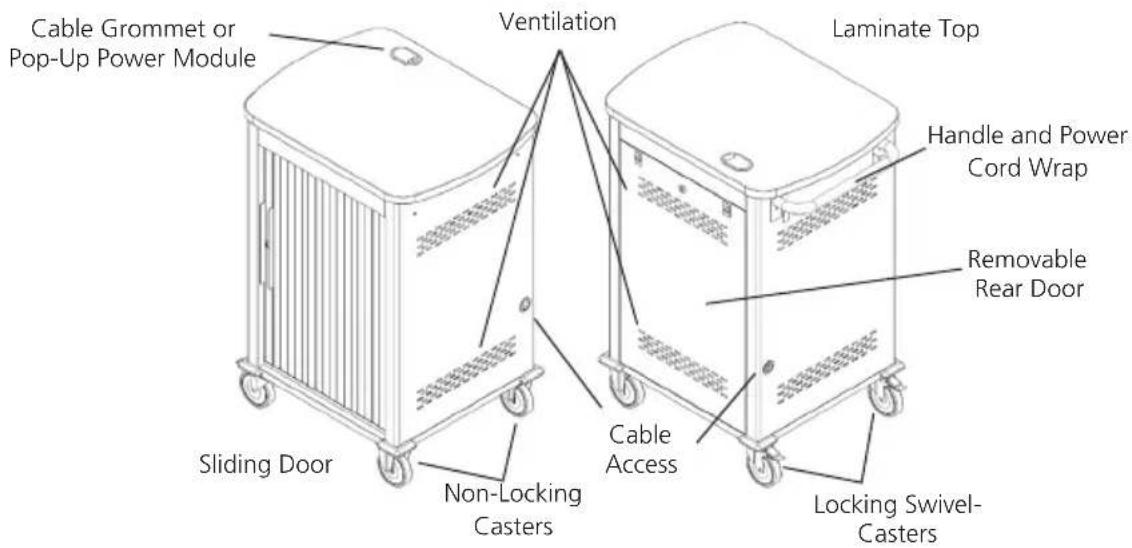
Figure 2-1. Front and back of cart with sliding door.

Figure 2-2. Front and back of cart with solid steel door.
3. Configuration and Setup
Remove and discard all packaging materials and then lock the lockable casters.
Open and inspect the Cart to verify all doors, locks, and casters are working properly.
Do not plug the Cart into a wall outlet until all configurations and setup are complete.
3.1 Installing the Handle
The handle/cord wrap installs on the side of the cart with the locking swivel casters.
NOTE: The casters swivel on one side of the Cart and are fixed on the other. Consider maneuverability options before installing the handle.
Step 1: Locate the side of the cart with the locking swivel casters.
Step 2. Place the handle so that the holes in the brackets are aligned with the threaded holes in the side panels.
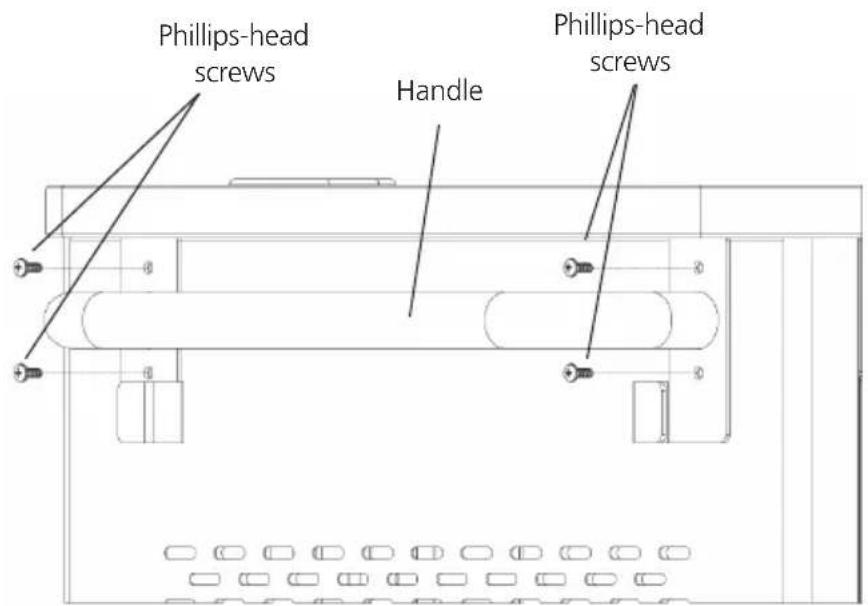
Figure 3-1. Handle assembly.
Step 3. Using a Phillips-head screwdriver, tighten four of the Phillips-head screws into the threaded holes.
3.2 Routing the Cable (UCCSS20T, UCCSS20H, UCCSS30T, UCCSS30H)
- At the back of the cart, loosen the two screws on the cable manager, pull up on the top section of the cable manager, and place the device side of the charging cable into one of the slots. (See Figure 3-2.)
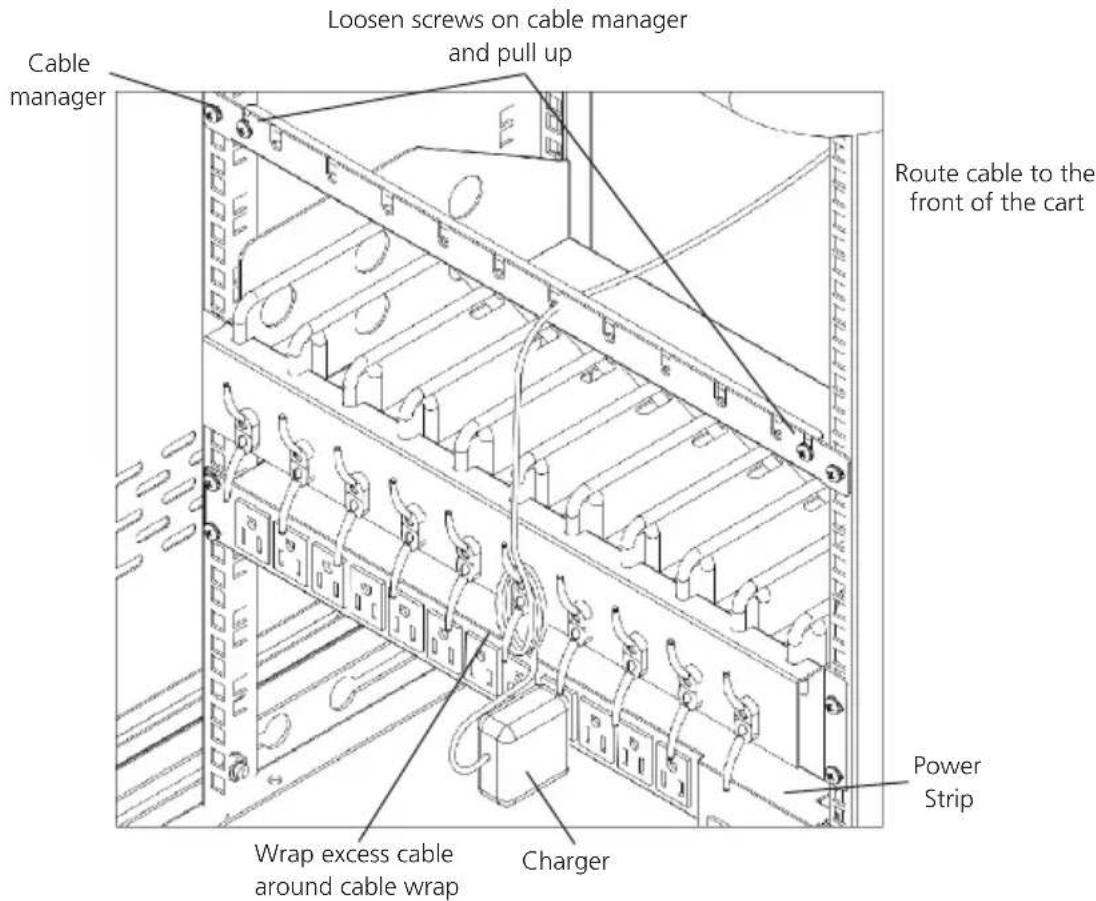
Figure 3-2. Small shelf routing instructions.
- Replace the top section of the cable manager and tighten the screws.
- Route the device side of the charging cable to the front of the cart and repeat step 1 for the front cable manager.
- Wrap any excess cable around the cable wrap on the back of the shelf.
- Plug the charger power plug into the power strip located below the shelf.
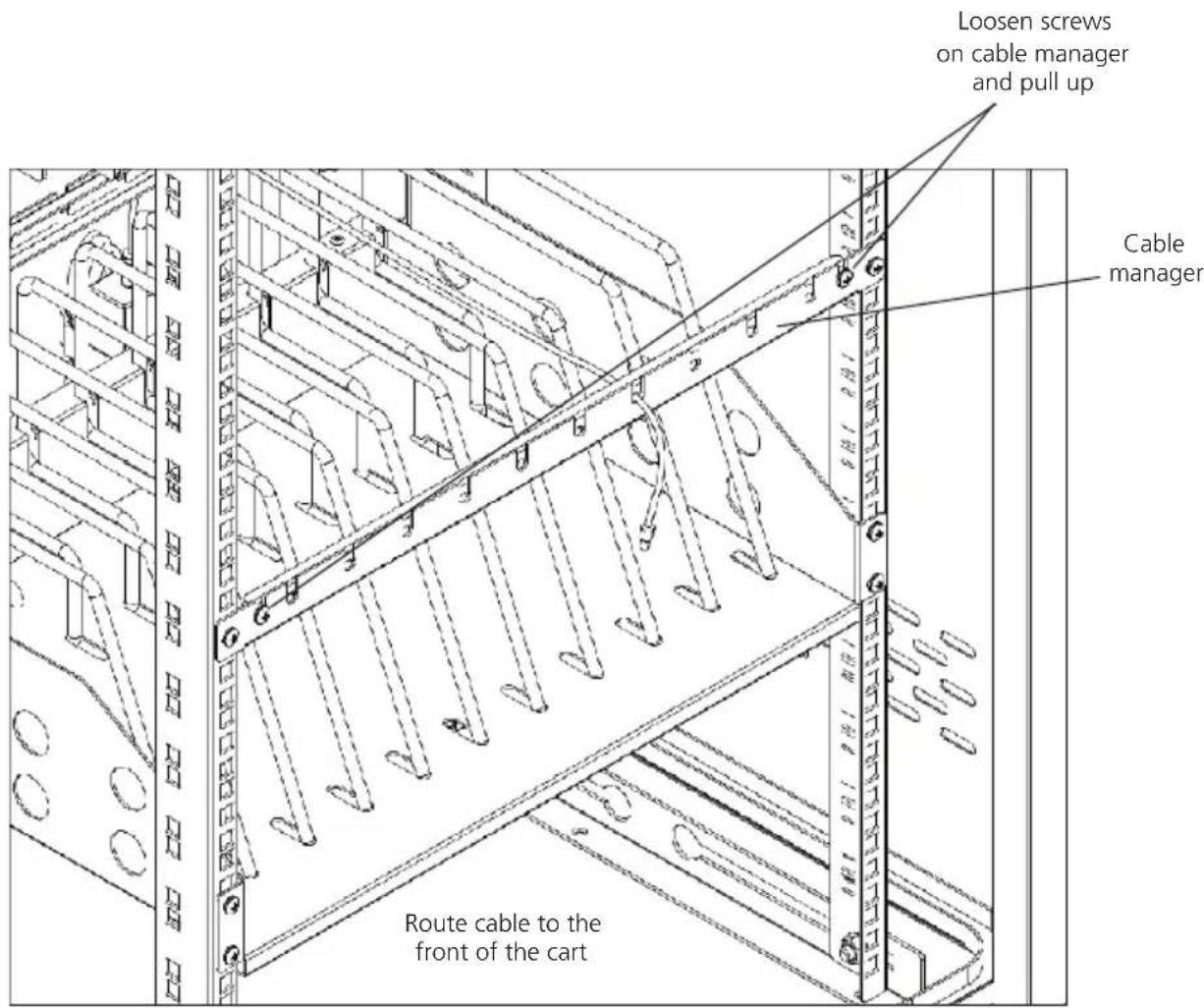
Figure 3-3. Routing the cable.
3.3 Fastening the Power Bricks and Routing the Cable (UCCSM18T, UCCSM18H, UCCSM27T, UCCSM27H, UCCSL18T, UCCSL18H)
- Attach the wrapped cord and power brick to the back of the shelf using the hook and loop strap. Keep some extra cable unwrapped to plug into the power strip. (See Figure 3-4.)
- Loosen the two screws on the cable manager, pull up on the top section of the cable manager, and place the device side of the charging cable into one of the slots.
- Replace the top section of the cable manager and tighten the screws.
-
Route the device side of the charging cable to the front of the cart and repeat step 2 for the front cable manager (see Figure 3-3).
-
Plug the charger power plug into the power strip located below the shelf.
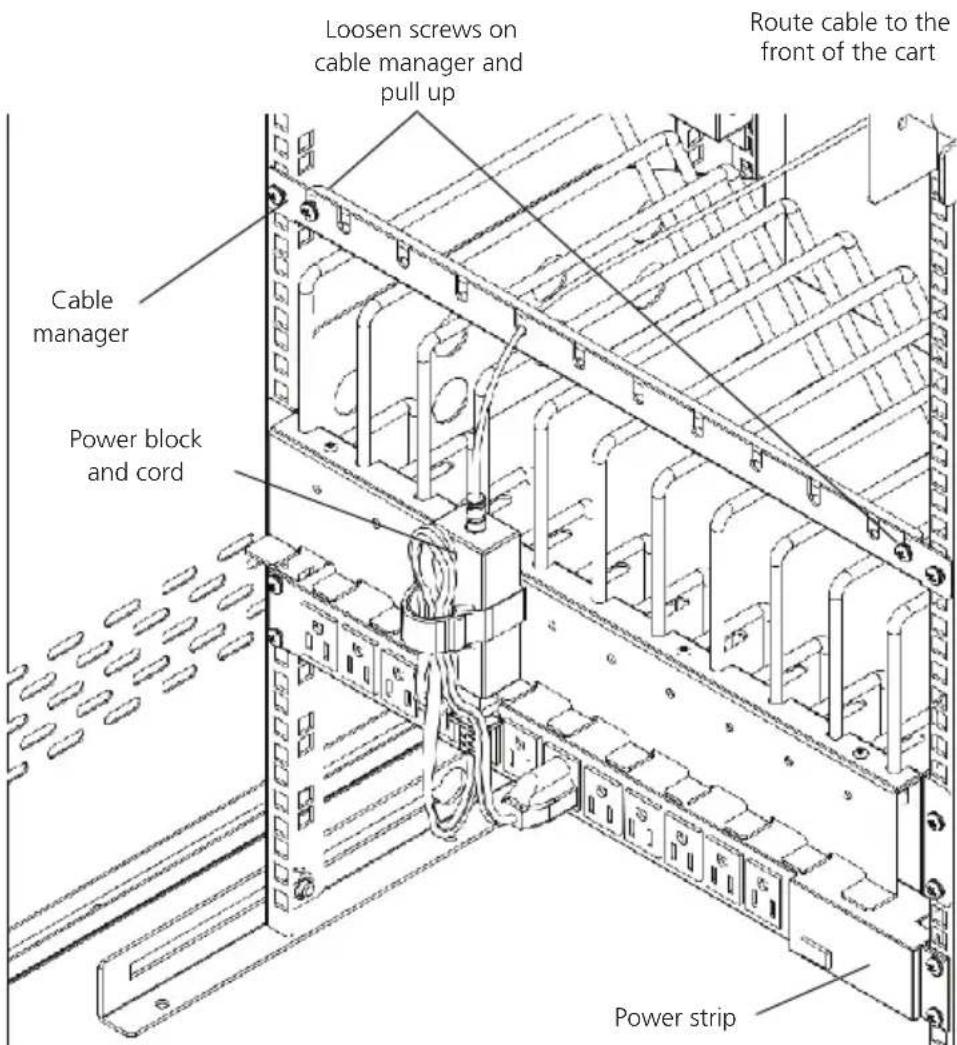
Figure 3-4. Fastening the power brick and routing the cable.
3.4 Installing the Cambrionix PowerPad 15S Syncing Units (UCCSS30H-S and UCCSS30T-S Only)
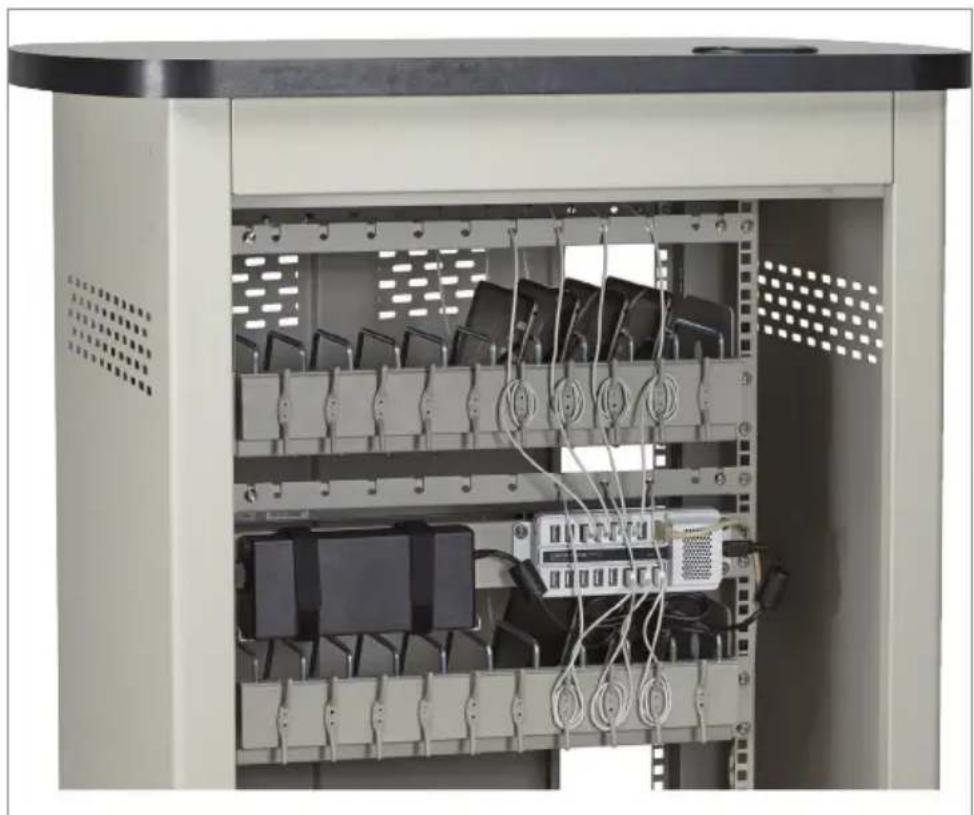
Charge and sync up to 10 devices per locker or 30 devices per cart at the same time. The USB charge and sync device works with nearly all e-learning devices — including Chromebook computers, iPad devices, mobile phones, e-readers, 3D glasses, and other tablets.
The synchronization is achieved through a terminal interface (in the 16 ^th USB port) which also allows you to control, monitor, and update the USB charge and sync device with the latest firmware. It is perfect for schools, businesses, and other organizations that require numerous devices to be charged and synced at the same time.
natural_image
Interior view of an industrial server rack with multiple connected modules and cables (no visible text or labels)Figure 3-5. USB charge and sync device installed in Syncing Cart (UCCSS30HS or UCCSS30T-S).
3.5 HASP Option (UCCSM-10-30H-HASP and UCCSM-10-30T-HASP)
A HASP lock option is available on the UCCSM-10-30H-HASP and UCCSM-10-30T-HASP carts.

natural_image
Close-up of a white cabinet with a metallic padlock securing its door, showing ventilation grilles and perforated panels (no text or symbols visible)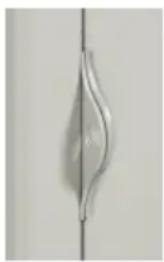
natural_image
Close-up of a metallic abstract shape with curved edges, possibly a leaf or blade, against a plain background (no text or symbols)Hasp for optional padlock
Figure 3-6. HASP lock option on the UCCSM-10-30H-HASP.
3.6 Pop-Up Power Port Option (UCCSM-10---SM-10-30HP Only)
A popup power port is available for maximum safety.

natural_image
Exterior view of a black electrical outlet stack with two socket slots (no text or symbols)Figure 3-7. Popup power port.
3.7 Standoff Brackets Option
UCCSM-10-30H-SO and UCCSM-12-36H-SO carts use standoff brackets to create a shelf using the power strips in the back. This ensures that power adapters don't fall.
3.8 Using the Intelligent Charging System (-ILC at end of product code) The Intelligent Charging System Module arrives installed in your cabinet.
3.8.1 Display Tour

Figure 3-8. Front of SDILCU4.
Back
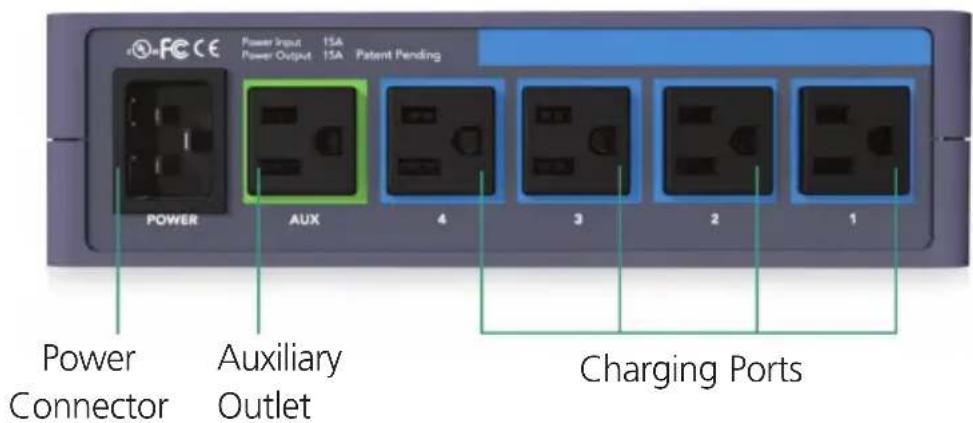
Figure 3-9. Back of SDILCU4.
3.8.2 To Begin Charging
- Connect to Power
- Select Charging Mode (Choose from Charge Mode or Manage Mode.)

natural_image
Blue rounded rectangle icon with a white battery symbol containing a lightning bolt (no text or numbers)CHARGE MODE: Best used if all devices are powered off and connected at the same time. Power is discontinued when batteries reach full charge to conserve energy.

natural_image
Blue rounded square icon with two white curved arrows forming a circular motion (no text or symbols)MANAGE MODE: Best used if all or some devices are left on or are returned at different times. Charging continues until it is manually stopped.
NOTE: The charging system should always be in MANAGE mode in order to charge iPads and devices that remain in sleep mode.
3.8.3 Basic Functions
natural_image
Blue rounded rectangle icon with a white battery symbol containing a lightning bolt (no text or numbers)Charge Button
Pressing the CHARGE button will start charge mode. This is best used when all devices are powered down and returned to the cart at the same time. Charging will automatically stop when all batteries are 100% charged. You can also stop charging at any time by pressing the CHARGE button a second time.

natural_image
Blue rounded square icon with a white circular arrow symbol (no text or numbers)Manage Button
Pressing MANAGE button will start manage mode and turn on the auxiliary power. This mode will continuously monitor and distribute power until manually stopped. This mode is best used if some of the devices may be left on when connected or if devices are connected at different times. Press the button again to stop manage mode.

natural_image
Blue square icon with white plus and minus symbol (no text or numbers)Auxiliary Power Button
Controls power to any peripherals that are plugged into the AUX power strip in the back of the cart. If the AUX devices must be operational during charging then the system must be in manage mode. Be aware that this may lengthen charging time.
bar
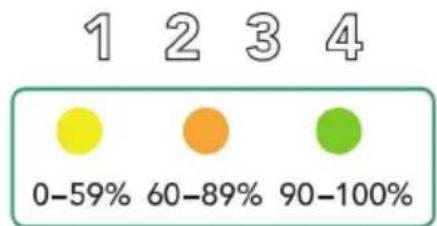
| Category | Value (%) | |---|---| | Yellow Dot | 0-59 | | Orange Dot | 60-89 | | Green Dot | 90-100 |Charging Port LEDs
Indicates which sections of the cart are active. The charging unit controls this automatically, ensuring that all devices inside are charged in the fastest, most efficient way possible. When all four quadrant LEDs are solid green, charging is complete.

Power Icon
Indicates when the cart is connected to power and is ready.

Reset Button
The Intelligent Charging System is protected with its own circuit breaker. If it encounters misuse such as plugging in unsupported devices or if there is a power surge, the circuit will trip and the reset button will pop out. To reset the cart simply press it back in. Please first ensure that everything is plugged in properly and that only supported devices are connected before resetting.
3.9 Basket Distribution System
UCC carts with baskets (UCCBIN1KIT) instead of slots include:
- UCCSM-BIN1-36T
- UCCSM-BIN1-36H
• UCCSM-BIN1-36T-FCM0
• UCCSM-BIN1-36T-FCM0
The baskets can also be ordered separately:
- UCCBIN1KIT
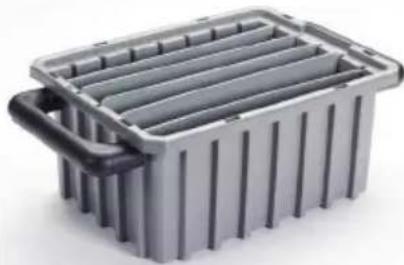
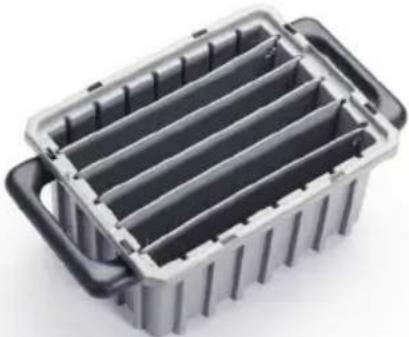
Figures 3-10 through 3-12 show the UCCBIN1KIT basket.

natural_image
Interior view of a server rack with two gray battery compartments and black side bars (no visible text or symbols)Baskets installed in cart.
natural_image
Gray plastic container with side slats and handles, no visible text or symbolsBasket, side view.
natural_image
Exterior view of a gray plastic container with black handles and internal fins (no text or symbols)Basket, top view.
- Using Your iPad, Chromebook, Tablet, and Laptop Cart
4.1 Charging Your Computers
- After the devices have been loaded into the Cart, plug the power cord of the Cart into a suitable receptacle.
- Locate the internal power switches on the timer and power strips of the Cart and push the switches to the ON position.
4.2 Moving Your iPad, Chromebook, Tablet, and Laptop Cart
- Turn the timer power switch to the off position.
- Remove the Cart plug from the wall receptacle and wrap the cord around the cord wrap or handle.
- Close and secure sliding or solid-steel doors.
- Your Cart comes equipped with two fixed casters and two locking swivel casters. Unlock the casters before moving the Cart to a new location.
- When you reach your desired destination, lock the casters to prevent the cart from moving and plug the Cart into a wall receptacle.
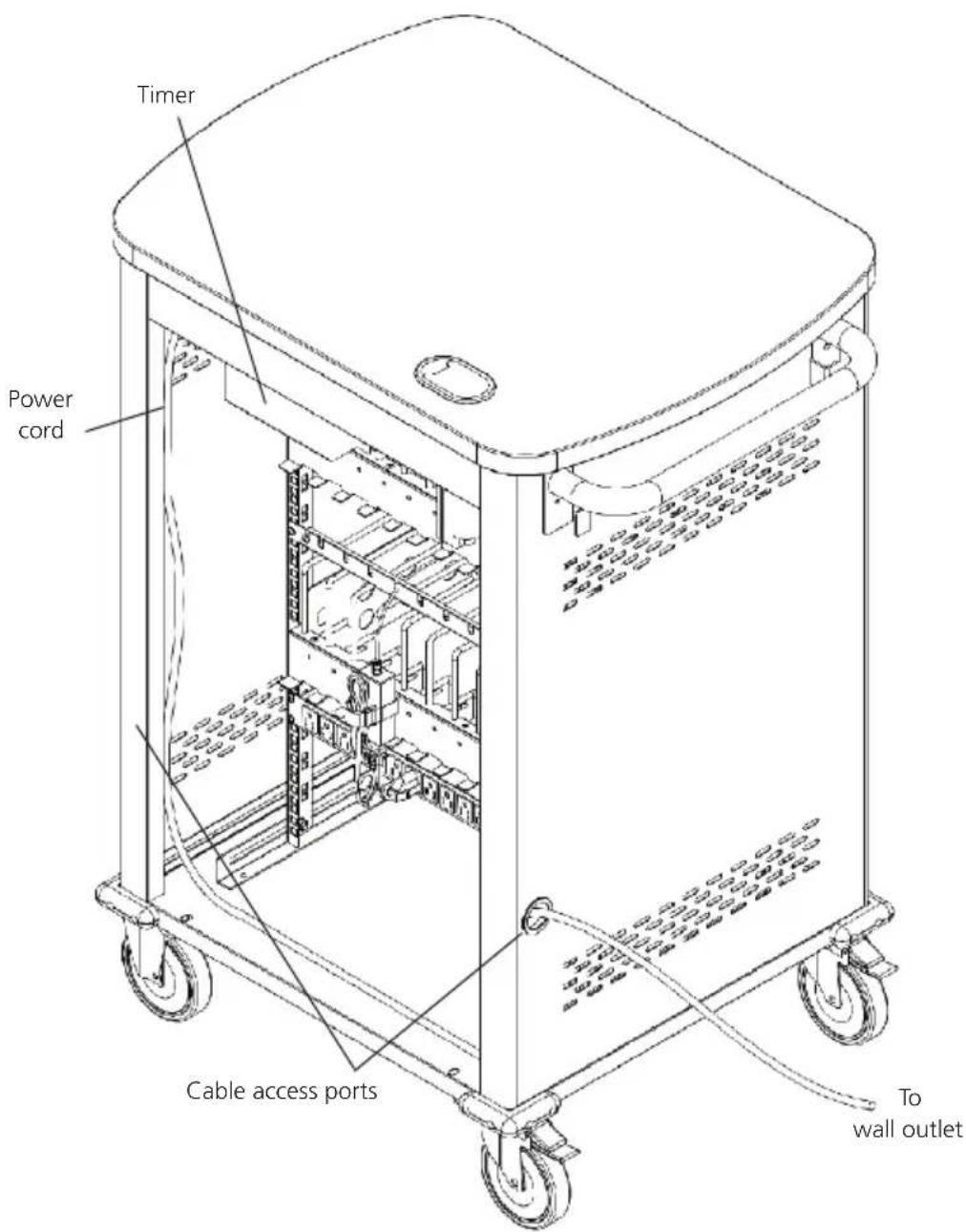
Figure 4-1. Plug the cart into the wall.
4.3 Timer Instructions
Before using your timer:
- For your safety, we recommend that a qualified electrician test the circuit you will plug the cart into. The circuit should be checked for ground integrity and appropriate branch circuit protection.
- The cart's ground prong must be present for safe operation. If the plug is damaged or if the ground prong has been removed, it should be replaced by a qualified electrician.
- Using the cart, including plugging it in or unplugging it, plugging in or unplugging the laptop(s) or other electrical equipment, or operating the control switch must be done with adult supervision.
The timer comes preset from the factory to alternate power between the power strips at 15-minute intervals.
All power strips cannot charge simultaneously.
By plugging the cart power cord into an approved outlet and flipping the red switches located on the timer and power strips, the cart will begin charging.
To end power, turn the red switch on the timer off and unplug the cart from the wall outlet.
Black Box Tech Support: FREE! Live. 24/7.
Tech support the way it should be.

natural_image
Close-up portrait of a smiling man with short hair, holding a small object (no visible text or symbols)Great tech support is just 60 seconds away at 724-746-5500 or blackbox.com.

BLACK BOX®
About Black Box
Black Box Network Services is your source for an extensive range of networking and infrastructure products. You'll find everything from cabinets and racks and power and surge protection products to media converters and Ethernet switches all supported by free, live 24/7 Tech support available in 60 seconds or less.
© Copyright 2016. Black Box Corporation. All rights reserved.
UCCSM20T, version 6



- Important Safety Information
- Electrical Precautions
- FEDERAL COMMUNICATIONS COMMISSION AND INDUSTRY CANADA RADIO FREQUENCY INTERFERENCE STATEMENTS
- Table of Contents
- Specifications
- Overview
- Introduction
- What's Included
- Hardware Description
- Configuration and Setup
- Installing the Handle
- Routing the Cable (UCCSS20T, UCCSS20H, UCCSS30T, UCCSS30H)
- Installing the Cambrionix PowerPad 15S Syncing Units (UCCSS30H-S and UCCSS30T-S Only)
- HASP Option (UCCSM-10-30H-HASP and UCCSM-10-30T-HASP)
- Pop-Up Power Port Option (UCCSM-10---SM-10-30HP Only)
- Standoff Brackets Option
- Display Tour
- To Begin Charging
- Basic Functions
- Charge Button
- Manage Button
- Auxiliary Power Button
- Charging Port LEDs
- Power Icon
- Reset Button
- Basket Distribution System
- Timer Instructions
- BLACK BOX®
- About Black Box
Brand : Black Box
Model : UCCSM27H-ILC
Category : Unspecified