VOI-8002 - Router LEVELONE - Free user manual and instructions
Find the device manual for free VOI-8002 LEVELONE in PDF.


| Product Type | Router |
| Brand | LevelOne |
| Model | VOI-8002 |
| Dimensions (W x D x H) | 200 x 150 x 30 mm |
| Weight | 0.5 kg |
| Power Supply | 12V DC, 1A |
| Wireless Standards | 802.11b/g/n |
| Wireless Speed | Up to 300 Mbps |
| Frequency Band | 2.4 GHz |
| LAN Ports | 4 x 10/100 Mbps |
| WAN Port | 1 x 10/100 Mbps |
| Firewall | SPI, NAT, VPN passthrough |
| VPN Support | PPTP, L2TP, IPsec |
| Antenna Type | 2 x fixed external antennas |
| Security Features | WPA/WPA2, WEP, MAC filtering |
| Operating Temperature | 0°C to 40°C |
| Storage Temperature | -20°C to 60°C |
| Humidity | 10% to 90% non-condensing |
| LED Indicators | Power, WAN, LAN, WLAN |
| Maintenance | Keep clean and dry; avoid dust and liquids |
| Safety Warnings | Use only supplied power adapter; avoid water |
| Spare Parts & Repairability | No user-serviceable parts; contact support for repairs |
| Manual Language | English |
Frequently Asked Questions - VOI-8002 LEVELONE
User questions about VOI-8002 LEVELONE
0 question about this device. Answer the ones you know or ask your own.
Ask a new question about this device
Download the instructions for your Router in PDF format for free! Find your manual VOI-8002 - LEVELONE and take your electronic device back in hand. On this page are published all the documents necessary for the use of your device. VOI-8002 by LEVELONE.
USER MANUAL VOI-8002 LEVELONE
text_image
level® oneVOI-8001
VOI-8002
VOI-8003
8-Port H.323/SIP VoIP Gateway
User Manual
Table of contents
CHAPTER 1. INTRODUCTION ...... 3
1.1 OVERVIEW 3
1.2 PACKAGE CONTENTS....3
1.3 KEY FEATURE 4
CHAPTER 2 GETTING STARTED .... 5
2.1 FRONT PANEL 5
2.2 REAR PANEL 6
CHAPTER 3 CONFIGURATION....7
3.1 CONNECTION 8
3.2 SYSTEM STATUS 10
3.3 REGISTER SERVER 11
3.4 VoIP CALL OUT....12
CHAPTER 4 WEB UI MANAGEMENT 14
4.1 ACCESS TO WEB UI 14
4.2 WEB UI MANAGEMENT 15
4.2.1 Overview 15
4.2.3 Register Server Setting 54
4.2.4 Auto Provision function 60
4.2.5 Advance Setup 62
4.2.6 Application....74
4.2.7 System....76
4.2.8 Route Function(/System Setup) 85
4.2.9 Backup/Restore 108
4.2.10 Save Modification....111
Chapter 1. Introduction
1.1 Overview
The VOI-800x series VoIP Gateway is equipped with 8 standard phone ports, one 10/100BaseTX Fast Ethernet WAN port, and three 10/100BaseTX Fast Ethernet LAN ports. With the integration of both voice and data, the offers ability to route data information into network solution
VoIP Gateway has voice support that includes Quality of Service (QoS), voice compression, echo cancellation, dynamic latency (jitter) buffers, silence suppression, and comfort noise generation.
The VoIP Gateway is compatible with xDSL and Cable-modem Broadband service providers with built-in support for DHCP Client, MAC Address Cloning, PPPoE and multiple auto-provisioning methods.
1.2 Package Contents
- 8-Port VoIP Gateway
- CD User Manual
- Cat.5 Cable
- Power Adapter, 12VDC / 1.6A
Model No List
VOI-8001 8-Port FXS VoIP Gateway
VOI-8002 8-Port FXO VoIP Gateway
VOI-8003 4FXS+4FXO VoIP Gateway
1.3 Key Feature
VoIP
■ Support 8 simultaneous VoIP calls
■ Support T.38 FAX relay
■ Support QoS(ToS) for VoIP
- Compliant with H.323 / SIP VoIP standard protocol
■ Extensible by external IVR/CDR/Billing servers for value-added application
■ Support register up to 4 Gatekeepers / Proxy servers
■ Support worldwide off net call by ITSP service
■ Support Multiple dialing plan / Call hunting group
■ Adaptive Jitter Buffer function
- Multiple call profile for adjust VAD, Audio CODEC, H.245 tunneling, DTMF In/Out band, FAX relay, Frame Size, Q.931 Fast start parameters
VoIP Gateway
■ Support static and dynamic IP from DHCP, PPPoE
■ Built-in DHCP Server
■ Support TCP/UDP Port Mapping (Local Server Mapping)
■ Support User-definable Static Routing Table
■ Support Network Access Rules (LAN-to-WAN & WAN-to-LAN)
■ Self-Protection against DoS Attacks
■ Dynamic DNS Support
■ WAN: 10/100Mbps RJ-45 connector, auto-sensing
■ LAN: 3-port 10/100Mbps Ethernet Switch. (Auto MDI-II/MDI-X)
■ VoIP: 8 port FXO/FXS ports
■ LED Indicators : Power, Status, Ready, WAN linking, 3X LAN linking, Phone, Line
- Supported Protocol: UDP, TCP, Standard H.323,SIP, NAT,BOOTP, TFTP, FTP, HTTP, TELNET, IEEE 802.3/ IEEE 802.3u
- Selectable Coders: G.711, G.723.1, G.726, G.729A
- DTMF / Call progress tone detection and generation
■ G.168 echo cancellation
■ 1 Reset button for load factory default IP parameters setting
- User friendly Web configure interface
- Configuration/Upgrade Web and APS (Auto Provision Server)
■ Build-in watching dog for auto recovery
Chapter 2 Getting Started
2.1 Front Panel
VOI-8001

(Ready) Flash: It means when the VoIP Gateway registration fail.
(Ready) Constant: It means when the VoIP Gateway registration successes.
(Status): This LED will flash quickly when the VoIP Gateway is either performing a self test of booting up.
(Power): The LED light on when power on.
Note:
VOI-8001 displays 1\~8 Phone LED only
VOI-8002 displays 1\~8 Line LED only
VOI-8003 displays 1\~4 Line and 5\~8 Phone LED only
2.2 Rear Panel
VOI-8001

text_image
LAN WAN 1 2 3 LAN2 LAN3 WAN 8 FXS P8 P7 P6 P5 P4 P3 P2 P1 DC12VVOI-8002

text_image
LAN 1 2 3 WAN LAN0 LAN1 LAN2 WAN 8 FXO 18 17 16 15 14 13 12 11 DC12VVOI-8003

text_image
LAN WAN 1 2 3 LAN2 LAN3 4 FXS 4 FXO P8 P7 P6 P5 L4 L3 L2 L1 LAM RESET LAN1 WAN DC12VDC12V: For the included power adapter. Be sure to use only the 12VDC/1.6A power adapter included with the product. Using the wrong power adapter can damage the product and void the warranty.
Reset: Clear all settings and restore them to the initial values present when the device was purchased. After performing the reset, make sure to redefine the IP settings for the device in the 'Connection'.
WAN: A 10/100 dual-speed Ethernet port fitted with an RJ-45 connector used to connect the to WAN device (usually a DSL / Cable Modem).
LAN 1\~3: Three of 10/100 dual-speed Ethernet port fitted with an RJ-45 connector used to connect the VoIP Gateway to a LAN device.
Phone [P]: Normal RJ-11 phone jacks used to connect analog telephones and fax machines.
Line [L]: Normal RJ-11 phone jacks used to connect analog phone line or PSTN (landline)
Note:
Do not place heavy objects on the VoIP Gateway. Placing the VoIP Gateway in a well ventilated area is very important. Not doing so may cause damage to the unit.
Chapter 3 Configuration
The default setting of DHCP Server inside VoIP Gateway is turn ON, So please set up your PC TCP/IP network as "Get IP Automatically" from DHCP to get internal IP from VoIP Gateway. By default, The VoIP Gateway will become the network gateway and default IP is 192.168.22.1 and will assign your PC IP as 192.168.22.X.
Please go to "Control Panel"→"Network". In the "Configure" page, choose the TCP/IP of LAN card, and press "Properties" please choose "Obtain IP Address Automatically"
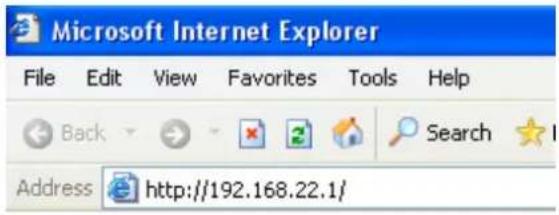
Launch your browser and open the Internal UI WAP page as http://192.168.22.1
text_image
Microsoft Internet Explorer File Edit View Favorites Tools Help Back Search Address http://192.168.22.1/The default User name is voip
The default Password is 1234
3.1 Connection
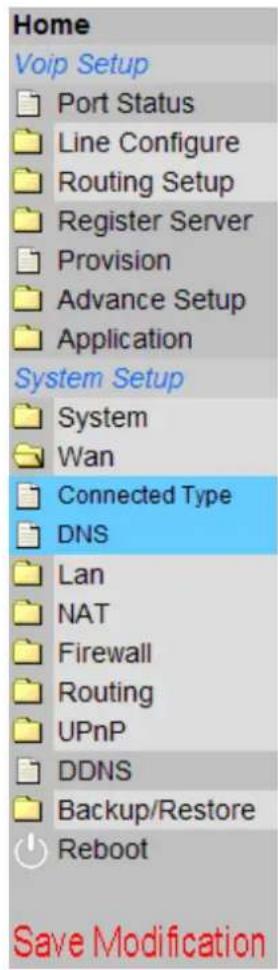
Click "Connected Type" option below "System Setup\Wan" item:
text_image
Home Voip Setup Port Status Line Configure Routing Setup Register Server Provision Advance Setup Application System Setup System Wan Connected Type DNS Lan NAT Firewall Routing UPnP DDNS Backup/Restore Reboot Save ModificationPlease select the type of Internet connection you have and set up the VoIP Gateway to use the Dynamic IP Address, Static IP Address, PPPoE, PPTP or L2TP connection.
If your ISP has not given you an IP address, select Dynamic IP Address (default). If you have been given a specific IP address, select Specify an IP Address.
Connected Type
| ● | Dynamic IP Address | Obtain an IP address automatically from your service provider. |
| ○ | Static IP Address | Uses a static IP address. Your service provider gives a static IP address to access Internet services. |
| ○ | PPPoE | PPP over Ethernet is a common connection method used for xDSL |
| ○ | PPTP | PPP Tunneling Protocol can support multi-protocol Virtual Private Networks (VPN). |
| ○ | L2TP | Layer 2 Tunneling Protocol can support multi-protocol Virtual Private Networks (VPN). |
To use Static-IP ADSL connection, please select "Static IP Address" and enter WAN IP settings.
Static IP

text_image
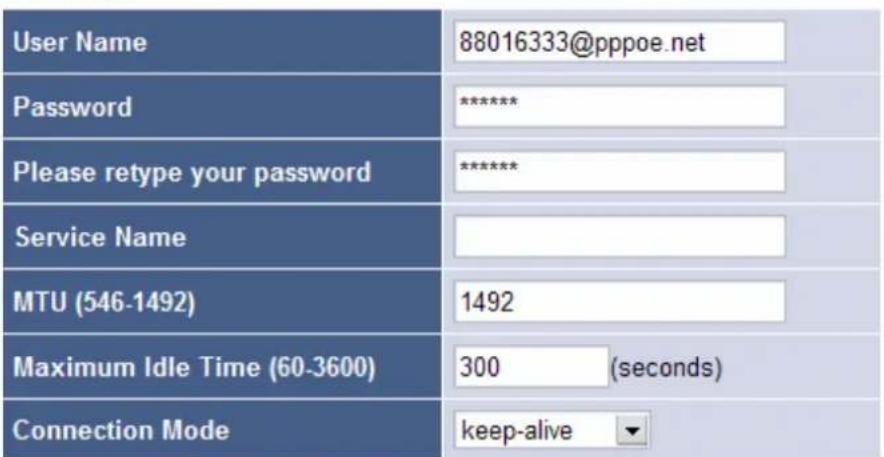
IP address assigned by your ISP 172 . 16 . 28 . 50 Subnet Mask 255 . 255 . 0 . 0 ISP Gateway Address 172 . 16 . 7 . 1 MTU(576-1500) 1500 Does ISP provide more IP addresses? □ YesTo use PPPoE ADSL connection, please select Yes in use “PPPoE” ADSL service and enter the “username” and “password” in the PPPoE setup section. Most of ADSL ISPs assign dynamic-IP settings to the VoIP Gateway when using PPPoE. Please select Obtain IP Address Automatically(default setting). You can leave the Primary and Secondary DNS IP settings in default. The VoIP Gateway automatically obtains these settings from your ISP when the PPPoE connection is successfully established.
PPPoE
text_image
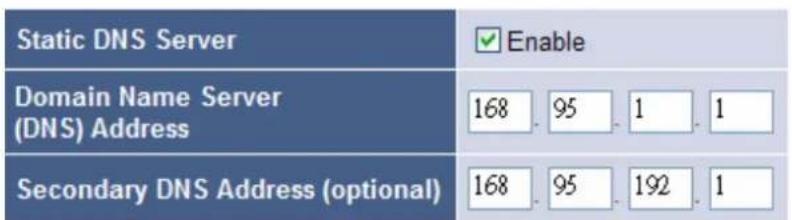
User Name 88016333@pppoe.net Password ****** Please retype your password ****** Service Name MTU (546-1492) 1492 Maximum Idle Time (60-3600) 300 (seconds) Connection Mode keep-alive ▼Please remember to setting the Primary and Secondary DNS IPs, supplied by your ISP
DNS
text_image
Static DNS Server Enable Domain Name Server (DNS) Address 168 95 1 1 Secondary DNS Address (optional) 168 95 192 13.2 System status
This page reveals the status of the VoIP Gateway including WAN, LAN and some hardware/firmware information.
System Status
| INTERNET | |
| Refresh | |
| Cable/DSL | Connected |
| WAN IP | 172.16.7.147 |
| Subnet Mask | 255.255.0.0 |
| Gateway | 172.16.7.1 |
| DNS | 168.95.192.1 |
| Secondary DNS | 168.95.1.1 |
| Domain Name | |
| Connection Type | Dynamic IP |
| Connection Time | 01:29:06 |
System Status
| INTERNET | Refresh | |
| Cable/DSL | Connected | |
| WAN IP | 172.16.7.147 | |
| Subnet Mask | 255.255.0.0 | |
| Gateway | 172.16.7.1 | |
| DNS | 168.95.192.1 | |
| Secondary DNS | 168.95.1.1 | |
| Domain Name | ||
| Connection Type | Dynamic IP | |
| Connection Time | 01:29:06 | |
3.3 Register Server
If this VoIP Gateway wants to use SIP Proxy or GateKeeper service to transfer the VoIP call, you can input the server information here. The VoIP Gateway can register to up to four servers simultaneously.
This page reveals the status of the server registration information.
Register Status
MAC:00:11:6b:00:11:22

flowchart
graph LR
    RS1["RS1"] --> RS2["RS2"]
    RS2 --> RS3["RS3"]
    RS3 --> RS4["RS4"]
    RS1 --> SIP["SIP"]
    RS2 --> SIP2["SIP"]
    RS3 --> SIP3["SIP"]
    RS4 --> SIP4["SIP"]
    070233333["070233333"] --> Disable["Disable"]
    Disable --> Disable1["Disable"]
    Disable1 --> Disable2["Disable"]
    Disable2 --> Disable3["Disable"]
    Disable3 --> Reload["Reload"]
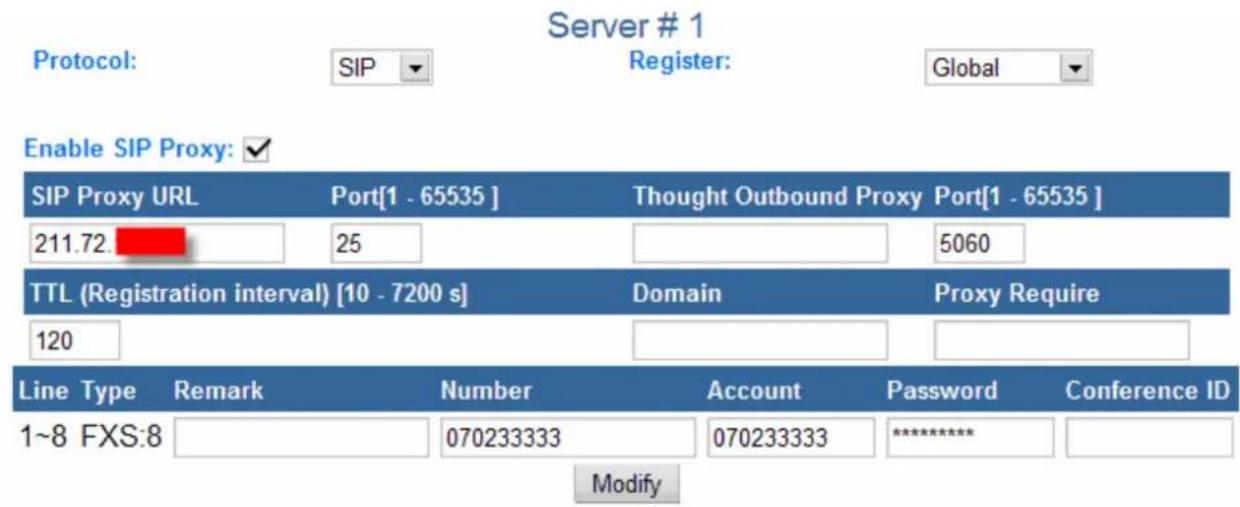
Here is the server configuration page, please ask the information form your ITSP.
text_image
Server # 1 Protocol: SIP Register: Global Enable SIP Proxy: ✓ SIP Proxy URL Port[1 - 65535] Thought Outbound Proxy Port[1 - 65535] 211.72. 25 5060 TTL (Registration interval) [10 - 7200 s] Domain Proxy Require 120 Line Type Remark Number Account Password Conference ID 1~8 FXS:8 070233333 070233333 ********** ModifyRemark: For Notify remark for this rule. Please use UNDERLINE to replace the SPACE due to HTTP protocol limitation.
3.4 VoIP Call Out
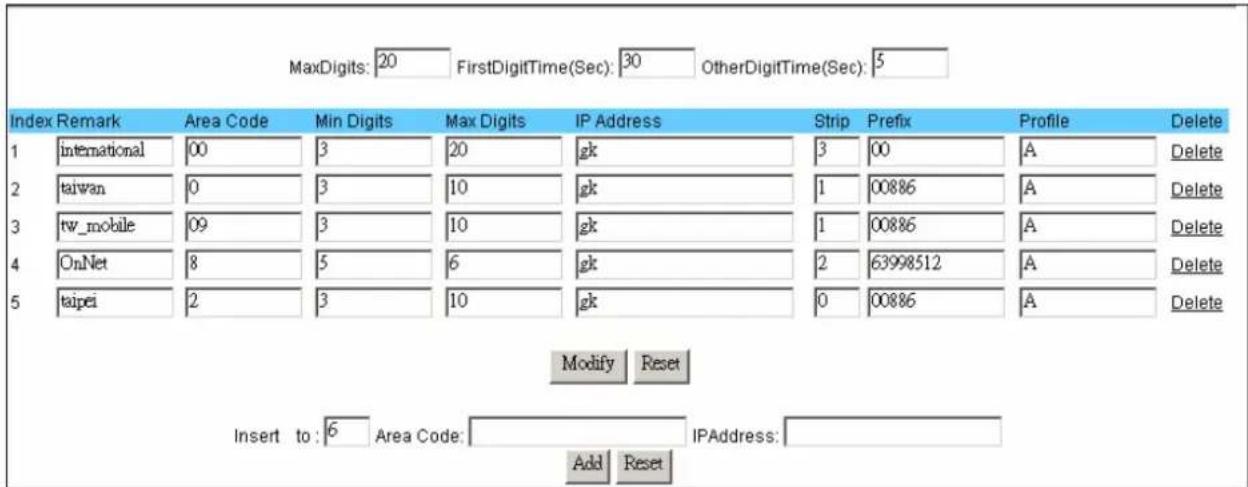
User key in the phone number through phone set dial pad, then VoIP Gateway translate the phone number by the routing table setting here to destination IP & dial out number then Call out via network protocol
text_image
MaxDigits: 20 FirstDigitTime(Sec): 30 OtherDigitTime(Sec): 5 Index Remark Area Code Min Digits Max Digits IP Address Strip Prefix Profile Delete 1 international 00 3 20 gk 3 00 A Delete 2 taiwan 0 3 10 gk 1 00886 A Delete 3 tv_mobile 09 3 10 gk 1 00886 A Delete 4 OnNet 8 5 6 gk 2 63998512 A Delete 5 taipei 2 3 10 gk 0 00886 A Delete Modify Reset Insert to: 6 Area Code: IPAddress: Add ResetRemark: For Notify remark for this rule. Please use UNDERLINE to replace the SPACE due to HTTP protocol limitation.
Area Code: Define the Prefix number fit this rule, any phone number prefix digits matched with the rule will call out by this rule define. Please Notify there is a compare order rule on this routing table. That mean the VoIP Gateway will check the rule list from top to bottom one by one, any rule item matched with the prefix digits that user key in will go to call out directly no regard to the rest rules below. For Example, if a rule item for area code 8862 is on Index 5, another rule item for area code 886 on Index 6 below that will be ignored.
Min Digits: The length of the dialed number should not less than this digits. For example, if the field is entered into '3', the length of the dial number should be 3 digits at least.
Max Digits: The length of the dialed number should not more than this digits. For example, if the field is entered into '10', the length of the dial number should be 3 digits at most.
a. IP Address: Define the destination IP for call out number fit this rule, user can input below format:
■ IP address, for example: 168.56.9.22
URL, route via URL. For example: www.freeworlddialip.com .This VoIP Gateway can setup to register to DDNS service (/System Setup /Advanced/ Dynamic DNS/) to let user call out to another VoIP Gateway with dynamic IP by URL.
■ rsn, route via server, it will get the destination IP by server setting (/VoIP Setup/Register server/) in advance. For example: rs1 for server 1. rs2 for server 2. rs for all the server available (search sequence: rs1 > rs2 > rs3 > rs4). rs3_2_1 will try rs3 first, then rs2, then rs1.
IP address, for example: 168.56.9.22
All the setting above can be added by port number, for examples:
168.56.9.22:8495 will call to 8495 port.
Strip: the number of digits will be ignored by user input. For example, if user key in the number is 886212345678 and the STRIPE field is setting to 4, the first 4 digits 8862 will be truncated and actually call out number will be 12345678.
Prefix: The numbers will be added on the prefix of user key in number. For examples, if user key in the number is 12345678 and the PREFIX field is setting to 0028862, the actually call out number will be 002886212345678. Another example, if user key in the number is 90, STRIP field is setting to 2, and the PREFIX field is setting to 0,12345678, the actually call out number will be 0,12345678 ( , mean wait 1 second). This example is especially for speed dial function.
To add new rule item on routing table, please assign the item number you want to insert before, input AREA CODE and IP address then press ADD button to add it on the list. Then modify the necessary information on the routing table list.
Please remember to press the modify button to take it effect. For store back to flash memory, please press "Save Modification".
Chapter 4 Web UI Management
4.1 Access to Web UI
The VoIP Gateway provide user friendly Web interface to let you configure your VoIP Gateway function
The default setting of DHCP Server inside VoIP Gateway is turn ON, So please set up your PC TCP/IP network as "Get IP Automatically" from DHCP to get internal IP from VoIP Gateway. By default, The VoIP Gateway will become the network gateway and default IP is 192.168.22.1 and will assign your PC IP as 192.168.22.X.
Please go to "Control Panel"→"Network". In the "Configure" page, choose the TCP/IP of LAN card, and press "Properties" please choose "Obtain IP Address Automatically"
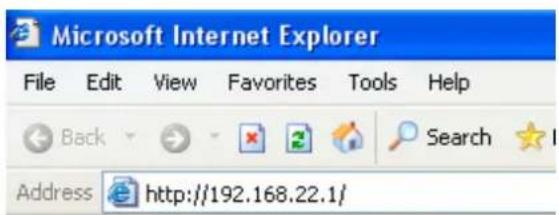
Launch your browser and open the VoIP Gateway Internal UI WAP page as http://192.168.22.1
text_image
Microsoft Internet Explorer File Edit View Favorites Tools Help Back Search Address http://192.168.22.1/The default User name is voip The default Password is 1234
4.2 Web UI Management
The VoIP Gateway provide user friendly Web interface to let you configure your VoIP Gateway function and VoIP function. There are a help on line content within each setting page. Please press Help hyperlink to view the on line help. There are 3 main functions for web, VoIP, System Setup (VoIP Gateway) & System maintenance. Each function is setup by the function below:
4.2.1 Overview
Route function
- Connection (Setting WAN connecting)
- LAN Setting
- Firewall Basic setup
• Networks System Status Display
• Dynamic DNS Setting - DHCP Server Setting
• Static Routing Setting - Local Server Setting
- DMZ Setting
VoIP function
- Port Status Display
• Line Configure Setting - Line Setting
- Tone Setting
• VoIP Call Out Routing Table Setting
• VoIP Call In Routing Table Setting - VoIP Call In IVR
• VoIP Routing Profile Setting
• VoIP Forwarding Profile Setting - Authorization
- Register Status
System Maintenance function
- Configurations Backup/Restore
• VoIP Module Backup/Restore - Reboot System
- Save Modification
Gateway Manual overview

text_image
Home Voip Setup Port Status Line Configure Routing Setup Register Server Provision Advance Setup Application System Setup System Wan Connected Type DNS Lan NAT Firewall Routing UPnP DDNS Backup/Restore Reboot Save Modification4.4.2.1 VoIP Setup/ Port Status/
Port Status
| PC Time: Tue Aug 15 10:17:23 UTC+0800 2006 Gateway Time:1970/01/01 AM 00:07:49A. Port Message | ||||||||||
| Port | Type | Display name | Status | Connected IP | Caller ID | Start Time | End Time | Talking Sec | Dialed number | Release by |
| 1 | FXO | Idle | ||||||||
| 2 | FXO | Idle | ||||||||
| 3 | FXO | Idle | ||||||||
| 4 | FXO | Idle | ||||||||
| 5 | FXO | Idle | ||||||||
| 6 | FXO | Idle | ||||||||
| 7 | FXO | Idle | ||||||||
| 8 | FXO | Idle | ||||||||
| Reload | ||||||||||
| B. Error Message | ||||||||||
| Display name | Connected IP | Caller ID | Start Time | End Time | Dialed number | Release by | ||||
B. Error Message
| Display name | Connected IP | Caller ID | Start Time | End Time | Dialed number | Release by |
This page will display the current and last time VoIP call status & result.
a. The PC time : will show the date & time that your connected PC now.
b. The VoIP Gateway time : will show the date & time on this VoIP Gateway, the date& time may get from SNTP server or setting from your PC. You may set the SNTP server from /System Setup/Administrator/Date & Time/.
A. Ports Message
a. Port: display the port number, e.g. 1 or 2.
b. Type: Telephone interface type:
■ FXO: (DAA interface) for connect to telephone line or PBX extension line.
■ FXS: (SLIC interface) for connect to regulate phone set.
c. Display Name: display the remote party name of this VoIP call.
d. Status: Current status of this port.
■ Idle: Standby for make a phone call.
■ Signal: Waiting for DTMF press or VoIP protocol connecting.
In: There is a phone call made from phone port and call out to Network by VoIP.
■ Out: There is a phone call made from Network VoIP and pick up by phone set.
e. Connected IP: The remotely party IP of this VoIP call.
f. Caller ID: Caller ID received from telephone line port.
g. Start Time: Date & time of this VoIP call begin on this port.
h. End Time: Date & Time of last VoIP call End on this port.
i. Talking Sec: Total talked seconds of last VoIP call on this port.
j. Dialed number:
- On the VoIP call out (line status display "In"). This will display the real dial out number for VoIP call.
- On the VoIP call in (line status display "Out"). This will display the number will dial out to phone line.
■ Release by: This will display the reason of this call termination.
B. Error Message
For some reason,(ex. All lines of this VoIP Gateway are busy) here will display the failure information about the last failure VoIP Call.
4.2.2.2 VoIP/ Line Configure/ Line Setting
/VoIP Setup/Line Configure/Line Setting/ Line Setting
| Port | Interface Name | Line Number | TxGain | RxGain | InBound | OutBound | HotLine | ||||||
| 1 | FXO | 1 | 1 | 0 | db | 0 | db | Enable | ▼ | Enable | ▼ | Disable | ▼ |
| 2 | FXO | 2 | 2 | 0 | db | 0 | db | Enable | ▼ | Enable | ▼ | Disable | ▼ |
| 3 | FXO | 3 | 3 | 0 | db | 0 | db | Enable | ▼ | Enable | ▼ | Disable | ▼ |
| 4 | FXO | 4 | 4 | 0 | db | 0 | db | Enable | ▼ | Enable | ▼ | Disable | ▼ |
| 5 | FXO | 5 | 5 | 0 | db | 0 | db | Enable | ▼ | Enable | ▼ | Disable | ▼ |
| 6 | FXO | 6 | 6 | 0 | db | 0 | db | Enable | ▼ | Enable | ▼ | Disable | ▼ |
| 7 | FXO | 7 | 7 | 0 | db | 0 | db | Enable | ▼ | Enable | ▼ | Disable | ▼ |
| 8 | FXO | 8 | 8 | 0 | db | 0 | db | Enable | ▼ | Enable | ▼ | Disable | ▼ |
This page will setup the phone line information each port.
a. Port: display the port number, e.g. 1 or 2.
b. Interface: Telephone interface type:
■ FXO: for connect to telephone line or PBX extension line.
■ FXS: for connect to regulate phone set
a. Name: Line name for this port. This will send and display on the remote side during VoIP call
b. Line number: Telephone number assigned to this line.
c. TxGain: Transmitter Gain. This will adjust the speaker volume of local phone set. The adjust range is from +3 to -13dB. Higher value will cause louder sound come from local phone set.
d. RxGain: Receiver Gain. This will adjust the microphone volume of local phone set. The adjust range is from -3 to +13dB. Higher value will increase amplifier the sound get from local phone set.
e. Inbound: Enable or disable the VoIP call to Internet. Disable the inbound option will not allow any call made from phone set to Internet.
f. Outbound: Enable or disable the VoIP call from Internet. Disable the Outbound option will not allow any call made from Internet to phone set.
g. Hotline: When Enable, it will allow you to make a VoIP call without Press any number. That mean it will direct call out by VoIP when you off hook the phone of this line.
For example, if you want line 1 to become a hot line for VoIP call, every time
when you off hook the phone connected to the line 1, it will directly call to another VoIP gateway location at 168.56.09.22 and dial 601. You can enable the line 1 as hot line, and add a routing rule on the routing table on / VoIP Setup/ Routing Setup/ VoIP Call Out/ to assign the AREA CODE to h11 to handle the VoIP Gateway rule for hot line function. And please also remember to Strip 3 digits to stripe the "h11" symbol and remember add real phone number you want to dial on Prefix. In this case, the setting example on call out routing (/ VoIP Setup/ Routing Setup/ VoIP Call Out/) for hot line application is as below:
| Index | Remark | Area Code | IP Address | Strip | Prefix Profile Delete | |
| 1 | Hot_Line_Call | HI1 | 10.1.1.1 | 3 | 601 | Delete |
4.2.2.3 Line configure/ Tone Setting
/VoIP Setup/Line Configure/ Tone Setting

text_image
Tone Setting A. Call Progress Tone Detect Tone Busy Cycle: 2 Tone Type Low Freq High Freq T_ON_1 T_OFF_1 T_ON_2 T_OFF_2 1 Busy 480 0 500 500 0 0 2 Ring 480 0 1000 2000 0 0 3 Dial 480 0 5000 0 0 0 4 Busy 480 0 250 250 0 0 Modify Reset B. Insert new Tone Insert To: 5 Add Delete ResetA. Call Progress Tone
This page defines the tones generated to the phone connected to the phone port. The cadence of CPT is been defined here also. All lines use same tone parameters. After modify the tone parameters, you must save modify then Reboot to let the modified parameters work.
- Detect Voice Busy Cycle: Use the parameters to automatic detect cadence busy tone. When detected a voice cadence repeat over the number setting in sequence, the VoIP Gateway will treat it like busy tone and disconnect automatically. Please do not set this parameter less than 5 to avoid unexpected erroneous disconnect.
B. Tone define Table
You can set up to 15 tones set for generation. For the generation, the first entry will be used. The call progress tones, ranging from 300 Hz to 2000 Hz. Tone: Maximum 15 tones can be defined.
a. Type:
■ Dial: Define the generated dial tone.
■ Busy: Define the busy tone for generate.
■ Ring: Define the ring back tone for generate
b. Low freq: Lower frequency for defined tone
c. High freq: Higher frequency for defined tone. Each tone can define two frequencies, if only one frequency needed, please leave High Frequency to 0.
d. T_ON_1, T_OFF_1, T_ON_2, T_OFF_2:
■ The cadence pattern of up to four intervals for each dual-frequency. Minimum Cadence value is 30msec.

text_image
T_ON_1 T_ON_2 T_OFF_1 T_OFF_2 T_on T_off T_on T_off4.2.2.4 Line configure/ Line Feature
text_image
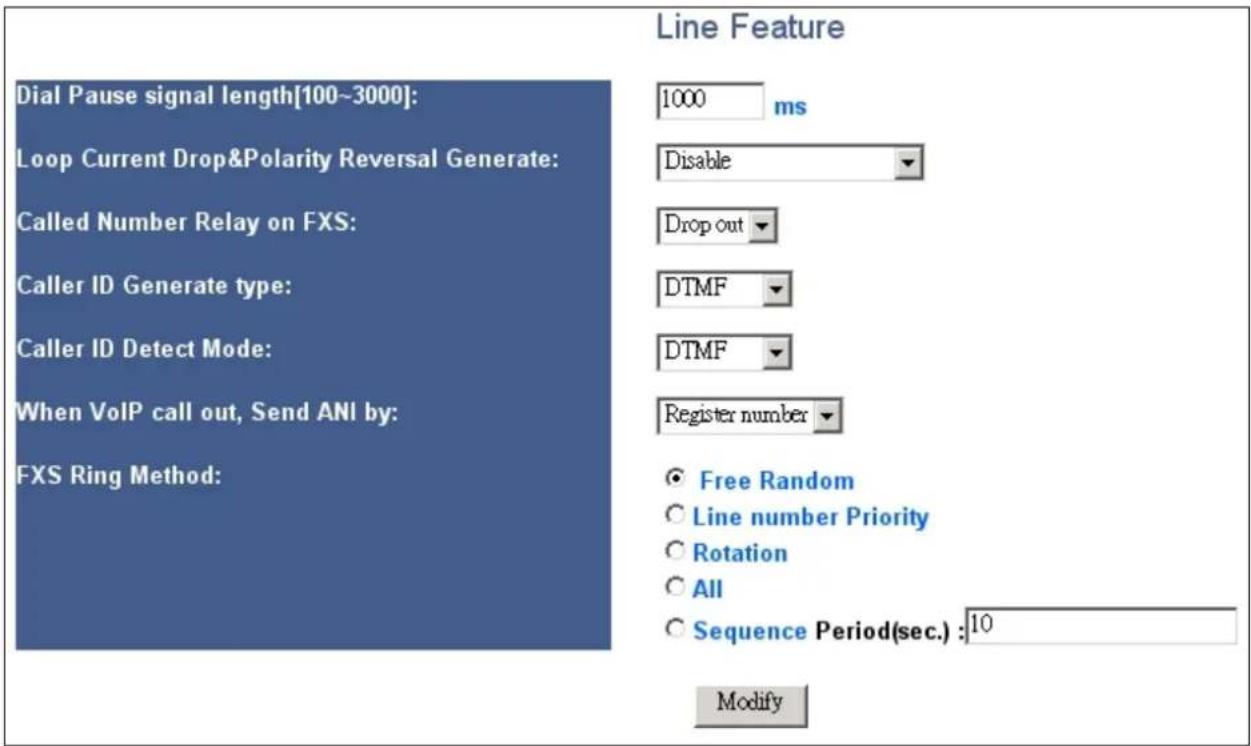
Dial Pause signal length[100~3000]: Loop Current Drop&Polarity Reversal Generate: Called Number Relay on FXS: Caller ID Generate type: Caller ID Detect Mode: When VoIP call out, Send ANI by: FXS Ring Method: Line Feature 1000 ms Disable Drop out DTMF DTMF Register number Free Random Line number Priority Rotation All Sequence Period(sec.) : 10 Modify/VoIP Setup/Line Configure/ Line Feature
This page defines the feature on the phone port of the VoIP Gateway.
A. Dial Pause signal length(as,) [100\~3000] ms:
Define the pause time (ms) of the “,” on the / Routing Setting/ Vol P Call Out/. This pause time is usually for time delay when connect to PBX and used for seize the CO line. The default pause time is 1000ms. The input range is between 100 to 3000 ms. User can use more then one “,” to get longer delay time.
B. Loop Current Drop & Polarity Reversal Generate :
Define the signal generated on local side when remote side disconnects:
● Disable: Disable the Loop current Drop and Polarity Reversal Generate signal, only generate busy tone.
- Polarity Reversal-> Enable: Enable FXS interface to generate the Polarity Reversal Signal.
- Current Drop-> 1 S: Enable FXS interface to generate one second Current Drop signal.
- Current Drop-> 2 S: Enable FXS interface to generate two seconds Current Drop signal.
- Current Drop-> 3 S: Enable FXS interface to generate three seconds Current Drop signal.
C. Called Number Relay on FXS :
Define when use the FXS interface to outbound call, resend or Drop out the dialed number.
- Drop out: Do not send the dialed number. When use the FXS port direct connect to phone set for outbound call, please enable the "Drop out" function to avoid hear the unnecessary dialed number when answer the phone call.
■ Resend: Resend the dialed number. When use the FXS port to connect to PBX line for outbound call, please enable the “Resend” function to redial the destination number by DTMF, this will cause the PBX transfer to the call to the final user.
D. Caller ID Generate type:
Define the Caller ID (CID) signal generate format:
■ Disable: Disable, do not send CID signal.
■ DTMF: Send CID signal by DTMF format.
■ FSK Bell: Send CID signal by FSK Bell format.
■ FSK ETSI: Send CID signal by FSK ETSI format.
E. Caller ID Detect Mode :
Define the CID detect format of FXO interface:
■ Disable: Disable, Do not detect any CID signal
■ DTMF: Enable detect CID signal by DTMF format.
■ FSK Bell: Enable detect CID signal by FSK Bell: format.
■ FSK ETSI: Enable detect CID signal by FSK ETSI: format.
F. When VoIP call out, send ANI by:
Define when VoIP call out, use the below number as the Caller ID (ANI):
■ Register Number: Use the gateway register number as ANI. Line Number: Use the line number setting on the /VoIP Setup/Line Configure/Line Setting/ as ANI.
■ PSTN CID: Use the received Caller ID number from PSTN line as ANI.
G. FXS Ring Method :
Define how the FXS interface to ring the phone line when VoIP call in:
■ Free Random: Any unused available line.
■ Line number Priority: The 1^st line has high priority; it will always ring the 1^st line if it is available. When 1^st line is busy, it will try to ring 2^nd line if it is free.
■ Rotation: 1^st line ring first, then 2^nd line ring next time, when the latest line ring this time, it will come back to ring 1^st line next time.
■ All: Ring all phone lines if it is available.
■ Sequence: Ring all the available phone line one by one, the ring period for ring each phone is definable.
■ Period (sec.): define the ring period (seconds) when select "Sequence" ring.
4.2.2.5 Line configure/ Line Polarity
text_image
Line Polarity 1. ○ Normal ○ Invert 2. ○ Normal ○ Invert 3. ○ Normal ○ Invert 4. ○ Normal ○ Invert 5. ○ Normal ○ Invert 6. ○ Normal ○ Invert 7. ○ Normal ○ Invert 8. ○ Normal ○ Invert Modify Reset/VoIP Setup/Line Configure/ Line Polarity
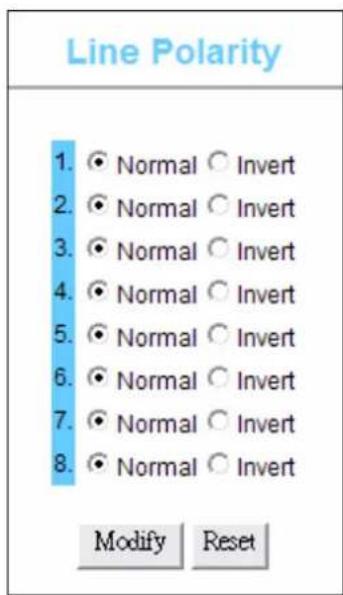
This page defines the Polarity on the phone port of the VoIP Gateway.
If use the normal phone set to connect gateway, please select "Normal". If use PBX or special PSTN line (support polarity invert), then please select "Invert".
Please remember to press the Modify button to take it effect. For store back to flash memory, please press Save Modification (/System Maintenance/Save Modification/).
4.2.2.6 Routing Setup/ VoIP Call Out Setting
text_image
VoIP Call Out A. MaxDigits: 20 FirstDigitTime(Sec): 15 OtherDigitTime(Sec): 5 Timeout for Re-entry route: Disable second. B. Index Remark Area Code Min Digits Max Digits Destination Strip Prefix Profile Delete 1 0951 10 10 potn 2 099 10 10 potn 3 02 10 10 gk 2 00862 4 17 3 3 potn 5 0020 4 4 potn 6 01 9 18 gk 3 00 7 0 6 9 gk 1 0086 8 6 8 gk Modify Reset Insert to: 9 Area Code: IPAddress: Add Reset/VoIP Setup/Routing Setup/ VoIP Call Out
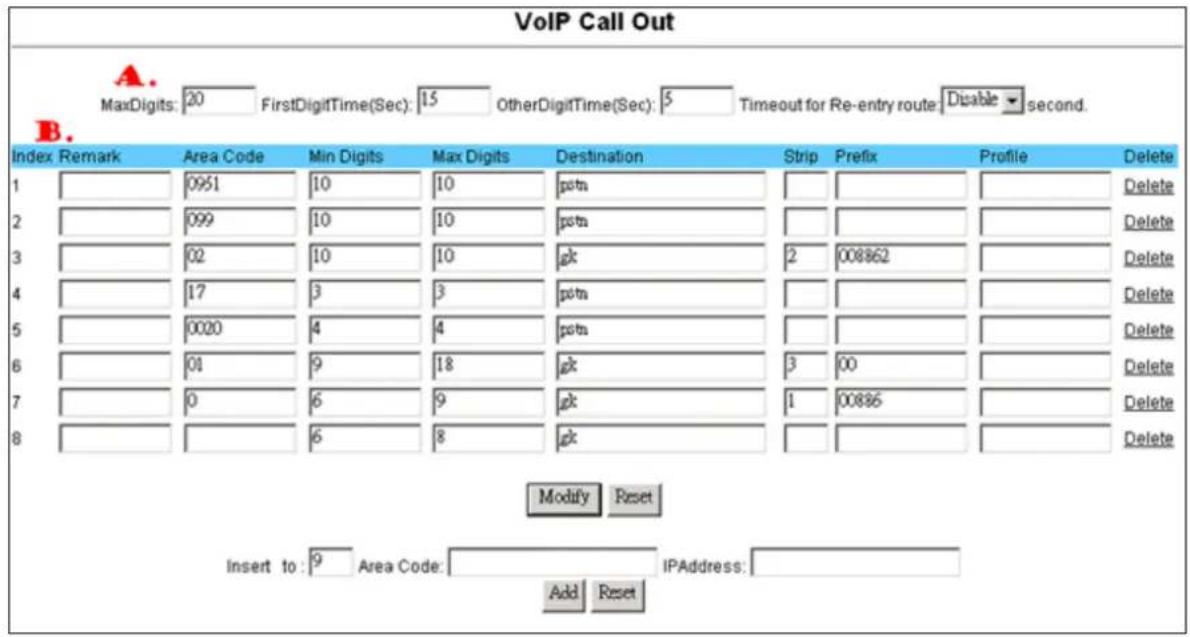
This page let you define the routing rule for Call out to VoIP. (User press the phone number through phone set dial pad, then VoIP Gateway translate the phone number by the routing table setting here to destination IP & dial out number then Call out via network protocol). Here can define some special keyword like IPIVR, PSTN as destination for some special function also.
Each time when you off hook the phone connected to this VoIP Gateway, you will hear a dial tone or prompt voice to remind you to press the phone number, after you input the number you called, if digits of the number of you called is not exceed the Max Digits, please remember to press the # key for ending the input, if you do not press # key for enter, gateway will automatically call out the number after timeout of define on OtherDigitTime.
A. Time & Digits wait for dial out
The VoIP Gateway wait user input the number digits & time parameters as below:
Time & Digits wait for user Press.
a. MaxDigits: Define the maximum digits wait for user press for all VoIP Call Out, if user press digits match the number defined here. It will go to
translate for call out rule without needed to press # key.
b. FirstDigitTime: Define the waiting time (seconds) for user press phone number first digit. User need to press first digits before the setting time (seconds) defined here, if VoIP Gateway wait for the defined seconds and there is no any digits press, the VoIP Gateway will stop to wait and feedback the user busy tone.
c. OtherDigitTime: Define the waiting time (seconds) for user press phone number secondary & the rest digits. User need to press the rest digits before the seconds defined here, if VoIP Gateway wait for the defined seconds and there is no any digits press, it will go to translate for call out rule without needed to press # key.
d. Timeout for Re-entry route: When one of the rules on the VoIP call out rules is matched and be execute, the device will wait the time( seconds) defined here for successful connection, but if time out defined there still failure connection, it will trying to reroute by another call rule setting by the "v"+ the number prefix.
For example as below, when the user try to call the destination number 12345678, it will try to call the gateway location at 168.11.22.33, but if wait 10 seconds and still can not successful connection, the gateway will abort the call and try call out by the PSTN line.
Timeout for Re-entry route: 10 second.
| Index | Remark | Area Code | Min Digits | Max Digits | Destination | Strip | Prefix | Profile | Delete |
| 1 | Normal rule | 8 | 8 | 8 | 168.11.22.33 | ||||
| 2 | Backup rule | v8 | PSTN | Delete |
When user enable the hot line function on /VoIP Setup/Line Configure/Line Setting/ menu, it will over ride the above parameters and direct call out by hot line call out rule.
B. VoIP call out Routing Table
b. Remark: Remark for this routing rule. Please use UNDERLINE to replace the SPACE due to HTTP protocol limitation.
c. Area Code: Define the Prefix number fit this rule, any phone number prefix digits matched with the rule will call out by this rule define. Please Notify there is a compare order rule on this routing table. That mean the VoIP Gateway will check the rule list from top to bottom one by one, any rule item matched with the prefix digits that user press will go to call out directly no regard to the rest rules below. For Example, if a rule item for area code 8862 is on Index 5, another rule item for area code 886 on Index 6 below that will be ignored.
By setting the hIn (h1 for hot line one, h2 for hot line two) on the area code field and enable hot line function (/VoIP Setup/Line Configure/Line Setting/), the VoIP Gateway can service the hot line direct call.
d. Min Digits: define the minimum digits wait for user press for number fit this rule, if user press digits less the number defined here. It will keep waiting for input until exceed the FirstDigitTime defined time. If user press digits more then Min Digits here, the VoIP Gateway will wait time defined on OtherDigitTime then go to translate for call out rule without needed to press # key.
e. Max Digits: define the maximum digits wait for user press for number fit this rule, if user press digits match the number defined here. It will go to translate for call out rule without needed to press # key.
f. Destination: Define the destination IP for call out number fit this rule, user can input below format:
■ IP address, for example: 168.56.9.22
- for sip → please add sip: before ip address, for example sip:168.56.9.22
- for h323 → please add h323: before ip address, for example h323:168.56.9.22
URL, route via URL. For example: sip.fwd.com .This VoIP Gateway can setup to register to DDNS service (/System Setup/Advanced/Dynamic DNS/) to let user call out to another VoIP Gateway with dynamic IP by URL.
■ gkn : route via gatekeeper, it will get the destination IP by gatekeeper setting (/VoIP Setup/Gatekeeper/) in advance. For example: gk1
for gatekeeper 1. gk2 for gatekeeper 2. gk for all the gatekeepers available (search sequence: gk1 > gk2 > gk3 > gk4). Gk3_2_1 will try gk3 first, then gk2, then gk1.
All the setting above can be added by port number, for examples: 168.56.9.22:8495 will call to 8495 port.
■ srn, rsn: same as gkn, basically, it is used for SIP register server.
■ PSTN: route this call via PSTN line interface. This is usually used for the backup route for the rule setting on / Routing setup / VoIP Call out/ with "v" prefix.
■ ipivr: Enter the Network parameter voice interactive setting mode. User can use this function to enter all the WAN network parameters without PC. ( Please refer the application note "IP IVR produce " for more detail procedure ).
■ Idcfg: Restore all parameters to the default values. User can assign a password to use this function to restore all the parameters to the default values.
- rect: Enter to voice record procedure. User can assign a function code for enter the voice record procedure, when press this code to enter the voice record procedure, the device will record 30 seconds voice file and keep on sound wave file (G.711, uLaw), User can download the recorded wave file on /VoIP Setup/ Advance setting/ Prompt Voice/ and used this file to upload for customization voice file or used for busy tone analysis.
■ agent: agent code setting. When a VoIP call in made by this device, it will ring the assigned phone set. If the user want to use the different phone set (connected to same device, but did not ring) to answer the call, just off hook and enter this agent code to redirect the call to this phone you used for talk.
■ lo: assign the route to local loop back. The destination IP of this call will be the local host, i.e.:127.0.0.1
f. Strip: the number of digits will be ignored by user input. For example, if
user press the number is 886212345678 and the STRIP field is setting to 4, the first 4 digits 8862 will be truncated and actually call out number will be 12345678.
g. Prefix: The numbers will be added on the prefix of the user press number. For examples, if user press the number is 12345678 and the PREFIX field is setting to 0028862, the actually call out number will be 002886212345678. Another example, if user press the number is 90, STRIP field is setting to 2, and the PREFIX field is setting to 0,12345678, the actually call out number will be 0,12345678 ("," mean delay 1 second). This example is especially useful for speed dial function.
h. Profile: Define the optional special call out parameters on this destination. Please input the name you defined on the profile (/VoIP Setup/Routing Setup/Routing Profile/) list.
i. Delete: Delete this rule item on routing table.
To add new rule item on routing table, please assign the item number you want to insert before, input AREA CODE and IP address then press ADD button to add it on the list. Then modify the necessary information on the routing table list.
Please remember to press the modify button to take it effect. For store back to flash memory, please press /System Maintenance/Save Modification/.
C. Setting Examples
Here is some VoIP call out routing table setting examples below:
a. Define wait time and digits for destination phone number
MaxDigits: 10 FirstDigitTime(Sec): 30 OtherDigitTime(Sec): 5
In this case, when user picks up the phone, the VoIP Gateway will generate 30 seconds (defined on FirstDigitTime) dial tone for user press DTMF for destination phone number, After user press first digit DTMF from phone set (for example, 0, the VoIP Gateway will wait 5 seconds (defined on OtherDigitTime) to press the rest phone number digits, if user did not press any key within first 30 seconds, the VoIP Gateway will generate the busy tone to terminate the call. After user press first digit and did not key any key within 5 seconds, for example, like 601 it will call out 601 after 5 seconds, but if user press 601#, it will direct call out 601 immediately without waiting rest key.
In this case, the Max Digits is setting to 10, so if user dial 0212345678, 10 digits phone number, it will call out immediately without wait 5 seconds or # key, that mean it will not accept phone number more than 10 digits like 02123456781, if user press that phone number, it still call out the number to 0212345678 because maximum digits for phone number is 10.
b. VoIP call out by IP:
| Index | Remark Area | Code | Min Digits | Max Digits | IP Address Strip | Prefix | Profile Delete | |
| 1 | NY_office | 6 | 172.16.7.1 | Delete |
In this case, we assume that we have another VoIP Gateway locate at New York office and the IP is 172.16.7.1, when we press any phone number prefix is 6 will call to that VoIP Gateway, for example, if we dial 601, the VoIP will Call out 601 to another VoIP Gateway locate at IP 172.16.7.1, you can check the real call out IP and phone number at the VoIP Setup/ Port Status:
Port Message
| Port | Type | Display name | Status | Connected IP | Caller ID | Start Time | End Time | Talking Sec | Dialed number | Release by |
| 1 | FXS | Idle | 172.16.7.1 | 2004/02/19 13:55:10 | 2004/02/19 13:55:43 | 28 601 (146)onHangup | ||||
| 2 | FXS | Idle |
c. Call by Domain name:
| Index | Remark | Area Code | Min Digits | Max Digits | IP Address | Strip | Prefix | Profile | Delete |
| 2 | Jack@SH | 8621 | 4 | 4 | VoipVoIPGateway.dyndns.org | 4 | 013902440272 | Delete | |
| 3 | China | 86 | 2 | 5 | China.proxy.com |
In this case, by route rule 2, we set up a short cut number 8021 for dial out number 013902440272 to another VoIP Gateway, user just press 8021 will cause cut 4 digits (8621) define on Strip, and add the number defined on Strip (013902440272), then call to that gateway(voipVoIP Gateway.dyndns.org) and number(013902440272).
In this case, by route rule 3, we assume we have another VoIP Gateway locate at china.ezvon.com URL, and we use prefix 86 to call out for this gateway, the minimum digits for phone is 2 digits and the maximum phone number digits is 5, any phone number contain over 5 digits will be truncated to 5 digits like 862013 will be truncated to 86201 for call out.
- Caution:
There is order rule on this routing table; the VoIP Gateway will check the route table items by index order one by one. That mean, in above case, if user put the area code item 86(index 1) above 8621(index 2), then the route item 8621 will never been used.
| Index | Remark Area | Code | Min Digits | Max Digits | IP Address Strip | Prefix Profile Delete | ||
| 1 | Take_All | 86 | 10.1.1.1 | |||||
| 2 | Never_Used | 8621 | 20.1.1.1 |
NEVER
d. Strip and Prefix
User is easy to combine using Strip and Prefix define to modify the phone number from phone to real call out phone number, for example, if the VoIP Gateway is installed on Taipei and use another Gatekeeper to service global service. When user just dial 10 digits Taipei phone number like 02-12345678(do not need to press # key because Max Digits setting is 10), and the VoIP Gateway will stripe the 02 (2 digits defined on Strip), add the country code 8862 (defined on Prefix) then send 8862-12345678 out for VoIP call, see below example:
| Index | Remark | Area Code | Min Digits | Max Digits | IP Address | Strip | Prefix | Profile Delete |
| 1 | Taipei | 02 | 10 | Gk | 2 | 8862 |
By above setting, When you dial 0212345678, you can check the real call out IP and phone number will change to 886212345678 at the VoIP Setup/ Port Status:
Port Message
| Port | Type | Display name | Status | Connected IP | Caller ID | Start Time | End Time | Talking Sec | Dialed number | Release by |
| 1 | FXS | Idle | 172.16.7.1 | 2004/02/19 13:55:10 | 2004/02/19 13:55:43 | 28 88 | 6212345678 | (146)onHangup | ||
| 2 | FXS | Idle |
e. Call via Gatekeeper/ SIP Register server
This VoIP Gateway can register up to 4 servers, for example:
| Index | Remark | Area Code | Min Digits | Max Digits | IP Address | Strip | Prefix | Profile | Delete |
| 1 | Via_GK2 | 1 | gk2 | Delete | |||||
| 2 | GK2_3_1 | 2 | gk2_3_1 | Delete | |||||
| 3 | GK_ALL | 3 | gk | Delete |
By Index 1, if user input any phone number with prefix code is 1, The VoIP Gateway will call out via Gatekeeper 2.
By Index 2, if user input any phone number with prefix code is 2, The VoIP Gateway will try to call out by Gatekeeper 2 (if register to Gatekeeper 2 is successful), if Gatekeeper 2 is not available, it will check Gatekeeper 3, then check Gatekeeper 1. That mean if register to gk2 is failure and register to gk3 & gk1 is successful, the VoIP Gateway will call out via gk3.
You can check the Gatekeeper register status on /VoIP Setup/Register Server/ Register Status.
f. Call to different IP port
The default IP port used by VoIP Gateway is 1720 for H.323 and 5060 for SIP, if work with remote side of VoIP Gateway or gateway is change another port number for VoIP, please assign another port number after destination IP or URL. Please make sure both side use same port number for VoIP call, otherwise it can not make call. You can change the VoIP Gateway default listen port on .
| Index | Remark | Area Code | Min Digits | Max Digits | IP Address | Strip | Prefix | Profile | Delete |
| 1 | Port_1719 | 1 | 10.1.1.1:1719 | Delete | |||||
| 2 | Port_8495 | 2 | China.proxy.com:8495 | Delete |
g. Profile:
Define the optional special VoIP parameters when calling to the destination. Please input the name you defined on the profile (/VoIP Setup/Routing Setup/ Routing Profile/) list.
Example: if user set the VoIP Call Out & Routing Profile like below:
| Index | Remark | Area Code | Min Digits | Max Digits | IP Address | Strip | Prefix | Profile | Delete |
| 1 | UsePF1 | 1 | gk1 | PF1 | Delete | ||||
| 2 | UsePF2 | 2 | 10.1.1.2 | PF2 | Delete | ||||
| 3 | UseDefaultPF | 3 | Gate.proxy.com | Delete |
| Index | Name | VAD | CODEC | H.245 Tunneling | DTMF Relay | T.38 FAX Relay | Package Frame | Q.931 Fast Start | |
| ID1 | AS | ID2 | AS | ID3 | AS | ID4 | AS | Delete | |
| 1 | PF1 | ON | G.723.1 | ON | Out band | ON | 3 | ON | |
| 00001 | H.323 | 1001 | E.164 | Delete | |||||
| 2 | PF2 | ON | G.723.1 | ON | In band | ON | 3 | OFF | |
| 00002 | H.323 | 1002 | E.164 | Delete |
When VoIP call out number with prefix 1 will use the Profile named PF1 (H.323 ID1 = 0001, E.164 ID=1001, DTMF Relay=Out band, Q.931 Fast Start=ON) to Call out VoIP.
When VoIP call out number with prefix 2 will use the Profile named PF2 (H.323 ID1 = 0002, E.164 ID=1002, DTMF Relay=In band, Q.931 Fast Start=OFF) to Call out VoIP.
When VoIP call out number with prefix 3, because there is no Profile assigned, it will use the default value for VoIP out.
h. Delete: Delete this rule item on routing table.
To add new rule item on routing table, please assign the item number you want to insert before, input AREA CODE then press ADD button to add it on the list. Then modify the necessary information on the routing table list.
Please remember to press the modify button to take it effect. For store back to flash memory, please press /System Maintenance/Save Modification/.
4.2.2.7 VoIP Call In Routing Table Setting
text_image
VoIP Call In Index Area Code Auth. Strip Prefix Maximum Minimum From To LineNo RS Verify CallWaiting Alert Profile Forward Delete 1 1 5 1 4 0 0 0 0 0 0 0 0 0 0 0 0 0 0 0 0 0 0 0 0 0 0 0 0 0 0 0 0 0 0 0 0 0 0 0 0 0 0 0 0 0 0 0 0 0 0 0 0 0 0 4 Modify Reset Insert to: Area Code: Add Reset/VoIP Setup/Routing Setup/ VoIP Call In/
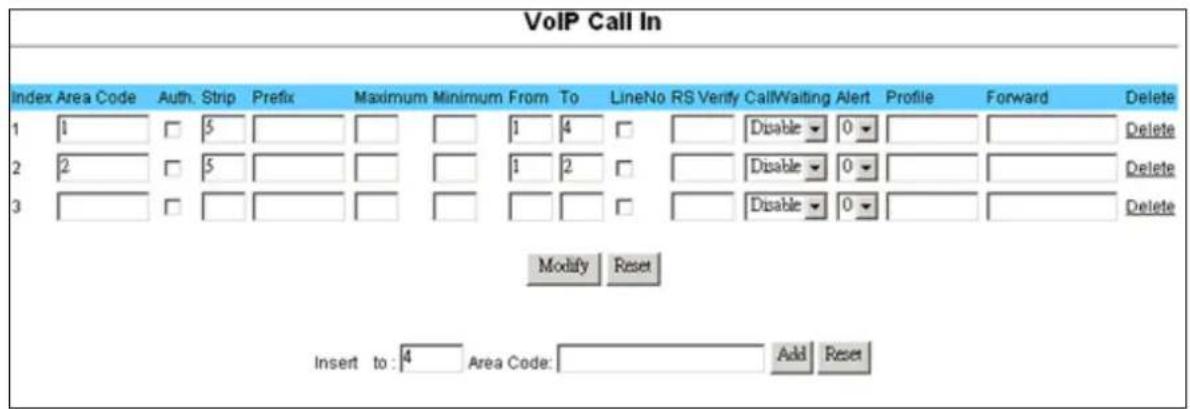
This page let you define the routing rule for Call in from VoIP. (VoIP Gateway got a VoIP call required form Network, and then translates the phone number passed from remote side VoIP Gateway to the real dial out number & line base on this VoIP Call In routing table). Each time when the VoIP Gateway received a VoIP call from Network, it will check with Area Code to see which rule matched to service, if no rule matched, it will refuse to call out and will bound back the call.
When the VoIP Gateway received a VoIP called from network, it will check below rules fields then decide line and number to dial out.
a. Area Code: Define the Prefix number this rule service, any VoIP called from network dialed number prefix digits matched with the rule will call out to phone by this rule define. Please Notify there is a compare order rule on this routing table. That mean the VoIP Gateway will check the rule list from top to bottom one by one, any rule item matched with the prefix digits that user press will go to call out directly no regard to the rest rules below. For Example, if a rule item for area code 8862 is on Index 1, another rule below that like index 2 for area code 886 will be ignored.

text_image
Index Area Code Strip Prefix Maximum Minimum From To LineNo Gatekeeper Alert Profile Forward Delete 1 886 2 8862 Be ignoredb. Auth : Authorization IP check enable. Enable IP range authorization
function. When Enable, the gateway will check the remote caller IP range setting on /VoIP Setup/Routing Setup/ Authorization/, if it is within the authorization, the gateway will allow the call out, but if the remote caller's IP is not in the range, it will refuse to call out and terminate this call.
| Index | Area Code | Auth | Strip | Prefix | Maximum | Minimum | From | To | LineNo | RS Verify | CallWaiting | Alert Profile Forward Delete | |||
| 1 | 8862 | ☑ | 4 | ☐ | |||||||||||
c. Strip: Number of digits will be ignored by user input. For example, if received VoIP call number is 886212345678 and the STRIP field is setting to 4, the first 4 digits 8862 will be truncated and actually call out number will be 12345678.
| Index | Area Code | Strip | Prefix | Maximum | Minimum | From | To | LineNo | Gatekeeper | Alert | Profile | Forward | Delete |
| 1 | 8862 | 4 | Delete |
Ex: VoIP Call in number is 886212345678 and real dial out number is 12345678 by strip 4 digits.
d. Prefix: The numbers will be added on the prefix of received VoIP call number. For examples, if received VoIP call number is 12345678 and the PREFIX field is setting to 0028862, the actually call out number will be 002886212345678.
| Index | Area Code | Strip | Prefix | Maximum | Minimum | From | To | LineNo | Gatekeeper | Alert | Profile | Forward | Delete |
| 1 | 0028862 | Delete |
Ex: VoIP Call in number is 12345678 and real dial out number is 0028862-12345678 by add 0028862 prefix.
Another example, if user VoIP Gateway received a call number 90, STRIP field is setting to 2, and the PREFIX field is setting to 0,12345678, the actually call out number will be 0,12345678 ( , mean wait 1 second for PBX get line for dial out to PSTN, the wait time for one , can be set on / VoIP Setup/ Line Configure/ Line Feature/ ). This example is especially for speed dial function.
| Index | Area Code | Strip | Prefix | Maximum | Minimum | From | To | LineNo | Gatekeeper | Alert | Profile Forward | Delete |
| 1 | 90 | 2 | 0,12345678 |
Delete
Ex: VoIP Call in number is 90 and real dial out number is 0,12345678 by stripe 2 digits and add 0,12345678 prefix, so the real dial out number is 0,12345678.
e. Maximum: Define the maximum digits of call number allow to dial. If the length of dial number after pervious STRIP & PREFIX process is more than the setting, it will deny dialing out. For example, you can set the Maximum dial out digits is 8, for call to local area phone only, any VoIP call in attempt to dial 0712345678 out of 8 digits for call out long distance will been deny to call out.
| Index | Area Code | Strip | Prefix | Maximum | Minimum | From | To | LineNo | Gatekeeper | Alert | Profile | Forward | Delete |
| 1 | 8 | Delete |
Ex: VoIP Call in number is 0712345678 and Maximum setting to 8, the VoIP Gateway will deny to call out.
f. Minimum: Define the minimum digits of call number allow to dial. If the length of dial number after pervious STRIP & PREFIX process is less than the setting, it will deny dialing out. For example, if set Minimum to 4, any VoIP call in attempt to dial number less than 4 digits like 110, 911 will be deny to call out.
| Index | Area Code | Strip | Prefix | Maximum | Minimum | From | To | LineNo | Gatekeeper | Alert | Profile | Forward | Delete |
| 1 | 4 | Delete |
Ex: VoIP Call in number is 911 and Minimum setting to 4, the VoIP Gateway will deny to call out.
g. From: Define the beginning line number for service this area code VoIP call. For example, if user assigned FROM 1 TO 1 for AREA CODE 601 in this routing table, then any VoIP call for call in number 601 will ring the line 1 only.
h. To: Define the ending line number for service this area code VoIP call.
| Index | Area Code | Strip | Prefix | Maximum | Minimum | From | To | LineNo | Gatekeeper | Alert Profile Forward | Delete | |
| 1 | 601 | 1 | 1 | |||||||||
| 2 | 602 | 2 | 2 | Delete | ||||||||
| 3 | Delete |
Ex. Any VoIP Call in number with prefix 601 will ring the line 1, and Any VoIP Call in number with prefix Call in number 602 will ring the line 2. any other numbers will ring any available (not busy) lines.
i. Line No: Click to enable if you want to force compare with the line number setting on LINE CONFIGURE menu (/VoIP Setup/Line Configure/ Line Setting/). If the dial number after pervious STRIP & PREFIX process is matched with the line number setting, the VoIP call will ring the dedicate phone line that assigned with matched number.
j. RS Verify: Assign which proxy to authorize this incoming VoIP call before call out. For example, if the dial number should be checked by server 1 setting on the server menu (/VoIP Setup/Register Server/), please input rs1 for server 1. You can input rs2 for server 2.rs for all the servers available (search sequence: rs1 > rs2 > rs3 > rs4). rs3_2_1 will try rs3 first, then rs2, then rs1.
| Index | Area Code | Strip | Prefix | Maximum | Minimum | From | To | LineNo | Gatekeeper | Alert Profile Forward | Delete | |
| 1 | 1 | Rs1 | Delete | |||||||||
| 2 | 2 | Rs | Delete | |||||||||
| 3 | 3 | rs3_2_1 | Delete |
The called and the caller have to register on the same rs , When the caller dial the number ,It can obtain a authorized number from rs , and the called has got the call after the rs confirmed that the caller had gotten authorization , otherwise it will send busy tone.
This confirmation only can apply in through rs to make a dial, moreover both sides have register the same rs. If the dialing-rule is IP point-to-point mutually dials, and because has no authorization by rs, this connection will be unable to put through.
k. Call Waiting : Enable or Disable the call waiting function。
■ Enable: During Talk, you can answer another phone call and hold the original conversation. When some one call in when you are busy on another phone call, you will hear a du-du call waiting signal, please use flash key on your phone to hold the original call and answer the incoming call, press again flask key will switch back the original call party.
■ Disable: Disable the Call waiting function. The gateway will reply the busy to remote side when the line is on used.
| Index | Area Code | Auth | Strip | Prefix | Maximum | Minimum | From | To | LineNo | RS Verify | CallWaiting | Alert Profile Forward | Delete | ||
| 1 | 1 | Rs1 | Enable | Delete | |||||||||||
| 2 | 2 | Rs | Delete | ||||||||||||
| 3 | 3 | rs3_2_1 | Delete |
I. Alert: Control the Ring Back tone generate timing:
■ Mode 0: When this VoIP Gateway get ring back tone from phone line, it will send the ring Alert signal to remote VoIP Gateway for generate ring back tone.
■ Mode 1: Before this VoIP Gateway dial to phone line, it will send the ring Alert signal to remote VoIP Gateway for generate ring back tone.
■ Mode 2: After this VoIP Gateway finish dial out number to phone line, it will send Connect OK signal to remote VoIP Gateway.
■ Mode 3: Before this VoIP Gateway dial to phone line, it will send the ring Alert signal to remote VoIP Gateway for generate ring back tone, after this VoIP Gateway finish dial out number to phone line, it will send Connect OK signal to remote VoIP Gateway.
m. Profile: Define the optional special VoIP parameters when received on this destination. Please input the name you defined on the profile list (/VoIP Setup/Routing Setup/ Routing Profile/).
Example: if user set the VoIP Call in & Routing Profile like below:
| Index | Area Code | Strip | Prefix | Maximum | Minimum | From | To | LineNo | Gatekeeper | Alert Profile Forward | Delete | |
| 1 | 1 | PF1 | Delete | |||||||||
| 2 | 2 | PF2 | Delete | |||||||||
| 3 | 3 | Delete |
| Index | Name | VAD | CODEC | H.245 Tunneling | DTMF Relay | T.38 FAX Relay | Package Frame | Q.931 Fast Start | |
| ID1 | AS | ID2 | AS | ID3 | AS | ID4 | AS | Delete | |
| 1 | PF1 | ON | G.723.1 | ON | Out band | ON 3 ON | |||
| 00001 | H.323 | 1001 | E.164 | Delete | |||||
| 2 | PF2 | ON | G.723.1 | ON | In band | ON | 3 | OFF | |
| 00002 | H.323 | 1002 | E.164 | Delete |
When VoIP call in number with prefix 1 will use the Profile named PF1 (H.323 ID1 = 0001, E.164 ID=1001, DTMF Relay=Out band, Q.931 Fast Start=ON) to answer the VoIP Call in.
When VoIP call in number with prefix 2 will use the Profile named PF2 (H.323 ID1 = 0002, E.164 ID=1002, DTMF Relay=In band, Q.931 Fast Start=OFF) to answer the VoIP Call in.
When VoIP call in number with prefix 3, because there is no Profile assigned, it will use the default value for VoIP Call Out.
n. Forward: Define the profile name for forward the unanswerable VoIP call on this Call In rule. Please input the name you defined on the / Voip Setup/ Routing Setup/ Forwarding/.
Example: if user set the VoIP Call in & Forward Profile like below:
| Index | Area Code | Strip | Prefix | Maximum | Minimum | From | To | LineNo | Gatekeeper | Alert | Profile | Forward | Delete |
| 1 | 601 | 1 | 1 | CF1 | Delete | ||||||||
| 2 | 602 | 2 | 2 | CF2 | Delete |
Other: 10.1.1.1/104
| No. | Name | Always | OnBusy | No Answer | No Answer Sec | Delete |
| 1 | CF1 | hk.big.com/301 | Delete | |||
| 2 | CF2 | assist.big.com | assist.big.com/610 | 30 | Delete |
In this case, when the VoIP Gateway received a VoIP call in number with prefix 501 ( not 601 or 602 prefix defined on Call In Routing table), it will forward this call to the IP & number defined on Other filed(in this case,
10.1.1.1/104, it mean it will forward this call to IP 10.1.1.1 and calling number will change to 104).
When the line 1 user is going to have a tour to another location with same VoIP Gateway equipment, user setup the called prefix number 601 forward to profile name CF1, and in CF1 profile, the Always field is set to hk.big.com/301, that mean any call number with prefix 601 will always be forward to another VoIP Gateway locate at hk.big.com and dial out number is 301.
When the line 2 is busy and another VoIP with prefix 602 Call in, it will forward it to the assist.big.com with same number (defined on OnBusy).
When VoIP Call In number with prefix 602, it will ring the line 2 for 30 seconds (defined on No Answer Sec.), if no one answer line 2 within 30 seconds, it will forward the call to another VoIP Gateway located at assist.big.com and dial out number is 610 (defined on No Answer)
o. Delete: Delete this rule item on routing table.
To add new rule item on routing table, please assign the item number you want to insert before, input AREA CODE then press ADD button to add it on the list. Then modify the necessary information on the routing table list.
Please remember to press the modify button to take it effect. For store back to flash memory, please press Save Modification (/System Maintenance/Save Modification/).
4.2.2.8 VoIP Call In IVR Setting

text_image
VoIP Call in IVR MaxDigits: 20 FirstDigitTime(Sec): 30 OtherDigitTime(Sec): 5 Index Remark Area Code Min Digits Max Digits Strip Prefix Delete 1 * 1 1 1 Delete 2 Modify Reset/VoIP Setup/Routing Setup/ VoIP Call In IVR/
When Enable the [Prompt Voice for VoIP Call In function on /VoIP
Setup/Advance Setup/Prompt Voice/ , all the remote party of VoIP caller will hear the customization upload voice file and need press the destination number. All the input number will be checked the number length and be strip/add prefix defined on this page. When a matched area code be processed, it will use this number to check on the /VoIP Setup/Routing
Setup/VoIP Call In/ to decide the final route path. If no match area code rule defined on the table, the gateway will response busy tone and connect failure.
User can use this function as the password authorization on the outbound gateway. For example, if we upload the voice file content on Prompt voice for VoIP call in of /VoIP Setup/Advance Setup/Prompt Voice/ is “Please input the password and destination number” and we set a compare rule as below:
| Index | Remark | Area Code | Min Digits | Max Digits | Strip | Prefix | Delete |
| 1 | Password check | 8495 | 7 | 12 | 4 | 02 | Delete |
When a remote VoIP call in and want this gateway to outbound call, the remote side user will hear voice prompt like “Please input the password and destination number”, because there is only a compare authorization rule, all the none 8495 prefix phone number will not accept to dial out and will be disconnect. ( that mean we use 8495 as the outbound call authorization password), and the digits of user input phone number should between 7 to 12 (include 4 digits come from 8495), the number user input will strip the first 4 digits (8495) and add 02 prefix. Then this number will be checked by / VoIP Setup/ Routing Setup/ VoIP Call In/. For Example, if user input the number is 849512345678, it will strip 4 digits and add 02 prefix code, the use 0212345678 to find a call out rule.
A. Time & Digits wait for user
The VoIP Gateway wait user input the number digits & time parameters as below:
Time & Digits wait for user Press.
e. MaxDigits: Define the maximum digits wait for user press for all VoIP Call Out, if user press digits match the number defined here. It will go to translate for call out rule without needed to press # key.
f. FirstDigitTime: Define the waiting time (seconds) for user press phone number first digit. User need to press first digits before the setting time (seconds) defined here, if VoIP Gateway wait for the defined seconds and there is no any digits press, the VoIP Gateway will stop to wait and feedback the user busy tone.
g. OtherDigitTime: Define the waiting time (seconds) for user press phone number secondary & the rest digits. User need to press the rest digits before the seconds defined here, if VoIP Gateway wait for the defined seconds and there is no any digits press, it will go to translate for call out rule without needed to press # key.
B. VoIP Call In IVR Routing Table
a. Remark: Remark for this routing rule. Please use UNDERLINE to replace the SPACE due to HTTP protocol limitation.
b. Area Code: Define the Prefix number fit this rule, any phone number prefix digits matched with the rule will call out by this rule define. Please Notify there is a compare order rule on this routing table. That mean the VoIP Gateway will check the rule list from top to bottom one by one, any rule item matched with the prefix digits that user press will go to call out directly no regard to the rest rules below. For Example, if a number 84951xxxxx is fit the rule item 1&2 , it will be processed by rule 1 and never be processed by rule 2 , that mean that rule 2 is never been used.
| Index | Remark | Area Code | Min Digits | Max Digits | Strip | Prefix | Delete |
| 1 | Password+ number | 8495 | 7 | 12 | 4 | 02 | Delete |
| 2 | No-used rule | 84951 |
c. Min Digits: define the minimum digits wait for user press for number fit this rule, if user press digits less the number defined here. It will keep waiting for input until exceed the FirstDigitTime defined time. If user press digits more then Min Digits here, the VoIP Gateway will wait time defined on OtherDigitTime then go to translate for call out rule without needed to press # key.
d. Max Digits: define the maximum digits wait for user press for number fit this rule, if user press digits match the number defined here. It will go to translate for call out rule without needed to press # key.
j. Strip: the number of digits will be ignored by user input. For example, if user press the number is 886212345678 and the STRIP field is setting to 4, the first 4 digits 8862 will be truncated and actually call out number will be 12345678.
k. Prefix: The numbers will be added on the prefix of the user press number. For examples, if user press the number is 12345678 and the PREFIX field is setting to 0028862, the actually call out number will be 002886212345678.
I. Delete: Delete this rule item on routing table.
To add new rule item on routing table, please assign the item number you want to insert before, input AREA CODE and IP address then press ADD button to add it on the list. Then modify the necessary information on the routing table list.
Please remember to press the modify button to take it effect. For store back to flash memory, please press /System Maintenance/Save Modification/.
4.2.2.9 VoIP Routing Profile Setting

text_image
Routing Profile Index Name VAD CODEC H.245 DTMF T.38 Package Q.931 Tunneling Relay FAX Relay Frame Fast Start ID1 AS ID2 AS ID3 AS ID4 AS Delete 1 g729 ON G.729A ON Out band ON 1 ON H.323ID H.323ID H.323ID H.323ID Delete 2 g711 ON G.723.1 ON Out band ON 1 ON H.323ID H.323ID H.323ID Delete Modify Reset Insert to : 3 Name: Add Reset/VoIP Setup/Routing Setup/ Routing Profile/
This page defines the optional special VoIP parameters when making/received a VoIP call. For define some special parameters for different VoIP equipment or authorize purpose, please add a profile at /VoIP Setup/Routing Setup/Routing Profile/ and use the same name as the profile on the Call in Routing Table (/VoIP Setup/Routing Setup/ VoIP Call In/) or Call out Routing table (/VoIP Setup/Routing Setup/ VoIP Call Out/).
a. Name: Specify a profile name. Please use UNDERLINE to replace the SPACE due to HTTP protocol limitation.
b. VAD:
■ ON: turn on the VAD(Voice Active Detection) function.
■ OFF: turn off the VAD function, please select ON for save the bandwidth.
c. CODEC: Select different voice CODEC for VoIP communication. The bit rate of G.723.1 is 5.3k/6.3k, G.729 is 8k, uLaw and aLaw is 64k per second. The G.723.1 is default CODEC.
d. H.245 tunneling:
■ ON for enable H.245 tunneling.
■ OFF for disable H.245 tunneling.
e. DTMF Relay:
■ When select In band to transfer the DTMF during VoIP, the user pressed DTMF tone will be treat as general voice and been compressed then transmit to remote side to decompress play back, it may be cause some problem on duplicate or missing DTMF receive.
■ When select Out band to transfer the DTMF during VoIP, the user pressed DTMF tone will be decode by local VoIP Gateway then transmit as signal, after received on received remote VoIP Gateway, it will be regenerate by remote VoIP Gateway. The default value is Out band.
f. T.38 FAX Relay:
■ ON: FAX will be transmitted by using T.38 FAX over IP protocol.
■ OFF: FAX over IP is disabled.
g. Package Frame: Select the number of voice payload frames on each UDP package VoIP transmit. More frames into one package mean save more bandwidth. The default frames on each package is 3.
h. Q.931 Fast Start:
■ ON: Enable Fast Start capability during Q.931 handshaking.
■ OFF: Disable Fast Start capability during Q.931 handshaking.
i. ID1: User defines ID # 1 during this VoIP call.
j. As:
E.164: Parameter on ID1 field is the E.164 during this VoIP call.
■ H.323 ID: Parameter on ID1 field is the H.323 ID during this VoIP call.
- Calling: Parameter on ID1 field is DID number during this VoIP call. If this optional is setting, it will override the LINE NUMBER on line setting menu.
■ Password: Parameter on ID1 field is the password for VoIP call. Parameter defined here will used as MD5 during H.235 and will not display on the Web UI
k. ID2, ID3, ID4: there are 4 fields for user define the ID parameters, please reference the ID1 setting above.
I. Delete: Delete this rule item on routing table.
To add new profile item on routing table, please assign the number you want to insert before, input profile NAME then press ADD button to add it on the list. Then modify the necessary information on the routing table list.
Please remember to press the modify button to take it effect. For store back to flash memory, please press Save Modification (/System Maintenance/Save Modification/).
Here is VoIP Routing Profile setting examples below:
| Index | Name VAD CODEC | H.245 Tunneling | DTMF Relay | T.38 FAX Relay | Package Frame | Q.931 Fast Start | |||
| ID1 | AS | ID2 | AS | ID3 | AS | ID4 | AS | Delete | |
| 1 | PF1 | ON | G.723.1 | ON | Out band | ON | 3 | ON | |
| 00001 | H.323 | 1001 | E.164 | Delete | |||||
| 2 | PF2 | ON | G.723.1 | ON | In band | ON | 2 | OFF | |
| 00002 | H.323 | 1002 | E.164 | **** | Password | Delete | |||
When using profile PF1, the parameters will be used for H.323 ID1 = 0001, E.164 ID=1001, DTMF Relay=Out band, Q.931 Fast Start=ON) to call / answer the VoIP.
When using profile PF2, the parameters will be used for H.323 ID1 = 0002, E.164 ID=1002, DTMF Relay=In band, Q.931 Fast Start=OFF, Password=1234 but be hidden) to call / answer the VoIP.
4.2.2.10 VoIP Forwarding Profile Setting

text_image
Forwarding Other: No. Name Always OnBusy No Answer No Answer Sec Delete 1 a1 172.16.7.44 30 s Delete Modify Reset Insert to: 2 Name: Add Reset/VoIP Setup/Routing Setup/Forwarding/
This page defines the forwarding behavior include:
- get an unmatched prefix number for VoIP call in,
- Line busy
- No answer
Please add a profile at /VoIP Setup/Routing Setup/ Routing Profile/ and put the name of profile on the Call out Routing table (/VoIP Setup/Routing Setup/ VoIP Call Out/ ).
a. Other: Define the forward IP and forward phone number when there is no match rule setting on VoIP Call Out Routing table. The format is IP/phone number or URL/phone number. i.e. all the phone number can not match a prefix rule will be forward to the IP& phone number define on here.
b. Name: Specify a profile name. Please use UNDERLINE to replace the SPACE due to HTTP protocol limitation.
c. Always: Always redirect forward to this IP(or URL)/phone number, All incoming call will be forward to IP assigned here.
d. On Busy: Redirect forward to this IP(or URL)/phone number when busy, an incoming VoIP call will forward to IP assigned here when this line is busy.
e. No Answer: Redirect forward to this IP(or URL)/phone number when no answer over the time No Answer Sec, an incoming VoIP call will forward to IP assigned here when ring time over the defined on No Answer Sec.
f. No Answer Sec. Defined the wait seconds for redirect forward to another IP(or URL).
g. Delete: Delete this rule item on routing table.
h. To add new rule item on routing table, please assign the item number you want to insert before, input AREA CODE then press ADD button to add it on the list. Then modify the necessary information on the routing table list.
Please remember to press the modify button to take it effect. For store back to flash memory, please press Save Modification (/System Maintenance/Save Modification/).
Example: if user set the VoIP Call in & Routing Profile like below:
| Index | Area Code | Strip | Prefix | Maximum | Minimum | From | To | LineNo | Gatekeeper | Alert Profile Forward | Delete | |
| 1 | 601 | 1 | 1 | CF1 | Delete | |||||||
| 2 | 602 | 2 | 2 | CF2 | Delete |
Other: 10.1.1.1/104
| No. | Name | Always | OnBusy | No Answer | No Answer Sec | Delete |
| 1 | CF1 | hk.big.com/301 | Delete | |||
| 2 | CF2 | assist.big.com | assist.big.com/610 | 30 | Delete |
In this case, when the VoIP Gateway received a VoIP call in number with prefix 501 (not 601 or 602 prefix defined on Call In Routing table), it will forward this call to the IP& number defined on Other filed(in this case, 10.1.1.1/104, it mean it will forward this call to IP 10.1.1.1 and calling number will change to 104).
When the line 1 user is going to have a tour to another location with same VoIP Gateway equipment, user setup the called prefix number 601 forward to profile name CF1, and in CF1 profile, the Always field is set to hk.big.com/301, that
mean any call number with prefix 601 will always be forward to another VoIP Gateway locate at hk.big.com and dial out number is 301.
When the line 2 is busy and another VoIP with prefix 602 Call in, it will forward it to the assist.big.com with same number (defined on OnBusy).
When VoIP Call In number with prefix 602, it will ring the line 2 for 30 seconds (defined on No Answer Sec.), if no one answer line 2 within 30 seconds, it will forward the call to another VoIP Gateway located at assist.big.com and dial out number is 610 (defined on No Answer).
1.4.2.11 VoIP Authorization Setting
text_image
Authorisation Index From To Delete 1 211.73.21.34 211.72.21.56 Delete From: □.□.□.□ To: □.□.□.□ Add Reset/VoIP Setup/Routing Setup/ Authorization/
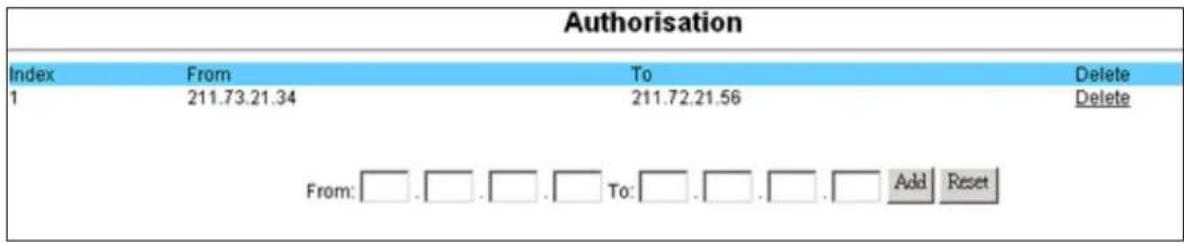
When this gateway has been used for outbound call, it can enable to check the remote caller gateway's IP to decide accept or refuse the call. If define the IP range here and enable the [Auth] option on the/VoIP Setup/Routing Setup/VoIP Call In/ , only the IP in range will allow to call out by this gateway.
4.2.3 Register Server Setting
4.2.3.1 Register Status

text_image
Register Status a. MAC:00:11:6b:00:11:22 b. RS1 RS2 RS3 RS4 SIP SIP H.323 SIP Disable 1 25618801 102003 1 102002 2 25618802 2 102003 401 Unauthorized 3 25618803 3 400 Not Number 4 25618804 4 77201111 Reload/VoIP Setup/Register Server/Register Status
You Can check the register status of this gateway on this page.
a. MAC: this gateway' MAC Address
b. RS1-4: Indicate the status of 4 server register.
■ SIP&H323: The protocol used for registering the server, this gateway supports both H.323 and SIP protocol.
■ Green Indicator: Successful to register server and the register phone number.
■ Red Indicator: Failure to register server and the failure reason.
■ Yellow Indicator: Disable the register function.
Example: for Status display as above, it indicates:
- The register to Server #1 function is disabled (SIP).
- Use SIP protocol to register to register as RS2, the register method is 4 lines independent. Each lines use different number to register: 25618801, 25618802, 5618803, 25618804. Line 2 and Line 4 are disabled to register, Line 1 and Line 3 are successful to register.
- Use H.323 protocol to register as RS3, all 4 lines share same register 102003
- Use SIP protocol to register as RS4, each lines use different number as 102002, 102003, 77201111. You can see that line 2 and line 3 register failures. The line 2 failure reason is “unauthorized” and Line 4 failure reason is “not number”.
Please setup each register parameters at /VoIP Setup/Register Status/Server# 1\~4/。
4.2.3.2 Setup the Register Server—SIP Protocol

text_image
Protocol: SIP Register: Independent Enable SIP Proxy: SIP Proxy URL Port[1 - 65535] Thought Outbound Proxy Port[1 - 65535] 60.248.102.198 5060 5060 TTL (Registration interval) [10 - 7200 s] Domain Proxy Require 120 Line Type Remark Number Account Password Conference ID Enable 1 FXO 1 25618801 25618801 ••••••••• • 2 FXO 2 25618802 25618802 ••••••••• • 3 FXO 3 25618803 25618803 ••••••••• • 4 FXO 4 25618804 25618804 ••••••••• • 5 FXO 5 25618805 25618805 ••••••••• • 6 FXO 6 25618806 25618806 ••••••••• • 7 FXO 7 25618807 25618807 ••••••••• • 8 FXO 8 25618808 25618808 ••••••••• • Modify/VoIP Setup/Register Server/Server
If you need use this gateway to register to the H.323 gatekeeper or SIP register/proxy server, you can setup the account for register here. This gateway can register up to four Servers simultaneously.
a. Protocol: Select use SIP or H.323 protocol to register to server, by different protocol, the gateway will adjust the page for different parameters for input.
b. Register Method:
■ Global: All the lines of the gateway share same account to register.
■ Independent: Each lines can set different/same account independently for register.
c. Enable SIP Proxy :
■ ☑ Enable Register SIP Proxy server function.
■ □ Disable Register SIP Proxy server function.
d. SIP Proxy URL: Please input the IP/URL of the SIP proxy server.
e. Port [1\~65535]: Port number used for register to server. The SIP protocol default is 5060, please make sure you have same port number setting on the gateway and server.
f. Thought Outbound Proxy:
When your gateway is installed behind the firewall or NAT, you maybe need use Proxy server to relay your call. If so, please input the Outbound proxy server's IP here.
g. Prot[1\~65535]: Port number used for register Outbound Proxy Server.
h. TTL(Registration interval)[10-7200s]: Some SIP Server need you set the time interval (seconds) for send the expire signal to register server keep alive.
i. Domain: Some SIP Server need you input the Domain for register, please input here.
j. Proxy Require: Some SIP Server (Nortel) need you input the more information for proxy function, please input here.
k. Line: Number index of lines.
I. Type: Interface type of the line::
■ FXO: Analog phone interface for connect to PSTN or PBX extension line
■ FXS: Analog phone interface for connect to phone set or PBX Co. line.
m. Remark: Remark for this routing rule. Please use UNDERLINE to replace the SPACE due to HTTP protocol limitation.
n. Number: Register phone number, Some SIP Server needs this to parameters for register.
o. Account : Account for register to SIP server.
p. Password: Password for register to SIP server.
q. Conference ID: Some SIP Server requires an ID to enable the conference function, please input the ID here to enable that.
r. Enable: Enable or disable independently each line for register.
4.2.3.4 Setup the Register Server—H.323 Protocol

text_image
Protocol: H.323 Register: Global Enable H.323 Gatekeeper: ✓ Gatekeeper URL Port[1 - 65535] GK ID Proxy for NAT fsgw1.gatekeeper.com 1719 ✓ Line Type Remark E.164(Prefix) H.323 ID Account Password Enable 1~4 FXS 673102 a1002311 ✓ Modify/VoIP Setup/Register Server/Server
When Select use H.323 to register gatekeeper, please input the flow information for register:
s. Register Method:
■ Global: All the lines of the gateway share same account to register.
■ Independent: Each line can set different/same account independently for register.
a. Enable H323 Gatekeeper :
■ ☑ Enable Register H.323 Gatekeeper function.
■ □ Disable Register H.323 Gatekeeper function.
b. Gatekeeper URL: Please input the IP/URL of the Gatekeeper server.
c. Port[1\~65535]: Port number used for register to server. The H.323 protocol default is 1719, please make sure you have same port number setting on the gateway and ser
d. GK ID: Some Gatekeeper Server need you input an ID for register, please input here.
e. Proxy for NAT: When your gateway is installed behind the firewall or NAT, you maybe need use Proxy server to relay your call. If your gatekeeper supports this proxy function, you can enable gateway function here to use that.
f. Line: Line: Number index of lines.
t. Type: Interface type of the line:
■ FXO: Analog phone interface for connect to PSTN or PBX extension line
■ FXS: Analog phone interface for connect to phone set or PBX Co. line.
g. Remark: Remark for this routing rule. Please use UNDERLINE to replace the SPACE due to HTTP protocol limitation.
h. E.164: phone number used for register to server.
i. H.323: ID: Account name used for register to gatekeeper.
j. Password: Password used for register to gatekeeper.
k. Enable: Enable or disable independently each line for register.
Please remember to press the Modify button to take it effect. For store back to flash memory, please press Save Modification (/System Maintenance/Save Modification/).
4.2.4 Auto Provision function
To use the auto provision function, the system have to install a dedicate Auto Provision Server for keep all parameters for installed gateways. When Enable the Auto Provision function, the System administer can modify all the Parameters of each gateway on the local Provision Server, and remote gateway will automatic download all the parameters from Provision Server.
The Gateways can link up to five provision servers simultaneously for Redundancy backup the system.
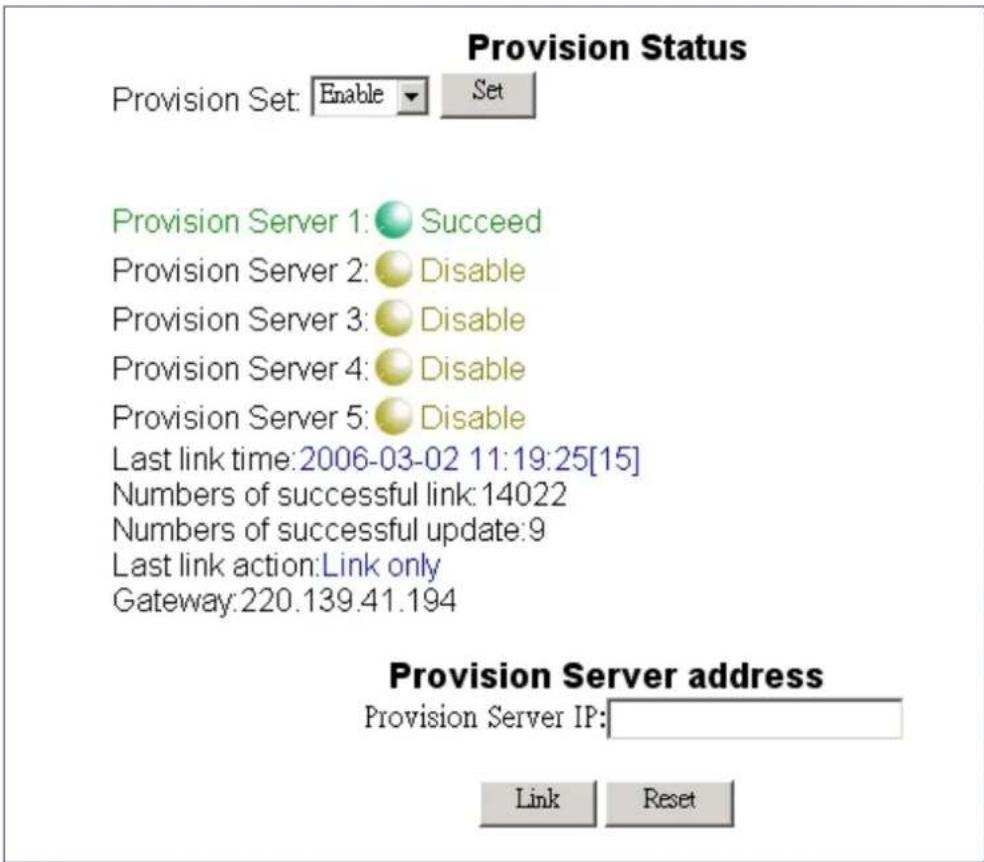
text_image
Provision Status Provision Set: Enable Set Provision Server 1: Succeed Provision Server 2: Disable Provision Server 3: Disable Provision Server 4: Disable Provision Server 5: Disable Last link time:2006-03-02 11:19:25[15] Numbers of successful link:14022 Numbers of successful update:9 Last link action:Link only Gateway:220.139.41.194 Provision Server address Provision Server IP: Link Reset/VoIP Setup/Provision/
a. Provision Set: : Enable or Disable auto provision function on this gateway.
When Enable, all the function parameters will download from remote Provision server.
b. Provision Sever1\~5 : Provision server connection status.
It will indicate the status of linking to each Provision Servers. The gateway will link to one of the five setting Provision Server each time. If successful link, it will display green indicator. If failure link, it will display red indicator. The yellow indicator means it is disable.
c. Last link time: Display the Date & Time for last successful link to Provision server on this gateway.
d. Numbers of successful link : Display the times of successful linking from Provision Server to this gateway.
e. Numbers of successful update : Display the times of successful linking and update the parameters from t Provision Server to this gateway.
f. Last link action : Display the latest action command for provision function.
g. Gateway : Display the Network VoIP Gateway gateway IP address for used on the Internet connection.
h. Provision Server IP: User can manual add a new Provision Server by add its IP here and press Link. Please remember enable auto provision function before you input the new Provision Server IP.
For store back to flash memory, please press Save Modification (/System Maintenance/Save Modification/).
4.2.5 Advance Setup
4.2.5.1 NAT Traversal

text_image
NAT Traversal Enable Declare NAT IP NAT URL: Enable Enable STUN STUN#1: STUN#2: Found NAT IP: 0.0.0.0 Modify/VoIP Setup/Advance Setup/NAT Traversal
If your VoIP gateway is installed behind NAT, you may need a special configuration and server to establish the VoIP communication, this gateway support several method for NAT Traversal as below:
- By Outbound Proxy:
User can appoint an Outbound Proxy Server to handle the NAT traversal on VoIP Setup/Register Sever/Server # / - Declare NAT IP address:
Select to enable the input the NAT VoIP Gateway IP of the network. - Use STUN server
Enable STUN and input the STUN server's IP for handle the NAT traversal, you can input 2 sets of STUN servers IP.
The Gateway will display the system found NAT IP address.
For store back to flash memory, please press Save Modification (/System Maintenance/Save Modification/).
4.2.5.2 Listen Port

other
| Port Type | IP Address | | :--- | :--- | | SIP Listen Port[1024 - 65535 ] | 14521 | | H.323 Call Signal Port[1024 - 65535 ] | 14519 | | H.323 Gatekeeper Listen Port[1024 - 65535 ] | 14520 | | RTP Initial Port [1024~65000] | 14522 [UDP:14522~14538] Modify (When Set, Save and reboot!)/VoIP Setup/Advance Setup/Listen Port
In this page, user can define the usage port for setup the VoIP communication. Both side of gateways need use the same port for begin VoIP communication.
a. SIP Listen Port : Define the listen port for SIP protocol, the default port is 5060, input range from 1024 to 65535.
b. H.323 Call Signal Port: Define the Call signal port for H.323 protocol, the default port is 1720, input range from 1024 to 65535.
c. .H.323 Gatekeeper Listen Port: Define the Gatekeeper listen port for H.323 protocol, the default port is 1719, input range from 1024 to 65535.
d. RTP Initial Port: Define the RTP package initial port, the input range from 1024 to 65535. the gateway will display the used UDP ports due to multiple lines connection.
After modify and press Modify, system will save and reboot automatically to take it effective.
4.2.5.3 VoIP Package

text_image
VoIP Package Jitter Buffer Size[20~200](ms): 60 VoIP DTMF Relay Mode: Out band VoIP DTMF Relay Method(Out band): [SIP RFC2833] or [H323 H.245 String] RFC2833: Payload number for DTMF[96~127] 101 Preferred CODEC Silence Detection / Suppression: Priority: Codec Type: G.723.1 None None None None Packet Time (ms): 30 None None None None Approximate Bandwidth Required (kbps): 20.8 Modify/VoIP Setup/Advance Setup/VoIP Package
User can define the parameters relative about VoIP package on this page.
- Jitter Buffer(ms):
Define the Jitter buffer size, input range is from 20 to 200ms.
● VoIP DTMF Relay Mode:
Define the relay mode for DTMF signal:
In band: When local gateway detects a DTMF signal, it will not decode it. The DTMF signal will be compress/decompress as VoIP voice package.
■ Out band: When local gateway detects a DTMF signal, it will decode it, and relay it as a data package separately. The remote gateway will regenerate the DTMF signal after receive the DTMF data package. System default is relay DTMF by out band mode.
● VoIP DTMF Relay Mode (Out band),:
Define 2 methods to relay DTMF when select Out band relay mode:
■ by SIP:RFC2833 (SIP protocol) or H.323:H.245 (H.323 protocol)
■ by SIP INFO (SIP protocol) or Q.931 (H.323 protocol)
- RFC2833: Payload number for DTMF[96\~127]:
Define the DTMF token on RFC2833, input range form 96 to 127.
- Silence Detection / Suppression:
Enable or disable the Silence Detection/VAD function. When Enable, if local gateway detect a silence situation (no talk), it will send a VAD package rather than a full voice package for remote side to active CNG (Comfort Noise Generation) to save the bandwidth. The default is Enable to save the bandwidth.
- Prefer CODEC :
In this table, you can define the prefer CODEC. The priority 1 selection is highest priority. By different CODEC, user can select different payload size per package as below:
■ G.711 uLaw: 20,30,40,50,60,70,80ms
■ G.711 aLaw: 20, 30, 40, 50, 60, 70, 80ms
■ G.723.1: 30,60,90ms
■ G.729a: 20,30,40,50,60,70,80ms
■ G.726: 20,30,40,50,60,70,80ms
■ None: none
The gateway will calculate and show approximately bandwidth for one VoIP call.
4.2.5.4 RTP Packet Summary
| Line1 | G.723.1 6.3kbps | Packet Send: | 219 | Packet Received: | 143 | Packet Lost: | 0 |
| Source IP: | 127.0.0.1 | Source Port: | 60004 | Packet Interval[ms]: | 90 | ||
| Line2 | G.723.1 6.3kbps | Packet Send: | 170 | Packet Received: | 146 | Packet Lost: | 0 |
| Source IP: | 127.0.0.1 | Source Port: | 60000 | Packet Interval[ms]: | 90 | ||
| Line3 | G.723.1 6.3kbps | Packet Send: | 177 | Packet Received: | 130 | Packet Lost: | 0 |
| Source IP: | 127.0.0.1 | Source Port: | 60012 | Packet Interval[ms]: | 90 | ||
| Line4 | G.723.1 6.3kbps | Packet Send: | 174 | Packet Received: | 125 | Packet Lost: | 0 |
| Source IP: | 127.0.0.1 | Source Port: | 60008 | Packet Interval[ms]: | 90 |
/VoIP Setup/Advance Setup/RTP Packet Summary
On this page, user will know the RTP package summary about last VoIP call.
- Line#: number of line
- Using CODEC: ex.: G.723.1, G.729a
- Source IP: Remote side IP
● Source Port: Remote side port - Packet Interval: interval time between 2 packets.(ms)
● Packet Send: number of packets sent.
● Packet Received: number of packets received. - Packet Lost: number of lost packets.
4.2.5.5 Flash & Call waiting
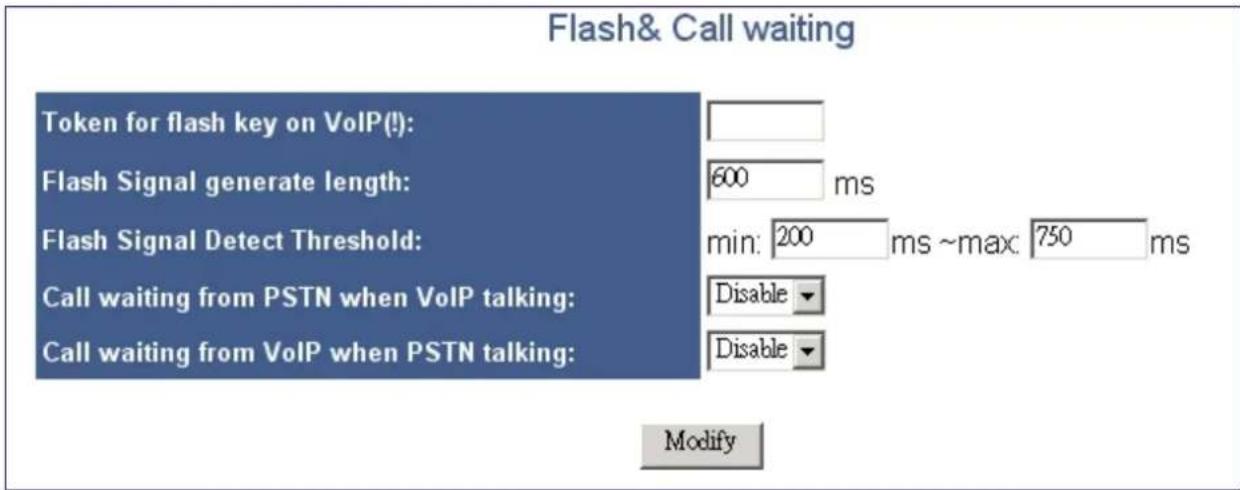
text_image
Flash& Call waiting Token for flash key on VoIP(!): Flash Signal generate length: 600 ms Flash Signal Detect Threshold: min: 200 ms ~max: 750 ms Call waiting from PSTN when VoIP talking: Disable Disable Call waiting from VoIP when PSTN talking: Modify/VoIP Setup/Advance Setup/Flash & Call waiting
On this page, user can define the parameters relative to the FLASH key and Call Waiting function. These functions usually work with PBX
- Token for flash key on VoIP(!):
Define the token for flash key during VoIP protocol ( use "! " by default). - Flash Signal generate length :
Define the pause time (ms) for one “,” symbol at / Routing Setting/ VoIP Call Out/. This pause till is useful for PBX seize the trunk line from extension line. The default time is 1000ms, Input range from 100 to 3000ms.
● Flash Signal Detect Threshold:
Define the threshold for valid FLASH signal. Only the flash time length between setting between min. to max. is accept by the gateway. - Call waiting from PSTN when VoIP talking:
Enable/Disable the Call Waiting function from PSTN line when talking by VoIP. - Call waiting from VoIP when PSTN talking:
Enable/Disable the Call Waiting function from VoIP when talking by PSTN line.
4.2.5.6 Gain

text_image
Gain Gain when Dial tone phase: DTMF Generate DSP play Gain[-29~3]: Call progress Tone DSP play Gain[-29~3]: Caller ID Detection record Gain[-3~13]: Play[3~-13]: -13 db Record[12~-3]: -3 db -12 db -15 db 6 db Modify/VoIP Setup/Advance Setup/Gain
This page defines different function gain on the gateway.
● Gain when Dial tone phase :
When phone off hook, user will hear the dial tone generated from the gateway, sser can adjust the play/record gain during this phase for stable DTMF detection. After connection, the gains setting here is no use, the gateway will adjust the gain setting on / Line Configure/ Line setting/
■ Play: Transmit gain from network to line. Adjust the speaker volume on the handset. Higher value will louder the speaker on local side.
■ Record: Receive gain from line to network. Adjust the microphone volume on the handset. Larger value which will amplify the MIC volume on local site.
Incorrect value will cause the gateway can not receive the DTMF user pressed on phone set, please use the default 0dB if no other issue.
● DTMF Generate DSP play Gain [-29\~3]
Setting the internal gain used by DSP for generate the DTMF signal, incorrect value will cause the DTMF can not accept by other telephone equipment. Please use the default value if no other issue.
- Call progress Tone DSP play Gain[-31\~0]
Setting the internal gain used by DSP for generate the CPT (Call Progress Tone), Incorrect value will cause the DTMF can not accept by other telephone equipment. Please use the default value if no other issue.
- Caller ID Detection record Gain [13\~ -3]
Setting the Caller ID Receiver gain. Incorrect value will cause the Caller ID signal can not be receive, please use the default value if no other issue.
4.2.5.7 QoS
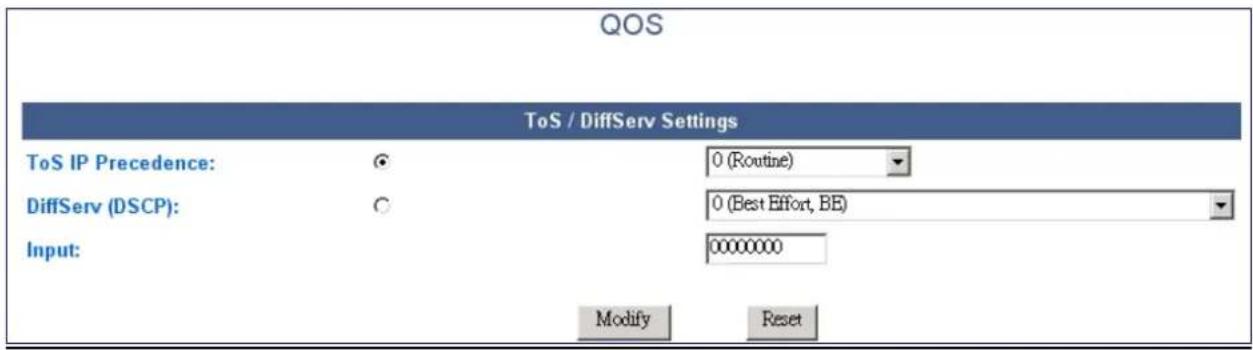
text_image
QOS ToS / DiffServ Settings ToS IP Precedence: ○ 0 (Routine) DiffServ (DSCP): ○ 0 (Best Effort, BE) Input: 00000000 Modify Reset/VoIP Setup/Advance Setup/QoS
User can define the ToS field on the VoIP packet for Quality of Service control. The ToS field is included these 2 parameters:
● Precedence: bit 0,1,2
- DSCP(Diffserv Code Point): bit 3\~7
User can select input either IP Precedence or DSCP value. Or input the ToS binary code directly.
4.2.5.8 CDR

text_image
CDR Export to CDR Server: CDR Server IP1: CDR Server IP2: Disable Modify/VoIP Setup/Advance Setup/CDR
The Gateway can export all the CDR (Call detail Record) to external CDR server by HTTP protocol. The gateway supports up to 2 CDR servers for keep the record.
- Export to CDR Server: Please install and enable this function if you want to keep CDR of this gateway.
- CDR Server IP1: Please input the IP of first CDR server, if installed.
- CDR Server IP2: Please input the IP of second CDR server, if installed.
4.2.5.9 FolP

text_image
FolP Maximum FolP Rate: T.38 Low Speed Redundancy: T.38 High Speed Redundancy: Auto Modify/VoIP Setup/Advance Setup/FoIP
User can define the parameters relative FAX Over IP function.
■ Maximum Fol P Rate (bps)
Appoint the maximum FAX transceiver rate during FoIP:
◆ Disable: Only the VoIP function is supported on the gateway. FoIP is disabled.
◆ Auto: Gateway will negotiation the maximum speed for FoIP with FAX machine..
◆ :Appoint the Maximum speed:2400,4800,9600,12000, 14000
■ T.38 Low Speed Redundancy: [Enable|Disable]
Enable or Disable to send the double packet function during low speed T.38 FoIP.
■ T.38 High Speed Redundancy: [Enable|Disable]
Enable or Disable to send the double packet function during high speed T.38 FoIP.
4.2.5.10 Prompt Voice&Beep

text_image
Prompt Voice & Beep ✓ VoIP Call out Beep ☐ No PSTN line warming twice Beep ☐ VoIP Call out Failure twice Beep ☐ Can not register to server warming twice Beep Index Action Contact Size Delete 1 ☐ Prompt voice for replace dial tone 0 Delete 2 ☐ Warning Prompt after VoIP call out failure 0 Delete 3 ☐ No PSTN Line connected 0 Delete 4 ☐ Can not register to server warming prompt 0 Delete 5 ☐ Prompt voice for VoIP call in 0 Delete Modify Reset Index: 1 File: 浏览... Restore Save Flash *Upload wave format must be G.723.1 or G.711, Total size must below 384KB)/VoIP Setup/Advance Setup/Prompt Voice & Beep
This gateway can use voice or beep to prompt the user different situation. User can download/upload their own prompt voice wave files also.
For prompt beep enable function, it can be enable by:
■ VoIP Call out Beep:
When enable, the gateway will generate a beep for call out for VoIP
■ VoIP Call out Failure twice Beep
When enable, the gateway will generate twice beep if failure to call out for VoIP
■ No PSTN line warming twice Beep :
When enable, the gateway will generate twice beep if failure to call out for PSTN, usually mean there is no trunk line connect to the PSTN line port.
■ Can not register to server warming twice Beep:
When enable, the gateway will generate twice beep when end user off hook the phone if the gateway failure to register to Register Server.
For prompt voice enable function, it can be enable by:
■ Prompt voice for replace dial tone:
Use a customize voice file to replace the dial tone
■ Warming Prompt after VolP out failure:
Annunciate a customize voice file when VoIP call failure.
■ No PSTN Line Connected :
Annunciate a customize voice file when there is no trunk connected to the PSTN port and failure to call via PSTN line.
■ Can not register to server warming prompt :
Annunciate a customize voice file when the gateway failure to register to Register Server.
■ Prompt voice for VoIP call in :
When Remote gateway call in the gateway, if enable this function, the gateway will annunciate a customize voice to remote gateway user to ask the destination number, this function must work with the setting rule on /VoIP Setup/Routing Setup/VoIP Call In IVR.
For enable the prompt beep or voice annunciation function, please select ☑ to enable the function and click Modify
Caution: If enable both prompt beep and Voice annunciation on the same function, only
the voice annunciation will work and will not hear the beep sound.
Procedure to upload customize voice wave file:
- Select the function index you want to modify.
- press brows, select the content voice file.
3 Press Restore to upload and save. - To keep the voice file permanently, press Save Flash to save it
*. The gateway only accepts the G.723.1 or G.711 format voice file, and all the 5 files size totally can not exceed 384KB.
4.2.6 Application
4.2.6.1 Ping test

text_image
Ping Test Ping Destination: 168.95.1.1 Number of Ping [1 - 100 ]: 3 Ping Packet Size [56 - 5600 bytes]: 56 Modify/VoIP Setup/Application/Ping Test
User can use the Ping Test function to test the network status or remote device
■ Ping Destination: Ping:
Target device IP for ping test.
■ Number of Ping[1-100] Ping:
Number of ping test, maximum is 100.
■ Ping Packet Size[56-5600 bytes]:
Size of ping test packet, input range is between 56 to 5600 bytes.
4.2.6.2 Telnet & SNMP

text_image
Enable telnet server : Enable Enable SNMP server : Disable Modify Reset User Name: Login Password: Confirm Password: Change Reset/VoIP Setup/Application/Telnet & SNMP
User can enable and set the user account for the SNMP and Telnet function of this gateway on this page.
a. Enable telnet server
■ Enable: Enable telnet service function, user can telnet this gateway.
■ Disable: Disable telnet service function.
b. Enable SNMP Server
■ Enable: Enable SNMP service function, user can use SNMP on the gateway.
■ Disable: Disable SNMP service function.
c. User Name : Set a user name for Telnet & SNM login.
d. Login Password : Set the password for Telnet & SNMP login.
e. Confirm Password: Check the password again.
4.2.7 System
4.2.7.1 System Status
| System Status Help | |
| INTERNET Refresh | |
| Cable/DSL | Connected |
| WAN IP | 211.72.10.140 |
| Subnet Mask | 255.255.255.240 |
| Gateway | 211]72.10.129 |
| DNS | 168.95.1.1 |
| Secondary DNS | 0 0 0 0 |
| Domain Name | |
| Connection Type | Static IP |
| GATEWAY | |
| IP Address | 192.168.0.1 |
| Subnet Mask | 255.255.255.0 |
| DHCP Server | Enabled |
| NAT | Enabled |
| Firewall | Enabled |
| INFORMATION | |
| System Up Time | 00:28:40 |
| System Date | 2/22/2006 10:56:3 |
| Connected Clients | 0 |
| Runtime Code Version | V2.1.2.87 |
| Boot Code Version | V0.1.5.14 |
| LAN MAC Address | 00:00:A1:01:08:05 |
| WAN MAC Address | 00:00:A1:01:08:04 |
| Hardware Version | V0.1.2.3 |
| Serial Number | 12345678 |
This page reveals the status of the gateway including WAN, LAN and some hardware information.
Internet
This sub-block shows the Internet information of your home gateway. It depends on the WAN mode connecting to your ISP. The different items correspond to each WAN mode will be revealed after the common part of the Internet status sub-block.
Common Part:
Refresh
Clicking this button, the browser refreshes the Internet status page to get
the most update information.
Cable/ DSL
This field indicates the Internet connection status. Its value is Connected, Disconnected or Connecting.
WAN IP
Connected to the Internet through Cable or ADSL modem, the ISP will offer the home gateway a WAN IP address to communicate with other hosts in the Internet.
Subnet Mask
This field indicates a _mask used to determine what _subnet the WAN _IP address belongs to. An _IP address has two components, the network address and the _host address. For example, consider the IP address 192.168.168.182 with subnet mask is 255.255.255.0, the first three numbers (192.168.168) represent the Class C network address, and the forth number (182) identifies a particular _host on this network.
Gateway
"Gateway" is a node on a network that serves as an entrance to another network. For the home gateway, The "Gateway" is the next device, which routes the traffic to the Internet.
DNS
Domain Name System (or Service or Server) is an Internet service that translates domain names into IP addresses. Because the domain names are alphabetic, they are easier to remember. However, the Internet is based on IP addresses. Every time you use a domain name, a DNS service must translate the name into the corresponding IP address. For example, the domain name www.example.com might translate to 198.105.232.4. The DNS system has its own network. If one DNS server doesn't know how to translate a particular domain name, it will ask its upper stream server, and so on, until the correct IP address is returned or timed-out.
Secondary DNS
This is the secondary DNS to use when the primary DNS does not work.
Domain Name
Domain name is a name, which identifies one or more IP addresses. This field represents the domain name obtained from your ISP.
Connection Type
There are five ways to get the WAN IP address. They are DHCP, STATIC, PPPoE, PPTP and L2TP. This field indicates the way to get the WAN IP address. Through Figure 3-2 to 3-6 detail all specific items of each mode.
Gateway
IP Address
This field is the LAN IP address of the home gateway.
Subnet Mask
This field is the subnet mask of the network in the LAN side.
DHCP Server
The home gateway supports DHCP service. This field indicates the enabled status of the DHCP Server.
NAT
This field shows whether the NAT is enabled or not.
Firewall
The gateway supports firewall service. This field indicates firewall service is enabled or not.
Information
System Up Time
Shows the time in hh:mm:ss format from when the home gateway was powered up to the web browser requests this page.
System Date
Shows the data and time in mm/dd/year hh:mm:ss when the web browser requests this page.
Connected Clients
This field shows how many clients in the LAN clients connect to the home gateway.
Runtime Code Version
Shows the version of runtime code.
Boot Code Version
Shows version of boot code.
LAN MAC Address
Short for Media Access Control address, a hardware address that uniquely identifies each node of a network. This field indicates gateway's LAN MAC address.
WAN MAC Address
This field indicates gateway's WAN MAC address.
Hardware Version
Tells the version of hardware of the gateway.
Serial Number
This field indicates serial number.
1.2.7.2 System Settings

text_image
System Settings Host Name router Domain Name NTP Server (option) Set Time Zone (GMT+08:00) Hong Kong, Perth, Singapore, Taipei Daylight Saving Enabled From: FEB 2 To: FEB 2 OK CancelThis page is used to configure the names given by the ISP, if any, to represent the gateway, and also to set the local time zone.
Host Name
Some ISPs request the host name to represent the home gateway. Fill the host name given by the ISP, or you may not be able to access the Internet successfully. The maximum length of the host name is 32 bytes.
Domain Name
User configured domain name of the network maintained by gateway.
NTP Server
Network Time Protocol is used to obtain the time from the Internet NTP server. The home gateway will resolve the NTP server from the internal URL lists. If you know a better NTP server, you can enter it. Domain name and IP address format are both acceptable.
Set Time Zone
Choose the time zone of you current location.
Daylight Saving
It is a way of getting more out of the summer days by advancing the clocks by one hour during the summer time. Some time zone has daylight saving. You have to check this item, fill out the start time and the end daylight saving time if the current time zone has daylight saving.
1.2.7.3 Date & Time

text_image
Date&Time Help Time establishing It sets for the systematic time of VOIP Systematic time at present February 22, 2006 11:0:21 Correct the time way: ○ SNTP corrects time ○ Correct time with your computer ○ Insert date and time manually Time zone (GMT+08:00) Hong Kong, Perth, Singapore, Taipei To the method at ○ Synchronism ● Close When automatic with NTP server is right NTP server preserved (Do not fill out) Time Year 2006 Month February Day 22 Hour 11 Minute 0 Second 28 OK CancelThis page is used to setting the system time of VoIP gateway; it can define the correct time by which ways.
1.2.7.4 Administrator Setting
USER

text_image
User Name: Login Password: Confirm Password:
ADMIN

text_image
User Name: Login Password: Confirm Password:
This page allows you to change the user and administration password used to manage this VoIP Gateway for security reasons.
1.2.7.5 System Log
The system log page shows the gateway's activity logs such as the Internet connectivity, hacker attack, intrusion detection and the wireless association. The log helps you to do fault analysis or regular statistics.
Download
Save the log to a local file.
Clear
Clear the log.
Refresh
Retrieve the log from the gateway and show in the text area again.
System log
The text area shows system activities.
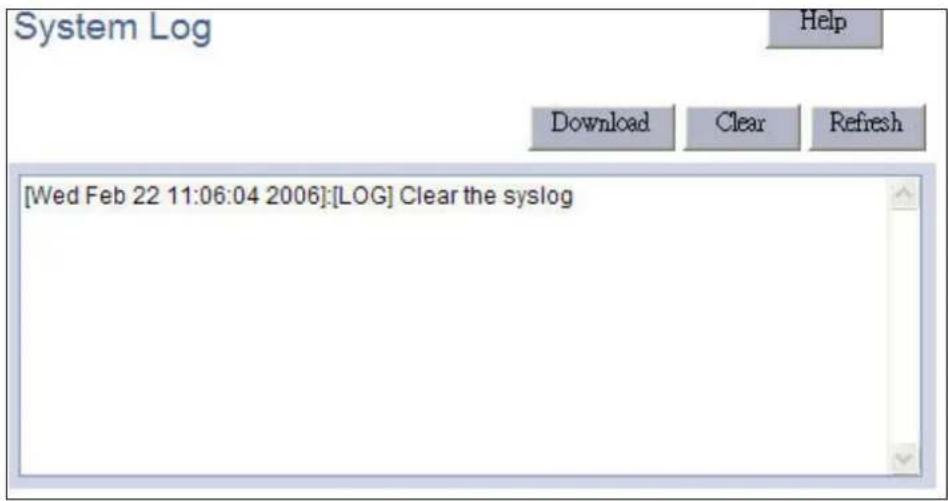
text_image
System Log Help Download Clear Refresh [Wed Feb 22 11:06:04 2006]:[LOG] Clear the syslogSecurity log
The text area shows hacker attack or firewall logs.
text_image
Security Log Download Clear RefreshRemote Log Settings

text_image
Remote Log Setting Remote Log Enabled Send log to 0 0 0 0 Email Log Enabled Send Email to SMTP Server 0.0.0.0 OK CancelRemote Log
Check this file and the gateway will send the log message to the "Send Log to" remote host.
Send Log to
Set the IP address to send log.
Email Log
When the log buffer is full, the gateway will check whether this item is enabled.
If enabled, the gateway will send all the log messages to the "Send Email to" email address.
SMTP Server
Set the SMTP Server (email server) to send the email log to. You can either specify the server's name or its IP address.
4.2.8 Route Function(/ System Setup)
4.2.8.1 Setting WAN connection: System Setup/ Connection

text_image
Connected Type Dynamic IP Address Obtain an IP address automatically from your service provider. Static IP Address Uses a static IP address. Your service provider gives a static IP address to access Internet services. PPPoE PPP over Ethernet is a common connection method used for xDSL PPTP PPP Tunneling Protocol can support multi-protocol Virtual Private Networks (VPN). L2TP Layer 2 Tunneling Protocol can support multi-protocol Virtual Private Networks (VPN)./ System Setup/ WAN/ Connected Type
Connection Type
There are five ways to connect to the Internet.
They are Dynamic IP, Static IP, PPPoE, PPTP and L2TP.
The cable modem ISP usually requests you to obtain the WAN IP dynamically. Some ISPs request you to fill the host name. To do this, please go to "System/System Settings" page to change the host name.
A. Dynamic IP Address
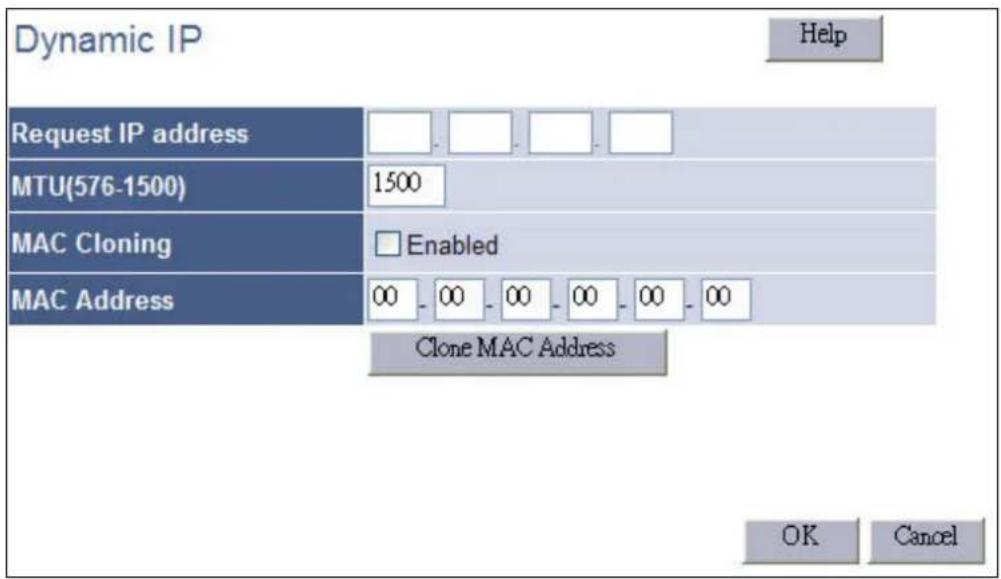
text_image
Dynamic IP Request IP address MTU(576-1500) MAC Cloning MAC Address Enabled Clone MAC Address OK Cancel HelpRequest IP address
You can specify the IP address you desired. But the ISP has the right to neglect it and provides you a different one.
MTU (576-1500)
You can specify the MTU (maximum transmission unit) of your home gateway. The default value is 1500 bytes and in normal case, you don't have to change.
MAC Cloning
Some ISPs will identify the MAC address registered by the user. If not registered, the ISP won't allow the traffic to pass. Enable the MAC cloning function will change WAN MAC to the registered one.
MAC Address
The MAC address will be cloned.
Clone MAC Address
This button is use to detect the PC, which is browsing this page, and make its MAC address to be the MAC address to clone.
B. Static IP Address
Static IP
Help
IP address assigned by your ISP
211
72
10
140
Subnet Mask
255
255
255
240
ISP Gateway Address
211
72
10
129
MTU(576-1500)
1500
Does ISP provide more IP addresses?
□Yes
OK
Cancel
IP address assigned by your ISP
Set the IP address that assigned by the ISP.
Subnet Mask
Set the subnet mask of the network.
ISP Gateway Address
Set the ISP's gateway IP address. This address routes packets to Internet.
C. PPPoE
PPPoE
Help

text_image
User Name pppoe_user Password ••••••• Please retype your password ••••••• Service Name MTU (546-1492) 1492 Maximum Idle Time (60-3600) 300 (seconds) Connection Mode keep-aliveOK
Cancel
This page is the PPPoE configuration page. Most of the ISPs request the user to connect to central office (CO) side via PPPoE, acronym of Point-to-Point Protocol over Ethernet, which provides authentication, authorization and accounting.
User Name
Enter the user name provided by your ISP to identify the computer using PPPoE.
Password
Enter the password provided by your ISP to identify the computer using PPPoE.
Please retype your password
Retype the password to make sure type correct password.
Service Name
Some ISP provides the service name of this PPPoE connection. If so, enter this item, or make it blank.
MTU (546-1492)
Maximum Transmission Unit (MTU) is the largest physical packet size measured in bytes, which a network can transmit. Any messages larger than the MTU are divided into smaller packets before sent. In ordinary, that the user does not have to worry about the MTU size, the gateway routing engine will handle the MTU differences between PPP and the LAN Ethernet side. But for some old PPPoE server, you have to make the MTU size of the PPPoE side smaller than the default value, or some Web side is not able to access.
PPPoE MTU should be set between 546 and 1492.
Maximum Idle Time (60-3600)
Set a period of time to disconnect PPPoE connection, when user's idle time greater than it.
The Maximum Idle Time is only worked on the auto-connect mode. It makes no effect on manual-on mode and keep-alive mode (see Connection Mode).
Connection Mode
Three connection modes are designed to fit different request. They are keep-alive, manual-on, and auto-connect mode.
For the manual-on mode, you have to dial-on and cut out the connection manually.
The keep-alive mode will make the connection always on. If the line is dropped, the modules will try to connect to the PPPoE server always.
The auto-connect mode is designed to save the communication cost for the user. In the beginning of powered on, the link will not be built. Instead, the gateway monitors the traffic from LAN side to the Internet. The sooner routing traffic was issued, the later PPPoE link is established. The gateway continually watches the LAN to WAN traffic, if there is no activity for more than the Maximum Idle Time, the connection will be
D. DNS
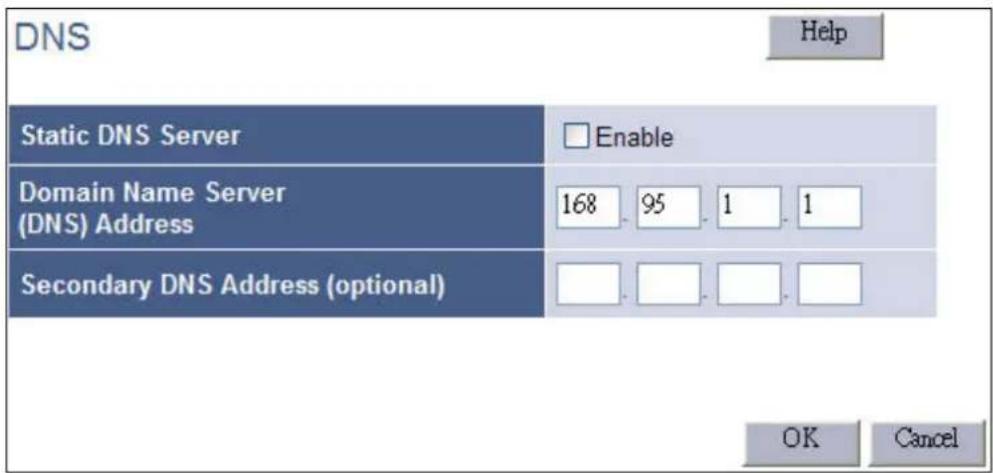
text_image
DNS Help Static DNS Server Enable Domain Name Server (DNS) Address 168 95 1 1 Secondary DNS Address (optional) OK CancelThis page sets the primary and secondary DNS servers, which were given by your ISP or known to you. When a domain name request received, the gateway tries to resolve to it from the Primary Domain Name Server. Resolving failed, the gateway tries the Secondary sever again.
Static DNS Server
Check this item to make the primary and secondary DNS server at the next two rows active. If this field is not enabled, the statically configured DNS server will not take effect.
Domain Name Server (DNS) Address
Set your primary DNS in this field.
Secondary DNS Address (optional)
Set your secondary DNS to use when the primary DNS does not work.
4.2.8.2 LAN Settings

text_image
LAN Settings IP Address 192 168 22 1 Subnet Mask 255.255.255.0 The Gateway acts as DHCP Server Enabled IP Pool Starting Address 192.168.22 2 IP Pool Ending Address 192.168.22 254 Lease Time One day DNS Proxy Enabled OK Cancel/ S/ System Setup/ LAN/ LAN Settings/
The home gateway is an IP sharing device, which provides the home users share the same public IP address. While in the LAN side, each network device must have one private IP address to do network communication. This page is to set the configuration of the LAN interface of the gateway.
IP Address
Set this to be gateway's LAN interface IP address. The LAN interface address is also aced as the default gateway address to the computers in you private network.
Subnet Mask
This field indicates a mask used to determine what subnet the LAN IP address belongs to.
The Gateway acts as DHCP Server
Check this item, if the home gateway supports DHCP server service. This is the normal case that can make you free from installing a DHCP server in your home network. And you can connect to the Internet just as what you have done in your company environment.
IP Pool Starting Address
The starting address provided by DHCP service.
IP Pool Ending Address
The ending address provided by DHCP service.
Lease Time
Set the lease time of the IP address to renew.
Local Domain Name
Set the gateway's local Domain Name.
DNS Proxy
The home gateway acts as a DNS Proxy. In this case, the DHCP service will set LAN interface IP address as the DNS server address, and inform the clients in the DHCP renew process.
DHCP Client List
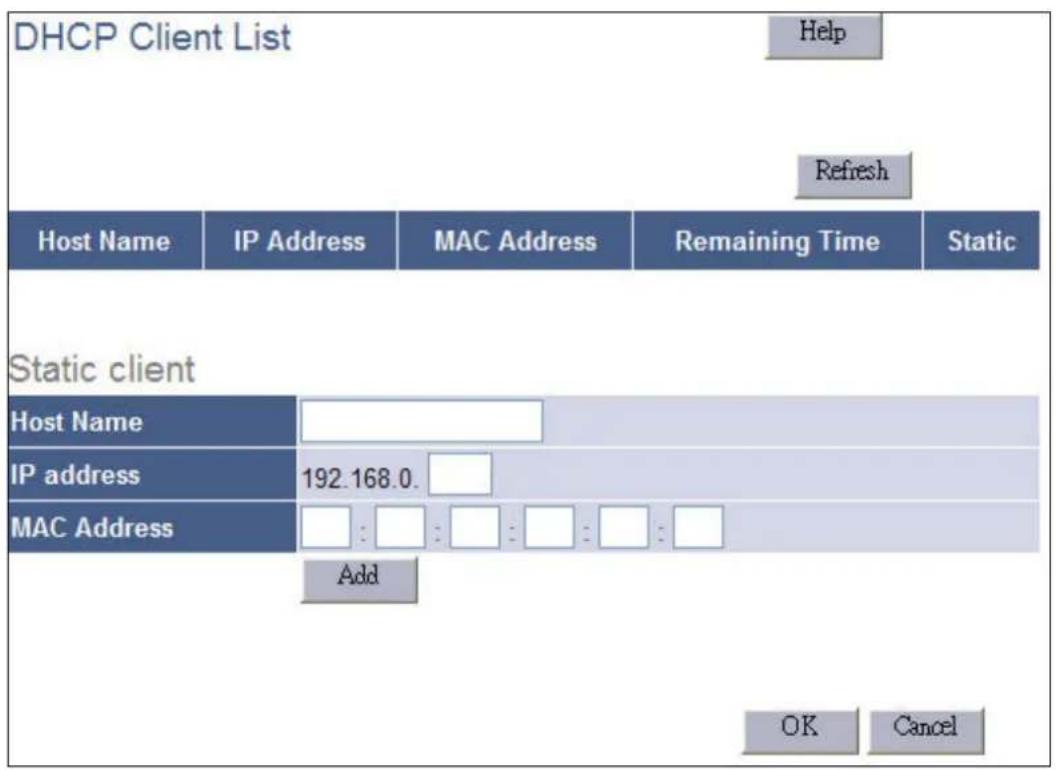
text_image
DHCP Client List Help Refresh Host Name IP Address MAC Address Remaining Time Static Static client Host Name IP address 192.168.0. MAC Address Add OK CancelThis page lists all the DHCP clients in the LAN side. The DHCP server is capable of administering 253 clients.
Host Name
This column shows the host name of the DHCP clients.
IP Address
This column shows the IP Address of the DHCP clients.
MAC Address
This column shows the MAC Address of the DHCP clients.
Static
Check this item to make the IP address static, and every time the client connect to the home gateway, it will get the same IP address all the way.
Refresh
Click this button, the browser request the DHCP client list from the home gateway and refresh the page again.
Static Clients
You can add static clients using this block if those clients are not current connect to the home network. Fill out the “Host Name, IP address and the MAC Address, then click the “Add” button, they will be add to the static list and show on the DHCP client list. Uncheck the static box of that entry and click the “OK” button, this static entry will be deleted.
4.2.8.3 NAT
Virtual Server
| Private IP | Private Port | Type | Public Port | Comment | Enabled | |
| 1. | 192.168.0 | TCP√ | □ | |||
| 2. | 192.168.0 | TCP√ | □ | |||
| 3. | 192.168.0 | TCP√ | □ | |||
| 4. | 192.168.0 | TCP√ | □ | |||
| 5. | 192.168.0 | TCP√ | □ | |||
| 6. | 192.168.0 | TCP√ | □ | |||
| 7. | 192.168.0 | TCP√ | □ | |||
| 8. | 192.168.0 | TCP√ | □ | |||
| 9. | 192.168.0 | TCP√ | □ | |||
| 10. | 192.168.0 | TCP√ | □ | |||
| 11. | 192.168.0 | TCP√ | □ | |||
| 12. | 192.168.0 | TCP√ | □ | |||
| 13. | 192.168.0 | TCP√ | □ | |||
| 14. | 192.168.0 | TCP√ | □ | |||
| 15. | 192.168.0 | TCP√ | □ | |||
| 16. | 192.168.0 | TCP√ | □ | |||
| 17. | 192.168.0 | TCP√ | □ | |||
| 18. | 192.168.0 | TCP√ | □ | |||
| 19. | 192.168.0 | TCP√ | □ | |||
| 20. | 192.168.0 | TCP√ | □ |
This is the virtual server page, which set the rules translate the private IP/private port pairs to the public ports.
Private IP
Set the IP address of the virtual server.
Private Port
Set the port of the virtual server to connect to Internet.
Type
Set the protocol of the virtual server. Valid options are TCP, UDP and Both.
Public Port
Set gateway's WAN port to connect to virtual server.
Comment
Let you put some notes to describe this entry.
Enabled
Enable this entry.
Special Application
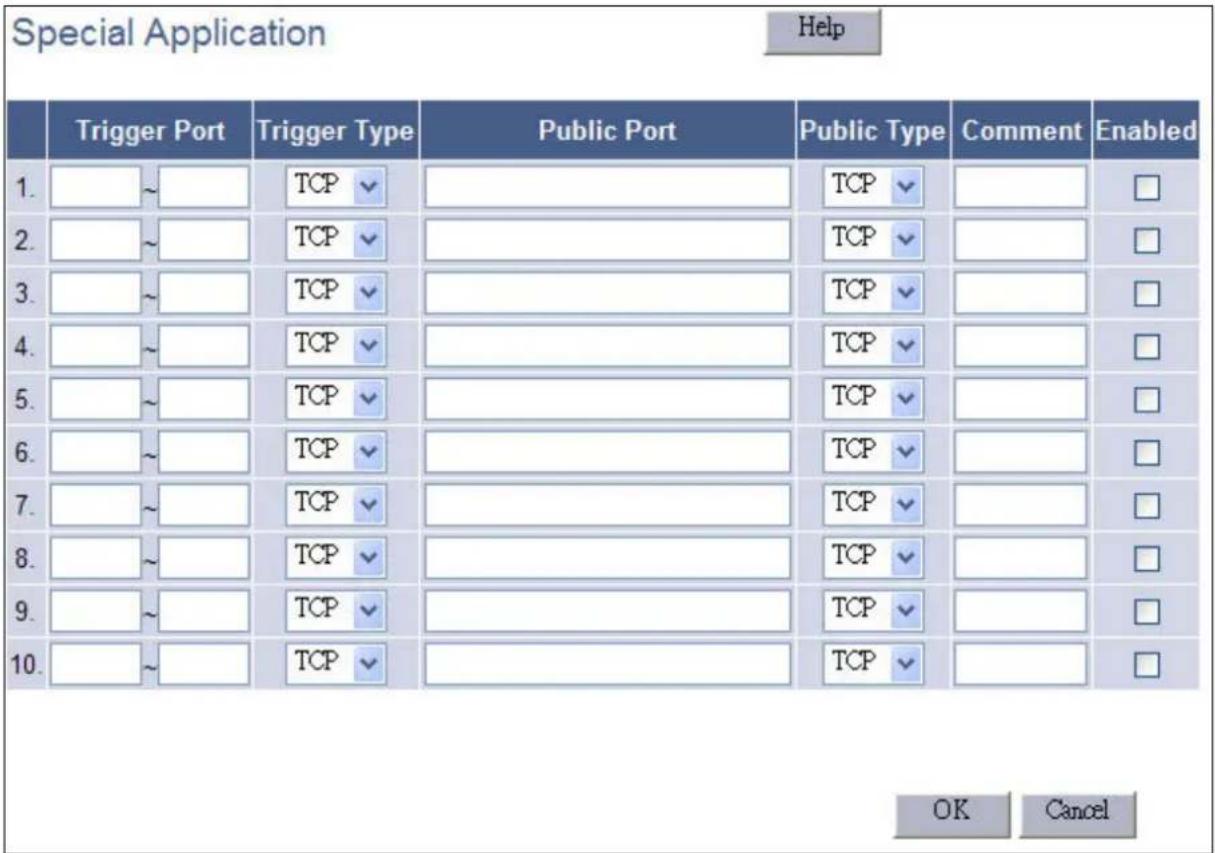
text_image
Special Application Help Trigger Port Trigger Type/Public Port/Public Type Comment Enabled 1. ~ TCP TCP 2. ~ TCP TCP 3. ~ TCP TCP 4. ~ TCP TCP 5. ~ TCP TCP 6. ~ TCP TCP 7. ~ TCP TCP 8. ~ TCP TCP 9. ~ TCP TCP 10. ~ TCP TCP OK CancelTrigger Port
To define the TCP/UDP port range to monitor, when initiating from the home network, the public ports configured in this entry will be activated.
Trigger Type
Defines the protocol type: TCP, UDP or both of the trigger ports.
Public Port
This column defines the public ports opened when the trigger ports were seen.
You can enter multiple ports, delimited by comma, or a range of port by dash.
White space will be neglect.
Public Type
Defines the protocol type, TCP/UDP/Both, of the public ports.
Comment
Let you put some notes to describe this entry.
Enabled
Enable this entry.
Port Mapping
| Port Mapping Help | |||||
| Server IP | Mapping Ports | Type | Comment | Enabled | |
| 1. | 192.168.0. | TCP✓ | |||
| 2. | 192.168.0. | TCP✓ | |||
| 3. | 192.168.0. | TCP✓ | |||
| 4. | 192.168.0. | TCP✓ | |||
| 5. | 192.168.0. | TCP✓ | |||
| 6. | 192.168.0. | TCP✓ | |||
| 7. | 192.168.0. | TCP✓ | |||
| 8. | 192.168.0. | TCP✓ | |||
| 9. | 192.168.0. | TCP✓ | |||
| 10. | 192.168.0. | TCP✓ | |||
| OK Cancel | |||||
The Port Mapping page does a port range mapping.
Server IP
Set one of LAN client's IP address to do port mapping.
Mapping Ports
Set the ports to mapping from WAN to LAN. You can enter multiple ports, delimited by comma, or a range of port by dash. White space will be neglect.
Public Type
Defines the protocol type, TCP/UDP/Both, of the public ports.
Comment
Let you put some notes to describe this entry.
Enabled
Enable this entry.
ALG

text_image
ALG FTP H323/netmeeting PPTP passthrough Windows messenger(file transfer) ipsec passthrough Non-Standard FTP Port Help OK CancelSome applications have to do Application Level Gateway (ALG) to monitor the transaction or monitor the payload of the packet. This page let you setup them.
We use mnemonic nouns to describe the specific ALGs. The checked entries will be enabled by the ALG processing.
For the Non-Standard FTP Port, you have to set the port number to let the ALG take it as an FTP session.
DMZ

text_image
DMZ Enabled Help DMZ table Public IP Address IP Address of Virtual DMZ Host Action 211.72.10.140 192.168.0 << Add OK CancelCheck this item to enable DMZ service.
DMZ table
This table lets you configure the DMZ hosts. If you have more than one public IP Addresses, you can specify each one with an associated DMZ host.
Public IP MZ table Address
Select among the WAN IP addresses of the home gateway.
IP Address of Virtual DMZ Host
Fill the client in the LAN side as the associated DMZ host.
Add
Add this entry to virtual DMZ host table.
Delete
Delete this entry from virtual DMZ host table.
4.2.8.4 Firewall
Firewall Options

text_image
Firewall Options Enable Hacker Attack Protect Discard PING from WAN side Unallow to PING the Gateway Drop Port Scan Packets Allow to Scan Security Port (113) Discard NetBios Packets Accept Fragment Packets Send ICMP packets when error Advance Settings OK Cancel HelpEnable Hacker Attack Protect
The hackers always try to break into you system or crack down your network. The gateway provides hacker attack protect modules to protect your home network.
Discard PING from WAN side
“Ping” is the most widely used tool to diagnose the network. Hackers use “ping” to discover your gateway firstly and try to hack your home network later. Discard “ping” from WAN side prevent the hacker from discovering your home network by using “ping”.
Disallow to PING the Gateway
Check this item not only prevent ping from the WAN side, but also prevent pinging the home gateway from the LAN side. The side effect is to increase the difficulty to diagnose your home network.
Drop Port Scan Packets
The most famous Internet hacking method is the port scan. "Port scan"
scans all the TCP/UDP port of a station to find out the opened ports. After confirmed, the hackers try to connect to the listened ports to attack your computer. Check this option, the home gateway will drop the port scan packets to protect your system.
Allow to Scan Security Port (113)
Some Linux email servers will try to detect the security TCP/UDP port (113). If you drop it, the Linux email servers will not allow you to log into. Allow it can solve such kind of problem.
Discard NetBios Packets
The NetBios protocol is widely used by the MS Windows Network Place, which should only be use in the home network and should not be used in the Internet environment. Strongly suggest you to check this item for security consideration.
Accept Fragment Packets
Accept packets that are fragmented.
Send ICMP packets when error
Send ICMP packets when the error happens in connection.
Advance settings
Click this button, the detail hacker attack patterns will appear to let you decide which one should be enabled. Figure 7-2 shows the hacker attack patterns to protect.
Hacker Attack Patterns
| IP Spoofing | |
| Smurf Attack | |
| Ping of Death | |
| Land Attack | |
| Snork Attack | |
| UDP Port Loop | |
| TCP Null Scan | |
| Sync Flood | |
| Short Packet |
Client Filtering
Client Filtering
Help
□ Enable Client Filter
| IP | Port | Type | Block Time | Day | Time | Comment | Enable | |
| 1. | 192.168.0.~ | ~ | TCP | AlwaysBlock | SUNHONTUEWEDTHURFSAT | 0:00am 0:00am | ||
| 2. | 192.168.0.~ | ~ | TCP | AlwaysBlock | SUNMONTUEWEDTHURFSAT | 0:00am 0:00am | ||
| 3. | 192.168.0.~ | ~ | TCP | AlwaysBlock | SUNMONTUEWEDTHURFSAT | 0:00am 0:00am | ||
| 4. | 192.168.0.~ | ~ | TCP | AlwaysBlock | SUNMONTUEWEDTHURFSAT | 0:00am 0:00am | ||
| 5. | 192.168.0.~ | ~ | TCP | AlwaysBlock | SUNMONTUEWEDTHURFSAT | 0:00am 0:00am | ||
| 6. | 192.168.0.~ | ~ | TCP | AlwaysBlock | SUNMONTUEWEDTHURFSAT | 0:00am 0:00am | ||
| 7. | 192.168.0.~ | ~ | TCP | AlwaysBlock | SUNMONTUEWEDTHURFSAT | 0:00am 0:00am | ||
| 8. | 192.168.0.~ | ~ | TCP | AlwaysBlock | SUNMONTUEWEDTHURFSAT | 0:00am 0:00am | ||
| 9. | 192.168.0.~ | ~ | TCP | AlwaysBlock | SUNMONTUEWEDTHURFSAT | 0:00am 0:00am | ||
| 10. | 192.168.0.~ | ~ | TCP | AlwaysBlock | SUNMONTUEWEDTHURFSAT | 0:00am 0:00am |
Enable Client Filter
Check this box and all the entries below will take effect.
IP
Block the IP addresses ranged to connect to Internet.
Port
Set the port range, within which is not allowed to connect to Internet.
Type
Set which protocol, TCP/IP/Both, of this entry to inhibit.
Block Time
Two options are provided for this column, the "Always" and "Block".
If “Always” is selected, the next two items will be neglect. Otherwise, the client filter function schedule the block time base on the “Day” and “Time” settings.
Day
Set which days to block Internet connection.
Time
Set what time in each day to block the Internet access.
Comment
Let you put you note why you want to block the Internet access.
Enable
Check the item to enable this entry.
URL Filtering

text_image
URL Filtering Enable URL Filter IP URL filter string Enable 1. 192.168.0. □~ □ 2. 192.168.0. □~ □ 3. 192.168.0. □~ □ 4. 192.168.0. □~ □ 5. 192.168.0. □~ □ 6. 192.168.0. □~ □ 7. 192.168.0. □~ □ 8. 192.168.0. □~ □ 9. 192.168.0. □~ □ 10. 192.168.0. □~ □ OK CancelEnable URL Filter
Check this box and all the entries below will take effect.
IP
The IP addresses ranged will be the candidate to check the URL when they use web browser to access the Internet.
URL filter string
The specific URL string to block.
Enable
Check this item to enable this URL filter entry.
MAC Control

text_image
MAC Control Help MAC Address Control Enabled Filter out or only accept the following MAC address connect to Internet. Filter out Accept Configure MAC Address MAC Address Comment Action Manual Setting << Add OK CancelMAC Control
MAC Address Control
Check this item to enable MAC control service.
Filter out or only accept the following MAC address connect to Internet
Select "Filter out", the MAC addresses list in the following table will be block out to access the Internet. Or "Accept" to allow them to connect to the Internet freely.
Configure MAC Address
MAC Address
List all the MAC address want to block then connect to Internet.
Comment
Put your note why you set here.
Action
You can select one of the MAC addresses recorded by the home gateway or enter the new entry manually.
Add
Click this button, a new entry will be added to the MAC Control table.
Delete
Click this button to delete this entry, if it is not necessary.
4.2.8.5 Routing
Routing Table
| Routing Table | Help | ||||
| Destination LAN IP | Subnet Mask | Gateway | Metric | Interface | Refresh |
| 0.0.0.0 | 0.0.0.0 | 211.72.10.129 | 0 | eth1 | |
| 127.0.0.0 | 255.0.0.0 | 127.0.0.1 | 0 | lo0 | |
| 127.0.0.1 | 255.255.255.255 | 127.0.0.1 | 0 | lo0 | |
| 192.168.0.0 | 255.255.255.0 | 192.168.0.0 | 0 | eth0 | |
| 211.72.10.128 | 255.255.255.240 | 211.72.10.128 | 0 | eth1 | |
This field indicates the destination IP of this route entry.
Subnet Mask
This field indicates the Subnet Mask of this route.
Gateway
If a packet's destination IP address do "bit and" operation with the "Subnet Mask" equals to the "Destination LAN IP", the packet will send to the Gateway.
Interface
This field indicates which network interface deal the connection.
Refresh
Refresh the routing information from the home gateway again.
Static Routing

text_image
Static Routing Help Destination LAN IP Subnet Mask Gateway Action << Add CancelDestination LAN IP
This field indicates the destination IP of this route entry.
Subnet Mask
This field indicates the Subnet Mask of this route.
Gateway
If a packet's destination IP address do "bit and" operation with the "Subnet Mask" equals to the "Destination LAN IP", the packet will send to the Gateway.
Add
Click this button to add this entry to routing table statically.
Delete
Click this button to delete this static entry.
4.2.8.6 UPnP Settings
UPnP
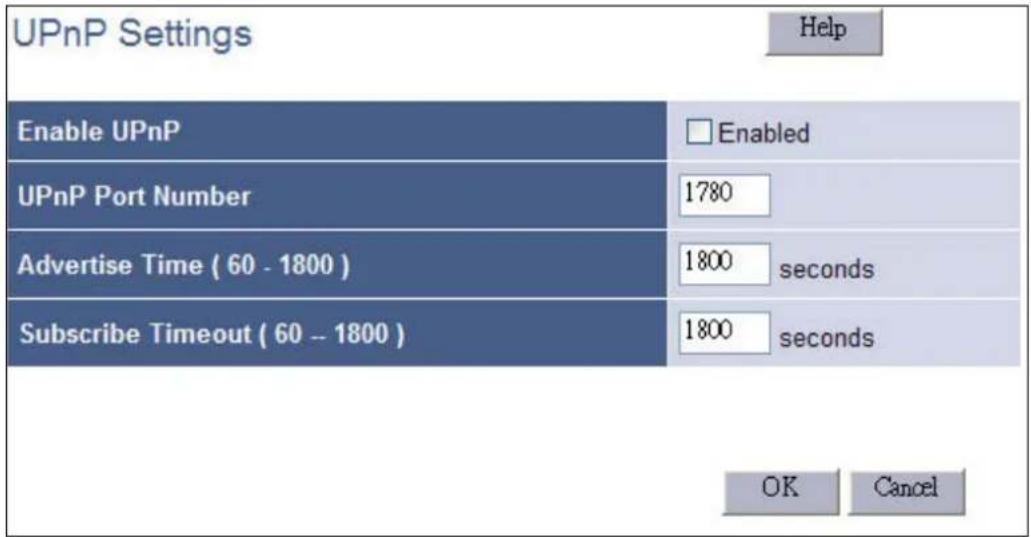
text_image
UPnP Settings Enable UPnP □ Enabled UPnP Port Number 1780 Advertise Time ( 60 - 1800 ) 1800 seconds Subscribe Timeout ( 60 -- 1800 ) 1800 seconds OK CancelEnable UPnP
Check this item to enable UPnP.
UPnP Port Number
Set UPnP port number to announce to the UPnP control points. The UPnP control points use this TCP port to send request to the home gateway.
Advertise Time (60-1800)
Set the time interval after which the home gateway sends advertisement packets.
Subscribe Timeout (60-1800)
The UPnP control point subscribes a request to the home gateway. The home gateway keeps the request until the control point renew it, unsubscribe it or after timed-out. This item set the timeout value of the subscribe requests.
Port Mapping
flowchart
graph LR
    A["Remote Host"] --> B["External Port"]
    B --> C["Internal Client"]
    C --> D["Internal Port"]
    D --> E["Protocol"]
    E --> F["Duration"]
    F --> G["Description"]
    H["Help"] --> I["Refresh"]
Remote Host
This field lists remote host that connect to LAN client.
External Port
This field lists the port of the remote host connect to LAN client.
Internal Client
This field lists LAN client connect to the Internet.
Internal Port
This field lists port of LAN client connect to the Internet.
Protocol
This field lists the protocol, TCP/UDP, of the connection.
Duration
This field lists the duration of the connection.
Description
This field lists the description of list port mapping. The description gives you a brief note of what the entry is.
Refresh
Refresh the UPnP port mapping from the home gateway again.
4.2.8.7 DDNS
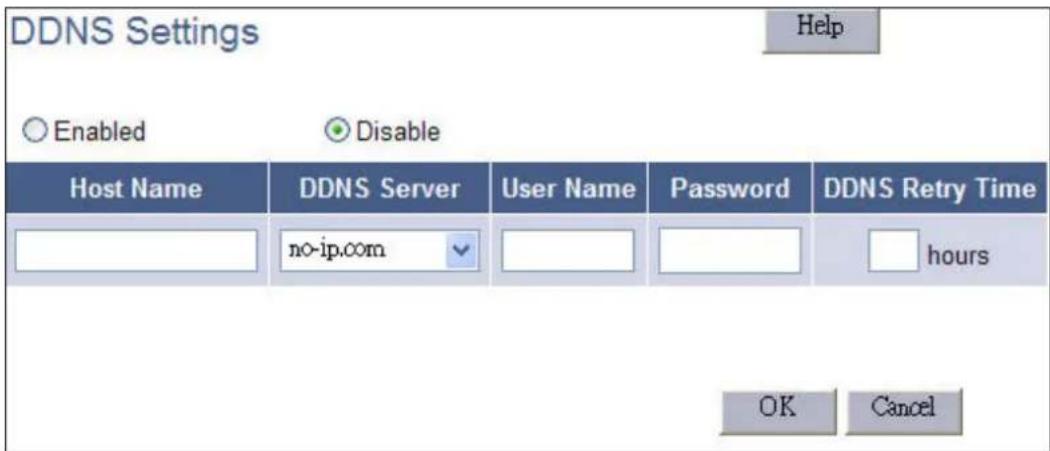
text_image
DDNS Settings Help Enabled Disable Host Name DDNS Server User Name Password DDNS Retry Time no-ip.com hours OK CancelEnabled
Check this item to enable the DDNS settings
Disabled
Check this item to disable the DDNS settings
Host Name
Set your host name that need to do DDNS update.
DDNS Server
Set the DDNS server that updates your IP address.
User Name
The DDNS server requires you to supply a name and password to update your IP address. You have to register the user name and password offline to the specific DDNS server.
Password
The DDNS server requires you to supply a name and password to update your IP address. You have to register the user name and password offline to the specific DDNS server.
DDNS Retry Time
Set the time interval to update your IP address to ddns server.
4.2.9 Backup/Restore
4.2.9.1 Configuration
Backup/Restore Configurations

text_image
Backup( Download System Configurations ) Restore ( Upload System Configurations ) (1.) Download setting backup file (2.) Browse... Restore/Backup-Restore/ Configurations/
This page let you backup / Restore all of your configuration parameters on the VoIP Gateway. It is very good idea to back up all of your \ configuration parameters after install.
a. To Backup, press Download setting backup file, and input the file name you want and file location to save.
b. To Restore, press the Browse button the select the backup configuration parameters file to upload then press Restore. After you upload the file, Press Saved modification to save your current configuration to Flash ROM (Usually used to save currently WAN configuration). After save, please remember to Reboot the VoIP Gateway to let the restored parameters take effective.
*** Caution: Never power off the VoIP Gateway when during Restore configure or upgrade VoIP module or System, it will cause permanent damage when power off during writing Flash inside VoIP Gateway.
4.2.9.2 VoIP Module
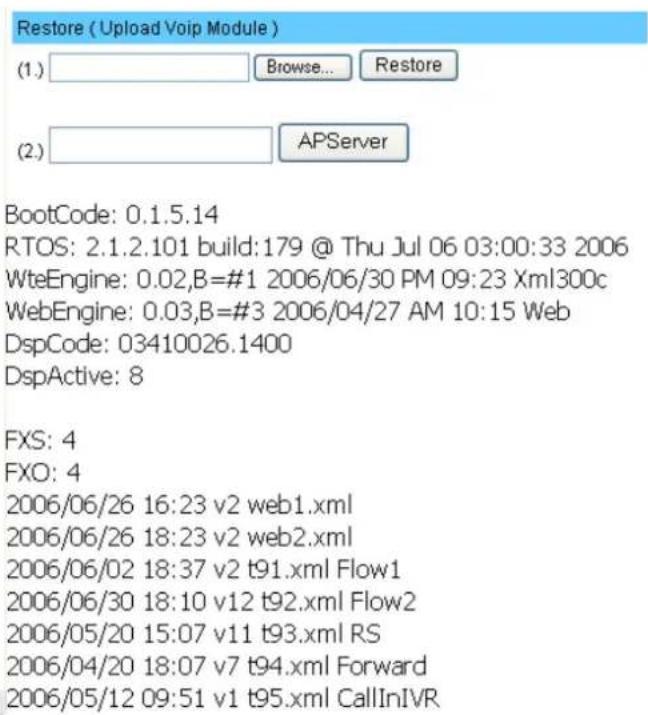
text_image
Restore ( Upload Voip Module ) (1.) Browse... Restore (2.) APServer BootCode: 0.1.5.14 RTOS: 2.1.2.101 build:179 @ Thu Jul 06 03:00:33 2006 WteEngine: 0.02,B=#1 2006/06/30 PM 09:23 Xml300c WebEngine: 0.03,B=#3 2006/04/27 AM 10:15 Web DspCode: 03410026.1400 DspActive: 8 FXS: 4 FXO: 4 2006/06/26 16:23 v2 web1.xml 2006/06/26 18:23 v2 web2.xml 2006/06/02 18:37 v2 t91.xml Flow1 2006/06/30 18:10 v12 t92.xml Flow2 2006/05/20 15:07 v11 t93.xml RS 2006/04/20 18:07 v7 t94.xml Forward 2006/05/12 09:51 v1 t95.xml CallInIVR/System Maintenance/Backup-Restore/Configurations/
This page displays the current firmware module version and let you backup / Restore all of your VoIP firmware module on the VoIP Gateway. Please use this page to update the VoIP module firmware if necessary.
a. To Restore from local file, press the Browse button the select the VoIP module file to upload then press Restore. After you upload the file, Press Saved modification to save your current configuration to Flash ROM (Usually used to save currently WAN configuration). After save, please remember to Reboot the VoIP Gateway to let the restored parameters take effective.
b. To Restore from Upgrade server, please input the URL address of upgrade server and press the APServer to link to upgrade server to get latest version firmware and upgrade automatically.
*** Caution: Never power off the VoIP Gateway when during Restore configure or upgrade VoIP module or System, it will cause permanent damage when power off during writing Flash inside VoIP Gateway.
4.2.9.3 Reboot System

text_image
Home Voip Setup Port Status Line configure Routing Setup Gatekeeper WebCall setting System Setup Connection Administrator Firewall System Status Advanced System Maintenance Backup/Restore Upgrade/Reboot Upgrade System Reboot System Save Modification Reboot System Are you sure you have already saved modification? Yes, Please click Reboot button! Reboot/ Reboot System
Use the Reboot button on this page to reboot your VoIP Gateway, before you reboot, please make sure you have to press the Saved modification to save your current configuration to Flash ROM, otherwise all the change will be disappear after reboot.
4.2.10 Save Modification

text_image
Home Vccp Setup Port Status Line configure Routing Setup Gatekeeper WebCall setting System Setup Connection Administrator Firewall System Status Advanced System Maintenance Backup/Restore Upgrade/Reboot Upgrade System Reboot System Save Modification Save Modification Yes, Please click Save Modification button! Save Modification/Save Modification/
Most of the VoIP Gateway parameters will take effective after you modify, but it is just temporary stored on RAM only, it will disappear after your reboot or power off the VoIP Gateway, to save the parameters into Flash ROM and let it take effective forever, please remember to press the Save Modification button after you modify the parameters.