
WAP-6200 - Router LEVELONE - Free user manual and instructions
Find the device manual for free WAP-6200 LEVELONE in PDF.


| Product Type | Outdoor 802.11g Wireless LAN CPE AP/Router |
| Model | WAP-6200 |
| Standards | IEEE 802.11b/g |
| Ports | 1 x LAN (10/100Mbps), 1 x WAN (10/100Mbps) |
| Antenna | Built-in 14dBi patch antenna (H-plane: 30°, E-plane: 30°) |
| Output Power | 26±1dBm (802.11b), 19±1dBm (802.11g), 5 levels adjustable (100%, 50%, 25%, 10%, 5%) |
| Receiver Sensitivity | 802.11b: -80 dBm @ 8% PER; 802.11g: -68 dBm @ 8% PER |
| Operating Modes | Gateway, Bridge, WISP |
| Wireless Modes | AP, Client, WDS, AP+WDS, Repeater |
| Security | WEP (64/128-bit), WPA (TKIP), WPA2 (AES), 802.1x |
| Dimensions (L x W x H) | 130 x 80 x 35 mm |
| Weight | 1.11 kg (net) |
| Power Supply | 12V DC, 1.25A via PoE injector |
| Operating Temperature | -10°C to 60°C |
| Operating Humidity | 0% to 90% (non-condensing) |
| Certifications | FCC, CE |
| Maintenance & Cleaning | Use a dry cloth to clean the exterior; avoid water or solvents. Ensure connectors are dry. |
| Safety Precautions | Keep at least 20 cm from antenna during operation. Follow outdoor installation warnings to avoid power lines. |
| Spare Parts & Repairability | Only use supplied power adapter. Contact supplier for replacement parts. No user-serviceable parts inside. |
| General Information | Supports PoE, multiple SSID, QoS, firewall (port/IP/MAC/URL filtering), DDNS, VPN pass-through. |
Frequently Asked Questions - WAP-6200 LEVELONE
User questions about WAP-6200 LEVELONE
0 question about this device. Answer the ones you know or ask your own.
Ask a new question about this device
Download the instructions for your Router in PDF format for free! Find your manual WAP-6200 - LEVELONE and take your electronic device back in hand. On this page are published all the documents necessary for the use of your device. WAP-6200 by LEVELONE.
USER MANUAL WAP-6200 LEVELONE
802.11g Wireless LAN Outdoor CPE AP/Router
WAP-6200
User's Manual
Version 2.1

natural_image
White rectangular electronic device labeled 'PLANET' with no visible text or symbols on its bodyCopyright
Copyright© 2009 by PLANET Technology Corp. All rights reserved. No part of this publication may be reproduced, transmitted, transcribed, stored in a retrieval system, or translated into any language or computer language, in any form or by any means, electronic, mechanical, magnetic, optical, chemical, manual or otherwise, without the prior written permission of PLANET.
PLANET makes no representations or warranties, either expressed or implied, with respect to the contents hereof and specifically disclaims any warranties, merchantability or fitness for any particular purpose. Any software described in this manual is sold or licensed "as is". Should the programs prove defective following their purchase, the buyer (and not this company, its distributor, or its dealer) assumes the entire cost of all necessary servicing, repair, and any incidental or consequential damages resulting from any defect in the software. Further, this company reserves the right to revise this publication and to make changes from time to time in the contents hereof without obligation to notify any person of such revision or changes..
All brand and product names mentioned in this manual are trademarks and/or registered trademarks of their respective holders.
FCC Caution:
To assure continued compliance. (Example-use only shielded interface cables when connecting to computer or peripheral devices). Any changes or modifications not expressly approved by the party responsible for compliance could void the user's authority to operate the equipment.
This device complies with Part 15 of the FCC Rules. Operation is subject to the Following two conditions: (1) This device may not cause harmful interference, and (2) this Device must accept any interference received, including interference that may cause undesired operation.
Federal Communication Commission (FCC) Radiation Exposure Statement
This equipment complies with FCC radiation exposure set forth for an uncontrolled environment. In order to avoid the possibility of exceeding the FCC radio frequency exposure limits, human proximity to the antenna shall not be less than 20 cm (8 inches) during normal operation.
CE Mark Warning
This is a Class B product. In a domestic environment, this product may cause radio interference, in which case the user may be required to take adequate measures.
Protection requirements for health and safety – Article 3.1a
Testing for electric safety according to EN 60950 has been conducted. These are considered relevant and sufficient.
Protection requirements for electromagnetic compatibility – Article 3.1b
Testing for electromagnetic compatibility according to EN 301 489-1, EN 301 489-17 and EN 55024 has been conducted. These are considered relevant and sufficient.
Effective use of the radio spectrum - Article 3.2
Testing for radio test suites according to EN 300 328-2 has been conducted. These are considered relevant and sufficient.
CE in which Countries where the product may be used freely:
Germany, UK, Italy, Spain, Belgium, Netherlands, Portugal, Greece, Ireland, Denmark, Luxembourg, Austria, Finland, Sweden, Norway and Iceland.
France: except the channel 10 through 13, law prohibits the use of other channels
Safety
This equipment is designed with the utmost care for the safety of those who install and use it. However, special attention must be paid to the dangers of electric shock and static electricity when working with electrical equipment. All guidelines of this and of the computer manufacture must therefore be allowed at all times to ensure the safe use of the equipment.
WEEE regulation

To avoid the potential effects on the environment and human health as a result of the presence of hazardous substances in electrical and electronic equipment, end users of electrical and electronic equipment should understand the meaning of the crossed-out wheeled bin symbol. Do not dispose of WEEE as unsorted municipal waste and have to collect such WEEE separately.
Revision
User's Manual for PLANET 802.11g WLAN Outdoor CPE AP/Router
Model: WAP-6200
Rev: 2.1 (March, 2009)
Part No. EM-WAP6200
TABLE OF CONTENTS
CHAPTER 1 INTRODUCTION....6
1.1 Package Contents....6
1.2 Features....6
1.3 Specification....6
1.4 Wireless Performance....8
CHAPTER 2 HARDWARE INSTALLATION....9
Hardware Installation....9
CHAPTER 3 WEB CONFIGURATION....13
CHAPTER 4 STATUS....16
CHAPTER 5 SETUP WIZARD ....18
CHAPTER 6 OPERATION MODE....23
CHAPTER 7 WIRELESS....24
7.1 Basic Settings....24
7.2 Advanced Settings 26
7.3 Security 28
7.4 Access Control....30
7.5 WDS Settings....32
7.6 Site Survey....35
CHAPTER 8 TCP/IP SETTINGS....36
8.1 LAN Interface....36
8.2 WAN Interface 38
CHAPTER 9 FIREWALL ....46
9.1 Port Filtering 46
9.2 IP Filtering....48
9.3 MAC Filtering....49
9.4 Port Forwarding 50
9.5 URL Filtering....52
9.6 DMZ....53
CHAPTER 10 MANAGEMENT....54
10.1 Statistics 54
10.2 DDNS....55
10.3 Time Zone Setting....56
10.4 Denial-of-Service 57
10.5 Log 58
10.6 Upgrade firmware 59
10.7 Save/Reload Settings....60
10.8 Password....61
10.9 WatchDog 62
10.10 QoS....63
10.11 Lougout....65
APPENDIX A GLOSSARY 66
Chapter 1 Introduction
The WAP-6200 is an outdoor 802.11g CPE AP/Router with 14dBi antenna built in. This manual describes the details of how to manage this equipment.
1.1 Package Contents
Make sure that you have the following items:
WAP-6200 x 1
- PoE injector x 1
- AC Power Adapter x 1
- Mounting Kit x 1
CD x 1
- Quick Installation Guide x 1
Note: If any of the above items are missing, contact your supplier as soon as possible.
1.2 Features
• IEEE 802.11b/g Dual Standards Compatible
- Provides protection against rigorous weather conditions
- Default 200mW output power, 5 levels of adjustable transmit power control
• Power over Ethernet design
• Built-in 14dBi patch Antenna
- Multiple Wireless Access Modes: AP, Client, WDS, AP+WDS, Repeater
- Two Operating Modes: Gateway, Bridge, WISP
• Supports SPI Firewall, QoS functions
- MAC/IP/URL filtering
• Supports WEP, WPA, WPA2, 802.1x Authentication
- Web base configuration
1.3 Specification
| Model | WAP-6200 |
| Standard IEEE 802.11b, 802.11g | |
| Signal Type & Modulation OFDM with BPSK, QPSK, 16QAM, 64QAM, DBPSK, DQPSK, CCK | |
| Port LAN x1, WAN x 1 |
| Antenna Built-in 14dBi patch antenna | ||
| H-plane: 30 degreeE-plane: 30 degree | ||
| Output Power | 26±1dBm@11b19±1dBm@11g5 levels adjustable (100%, 50%, 25%, 10%, 5%) | |
| Sensitivity | 802.11b: -80 dBm@8%PER802.11g: -68 dBm@8%PER | |
| System Operating mode Gateway, Bridge, WISP (NAT Router) | ||
| Wireless Access Mode AP, | Client, WDS, AP+WDS, Repeater | |
| Security | WEP setting- Authentication mode: Enterprise(RADIUS) / Personal (PSK)- Shared keys input type: HEX / ASCII- Shared keys length: (64-bit, 128-bit)- Default WEP Key to use (1-4)WPA (TKIP) setting- Authentication mode: Enterprise (RADIUS)/Personal(PSK)- PassPhrase / Hex (64 characters)WPA 2(AES) setting- Authentication mode: Enterprise (RADIUS) / Personal(PSK)- PassPhrase / Hex (64 characters)802.1x Authentication setting | |
| Data Rate | 802.11g | 54Mbps, 48Mbps, 36Mbps, 24Mbps, 18Mbps, 12Mbps, 9Mbps, 6Mbps |
| 802.11b 11Mbps, 5.5 Mbps, 2Mbps, 1Mbps | ||
| Dimensions (L x W x H) | 130 x 80 x 35 mm | |
| Weight | 1.11 Kg (net weight) | |
| Environmental Specification | OperatingTemperature: -10~60°CRelative Humidity: 0~90%(non-condensing)StorageTemperature: -20~70°CRelative Humidity: 0~95%(non-condensing) | |
| Power Requirement | 12V DC, 1.25A (private PoE interface through either LAN / WAN RJ-45 port) | |
| Electromagnetic Compatibility FCC, CE | ||
1.4 Wireless Performance
The following information will help you utilizing the wireless performance, and operating coverage of WAP-6200.
1. Site selection
To avoid interferences, please locate WAP-6200 and wireless clients away from transformers, microwave ovens, heavy-duty motors, refrigerators, fluorescent lights, and other industrial equipments. Keep the number of walls, or ceilings between AP and clients as few as possible; otherwise the signal strength may be seriously reduced. Place WAP-6200 in open space or add additional WAP-6200 as needed to improve the coverage.
2. Environmental factors
The wireless network is easily affected by many environmental factors. Every environment is unique with different obstacles, construction materials, weather, etc. It is hard to determine the exact operating range of WAP-6200 in a specific location without testing.
Chapter 2 Hardware Installation
Before you proceed with the installation, it is necessary that you have enough information about the WAP-6200.
Hardware Installation
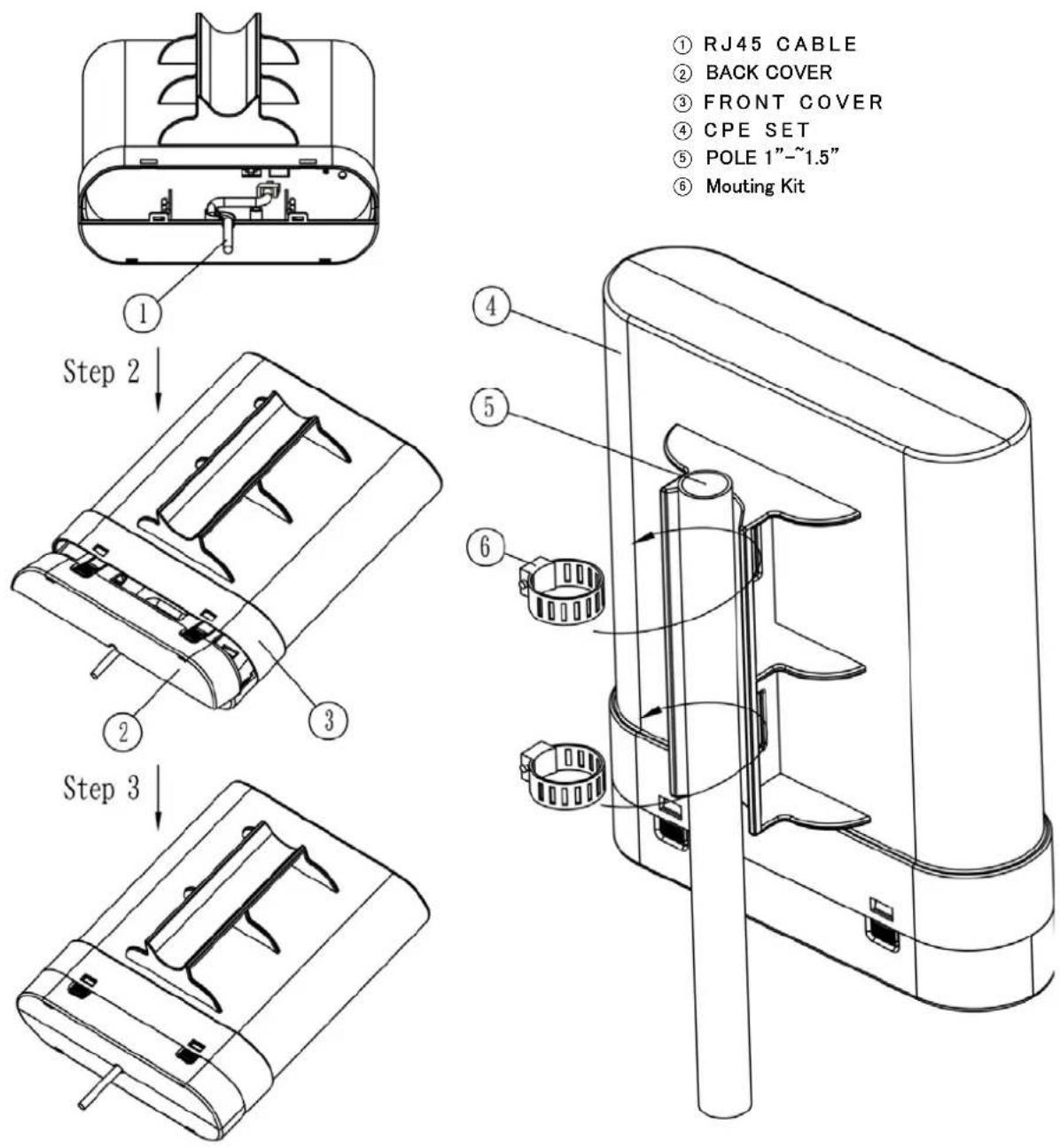
Before you proceed with the installation, it is necessary that you have enough information about WAP-6200.
- Please connect right installation→ "PoE" port of PoE inject to WAP-6200; "LAN" port of PoE injector to LAN PC, wrong installation will cause the device damage
| Note | 1. Strongly suggest using SFTP cable, for better protection of the data wire. 25-meter SFTP cable also available by order, the part no is WL-SFTP-25. Please contact with local dealer for more information2. 2. Pleas also refer to Chapter 5 or Chapter 6 for more about LAN port or WAN port selection. For the first time installation, it is suggested to connect to LAN. |
-
Using Category 3 or higher UTP or STP cable, connect the "LAN" port of PoE Injector to a 10Mbps or 10/100Mbps Ethernet hub or switch, and connect the PC on the same LAN for management.
-
Locate an optimum location and use the provided Mounting kit to tie the WAP-6200 to a pole.
| Note | 1. To avoid thunder strike, consider to install ELA-100, thunder arrester toward the CPE AP and the PoE injector.2. For secured reason, while install the CPE AP, please be aware for the electric wires around, and tighten the pole.Without tighten the CPE AP, the pole and the installed site is with electric wire around, there could be danger of being hurt by falling or lethal injury. |
- Connect the power cord to the PoE Injector, and plug it into an AC outlet to power on the WAP-6200.
| Note | 1. ONLY use the power adapter supplied with the WAP-6200. Otherwise, the product may be damaged.2. Strongly suggest using SFTP cable whether the cable exposed outdoor for waterproof and avoiding thunder stroke. |

OUTDOOR INSTALLATION WARNING
IMPORTANT SAFETY PRECAUTIONS:
LIVES MAY BE AT RISK! Carefully observe these instructions and any special instructions that are included with the equipment you are installing.
CONTACTING POWER LINES CAN BE LETHAL. Make sure no power lines are anywhere where possible
contact can be made. Antennas, masts, towers, guy wires or cables may lean or fall and contact these limes. People may be injured or killed if they are touching or holding any part of equipment when it contacts electric lines. Make sure there is NO possibility that equipment or personnel can come in contact directly or indirectly with power lines.

natural_image
Illustration of utility poles with red lightning bolts indicating electrical hazard (no text or symbols)Assume all overhead lines are power lines.
The horizontal distance from a tower, mast or antenna to the nearest power line should be at least twice the total length of the mast/antenna combination. This will ensure that the mast will not contact power if it falls either during installation or later.
TO AVOID FALLING, USE SAFE PROCEDURES WHEN WORKING AT HEIGHTS ABOVE GROUND.
- Select equipment locations that will allow safe, simple equipment installation.
- Don't work alone. A friend or co-worker can save your life if an accident happens.
- Use approved non-conducting lasers and other safety equipment. Make sure all equipment is in good repair.
- If a tower or mast begins falling, don't attempt to catch it. Stand back and let it fall.
- If anything such as a wire or mast does come in contact with a power line, DON'T TOUCH IT OR ATTEMPT TO MOVE IT. Instead, save your life by calling the power company.
- Don't attempt to erect antennas or towers on windy days.
MAKE SURE ALL TOWERS AND MASTS ARE SECURELY GROUNDED, AND ELECTRICAL CABLES CONNECTED TO ANTENNAS HAVE LIGHTNING ARRESTORS. This will help prevent fire damage or human injury in case of lightning, static build-up, or short circuit within equipment connected to the antenna.
- The base of the antenna mast or tower must be connected directly to the building protective ground or to one or more approved grounding rods, using 1 OAWG ground wire and corrosion-resistant connectors.
- Refer to the National Electrical Code for grounding details.
IF A PERSON COMES IN CONTACT WITH ELECTRICAL POWER, AND CANNOT MOVE:
- DON'T TOUCH THAT PERSON, OR YOU MAY BE ELECTROCUTED.
- Use a non-conductive dry board, stick or rope to push or drag them so they no longer are in contact with electrical power.
Once they are no longer contacting electrical power, administer CPR if you are certified, and make sure that emergency medical aid has been requested.
Chapter 3 Web Configuration
Web configuration provides a user-friendly graphical user interface (web pages) to manage your WAP-6200. An AP with an assigned IP address will allow you to monitor and configure via web browser (e.g., MS Internet Explorer or Netscape).
- Open your web browser.
- Enter the IP address of your WAP-6200 in the address field (default IP address is http://192.168.1.254). Please note that your PC's IP address should be on the same IP subnet of the WAP-6200. For example, you can configure your PC's IP address to 192.168.1.2 if WAP-6200 is with IP 192.168.1.254.
Default IP Address: http://192.168.1.254
Default IP subnet mask: 255.255.255.0
WEB login User Name:
WEB login Password:

For OS of Microsoft Windows 95/ 98/ Me:
- Click the Start button and select Settings, then click Control Panel. The Control Panel window will appear.
Note: Windows Me users may not see the Network control panel. If so, select View all Control Panel options on the left side of the window - Move mouse and double-click the right button on Network icon. The Network window will appear.
-
Check the installed list of Network Components. If TCP/IP is not installed, click the Add button to install it; otherwise go to step 6.
-
Select Protocol in the Network Component Type dialog box and click Add button.
- Select TCP/IP in Microsoft of Select Network Protocol dialog box then click OK button to install the TCP/IP protocol, it may need the Microsoft Windows CD to complete the installation. Close and go back to Network dialog box after the TCP/IP installation.
- Select TCP/IP and click the properties button on the Network dialog box.
-
Select Specify an IP address and type in values as following example.
IP Address: 192.168.1.1, any IP address within 192.168.1.1 to 192.168.1.253 is good to connect the Wireless LAN Access Point.
IP Subnet Mask: 255.255.255.0 -
Click OK and reboot your PC after completes the IP parameters setting.
For OS of Microsoft Windows 2000, XP:
- Click the Start button and select Settings, then click Control Panel. The Control Panel window will appear.
- Move mouse and double-click the right button on Network and Dial-up Connections icon. Move mouse and double-click the Local Area Connection icon. The Local Area Connection window will appear. Click Properties button in the Local Area Connection window.
- Check the installed list of Network Components. If TCP/IP is not installed, click the Add button to install it; otherwise go to step 6.
- Select Protocol in the Network Component Type dialog box and click Add button.
- Select TCP/IP in Microsoft of Select Network Protocol dialog box then click OK button to install the TCP/IP protocol, it may need the Microsoft Windows CD to complete the installation. Close and go back to Network dialog box after the TCP/IP installation.
- Select TCP/IP and click the properties button on the Network dialog box.
-
Select Specify an IP address and type in values as following example.
IP Address: 192.168.1.1, any IP address within 192.168.1.1 to 192.168.1.253 is good to connect the Wireless LAN Access Point.
IP Subnet Mask: 255.255.255.0 -
Click OK to complete the IP parameters setting.
For OS of Microsoft Windows NT:
- Click the Start button and select Settings, then click Control Panel. The Control Panel window will appear.
- Move mouse and double-click the right button on Network icon. The Network window will appear. Click Protocol tab from the Network window.
- Check the installed list of Network Protocol window. If TCP/IP is not installed, click the Add button to install it; otherwise go to step 6.
- Select Protocol in the Network Component Type dialog box and click Add button.
- Select TCP/IP in Microsoft of Select Network Protocol dialog box then click OK button to install the TCP/IP protocol, it may need the Microsoft Windows CD to complete the installation. Close and go back to Network dialog box after the TCP/IP installation.
-
Select TCP/IP and click the properties button on the Network dialog box.
-
Select Specify an IP address and type in values as following example.
IP Address: 192.168.1.1, any IP address within 192.168.1.1 to 192.168.1.253 is good to connect the Wireless
LAN Access Point.
IP Subnet Mask: 255.255.255.0
- Click OK to complete the IP parameters setting.
Chapter 4 Status
This page shows the current status and some basic settings of the device, includes system, wireless Configuration, TCP/IP Configuration and WAN configuration information.

| Parameter Description | |
| Uptime It shows the duration since WAP-6200 is powered on. | |
| Firmware version It shows the firmware version of WAP-6200. | |
| Mode It shows wireless operation mode. | |
| Band It shows the current wireless operating frequency. | |
| SSID It shows the SSID of this WAP-6200.The SSID is the unique name of WAP-6200 and shared among its service area, so all devices attempts to join the same wireless network can identify it. | |
| Channel Number It shows the wireless channel connected currently. | |
| Encryption It shows the status of encryption function. | |
| BSSID It shows the BSSID address of the WAP-6200. BSSID is a six-byte address. | |
| Associated Clients It shows the number of connected clients (or stations, PCs). | |
| Attain IP Protocol It shows type of connection. | |
| IP Address It shows the IP address of LAN interfaces of WAP-6200. | |
| Subnet Mask It shows the IP subnet mask of LAN interfaces of WAP-6200. | |
| Default Gateway It shows the default gateway setting for LAN interfaces outgoing data packets. | |
| DHCP Server It shows the DHCP server is enabled or not. | |
| MAC Address It shows the MAC address of LAN interfaces of WAP-6200. | |
| Attain IP Protocol It shows how the WAP-6200 gets the IP address. The IP address can be set manually to a fixed one or set dynamically by DHCP server or attain IP by PPPoE / PPTP connection. | |
| IP Address It shows the IP address of WAN interface of WAP-6200. | |
| Subnet Mask It shows the IP subnet mask of WAN interface of WAP-6200. | |
| Default Gateway It shows the default gateway setting for WAN interface outgoing data packets. | |
| DNS1/DNS2/DNS3 It shows the DNS server information. | |
| MAC Address It shows the MAC address of WAN interface of WAP-6200. | |
Chapter 5 Setup Wizard
This page guides you to configure WAP-6200 first time.
Setup Wizard
The setup wizard will guide you to configure access point for first time. Please follow the setup wizard step by step.
Welcome to Setup Wizard.
The Wizard will guide you the through following steps. Begin by clicking on Next.
- Setup Operation Mode
- Choose your Time Zone
- Setup LAN Interface
- Setup WAN Interface
- Wireless LAN Setting
- Wireless Security Setting
Next>>
Step1: Operation Mode
This page followed by Setup Wizard page to define the operation modes. There are 2 modes allow you configure – Gateway, Bridge and WISP mode. The default value is "Bridge" mode.
Operation Mode
You can setup different modes to LAN and WLAN interface for NAT and bridging function.
○ Gateway:
In this mode, the device is supposed to connect to internet via ADSL/Cable Modem. The NAT is enabled and PCs in LAN ports share the same IP to ISP through WAN port. The connection type can be setup in WAN page by using PPPOE, DHCP client, PPTP client or static IP.
Bridge:
In this mode, all ethernet ports and wireless interface are bridged together and NAT function is disabled. All the WAN related function and firewall are not supported.
○ Wireless ISP:
In this mode, all ethernet ports are bridged together and the wireless client will connect to ISP access point. The NAT is enabled and PCs in ethernet ports share the same IP to ISP through wireless LAN. You must set the wireless to client mode first and connect to the ISP AP in Site-Survey page. The connection type can be setup in WAN page by using PPPOE, DHCP client, PPTP client or static IP.
Apply Change
Reset
Basically, the WAP-6200 is with three physical interfaces, Wireless interface, LAN interface, and WAN interface. However, with the three operation modes above, the logical interface could have some changes for the modes selected.
| Operation Modes | Physical Interface | Logical Interface Remark | |
| Gateway | LAN | LAN | |
| WAN WAN (NAT Router) | |||
| Wireless | LAN Bridged | LAN | |
| Bridge | LAN | LAN | |
| WAN | LAN Bridged | LAN | |
| Wireless | LAN Bridged | LAN | |
| Wireless ISP | LAN | LAN | |
| WAN | LAN Bridged | LAN | |
| Wireless WAN (NAT Router) | |||
Step2: Time Zone Setting
This page is used to enable and configure NTP client.
2. Time Zone Setting
You can maintain the system time by synchronizing with a public time server over the Internet.
□ Enable NTP client update
Time Zone Select :
(GMT+08.00)Taipei
NTP server :
192.5.41.41 - North America
Cancel
<<Back
Next>>
Step3: LAN Interface Setup
This page is used to configure local area network IP address and subnet mask.
3. LAN Interface Setup
This page is used to configure the parameters for local area network which connects to the LAN port of your Access Point. Here you may change the setting for IP address, subnet mask, DHCP, etc..
IP Address:
192.168.1.254
Subnet Mask:
255.255.255.0
Cancel
<<Back
Next>>
Step4: WAN Interface Setup
This page is used to configure WAN access type.
4. WAN Interface Setup
This page is used to configure the parameters for Internet network which connects to the WAN port of your Access Point. Here you may change the access method to static IP, DHCP, PPPoE or PPTP by click the item value of WAN Access type.
WAN Access Type:
DHCP Client
Cancel
<<Back
Next>>
Step5: Wireless Basic Settings
This page is used to configure basic wireless parameters like Band, Mode, Network Type SSID, Channel Number, Enable Mac Clone (Single Ethernet Client)
5. Wireless Basic Settings
This page is used to configure the parameters for wireless LAN clients which may connect to your Access Point.
Band:
2.4 GHz (G)

Mode:
AP

Network Type:
Infrastructure

SSID:
MyWLAN
Channel Number:

Enable Mac Clone (Single Ethernet Client)

Step6: Wireless Security Setup
This page is used to configure wireless security.
6. Wireless Security Setup
This page allows you to setup the wireless security. Turn on WEP or WPA by using Encryption Keys could prevent any unauthorized access to your wireless network.
Encryption:
None

Cancel
<<Back
Finished
Chapter 6 Operation Mode
There are 2 modes allow you configure – Gateway, Bridge and WISP mode. The default value is “Bridge” mode
Operation Mode
You can setup different modes to LAN and WLAN interface for NAT and bridging function.
○ Gateway:
In this mode, the device is supposed to connect to internet via ADSL/Cable Modem. The NAT is enabled and PCs in LAN ports share the same IP to ISP through WAN port. The connection type can be setup in WAN page by using PPPOE, DHCP client, PPTP client or static IP.
Bridge:
In this mode, all ethernet ports and wireless interface are bridged together and NAT function is disabled. All the WAN related function and firewall are not supported.
○ Wireless ISP:
In this mode, all ethernet ports are bridged together and the wireless client will connect to ISP access point. The NAT is enabled and PCs in ethernet ports share the same IP to ISP through wireless LAN. You must set the wireless to client mode first and connect to the ISP AP in Site-Survey page. The connection type can be setup in WAN page by using PPPOE, DHCP client, PPTP client or static IP.
Apply Change
Reset
| Parameter Description | |
| Gateway In this mode, the device is supposed to connect to internet via ADSL/Cable Modem. WAN type:PPPoE, DHCP client, PPTP client or Static IP. | |
| Bridge Each interface (LAN, WAN and Wireless) regards as bridge. NAT, Firewall and all router's functions are not supported | |
| Wireless ISP Switch Wireless interface to WAN port and all Ethernet ports in bridge mode. Wireless interface can do all router's functions | |
| Apply Changes | Click theApply Changesbutton to complete the new configuration setting. |
| Reset | Click theResetbutton to abort change and recover the previous configuration setting. |
Chapter 7 Wireless
7.1 Basic Settings
This page allows you set wireless relative parameters for your wireless network
Wireless Basic Settings
This page is used to configure the parameters for wireless LAN clients which may connect to your Access Point. Here you may change wireless encryption settings as well as wireless network parameters.
□ Disable Wireless LAN Interface
Band:
2.4 GHz (B+G)
Mode:
AP
Network Type:
Infrastructure
SSID:
MyWLAN
Channel Number:
11
Associated Clients:
Show Active Clients
Enable Mac Clone (Single Ethernet Client)
Enable Universal Repeater Mode (Acting as AP and client simultaneously)
SSID of Extended Interface:
Apply Changes
Reset
| Parameter Description | |
| Disable Wireless LAN Interface | Click it will disable your Wireless LAN Interface. The Wireless Interface default is Enable. |
| Band You can select the proper wireless type for your requirements and environment. There are following types: 2.4GHz (B) / 2.4GHz (G) / 2.4GHz (B+G). | |
| Mode WAP-6200 | supports not only AP mode, but also provides Client, WDS, AP+WDS and Repeater mode. Please refer to below for detail wireless Basic Settings. In Default, WNRT-6200 will work with AP mode. |
| SSID The SSID (Service Set Identification) is the unique name shared among all devices in a wireless network. The SSID must be identical for all devices in the wireless network. Set a string up to 32 letters to identify AP. | |
| Channel Select the appropriate channel to correspond with your network settings. Auto is the default setting. All devices in your wireless network must use the same channel in order to function correctly. | |
| Associated Clients | Click the “Show Active Clients” button to open Active Wireless Client Table that shows the MAC address, transmit-packet, receive-packet and transmission-rate for each associated wireless client. |
| Enable MAC Clone | Take Laptop NIC MAC address as wireless client MAC address. [Client Mode only] |
| Enable Universal Repeater mode | Click to enable Universal Repeater Mode. |
| SSID of extended Interface | Assign SSID’s name when enables Universal Repeater Mode. |
After changing the configuration setting, please click the "Apply Changes" button to complete the new configuration setting. Otherwise, click the "Reset" button to abort change and recover the previous configuration setting.
7.2 Advanced Settings
This page is only for more technically advanced users who have a sufficient knowledge about wireless LAN. These setting should not be changed unless you know what effect the changes on your Access Point.
Wireless Advanced Settings
These settings are only for more technically advanced users who have a sufficient knowledge about wireless LAN. These settings should not be changed unless you know what effect the changes will have on your Access Point.
Authentication Type:
Open System Shared Key Auto
Fragment Threshold:
2346 (256-2346)
RTS Threshold:
2347 (0-2347)
Beacon Interval:
100 (20-1024 ms)
Data Rate:
Auto
Preamble Type:
○ Long Preamble ○ Short Preamble
Broadcast SSID:
Enabled Disabled
IAPP:
Enabled Disabled
802.11g Protection:
Enabled Disabled
RF Output Power:
○400mW ◦200mW ○100mW ○50mW ○25mW
Turbo Mode:
○ Auto ○ Always ● Off
Note: "Always" may have compatibility issue. "Auto" will only work with Realtek product.
Block Relay Between Clients:
Enabled Disabled
WMM:
Enabled Disabled
ACK Timeout:
0 (0-255) < Current: 11b: 316us /11g: 72us >
| Parameter Description | |
| Authentication Type | Click to select the authentication type in Open System, Shared Key or Auto selection. |
| Fragment Threshold | The threshold (number of bytes) for the fragmentation boundary for directed messages. It is the maximum data fragment size that can be sent. Enter a value between 256 and 2346. |
| RTS Threshold The | The RTS (Request To Send) threshold (number of bytes) for enabling RTS/CTS handshake. Data with its frame size larger than this value will perform the RTS/CTS handshake. Set thisattribute to be larger than the maximum MSDU (MAC Service Data Unit) size TURNS OFF the RTS/CTS handshake. Set this attribute to ZERO TURNS ON the RTS/CTS handshake. Enter a value between 0 and 2347. |
| Beacon Interval The | The Beacon Interval value indicates the frequency interval of the beacon. Enter a value between 20 and 1024. A beacon is a packet broadcast by the Router to synchronize the wireless network. |
| Data Rate Select the transmission data rate from pull-down menu. Data rate can be auto-select, 11M, 5.5M, 2M or 1Mbps. | |
| Preamble Type | Click to select the Long Preamble or Short Preamble support on the wireless data packet transmission. |
| Broadcast SSID Click to enable or disable the SSID broadcast function. | |
| IAPP | Click to enable or disable the IAPP function. |
| 802.11g protection | Protect 802.11b user. |
| RF Output Power To adjust transmission power level. | |
| Turbo Mode Click to Enable/Disable turbo mode.(Only apply to WLAN IC of Realtek). | |
| Block Relay Between Clients | Click Enabled/Disabled to decide if blocking relay packets between clients. |
| WMM Click Enabled/Disabled to init WMM feature. | |
| ACK Timeout Set ACK timeout value. It shows current time in the end. | |
After changing the configuration setting, please click the "Apply Changes" button to complete the new configuration setting. Otherwise, click the "Reset" button to abort change and recover the previous configuration setting.
7.3 Security
This page allows you can configure security features of the wireless LAN interface. You can set the network authentication method, selecting data encryption, specify whether a network key is required to authenticate to this wireless network and specify the encryption strength.
This device is equipped with 802.1X and WPA/WPA2 (Wi-Fi Protected Access), the latest security standard. It also supports the legacy security standard, WEP (Wired Equivalent Privacy). By default, wireless security is disabled and authentication is open. Before enabling the security, consider your network size, complexity, and existing authentication infrastructure and then determine which solution applies to it.
Wireless Security Setup
This page allows you to setup the wireless security. Tum on WEP or WPA by using Encryption Keys could prevent any unauthorized access to your wireless network.
Encryption:
None

Set WEP Key

Use 802.1x Authentication

WEP 64bits ○ WEP 128bits
WPA Authentication Mode:

Enterprise (RADIUS) ◎ Personal (Pre-Shared Key)
Pre-Shared Key Format:
Passphrase

Pre-Shared Key:

Enable Pre-Authentication
Authentication RADIUS Server:
Port
1812
IP address
Password
Note: When encryption WEP is selected, you must set WEP key value.
Apply Changes
Reset
| Parameter Description | |
| Encryption | Select the encryption supported over wireless access. The encryption method can be None, WEP, WPA(TKIP), WPA2 or WPA2 Mixed |
| Use 802.1x Authentication | While Encryption is selected to be WEP.Click the check box to enable IEEE 802.1x authentication function. |
| WPA Authentication Mode | While Encryption is selected to be WPA.Click to select the WPA Authentication Mode with Enterprise (RADIUS) or Personal (Pre-Shared Key). |
| Pre-Shared Key Format | While Encryption is selected to be WPA.Select the Pre-shared key format from the pull-down menu.The format can be Passphrase or Hex (64 characters).[WPA, Personal (Pre-Shared Key) only] |
| Pre-Shared Key Fill in the key value. [WPA, Personal(Pre-Shared Key) only] | |
| Enable Pre-Authentication | Click to enable Pre-Authentication. [WPA2/WPA2 Mixed only, Enterprise only] |
| Authentication RADIUS Server | Set the IP address, port and login password information of authentication RADIUS sever. |
After changing the configuration setting, please click the “Apply Changes” button to complete the new configuration setting. Otherwise, click the “Reset” button to abort change and recover the previous configuration setting.
7.4 Access Control
If you enable wireless access control, only those clients whose wireless MAC addresses are in the access control list will be able to connect to your Access Point. When this option is enabled, no wireless clients will be able to connect if the list contains no entries.
Wireless Access Control
If you choose 'Allowed Listed', only those clients whose wireless MAC addresses are in the access control list will be able to connect to your Access Point. When 'Deny Listed' is selected, these wireless clients on the list will not be able to connect the Access Point.
Wireless Access Control Mode:
Allow Listed
MAC Address:
Comment:

Apply Changes
Reset
Current Access Control List:
| MAC Address | Comment | Select |
| 00-30-4f-55--67-3e | ST-1 | |
| 00-30-4f-3c-2a-6d | ST-2 |
Delete Selected
Delete All
Reset
| Parameter Description | |
| Wireless Access Control Mode | Click the Disabled, Allow Listed or Deny Listed of drop down menu choose wireless access control mode.This is a security control function; only those clients registered in the access control list can link to this WLAN Broadband Router. |
| MAC Address Fill in the | MAC address of client to register this WLAN Broadband Router access capability. |
| Comment Fill in the comment tag for the registered client. | |
| Apply Changes | Click the Apply Changes button to register the client to new configuration setting. |
| Reset | Click the Reset button to abort change and recover the previous configuration setting. |
| Current Access Control List | It shows the registered clients that are allowed to link to this WLAN Broadband Router. |
| Delete Selected | Click to delete the selected clients that will be access right removed from this WLAN Broadband Router. |
| Delete All Click to delete | all the registered clients from the access allowed list. |
| Reset | Click the Reset button to abort change and recover the previous configuration setting. |
7.5 WDS Settings
Wireless Distribution System uses wireless media to communicate with other APs, like the Ethernet does. To do this, you must set these APs in the same channel and set MAC address of other APs which you want to communicate with in the table and then enable the WDS.
The Wireless Distribution System (WDS) allows you to extend the range of your wireless network by introducing one or more WDS-enabled devices into your wireless network. You can only establish WDS links with WDS-enabled devices.
WDS Settings
Wireless Distribution System uses wireless media to communicate with other APs, like the Ethernet does. To do this, you must set these APs in the same channel and set MAC address of other APs which you want to communicate with in the table and then enable the WDS.
Enable WDS
Add WDS AP: MAC Address Comment
Apply Changes Reset Set Security Show Statistics
Current WDS AP List:
| MAC Address | Comment | Select |
| 00-30-41-55-67-3e | AP-1 | |
| 00-30-41-3c-2a-6d | AP-2 |
Delete Selected Delete All Reset
| Parameter Description | |
| Enable WDS | Click the check box to enable wireless distribution system. |
| MAC Address Fill in the MAC address of AP to register the wireless distribution system access capability. | |
| Comment Fill in the comment tag for the registered AP. | |
| Apply Changes | Click the Apply Changes button to register the AP to new configuration setting. |
| Reset | Click the Reset button to abort change and recover the previous configuration setting. |
| Set Security Click button | to configure wireless security like:WEP(64bits), WEP(128bits), WPA(TKIP),WPA2(AES) or None.The detail setting, please follow as below” WDS Security Setup” |
| Show Statistics | It shows the TX, RX packets, rate statistics |
| Delete Selected | Click to delete the selected clients that will be removed from the wireless distribution system. |
| Delete All Click to delete | all the registered APs from the wireless distribution system allowed list. |
| Reset | Click the Reset button to abort change and recover the previous configuration setting. |
WDS Security Setup
Requirement: Set [Wireless]->[Basic Settings]->[Mode]->AP+WDS
This page is used to configure the wireless security between APs.
WDS Security Setup
This page allows you setup the wireless security for WDS. When enabled, you must make sure each WDS device has adopted the same encryption algorithm and Key.
Encryption:
WEP Key Format:
WEP Key:
Pre-Shared Key Format:
Pre-Shared Key:
Apply Changes




Reset
WDS AP Table, this page is used to show WDS statistics:
WDS AP Table
This table shows the MAC address, transmission, reception packet counters and state information for each configured WDS AP.
| MAC Address | Tx Packets | Tx Errors | Rx Packets | Tx Rate (Mbps) |
| 00-30-4f-55-67-3e | 22 | 0 | 0 | 1 |
| 00-30-4f-3c-2a-6d | 22 | 14 | 0 | 1 |
Refresh
Close
| Parameter Description | |
| MAC Address It shows the MAC Address within WDS. | |
| Tx Packets | It shows the statistic count of sent packets on the wireless LAN interface. |
| Tx Errors It shows the statistic count of error sent packets on the Wireless LAN interface. | |
| Rx Packets | It shows the statistic count of received packets on the wireless LAN interface. |
| Tx Rate (Mbps) | It shows the wireless link rate within WDS. |
| Refresh Click to refresh the statistic counters on the screen. | |
| Close Click to close the current window. | |
7.6 Site Survey
This page is used to view or configure other APs near yours.
Wireless Site Survey
This page provides tool to scan the wireless network. If any Access Point or IBSS is found, you could choose to connect it manually when client mode is enabled.
| SSID | BSSID | Channel | Type | Encrypt | Signal | Select |
| MyWLAN | 00-30-4f-56-89-aa | 11 (B+G) | AP | no | 90 | |
| linux-wlan | 00-30-4f-2d-6c-95 | 6 (B) | AP | no | 76 | |
| RTL8186-VPN-GW | 00-30-4f-2d-6c-96 | 11 (B+G) | AP | no | 66 | |
| Sales | 00-30-4f-56-82-cc | 11 (B) | AP | yes | 53 | |
| Tekom_Office | 00-30-4f-2c-5d-66 | 9 (B) | AP | yes | 35 | |
| alex | 00-30-4f-63-28-1a | 1 (B) | Ad hoc | no | 32 | |
| MyWLAN | 00-30-4f-7b-6b-66 | 11 (B+G) | AP | no | 32 |
Refresh
Connect
| Parameter Description | |
| SSID | It shows the SSID of AP. |
| BSSID It shows BSSID of AP. | |
| Channel It show the current channel of AP occupied. | |
| Type It show which type | AP acts. |
| Encrypt It shows the encryption status. | |
| Signal It shows the power level of current AP. | |
| Select Click to select AP | or client you’d like to connect. |
| Refresh | Click the Refresh button to re-scan site survey on the screen. |
| Connect | Click the Connect button to establish connection. |
Chapter 8 TCP/IP Settings
8.1 LAN Interface
There are the IP settings of the LAN Interface for the device. These settings may be referred to as Private settings. You may change the LAN IP address if needed. The LAN IP address is provided to your internal network and cannot be seen on the Internet.
You can change the LAN IP address for your requirements. The default LAN IP is 192.168.1.254. You can also enable the Secondary LAN IP function in this page. It will allow LAN Interface to have the alias IP for management.
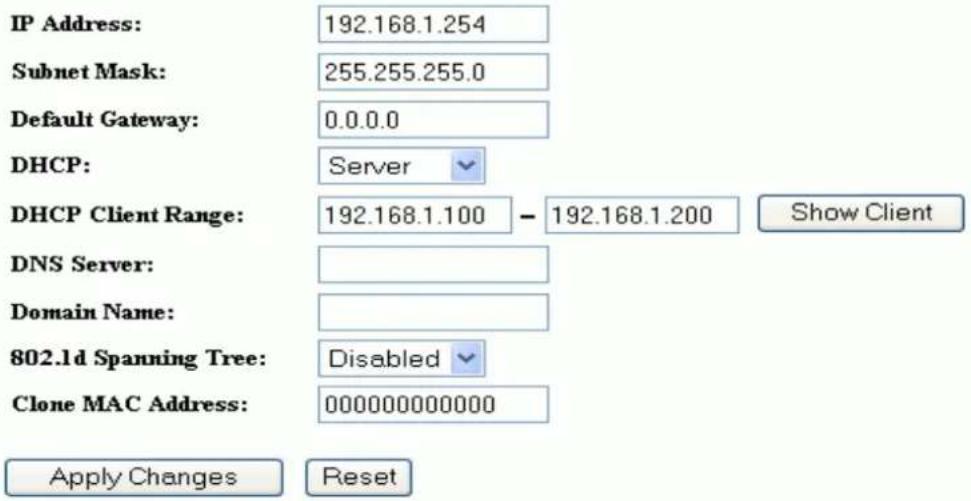
LAN Interface Setup
This page is used to configure the parameters for local area network which connects to the LAN port of your Access Point. Here you may change the setting for IP address, subnet mask, DHCP, etc..
| Parameter Description | |
| IP Address | Fill in the IP address of LAN interfaces of this WLAN Access Point. |
| Subnet Mask Fill in the subnet mask of LAN interfaces of this WLAN Access Point. | |
| Default Gateway Fill in the default gateway for LAN interfaces out going data packets. | |
| DHCP | Click to select Disabled, Client or Server in different operation mode of wireless Access Point. |
| DHCP Client Range Fill | in the start IP address and end IP address to allocate a range of IP addresses; client with DHCP function set will be assigned an IP address from the range. |
| Show Client | Click to open the Active DHCP Client Table window that shows the active clients with their assigned IP address, MAC address and time expired information. [Server mode only] |
| DNS Server Manual setup | up DNS server IP address. |
| Domain Name Assign Domain Name and dispatch to DHCP clients. It is optional field. | |
| 802.1d Spanning Tree Select to enable or disable the IEEE 802.1d Spanning Tree function from pull-down menu. | |
| Clone MAC Address Fill in the MAC address that is the MAC address to be cloned. | |
| Apply Changes | Click the Apply Changes button to complete the new configuration setting. |
| Reset | Click the Reset button to abort change and recover the previous configuration setting. |
8.2 WAN Interface
This page is used to configure the parameters for wide area network that connects to the WAN port of your WLAN Broadband Router. Here you may change the access method to Static IP, DHCP, PPPoE or PPTP by click the item value of WAN Access Type.
Static IP
WAN Interface Setup
This page is used to configure the parameters for Internet network which connects to the WAN port of your Access Point. Here you may change the access method to static IP, DHCP, PPPoE or PPTP by click the item value of WAN Access type.
WAN Access Type:

IP Address:
172.1.1.1
Subnet Mask:
255.255.255.0
Default Gateway:
172.1.1.254
MTU Size:
1400
(1400-1500 bytes)
DNS 1:
168.95.1.1
DNS 2:
192.168.0.5
DNS 3:
0.0.0.0
Clone MAC Address:
00000000000
Enable uPNP
□ Enable Ping Access on WAN
Enable Web Server Access on WAN
Enable IPsec pass through on VPN connection
√ Enable PPTP pass through on VPN connection
√ Enable L2TP pass through on VPN connection
Set TTL Value 64 (1-128)
Apply Changes
Reset
| Parameter Description | |
| Static IP | Click to select Static IP support on WAN interface. There are IP address, subnet mask and default gateway settings need to be done. |
| IP Address | If you select the Static IP support on WAN interface, fill in the IP address for it. |
| Subnet Mask If you select the Static IP support on WAN interface, fill in the subnet mask for it. | |
| Default Gateway If you select the Static IP support on WAN interface, fill in the default gateway for WAN interface out going data packets. | |
| MTU Size Fill in the MTU | Size. The default value is 1400 |
| DNS 1 Fill in the IP address of Domain Name Server 1. | |
| DNS 2 Fill in the IP address of Domain Name Server 2. | |
| DNS 3 Fill in the IP address of Domain Name Server 3. | |
| Clone MAC Address Fill in the MAC address that is the MAC address to be cloned. | |
| Enable uPNP Click the checkbox to enable uPNP function. | |
| Enable Web Server Access on WAN | Click the checkbox to enable web configuration from WAN side. |
| Enable WAN Echo Reply | Click the checkbox to enable WAN ICMP response. |
| Enable IPsec pass through on VPN connection | Click the checkbox to enable IPSec packet pass through |
| Enable PPTP pass through on VPN connection | Click the checkbox to enable PPTP packet pass through |
| Enable L2TP pass through on VPN connection | Click the checkbox to enable L2TP packet pass through |
| Set TTL value Click to Enable and set Time to Live value. | |
After changing the configuration setting, please click the "Apply Changes" button to complete the new configuration setting. Otherwise, click the "Reset" button to abort change and recover the previous configuration setting.
DHCP Client
WAN Interface Setup
This page is used to configure the parameters for Internet network which connects to the WAN port of your Access Point. Here you may change the access method to static IP, DHCP, PPPoE or PPTP by click the item value of WAN Access type.
WAN Access Type:
DHCP Client
Host Name:
MTU Size:
1400 (1400-1492 bytes)
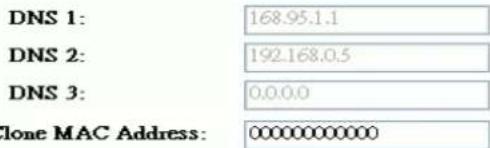
Attain DNS Automatically
○ Set DNS Manually
Enable uPNP
Enable Ping Access on WAN
Enable Web Server Access on WAN
Enable IPsec pass through on VPN connection
√ Enable PPTP pass through on VPN connection
Enable L2TP pass through on VPN connection
Set TTL Value 64 (1-128)
Apply Changes
Reset
| Parameter Description | |
| DHCP Client | Click to select DHCP support on WAN interface for IP address assigned automatically from a DHCP server. |
| Host Name Fill in the host | name of Host Name. The default value is empty |
| MTU Size Fill in the mtu | size of MTU Size. The default value is 1400 |
| Attain DNS Automatically | Click to select getting DNS address for DHCP support.Please select Set DNS Manually if the DHCP support is selected. |
| Set DNS Manually | Click to select getting DNS address for DHCP support. |
| DNS 1 Fill in the IP address | ss of Domain Name Server 1. |
| DNS 2 Fill in the IP address | ss of Domain Name Server 2. |
| DNS 3 Fill in the IP address | ss of Domain Name Server 3. |
| Clone MAC Address Fill | in the MAC address that is the MAC address to be cloned. |
| Enable uPNP Click the | checkbox to enable uPNP function. |
| Enable Web Server Access on WAN | Click the checkbox to enable web configuration from WAN side. |
| Enable WAN Echo Reply | Click the checkbox to enable WAN ICMP response. |
| Enable IPsec pass through on VPN connection | Click the checkbox to enable IPSec packet pass through |
| Enable PPTP pass through on VPN connection | Click the checkbox to enable PPTP packet pass through |
| Enable L2TP pass through on VPN connection | Click the checkbox to enable L2TP packet pass through |
| Set TTL value Click to Enable and set Time to Live value. | |
After changing the configuration setting, please click the "Apply Changes" button to complete the new configuration setting. Otherwise, click the "Reset" button to abort change and recover the previous configuration setting.
PPPoE
This page is used to configure the parameters for Internet network which connects to the WAN port of your Access Point. Here you may change the access method to static IP, DHCP, PPPoE or PPTP by click the item value of WAN Access type.
WAN Access Type:
PPPoE
User Name:

Password:

Service Name:

Connection Type:
Continuous

Connect
Disconnect
Idle Time:

(1-1000 minutes)
MTU Size:
1400
(1360-1492 bytes)
○ Attain DNS Automatically
Set DNS Manually
DNS 1: 168.95.1.1
DNS 2: 192.168.0.5
DNS 3: 0.0.0.0
Clone MAC Address: 0000000000
Enable uPNP
Enable Ping Access on WAN
Enable Web Server Access on WAN
√ Enable IPsec pass through on VPN connection
√ Enable PPTP pass through on VPN connection
Enable L2TP pass through on VPN connection
Set TTL Value 64 (1-128)
Apply Changes
Reset
| Parameter Description | |
| PPPoE Click to select PP | PoE support on WAN interface. There are user name, password, connection type and idle time settings need to be done. |
| User Name If you select the PPoE support on WAN interface, fill in the user name and password to login the PPPoE server. | |
| Password If you select the PPPoE support on WAN interface, fill in the user name and password to login the PPPoE server. | |
| Service Name Fill in the service name of Service Name. The default value is empty. | |
| Connection Type | Select the connection type from pull-down menu. There areContinuous, Connect on Demand and Manual three types to select.Continuousconnection type means to setup the connection through PPPoE protocol whenever this WLAN Broadband Router is powered on.Connect on Demandconnection type means to setup the connection through PPPoE protocol whenever you send the data packets out through the WAN interface; there are a watchdog implemented to close the PPPoE connection while there are no data sent out longer than the idle time set.Manualconnection type means to setup the connection through the PPPoE protocol by clicking theConnectbutton manually, and clicking theDisconnectbutton manually. |
| Idle Time | If you select the PPPoE and Connect on Demand connection type, fill in the idle time for auto-disconnect function. Value can be between 1 and 1000 minutes. |
| MTU Size Fill in the mtu size of MTU Size. The default value is 1400. | |
| Attain DNS Automatically | Click to select getting DNS address for PPPoE support. Please selectSet DNS Manuallyif the PPPoE support is selected. |
| Set DNS Manually | Click to select getting DNS address forStatic IPsupport. |
| DNS 1 Fill in the IP address of Domain Name Server 1. | |
| DNS 2 Fill in the IP address of Domain Name Server 2. | |
| DNS 3 Fill in the IP address of Domain Name Server 3. | |
| Clone MAC Address Fill in the MAC address that is the MAC address to be cloned. | |
| Enable uPNP Click the checkbox to enable uPNP function. | |
| Enable Web Server Access on WAN | Click the checkbox to enable web configuration from WAN side. |
| Enable WAN Echo Reply | Click the checkbox to enable WAN ICMP response. |
| Enable IPsec pass through on VPN connection | Click the checkbox to enable IPSec packet pass through |
| Enable PPTP pass through on VPN connection | Click the checkbox to enable PPTP packet pass through |
| Enable L2TP pass through on VPN connection | Click the checkbox to enable L2TP packet pass through |
| Set TTL value Click to Enable and set Time to Live value. | |
After changing the configuration setting, please click the "Apply Changes" button to complete the new configuration setting. Otherwise, click the "Reset" button to abort change and recover the previous configuration setting.
PPTP
This page is used to configure the parameters for Internet network which connects to the WAN port of your Access Point. Here you may change the access method to static IP, DHCP, PPPoE or PPTP by click the item value of WAN Access type.
WAN Access Type:
PPTP

IP Address:
172.1.1.2
Subnet Mask:
255.255.255.0
Server IP Address:
172.1.1.1
User Name:
Password:
MTU Size:
1400
(1400-1460 bytes)

Request MPPE Encryption
○ Attain DNS Automatically
Set DNS Manually
DNS 1:
168.95.1.1
DNS 2:
192.168.0.5
DNS 3:
0.0.0.0
Clone MAC Address:
00000000000
Enable uPNP
Enable Ping Access on WAN
Enable Web Server Access on WAN
√ Enable IPsec pass through on VPN connection
√ Enable PPTP pass through on VPN connection
√ Enable L2TP pass through on VPN connection
Set TTL Value
64 (1-128)
Apply Changes
Reset
| Parameter Description | |
| PPTP | Allow user to make a tunnel with remote site directly to secure the data transmission among the connection. User can use embedded PPTP client supported by this router to make a VPN connection. |
| IP Address | If you select the PPTP support on WAN interface, fill in the IP address for it. |
| Subnet Mask If you select the PPTP support on WAN interface, fill in the subnet mask for it. | |
| Server IP Address Enter the IP address of the PPTP Server. | |
| User Name If you select the PPTP support on WAN interface, fill in the user name and password to login the PPTP server. | |
| Password f you select the PPTP support on WAN interface, fill in the user name and password to login the PPTP server. | |
| MTU Size Fill in the mtu size of MTU Size. The default value is 1400. | |
| Request MPPE Encryption | Click the checkbox to enable request MPPE encryption. |
| Attain DNS Automatically | Click to select getting DNS address for PPTP support.Please select Set DNS Manually if the PPTP support is selected. |
| Set DNS Manually | Click to select getting DNS address for PPTP support. |
| DNS 1 Fill in the IP address of Domain Name Server 1. | |
| DNS 2 Fill in the IP address of Domain Name Server 2. | |
| DNS 3 Fill in the IP address of Domain Name Server 3. | |
| Clone MAC Address Fill in the MAC address that is the MAC address to be cloned. | |
| Enable uPNP Click the checkbox to enable uPNP function. | |
| Enable Web Server Access on WAN | Click the checkbox to enable web configuration from WAN side. |
| Enable WAN Echo Reply | Click the checkbox to enable WAN ICMP response. |
| Set TTL value Click to Enable and set Time to Live value. | |
| Enable uPNP Click the checkbox to enable uPNP function. | |
| Enable Web Server Access on WAN | Click the checkbox to enable web configuration from WAN side. |
| Enable WAN Echo Reply | Click the checkbox to enable WAN ICMP response. |
| Enable IPsec pass through on VPN connection | Click the checkbox to enable IPSec packet pass through |
| Enable PPTP pass through on VPN connection | Click the checkbox to enable PPTP packet pass through |
| Enable L2TP pass through on VPN connection | Click the checkbox to enable L2TP packet pass through |
| Set TTL value Click to Enable and set Time to Live value. | |
After changing the configuration setting, please click the “Apply Changes” button to complete the new configuration setting. Otherwise, click the “Reset” button to abort change and recover the previous configuration setting.
Chapter 9 Firewall
Firewall is an advance feature used to deny or allow traffic from passing through the device. WAP-6200 supports some firewall related functions. It includes the Port/IP Filter, MAC, URL Filtering and Port Forwarding, DMZ functions.
9.1 Port Filtering
Use the Port Filtering to restrict particular Ports from accessing the Internet. You can assign Port Range and choose Protocol to configure.
Port Filtering
Entries in this table are used to restrict certain types of data packets from your local network to Internet through the Gateway. Use of such filters can be helpful in securing or restricting your local network.
Enable Port Filtering
Port Range:
Protocol:

Comment:
Apply Changes
Reset
Current Filter Table:
| Port Range | Protocol | Comment | Select |
| 20-21 | TCP+UDP | FTP |
| Parameter Description | |
| Enable Port Filtering | Click to enable the port filtering security function. |
| Port RangeProtocolComment | To restrict data transmission from the local network on certain ports, fill in the range of start-port and end-port, and the protocol, also put your comments on it.TheProtocolcan be TCP, UDP or Both.Commentslet you know about whys to restrict data from the ports. |
| Apply Changes | Click the Apply Changes button to register the ports to port filtering list. |
| Reset | Click the Reset button to abort change and recover the previous configuration setting. |
| Delete Selected | Click to delete the selected port range that will be removed from the port-filtering list. |
| Delete All Click to delete | all the registered entries from the port-filtering list. |
| Reset | Click the Reset button to abort change and recover the previous configuration setting. |
9.2 IP Filtering
Use the IP Filtering to restrict particular LAN IP addresses from accessing the Internet. You can assign the specific IP address and choose Protocol to configure.
IP Filtering
Entries in this table are used to restrict certain types of data packets from your local network to Internet through the Gateway. Use of such filters can be helpful in securing or restricting your local network.
Enable IP Filtering
Loal IP Address:
Protocol:
Both

Comment:
Apply Changes
Reset
Current Filter Table:
| Local IP Address | Protocol | Comment | Select |
| 192.168.1.201 | TCP+UDP | ST-1 | |
| 192.168.1.202 | TCP | ST-2 |
| Parameter Description | |
| Enable IP Filtering | Click to enable the IP filtering security function. |
| Local IP AddressProtocolComment | To restrict data transmission from local network on certain IP addresses, fill in the IP address and the protocol, also put your comments on it.TheProtocolcan be TCP, UDP or Both.Commentslet you know about whys to restrict data from the IP address. |
| Apply Changes | Click theApply Changesbutton to register the IP address to IP filtering list. |
| Reset | Click theResetbutton to abort change and recover the previous configuration setting. |
| Delete Selected | Click to delete the selected IP address that will be removed from the IP-filtering list. |
| Delete All | Click to delete all the registered entries from the IP-filtering list. |
| Reset | Click theResetbutton to abort change and recover the previous configuration setting. |
9.3 MAC Filtering
Use the MAC filtering to deny computers within the local area network from accessing the Internet and helpful in securing or restricting your local network.
MAC Filtering
Entries in this table are used to restrict certain types of data packets from your local network to Internet through the Gateway. Use of such filters can be helpful in securing or restricting your local network.
Enable MAC Filtering
MAC Address:
Comment:
Apply Changes
Reset
Current Filter Table:
| MAC Address | Comment | Select |
| 00-30-4f-55-67-3e | ST-1 | |
| 00-30-4f-3c-2a-6d | ST-2 |
Delete Selected
Delete All
Reset
| Parameter Description | |
| Enable MAC Filtering | Click to enable the MAC filtering security function. |
| MAC AddressComments | To restrict data transmission from local network on certain MAC addresses, fill in the MAC address and your comments on it.Comments let you know about whys to restrict data from the MAC address. |
| Apply Changes | Click theApply Changesbutton to register the MAC address to MAC filtering list. |
| Reset | Click theResetbutton to abort change and recover the previous configuration setting. |
| Delete Selected | Click to delete the selected MAC address that will be removed from the MAC-filtering list. |
| Delete All Click to delete | all the registered entries from the MAC-filtering list. |
| Reset | Click theResetbutton to abort change and recover the previous configuration setting. |
9.4 Port Forwarding
This table allows you to automatically redirect common network services to a specific machine behind the NAT firewall. These settings are only necessary if you wish to host some sort of server like a web server or mail server on the private local network behind your Gateway's NAT firewall.
Port Forwarding
Entries in this table allow you to automatically redirect common network services to a specific machine behind the NAT firewall. These settings are only necessary if you wish to host some sort of server like a web server or mail server on the private local network behind your Gateway's NAT firewall.

Enable Port Forwarding
IP Address:
Protocol:
Both
V
Port Range:


Comment:
Apply Changes
Reset
Current Port Forwarding Table:
| Local IP Address | Protocol | Port Range | Comment | Select |
| 192.168.1.201 | TCP+UDP | 20-21 | FTP |
Delete Selected
Delete All
Reset
| Parameter Description | |
| Enable Port Forwarding | Click to enable the Port Forwarding security function. |
| IP AddressProtocolPort RangeComment | To forward data packets coming from WAN to a specific IP address that hosted in local network behind the NAT firewall, fill in the IP address, protocol, port range and your comments.The Protocol can be TCP, UDP or Both.The Port Range for data transmission.Comments let you know about whys to allow data packets forward to the IP address and port number. |
| Apply Changes | Click theApply Changesbutton to register the IP address and port number to Port forwarding list. |
| Reset | Click theResetbutton to abort change and recover the previous configuration setting. |
| Delete Selected | Click to delete the selected IP address and port number that will be removed from the port-forwarding list. |
| Delete All Click to delete | all the registered entries from the port-forwarding list. |
| Reset | Click the Reset button to abort change and recover the previous configuration setting. |
9.5 URL Filtering
This page is used to configure the Blocked FQDN (Such as tw.yahoo.com) and filtered keyword. Here you can add / delete FQDN and filtered keyword.
URL Filtering
URL filter is used to deny LAN users from accessing the internet. Block those URLs which contain keywords listed below.

Enable URL Filtering
URL Address:
www.url-filter-list.com
Apply Changes
Reset
Current Filter Table:

| Parameter Description | |
| Enable URL Filtering | Click to enable the URL Filtering function. |
| URL Address Add one URL address. | |
| Apply Changes | Click the Apply Changes button to save settings. |
| Reset | Click the Reset button to abort change and recover the previous configuration setting. |
| Delete Selected | Click to delete the selected URL address that will be removed from the URL Filtering list. |
| Delete All Click to delete | all the registered entries from the URL Filtering list. |
| Reset | Click the Reset button to abort change and recover the previous configuration setting. |
9.6 DMZ
A DMZ (Demilitarized Zone) allows a single computer on your LAN to expose ALL of its ports to the Internet. Enter the IP address of that computer as a DMZ (Demilitarized Zone) host with unrestricted Internet access. When doing this, the DMZ host is no longer behind the firewall.
DMZ
A Demilitarized Zone is used to provide Internet services without sacrificing unauthorized access to its local private network. Typically, the DMZ host contains devices accessible to Internet traffic, such as Web (HTTP) servers, FTP servers, SMTP (e-mail) servers and DNS servers.

Enable DMZ
DMZ Host IP Address:
192.168.1.201
Apply Changes
Reset
| Parameter Description | |
| Enable DMZ | Click to enable the DMZ function. |
| DMZ Host IP Address To | support DMZ in your firewall design, fill in the IP address of DMZ host that can be access from the WAN interface. |
| Apply Changes | Click theApply Changesbutton to register the IP address of DMZ host. |
| Reset | Click theResetbutton to abort change and recover the previous configuration setting. |
Chapter 10 Management
10.1 Statistics
This page shows the packet counters for transmission and reception regarding to wireless, Ethernet LAN and Ethernet WAN networks.
Statistics
This page shows the packet counters for transmission and reception regarding to wireless and Ethernet networks.
| Wireless LAN | Sent Packets | 1361 |
| Received Packets | 25883 | |
| Ethernet LAN | Sent Packets | 1529 |
| Received Packets | 1269 | |
| Ethernet WAN | Sent Packets | 597 |
| Received Packets | 30386 |
Refresh
| Item Description | |
| Wireless LAN Sent Packets | It shows the statistic count of sent packets on the wireless LAN interface. |
| Wireless LAN Received Packets | It shows the statistic count of received packets on the wireless LAN interface. |
| Ethernet LAN Sent Packets | It shows the statistic count of sent packets on the Ethernet LAN interface. |
| Ethernet LAN Received Packets | It shows the statistic count of received packets on the Ethernet LAN interface. |
| Ethernet WAN Sent Packets | It shows the statistic count of sent packets on the Ethernet WAN interface. |
| Ethernet WAN Received Packets | It shows the statistic count of received packets on the Ethernet WAN interface. |
| Refresh Click the refresh | the statistic counters on the screen. |
10.2 DDNS
This page is used to configure Dynamic DNS service to have DNS with dynamic IP address.
Dynamic DNS Setting
Dynamic DNS is a service, that provides you with a valid, unchanging, internet domain name (an URL) to go with that (possibly everchanging) IP-address.
Enable DDNS
Service Provider :
DynDNS
Domain Name :
host.dyndns.org
User Name/Email:
Password/Key:

Note:
For TZO, you can have a 30 days free trial here or manage your TZO account in control panel. For DynDNS, you can create your DynDNS account here
Apply Change
Reset
| Parameter Description | |
| Enable DDNS | Click the checkbox to enable DDNS service. |
| Service Provider | Click the drop down menu to pickup the right provider. |
| Domain Name To configure | re the Domain Name. |
| User Name/Email | Configure User Name, Email. |
| Password/Key | Configure Password, Key. |
| Apply Change | Click the Apply Changes button to save the enable DDNS service. |
| Reset | Click the Reset button to abort change and recover the previous configuration setting. |
10.3 Time Zone Setting
This page is used to configure NTP client to get current time.
Time Zone Setting
You can maintain the system time by synchronizing with a public time server over the Internet.
Current Time: Yr 2005 Mon 3 Day 16 Hr 17 Mn 57 Sec 24
Time Zone Select : (GMT+08:00)Taipei
√ Enable NTP client update
NTP server : 192.5.41.41 - North America ○ (Manual IP Setting)
Apply Change
Reset
Refresh
| Parameter Description | |
| Current Time It shows the current time. | |
| Time Zone Select Click the time zone in your country. | |
| Enable NTP client update | Click the checkbox to enable NTP client update. |
| NTP Server | Click select default or input NTP server IP address. |
| Apply Change | Click the Apply Changes button to save and enable NTP client service. |
| Reset | Click the Reset button to abort change and recover the previous configuration setting. |
| Refresh Click the refresh | the current time shown on the screen. |
10.4 Denial-of-Service
This page is used to enable and setup protection to prevent attack by hacker's program. It provides more security for users.
Denial of Service
A "denial-of-service" (DoS) attack is characterized by an explicit attempt by hackers to prevent legitimate users of a service from using that service.
Enable DoS Prevention
Whole System Flood: SYN
Whole System Flood: FIN
Whole System Flood: UDP
Whole System Flood: ICMP
□ Per-Source IP Flood: SYN
Per-Source IP Flood: FIN
□ Per-Source IP Flood: UDP
□ Per-Source IP Flood: ICMP
TCP/UDP PortScan
ICMP Smurf
IP Land
IP Spoof
IP TearDrop
□ PingOfDeath
TCP Scan
TCP SynWithData
□ UDP Bomb
□ UDP EchoChargen
Select ALL Clear ALL
Enable Source IP Blocking

Apply Changes
| Parameter Description | |
| Enable DoS Prevention Click the checkbox to enable DoS prevention. | |
| Whole System Flood / Per-Source IP Flood... | Enable and setup prevention in details. |
| Select ALL Click the checkbox to enable all prevention items. | |
| Clear ALL Click the checkbox to disable all prevention items. | |
| Apply Changes | Click the Apply Changes button to save above settings. |
10.5 Log
This page is used to configure the remote log server and shown the current log.

| Parameter Description | |
| Enable LogSystem allWirelessyDoS | Click the checkbox to enable log.Show all log of wireless broadband routerOnly show wireless logOnly show Denial-of-Service log |
| Enable Remote LogLog Server IP Address | Click the checkbox to enable remote log service.Input the remote log IP address |
| Apply Changes | Click theApply Changesbutton to save above settings. |
| Refresh Click the refresh | the log shown on the screen. |
| Clear Clear log display s | screen |
10.6 Upgrade firmware
This page allows you upgrade the Access Point firmware to new version. Please note, do not power off the device during the upload because it may crash the system.
Upgrade Firmware
This page allows you upgrade the Access Point firmware to new version. Please note, do not power off the device during the upload because it may crash the system.
Select File:
Browse...
Upload
Reset
| Parameter Description | |
| Select File | Click theBrowsebutton to select the new version of web firmware image file. |
| Upload | Click theUploadbutton to update the selected web firmware image to the WLAN Broadband Router. |
| Reset | Click theResetbutton to abort change and recover the previous configuration setting. |
10.7 Save/ Reload Settings
This page allows you save current settings to a file or reload the settings from the file that was saved previously. Besides, you could reset the current configuration to factory default.
Save/Reload Settings
This page allows you save current settings to a file or reload the settings from the file which was saved previously. Besides, you could reset the current configuration to factory default.
Save Settings to File:
Save.
Load Settings from File:
Browse.
Upload
Reset Settings to Default:
Reset
| Parameter Description | |
| Save Settings to File | Click the Save button to download the configuration parameters to your personal computer. |
| Load Settings from File | Click the Browse button to select the configuration files then click the Upload button to update the selected configuration to the WLAN Broadband Router. |
| Reset Settings to Default | Click the Reset button to reset the configuration parameter to factory defaults. |
10.8 Password
This page is used to set the account to access the web server of Access Point. Empty user name and password will disable the protection.
Password Setup
This page is used to set the account to access the web server of Access Point. Empty user name and password will disable the protection.
User Name:
New Password:
Confirmed Password:
Apply Changes
Reset
| Parameter Description | |
| User Name | Fill in the user name for web management login control. |
| New Password Fill in the | password for web management login control. |
| Confirmed Password Because the password input is invisible, so please fill in the password again for confirmation purpose. | |
| Apply Changes | Clear the User Name and Password fields to empty, means to apply no web management login control.Click the Apply Changes button to complete the new configuration setting. |
| Reset | Click the Reset button to abort change and recover the previous configuration setting. |
10.9 WatchDog
This page is used to do watchdog function using ping command. User set IP address, interval and ping fail count conditions to decide whether router reboots or not.
WatchDog Setting
Use ping command to identify whether the router is functional or not. User has to set IP address, interval and fail count to decide reboot router.
Enable WatchDog
WatchDog IP Address: 0.0.0.0
Ping Interval: 30 (30-600 seconds)
Ping Fail to reboot Counter: 3 (3-30)
Apply Changes
Reset
| Parameter Description | |
| Enable WatchDog | Click to enable watchdog. |
| WatchDog IP Address IP | address that is referred. |
| Ping Interval Fill in the value by seconds. | |
| Ping Fail to reboot Count | Fill in the value that is the threshold to reboot router when ping fails. |
| Apply Changes | Click the Apply Changes button to complete the new configuration setting. |
| Reset | Click the Reset button to abort change and recover the previous configuration setting. |
10.10 QoS
This page is used to do bandwidth control by ip address. User sets total and undefined bandwidth first. Then set bandwidth by range of ip addresses.
Item Description
Enable QoS
Click to enable QoS.
ISP Bandwidth
Download
Fill in the value that is the download stream from ISP by KB/s.
Upload Fill in the value that is the upload stream from ISP by KB/s.
Undef IP Bandwidth
Download Define the download bandwidth that is not defined.
Upload Define the upload bandwidth that is not defined.
Apply Changes
Click the Apply Changes button to complete the new configuration setting.
Reset
Click the Reset button to abort change and recover the previous configuration setting.
| Bandwidth Control | |
| IP Address Range Set start and end ip address. | |
| Guarantee Bandwidth | |
| Download Fill in the value by KB/s. | |
| Upload Fill in the value by KB/s. | |
| Priority Click to pick High, | Medium or Low |
| Apply Changes Click the | Apply Changes button to complete the new configuration setting. It is added into Current Bandwidth Control Table. |
| Reset Click the Reset button to abort change and recover the previous configuration setting. | |
| Delete Selected Click to delete the selected ip addresses that will be removed from the Current Bandwidth Control Table. | |
| Delete All Click to delete all the registered entries from the ip addresses Current Bandwidth Control Table. | |
| Reset Click the Reset button to abort change and recover the previous configuration setting. | |
10.11 Lougout
This page is used to logout web management page. This item will be activated next time you login after you define user account and password.
Logout
This page is used to logout.
Do you want to logout?
Apply Change
Change setting successfully!
UK
| Parameter Description | |
| Apply Change | Click theApply Changebutton, Then clickOKbutton to logout. |
Appendix A Glossary
802.11b - An IEEE wireless networking standard that specifies a maximum data transfer rate of 11Mbps and an operating frequency of 2.4GHz.
802.11g - An IEEE wireless networking standard that specifies a maximum data transfer rate of 54Mbps, an operating frequency of 2.4GHz, and backward compatibility with 802.11b devices.
Adapter - This is a device that adds network functionality to your PC.
Ad-hoc - A group of wireless devices communicating directly with each other (peer-to-peer) without the use of an access point.
Backbone - The part of a network that connects most of the systems and networks together, and handles the most data.
Bandwidth - The transmission capacity of a given device or network.
Beacon Interval - Data transmitted on your wireless network that keeps the network synchronized.
Bit - A binary digit.
Browser - An application program that provides a way to look at and interact with all the information on the World Wide Web.
CSMA/ CA (Carrier Sense Multiple Access/Collision Avoidance) - A method of data transfer that is used to prevent data collisions.
CTS (Clear To Send) - A signal sent by a wireless device, signifying that it is ready to receive data.
Database - A collection of data that is organized so that its contents can easily be accessed, managed, and updated.
DHCP (Dynamic Host Configuration Protocol) - A networking protocol that allows administrators to assign temporary IP addresses to network computers by "leasing" an IP address to a user for a limited amount of time, instead of assigning permanent IP addresses.
Download - To receive a file transmitted over a network.
DSSS (Direct-Sequence Spread-Spectrum) - Frequency transmission with a redundant bit pattern resulting in a lower probability of information being lost in transit.
DTI M (Delivery Traffic Indication Message) - A message included in data packets that can increase wireless efficiency.
Encryption - Encoding data transmitted in a network.
Ethernet - IEEE standard network protocol that specifies how data is placed on and retrieved from a common transmission medium.
Firmware - The programming code that runs a networking device.
Fragmentation -Breaking a packet into smaller units when transmitting over a network medium that cannot support the original size of the packet.
Gateway - A device that interconnects networks with different, incompatible communications protocols.
Hardware - The physical aspect of computers, telecommunications, and other information technology devices.
IEEE (The Institute of Electrical and Electronics Engineers) - An independent institute that develops networking standards.
Infrastructure - A wireless network that is bridged to a wired network via an access point.
IP (Internet Protocol) - A protocol used to send data over a network.
IP Address - The address used to identify a computer or device on a network.
ISM band - Radio bandwidth utilized in wireless transmissions.
ISP (Internet Service Provider) - A company that provides access to the Internet.
LAN - The computers and networking products that make up your local network.
MAC (Media Access Control) Address - The unique address that a manufacturer assigns to each networking device.
Network - A series of computers or devices connected for the purpose of data sharing, storage, and/or transmission between users.
Node - A network junction or connection point, typically a computer or work station.
Packet - A unit of data sent over a network.
Passphrase - Used much like a password, a passphrase simplifies the WEP encryption process by automatically generating the WEP encryption keys for Linksys products.
Port - The connection point on a computer or networking device used for plugging in cables or adapters.
Roaming - The ability to take a wireless device from one access point's range to another without losing the connection.
Router - A networking device that connects multiple networks together.
RTS (Request To Send) - A networking method of coordinating large packets through the RTS Threshold setting.
Server - Any computer whose function in a network is to provide user access to files, printing, communications, and other services.
SNMP (Simple Network Management Protocol) - A widely used network monitoring and control protocol.
Software - Instructions for the computer. A series of instructions that performs a particular task is called a "program".
SOHO (Small Office/Home Office) - Market segment of professionals who work at home or in small offices.
Spread Spectrum - Wideband radio frequency technique used for more reliable and secure data transmission.
SSI D (Service Set I Identifier) - Your wireless network's name.
Static IP Address - A fixed address assigned to a computer or device that is connected to a network.
Subnet Mask - An address code that determines the size of the network.
Switch - 1. A data switch that connects computing devices to host computers, allowing a large number of devices to share a limited number of ports. 2. A device for making, breaking, or changing the connections in an electrical circuit.
TCP (Transmission Control Protocol) - A network protocol for transmitting data that requires acknowledgement from the recipient of data sent.
TCP/IP (Transmission Control Protocol/Internet Protocol) - A set of instructions PCs use to communicate over a network.
TKIP (Temporal Key Integrity Protocol) - a wireless encryption protocol that provides dynamic encryption keys for each packet transmitted.
Topology - The physical layout of a network.
Upgrade - To replace existing software or firmware with a newer version.
WEP (Wired Equivalent Privacy) - An optional cryptographic confidentiality algorithm specified by IEEE 802.11 that may be used to provide data confidentiality that is subjectively equivalent to the confidentiality of a wired local area network (LAN) medium that does not employ cryptographic techniques to enhance privacy confidentiality.
WPA (Wi-Fi Protected Access) - a wireless security protocol using TKIP (Temporal Key Integrity Protocol) encryption, which can be used in conjunction with a RADIUS server.
EC Declaration of Conformity
For the following equipment:
*Type of Product: 802.11g Wireless LAN Outdoor CPE AP/Router (14dBi Antenna Built-in)
*Model Number: WAP-6200
* Produced by:
Manufacturer's Name : Planet Technology Corp.
Manufacturer's Address: 11F, No 96, Min Chuan Road
Hsin Tien, Taipei, Taiwan, R.O.C.
is herewith confirmed to comply with the requirements set out in the Council Directive on the Approximation of the Laws of the Member States relating to 89/336/EEC, 73/223/EEC, 99/5/EEC R&TTE.
For the evaluation regarding the R&TTE the following standards were applied:
| EN 300 328 V1.7.1 | (2006) |
| EN 301 489-17 V1.2.1 | (2002) |
| EN 301 489-1 V1.6.1 | (2005) |
| EN 55022 | (2006) |
| EN 61000-3-2 | (2006) |
| EN 61000-3-3 | (1995 + A1: 2001 + A2: 2005) |
| EN 61000-4-2 | (1995 + A1: 1998 + A2: 2001) |
| EN 61000-4-3 | (2006) |
| EN 61000-4-4 | (2004) |
| EN 61000-4-5 | (2006) |
| EN 61000-4-6 | (2007) |
| EN 61000-4-11 | (2004) |
Responsible for marking this declaration if the:
☒ Manufacturer ☐ Authorized representative established within the EU
Authorized representative established within the EU (if applicable):
Company Name: Planet Technology Corp.
Company Address: 11F, No.96, Min Chuan Road, Hsin Tien, Taipei, Taiwan, R.O.C
Person responsible for making this declaration
Name, Surname Tom Shih
Position / Title : Product Manager
Taiwan
Place
30 April, 2009
Date

Legal Signature
- 802.11g Wireless LAN Outdoor CPE AP/Router
- Copyright
- FCC Caution:
- Federal Communication Commission (FCC) Radiation Exposure Statement
- CE Mark Warning
- Protection requirements for health and safety – Article 3.1a
- Protection requirements for electromagnetic compatibility – Article 3.1b
- Effective use of the radio spectrum - Article 3.2
- CE in which Countries where the product may be used freely:
- Safety
- WEEE regulation
- Revision
- TABLE OF CONTENTS
- CHAPTER 1 INTRODUCTION....6
- CHAPTER 2 HARDWARE INSTALLATION....9
- CHAPTER 3 WEB CONFIGURATION....13
- CHAPTER 4 STATUS....16
- CHAPTER 5 SETUP WIZARD ....18
- CHAPTER 6 OPERATION MODE....23
- CHAPTER 7 WIRELESS....24
- CHAPTER 8 TCP/IP SETTINGS....36
- CHAPTER 9 FIREWALL ....46
- CHAPTER 10 MANAGEMENT....54
- Chapter 1 Introduction
- Package Contents
- Features
- Specification
- Wireless Performance
- Site selection
- Environmental factors
- Chapter 2 Hardware Installation
- Hardware Installation
- OUTDOOR INSTALLATION WARNING
- IMPORTANT SAFETY PRECAUTIONS:
- TO AVOID FALLING, USE SAFE PROCEDURES WHEN WORKING AT HEIGHTS ABOVE GROUND.
- IF A PERSON COMES IN CONTACT WITH ELECTRICAL POWER, AND CANNOT MOVE:
- Chapter 3 Web Configuration
- For OS of Microsoft Windows 95/ 98/ Me:
- For OS of Microsoft Windows 2000, XP:
- For OS of Microsoft Windows NT:
- Chapter 4 Status
- Chapter 5 Setup Wizard
- Setup Wizard
- Step1: Operation Mode
- Operation Mode
- Step2: Time Zone Setting
- Time Zone Setting
- Step3: LAN Interface Setup
- LAN Interface Setup
- Step4: WAN Interface Setup
- WAN Interface Setup
- Step5: Wireless Basic Settings
- Wireless Basic Settings
- Step6: Wireless Security Setup
- Wireless Security Setup
- Chapter 6 Operation Mode
- Chapter 7 Wireless
- Basic Settings
- Wireless Basic Settings
- Advanced Settings
- Wireless Advanced Settings
- Security
- Wireless Security Setup
- Access Control
- Wireless Access Control
- WDS Settings
- WDS Settings
- WDS Security Setup
- WDS AP Table
- Site Survey
- Wireless Site Survey
- Chapter 8 TCP/IP Settings
- LAN Interface
- LAN Interface Setup
- WAN Interface
- Static IP
- WAN Interface Setup
- DHCP Client
- PPPoE
- PPTP
- Chapter 9 Firewall
- Port Filtering
- Port Filtering
- IP Filtering
- IP Filtering
- MAC Filtering
- MAC Filtering
- Port Forwarding
- Port Forwarding
- URL Filtering
- URL Filtering
- DMZ
- DMZ
- Chapter 10 Management
- Statistics
- Statistics
- DDNS
- Dynamic DNS Setting
- Time Zone Setting
- Time Zone Setting
- Denial-of-Service
- Denial of Service
- Enable DoS Prevention
- Select ALL Clear ALL
- Apply Changes
- Log
- Upgrade firmware
- Upgrade Firmware
- Save/ Reload Settings
- Save/Reload Settings
- Password
- Password Setup
- WatchDog
- WatchDog Setting
- QoS
- Lougout
- Logout
- Appendix A Glossary
- EC Declaration of Conformity
Brand : LEVELONE
Model : WAP-6200
Category : Router