IQ Pro S - Smartphone Piranha - Free user manual and instructions
Find the device manual for free IQ Pro S Piranha in PDF.


User questions about IQ Pro S Piranha
0 question about this device. Answer the ones you know or ask your own.
Ask a new question about this device
Download the instructions for your Smartphone in PDF format for free! Find your manual IQ Pro S - Piranha and take your electronic device back in hand. On this page are published all the documents necessary for the use of your device. IQ Pro S by Piranha.
USER MANUAL IQ Pro S Piranha
- Battery and Charging 5
- Menu 6
- Contacts 11
- Smart Dialing 12
- Messaging 13
- Browser 14
• Music 15
- Camera 16
- Record 17
• Gallery 19
• E-mail 20
- Setting 21
- Troubleshooting 27
- Specifications 29
- Notes 31
Welcome
Hello
Thanks for using Piranha IQ Pro S smart phone. the quick start guide will help you better understand Piranha IQ Pro S smart phone and how to use the important functions.
Power Key: Press and hold this key to turn on /off the mobile phone; in standby state, press this key to turn on /off the screen
Menu Key: press this key to open the actions list, so that you can execute the action in current interface or menu.
Home Key: press this key to return to the home page from any application or interface.
Back Key: press this to return to pervious interface, or close the dialog
Side Key: press this key to adjust volume

1
Installing SIM Card

Installation Method and Precautions of SIM Card
By setting pin (personal identification number) code of the SIM card, you can protect your sim card from illegal operation.
Installing SIM Card
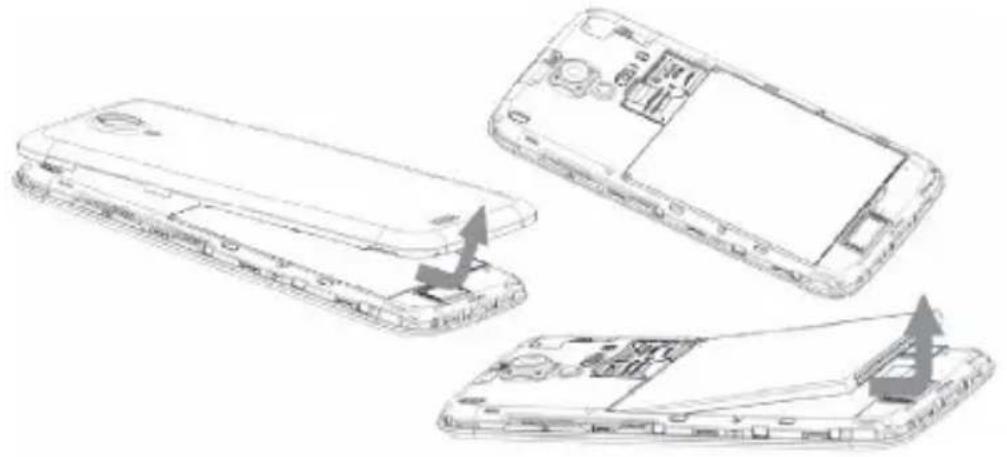
This is a dual SIM mobile phone with two sim slots. Please turn off the mobile phone first, take out the battery, and insert the sim card into the slot as shown in the picture below; then, place the battery into the battery jar and install the battery cover.
natural_image
Line drawings of a smartphone showing internal components and an open rear panel (no text or symbols)Precautions of SIM Card - Connecting to Network
Precautions of SIM card
By setting PIN (personal identification number) code of the SIM card, you can protect your SIM card from illegal operation.
If the PIN code is enabled, you need to enter the valid PIN code when you turn on the mobile phone.
If you input wrong code for three times continuously, your SIM card will be locked and you need to input PUK code.
Note: Your network service provider will set a standard PIN code (4-8 digits) for your SIM card. Please change it with your private password as soon as you get the phone.
Connecting to Network
When the SIM card is decrypted, the mobile phone will search registered network or available local network automatically. Once connected, the logo of the network operator appears in the top of the screen, the mobile phone is in standby state, and you can make or answer calls.
Please contact your network operator if the SIM card has a failure.

Precautions of SIM Card

Precautions of SIM Card
- Put the SIM card out of children's reach.
- Please use, insert and remove the SIM card carefully because the SIM card and its contacts are prone to be scratched or damaged by bending.
- Do not expose the SIM card to electrostatic, dusty or moist environment.
Operation and Installation Methods of SD Card
SD card is a removable mobile memory card inside the mobile phone and used for extending the storage space of the mobile phone.
Battery and Charging Methods
- Connect the charger to provided USB cable.
- Connect the charger plug to the power outlet.
- Connect the USB cable to the mobile phone; this icon indicates the charging status.
- The battery is fully charge when the status icon changes to; please disconnect the charger from the power outlet.
Battery and Charging Methods
- Disconnect the charger from the mobile phone.
Note: If the battery isn't used for a long time or the battery is used up, the mobile phone may be not turned on normally while charging. It is normal, Please charge for a while before turning on the mobile phone.
The battery can be charged repeatedly; however, it is consumable product, please change a new battery if the standby duration reduces significantly.
The data service consumes more power and will reduce the standby duration. The charging time changes according to temperature and battery usage. The mobile phone will show prompt if the battery is too low. The mobile phone will power off automatically if battery level drops too low.

Unlocking Mode

Unlocking Mode
Mobile Phone Options List
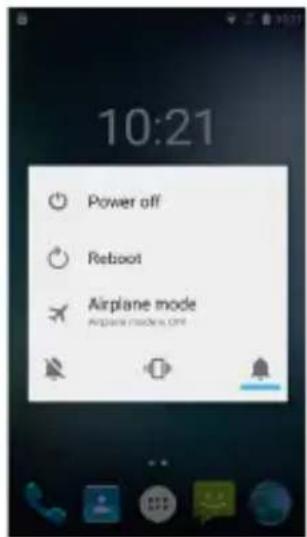
In standby state, you can press the Power key to lock and turn off the screen, and press it again to turn on the screen. Press and hold the Power key to open the mobile phone option list.
Unlocking Mode
Unlocking Interface
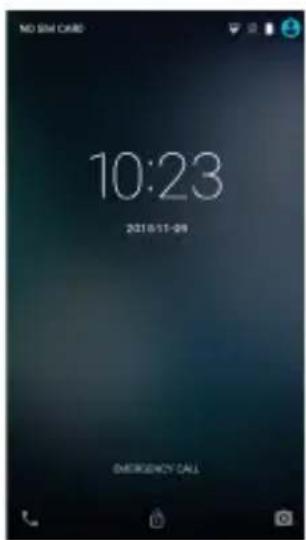
In locked screen, tap the unlock the screen.
on in the bottom of the screen, slide to right to

Main Menu

Main Menu
Main menu page
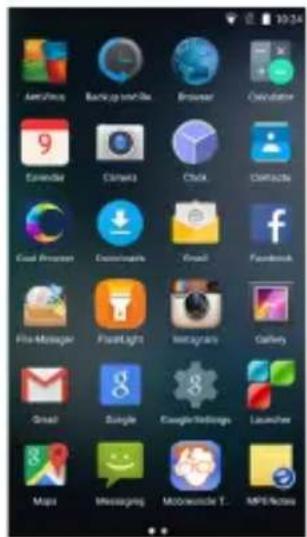
Slide to left/right on the screen to switch the main menu page, and tap the Menu Key to select Manage applications or Settings Drag and drop an icon to desktop to create a shortcut.
Status Bar
Status Bar
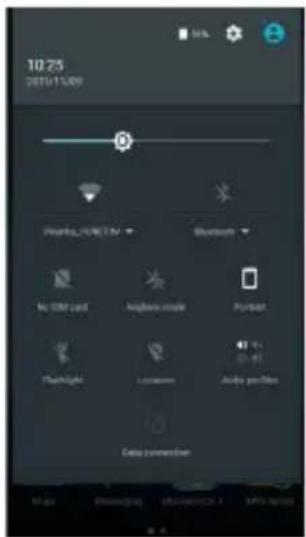
Pull down the status bar, to turn on/off WLAN, Bluetooth, Data connection, GPS, Flight mode and customize profiles, or view the notifications of the mobile phone.

Manage Applications

Manage Applications
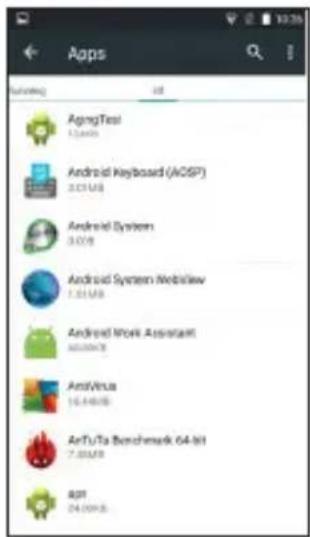
In Manage applications interface, you can manage the running applications to improve the running speeding of the mobile phone. You can view the information of downloaded applications, applications installed on SD card, running applications and all applications, restrict permissions or uninstall third party applications.
Contacts
Contacts
You can search contacts through English of others name and first stroke.
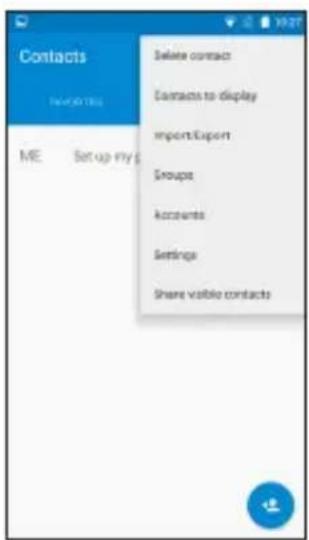
Press the Menu Key to select Delete contact, Contacts to be displayed, Import/Export, Accounts, or Share visible contacts.

Smart Dialing

Smart Dialing
In dial plate interface, the mobile phone will fuzzy match with local contact info and show in the result while you are typing. In call settings, you can set up voice call, video call, IP call and others.
During a call, you can access the dial plate or contacts through shortcuts.
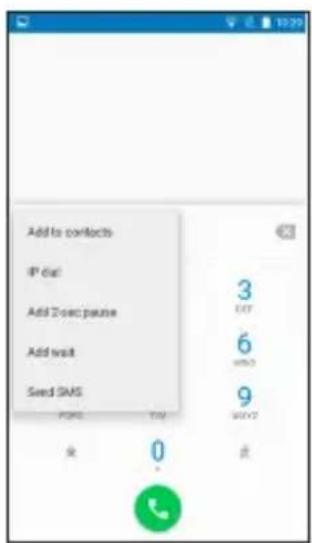
After typing the number with keypad, press MENU and select Speed dial.
During the call, the backlight turns off when the phone is close to your ear for saving power and preventing misoperation
Messaging
Messaging
Messaging Interface
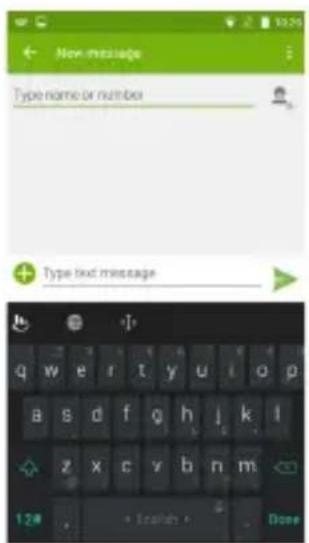
Support third party input method software. Tap set up the common functions. Tap Switch to switch among Turkish, English and stroke. If the language of spelling correction is set to English, tap the word in the input box while typing to get suggested results for choosing.

Browser

Browser
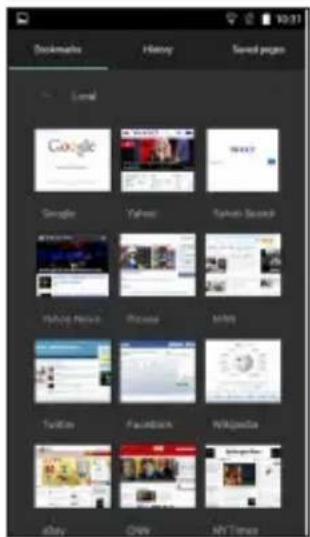
The navigation interface of the browser shows the thumbnails of commonly used web pages; you can tap to visit the web, or tap and hold the thumbnail to edit the web address information. In web browsing interface, press the Menu Key to set up the web page.
Music
Music
Music Interface
Support MP3, aac, aac+, eaac+ogg, midi and other formats; drag the progress bar while playing to move to any segment of the music, and tap play button to pause or play.
![09 Brandt Castle - Hearts Content (OST Sat... 234 Unknown artist) Ajda Petikan - Vives Beans Ma Ye Unknown artist Bonnie Tyler, Total_Eclipse_of_the_Heart Unknown artist Collie_Callet, We_Both_Know_ft_Sewin... Unknown artist elyshu siila & cadim near sea! - dunne dur... Unknown artist Falling Slowly Once Unknown artist Johan Barber - Esiden Unknown artist Mandy Moore - Cry [Official Music Video] HQ Bonnie_Tyler, Total_Eclipse_of_the_1- Unknown artist](/content/2026/06/1188566/images/a9ee0c5c3e4d3e6ec8a9acc065f1cadd675f65e28ec0dc238ee73768e57e452e.jpg)
Tap and hold artist, album or music name to perform operations such as play, add to playing list, send to ring tone, delete, and search; select search to search music and play online.

Camera

Camera
Camera Function
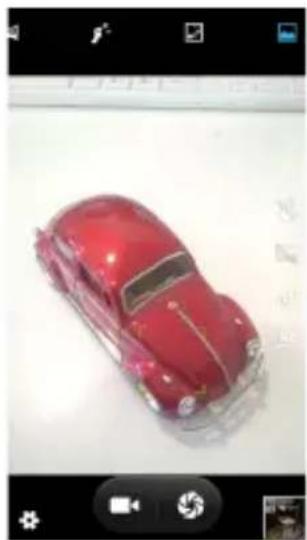
Tap on the screen to focus and follow the focus automatically, making the capture of moving object more convenient. You can set smile shutter, best capture, continuous shooting, common mode, automatic scene detection and
other modes. The camera integrates various creative styles; you can tap to preview different effects.
natural_image
Red classic car model on a white surface, no visible text or symbolsDual Camera
Support front camera; tap and take self photo shoot.
Video Recorder
Video Recorder
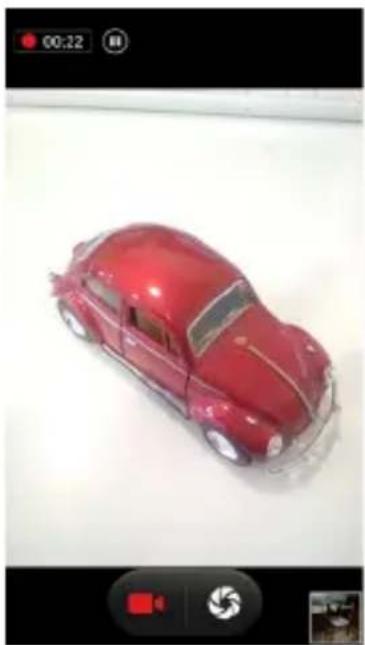
Support video recording, tap
to switch to video recorder.
natural_image
Red vintage car model on a white surface, captured in an open camera interface (no text or symbols visible)
Sound Recorder

Sound Recorder
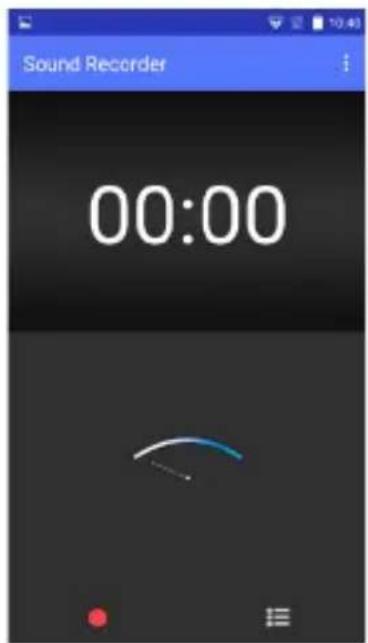
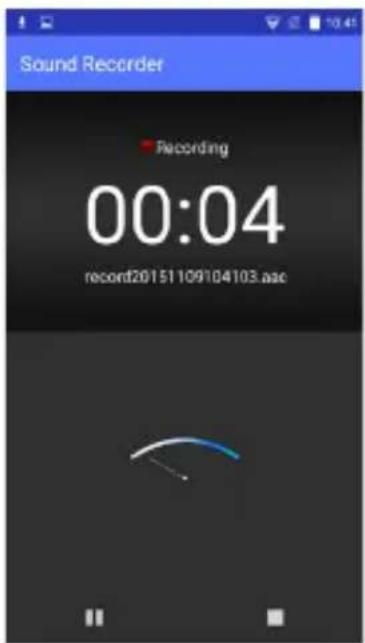
You can record the sound, and send though MMS or Bluetooth directly, or set as ring tone.
Gallery
Gallery
You can view the pictures and videos recorded by the camera in Gallery and or pictures and videos on SD card.
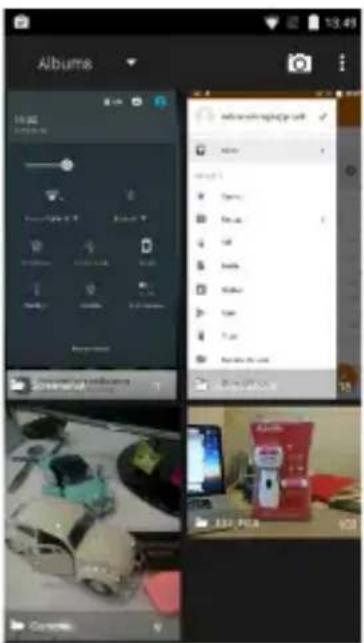
In gallery, you can perform operations to multimedia files such as share, edit and set as wallpaper, or contact icon.


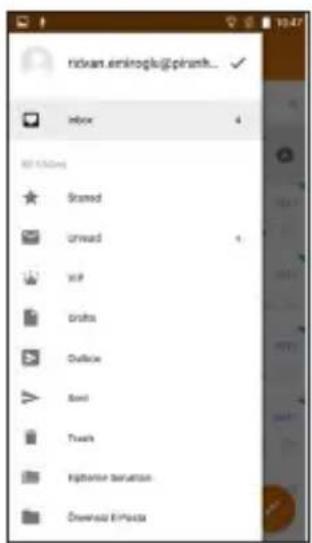
Support Gmail and E-mail; you can create an account and read e-mails at anytime and anywhere.
With this function, you can merge the e-mails of different e-mail boxes to the same interface.
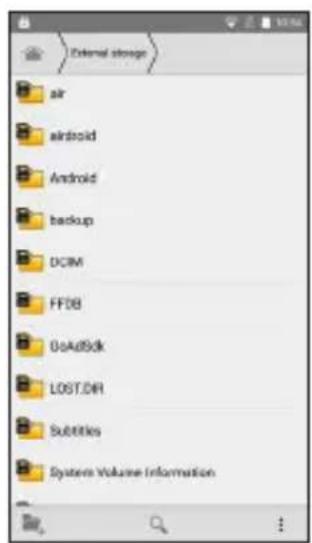
File Manager
File Manager
In File Manager interface, tap the Menu Key to select New folder, Cut, and view the files stored on SD card directly.
Tap and hold a file or folder and select Copy, Cut, Delete, Rename and other options.

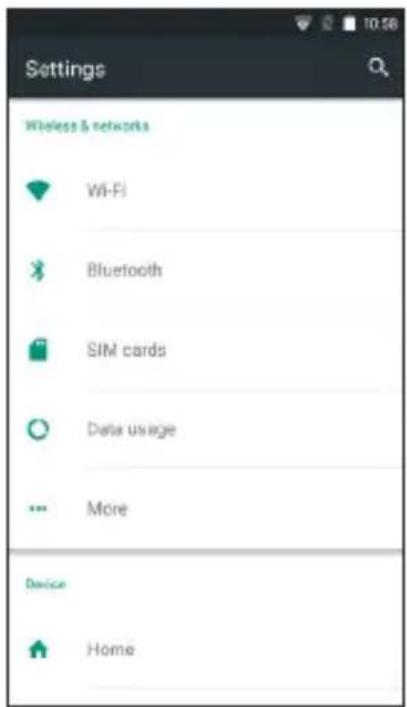
Settings

Settings
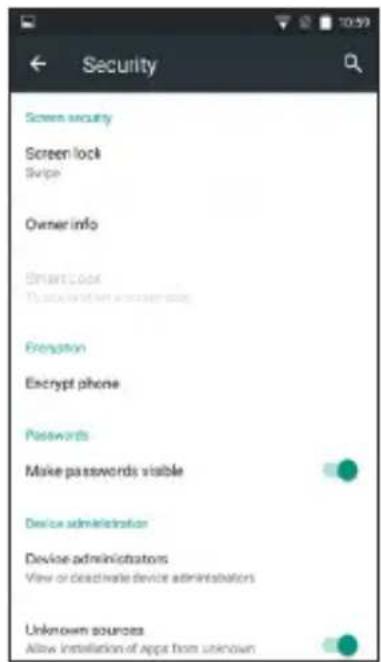
Security Function
Security Function
You can set up screen security, encryption, SIM lock, etc.

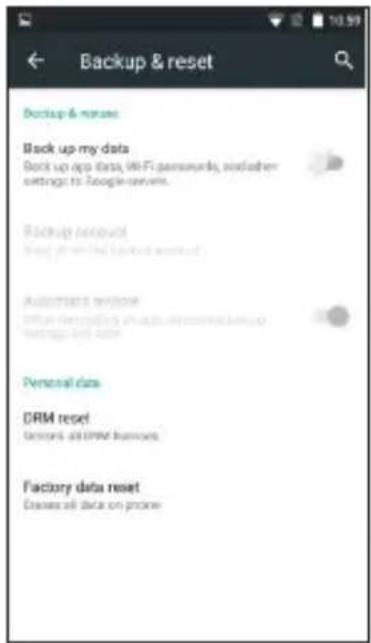
Backup and Reset

Backup and Reset
In this interface: you can back up the application data, WLAN password and other setting to Google server; and reset all data stored on the mobile phone.
Dual SIM Function
Dual SIM Function
SIM Card Management
You can insert two SIM cards into the mobile phone, turn on/off the SIM cards, edit SIM card name number, set up the background color, and set up data con-
nection, voice call and video call.

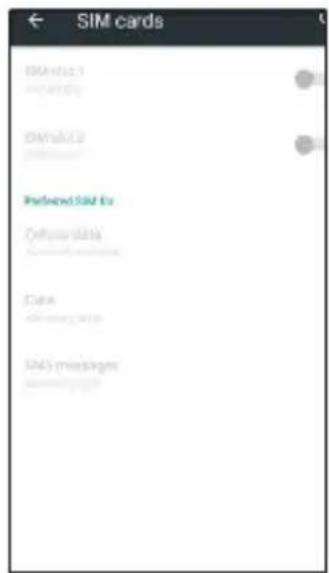
Single SIM Interface
If only one SIM card is inserted, the interface and operation mode switch to single SIM state automatically.
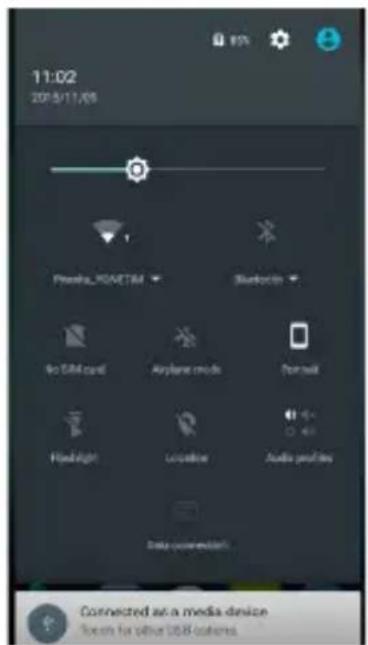
Drop-Down Menu Bar

Drop-Down Menu Bar
Drop down USB connection in menu bar; as the mobile phone can be set as flash drive, the files on SD card can be copied to PC or from PC to mobile phone.
Troubleshooting
Troubleshooting
Please refer to the following list of problems and solutions if there is any abnormality when you use the mobile phone. Please contact the distributor or service provider if it still doesn't work.

| Problem | Reason | Solution |
| Can' I access Internet normally when using browser | The network operator doesn't I provide this service or you hasn't I applied this service | Please contact and consult your network operator for information of how to apply and use this service |
| The setting is not correct | Please refer to specific introductions of the browser | |
| SIM card error | SIM card is damaged | Please contact your network operator |
| The SIM card isn't installed properly | Check the SIM card | |
| The metals surface of the SIM card is dirty | Clean it with clean cloth |
Troubleshooting

| Problem | Reason | Solution |
| Poor receiving | The mobile phone is used in bad signal receiving area, for example, near tall building or in basement, the radio waves can't reach these area effectively | Please make or answer a call in places with strong signal |
| The mobile phone is used when communication is busy and lined are congested. | Try to avoid using mobile phone when communication is busy | |
| Can't switch on | Battery is too low | Charge the battery |
| Can't make a call | Call barring is active | Cancel call barring |
| Problem | Reason | Solution |
| Can't connect to network | SIM card is invalid | Please contact your network operator |
| Beyond service area | Move to service area of your network operator | |
| Weak signal | Move to a place with strong signal and try again | |
| Can't charge | The voltage is not within rated range of the charger | Use an allowed voltage within the rated range of charger |
| Nonstandard charger is used | Used a charger specially designed for the mobile phone | |
| Poor contact | Check whether the plug is connected properly |
Specifications
Specifications
| 4G Yes | |
| SIM Dual | |
| Operating System Android 5.1 Lollipop (64 bits) | |
| CPU Quad Core | |
| GSM Band 850MHz/900MHz/1800MHz/1900MHz | |
| WCDMA Band 2100MHz/900MHz/LTE FDD | |
| Data Segment GPRS, EDGE, HSPA+ 42 Mbps | |
| Flash Memory 8 GB | |
| Ram 1 GB DDR3 | |
| Size (mm) 143.4x71.7x7.9 mm | |
| Bluetooth BT 4.0 | |
| Weight 134 gr | |

Specifications

| External Memory Support up to 32 GB | |
| Wi-Fi 802.11b, 802.11g, 802.11n | |
| LCD 5.0 inch IPS QHD 540x960 px | |
| Front Camera 5.0 MP | |
| Back Camera 8 MP | |
| Audio Jack 3.5 mm | |
| A-GPS Yes | |
| Microphone Yes | |
| Battery 2000 mAh | |
Efficient Use of Energy Consumption
After full charge please remove your phone from charger!
Notes

© 2016 Piranha. All rights reserved. Piranha logo is owned by Piranha and registered. All other trademarks and signs are property of their owners. Piranha is not responsible for printing and composing mistakes.
Önsöz

natural_image
Line drawings of a smartphone showing internal components and exterior casing (no text or symbols)natural_image
Red model car on a white surface, no visible text or symbolsÇift Kamera
natural_image
Red vintage car model on a white surface, no visible text or symbols
Ses Kaydedicisi