IQ Dreams - Smartphone Piranha - Free user manual and instructions
Find the device manual for free IQ Dreams Piranha in PDF.


User questions about IQ Dreams Piranha
0 question about this device. Answer the ones you know or ask your own.
Ask a new question about this device
Download the instructions for your Smartphone in PDF format for free! Find your manual IQ Dreams - Piranha and take your electronic device back in hand. On this page are published all the documents necessary for the use of your device. IQ Dreams by Piranha.
USER MANUAL IQ Dreams Piranha
User Manual / Kullanma Kilavuzu
Garanti Belgesi / Warranty Card
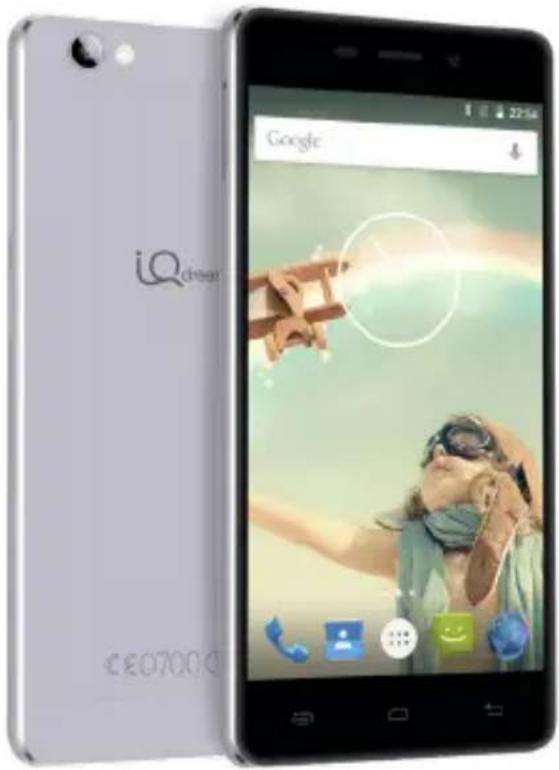
natural_image
Side view of a modern iPhone with a Google search interface, showing a person in a rainco and outdoor setting (no readable text or symbols on the device body)Content
Content
- Hello 1
• Using Memory Card as U Disk 2 - Mail 3
- Recorder 5
- Images 6
- Settings 10
• Device 12
• Personal Settings 14 - System 17
- Notice for the Use of Phone 20
- Specifications 22
- Troubleshooting 24
Hello
Hello
Thanks for using Piranha IQ Dreams smart phone. the quick start guide will help you better understand Piranha IQ Dreams smart phone and how to use the important functions.
Home Key: Press this button to return home from any application or interface. Press it to open recently opened application window.
Menu Key: Press it to start the menu which allows you to perform actions in the current interface or options' menu.Home Key: press this key to return to the home page from any application or interface.
Back Key: Press it to return to the previous interface or to close dialog box options menu notification panel or the keypad.
Power Key: Press it to open the phone's menu then you could choose to lock the screen turn off the phone or set it to the silent mode.
Side Key: Press this key to adjust volume.
P-Sensor: Cover it, and then the phone's backlight will turn off

Using Memory Card as U Disk

Using Memory Card as U Disk
Set Memory Card as U Disk
- Connect the phone to the computer with USB cable. The notification icon will appear in the status box.
- Use USB mobile transmission line will connected to the computer
- In the notification panel, touch USB is connected and then touch the USB connected as a mediadevice
If the PC connected to WINDOWS XP system, PC-side driver must be installed before operating MTP.
After checking the media device (MTP) mode, PC terminal the following message box pops up, select "Open device to view files" and click "OK", you can normally use the phone memory device
- Insert the SD Card. Open USB connected.
- After the connection can be directly in the PC check images captured on camera Notice: different PC operating system to how to operate to normal use the U disk.
• WIN7 Can directly use
• XP update windows media player to 11
• Install wpdmtp.inf driver
• Vista Unconfirmed
Notice: On the PC operation assistant tool such as mobile phone, Must be open the USB debugging.
Gmail
Create an Electronic Mail Account
Select mail> settings. You can activate or edit existing e-mail accounts as well as create a new e-mail account.
a. Select mail, Google account setting interface appears. Then touch'next step'> create account>enter name last name and e-mail account.
b. Google servers determine whether the name can be used, if so, new interface appears prompting enter password, then judge the password' security, users who doesn't meet the requirements need to re-enter the password.
c. Successfully register a new Gmail account, a messenger created automatically for testing.

Loading Mail Account
a. Open Gmail skip introduction screen>loading interface appears >select load
b. Enter name, password then load
E-mail account initialization, prompting "login successful" All Google accounts will be synchronized.

Creating and Sending, Mails
When creating mails, select mail > creating mails. Enter the address(recipient), theme and contents. Press MENU you could 'append' 'Add Cc/Bcc', select send or discarded.
Receive Mails
There is tone for new mails, in the status box will show this button Press Menu >'refresh' refresh and update the number of the unread mails in a proper way.
Delete Mails
When loading a mail account, if you want to delete it, you need to restore factory settings. When loading a second one, you could press the menu button to delete it.
Notices: Many functions depend on Gmail Account, for example Electronic Market, Google Talk, Sync Contact and Calendar.
Load Email
a. Open network connection.
b. In setting the account interface, input the correct email address and password and click next mobile phone automatically complete the sending
Recorder
and receiving server Settings. Pop-up mail find frequency, and user Settings interface, complete Settings, click next.
c. For account creation name, the editor of the law that email user name, and click next. Complete set, synchronous mailbox.
Create and Send Email
When creating mails, select mails > create mails. Enter the address(recipient) theme and contents. Press MENU you could 'append' 'Add Cc/Bcc', select send or discarded or save as draft.
Check the Email files
Click the inbox to the left of the small buttons, list all the folder options
Recorder
Recorder can record voice, and send it quickly via Bluetooth or MMS as well as make it as ring tone.
Notices: Recorder can only save the audio files as AMR format.
- Click the recorder application.
- Keep the phone's microphone near the voice source.
- Click recorder to record voices, and click to stop or Recordinglist.
All recordings save in my recording folder in the default music program.

Images

Images
Open Images
Press home, touch label of applications, then touch photos' galley. In the interface of camere. Press menu to open it then touch to operate.
Gallery Interface
a. In the gallery main interface, the upper right corner of the camera button, can quickly switch to the camera application
b. Folder tile in the gallery main interface, folder thumbnail displayed on the folder name and the number of embedded file.
Files Interface
a. In the library the interface, upper right a slide show the play button, click on the way to the slide circulation play all image files.
b. Click on the images, enter the picture to see interface.
c. Choose a long press image files, pop-up corresponding operation.
Images
Share Photos
- In long according to the selected folder or photos in picture viewer interface, choose to share. Methods include bluetooth, mail, and information sharing.
- Use email to send pictures: choose Gmail or E-mail, pictures will be automatically attached to the email. Write your information, and click send.
- Using information sending pictures: select information, images will be automatically attached to the MMS. Write your information, and click send.
- Use the bluetooth to send images: under the list of bluetooth, choose paired bluetooth devices, pictures to be transmitted via bluetooth.

See Photo
In photos look at interface, sliding around on the screen, can be forward or backward view the photos
Edit Pictures
a. Color effects: no, stamping, restore ancient ways, white and black, drift in addition to silver shadows, instantaneous, latte, blue, edition print, negative impact
- Clip: straight, pruning, rotate, mirror
• Editor brightness: automatically adjust color, exposure, halation, contrast, shadow, nature saturation, sharpness, curves, hue, saturation, black and white filter
Images

Check pictures
In the photo view interface, on the screen or so slip, can forward or backward view photosEdit picture.
a. Edit light, Fill Light, Highlights, Shadows, Auto-Fix.
b. Edit image effects, Cross-process, Posterize, Lomo, Documentary and so on.
c. Color Effects, Warmth Saturation B & W Sepia Negative Tint Duo-tone Doodle.
d. Crop: Crop Red Eye Straighten Rotate Flip Sharpen.
Clip Pictures
a. If you want to adjust the size of the clip, please hold the edge of the cutting tools. The arrow appears clip, from the trim your fingers inside or outside the center to drag, can adjust its size.
b. If you want to adjust the big hours in the clip that keep proportion, please hold down any of the four corners of the one.
c. If you move to the clip of the picture area of the other, please hold cutting is internal, then move to drag the fingers to the position.
Images
Shooting Video
- In a picture of a photo gallery, touch video album, and then choose the video you want to watch, you can start playing video.
-
The touch screen will display playback controls.
-
Schedule control: dragging the control bar can be moved to any play point.
- Screen zoom button: press ratio play, full-screen playback, maximum play.
- Suspended or continue to play: play when click pause video, pause when click continue to play the video.
View Images
- In the picture interface, touch photo album to view images.
- Touch the thumbnail to view pictures on full screen.
You can choose to display small or large thumbnails. Hold down the screen towards the left side to view the next photo or towards right to view the previous one.

Settings

In the photo album or list, press and hold down the picture towards left to view the next picture, or towards right to view the previous one.
Settings
Your service provider may default some device settings, so you may not be able to change these settings.
Wireless Connection & Internet

- Flight mode Touch to open or close.
- Wi-Fi and Wi-Fi settings, Touch Wi-Fi to open. Open Wi-Fi, it can search for available networks automatically, networks without password can be used directly, others need to enter the password first.
Notice: Open Wi-Fi then the flight mode, Wi-Fi will close automatically, Open flight mode then connect Wi-Fi, it can be used normally.
Bluetooth

Bluetooth switch and setting up the touch bluetooth open, will automatically be search nearby bluetooth open the equipment.
Settings
SIM Cards

- Touch can choose the SIM card or stop using a SIM card
- The default SIM card, can choose a voice call, information, and choose which SIM CARDS to use data connection, SIM choose set up call and information

Data Usage

Data usage set up mobile data traffic limit, flow more than limit will be close mobile data services.
Wireless & Networks
a. Airplane mode
b. Default SMS app
C. VPN
d. Tethering&portable hotspot
e. Cellular networks
11
Device

Device
Display

a. Brightness level: Adjust the screen brightness
b. Adjustive brightness: According to the light source the best brightness adjustment
c. Wallpaper: Can the wallpaper gallery, gallery program or dynamic library set in the mobile phone wallpaper wallpaper
d. Sleep: Adjust the delay before the screen automatically lock.
e. Daydream
f. Font size: Set the font size of the system
g. When device is rotated: Rotate the content inside
h. Cast screen
Sound & Notification

This option gives the phone tones' settings under the status of receiving calls or notification. Including, Vibration, volume, ring tones, ring tones notification and feedback. Button operation tone, select Sound, screen lock tone, touch. To adapt every environment.
- Select "Standard / Mute / Conference / Outdoor, Touch the spot on the right, when turns green, it opens.
Device
- Volume: Including the ring volume and alarm clock settings, you can manually slide to select.
- Call: Voice phone ring, video phone ring
- Notice: Default notification sound
- Sound improvement: In view of the headphones sound, trumpet volume booster
- Notification and interference
Storage

a. Can view the SD card and cell phone memory usage.
b. Can Unmount SD card or Erase SD card.
c. Can choose the default memory.

Battery

Boot time that use and each module to use power in general.
Apps

a. Management application and delete installed applications.
b. The running services Click on the 'stop' running services, confirmed the service disappear from the list of "running" service.
Personal Settings

Personal Settings
Location

- Use wireless: Use wireless to find locations in the application, Google map. Touch it to open or close
- When using the GPS satellite positioning, set accuracy to street level (cancel it to save battery). Touch it to open or close
- GPS EPO assistance, use GPS assistance data(EPO) to speed uo GPS positioning
- A-GPS: Use auxiliary data can accelerate the process of GPS positioning. Open it and remind you "it produce GPRS flows when using A—GPS".
Security

- Set up screen locks. Use images, PIN or password to lock the screen.
a. Touch"images", the first time there will be a simple unlock instructions and examples, click "next step" to continue the step "make the unlocking image"
b. Touch PIN Enter PIN numbers to unlock the screen.
c. Touch password Set password to unlock the screen.
d. Touch "no" Stop this application. - Set up SIM card lock Enter, 4-8 numbers, PIN to set the lock of SIM. SIM card PIN (Personal Identification Number) is to prevent unauthorized use
Personal Settings
of SIM cards.PIN code provided with SIM. The service provider gives the initial value.
Change a blocked PIN code, you need to open the "SIM Lock", then go to Change Password screen, the phone will automatically prompt enter the old PIN code and asked to enter a new PIN code twice, finally the phone will prompt that change the code successfully. If you enter the PIN with error for three times, SIM card PIN codes will be automatically locked, PUK codes is usually supplied with SIM card. If no, you should go to the service provider for the codes.
If you enter 10 times wrong PUK code, the SIM card will be permanently locked.
- Password visible. Password visible when enter it
- Select device administration Add or delete device manager.
- Use security credentials. Allow application visit security credentials or other credentials.
- Install from SD card. Install the encrypted certificate from SD card.
- Set password. Set or change Certificate store password
- Clear storage. Clear all the contents of the certificate store and reset their passwords.
a. Unknown sources. Allow to install non-electronic market applications
b. Manage applications. Manage and delete the installed applications.
c. Running services Touch any of the services listed in> pop up 'to stop the service?' two-button operation box, touch the 'Stop 'the service is stopped, and disappear from the "running services" list.

Personal Settings

d. Storage use you can view the program of downloaded, all, on sd card or running how many memory space they occupy
e. Battery use you can see the using power situation of cell Standby,Phone idle,Display and Browser.
f. Development. USB debug: USB debug only apply in the develop process. This function allows copy data in computer and mobile devices.
Accounts

Add account
a. Corporate
b. IMAP
c. Google
d. Personal(IMAP)
e. Personal(PoP3)
f. POP3
Languagesand & Input

- Selecting Language District: Include all the languages on the phone and totally amount of 12 kinds.
System
- Custom Dictionary: Add words to custom dictionary or delete.
- Keyboard Settings: Vibrating when buttons are pressed, Playing sound when buttons are pressed, Capitalizing automatically, Speech Input(by microphone on the keyboard), Inputting words(speech can be altered by sliding finger on space key), Displaying tips(activate predictive function when you input words); Auto-Text(Automatically input certain words when press space key or specified keys)
- Input method: You can select Android keyboard or google pinyin input method.
Backup & Reset

- Backup I data will application data, WLAN password and other Settings backup to Google's servers
- Resetting to Factory Settings, Clear all data stored on the phone.
System
Date and Time

- Automation: Use date and time provided by Network.
- Setting Date: Touch "+" and "-" to set date.

System

- Selecting Time Zone: Select Time Zone according to where you are. For China please select "GMT+08:00, China Standard Time".
- Setting Time: Touch "+" and "-" to set time.
- Use 24 Hour Time Format: ON/OFF
- Select Date Format: There are 3 kinds of formats you can choose from: Month-Day-Year, Day-Month-Year and Year-Month-Day, among which Year-Month-Day is the default setting.
Schedule Power On/Off

You can set time of boot or shutdown by touching it. You may also select to repeat it or a certain day during a week.
Accessibility

- Large text
- Power button ends call: According to the "power" button to end the call to open, call, press the "power" will end the call and not shut down the screen
- Auto-rotate screen
- Speak passwords
- Touch & hold delay
- Install web scripts
- Quick boot
System
Printing

Can search a printer for printing
Developer Options {}
a. USB Debugging: USB debugging only for development and USB disk.
b. Stay awake:Screen will never sleep while charging.
c. Alow mock locations
d. Desktop backup password
e Strict mode enabled
f. Pointer location
g. Show touches
h. Show screen updates
i. Show CPU usage
j. Force GPU rendering
k. Window animation scale:
1. Transition animation scale
m. Don't keep activities
n. Background process limit
o. Show all APRs

Notice for the Use of Phone

About Phone ⓘ
Notices for the Use of Phone
Your phone is a product of superior design and craftsmanship and should be treated with care. The following suggestions can help you comply with the terms of repair kits, to extend the life of mobile phone.
- Place the mobile phone and their parts and components out of reach of small children.
- Keep the phone dry, rain, humidity and all types of liquids which contain minerals will corrode electronic circuits.
- Don't touch the phone with wet hands when charging, it will cause electric shock or damage the phone.
4 Avoid place the device in high temperature environment. Temperatures will shorten the life of electronic devices, damage batteries, and warp or melt certain plastics. - Avoid place the device in too low temperature environment. When the temperature rises, the phone will produce water vapor that may damage electronic circuit.
- Avoid place the phone in dusty, dirty places, otherwise parts may be damaged.
Notice for the Use of Phone
-
To avoid the phone in a lit cigarette, near open flame or any heat source.
-
Do not open the device, non-professional approach will do damage to the phone.
-
Do not throw it from height, knock or shake the phone, rough handling can damage internal circuit boards.
-
Do not paint the phone, because the paint will block headphones, microphones or other removable parts, and lead it not work.
-
Use clean, soft, dry cloth to clean the camera, light sensor lenses. Prohibit the use of harmful chemicals and cleaning agents, cleaning fluids to clean the phone
-
If mobile phone, battery, charger, or mobile phone accessories are defective, send to the nearest qualified service center for inspection.
-
If nessary, Service Centre staff will assist you and will arrange for phone repairs.

Specifications
Specifications

| 4G Speed Yes | |
| SIM Dual | |
| Operating System Android 5.1 Lollipop (64 bits) | |
| CPU Octa Core | |
| GSM Band 850MHz/9 | 00MHz/1800MHz/1900MHz (Band 2/3/5/8) |
| WCDMA Band 900 MHz (Band 1/8) | |
| FDD LTE 800/1800/2600 (Band 3/7/20) | |
| Flash Memory 32 GB | |
| Ram 3 GB DDR3 | |
| Size (mm) 142x69x7.2 mm | |
| Bluetooth BT 4.0 | |
| External Memory Support up to 64 GB | |
Specifications
| Kablosuz Bağlantı 802.11b, 802.11g, 802.11n |
| LCD 5.0 inch IPS HD Oncell Full Lamination |
| Front Camera 5.0 MP |
| Back Camera 13 MP 2.0 AF |
| Audio Jack 3.5 mm |
| A-GPS Yes |
| Microphone Yes |
| Battery 2350 mAh |

Efficient Use of Energy Consumption
After full charge please remove your phone from charger!
Troubleshooting

Troubleshooting
Please refer to the following list of problems and solutions if there is any abnormality when you use the mobile phone. Please contact the distributor or service provider if it still doesn't work.
| Problem | Reason | Solution |
| Can't access Internet normally when using browser | The network operator doesn't provide this service or you hasn't applied this service | Please contact and consult your network operator for information of how to apply and use this service |
| The setting is not correct | Please refer to specific introductions of the browser | |
| SIM card error | SIM card is damaged | Please contact your network operator |
| The SIM card isn't installed properly | Check the SIM card | |
| The metal surface of the SIM card is dirty | Clean it with clean cloth |
Troubleshooting
| Problem | Reason | Solution |
| Poor receiving | The mobile phone is used in bad signal receiving area, for example, near tall building or in basement, the radio waves can't reach these area effectively | Please make or answer a call in places with strong signal |
| The mobile phone is used when communication is busy and lined are congested. | Try to avoid using mobile phone when communication is busy | |
| Can't switch on | Battery is too low | Charge the battery |
| Can't make a call | Call barting is active | Cancel call barting |
| Problem | Reason | Solution |
| Can't connect to network | SIM card is invalid | Please contact your network operator |
| Beyond service area | Move to service area of your network operator | |
| Weak signal | Move to a place with strong signal and try again | |
| Can't charge | The voltage is not within rated range of the charger | Use an allowed voltage within the rated range of charger |
| Nonstandard charger is used | Used a charger specially designed for the mobile phone | |
| Poor contact | Check whether the plug is connected properly |

© 2016 Piranha. All rights reserved. Piranha logo is owned by Piranha and registered. All other trademarks and signs are property of their owners. Piranha is not responsible for printing and composing mistakes.
Önsöz
| 2018 | 2017 | 2016 | 2015 | |||
| US462,396 | (%) | US462,396 | (%) | US$462,396 | (%) | |
| 2018 | 1,000 | - | 1,000 | - | 1,000 | - |
MERKEZ OFIS