BDP-MINI 36T - Blu-ray player VDiGi - Free user manual and instructions
Find the device manual for free BDP-MINI 36T VDiGi in PDF.


User questions about BDP-MINI 36T VDiGi
0 question about this device. Answer the ones you know or ask your own.
Ask a new question about this device
Download the instructions for your Blu-ray player in PDF format for free! Find your manual BDP-MINI 36T - VDiGi and take your electronic device back in hand. On this page are published all the documents necessary for the use of your device. BDP-MINI 36T by VDiGi.
USER MANUAL BDP-MINI 36T VDiGi
影碟中的 CDDA 或音频檔案:

32. 子畫面
Please read this User Manual carefully to ensure proper use of this product and keep this manual for future reference.
Content
Important Safety Instructions 2
- Overview 3
- Front Panel and Rear Panel Illustration 4
- Output Illustration 7
- Remote Control 9
- System Setting 11
- Audio, Video, Picture files on disk or USB devices 15
- BD-Live Operation 19
- Trouble shooting 21
- Specifications 22
- Gnu public license 23
Important Safety Instructions
1) Read these instructions.
2) Keep these instructions.
3) Heed all warnings.
4) Follow all instructions.
5) Do not use this apparatus near water.
6) Clean only with dry cloth.
7) Do not block any ventilation openings, install in accordance with the instructions.
8) Do not install near any heat sources such as radiations, heat registers, stoves, or other apparatus (including amplifiers) that produce heat.
9) Do not defeat the safety purpose of the polarized plug. If the provided plug does not fit into your outlet, consult an electrician for replacement of the obsolete outlet.
10) Protected the power cord from being walked on or pinched particularly at plugs, convenience receptacles, and the point where they exit from the apparatus.
11) Only use attachments/accessories specified by the manufacturer.
12) Unplug this apparatus during lighting storms or when unused for long periods of time.
13) Refer all servicing to qualified service personnel. Servicing is required when the apparatus has been damaged in any way, such as power-supply cord or plug is damaged, liquid has been spilled or objects have fallen into the apparatus, the apparatus has been exposed to rain or moisture, does not operate normally, or has been dropped.
14) Mains plug is used as the disconnect device, the disconnect device shall remain readily operable.
15) The ventilation should not be impeded by covering the ventilation openings with items, such as newspapers, table-cloth, curtains, etc.
16) No naked flame sources, such as lighted candles, should be placed on the apparatus.
17) Attention should be drawn to the environmental aspects of battery disposal.
18) The use of apparatus in moderate climate.
19) The apparatus shall not be exposed to dripping or splashing and that no objects filled with liquids, such as vases, shall be placed on the apparatus.
WARNING: To reduce the risk of fire or electric shock, do not expose this apparatus to rain or moisture.
WARNING: The batteries shall not be exposed to excessive heat such as sunshine, fire or the like.

The symbol indicates that dangerous voltages constituting a risk of electric shock are present within this unit.

The symbol indicates that there are important operating and maintenance instructions in the literature accompanying this unit.

This symbol indicates that this product incorporates double insulation between hazardous main voltage and user accessible parts. When servicing use only identical replacement parts.
1. OVERVIEW
This BD player has the capability of providing high-definition, cinema-like pictures and multi-channel audio. Soundtracks in more than one language are usually included on the disk, and subtitles in more languages are often included as well.
1.1 PLAYABLE DISK TYPES
The following types of disks can play in the Blu-Ray Disc player:
| Blu-Ray^TDisks |  | DVD-RW |  |
| DVD Video Disks (DVD-ROM) |  | DVD-R |  |
| Audio CDs (CDDA) |  | DTS-CD | |
| VCD | MP3/WMA/JPEG Data CD |
NOTES:
For writeable DVD-Risk,sDVD-R)
- Only DVD-RW/-R recorded with UDF or ISO9660 format can be played back.
- The disks must be finalized, VR-mode.
- Playback may not work for some types of disks, or when specific operations, such as angle change and aspect ratio adjustment, are being performed. Information about the disks is written in detail on the box. Please refer to this if necessary.
- Some DVD-VR disks will be playable but not all features are available.
For writeable CD disks
- Only CD-R/-RW media recorded with UDF or ISO9660 format can be played, and they must be finalized.
1.2 REGION CODE
If the Region number of a BD or DVD disk does not correspond to the region number of this Blu-ray disk player, the BD player cannot play the disk. The region code is printed on the rear panel of the BD Player.
2. Front Panel and Rear Panel Illustration
2.1 Front panel
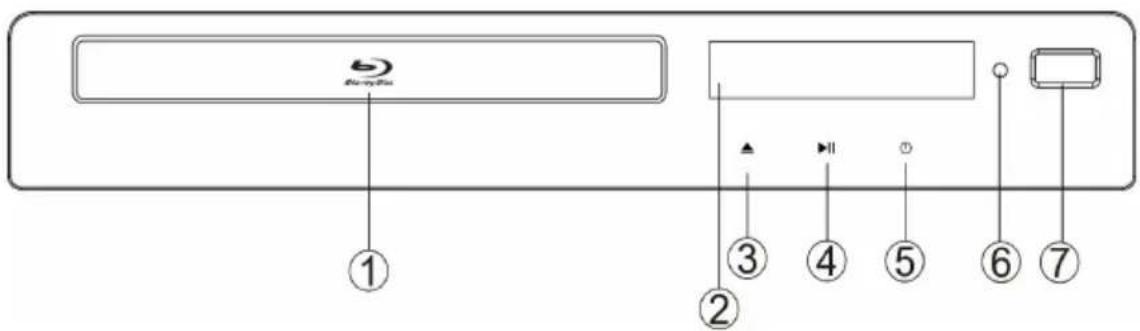
① DISC TRAY
⑤ POWER
② DISPLAY
⑥ SENSOR
③ OPEN/CLOSE BUTTON
⑦ USB
④ PLAY/PAUSE BUTTON
2.2 Rear panel
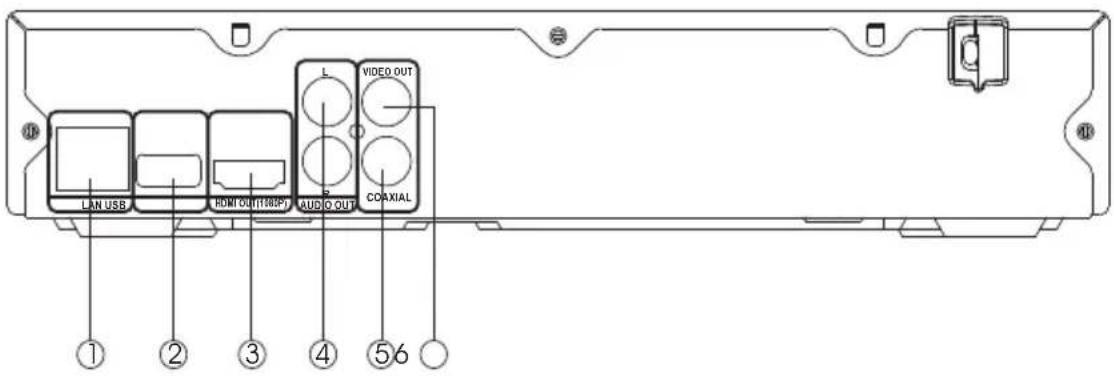
① LAN
② USB
③ HDMI output
④ Audio output(FR,FL)
⑤ Digital Audio COAXIAL output
⑥ COMPOSITE VIDEO output
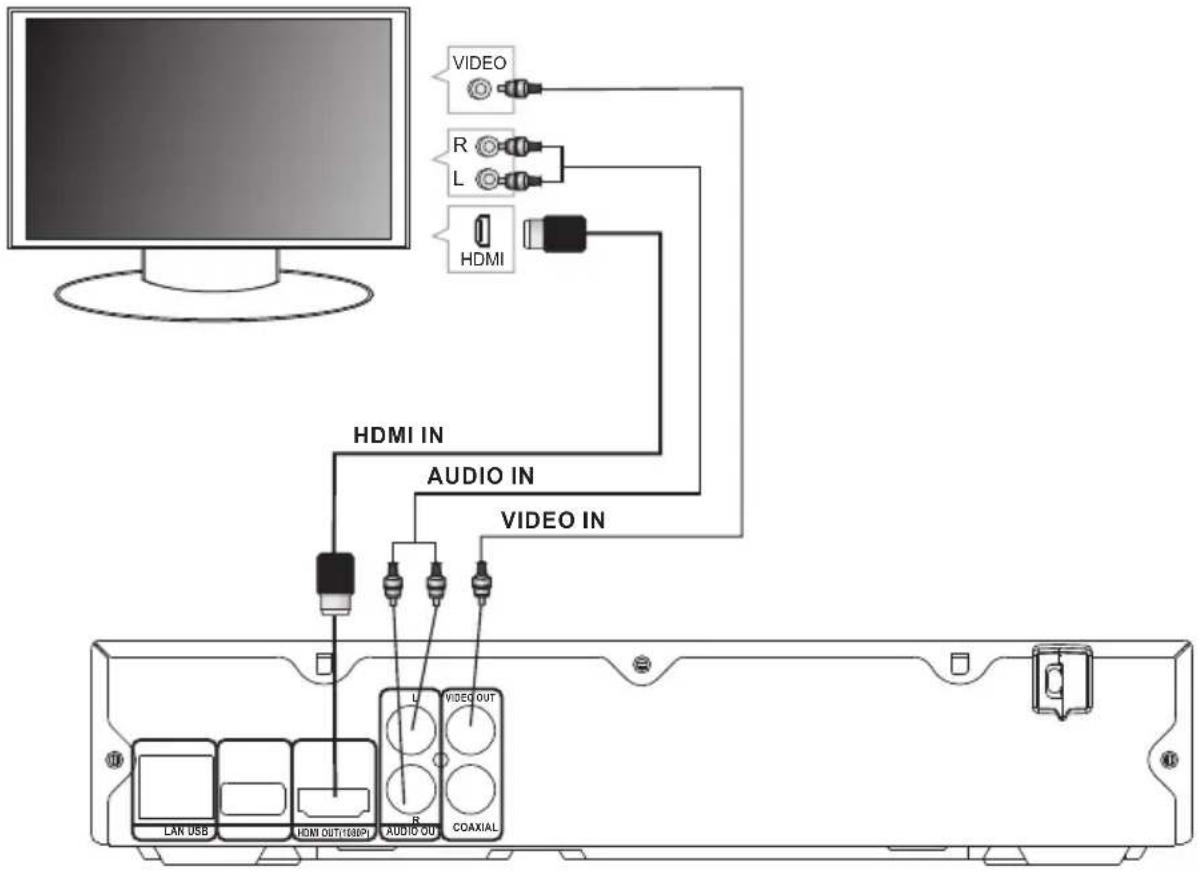
2.3 TV Set Connections
flowchart
graph TD
    A["Monitor"] --> B["HDMI"]
    B --> C["VIDEO"]
    B --> D["R L"]
    B --> E["HDMI"]
    C --> F["AUDIO IN"]
    D --> F
    E --> F
    F --> G["Video IN"]
    G --> H["L AUDIO OUT COAXIAL"]
    H --> I["LAN USB"]
    H --> J["HDMI OUT/USBPT"]
2.3.1 CONNECT BD PLAYER TO TV SET BY AV CABLE
Connect the BD player's L and R jack to the audio input jack on the TV. Connect the BD player's video out jack to the video input jack of TV.
2.3.2 CONNECT THE BD PLAYER TO TV SET USING THE HDMI OUTPUT
Use the HDMI cable (not supplied) to connect BD player to your TV.
Notes: The player supports video resolution up to 1080p 60Hz on HDMI output.
2.3.3 Connecting to an AV Amplifier with Digital Audio Input
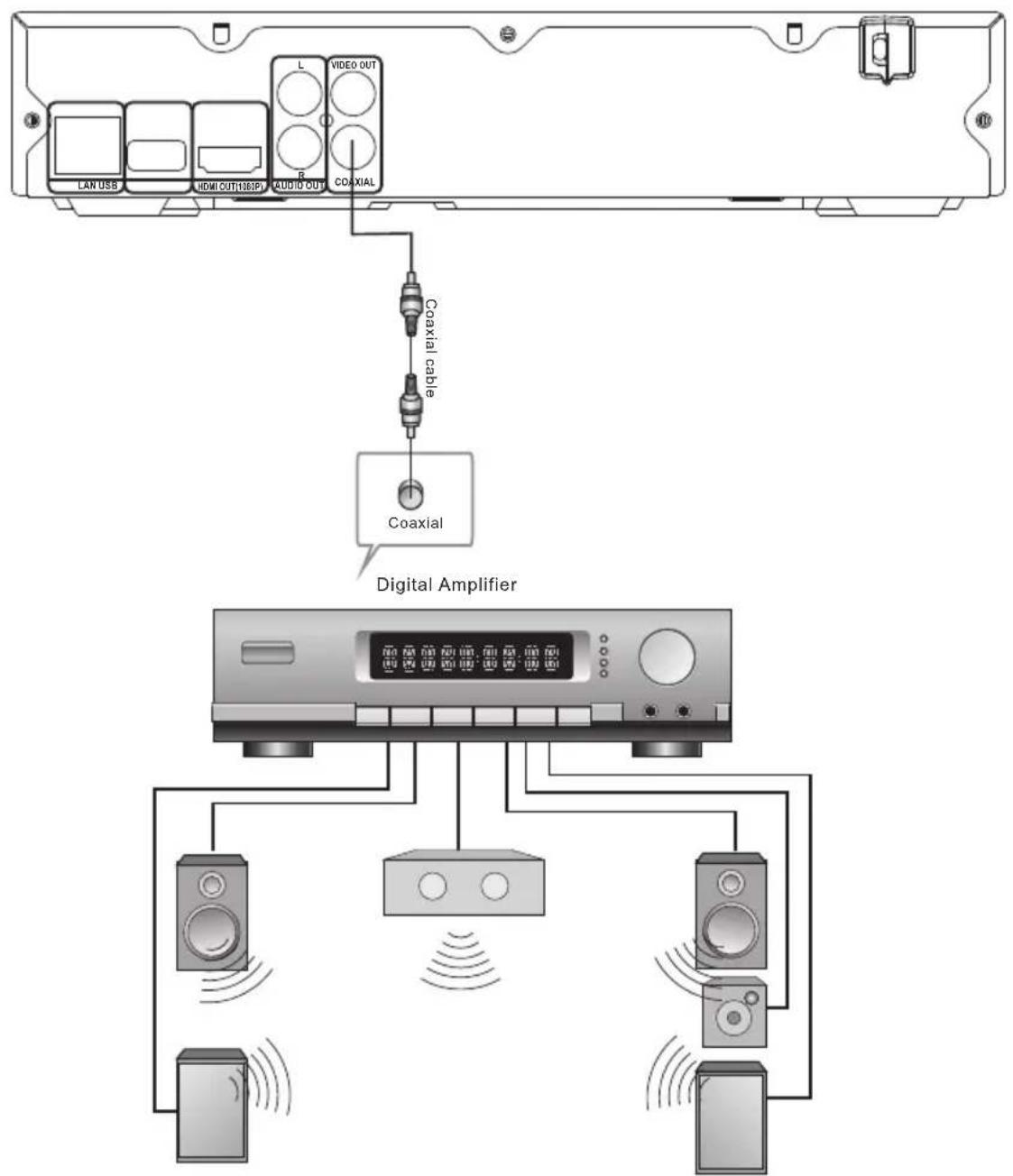
Notes:
- Select the Coaxial digital audio output.
- Set the digital Amplifier to the AV input connected to the BD player.
3. Output Illustration
3.1 Video Output Capabilities
Each of the video outputs are capable of different levels of functionality, as described in the table below. Actual output will depend on setup menu settings and TV capabilities for HDMI televisions.
| BD Player Video Output | Resolutions Supported (NTSC Models) | Resolutions Supported (PAL Models) |
| HDMI | 1080p 60/30/24Hz1080i720p480p480i | 1080p 50/25/24Hz1080i720p576p576i |
| Composite Video | NTSC SD (480i) | PAL SD (576i) |
3.2 Audio Output Capabilities
Each of the audio outputs are capable of different levels of functionality, as described in the table below. Actual output will depend on
- BD player setup menu settings,
- What types of audio tracks are encoded on the disk, and,
- Surround sound receiver capabilities (for BD players connected to a surround-sound system through HDMI or SPDIF)
| BD PlayerAudio Output | Audio tracks that can be sent directly to output |
| HDMI | Dolby TrueHDDolby Digital PlusDTS-HD High-Resolution AudioDolby DigitalDTSPCM (From mono up to 7.1 |
| SPDIF | Dolby DigitalDTSPCM (stereo only, up to 96 Khz) |
channels
@96
3.3 Connectors Description
3.3.1 SPDIF Digital Audio Output
The SPDIF output is a digital audio output. If you have a surround-sound receiver with a SPDIF (coaxial) input, connect this output to the coaxial input of the surround sound receiver.
3.3.2. Stereo Audio Outputs
These are analog, "old fashioned" stereo (left/right) outputs. If your TV does not have an HDMI input, you can connect these outputs to the stereo audio inputs of a TV.
3.3.3. Composite Video
If your TV does not have component or HDMI video inputs, connect this output to the composite video input of the television.
3.3.4. HDMI 1.3 Audio/Video Output
If you are using a surround-sound audio receiver with an HDMI input, connect the HDMI output of the BD player to the HDMI input of the audio receiver. (You will need to connect a second HDMI cable from the HDMI output of the audio receiver to the HDMI input of the television)
If your surround-sound audio receiver does not have an HDMI input (or if you are not using a surround- sound receiver), connect this output directly to the HDMI input of the TV. One of the other audio outputs can be connected to the audio receiver.
3.3.5. Ethernet Connector
For BD-Live only, use an Ethernet cable to connect this connector to access Ethernet while playing BD-Live disk.
3.3.6. USB 2.0 Connector
Used for external USB memory access, play supported audio/video files on USB memory or store download content into USB memory for BD-Live
Warning: The USB memory stick should be plug in the unit directly. USB extension cable should not be used to avoid failing of data transferring and interference caused
4. Remote Control
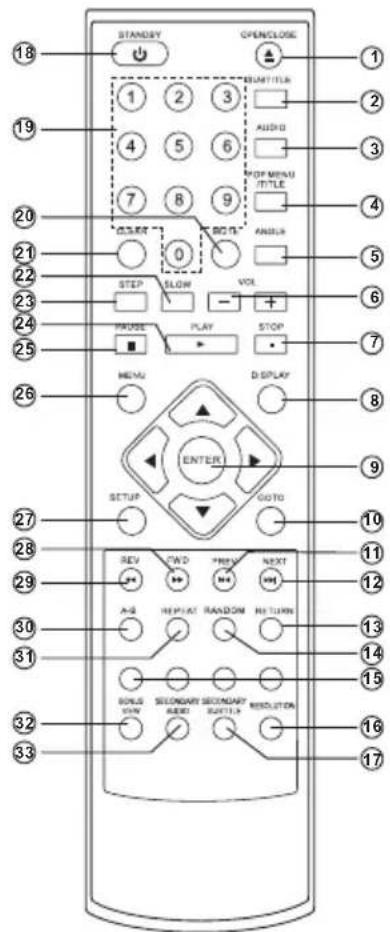
1.Open/Close
Press this button to open/close the disk tray.
2. Subtitle
This key can be used to enable/disable subtitles during BD/DVD playback. If the disk has more than one subtitle language, it can also be used to cycle through the subtitle languages.
3.Audio
This key is used to cycle through the movie audio soundtracks available on the disk. (Not available on all disks).
4.Pop Menu/Title
On BD disks only, this button can be used to bring up the main movie menu. (Not available on all disks).
5.Angle
Some BD and DVDs are filmed with more than one camera angle. During playback of such a disk, pressing this button will allow you to switch camera angles. (Not available on all disks)
6.VOL (+/-)
Pressing the VOL + button will increase the volume of the BD player's audio output. Pressing the VOL - button will decrease the volume of the BD player's audio output.
7.STOP
This button stops playback of a BD/DVD movie or files on disk.
8.DISPLAY
Press this button to show current play status and time information.
9.Menu Navigation Keys
These keys are used when navigating the menus on BD and DVDs. They are also used for navigating the setup menus for the BD player.
10.GOTO
This button is used with the numeric keypad to jump to a specific track on an audio CD.
11.PREV
Press this button to play previous title, chapter, track or file if valid.
12.NEXT
Press this button to play next title, chapter, track or file if valid.
13. Return
When navigating files on a data CD or USB stick, pressing this button will return you to the previous folder or menu.
14.Random
Used for random playback of audio files on disk. (Not available on all disks).
15.Colour Keys
The red, green, yellow, and blue keys are used to implement disk-specific features on some BD disks. (Not available on all disks).
16. Resolution
Under STOP status, press this button can change resolution settings directly.
17. Secondary Subtitle
Used to bring up the subtitle (if available) for the picture-in-picture (director's commentary, etc) on a BD title. If the disk has more than one director's commentary subtitle language, it can also be used to cycle through the subtitle languages. (Not available on all disks).
18. STANDBY
Press the STANDBY button to turn the BD player on or off.
Note: After AC power being turned on, system will take about 16s to run linux and initialize hardware, please be patient, system will not respond any key input during this period.
19. Numeric Keypad
These buttons are used with the GOTO button to jump to specific title/chapter (track) or time.
20. MUTE
Pressing this button to avoid audio output, pressing the MUTE button again will resume audio output.

21. CLEAR
When entering numeric values via the numeric keypad, this button is used to clear a number entered incorrectly.
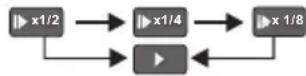
22.SLOW
Pressing this button will cause the video to be played at 12 , 1/4, 1/8 speed.
23. Step
Pressing this button will play movie by one frame.
24.Play
Pressing this button will start or resume playback.
25. Pause
Pressing this button will pause audio and video playback.
26.Menu
Pressing this key will immediately stop playback, and bring up the main or 'top' menu of the BD or DVD disk. (Not available on all disks) In the main menu, you can typically choose subtitle language, audio track, or different scene etc.
27. Setup
Bring out the settings menu of the BD player. This key will not work during disk play-back
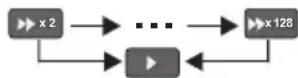
28.Fast Forward
Used to "Fast Forward" during content playback.
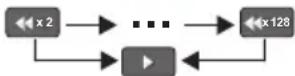
29.Fast Reverse
Used to "Fast Reverse" during content playback.
30.A-B
When a disk is playing, pressing this button once will save a "start point" for repeating playback. Pressing this button again to select a "end point" then playback will repeat from the start point to the end point. (Not available on all disks)
31.REPEAT
This button is used to cycle through the possible "repeat" modes based on content played.
BD/DVD or video files on disk: (Not available on all disks)

CDDA or audio Files on disk:

32.Bonus View
On BD disks, this button is used to turn the video portion of the director's commentary (picture-in-a-picture) on and off. (Not available on all disks).
Note: Director's commentary must have been turned on in the BD's main menu in order for this key to work.
33. Secondary Audio
On BD disks equipped with multiple director's commentaries in several languages, pressing this key will cycle through all of the languages available for the director's commentaries. (Not available on all disks).
5. System Setting
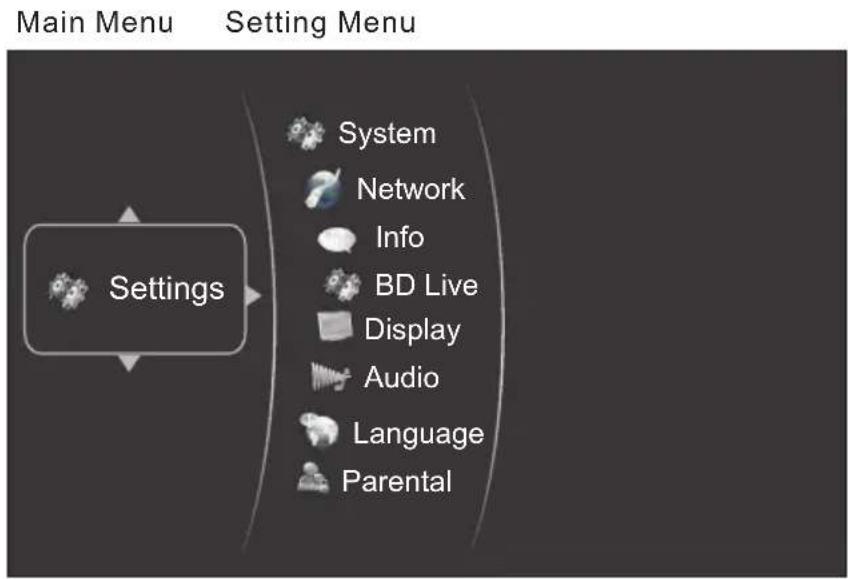
Press SETUP button under stop status or press RIGHT button in main menu. System will bring out setting menu as below picture:
flowchart
graph TD
    A["Main Menu"] --> B["Settings"]
    B --> C["System"]
    B --> D["Network"]
    B --> E["Info"]
    B --> F["BD Live"]
    B --> G["Display"]
    B --> H["Audio"]
    B --> I["Language"]
    B --> J["Parental"]
5.1 Language
5.1.1 OSD: set language used for user interface displayed.
5.1.2 Menu: set language used for BD/DVD menu (not available on all disks).
5.1.3 Audio: select audio language for BD/DVD disk (not available on all disks).
5.1.4 Subtitle: select subtitle language used for BD/DVD disk (not available on all disks).
5.2Display
5.2.1 TV Type: Select to output NTSC or PAL video format.
5.2.2 Resolution: Set maximum resolution of your TV here to get best video quality, if you are not sure, please use HDMI Auto, system will read the preferred resolution your TV supported via EDID.
5.2.3 TV Aspect: Select right video ratio based on your TV. (Refer to below table)
Note: Aspect setting only effect HDMI and component output, and 4:3 setting has no effect if resolution has been set to 720p or 1080i or 1080p).
| TV Aspect Menu Selection | ||||
| If your TV is more rectangular (16:9), choose: | If your TV is more square (4:3), choose: | |||
| 16:9 Full | 16:9 Pillarboxed | 4:3 Letterboxed | 4:3 Pan Scan | |
| Disk Contents | ||||
| Movie in widescreen format | Movie will fill entire screen | No effect - Movie will fill entire screen | Movie will be shown in rectangular "wide" aspect ratio (Horizontal bars will be shown above/below movie) | Center of movie will be shown on TV. Left and right portion of movie contents will not be shown |
| HD television episodes in widescreen format | Episode will fill entire screen | No effect - Episode will fill entire screen | Episode will be shown in rectangular "wide" aspect ratio (Horizontal bars will be shown above/below movie) | Center of episode will be shown on TV. Left and right portion of episode contents will not be shown |
| SD (4:3) television episodes | Episode will be stretched horizontally to fit entire screen | Episode will be shown in center of screen; vertical bars will appear on sides of screen | No effect - Episode will fill entire screen | No effect - Episode will fill entire screen |
| Cropped Movie (Movie put on disk in 4:3 Aspect Ratio) | Movie will be stretched horizontally to fit entire screen | Movie will be shown in center of screen; vertical bars will appear on sides of screen | No effect - Cropped movie will fill entire screen | No effect - cropped movie will fill entire screen |
Note:4:3PS and 4:3LB only valid under SD mode (resolution is 480p/576p or 480i/576i).
5.2.4 Film Mode: system will output 1080p 24Hz if this item is set to ON and disk movies are recorded on film at rate of 24 frames per second.
Note: This item only effect when Resolution is set to 1080p, and make sure your TV can support 1080P24Hz mode.
5.2.5ColorDepters used to represent the color of a single pixel in a bitmapped image or video frame buffer.
Note: Please ensure your TV can support deep color properly if you want to select 30bit/36bit.
5.3 Audio
5.3.1 PCM Downsampling: select right bitrate for PCM signal to ensure your SPDIF receiver can handle it correctly. It's no effect for HDMI digital audio output.
5.3.2 Digital Output:
If you only have two speakers, set PCM stereo.
If you connect receiver with more than two speakers, please refer to below tables:
| Receiver Capabilities | |||
| Can decode DTS | Can decode Dolby Digital | Can decode Dolby Digital Plus | |
| I want the highest-fidelity audio movie soundtrack possible | Set to ‘Bitstream Legacy’ for disks with DTS soundtracks. | Set to ‘Bitstream Legacy’for disks with Dolby digital soundtracks.Set to PCM 5.1 or PCM 7.1 for disks without Dolby sound tracks (depending on the number of speakers connected to your surround receiver) | Set to ‘Bitstream Legacy’fo disks with DD+ soundtracks.Set to PCM 5.1 or PCM 7.1 for disks without Dolby Digital plus sound tracks (depending on the number of speakers connected to your surround receiver) |
| I want to hear the directors commentary on the BD disk--OR-I want to set this menu item once and then forget it | Set the output to ‘Bitstream Mixed’ | Set to ‘Bitstream mixed’ if your receiver also supports DTS.Otherwise, set the output to PCM 5.1 or PCM 7.1 (depending on the number of speakers connected to your surround receiver) instead. | |
| Receiver Capabilities | |||
| Can decode DTS-MA Essential | Can decode Dolby TrueHD | Can't decode DTS-HD or Dolby TrueHD | |
| I want the highest-fidelity movie soundtrack audio possible | Set to Bitstream HD for disks with DTS-HD soundtracks. Set to Bitstream mixed otherwise | Set to Bitstream HD for disks with Dolby TrueHD soundtracks. Set to Bitstream mixed otherwise | Refer to above table to decide |
| I want to hear the directors commentary on the BD disk—OR—I want to set this menu item once and then forget it | Set the output to Bitstream mixed | ||
5.3.3 Dynamic Range Control: means that you can allow the BD player to make the loud parts of amovie's audio track quieter than they would be in the theatre, without making the dialog of theactors any quieter. (It effects on analog audio output and digital output should be set to PCM or Bitstream Mixed).
5.4 BD-Live
5.4.1 BD-Live InternetAccess: Control BD player accessing internet
Limit access : Only allow the inserted Blu-Ray disk to download content from a BD-Live website which has a valid online certificate. This will reduce the chances of downloading malicious content onto the player.
Always allow access: Allow the BD the inserted Blu-Raydisk to access content from all BD-Live internet sites whose internet address is encoded onto the disk. There is no danger of malicious code download from valid commercial BD disks, but choosing this option and downloading BD-live content via illegally authored BD disks, or disks obtained from questionable sources, could result in malicious code being downloaded onto the player.
Prohibit access : Blocks the inserted Blu-Ray disk from accessing BD-Live content over the internet.
5.4.2 BD-Live Storage:
Show BD-Live storage information, select storage device to clear Blu-ray storage.
5.4.3 Erase Blu-Ray Storage: Clear Blu-Ray storage.
5.5 System
5.5.1 Optical Disc Auto Play: This option is used to tell the BD player whether or not to start loading the main title menu of a disk as soon as the disk tray is closed.
5.5.2 Time zone: you may use this menu item to set the time zone of player internal clock.
5.5.3 Screen Saver Duration:
This BD player will activate screen saver mode after certain period of time set by this item when system is playing music file or in stop/fullstop mode.
5.5.4 Auto Power Down: System will enter standby after certain period of time automatically if no user operation.
5.5.5 CEC support:
Set this item to enable/disable CEC:
The CEC feature is designed to allow CEC-enabled devices to command and control each other without user intervention. For example: If your TV is also CEC-enabled and you will turn off your TV, the Blu-Ray player will get a CEC signal and turn off automatically. Or if you turn on your Blu-Ray player, your TV will automatically turn on and switch to HDMI input.
Note: Not every CEC-Enabled unit is compatible with this unit.
5.5.6 Reset Settings:
Reset all settings to factory default (Parental Control level will not be reset).
5.6 Network
Press "ENTER" button when the item is highlighted, then select "WIRED" to config network:
5.6.1 Link Status: Show if ethernetcable is connected to BD player.
5.6.2 MAC Address: Show MAC address of this BD player.
5.6.3 IP Mode: Choose IP mode here for internet access. Choosing "Manual" mode, 5.6.4 \~ 5.6.8 will be activated for user input, otherwise they are inactivated.
5.6.4 IP Address: Show current IP address or access user input while in "Manual" IP mode.
5.6.5 Subnet Mask: Show current SubnetMask or access user input while in "Manual" IP mode.
5.6.6 Gateway: Show current Gateway or access user input while in "Manual" IP mode.
5.6.7 Primary DNS: Show current PrimaryDNS or access user input while in "Manual" IP mode.
5.6.8 Secondary DNS:
Show current SecondaryDNS or access user input while in "Manual" IP mode. Press ENTER key while Apply button is highlighted to activate setting you made, or press ENTER key while Cancel button is highlighted to cancel changes you made for network settings.
5.7 Info
This item shows software and hardware information for loader and main board, no changes are allowed.
5.8 Parental
5.8.1 Parental Country:
Use this menu item to tell the BD player what country you are in.(Currently this menu item has no effect)
5.8.2 Parental Control:
To turn parental control ON or OFF,
5.8.3 Parental Level:
To restrict playback of disks encoded with a rating level equal to or higher than the level you set. Parental Control must be turned on for this menu item to have an affect
5.8.4 Parental Password:
Change new password for Parental Control menu operation. (Default value is: 6666)
6. Audio, Video, Picture files on disk or USB devices
6.1 Introduction
This section explains how to play back PC-type audio, pictures, and video files that have been placed onto a disk or USB memory stick.
6.2 Supported Audio, Video, Picture files types
Video
• .MPEG4 (.mp4) files
- .m4v files
- .mpg files
Note: External subtitle file must have name begin with the video file name, and it must be UTF8 or UTF16 encoded. (e.g. For video file: file001.mkv, external subtitle file can be: file001_01.srt, file001_eng.srt or file001_ger.sub etc)
Music:
- .mp3 files
- .wma files
Picture:
- .jpeg files
• .Png files
6.3 Disk or USB devices preparation
6.3.1 CD-R/RW, DVD+/-R, DVD+/-RW, BD-R or BD-RE with supported files recorded in UDF or ISO9660 format (must be finalized) can be playback on this BD player.
6.3.2 USB device with supported files on its FAT/FAT32 partition will be recognized.
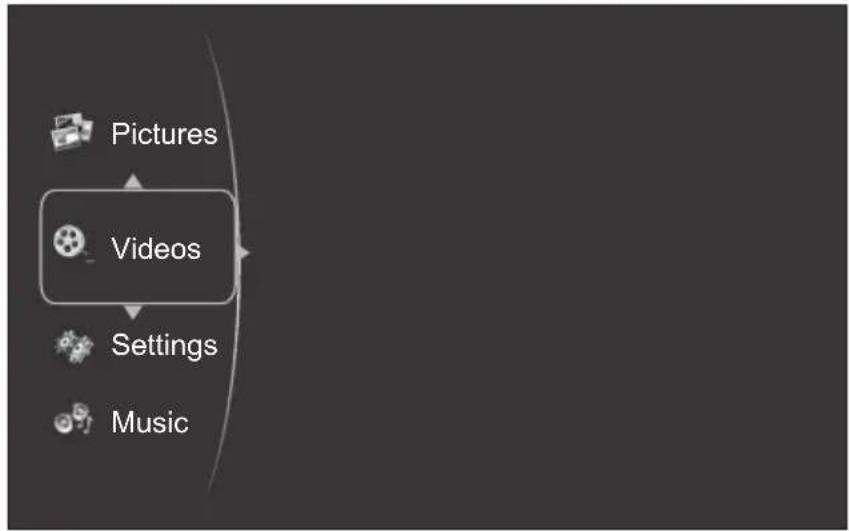
6.4 Browsing video files
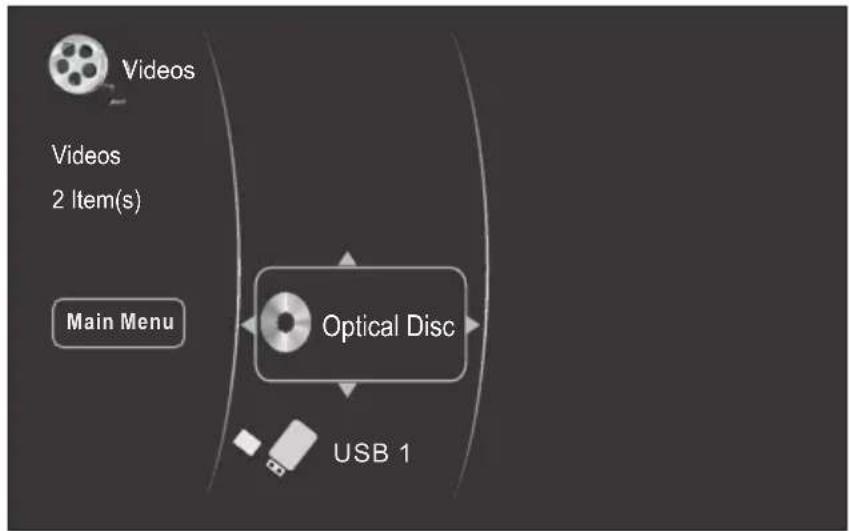
6.4.1 Select Videos icon in main menu which will appear after BD player read out disk or/and USB device. Press ENTER key while Video icon is highlighted, system will bring out a sub menu for file source selection.(Figure 5-1)
flowchart
graph TD
    A["Main Menu"] --> B["Videos"]
    B --> C["Videos 2 Item(s)"]
    C --> D["Optical Disc"]
    D --> E["USB 1"]
Figure 5-1 Video Media Selector
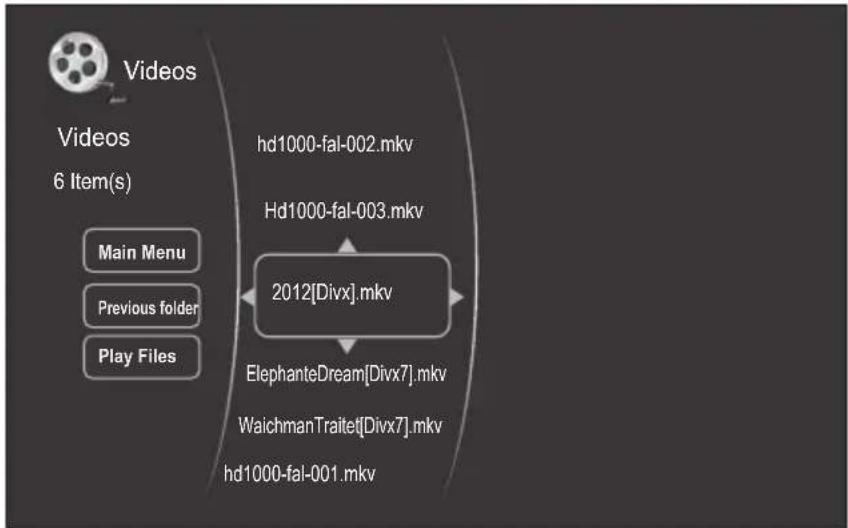
6.4.2 Select disk or USB to open a browser which allows files to view current disk/USB device, so you can choose any files you want to play Figure 5-2)
flowchart
graph TD
    A["Main Menu"] --> B["Previous folder"]
    B --> C["Play Files"]
    D["HD1000-fal-002.mkv"] --> E["2012[Divx"].mkv]
    F["Hd1000-fal-003.mkv"] --> E
    E --> G["ElephanteDream[Divx7"].mkv]
    G --> H["WaichmanTraitet[Divx7"].mkv]
    H --> I["hd1000-fal-001.mkv"]
Figure 5-2 Video Browser Screen
6.5 Browsing Audio files
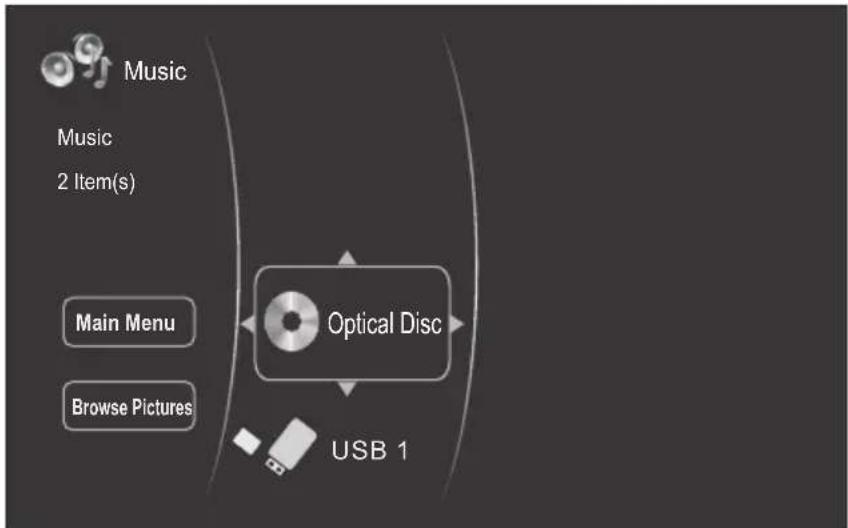
6.5.1 Select Music icon in main menu which will appear after BD player read out disk or /and USB device. Press ENTER key while Music icon is highlighted, system will bring out a sub menu for file source selection.(Figure 5-3)
flowchart
graph TD
    A["Main Menu"] --> B["Optical Disc"]
    C["Browse Pictures"] --> B
    D["USB 1"] --> B
    E["Music"] --> F["Music 2 Item(s)"]
Figure 5-3 Audio Media Selector
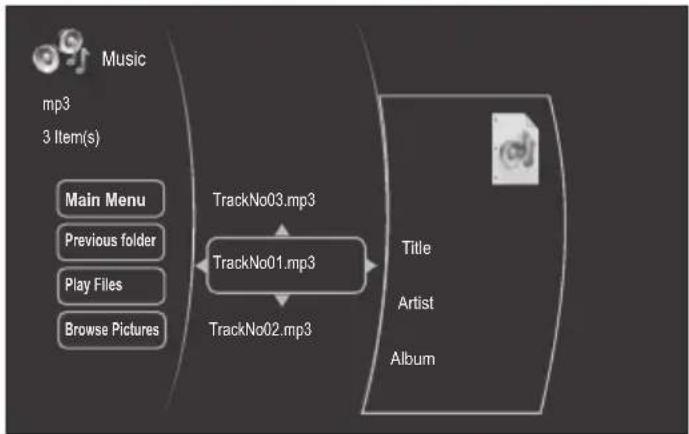
6.5.2 Select disk or USB to open a browser which allows files via current disk / USB device, so you can choose any files you want to play Figure 5-4)
flowchart
graph TD
    A["Music"] --> B["mp3"]
    A --> C["3 Item(s)"]
    B --> D["Main Menu"]
    B --> E["Previous folder"]
    B --> F["Play Files"]
    B --> G["Browse Pictures"]
    C --> H["TrackNo03.mp3"]
    C --> I["TrackNo01.mp3"]
    C --> J["TrackNo02.mp3"]
    H --> K["Title"]
    I --> L["Artist"]
    J --> M["Album"]
Figure 5-4 Audio Browser Screen
6.6 Browsing picture files
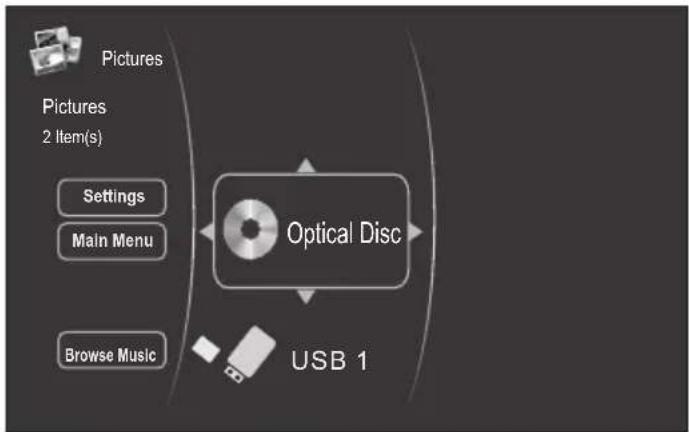
6.6.1 Select Pictures icon in main menu which will appear after BD player read out disk or/and USB device. Press ENTER key while Pictures icon is highlighted, system will bring out a sub menu for file source selection.(Figure 5-5)
flowchart
graph TD
    A["Pictures"] --> B["2 Item(s)"]
    B --> C["Settings"]
    B --> D["Main Menu"]
    B --> E["Browse Music"]
    F["Optical Disc"] --> G["USB 1"]
Figure 5-5 Picture Media Selector
6.6.2 Select disk or USB to open a browser which files you order new disk/USB device, so you can choose any files you want to play Figure 5-6)
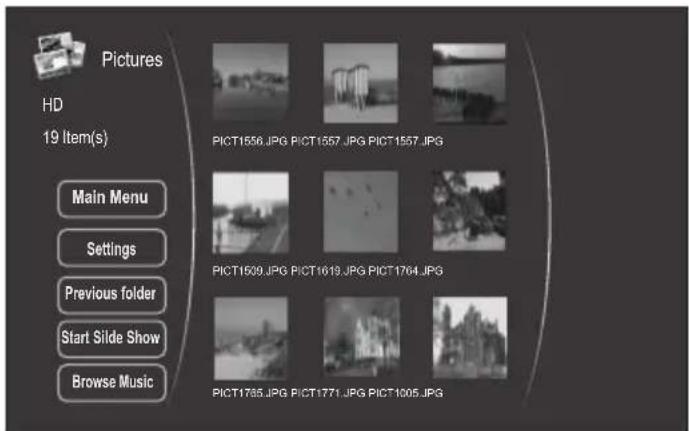
Figure 5-6 Picture Browser Screen
7. BD-Live Operation
7.1 Description
Some (but certainly not all) BD disks contain additional features that are made available to players that are connected to the internet, and have additional memory added. These additional features may include things like
-the ability to download new movie trailers,
-additional 'commentary' by actors and directors,
-mgualtippe play and chat
In order to access BD-Live functions, the player must be properly configured for BD-Live internet access, and it must be equipped with additional memory.
7.2 Adding external BD-live Memory to player
7.2.1 Obtain USB memory which has been formatted as FAT32.
7.2.2 Insert the USB memory stick into the USB slot on the player.
7.3 Setting BD-Live Internet Access Mode
7.3.1 In the BD Player's main setup menu, go to the 'Other' menu choice; Then, choose "BD-Live Internet Access". Be sure that "Limit Access" or "Always Allow Access" is checked.
7.3.2 Once the USB memory stick has been inserted, if there is not at least 100Mbyte of free space on the device, you should choose "Clear BD Storage" from the "Other" setup menu item
7.3.3 In the BD Player's main setup menu, go to the 'Network' menu choice; Then, choose "IP mode". Set up the Network IP addresses per your router's or ISPs recommendations
NOTE: The 'Connectivity Test' must pass, or you are not connected to the internet, and cannot access BD-Live Content on the web.
7.4 BD-Live Internet Access Example
7.4.1 Obtain a BD-Livedisk like
7.4.2 Select BD-Live option from Special Features Menu (or in some disk, you can see BD-Live option in main menu)
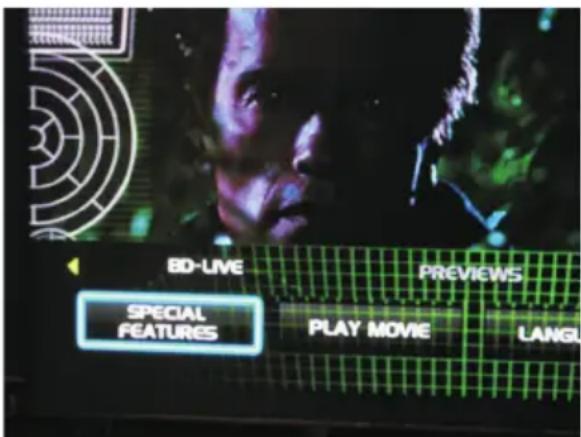
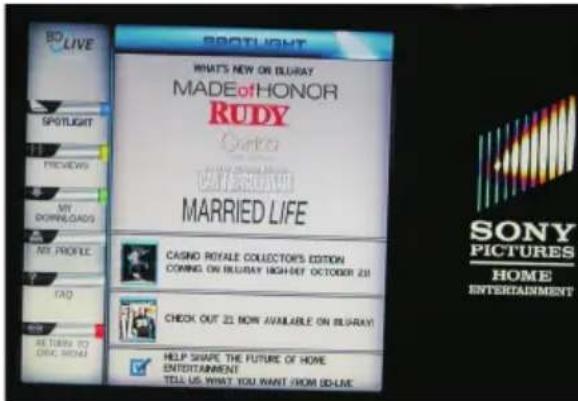
7.4.3 The player will connect to internet and show download menu as below picture. Note: This can take several minutes.
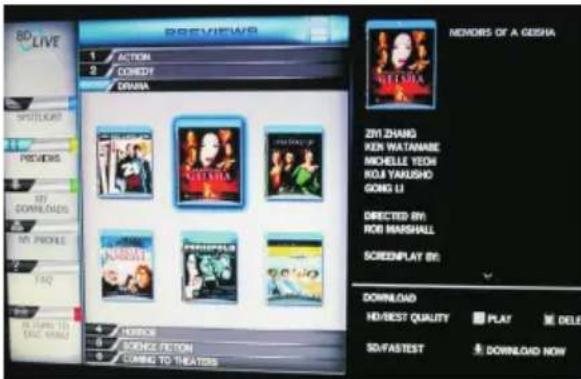
7.4.4 You can select the content to download from the Previews sub menu. Note: This can take several minutes.
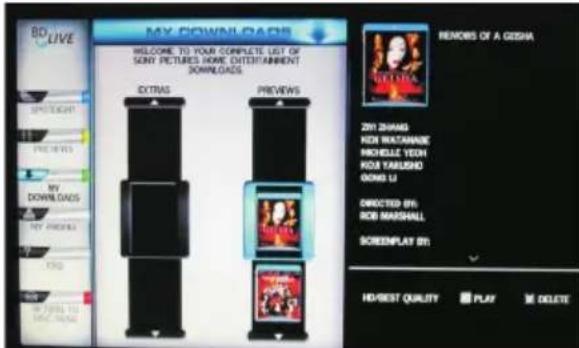
7.4.5 The downloaded content is stored under My Downloads. You can choose to either play back or delete the downloaded content
7.5 BD-Live Notes
7.5.1 This player only supports the connection of USB memory in order to store BD 2.0 downloaded content
7.5.2 Any externally connected device will be set as BD-Live storage and internal storage will be ignored in same time.
7.5.3 Some BD-Live content will be expired and not playable, user need to manually delete the contents in BD storage in order to free space.
8. Trouble shooting
If you have any questions, please consult the troubleshooting guide below.
NO PICTURE OR SOUND
- Ensure the power button is on.
- Ensure the power outlet is operational.
● Ensure the power cord is not damaged. - Ensure the power plug is connected firmly to the outlet.
REMOTE NOT WORKING
● Make sure the Main unit's POWER button is on.
● Ensure the remote batteries are working.
- Point the remote control directly at the player's IR sensor.
- Remove any obstacles between the remote and the IR sensor.
PICTURE BUT NO SOUND
● Ensure the audio jacks are securely connected.
● Ensure the audio connector is not damaged.
- Ensure you have set the player's AUDIO settings correctly.
- Ensure you have entered the correct AV input for your TV.
● Ensure the audio is not set to mute.
UNIT NOT WORKING
● Turn off the power, and then turn it on again.
SOUND BUT NO PICTURE
- Ensure the video jacks are securely connected.
- Ensure you have entered the correct AV input for your TV.
● Ensure the video connector is not damaged. - Ensure you have set the player's VIDEO settings correctly.
"NO DISC" DISPLAYED
● Ensure you have put the disc on the tray.
● Ensure the disc is not upside down.
● Ensure the disc is not distorted, stained or scratched.
POOR PICTURE OR SOUND
- Ensure you have set the player's AUDIO settings correctly.
● Ensure the disc is not scratched or stained. - Ensure the AV connector or the output terminal is not damaged.
9. Specifications
General
Power requirements: AC 100-240 Volt, 50/60Hz
Power consumption: 20W
Discs Compatibility:
BD, DVD, DVD+/-R/RW, VCD, CD-DA, CD-R/RW.
Video out
HDMI
CVBS: 1.0V(p-p)/75Ω, sync, negative polarity, RCA pin jack x 1
Audio out
2 channel out: RCA pin jackx2
Coaxial out: 0.5V(p-p)75Ω, RCA pin Jack x l
Frequency response: 20Hz to 20kHz
S/N ratio:>90dB
Total harmonic distortion: <-65dB
[Accessories]
Remote Control x 1
User's Manual x 1
Specifications are subject to change without notice.
Weight and dimensions are approximate.
This product incorporates copyright protection technology that is protected by U.S. patents and other intellectual property rights. Use of this copyright protection technology must be authorized by Rovi Corporation, and is intended for home and other limited viewing uses only unless otherwise authorized by Rovi Corporation. Reverse engineering or disassembly is prohibited.
Manufactured under license from Dolby Laboratories. Dolby and the double-D symbol are trademarks of Dolby Laboratories.
This device complies with Part 15 of the FCC Rules. Operation is subject to the following two conditions:(1) this device may not cause harmful interference, and(2) this device must accept any interference received, including interference that may cause undesired operation.
Manufactured under license under U.S. Patent # s: 5,451,942; 5,956,674; 5,974,380; 5,978,762; 6,487,535 & other U.S. and worldwide patents issued & pending. DTS is a registered trademark and the DTS logos, Symbol, DTS-HD and DTS-HD Advanced Digital Out are trademarks of DTS, Inc. ©1996-2008 DTS, Inc. All Rights Reserved.
10. GNU PUBLIC LICENSE
The BD player runs software that is covered under the GPL. As such, we are required to publish the following:
GNU GENERAL PUBLIC LICENSE
Version 2, June 1991
Copyright (C) 1989, 1991 Free Software Foundation, Inc.
51 Franklin Street, Fifth Floor, Boston, MA 02110-1301, USA
Everyone is permitted to copy and distribute verbatim copies of this license document, but changing it is not allowed.
Preamble
The licenses for most software are designed to take away your freedom to share and change it. By contrast, the GNU General Public License is intended to guarantee your freedom to share and change free software—to make sure the software is free for all its users. This General Public License applies to most of the Free Software Foundation's software and to any other program whose authors commit to using it. (Some other Free Software Foundation software is covered by the GNU Lesser General Public License instead.) You can apply it to your programs, too.
When we speak of free software, we are referring to freedom, not price. Our General Public Licenses are designed to make sure that you have the freedom to distribute copies of free software (and charge for this service if you wish), that you receive source code or can get it if you want it, that you can change the software or use pieces of it in new free programs; and that you know you can do these things.
To protect your rights, we need to make restrictions that forbid anyone to deny you these rights or to ask you to surrender the rights.
These restrictions translate to certain responsibilities for you if you distribute copies of the software, or if you modify it.
For example, if you distribute copies of such a program, whether gratis or for a fee, you must give the recipients all the rights that you have. You must make sure that they, too, receive or can get the source code. And you must show them these terms so they know their rights.
We protect your rights with two steps: (1) copyright the software, and (2) offer you this license which gives you legal permission to copy, distribute and/or modify the software.
Also, for each author's protection and ours, we want to make certain that everyone understands that there is no warranty for this free software. If the software is modified by someone else and passed on, we want its recipients to know that what they have is not the original, so that any problems introduced by others will not reflect on the original authors' reputations.
Finally, any free program is threatened constantly by software patents. We wish to avoid the danger that redistributors of a free program will individually obtain patent licenses, in effect making the program proprietary. To prevent this, we have made it clear that any patent must be licensed for everyone's free use or not licensed at all.
The precise terms and conditions for copying, distribution and modification follow.
TERMS AND CONDITIONS FOR COPYING, DISTRIBUTION AND MODIFICATION
- This License applies to any program or other work which contains a notice placed by the copyright holder saying it may be distributed under the terms of this General Public License. The "Program", below, refers to any such program or work, and a "work based on the Program" means either the Program or any derivative work under copyright law: that is to say, a work containing the Program or a portion of it, either verbatim or with modifications and/or translated into another language. (Hereinafter, translation is included without limitation in the term "modification".) Each licensee is addressed as "you".
Activities other than copying, distribution and modification are not covered by this License; they are outside its scope. The act of running the Program is not restricted, and the output from the Program is covered only if its contents constitute a work based on the Program (independent of having been made by running the Program). Whether that is true depends on what the Program does.
- You may copy and distribute verbatim copies of the Program's source code as you receive it, in any medium, provided that you conspicuously and appropriately publish on each copy an appropriate copyright notice and disclaimer of warranty; keep intact all the notices that refer to this License and to the absence of any warranty; and give any other recipients of the Program a copy of this License along with the Program.
You may charge a fee for the physical act of transferring a copy, and you may at your option offer warranty protection in exchange for a fee.
- You may modify your copy or copies of the Program or any portion of it, thus forming a work based on the Program, and copy and distribute such modifications or work under the terms of Section 1 above, provided that you also meet all of these conditions:
a) You must cause the modified files to carry prominent notices stating that you changed the files and the date of any change.
b) You must cause any work that you distribute or publish, that in whole or in part contains or is derived from the Program or any part thereof, to be licensed as a whole at no charge to all third parties under the terms of this License.
c) If the modified program normally reads commands interactively when run, you must cause it, when started running for such interactive use in the most ordinary way, to print or display an announcement including an appropriate copyright notice and a notice that there is no warranty (or else, saying that you provide a warranty) and that users may redistribute the program under these conditions, and telling the user how to view a copy of this License. (Exception: if the Program itself is interactive but does not normally print such an announcement, your work based on the Program is not required to print an announcement.) These requirements apply to the modified work as a whole. If identifiable sections of that work are not derived from the Program, and can be reasonably considered independent and separate works in themselves, then this License, and its terms, do not apply to those sections when you distribute them as separate works. But when you distribute the same sections as part of a whole which is a work based on the Program, the distribution of the whole must be on the terms of this License, whose permissions for other licensees extend to the entire whole, and thus to each and every part regardless of who wrote it.
Thus, it is not the intent of this section to claim rights or contest your rights to work written entirely by you; rather, the intent is to exercise the right to control the distribution of derivative or collective works based on the Program.
In addition, mere aggregation of another work not based on the Program with the Program (or with a work based on the Program) on a volume of a storage or distribution medium does not bring the other work under the scope of this License.
- You may copy and distribute the Program (or a work based on it, under Section 2) in object code or executable form under the terms of Sections 1 and 2 above provided that you also do one of the following:
a) Accompany it with the complete corresponding machine-readable source code, which must be distributed under the terms of Sections 1 and 2 above on a medium customarily used for software interchange; or,
b) Accompany it with a written offer, valid for at least three years, to give any third party, for a charge no more than your cost of physically performing source distribution, a complete machine-readable copy of the corresponding source code, to be distributed under the terms of Sections 1 and 2 above on a medium customarily used for software interchange; or,
c) Accompany it with the information you received as to the offer to distribute corresponding source code. (This alternative is allowed only for noncommercial distribution and only if you received the program in object code or executable form with such an offer, in accord with Subsection b above.)
The source code for a work means the preferred form of the work for making modifications to it. For an executable work, complete source code means all the source code for all modules it contains, plus any associated interface definition files, plus the scripts used to control compilation and installation of the executable. However, as a special exception, the source code distributed need not include anything that is normally distributed (in either source or binary form) with the major components (compiler, kernel, and so on) of the operating system on which the executable runs, unless that component itself accompanies the executable.
If distribution of executable or object code is made by offering access to copy from a designated place, then offering equivalent access to copy the source code from the same place counts as distribution of the source code, even though third parties are not compelled to copy the source along with the object code.
-
You may not copy, modify, sublicense, or distribute the Program except as expressly provided under this License. Any attempt otherwise to copy, modify, sublicense or distribute the Program is void, and will automatically terminate your rights under this License. However, parties who have received copies, or rights, from you under this License will not have their licenses terminated so long as such parties remain in full compliance.
-
You are not required to accept this License, since you have not signed it. However, nothing else grants you permission to modify or distribute the Program or its derivative works. These actions are prohibited by law if you do not accept this License. Therefore, by modifying or distributing the Program (or any work based
on the Program), you indicate your acceptance of this License to do so, and all its terms and conditions for copying, distributing or modifying the Program or works based on it.
-
Each time you redistribute the Program (or any work based on the Program), the recipient automatically receives a license from the original licensor to copy, distribute or modify the Program subject to these terms and conditions. You may not impose any further restrictions on the recipients' exercise of the rights granted herein. You are not responsible for enforcing compliance by third parties to this License.
-
If, as a consequence of a court judgment or allegation of patent infringement or for any other reason (not limited to patent issues),
conditions are imposed on you (whether by court order, agreement or otherwise) that contradict the conditions of this License, they do not excuse you from the conditions of this License. If you cannot distribute so as to satisfy simultaneously your obligations under this License and any other pertinent obligations, then as a consequence you may not distribute the Program at all. For example, if a patent license would not permit royalty-free redistribution of the Program by all those who receive copies directly or indirectly through you, then the only way you could satisfy both it and this License would be to refrain entirely from distribution of the Program.
If any portion of this section is held invalid or unenforceable under any particular circumstance, the balance of the section is intended to apply and the section as a whole is intended to apply in other circumstances.
It is not the purpose of this section to induce you to infringe any patents or other property right claims or to contest validity of any such claims; this section has the sole purpose of protecting the integrity of the free software distribution system, which is implemented by public license practices. Many people have made generous contributions to the wide range of software distributed through that system in reliance on consistent application of that system; it is up to the author/donor to decide if he or she is willing to distribute software through any other system and a licensee cannot impose that choice.
This section is intended to make thoroughly clear what is believed to be a consequence of the rest of this License.
-
If the distribution and/or use of the Program is restricted in certain countries either by patents or by copyrighted interfaces, the original copyright holder who places the Program under this License may add an explicit geographical distribution limitation excluding those countries, so that distribution is permitted only in or among countries not thus excluded. In such case, this License incorporates the limitation as if written in the body of this License.
-
The Free Software Foundation may publish revised and/or new versions of the General Public License from time to time. Such new versions will be similar in spirit to the present version, but may differ in detail to address new problems or concerns. Each version is given a distinguishing version number. If the Program specifies a version number of this License which applies to it and "any later version", you have the option of following the terms and conditions either of that version or of any later version published by the Free Software Foundation. If the Program does not specify a version number of this License, you may choose any version ever published by the Free Software Foundation.
-
If you wish to incorporate parts of the Program into other free programs whose distribution conditions are different, write to the author to ask for permission. For software which is copyrighted by the Free Software Foundation, write to the Free Software Foundation; we sometimes make exceptions for this. Our decision will be guided by the two goals of preserving the free status of all derivatives of our free software and of promoting the sharing and reuse of software generally.
-
Because the program is licensed free of charge, there is no warranty for the program, to the extent permitted by applicable law. Except when otherwise stated in writing the copyright holders and/or other parties provide the program "as is" without warranty of any kind, either expressed or implied, including, but not limited to, the implied warranties of merchantability and fitness for a particular purpose. The entire risk as to the quality and performance of the program is with you. Should the program prove defective, you assume the cost of all necessary servicing, repair or correction.
-
In no event unless required by applicable law or agreed to in writing will any copyright holder, or any other party who may modify and/or redistribute the program as permitted above, be liable to you for damages, including any general, special, incidental or consequential damages arising out of the use or inability to use the program (including but not limited to loss of data or data being rendered inaccurate or losses sustained by you or third parties or a failure of the program to operate with any other programs), even if such holder or other party has been advised of the possibility of such damages.