24DTV1080PS - Television VDiGi - Free user manual and instructions
Find the device manual for free 24DTV1080PS VDiGi in PDF.


User questions about 24DTV1080PS VDiGi
0 question about this device. Answer the ones you know or ask your own.
Ask a new question about this device
Download the instructions for your Television in PDF format for free! Find your manual 24DTV1080PS - VDiGi and take your electronic device back in hand. On this page are published all the documents necessary for the use of your device. 24DTV1080PS by VDiGi.
USER MANUAL 24DTV1080PS VDiGi
natural_image
Black-and-white TV displaying a forest scene with green trees reflected in a calm pond, no visible text or symbols on the screen.22DTV1080PS/24DTV1080PS
AC


錄影
natural_image
Illustration of a flat-screen TV displaying a forest scene with green trees and water, no text or symbols present.| POWER | |
| TV/AV | |
| MENU | |
| CH+/CH- | |
| VOL+/VOL- |
| USB1,USB2 | |
| HDMI1,HDMI2 | |
| VGA | |
| YPbPr | |
| VIDEO - R - L | |
| S-VIDEO | |
| RF IN |
POWER
POWER
natural_image
Blank gray image with no visible content, text, or symbols
natural_image
Black and white close-up of a blooming lily flower (no text or symbols visible)◀ ▶
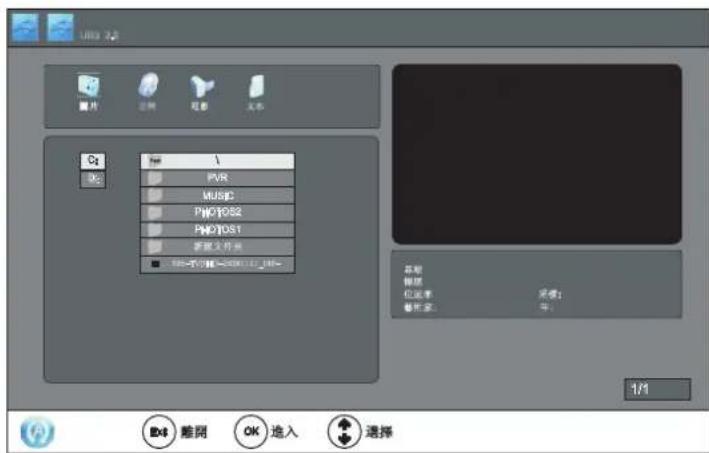
Table of Contents....23
Safety Information....24
Precautions....26
Remote Control 28
Functions of 29
Rear Panel and Descriptions....30
Basic Operation 31
Menu Operation 32
Channel Menu.... 32
Picture Menu.... 34
Sound Menu....35
Time Menu.... 36
Option Menu....37
Media Menu.... 38
Photo....39
Music....41
Movie....42
Text....43
Specifications.... 45
Troubleshooting....46
Before operating the TV, please read “Safety Information” and retain this manual for the future reference.
Installation/Set-up
Install and use the TV set in accordance with the instructions below in order to avoid any risk of fire, electrical shock or damage and/or injuries.
Installation
The TV set should be installed near an easily accessible AC power outlet.
Place the TV set on stable, level surface to avoid it form falling down and cause personal injury or damage to the TV.
Only qualified service personnel should carry out wall installations.
For safety reasons, it is strongly recommended that you use V DIGI Accessories.
Transporting
Before transporting the TV set, disconnect all cables.
Two or more people are needed to transport a large TV set
When transport the TV set hand, hold it as shown on the right. Do not put stress on the LCD panel.
When lifting or moving the TV set, hold it firmly from the bottom.
When transporting the TV set, do not subject it to jolts or excessive vibration.
When transporting the TV set for repairs or when moving, pack it using the original carton and packing material.
Ventilation
Never cover the ventilation holes or insert anything in the cabinet.
Leave space around the TV set
To ensure proper ventilation and prevent the collection of dirt or dust.
Do not lay the TV set flat, install upside down, backwards, or sideways.
Do not pace the TV set on a shelf, rug, bed or in a closet.
Do not cover the TV set with a cloth, such as curtains, or item such as newspaper, etc.
AC power cord
Handle the AC power cord and outlet as follows in order to avoid any risk of fire, electrical shock or damage and/or injuries:
Use only V DIGI supplied AC power cords, not those of other brands.
Insert the plug fully into the AC power outlet
Operate the TV set on a 110-240V AC supply only.
When wiring cables, be sure to unplug the AC power cord for your safety and take care not to catch your feet on the cables.
Disconnect the AC power cord form the AC power outlet before working on or moving the TV set.
Keep the AC power cord away form heat sources.
Unplug the AC power plug and clean it regularly. If the plug is covered with dust and it picks up moisture, its insulation may deteriorate, which could result in a fire.
Notes:
Do not use the supplied AC power cord on any other equipment.
Do not pinch, bend, or twist the AC power cord excessively. The core conductors may be exposed or broken.
Do not modify the AC power cord.
Do not put anything heavy on the AC power cord.
Do not pull on the AC power cord itself when disconnecting the AC power cord.
Do not connect too many appliances to the same AC power outlet.
Do not use a poor fitting AC power outlet.
Prohibited Usage
Do not install/use the TV set in locations, environments or situations such as those listed below, or the TV set may malfunction and cause a fire, electrical shock, damage and/or injuries.
Location
Outdoors (in direct sunlight), at the seashore, on a ship or other vessel, inside a vehicle, in medical institutions, unstable locations, near water, rain, moisture or smoke.
Environment
Places that are hot, humid, or excessively dusty; where insects may enter; where it might be exposed to mechanical vibration, near flammable objects (candles, etc). The TV shall not be exposed to dripping or splashing and no objects filled with liquids, such as vases, shall be placed on the TV.
Situation
Do not use when your hands are wet, with the cabinet removed, or with attachments not recommended by the manufacturer. Disconnect the TV set from AC power outlet and antenna during lightning storms.
Broken pieces
Do not throw anything at the TV set. The screen glass may break by the impact and cause serious injury.
If the surface of the TV set cracks, do not touch it until you have unplugged the AC power cord. Otherwise electric shock may result.
When not in use
If you will not be using the TV set for several days, the TV set should be disconnected from the AC power for environmental and safety reasons.
As the TV set is not disconnected from the AC power when the TV set is just turned off, pull the plug from the AC power outlet to disconnect the TV set completely.
However, some TV set may have features that require the TV set to be left in standby to work correctly.
For children
Do not allow children to climb on the TV set.
Keep small accessories out of the reach of children, so that they are not mistakenly swallowed.
If the following problems occur
Turn off the TV set and unplug the AC power cord immediately if any of the following problems occur. Ask your dealer or V DIGI service centre to have it checked by qualified service personnel.
When:
AC power cord is damaged.
Poor fitting of AC power outlet.
TV set is damaged by being dropped, hit or having something thrown at it.
Any liquid or solid object falls through opening in the cabinet.
Precautions
Viewing the TV
View the TV in moderate light, as viewing the TV in poor light or during long period of time, strains your eyes.
When using headphones, adjust the volume so as to avoid excessive levels, as hearing damage may result.
LCD screen
Although the LCD screen is made with high-precision technology and 99.99% or more of the pixels are effective, black dots may appear or bight points of light (red, blue, or green) may appear constantly on the LCD screen. This is a structural property of the LCD screen and is not a malfunction.
Do not push or scratch the front filter, or place object on top of this TV set. The image may be uneven or the LCD screen may be damaged.
If this TV set is used in a cold place, smear may occur in the picture or the picture may become dark. This does not indicate a failure. These phenomena disappear as the temperature rises.
Ghosting may occur when still pictures are displayed continuously. It may disappear after a few moments.
The screen and cabinet get warm when this TV set is in use. This is not a malfunction.
The LCD screen contains a small amount of liquid crystal. Mercury is sometimes contained depending on the kind of fluorescent tubes. Follow your local ordinances and regulations for disposal.
Handing and cleaning the screen surface/cabinet of the TV set
Be sure to unplug the AC power cord connected to the TV set form AC power outlet before cleaning.
To avoid material degradation or screen coating degradation, observe the following precautions.
To remove dust form the screen surface/cabinet, wipe gently with a soft cloth of dust is persistent, wipe with a soft cloth slightly moistened with a diluted mild detergent solution. Never use any type of abrasive pad, alkaline/ acid cleaner, scouring powder, or volatile solvent, such as alcohol, benzene, thinner or insecticide. Using such materials or maintaining prolonged contact with rubber or vinyl materials may result in damage to the screen surface and cabinet material.
Periodic vacuuming of the ventilation openings is recommended to ensure to proper ventilation.
When adjusting the angle of the TV set, move it slowly so as to prevent the TV set form moving or slipping off from its table stand.
Optional Equipment
Keep optional components or any equipment emitting electromagnetic radiation away from the TV set. Otherwise picture distortion and/or noisy sound may occur.
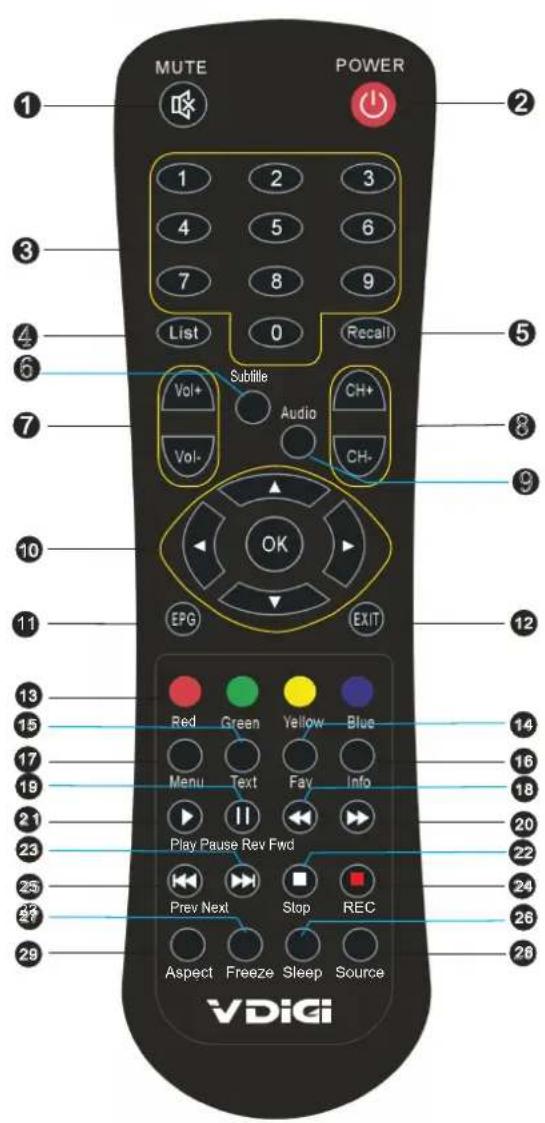
Description of television of remote control
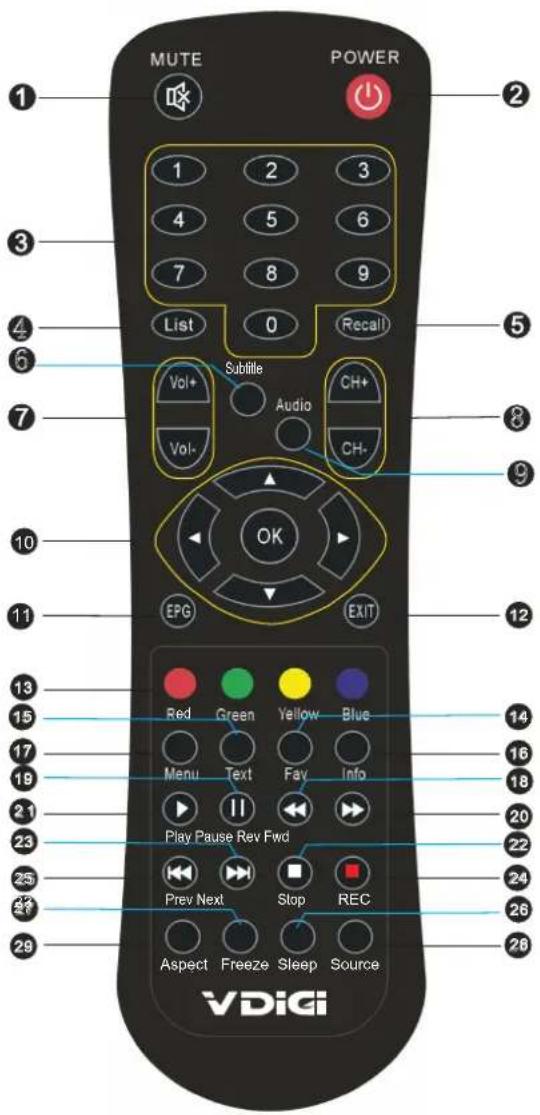
①) Turn on/o f f audio
② Switch between working status and standby status
③ Press to select channel
④ Display channel list
⑤ Switch to the last channel
⑥ Select language of subtitle
⑦ Change sound volume
⑧ Change channel
⑨) Select audio output
10) OK key: confirm selection
▲/ ▶: Navigate on menu
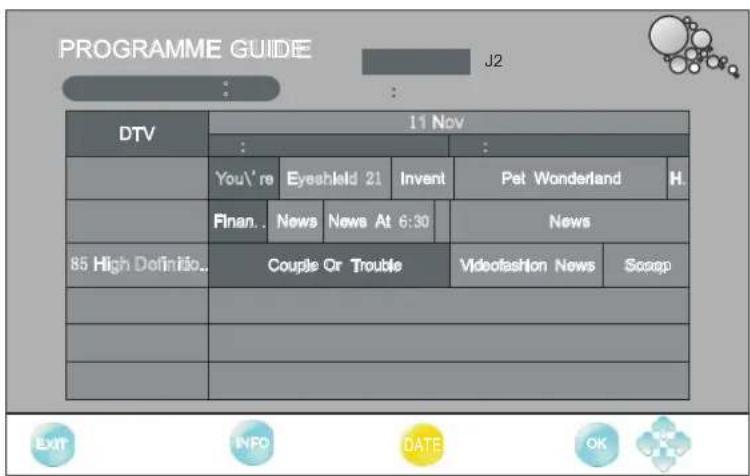
11) Show electronic program guide
12) Exit the OSD menu
13) Use these keys according to indication in menu displaying on T V screen
14) Display/Define favorite channel
15) Use this key according to indication in menu displaying on TV screen
16) Show channel program information
17) Show main menu
18) REV key: Fast backward
19) PAUSE key: pause program
20) FWD key: Fast forward
21) PLAY key: Play program
22) STOP key: Stop program
23) NEXT key: Skip the program forwards
24) REC( Reserved for future feature)
25) PREV key: Skip the program backwards
26 Set the sleep time
27) Freeze the picture
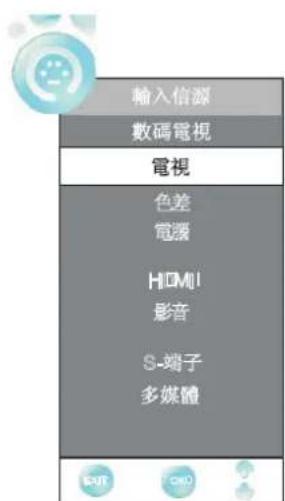
28) Input source conversion button
29) Adjust image display proportion
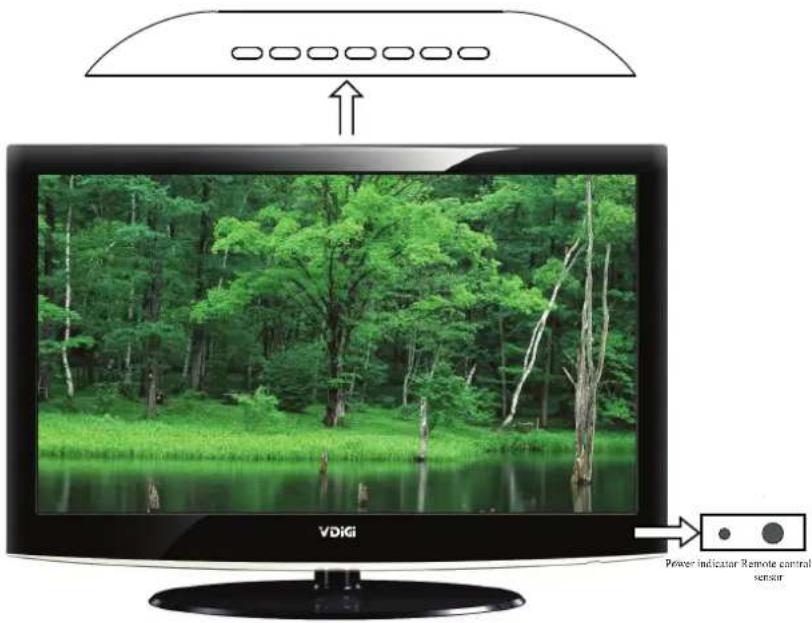
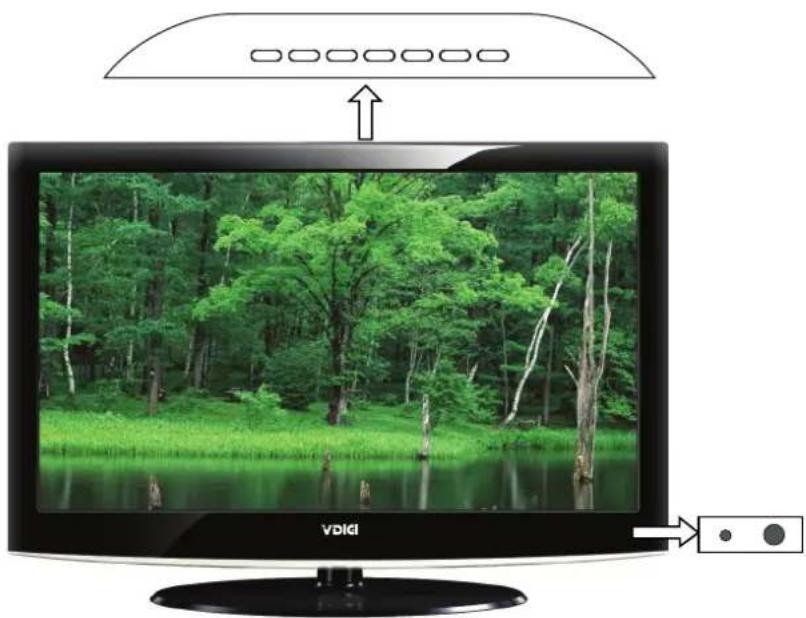
| Button | Description |
| POWER | Switch between working status and standby status |
| TV/AV | Switch signal between TV and AV |
| MENU | Show main menu |
| CH+/CH- | Change channel |
| VOL+/VOL- | Change sound volume |
| Indicator Description | |
| Power indicator | Lights up in red when the TV is in standby mode. Lights up in blue when the TV is on |
| Remote control sensor | Receives IR signals from the remote. (Do not put anything over the sensor, otherwise, the sensor may not operate properly) |
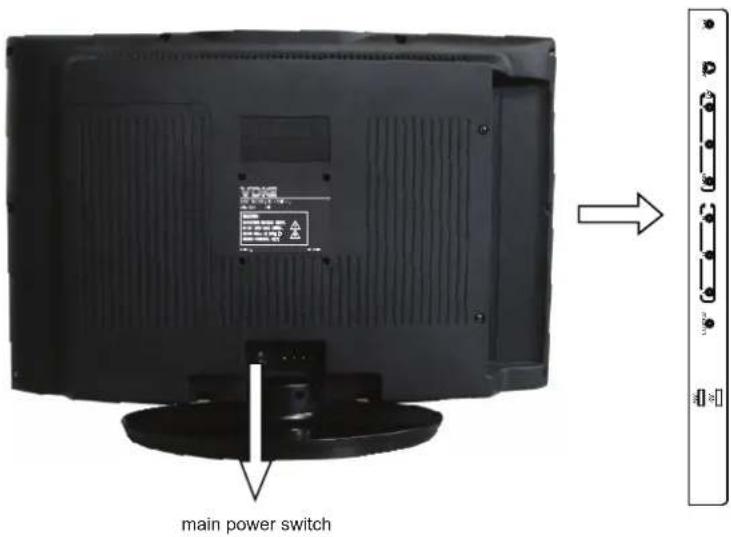
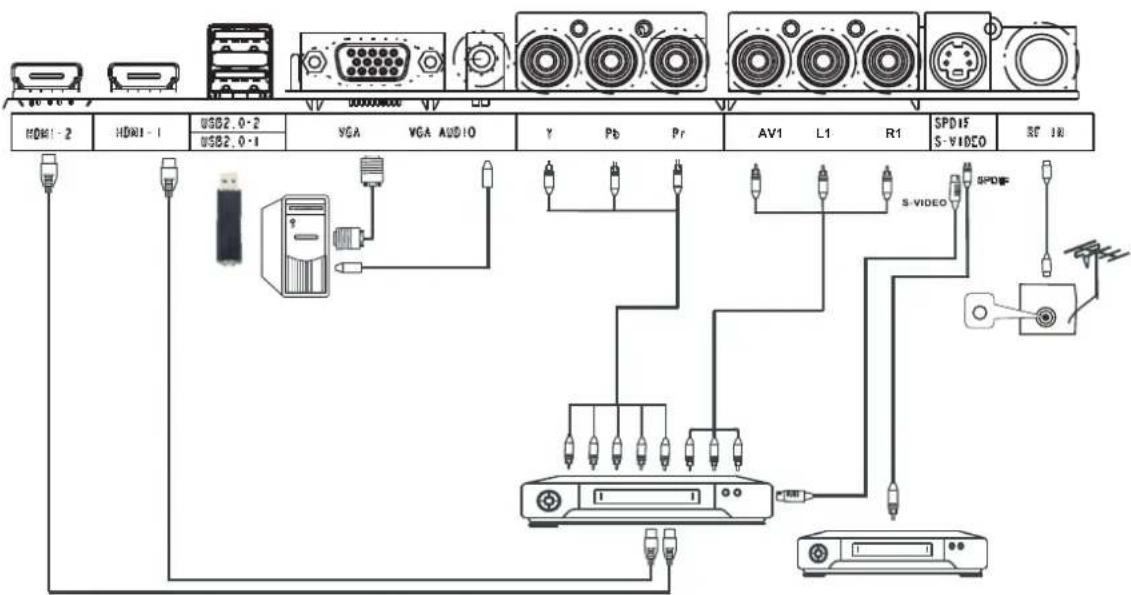
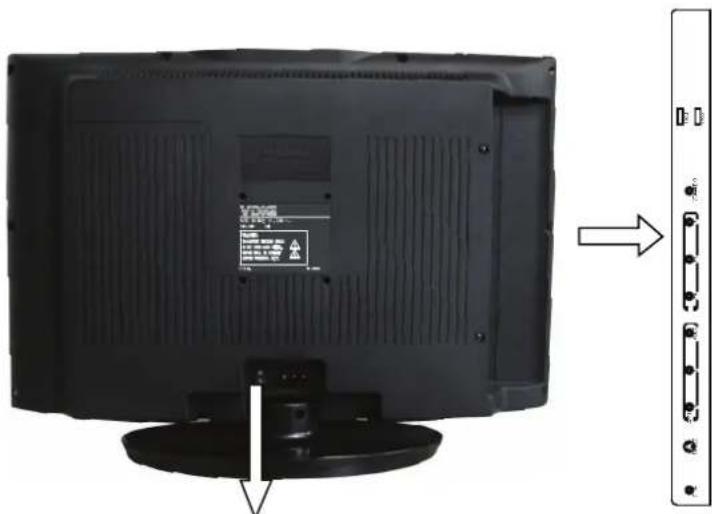
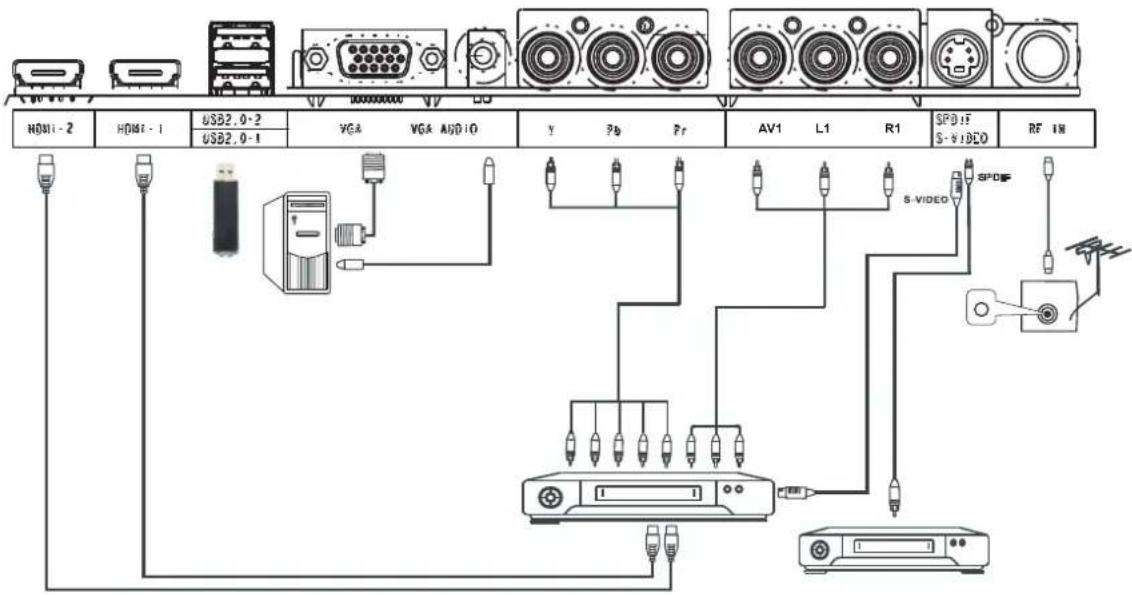
| Name Function Description | |
| USB1,USB2 | Reserve for external USB device |
| HDMI1,HDMI2 | HDMI input |
| VGA | VGA input |
| VGAaudio | VGA audio input |
| YPbPr | Component input |
| VIDEO L/R (in) | Composite video and stereo audio input |
| S-VIDEO | S-VIDEO input |
| RF IN | Antenna input |
remote
the power indicator is in blue.
STANDBY
- If unused for a long time in standby mode, please disconnect the power cord from the wall outlet.
Select Viewing Source
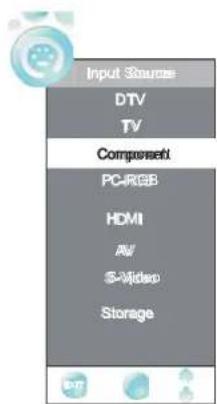


Time Option Menu and Media
Press OK or button to enter the submenu
Press ▲/▼ button to select items and ◀/▶ button to adjust it
Press MENU button to return to the previous menu button
Note When an item in MENU is displayed as gray it means that the item is not available or can not be adjusted
Channel Menu
and ◀/▶ buttons to select the CHANNEL.
Press to select the items Press ▶ or Ok button to enter the Submenu.
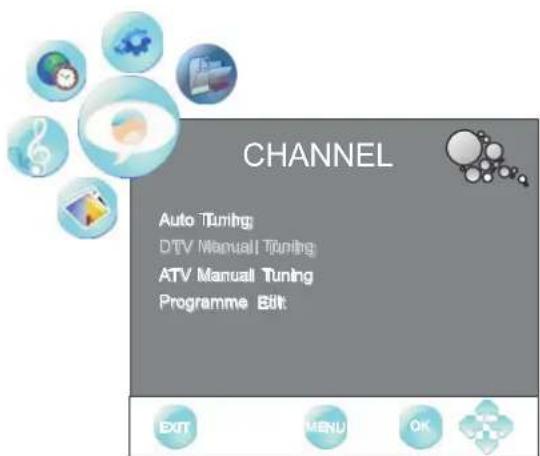
Auto Tuning

Note If it is the first time installation it will start with Installation Guide Menu
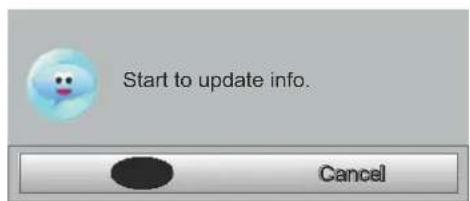
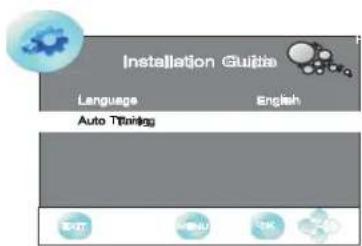
Press to /▶
the channel will be saved with current channel number
< / > bu
ATV Manual Tuning
Press ▲/▼ to NO. from 1 to 100.
Can't be adjusted.


DTV Manual Tuning

UHF CH 21 474Hz
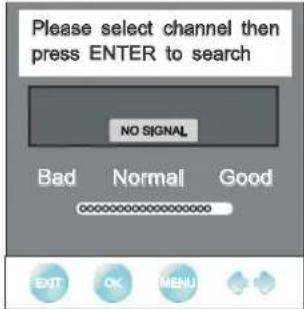

ATV Manual Tuning

Storage To 1
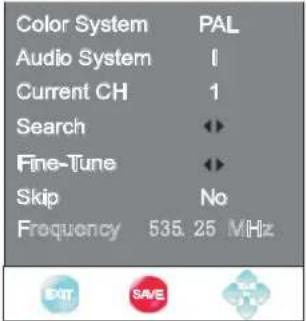
Display the current channel frequency.
Press ▲/▼ to Press ◀/► to adjust it Press the red button to save it button
Channel Menu
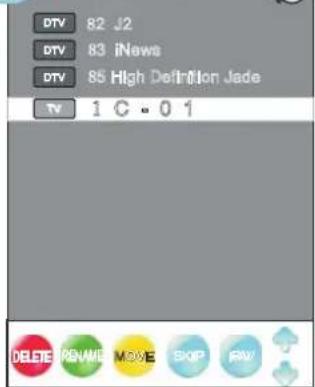
Programme Edit

Press red tbutt on delete the channel
button rename the channel
Note Only the TV channel can be renamed

change the letter

Note The list of programs include TV and DTV.
The programs can be moved only among the same kind
button set the favorite channel

Programme Edi

Picture Menu


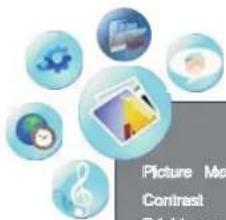
PICTURE

Picture Modes
Contrast
Brightness
Color
Sharpness
Tint


Press ◀/▶ button to select among, Standard, mild, user and dynamic modes.
Press ◀/▶ button to adjust the contrast of the picture
Press ◀/▶ button to adjust the brightness of the picture
Press ◀/▶ button to adjust the color saturation
Press ◀/▶ button to adjust the sharpness level of the picture
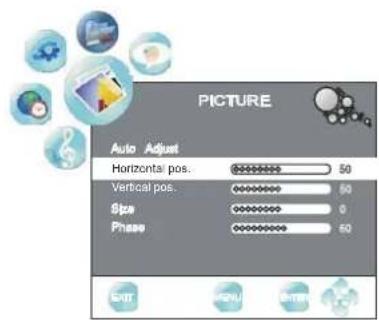
Picture Menu

Press button to select among normal warm and cold mode.
Press button to select the ratio of the screen:
FULL→NORMAL→AOTO→panorama→ZOOM1→ZOOM2
Press ◀/▶ button to select among Auto,weak,middle and strong.
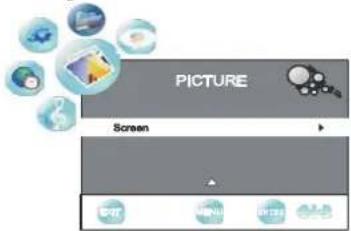
Sound Menu
Press ▲/▼

to
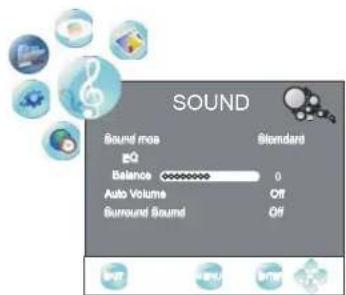
Press ◀/▶ button to select among Standard Music Movie Sports and User (
Sound Menu
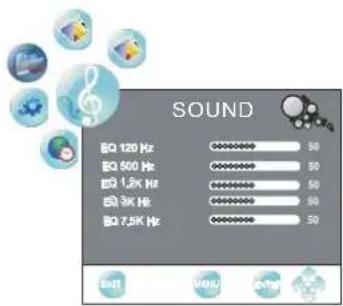
Press button to POP-UP the submenu, as follow picture to display:
Press t/change the value.
Press button to adjust the audio output between left and right speakers
Press button to turn on off the function of auto volume
Press button to turn on off the function of surround sound
Option Menu
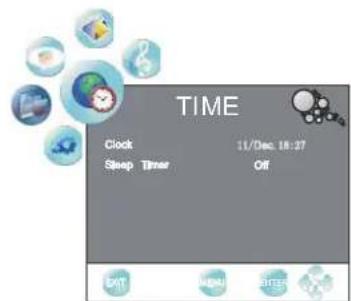
Press button to set the sleep timer
Option Menu
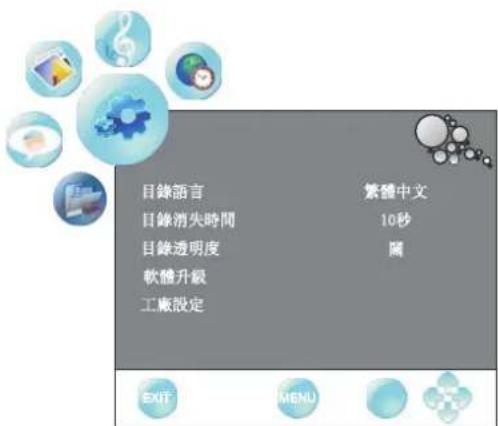
and buttons to select the Option MENU
or Ok button
Submenu
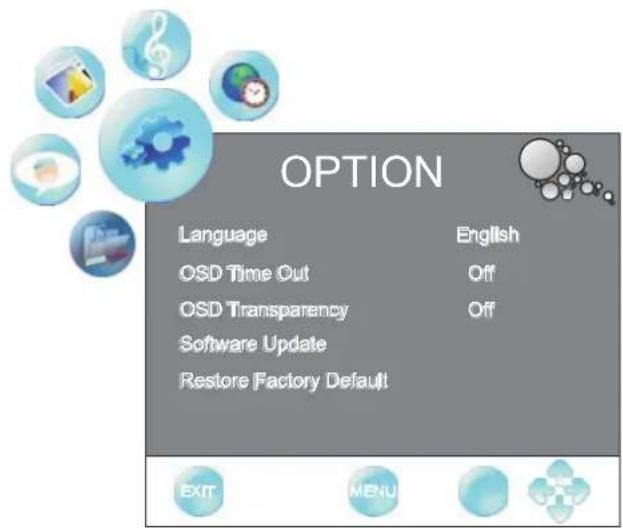
Press button to select between English and Traditional Chinese.


(Note: No professionals, please do not easily use this function.)

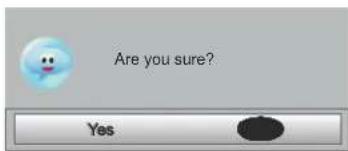
Press button to select yes no and press ok button to confirm.
Important Unique Button
Press EPG button to display the Electronic Programme Guide.
(If the information is available from broadcast)
Press ▲/▼ to
Press ◀/▶ and yellow button to select the time
Media Menu
Press and ◀/▶ button to select the
Press ▶ or OK button to enter the submenu.
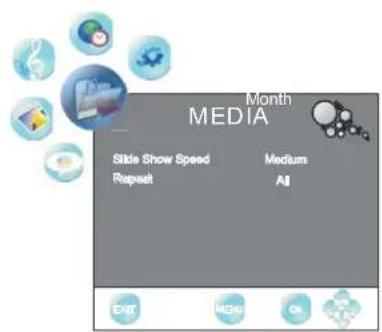
Slide show speed:Press ◀/▶ button to select among slow, Medium and fast.
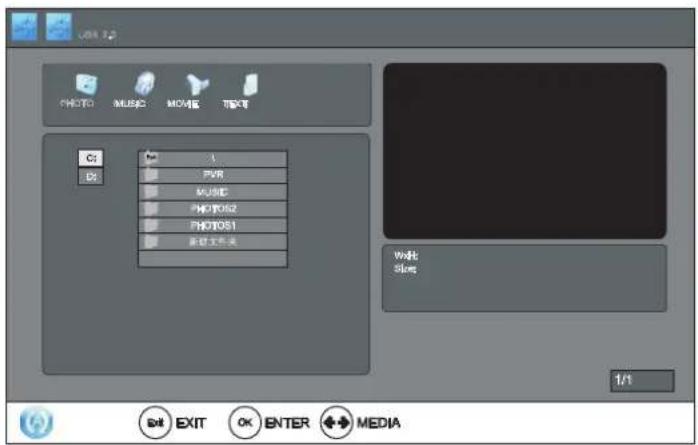
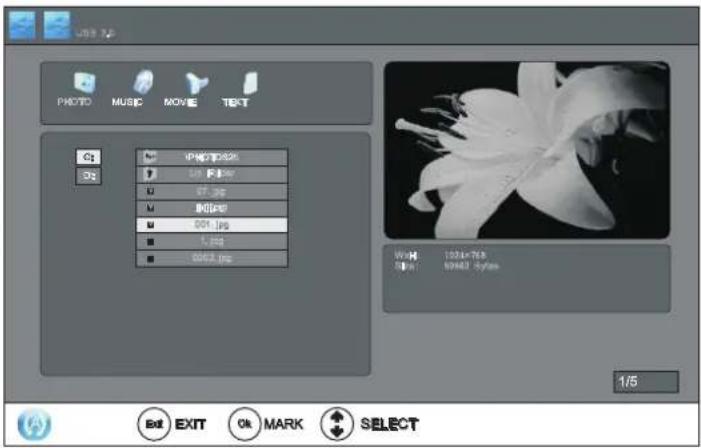
Photo


unselect the photo.
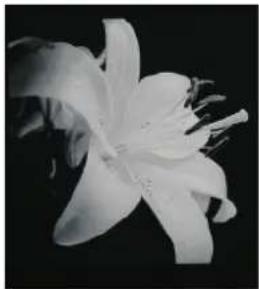
4.P ress ▲/▼ button to pre view the photo,as foll ow display:
5.P press OK button to select the photo,P press it again to unselect.
natural_image
Black and white close-up of a blooming lily flower (no text or symbols visible)
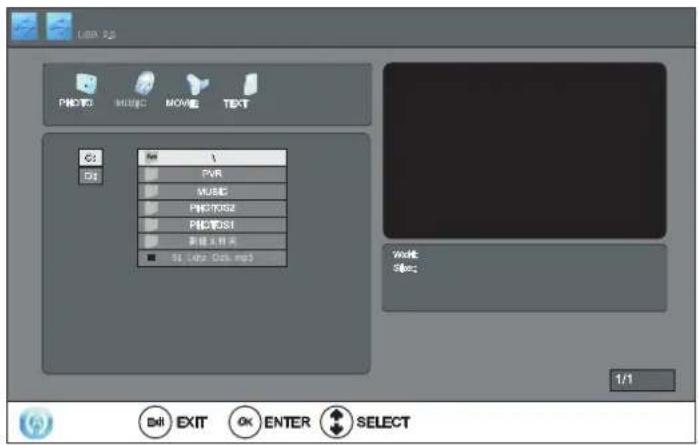
Music
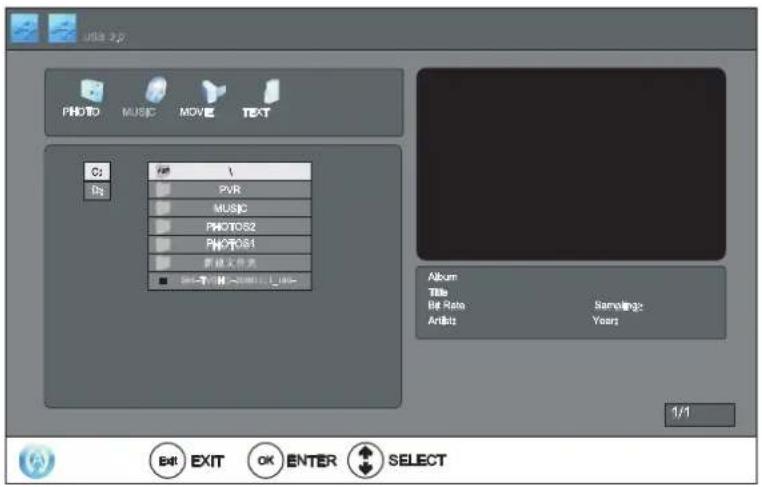

5.P ress ▲/▼ button to pre view the music,an d pre ss OK button to confi rm to select the music.
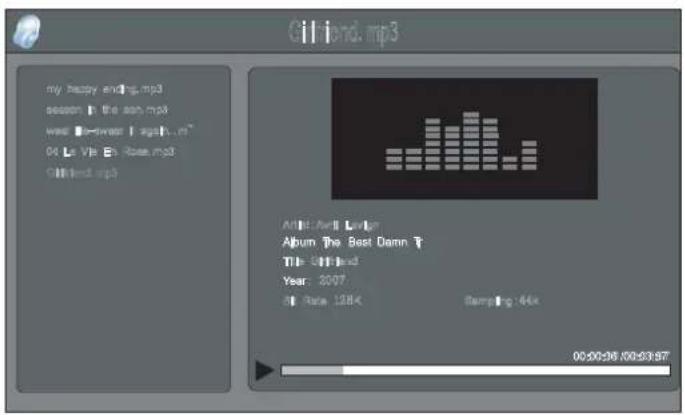

Press
Press
Press

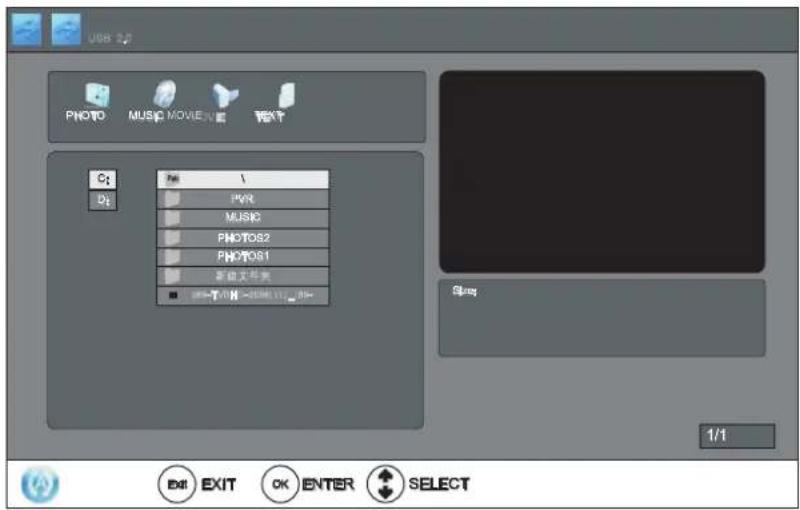

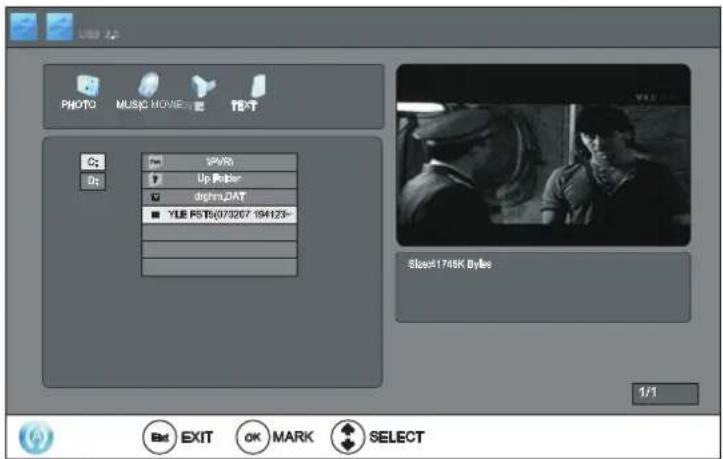


Text

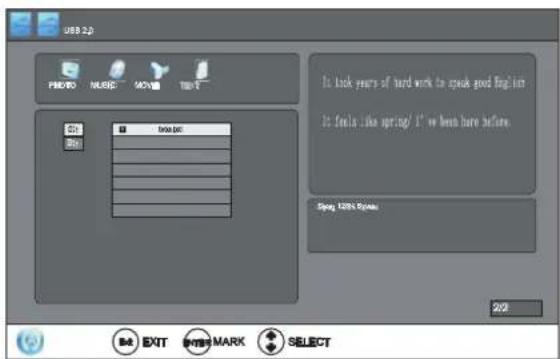


Press
Press
Press
It took years of hard work to speak good English
It feels like spring? "ve been here before.
The show is supposed to be good
- YPbPr/HDMI
| Resolution | Vert.Freq.(Hz) |
| 480i | 60 |
| 480p | 60 |
| 720p | 60 |
| 1080i | 60 |
| 1080P | 60 |
2.VGA
| Resolution Vert.Freq.(Hz) | |
| 14 40 *90 0 | 60 |
| 10 24 *76 8 | 60 |
| 80 0*6 00 | 60 |
| 64 0*4 80 | 60 |
| Model r | 22DTV1080PS | 24DTV1080PS |
| Panel Size r 23.6" | 21.6" | |
| Resolution r 1920(H) x 1080(V ) 1680(H) x 1050(V ) | ||
| Viewing Angle 160 150°/ 170°/160° | ||
| Brightness | r 300 cd/m2 | 300 cd/m2 |
| Contrast Ratio (Typ.) | r 1000:1 | 800:1 |
| Response Time | r 5ms | 5ms |
| TV System | DMB-TH; PAL | DMB-TH; PAL |
| Audio System | BG, BK, I | BG, BK, I |
| Power Input | AC110~240V / Frequency 50/60Hz | AC110~240V / Frequency 50/60Hz |
| Power Consumption | ||
| Input Terminal | Tuner In x 1 | Tuner In x 1 |
| HDMI x 2 | HDMI x 2 | |
| S Video x 1 | S Video x 1 | |
| YPbPr In x 1 (with audio input) | YPbPr In x 1 (with audio input) | |
| VGA x 1 | VGA x 1 | |
| VGA Audio x 1 | VGA Audio x 1 | |
| USB x 2 | USB x 2 | |
| Video In x 1 (with audio input) | Video In x 1 (with audio input) | |
| Accessories | User Manual x 1 | User Manual x 1 |
| Remote Controller x 1 | Remote Controller x 1 | |
| AV cable x 1 | AV cable x 1 | |
| Power cable x 1 | Power cable x 1 | |
| Battery x 2 | Battery x 2 | |
| Warranty Card x 1 | Warranty Card x 1 | |
| Condition | Explanation/Solution | |
| Picture | ||
| There is no picture (screen is dark) and no sound. | ● Check the antenna/cable connection.● Connect the TV to the AC power, and open the power supply on the TV.● If the indicator lights up in red, press Power button. | |
| Ghosting occurs, or double images appear. | ● Check the antenna/cable connection.● Check the antenna/cable location and direction. | |
| Only snow and noise appear on the screen. | ● Check if the antenna/cable is broken or bent.● Check if the antenna/cable has reached the end of its serviceable life (three to five years for normal use, one to two years when used at the seaside). | |
| The picture is distorted (dotted lines or stripes appear). | ● Keep the TV away from electrical noise sources such as cars, motorcycles, hair-dryers, or optical equipment.● When installing optional equipment, leave some space between the optional equipment and the TV.● Check the antenna/cable connections.● Keep the antenna/cable TV cable away from other connecting cables. | |
| There is picture or sound noise when viewing a TV channel. | ● Check the antenna/cable connection. | |
| Tiny back points and/or bright points appear on the screen. | ● The screen is composed of pixels. Tiny black points and/or bright points (pixels) on the screen do not indicate a malfunction. | |
| The picture from equipment connected to different input ports is not displayed in colour, or is displayed in irregular colours. | ● Check the connection of different input ports and check if the ports are firmly seated in their respective ports. | |
| No picture from the connected equipment appears on the screen. | ● Turn the connected equipment on.● Check the cable connection.● Press Source to display the list inputs, and then select the desired input.● Operations are not guaranteed for all USB devices. Also, operations differ depending on the features of the USB device and the video being played. | |
| Sound | ||
| The picture is good, but there is no sound. | Press Vol +/- or Mute key.Check the audio cable L/R connectionWhen using HDMI input with Super Audio CD or DVD-Audio, DIGITAL AUDIO OUT (COAXIAL) may not be able to output audio signal | |
| Channels | ||
| You cannot select your desired channel. | Switch between digital and analogue mode, and select the desired digital/analogue channel. | |
| Some channels are blank. ● The channel is for scrambled/subscription service only. Subscribe to a pay TV service.The channel is used only for data (no picture or sound).Contact the broadcaster for transmission details. | ||
| You cannot view digital channels. | Contact a local installer to find out if digital transmissions are provided in your area.Check if the antenna/cable is broken or bentUpgrade to a higher gain antenna. | |
| General | ||
| The TV turns off automatically (the TV enters standby mode). | Check if the “Sleep off” is activated. | |
| The remote does not function. ● Replace the batteries. | ||
| HDMI equipment cannot be recognized. | Check that your equipment is compatible with control for HDMI. | |
| Not all channels are tuned for cable. | Contact the related cable broadcaster | |
Winning Perfect Limited
Room 506, Tower 2, Cheung Sha Wan Plaza, 833 Cheung Sha Wan Road,
Kowloon, Hong Kong
Tel: 852-28611109
Fax: 852-83437386
Email: info@vdigi.com.hk
Web site: www.vdigi.com.hk