Epic T7ED - Smartphone YEZZ - Free user manual and instructions
Find the device manual for free Epic T7ED YEZZ in PDF.


User questions about Epic T7ED YEZZ
0 question about this device. Answer the ones you know or ask your own.
Ask a new question about this device
Download the instructions for your Smartphone in PDF format for free! Find your manual Epic T7ED - YEZZ and take your electronic device back in hand. On this page are published all the documents necessary for the use of your device. Epic T7ED by YEZZ.
USER MANUAL Epic T7ED YEZZ
SECURITY INFORMATION
Please remember to obey relevant rules and regulations whenever use your tablet. This will prevent bad effect from you and the environment.
General security
 | Never text while driving. |
 | Don’t use at petrol stations. |
 | Your tablet may produce a bright or flashing light. |
 | Small parts may cause a choking. |
 | Don’t dispose of your tablet in fire. |
 | Your tablet can produce a loud sound. |
 | Avoid contact with anything magnetic. |
 | Keep away from pacemakers and other electronic medical devices. |
 | Avoid extreme temperatures. |
 | Switch off when asked to in hospitals and medical facilities. |
 | Avoid contact with liquids. Keep your tablet dry. |
 | Switch off when told to in aircrafts and airports. |
 | Don’t take your tablet apart. |
 | Switch off when near explosive materials or liquids. |
 | Only use approved accessories. |
INTRODUCING YOUR TABLET
Learn about your tablet's layout, keys, display and icons.
Unpacking
Check the product box for the following items:
- Tablet
- Headset
- USB cable
- USB adapter
- Travel adapter (charger)
- User manual
The supplied accessories perform best for your tablet.
Tablet layout
From the front view of your tablet you will observe the following elements:

text_image
Volume keys Power button Front camera Display powerFrom the back view of your tablet you will observe the following elements:

text_image
Yezz Speaker Headset jack Camera Video Out USB Port TF CardKeys
The following table offers you a quick description about the tablet's keys:
| Key Function | |
| Power button | Allow you to turn on/off the device and to lock the screen. |
| Volume | Allow you to adjust the volume of ringing and notifications. Also allow you to adjust the volume of multimedia content playback. |
| Back (On screen) | Allow you to return to the previous menu or screen. Also allow you to close some applications. |
| Home (On screen) | It takes you directly to the home screen, leaving any application open. |
| Menu (On screen) | Allow you to access to the functions menu of the application or screen you are. |
Screen
The screen of your tablet is designed as follows:
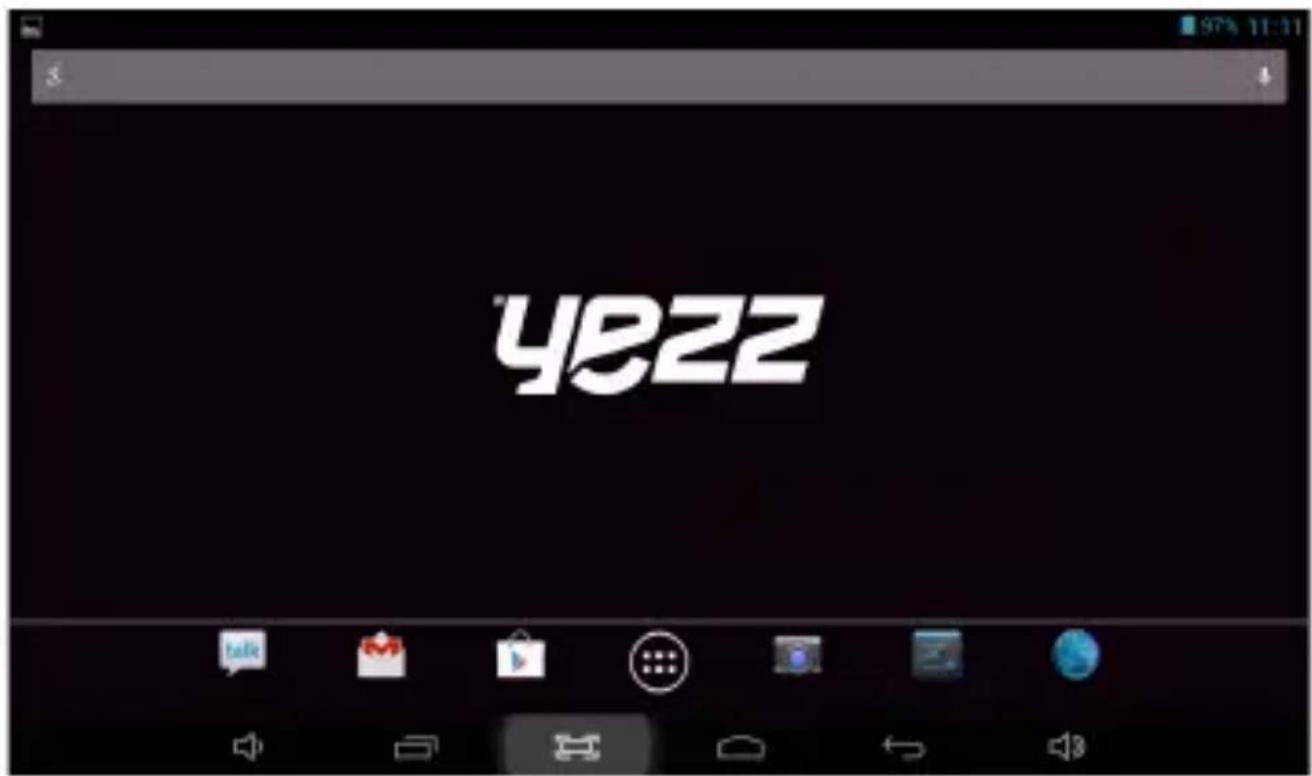
text_image
4822Icons
Learn about the icons that are displayed on the top of the screen, indicating the status of the tablet:
 | Headset connected | Wireless connection | |
 | USB connected | New email | |
 | Battery meter | Alarm active | |
 | Airplane mode | ||
PREPARING YOUR TABLET
Get started setting up your tablet for its first use.
Insert a memory card (optional)
To store additional multimedia files, you must insert a memory card. Your tablet accepts memory cards up to 32 GB (depending on memory card manufacturer and type).
- Formatting the memory card on a PC may cause incompatibility with your tablet. Format the memory card only on the tablet.
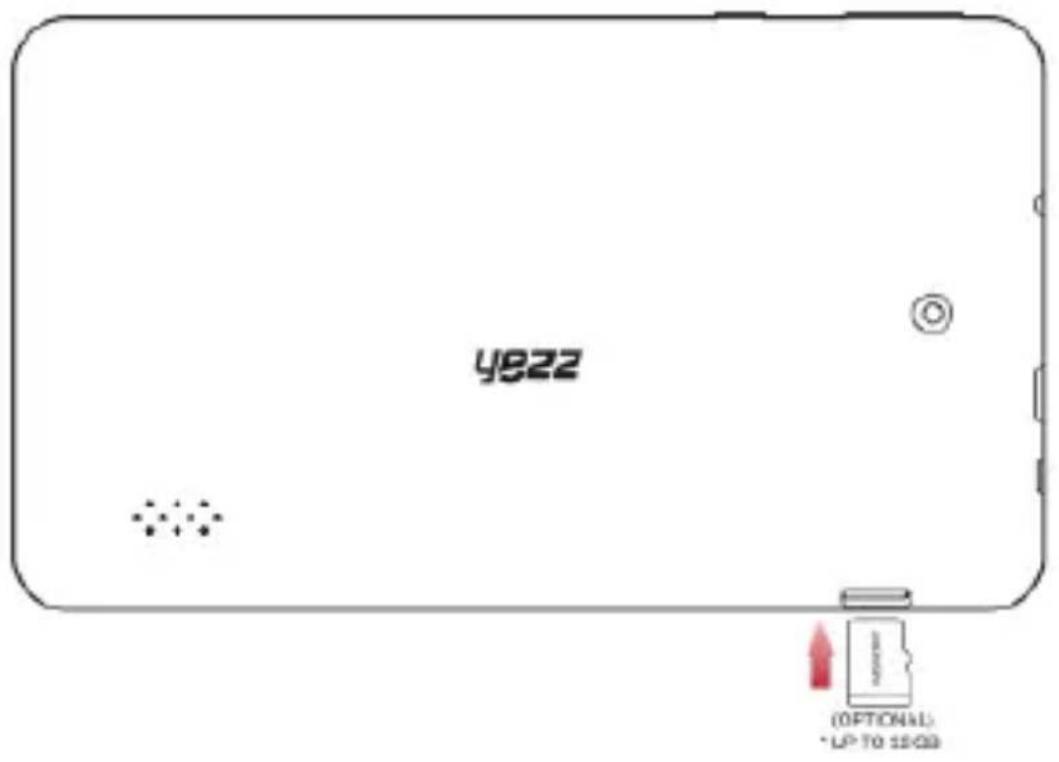
text_image
y822 (OPTIONAL) • UP TO 15/20USING BASIC FUNCTIONS
Learn how to perform basic operations of your tablet.
Turn your tablet on and off
To turn your tablet on,
- Long press the power button on the topside of your tablet.
To shut down your tablet, go to step 1 above.
Access menus and applications
To get access to the Menu and Applications,
- At the home screen, touch the button [ ] on the screen to pop up the list of Installed Applications in your tablet.
- Slide your finger to the right or left to access other pages of apps.
- Touch any icon to enter to the application.
- To exit the application, press Back or Home at the bottom of the screen.
Add contacts
Learn the basics of using the phonebook feature.
Add a new contact:
- In the application list touch Contacts, then touch [ ] on the bottom right corner to add a new contact.
- Fill the contact information (Name, Last name and phone number). You can add more fields such as, email, address, etc.
- Touch [ √ OK ] on the top of the screen to save.
Search for a contact
- In the application list touch [ ] Contacts.
- Slide your finger from bottom to top to scroll the list or touch the search button [ ] and type in the first letters of the name or last name.
- To see the contact details touch the name or the picture of the contact.
Listen to music
Learn how to listen to music via the music player.
Listen to music files:
First, copy the music files into your tablet internal memory or a MicroSD card.
- In the application list, touch [ ] Music.
- Select an order at the top of the screen and touch the song
that you want to listen to.
- You can Pause, Loop, or change of song using the tool bar at the bottom.
Browse the web
Learn how to access to your favorites Web Sites.
-
In the application list, touch [ ] Browser.
-
Touch the address bar and type in the address of the web site you want to go and touch [ ] Go.
Learn the basics to capture and view photos.
Capture pictures
- In the applications list, touch [ ] Camera.
- Adjusts the lens at the photo target and make the desired adjustments by touching the settings button [ ]
- Touch the shot button [ ] on the screen to capture the picture. It will be saved automatically.
See the captured pictures
In the applications list, touch [ ] Gallery and then select the Camera folder [ ] access and visualize all the pictures captured by your tablet.
CONNECTING TO INTERNET
Learn the basics to configure your tablet and connect to Internet.
Add a new connection
- In the applications list, touch [ ] Settings to access to the device configuration.
- Touch the option "More...", then touch Mobile networks and touch APN.
- Touch the Menu key and select New APN, then type in the parameters according with your Carrier.
The basic parameters are:
- Account name
- APN
- Username
- Password
Some carriers use Proxy Servers; refer to your carrier configuration for more information.
- When you finish typing in the parameters needed, touch Menu then Save.
If you have multiples APN Configurations for the same SIM
card, choose which one you want to use touching the radio button [ ] at the right side of the name.
To add another connection, repeat from step 3.
USING THE WIRELESS CONNETION
Learn to use the tablet's wireless capabilities to connect to any wireless local area network compatible.
Connect to a wireless network
- In the applications list, touch [] Settings to access to the device configuration.
- Touch the wireless option [ ]
- To turn the On the wireless touching [ ] on the right top corner.
- Choose a wireless network and enter the security password if it is needed.
Disconnect from a wireless network
- In the applications list, touch [] Settings to access to the device configuration.
- Touch the wireless option [ ]
- To turn off the wireless touch the button [ OFF ] on the right top corner.
View the technical details of a wireless network
- In the applications list, touch [] Settings to access to the device configuration.
- Touch the wireless option [ ]
- Touch the active wireless network to see details such as Link Speed, Signal strength and more.