
EB-I1 - Tablet Sunstech - Free user manual and instructions
Find the device manual for free EB-I1 Sunstech in PDF.


| Product Type | E-book Reader with E-Ink display |
| Brand | Sunstech |
| Model | EB-I1 |
| Display Type | E-Ink |
| Display Resolution | 800 x 600 pixels |
| Display Size | 6.0 inches (diagonal) |
| Battery Type | Built-in Li-Polymer |
| Charging Time | 7-8 hours via USB |
| Internal Memory | Up to 16 GB |
| External Memory | SD card slot |
| Supported E-book Formats | TXT, PDF, EPUB, FB2, PDB, HTML |
| Supported Music Formats | MP3, WMA, FLAC, AAC, WAV, OGG |
| Supported Image Formats | JPEG, BMP |
| Dimensions (L x W x H) | 177 x 128 x 8 mm |
| Weight | Approximately 220 g (est.) |
| Audio Output | Built-in speaker, 3.5mm headphone jack |
| Connectivity | USB 2.0 for charging and data transfer |
| Power On/Off | Long press Power button |
| Included Accessories | USB cable, Earphones, Velvet pouch |
| Languages Supported | Multiple languages (selectable in settings) |
Frequently Asked Questions - EB-I1 Sunstech
User questions about EB-I1 Sunstech
0 question about this device. Answer the ones you know or ask your own.
Ask a new question about this device
Download the instructions for your Tablet in PDF format for free! Find your manual EB-I1 - Sunstech and take your electronic device back in hand. On this page are published all the documents necessary for the use of your device. EB-I1 by Sunstech.
USER MANUAL EB-I1 Sunstech
E-book reader User manual
Product Summary
You can read TXT, PDB, HTML, PDF, EPUB and FB2 documents easily with this device. You can view JPG and BMP picture. The device supports MP3, AAC, WMA, OGG, FLAC and WAV formats for music playing. You can store the files in the built-in memory and also in the SD card (not included).
Note:
Please read this user manual before use the product.
Don't take out the battery when the product is charging.
Don't open or modify the product's shell without permission when it is used.
Hardware Description
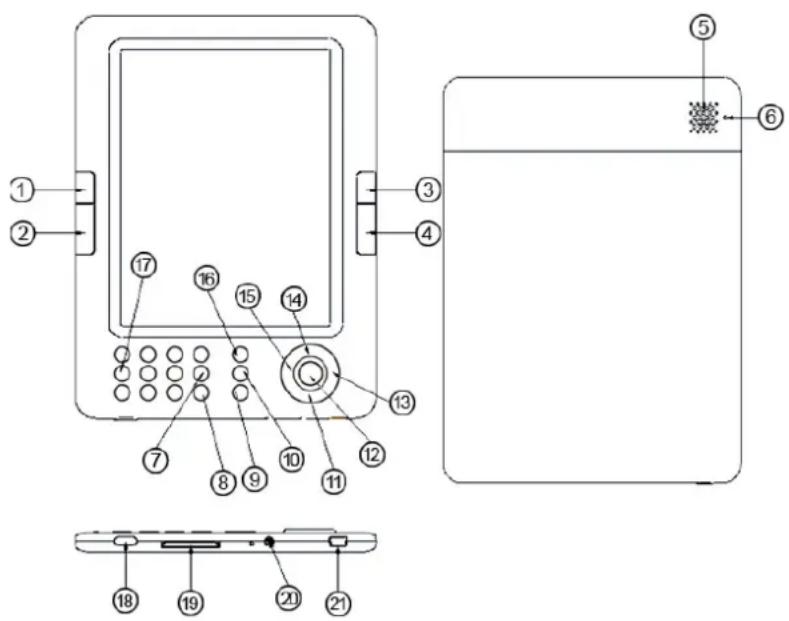
1, 2, 3 and 4 ①Side keys: Flip pages, Vol+ and Vol-.
5 ☐Speaker: Play music with the built-in speaker.
6 ☐Reset button: Reset the device if the player is abnormal. Then press "Power" button to turn it on.
⑦Search button: You can search the e-book by title by pressing this button
⑧Screen rotate: Rotate the screen.
⑨Return/Cancel button: Cancel selection or return to previous menu.
10 Zoom in/out button: Zoom in or zoom out the picture or text font size.
(11) Change the Play mode (play in order or shuffle).
(12) Menu button: Access Option menu for each operation such as save bookmark, read from bookmark, delete bookmark etc.
(13) Forward: Switch to the next.
(14)Play/Pause button: Play or pause.
(15) Back: Switch to the previous.
(16) Music: Enter the Music mode directly.
(17) Numeric keyboard: Enter the sub-menu quickly.
(18) Power on/off: Power on or power off.
(19) SD slot: Insert the SD card.
(20) Headphone jack: Connect with headphone.
(21) USB jack: Connect to computer / charging via USB adapter.
Operation Instructions
Getting Started
Attention:
- Read the User Manual before using the device.
- Charging the device is required when using for the first time. Please use safety exit USB host mode to charge the player, it will be cost around 7-8 hours.
- Please handle the device with cares to prevent damage to the display screen.
Numeric Keyboard
The numeric keypad provides the functions of quick access to sub-menu. In option menu, you can press any number to enter the relevant menu interface or select an item. They play roles of selection and confirmation. For example, on the main interface, “Music” is placed on the third position, so you can press the number “3” to enter music directory list directly.
General Operation
1、Arrows button: Select an item or scroll around the screen.
2、Enter: In option menu, press "Menu" button to enter the selected next level or refresh the screen.
3、Back: Press [Esc] button to return to previous interface.
4、Go to page: While reading, press number button and key in the page number to enter the right page.
Main menu: The main menu displays all the functions: Recently read, My library, My Music, My Picture, explorer, search files, record, Setting.
Turn On the Reader:
Press and hold the [Power] button for 2 seconds to turn on the machine.
Recently read
Display the documents read recently, use the arrow key to select, then press "Menu" key to open.
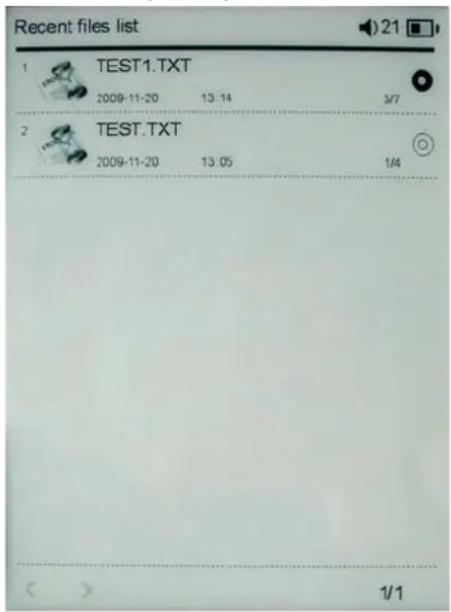
Note: If the files are saved in SD card, they will still be displayed in "Recent File List" when SD card is removed, but they can't be opened.
My Library
- Select the "My library" icon from the main menu and press [Enter].
- Press the [Up/Down] arrow key to select the desired books from the list and press [Enter] to open.
-
While reading, use the [Direction] key or side keys to flip page.
-
Press [Zoom] to zoom in or zoom out the font size of documents.
-
It supports TXT, HTML, PDF, PDB, FB2 and EPUB formats of e-book. (remark: this e-book can only opens the PDB files that are readable by the software "TLPDB", and they must be text only)
Create Bookmark:
- On the book page screen, press [Menu] button and the bookmark menu will appear.
- Select "Save Mark" on the menu to save the current page as bookmark.
Open Bookmark:
- On the book page screen, press [Menu] button and the bookmark menu will appear.
- Select "Load Bookmark" from the menu. Press [Up/Down] to select the desired page and press [Enter] to open.
Delete Bookmark:
- On the book page screen, press [Menu] key and the Bookmark Menu will appear.
- Select "Delete Mark" from the menu and press [Enter] to confirm.
Press [Esc] key to exit book reading and return to the main page.
Note : Only 5 bookmarks is allowed for the same book
Browser Mode:
- On the book page screen, press [Menu] key to enter the sub menu, and choose the Browser Mode.
- You can set the browser mode in Manual Mode or Auto Mode. If you select the Auto Mode, you can go to the Flip Time to set the flip time of the auto turn page.
Flip Time:
- On the book page screen, press [Menu] button.
- Enter [Browser Mode] and select "Auto Mode".
- Press [Enter] button and select "Flip Time" from the menu.
- Press [Enter] and press the [Direction] key to select one time.
- Press [Enter] to confirm.
One the book page screen, press the Menu to enter into the submenu, select the Page jump, then input the page NO you'd like to view, then press Menu to confirm. The numbers of the page will be written from right to left.
Zoom In/Out A Page:
On the book page screen, press the [Zoom] button, the page will be magnified in steps and returns to the original scale after the maximum magnification.
Music
- On the main menu, select "My Music" and press [Enter] to confirm.
- Songs stored in both SD card and built-in memory are displayed in the song list. Select the desired music file and press "Enter" to start.
- It supports MP3, AAC, WMA, OGG, FLAC and WAV music formats.
- It supports background music playing while reading books or viewing pictures. In the music playing page, press [Play] key to start music playing. During music playing, press [Esc] key to return to the main page. Music playing continues and you can now select other functions like Bookstore and Photo explorer with the playing music.
Adjust Volume: Press [Up/Down] (1.2.3.4) button to adjust the volume.
Play/Pause: Press "Play/Pause" button to play or pause the music.
Fast Forward/Backward: Press and hold [Left] arrow key to play backward, press and hold [Right] arrow key to fast forward. Press [Left] arrow key to previous track, and press [Right] arrow key to the next track.
Photo
Select "My pictures" from main menu and press [Menu]. Select a photo and press "Confirm" button to explore. It supports JPG and BMP format picture.

Remark: Some JPEG files can not be opened if the size is too large, please resize it and try again.
File Explorer
Select "Explorer" from main menu, press [Menu] button to enter. All the files
and folders stored in the device and SD card will be listed. Select any folder or file to open.
Record
Press the"Play&pause" to begin the recording, press once more to stop, if you finished the recording, press the"ESC/DEL" button to exit.
System Settings
Select "Settings" and press [Menu] button to enter the settings function.
Restore to Default Settings:
Restore to system's default settings. To avoid data lost, please backup your data before handling.
Language:
You can select a special language which is your desired.
System Information:
It records the device version, product brand, company name and so on.
Auto Shut Down Settings:
Press [Up/Down] button to select auto shut down time: 3mins, 5mins, 10mins, 15mins or 20mins. Select "No automatic shutdown" to disable auto shut down and the device will remain power on all the time until it is manually power off by pressing the [Power] button.
Time:
Press [Left/Right] to select "Year, Month, Day, Hour and Minute" or press numeric keyboard to input the date and time and then press [Enter] to confirm.
Use the arrows up and down to change the numbers.
Calendar:
You can see the calendar here.
Document Management
Connecting to Computer
Use the supplied USB cable to plug into the device, and connect the other end to computer. A “USB Connected” window will pop out upon successful connection to computer. Computer will detect both the built-in memory and SD card on the device as a removable.
Managing Files
You will be able to access built-in memory and SD card (if SD card is plugged in) from "My Computer" after the device is connected to computer. You can move, copy or delete the existing files or folders from computer. At this moment, the device is under key lock mode. The device will resume normal operation automatically after disconnected from computer.
On SD Card
- After inserted a SD card, if the device does not response, please take out and insert again.
- Do not remove SD card or turn off the device during data writing or reading to prevent damage to data or the device.
- Make sure the SD card is unlocked before writing or deleting data in the SD card.
- Backup your files and data before formatting the SD card. Please format the SD card in FAT.
Troubleshooting
The device hang or can't be turned on
- Reset the device by pressing the Reset button with a small pin or clip.
Then press the "Power" button to turn it on. - Battery has been depleted. Please charge the device via USB.
Battery life seems short
- The battery is not used for prolonged period. Please recharge the device.
- The battery is not fully charged. Please charge the device for 7-8 hours.
- The battery needs to be replaced. Please consult the authorized dealer for service.
It takes long time for the display to appear
- This is due to the characteristic of the display panel, especially in low temperature environment, not a malfunction.
The book cannot be read
- Check if the book has copyright protection. Copyright protected books can only be read on the specified device.
- Check if the book format is supported by the device.
| Energy Book Technical Specifications | ||
| Display | DISPLAY TYPE | E-ink |
| RESOLUTION | 800*600 | |
| SIZE | 6.0 inch (diagonal) | |
| Power | Battery type | Built-in Li Polymer |
| Charging time | 7-8 hours by USB | |
| Music | Format | MP3 (8Kbps ~ 392 Kbps), WMA (5Kbps ~ 192 Kbps), FLAC, AAC, WAV. OGG |
| EQ | Normal, Rock, Classic, POP, Bass, Jazz | |
| Repeat mode | Once, Repeat, All, All repeat | |
| Play mode | Shuffle, Loop | |
| Ebook | Format | UNICODE TXT, PDB, HTML, E-PUB, PDF, FB2 |
| Photo | Format | JPEG, BMP |
| Memory | Built-in | Up to 16GB |
| External | SD card expansion | |
| Accessories | USB cable, Earphone, Velvet pouch | |
| Dimension | 177(L)×128(W)×8(H)mm | |
Note: There will be no notice, if the interface change because of the firmware update in future.


- Product Summary
- Hardware Description
- Operation Instructions
- Getting Started
- Attention:
- Numeric Keyboard
- General Operation
- Turn On the Reader:
- Recently read
- My Library
- Create Bookmark:
- Open Bookmark:
- Delete Bookmark:
- Browser Mode:
- Flip Time:
- Zoom In/Out A Page:
- Music
- Photo
- File Explorer
- Record
- System Settings
- Restore to Default Settings:
- Language:
- System Information:
- Auto Shut Down Settings:
- Time:
- Calendar:
- Document Management
- Connecting to Computer
- Managing Files
- On SD Card
- Troubleshooting
- The device hang or can't be turned on
- Battery life seems short
- It takes long time for the display to appear
- The book cannot be read
Brand : Sunstech
Model : EB-I1
Category : Tablet