DS-PAN-504 - Docking Station Havis - Free user manual and instructions
Find the device manual for free DS-PAN-504 Havis in PDF.


User questions about DS-PAN-504 Havis
0 question about this device. Answer the ones you know or ask your own.
Ask a new question about this device
Download the instructions for your Docking Station in PDF format for free! Find your manual DS-PAN-504 - Havis and take your electronic device back in hand. On this page are published all the documents necessary for the use of your device. DS-PAN-504 by Havis.
USER MANUAL DS-PAN-504 Havis
Owner's Manual Havis Docking Station For Panasonic Toughpad FZ-A1
DS-PAN-500 Series
DS-PAN-504
DS-PAN-505
DS-PAN-506

natural_image
3D CAD model of a mechanical device with no visible text or symbols on the body itselfHavis is pleased to provide this Owner's Manual to aid in the proper installation and use of the DS-PAN-500 Series Docking Station for the Panasonic Toughpad FZ-A1.
For questions regarding the set-up of your DS-PAN-500 Series Docking Station, please contact Havis at 1-800-524-9900 or visit www.havis.com for additional product support and information.
This Owner's Manual applies to the following Part Numbers:
DS-PAN-504
DS-PAN-506
DS-PAN-505
WARNING
- NEVER STOW OR MOUNT THE DOCKING STATION DIRECTLY IN A VEHICLE AIRBAG DEPLOYMENT ZONE.
• DO NOT USE COMPUTER WHILE DRIVING.
CAUTION
- READ ALL INSTRUCTIONS THOROUGHLY BEFORE BEGINNING INSTALLATION.
- FOR THE DS-PAN-504, DS-PAN-505 DOCKING STATIONS: DO NOT CONNECT DIRECTLY TO VEHICLE VOLTAGE SOURCE: This product requires a certified, automotive grade, Panasonic approved 24W power source rated for a continuous, regulated 12VDC output (Havis Part Number LPS-106 or equivalent). Failure to comply with this requirement will cause product damage that is NOT repairable and is NOT covered under warranty.
- FOR THE DS-PAN-506 DOCKING STATION: DO NOT CONNECT DIRECTLY TO VEHICLE VOLTAGE SOURCE: The Panasonic FZ-A1 tablet requires a certified, Panasonic approved power source rated for a continuous, regulated 12VDC output. Panasonic recommends using the power adapter included with the tablet; failure to comply with this requirement will cause product damage that is NOT repairable and is NOT covered under warranty.
NOTICE
- FOR DOCKING STATION MODELS EQUIPPED WITH A BUNDLED POWER SUPPLY (DS-PAN-505), REFER TO THE SUPPLIED LIND POWER SUPPLY REFERENCE GUIDE.
- WHEN TABLET IS DOCKED, THE BATTERY WILL ONLY CHARGE BETWEEN 0°C to 50°C (32°F to 120°F). PLEASE REFER TO PANASONIC TOUGHPAD FZ-A1 OWNER'S MANUAL FOR MORE INFORMATION.
Table of Contents
Specifications 3
Port Replication Capability 4
Parts Included 4
Installation 6
Cable Management 8
Operation - Docking 9
Operation - Undocking ....10
Precautions
- Do not place metal objects or containers of liquid on top of the Docking Station
- If a malfunction occurs, immediately unplug the Power Supply and remove the tablet
- Use only the specified Power Supply (Part # LPS-106) with this Docking Station
- Do not store the Docking Station where water, moisture, steam, dust, etc. are present
- Do not connect cables into ports other than what they are specified for
- Do not leave the Docking Station in a high temperature environment (greater than 85°C, 185°F) for a long period of time
Specifications
| Power Supply Input 12.0 V DC-In | |
| Dimensions 10.8” (27.5 cm) H x 6.9” (17.6 cm) W x 3.1” (8.0 cm) D | |
| Weight 1.6 lbs (0.68 kg) | |
| Operating Environment -10°C to 50°C (14°F to 122°F) | |
| Storage Environment -40°C to 35°C (-40°F to 185°F) | |
EC DECLARATION OF CONFORMITY in accordance with EN 45014
Manufacturers Name: Havis, Inc.
Manufacturers Address: 47801 Anchor Court, Plymouth Twp, MI 48170 USA
Declares under our sole responsibility that the product:
Product name: Havis Docking Station For Panasonic Toughpad A1
Model: DS-PAN-50X, where 'X' may be any alphanumeric character and which describes product options.
May be followed by any alphanumeric characters which describe product options.
Product Options: This declaration covers all options of the above product which bear the CE Marking.
Is in conformity with the following standards or other normative documents:
EMC Directive 2004/108/EC: EN 55022:2010, Class B, Information technology equipment -
Radio disturbance characteristics - Limits and methods of measurement
EN 55024:2010, Information technology equipment - Immunity characteristics -
Limits and methods of measurement
Directive 2011/65/EU Restriction of the use of certain hazardous substances (RoHS)
BS EN 50498:2010: Section 7, after market electronic equipment in vehicles.
Supplementary Information:
The product herewith complies with the requirements of the EMC Directive 2004/108/EC. This product requires the use of the provided e-Marked automotive power supply when used within vehicles.
Plymouth twp, MI, USA August 1, 2012 Bruce Jonik, Director of Engineering, Havis, Inc.
FCC 47CFR, Part 15 compliance: This is an FCC Class B device. Any changes or modifications to the model DS-PAN-50X not expressly approved by Havis, Inc. could void the user's authority to operate this equipment.

text_image
TOP of Docking Station USB 2.0 (x2) Ethernet RJ45 Power Input (12 V DC IN)BOTTOM
of Docking Station
Parts Included
Hardware Kit
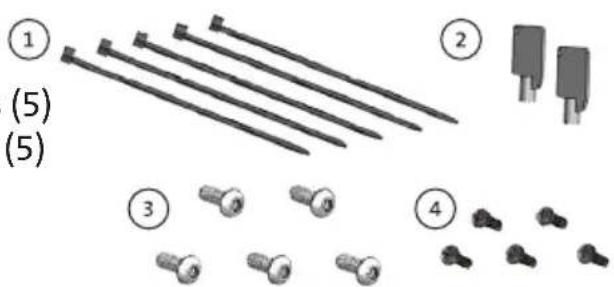
- Zip Ties (5)
- Keys (2)
- 1/4"-20 x 5/8" long Button Head Screws (5)
- M4 x 0.7 x 12mm long Pan Head Screws (5)
- Washers, M4 (5)
- Lock Washers, M4 (5)
Extra hardware (screws) provided
Tools required for installation:
- 5/32" Hex Drive
(For attaching Docking Station to Mount with Button Head 1/4"-20 Screws)
• #2 Philips Screwdriver
(For attaching Docking Station to VESA 75mm hole pattern equipment with Pan Head M4 x 0.7 x 12mm Screws)
text_image
Diagram showing exploded view of mechanical components with numbered parts and assembly details
natural_image
Two groups of circular objects, labeled 5 and 6, showing different sizes or patterns (no text or symbols present)Docking Station
text_image
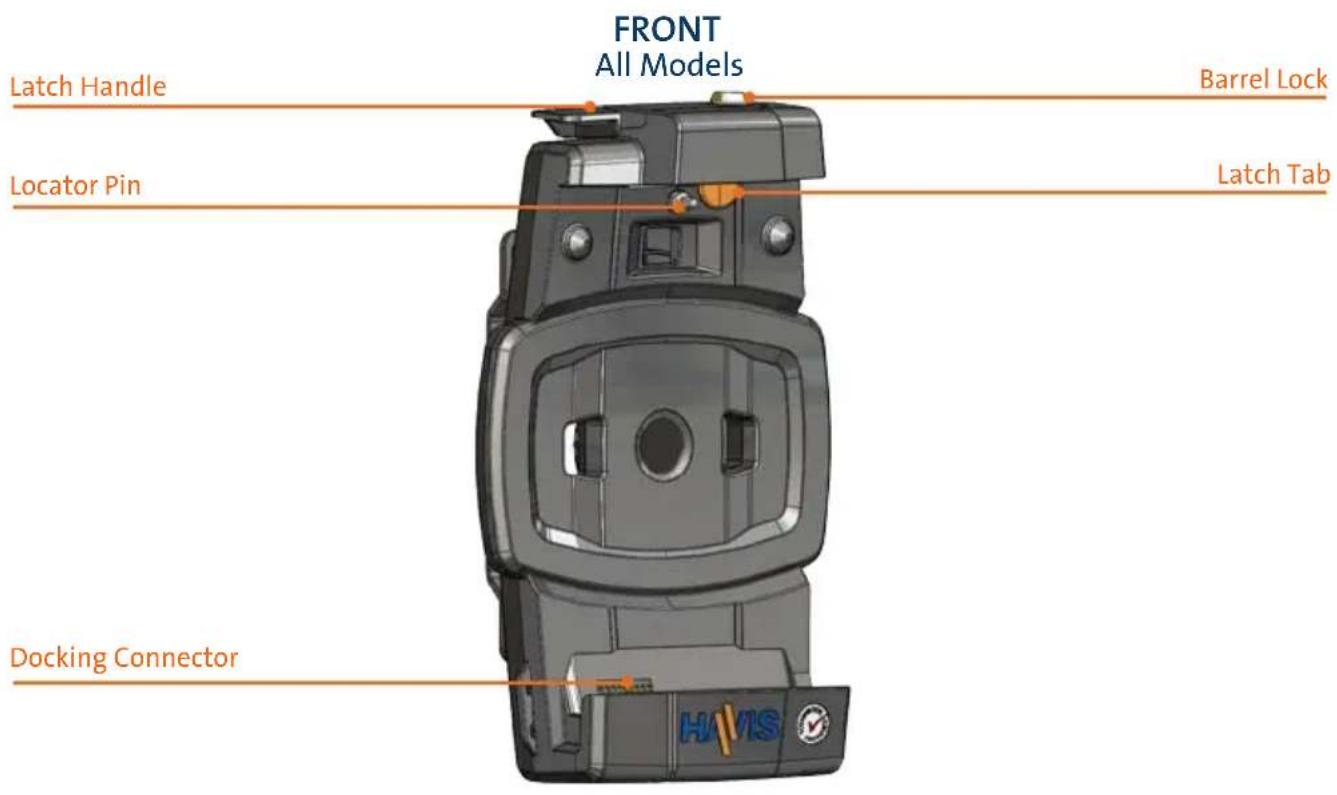
FRONT All Models Latch Handle Barrel Lock Locator Pin Latch Tab Docking Connector H1/15S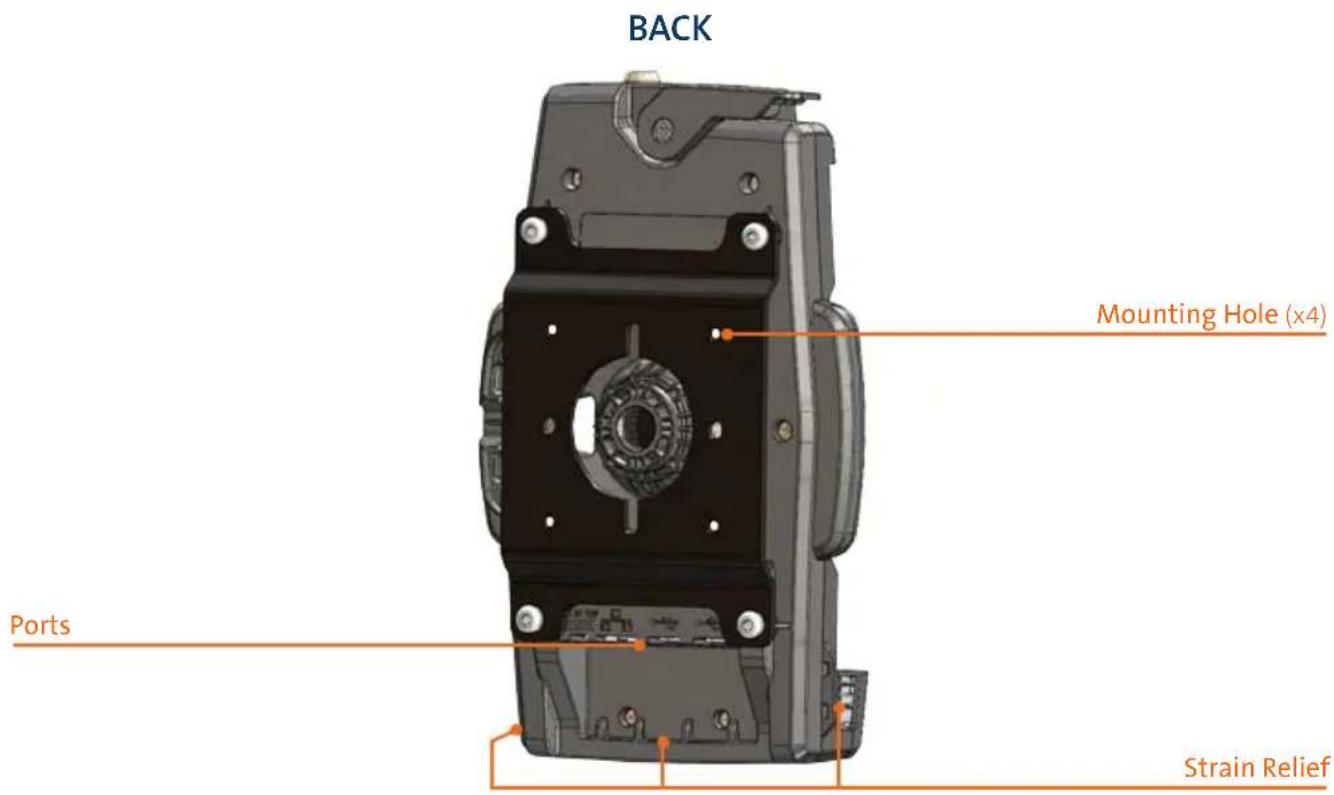
text_image
BACK Mounting Hole (x4) Ports Strain Relief1) Identify your required mounting configuration and select the appropriate fasteners from the Hardware Kit.
OPTION A: Havis vehicle motion/mounting equipment. Use Hardware Kit Item 3 (1/4-20x5/8" long Button Head Screws)
OPTION B: Motion/mounting device with VESA 75mm hole pattern. Use Hardware Kit Item 4 (M4 x 0.7x12mm long Pan Head Screw), Hardware Kit Item 5 (Washers, M4), and Hardware Kit Item 6 (Lock Washers, M4)
OPTION C: Other mounting surfaces without rear access. Hardware not supplied, use appropriate hardware for preferred mounting surface.
OPTION A INSTALLATION:
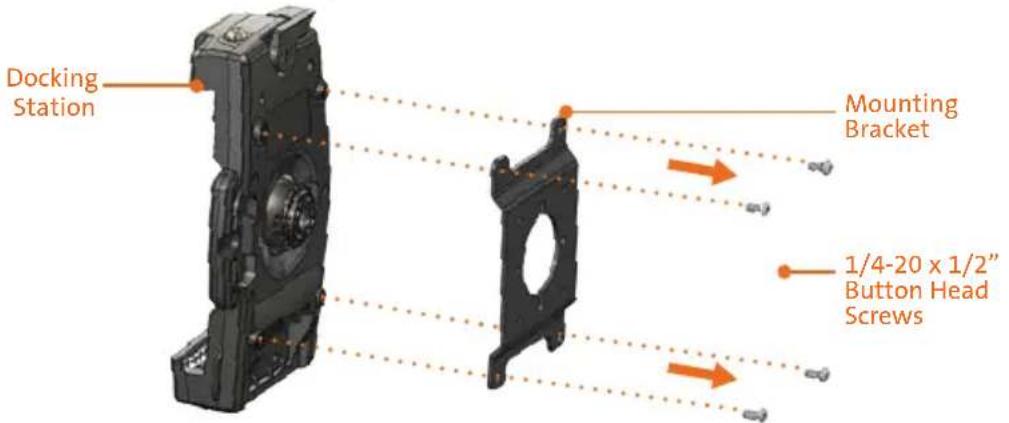
A) Using a 5/32" Hex Drive (not provided), remove the Rigid Mount Bracket from the Docking Station by removing the four (4) 1/4-20 x 1/2" Button Head Screws and set aside for use in Step C.
text_image
Docking Station Mounting Bracket 1/4-20 x 1/2" Button Head ScrewsB) Align the Rigid Mount Bracket holes with the holes on the mounting device. Using the (4) 1/4-20 x 5/8" Button Head Screws (Hardware Kit Item 3), secure the Rigid Mount Bracket to the mounting device. Torque screws to 80 in-lbs (9.0Nm) ± 10%.

text_image
.0N·m) ± 10%. 1/4-20 x 5/8" Button Head Screws Rigid Mount Bracket Motion/Mounting DeviceC) Align the Docking Station Mounting Locations with the holes on the Rigid Mount Bracket. Using the (4) 1/4-20 x 5/8" Button Head Screws (retained from Step A), secure the Docking Station to the Rigid Mount Bracket. Torque screws to 40 in-lbs (4.5Nm) ± 10%.
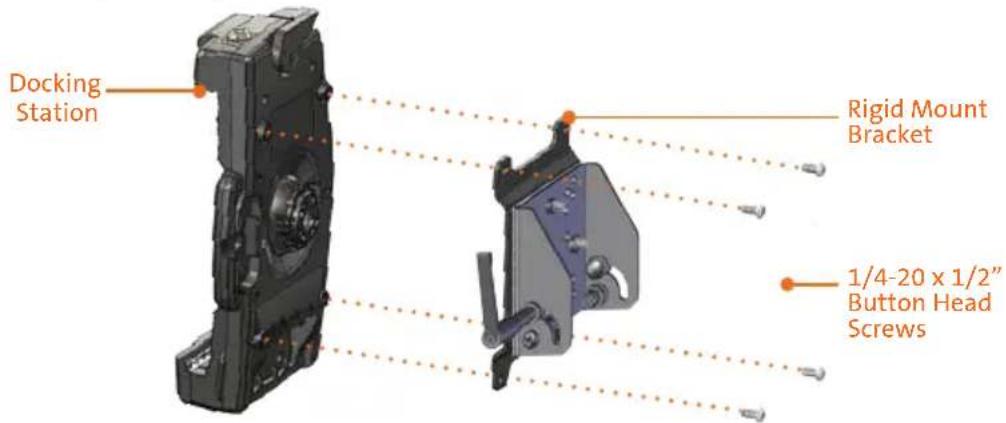
text_image
Docking Station Rigid Mount Bracket 1/4-20 x 1/2" Button Head ScrewsOPTION B INSTALLATION:
A) Align the Rigid Mount Bracket holes with the VESA 75mm holes on the mounting device. Using the (4) M4 Pan Head Screws (Hardware Item 4), (4) Washers, M4 (Hardware Item 5) and (4) Lock Washers, M4 (Hardware Item 6) secure the Rigid Mount Bracket to the mounting device from the rear. Torque screws to 20 in-lbs (2.3Nm) ± 10%.
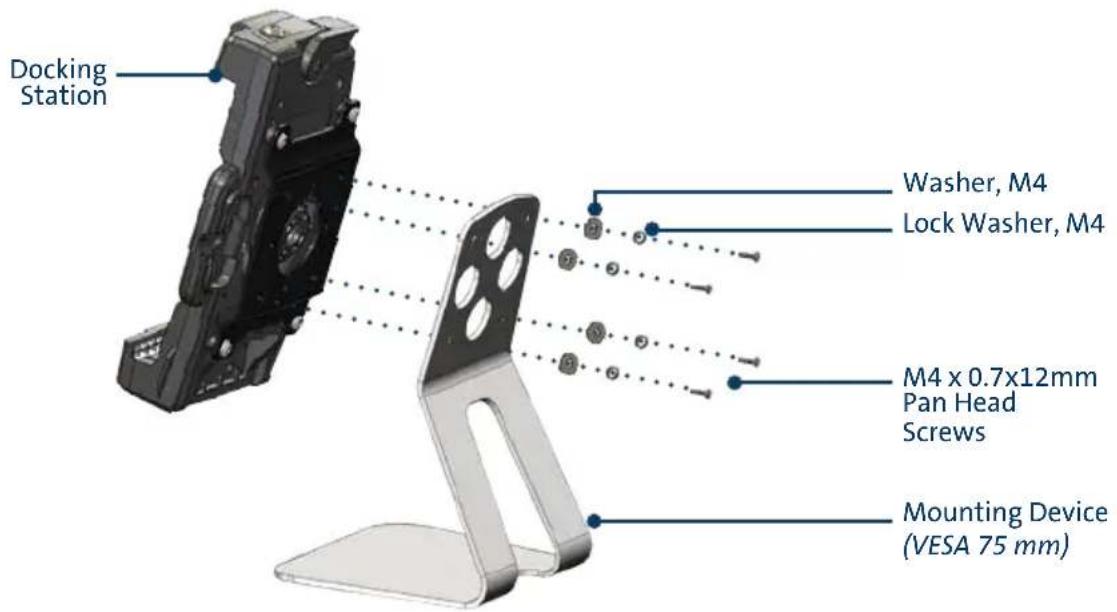
text_image
Docking Station Washer, M4 Lock Washer, M4 M4 x 0.7x12mm Pan Head Screws Mounting Device (VESA 75 mm)OPTION C INSTALLATION:
A) Using (2) fasteners appropriate for the mounting surface (not included), secure the Rigid Mount Bracket through the access holes via the front of Docking Station.
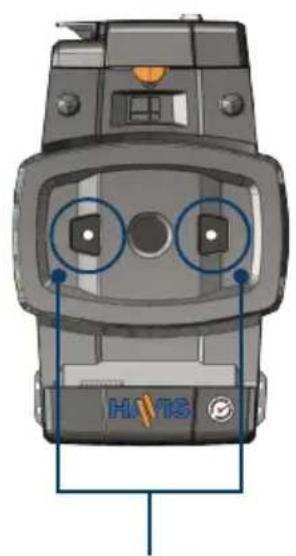
natural_image
Top-down view of a HVIS motorcycle head with two circular targeting zones (no text or symbols on the body)Access to Rigid Mount Bracket via front of Docking Station
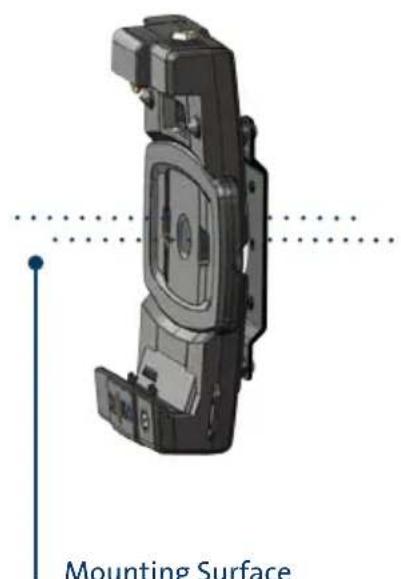
natural_image
3D mechanical component diagram with mounting surface annotation (no readable text or symbols)Mounting Surface appropriate fasteners

text_image
3.0"Mounting Surface hole pattern (For reference only)
1) Tip the Docking Station to a position that is comfortable to work with.
2) Install all cables that are necessary for computing needs.
3) Use Zip Ties (Hardware Kit Item 1) to strain relieve cables. Each port has an individual Strain Relief Point that should be used to anchor each cable. If desired for routing purposes, additional Strain Relief Points on each side of Docking Station may be used.

natural_image
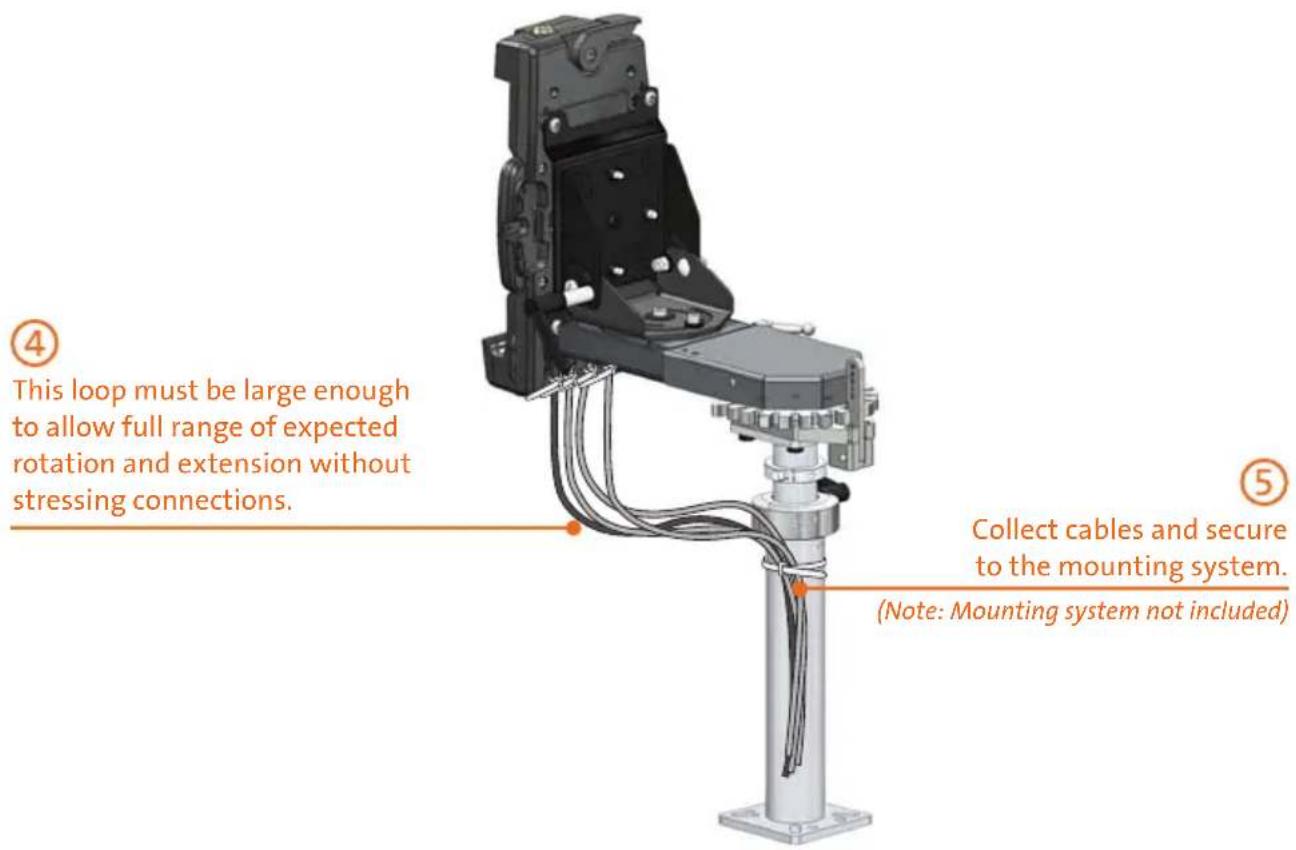
Close-up of a device rear panel showing two orange circular annotations highlighting internal components (no text or symbols visible)4) Create a service loop with cables to ensure that no tension is on the connectors and to enable intended motion.
5) Tie off cables onto a stationary part of the mounting system.
text_image
④ This loop must be large enough to allow full range of expected rotation and extension without stressing connections. ⑤ Collect cables and secure to the mounting system. (Note: Mounting system not included)CAUTION
DO NOT FORCE TABLET ONTO DOCKING STATION. IF THERE IS RESISTANCE, CHECK ALIGNMENT OF TABLET ON DOCKING STATION.
NOTE: Ensure a proper connection by aligning the tablet's Alignment Sockets with the Docking Station's Alignment Posts

natural_image
3D mechanical component diagram showing internal components with orange arrows indicating movement or force (no text or symbols)Alignment Posts DS-PAN-500 Series Docking Station


natural_image
Technical diagram of a laptop rear panel showing internal components and mounting points (no text or labels)Alignment Sockets Back Side of Panasonic Toughpad FZ-A1
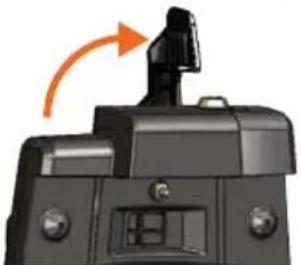
1) Ensure Docking Station is unlatched by lifting Latch Handle.
natural_image
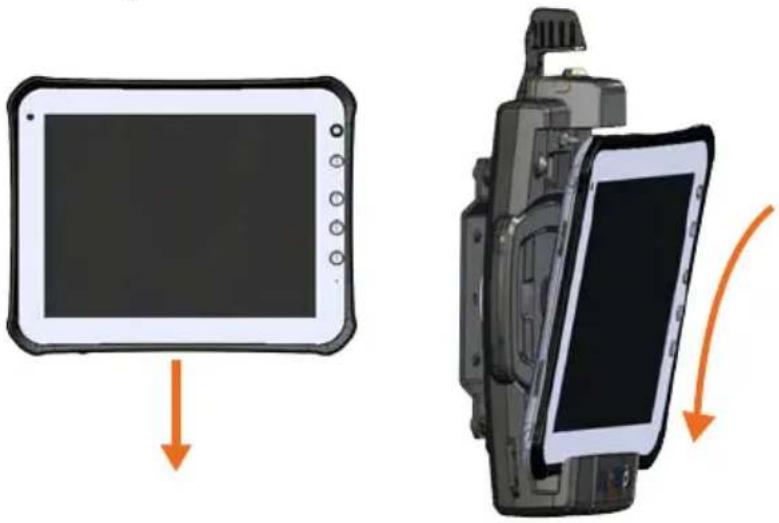
Close-up of a camera component with an orange arrow indicating rotation (no text or symbols visible)2) Hold tablet in landscape orientation, with bottom angled toward Docking Station. Lower tablet into the bottom of the Docking Station.
natural_image
Two views of a tablet device: one showing a screen with an orange arrow pointing to it, the other showing a close-up of its internal components (no text or symbols visible)NOTICE
If access to tablet's HDMI port is needed for additional monitor connection, open access door BEFORE Docking the tablet.

natural_image
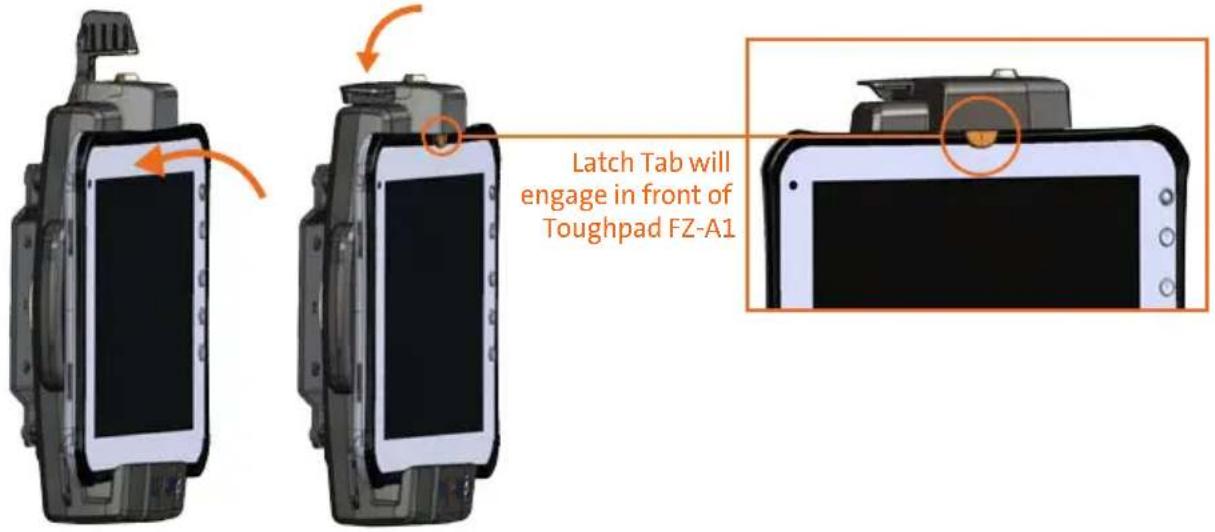
Close-up of a tablet device with a black screen and a small attached clip (no visible text or symbols)3) Pivot tablet so the top aligns with the Locator Pin at the top of the Docking Station. Lower the Latch Handle to secure tablet in place.
text_image
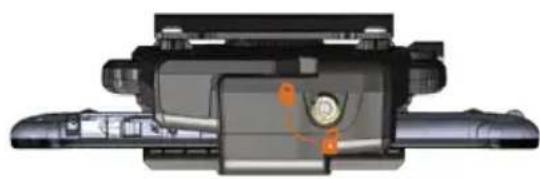
Latch Tab will engage in front of Toughpad FZ-A14) For theft deterrence, secure tablet by locking Docking Station with supplied key (Hardware Kit Item 2).
natural_image
Cross-sectional diagram of a mechanical device showing internal components and no visible text or symbols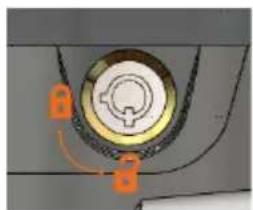
natural_image
Close-up of a circular mechanical component with orange connectors and mounting points (no visible text or symbols)Operation - Undocking
1) If previously locked, unlock Docking Station using supplied key.
2) While holding tablet with one hand, lift the Latch Handle on the top of Docking Station.

natural_image
Illustration of a camera module with an orange arrow indicating rotation (no text or symbols)3) Once unlatched grab both sides of tablet, rock the top forward and carefully lift out of Docking Station, top end first.

natural_image
Illustration of a handheld electronic device with an orange arrow indicating upward motion (no text or symbols)Havis offers a wide variety of accessory products specifically for use with the DS-PAN-500 Series Docking Station. For more information or to order, please visit www.havis.com.
natural_image
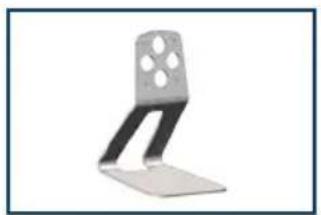
Metal L-shaped electronic device with four holes, shown in grayscale (no text or symbols visible)DS-DA-218
Desktop Stand for Tablet Docking Stations
Durable stand for mounting tablet Docking Stations for use in the home or office.
natural_image
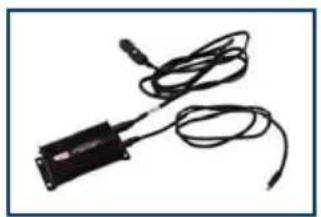
Simple line drawing of a handheld electronic device with coiled cable (no text or symbols)LPS-106
24W Power Supply
External in-vehicle power supply and cable for Panasonic Toughpad FZ-A1 with cigarette lighter adaptor.

natural_image
Close-up of a black mechanical key with attached wires (no visible text or symbols)DS-DA-503
Replacement Keys
Set of two (2) replacement keys for DS-PAN-500 Series Docking Stations.
Havis, Inc.
75 Jacksonville Road, PO Box 2099
Warminster, PA 18974
47801 Anchor Court
Plymouth, MI 48170
www.havis.com 1-800-524-9900