GTQ818 - Tablet Growing - Free user manual and instructions
Find the device manual for free GTQ818 Growing in PDF.


| Product Type | Tablet |
| Brand | Growing |
| Model | GTQ818 |
| Screen Size | 10.1 inches |
| Screen Resolution | 1280 x 800 pixels |
| Processor | Quad-core 1.6 GHz |
| RAM | 2 GB |
| Internal Storage | 32 GB |
| Operating System | Android 10 |
| Wi-Fi | 802.11 b/g/n |
| Bluetooth | 4.2 |
| Rear Camera | 5 MP |
| Front Camera | 2 MP |
| Battery Capacity | 6000 mAh |
| Battery Life | Up to 8 hours |
| Dimensions (W x H x D) | 240 x 160 x 9 mm |
| Weight | 510 g |
| Charging Port | Micro USB |
| Audio Jack | 3.5 mm |
| Sensors | Accelerometer, Light sensor |
| Colors Available | Black, White |
| Included Accessories | USB cable, Power adapter, User manual |
Frequently Asked Questions - GTQ818 Growing
User questions about GTQ818 Growing
0 question about this device. Answer the ones you know or ask your own.
Ask a new question about this device
Download the instructions for your Tablet in PDF format for free! Find your manual GTQ818 - Growing and take your electronic device back in hand. On this page are published all the documents necessary for the use of your device. GTQ818 by Growing.
USER MANUAL GTQ818 Growing
Índice
- Introdução....3
natural_image
Digital camera interface with adjustment knobs and a red abstract background (no readable text or symbols)All logos & trade marks are properties of the respective companies
Index
- Introduction......3
1.1 Content details of you GROWING Tablet....3
1.2 Specifications of the Tablet GROWING: 3
- Basic Operations .... 4
2.1 Unlock Screen 4
2.2 Work Environment 4
- Applications ...... 6
3.1 List....6
3.2 Widgets 7
3.3 Establish and control the desktop icons 7
3.4 Deleting the shortcut to an application desktop 8
3.5 Change the image of the desktop....8
-
Connecting to the computer....9
-
Management applications....9
5.2 Install 9
5.2 Uninstall: 11
- Video 11
- Music....12
- Recording Function 13
- Definitions....14
9.1 Wireless Networks and Other.... 14
9.2 Device 14
9.3 Personnel 14
9.4 Accounts 14
9.5 System 15
- Camera 15
10.1 Capture Photography 15
10.2 Video Capture.... 16
- Configure Wireless Networks 17
- Configuring 3G Network.... 18
- List of compatible 3G Dongle .... 19
- Warranty 20
- CE.... 22
1. Introduction
1.1 Content details of your GROWING Tablet.
Each unit will have the following items:
• 1 x Tablet PC GROWING
- 1 x Power adapter
- 1 x USB cable
- 1 x USB OTG
- 1 x User Manual
1.2 Specifications of the GROWING Tablet:
| CPU | Allwinner A31s Cortex A7 Quad Core up to 1.2GHz |
| GPU | PowerVR SGX544MP2 |
| Operating system | Android 4.2.2 |
| Screen Size | 8.0 Inches |
| Resolution | 1024 x 768 HD IPS |
| Flash Memory | 8GB |
| RAM | 1GB |
| Support micro SD | 2GB to 32GB |
| Multimedia | Video, Audio, Images, Ebooks, etc.. |
| Wi-Fi | Realtek 8188ETV |
| 3G | Supports USB 3G |
| Battery | 4200mAh |
| Sensors | Gyro and Accelerometer |
| Inputs / Outputs | 1x mini HDMI; 1xMicrofone; 1xAuscultador; 1xHost; 1xUSB; 1xDC 1x Micro SD |
| Language | Supports 60 languages |
2. Basic Operations
2.1 Unlock Screen
After connecting your Tablet GROWING, the system will enter the lock menu as shown in the following image.
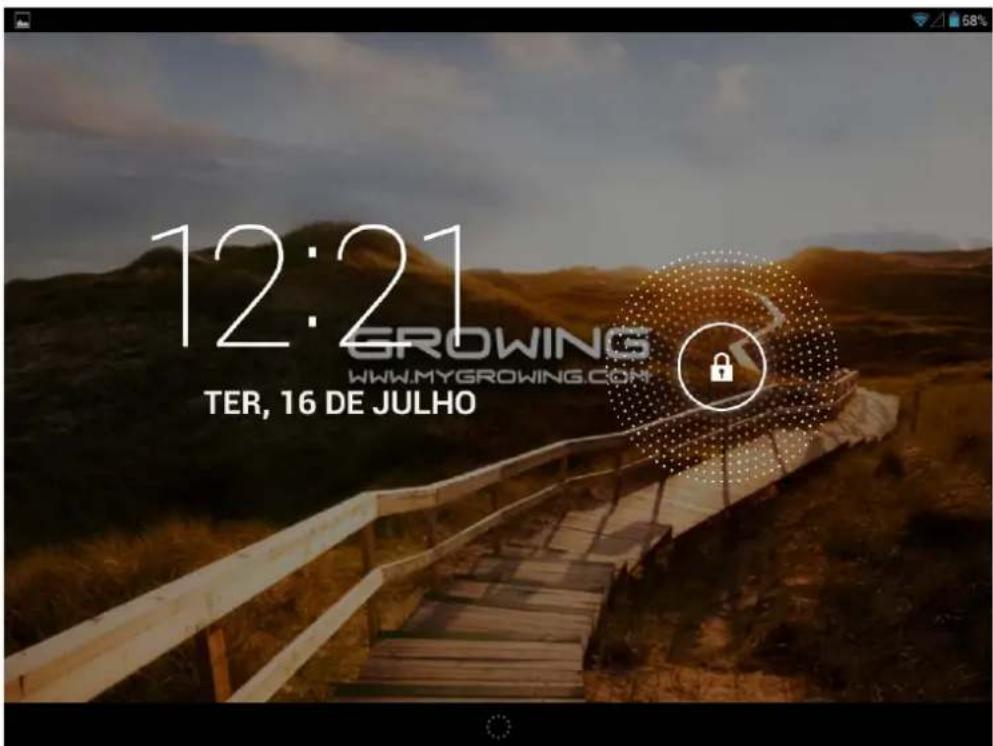
Click the unlock icon and move it to unlock the screen.
2.2 Work Environment
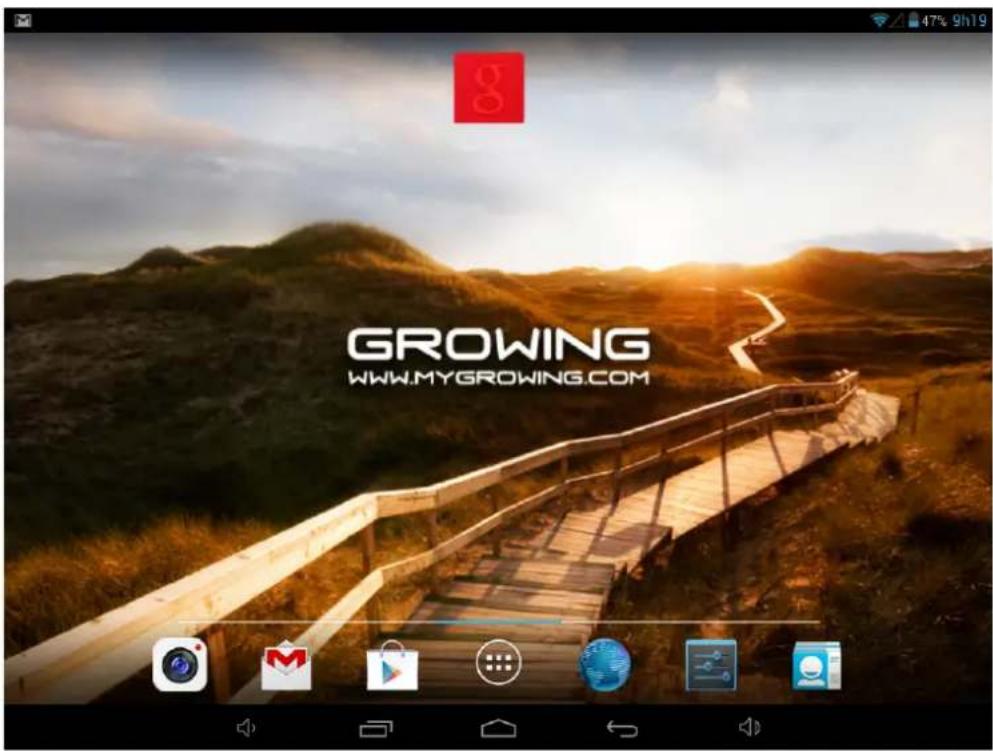
After unlocking the screen, the menu will appear as shown in the following image
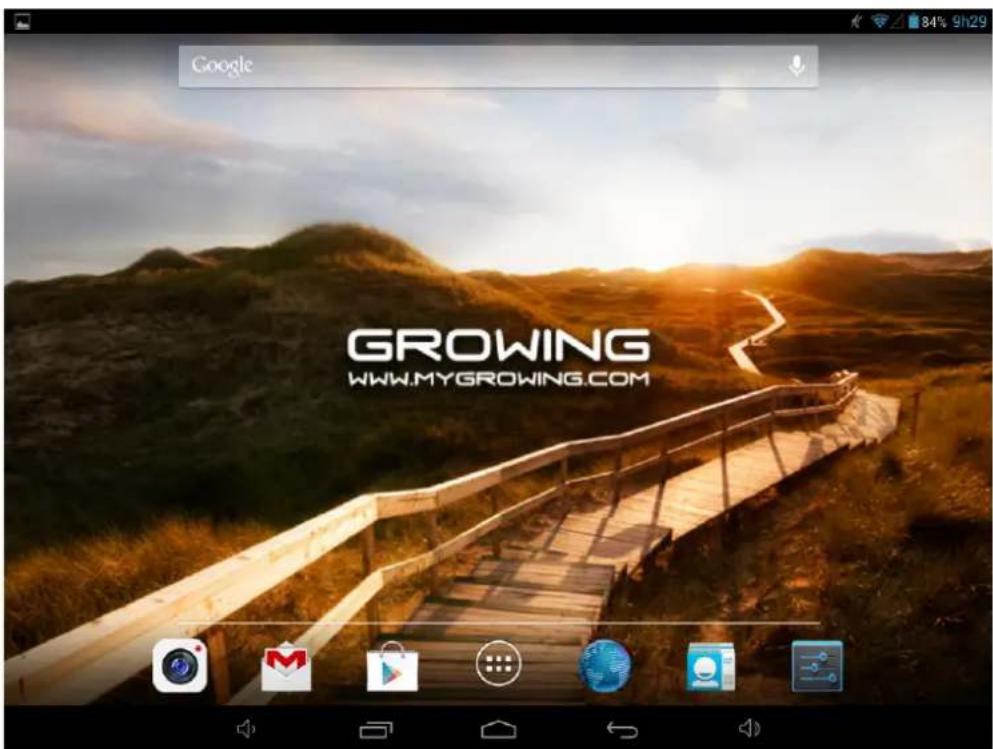
In Android 4.2.2 has up to 5 areas of work, to navigate between them will have to drag your finger to the right or left side.
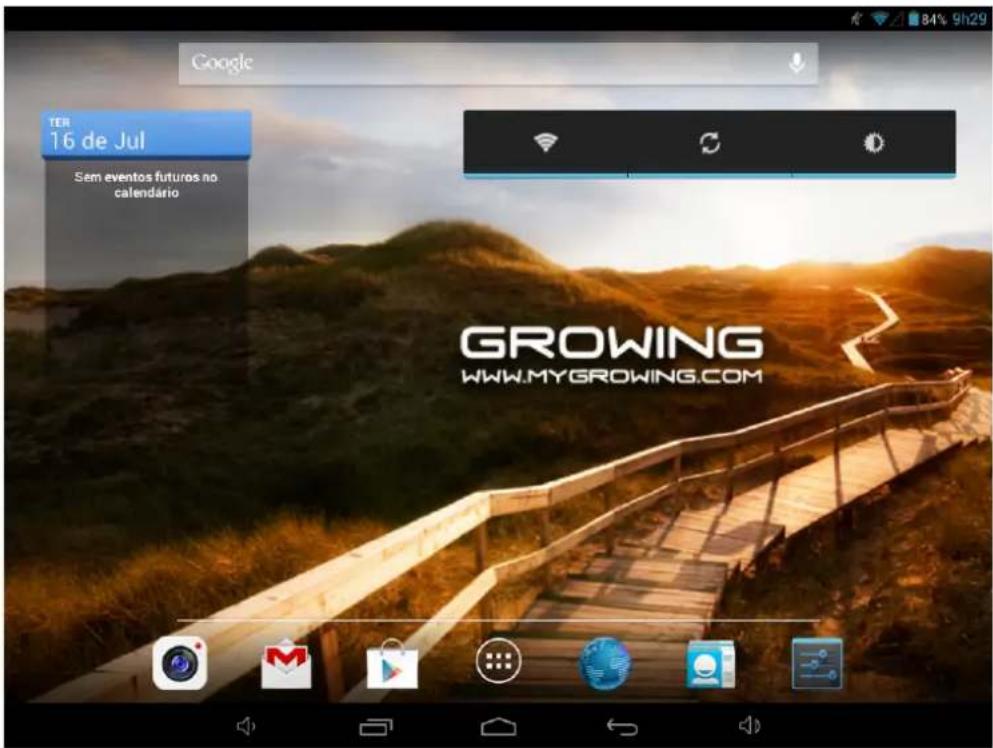
In the notification bar you can drag your finger down and more information will appear as shown in the following image.
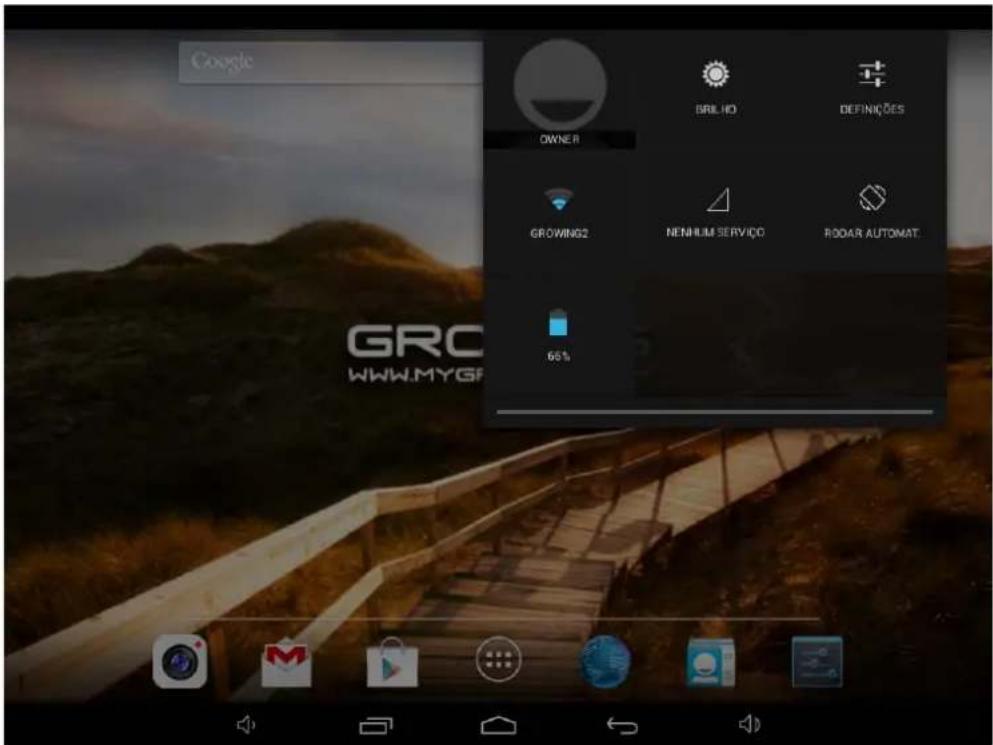
2.3 Introduction to the main menu buttons
| Image Feature | |
 | Click this icon to return to the previous menu. |
 | Click this icon to return to the workplace. |
 | List of recent applications. |
 | Volume control |
 | Notification bar (battery icon / Wi-Fi etc.). |
3. Applications
3.1 List
From the main menu (desktop) click the icon enter the application menu as shown in the following image.
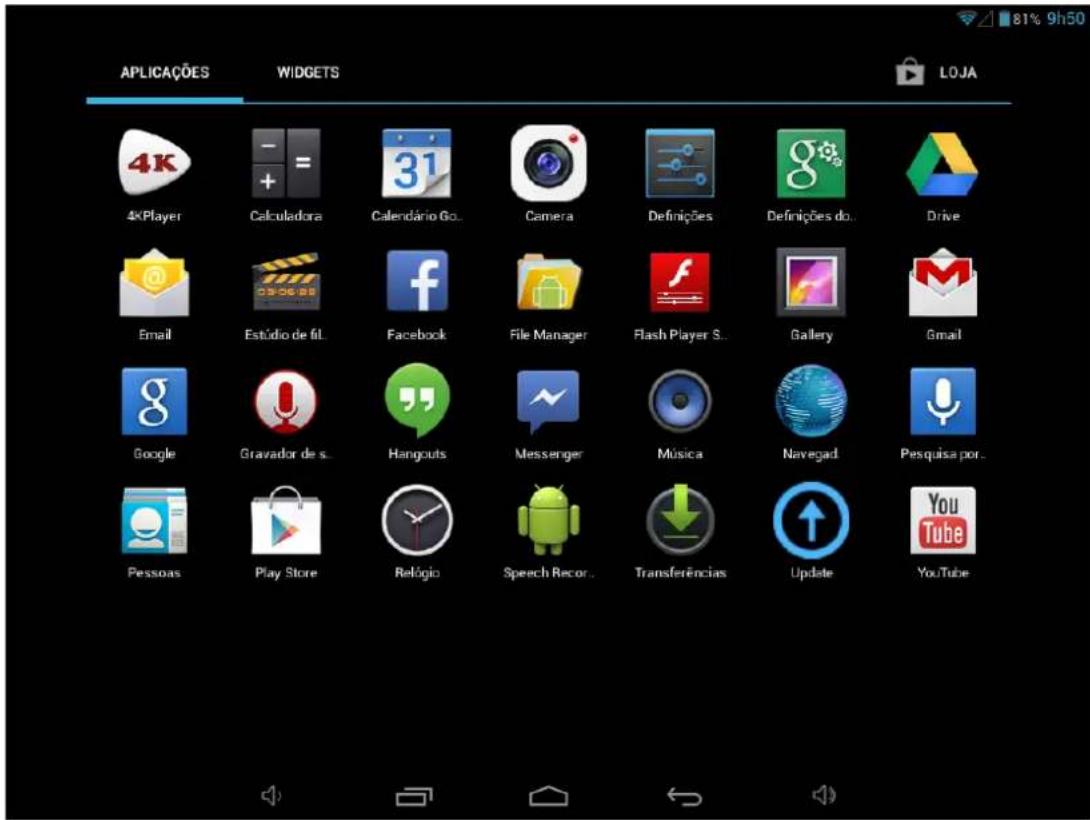
When you complete the first application screen will automatically create a second access to just drag your finger to the left and the other applications will be in the next screen.
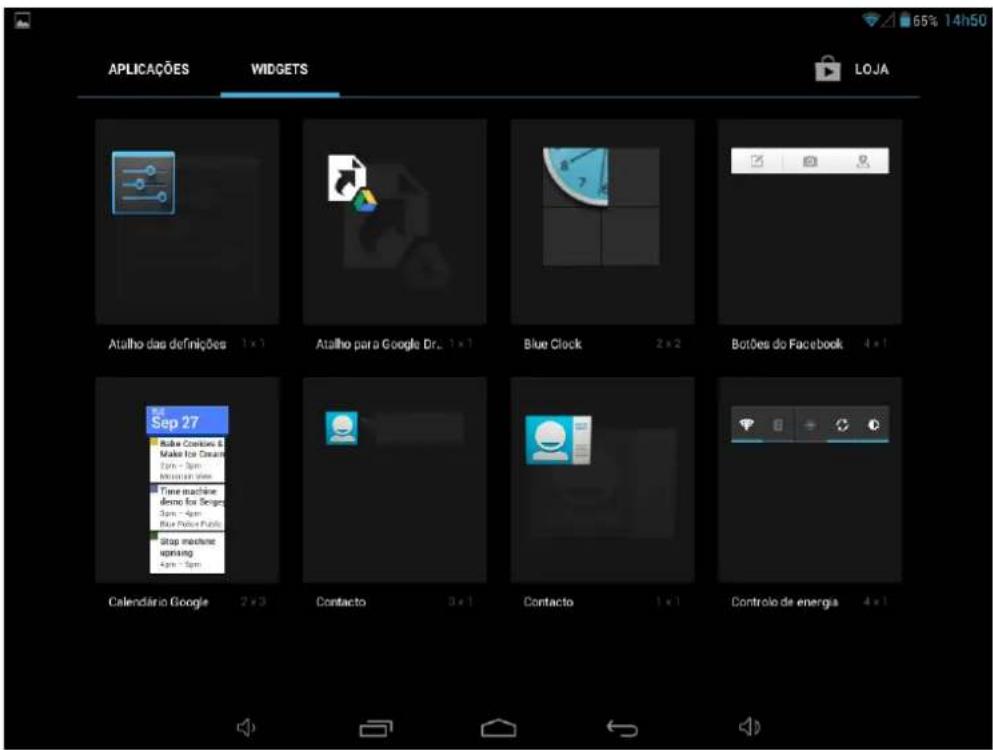
3.2 Widgets
In the application menu, click APLICAÇÕES WIDGETS
enter the menu of widgets. Press on the widget and move to the main menu.
Note: The widgets only work in the areas of work
3.3 Establish and control the desktop icons
In the application menu or widgets, press on the icon you want to create a shortcut on the desktop. Press on the application / widget where you want to move.
Note: Some widgets require internet connection to function properly.
3.4 Deleting the shortcut to an application desktop
Press the icon you want to delete and move it up where you have an X. Keep up the icon turns red when you drop the red icon will be deleted.
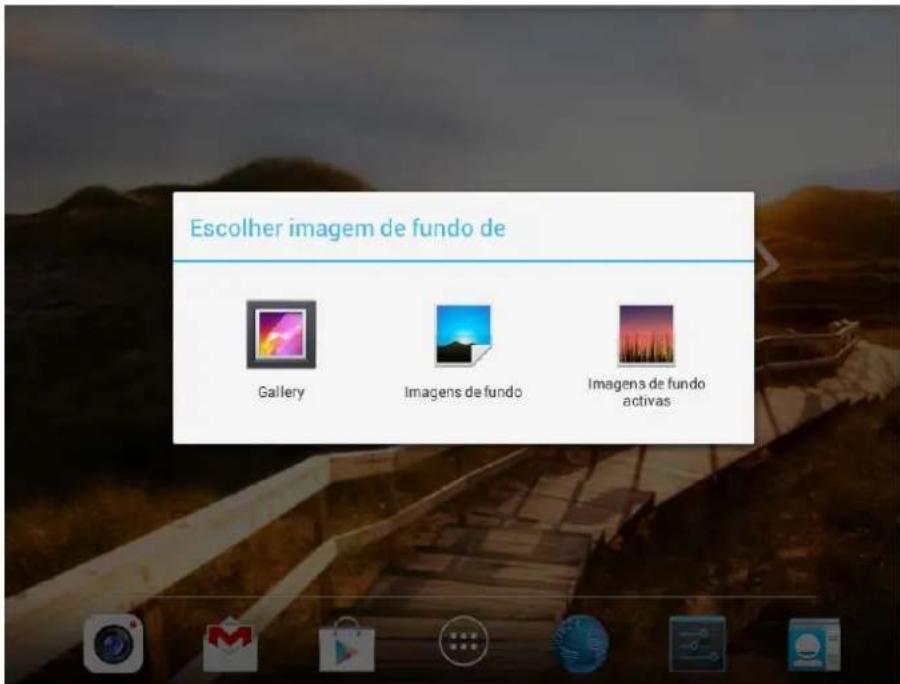
3.5 Change the image of the desktop
On the desktop press in a place that is not busy and a window will appear to select the picture. Choose images gallery system or to use a photo as image to the desktop.
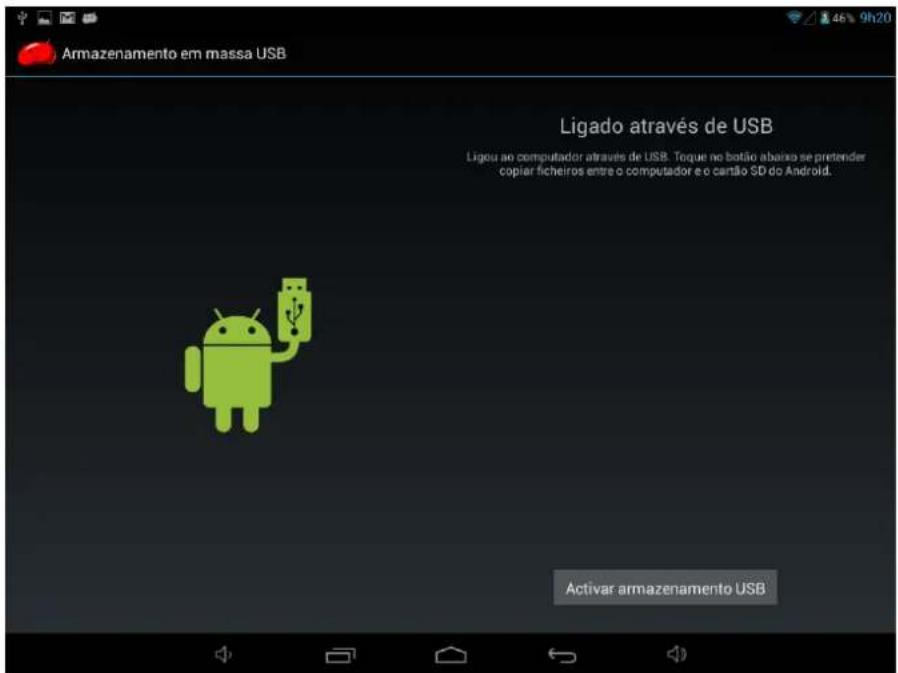
4. Connecting to the computer
When connected to the computer can be used as USB disk. Click the icon connect the USB storage:

5. Management applications
5.2 Install
Opens the File Manager choose the file you want to install APK corresponding location where it was saved.
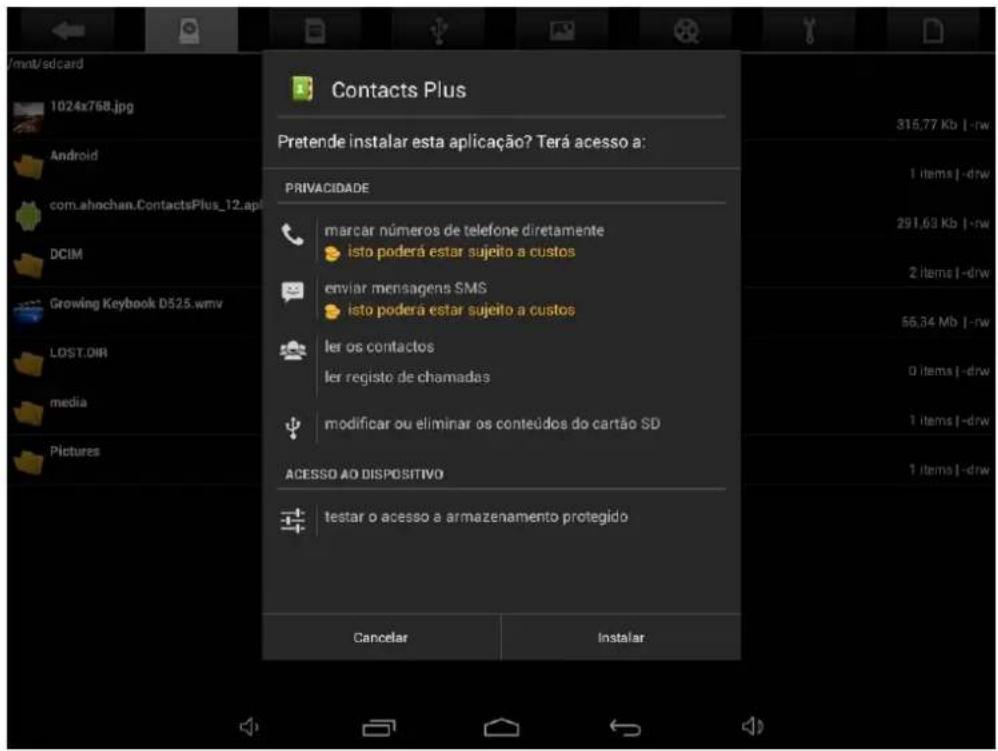
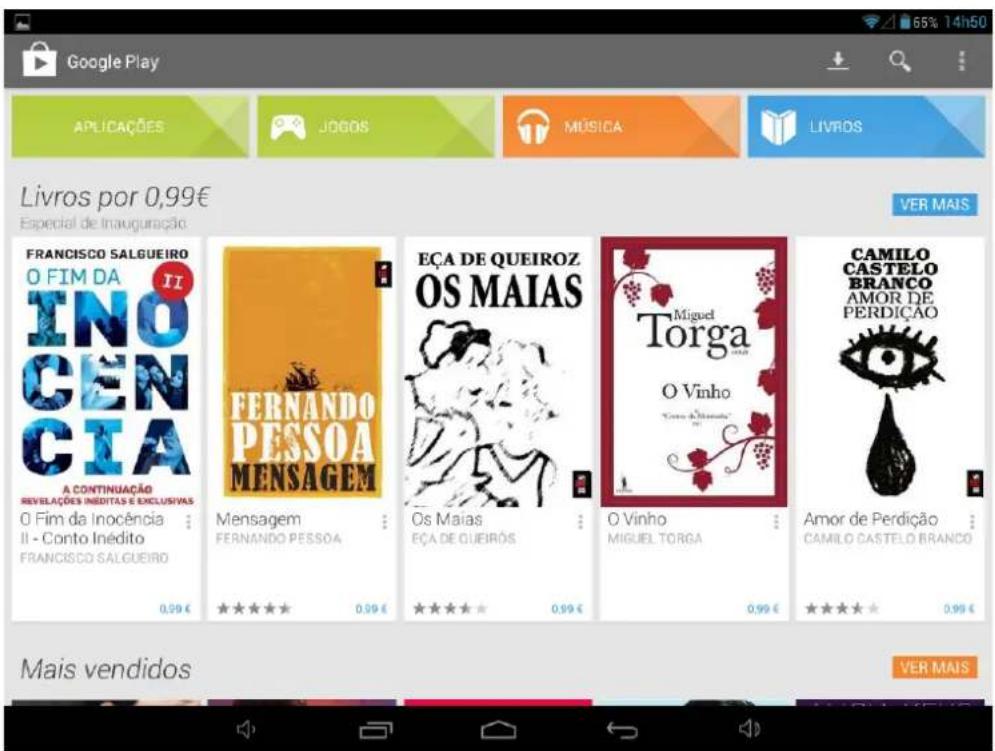
To install applications through Google Play ▶(Market) will have to open the application and associate a Gmail account to your Tablet GROWING.
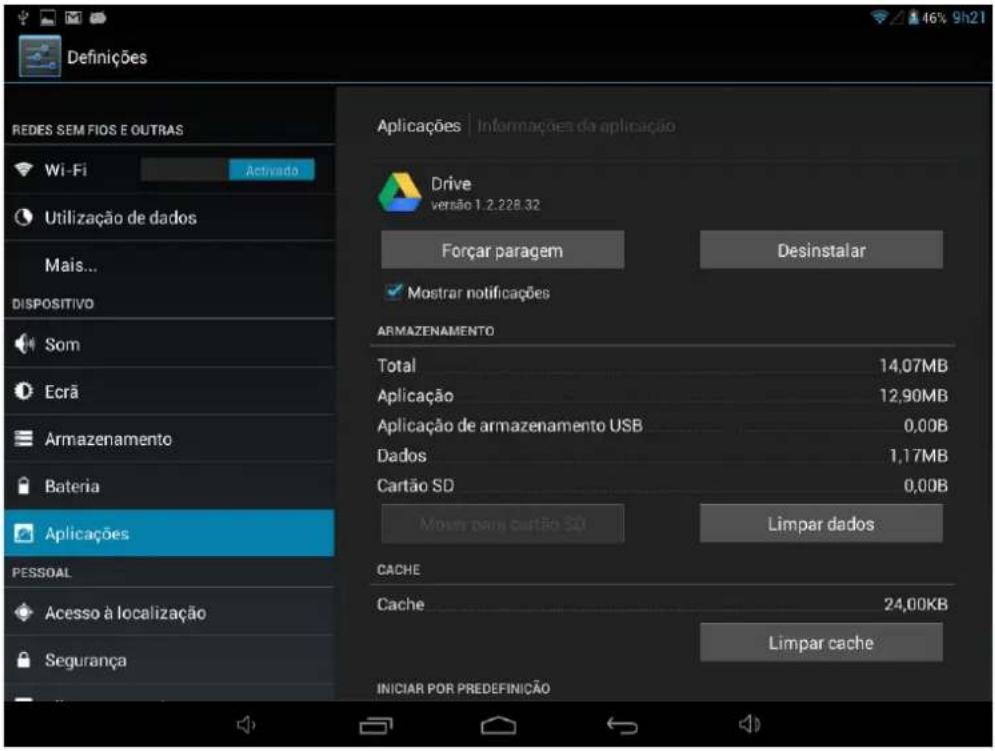
In settings select Applications and select the application and then uninstall. Select "Ok" and the application is uninstalled.
In the application menu select video player and select a video to be played.
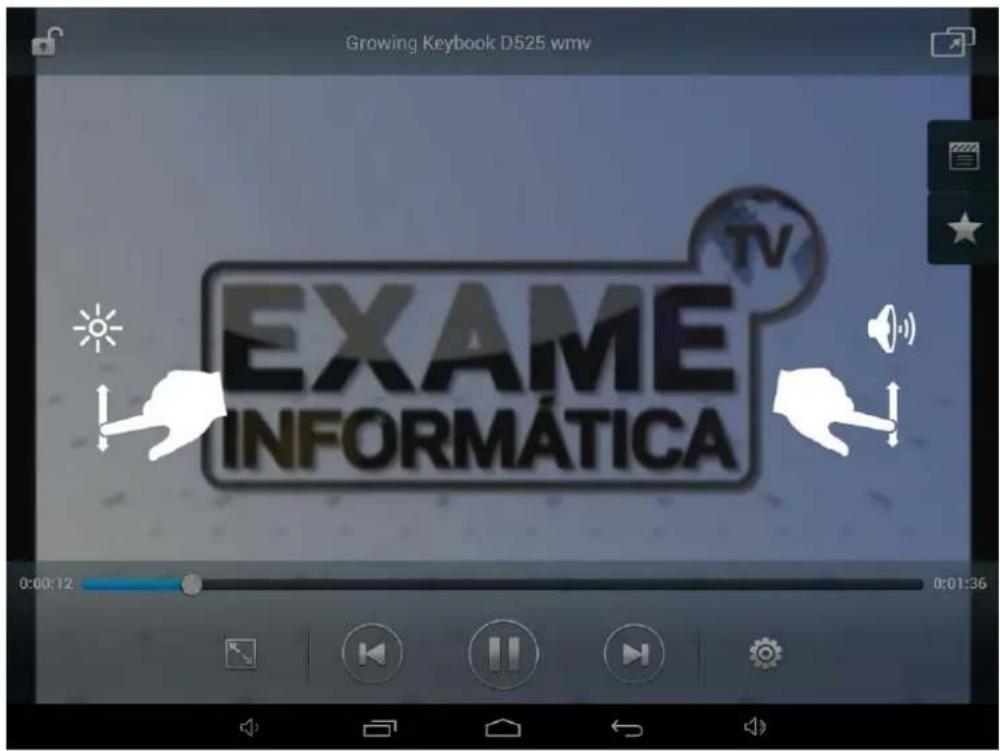
Click the buttons on the video player.
| Image | Function |
 | Add to favorites |
 | Previous video (short press) / Rewind the video (long press). |
 | Pause / Play. |
| [G53S] | Video below (Press short) / Next in the video (long press). |
 | Function background video: Click on the icon to start this function. You will see a small video in which you can do more or less Zoom Zoom stretching or shrinking the video or move to where you want etc.. You can do other operations while the video plays in the background. Press over 3 seconds then click the "X" to turn off this function. |
 | Playlist |
 | Menu: Managing bookmarks, playback mode, legend, track selection etc. |
7. Music
In the application menu click music.
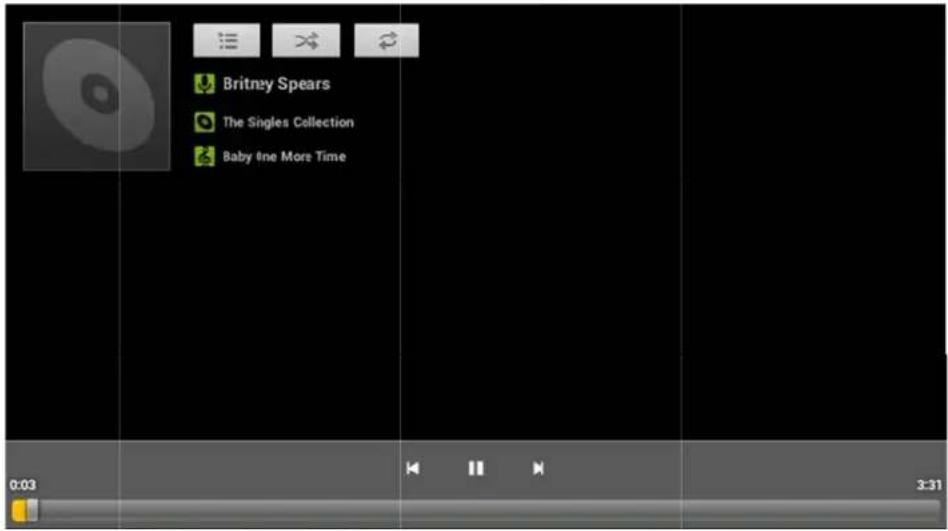
Slide the progress bar to adjust the reproduction process.
Click the buttons on the music player.
| Image Function | |
 | Artist |
 | Music |
 | Random Music |
 | Play last song |
 | Pause |
 | Album |
 | Playlist |
 | Repeat music (s) |
 | Play next song |
 | Reproduce |
When no music files in the playlist the system will automatically load music files through the card. (The Tablet GROWING supports playback formats: mp3, wav, midi, wma).
8. Recording Function
Click the recording icon to enter the recording interface, click to begin recording, click to stop recording.
Play recording: Please select a music application to play the recording.
9. Settings
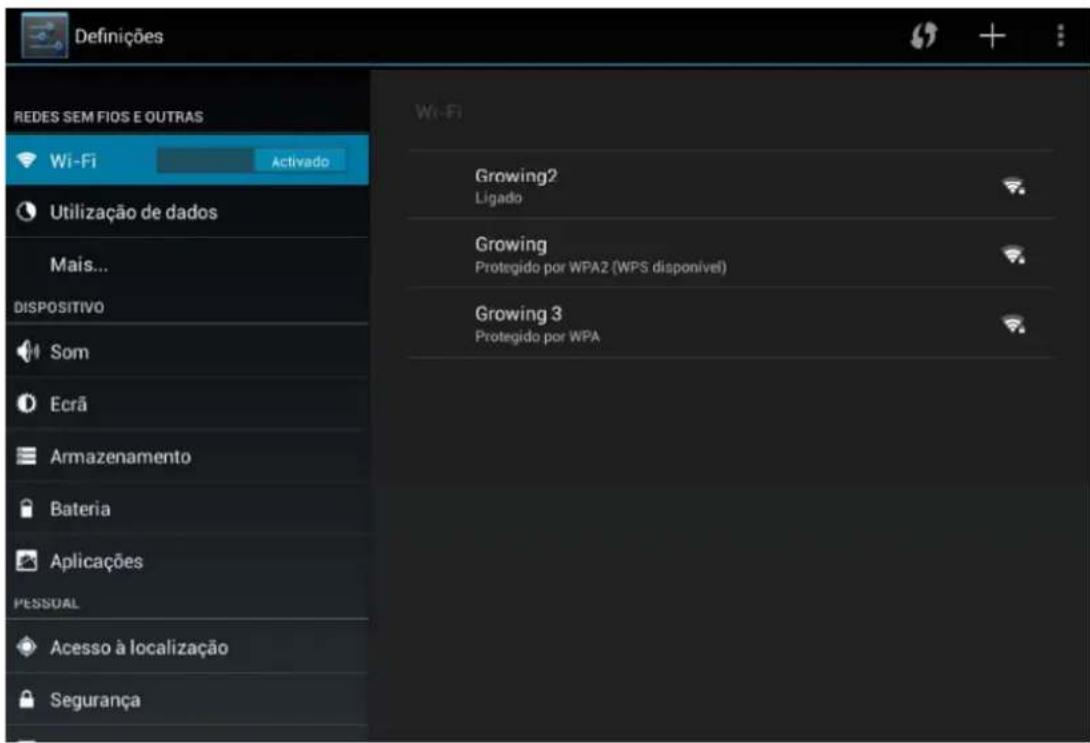
9.1 Wireless Networks and Other
You can turn on / off Wi-Fi, select the flight mode, set cable internet, create a VPN, create Hotspot and configure mobile networks.
9.2 Device
You can set the volume of the ringtone and notifications, ringing sound, the sound of the lock screen.
You can set brightness, hanging screen, background image, font size,
You can see the storage in use, installing micro sd card and install USB storage, view downloaded applications and uninstall and move to the micro SD, see the memory usage and see the battery usage.
9.3 Personal
You can enable Google location services having Wi-fi or 3G turned on.
May submit a lock code and user information
You can choose the system language, and keyboard input method.
You can back up your data applications and make factory restore your tablet.
9.4 Accounts
You can add / remove email account, company, Google and Facebook.
9.5 System
You can set date, time zone, and view system information.
10. Camera
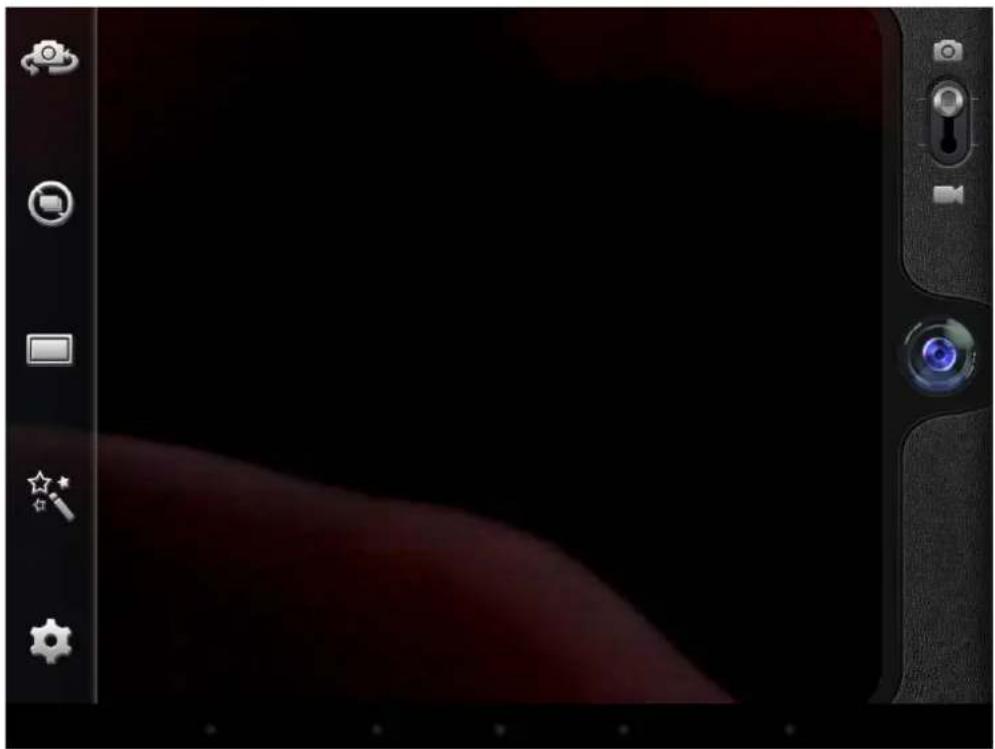
Click the icon to open the camera, take the picture or do video capture.
10.1 Capture Photo
natural_image
Digital camera interface with control panel and lens, no visible text or symbols on screen or backgroundClick the buttons on the camera.
| Image Feature | |
 | Switch camera mode front / rear |
 | Click this icon to choose the continuous shooting mode. |
 | Choose the type of camera between normal and panorama |
 | Choose the color scheme of the chamber |
 | Camera settings |
 | Take picture |
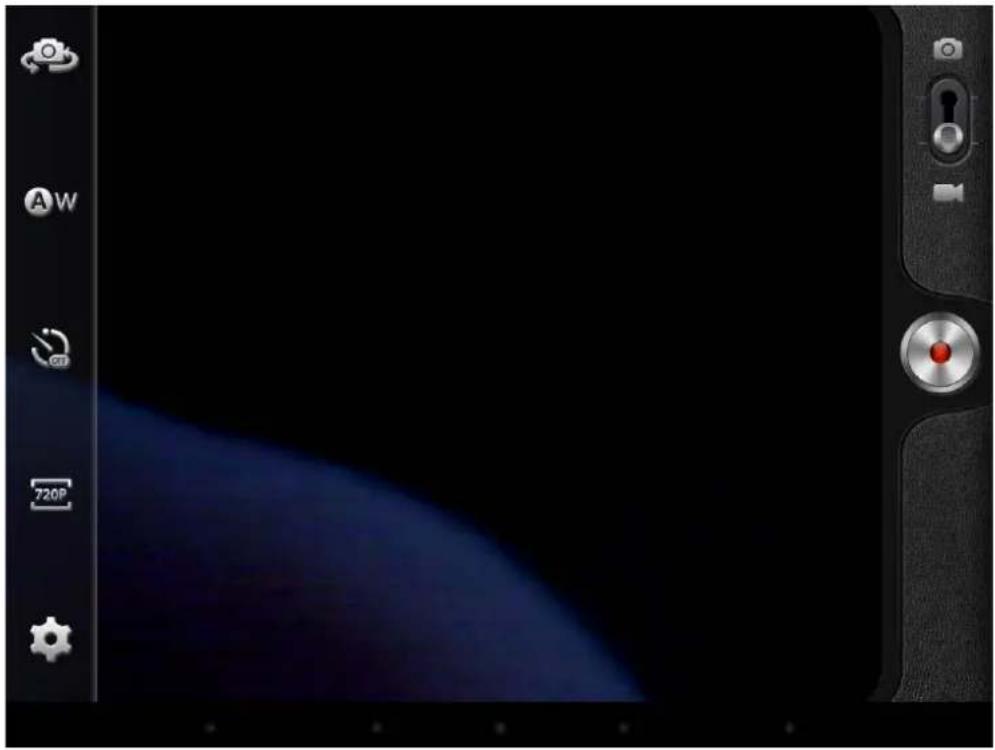
10.2 Video Capture
natural_image
Smartphone camera interface showing exposure mode, settings panel, and control buttons (no readable text or symbols)Image Feature


11. Configure Wireless Networks
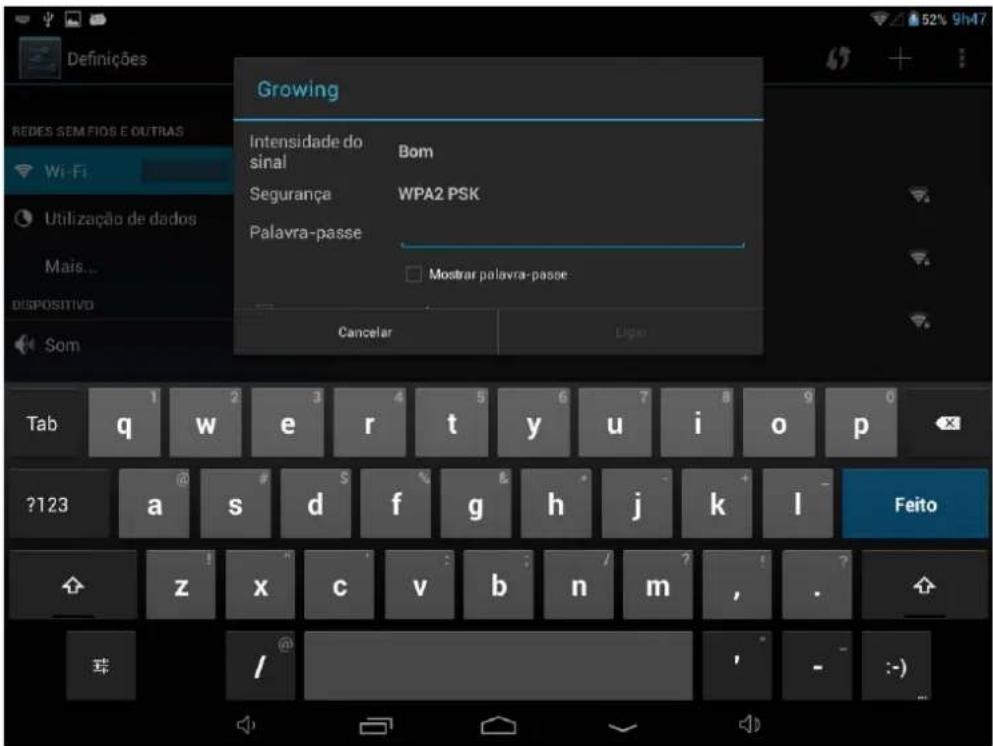
- Turn on Wi-Fi, Wi-Fi settings press The Tablet will search for networks automatically.
- Choose Wi-Fi network you want to connect.
- Press Connect. Some networks may ask keyword.
- In the settings screen Wi-Fi, pressing the menu button and pressing, advanced, you can see more options of Wi-Fi
- Turn off Wi-Fi if connected.
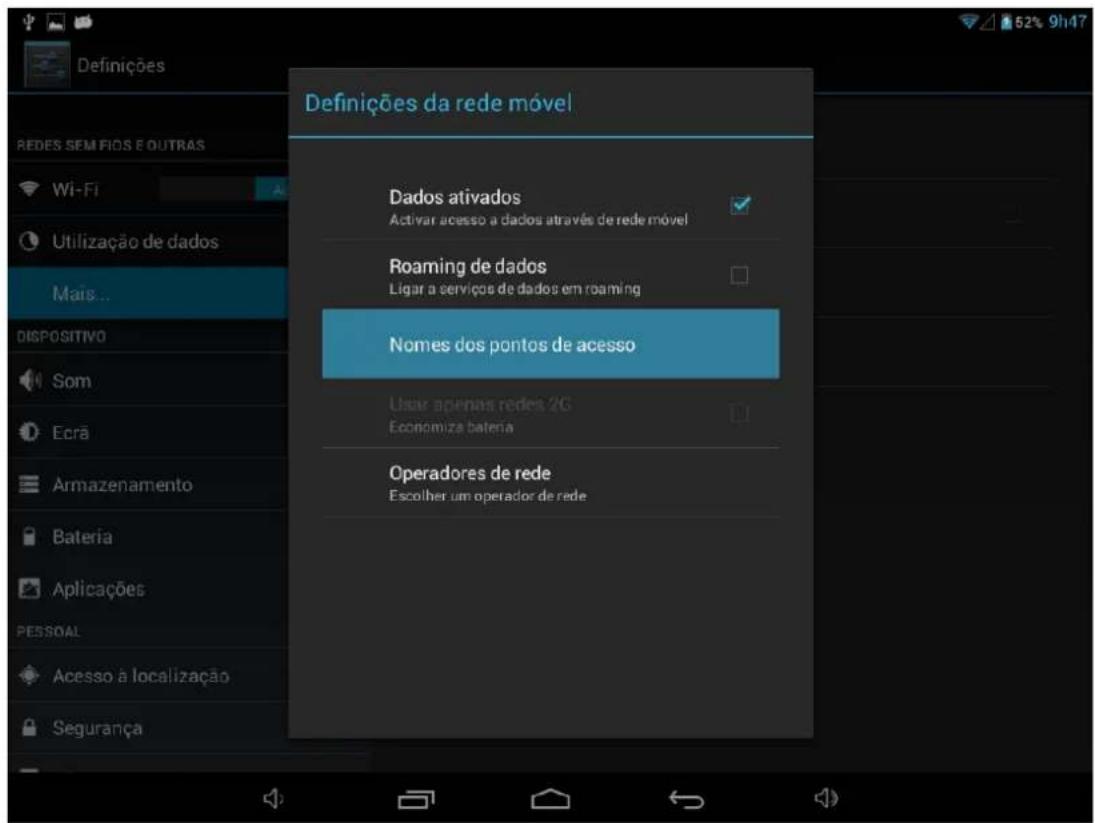
- Access the settings, select Other Wireless Networks and select mobile networks, make sure that the option of active data is enabled. Go back.
- Insert the USB converter in the USB Tablet with 3G.
- Enter the point name (APN's) right to obtain 3G. Note: Some models of USB 3G may be incompatible with our Tablet first check the attached list of compatible devices on the next page.
13. List of compatible 3G Dongle
| Model | Model | ||
| Huawei E153 ZTE | MF628- | ||
| Huawei E156G ZTE | MF636- | ||
| Huawei E160E ZTE | MF110- | ||
| Huawei K3520 ZTE | MF626- | ||
| Huawei E170 ZTE | MF633- | ||
| Huawei E173 ZTE | MF637u | ||
| Huawei E176G + ZTE-MF633BP | |||
| Huawei E1782 ZTE | MF170- | ||
| Huawei E180 ZTE | MF190- | ||
| Huawei E220 ZTE-TA356 | |||
| Huawei E226 ZTE-AC2736 | |||
| Huawei E230 ZTE-AC2736 | |||
| Huawei E261 ZTE-AC2746 | |||
| Huawei E270 ZTE-AC2766 | |||
| Huawei E272 ZTE-AC560 | |||
| Huawei E353 ZTE-AC580 | |||
| Huawei E1552 ZTE-AC581 | |||
| Huawei E1786 ZTE-AC590 | |||
| Huawei ET127 | |||
| Huawei EC122 | |||
| Huawei EC150 | |||
| Huawei EC156 | |||
| Huawei EC1270 | |||
| Huawei EC167 | |||
| Huawei EC189 | |||
14. Warranty
This product has Growing warranty against factory defects.
The product is a sophisticated electronic device. The Growing strongly recommends that you consult the user manual and the instructions supplied with the product and for the same. In turn, should take into account that the product may contain high precision displays, camera lenses and other similar parts that may be subject to scratching or other damage if not handled with extreme care. This Warranty does not cover in any case these situations.
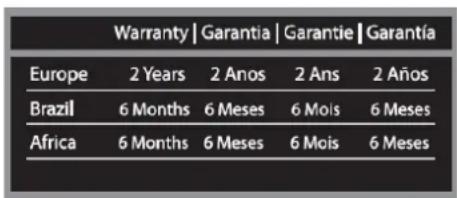
Under warranty is explicit time specific guarantee, which acquire the product.
bar
Warranty | Garantía | Garantie | Garantía | Region | 2 Years | 2 Anos | 2 Ans | 2 Años | | :--- | :--- | :--- | :--- | :--- | | Europe | 2 Years | 2 Anos | 2 Ans | 2 Años | | Brazil | 6 Months | 6 Meses | 6 Mois | 6 Meses | | Africa | 6 Months | 6 Meses | 6 Mois | 6 Meses |Frame Warranty
Policy Defects in LCD tablet
Despite the highest possible standards, the intricate manufacturing of screens "thin-film transistor" (TFT) liquid crystal display (LCD) may still produce slight visual imperfections. These visual imperfections do not impair the performance of your tablet. However, the Growing will provide warranty service for the TFT LCD screen of your tablet when there are at least:
More than 5 bright spots or dark spots 8 (excluding 8).
These warranty conditions for TFT LCD screens are offered by TFT LCD manufacturers.
The Growing will however, by his will, repair or replace the product.
Please note: A bright dot is a pixel or sub-pixel that is always on white. A dark dot is a pixel or sub-pixel that is always off black.
This Warranty does not cover user manuals, software, configuration, content, data or links to third party included or downloaded on the tablet, included during the instal, assembly, shipping or at any other time in the delivery chain or otherwise acquired by user.
The Growing does not guarantee that the software fits your needs, to work in combination with any hardware or software from a vendor independent, or that the operation of any software will be free from suffering interruptions or errors or that any defects present in the software can be subject to correction or rectification.
This warranty does not cover:
Normal wear (including, without limitation, wear lenses of cameras, batteries or displays).
The defects caused by poor handling (including, without limitation, defects caused by
sharp elements, folding, compression or falls, etc.).
Defects or damage caused by misuse of the tablet, including the use contrary to the instructions provided by Growing (eg, the manual instructions for use of the tablet).
Other acts beyond the reasonable control of Growing.
Warranty Policy Battery
The battery has 6 months Warranty.
This warranty does not cover defects caused by the fact that the battery be subjected to short-circuiting or the fact that the seals of the battery latch, tablet or cells were broken or show evidence of manipulation, either because the battery has been used in equipment for which was not specified.
Other important notices
We remind you that should make backup copies or keep written records of all important content and data stored in your Product, because there is the possibility of loss of data and content during repair or replacement.
All parts of the Product or other equipment will be replaced by Growing, from that time, ownership of Growing. If the Product is not covered by the terms and conditions of this Limited Warranty, Growing and service companies authorized by the same reserve the right to charge a fee for hand labor. To repair or replace the Product, Growing can use new products or parts equivalent to new or reconditioned.
For assistance Growing hotdog various channels:
- Contact your local vendor.
- On the site www.mygrowing.com support we have in the tool for technical support "Helpdesk".
- Directly to the Growing via phone (+351 808 20 29 30) or email to 808202930@growing.pt.
For assistance contact in Brazil for Sao Paulo phone 08007776222, other regions (11) 4979-6961 or email sac@growing.com.br
- On the site www.growing.com.br support we have in the tool for technical support "Helpdesk".
15. CE certificate

DECLARATION OF CONFORMITY
The following product has been tested by us with the listed standers and found in conformity with European directive EMC 2004/108/EC and LVD 2006/95/EC. It is possible to use CE marking to demonstrate the conformity with this EMC and LVD Directive.
Manufacturer / Importer: The Growing Company S, A,
Address: Rua da Argila n°620
4445-027 Alfena - Portugal
Statement of Product:
Description: Tablet PC
Brand: GROWING
Model No: GTQ818
Report N°. CE12-ITE120143
Standards Applied :
EN 55022:2010
EN 55024:2010
EN 61000-3-2:2006+A1:2009+A2:2009
EN 61000-3-3:2008
EN 60950-1:2006+A11:2009+A1:2010+A12:2011
The test report was carried out submitted type samples of a product in conformity with the specification of respective standards. The certificate holder has the right to fix the CE mark for EMC and LVD Directive on the product complying with the inspection samples.



All logos & trade marks are properties of the respective companies
Índice
- Introducción .... 3
natural_image
Digital camera interface with tool icons on screen and lens (no readable text or symbols)natural_image
Smartphone camera interface showing exposure settings and a blue abstract background (no readable text or symbols)All logos & trade marks are properties of the respective companies