
GEX-P900DAB-02 - Radio PIONEER - Free user manual and instructions
Find the device manual for free GEX-P900DAB-02 PIONEER in PDF.



| Product Type | Digital DAB/DAB+/FM radio tuner |
| Brand | Pioneer |
| Model | GEX-P900DAB-02 |
| Frequency Range | DAB: 174-240 MHz (Band III), FM: 87.5-108 MHz |
| Main Functions | DAB/DAB+/FM reception, digital audio output (optical/coaxial), station information display (DLS, slide show), auto search |
| Dimensions (W x H x D) | 170 x 45 x 135 mm |
| Weight | 0.42 kg |
| Power Supply | 12 V DC (direct current, vehicle battery) |
| Power Consumption | 0.5 A max |
| Connectors | DAB/FM antenna input, digital audio output (Toslink optical), power connector, firmware update port |
| Care and Cleaning | Clean with a soft, dry cloth; avoid abrasive products and moisture |
| Safety | Do not expose to extreme temperatures, water, or humidity; use only specified power supply |
| Spare Parts and Repairability | Parts not available from the manufacturer; repair by a certified professional recommended |
| General Information | Device designed for fixed installation in a vehicle; compatible with Pioneer car stereos equipped with a digital input |
| Package Contents | Tuner module, power cable, optical audio cable, mounting bracket, installation manual |
Frequently Asked Questions - GEX-P900DAB-02 PIONEER
User questions about GEX-P900DAB-02 PIONEER
0 question about this device. Answer the ones you know or ask your own.
Ask a new question about this device
Download the instructions for your Radio in PDF format for free! Find your manual GEX-P900DAB-02 - PIONEER and take your electronic device back in hand. On this page are published all the documents necessary for the use of your device. GEX-P900DAB-02 by PIONEER.
USER MANUAL GEX-P900DAB-02 PIONEER
Before Using This Product 2
About This Product 2
About This Manual 2
Precaution 3
In Case of Trouble 3
Key Finder 4
Operating with Different Head Units 5
Basic Operation 7
What is DAB? 7
About the "DAB READY" Indicator 8
Switching Power ON/OFF 8
Basic Operation of DAB 9
Selecting the Ensemble 10
Selecting the Service 11
Changing the Band 11
Changing the Display 12
Preset Memory Function 13
Using the DAB Functions 15
Entering the Function Menu 15
Language Filter Function 15
Announcement Support Function 17
Service Follow Function 20
Service Component Function 21
Dynamic Label Function 21
PTY Function 22
Using the PGM Button 25
Troubleshooting 27
Specifications 28
About This Product
- This product complies with the EMC Directives (89/336/EEC, 92/31/EEC) and CE Marking Directive (93/68/EEC).
About This Manual
This product features a number of sophisticated functions ensuring superior reception and operation. All are designed for the easiest possible use, but many are not self-explanatory. This operation manual is intended to help you benefit fully from their potential and to maximize your listening enjoyment.
We recommend that you familiarize yourself with the functions and their operation by reading through the manual before you begin using this product. It is especially important that you read and observe the "Precaution" on next page and in other sections.
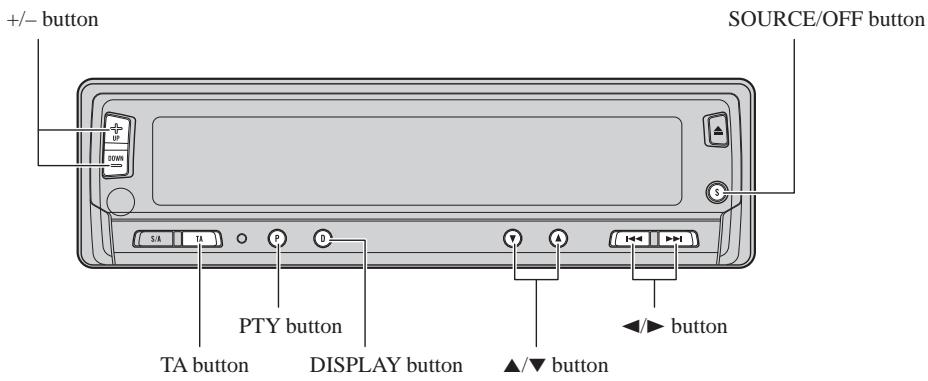
Operate this unit with the connected Head Unit. For details concerning operation, refer to the Head Unit's Operation Manual.
If the Head Unit's Operation Manual does not contain instructions concerning this unit, refer to this Operation Manual. Instructions in this Operation Manual use the "DEH-P945R" as an example Head Unit. When using a Head Unit other than this, refer to "Operating with Different Head Units" on page 5.
Precaution
- Keep this manual handy as a reference for operating procedures and precautions.
- Always keep the volume low enough for outside sounds to be audible.
- Protect the product from moisture.
- If the battery is disconnected, the preset memory will be erased and must be reprogrammed.
In Case of Trouble
Should this product fail to operate properly, contact your dealer or nearest authorized Pioneer Service Station.
Head Unit (e.g. DEH-P945R)
Remote Controller (e.g. DEH-P945R)
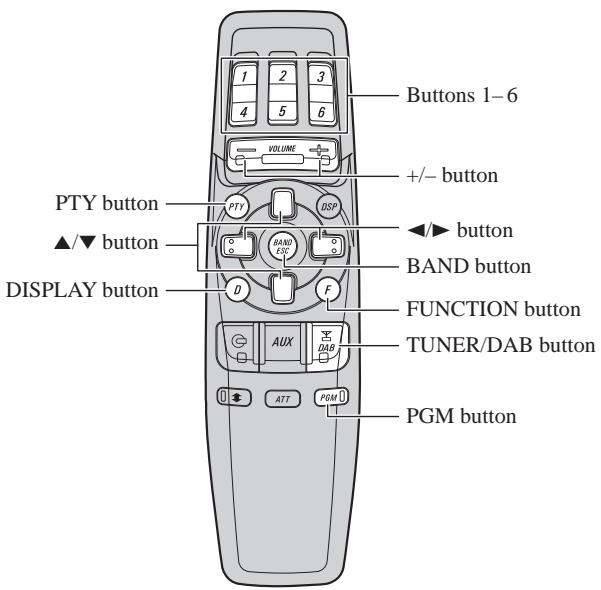
Steering Remote Controller:
- You can operate in the same way with the Steering Remote Controller supplied with the Head Unit. For details, refer to the Head Unit's Operation Manual.
Operating with Different Head Units
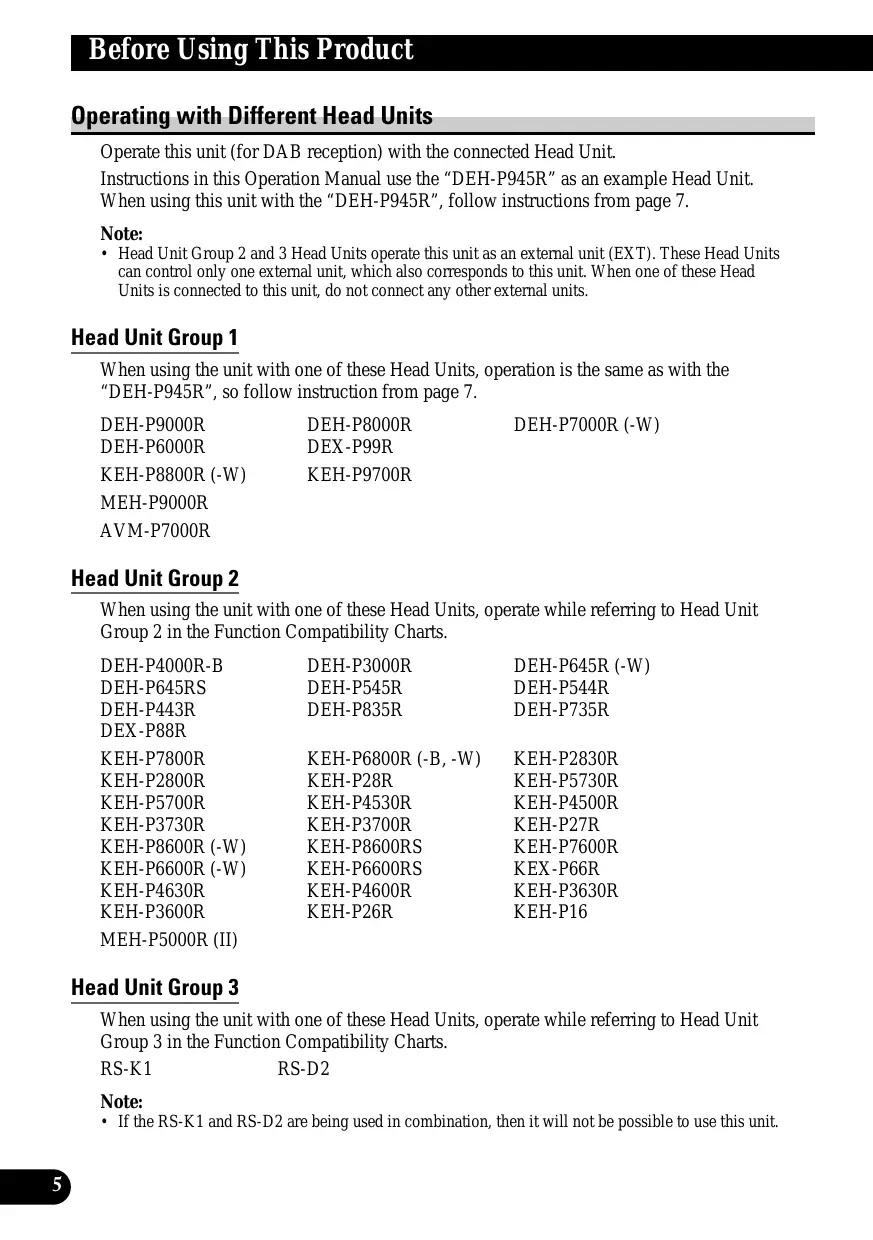
Operate this unit (for DAB reception) with the connected Head Unit.
Instructions in this Operation Manual use the "DEH-P945R" as an example Head Unit.
When using this unit with the "DEH-P945R", follow instructions from page 7.
Note:
- Head Unit Group 2 and 3 Head Units operate this unit as an external unit (EXT). These Head Units can control only one external unit, which also corresponds to this unit. When one of these Head Units is connected to this unit, do not connect any other external units.
Head Unit Group 1
When using the unit with one of these Head Units, operation is the same as with the "DEH-P945R", so follow instruction from page 7.
DEH-P9000R
DEH-P8000R
DEH-P7000R (-W)
DEH-P6000R
DEX-P99R
KEH-P8800R (-W)
KEH-P9700R
MEH-P9000R
AVM-P7000R
Head Unit Group 2
When using the unit with one of these Head Units, operate while referring to Head Unit Group 2 in the Function Compatibility Charts.
DEH-P4000R-B
DEH-P3000R
DEH-P645R (-W)
DEH-P645RS
DEH-P545R
DEH-P544R
DEH-P443R
DEH-P835R
DEH-P735R
DEX-P88R
KEH-P7800R
KEH-P6800R (-B, -W)
KEH-P2830R
KEH-P2800R
KEH-P28R
KEH-P5730R
KEH-P5700R
KEH-P4530R
KEH-P4500R
KEH-P3730R
KEH-P3700R
KEH-P27R
KEH-P8600R (-W)
KEH-P8600RS
KEH-P7600R
KEH-P6600R (-W)
KEH-P6600RS
KEX-P66R
KEH-P4630R
KEH-P4600R
KEH-P3630R
KEH-P3600R
KEH-P26R
KEH-P16
MEH-P5000R (II)
Head Unit Group 3
When using the unit with one of these Head Units, operate while referring to Head Unit Group 3 in the Function Compatibility Charts.
RS-K1
RS-D2
Note:
- If the RS-K1 and RS-D2 are being used in combination, then it will not be possible to use this unit.
Function Compatibility Charts
Operate using the same buttons on the Head Unit itself or the remote controller.
Head Unit Group 2
| Function | Button | Operation | Page |
| Switching Power ON/OFF | SOURCE, SOURCE/OFF | :Select | 8 |
| Basic Operation of DAB | SOURCE, SOURCE/OFF, | :Select | 9 |
| Entering the Function Menu | FUNCTION | :Select | 15 |
| Selecting the Ensemble | < / ▷ (Hold for 0.5 seconds) | :Select | 10 |
| Selecting the Service | < / ▷ | :Select | 11 |
| Changing the Band | BAND, < ▷ | :Select | 11 |
| Preset Memory | 1-6 (Hold for 2 seconds) | :Memory | 13 |
| Direct Recall | 1-6 | :Select | 14 |
| Sequential Recall | ▲/▼ | :Select | 14 |
| Changing the Label (FUNC1) | ▲/▼ | :Select | 12 |
| Service Component Function (FUNC2) | ▲/▼ | :Select | 21 |
| Service Follow Function (FUNC3) | ▲/▼ | :Select | 20 |
| Setting the PGM Button | FUNCTION (Hold for 2 seconds) | :Select | 25 |
| ▲/▼/< ▷ | |||
| Using the PGM Button | PGM/DSP, PGM, Programmable | :Select | 26 |
Head Unit Group 3
| Function | Button | Operation | Page |
| Switching Power ON/OFF | SOURCE, AUX | :Select | 8 |
| Basic Operation of DAB | SOURCE, AUX, ▲ ▲ | :Select | 9 |
| Selecting the Ensemble | □ ▲ (Hold for 0.5 seconds) | :Select | 10 |
| Selecting the Service | □ ▲ | :Select | 11 |
| Changing the Band | CHANGE/ESCAPE | :Select | 11 |
| Preset Memory* | Function buttons/1-6(Hold for 2 seconds) | :Memory | 13 |
| Direct Recall | Function buttons/1-6 | :Select | 14 |
| Changing the Label* | Function button/1 | :Select | 12 |
| Service Component Function* | Function button/2 | :Select | 21 |
| Service Follow Function* | Function button/3 | :Select | 20 |
- Using the SHIFT button, switch to the function you want to operate with. Function buttons/1-6.
What is DAB?
DAB stands for Digital Audio Broadcasting. The benefits of DAB are as follows:
- High broadcast quality (on a par with CD sound quality)
High broadcast stability
Note:
- Test broadcasts may be performed by some broadcast stations.
Outline
DAB system service configuration is as follows.
Ensemble broadcasts multiple (or a single) Services at once, while these Services simultaneously broadcast multiple (or a single) Service Components.
The main Service Component is called the Primary Service Component. Other Service Components are called Secondary Service Components.
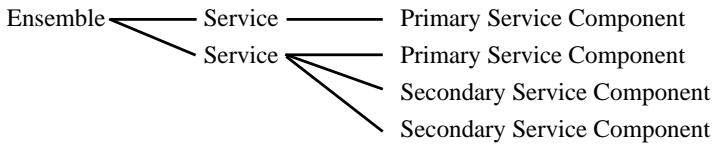
About Service Components
Service Components include Audio and Data. Data Service reception is not possible with this unit. (In this Manual, Service refers to the regular Audio Service.)
About the "DAB READY" Indicator
There's a "DAB READY" indicator in the Head Unit's display. This indicates DAB reception is possible.
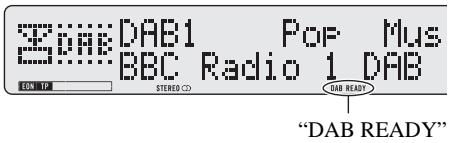
Note:
- If there's no sound even when "DAB READY" is lit, refer to "Selecting the Service" on page 11, and switch Services. (The Service you were listening to may have ended.)
- Head Unit Group 2 and 3 units do not feature a "DAB READY" indicator.
When listening to DAB
Lights during Ensemble reception.
When listening to a non-DAB source
Lights when in an area where DAB reception is possible.
Switching Power ON/OFF
- Select DAB.

Head Unit
Press the SOURCE/OFF button, and select DAB as follows.
Built-in CD Player Tuner DAB (Digital Audio Broadcasting) Multi-MD Player
Multi-CD Player AUX ...
To switch the sources OFF, hold down the SOURCE/OFF button for 1 second or more.
Remote Controller
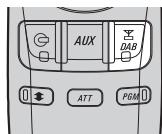
Press the TUNER/DAB button, and select DAB as follows.
Tuner DAB (Digital Audio Broadcasting) OFF
1. Select DAB.
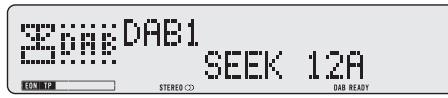
When you first switch to DAB, Auto Seek is performed to find a DAB Ensemble.
(Auto Seek is also performed in the same way each time you switch bands.)
Once Ensemble is received, Auto Seek ends.
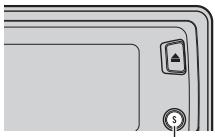
Each press changes the Source ...
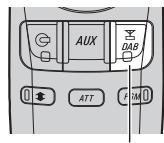
Each press changes the Source ...

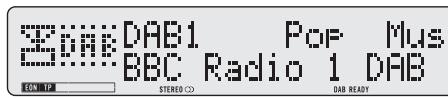
2. Select a desired Service.
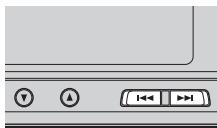
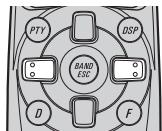

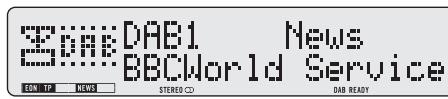
If you cannot find a desired Service, repeat step 2 after switching to Ensemble in step 3.
3. Tune to a high or low frequency (Ensemble).
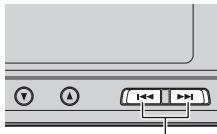
Hold for 0.5 seconds
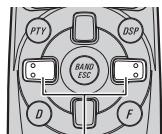
Hold for 0.5 seconds

4. Turn the source OFF.
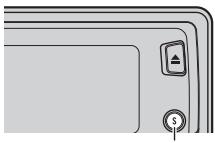
Hold for 1 second

You can switch to an Ensemble offering a desired Service.
- Tune to a high or low frequency (Ensemble).
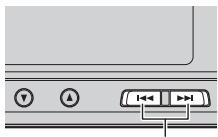
Hold for 0.5 seconds
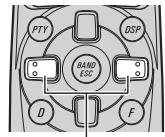
Hold for 0.5 seconds

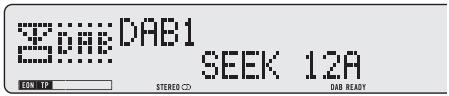
By pressing the same button, search stops and the unit switches to standby for reception of that Ensemble frequency.
Note:
- The initial Language Filter setting is OFF. (Refer to "Language Filter Function" on page 15 for details concerning Language Filter setting.)
Language Filter OFF
Priority is given to the first Service in a received Ensemble. After it is selected, sound of that Service's Primary Service Component is output.
Language Filter ON
Search for a Service Component of the set language among the received Ensemble is performed.
When a Service Component is found
Sound of that Service Component is output.
When a Service Component is not found
Priority is given to the first Service. After it is selected, sound of that Service's Primary Service Component is output.
(Same as when the Language Filter is OFF.)
Selecting the Service
Select a desired Service from the received Ensemble.
- Select a desired Service.
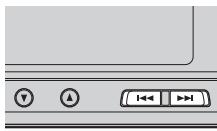
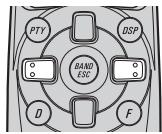

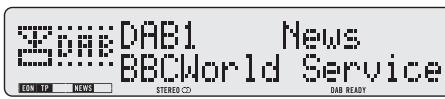
Note:
- The initial Language Filter setting is OFF. (Refer to "Language Filter Function" on page 15 for details concerning Language Filter setting.)
Language Filter OFF
Sound of the selected Service's Primary Service Component is output.
Language Filter ON
Search for a Service Component of the set language in the selected Service is performed.
When a Service Component is found
Sound of that Service Component is output.
When a Service Component is not found
Sound of the selected Service's Primary Service Component is output.
(Same as when the Language Filter is OFF.)
Changing the Band
To enable this unit to memorize more Services, frequencies are stored in three bands, 1, 2 and 3. (Frequencies (Ensemble) that can be received are the same for 1, 2 and 3.)
Note:
- When first switching to each of the bands, Auto Seek is performed for receivable Ensembles. (The starting frequency for Auto Seek in each band differs. For this reason, when multiple frequencies are receivable, a different frequency is automatically received in each band.)
- Switch bands.
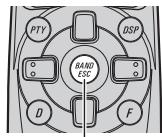
Each press
changes the Band ...

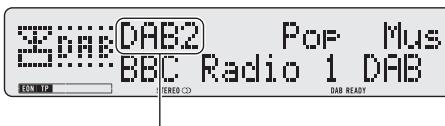
DAB1 DAB2 DAB3
When Ensemble is received and Service selection is possible, you can change the display as follows:
Changing the Label
- Select a desired display.
Each press changes the Display ...
Each press changes the Display ...

Each press of the DISPLAY button changes the display in the following order:
PTY Label Service Component Label Ensemble Label Dynamic Label PTY Label ...
Note:
- With a Service Component that has no Service Component Label or Dynamic Label, switching to Service Component Label and Dynamic Label is not possible.
- With displays other than PTY Label, if you do not perform an operation within 8 seconds or press a button other than the DISPLAY button, the display returns to PTY Label indications.
Head Unit Group 2
- Change the Label mode (FUNC1) with the / buttons.
The mode changes as follows:
Service Label PTY Label Service Component Label Ensemble Label Service Label ...
Note:
- Switching to Dynamic Label is not possible.
- With a Service Component that has no Service Component Label, switching to Service Component Label is not possible.
Head Unit Group 3
Service Label PTY Label Service Component Label Ensemble Label Service Label ...
Note:
- Switching to Dynamic Label is not possible.
- With a Service Component that has no Service Component Label, switching to Service Component Label is not possible.
- With displays other than Service Label, if you do not perform an operation within 8 seconds or press a button other than the Function button/1, the display returns to Service Label indications.
Changing Display Indications
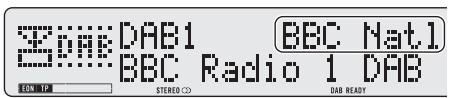
You can switch between 16 and 8 letters display of PTY Label, Service Component Label and Ensemble Label indications.
- Switch between Service Label displays.
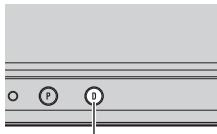
Hold for 2 seconds
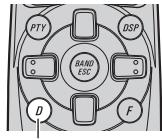
Hold for 2 seconds

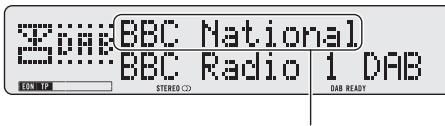
e.g. "BBC National" "BBC Natl"
The display changes each time you press the button for 2 seconds or more.
Note:
- Head Unit Groups 2 and 3 Head Units do not have this function.
Preset Memory Function
Preset Memory
Preset Memory lets you store Services in memory.
Note:
- When no Ensemble is selected, a previously memorized Service is recalled.
1. Select a desired Service to store in memory.
2. Press a button from 1-6 for 2 seconds or more to store a desired Service. (e.g. Press button 4.)
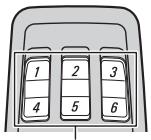
Hold for 2 seconds

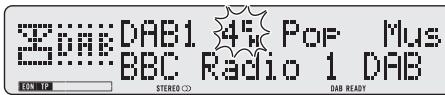
The Service is stored in the selected button.
Recalling Preset Services
If the preset Service is in the Ensemble you are currently listening to, that Service is recalled. If the preset Service is not in the current Ensemble, the correct Ensemble is first tuned in, and then the preset Service is recalled.
Note:
- If the Service has ended when preset is performed, the unit switches to Standby for that Ensemble.
Direct Recall
- Press a button from 1-6 to recall a Service preset in that button. (e.g. Press button 4.)

Sequential Recall
- Recalls Services preset in buttons 1-6 in sequence.

Note:
- The initial Language Filter setting is OFF. (Refer to "Language Filter Function" on page 15 for details concerning Language Filter setting.)
Language Filter OFF
Sound of the recalled Service's Primary Service Component is output.
Language Filter ON
Search for a Service Component of the set language in the recalled Service is performed.
When a Service Component is found
Sound of that Service Component is output.
When a Service Component is not found
Sound of the recalled Service's Primary Service Component is output. (Same as when the Language Filter is OFF.)
Entering the Function Menu
This menu enables selection of DAB functions.
- Select the desired mode in the Function menu.
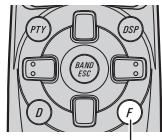

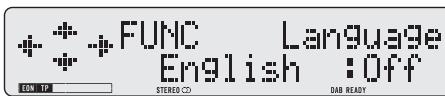
Each press changes the Mode ...
Each press of the FUNCTION button selects the mode in the following order:
Language Filter (Language) Announcement Support (Announce S)
Service Follow (SF) Service Component (Primary/2) Dynamic Label*
- You cannot switch to this mode with a Service that has just one Service Component.
**You cannot switch to this mode with a Service Component that has no Dynamic Label.
To cancel the Function Menu, press the BAND button.
Note:
- After entering the Function menu, if you do not perform an operation within about 30 seconds, the Function Menu is automatically canceled.
Head Unit Group 2 (See page 6)
Changing the Label (FUNC1) Service Component (FUNC2)
Service Follow (FUNC3) No Function (FUNC4) No Function (AUTO)
Note:
- This unit does not feature FUNC4 and AUTO function capability.
Language Filter Function
When you select another Ensemble or Service, or perform PTY Search, you can set the unit to give priority to Service Components broadcast in a desired language.
Setting for up to 6 languages is possible. If you switch the Language Filter Function ON when you have set more than 6 Languages, the Languages least recently set are switched OFF.
(Details concerning each operation are provided in each section.)
- Select the Language Filter mode (Language) in the Function Menu.
2. Select the desired language.
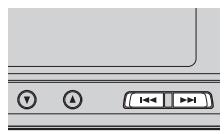
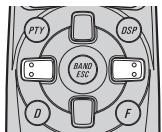

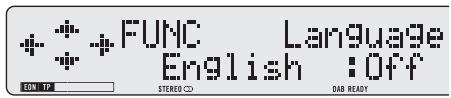
3. Switch the selected language ON/OFF.
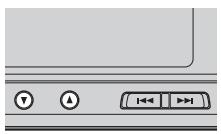
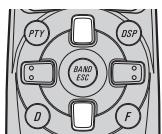

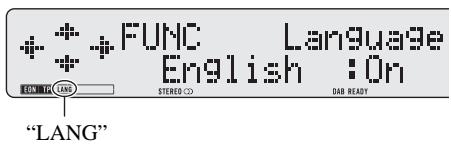
To cancel the Function Menu, press the BAND button.
Languages that can be set
The Languages that can be set with this unit are the 29 Languages shown below. They are in alphabetical order for easier location. (The switching order differs from that indicated in the display during Language Filter mode operation.)
| Display | Language |
| Arabic | Arabic |
| Basque | Basque |
| Breton | Breton |
| Catalan | Catalan |
| Czech | Czech |
| Danish | Danish |
| Dutch | Dutch |
| English | English |
| Estonian | Estonian |
| Faroese | Faroese |
| Finnish | Finnish |
| French | French |
| Frisian | Frisian |
| Gaelic | Gaelic |
| German | German |
| Display | Language |
| Greek | Greek |
| Hung. | Hungarian |
| Irish | Irish |
| Italian | Italian |
| Lappish | Lappish |
| Lux. | Luxembourgian |
| Norw. | Norwegian |
| Polish | Polish |
| Port. | Portuguese |
| Russian | Russian |
| Spanish | Spanish |
| Swedish | Swedish |
| Turkish | Turkish |
| Welsh | Welsh |
Announcement Support Function
Even when listening to non-DAB sources, the Announcement Support Function lets you automatically listen to set Announcement Support. When the interrupting announcement ends, play returns to the original source.
When listening to a DAB broadcast, you can switch setting for announcement interruption ON/OFF, except for Alarm announcements. Switching between Announcements is as follows:
Announcement that is always ON:
- Alarm (Alarm)
Announcements operated by the TA button:
Road Traffic Flash ("TP" indicator)
- Transport Flash ("TP" indicator)
Announcements operated with the Function Menu:
- Warning/Service (Warning)
- News Flash (News)
Area Weather Flash (Weather)
Event Announcement (Event) - Special Event (SP. Event)
Announcements operated by the TA button
Switching the Road Traffic Flash and Transport Flash ON/OFF
- Switch Road Traffic Flash and Transport Flash ON/OFF.
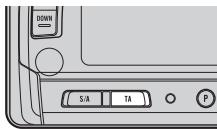
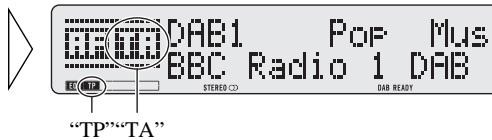
Each time you press the TA button, the announcement is switched ON/OFF.
Note:
- When the Service Component supporting Road Traffic Flash and Transport Flash is selected, "TP" lights.
- When listening to FM, turning ON/OFF the RDS TA function will simultaneously turn ON/OFF the DAB Road Traffic Flash and Transport Flash.
■ Canceling Road Traffic Flash and Transport Flash interruptions part way through
- To cancel a Road Traffic Flash or Transport Flash interruption and return to the original source, press the TA button during an Announcement interruption.
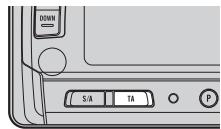
Note:
- You can also switch in order between interrupting Announcements. (Refer to "Switching Interrupting Announcements" on the next page.)
TP Alarm Function
When the following conditions arise, the "TP" and "EON TP" indicators go out, and after 30 seconds, the TP Alarm beeps for 10 seconds, reminding you to select a Service Component supporting Road Traffic Flash and Transport Flash.
- When Road Traffic Flash and Transport Flash interruption setting is ON.
- When the Service Follow Function is ON.
- When this unit (during DAB reception) cannot clearly receive a Service Component supporting Road Traffic Flash and Transport Flash.
-
When Head Unit RDS cannot receive a TP or EON TP station broadcast.
-
When listening to a DAB broadcast, after hearing the TP Alarm, you should re-tune to a Service that supports Road Traffic Flash and Transport Flash if you want to continue the possibility to recieve them.
When listening to any other sources, 30 seconds after "TP" is displayed before going out, search automatically starts for a Service Component in that area that supports Road Traffic Flash and Transport Flash.
Operating Announcements with the Function Menu
Switch Announcements ON/OFF
- Select the Announcement Support mode (Announce S) in the Function Menu.
- Select the desired Announcement Support in the following order:
Warning/Service (Warning) News Flash (News) Area Weather Flash (Weather)
Event Flash (Event) Special Event (SP. Event)
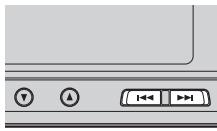
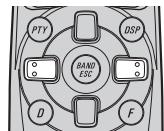

- When “*” is displayed, it indicates that Announcement Support is provided by the current Service.
Note:
- With some Head Units, you can select the desired Announcement Support in the following order: Announce (Announce) News (News) Area Weather Flash (Weather)
-
When "Announce" is ON, "Warning Service", "Event Flash" and "Special Event" in Announce are also switched ON.
-
Switch the selected Announcement Support ON/OFF.
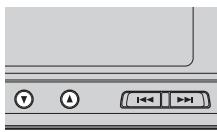
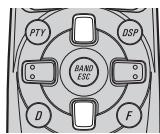

To cancel the Function Menu, press the BAND button.
Switching Interrupting Announcements
When there are multiple Announcements in standby waiting to interrupt, and you are listening to an Announcement, you can switch between them in order.
- Switch to the next Announcement.
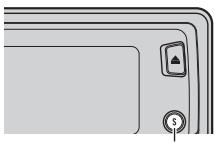
Each press changes the Announcement ...
Each time you press the SOURCE/OFF button, you move to the next Announcement. When there are no more Announcements you return to the original one.
If reception of the selected Service worsens, this automatically searches for other Ensemble supporting the same Service. Depending on conditions, an Ensemble supporting Alarm and Road Traffic Flash is received.
- Select the Service Follow mode (SF) in the Function Menu.
- Switch Service Follow ON/OFF.
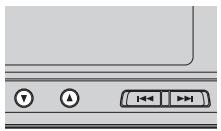
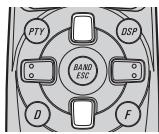

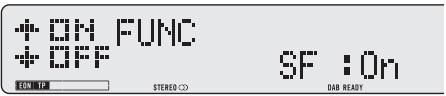
To cancel the Function Menu, press the BAND button.
Service Follow Function (FM)
When an Ensemble that supports the same Service can't be found, or when reception conditions are poor, the Service Follow Function switches to an identical FM broadcast. However, switching is not possible if reception of a station broadcasting an identical FM transmission is poor, doesn't exist or is not cross-referenced by the DAB station. During FM reception, if DAB finds a Service identical to the original Service, and reception is better, DAB reception resumes. Selection is then performed in line with the Service Component selected with the first Service.
Note:
- Switch the Service Follow Function ON, and the Service Follow Function (FM) is automatically switched ON.
- The Service Follow Function (FM) is a DAB function. If the initial source you listen to is RDS (FM), there's no switching to DAB.
- Even if you switch to an FM broadcast, the button only functions during DAB operation.
- Head Unit Group 2 and 3 Head Units do not feature the Service Follow Function (FM).
■ When the "SF" indicator flashes
When the selected Service does not have broadcast station information for an identical FM broadcast, if reception conditions for that Service worsen, the "SF" indicator flashes to indicate the Service Follow Function (FM) cannot operate.
Note:
- Refer to "Selecting the Status Display" in the Head Unit's Operation Manual for confirmation concerning "SF" indicator flashing.
Service Component Function
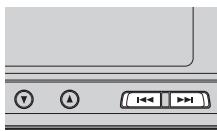
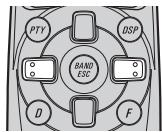
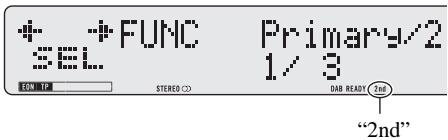
If the currently received Service has a Secondary Service Component ("2nd" lights), Service Component switching is possible.
- Select the Service Component Switching mode (Primary/2) in the Function Menu.
- Select the desired Service Component.

Note:
- With Head Unit Group 2 and 3 Head Units, switching between Service Components is possible in one direction only.
Dynamic Label Function
Dynamic Label provides character information concerning the Service Component you're currently listening to. You can scroll the displayed information.
- Select the Dynamic Label mode (Dynamic) in the Function Menu.
- Scroll the Dynamic Label.
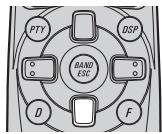

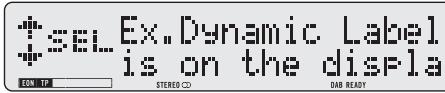
If you continue, you return to the first line.
Note:
- When viewing Dynamic Label, do not operate until you have parked your car safely.
- With a Service Component that has no Dynamic Label, Dynamic Label information is not displayed.
- If you press the button when scrolling, you return to the first line.
- If you select the Dynamic Label mode again after having canceled it, the information may switch to the latest available.
PTY Function
Wide and Narrow PTY (Program Type ID code) search are possible. Search begins in order from the next Service after the currently selected Service. In the Ensemble of the first Service in which PTY Search is performed, if there are no Services meeting requirements even if all Services other than those selected are searched, search switches to the next Ensemble. Search in this Ensemble starts from the first Service and continues in order through all Services. Search continues through following Ensemble in the same way until a selected PTY Service is found. If no selected PTY Service is found after search of the frequency (Ensemble) one before the first Service searched, "NOT FOUND" is displayed for 2 seconds, and reception returns to the original Service.
Note:
- There's no need to perform PTY Search settings again if they have previously been set. After switching to the PTY Search Setting mode in Step 1, just perform PTY Search in Step 4.
Searching the PTY
1. Select the PTY Search Setting mode.

2. Select the PTY Search method (Wide, Narrow).

3. Select one from among the PTY.

- " *" in the display indicates that there is a PTY Service in the Current Ensemble.
4. Start PTY Search.
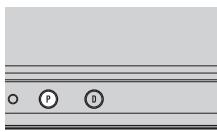
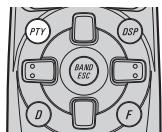

DAB searches for the desired PTY Service.
Note:
- If a zero PTY code is received, "NONE" is displayed. This indicates that the broadcast station has unlimited programs.
- If the signal is too weak, preventing this unit from discriminating the PTY code or the broadcast station does not provide PTY information, "NO PTY" is displayed.
- The initial Language Filter setting is OFF. (Refer to "Language Filter Function" on page 15 for details concerning Language Filter setting.)
Language Filter OFF
When a searched PTY Service is received, sound of that Service's Primary Service Component is output.
Language Filter ON
After search for a PTY Service is completed, search continues of all that Service's Service Components in order, starting from the Primary Service Component.
When a Service Component is found
If the preferred Language is available, then the sound of that Service Component is output.
When a Service Component is not found
Sound of the selected Service's Primary Service Component is output. (Same as when the Language Filter is OFF.)
Canceling the PTY Search Setting mode
- To cancel the PTY Search Setting mode part way through, press the PTY button for 2 seconds or longer.
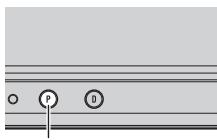
Hold for 2 seconds
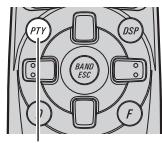
Hold for 2 seconds
| Wide | Narrow | Details |
| News&Inf (NEWS/INF) | News (NEWS) | News. |
| Weather (WEATHER) | Weather reports/Meteorological information. | |
| Affairs (AFFAIRS) | Current affairs. | |
| Sport (SPORT) | Sports programs. | |
| Finance (FINANCE) | Stock market reports, commerce, trading etc. | |
| Inf (INFO) | General information and advice. | |
| Popular (POPULAR) | Pop Mus (POP MUS) | Popular music. |
| Rock Mus (ROCK MUS) | Contemporary modern music. | |
| Easy Mus (EASY MUS) | Easy listening music. | |
| Jazz (JAZZ) | Jazz music based programs. | |
| Oldies (OLDIES) | Oldies music, ‘Golden age’ based programs. | |
| Folk Mus (FOLK MUS) | Folk music based programs. | |
| Country (COUNTRY) | Country music based programs. | |
| Nat Mus (NAT MUS) | National music based programs. | |
| Oth Mus (OTH MUS) | Other types of music, which can’t be categorized. | |
| Classics (CLASSICS) | L. Class (L. CLASS) | Light classical music. |
| Classic (CLASSIC) | Serious classical music. | |
| Others (OTHERS) | Phone In (PHONE IN) | Phone in based programs. |
| Drama (DRAMA) | All radio plays and serials. | |
| Document (DOCUMENT) | Documentary programs. | |
| Varied (VARIED) | Light entertainment programs. | |
| Children (CHILDREN) | Children’s programs. | |
| Touring (TOURING) | Travel programs, not for announcements about traffic problem. | |
| Leisure (LEISURE) | Programs about hobbies and recreational activities. | |
| Culture (CULTURE) | Programs concerned with any aspect of national or regional culture. | |
| Religion (RELIGION) | Religion affairs programs or services. | |
| Educate (EDUCATE) | Educational programs. | |
| Science (SCIENCE) | Programs about nature, science and technology. | |
| Social (SOCIAL) | Social affairs programs. |
You can memorize one Function Menu function in the PGM button.
Setting the PGM Button
- Select the PGM Button Setting mode (PGM-key).

Hold for 2 seconds
- Select the function you want to memorize in the PGM button.

- Memorize the function in the PGM button.

To cancel the PGM Button Setting mode, press the BAND button.
Using the PGM Button
The PGM button operates in a different way depending on the function programmed (memorized).
- Use the PGM button.
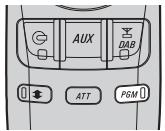
| Function | Press | Hold for 2 seconds |
| Service Follow (SF) | ON/OFF | — |
| Service Component Switching (P/2nd) | Select | — |
Head Unit Group 2
| Function | Press | Hold for 2 seconds |
| Changing the Label (FUNC1) | Select | — |
| Service Component Function (FUNC2) | Select | — |
| Service Follow Function (FUNC3) | Select | — |
Note:
- You can also memorize FUNC4 and A/M in the PGM button, but these do not correspond to a function, and therefore even if they are memorized, the button will not operate anything.
When there is the danger of a short occurring in this unit, the antenna or the surrounding antenna cable, "ERROR-01" is displayed. If this happens, check there is nothing unusual with the unit, antenna or antenna cable.
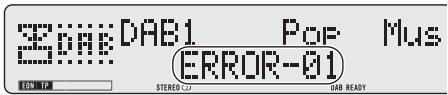
General
Power source 14.4 V DC (10.8 - 15.1 V allowable)
Grounding system Negative type
Max. current consumption 0.6 A
Dimensions 231 (W) × 28 (H) × 182 (D) mm
Weight 2.5 kg
DABtuner
Frequency range (Band III) 174.928 - 239.200 MHz (5A - 13F) (L Band) ... 1,452.960 - 1,490.624 MHz (L1 - L23)
Usable sensitivity (Band III) - 100 dBm (L Band) - 97.5 dBm Mode I, II, III, IV
Audio
Signal-to-noise ratio 94 dB (IEC-A network)
Separation 94 dB (1 kHz)
Antenna
Type Active type
Note:
- Specifications and the design are subject to possible modification without notice due to improvements.
PIONEER ELECTRONIC CORPORATION
PIONEER ELECTRONICS (USA) INC.
P.O.Box 1760, Long Beach, California 90801,U.S.A. TEL: (800)421-1404
PIONEER ELECTRONIC (EUROPE) N.V.
Haven 1087 Keetberglaan 1, 9120 Melsele, Belgium
TEL: (0) 3/570.05.11
PIONEER ELECTRONICS AUSTRALIA PTY. LTD.
178-184 Boundary Road, Braeside, Victoria 3195, Australia
TEL: (03) 9586-6300
PIONEER ELECTRONICS OF CANADA, INC.
300 Allstate Parkway, Markham, Ontario L3R 0P2, Canada
TEL: (905) 479-4411
PIONEER ELECTRONICS DE MEXICO, S.A. de C.V.
San Lorenzo Num 1009 3er piso Desp. 302
Col. Del Valle, Mexico D.F. C.P. 03100
TEL: 5-688-52-90
Published by Pioneer Electronic Corporation.
Copyright © 1999 by Pioneer Electronic
Corporation. All rights reserved.
Publication de Pioneer Electronic Corporation.
Copyright © 1999 Pioneer Electronic Corporation.
- Before Using This Product 2
- Basic Operation 7
- Using the DAB Functions 15
- Troubleshooting 27
- Specifications 28
- About This Product
- About This Manual
- Precaution
- In Case of Trouble
- Head Unit (e.g. DEH-P945R)
- Remote Controller (e.g. DEH-P945R)
- Steering Remote Controller:
- Operating with Different Head Units
- Note:
- Head Unit Group 1
- Head Unit Group 2
- Head Unit Group 3
- Function Compatibility Charts
- What is DAB?
- Outline
- About Service Components
- About the "DAB READY" Indicator
- When listening to DAB
- When listening to a non-DAB source
- Switching Power ON/OFF
- Head Unit
- Remote Controller
- Select DAB.
- Select a desired Service.
- Tune to a high or low frequency (Ensemble).
- Turn the source OFF.
- Language Filter OFF
- Language Filter ON
- When a Service Component is found
- When a Service Component is not found
- Selecting the Service
- - Select a desired Service.
- Changing the Band
- - Switch bands.
- Changing the Label
- Changing Display Indications
- - Switch between Service Label displays.
- Preset Memory Function
- Preset Memory
- Select a desired Service to store in memory.
- Press a button from 1-6 for 2 seconds or more to store a desired Service. (e.g. Press button 4.)
- Recalling Preset Services
- Direct Recall
- Sequential Recall
- Entering the Function Menu
- Head Unit Group 2 (See page 6)
- Language Filter Function
- Select the desired language.
- Switch the selected language ON/OFF.
- Languages that can be set
- Announcement Support Function
- Announcement that is always ON:
- Announcements operated by the TA button:
- Announcements operated with the Function Menu:
- Announcements operated by the TA button
- Switching the Road Traffic Flash and Transport Flash ON/OFF
- - Switch Road Traffic Flash and Transport Flash ON/OFF.
- TP Alarm Function
- Operating Announcements with the Function Menu
- Switch Announcements ON/OFF
- Switching Interrupting Announcements
- Service Follow Function (FM)
- ■ When the "SF" indicator flashes
- Service Component Function
- Dynamic Label Function
- PTY Function
- Searching the PTY
- Select the PTY Search Setting mode.
- Select the PTY Search method (Wide, Narrow).
- Select one from among the PTY.
- Start PTY Search.
- Canceling the PTY Search Setting mode
- Setting the PGM Button
- Using the PGM Button
- - Use the PGM button.
- General
- DABtuner
- Audio
- Antenna
- PIONEER ELECTRONIC CORPORATION
- PIONEER ELECTRONICS (USA) INC.
- PIONEER ELECTRONIC (EUROPE) N.V.
- PIONEER ELECTRONICS AUSTRALIA PTY. LTD.
- PIONEER ELECTRONICS OF CANADA, INC.
- PIONEER ELECTRONICS DE MEXICO, S.A. de C.V.
Brand : PIONEER
Model : GEX-P900DAB-02
Category : Radio