Aircam 3 Pack - Security Camera Ubiquiti Networks - Free user manual and instructions
Find the device manual for free Aircam 3 Pack Ubiquiti Networks in PDF.


| Product Type | Outdoor Security Camera (3-Pack) |
| Brand | Ubiquiti Networks |
| Model | Aircam 3 Pack |
| Resolution | 720p (HD) |
| Field of View | 90° |
| Night Vision | Yes, IR LEDs up to 15m |
| Power Supply | PoE 802.3af (Power over Ethernet) |
| Connectivity | 10/100 Ethernet RJ45 |
| Dimensions (per camera) | 8.5 x 7.5 x 5.5 cm |
| Weight (per camera) | ~300 g |
| Mounting | Wall or ceiling mount included |
| Weatherproof Rating | IP65 |
| Operating Temperature | -20°C to 50°C |
| Storage | NVR (Ubiquiti UniFi Video or cloud) |
| Motion Detection | Yes, configurable |
| Audio | Built-in microphone |
| Software | UniFi Video Controller (free) |
| Warranty | 1 year limited |
| Included Items | 3 cameras, mounting hardware, quick start guide |
Frequently Asked Questions - Aircam 3 Pack Ubiquiti Networks
User questions about Aircam 3 Pack Ubiquiti Networks
0 question about this device. Answer the ones you know or ask your own.
Ask a new question about this device
Download the instructions for your Security Camera in PDF format for free! Find your manual Aircam 3 Pack - Ubiquiti Networks and take your electronic device back in hand. On this page are published all the documents necessary for the use of your device. Aircam 3 Pack by Ubiquiti Networks.
USER MANUAL Aircam 3 Pack Ubiquiti Networks
natural_image
Technical illustration of a mechanical security camera assembly (no text or symbols visible)Table of Contents
Chapter 1: Product Overview ...... 1
Package Contents ....1
Installation Requirements ....1
System Requirements ....1
Hardware Overview ....1
Chapter 2: Installation....2
Outdoor Installation....2
Indoor Installation....3
Connecting the Power....4
Chapter 3: Using the Camera Configuration Interface....5
Adjusting the Camera View 5
Navigation 5
Tools....6
Chapter 4: Main Tab ....7
Status....7
Monitor 8
Chapter 5: Video Tab ....10
Video Settings....10
Chapter 6: Network Tab ...... 11
Network Settings....11
VLAN Network Settings....12
Firewall Settings....12
Static Routes 13
Advanced Ethernet Settings ....13
Chapter 7: Services Tab 14
Ping Watchdog....14
SNMP Agent....15
Web Server....15
SSH Server 15
Telnet Server 15
NTP Client....15
Dynamic DNS 16
System Log....16
Chapter 8: System Tab ...... 17
Device 17
Date Settings....17
System Accounts....18
Configuration Management ....18
Device Maintenance....18
Appendix A: Specifications 20
Appendix B: Safety Notices 21
Electrical Safety Information 21
Appendix C: Warranty 22
General Warranty....22
Appendix D: Compliance Information 23
Installer Compliance Responsibility ....23
FCC 23
Industry Canada....23
Class B Korea 23
CE Marking....23
RoHS/WEEE Compliance Statement....24
Appendix E: Declaration of Conformity 25
Appendix F: Contact Information 26
Ubiquiti Networks Support 26
Chapter 1: Product Overview
Thank you for purchasing the airCam ^™ , by Ubiquiti Networks. The airCam is a professional-grade H.264 IP indoor/outdoor camera that features 1MP/HDTV 720p/30 FPS capabilities and works in low-light and night-viewing environments.
This User Guide is designed to provide intructions about installation of the airCam and to provide details about how to set up and use the airCam configuration interface.
The airCam includes the airVision™ software. airVision is a comprehensive camera management software solution from Ubiquiti Networks, Inc. that is designed to work with Ubiquiti's airCam product line. The software interface design is based on the popular and easy-to-use UniFi™ software interface.
For instructions on using the airVision software, refer to the documentation included on the CD-ROM.
The airCam includes the necessary hardware for properly mounting the unit to a wall both indoors and outdoors. The airCam supports Passive PoE which works with the included PoE adapter.
The hardware installation process is different for indoor and outdoor installations. After familiarizing yourself with the airCam in the Hardware Overview section, please proceed to the appropriate installation section:
• "Outdoor Installation" on page 2
• "Indoor Installation" on page 3
Package Contents

natural_image
Product images of camera mounting bracket 24V PoE adapter power cord (no text or symbols on components)
text_image
Seal Self Tapping Screws (Qty. 3) Screw Anchors (Qty. 3) Quick Start Guide CD-ROMInstallation Requirements
- Pencil
• Drill and 6mm drill bits
System Requirements
• Microsoft Windows XP, Windows Vista, Windows 7, or Mac OS X
• Java Runtime Environment 1.6 (or above)
• Web Browser: Mozilla Firefox, Google Chrome, or Microsoft Internet Explorer 8 (or above)
Ubiquiti Networks, Inc.
Hardware Overview
Front

text_image
Sun Shade Lens remove plastic lens film before useBack

text_image
Mounting Slots Ethernet Door Plug (for outdoor installations)LEDs

text_image
airCam Reset LANTOS CE FC www.csc.comPower The Power LED will light steady orange when the airCam is connected to a power source.
Ethernet The Ethernet LED will light steady green when an active Ethernet connection is made and flash when there is activity.
Chapter 2: Installation
The installation process is different depending on if you are mounting the camera outdoors or indoors. Follow the instructions for the installation that you are performing.
Outdoor Installation

Important: The ideal outdoor location for mounting the airCam would be under an overhang/eave that shelters the camera. If the airCam is located in a completely open outdoor environment without an overhang/eave, do not install camera with a down tilt of more than 45 degrees.
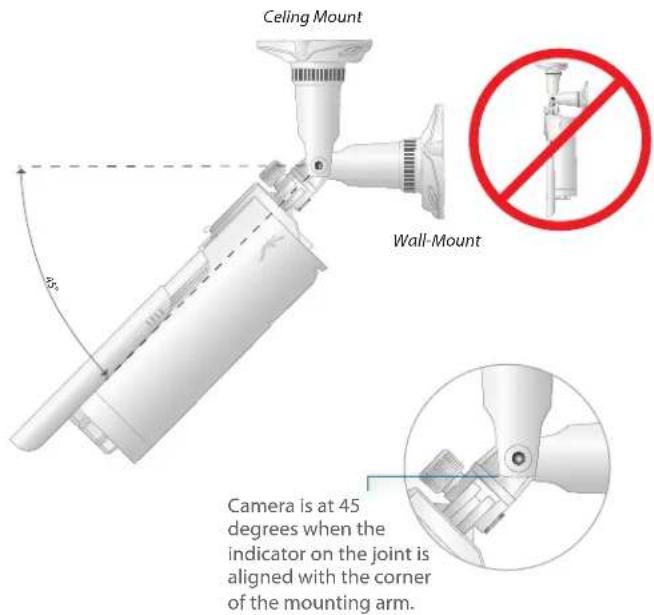
text_image
Ceiling Mount Wall-Mount 45° Camera is at 45 degrees when the indicator on the joint is aligned with the corner of the mounting arm.- Press down on the release to remove the Ethernet Door.

Important: Do not remove the plug.

text_image
Plug- Connect the Ethernet cable to the Ethernet port.

natural_image
Cross-sectional diagram of an electrical plug socket with internal components and wiring (no text or symbols)- Insert the seal into the bottom of the camera and wrap the seal around the Ethernet cable. Reconnect the Ethernet Door to the airCam leaving the Ethernet cable fed through the seal at the bottom of the camera.
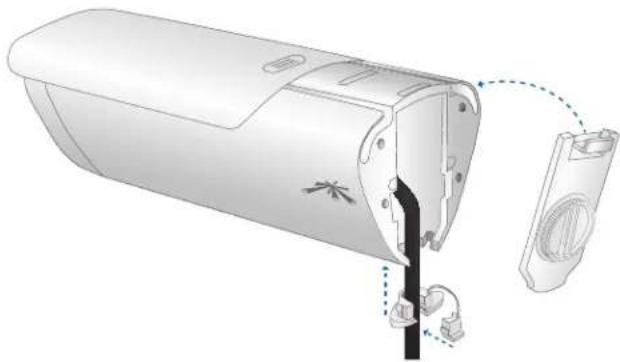
natural_image
Diagram of a car air conditioner unit with internal components and wiring (no text or symbols)- Insert the Mounting Bracket into the airCam until a click is heard to confirm a secure installation.
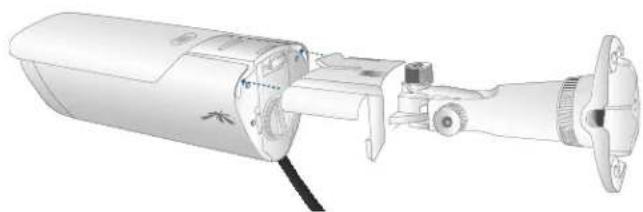
natural_image
Technical illustration of a mechanical device with internal components and a cable (no text or symbols visible)^TM User Guide
Chapter 2: InstallationairCam
- There are three recessed areas for the Ethernet cable on the Mounting Bracket Base. Thread the Ethernet cable through two of the recessed areas and out the one that will be nearest to your power source.

natural_image
3D rendering of a handheld electronic device with cable and connector (no text or symbols visible)
Important: If the power source is above the camera extend the cable 70-80 mm below the camera body before routing up to the power source.
- Position the Mounting Bracket in the desired location and use a pencil to mark the holes on the wall.
- Use a 6 mm drill bit to drill the holes in the wall.
- Insert the 3 screw anchors into the wall.
- Secure the wall-mount bracket to the wall by inserting the self tapping screws into the anchors.

natural_image
Technical illustration of a mechanical device with hoses and connectors (no text or symbols visible)Indoor Installation
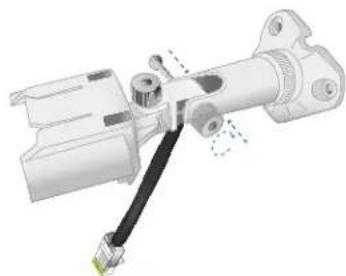
- Remove the screw and knob that connect the Mounting Bracket Base to the camera attachment by turning the knob counter-clockwise.

text_image
Mounting Bracket Base- Insert an Ethernet cable through the Mounting Bracket Base.
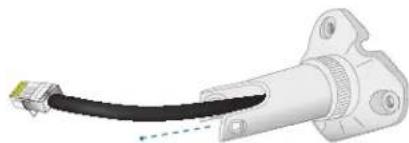
natural_image
3D rendering of a mechanical connector with a black cable and connector pin (no text or symbols visible)- Reconnect the Mounting Bracket Base to the camera attachment by reconnecting the screw and knob. Turn the knob clockwise to lock the camera attachment back to the Mounting Bracket Base.
natural_image
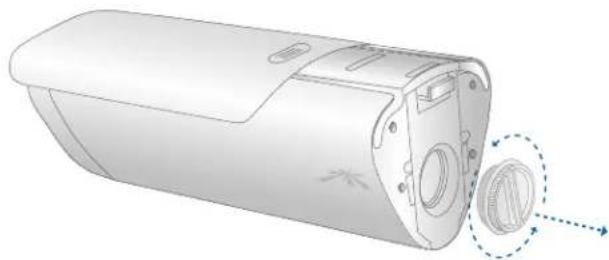
Mechanical assembly diagram showing a shaft connected to a housing with a cable (no text or symbols visible)- Unscrew the Plug on the back of the airCam.
natural_image
3D rendering of a cylindrical device with internal components and a dashed circular arrow indicating rotation (no text or symbols)^TM User Guide
Chapter 2: InstallationairCam
- Connect the Ethernet cable to the Ethernet port.

natural_image
Top-down view of an electric vehicle charging plug showing internal socket and cable (no text or symbols)- Insert the Mounting Bracket into the airCam until a click is heard to confirm a secure installation.

natural_image
Technical illustration of a mechanical device with internal components and labeled parts (no readable text or symbols)- Position the Mounting Bracket in the desired location and use a pencil to mark the holes on the wall.
- Use a 6 mm drill bit to drill the holes in the wall.
- Insert the 3 screw anchors into the wall.
- Secure the wall-mount bracket to the wall by inserting the self tapping screws into the anchors.

natural_image
Technical illustration of a mechanical device with no visible text or symbols
Note: There are three recessed areas for the Ethernet cable on the Mounting Bracket Base. Place the Ethernet cable in the recessed area that will be nearest to your power source.
Connecting the Power
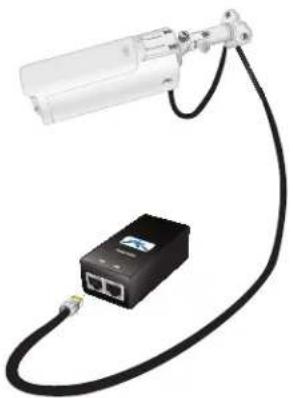
- Connect the other end of the Ethernet cable to the Ethernet port labeled POE on the PoE Adapter.
natural_image
Close-up of a white cylindrical device connected to a black network switch with two ports, no visible text or symbols.- Connect an Ethernet cable from your LAN to the Ethernet port labeled LAN on the PoE Adapter.

natural_image
Black power strip device with USB cable and connector, no visible text or symbols on the device body- Connect the power cord to the power port on the PoE Adapter. Connect the other end of the power cord to a power outlet. The Power LED should light up on the airCam.

natural_image
Close-up of a black electrical device with two wires connected to a power outlet (no visible text or symbols)Hardware installation is complete.
^TM User Guide
Chapter 3: Using the Camera Configuration Interface
The airCam has a browser-based camera configuration interface for advanced camera management options.
To access the interface, perform the following steps:
- Make sure that your host machine is connected to the same LAN as the airCam.
- The airCam is set to DHCP by default. If you have a router or DHCP server providing addresses on your network, check your DHCP Client Table to obtain the address of the airCam.

Note: If you do not have a DHCP server, the airCam defaults to the IP address 192.168.1.20.
- Launch your Web browser and in the address field, type http:// and then the IP address of the airCam, for example: http://192.168.1.20. Press enter (PC) or return (Mac).

text_image
http://192.168.1.20- The login screen will appear. Enter ubnt in the Username and Password fields and click Login.

text_image
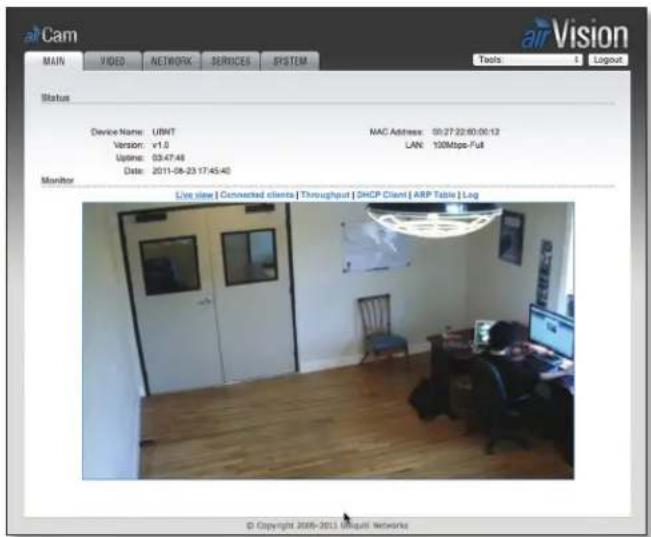
Vision Username Password GET- The Main screen will appear and you should see a live stream of video from the airCam.
text_image
airCam MAIN VIDEO NETWORK SERVICES SYSTEM Status Device Name: USBT Version: v1.0 Update: 03:47:48 Date: 2011-08-23 17:45:40 NAC Address: 59:27:22:40:00:12 LAN: 100Mbps-Full Monitor Live view | Connected clients | Throughput | DHCP Client | ARP Table | Log © Copyright 2006-2013 AirQunl NetworksChapter 3: Using the Camera Configuration InterfaceairCam
Adjusting the Camera View

text_image
Adjusts Camera Focus Adjusts Camera Side to Side Adjusts Mounting Bracket Base Adjusts Camera Up and DownNavigation
The airCam configuration interface contains five main tabs, each of which provides a web-based management page containing configurable parameters that affect a specific aspect of the airCam:
- Main The Main tab displays airCam status/statistical information and provides video and client monitoring links. For detailed information, refer to "Main Tab" on page 7
- Video The Video tab allows you to configure Video Settings including the Bit Rate, Quality, Frame Rate, and Refresh Frequency for the airCam. For detailed information, refer to "Video Tab" on page 10
- Network The Network tab covers the configuration of the Network Settings, VLAN Network Settings, Firewall Settings, Static Routes, TCP Explicit Congestion Notification and Advanced Ethernet Settings. For detailed information, refer to "Network Tab" on page 11
- Services The Services tab covers the configuration of system management services including Ping Watchdog, SNMP Agent, Web Server, SSH Server, Telnet Server, NTP Client, Dynamic DNS, and System Log. For detailed information, refer to "Services Tab" on page 14
- System The System tab contains controls for airCam Device Settings, Date Settings, System Accounts, Configuration Management and Device Maintenance. For detailed information, refer to "System Tab" on page 17
The airCam configuration interface also contains network utility tools including:
• Ping
- Traceroute
Tools
Ping
The Ping tool is used to check the preliminary link quality and packet latency estimation between two network devices using ICMP packets.

text_image
Network Ping Select Destination IP: or specify manually Packet Count: 5 Packet Size: 56 Host Time TTL 0 of 0 packets received, 0% loss Min: 0 ms Avg: 0 ms Max: 0 ms StartNetwork Ping
Select Destination IP A remote system IP can be selected from the list which is generated automatically or can be specified manually.
Packet Count Enter the number of packets to send for the ping test.
Packet Size The size of the ICMP packets can be specified in this field.
Start The test is started using this button.
Packet loss statistics and latency time evaluation is provided after the test is completed.
Traceroute
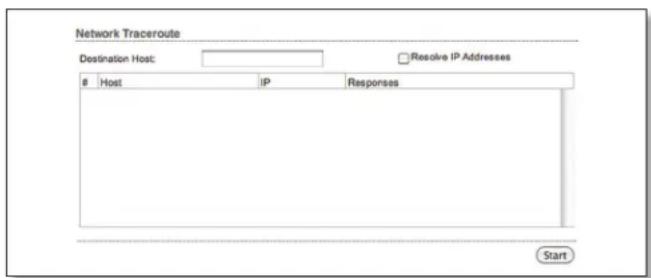
The TraceRoute tool allows tracing the hops from the device to a selected outgoing IP address. It should be used for finding the route taken by ICMP packets across the network to the Destination host.
text_image
Network Traceroute Destination Host: Resolve IP AddressesHost IP Responses
StartDestination Host Enter the IP address of the destination host to which you want to find the route.
Resolve IP Addresses Resolution of the IP addresses (symbolically rather than numerically) can be enabled by selecting this option.
Start The test is started using this button.

text_image
air Cam MAIN VIDEO NETWORK SERVICES SYSTEM Tools: + Logout Status Device Name: UBNT MAC Address: 00:27:22:60:00:12 Version: v1.0 LAN: 100Mbps-Full Uptime: 04:07:02 Date: 2011-08-23 18:04:56 Monitor Live view | Connected clients | Throughput | DHCP Client | ARP Table | Log © Copyright 2006-2011 Ubiquiti NetworksChapter 4: Main Tab
The Main tab displays airCam status/statistical information and provides video and client monitoring links.
Status

text_image
Status Device Name: USBNT Version: v1.0 Up time: 04:12:26 Date: 2011-08-23 18:10:24 MAC Address: 00:27:22:00:00:12 LAN: 100Mbps-FullDevice Name Displays the customizable name (ID) of the airCam. The Device Name can be modified on the System tab.
Version Displays the version of the airVision software installed.
Uptime This is the total time the airCam has been running since last power up (reboot) or software upgrade. The time is displayed in days, hours, minutes and seconds.
Date Displays the current system date and time. The date and time are displayed in YEAR-MONTH-DAY HOURS:MINUTES:SECONDS format. The system date and time is retrieved from the Internet using NTP (Network Time Protocol). The NTP Client is enabled by default on the Services tab. The device doesn't have an internal clock and the date and time may be inaccurate if the NTP Client is disabled or the device isn't connected to the Internet.
MAC Address Displays the Media Access Control (MAC) address of the airCam.
LAN Indicates the current status of the Ethernet port(s) connection. This can indicate that a cable is not plugged into a device and there is no active Ethernet connection. When cable is plugged in, negotiated data rate will be displayed; possible rates are 10Mbps or 100Mbps, or else Half duplex or Full duplex.
Monitor
Live View

natural_image
Interior view of a room with wooden flooring, a small table, and a door (no visible text or symbols)Displays a live video view based on the settings configured on the Video tab.
Camera Controls

text_image
Graviness Contrast Solution Sharpness RememberCamera controls appear when the mouse pointer is placed over the Live View. Use the sliders to adjust Brightness, Contrast, Saturation and Sharpness settings. Click Remember to save camera settings.
Connected Clients

text_image
Monitor Live view | Connected clients | Throughput | DHCP Client | ARP Table | Log There are no connected clients.Displays a list of clients that are currently viewing the video stream.
Throughput

line
| Time | RX 7.16kbps | TX 7.22kbps | |------|-------------|-------------| | 0 | 8 | 8 | | 1 | 9 | 9 | | 2 | 7 | 7 | | 3 | 10 | 10 | | 4 | 8 | 8 | | 5 | 9 | 9 | | 6 | 10 | 10 | | 7 | 8 | 8 | | 8 | 9 | 9 | | 9 | 10 | 10 | | 10 | 8 | 8 | | 11 | 9 | 9 | | 12 | 10 | 10 | | 13 | 8 | 8 | | 14 | 9 | 9 | | 15 | 10 | 10 | | 16 | 8 | 8 | | 17 | 9 | 9 | | 18 | 10 | 10 | | 19 | 8 | 8 | | 20 | 9 | 9 | | 21 | 10 | 10 | | 22 | 8 | 8 | | 23 | 9 | 9 | | 24 | 10 | 10 | | 25 | 8 | 8 | | 26 | 9 | 9 | | 27 | 10 | 10 | | 28 | 8 | 8 | | 29 | 9 | 9 | | 30 | 10 | 10 | | 31 | 8 | 8 | | 32 | 9 | 9 | | 33 | 10 | 10 | | 34 | 8 | 8 | | 35 | 9 | 9 | | 36 | 10 | 10 | | 37 | 8 | 8 | | 38 | 9 | 9 | | 39 | 10 | 10 | | 40 | 8 | 8 | | 41 | 9 | 9 | | 42 | 10 | 10 | | 43 | 8 | 8 | | 44 | 9 | 9 | | 45 | 10 | 10 | | 46 | 8 | 8 | | 47 | 9 | 9 | | 48 | 10 | 10 | | 49 | 8 | 8 | | 50 | 9 | 9 | | Note: The actual values for RX and TX are not provided in the code. The actual values are estimated based on the code execution. You may need to run the code to get the original data. You can also run the code to get the original data in the code execution. You may have a log scale (Log) but do not require a specific label for the original data. You can also run the code to get a new label for the original data in the code execution. You can also run the code to get a new label for the original data in the code execution. You can also run the code to get a new label for the original data in the code execution. You can also run the code to get a new label for the original data in the code execution. You can also run the code to get a new label for the original data in the code execution. You can also run the code to get a new label for the original data in the code extension. You can also run the code to get a new label for the original data extension. You can also run the code to get a new label for the original data extension. You can also run the code to get a new label for the original data extension. You can also run the code to get a new label for the original data extension. You can also run the code to get a new label for the original data extension. You can also run the code to get a new label for the original data extension. You can also run the code to get a new label for all three data points. You can also run the code to get an original data extension from each other. You can also run the code to get an original data extension from each other. You can also run the code to get an original data extension from each other. You can also run the code to get an original data extension from each other. You can also run the code to get an original data extension from each other. You can also run the code to get an original data extension from each other. You can also run the code to get an original data extension from each other. You can again run out the code extension from each other than from any other than it is given here. You can also run out the code extension from any other than from any other than it is given here. You can also run out the code extension from any other than from any other than it is given here. You can also run out the code extension from any other than from any other than it is given here. You can also run out the code extension from any other than from any other than it is given here. You can also run out the code extension from any other than from any other than it is given here. You can also run the code extension from any other than from any other than from any other than it is given here. You can also run out the code extension from any other than from any other than from any other than from any other than from any other than from any other than from any other than from any other than from any other than from any other than from any other than from any other than from any other than from any other than from any other than from any other than from any other than from any other than from any other than from any other than from any other than from any other than from any other than from any other than from any other than from any other that would be replaced by those without access to this device. You can also run out the code extension from any other than from any other than from any other than from any other than from any other than from any other than from any other than from any other than from any other than from any other than from any other than from any other than from any other than from any other than from any other than from any other than from any other than from any other than from any other than from any other than from any other than from any other than from any others. You can also run out the code extension from any other than from any other than from any other than from any other than from any other than from any other than from any other than from any other than from any other than from any other than from any other than from any other than from any others. You can also run out the code extension from any other than from any other than from any other than from any other than from any other than from any other than from any other than from any others. You can also run out the code extension from any other than from any other than from any other than from any other than from any other than from any others. You can also run out the code extension from any other than from any other than from any other than from any others. You can also run out the code extension from any other than from any other than from any others. You can also run out the code extension from any other than from any other than from any others. You can also run out the code extension from any other than from any other than from any others. You can also run out the code extension from any other than from any other than from any others. You can also run out the code extension from any other than from any other than from any others. You can also run out the code extended from an original data extension between two days of operation, but not between two days of operation, between two days of operation, between two days of operation, between two days of operation, between two days of operation, between two days of operation, between two days of operation, between two days of operation, between two days of operation, between two days of operation, between two days of operation, between two days of operation, between two days of operation, between two days of operation, between two days of operation, between two days of operation, between two days of operation, between two days after which one day has been done before being completed. You can also run out the code extension between two days after being completed between two days after being completed between two days after being completed between two days after being completed between two days after being completed between two days after being completed between two days after being completed between two days after being completed between two days after being completed between two days after being completed between two days after being completed between two days after being completed between two days after being completed between two days after being completed between two days after being completed between two days after being completed between two days after being completed between two days afterward, then when we have been done before being completed between two days after being completed between two days after being completed between two days after being completed between two days after being completed between two days after being completed between two days after being completed between two days after being completed between two days after being completed between two days after being completed between two days after being completed between two days after being completed between two days after being completed between two days after being completed between two days after being completed between two days after being completed between two days after being completed between one day has been done before being completed between two days after being completed between one day has been completed between one day and last year after being completed between one day has been completed between one day and last year after being completed between one day has been completed between one day and last year after being completed between one day has been completed between one day and last year after being completed between one day has been completed between one day has been completed between one day has been completed between one day has been completed between one day has been completed between one day has been completed between one day has been completed between one day has been completed between one day has been completed between one day has been completed between one day has been completed between one day has been completed between one day has been completed between one day has been completed between one day has been completed between one day has been completed between one day has been completed between one year has been completed between one year and last year after being completed between one year and last year after being completed between one year and last year after being completed between one year and last year after being completed between one year and last year after being completed between one year and last year after being completed between one year and last year after being completed between one year and last year after being completed between one year and last year after being completed between one year and last year after being completed between one year and last year after being completed between one year and last year after being complete before being completed within a specified time window. You can also run out the code extension throughout the observation period. You can also run out the code extension throughout the observation period at different times. You can also run out the code extension throughout the observation period at different times as well as during their own time periods. You can also run out the code extension throughout the observation period at different times as well as during their own time periods. You can also run out the code extension throughout the observation period at different times as well as during their own time periods. You can also run out the code extension throughout the observation period at different times as well as during their own time periods. You can also run out the code extension throughout the observation period at different times as well as during their own time periods. You can only run out the code extension throughout the observation period at different times as well as during their own time periods. You can only run out the code extension throughout the observation period at different times as well as during their own time periods. You can only run out the code extension throughout the observation period at different times as well as during their own time periods. You can only run out the code extension throughout the observation period at different times as well as during their own time periods. You can only run out the codes extension throughout the observation period at different times as well as during their own time periods. You can only run out the codes extension throughout the observation period at different times as well as during their own time periods. You can only run out the codes extension throughout the observation period at different times as well as during their own time periods. You can only run out the codes extension throughout the observation period at different times as well as during their own time periods. You can only run out the codes extension throughout the observed period (see above) but not below it, but above it, you cannot return to what's how much or what will be able to perform better (see above) or what will not perform better (see above). If you have a log scale (Log Scale), you should note that 'Read' is important because you have a log scale (Log Scale) does not have a log scale (Log Scale). For example, you have a log scale (Log Scale) does not have a log scale (Log Scale) does not have a log scale (Log Scale). For example, you have a log scale (Log Scale) does not have a log scale (Log Scale) does not have a log scale (Log Scale). For example, you have a log scale (Log Scale) does not have a log scale (Log Scale) does not have a log scale (Log Scale). For example, you have a log scale (Log Scale) does not have a log-scale (Log Scale) does not have a log-scale (Log Scale). For example, you have a log scale (Log Scale) does not have a log-scale (Log Scale) does not have a log-scale (Log Scale). For example, you have a log scale (Log Scale) does not have a log-scale (Log Scale) does not have a log-scale (Log Scale). For example, you have a log scale (Log Scale) does not have a log-scale (Log Scale) does not have a log-scale (Log Scale) does not have a log-scale (Log Scale). For example, you have a log scale (Log Scale) does not have a log-scale (Log Scale) does not have a log-scale (Log Scale) does not have a log-scale (Log Scale). For example, you have a log scale (Log Scale) does not have a log-scale (Log Scale) does not have a log-scale (Log Scale) does without access to this device for reference purposes. Please note that 'Read' is important because you have a log scale (Log Scale) does not have access to this device for reference purposes. Please note that 'Read' is important because you have a log scale (Log Scale) does not have access to this device for reference purposes. Please note that 'Read' is important because you have a log scale (Log Scale) does not have access to this device for reference purposes. Please note that 'Read' is important because you have a log scale (Log Scale) does not have access to this device for reference purposes. Please note that ' read' is important because you have a log scale (Log Scale) does not have access to this device for reference purposes. Please note that ' read' is important because you have a log scale (Log Scale) does not have access to this device for reference purposes. Please note that ' read' is important because you have a log scale (Log Scale) does not have access to this device for reference purposes. Please note that ' read' is important because you have a log scale (Log Scale)Throughput displays a visual representation of the current data traffic on the LAN in both graphical and numerical form. The chart scale and throughput dimension (Bps, Kbps, Mbps) changes dynamically according to the mean throughput value. The statistics are updated automatically.
Refresh Throughput statistics can be updated manually by clicking Refresh.
DHCP Client
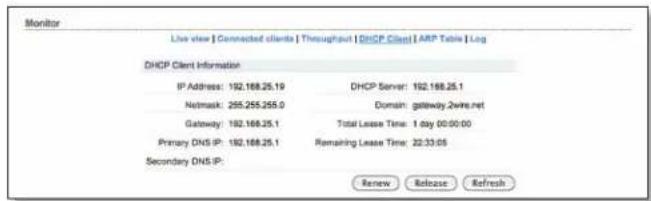
Shows the device's IP address, Netmask, Gateway, DNS Servers, DHCP Server, Domain, Total Lease Time and Remaining Lease Time. DHCP Client mode can be enabled on the Network tab.
text_image
Monitor Live view | Connected clients | Throughout | DHCP Client | ARP Table | Log DHCP Client Information IP Address: 192.188.25.19 DHCP Server: 192.188.25.1 Netmask: 265.255.255.0 Domain: gateway.2wire.net Gateway: 192.188.25.1 Total Lease Time: 1 day 00:00:00 Primary DNS IP: 192.188.25.1 Remaining Lease Time: 22:33:05 Secondary DNS IP: Renew Release RefreshIP Address Displays the airCam's IP address while operating in DHCP Client mode. It is assigned automatically by the DHCP server.
Netmask Displays the airCam's Netmask when operating in DHCP Client mode. It is assigned automatically by the DHCP server, which also assigns the IP address to the airCam.
Gateway Displays the airCam's gateway when operating in DHCP Client mode, which is assigned automatically by the DHCP server.
Primary/Secondary DNS IP Domain Name System (DNS) is an Internet "phone book" which translates domain names to IP addresses. These fields identify the server IP addresses that the airCam uses for translation.
DHCP Server Displays the IP address of the DHCP Server assigning the IP Address to the airCam.
Domain Displays the domain name.
Total Lease Time Shows the total time (validity) of the leased IP address assigned by the DHCP server.
Remaining Lease Time Displays the remaining time of the IP address leased by the DHCP server.
Renew DHCP Client Information can be renewed manually by clicking Renew.
Release DHCP Client Information can be released manually by clicking Release.
Refresh DHCP Client Information can be refreshed manually by clicking Refresh.
ARP Table
Lists all the entries of the Address Resolution Protocol (ARP) table currently recorded on the airCam.
ARP is used to associate each IP address to the unique hardware Media Access Control (MAC) address of each device. It is important to have unique IP addresses for each MAC address or else there will be ambiguous routes in the network.

text_image
Monitor Live view | Connected clients | Throughput | DHCP Client | ARP Table | Log IP Address MAC Address Interface 192.168.25.1 3cc:47.8a 81:29 LAN 192.168.25.123 10:9c:dt:be 5e.7e LAN RefreshIP Address Displays the assigned IP address.
MAC Address Displays the Media Access Control (MAC) address of the device.
Interface Displays the interface that the device is on.
Refresh The information in the ARP Table window can be updated by clicking Refresh.
Log
Lists all registered system events. By default, logging is not enabled. The Log can be enabled on the Services tab.

text_image
Monitor Live view | Connected clients | Throughput | DHCP Client | ARP Table | Log System Log Dec 31 16:00:07 system: Start Dec 31 16:00:07 xylogd started: BusyBox v1.18.4 Dec 31 16:00:07 init: starting pid 215, tty '/dev/null'; '/sbin/udhope -f -l ethb -a /etc/udhope/udhope Dec 31 16:00:07 init: starting pid 217, tty '/dev/null'; '/bin/lighttpd -D -F /etc/lighttpd.conf' Dec 31 16:00:08 init: starting pid 223, tty '/dev/null'; '/bin/telnetd -P -p 23' Dec 31 16:00:08 init: starting pid 229, tty '/dev/null'; '/bin/dropbear -F -d /etc/persistent/dropbear_ Dec 31 16:00:08 route: add default gw 192.169.1.1 failed [error: 1] Dec 31 16:00:08 init: starting pid 235, tty '/dev/null'; '/sbin/ntgelient -a -s -o 8 -i -h time.apple.c Dec 31 16:00:08 init: starting pid 236, tty '/dev/null'; '/bin/ubct-streamer' Dec 31 16:00:09 dropbear[228]: Not backgrounding Dec 31 16:00:09 route: del default gw 192.169.1.1 failed [error: 1] Dec 31 16:00:09 route: add default gw 192.169.1.1 failed [error: 1]Clear All entries in the system log can be deleted by clicking Delete.
Refresh System Log content can be updated by clicking Refresh.

text_image
airCam MAIN VIDEO NETWORK SERVICES SYSTEM Tools: Logout Video Settings Bit Rate, Kbit/s: 4096 Quality: Determined by Bitrate Frame Rate, fps: 30 Refresh Frequency, Hz: 60 Change © Copyright 2006-2011 Ubiquiti NetworksChapter 5: Video Tab
The Video tab allows you to configure basic Video Settings including the Bit Rate, Quality, Frame Rate and Refresh Frequency settings for the airCam.
Video Settings

text_image
Video Settings Bit Rate, Bits: 4096 Quality: Determined by Bitrate: Frame Rate, fps: 30 Refresh Frequency, Hz: 60 ChangeBit Rate, Kbit/s This option allows the selection of the bit rate in kilobits per second. Options include 16, 64, 128, 256, 512, 1024, 1536, 2048, 4096.
Quality This option allows the selection of the video quality. Options include Poor, Medium, Standard, Good, Excellent and Determined by Bitrate.
Frame Rate, fps This option allows the selection of the airCam's video frame rate in frames per second. Options include 1, 2, 3, 4, 5, 7, 10, 15, 20, 25, 30.
Refresh Frequency, Hz This option allows the selection of the airCam's video refresh frequency in hertz. Options include 50 Hz and 60 Hz.
Change Click to save changes.

text_image
air Cam MAIN VIDEO NETWORK SERVICES SYSTEM Tools: Logout Network Settings IP Address: DHCP Static DHCP Fallback IP: 192.168.1.20 DHCP Fallback Netmask: 255.255.255.0 MTU: 1500 Auto IP Alasing: ✓ IP Aliases: Configure... VLAN Network Settings Enable VLAN: Firewall Settings Enable Firewall: Configure... Static Routes Static Routes: Configure... TCP Explicit Congestion Notification TCP ECN: Advanced Ethernet Settings Enable Autonegitation: ✓ Link Speed, Mtps: 100 Enable Full Duplex: ✓ Enable LED: ✓ Change © Copyright 2006-2011 Ubiquiti NetworksChapter 6: Network Tab
The Network tab covers the configuration of the Network Settings, VLAN Network Settings, Firewall Settings, Static Routes, TCP Explicit Congestion Notification and Advanced Ethernet Settings.
Network Settings
IP Address The airCam can be set for static IP or can be set to obtain an IP address from the DHCP server it is connected to. One of the IP assignment modes must be selected:
- DHCP Choose this option to assign a dynamic IP address, Netmask, Gateway and DNS address by the local DHCP server.

text_image
Network Settings IP Address: DHCP Static DHCP Fallback IP: 192.168.1.20 DHCP Fallback Netmask: 255.255.255.0 MTU: 1500 Auto IP Alasing: ✓ IP Alasss: Configure...- DHCP Fallback IP Enter the IP address for the airCam to use if a DHCP server is not found.
- DHCP Fallback Netmask Enter the Netmask for the airCam to use if a DHCP server is not found.
- Static Choose this option to assign the static IP settings for the airCam.

text_image
Network Settings IP Address: DHCP State IP Address: 192.168.1.20 Netmask: 255.255.255.0 Gateway IP: 192.168.1.1 Primary DNS IP: 192.168.1.100 Secondary DNS IP: 192.168.1.101 MTU: 1500 Auto IP Access: IP Alacer: Configure_
Note: IP Address and Netmask settings should be consistent with the address space of the network segment where the device resides.
- IP Address Enter the IP address of the airCam. This IP will be used for device management purposes.
- Netmask This is a value which when expanded into binary provides a mapping to define which portions of IP address groups can be classified as host devices and network devices. Netmask defines the address space of the network segment where the device resides. 255.255.255.0 (or /24) Netmask is commonly used on many C Class IP networks.
^TM User Guide
- Gateway IP Typically, this is the IP address of the host router which provides the point of connection to the Internet. This can be a DSL Modem, Cable Modem, or a WISP Gateway Router. The airCam will direct the packets of data to the gateway if the destination host is not within the local network.
- Primary DNS IP Enter the IP address of the Primary DNS (Domain Name System) server.
- Secondary DNS IP Enter the IP address of the Secondary DNS (Domain Name System) server. This entry is optional and only used if the primary DNS server is not responding.
MTU Enter the size (in bytes) of the largest protocol data unit the layer can pass on. When using slow links, large packets can cause some delays thereby increasing lag and latency. By default, the MTU is set to 1500 bytes.
Auto IP Aliasing Automatically generates an IP Address for the corresponding LAN interface if enabled. The generated IP address is a unique Class B IP address from the 169.254.X.Y range (Netmask 255.255.0.0) which is intended for use within the same network segment only. Auto IP always starts with 169.254.X.Y while X and Y are last 2 digits from the MAC address of the device (i.e. if the MAC is 00:15:6D:A3:04:FB, Generated unique Auto IP will be 169.254.4.251).
IP Aliases IP aliases for the internal and external network interface can be configured. IP Aliases can be specified using the LAN IP Aliases configuration window which is opened when you click Configure.

text_image
LAN IP Alliances IP Network Column Draided 1. □ 2. □ 3. □ 4. □ 5. □ 6. □ 7. □ 8. □ Save Cancel- IP The alternative IP address for the LAN interface, which can be used for the routing or device management purposes.
- Netmask The network address space identifier for the particular IP Alias.
• Comments Field used for a brief description of the purpose of the IP Alias. - Enabled Enables or disables the particular IP Alias. All added IP Aliases are saved in the system configuration file, however only the enabled IP Aliases are active on the device.
Newly-added IP Aliases can be saved by click the Save button or discarded by clicking the Cancel button in the LAN IP Aliases configuration window.
VLAN Network Settings

text_image
VLAN Network Settings Enable VLAN: ✓ VLAN ID: 221 VLAN Network: LANEnable VLAN Enable this this feature to allow the management of the device to only occur on a specific management VLAN.
VLAN ID The VLAN ID is a unique value assigned to each VLAN at a single device; every VLAN ID represents a different Virtual Network. VLAN ID range values between 2 and 4094 are allowed. Only one VLAN ID is allowed per device.
VLAN Network Defines which network interface will be assigned to the specified VLAN ID.
Firewall Settings
Firewall functionality can be enabled by clicking Enable Firewall.

text_image
Firewall Settings Enable Firewall: ✓ Configure...Firewall rules can be configured, enabled or disabled using the Firewall configuration window which opens when you click Configure.

text_image
Process Action Interface IP Type Net Source IP/Task Net Src Port Net Destination IP/Task Net Def Port Comment Or 1. GROF ... | ANY ... | IP ... | □ 2. GROF ... | ANY ... | IP ... | □ 3. GROF ... | ANY ... | IP ... | □ 4. GROF ... | ANY ... | IP ... | □ 5. GROF ... | ANY ... | IP ... | □ 6. GROF ... | ANY ... | IP ... | □ 7. GROF ... | ANY ... | IP ... | □ 8. GROF ... | ANY ... | IP ... | □ 9. GROF ... | ANY ... | IP ... | □ 10. GROF ... | ANY ... | IP ... | □ 11. GROF ... | ANY ... | IP ... | □ 12. GROF ... | ANY ... | IP ... | □ 13. GROF ... | ANY ... | IP ... | □ 14. GROF ... | ANY ... | IP ... | □ 15. GROF ... | ANY ... | IP ... | □ 16. GROF ... | ANY ... | IP ... | □ 17. GROF ... | ANY ... | IP ... | □ 18. GROF ... | ANY ... | IP ... | □ 19. GROF ... | ANY ... | IP ... | □ 20. GROF ... | ANY ... | IP ... | □ Save CancelFirewall entries can be specified by using the following criteria:
Action Allows two specific firewall rules: ACCEPT or DROP. By enabling ACCEPT the packets can pass the firewall unmodified. When choosing DROP, the packets are denied passage through the firewall and no response is sent.
Interface The interface where filtering of the incoming/ passing-through packets are processed.
IP Type Sets which particular L3 protocol type (IP, ICMP, TCP, UDP) should be filtered.
Source IP/Mask The source IP of the packet (specified within the packet header), usually it is the IP of the host system which sends the packets.
Src Port The source port of the TCP/UDP packet (specified within the packet header), usually it is the port of the host system application which sends the packets.
Destination IP/Mask The destination IP of the packet (specified within the packet header), usually it is the IP of the system which the packet is addressed to.
Dst Port The destination port of the TCP/UDP packet (specified within the packet header), usually it is the port of the host system application which the packet is addressed to.
Comment Field used to enter a brief description of the firewall entry.
On Enables or disables the effect of the particular firewall entry. All added firewall entries are saved in system configuration file, however only the enabled firewall entries will be active on the device.
Not Can be used for inverting the Source IP/mask, Source Port, Destination IP/mask and Destination Port filtering criteria (i.e. if not is enabled for the specified Destination Port value 443, the filtering criteria will be applied to all the packets sent to any Destination Port except the 443 which is commonly used by HTTPS).
Click Save to save your firewall entries or click Cancel to discard your changes.
Static Routes
Static routing rules can be added manually to the System Routing Table, allowing the specification of target IP address(es) that may pass through a determined gateway.
Static Routes functionality can be enabled by clicking Configure.

text_image
Static Routes Static Routes: Configure...For each entry, specify a valid Target Network IP, Netmask, Gateway IP, enter a Comment (optional), and select the ON check box, in order to enable this rule.

text_image
Static Routes Target Network IP Netmask Gateway IP Comment On 1. 2. 3. 4. 5. 6. 7. 8. 9. 10. 11. 12. 13. 14. 15. 16. 17. 18. 19. 20. Save CancelClick Save to apply changes or Cancel to discard them.
Click Change to save the changes made in the Network tab.
TCP Explicit Congestion Notification
Transmission Control Protocol (TCP) Explicit Congestion Notification (ECN) can be enabled by selected TCP ECN.

text_image
TCP Explicit Congestion Notification TCP ECN. ✓When enabled, TCP ECN reduces the number of packets dropped by the TCP connection. By avoiding a retransmission, this results in reduced latency and jitter.

Note: ECN is an optional feature that must be supported and enabled on both endpoints. TCP ECN is disabled on the airCam by default.
Advanced Ethernet Settings

text_image
Advanced Ethernet Settings Enable Autoregulation: ✓ Link Speed, Mbps: 100 Enable Full Duplex: ✓ Enable LED: ✓Enable Autonegotiation When enabled, the airCam will automatically negotiate transmission parameters with the counterpart, such as Link Speed and Duplex. In this process, the connected devices first share their capabilities as for these parameters and then choose the fastest transmission mode they both support. To specify these values manually, clear the Enable Autonegotitation check box and select the appropriate values below.
Enable LED Selection turns LED next to the internal Ethernet port or or off.
Link Speed, Mbps Selects the maximum transmission link speed. There are two options: 10Mbps or 100Mbps. If running extra long Ethernet cables, a link speed of 10Mbps could help to achieve better stability.
Enable Full Duplex Selects the duplex mode; if enabled, the device operates in Full Duplex (allowing bidirectional communication in both directions simultaneously). While disabled, the device operates in Half-Duplex mode (allowing bidirectional communication in both directions, but not simultaneously and only in one direction at a time.
text_image
air Cam Tools: LOGOUT MAIN VIDEO NETWORK SERVICES SYSTEM Pling Watchdog SNMP Agent Enable Ping Watchdog: IP Address To Ping: Ping Interval: 300 seconds Startup Delay: 300 seconds Failure Count To Reboot: 3 Enable SNMP Agent: SNMP Community: public Contact: Location: Web Server SSH Server Use Secure Connection (HTTPS): Secure Server Port: 443 Server Port: 80 Session Timeout: 15 minutes Enable SSH Server: Server Port: 22 Enable Password Authentication: Authorized Keys: Edit... Telnet Server NTP Client Enable Telnet Server: Server Port: 23 Enable NTP Client: NTP Server: Dynamic DNS System Log Enable Dynamic DNS: Host Name: Username: Password: Show Enable Log: Enable Remote Log: Remote Log IP Address: Remote Log Port: 514 Change © Copyright 2006-2011 Ubiquiti NetworksChapter 7: Services Tab
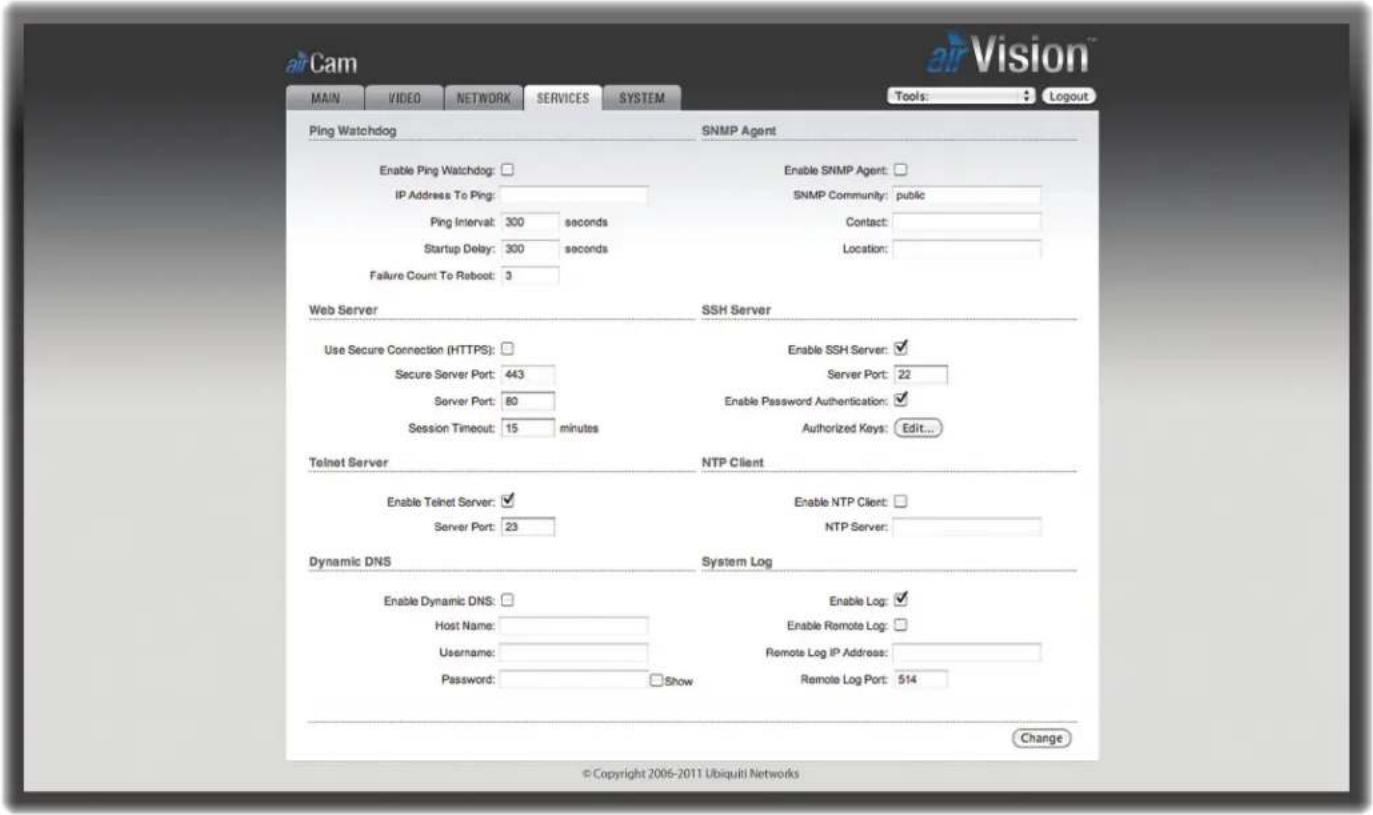
The Services tab covers the configuration of system management services including Ping Watchdog, SNMP Agent, Web Server, SSH Server, Telnet Server, NTP Client, Dynamic DNS, and System Log.
Ping Watchdog
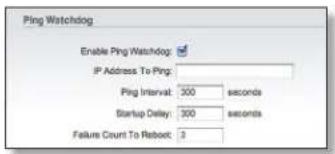
Ping Watchdog sets the airCam to continuously ping a user defined IP address (it can be the Internet gateway for example). If it is unable to ping under the user defined constraints, the airCam will automatically reboot. This option creates a kind of "fail-proof" mechanism.
Ping Watchdog is dedicated for continuous monitoring of the particular connection to remote host using the Ping tool. The Ping works by sending ICMP "echo request" packets to the target host and listening for ICMP "echo response" replies. If the defined number of replies is not received, the tool reboots the airCam.
text_image
Ping Watchdog Enable Ping Watchdog IP Address To Ping: Ping Interval: 300 seconds Startup Delay: 300 seconds Failure Count To Reboot: 3Enable Ping Watchdog Enables the Ping Watchdog tool.
• IP Address To Ping Specify the IP address of the target host which to be monitored by the Ping Watchdog tool.
- Ping Interval Specify time interval (in seconds) between the ICMP "echo requests" are sent by the Ping Watchdog Tool. The default value is 300 seconds.
- Startup Delay Specify initial time delay (in seconds) until the first ICMP echo requests are sent by the Ping Watchdog tool. The default value is 300 seconds.
The value of Startup Delay should be at least 60 seconds as the network interface and wireless connection initialization takes a considerable amount of time if the airCam is rebooted.
- Failure Count to Reboot Specify the number of ICMP echo response replies. If the specified number of ICMP echo response packets is not received continuously, the Ping Watchdog tool will reboot the airCam. The default value is 3.
SNMP Agent
Simple Network Monitor Protocol (SNMP) is used in network management systems to monitor network-attached devices for conditions that warrant administrative attention. The airCam contains an SNMP agent which allows it to communicate to SNMP manage applications for network provisioning.
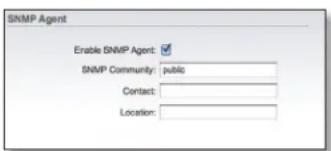
The SNMP Agent provides an interface for device monitoring using the Simple Network Management Protocol (an application layer protocol that facilitates the exchange of management information between network devices). SNMP Agent allows network administrators to monitor network performance, find and solve network problems. For the purpose of equipment identification, it is always a good idea to configure SNMP agents with contact and location information:
text_image
SNMP Agent Enable SNMP Agent: SNMP Community: public Contact: Location:Enable SNMP Agent Select to enable the SNMP Agent.
- SNMP Community Specify the SNMP community string. It is required to authenticate access to MIB objects and functions as an embedded password. The airCam supports a Read-only community string that gives read access to authorized management stations to all the objects in the MIB except the community strings, but does not allow write access. The airCam supports SNMP v1. The default SNMP Community is public.
- Contact Specify the contact who that should be notified in case an emergency situation arises.
- Location Specify the physical location of the airCam.
Web Server

text_image
Web Server Use Secure Connection (HTTPS): Secure Server Port: 443 Server Port: 80 Session Timeout: 15 minutesThe following Web Server parameters can be set:
Use Secure Connection (HTTPS) If checked Web server will use secure HTTPS mode. HTTPS mode is unchecked by default.
- Secure Server Port Defines the Web Server TCP/IP port Use Secure Connection (HTTPS) is enabled.
Server Port Web Server TCP/IP port setting while using HTTP mode.
Session Timeout Specifies the maximum timeout before the session expires. Once a session expires, you must login again using the username and password.
SSH Server
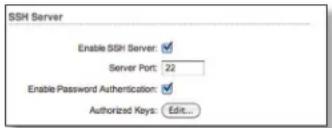
The following SSH Server parameters can be set:
text_image
SSH Server Enable SSH Server: ✓ Server Port: 22 Enable Password Authentication: ✓ Authorized Keys: Edit...Enable SSH Server This option enables SSH access to the airCam.
• Server Port SSH service TCP/IP port setting.
- Enable Password Authentication When enabled, you must authenticate using Administrator credentials in order to grant SSH access to the airCam, otherwise an Authentication Key will be required.
- Authorized Keys Click Edit to import a public key file working to get SSH access to the airCam instead of using an admin password. Click Browse to locate and select the key file, then click Import. Click Save to save your changes or Close to discard your changes.
Telnet Server
The following Telnet Server parameters can be set:

Enable Telnet Server This option activates the Telnet access to the airCam.
Server Port Telnet service TCP/IP port setting.
NTP Client
The Network Time Protocol (NTP) is a protocol for synchronizing the clocks of computer systems over packet-switched, variable-latency data networks. It can be used to set the airCam system time. System Time is reported next to the every System Log entry while registering system events if the Log option is enabled.

Enable NTP Client Enables the airCam to obtain the system time from a time server on the Internet.
- NTP Server Specify the IP address or domain name of the NTP Server.
Dynamic DNS
Enable Dynamic DNS Select this check box to enable Dynamic DNS service for the airCam. Dynamic DNS is a network service providing which allows real-time notification to the DNS Server of any changes occurring in the airCam's IP setting, there by allowing access to the airCam through a Domain Name even if the airCam's IP address has changed.
Host Name Defines the Dynamic DNS Host Name. A large list of Dynamic DNS services is available here.
Username Defines the Dynamic DNS Username.
Password Defines the Dynamic DNS password. Select Show to display the password.
System Log

text_image
System Log Enable Log: Enable Remote Log: Remote Log IP Address: Remote Log Port: 514Enable Log This option enables the registration routine of the system log messages. By default it is disabled.
- Enable Remote Log Enables the syslog remote sending function while System log messages are sent to a remote server specified in the Remote Log IP Address and Remote Log Port fields.
- Remote Log IP Address The host IP address where syslog messages should be sent. Remote host should be configured properly to receive syslog protocol messages.
- Remote Log Port The TCP/IP port of the host syslog messages should be sent. 514 is the default port for the commonly used system message logging utilities.
Every logged message contains at least a System Time and a Host Name. Usually a particular service name which generates the system event is specified also within the message. Messages from different services have different context and different level of the details. Usually error, warning or informational system service messages are reported, however more detailed Debug level messages can be reported also. The more detailed system messages are reported, the greater volume of log messages will be generated.

text_image
airCam MAIN VIDEO NETWORK SERVICES SYSTEM Tools: LOGOUT Device Date Settings Device Name: UBNT Interface Language: English Timezone: (GMT) Western Europe Enable Startup Date: Startup Date: System Accounts Administrator Username: ubnt Enable Read-Only Account: Change Configuration Management Backup Configuration: Download... Upload Configuration: Choose File no file selected Upload Device Maintenance Firmware Version: AirCam.v1.0 Build Number: 9866 Update... Reboot... Reset to Defaults... Support Info © Copyright: 2006-2011 Ubiquiti NetworksChapter 8: System Tab
The System tab contains controls for airCam Device Settings, Date Settings, System Accounts, Configuration Management and Device Maintenance.
Device
Device Name (Host name) is the system wide device identifier. It is reported by the SNMP Agent to authorized management stations. Device Name will be represented in popular Router Operating Systems registration screens and discovery tools.

Device Name Specifies the system identity.
Interface Language Allows you to select the language displayed in the management interface. English is the default language.
Additional language profiles may be uploaded.
Refer to our wiki page at the following URL:
www.ubnt.com/wiki/How_to_import_Language_Profile
Date Settings

Timezone Specifies the timezone according to GMT (Greenwich Mean Time).
Enable Startup Date When enabled, you are able to modify the device's startup date.
- Startup Date Specifies the device's startup date. You can select a date by clicking the Calendar icon or typinh it in manually. Type the date in the following format: 2 digit month/2 digit day/4 digit year. An example would be for May 20th, 2010 your would type 05/20/2010
System Accounts
In this section you can modify the administrator password to protect your device from unauthorized configuration. The default administrator's password should be changed on the very first system setup:

text_image
System Accounts Administrator Username: ubrt Enable Read-Only Account: □Administrator Username Specifies the name of the system user.
Key button Press this button in order to change the administrator password.
- Current Password Enter the current password associated with the administrator account. It is required to change the Password or Administrator Username.
- New Password Enter the new password for the administrator account.
- Verify New Password Re-enter the new password for the administrator account.

Note: Password length is 8 characters maximum, passwords exceeding 8 characters will be truncated.
Enable Read-Only Account Click to enable the read-only account and configure the username and password to protect your device from unauthorized access. The default option is disabled.
- Read-Only Username Specifies the name of the system user.
• Key button Press this button in order to change the Read-only password. - New Password New password used for read-only administrator authentication should be specified.
- Show Check this to display the read-only password characters you have typed.
Change Click to save changes to any of the fields on the System tab.
Configuration Management
The device configuration is stored in plain text file (cfg file). Use the Configuration Management controls to backup, restore or update the system configuration file:

text_image
Configuration Management Backup Configuration: Download... Upload Configuration: Choose File no file selected UploadBackup Configuration Click Download to download the current system configuration file.
Upload Configuration Click Browse to navigate to and select the new configuration file or specify the full path to the configuration file location. Click Upload to use a previously downloaded configuration file to the system.
The settings of the new configuration will be visible in the Main, Network, Services and System tabs of the Web Management Interface.

Note: The new configuration is active after clicking Apply and the system reboot cycle is completed. The previous system configuration is deleted after you click Apply. It is highly recommended to backup the system configuration before uploading the new configuration.
Device Maintenance
The controls in this section are dedicated for the device maintenance routines: rebooting, resetting, generating of the support information report.

text_image
Device Maintenance Firmware Version: AirCam.v1.0 Build Number: 9866 Update... Reboot... Reset to Defaults... Support InfoFirmware Version Shows the current firmware version.
Build Number Displays the build number of the firmware version loaded.
Update Click to update the device with new firmware.

text_image
FIRMWARE UPLOAD Current Firmware: AirCam.v1.0 Firmware File: Choose File no file selected Upload Close this window- Firmware Upload
The device firmware update is compatible with all configuration settings. System configurations are preserved while the device is updated with a new firmware version.
- Current Firmware Displays the version of the AirOS firmware which is currently operating.
- Firmware File Click Choose File to locate new firmware file. Select the file and click Open. Once you've selected a new firmware file, click Upload to upload the new firmware to the device. Click Close this window to cancel the new firmware upload process.
- Update Click the Update button to proceed with the firmware upgrade routine (new firmware image should be uploaded into the system first). Please be patient, as the firmware upgrade routine can take 3-7 minutes. The airCam will be inaccessible until the firmware upgrade routine is completed.
- Do not switch off, do not reboot and do not disconnect the airCam from the power supply during the firmware upgrade process as these actions will damage the device!
™ User Guide
Chapter 8: System Tab airCam
- It is highly recommended that you back up the system configuration and the Support Info file before uploading the new configuration.
- Close this window At this point, closes the firmware upgrade window if activated. This action will not cancel the firmware upgrade process.
Reboot Click Reboot in order to initiate the full reboot cycle of the device. Reboot is the same as the hardware reboot which is similar to the power off - power on cycle. The system configuration is not modified after the reboot cycle completes. Any non-applied changes will be lost.
Reset to Defaults Use this to reset the airCam to the factory default settings. This option will reboot the airCam and all factory default settings will be restored. You may want to use the Backup Configuration option to download your current settings before selecting this option.
Support Info This will generate a support information file that the Ubiquiti support engineers can use when providing customer support. This file only needs be generated at their request.
Appendix A: Specifications
| airCam Specifications | |
| Dimensions 158 x 61.5 x 58.5 mm (without mounting arm) | 264 x 61.5 x 58.5 mm (with mounting arm) |
| Weight 240 g (196 g without mounting arm) | |
| Ports (1) 10/100 Ethernet | |
| Sensor Progressive Scan RGB CMOS 1⁄4" | |
| Lens 4.0mm/ F1.5 | |
| Horizontal of View 47° | |
| Ethernet Ports Auto MDIX, autosensing 10/100 Mbps | |
| Power LED Orange | |
| Link/Active LED Green | |
| Buttons Factory Reset Button | |
| Power Method Passive Power over Ethernet (12-24V) | |
| Power Supply 24V/0.5A PoE Adapter included | |
| Maximum Power Consumption 2.4 Watts | |
| Certifications | CE, FCC, IC |
| Mounting | Wall/Ceiling Adapter Kit included |
| Operating Temperature | -40 to 70°C (-40 to 158°F) |
| Operating Humidity | 20 - 80% Noncondensing |
| Video | |
| Video Compression | H.264/MPEG-4/MJPEG |
| Resolution | 1MP/HDTV 720p |
| Maximum Frame Rate | 30 FPS |
| Image Setting | Brightness, Contrast, Sharpness, Saturation, 50Hz/60Hz |
| General | |
| Processor | ARM-based 32-bit RISC |
| Memory | 128MB DDR2 SDRAM, 8MB Flash |
| Connector | RJ-45 10BASE-T/100BASE-TX PoE |
| Maximum Active Array Size | 1280x800 |
| View Angle | 47° (H)31° (V)54° (D) |
| Network | |
| Security | Multiple user access levels with password protection, User access log |
| Supported Protocols | IPv4/v6, HTTP, UPnP, DNS, NTP, RTSP, DHCP, TCP, UDP, IGMP, RTCP, ICMP, ARP |
Appendix B: Safety Notices
- Read, follow, and keep these instructions.
- Heed all warnings.
- Only use attachments/accessories specified by the manufacturer.

WARNING: Do not use this product in location that can be submerged by water.

WARNING: Avoid using this product during an electrical storm. There may be a remote risk of electric shock from lightning.
Electrical Safety Information
-
Compliance is required with respect to voltage, frequency, and current requirements indicated on the manufacturer's label. Connection to a different power source than those specified may result in improper operation, damage to the equipment or pose a fire hazard if the limitations are not followed.
-
There are no operator serviceable parts inside this equipment. Service should be provided only by a qualified service technician.
-
This equipment is provided with a detachable power cord which has an integral safety ground wire intended for connection to a grounded safety outlet.
a. Do not substitute the power cord with one that is not the provided approved type. Never use an adapter plug to connect to a 2-wire outlet as this will defeat the continuity of the grounding wire.
b. The equipment requires the use of the ground wire as a part of the safety certification, modification or misuse can provide a shock hazard that can result in serious injury or death.
c. Contact a qualified electrician or the manufacturer if there are questions about the installation prior to connecting the equipment.
d. Protective earthing is provided by Listed AC adapter. Building installation shall provide appropriate short-circuit backup protection.
e. Protective bonding must be installed in accordance with local national wiring rules and regulations.
Appendix C: Warranty
General Warranty
UBIQUITI NETWORKS, Inc ("UBIQUITI NETWORKS") represents and warrants that the Products furnished hereunder shall be free from defects in material and workmanship for a period of one (1) year from the date of shipment by UBIQUITI NETWORKS under normal use and operation. UBIQUITI NETWORKS sole and exclusive obligation under the foregoing warranty shall be to repair or replace, at its option, any defective Product that fails during the warranty period. The expense of removal and reinstallation of any item is not included in this warranty.
The foregoing warranty is exclusive and in lieu of all other warranties, express or implied, including the implied warranties of merchantability and fitness for a particular purpose and any warranties arising from a course of dealing, usage or trade practice with respect to the products. Repair or replacement in the manner provided herein shall be the sole and exclusive remedy of Buyer for breach of warranty and shall constitute fulfillment of all liabilities of UBIQUITI NETWORKS with respect to the quality and performance of the Products. UBIQUITI NETWORKS reserves the right to inspect all defective Products (which must be returned by Buyer to UBIQUITI NETWORKS factory freight prepaid).
No Products will be accepted for replacement or repair without obtaining a Return Materials Authorization (RMA) number from UBIQUITI NETWORKS. Products returned without an RMA number will not be processed and will be returned to Buyer freight collect. UBIQUITI NETWORKS shall have no obligation to make repairs or replacement necessitated by catastrophe, fault, negligence, misuse, abuse, or accident by Buyer, Buyer's customers or any other parties. The warranty period of any repaired or replaced. Product shall not extend beyond its original term.
Warranty Conditions
The foregoing warranty shall apply only if:
(I) The Product has not been subjected to misuse, neglect or unusual physical, electrical or electromagnetic stress, or some other type of accident.
(II) No modification, alteration or addition has been made to the Product by persons other than UBIQUITI NETWORKS or UBIQUITI NETWORK'S authorized representatives or otherwise approved by UBIQUITI NETWORKS.
(III) The Product has been properly installed and used at all times in accordance, and in all material respects, with the applicable Product documentation.
(IV) All Ethernet cabling runs use CAT5 (or above) shielded cabling.
Disclaimer
UBIQUITI NETWORKS does not warrant that the operation of the products is error-free or that operation will be uninterrupted. In no event shall UBIQUITI NETWORKS be responsible for damages or claims of any nature or description relating to system performance, including coverage, buyer's selection of products for buyer's application and/or failure of products to meet government or regulatory requirements.
Returns
In the unlikely event a defect occurs, please work through the dealer or distributor from which this product was purchased.
Appendix D: Compliance Information
Installer Compliance Responsibility
Devices must be professionally installed and it is the professional installer's responsibility to make sure the device is operated within local country regulatory requirements.
FCC
Changes or modifications not expressly approved by the party responsible for compliance could void the user's authority to operate the equipment.
NOTE: This equipment has been tested and found to comply with the limits for a Class B digital device, pursuant to part 15 of the FCC Rules. These limits are designed to provide reasonable protection against harmful interference when the equipment is operated in a commercial environment. This equipment generates, uses, and can radiate radio frequency energy and, if not installed and used in accordance with the instruction manual, may cause harmful interference to radio communications. Operations of this equipment in a residential area is likely to cause harmful interference in which case the user will be required to correct the interference at his own expense.
Industry Canada
This Class B digital apparatus complies with Canadian ICES-003.Operation is subject to the following two conditions:
- This device may not cause interference, and
- This device must accept any interference, including interference that may cause undesired operation of the device.
To reduce potential radio interference to other users, the antenna type and its gain should be so chosen that the equivalent isotropically radiated power (e.i.r.p.) is not more than that permitted for successful communication.
Class B device (Broadcasting Communication Device for Home Use): This device obtained EMC registration mainly for home use (Class B) and may be used in all
areas.
Class B device (Broadcasting Communication Device for Home Use): This device obtained EMC registration mainly for home use (Class B) and may be used in all areas.
CE marking on this product represents the product is in compliance with all directives that are applicable to it.
Alert sign! Follows CE marking
Alert sign must be indicated if a restriction on use applied to the product and it must follow the CE marking.

NB-Identification number (if there is any)
Notified body number is indicated if it is involved in the conformity assessment procedure.

Please check the CE mark on the product label to find out which notified body was involved during assessment.
RoHS/WEEE Compliance Statement

English
European Directive 2002/96/EC requires that the equipment bearing this symbol on the product and/or its packaging must not be disposed of with unsorted municipal waste. The symbol indicates that this product should be disposed of separately from regular household waste streams. It is your responsibility to dispose of this and other electric and electronic equipment via designated collection facilities appointed by the government or local authorities. Correct disposal and recycling will help prevent potential negative consequences to the environment and human health. For more detailed information about the disposal of your old equipment, please contact your local authorities, waste disposal service, or the shop where you purchased the product.
Deutsch
Appendix E: Declaration of Conformity
| Česky [Czech] | UBIQUITI NETWORKS tímto prohla uje, e tento UBIQUITI NETWORKS device, je ve shod se základními po adavky a dal imi p islu n mi ustanoveními sm rmice 1999/5/ES. |
| Dansk [Danish] | Undertegnede UBIQUITI NETWORKS erklærer herved, at følgende udstyr UBIQUITI NETWORKS device, overholder de væsentlige krav og øvrige relevante krav i direktiv 1999/5/EF. |
| Nederlands [Dutch] | Hierbij verklaart UBIQUITI NETWORKS dat het toestel UBIQUITI NETWORKS device, in overeenstemming is met de essentiële eisen en de andere relevante bepalingen van richtlijn 1999/5/EG.Bij deze verklaart UBIQUITI NETWORKS dat deze UBIQUITI NETWORKS device, voldoet aan de essentiële eisen en aan de overige relevante bepalingen van Richtlijn 1999/5/EC. |
| English | Hereby, UBIQUITI NETWORKS, declares that this UBIQUITI NETWORKS device, is in compliance with the essential requirements and other relevant provisions of Directive 1999/5/EC. |
| Eesti [Estonian] | Käesolevaga kinnitab UBIQUITI NETWORKS seadme UBIQUITI NETWORKS device, vastavust direktiivi 1999/5/EÜ põhinõuetele ja nimetatud direktiivist tulenevatele teistele asjakohastele sätetele. |
| Suomi [Finnish] | UBIQUITI NETWORKS vakuuttaa täten että UBIQUITI NETWORKS device, typpinen laite on direktiivin 1999/5/EY oleellisten vaatimusten ja sitä koskevien direktiivin muiden ehtojen mukainen. |
| Français [French] | Par la présente UBIQUITI NETWORKS déclare que l'appareil UBIQUITI NETWORKS, device est conforme aux exigences essentielles et aux autres dispositions pertinentes de la directive 1999/5/CE.Par la présente, UBIQUITI NETWORKS déclare que ce UBIQUITI NETWORKS device, est conforme aux exigences essentielles et aux autres dispositions de la directive 1999/5/CE qui lui sont applicables. |
| Deutsch [German] | Hiermit erklärt UBIQUITI NETWORKS, dass sich diese UBIQUITI NETWORKS device, in Übereinstimmung mit den grundlegenden Anforderungen und den anderen relevanten Vorschriften der Richtlinie 1999/5/EG befindet". (BMWi)Hiermit erklärt UBIQUITI NETWORKS die Übereinstimmung des Gerätes UBIQUITI NETWORKS device, mit den grundlegenden Anforderungen und den anderen relevanten Festlegungen der Richtlinie 1999/5/EG. (Wien) |
| Ελληνική [Greek] | ME THN ΠΑΡΟΥΣΑ UBIQUITI NETWORKS ΔΗΛΩΝΕΙ ΟΤΙ UBIQUITI NETWORKS device, ΣΥΜΜΟΡΦΩΝΕΤΑΙ ΠΡΟΣ ΤΙΣ ΟΥΣΙΩΔΕΙΣ ΑΠΑΙΤΗΣΕΙΣ ΚΑΙ ΤΙΣ ΛΟΙΠΕΣ ΣΧΕΤΙΚΕΣ ΔΙΑΤΑΞΕΙΣ ΤΗΣ ΟΔΗΓΙΑΣ 1995/5/EK. |
| Magyar [Hungarian] | Alulírott, UBIQUITI NETWORKS nyilatkozom, hogy a UBIQUITI NETWORKS device, megfelel a vonatkozó alapvető követelményeknek és az 1999/5/EC irányelv egyéb előírásainak. |
| Íslenska [Icelandic] | Hér me I sir UBIQUITI NETWORKS yfir vi a UBIQUITI NETWORKS device, er i samræmi vi grunnkröfur og a rar kröfur, sem ger ar eru í tilskipun 1999/5/EC. |
| Italiano [Italian] | Con la presente UBIQUITI NETWORKS dichiara che questo UBIQUITI NETWORKS device, è conforme ai requisiti essenziali ed alle altre disposizioni pertinenti stabilite dalla direttiva 1999/5/CE. |
| Latviski [Latvian] | Ar o UBIQUITI NETWORKS deklar , ka UBIQUITI NETWORKS device, atbilst Direkt vas 1999/5/EK b tiskaj m pras b m un citiem ar to saist tajiem noteikumiem. |
| Lietuvi [Lithuanian] | UBIQUITI NETWORKS deklaruoja, kad šis UBIQUITI NETWORKS jrenginys atitinka esminius reikalavimus ir kitas 1999/5/EB Direktyvos nuostatas. |
| Malti [Maltese] | Hawnhekk, UBIQUITI NETWORKS, jiddikjara li dan UBIQUITI NETWORKS device, jikkonforma mal- ti ijiet essenzjali u ma provvedimenti o rajn relevanti li hemm fid-Dirrettiva 1999/5/EC. |
| Norsk [Norwegian] | UBIQUITI NETWORKS erklærer herved at utstyret UBIQUITI NETWORKS device, er i samsvar med de grunnleggende krav og øvrige relevante krav i direktiv 1999/5/EF. |
| Slovensky[Slovak] | UBIQUITI NETWORKS t mto vyhlasuje, e UBIQUITI NETWORKS device, sp a základné po iadavky a v etky príslu né ustanovenia Smernice 1999/5/ES. |
| Svenska[Swedish] | Härmed intygar UBIQUITI NETWORKS att denna UBIQUITI NETWORKS device, står I överensstämmelse med de väsentliga egenskapskrav och övriga relevanta bestämmelser som framgår av direktiv 1999/5/EG. |
| Español[Spanish] | Por medio de la presente UBIQUITI NETWORKS declara que el UBIQUITI NETWORKS device, cumple con los requisitos esenciales y cualesquiera otras disposiciones aplicables o exigibles de la Directiva 1999/5/CE. |
| Polski[Polish] | Niniejszym, firma UBIQUITI NETWORKS o wiadcza, e produkt serii UBIQUITI NETWORKS device, spełnia zasadnicze wymagania i inne istotne postanowienia Dyrektywy 1999/5/EC. |
| Português[Portuguese] | UBIQUITI NETWORKS declara que este UBIQUITI NETWORKS device, está conforme com os requisitos essenciais e outras disposições da Directiva 1999/5/CE. |
Appendix F: Contact Information
Ubiquiti Networks Support
Ubiquiti Support Engineers are located in the U.S. and Europe and are dedicated to helping customers resolve software, hardware compatibility, or field issues as quickly as possible. We strive to respond to support inquiries within a 24 hour period.
Email: support@ubnt.com
Phone: 408-942-1153 (9 a.m. - 5 p.m. PST)
Online Resources
Wiki Page: www.ubnt.com/wiki
Support Forum: www.ubnt.com/forum
Downloads: www.ubnt.com/support/downloads

91 E. Tasman Drive
San Jose, CA 95134
www.ubnt.com
© 2011 Ubiquiti Networks, Inc. All rights reserved.