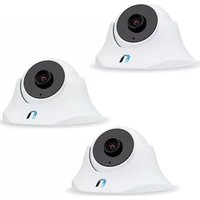
UVC-DOME-3 - Security Camera Ubiquiti Networks - Free user manual and instructions
Find the device manual for free UVC-DOME-3 Ubiquiti Networks in PDF.


| Product Type | Security Camera (UniFi Video Camera) |
| Brand | Ubiquiti Networks |
| Model | UVC-DOME-3 |
| Dimensions | 225 x 75 x 75 mm (8.85 x 2.95 x 2.95 in) |
| Weight | 373 g (13.1 oz) |
| Video Compression | H.264 |
| Resolution | 1 MP / HDTV 720p |
| Maximum Frame Rate | 30 FPS |
| Lens | 3.6 mm / F1.8 |
| Sensor | Progressive Scan RGB CMOS 1/4″ |
| View Angle | 56.14° (H), 36.86° (V), 64.33° (D) |
| Power Method | Passive Power over Ethernet (12-24V) |
| Power Supply | 24V, 0.5A PoE Adapter (included) |
| Max. Power Consumption | 4.5 W |
| Ports | 1x 10/100 Ethernet Port, microSD Card Slot |
| Mounting | Wall, Pole, or Ceiling (bracket and metal strap included) |
| Operating Temperature | -30 to 50°C (-22 to 122°F) |
| Operating Humidity | 20 – 90% noncondensing |
| LED Indicators | Power (amber), Link/Activity (green) |
| Processor | ARM 1136J-S, 528 MHz |
| Memory | 256 MB DDR3 |
| Certifications | CE, FCC, IC |
| Included Accessories | Sun shade, mounting template, screws, screw anchors, metal strap, PoE adapter, quick start guide |
Frequently Asked Questions - UVC-DOME-3 Ubiquiti Networks
User questions about UVC-DOME-3 Ubiquiti Networks
0 question about this device. Answer the ones you know or ask your own.
Ask a new question about this device
Download the instructions for your Security Camera in PDF format for free! Find your manual UVC-DOME-3 - Ubiquiti Networks and take your electronic device back in hand. On this page are published all the documents necessary for the use of your device. UVC-DOME-3 by Ubiquiti Networks.
USER MANUAL UVC-DOME-3 Ubiquiti Networks
Introduction
Thank you for purchasing the Ubiquiti Networks™ UniFi®
Video Camera. This Quick Start Guide is designed to guide you through the installation of the UniFi Video Camera and show you how to access the Camera Configuration Interface. This Quick Start Guide also includes the warranty terms.
The UniFi Video software and User Guide are available for download at downloads.ubnt.com/unifivideo
Package Contents
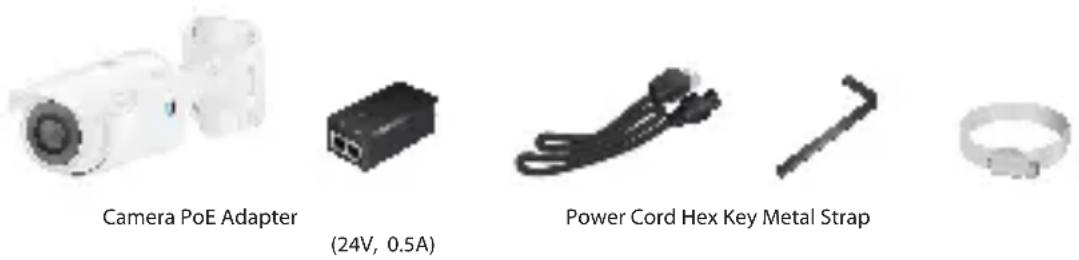

Screws
(M4x30, Qty. 4)

Screw Anchors (Qty. 4)

Mounting Template

Quick Start Guide
Wall-Mounting Requirements
- Drill
- Drill bit, 7 mm
• Phillips screwdriver
Pole-Mounting Requirements
- Screwdriver or 7 mm socket driver
TERMS OF USE: Shielded Ethernet cable and earth grounding must be used as conditions of product warranty. TOUGHCable™ is designed for outdoor installations. It is the customer's responsibility to follow local country regulations, including operation within legal frequency channels, output power, and Dynamic Frequency Selection (DFS) requirements.
Hardware Overview
Side View

Bottom View

LEDs

Ethernet The Ethernet LED will light steady green when an active Ethernet connection is made and flash when there is activity.

Power The Power LED will light steady amber when the camera is connected to a power source.
Before You Begin
A few notes about the camera before you begin installation:
- If you wish to use the sun shade, it is easier to engage before you install the camera.
• The camera has an adjustable base, tilt, and camera rotation. - The camera should never be pointing straight up or straight down. Always ensure it is at least two clicks from the straight up or down position.
- When mounted outdoors, there should be a 150 mm (6") drip loop to prevent water from creeping along the cable to the camera.
Protective Plastic Film
After installation, remove the protective plastic film covering the camera lens and the IR LEDs.

Sun Shade
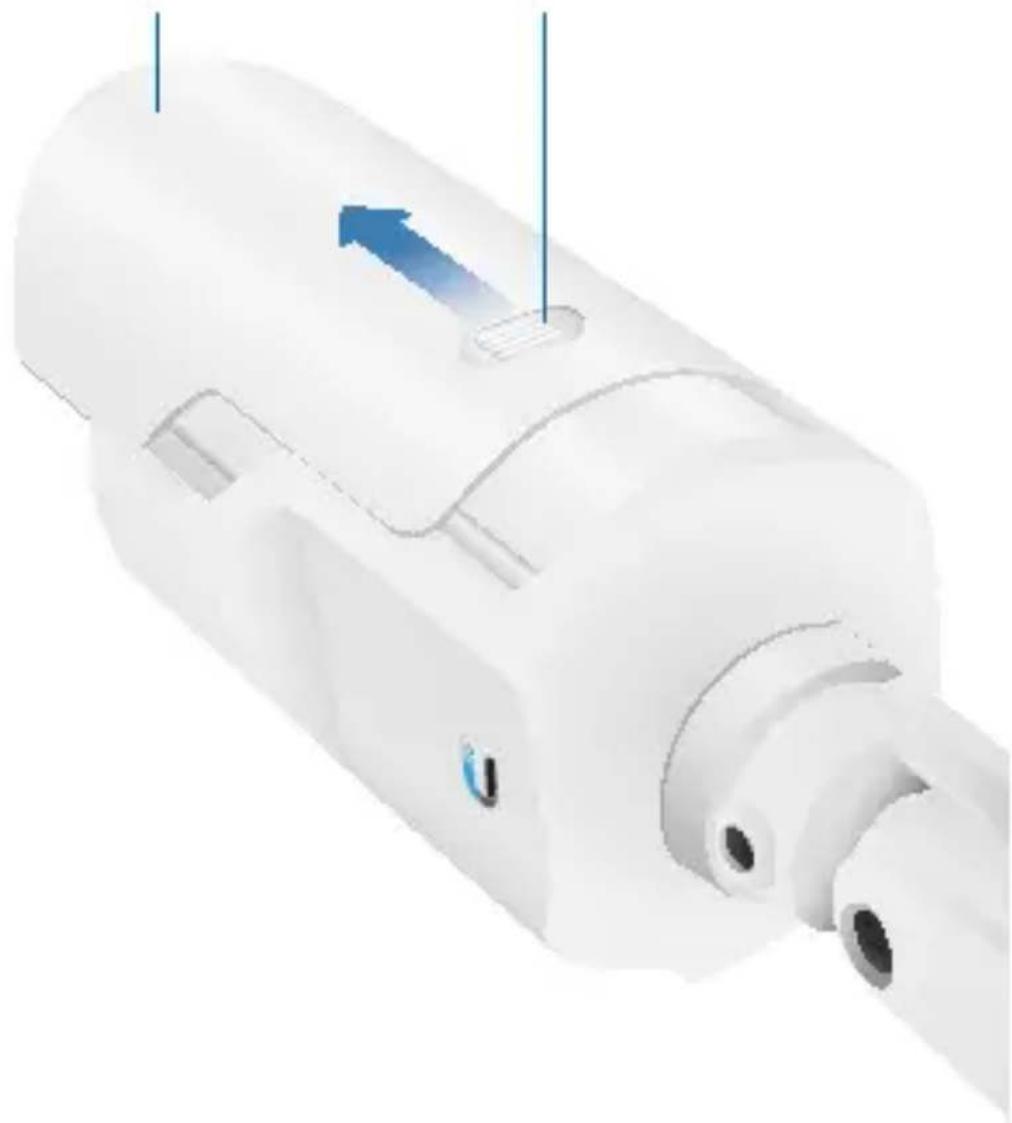
If you want to use the Sun Shade, press the Sun Shade Lock and Release Tab from behind the camera and slide the Sun Shade forward until it locks into place.
Sun Shade Sun Shade Lock and Release Tab
Installation Overview
The installation process differs depending on if you are mounting the camera on a pole or on a wall. Follow the instructions for the installation that you are performing. Below is an overview of the steps:
- Connect one end of the Ethernet cable to the camera.
- Insert a microSD card (optional).
- Perform the camera mounting steps (Wall Mount or Pole Mount).
- Connect the other end of Ethernet cable to the PoE Adapter or a Ubiquiti Networks TOUGHSwitch™.
Connect Ethernet to the UniFi Video Camera
- Press the latch to open the Port Cover on the bottom of the camera.

- (Optional) Insert a microSD card into the microSD Card Slot.

- Connect an Ethernet cable to the Ethernet port on the camera.

- Remove the Ethernet Seal from the Port Cover.
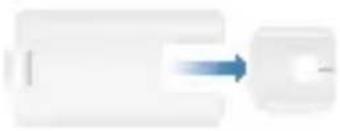
- Slide the Port Cover back onto the camera near the Ethernet port and snap it in place.

- Wrap the Ethernet Seal around the Ethernet cable and press it into the Port Cover.

Wall Mount
- Remove the adhesive Mounting Template from the backing and place the label on the wall where you want the camera.

- Use a 7 mm drill bit to drill the holes in the wall.
- Insert the four Screw Anchors into the wall.

- Use a Phillips screwdriver to secure the camera to the wall with the four Screws.

Proceed to Connecting Power over Ethernet.
Pole Mount
To mount the UniFi Video Camera on a pole, use the included Metal Strap:
- Open the Metal Strap by turning the locking screw counter-clockwise.

- Slide the Metal Strap through the base of the camera.
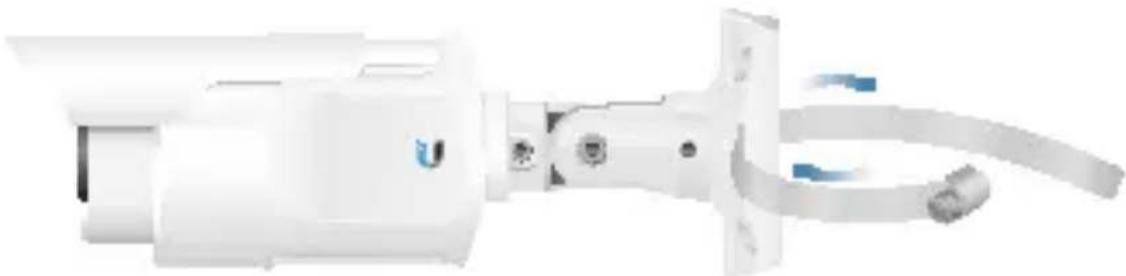
- Wrap the Metal Strap around the pole. Use a screwdriver or 7 mm socket drive to turn the locking screw clockwise and securely fasten the strap to the pole.

Connecting Power over Ethernet
- Connect the other end of the Ethernet cable to one of the following:
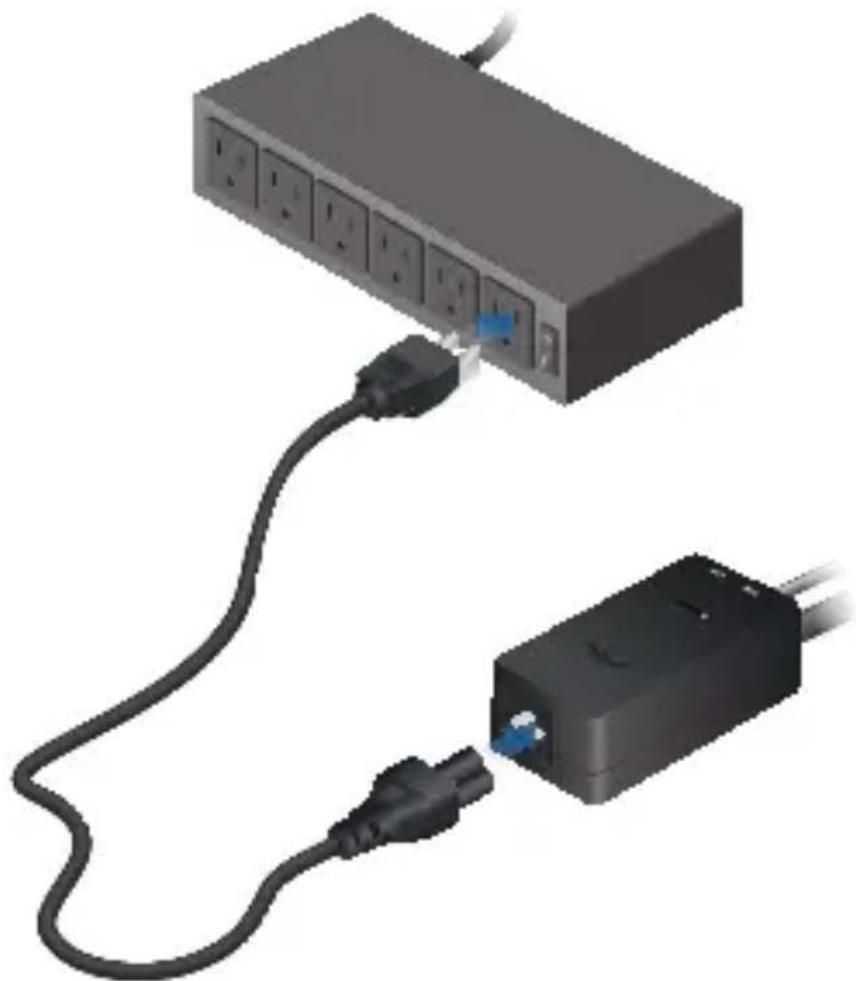
- PoE Adapter Connect the UniFi Video Camera to the Ethernet port labeled POE on the included PoE Adapter.

- EdgeSwitch (shown below) or TOUGHSwitch Connect the UniFi Video Camera to a port with 24V power enabled and skip steps 2 and 3.
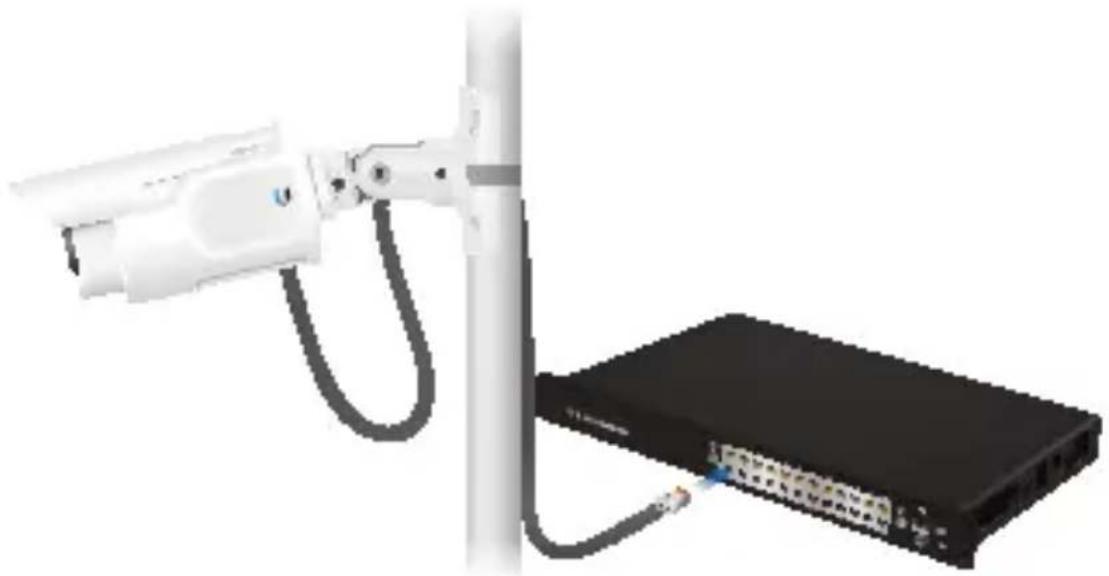
- Connect an Ethernet cable from your LAN to the Ethernet port labeled LAN on the PoE Adapter.

- Connect the power cord to the power port on the PoE Adapter. Connect the other end of the power cord to a power outlet.
UniFi Video
The UniFi Video software is pre-installed on the UniFi NVR (sold separately). If you do not have the UniFi NVR, you can download and install the latest version of the UniFi Video software at downloads.ubnt.com/unifivideo; the UniFi Video auto-management feature should automatically detect and install your new camera(s).

Proceed to Adjusting the Camera View.
For details on using the UniFi Video software, refer to the User Guide at documentation.ubnt.com/unifivideo
Camera Configuration Interface
Access the Camera Configuration Interface if you have not yet installed the UniFi Video software, or plan to use the UniFi Video Camera as a stand-alone camera without the UniFi Video software.
- Ensure that your host machine is connected to the same LAN as the UniFi Video Camera.
- The UniFi Video Camera is set to DHCP by default. If you have a router or DHCP server providing addresses on your network, please check your DHCP Client Table or download the Ubiquiti Discovery Tool from:
http://www.ubnt.com/download#app

Note: If you do not have a DHCP server, the camera defaults to the IP address 192.168.1.20.
- Launch your web browser, and in the address field, type https:// and then the IP address of the camera, for example: https://192.168.1.20. Press enter (PC) or return (Mac).

- The login screen will appear. Enter ubnt in the Username and Password fields and click Login.
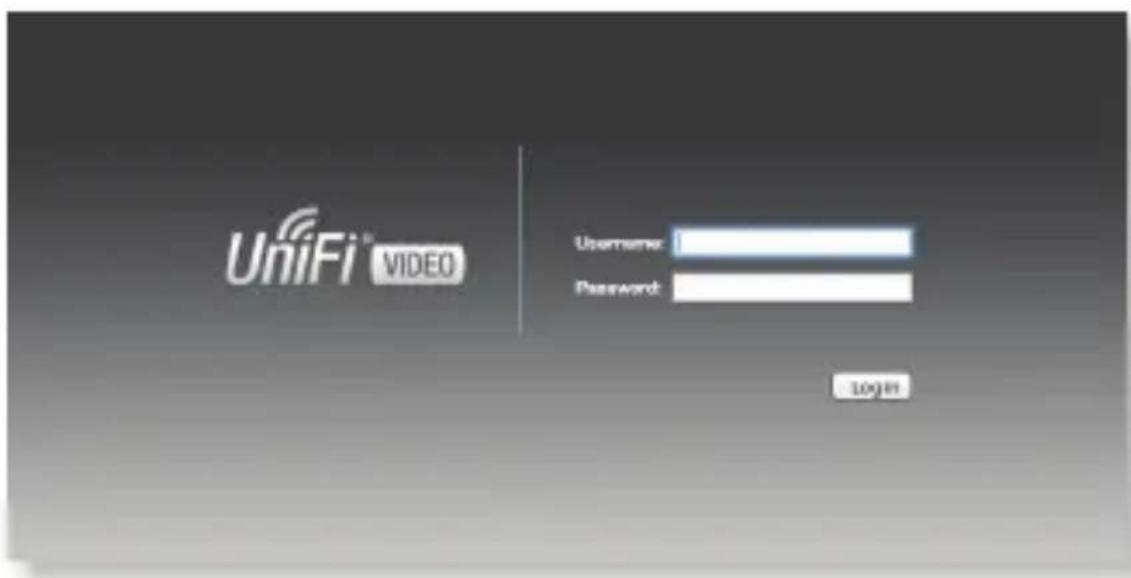
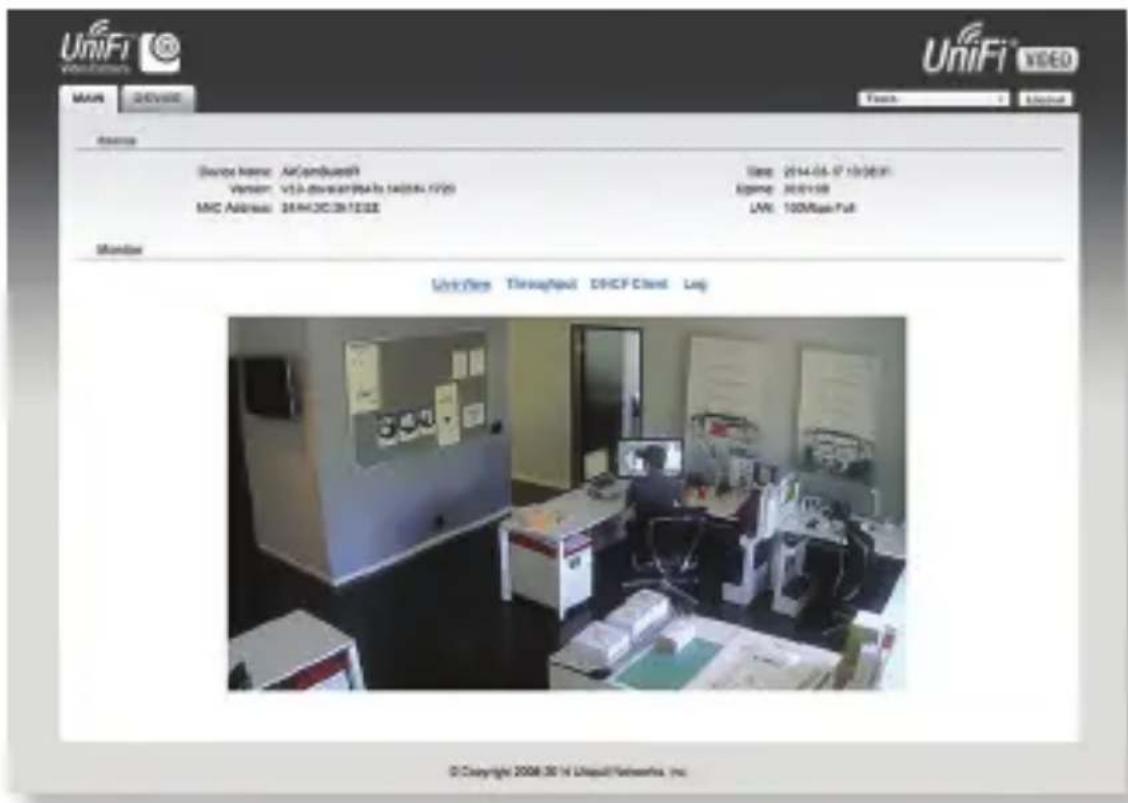
- The Main screen will appear and you should see a live video stream from the UniFi Video Camera.
Adjusting the Camera View
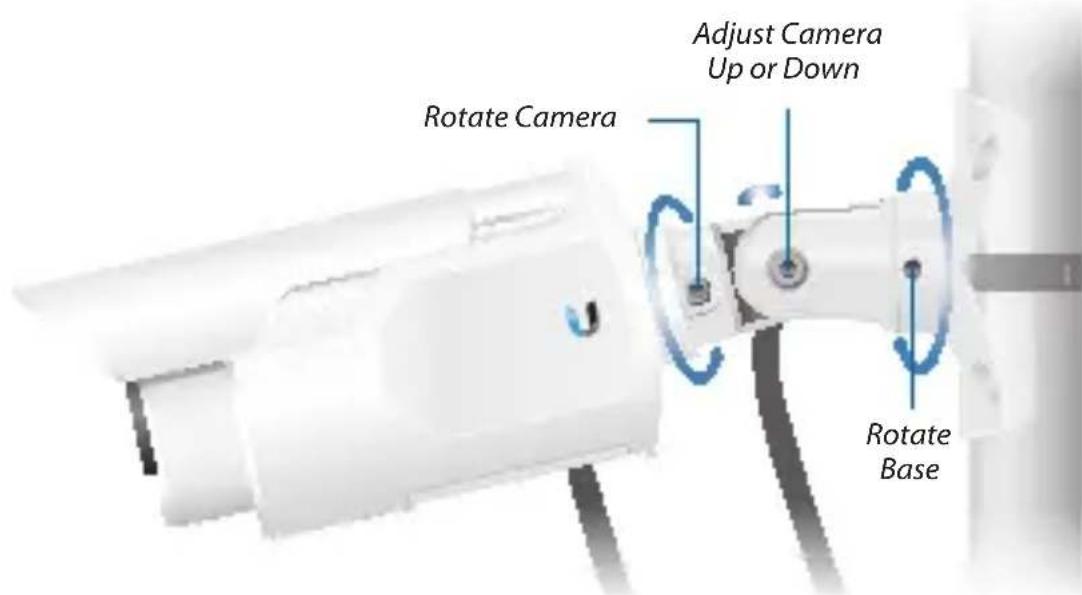

Note: Remove the protective plastic film from the camera lens and IR LEDs.
For details on using the UniFi Video software, refer to the User Guide at: documentation.ubnt.com/unifivideo
Specifications
| UniFi Video Camera | |
| Dimensions 225 x 75 x 75 mm (8.85 x 2.95 x 2.95") | |
| Weight 373 g (13.1 oz) | |
| Ports (1) 10/100 Ethernet Port, microSD Card Slot | |
| Sensor Progressive Scan RGB CMOS 1⁄4" | |
| Lens 3.6 mm/ F1.8 | |
| Power LED Amber | |
| Link/Activity LED Green | |
| Buttons Factory Reset Button | |
| Power Method Passive Power over Ethernet (12-24V) | |
| Power Supply 24V, 0.5A PoE Adapter Included | |
| Max. Power Consumption 4.5 W | |
| Certifications CE, FCC, IC | |
| Mounting Pole/Wall/Ceiling | |
| Operating Temperature -30 to 50°C (-22 to 122°F) | |
| Operating Humidity 20 - 90% Noncondensing | |
| Video | |
| Video Compression H.264 | |
| Resolution | 1 MP/HDTV 720p |
| Maximum Frame Rate 30 FPS | |
| Image Setting | Brightness, Contrast, Sharpness, Saturation, Noise Reduction, 50/60 Hz |
| General | |
| Processor | ARM 1136J-S, 528 MHz |
| Memory | 256 MB DDR3 |
| View Angle | 56.14° (H)36.86° (V)64.33° (D) |
Safety Notices
- Read, follow, and keep these instructions.
- Heed all warnings.
- Only use attachments/accessories specified by the manufacturer.

WARNING: Do not use this product in location that can be submerged by water.

WARNING: Avoid using this product during an electrical storm. There may be a remote risk of electric shock from lightning.
Electrical Safety Information
- Compliance is required with respect to voltage, frequency, and current requirements indicated on the manufacturer's label. Connection to a different power source than those specified may result in improper operation, damage to the equipment or pose a fire hazard if the limitations are not followed.
- There are no operator serviceable parts inside this equipment. Service should be provided only by a qualified service technician.
- This equipment is provided with a detachable power cord which has an integral safety ground wire intended for connection to a grounded safety outlet.
a. Do not substitute the power cord with one that is not the provided approved type. Never use an adapter plug to connect to a 2-wire outlet as this will defeat the continuity of the grounding wire.
b. The equipment requires the use of the ground wire as a part of the safety certification, modification or misuse can provide a shock hazard that can result in serious injury or death.
c. Contact a qualified electrician or the manufacturer if there are questions about the installation prior to connecting the equipment.
d. Protective earthing is provided by Listed AC adapter. Building installation shall provide appropriate short-circuit backup protection.
e. Protective bonding must be installed in accordance with local national wiring rules and regulations.
Limited Warranty
UBIQUITI NETWORKS, Inc ("UBIQUITI NETWORKS") warrants that the product(s) furnished hereunder (the "Product(s)") shall be free from defects in material and workmanship for a period of one (1) year from the date of shipment by UBIQUITI NETWORKS under normal use and operation. UBIQUITI NETWORKS' sole and exclusive obligation and liability under the foregoing warranty shall be for UBIQUITI NETWORKS, at its discretion, to repair or replace any Product that fails to conform to the above warranty during the above warranty period. The expense of removal and reinstallation of any Product is not included in this warranty. The warranty period of any repaired or replaced Product shall not extend beyond its original term.
Warranty Conditions
The above warranty does not apply if the Product:
(I) has been modified and/or altered, or an addition made thereto, except by Ubiquiti Networks, or Ubiquiti Networks' authorized representatives, or as approved by Ubiquiti Networks in writing;
(II) has been painted, rebranded or physically modified in any way;
(III) has been damaged due to errors or defects in cabling;
(IV) has been subjected to misuse, abuse, negligence, abnormal physical, electromagnetic or electrical stress, including lightning strikes, or accident;
(V) has been damaged or impaired as a result of using third party firmware;
(VI) has no original Ubiquiti MAC label, or is missing any other original Ubiquiti label(s); or
(VII) has not been received by Ubiquiti within 30 days of issuance of the RMA.
In addition, the above warranty shall apply only if: the product has been properly installed and used at all times in accordance, and in all material respects, with the applicable Product documentation; all Ethernet cabling runs use CAT5 (or above), and for outdoor installations, shielded Ethernet cabling is used, and for indoor installations, indoor cabling requirements are followed.
Returns
No Products will be accepted for replacement or repair without obtaining a Return Materials Authorization (RMA) number from UBIQUITI NETWORKS during the warranty period, and the Products being received at UBIQUITI NETWORKS' facility freight prepaid in accordance with the RMA process of UBIQUITI NETWORKS. Products returned without an RMA number will not be processed and will be returned freight collect or subject to disposal. Information on the RMA process and obtaining an RMA number can be found at: www.ubnt.com/support/warranty.
Disclaimer
EXCEPT FOR ANY EXPRESS WARRANTIES PROVIDED HEREIN, UBIQUITI NETWORKS, ITS AFFILIATES, AND ITS AND THEIR THIRD PARTY DATA, SERVICE, SOFTWARE AND HARDWARE PROVIDERS HEREBY DISCLAIM AND MAKE NO OTHER REPRESENTATION OR WARRANTY OF ANY KIND, EXPRESS, IMPLIED OR STATUTORY, INCLUDING, BUT NOT LIMITED TO, REPRESENTATIONS, GUARANTEES, OR WARRANTIES OF MERCHANTABILITY, ACCURACY, QUALITY OF SERVICE OR RESULTS, AVAILABILITY, SATISFACTORY QUALITY, LACK OF VIRUSES, QUIET ENJOYMENT, FITNESS FOR A PARTICULAR PURPOSE AND NON-INFRINGEMENT AND ANY WARRANTIES ARISING FROM ANY COURSE OF DEALING, USAGE OR TRADE PRACTICE IN CONNECTION WITH SUCH PRODUCTS AND SERVICES. BUYER ACKNOWLEDGES THAT NEITHER UBIQUITI NETWORKS NOR ITS THIRD PARTY PROVIDERS CONTROL BUYER'S EQUIPMENT OR THE TRANSFER OF DATA OVER COMMUNICATIONS FACILITIES, INCLUDING THE INTERNET, AND THAT THE PRODUCTS AND SERVICES MAY BE SUBJECT TO LIMITATIONS, INTERRUPTIONS, DELAYS, CANCELLATIONS AND OTHER PROBLEMS INHERENT IN THE USE OF COMMUNICATIONS FACILITIES. UBIQUITI NETWORKS, ITS AFFILIATES AND ITS AND THEIR THIRD PARTY PROVIDERS ARE NOT RESPONSIBLE FOR ANY INTERRUPTIONS, DELAYS, CANCELLATIONS, DELIVERY FAILURES, DATA LOSS, CONTENT CORRUPTION, PACKET LOSS, OR OTHER DAMAGE RESULTING FROM ANY OF THE FOREGOING. In addition, UBIQUITI NETWORKS does not warrant that the operation of the Products will be error-free or that operation will be uninterrupted. In no event shall UBIQUITI NETWORKS be responsible for damages or claims of any nature or description relating to system performance, including coverage, buyer's selection of products (including the Products) for buyer's application and/or failure of products (including the Products) to meet government or regulatory requirements.
Limitation of Liability
EXCEPT TO THE EXTENT PROHIBITED BY LOCAL LAW, IN NO EVENT WILL UBIQUITI OR ITS SUBSIDIARIES, AFFILIATES OR SUPPLIERS BE LIABLE FOR DIRECT, SPECIAL, INCIDENTAL, CONSEQUENTIAL OR OTHER DAMAGES (INCLUDING LOST PROFIT, LOST DATA, OR DOWNTIME COSTS), ARISING OUT OF THE USE, INABILITY TO USE, OR THE RESULTS OF USE OF THE PRODUCT, WHETHER BASED IN WARRANTY, CONTRACT, TORT OR OTHER LEGAL THEORY, AND WHETHER OR NOT ADVISED OF THE POSSIBILITY OF SUCH DAMAGES.
Note
Some countries, states and provinces do not allow exclusions of implied warranties or conditions, so the above exclusion may not apply to you. You may have other rights that vary from country to country, state to state, or province to province. Some countries, states and provinces do not allow the exclusion or limitation of liability for incidental or consequential damages, so the above limitation may not apply to you. EXCEPT TO THE EXTENT ALLOWED BY LOCAL LAW, THESE WARRANTY TERMS DO NOT EXCLUDE, RESTRICT OR MODIFY, AND ARE IN ADDITION TO, THE MANDATORY STATUTORY RIGHTS APPLICABLE TO THE LICENSE OF ANY SOFTWARE (EMBEDDED IN THE PRODUCT) TO YOU. The United Nations Convention on Contracts for the International Sale of Goods shall not apply to any transactions regarding the sale of the Products.
Compliance
FCC
Changes or modifications not expressly approved by the party responsible for compliance could void the user's authority to operate the equipment.
This device complies with Part 15 of the FCC Rules. Operation is subject to the following two conditions:
- This device may not cause harmful interference, and
- This device must accept any interference received, including interference that may cause undesired operation.
NOTE: This equipment has been tested and found to comply with the limits for a Class A digital device, pursuant to part 15 of the FCC Rules. These limits are designed to provide reasonable protection against harmful interference when the equipment is operated in a commercial environment. This equipment generates, uses, and can radiate radio frequency energy and, if not installed and used in accordance with the instruction manual, may cause harmful interference to radio communications. Operations of this equipment in a residential area is likely to cause harmful interference in which case the user will be required to correct the interference at his own expense.
Industry Canada
This Class A digital apparatus complies with Canadian CAN ICES-3(B).
To reduce potential radio interference to other users, the antenna type and its gain should be so chosen that the equivalent isotropically radiated power (e.i.r.p.) is not more than that permitted for successful communication.
This device complies with Industry Canada licence-exempt RSS standard(s). Operation is subject to the following two conditions:
- This device may not cause interference, and
- This device must accept any interference, including interference that may cause undesired operation of the device.
Australia and New Zealand

Warning: This is a Class A product. In a domestic environment this product may cause radio interference in which case the user may be required to take adequate measures.
CE Marking
CE marking on this product represents the product is in compliance with all directives that are applicable to it.

RoHS/WEEE Compliance Statement
English
European Directive 2002/96/EC requires that the equipment bearing this symbol on the product and/or its packaging must not be disposed of with unsorted municipal waste. The symbol indicates that this product should be disposed of separately from regular household waste streams. It is your responsibility to dispose of this and other electric and electronic equipment via designated collection facilities appointed by the government or local authorities. Correct disposal and recycling will help prevent potential negative consequences to the environment and human health. For more detailed information about the disposal of your old equipment, please contact your local authorities, waste disposal service, or the shop where you purchased the product.
Deutsch
Declaration of Conformity
| Česky [Czech] | UBIQUITI NETWORKS tímto prohla uje, e tento UBIQUITI NETWORKS device, je ve shod se základními po adavky a dal ími p íslu n mi ustanoveními sm rnice 1999/5/ES. |
| Dansk [Danish] | Undertegnede UBIQUITI NETWORKS erklærer herved, at følgende udstyr UBIQUITI NETWORKS device, overholder de væsentlige krav og øvrige relevante krav i direktiv 1999/5/EF. |
| Nederlands [Dutch] | Hierbij verklaart UBIQUITI NETWORKS dat het toestel UBIQUITI NETWORKS device, in overeenstemming is met de essentiële eisen en de andere relevante bepalingen van richtlijn 1999/5/EG.Bij deze verklaart UBIQUITI NETWORKS dat deze UBIQUITI NETWORKS device, voldoet aan de essentiële eisen en aan de overige relevante bepalingen van Richtlijn 1999/5/EC. |
| English | Hereby, UBIQUITI NETWORKS, declares that this UBIQUITI NETWORKS device, is in compliance with the essential requirements and other relevant provisions of Directive 1999/5/EC. |
| Eesti [Estonian] | Käesolevaga kinnitab UBIQUITI NETWORKS seadme UBIQUITI NETWORKS device, vastavust direktiivi 1999/5/EÜ põhinõuetele ja nimetatud direktiivist tulenevatele teistele asjakohastele sätetele. |
| Suomi [Finnish] | UBIQUITI NETWORKS vakuuttaa täten että UBIQUITI NETWORKS device, tyyppinen laite on direktiivin 1999/5/EY oleellisten vaatimusten ja sitä koskevien direktiivin muiden ehtojen mukainen. |
| Français [French] | Par la présente UBIQUITI NETWORKS déclare que l’appareil UBIQUITI NETWORKS, device est conforme aux exigences essentielles et aux autres dispositions pertinentes de la directive 1999/5/CE. |
| Deutsch [German] | Hiermit erklärt UBIQUITI NETWORKS, dass sich diese UBIQUITI NETWORKS device, in Übereinstimmung mit den grundlegenden Anforderungen und den anderen relevanten Vorschriften der Richtlinie 1999/5/EG befindet”. (BMWi) |
| Ελληνική [Greek] | ME THN ΠΑΡΟΥΣΑ UBIQUITI NETWORKS ΔΗΛΩΝΕΙ OTI UBIQUITI NETWORKS device, ΣΥΜΜΟΡΦΩΝΕΤΑΙ ΠΡΟΣ ΤΙΣ ΟΥΣΙΩΔΕΙΣ ΑΠΑΙΤΗΣΕΙΣ ΚΑΙ ΤΙΣ ΛΟΙΠΕΣ ΣΧΕΤΙΚΕΣ ΔΙΑΤΑΞΕΙΣ ΤΗΣ ΟΔΗΓΙΑΣ 1995/5/EK. |
| Magyar [Hungarian] | Alulírott, UBIQUITI NETWORKS nyilatkozom, hogy a UBIQUITI NETWORKS device, megfelel a vonatkozó alapvető követelményeknek és az 1999/5/EC irányelv egyéb előírásainak. |
| Íslenska [Icelandic] | Hér me I sir UBIQUITI NETWORKS yfir ví a UBIQUITI NETWORKS device, er í samræmi vi grunnkröfur og a rar kröfur, sem ger ar eru í tilskipun 1999/5/EC. |
| Italiano [Italian] | Con la presente UBIQUITI NETWORKS dichiara che questo UBIQUITI NETWORKS device, è conforme ai requisiti essenziali ed alle altre disposizioni pertinenti stabilite dalla direttiva 1999/5/CE. |
| Latviski [Latvian] | Ar o UBIQUITI NETWORKS deklar , ka UBIQUITI NETWORKS device, atbilst Direkt vas 1999/5/EK b tiskaj m pras b m un citiem ar to saist tajiem noteikumiem. |
| Lietuviškai[Lithuanian] | UBIQUITI NETWORKS deklaruoja, kad šis UBIQUITI NETWORKS jrenginys atitinka esminius reikalavimus ir kitas 1999/5/EB Direktyvos nuostatas. |
| Malti[Maltese] | Hawnhekk, UBIQUITI NETWORKS, jiddikjara li dan UBIQUITI NETWORKS device, jikkonforma mal- ti ijiet essenzjali u ma provvedimenti o rajn relevanti li hemm fid-Dirrettiva 1999/5/EC. |
| Norsk[Norwegian] | UBIQUITI NETWORKS erklærer herved at utstyret UBIQUITI NETWORKS device, er i samsvar med de grunnleggende krav og øvrige relevante krav i direktiv 1999/5/EF. |
| Slovensky[Slovak] | UBIQUITI NETWORKS t mto vyhlasuje, e UBIQUITI NETWORKS device, sp a základné po iadavky a v etky príslu né ustanovenia Smernice 1999/5/ES. |
| Svenska[Swedish] | Härmed intygar UBIQUITI NETWORKS att denna UBIQUITI NETWORKS device, står I överensstämmelse med de väsentliga egenskapskrav och övriga relevanta bestämmelser som framgår av direktiv 1999/5/EG. |
| Español[Spanish] | Por medio de la presente UBIQUITI NETWORKS declara que el UBIQUITI NETWORKS device, cumple con los requisitos esenciales y cualesquiera otras disposiciones aplicables o exigibles de la Directiva 1999/5/CE. |
| Polski[Polish] | Niniejszym, firma UBIQUITI NETWORKS o wiadcza, e produkt serii UBIQUITI NETWORKS device, spełnia zasadnicze wymagania i inne istotne postanowienia Dyrektywy 1999/5/EC. |
| Português[Portuguese] | UBIQUITI NETWORKS declara que este UBIQUITI NETWORKS device, está conforme com os requisitos essenciais e outras disposições da Directiva 1999/5/CE. |
| Română[Romanian] | Prin prezenta, UBIQUITI NETWORKS declară că acest dispozitiv UBIQUITI NETWORKS este în conformitate cu cerințele esențiale și alte prevederi relevante ale Directivei 1999/5/CE. |
Online Resources
Support support.ubnt.com
Community community.ubnt.com
Downloads downloads.ubnt.com

www.ubnt.com



- INTRODUCTION
- PACKAGE CONTENTS
- WALL-MOUNTING REQUIREMENTS
- POLE-MOUNTING REQUIREMENTS
- HARDWARE OVERVIEW
- SIDE VIEW
- BOTTOM VIEW
- LEDS
- BEFORE YOU BEGIN
- PROTECTIVE PLASTIC FILM
- SUN SHADE
- INSTALLATION OVERVIEW
- CONNECT ETHERNET TO THE UNIFI VIDEO CAMERA
- WALL MOUNT
- POLE MOUNT
- CONNECTING POWER OVER ETHERNET
- UNIFI VIDEO
- CAMERA CONFIGURATION INTERFACE
- ADJUSTING THE CAMERA VIEW
- SAFETY NOTICES
- ELECTRICAL SAFETY INFORMATION
- LIMITED WARRANTY
- WARRANTY CONDITIONS
- RETURNS
- DISCLAIMER
- LIMITATION OF LIABILITY
- NOTE
- COMPLIANCE
- FCC
- INDUSTRY CANADA
- AUSTRALIA AND NEW ZEALAND
- CE MARKING
- ROHS/WEEE COMPLIANCE STATEMENT
- ENGLISH
- DEUTSCH
- ONLINE RESOURCES
Brand : Ubiquiti Networks
Model : UVC-DOME-3
Category : Security Camera