EasyRock Nero - Smartphone ITTM - Free user manual and instructions
Find the device manual for free EasyRock Nero ITTM in PDF.


User questions about EasyRock Nero ITTM
0 question about this device. Answer the ones you know or ask your own.
Ask a new question about this device
Download the instructions for your Smartphone in PDF format for free! Find your manual EasyRock Nero - ITTM and take your electronic device back in hand. On this page are published all the documents necessary for the use of your device. EasyRock Nero by ITTM.
USER MANUAL EasyRock Nero ITTM
-
SAFETY AND PRECAUTIONS .... 3
-
CARE AND MAINTENANCE 4
-
Appearance....8
3.1 Keys....8
3.2 LCD Display 9
3.3 Status Icons.... 10
3.4 LCD Backlight 10
- Quick Introduction.... 10
4.1 Magnifying glass changing 10
4.2 Remove the Battery Cover and Insert the SIM Card 11
4.3 Install the Battery and Battery Cover 12
4.4 Charge/Recharge the Battery 13
4.5 Use of Battery 13
4.6 Turn On or Off 13
4.7 Make a Call....14
4.8 Use of Passwords / Codes 14
- General Functions.... 15
5.1 Dial a Number 15
5.2 Adjust Volume 15
5.3 Answer a Call 15
5.4 Options during a Call 15
5.5 Input Methods ...... 16
5.6 Keypad Lock 16
- Menu Instructions.... 16
6.1 Phonebook 16
6.2 Messages 17
6.3 Call Records 18
6.4 Profiles....19
6.5 Tools.... 19
6.6 SOS setting.... 19
6.7 Phone settings 20
6.7.1 Display 20
6.7.2 Security 20
6.7.3 Language 21
6.7.4 Keypad Lock 21
6.8 Menu setting 21
- Shortcut Key....21
7.1 Messages.... 21
7.2 Phonebook 21
- Extras 21
8.1 Specification Parameters 21
1. SAFETY AND PRECAUTIONS

Please read these simple guidelines. Not following them may be dangerous or illegal.
Read the complete user guide for further information.

Switch off the phone in proximity of chemical plants, gas stations and other locations containing explosive objects.

Keep the phone away from children.

When driving, please use the hands free calling device to ensure safety. Please park the car for communication unless in emergency.

Switch off the phone when boarding an airplane and do not switch the phone on during the flight.

Be careful when using the mobile phone in the vicinity of such devices as pacemakers, hearing aids and other electro-medical equipment, which may be interfered by the mobile phone.

No guarantee for the accessories and parts not produced by the original factory.

Never attempt to disassemble the phone by yourself. Contact the supplier in case of any trouble with your mobile phone.

Do not recharge the phone without battery being installed.

Charge the phone in well-ventilated environment and keep away from inflammable and high explosive articles.

To avoid demagnetization, keep the handset away from magnetic substances, such as magnetic discs or credit cards.

Keep the phone away from liquid. If soaking or erosion occurs, take the battery out and contact the supplier.

Avoid using the phone in too high or too low temperature environments. Never leave the phone exposed under direct sunlight, in high humidity or in a dusty environment.

Do not use liquid or a damp cloth with strong detergents to clean the handset.
Wireless phones may be susceptible to interference, which can affect performance.
Use only approved enhancements and batteries. Do not connect incompatible products.
Use only in the normal position as explained in the produce documentation. Do not touch the antenna unnecessarily.
Ensure the phone is switched on and in service. Enter the emergency number, then press the call key. Give your location. Do not end the call until given permission to do so
2. CARE AND MAINTENANCE
Battery care
-Your device is powered by a rechargeable battery. When the charge is low, please re-charge the battery. In order to extend the lifetime of the battery allow it to run out of power before recharging.
- Unplug the charger from power source and the phone when not in use. Do not leave the battery connected to a charger once the battery is full. Overcharging may shorten battery lifetime.
- Extreme temperature can affect the ability of your battery to charge. Battery works only at room temperature (between 15 and 25^ ). If the temperature of the battery is too hot or too cold, the battery will not charge and can malfunction. Extreme temperatures reduce and cause malfunctions in the battery.
- Use the battery only for intended purpose.
Never use unauthorized charger or a damaged battery.
Do not short-circuit the battery. Accidental short-circuiting can occur when a metallic object such as a coin, clip, or pen causes direct connection of the polarity; (+) and (-) terminals of the battery (metal stripes on the battery). This might happen, for example, when you have a spare battery or magnetic objects in the vicinity. Short-circuiting the terminals can damage the battery or the connectors.
- Do not leave the battery in very warm or cold places, such as in a closed car in summer or winter.
All of the above suggestions apply to the phone, battery, charger, or any accessory.
If phone or accessories are not working properly, refer only to authorised service facilities.
Damaged batteries can damage or ruin components (e.g. Plastics).
- When the phone or accessories have been exposed to very high or low temperature and return to normal temperature, moisture can form inside and damage circuit boards.
- Do not attempt to open the phone or accessories other than as instructed in this guide.
- Do not drop, knock, or shake the phone or accessories. Rough handling can break internal circuit boards and fine mechanics.
- Do not use chemicals, solvents, or detergents to clean the phone or accessories.
- Do not paint the phone or accessories. Paint can clog the moving parts and prevent proper operation.
- Use only the supplied or authorized replacement parts. Unauthorized parts, modifications, or attachments can damage the phone and may violate regulations governing radio devices.
- Do not throw batteries in fire!
Dispose of batteries according to local regulations. Please recycle when possible. Do not dispose as household waste.
Mobile phone maintenance
- Keep the device dry. Precipitation, humidity, and all types of liquids or moisture can contain minerals that will corrode internal parts and circuits. If your device does get wet, remove the battery and allow the device to dry completely before replacing it.
- Do not use or store the device in dusty, dirty areas to avoid damage to moving parts and components.
- Do not store the phone or accessories in warm areas. High temperatures reduce the life of electronic devices.
Do not dispose as household waste.
- Do not use the mobile phone during charging. Keep the phone away from charger before use.
FURTHER SAFETY INFORMATION
The unit and the accessories can contain small parts. Keep them out of the reach of small children.
OPERATING ENVIRONMENT
Remember to follow any particular rules that may apply wherever you happen to be, and always turn off the unit whenever its use is forbidden, or it can cause interference or danger. Only use the units in its normal user position.
This unit complies with guidelines for radiation when it is used either in a normal position against your ear, or when it is at least 2.2 cm (7/8 inch) from your body. If the unit is carried close to your body in a case, belt holder or other holder, these should not contain any metal, and the product should be placed at the distance from yr body specified above. Make sure that the distance instructions above are followed until the transfer is complete.
Parts of the unit are magnetic, the unit can attract metal object. Do not keep credit cards or other magnetic media near the unit, as information stored on them can be erased.
MEDICAL UNITS
The use of equipments that transmits radio signals, e.g. mobile phones, can interfere with insufficiently protected medical apparatus. Consult a doctor or the manufacturer of the apparatus to determine if it has adequate protection against external radio signals, or if you have any question. Generally, you should turn off your mobile phone anytime you're asked to do so.
Hospitals and other health care facilities sometimes use equipment that can be sensitive to external radio signals.
PACEMAKERS
Pacemakers manufacturers recommend a distance at least 15 cm. (6 inches) between a mobile phone and a pacemaker to avoid the risk of interference with the pacemaker. These recommendations are in accordance with independent research and recommendations from Wireless Technology Research. People with pacemakers should:
- always keep the unit at a distance of at least 15 cm from the pacemaker
- do not carry the unit in a breast pocket
- hold the unit against the ear on the opposite side from the pacemaker to reduce the risk of interference
If you suspect that there is a risk of interference, turn off the unit and move it further away.
HEARING AIDS
Some digital wireless units can cause interference to some hearing aids.
Contact your operator in case of interference.
VEHICLES
Radio signals can affect electronic systems in motor vehicles (e.g. electronic fuel injection, ABS brakes, automatic cruise control, and air bag systems) that have been incorrectly installed or are inadequately protected. Contact the manufacturer or its representative for more information about yr vehicle or any additional equipment.
Do not keep or transport flammable liquid gases or explosives together with the unit or its accessories. For vehicles equipped with air bags: remember that air bags fill with air with considerable force.
Do not place objects, including fixed or portable radio equipment in the area above the airbag or the area where it might expand. Serious injuries may be caused if the mobile phone equipment is incorrectly installed and the airbag fills with air.
It is forbidden to use the unit whilst flying. Turn off the unit before you board a plane. Using wireless telecom units inside a plane can involve risk for air safety and interfere with telecommunications. It can also be illegal.
AREAS WITH EXPLOSION RISK
Always turn off the unit when you are in an area where there is a risk of
explosion and follow all signs and instructions. An explosion risk exists in the places that include areas where you're normally requested to turn off your car engine. Within such an area, sparks can cause explosion or fire which can lead to personal injuries, even death.
Turn off the unit at filling stations i.e. near petrol pumps and garages.
Follow the restrictions that are in force on the use of radio equipment near places where fuel is stored and sold, chemical factories and places where blasting is in progress.
Explosion risk areas are often – but not always – clearly marked. This also applies to lower decks on ships: the transport or storage of chemicals; vehicles that use liquid fuel (such as propane or butane); areas where the air contains chemicals or particles, such as grain, dust or metal powder.
EMERGENCY CALLS IMPORTANT!
Mobile phones such as this unit use radio signals, the mobile phone network, the terrestrial network and user-programmed functions. This means that connection in all circumstances cannot be guaranteed.
Therefore you should never rely solely on a mobile phone for very important calls such as medical emergencies.
CERTIFICATION INFORMATION (SAR)
This model meets international guidelines for exposure to radio waves. Your mobile device is a radio transmitter and receiver. It is designed not to exceed the limits for exposure to radio waves recommended by international guidelines.
These guidelines were developed by the independent scientific organization ICNIRP and include safety margins designed to assure the protection of all persons regardless of age and health.
The guidelines use a unit of measurement known as the Specific Absorption Rate, or SAR. The ICNIRP SAR limit for mobile devices used by the general public is 2.0 W/kg.
As SAR is measured utilizing the device's highest transmitting power, the actual SAR of the device while operating is typically below the above indicated level.
This is due to automatic changes to the power level of the device to ensure it only uses the minimum level requested to reach the network.
While there may be differences between the SAR levels of various phones and at various positions, they all meet the governmental requirements for safe exposure.
The World Health Organization has stated that present scientific information does not indicate the need for any special precaution for the use of mobile devices. They note that if you want to reduce your exposure then you can do so by limiting the length of calls or using a “hands-free” device to keep the mobile phone away from the head and body.
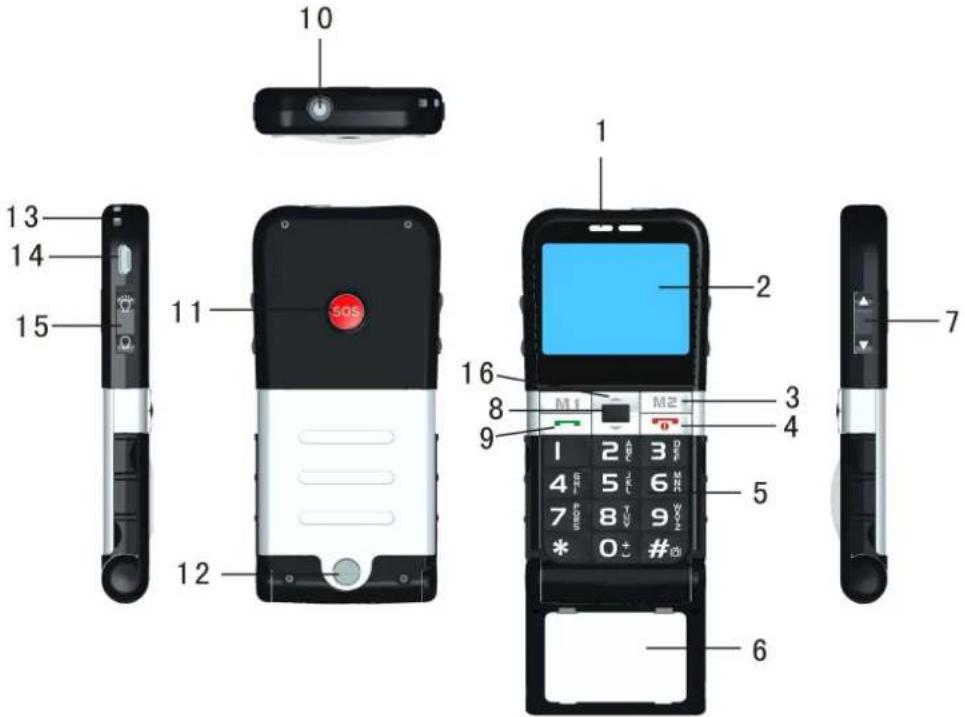
3. Appearance
text_image
Exploded view diagram of a mobile phone showing front, back, and interior views with labeled parts| 1. Earpiece 2. Screen 3. Shortcut key M1 & M2 | |
| 4. End/Power key 5. Numeric key 6. Flip cover/Magnifying glass | |
| 7. Volume key 8. OK/Menu key 9. Send key | |
| 10. Torch 11. SOS button 12. Screw switch | |
| 13. Neck strap eyelet 14. Earphone/Charger plug | 15. Torch button |
| 16. Up/Down key | |
3.1 Keys
This phone has the following keys:
| Key Name | Annotations | |
 | Send Key | Dial or answer a call.In idle mode, press this key to browse the Outgoing Calls. |
 | End Key | To end a call, firmly press this key to turn off the phone.In the Menu options, press this key to return to Idle mode. |
| Short-cut keys | Press M1 or M2 key to select the phone numbers saved in each key. In Menu options, M1 is to select/confirm an option and M2 is to return to previous interface. | |
| Volume Key | While on a call, press the up/ down keys to adjust the volume. | |
| Torch Button | Slide upward/downward to turn on/off the torch. | |
| OK/Menu key Up/Down key | OK key: when the screen is idle, press the OK key to access the Main menu. It also can be used to confirm or select.Up/Down key: To scroll the options in menus.In Edit mode, moves the cursor up or down. | |
| Keypad | Keypad for input of numbers, letters and some available special characters.In the Edit screen, press # to change the input method; press * to switch to the Symbol interface.In Idle mode, firmly press the # key to switch between the current profile and the Conference mode. | |
| SOS Button | Firmly press it for 3 seconds, the phone automatically sends SMS to the pre-stored emergency numbers, and then dial out the SOS contact list orderly. |
3.2 LCD Display
The Display shows different information
Status icons; Text and Graphics Area are in the middle, which shows numbers, words and icons.
Names of the instruction are shown at the bottom.
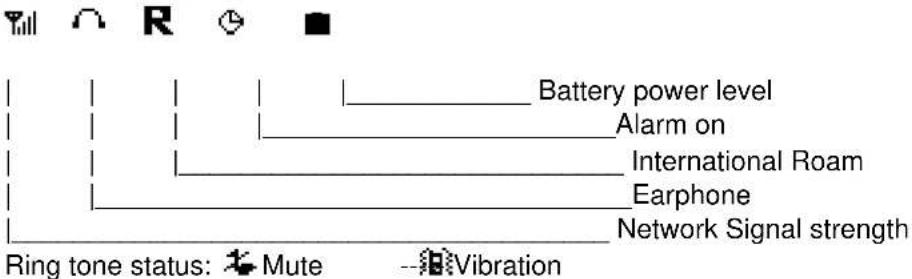
3.3 Status Icons
text_image
Battery power level Alarm on International Roam Earphone Network Signal strength Ring tone status: Mute --Vibration3.4 LCD Backlight
The backlight time duration on the display screen and keypad can be set in Display Settings. If you do not press any key within a certain period of time, the backlight will be turned off automatically when the set time duration expires.
4. Quick Introduction
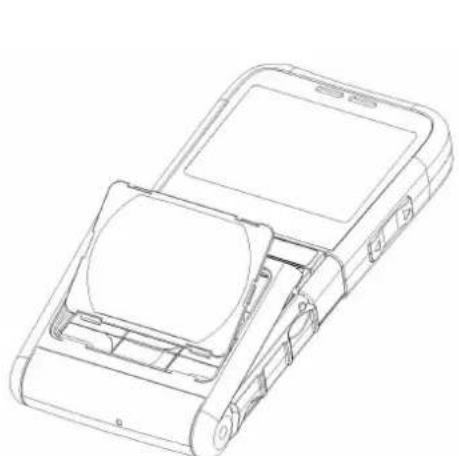
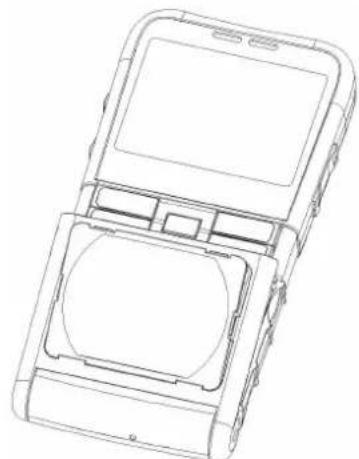
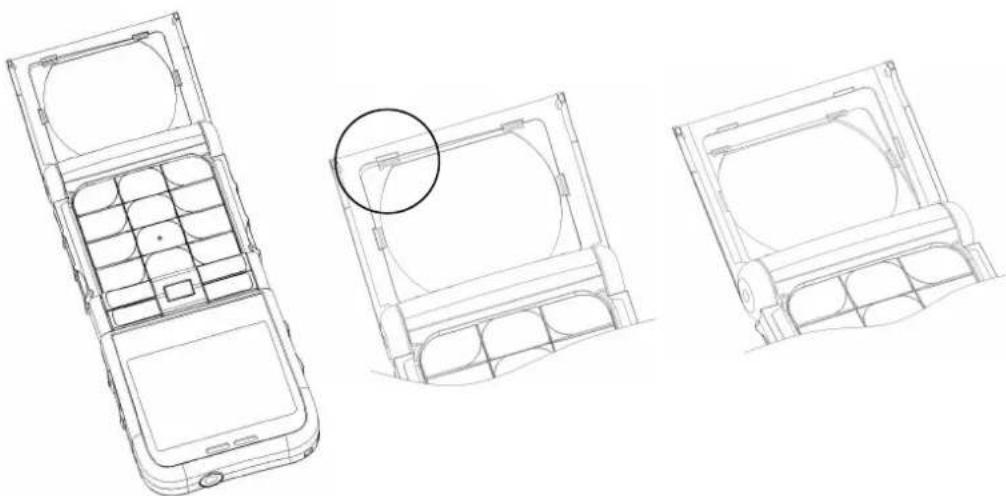
4.1 Magnifying glass changing
Warning: It is recommended that the magnifying glass to be changed by professional or service center dealer.
natural_image
Line drawing of a mobile phone casing with internal compartments and buttons (no text or symbols)- Gently place the magnifying glass into the flip cover's frame as shown.
natural_image
Line drawing of a mobile phone casing with display screen and internal compartments (no text or symbols)- Firmly fix the magnifying glass into the slot on the frame.
natural_image
Line drawings of a mobile phone chassis showing front, side, and top views (no text or symbols)4.2 Remove the Battery Cover and Insert the SIM Card
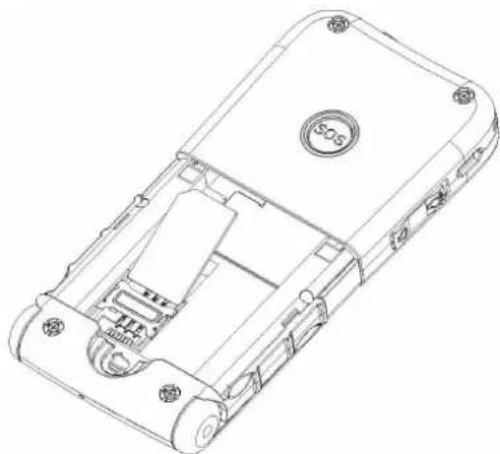
The SIM card stores your phone numbers, PIN (personal identification number), PIN2, PUK (PIN phone unlocking key), PUK2 (PIN2 unlocking key), IMSI (international mobile subscriber identity) codes and network information, as well as Phonebook and SMS (Message service) data, etc.
How to Install
natural_image
Technical line drawing of a mobile phone casing with internal components and mounting holes (no text or symbols)Before installing, the phone must be turned off and not connected to battery charger or any other accessory.
1) Put the phone backside up, press the concave part on the battery cover; push the battery back downward to take it out.
2) Gently slide the SIM card into the slot metal side downwards until the card is in place, and please ensure cut angle of the card corresponds to the slot.
SIM Card Precautions:
1) Turn off the phone, and wait a few seconds before removing or inserting the SIM card.
2) Handle the SIM card with care, do not bend or scratch the SIM card.
3) When SIM card is incorrectly inserted or damaged, the screen will display "No SIM Card"
after the phone is turned on.
4) Check the SIM card is correctly inserted and not damaged and then turn on the phone again.
5) If the screen displays "SIM Card Damaged", please forward it to the network operator for repair.
4.3 Install the Battery and Battery Cover
natural_image
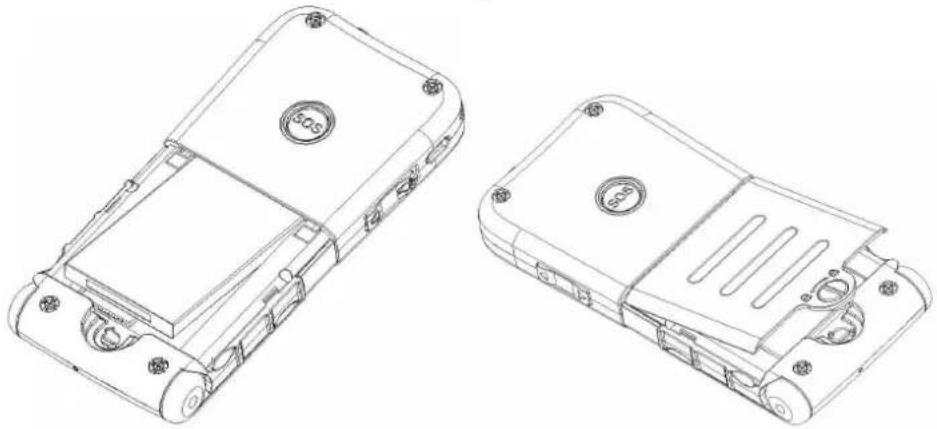
Technical line drawings of two electronic device casing components (no text or symbols)1) Gently push the battery into the battery slot, ensuring the metal contacts on the battery are faced downwards and in the position to be in contact with the metal contacts in the phone.
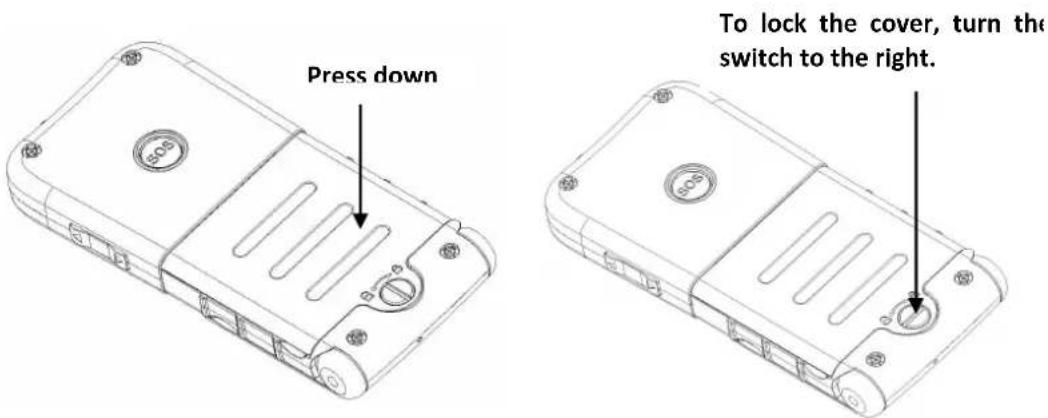
2) Insert the battery cover, by gently pushing it upward until in place.
text_image
Press down To lock the cover, turn the switch to the right.4.4 Charge/Recharge the Battery
1) Insert the charger into the charger socket; Be careful that only the original charger is used and in 5 correct position.
2) Connect the electrical plug side of the charger into electric power plug.
3) When charging is complete, always disconnect from the electrical source and then from the phone.
Notes:
1) When battery power is low and the phone cannot be turned on, keep charging until the screen resumes indication of power.
2) Make sure that the standard voltage and power match the voltage and power indicated on the charger.
3) During the charging/recharging period, it is best to keep phone turned off.
4) Use the battery only for its intended purpose. Never use any charger or battery that is damaged or not original.
4.5 Use of Battery
Monitoring Battery Power
When the battery is low or nearly empty:
1) The screen displays battery low.
2) The empty battery icon blinks and the phone turns off.
Battery Power Reminder
1) If the battery is not used for long periods, fully charge the battery before use again.
2) The battery can be charged and recharged hundreds of times, but it will eventually wear out. When the talk and standby times are noticeably shorter than normal, replace the battery.
3) If the battery is completely discharged, it may take many minutes before the charging indicator appears on the display or before the phone can be used.
4) Your device is powered by a rechargeable battery. The full performance of a new battery is achieved only after two or three complete charge and discharge cycles.
4.6 Turn On or Off
1) Firmly press the End key until the phone powers on. The idle screen appears in the display.
2) If phone lock password has been set, you will be requested to enter the PIN numbers, then press the OK key to confirm.
3) If PIN code has been set, you will be requested to enter the PIN numbers, then press the OK key to confirm.
4) To turn phone off: Firmly press the End key until phone turns off.
Note: The background screen appears when the phone is turned on and is in standby mode.
4.7 Make a Call
Enter the phone number to be dialed and then press the Send Key Note: Before using the phone, ensure SIM Card is inserted properly.
4.8 Use of Passwords / Codes
Your phone and SIM card have different passwords/codes, which help prevent unauthorized use of your phone and SIM card. Enter the correct password/code when prompted, then press the Send Key or OK Key to confirm.
If you enter a wrong password, press the End Key to delete the wrong password/code, then re-enter the correct passwords.
In the Menu “Security”, there are various options relating to the PIN, PUK and Phone passwords/codes.
Phone Lock
The phone lock password /code is used to prevent your phone from unauthorized use. The default password/code is 0000.
Everytime the phone is turned on, the password/code must be entered to activate the phone
PIN Code
PIN code (4-8 digits) is used to prevent your SIM card being used without authorisation. The PIN code is normally provided together with the SIM card by the network operator.
Everytime the phone is turned on or SIM inserted into a phone, the code must be entered to activate the SIM Card
Warning: IF SIM Card code is entered incorrectly three times, the SIM card is blocked and can be unblocked only be entering the PUK code. The PUK password is normally supplied by the SIM card network operator.
PUK Code
The PUK code is used when the PIN code is blocked. The PUK code is provided with the SIM card by the network operator. If not supplied, please contact your network operator.
If the PUK code is entered incorrectly 10 times, then the SIM card will be invalidated. You must connect the network operator for replacement.
PIN2 Code
The PIN2 code (4-8 digits) is provided with the SIM card, and used to set such functions as "Call Cost" and "Fixed Dial", etc, if supported by the network operator.
If the PIN2 code is incorrectly entered 3 times, the PIN2 code is blocked. It can only be unblocked by using the PUK2 code.
PUK2 Code
The PUK2 code is used when the PIN2 code is blocked. The PUK2 code is provided with the SIM card by the network operator. If not supplied, please contact your network operator.
If the PUK2 code is entered incorrectly 10 times, then the SIM card will be invalidated. You must connect the network operator for replacement.
5. General Functions
5.1 Dial a Number
In Idle mode, enter the telephone numbers, and press the Send Key to dial.
Press the End/M2 key to end the call.
International Call:
Firmly press the "0" key, the screen shows a "+" symbol. This symbol is used to activate the international phone code (example 00)
Dial the country code and phone number to be called, and press the Send Key to dial.
Dial a Number by Use of the Phonebook
In Idle mode, press the OK key to enter Main menu.
Press up/down key to select Phonebook menu and press the OK button to access.
Press up/down key to select Search and press the OK button to access.
Press the up/down key to find the numbers you wish to dial.
Quick method: When in Search, press the key containing the first letter of the name to start search. Press Up/Down key to find the name and dial.
Re-dial the Last Outgoing Number
1) In Idle mode, press the Send Key to display the outgoing call list.
2) Use the Up/Down key to select the number to dial
3) Press the Send Key to dial the number.
Short-cut Key
1) To store a number in the speed dial keys M1/M2.
In the idle mode, input the Phone numbers and press the M1 to select "Save to M1/M2". Press the End key to exit.
2) In idle mode, press the M1/M2 key, then press the Send key to dial the number.
5.2 Adjust Volume
During a call, press the Volume up/down button to adjust the volume.
5.3 Answer a Call
1) Press the Send Key to answer the call.
2) To end or refuse the call, press the End key
3) Open or close the flip cover to answer or end a call.
Note: If the caller ID can be identified, the phone will show the telephone numbers of the caller (if this telephone numbers has been stored into your Phonebook, then the caller's name will be displayed).
5.4 Options during a Call
During a call, you can use various control functions. Press M1 to enter.
Mute
This function can turn on /off the phone's microphone. The “Mute” function prevents the person you are talking to from hearing your voice.
While on a call, press the OK/M1 key to enter menu. Press the up/down key to select:
Press the M1 key to activate. To deactivate the Mute, press the M1 key to select options and deactivate.
Phonebook
Press M1 to enter the phonebook, select a number and press send key to dial.
Inbox
Press M1 to enter the Inbox.
Loud sp.
This function turns on and off the phone's loudspeaker.
During a call, press the M2 key to turn on/off the loudspeaker.
5.5 Input Methods
In the Edit mode, press the “#” key to switch the input method, in the top left corner of the screen the input method is shown:
To Input Symbols
Press the “**” key to go to the Symbol selection screen and select symbol to be inserted. The Up/down key makes the cursor scroll from left to right. Press the M1 key to confirm.
To input letters
Press once to input enter the first letter on the key.
Press twice to input the second letter on the key.
Press three times to input the third letter on the key.
Note: The Zero key inputs spaces.
5.6 Keypad Lock
Lock keypad: Close the flip cover to lock keypad.
Unlock keypad
1) Open the flip cover to unlock keypad.
2) In flip cover closed mode, press "OK" button, and then press "M2" key to unlock.
6. Menu Instructions
6.1 Phonebook
Search
To enter the Search menu press the OK/M1 key.
Press Up/Down button to browse. Press the OK key to select record.
Press M1/OK to choose the option and then press OK key to confirm.
-Dial to: Press OK key.
-Edit: Press the OK key to modify the name.
-Delete: Press OK key to confirm.
-Copy: Press OK key to automatically copy the records from SIM card to Phone
and vice versa.
-Move: Press the up/down key to move the record from SIM Card to Phone and vice versa.
Create
Press the Ok key to enter the menu.
Press the up/down key to select "Save to SIM" or "Save to Phone".
Insert name and phone numbers. Press Ok key to confirm.
Delete
Press the OK key to enter Menu.
Delete one by one: Press OK to confirm.
Note: Only records on the Phone can be deleted with this function. To delete records separately from the SIM card. The option must be chosen from the Menu "search".
Delete All: Press OK to confirm. Press up/down key to select option.
Delete All from Phone: Press OK key to confirm
Delete All from SIM: Press OK key to confirm.
Copy
To copy the records from Phone to SIM Card or from SIM Card to phone.
Press OK key to confirm.
Storage Status
Display the utilised memory capacity and the total memory capacity in
Phonebook on the phone and the SIM card.
Press the OK key to enter menu.
Press the up/down key to display storage status.
6.2 Messages
Inbox
Displays the messages received.
Delete: Press the OK key to delete the message
Text reply: Press the OK key to reply the message.
Forward: Forward the message to others.
Edit: Edit the message to send or save.
Dial Back: Press the OK key to select and dial the number.
Extract Number: To read the phone number. Press the OK key to view options and up/down key to choose.
Create message
Create new message.
1) Press the OK key to enter menu.
2) Press the keypad to input the letters or symbols.
3) Press the OK key to enter the options.
Only send: Send the message only.
Only save: Save the message to the Draftbox only.
Send and save: Send the message and save the message to the Draftbox.
Outbox
Displays the messages sent.
Delete: Press the OK key to delete the message
Forward: Forward the message to others.
Edit: Edit the message to send or save.
Dial Back: Press the OK key to select and dial the number.
Extract Number: To read the phone number. Press the OK key to view options and up/down key to choose.
Draftbox
Delete: Press the OK key to delete the message
Forward: Forward the message to others.
Edit: Edit the message to send or save.
Voicemail
Your voicemail is stored on the network; dial your voicemail number to get your mail.
Press the OK key to enter menu.
Listen to voice mail messages: Dial voicemail number to get your message.
Voice mailbox number: Add or edit your voice mail number for quick operation.
Delete all
Press the OK key to enter menu.
Delete all messages: Press the OK key to confirm.
Delete inbox messages: Press the OK key to confirm delete all inbox messages.
Delete outbox messages: Press the OK key to confirm delete all outbox messages.
Delete draftbox messages: Press the OK key to confirm delete all draftbox messages.
6.3 Call Records
Incoming Calls / Outgoing Calls / Missed Calls/Call duration
Press the OK key to enter option and display the call records.
Incoming calls: calls received.
Outgoing calls: numbers dialed
Note: In idle mode press send Key to view outgoing call list.
Missed calls: Incoming calls not answered.
Press the OK key for options and press up/down key to select.
Dial to: Press Ok key to dial the number:
Send message to: Send the message to the number.
Delete: Press OK key to confirm and delete the record.
Save Number: Press OK key to enter and proceed as per instruction in Phonebook.
Delete All: Press OK key to confirm and delete all records.
Show Number: Show the phone number of the entry.
Call Duration: Press OK key to enter and view durations of calls.
Press up/down key to view all counters.
Note: Press M1 key to clear counters.
6.4 Profiles
This menu allows you to choose and customize ringtones and various ring tones for other features such as incomings calls and alarm.
There are four preset options for Standard, Conference, Outdoor and Indoor.
To choose a preset profile:
A. Set as default
Press the OK key to select Option preferred: Standard, Conference, Outdoor and Indoor
Press the "Set as default", and then press the OK button to activate the setting.
B. Personalize
Ringtones and volume can be personalized.
(1) Ring Tone: Select your desired tone as the incoming call ring.
(2) SMS Alert Tone: Select your desired tone as SMS alert ring.
(3) Alarm Tone: Select your desired tone as the alarm ring.
(4) Alert Type: Select single ring or repeat ring.
Single: the ring tone is heard once only. Repeat: the ring tone repeats uninterruptedly.
(5) Ring Tone Volume: Press the Up or Down button to adjust the volume.
(6) Key Volume: Press the Up or Down button to adjust the volume.
(7) Vibration: Select Enable/Disable the vibration.
6.5 Tools
Calendar: Press the Up/Down key to move the cursor up and down.
Search: To find a date. Press OK key to enter "Proceed to date". Use keypad to enter the specific date.
Press OK key to view.
Alarm: Three Alarms can be set.
Press OK key to enter. Press up/down key to select Alarm 1, Alarm 2 or Alarm 3.
Press Ok key to confirm.
Press up/down key to select ON or OFF. Press OK key to confirm and go to time setting.
Time Setting: Press keypad to enter or edit time. Press OK to confirm and go to date setting:
One Shot alarm: Once only.
Weekly alarm: Different day(s) of the week can be chosen.
Press up/down key to select choice. Press # key to confirm each choice.
Note: When the alarm rings, press option "snooze", the alarm rings 3 times at brief intervals.
Calculator: Simple mathematical operations; addition, subtraction, multiplication and division.
Press M1 to enter. Enter the numbers by pressing M1 to choose the operations. Press '#' to add the decimal. Press '*' to give the result.
6.6 SOS setting
SOS contact list: Insert the contact information. Only 5 entries can be
recorded.
SOS message: Create the SOS message. The default SOS message is "SOS". 4) Press M2 key to exit and save.
(Firmly press SOS button for 3 seconds to activated SOS call, the phone would send SMS to the pre-stored emergency numbers, and then dial out the SOS contact list orderly.)
6.7 Phone settings
6.7.1 Display
Back Light:
Press the Up/Down button to select "Always on" or amount of seconds before the backlight turns off automatically.
Press OK to confirm.
Clock Settings:
Date & Time Settings: Press the OK key to enter. The screen displays the format of the time.
Insert the time and date using the keypad. Press OK to confirm.
Date Display Format: To set how the date is displayed.
Time Display Format: To set how the time is displayed.
6.7.2 Security
This menu is to set various security settings:
Power On PIN1:
You can choose On or Off, and you can also change PIN code. When the Power on PIN is active (on) each time the phone is turned on the PIN Code must be entered.
If ON is chosen, the PIN must be entered to confirm. Then to choose OFF again the PIN must be entered to confirm.
Change PIN2:
The PIN2 code is supplied by your network operator. Please ensure you have this code before entering this menu.
Phone Lock:
You can choose On/Off, When the Phone Lock is active (on) each time the phone is turned on the Phone Code must be entered, before the Idle screen and SIM card will be activated.
Press OK key to enter menu. Press up/down key to select option. Press OK key to confirm.
When Phone Lock is on. The Code must be entered as per below:
Verify power-on: Press Ok to enter. Insert the Code to confirm and the code must be entered before phone is active.
Verify with New SIM: Press Ok to enter. Insert the Code to confirm and the code must be entered before a new SIM card is activated.
Note: Verify power-on must be activated to activate the Phone Lock.
6.7.3 Language
Language can be chosen as per list available. Press up/down key to select language and OK key to confirm.
Automatic: the Phone will automatically choose the language of the SIM Card operator if available; If not available the English language will be chosen.
6.7.4 Keypad Lock
Disable: Keypad lock function is never activates.
30 Seconds: Activates automatically after 30 seconds the Phone is in standby. 60 Seconds. Activates automatically after 60 seconds the Phone is in standby.
6.8 Menu setting
In this menu, you are able to "Enable or "Disable" each menu: Phonebook, Messages, Call Records, Profiles, Tools, SOS Setting, Phone settings.
Note: Choose "Enable" or "Disable" to appear or disappear the menu in the main menu listing.
Return to default
To reset all the menu and functions of the phone as per the standard factory settings;
After enter the Phone Lock Code, press the OK key to confirm. Press the M2 key to exit.
7. Shortcut Key
7.1 Messages
In the idle mode, press the Upside key to enter the Message feature.
7.2 Phonebook
In the idle mode, press the Downside key to enter the Phonebook contact list.
8. Extras
8.1 Specification Parameters
Network Type: GSM850MHz/DCS1900MHz
LCD: 2.2"FSTN
Dimensions: 116mm*54mm*13.6mm (length*width*height)
Working Voltage: 3.7V-4.2V
Battery: 850 mAh
Weight: 95g (including battery)
Standby Time duration: approximately 150-200 hours (depends on usage and network)
Maximum Call Time: approximately 2-3 hours (depends on usage and the network)
Accessories: handset, charger, battery, earphone, user manual.