
ISP391B - Docking Station GPX - Free user manual and instructions
Find the device manual for free ISP391B GPX in PDF.


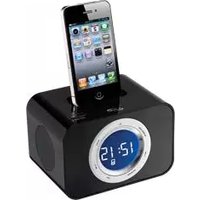
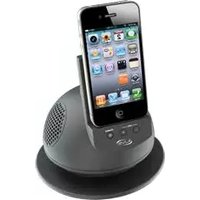
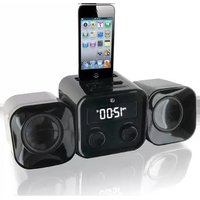
| Product Type | App-enhanced Speaker System / Docking Station for iPod + iPhone |
| Brand | GPX |
| Model | ISP391B |
| Compatible Devices | iPod and iPhone (with 30-pin connector) |
| Power Supply | DC power input via included AC/DC power adapter |
| Speakers | Built-in stereo speakers |
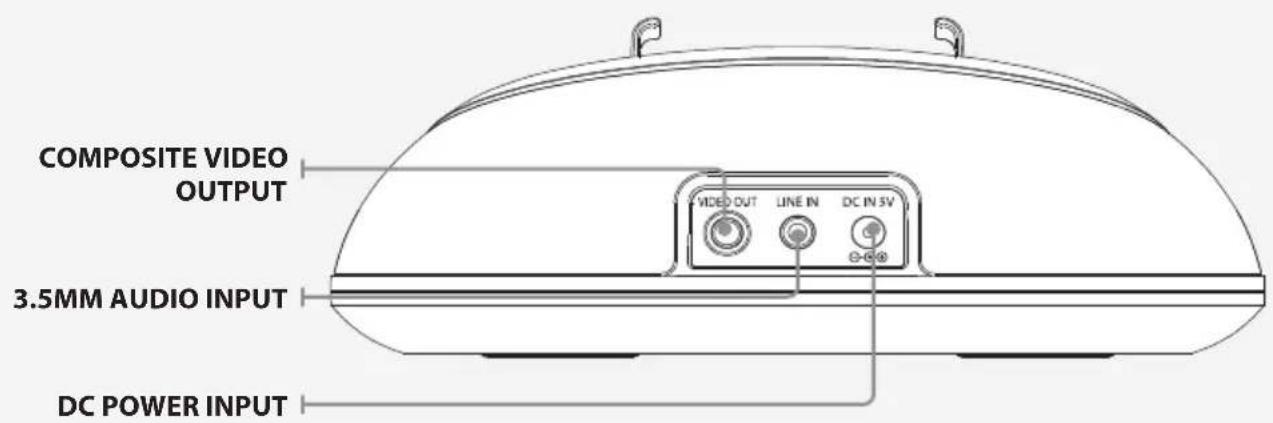
| Audio Input | 3.5mm auxiliary input for external audio sources |
| Video Output | Composite video output (RCA) for TV connection |
| App Integration | ISP391 app for clock, alarm, weather, nature sounds, photo slideshow with background music |
| Charging | Charges docked iPod/iPhone when connected to AC power |
| Dock Rotation | Rotates 90 degrees left or right for portrait/landscape orientation |
| Volume Control | Digital volume control |
| Indicators | Green LED (iPod mode), Orange LED (Line In mode), Red LED (power off) |
| Included Accessories | AC/DC power adapter, two rubber spacers |
| Cleaning Instructions | Clean with a dry cloth only; do not use liquid cleaners |
| Safety Notes | Do not expose to rain or moisture; unplug during lightning storms or long periods of non-use |
| Furniture Protection | Place on a protective barrier to avoid damage to lacquered or natural finishes |
Frequently Asked Questions - ISP391B GPX
User questions about ISP391B GPX
0 question about this device. Answer the ones you know or ask your own.
Ask a new question about this device
Download the instructions for your Docking Station in PDF format for free! Find your manual ISP391B - GPX and take your electronic device back in hand. On this page are published all the documents necessary for the use of your device. ISP391B by GPX.
USER MANUAL ISP391B GPX
natural_image
Black and white photo of a smartphone mounted on a circular device with a digital clock, no visible text or symbols.ISP391B
App-enhanced Speaker System for iPod + iPhone
For the most up-to-date version of this User's Guide, go to www.ilive.net
Warnings and Precautions
- CAUTION: TO PREVENT ELECTRIC SHOCK, MATCH WIDE BLADE OF PLUG TO WIDE SLOT, FULLY INSERT.
- WARNING: To reduce the risk of fire or electric shock, do not expose this apparatus to rain or moisture.
- AVERTISSEMENT: Pour réduire le risque d'incendie ou de choc électrique, ne pas exposer cet appareil sous la pluie et l'humidité.
- CAUTION: Use of any controls or adjustments or performance of procedures other than those herein specified may result in hazardous radiation exposure.
- WARNING: Changes or modifications to this unit not expressly approved by the party responsible for compliance could void the user's authority to operate the equipment.
- WARNING: Do not place the unit on top of any soft, porous, or sensitive surfaces to avoid damaging the surface. Use a protective barrier between the unit and surface to protect the surface.
• WARNING: Shock hazard - Do Not Open.
• AVIS: RISQUE DE CHOC ÉLECTRIQUE - NE PAS OUVRIR
Mains Plug or Direct plug-in adapter is used as disconnect device and it should remain readily operable during intended use. In order to disconnect the apparatus from the mains completely, the Mains Plug or Direct plug-in adapter should be disconnected from the mains socket outlet completely.
Do not mix old and new batteries.
Do not mix alkaline, standard (carbon-zinc), or rechargeable (ni-cad, ni-mh, etc) batteries.
The lightning flash with arrowhead symbol, within an equilateral triangle, is intended to alert the user to the presence of uninsulated "dangerous voltage" within the product's enclosure that may be of sufficient magnitude to constitute a risk of electric shock to persons.

The exclamation point within an equilateral triangle is intended to alert the user to the presence of important operating and maintenance (servicing) instructions in the literature accompanying the appliance.
Important Safety Instructions
- Read these Instructions.
- Keep these Instructions.
- Heed all Warnings.
- Follow all instructions.
- Do not use this apparatus near water.
-
Clean only with a dry cloth.
-
Do not block any ventilation openings. Install in accordance with the manufacturer's instructions.
-
Do not install near any heat sources such as radiators, heat registers, stoves, or other apparatus (including amplifiers) that produce heat.
-
Do not defeat the safety purpose of the polarized or grounding - type plug. A polarized plug has two blades with one wider than the other. A grounding type plug has two blades and a third grounding prong. The wide blade or the third prong are provided for your safety. When the provided plug does not fit into your outlet, consult an electrician for replacement of the obsolete outlet.
-
Protect the power cord from being walked on or pinched particularly at plugs, convenience receptacles, and the point where they exit from the apparatus.
-
Only use attachments/accessories specified by the manufacturer.
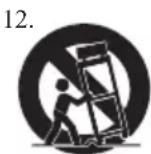
Use only with a cart, stand, tripod, bracket, or table specified by the manufacturer, or sold with the apparatus. When a cart is used, use caution when moving the cart/apparatus combination to avoid injury from tip-over.
- Unplug this apparatus during lightning storms or when unused for long periods of time.
- Refer all servicing to qualified service personnel. Servicing is required when the apparatus has been damaged in any way, such as power-supply cord or plug is damaged, liquid has been spilled or objects have fallen into the apparatus, the apparatus has been exposed to rain or moisture, does not operate normally, or has been dropped.
Special note: When placing your unit on a lacquered or natural finish, protect your furniture with a cloth or other protective material.
FCC Warnings
WARNING: Changes or modifications to this unit not expressly approved by the party responsible for compliance could void the user's authority to operate the equipment.
NOTE: This equipment has been tested and found to comply with the limits for a Class B digital device, pursuant to Part 15 of the FCC Rules. These limits are designed to provide reasonable protection against harmful interference in a residential installation. This equipment generates, uses, and can radiate radio frequency energy and, if not installed and used in accordance with the instructions, may cause harmful interference to radio communications. However, there is no guarantee that interference will not occur in a particular installation. If this equipment does cause harmful interference to radio or television reception, which can be determined by turning the equipment off and on, the user is encouraged to try to correct the interference by one or more of the following measures:
- Reorient or relocate the receiving antenna.
- Increase the separation between the equipment and receiver.
- Connect the equipment into an outlet on a circuit different from that to which the receiver is connected.
- Consult the dealer or an experienced radio/TV technician for help.
Additional Warnings
This symbol indicates that this product incorporates double insulation between hazardous mains voltage and user accessible parts.
App-enhanced Speaker System for iPod + iPhone
Features
• Made for iPod and iPhone
- Plays and charges docked iPod and iPhone
- App-enhanced: clock, alarm, weather, nature sounds, photo slideshow with background music
• 2 channel stereo sound
- Rotating dock for iPod and iPhone
- iPod and iPhone authentication IC
- Composite video output
• 3.5mm audio input
• Digital volume control
• Built-in stereo speakers
• Portrait or landscape orientation
- Cloth speaker grill
- DC power input: requires an AC/DC power adapter (included)
Included
- 2 rubber spacers
• AC/DC power adapter
Table of Contents
Warnings and Precautions 2
Important Safety Instructions.... 3
App-enhanced Speaker System for iPod + iPhone 4
Features Included
Table of Contents.... 5
Introduction 6
Setup....7
Power
iPod and iPhone....8
Docking an iPod or iPhone Playing a Docked iPod or iPhone Rotating Dock
App Introduction....9
Automatically Downloading the App Manually Downloading the App ISP391 app
Video and Photo Slideshow.... 10
Adding a Video to the App Playing a Slideshow using the App
3.5mm Audio Input and Composite Video Output 11
Using the 3.5mm Audio Input Using the Composite Video Output
Company Information 12
International Support Contact Information Green Initiative
Introduction

Setup
Power
DC power input: requires an AC/DC power adapter (included)
GREEN: iPod Mode
ORANGE: Line In Mode
RED: Power Off

iPod and iPhone
Docking an iPod or iPhone
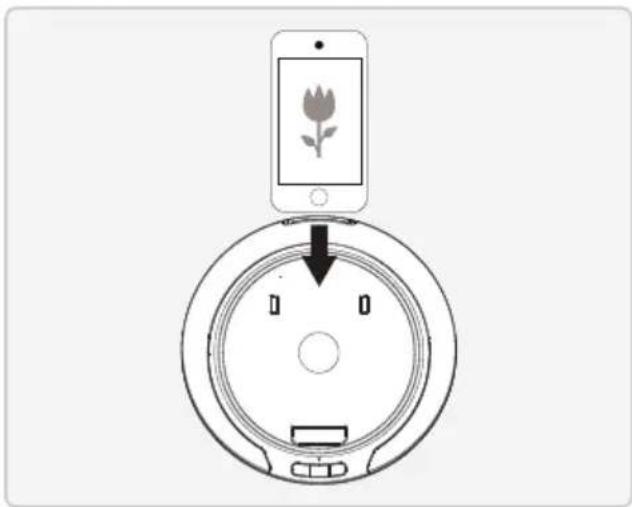
- Use the included magnetic rubber spacers as needed to adjust the depth for your iPod or iPhone.
- Connect the iPod or iPhone to the DOCK FOR iPod AND iPhone.
- When the speaker is plugged in, using AC power, the docked iPod or iPhone will charge.
natural_image
Diagram showing a smartphone displaying a rose icon above a circular device with a face and control buttons (no text or symbols)Playing a Docked iPod or iPhone
- Follow the instructions for Docking an iPod or iPhone.
- Press the POWER/SOURCE button to switch to iPod mode or use the ISP391 app from the iTunes App Store to adjust the speaker's source.
- Press the PLAY/PAUSE button on the docked iPod or iPhone to begin playing the docked iPod or iPhone.
Rotating Dock
The dock will rotate 90^ to the right or left.

natural_image
Diagram of a smartphone mounted on a circular base with a flower graphic, no text or symbols present.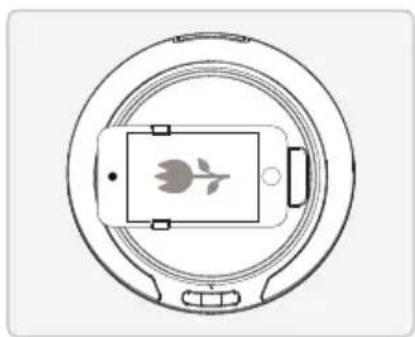
natural_image
Top-down schematic of a camera lens showing the aperture, screen, and base components (no text or symbols)
natural_image
Top-down schematic of a circular device with a central screen and two connectors (no text or symbols)App Introduction
Automatically Downloading the App
- Follow the instructions for Docking an iPod or iPhone.
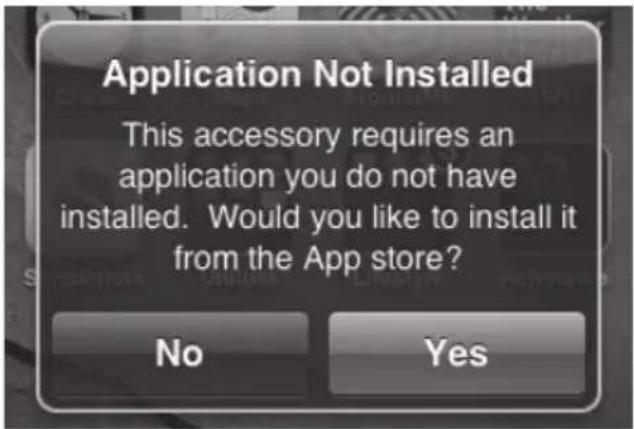
- Once the iPod or iPhone is docked a screen will appear prompting you to download the ISP391 app from the App Store.
- Press Yes to automatically download the ISP391 app.
Manually Downloading the App
- Go to the App Store on your iPhone or iPod touch.
- Search for ISP391.
- Download the App.
ISP391 app
CLOCK
The clock will automatically sync with the time on the iPod or iPhone, so there's no need to set it.
ALARM
Add as many alarms as you like. You can set them to wake to iPod music, Nature Sounds, or Buzzer.
WEATHER
Type in your location in the settings and view your current weather conditions along with the time on the home page of the app.
PHOTO SLIDE SHOW
Select photos that are already on your iPod or iPhone and play a slideshow with your music in the background.
SOURCES
When docked with the App-enhanced Speaker System (ISP391B) you can use the app to select the source for the Speaker System.
Choose iPod to play music directly from your iPod or iPhone, Video to view loaded MP4 videos through the App, or Line In to play music from an audio source connected to the 3.5mm audio input.
Video and Photo Slideshow
Adding a Video to the App
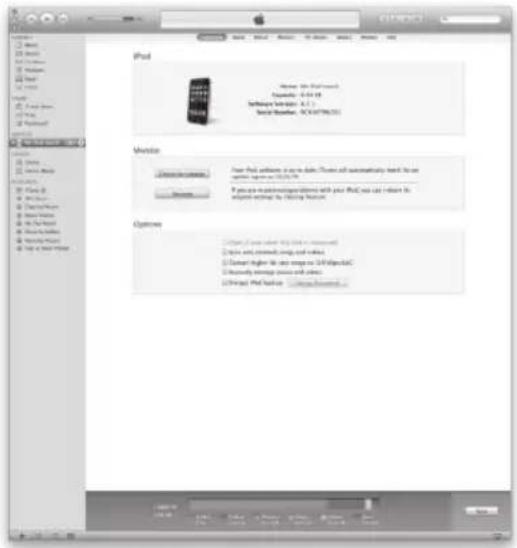
- Connect your iPod or iPhone to your computer.
- Open iTunes.
- Select your connected iPod or iPhone in the iTunes sidebar menu.
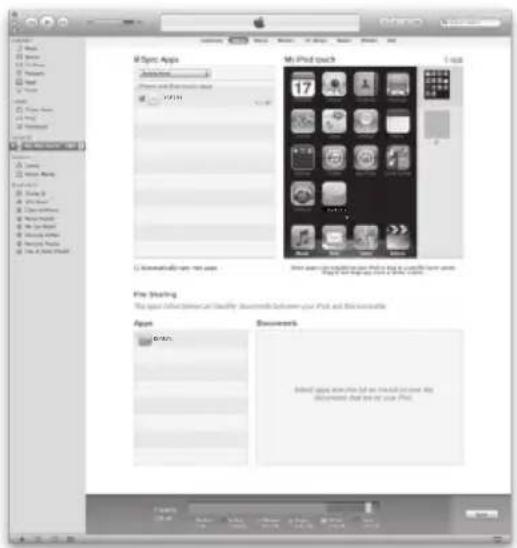
- Click the apps tab to view the apps being synced to your connected iPod or iPhone.
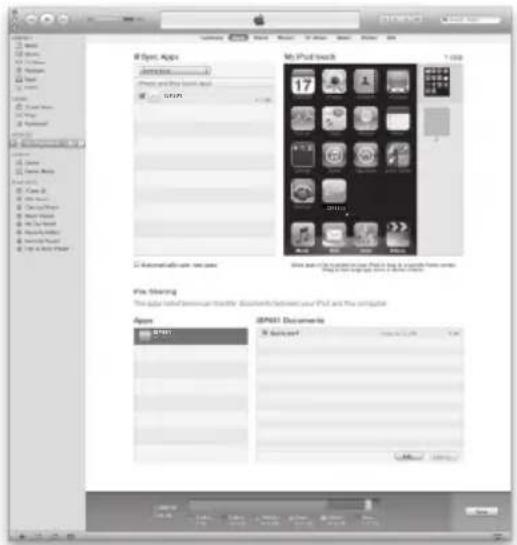
- Select the ISP391 app and click the ADD button.
- Add an MP4 video to the app.
- The added video can now be accessed and played from the iPod or iPhone through the ISP391 app.
Playing a Slideshow using the App
- Select Slideshow in the ISP391 app.
- Press Select Photos.
- Press the + button to add a photo to the app.
Repeat this step until all the desired photos have been added to the app.
- Press the individual photos to add them to the slideshow.
A check mark will appear next to the photos that have been added to the slideshow.
- Press the Slideshow button, then press the Start button to begin playing the photo slideshow.
3.5mm Audio Input and Composite Video Output
Using the 3.5mm Audio Input
Requires a 3.5mm audio cable (not included)
- Connect a 3.5mm audio cable to the 3.5MM AUDIO INPUT on the speaker and an audio output on an MP3 player or other audio source.
- Press the POWER/SOURCE button to switch to Line In mode.
- Use the native controls on the connected MP3 player or other audio source to play and control audio played through the speaker.
Using the Composite Video Output
Requires an RCA composite video cable (not included)
- Connect the RCA composite video cable to the COMPOSITE VIDEO OUTPUT on the speaker and a composite video input on a television.
- Adjust the TV OUT settings on the docked iPod to OK.
- Videos played from the docked iPod or iPhone will now play on the connected television.
Videos played from the ISP391 app cannot be output to a connected television.
Company Information
To download this User's Guide in English, Spanish, or French, visit the support section at www.ilive.net.
Website: www.ilive.net
Green Initiative International Support

protect for today • sustain for tomorrow
Environmental Commitment to 'Protect for Today and Sustain for Tomorrow'
2009 marked the official launch of DPI, Inc.'s corporate campaign for a greener and cleaner world. DPI is building upon environmental initiatives introduced at all of their facilities to help formulate and sustain significant and important conservation efforts within its manufacturing and marketing communities. In addition to targeting and selecting energy efficient product features, and structuring 'green office' procedures, other initial program efforts include:
- Reduction of all packaging sizes
• Recyclable plastics for clamshell packages, with a plan to eventually replace plastic with recyclable paper
• Recycled fiber board in place of the polyfoam in packing boxes
• Recycled plastics in place of the virgin material in product construction

- ISP391B
- App-enhanced Speaker System for iPod + iPhone
- Warnings and Precautions
- Important Safety Instructions
- FCC Warnings
- Additional Warnings
- Features
- Included
- Table of Contents
- Introduction
- Setup
- Power
- iPod and iPhone
- Docking an iPod or iPhone
- Playing a Docked iPod or iPhone
- Rotating Dock
- App Introduction
- Automatically Downloading the App
- Manually Downloading the App
- ISP391 app
- CLOCK
- ALARM
- WEATHER
- PHOTO SLIDE SHOW
- SOURCES
- Video and Photo Slideshow
- Adding a Video to the App
- Playing a Slideshow using the App
- 3.5mm Audio Input and Composite Video Output
- Using the 3.5mm Audio Input
- Using the Composite Video Output
- Company Information
- Green Initiative International Support
Brand : GPX
Model : ISP391B
Category : Docking Station