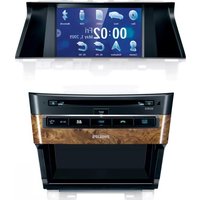
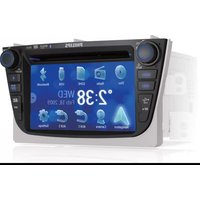
CID3682 - Car Radio PHILIPS - Free user manual and instructions
Find the device manual for free CID3682 PHILIPS in PDF.


| Product Type | Car Audio System with Navigation |
| Brand | Philips |
| Model | CID3682 |
| Power Supply | 12 V DC (11 V - 16 V), negative ground |
| Fuse Rating | 5 A |
| Main Unit Dimensions (W x H x D) | 201 x 240 x 191 mm |
| Screen Dimensions (W x H x D) | 281 x 140 x 105 mm |
| Main Unit Weight | 2.1 kg |
| Screen Weight | 0.7 kg |
| Disc Formats | DVD, VCD, CD, DVD-R, DVD-RW, CD-R, CD-RW |
| USB Playback | USB flash memory, FAT16/FAT32 |
| SD/MMC Card Slot | SD, MMC, SDHC |
| Bluetooth Version | 2.0 (supports HFP, HSP, A2DP, AVRCP) |
| Screen Size | 7 inch (16:9) LCD, 800 x 480 pixels |
| Video Output | 1 ± 0.2 V (NTSC only) |
| Audio Pre-amp Output Voltage | 2.0 V (1 kHz, 0 dB, 10 kΩ load) |
| Preset Equalizer Modes | 8 presets (User, Techno, Rock, Classic, Jazz, Optimal, Flat, Pop) |
| GPS Navigation | Built-in, requires map card (upgradeable) |
| Safety Class | Laser class 1, 12 V DC only |
| Cleaning Instructions | Use soft damp cloth; avoid solvents or chemicals |
| Included Accessories | Main unit, screen, AV out/in cables, power cable, Bluetooth microphone, TFT cable, CAN cable, GPS antenna, cleaning cloth, manuals |
Frequently Asked Questions - CID3682 PHILIPS
User questions about CID3682 PHILIPS
0 question about this device. Answer the ones you know or ask your own.
Ask a new question about this device
Download the instructions for your Car Radio in PDF format for free! Find your manual CID3682 - PHILIPS and take your electronic device back in hand. On this page are published all the documents necessary for the use of your device. CID3682 by PHILIPS.
USER MANUAL CID3682 PHILIPS
natural_image
Interior view of a Philips air conditioner unit with digital display and control buttons (no readable text beyond branding)EN User manual
Contents
1 Important 4
Safety 4
Notice 4
Introduction 5
What's in the box 5
Overview of the main unit 6
2 Get started 7
Install the car audio 7
Turn on 9
Set date 10
Set clock mode 10
3 Use map 11
Upgrade the map 11
4 Play 12
Load discs 12
Connect USB device 12
Insert SD/MMC card 12
Play/Pause 13
Search for a folder 13
Search within a title/folder 13
Repeat 14
Repeat a section 14
Random play 15
Select audio language 15
Select audio mode 15
Select subtitle language 15
Rotate pictures 15
Zoom 15
Select slide show duration 16
5 Play with Bluetooth device 16
Pair the Bluetooth-enabled devices 16
Make a call 17
Receive call 17
Listen to music from Bluetooth device 18
Adjust Bluetooth settings 18
6 Adjust sound 19
Adjust volume 19
Mute 19
Select preset equalizer 19
Set Dynamic Bass Boost (DBB) 19
7 Adjust settings 20
Display system setup menu 20
Adjust general settings 20
Adjust sound settings 21
Adjust video settings 21
Adjust Bluetooth settings 22
Adjust language settings 22
Adjust volume settings 23
Adjust DVD rating 23
8 Others 24
Listen to other devices 24
Reset 24
Replace fuse 24
9 Product information 25
10 Troubleshooting 26
About Bluetooth device 27
11 Glossary 28
1 Important
Safety
Read and understand all instructions • before you use the apparatus. If damage is caused by failure to follow instructions, the warranty does not apply.
Use of controls or adjustments or performance of procedures other than herein may result in hazardous radiation exposure or other unsafe operation.
This unit is designed for negative ground • (earth) 12 V DC operation only.
To reduce the risk of traffic accident, do • no watch video during driving.
To ensure safe driving, adjust the volume to a safe and comfortable level.
Improper fuses can cause damage or fire. When you need to change the fuse, consult a professional.
Use only the supplied mounting hardware • for a safe and secure installation.
To avoid short circuit, do not expose the • apparatus, remote control or remote control batteries to rain or water.
Never insert objects into the ventilation • slots or other openings on the apparatus.
Never place any objects other than discs • into the disc tray/slot.
Visible and invisible laser radiation when open. Avoid exposure to beam.
Risk of damage to the screen! Never • touch, push, rub or strike the screen with any object.
Never use solvents such as benzene, • thinner, cleaners available commercially, or anti-static sprays intended for discs.
Clean the apparatus with soft, damp • cloth. Never use substances such as alcohol, chemicals or household cleaners on the apparatus.
Notice

The making of unauthorized copies of copy-protected material, including computer programs, files, broadcasts and sound recordings, may be an infringement of copyrights and constitute a criminal offence. This equipment should not be used for such purposes.

"DivX, DivX" Certified, and associated logos are trademarks of DivX, Inc. and are used under license.
Official DivX® Certified product. Plays all versions of DivX® video (including DivX® 6) with standard playback of DivX® media files. The Bluetooth® word mark and logos are registered trademarks owned by Bluetooth SIG, Inc. and any use of such marks by Philips is under license.

Manufactured under license from Dolby Laboratories.
"Dolby" and the double-D symbol are trademarks of Dolby Laboratories.
Other trademarks and trade names are those of their respective owners.
This apparatus includes this label:

Environmental information
All unnecessary packaging has been omitted. We have tried to make the packaging easy to separate into three materials: cardboard (box), polystyrene foam (buffer) and polyethylene (bags, protective foam sheet.)
Your system consists of materials which can be recycled and reused if disassembled by a specialized company. Please observe the local regulations regarding the disposal of packaging materials, exhausted batteries and old equipment.
Any changes or modifications made to this device that are not expressly approved by Philips Consumer Lifestyle may void the user's authority to operate the equipment.
2008 © Koninklijke Philips Electronics N.V. All rights reserved.
Specifications are subject to change without notice. Trademarks are the property of Koninklijke Philips Electronics N.V. or their respective owners. Philips reserves the right to change products at any time without being obliged to adjust earlier supplies accordingly. Congratulations on your purchase, and welcome to Philips! To fully benefit from the support that Philips offers, register your product at www.philips.com/welcome.
Introduction
With the car entertainment system, you can
Quickly found routine through the • navigation system
And you can also enjoy:
Audio/video/JPEG pictures from • DVD, VCD or CD •
USB devices•
SD/SDHC/MMC cards •
External devices•
Audio from Bluetooth-enabled devices • Besides, you can make/receive phone calls with Bluetooth-enabled devices.
What's in the box
Check and identify the contents of your package:
①
natural_image
Top-down line drawing of a car front panel with no text or symbols②
③

natural_image
Diagram of a multi-pin connector with multiple connectors (no text or symbols)⑤
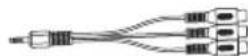
6
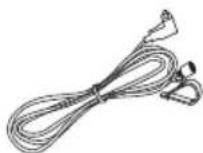
⑦
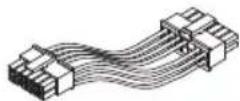
⑧
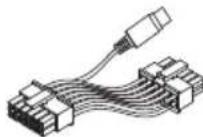
⑨
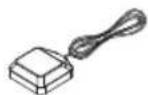
10

⑪
natural_image
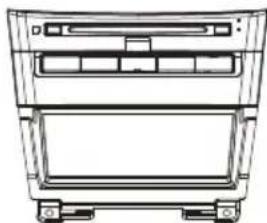
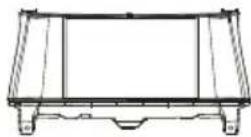
Simple 3D rectangular block diagram with no text or symbols① Main unit
② Screen
③ AV out cable
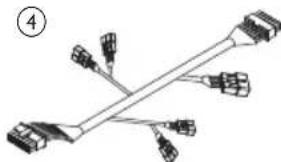
④ Power cable
⑤ AV in cable
⑥ Bluetooth microphone cable
⑦ 12 pin TFT cable
⑧ 14 pin CAN cable
⑨ GPS antenna
⑩ Screen cleaning cloth
⑪ Printing material (includes user manual, GPS manual, quick start guide, warranty etc.)
Overview of the main unit

① /SOURCE
Turn the unit on or off.
Select source.
② MAP
Open the cover and insert/remove • the GPS map card.
③ Disc slot
④ ▲
• Eject
⑤ RESET
• Reset the unit when it hangs up.
⑥ NAVI
• Enter the GPS navigation system exit.
⑦ ✉ USB socket.
⑧ AV IN
External equipment audio/video in • socket.
⑨ SD/SDHC/MMC card slot
⑩ Answer phone. •
Terminate phone call. •
⑪ HOST
Display host car audio menu (e.g. air • conditioner settings).
Overview of the steering wheel
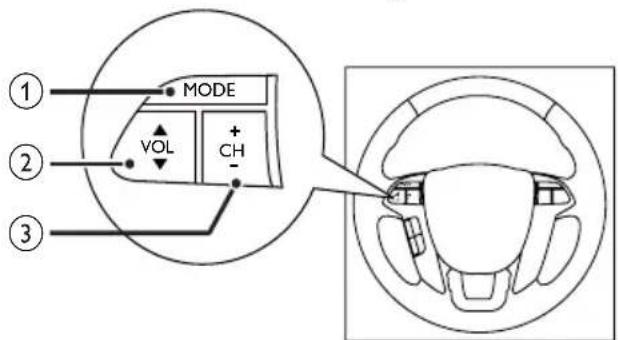
1 MODE
Toggle between CID3682 and the • host car audio (long press).
Select source for CID3682/host car • audio.
2 VOL
Adjust volume. •
3 CH +/-
Select track.
• Select preset radio stations.
• Answer an incoming call.
• Terminate a phone call (long press).
2 Get started

Caution
Use of controls or adjustments or performance of procedures other than herein may result in hazardous radiation exposure or other unsafe operation.
Always follow the instructions in this chapter in sequence.
Install the car audio
These instructions are for a typical installation. However, if your car has different requirements, make the corresponding adjustment. If you have any questions regarding installation kits, consult your Philips car audio dealer.

Caution
This unit is designed for negative ground (earth) 12 V DC operation only.
• Always install this unit in the car dashboard. Other locations can be dangerous as the rear of the unit heats up during use.
- To avoid short-circuit: before you connect, ensure that the ignition is off.
- Ensure that you connect the yellow and red power supply leads after all other leads are connected.
- Ensure that all loose leads are insulated with electrical tape.
- Ensure that the leads do not get caught under screws orin parts that will move (e.g. seat rail).
- Ensure that all ground (earth) leads are run to a common ground (earth) point.
- Use only the supplied mounting hardware for a safe and secure installation.
- Improper fuses can cause damage or fire. When you need to change the fuse, consult a professional.
Note on the power supply lead (yellow)
When you connect other devices to this system, ensure that the rating of the car circuit is higher than the total fuse value of all the connected devices.
Notes on speaker connection
Never connect speaker wires to the • metal body or chassis of the car.
Never connect speaker wires with stripes • to one another.
Connect wires

Caution
Ensure that all loose leads are insulated with electrical tape.
1 Check the car's wiring carefully, then do the other connections:
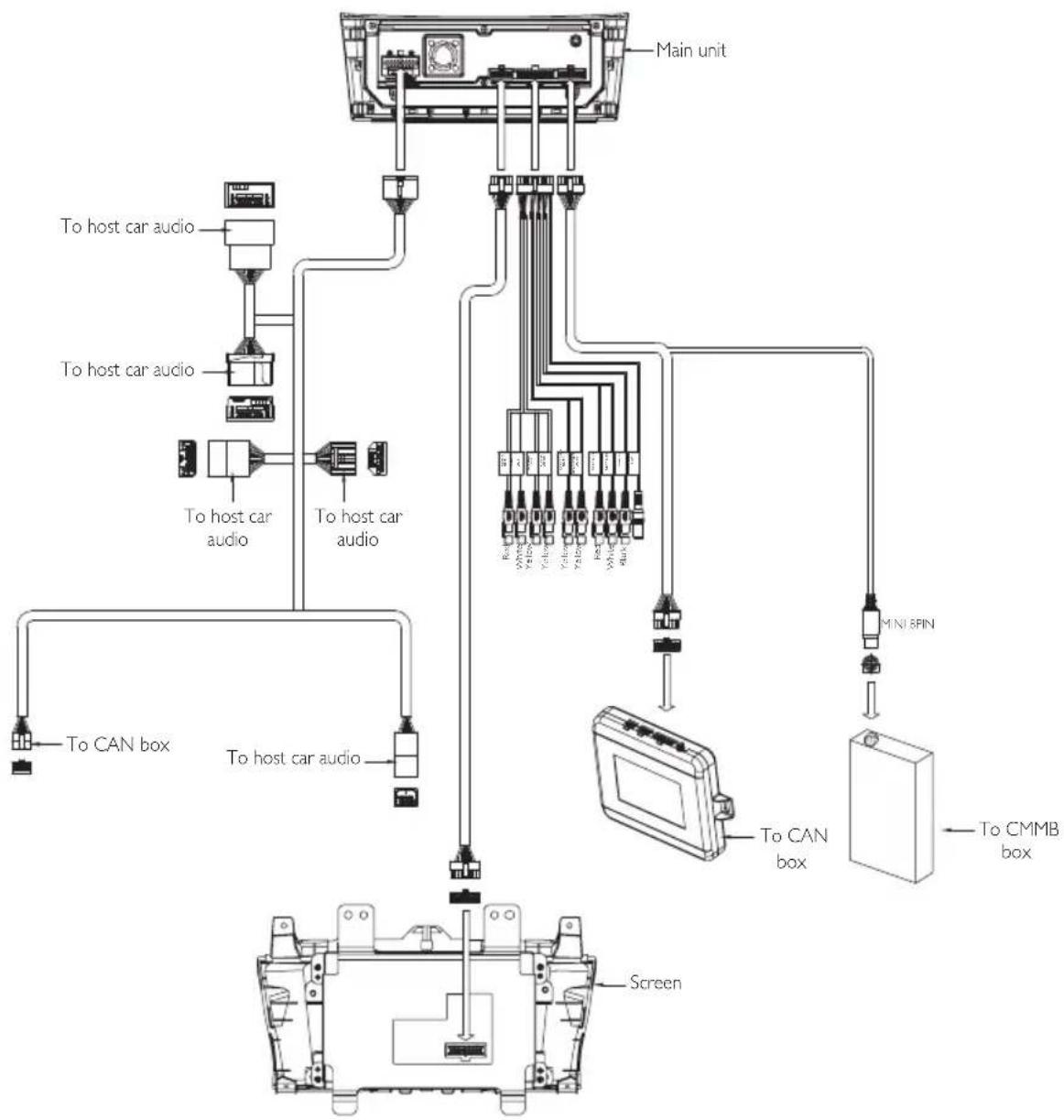
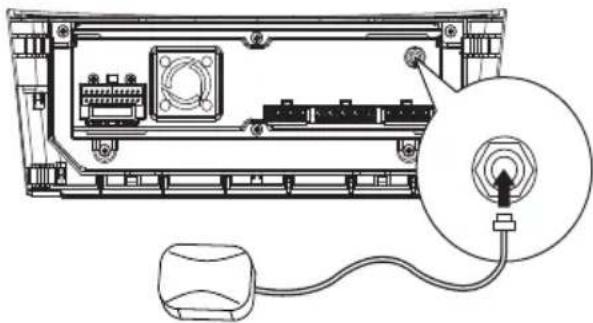
Connect GPS antenna
To receive signal from satellites, connect the supplied GPS antenna to your car and the system.
1 Connect the supplied GPS antenna to the system first.
natural_image
Diagram of an electronic device showing internal components and a close-up of a circular component with a pointer (no text or symbols present)2 Stick the other end of the GPS antenna to a surface for better signal reception.
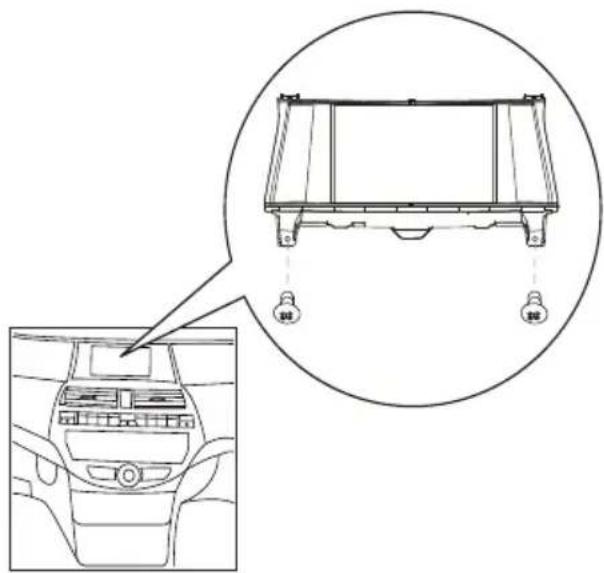
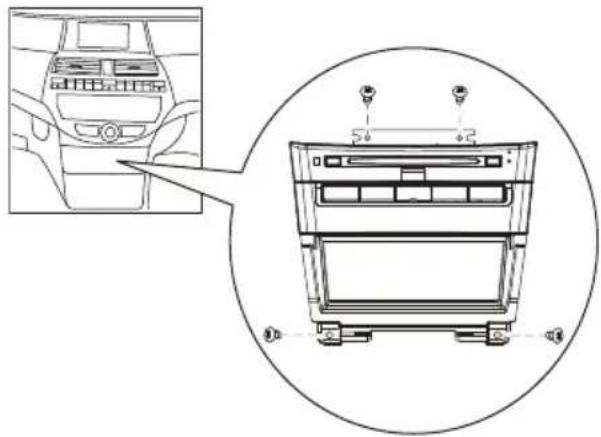
Mount in the dashboard

Note
Check wire connection before you mount the unit into a car.
1 Take off the trim plate of the car.
2 Fix the screen to the car with 2 screws.
natural_image
Diagram of a car interior showing dashboard and steering wheel (no text or labels)3 Slide the main unit into the car, and fix it to the car with four screws.
natural_image
Interior view of a car dashboard and air conditioner unit (no text or symbols visible)4 Attach the trim plate.
5 Reconnect the negative terminal of the car battery.
Turn on

Caution
Risk of road accidents! Never watch video or adjust settings while you drive.
1 Press and hold SOURCE to turn on the unit. The available OSD (On-Screen → Display) languages are displayed.

2 Touch a language to select. The OSD language is changed to the → selected language immediately. To turn off the unit, press and hold • SOURCE.
Set date
1 Touch the upper left corner to display main menu.
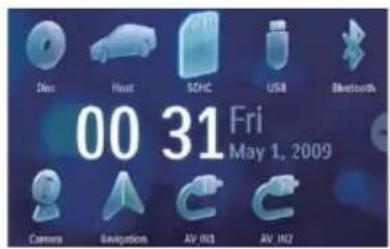
2 Touch in the middle right side of the screen. The second main menu is displayed.
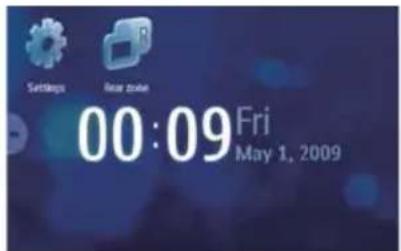
3 Touch [Settings].
4 Touch [Time]. The date setup menu is displayed.

5 Touch on the displayed date information.
6 Touch ♠ or ▼ to set year, month and day.
Tip
When date is set, touch → first and then touch ▶ to return to main menu.
- To set time, refer to the user manual of the host car audio.
Set clock mode
1 Turn on CID3682 and the host car audio. 2 Press MENU on the host car audio.

3 Turn the SEL knob clockwise to select Clock Adjust, and then press the knob.
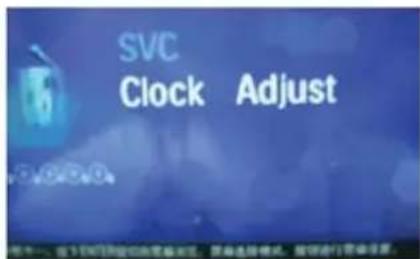
4 Turn the SEL knob to select [12Hr] or [24Hr], and then press the knob.

5 Turn the SEL knob to select 12H or 24H clock mode, and then press the knob.

6 Press MENU on the host car audio again to exit.
3 Use map

Note
You may need to upgrade the map before using it (see "Upgrade the map" section)
1 Touch the upper left corner to display home menu.
2 Touch [Navigation]. The navigation menu is displayed in a few seconds.

3 Refer to the map manual (in Chinese) to operate the navigation tool.
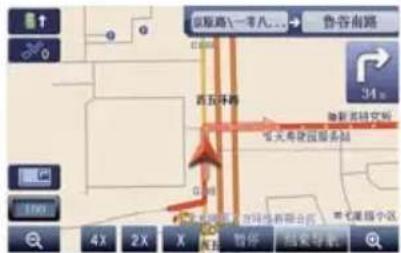
- You can press NAVI to enter/exit the navigation system.
Upgrade the map
1 Turn off the car audio system.
2 Open the map door.
3 Press on the map card until you hear a click sound.
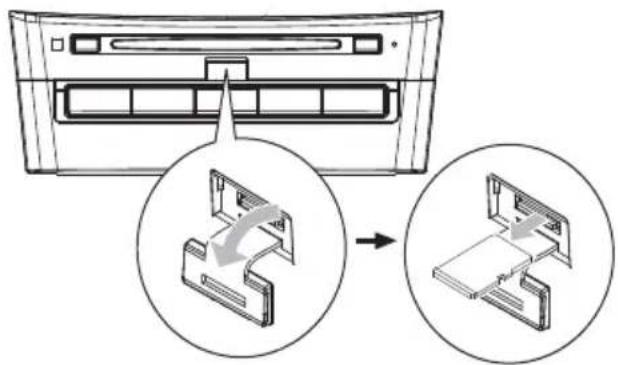
4 Take out the card and bring it to the authorized service center for upgrade.
5 Insert the upgraded map card back into the map card slot.
6 Turn on the car audio.
The map upgrades in a few minutes.
4 Play
Load discs
You can play video, audio or images stored on the following discs:
DVD video, DVD-R, DVD-RW•
VCD·
Audio CD, CD-R, CD-RW•

Note
- Ensure that the disc contains playable content.
1 Insert the disc into the disc slot with label side facing up.
Play starts automatically.

natural_image
Diagram of a CD or DVD disc with an arrow indicating upward motion, no text or symbols present→ To remove the disc, press the ▲ button.
When the disc is ejected, the unit switches to the previous source, if connected.
Connect USB device

Note
- Ensure that the device contains playable content.
1 Open the USB door.
2 Insert your USB device to the USB socket. Play starts automatically.

natural_image
Diagram showing a device with a magnified view of its internal components, no text or symbols present.Remove the USB device
1 Press SOURCE to switch to another source.
2 Remove the USB device.
Insert SD/MMC card

Note
Ensure that the device contains playable content. • The unit supports SDHC card. •
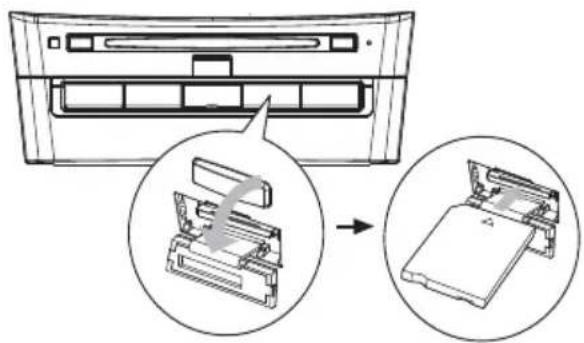
1 Open the SD/MMC card cover.
2 Insert the SD/MMC card into the SD/MMC card slot.
Play starts automatically.
natural_image
Diagram showing a device with internal components and a close-up of its internal structure, no text or symbols present.Remove the SD/MMC card
1 Press SOURCE to switch to another source.
2 Press the card until you hear a click sound.
The card is now disengaged.
3 Remove the SD or MMC card.
Play/Pause
Once a disc, USB or SD/MMC card is inserted, play starts automatically.

- For DVD movie, if a menu appears, touch "play" to start play.
1 Touch anywhere except for the upper left corner to display menu on the screen, if necessary.
2 To pause, touch • To resume play, touch ▶ again.
Search for a folder
For video files
1 Touch ↩ to return to playlist menu.
2 Touch 📄 to display all available video file folders.
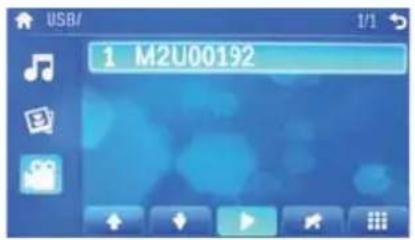
3 Touch a folder, then touch or to select a file.
4 Touch ▶ to start play.
For audio files
1 Touch ↩ to return to playlist menu.
2 Touch 📄 to display all available audio folders.
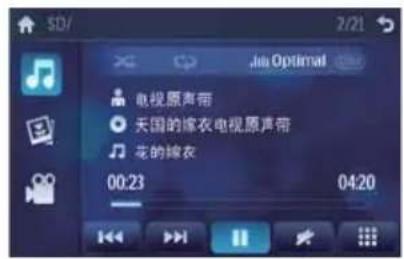
3 Touch a folder, then touch ♠ or ▼ to select a file.
4 Touch ▶ to start play.
For picture files
1 Touch to return to playlist menu.
2 Touch 📄 to display all available picture folders.
3 Touch a folder, then touch ♠ or ▼ to select a picture.
4 Touch ▶ to view the picture.
Search within a title/folder
Search by step
1 Touch anywhere except for the upper left corner to display menu on the screen, if necessary.
2 Touch ♠ or ▼ to skip to the previous or next chapter/track.
Direct search
1 Touch anywhere except for the upper left corner to display menu on the screen, if necessary.
2 Touch The search screen is displayed.

For video files, touch 📄→ first, then touch 🌐.
3 Touch the numbers to enter chapter/file number, then touch √. To clear the previous input, touch •←. • To clear all input, touch ✗.
Repeat
During play, you can select different repeat play modes.
For DVD/VCD movie disc:
1 Touch anywhere except for the upper left corner to display menu on the screen, if necessary.
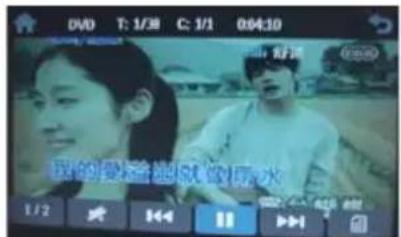
• [Repeat chapter]: play the current chapter repeatedly.
• [Repeat title]: play all chapters in the title repeatedly.
• [Repeat off]: cancel repeat play.
For VCD karaoke or audio CD:
1 Touch anywhere except for the upper left corner to display menu on the screen, if necessary.
2 Touch to select:
• [Repeat]: play the current track repeatedly.
• [Repeat off]: cancel repeat play.
For MP3/WMA files:
1 Touch anywhere except for the upper left corner to display menu on the screen, if necessary.
2 Touch to select:
• [Repeat]: play the current track repeatedly.
- [Repeat folder]: play all the tracks in the current folder repeatedly.
• [Repeat off]: cancel repeat play.
Repeat a section
You can repeat a specific section of video file (repeat A-B).
1 During play, touch anywhere except for the upper left corner to display menu on the screen, if necessary.
2 Touch 1/2 to display the 2nd menu, if necessary.
3 Touch A-B repeatedly to mark:
- [Repeat A-]: the start of the section to repeat.
- [Repeat A-B]: the end of the section to repeat.
The selected section plays repeatedly.
4 To exit A-B repeat mode, touch repeatedly until [Repeat A-B off] is displayed.
Random play
You can play audio tracks/files in random order.
1 During play, touch repeatedly to turn random play on or off.
• x is highlighted: start random play.
• × turns gray: cancel random play.
Select audio language
For video discs that contain two or more audio channels.
1 During play, touch anywhere except for the upper left corner to display menu on the screen, if necessary.
2 Touch 1/2 to display the 2nd menu.
3 Touch ▶ repeatedly.
The audio channel information is ↗
displayed on the upper line of the
screen.
Select audio mode
When you play VCDs, you can select an audio mode (R/L/Stereo).
1 During play, touch anywhere except for the upper left corner to display menu on the screen.
2 Touch ▶ repeatedly until the audio mode is selected.
Select subtitle language
For DVD or DivX discs that contain two or more subtitle languages.
1 During play, touch anywhere except for the upper left corner to display menu on the screen, if necessary.
2 Touch 1/2 to display the 2nd menu.
3 Touch 📌 repeatedly to select a language. The selected language is displayed.
Rotate pictures
1 When you view pictures, touch anywhere except for the upper left corner to display menu on the screen, if necessary.

natural_image
Aerial view of a floating platform or floating structure with people on it, set against a blue water background (no visible text or symbols)2 Touch repeatedly to rotate the picture.
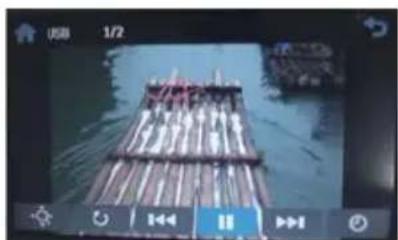
Zoom
You can zoom in pictures for a close view.
1 During view pictures, touch anywhere except for the upper left corner to display menu on the screen, if necessary.
2 Touch ♦ repeatedly to zoom in the picture.
natural_image
Photo of a floating platform or floating platform on water, with no visible text or symbols.3 Touch ♠, ♦, ◀ or ▶ to pan through the enlarged picture.
Select slide show duration
1 Touch anywhere except for the upper left corner to display menu on the screen, if necessary.
2 Touch 🔒 repeatedly to select:
- Fast: 3 seconds
- Normal: 5 seconds
- Slow: 8 seconds
5 Play with Bluetooth device
You can make or receive phone calls with Bluetooth-enabled phones through the unit. You can also listen to music from a Bluetooth-enabled device.
Pair the Bluetooth-enabled devices
To connect your Bluetooth device to the unit, you need to pair the device to the unit. Pairing needs only to be done once.
You can pair up to eight devices.

Note
The operational range between this unit and a Bluetooth device is approximately 10 meters (30 feet).
- Before you connect a Bluetooth device to this unit, familiarize yourself with the Bluetooth capabilities of the device.
- Compatibility with all Bluetooth devices is not guaranteed.
- Any obstacle between this unit and a Bluetooth device can reduce the operational range.
- Keep this unit away from any other electronic device that may cause interference.
1 Turn on the Bluetooth function on the device.
2 Search for Bluetooth device with the device.
3 Select "CID3682" in the pairing list.
4 Enter default password "0000".
if pairing succeeds. phone call record is ↓
displayed.
Disconnect Bluetooth devices
1 To disconnect one device, touch (red). L→ (green) is displayed.

Tip
The device will also be disconnected when the device is moved beyond the operational range.
- If you want to reconnect the device to the unit, place it within the operational range.
- If you do not want to reconnect the device to the unit automatically, touch ☑ [Auto connect], then select [Off]. For details, see the "Adjust Bluetooth settings" section.
Make a call
1 Pair the phone with the unit.
2 Touch the upper left corner to display the home menu.
3 Touch [Bluetooth].
The Bluetooth menu is displayed.

4 Touch or to select the paired phone, then touch .
5 Touch ♠ or ♦ to search for phone number from the following list:
• [Missed calls]
• [Received calls]
• [Dialed calls]
• [Phone book]
• [Sim phone book]
- [Local phone book]
Or touch ■ to dial number directly, then touch o to dial.
Receive call
By default, all incoming calls are received automatically.
1 If there is incoming call, [Incoming call...] flashes on the screen. Speak into the Bluetooth microphone.
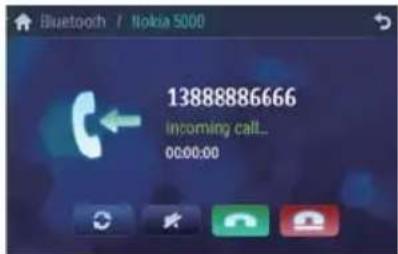
2 When conversation ends, touch (ed) to terminate the call.

Tip
You can select to receive calls manually by set • [Auto answer] to [Off] status.
Switch phone call to the mobile
If you do not want your passenger to hear your incoming call, you can switch the call to the mobile.
1 During talking, touch .
The voice is transferred from the unit's loudspeaker to the mobile phone.
Listen to music from Bluetooth device
If the connected Bluetooth device supports Advanced Audio Distribution Profile (A2DP), you can listen to the music stored on the device through the unit. If the device also supports Audio Video Remote Control Profile (AVRCP) profile, you can use the control on the unit or its remote control to play music stored on the device.
1 Pair the phone with the unit.
2 Touch the upper left corner to return to home menu.
3 Touch [Bluetooth].
The Bluetooth menu is displayed.
4 Start play music via device.
If your device support AVRCP.
1 Touch
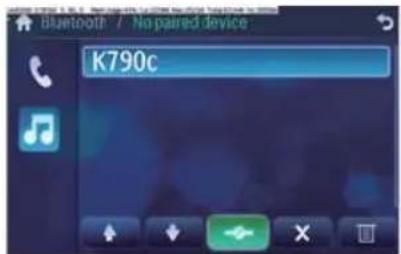
2 Touch ▶ to start play.
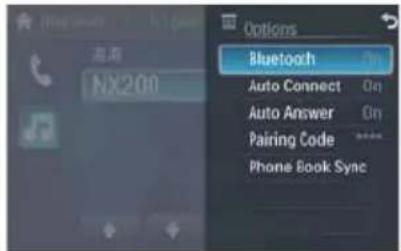
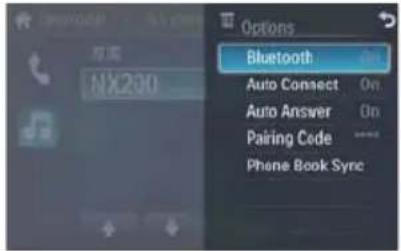
Adjust Bluetooth settings
You can change below Bluetooth settings:
- [Bluetooth]: to turn on or off "Bluetooth" function
- [Auto connect]: to turn on or off "Auto connect" function
- [Auto answer]: to turn on or off "Auto answer" function
• [Pairing code]: to set paring code
• [Phone Book Sync]: to synchronize phone book
1 In Bluetooth menu, touch . ☑ The option menu is displayed.
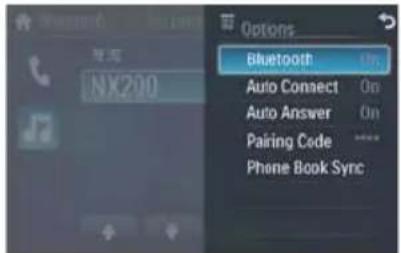
2 Touch on the selected option to change the setting.

Tip
You can also adjust Bluetooth settings in the "Settings" menu.
6 Adjust sound
Adjust volume
To adjust volume, you can:
Press the VOL +/- button on the steering wheel.
Rotate the volume knob on the host car • audio.
Mute
1 Touch anywhere except for the upper left corner to display menu on the screen, if necessary
2 Touch ★
The sound is cut off.
To resume sound, touch again.
Select preset equalizer
You can select preset equalizer:
- [User]
• [Techno]
• [Rock]
• [Classic]
• [Jazz]
• [Optimal]
• [Flat]
• [Pop]
1 Touch anywhere except for the upper left corner to display menu on the screen, if necessary.
2 Touch .uu
The current Equalizer setting is displayed.

3 Touch ◀ or ▶ to select an EQ.
4 Touch ▲ or ▼ to adjust below settings:
• [Bass] bass range: -14 to +14.
• [Mid] middle range: -14 to +14.
• [Treb] treble range: -14 to +14.
• [LPH] low pass filter range: 60, 80, 100, 200.
• [MPF] middle pass filter range: 500, 1K, 1.5K, 2.5K.
• [HPF] high pass filter range: 10K, 12.5K, 15K, 17.5K.
5 Touch uto restore the above settings into default settings.
6 Press to exit.
Set Dynamic Bass Boost (DBB)
1 Touch DBB to toggle between the settings.
- [DBB] on: The DBB icon is illuminated.
- [DBB] off (default): The DBB icon is gray.
7 Adjust settings
Display system setup menu
1 Touch the upper left corner to display main menu.
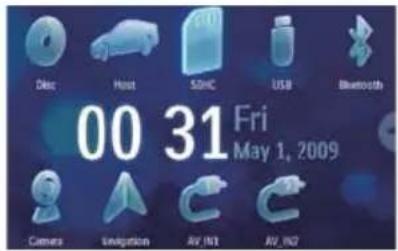
2 Touch in the middle right side of the screen. → The second main menu is displayed.
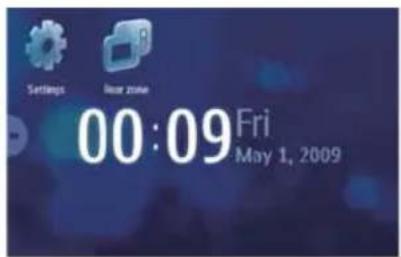
3 Touch [Settings]. → The settings menu is displayed.

Tip
- When the setup adjustment is completed, touch ➕ first and then touch ➕ to return to main menu.
Adjust general settings
1 Touch [General], if necessary.
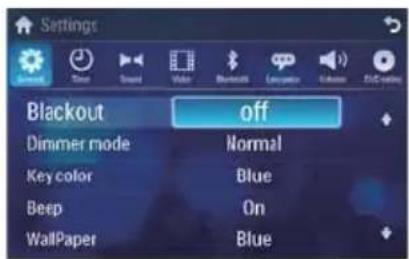
2 Touch ♠ or ♦ to highlight a setting.
3 Touch on the option to display/select an option.
| General settings | Options Description | |
| [Blackout] [off] | Never turn on the screen saver. | |
| [10s] Turn on the screen saver automatically 10 seconds after last operation. | ||
| [20s] Turn on the screen saver automatically 20 seconds after last operation. | ||
| [Dimmer mode] | [Night]/[Dark]/[Normal]/[Bright] | Toggle between different dimmer modes. |
| [Key color] [White] Button backlight turns white. | ||
| [Blue] Button backlight turns blue. | ||
| [Beep] [On] | Turn on the beep sound. Each time you press a button, the unit beeps. | |
| [Off] | Turn off the beep sound. | |
| [WallPaper] | [Blue]/[Black]/[Red]/[F1] | Change the background color/image |
| [Calibration] | Calibrate the touch screen. | |
4 Press to exit.
Adjust sound settings
1 Touch [Sound].

2 Touch an option repeatedly to select:
| Sound settings | Options | Description |
| [DBB] | [On] | The Dynamic Bass Boost (DBB) function is on. |
| [Off] | The DBB function is off. | |
| [DRC] | [On] | Makes loud sound level softer and soft sound level louder so that you can watch the DVD movies at a low volume, without disturbing others. |
| [Off] | The DRC function is off. |
3 Press to exit.
Adjust video settings
1 Touch [Video].

2 Touch an option repeatedly to select:
| Video settings | Options Description |
| [Aspect ratio] | [Full] For widescreen display. |
| [Normal] For normal display. | |
| [Video input] | [Auto] The correct format is set automatically. Select this option if you are not sure which format should be selected. |
| [NTSC] Used in the United States, Canada, Japan, Mexico, the Philippines, South Korea, Taiwan, and some other countries. | |
| [PAL] Used in China, India, Singapore, the western European countries (except France), Australia, and some other countries. | |
| [Secam] Used in France, Russia and other countries. | |
| [Parking] [On] | Disable video view during drive. |
| [Off] Enable video view during drive. | |
| [DivX registration code] | View code for DivX registration. |
3 Press to exit.
Adjust Bluetooth settings
1 Touch [Bluetooth].
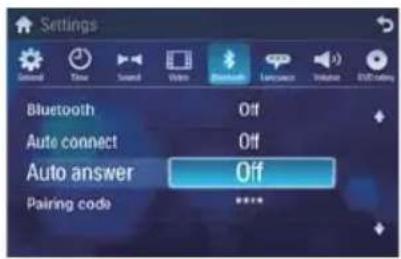
2 Touch an option repeatedly to select:
| Bluetooth settings | Options Description | |
| [Bluetooth] | [On] | Turn on the Bluetooth function. |
| [Off] | Turn off the Bluetooth function. | |
| [Auto connect] | [On] | If the pre-paired device is within the effective range, the unit re-connects to pre-paired device automatically. |
| [Off] | Need to re-connect manually. | |
| [Auto answer] | [On] | Answer paired phone call automatically. |
| [Off] | Answer phone call manually. | |
| [Pairing code] | View code for pairing the unit with other Bluetooth devices. | |
3 Press to exit.
Adjust language settings
1 Touch [Language].
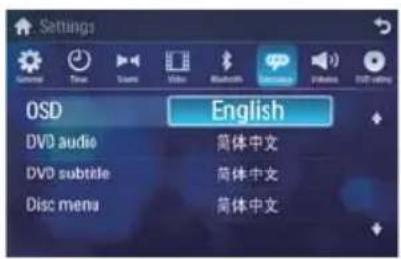
2 Touch an option repeatedly to select:
| Language settings | Options Description |
| [OSD] [English] Select on-screen-display language. | |
| [简体中文] | |
| [繁体中文] | |
| [DVD audio] | [English] Select DVD audio language. Options available are depends on DVD disc. |
| [简体中文] | |
| [繁体中文] | |
| [DVD subtitle] | [English] Select DVD subtitle language. Options available are depends on DVD disc. |
| [简体中文] | |
| [繁体中文] | |
| [Off] Turn off subtitle language display. | |
| [Disc menu] | [English] Select DVD menu language. Options available are depends on DVD disc. |
| [简体中文] | |
| [繁体中文] | |
3 Press to exit.
Adjust volume settings
You can set different volume for different modes.
1 Touch [Volume].
→ The volume setting sub-menu is displayed.
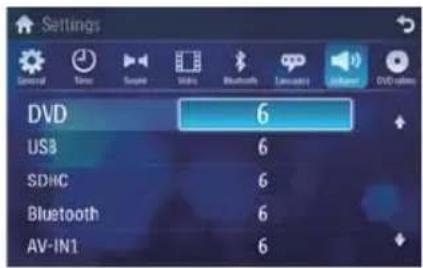
2 Touch on a source.
• [DVD]
• [USB]
• [SDHC]
- [Bluetooth]
• [AV-IN1]
• [AV-IN2]
- [Navigation]
3 Touch or to assign value: 0 to 12.
When switches to the source, the volume increases automatically.
4 Press to exit.
Adjust DVD rating
1 Touch [DVD rating].
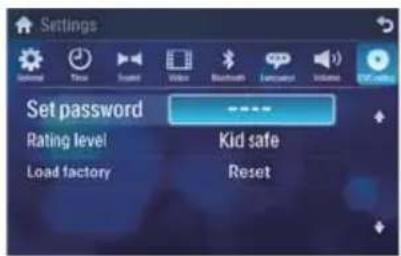
2 Touch an option repeatedly to select:
DVD rating Options Description
| [Set password] Set password to restrict the play of discs. The default password is 0000. |
[Rating level] [Kid safe] Acceptable for children.
| [G] Acceptable for general viewers. | |
| [PG] Parental guidance suggested. | |
| [PG-13] Unsuitable for children under age 13. |
| [PG-R] Recommend parents to restrict children under 17 to view. |
| [R] Restricted. |
| Recommend |
| parent to guide |
| children under 17 |
| to view. |
| [NC-17] Unsuitable for children under age 17. |
| [Adult] Acceptable for adults only. |
| [Load factory] Restore to default settings. |
3 Press to exit.
8 Others
Listen to other devices
You can connect an external audio/video device to the unit.
1 Connect the car audio to the device with the supplied AV cable.
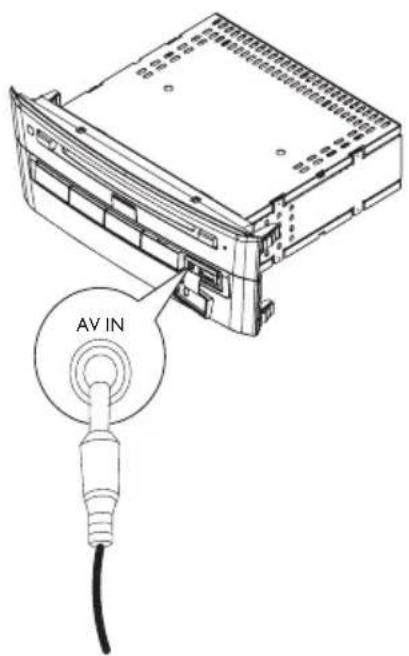
2 Touch the upper left corner to display the main menu.
3 Touch [AV-IN1].
4 Operated the connected the device (see the instructions manual of the device).

Tip
If you connected the system to other audio device through the REAR OUT L/R connector (see "Connect wires" section), touch [AV-IN2] to listen to that device.
Reset
When the unit hangs up, you can reset it.
1 Press RESET with a ball-point pen or similar tool.


Tip
When the unit is reset, all the settings remain unchanged.
Replace fuse
If there is no power, the fuse may be damaged and need to be replaced.
1 Take out the unit from dashboard.
2 Check the electric connection.
3 Buy a fuse that matches the voltage of the damaged fuse (5A)
4 Replace the fuse.

natural_image
Diagram of a device rear panel with internal components and a magnified inset showing a device structure (no text or symbols)If the fuse gets damaged immediately after it has been replaced, there may be an internal malfunction. In such case, consult your Philips dealer.
9 Product information

Note
- Product information is subject to change without prior notice.
General
| Power supply | 12 V DC (11 V - 16 V), negative ground |
| Fuse | 5 A |
| Pre-Amp output voltage | 2.0 V (CD play mode; 1 kHz, 0 dB, 10 k Ω load) |
| Aux-in level | ≥500 mV |
| Dimensions(W x H x D) | |
| - Main unit | 201 x 240 x 191 mm |
| - Screen | 281 x 140 x 105 mm |
| Weight | |
| - Main unit | 2.1 kg |
| - Screen | 0.7 kg |
Disc player
| System | DVD / CD audio / MP3 system |
| Frequency response | 20 Hz - 20k Hz |
| Signal/noise ratio | >75dB |
| Total harmonic distortion | Less than 1% |
| Channel separation | >55dB |
| Video signal format | NTSC only |
| Video output | 1 +/- 0.2V |
LCD
| Screen size | 7 inches (16:9) |
| Display resolution | 800 × 480 dots |
| Contrast ratio | 300 |
| Brightness | 350 cd/m2 |
Bluetooth
| Communication system | Bluetooth Standard version 2.0 |
| Output Bluetooth | Standard Power Class 2 |
| Maximum communication range | Line of sight approx. 8m |
| Frequency band 2.4 GHz band (2.4000 GHz - 2.4835 GHz) | |
| Compatible Bluetooth profiles | Hands-Free Profile (HFP) Handset Profile (HSP) Advanced Audio Distribution Profile (A2DP) Audio Video Remote Control Profile (AVRCP) |
| Supported codecs | SBC (Sub Band Codec) |
| Receive Transmit | SBC (Sub Band Codec) |
Compatible USB devices:
USB flash memory (USB 2.0 or USB1.1)
USB flash players (USB 2.0 or USB1.1)
memory cards (SD / MMC / SDHC)•
Supported formats:
USB or memory file format: FAT16, • FAT32
MP3 bit rate (data rate): 32-320 Kbps and variable bit rate
WMA v9 or earlier•
Directory nesting up to a maximum of • 8 levels
Number of albums/ folders: maximum 99•
Number of tracks/titles: maximum 999• ID3 tag V2.0 to V2.4•
- File name in Unicode UTF8 (maximum length: 128 bytes)
Unsupported formats:
Empty albums: an empty album is an • album that does not contain MP3/WMA files, and is not be shown in the display.
- Unsupported file formats are skipped. For example, Word documents (.doc) or MP3 files with extension .dlf are ignored and not played.
• AAC, WAV, PCM audio files
• DRM protected WMA files (.wav, .m4a, .m4p, .mp4, .aac)
• WMA files in Lossless format
Supported MP3 disc format:
• ISO9660, Joliet
• Maximum title number: 512 (depending on file name length)
• Maximum album number: 255
• Supported sampling frequencies: 32 kHz, 44.1 kHz, 48 kHz
• Supported Bit-rates: 32-320 Kbps and variable bit rate
Supported video formats:
• DVD
• Divx Home theater
• Xvid

Note
- To ensure a better playback, it is recommended that:
- the image size is not larger than 640 X 480 pixels .
- the frame rate is 20 fps.
- the data rate is not higher than 500 kbps.
10 Troubleshooting

Warning
Never remove the casing of this apparatus.
To keep the warranty valid, never try to repair the system yourself.
If you encounter problems when using this apparatus, check the following points before requesting service. If the problem remains unsolved, go to the Philips web site (www.philips.com/welcome). When you contact Philips, ensure that the apparatus is nearby and the model number and serial number are available.
No power
Car engine has not been started. Start • the car engine.
Connections is incorrect.
Fuse has been damaged. Replace fuse.
No sound
Volume is too low. Adjust volume.
Speaker connections is incorrect. •
Disc does not play
- Disc is upside down. Ensure the printed side is upwards.
- Disc is dirty. Clean the disc with a clean, soft, lint-free cloth. Wipe the disc outwards from the center.
• Disc is defective. Try another disc.
• incompatible disc is used. Try another disc.
• Disc rating exceeds the restrict setting. Change the rating settings to lower one.
• Disc region code is not compatible with the unit. Use disc with proper region code.
No image
- Parking brake wire connection is incorrect. Check the parking wiring.
Image flashes or distorted
• Video DVD settings do not match with the DVD. Adjust video DVD settings.
• Video connection is improper. Check the connections.
Preset stations lost.
Battery cable is not correctly connected.
Connect the battery cable to the terminal that is always live.
Fuse is broken
The Fuse type is incorrect. Replace it with a 5A fuse.
Speaker wire or power wire is grounded.
Check the connections.
Display show ERR-12
USB/SD/MMC data error. Check the USB • device or SD/MMC card.
About Bluetooth device
Music playback is unavailable on the system even after successful Bluetooth connection.
The device cannot be used with the • system to play music.
The audio quality is poor after connection with a Bluetooth-enabled device.
The Bluetooth reception is poor. Move the device closer to the system or remove any obstacle between the device and the system.
Cannot connect with the system.
The device does not support the profiles - required for the system.
The Bluetooth function of the device is • not enabled. Refer to the user manual of the device for how to enable the function.
The system is not in the pairing mode.
The system is already connected with another Bluetooth-enabled device.
Disconnect that device or all other connected devices and then try again.
The paired mobile phone connects and disconnects constantly.
The Bluetooth reception is poor. Move the mobile phone closer to the system or remove any obstacle between the mobile phone and the system.
Some mobile phones may connect and disconnect constantly when you make or end calls. This does not indicate any malfunction of the system.
For some mobile phones, the Bluetooth • connection may be deactivated automatically as a power-saving feature.
This does not indicate any malfunction of the system.
11 Glossary
B
Bite rate
The max data transfer through the USB port.
Bluetooth
Bluetooth ^® is a short-rang wireless protocol that is meant to allow mobile devices to share information and applications without the worry of cables or interface incompatibilities. The name refers to a Viking King who unified Denmark. Operate at 2.4GHz. For more information, see www.bluetooth.com.
M
MMC
MultimediaCard. A type of memory card with a flash memory.
MP3
A file format with a sound data compression system. MP3 is the abbreviation of Motion Picture Experts Group 1 (or MPEG-1) Audio Layer 3. With the MP3 format, one CD-R or CD-RW can contain about 10 times more data than a regular CD.
R
Region code
A system that allows discs to be played only in the region designated. This unit only plays discs that have compatible region codes. You can find the region code of your unit on the product label. Some discs are compatible with more than one region (or ALL regions.)
S
SD
Secure Digital. A type of memory card with a flash memory.
SDHC
Secure Digital High Capacity (SDHC) is a type of flash memory card based on the SDA 2.00 specification. The SDA 2.00 specification enables SD cards to reach higher capacities from 4GB to 32GB, and growing.
W
WMA (Windows Media Audio)
An audio format owned by Microsoft, is a part of Microsoft Windows Media technology. Includes Microsoft Digital Rights Management tools, Windows Media Video encoding technology, and Windows Media Audio encoding technology.
| 部件名称Name of the Parts | 有毒有害物质或元素Hazardous/toxic Substance | |||||
| 铅(Pb, Lead) | 汞(Hg, Mercury) | 镉(Cd, cadmium) | 六价铬(Chromium 6+) | 多溴联苯(PBB) | 多溴二苯醚(PBDE) | |
| Housing外壳 | O | O | O | O | ||
| DVD/CD loader DVD/CD 光盒 | X | O | O | O | ||
| LCD Panel液晶面板 | X | X | O | O | ||
| Loudspeakers喇叭单元 | O | O | O | O | ||
| PWBs电路板组件 | X | O | O | O | ||
| Accessories (Remote control & cables)附件(遥控器,电源线,连接线) | X | O | O | O | ||
| Batteries in Remote Control (ZnC)遥控器电池 | X | O | O | O | ||
O: 表示该有毒有害物质在该部件所有均质材料中的含量均在 SJ/T11363 - 2006 标准规定的限量要求以下。
O: Indicates that this toxic or hazardous substance contained in all of the homogeneous materials for this part is below the limit requirement in SJ/T11363 - 2006.
X: 表示该有毒有害物质至少在该部的某一均质材料中的含量超出 SJ/T11363 - 2006 标准规定的限量要求。件
X: Indicates that this toxic or hazardous substance contained in at least one of the homogeneous materials used for this part is above the limit requirement in SJ/T11363 – 2006.

环保使用期限 Environmental Protection Use Period
This logo refers to the period (10 years) during which the toxic or hazardous substances or elements contained in electronic information products will not leak or mutate so that the use of these [substances or elements] will not result in any severe environmental pollution, any bodily injury or damage to any assets.




- Contents
- Important 4
- Get started 7
- Use map 11
- Play 12
- Play with Bluetooth device 16
- Adjust sound 19
- Adjust settings 20
- Others 24
- Product information 25
- Troubleshooting 26
- Glossary 28
- Important
- Safety
- Notice
- Environmental information
- Introduction
- What's in the box
- Overview of the steering wheel
- MODE
- VOL
- CH +/-
- Get started
- Caution
- Install the car audio
- Note on the power supply lead (yellow)
- Notes on speaker connection
- Connect wires
- Check the car's wiring carefully, then do the other connections:
- Connect GPS antenna
- Mount in the dashboard
- Note
- Turn on
- Set date
- Tip
- Set clock mode
- Use map
- Upgrade the map
- Play
- Load discs
- Connect USB device
- Remove the USB device
- Insert SD/MMC card
- Remove the SD/MMC card
- Play/Pause
- Search for a folder
- For video files
- For audio files
- For picture files
- Search within a title/folder
- Search by step
- Direct search
- Repeat
- For VCD karaoke or audio CD:
- Repeat a section
- Random play
- Select audio language
- Select audio mode
- Select subtitle language
- Rotate pictures
- Zoom
- Select slide show duration
- Play with Bluetooth device
- Pair the Bluetooth-enabled devices
- Disconnect Bluetooth devices
- Make a call
- Receive call
- Switch phone call to the mobile
- Listen to music from Bluetooth device
- Adjust Bluetooth settings
- Adjust sound
- Adjust volume
- Mute
- Select preset equalizer
- Touch .uu
- Set Dynamic Bass Boost (DBB)
- Adjust settings
- Display system setup menu
- Adjust general settings
- Adjust sound settings
- Touch [Sound].
- Touch an option repeatedly to select:
- Press → to exit.
- Adjust video settings
- Touch [Video].
- Adjust language settings
- Adjust volume settings
- Adjust DVD rating
- Others
- Listen to other devices
- Reset
- Replace fuse
- Product information
- Compatible USB devices:
- Supported formats:
- Unsupported formats:
- Supported MP3 disc format:
- Supported video formats:
- Troubleshooting
- Warning
- No power
- No sound
- Disc does not play
- No image
- Image flashes or distorted
- Preset stations lost.
- Fuse is broken
- Display show ERR-12
- About Bluetooth device
- Music playback is unavailable on the system even after successful Bluetooth connection.
- The audio quality is poor after connection with a Bluetooth-enabled device.
- Cannot connect with the system.
- The paired mobile phone connects and disconnects constantly.
- Glossary
- B
- Bite rate
- Bluetooth
- M
- MMC
- MP3
- R
- Region code
- S
- SD
- SDHC
- W
- WMA (Windows Media Audio)
- 环保使用期限 Environmental Protection Use Period
Brand : PHILIPS
Model : CID3682
Category : Car Radio