
SFTPC-107-N - Tablet BRIGMTON - Free user manual and instructions
Find the device manual for free SFTPC-107-N BRIGMTON in PDF.


| Product Type | Tablet |
| Brand | Brigmton |
| Model | SFTPC-107-N |
| Display Size | 7 inches |
| Display Type | Capacitive touch panel |
| Operating System | Android |
| Expandable Storage | TF card (microSD) slot |
| Battery Type | Built-in polymer lithium battery |
| Charging Input | DC 5V-5.5V/2A via MiniUSB or AC adapter |
| Charging Time | Approximately 4-6 hours (first two charges: 6 hours) |
| Audio Jack | 3.5mm standard earphone jack |
| Connectivity | Wi-Fi, MiniUSB (OTG/HOST/SLAVE) |
| Buttons | Power, ESC, Menu, Volume +, Volume - |
| Reset | Reset button (small hole) for forced shutdown |
| Dimensions (approx.) | 190 x 110 x 10 mm |
| Weight (approx.) | 300 g |
| Languages Supported | 54 national languages (menu: 14 languages) |
| Package Contents | Tablet, USB cable, AC adapter, User manual |
| Safety Warnings | Avoid high temperature, moisture, dust; do not disassemble; use specified charger |
| Care and Maintenance | Clean with dry cloth; do not use alcohol, thinner, or benzene |
Frequently Asked Questions - SFTPC-107-N BRIGMTON
User questions about SFTPC-107-N BRIGMTON
0 question about this device. Answer the ones you know or ask your own.
Ask a new question about this device
Download the instructions for your Tablet in PDF format for free! Find your manual SFTPC-107-N - BRIGMTON and take your electronic device back in hand. On this page are published all the documents necessary for the use of your device. SFTPC-107-N by BRIGMTON.
USER MANUAL SFTPC-107-N BRIGMTON
natural_image
Black-and-white photo of a tablet device displaying multiple app icons including Facebook, Twitter, YouTube, and others, with no visible text or symbols on the screen.SFTPC-107-B-N
WiFi: Para localizar y conectar a redes WiFi
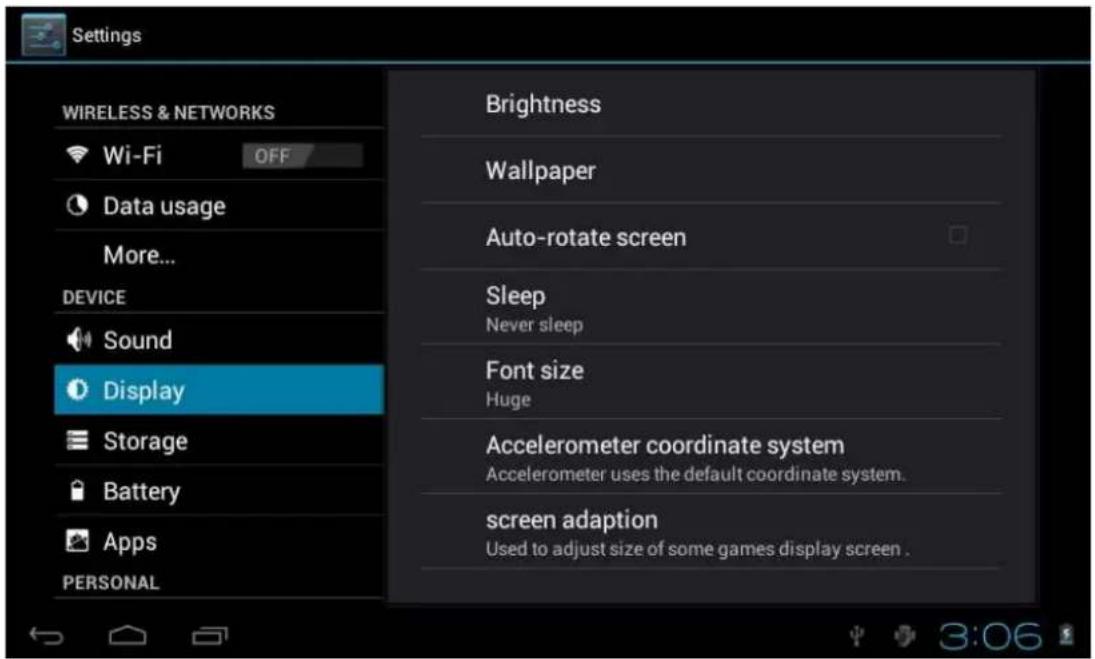
4.4 Almacenamiento
5. APLICACIONES: INSTALAR Y ADMINISTRAR
natural_image
Black-and-white photo of a tablet device displaying app icons including Facebook, Twitter, YouTube, and others, set against a cloudy sky background (no readable text or symbols on the device itself).SFTPC-107-B-N
Operation Manual
Attention:
This handbook contains important security measures and the correct use of the product information, in order to avoid accidents. Please make sure to reading the manual carefully before use the device.
Please don't be in high temperature, moisture or very dust place
Please don't be in high temperature, especially in summer don't put the device in the car when Windows closed.
Avoid fall or Violent collision of the device, don't make the TFT display screen were violent tremor this could cause TFT display screen abnormal or damage.
Please choose the appropriate volume, Use headphones should not be too big volume, If feel tinnitus, Lower the volume or stop using it please charge In the following condition,
A、The battery power ICONS shows have no power
B、The system automatically shut off, startup after power off soon
C、Operation buttons no response
D、The machine that the top right corner show red icons
When the device in the format or ongoing upload and download file, please don't suddenly disconnect, This could cause application error.
For those who because of damage to the product, repair, or other causes of erased the memory, the company shall not be liable for any responsibility, please follow the user manual for the standardized operation to use the device.
Don't disassemble the product, don't use alcohol、Thinner or benzene to scrubbing products
Don't use the device one of the place of prohibit to use electronic equipment in regional (such as the plane)
Please don't using the Tablet PC when you in driving or walking down the street,
USB just only be used for data transmission
The company reserves the right to improve product, products specification and design have any change, the information is subject to changes without prior notice.
(This tablet is no waterproof function)
【Remark】All pictures in this manual is just for your reference. products specification and design have any change, The information is subject to changes without prior notice.
- Appearance and button:
1.1 Touch panel
7" Capacitive touch panel: In The Operation, to click, dragging on the touch panel
1.2 POWER
Startup: Long Press and hold the power button, the system will enter the main interface
shutdown: In the main menu interface, Press the power button about 5 second to shutdown, The system can hint "power off" option, Clike"ok". you can safely shut down.
Lock screen: Short press Power button to lock screen or unlock screen.
Remark 1. When power is empty, system will shut down automatically.
- Illegal turn off the device, restart will scan and restore the disk, it may take longer time to enter into system
1.3 ESC
Short Press ESC button will return the last interface, long Press ESC button will return the main interface
1,4 Menu
the Tablet under normal operating conditions, short press M button will Back to the home screen
1.5 Volume +, Volume-
the buttons on top Volume +, Volume-achieve changes in the volume.
1.6 earphone jack
3.5 mm standard earphone jack
1.7 TF card
TF-CARD solt: external T-FLASH card
1.8 MiniUSB
MiniUSB jack: you can use it to connect the computer for data transmission, charging and external connection USB flash drive
1.9 Reset
When the Tablet under the condition of the crash, use the small objects to short press RESET button, Tablet will force to shutdown.
【Remark】: unless unable to shutdown, otherwise don't use the reset,
suggest you to shutdown by normal, if no will easy to damage the machine system.
2. First use
2.1 Battery management and charge
Before first use, please set the device's battery is fully charged
Just need to connect the adaptor or USB interface, then you can charge
The first two times charging please keep about 6 hours, after that you just need 4 hours to charge.
【Remark】: This tablet using Built-in type polymer battery, Charge must be
to choose standard adaptor (Input: AC110\~240V 50/60Hz Max : 180MA..
Output: DC5.0\~5.5V/2A), this device without supply DC charging, USB interface can charge, Choose USB interface to charger
During the charging, the battery icon will scroll
When finished charging, battery icon will become green and stop rolling. In order to prolong the service life of the machine, suggest use out battery power before charge it
【Remark】: 1. If you long time don't to use this Tablet, in order to avoid power consumption caused damage, please charge/play the battery once a month.
2、After low battery shut down, connect DC adaptor, device will remind low battery, charging, need to wait some time until the battery is enough power to enter into main menu.
3. Device charging should be in standby status for reach normal charging time.
Because with device and screen consumption, it may cause longer charging time
2.2 Connection with PC
U Use USB cable to connect device to PC, device will pop up the USB connection window, click Turn on USB storage to connect to PC
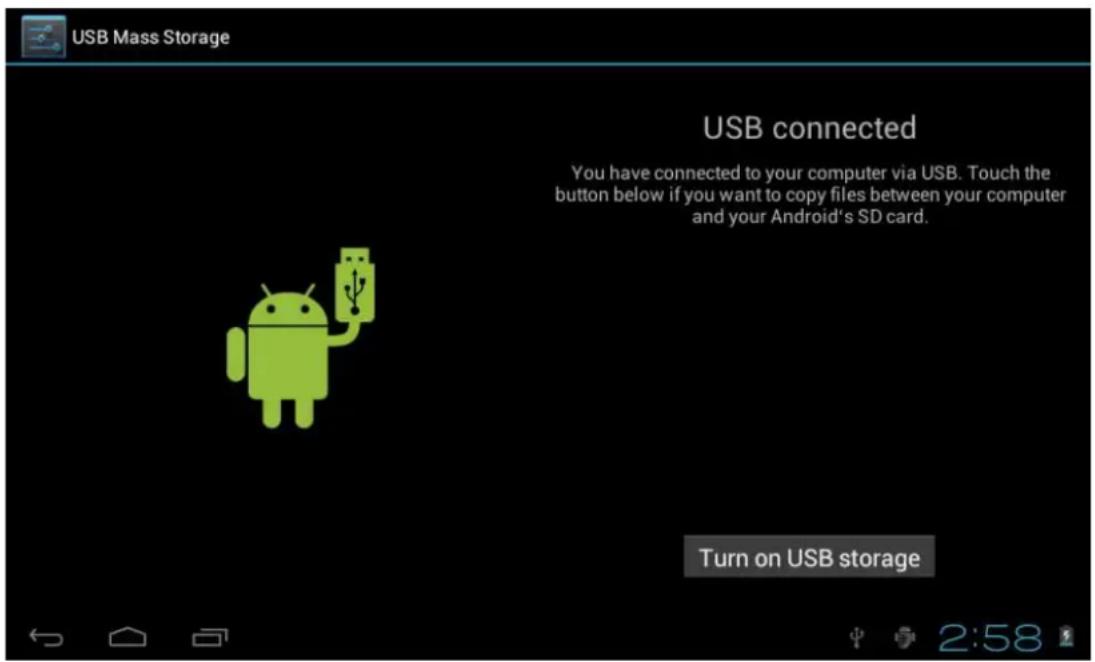
Into the load mode, you can copy; delete the file on the device and the file on the memory card.
- Equipment operation interface
3.1 Main interface describe
After startup will enter the main interface
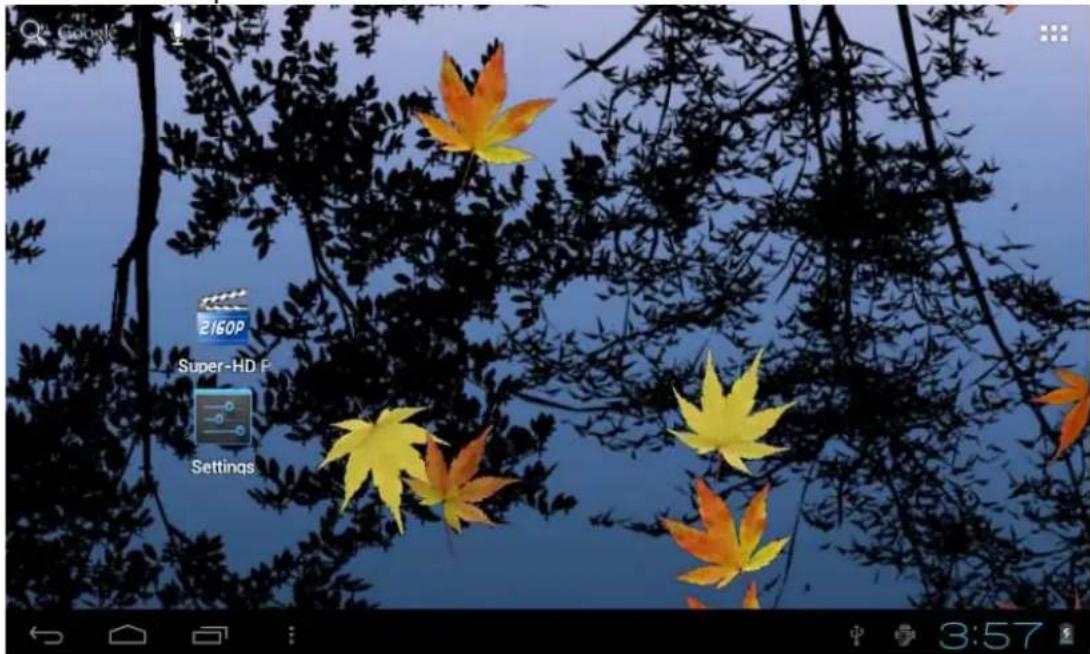
In the main interface, you can:
Management main interface software ICONS: long press the icons 3 second, after the icons will bigger, then you can drag anywhere in the interface.
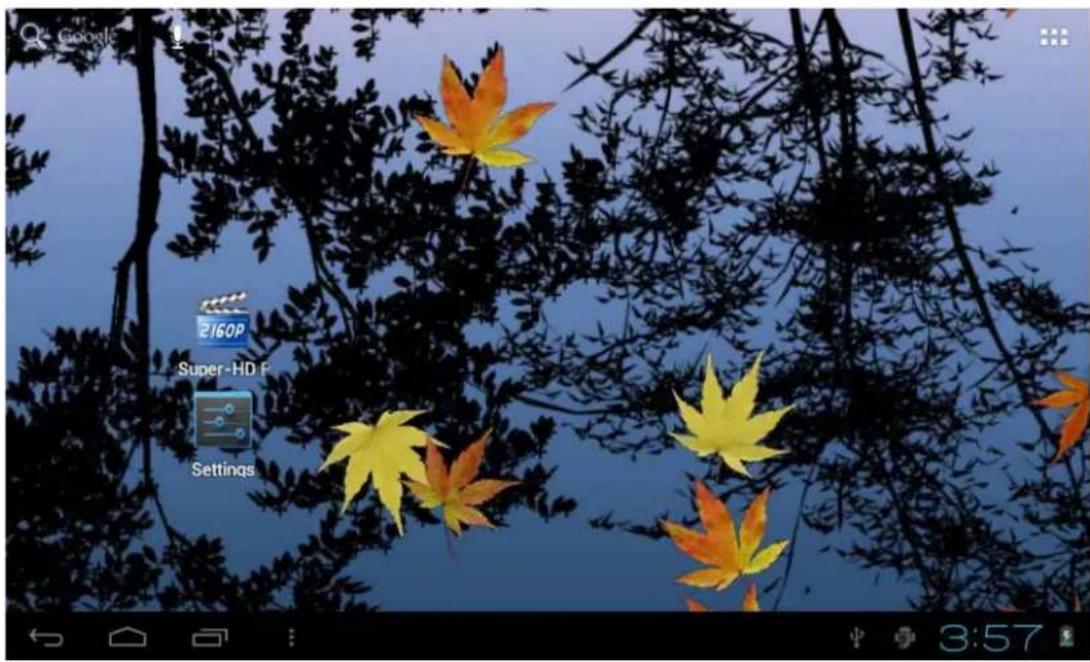
Delete icons: long press the icons 3 second, drag the icons to the Recycle Bin icon, once it become red, Loosen your hand, after that you can
delete icon
You touch the screen keep a time; appear the dialog box "Add Home screen" as shown below:
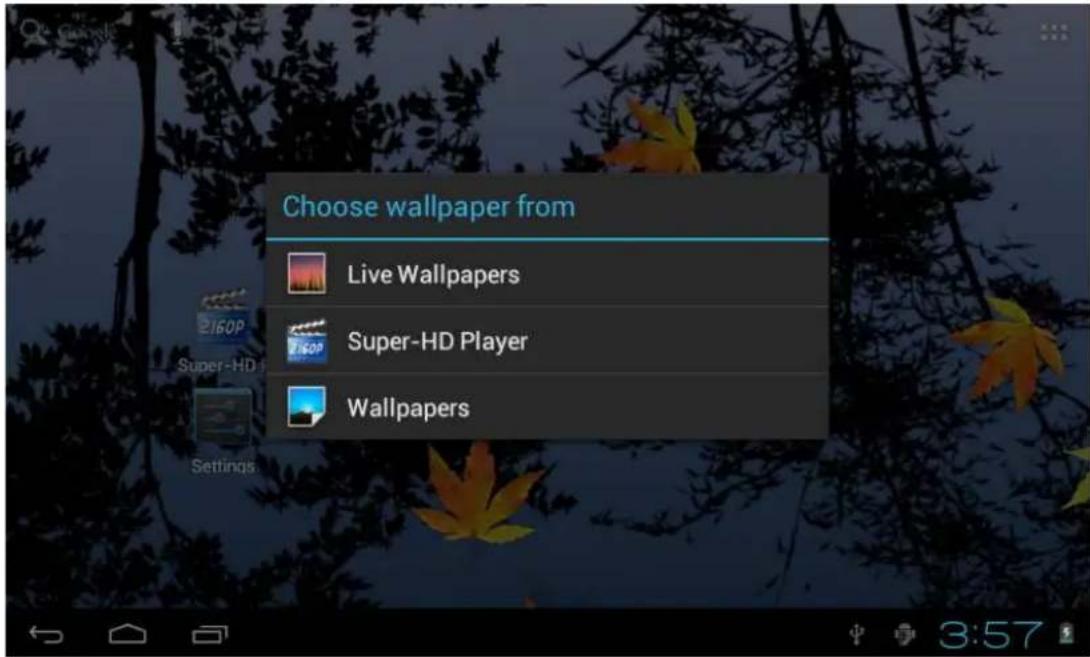
3.2 status bar describe

• The status bar above of the screen
Top left display main interface software, T-Flash card, USB connection status and so on
Top right display the battery, battery charge icons, current time, set time, Settings Menu, ESC button.
3.3 Use touch panel
Device equipped with a 7" touch screen. Following the main touch screen area is described, and describes some of the tips for how to use the touch screen.
No matter which interface you are on the screen, can go back to main screen through pressing the soft key 📄 the bottom right corner of the main screen.
【Attention】The main screen soft key functions as the machine
back key
In different applications, by tapping the back soft key on the bottom right corner on the touch screen, you can return to its interface on the up floor.
In different applications, by tapping the menu key on the
upper right corner of touch screen, the screen will appear the operation setting interface as follows,
【Remark】: The main screen soft key functions as the machine menu
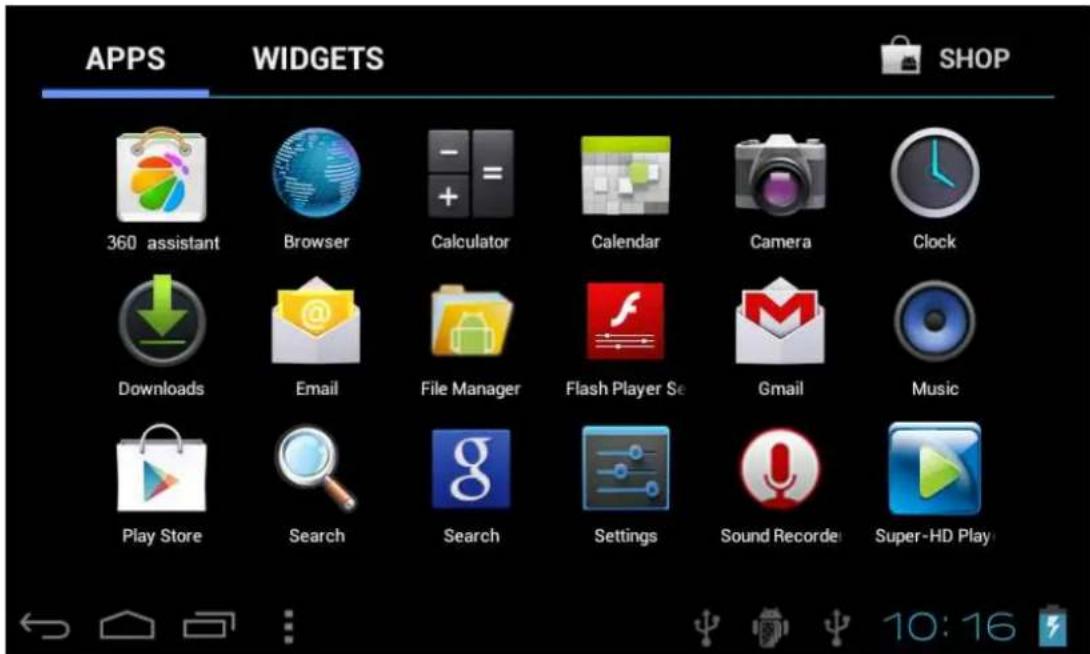
In the main interface, you can touch the icon to open the APPs
In different browser (file, music, video, pictures), you shift and drag the scroll bar, so that the file list can up or down to roll.
- Equipment basic set
Setting: Click setting icons Settings inter setting interface
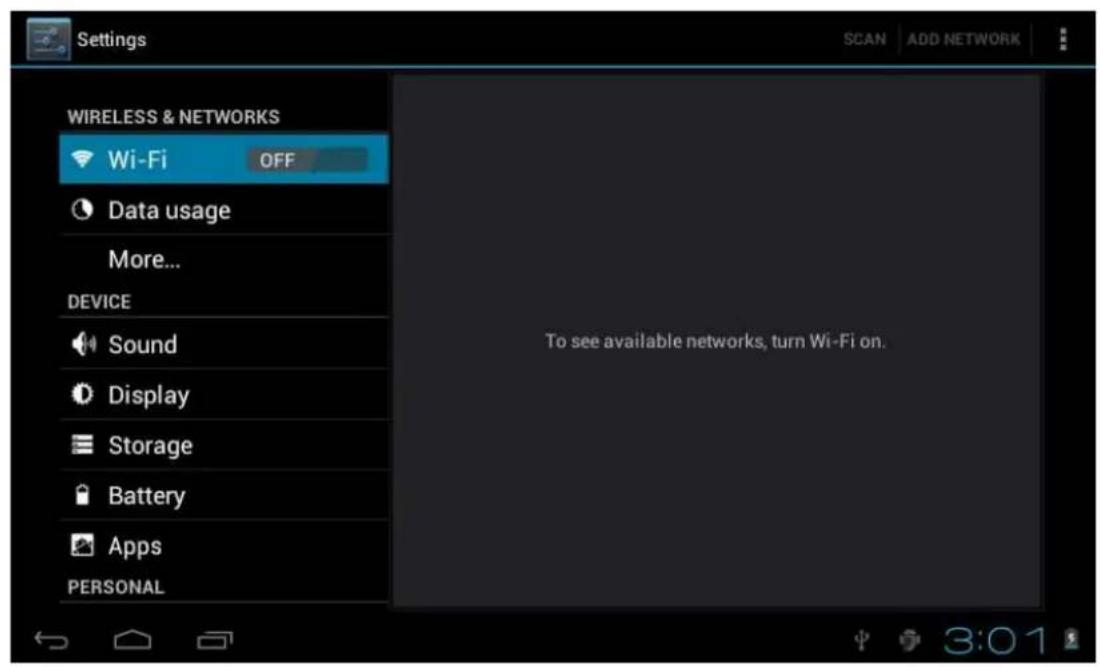
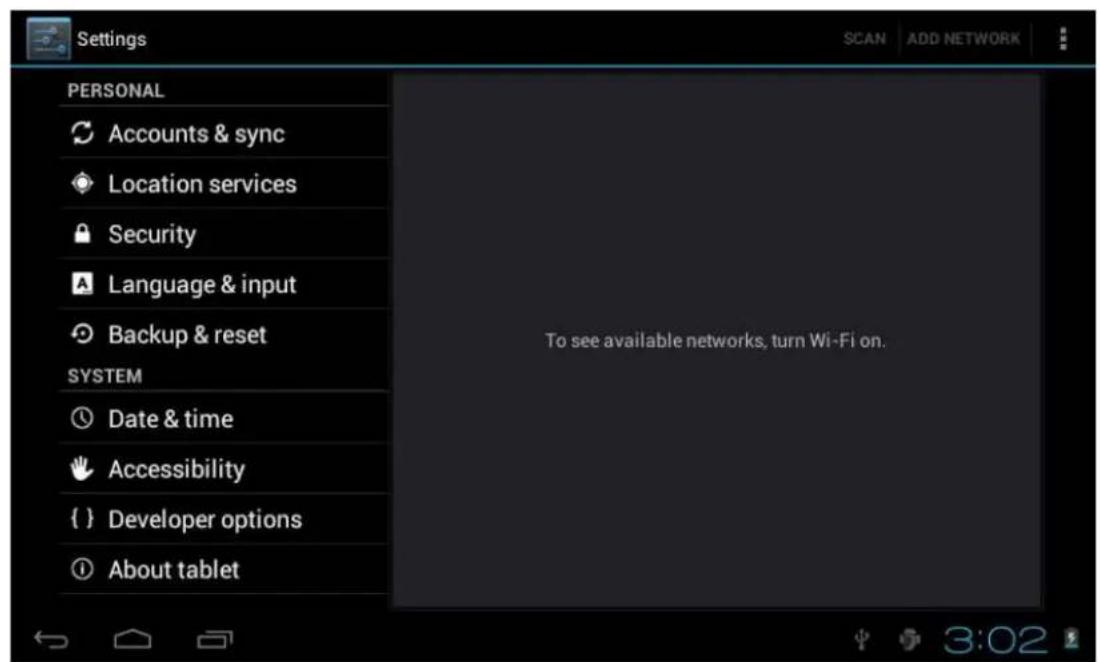
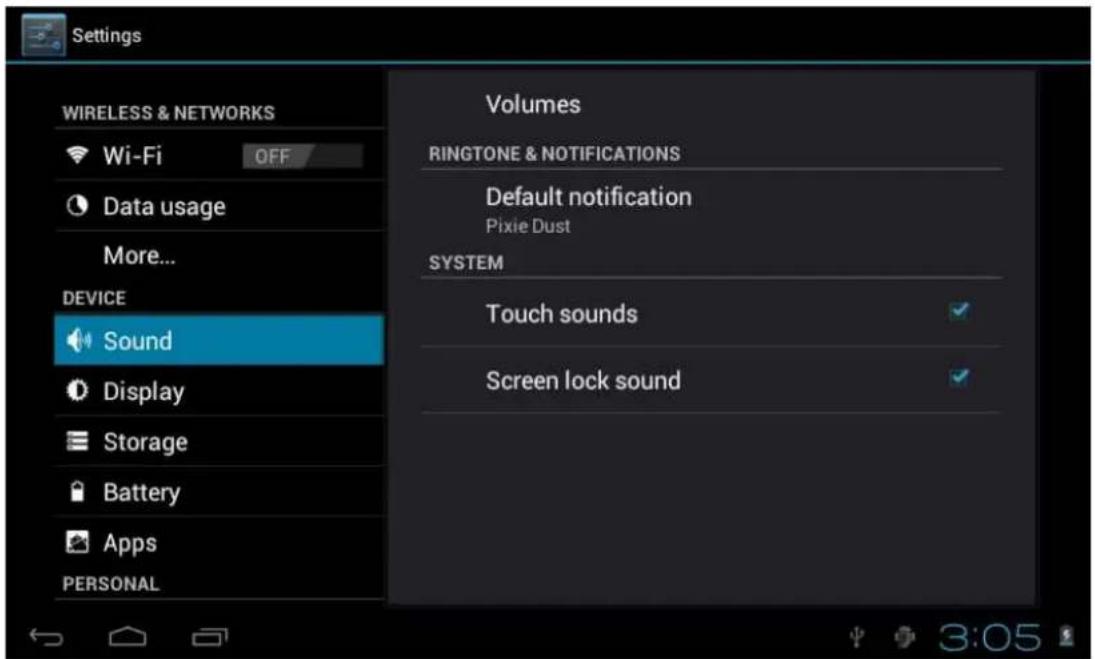
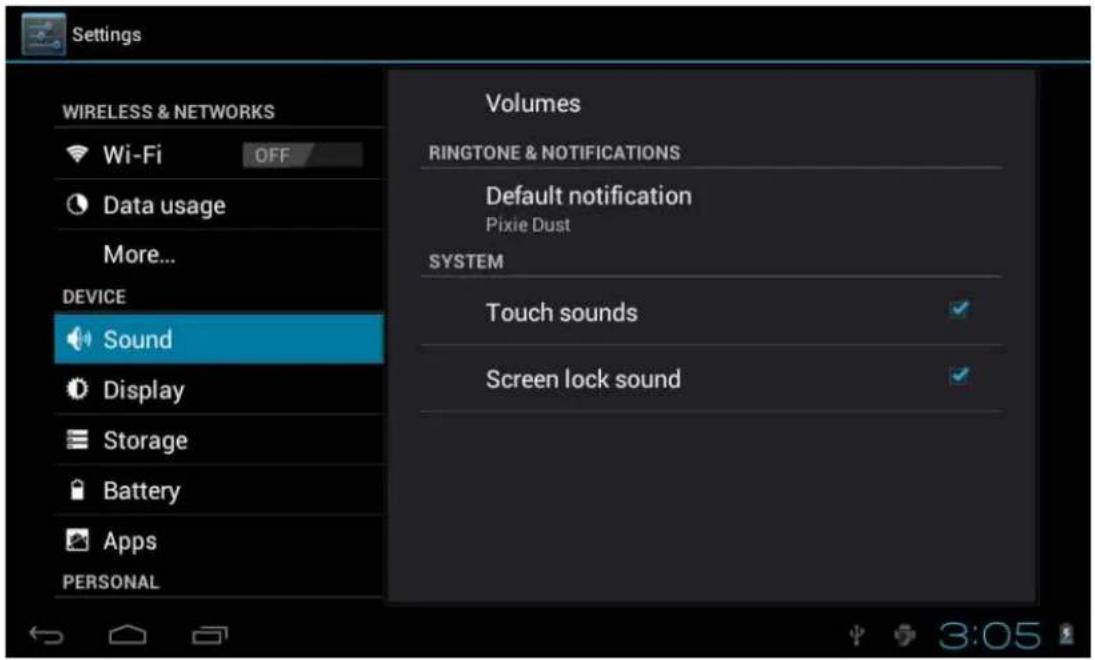
4.1 Silent mode, Volume, Notification ringtone, Audible selection, Screen lock sounds,
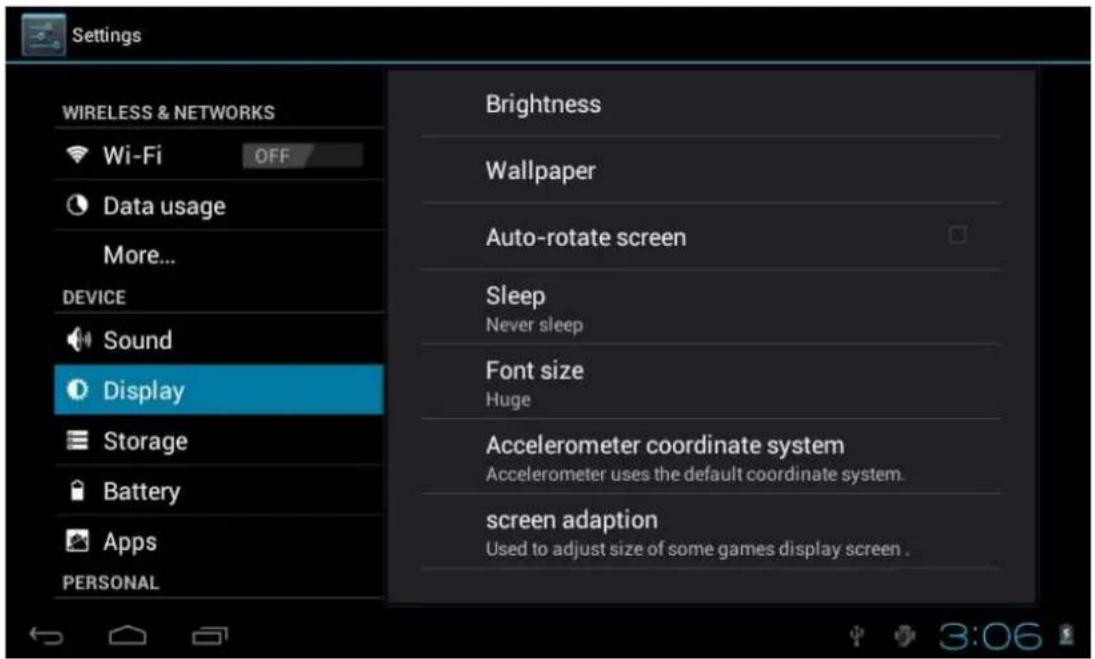
4.2Application
Manage applications
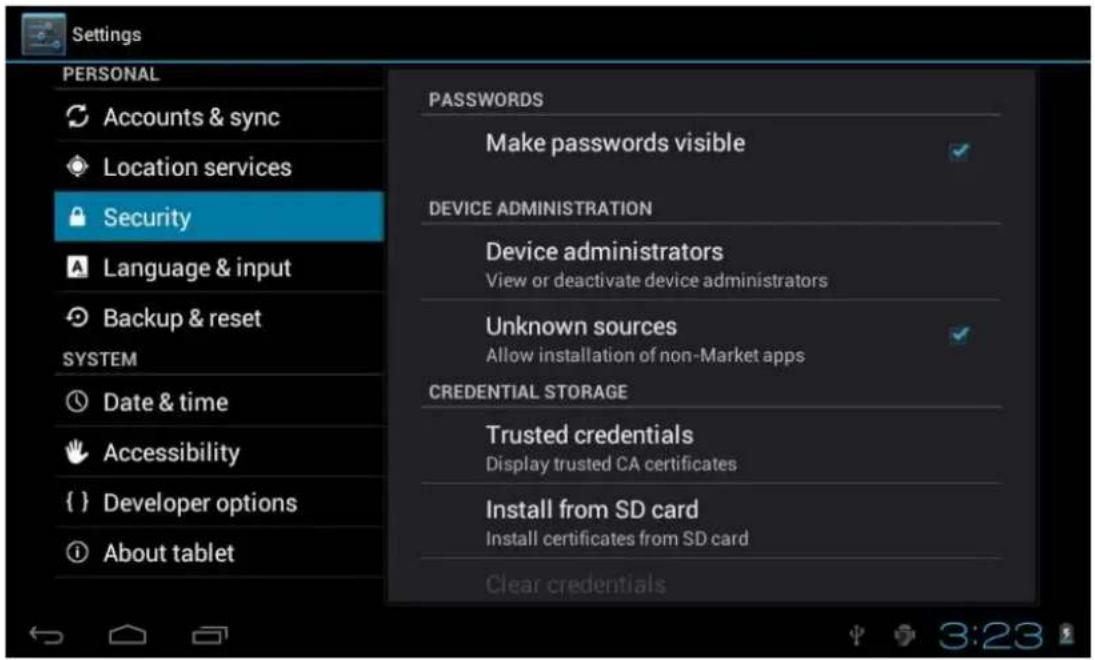
Unknown sources: Click "Unknown Sources", then click "OK" Manage application: manager and uninstall Application
【Remark】: when you Firmware Upgrade, please close the USB connect
How to uninstall?

- enter "Setting">"Application">"Manage application" And then there will be installed the program list
- Click you want to uninstall icons, will enter the following interface
- Click Uninstall, then you can delete the application
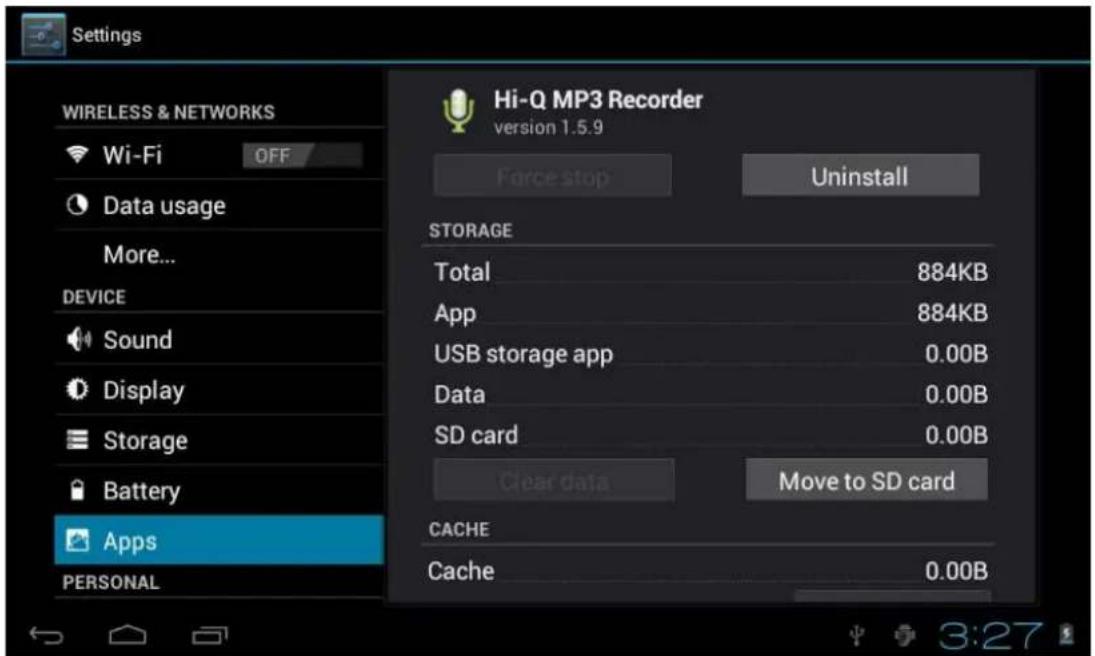
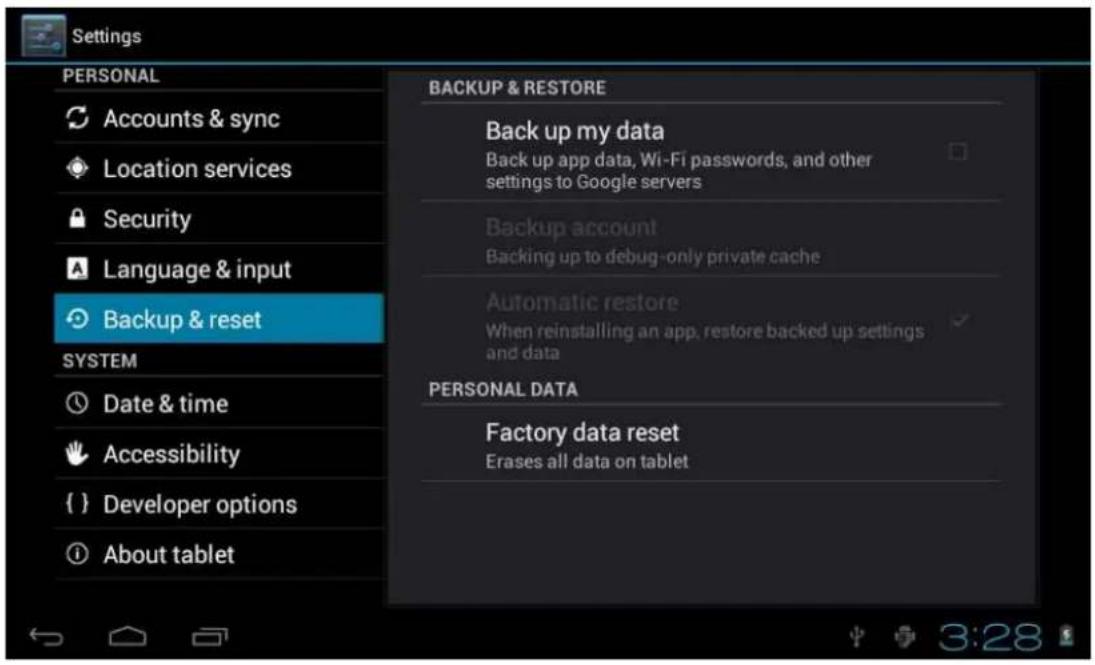
4.3Privacy
Factory data reset
4.4Storage
Remove TF card, view of the available storage space
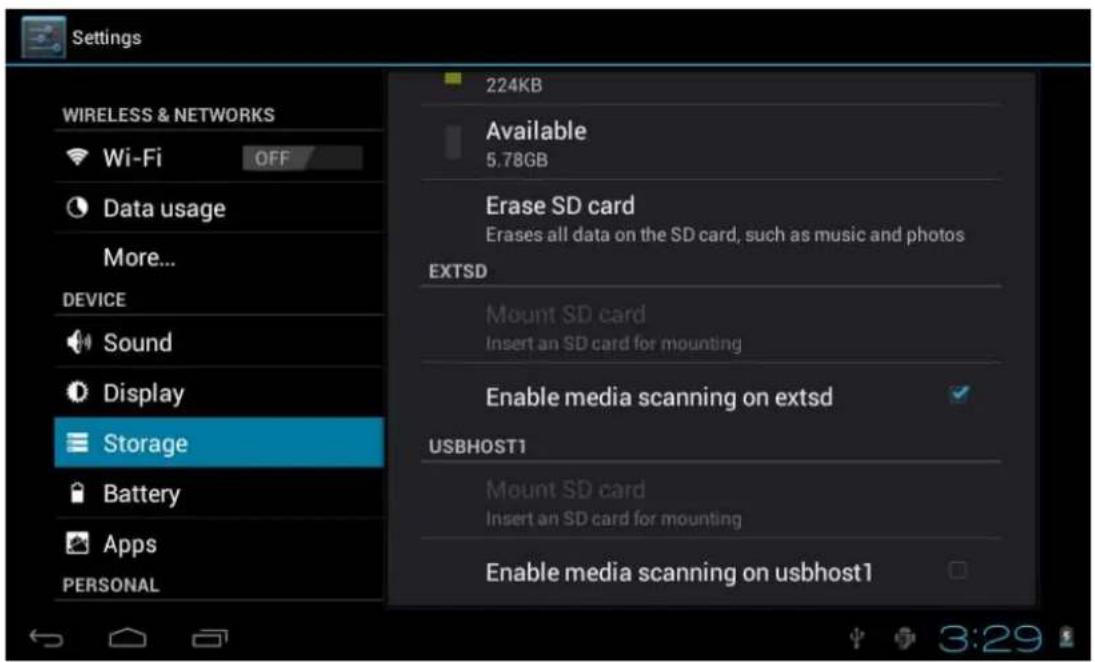
【Remark】: please touch option "delete SD card", so that can safety to
remove SD card
4.6. Language & keyboard
Setting: (Language), text input and automatic error correction options;
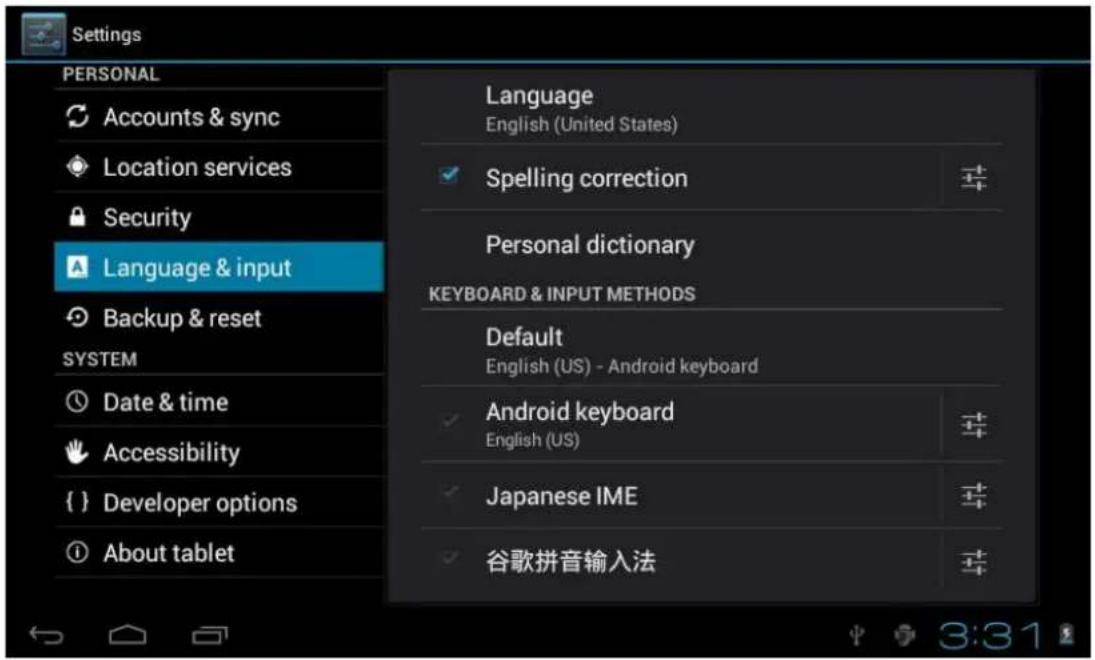
Select Language: 54 kind of national languages are available
Remark: Android system can support 54 kind of language, now menu interface just support 14 language,
Android keyboard: Android keyboard setting
Sound on Key-press
Show suggestions: Display suggested words while typing
Auto-complete: Spacebar and punctuation automatically insert highlighted word
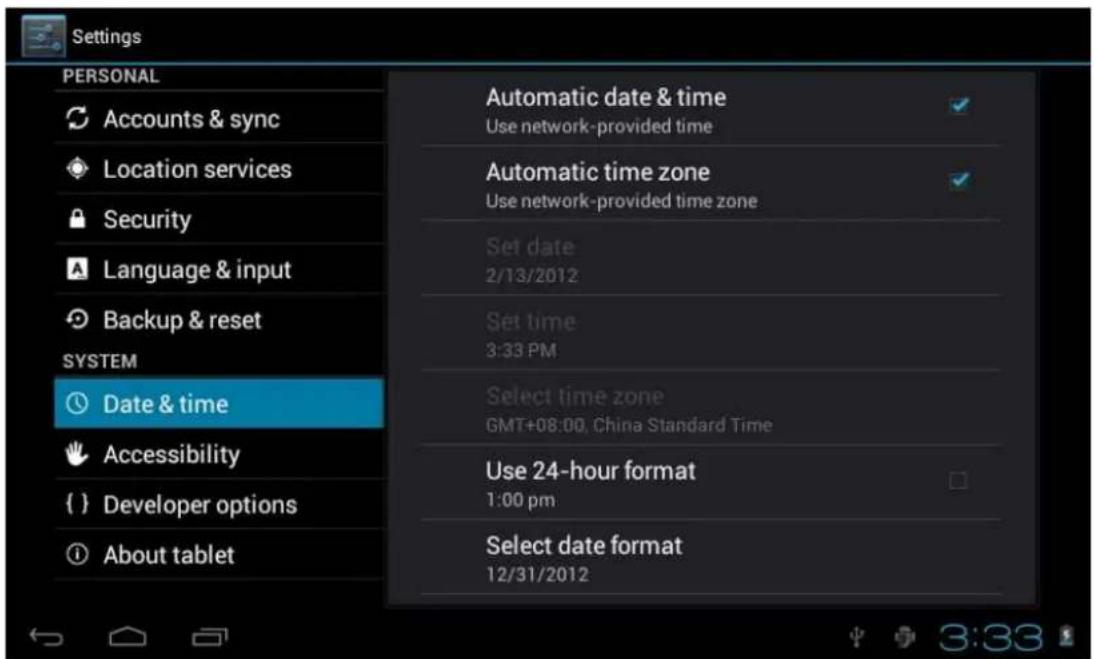
4.7. Date & time setting
Set date, set time, Select time zone and select date format
4.8 USB Mode Select
Choose USB work pattern: OTG/HOST/SLAVE.....
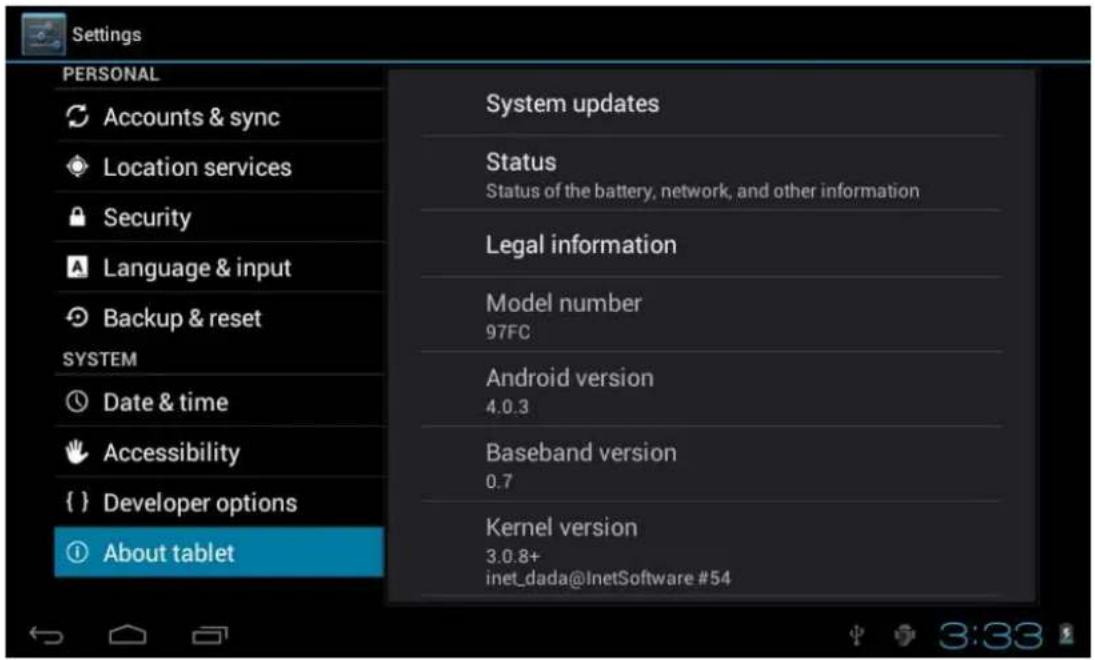
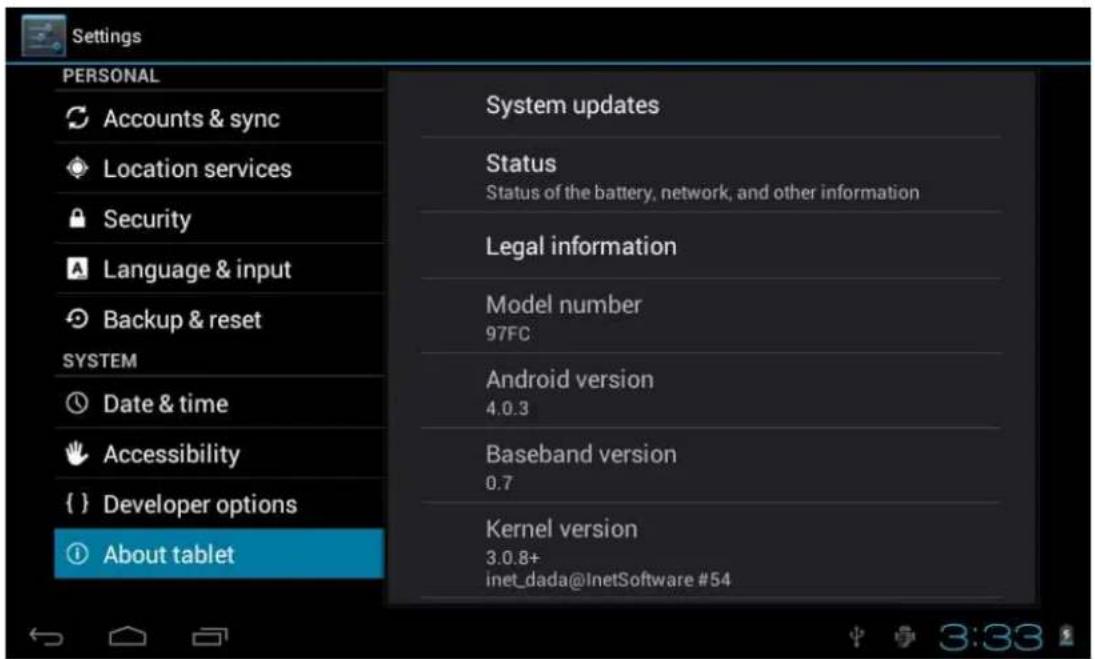
4.9 About device
5. Apps Install and manage
5.1 Appinstaller
This Tablet can support Android APP in market by third party, most Apps can install in the network, can copy to NAND FLASH or SD card.
Click Appinstaller icon, will appear Install, manage, Exit options.
Install: Click install, enter Apk install interface
Separately for Internal Memory disk and SD Card disk.
Select the APK you would like to install, click it to install, go back to main menu, will display the installed app you just selected.
Remark: some 3^rd APP must install properly by memory card, downloaded 3^rd party app may not install properly on device.
Manage: click manage, enter third party interface
Click install icon, will enter Action interface
6. Problem solution
Device can't to open
- Check the battery power
-
Connect adaptor first, then check again
-
After charging then can't to open, please contact with the supplier
After startup the screen or the opening picture has been appear, the device appear shutdown
-
Power is not enough, please charge Headset can't hear the voice
-
Please check the volume whether set to 0
- Check the music file whether damaged. Try playing other music, if the file have damaged may lead to serious noise or hop sounds.
Can copy file or play music and so on
-
Please check between computer and device is correct connection
-
check the memory storage space is already full
-
check the USB cable is good or not
-
USB connection is disconnected
Sonfer
"Features can change without notice"
Imported: I.R.P., S.L.
DECLARATION OF CONFORMITY
I.R.P., SL declare under our responsibility that the equipment meets the requirements indicated in the following directives:
EMC DIRECTIVES
ETSI EN 301 489-1 V1.9.2(2011-09)
ETSI EN 301 489-17 V2.1.1(2009-05)
EN60950-1:2006+A11:2009+A12:2011
ETSI EN300328 V1.7.1
Description of apparatus:
SONFER Model SFTPC-107-B-N
Mobile Internet Device
Importer: I.R.P., SL
Address: Avenida Santa Clara de Cuba 5, 41007, Sevilla.
- SFTPC-107-B-N
- Almacenamiento
- APLICACIONES: INSTALAR Y ADMINISTRAR
- Operation Manual
- Attention:
- Touch panel
- POWER
- ESC
- 1,4 Menu
- Volume +, Volume-
- earphone jack
- TF card
- MiniUSB
- Reset
- First use
- Battery management and charge
- Connection with PC
- status bar describe
- Use touch panel
- 4.2Application
- 4.3Privacy
- 4.4Storage
- Language & keyboard
- USB Mode Select
- About device
- Apps Install and manage
- Appinstaller
- Problem solution
- Device can't to open
- Sonfer
- DECLARATION OF CONFORMITY
- EMC DIRECTIVES
Brand : BRIGMTON
Model : SFTPC-107-N
Category : Tablet