
RX-G985 - Mousse Sven - Free user manual and instructions
Find the device manual for free RX-G985 Sven in PDF.


| Product Type | Gaming Mouse |
| Model | RX-G985 |
| Brand | SVEN |
| Interface | USB |
| Sensor Type | Optical |
| Resolution (DPI) | 250–4000 (adjustable in 4 steps) |
| Number of Buttons | 9 + 1 (scroll wheel) |
| Cable Length | 1.8 m |
| Dimensions (L × W × H) | 125 × 37 × 67 mm |
| Weight | 170 g |
| Material | Aluminum case |
| Cable Type | Braided |
| Acceleration | 20G |
| Backlight | RGB, changeable (Modes: Standard, Respiration, Neon) |
| Software Support | Yes (button remapping, macros, DPI and backlight settings) |
| OS Compatibility | Windows XP / Vista / 7 / 8 / 10 |
| Power Source | USB bus power (5V DC) |
| Adjustable Size | Yes (hexagonal key included, screws under lid and on back) |
| Included Accessories | Driver CD, hexagonal key, user manual |
| Cleaning | Wipe with a dry, soft cloth |
| Safety Precautions | Keep away from liquids; do not disassemble; seek professional service for repairs |
| Manufacturer | SVEN PTE LTD, Singapore |
| Country of Origin | China |
Frequently Asked Questions - RX-G985 Sven
User questions about RX-G985 Sven
0 question about this device. Answer the ones you know or ask your own.
Ask a new question about this device
Download the instructions for your Mousse in PDF format for free! Find your manual RX-G985 - Sven and take your electronic device back in hand. On this page are published all the documents necessary for the use of your device. RX-G985 by Sven.
USER MANUAL RX-G985 Sven
natural_image
Top-down view of a black NEAN sustainable gaming headset with visible branding and control buttons (no text-heavy elements)Рис. 3
Рис. 7

Рис. 8

Рис. 9
Рис. 10

Рис. 11
Рис. 12
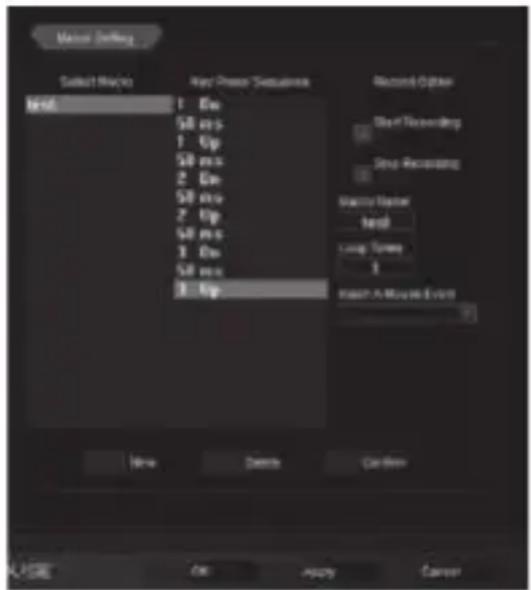
Рис. 13
Мал. 7

Мал. 8
Мал. 9
Мал. 10

Мал. 11
Мал. 13
Congratulations on your purchase of the Sven mouse!
Please read this User's Manual before using the unit and retain this User's Manual in a safe place for future reference.
COPYRIGHT
© 2017. SVEN PTE. LTD. Version 1.0 (V 1.0).
This Manual and information contained in it are copyrighted. All rights reserved.
TRADEMARKS
All trademarks are the property of their legal holders.
NOTICE OF RESPONSIBILITY RESTRICTION
Despite the exerted efforts to make this Manual more exact, some discrepancies may occur. The information of this Manual is given on «as is» terms. The author and the publisher do not bear any liability to a person or an organization for loss or damages which have arisen from the information contained in the given Manual.
BUYER RECOMMENDATIONS
- Shipping and transportation equipment is permitted only in the original container.
- Does not require special conditions for realization.
- Dispose of in accordance with regulations for the disposal of household and computer equipment.
SPECIAL FEATURES
- Aluminum case with arm size adjustment
- Software for additional settings
- Braided cable
• Acceleration of 20G - Comprehensive design of the manipulator
User's Manual
RX-G985
- Changeable mouse backlight
- Drivers for Windows XP/ Vista /7/8/10 are not required
SYSTEM REQUIREMENTS
- Windows XP/Vista/7/8/10.
- Free USB port.
INSTALLATION
- Connect the mouse to an available USB port of your PC.
- Installation of the mouse is automatic after its connection to a PC USB port.
- To activate the built-in mouse memory, adjust the buttons and the backlight you need to install the software (from the package or download from www.sven.fi). To do this, insert the driver CD into the PC drive, or run the previously downloaded SVEN RX-G985.exe file and run the program to install the driver.
- After startup, the program automatically detects the presence of the mouse. Call the control window using the icon in the taskbar.
The «Basic Settings» window
On the left there is a picture of the mouse with the number of buttons, to the right – the settings of the mouse itself.
- Key Setting – The button setting area is used to change the functions of the mouse buttons. The «Mode A» and «Mode B» buttons allow you to create two mouse button configuration profiles, the Default button resets the default mouse button settings.
-
Report Rate Setting – In the mouse response speed setting area, the user can choose how many times per second the mouse will inform the operating system of its position – 125, 250, 500 or 1000.
-
DPI Setting – The sensor resolution setting area (DPI) allows you to adjust the speed of movement, the positioning accuracy of the mouse cursor and the color of the RGB LED backlighting corresponding to the sensor resolution. By setting or removing, tick 1 to 4, you can select the number of steps to switch the resolution (DPI). For each of the four steps, it is possible to rebuild the resolution (DPI) from 250 to 4000, the color of the resolution light can be changed by clicking on the colored square.
-
DPI Effect – adjusts the backlight and flash frequency of the LED. In the Mode list, you can select Standard (the illumination lights up in one color), Respiration (the lighting is cycled on / off) and Neon (it is overflowed with different colors). The Parameter list depends on the selected mode: in Standard mode, it adjusts the brightness, in Respiration mode – the time during which the backlight lights up, in Neon mode – the time before switching to the next color.
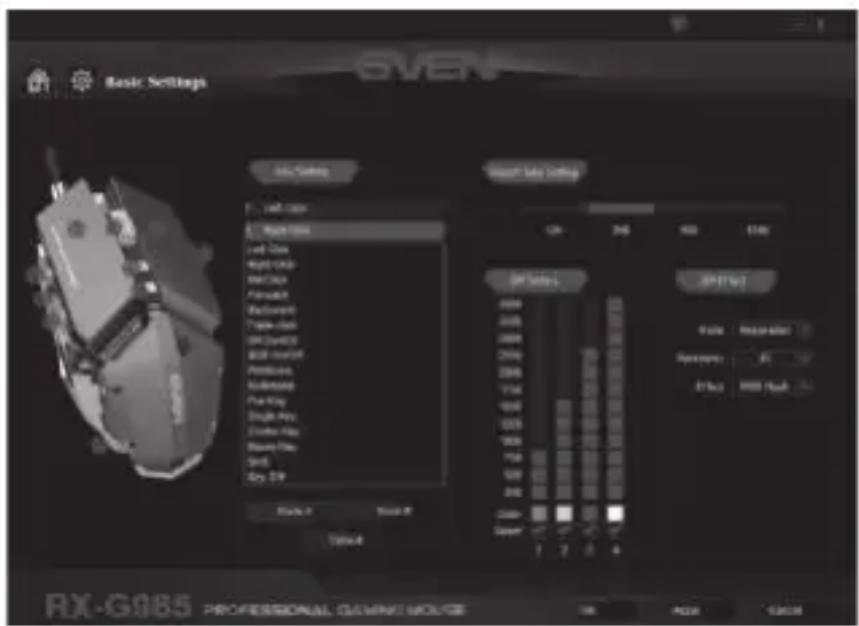
Fig. 1
User's Manual
RX-G985
-
The buttons for applying settings allow:
-
load all profile settings made into the mouse memory and close the program window («Ok» button).
- cancel all settings made without saving («Cancel» button).
- Load all profile settings made into the mouse memory without closing the application window («Apply» button).
Customizing Mouse Buttons
In the main window, you can customize the functions of all the mouse buttons.
Each button in the figure is numbered. To configure the
button, you must select it in the list on the right. The settings of the right and left mouse button allow you to swap them (for example, for left-handed users).
The list of default keys (Fig. 2):
- Left Click – emulates clicking on the left mouse button.
- Right Click – emulates a click on the right mouse button.
- Mid Click – emulates clicking on the wheel-mouse button.
- DPI + - increase the sensor resolution.
- DPI- - decrease the sensor resolution.
- Shift DPI – while holding the button, the resolution (DPI) is turned on at the minimum.
- Backward – opens the previous page in the Internet browser.

Fig. 2
- Forward – opens the next page in the Internet browser.
- Triple-click – Triple-click on the key.
- RGB On/Off – turns on/off the RGB LED.
You can reassign the buttons by clicking on the menu items, thus pop-up menu, in which you can redefine the keys, assign a macro (pre-configured shortcut options), bind buttons to the multimedia button. The detailed description of each line is described below.

Sensor Resolution (DPI) Settings
DPI Switch – DPI switch, submenu contains four sub-items:
- DPI + - increases DPI to the maximum active value;
- DPI- – decreases the DPI to the minimum active value;
- DPI Loop – cycles through the active DPI values;
- Shift DPI – when you hold down the button to which it is assigned, the sensitivity switches to the lowest possible (250 DPI), which allows you to more accurately aim at shooting, for example from a sniper rifle.
Fig. 3
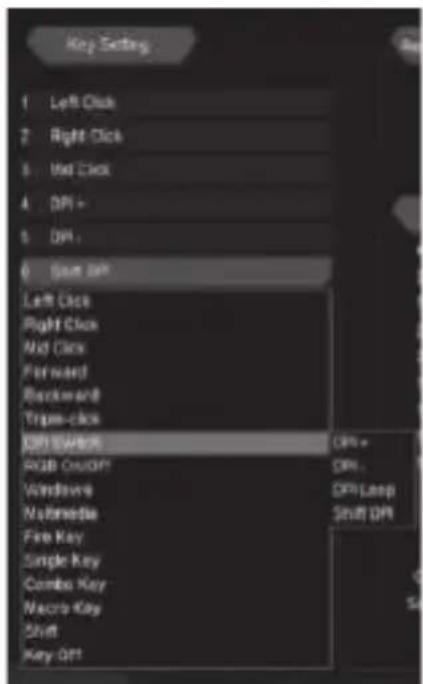
Fig. 4
User's Manual
RX-G985
Customize the Windows menu
If you select the «Windows» line, an additional window will open, in which you can configure the mouse button to click on which one of the following nine reactions will trigger:
- Multimedia Player – launches standard player in Windows system
- Mail – starting the mail client
- Calculator – starting the calculator
• My Computer – Start Windows Explorer - Browser-Search – activates the search string
- Browser-Home – opens the homepage in the browser
- Browser-Back – navigate through the «Back» tabs
- Browser-Forward – navigate the «Forward» tabs
- Browser-Stop – navigate the tabs «Stop»

Fig. 5

Fig. 6
Customizing the Multimedia menu
Multimedia – opens a submenu where standard commands for managing media players are collected.
- Next – turns on the next track;
- Previous – turns on the previous track;
- Stop – stops the playback of the media file;
- Play/Pause – starts / pauses playb the media file;
- Mute – turn off the sound;
- Vol+ – increase the volume level;
- Vol- – decrease the volume level.
Hotkeys
Fire Key – in the form in which it is configured by default for the button, allows you to click the left mouse button several times in a row. Select this function in the menu, you can press the key from A to J (alphabetically), and also select the speed and number of keystrokes of the selected key.
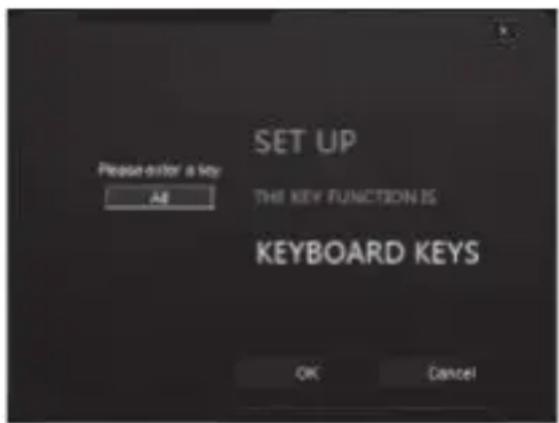
Single Key – allows you to press any key located on the keyboard once.
Combo Key - allows you to combination of keys, such as Ctrl + Shift + V.
- In the first line, select Left Ctrl;
- In the second line, press the Shift key on the keyboard;
- In the third line, press «V» on the keyboard;
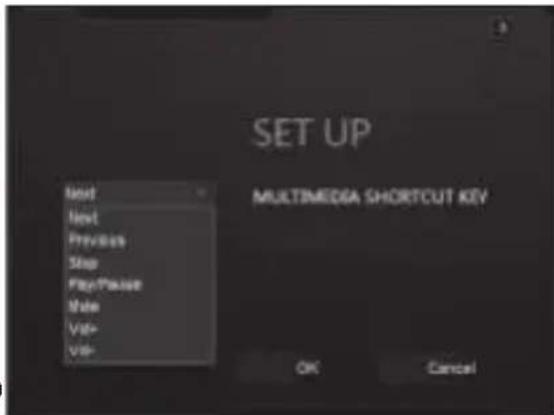
Fig. 7

Fig. 8
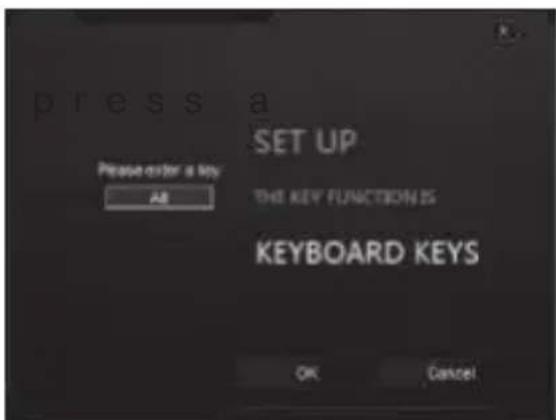
Fig. 9
User's Manual
RX-G985
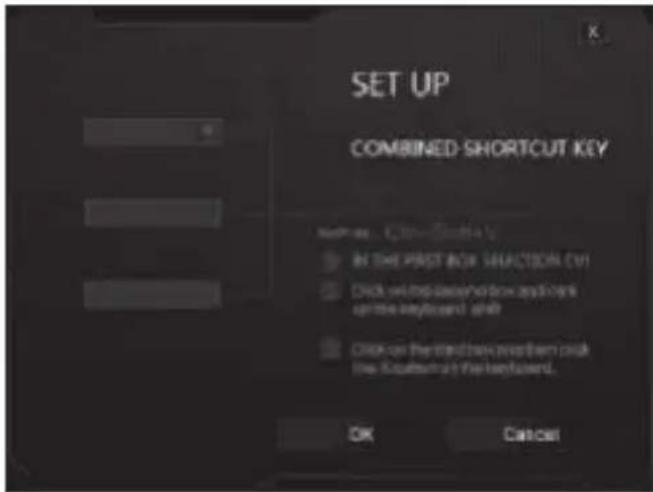
Fig. 10

Fig. 11
Macro Key – allows you to bind a previously saved macro, as well as its operation mode. Before selecting a macro from the list, you need to create it in the Advanced Settings, Macro Settings (description of creating macros on page 30).
The menu contains three options for setting the mode (selecting the modes is done by checking the checkbox):
- Repeats the input of the macro, one press of one macro.
- Press the button again until you press it again.
- Repeats the input of the macro while the mouse button is pressed.
Basic Settings
The «Basic Settings» window in the left part of the window allows you to configure the settings that are customizable in the Control Panel -> Mouse, namely pointer speed, scrolling speed and double click speed. Macros are configured in the right part of the window.
- Mouse Speed – the speed of moving the pointer on the so checkmark «Enhance Pointer Precision», increases the accuracy of the pointer.
- Scrolling Speed – the speed of scrolling, with the mouse wheel.
- Double-Click Speed - double-click speed, 1 - requires double-click, 11 - minimum time for double-click.
Configure macro commands
In the Record Option field, type «Macro Name», enter the name of the macro (any name is 8 characters), click «New», the name of the new macro command appears in the «Select Macro» field, in the line «Loop Times» – enter the number of repetitions of the macro. Then you need to press the «Start Recording» button, and from the keyboard the sequence of characters pressing the keys in turn, after entering the characters we press the «Confirm» button.
In the «Insert A Mouse Event» drop-down list, you can add an imitation of mouse clicks.
In the «Key Press Sequence» window, all pressed characters will be displayed, and the pause time between them. Double clicking on a pause allows you to add or decrease the time between keystrokes. Apply and save all the settings by clicking the «Apply» button.
Mouse Size Adjustment
There is a hexagonal key (included), which can loosen the screws to adjust the size of the mouse. The two screws are on the back of the mouse one under the lid.
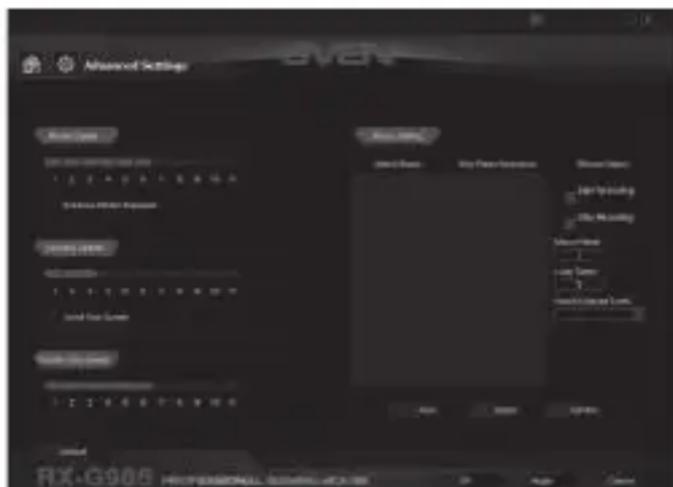
Fig. 12
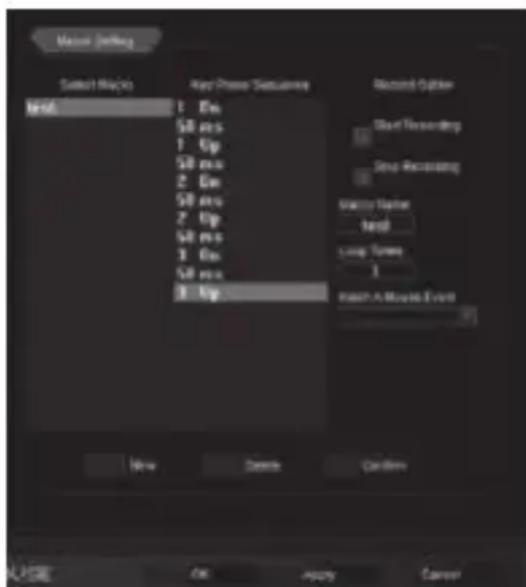
Fig. 13
TROUBLESHOOTING
| Problem | Solution |
| The mouse is not working. | 1. Disconnect the mouse from the PC and check connector pins for possible damage. If there is no external damage found and connector pins are OK, connect the mouse to the PC.2. Address your nearest authorized service center. |
If none of the above methods can solve the problem, please seek professional advice at your nearest service center. Never attempt to repair the product yourself.
TECHNICAL SPECIFICATIONS
| Parameter, measurement unit | Value |
| OS compatibility | Windows XP/Vista/7/8/10 |
| Type of mouse | optical |
| Resolution, dpi | 250-4000 |
| Q-ty of buttons | 9 + 1 (scroll wheel) |
| Interface | USB |
| Conformity with | FCC, CE |
| Cable length, m | 1,8 |
| Dimensions, mm | 125 × 37 × 67 |
| Weight, g | 170 |
Notes:
- Technical specifications given in this table are supplemental information and cannot give occasion to claims.
- Technical specifications are subject to change without notice due to the improvement of SVEN production.
Technical support is on www.sven.fi.
Manufacturer: SVEN PTE. LTD, 176 Joo Chiat Road, N° 02-02, Singapore, 427447. Produced under the control of Oy Sven Scandinavia Ltd. 15, Kotolah-dentie, Kotka, Finland, 48310. Made in China.
® Registered Trademark of Oy SVEN Scandinavia Ltd. Finland.
EAC C€
RX-G985
- Congratulations on your purchase of the Sven mouse!
- COPYRIGHT
- TRADEMARKS
- NOTICE OF RESPONSIBILITY RESTRICTION
- BUYER RECOMMENDATIONS
- SPECIAL FEATURES
- User's Manual
- RX-G985
- SYSTEM REQUIREMENTS
- INSTALLATION
- The «Basic Settings» window
- Customizing Mouse Buttons
- Sensor Resolution (DPI) Settings
- Customize the Windows menu
- Customizing the Multimedia menu
- Hotkeys
- Basic Settings
- Configure macro commands
- Mouse Size Adjustment
- Notes:
Brand : Sven
Model : RX-G985
Category : Mousse