
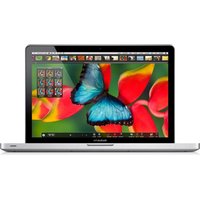
POWERBOOK G4 12 INCH - Laptop APPLE - Free user manual and instructions
Find the device manual for free POWERBOOK G4 12 INCH APPLE in PDF.



| Product Type | Laptop |
| Brand | Apple |
| Model | PowerBook G4 12-inch |
| Processor | PowerPC G4 |
| Display | 12.1-inch (30.7 cm) TFT |
| Dimensions (W x D x H) | 27.7 cm x 21.9 cm x 2.8 cm |
| Weight | 2.1 kg |
| Power Supply | 45 W AC Adapter |
| Battery | Rechargeable Lithium-ion |
| Storage | ATA Hard Drive (variable capacity) |
| RAM | PC133 SDRAM (up to 640 MB) |
| Wireless Connectivity | AirPort Extreme (Wi-Fi 802.11g) |
| Ports | USB, FireWire, Ethernet, modem |
| Operating System | Mac OS X |
| Main Features | Office work, Internet browsing, multimedia |
| Maintenance and Cleaning | Clean with a soft, dry cloth; avoid moisture |
| Safety | Turn off the device before any intervention; discharge static electricity |
| Spare Parts and Repairability | AirPort card, battery, AC adapter |
| Certified Product | Compliant with applicable standards |
| Warranty | Apple one-year limited warranty |
Frequently Asked Questions - POWERBOOK G4 12 INCH APPLE
User questions about POWERBOOK G4 12 INCH APPLE
0 question about this device. Answer the ones you know or ask your own.
Ask a new question about this device
Download the instructions for your Laptop in PDF format for free! Find your manual POWERBOOK G4 12 INCH - APPLE and take your electronic device back in hand. On this page are published all the documents necessary for the use of your device. POWERBOOK G4 12 INCH by APPLE.
USER MANUAL POWERBOOK G4 12 INCH APPLE
AirPort Extreme Card Replacement Instructions
Follow the instructions in this sheet carefully. Failure to follow these instructions could damage your equipment and void its warranty.
Note: Written and video instructions covering customer-installable parts are available at http://www.info.apple.com/installparts/.
Warning: During this procedure, keep small parts away from children.
Tools Required
The following tools are required for this procedure:
- Coin
- Black stick (or other nonconductive nylon or plastic flat-blade tool)
Opening the Computer
Warning: Always shut down your computer before opening it to avoid damaging its internal components or causing injury. After you shut down the computer, the internal components can be very hot. Let the computer cool down before continuing.
- Place your computer on a clean, flat surface.
- Shut down your computer and wait five minutes before continuing.
- Unplug all cables from the computer.
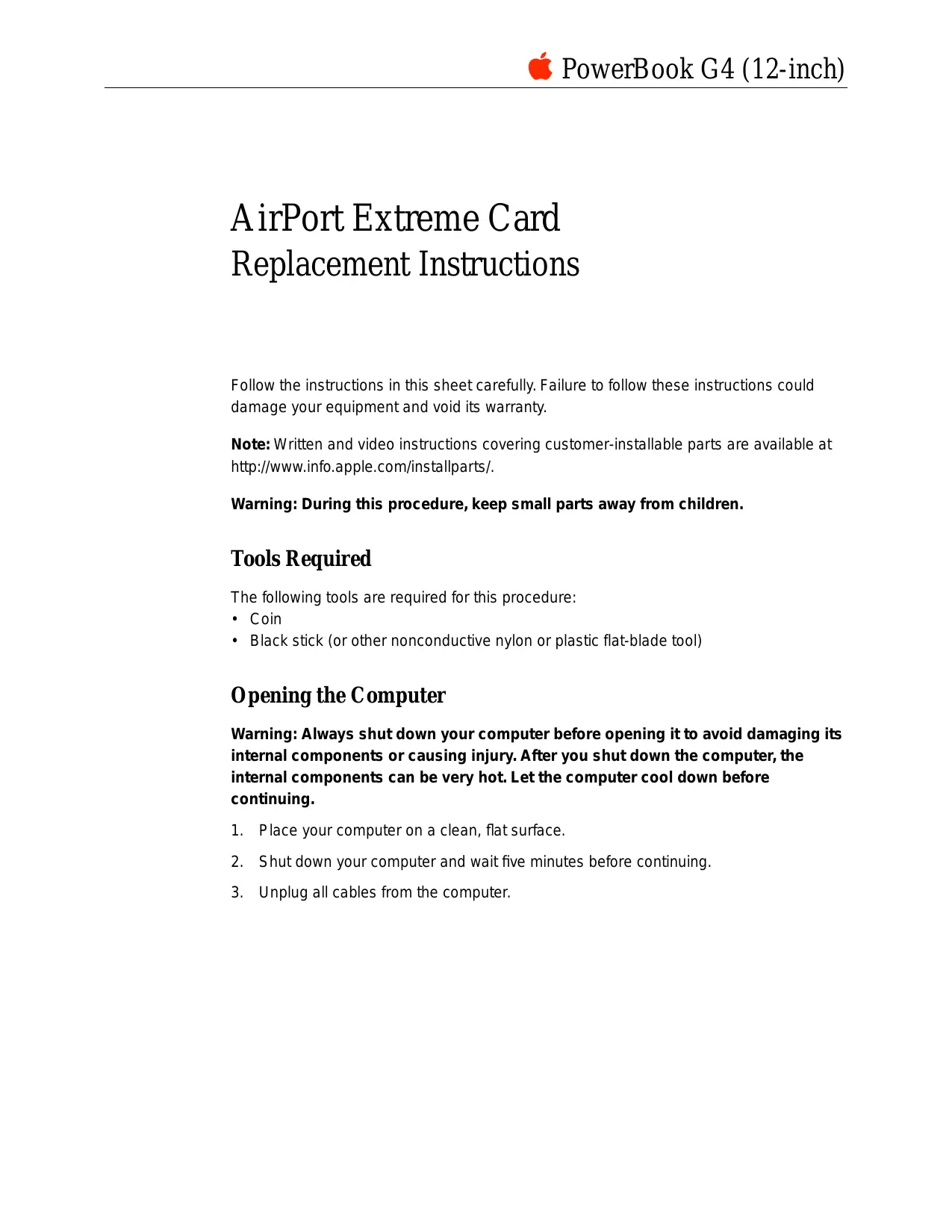
- Turn over the computer, and use a coin to release the battery lock. (Figure 1)
- Lift the battery out of the battery bay.
Figure 1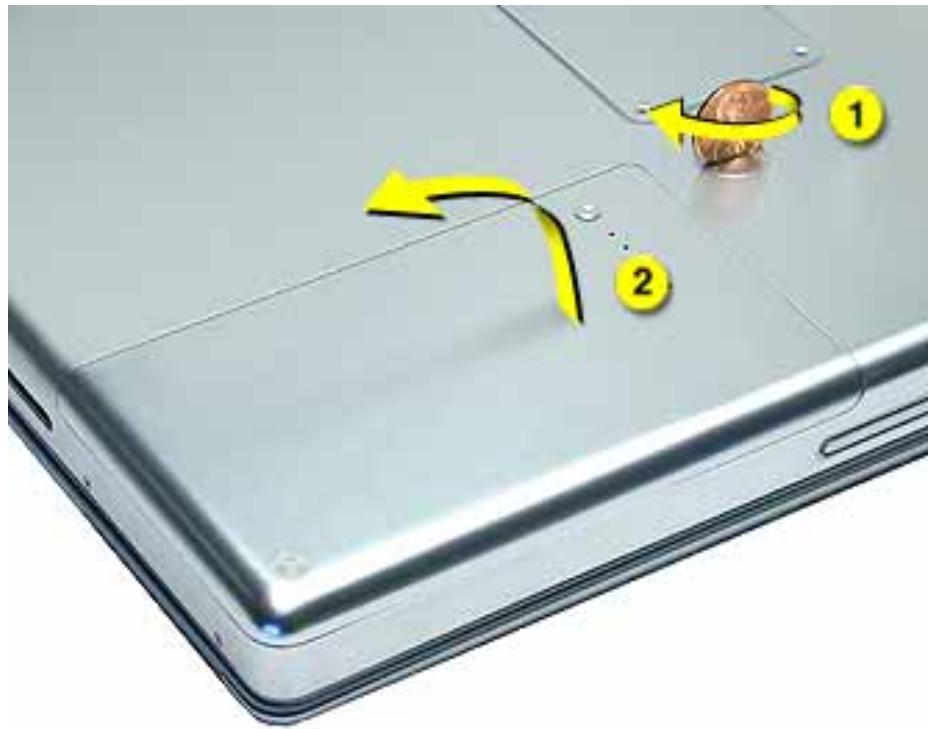
- Touch a metal surface inside the battery bay to discharge static electricity built up on your body. (Figure 2)
Important: To avoid electrostatic discharge, always ground yourself by touching the inside of the battery bay before you touch any parts or install any components inside the computer. To avoid static electricity building back up in your body, do not walk around the room until you have completed the installation and closed the computer.
Figure 2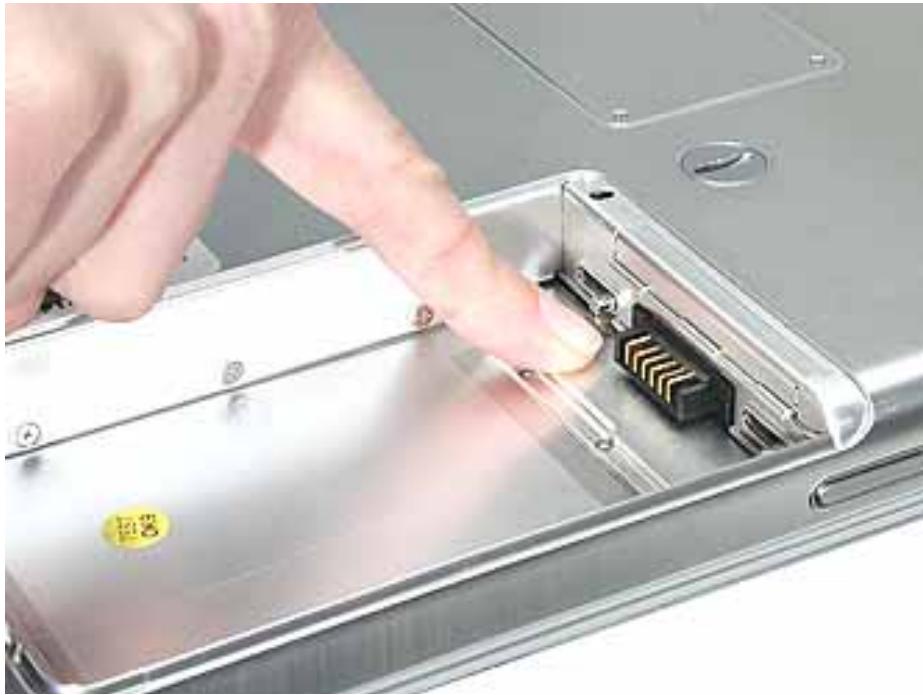
Installing the Replacement AirPort Extreme Card
1. Open the door to the AirPort slot. (Figure 3)
Figure 3
- If an optional AirPort Extreme Card is already installed, use a black stick to un-loop the pull tab. (Figure 4)
Figure 4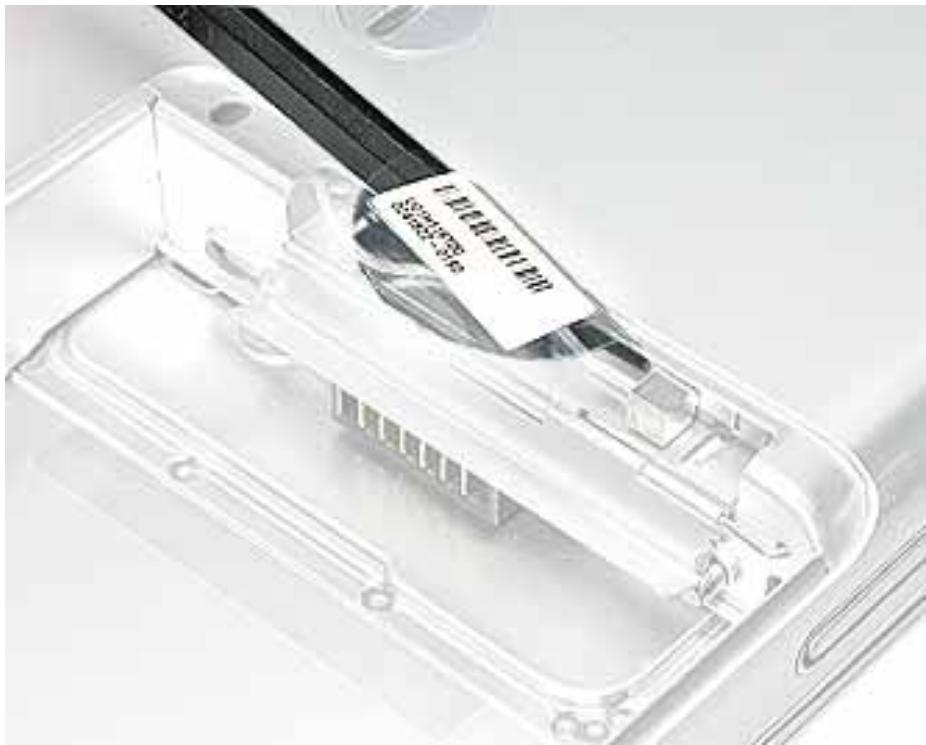
3. Gently disconnect the AirPort antenna cable. (Figure 5)
Figure 5 4. Use the pull tab to pull out the AirPort Extreme Card. (Figure 6)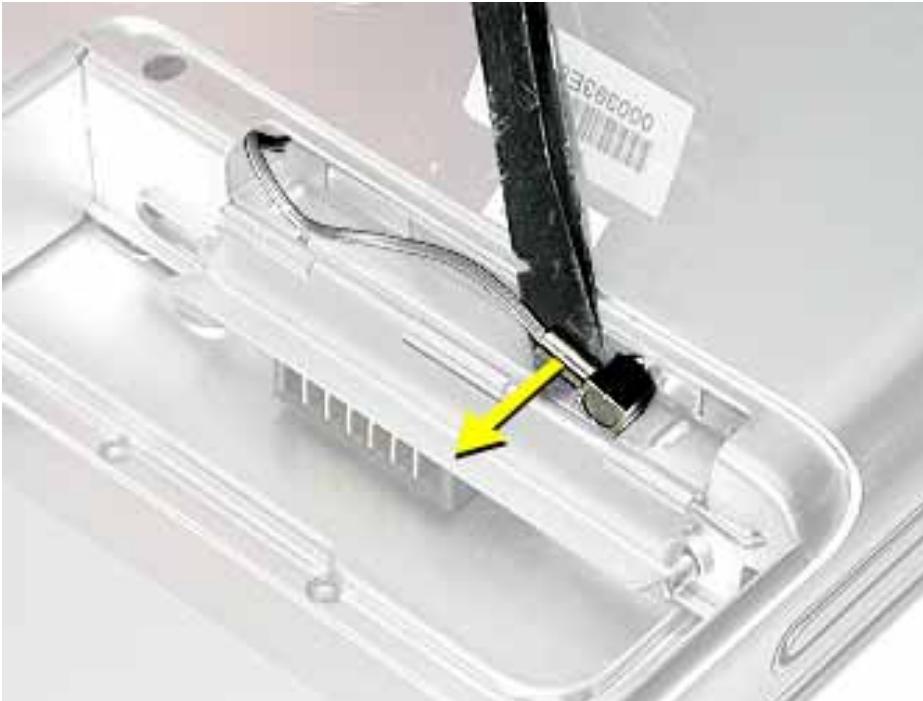
Figure 6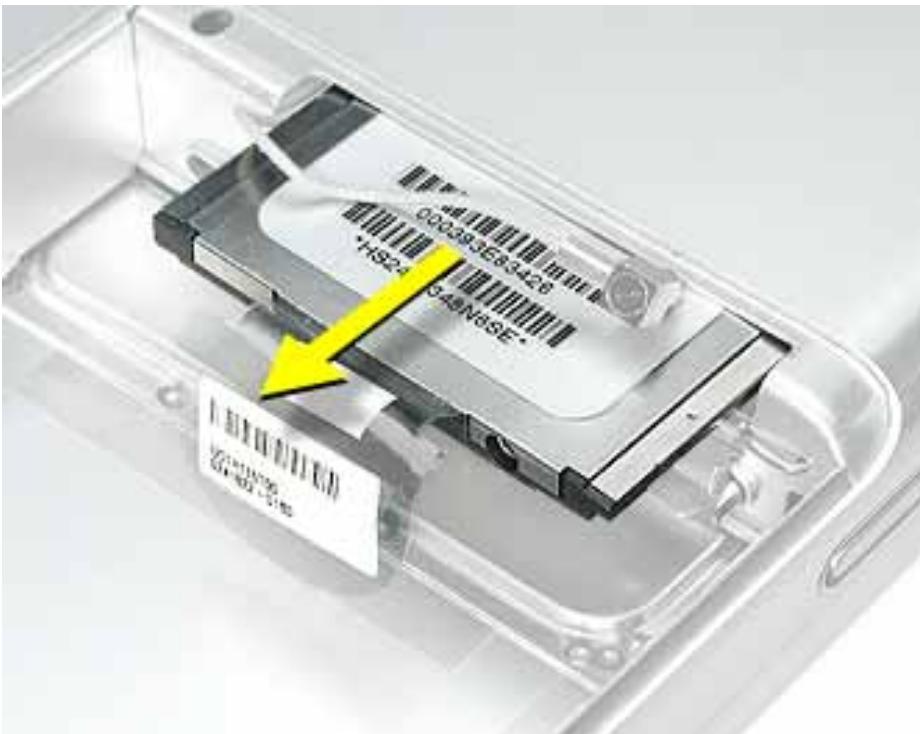
5. Slide the replacement AirPort Extreme Card into the slot, as shown. (Figure 7)
Figure 7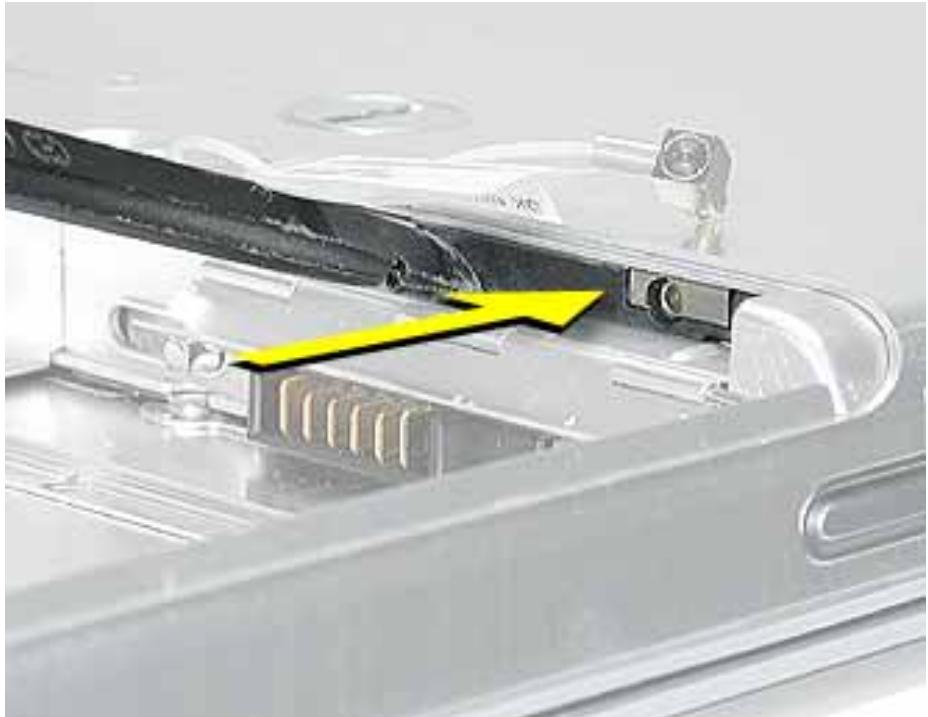
- Connect the end of the antenna cable to the card. (Figure 8)
- Loop the clear plastic tab over and under the card so that the tab secures the antenna cable and tucks into the slot.
Figure 8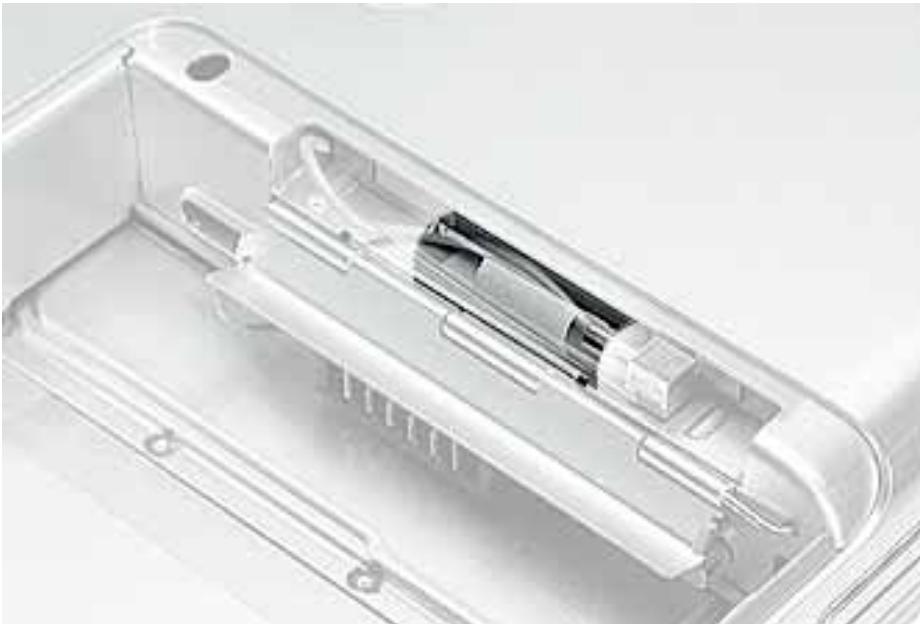
- Make sure the card is fully inserted, as shown in the second image. (Figure 9)
Figure 9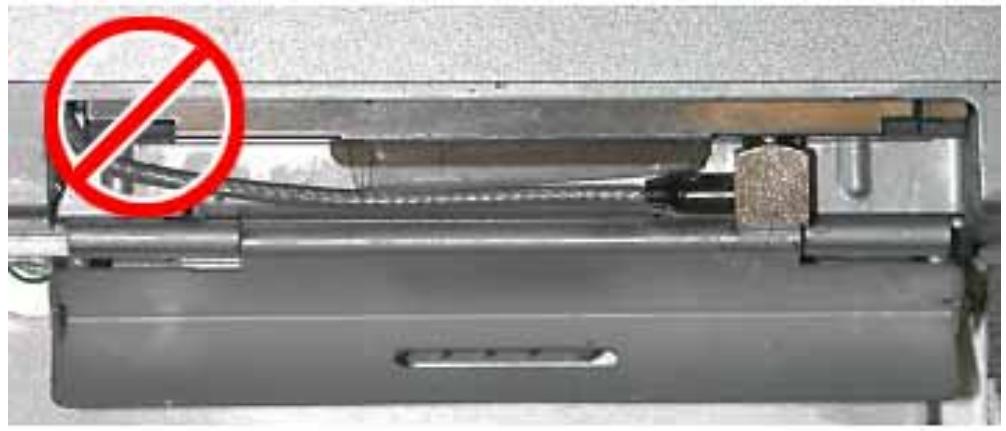
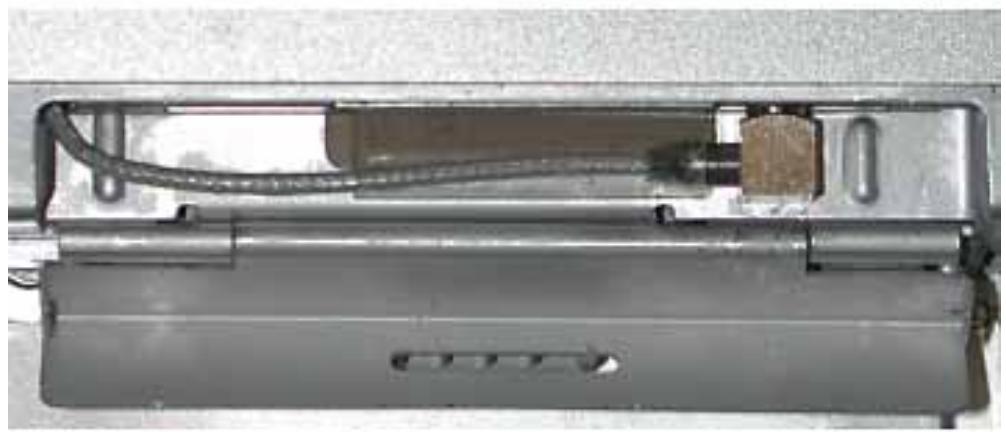
- Close the AirPort door.
Closing the Computer
- Install the battery back in the battery bay.
- Reconnect all cables and restart your computer.
Warning: Never turn on your computer unless all of its internal and external parts are in place and it is closed. Operating the computer when it is open or missing parts can damage your computer or cause injury.
Apple Computer, Inc.
© 2003 Apple Computer, Inc. All rights reserved.
This document is protected under U.S. Copyright Law and International Treaties, and no part of this document may be reproduced in any form without written permission from Apple.
Apple is not responsible for typographical, printing, or inadvertent errors.
Apple Computer, Inc.
1 Infinite Loop
Cupertino, CA 95014-2084
USA
+1 408 996 1010
http://www.apple.com
Apple and the Apple logo are trademarks of Apple Computer, Inc., registered in the U.S. and other countries. PowerBook and AirPort are trademarks of Apple Computer, Inc.


- AIRPORT EXTREME CARD REPLACEMENT INSTRUCTIONS
- TOOLS REQUIRED
- OPENING THE COMPUTER
- INSTALLING THE REPLACEMENT AIRPORT EXTREME CARD
- OPEN THE DOOR TO THE AIRPORT SLOT. (FIGURE 3)
- GENTLY DISCONNECT THE AIRPORT ANTENNA CABLE. (FIGURE 5)
- SLIDE THE REPLACEMENT AIRPORT EXTREME CARD INTO THE SLOT, AS SHOWN. (FIGURE 7)
- CLOSING THE COMPUTER
- APPLE COMPUTER, INC
Brand : APPLE
Model : POWERBOOK G4 12 INCH
Category : Laptop